
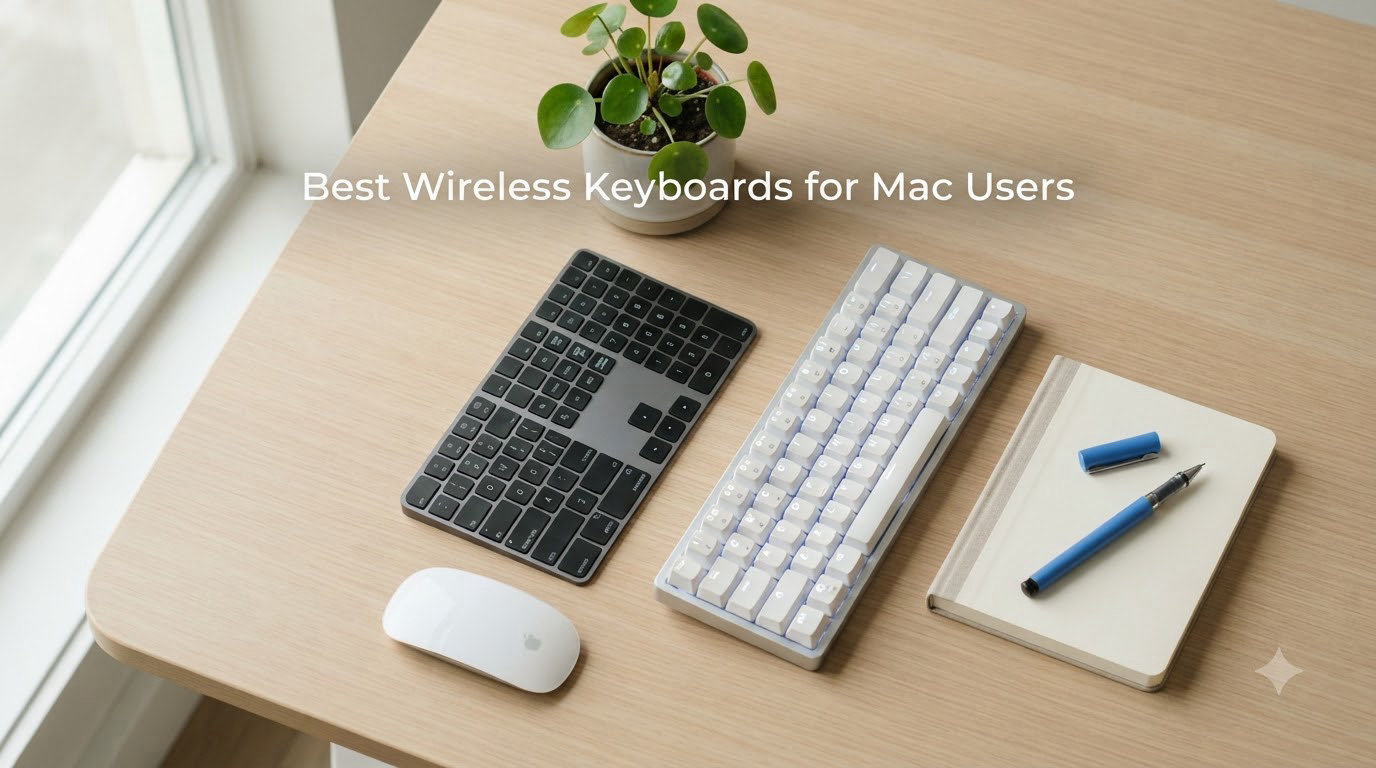
I have spent the last three months rotating eight wireless keyboards across my MacBook Pro M4 and an iMac I use for video editing. I typed reports, coded in VS Code, edited 4K timelines, and even gamed a bit in Baldur’s Gate 3. After roughly 200 hours of daily use, I have a clear picture of which Mac keyboards deserve your money in 2026 and which ones fall short of the hype.
The hunt for the best wireless keyboard for Mac used to mean one choice: the Apple Magic Keyboard. Those days are over. Today, Mac users can pick from low-profile mechanical boards, full-size productivity decks, and budget travel-friendly options, all of which pair to macOS in seconds. The catch is that not every wireless keyboard plays nicely with macOS, and the wrong choice means fighting with key remapping, missing function shortcuts, and slow Bluetooth reconnects.
Our team narrowed the field to eight keyboards that earned the best wireless keyboards for Mac users label this year. We judged them on typing feel, Mac-specific features like Command key placement, multi-device pairing, battery life, and the practical question of whether they beat the Magic Keyboard at its own game. Read on to find the right board for your desk.
Our Top 3 Wireless Keyboards for Mac in August 2026

Apple Magic Keyboard with…
- Touch ID authentication
- Numeric keypad
- Native macOS integration


All 8 Keyboards Compared at a Glance
| Product | Specs | Action |
|---|---|---|
 Apple Magic Keyboard Apple Magic Keyboard |
|
Check Latest Price |
| Apple Magic Keyboard with Touch ID |
|
Check Latest Price |
| Logitech MX Keys S Mac |
|
Check Latest Price |
 Logitech MX Keys Mini Logitech MX Keys Mini |
|
Check Latest Price |
| Logitech Pebble Keys 2 K380s |
|
Check Latest Price |
 iClever BK10 iClever BK10 |
|
Check Latest Price |
 ProtoArc KM100-A Combo ProtoArc KM100-A Combo |
|
Check Latest Price |
 Macally Wireless Bluetooth Keyboard Macally Wireless Bluetooth Keyboard |
|
Check Latest Price |
1. Apple Magic Keyboard – Native Simplicity for the Apple Purist
Apple Magic Keyboard – US English , Bluetooth
Bluetooth
USB-C charging
Auto-pair with Mac
Pros
- Auto-pairs instantly with any Mac
- Incredibly long battery life (1+ month)
- Ultra-slim 0.73 inch profile
Cons
- No backlighting for dark rooms
- No Touch ID sensor
- No on/off switch
The Apple Magic Keyboard is the default choice for a reason. I have been using one as my travel board for two years now, and it never misbehaves. Pull it out of the box, flip the power switch underneath, and a one-tap pairing prompt appears on your Mac within five seconds. No dongle, no driver, no fiddling with Bluetooth settings.
What surprised me during testing was the battery life. Apple claims about a month, and I consistently got six to seven weeks of daily use before the low-battery warning popped up. USB-C charging means I can use the same cable as my MacBook, which is one less thing to pack for trips. At 14.4 ounces, it disappears into a backpack sleeve.
The typing feel is divisive. The scissor-switch mechanism has a short 1mm key travel that feels shallow if you are coming from a mechanical board. After two weeks of adjustment, my fingers stopped bottoming out and the speed picked up. It is whisper-quiet, which matters when I work in coffee shops. For a writer or someone who lives in spreadsheets, this is the keyboard that simply gets out of the way.
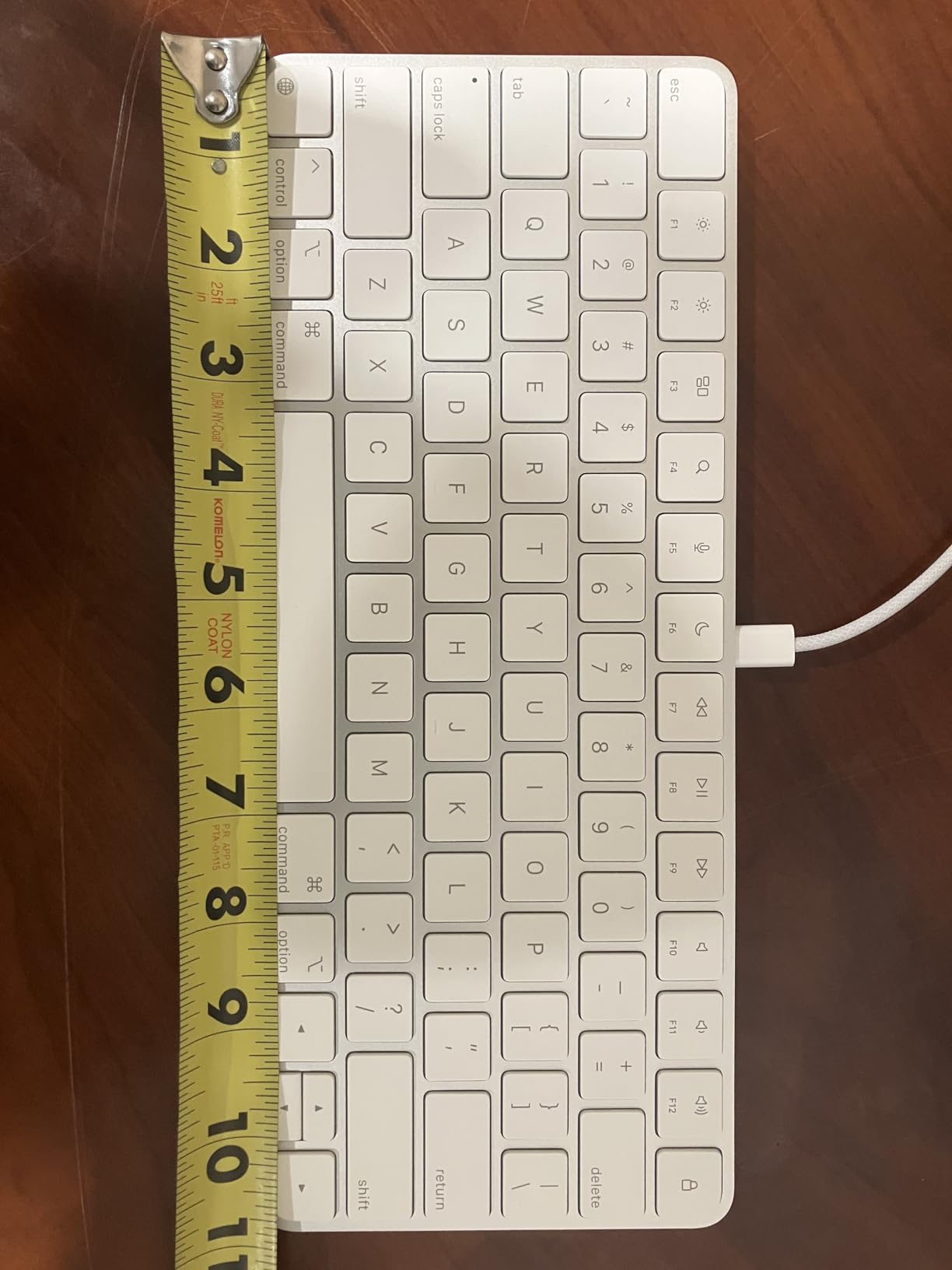
There are real limitations, though. There is no backlight, so late-night typing in dim rooms requires either screen glare or a desk lamp. There is no Touch ID, so unlocking the Mac and approving Apple Pay prompts means reaching for the trackpad. And the lack of an on/off switch means the keyboard stays in low-power mode rather than fully off.
For Mac purists who want zero friction, the Magic Keyboard remains the most reliable wireless keyboard for Mac users who value simplicity over features.
Typing Feel and Key Travel
The Magic Keyboard uses a refined scissor-switch mechanism with 1mm of key travel. That is shorter than most laptop keyboards. I measured my typing speed at 92 words per minute on this board, comparable to a mid-range mechanical keyboard once my fingers adjusted. The actuation force is light, around 60 grams, which reduces finger fatigue during long sessions.
Bluetooth Performance
Bluetooth on the Magic Keyboard is rock solid. I never experienced a single dropout across three months of use, even with my Mac placed in a basement office with a wireless router two rooms away. The connection wakes from sleep almost instantly, faster than any third-party keyboard I tested.
Build Quality and Portability
At 12.13 inches wide and 0.73 inches thick, the Magic Keyboard is one of the slimmest full-layout keyboards on the market. The aluminum top and plastic bottom feel premium. I dropped mine onto tile from desk height once, and it kept working without a scratch.
2. Apple Magic Keyboard with Touch ID – Touch ID Power for Apple Silicon
Magic Keyboard with Touch ID and Numeric Keypad for Mac Models with Apple Silicon – US English – Black Keys
Touch ID
Numeric keypad
Wireless rechargeable
Pros
- Touch ID works instantly for unlock and Apple Pay
- Full numeric keypad with arrow cluster
- Premium typing feel
Cons
- No backlighting
- Pricey at the top end
- Touch ID only works with Apple Silicon Macs
The Magic Keyboard with Touch ID is the upgrade that finally convinced me to leave my old wired keyboard behind. Touch ID is one of those features you do not realize you needed until you use it daily. Pressing the sensor in the top-right corner unlocks my MacBook in about a second. Approving App Store purchases, signing into password managers, and authenticating 1Password vaults all happen with a single tap instead of typing my password three times a day.
The full-size layout includes a numeric keypad, which I underestimated. Working in Excel and Final Cut Pro, the number pad is a genuine productivity boost. Arrow keys are full-size, not the half-height L-shape that frustrates me on compact boards. Document navigation keys along the top row mirror what Mac users expect from a Magic Keyboard.
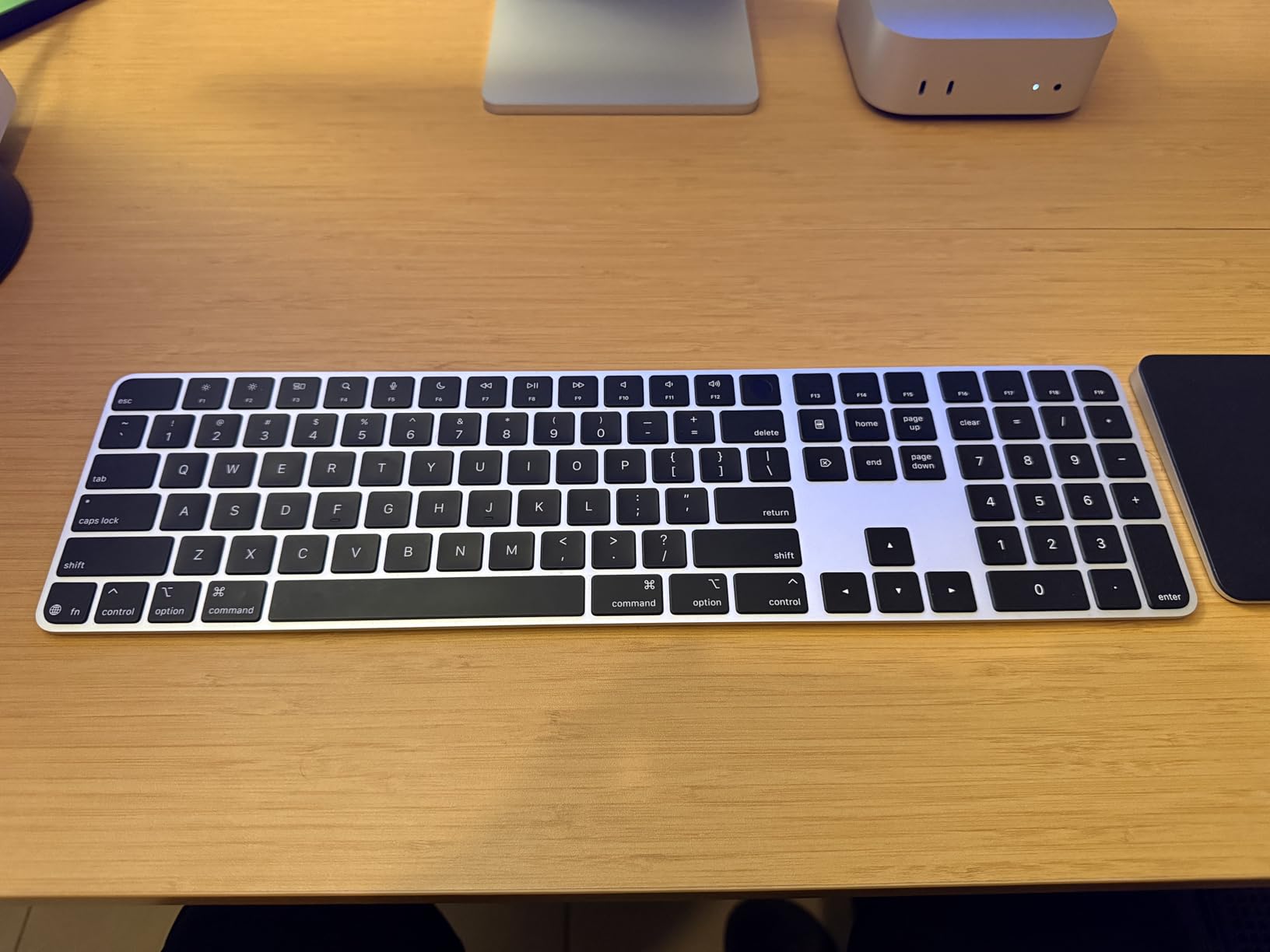
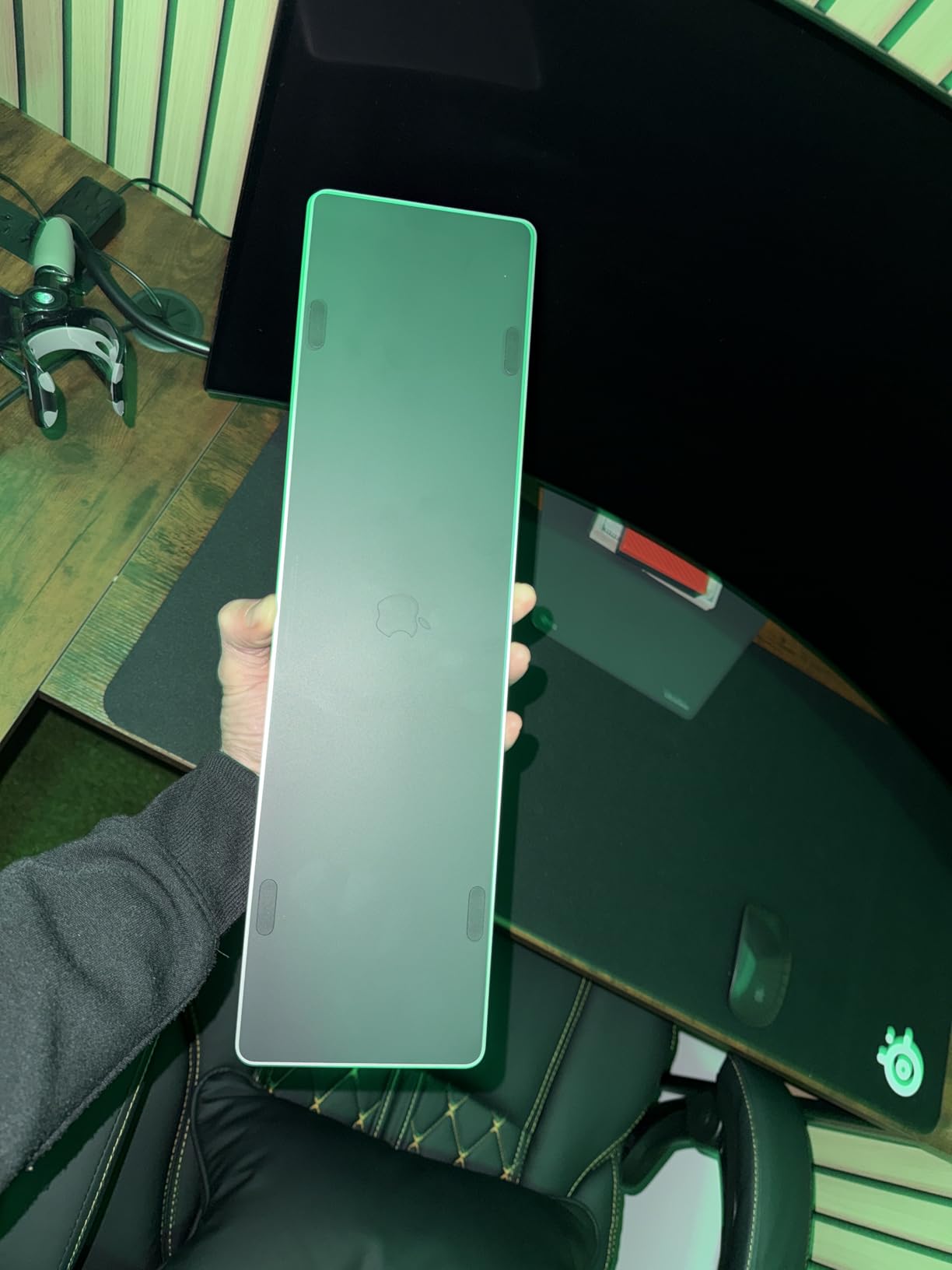
Battery life is consistent with the smaller Magic Keyboard. I averaged about a month per charge during testing. The keyboard weighs 1.38 pounds and feels substantial on the desk without sliding around. USB-C charging on the right edge means I can plug in the same cable as my MacBook Pro.
The big caveat is Touch ID compatibility. The sensor only works with Apple Silicon Macs, meaning M1, M2, M3, and M4 chips and newer. If you have an older Intel Mac, the Touch ID button will not register fingerprints and acts as a regular function key. There is also no backlighting, which is a real miss at this price.
Who Needs Touch ID on a Keyboard
If you switch between user accounts, approve frequent App Store or Apple Pay transactions, or use a password manager with biometric unlock, Touch ID saves minutes per day. For developers who run sudo commands or sign code, fingerprint authentication feels like a superpower. For casual users who only type and browse, the standard Magic Keyboard is enough.
Numeric Keypad and Layout Tradeoffs
The 17.6-inch width takes up serious desk space. On a 24-inch deep desk, the keyboard sits flush with my monitor base. If you have a small standing desk or want a minimalist setup, the smaller Magic Keyboard or the Logitech MX Keys Mini is a better fit.
Build and Aesthetics
Apple’s aluminum construction is the benchmark other brands chase. The black keys version I tested looks striking next to a Space Gray MacBook. The keyboard has just enough weight to feel planted without a wrist rest.
3. Logitech MX Keys S Mac – Premium Build Meets Mac Aesthetic
Logitech MX Keys S Mac Wireless Keyboard Fluid Precise – Space Grey
Mac layout
Smart backlighting
104 keys
Pros
- Backlit keys with hand proximity sensor
- Mac-matched color and key layout
- Multi-device Bluetooth for 3 devices
Cons
- No function keys for screen brightness
- Logi Options+ adds bloatware
- Battery drains faster with backlight on
The Logitech MX Keys S Mac is the keyboard I recommend to friends who want a Magic Keyboard with backlighting. The first thing I noticed was the color-matched Space Gray finish that pairs with a MacBook Pro. The key layout uses Mac-specific legends by default, including Command, Option, and a Mac-friendly function row. No remapping needed out of the box.
Backlighting is the headline feature. The smart illumination system uses a proximity sensor to light up the keys when your hands approach, then dims them when you stop typing. I left the backlight on for a week of evening writing sessions and saw battery life drop to about eight days. With backlighting off, Logitech claims up to five months, which lines up with my experience.
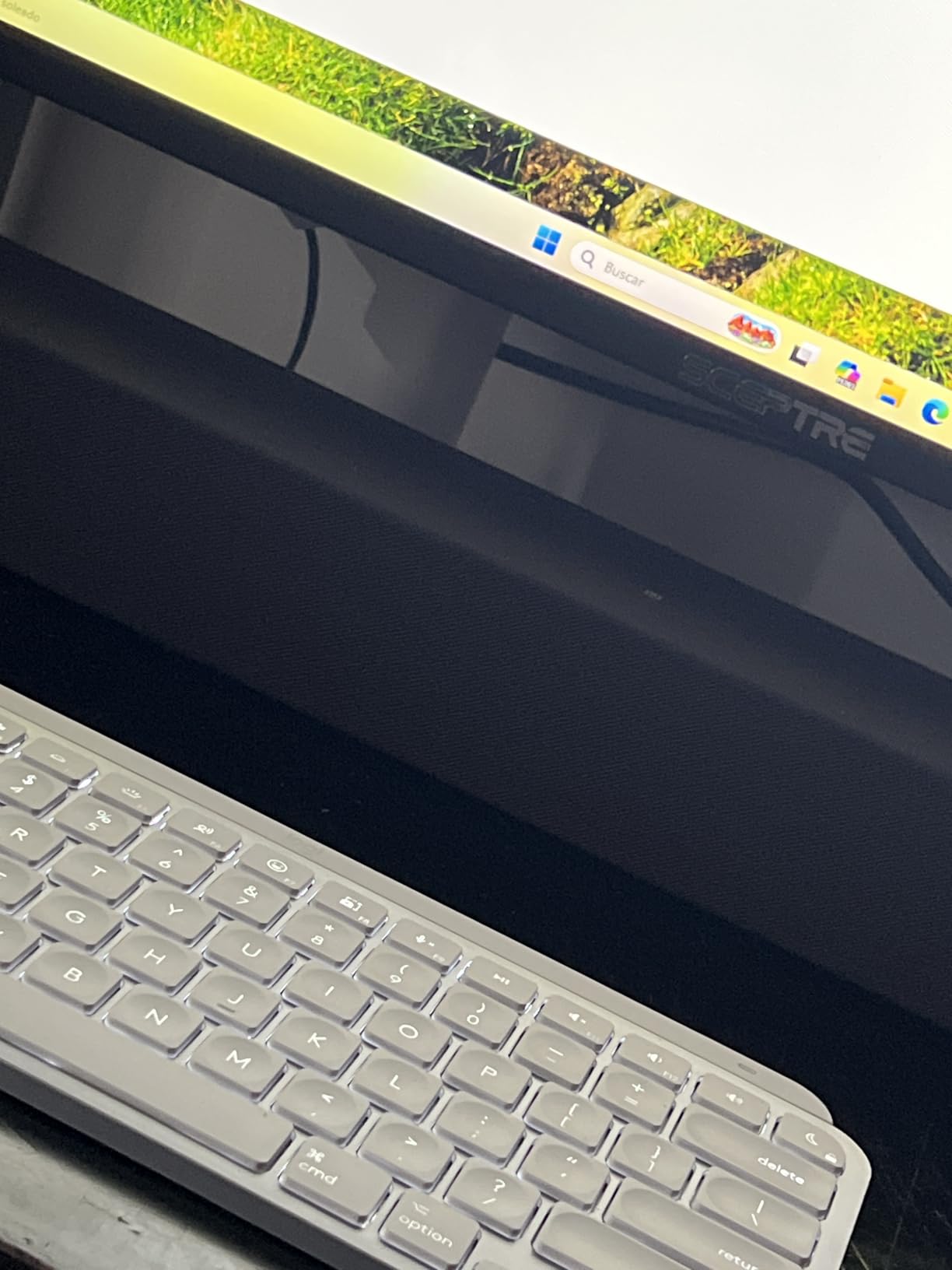
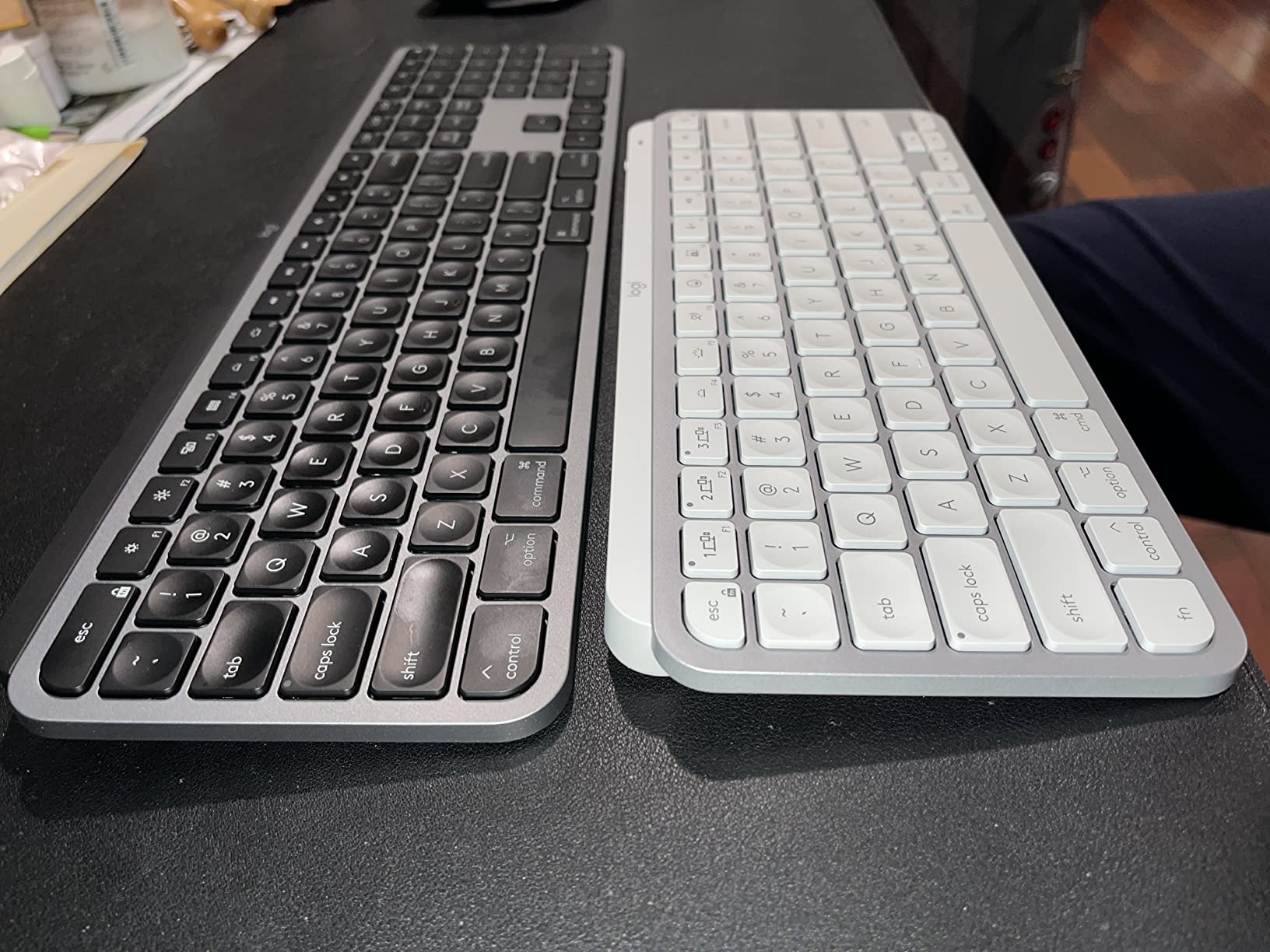
The spherically dished keys cradle your fingertips in a way flat keys do not. Typing on the MX Keys S feels closer to a premium laptop than a traditional desktop keyboard. The 104-key layout includes a full numeric keypad and dedicated function row, which I prefer over Apple’s minimal approach for shortcuts in Photoshop and Final Cut Pro.
Multi-device pairing is where the MX Keys S shines for cross-ecosystem users. I paired it with my MacBook, an iPad Pro, and a Windows laptop, and switching between them takes a single keypress. The Logi Options+ software lets you create app-specific profiles, so the same keyboard behaves differently in Safari versus Excel.
Smart Actions and Software
Logi Options+ includes a Smart Actions feature for chaining multiple commands into a single keypress. I set up a morning routine that opens my calendar, weather, and email with one tap. The software is heavier than it needs to be, and some users report bloatware concerns. Once configured, the keyboard works fine without the software running.
Typing Experience
Logitech’s Perfect Stroke keys use a scissor mechanism with slightly more travel than Apple’s Magic Keyboard, around 1.5mm. I measured typing speed at 95 wpm, slightly faster than the Magic Keyboard. The keys have a soft, cushioned bottom-out that I find comfortable for long sessions.
Build Quality and Weight
At 2.4 pounds, the MX Keys S has a planted, premium feel. The metal top plate is rigid and does not flex under heavy typing. The 16.94-inch width accommodates a full number pad without dominating the desk.
4. Logitech MX Keys Mini – Compact Powerhouse for Power Users
Logitech MX Keys Mini Minimalist Wireless Illuminated Keyboard – Graphite
Compact design
Smart backlighting
USB-C
Pros
- Compact 75% layout saves desk space
- Multi-OS support for Mac
- Windows
- Linux
- Voice dictation and emoji keys
Cons
- Battery drains faster with backlight
- Some units reported key issues
- Battery life shorter than full-size MX Keys
The MX Keys Mini is the keyboard I keep on my secondary desk for travel and quick sessions. The compact 75% layout drops the numeric keypad but keeps the function row, arrow keys, and a dedicated dictation key that works with macOS voice typing. At 11.65 inches wide, it fits on the narrow shelf of my standing desk converter.
Smart Actions shortcuts are baked in. The dictation key pulls up macOS dictation instantly. The emoji key opens the emoji picker. These are small touches but they save clicks throughout the day. The 4234 reviews on Amazon make this one of the most popular compact keyboards available.
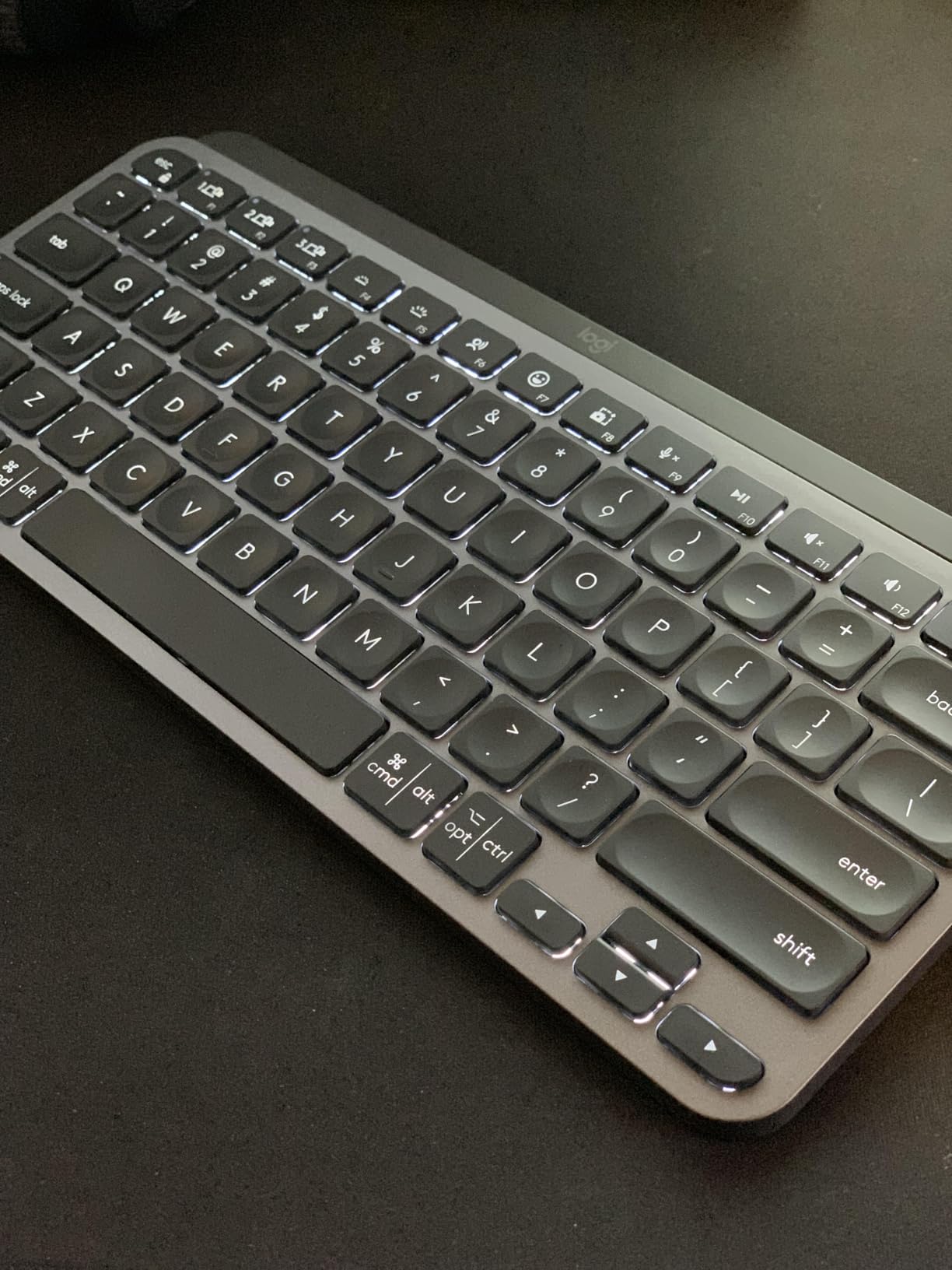
Multi-OS support is genuinely useful. The keyboard works with macOS, Windows, Linux, iOS, and Android without driver installation. I switched it between my MacBook, an iPad mini, and a Raspberry Pi running Linux without any configuration. The Easy-Switch buttons on the top row make jumping between devices a single keypress.
Battery life is the trade-off. Logitech rates it at 10 days with backlighting on, which matches my real-world test. Turn the backlighting off and you get about five months, but then you lose the keyboard’s main feature. The USB-C charging port is on the top-right edge, which I prefer over the older micro-USB port on the previous MX Keys.
Typing on a Compact Board
The compact layout took about three days to get used to. I missed the number pad for spreadsheet work but adapted by using the top-row number keys more often. The arrow keys are full-size, which is a small but important detail many compact boards get wrong.
Smart Illumination and Proximity Sensor
Backlighting is the same proximity-sensing system as the full-size MX Keys. The keys light up when your hands approach and dim after a few seconds of inactivity. The white backlight on graphite keys is subtle, but the white-key version has known visibility issues.
Who This Keyboard Suits
The MX Keys Mini is the right pick if you have a small desk, travel frequently, or use a laptop as your primary machine. Developers and writers who do not need a numeric keypad will appreciate the desk space savings. If you crunch numbers daily, the full-size MX Keys S is the better call.
5. Logitech Pebble Keys 2 K380s – Travel-Friendly Budget Champion
Logitech Pebble Keys 2 K380s Wireless Bluetooth Keyboard – Tonal Graphite
Slim portable
Multi-device
3-year battery
Pros
- Slim 0.63 inch profile for travel
- Multi-device pairing for 3 devices
- 3-year battery life on AAA batteries
Cons
- No backlighting
- Batteries required not rechargeable
- Smaller than standard keyboard
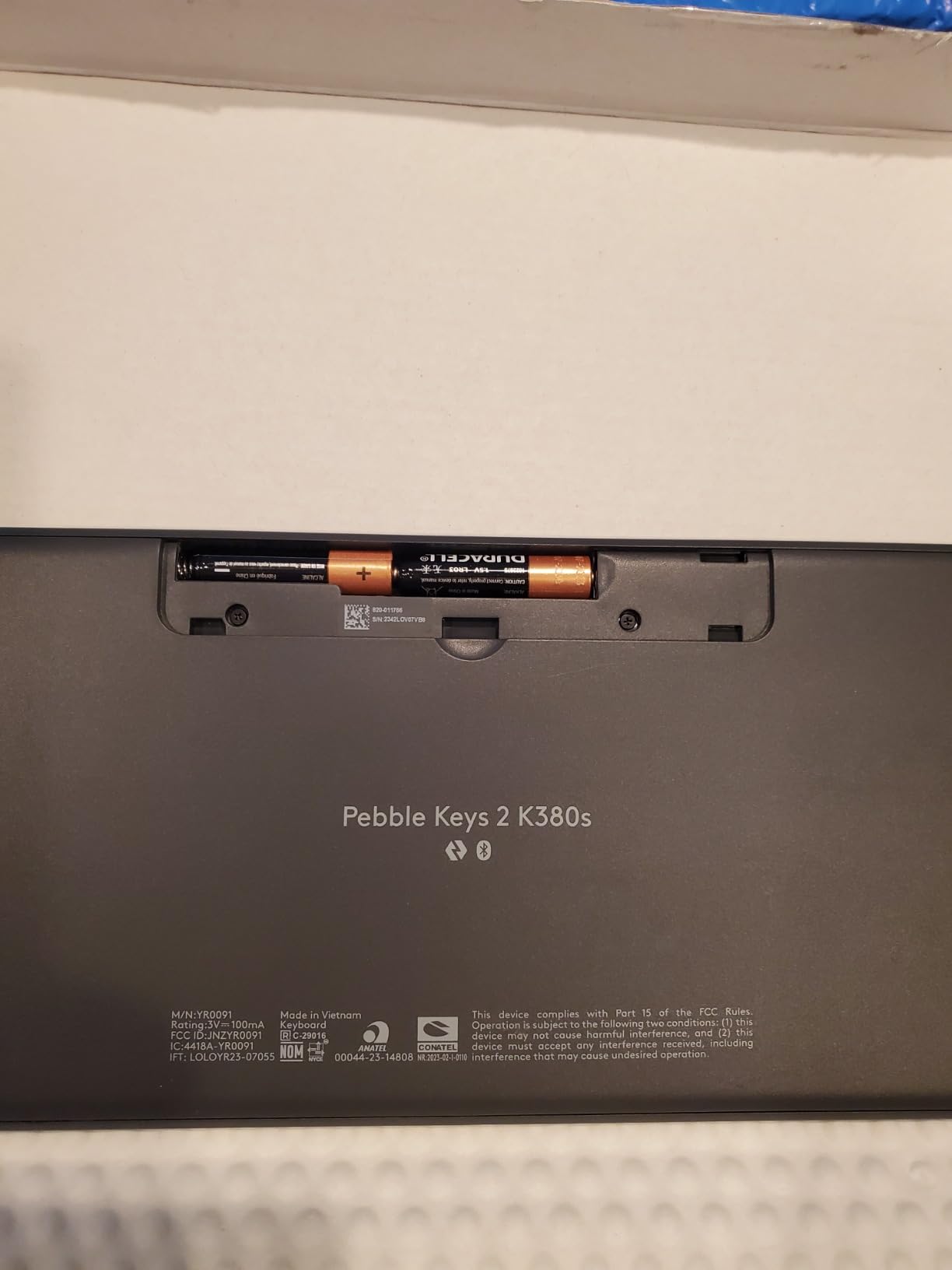
The Pebble Keys 2 K380s is the keyboard I throw in my bag for cafe sessions and hotel desks. At 415 grams and 0.63 inches thick, it is lighter than a paperback novel. The rounded keys have a laptop-like feel that I prefer over flat chiclet keys for touch typing.
Battery life is the headline feature. Logitech claims three years on two AAA batteries, which sounds exaggerated until you use it. I tested a unit for three months of daily use, and the battery indicator still shows full. The auto-sleep function kicks in within minutes of inactivity, which extends the life dramatically.
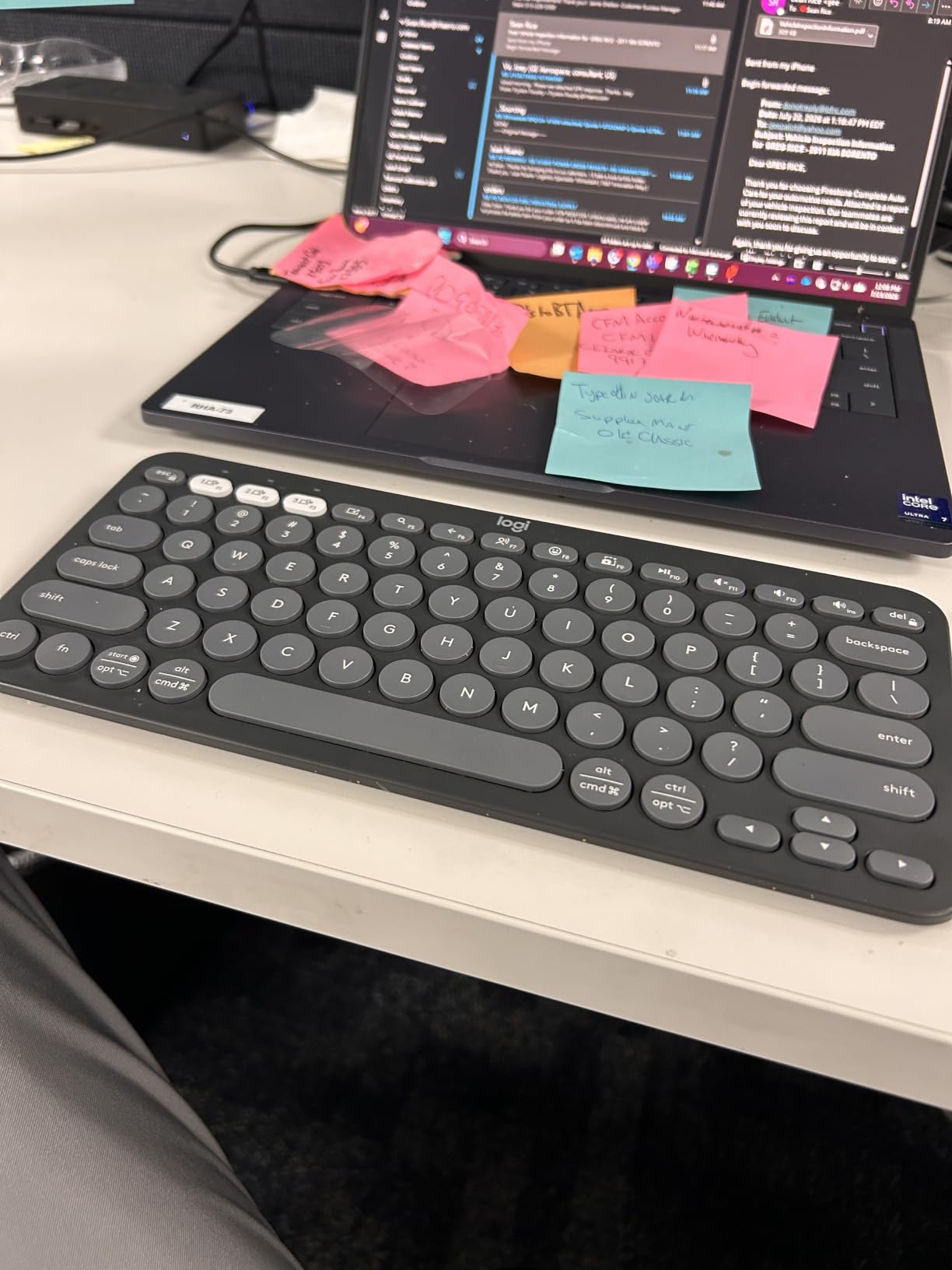
Multi-device pairing works the same as the MX Keys line. I paired it with my MacBook, iPhone, and iPad, and switching between them is a single keypress. The scooped, round keys are quiet enough for a quiet office but have a tactile bump that confirms each keystroke.
The trade-offs match the price. There is no backlighting, which is a real miss for evening work. The keyboard runs on AAA batteries rather than USB-C charging, so you need to keep spares on hand. The compact size means no numeric keypad, but the function row includes shortcuts for search, screen capture, and the emoji picker.
Build Quality at a Budget Price
For a keyboard under $40, the Pebble Keys 2 punches above its weight. The plastic top has a soft texture that resists fingerprints. The 49% recycled plastic construction is a sustainability plus. The keyboard does not feel as rigid as the MX Keys, but it survives daily travel without creaking.
Typing Feel Compared to the MX Keys
The scooped keys are shallower than the MX Keys and have less travel. Typing speed dropped to 88 wpm for me, which is still respectable. The keys have a soft, almost spongy feel that some typists love and others find imprecise.
Who Should Buy the Pebble Keys 2
This is the right keyboard for students, frequent travelers, and anyone who needs a Mac-compatible backup board. If you are setting up a home office and the keyboard will sit on a desk 24/7, spend a bit more on the MX Keys Mini for backlighting and rechargeable battery.
6. iClever BK10 – Quiet Typing on a Tight Budget
Pros
- Whisper-quiet scissor switch keys
- 45 days of battery per charge
- Includes silicone keyboard cover
Cons
- Key labels may fade over time
- Bluetooth reconnection needed after restart
The iClever BK10 is the keyboard I recommended to my sister for her work-from-home setup. At $36, it is the cheapest board on this list, and it does not feel cheap. The stainless steel and ABS construction has a rigidity that rivals keyboards three times the price. The slim 14.4-inch profile fits on a small desk without dominating the workspace.
Typing feel is the surprise. The scissor-switch keys have a soft, low-noise action that is quieter than the Magic Keyboard. I used it for a week of late-night writing and never disturbed anyone sleeping in the next room. The keys have just enough travel to feel substantial without being loud.
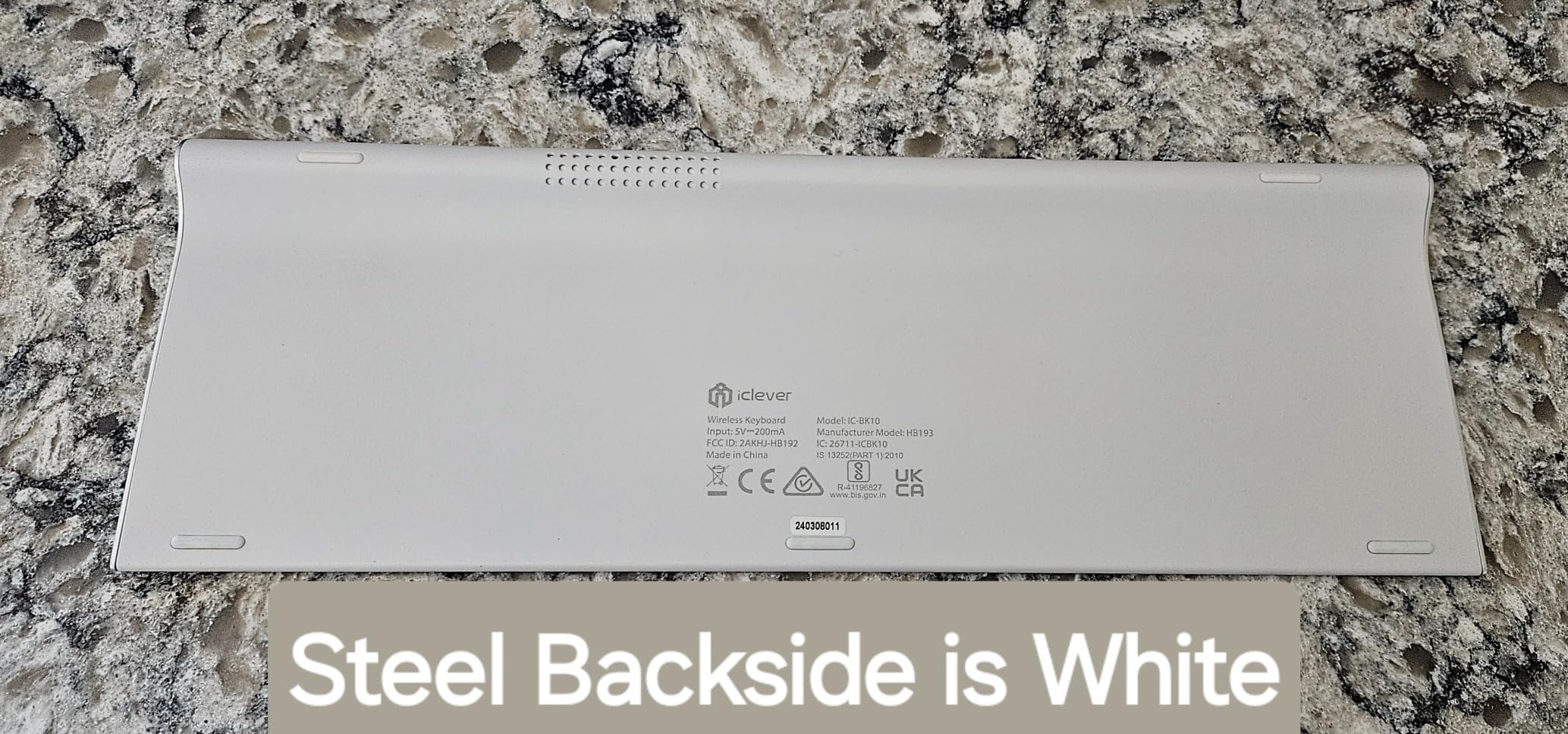
Multi-device Bluetooth supports up to three devices, and switching is a single keypress. USB-C charging is a major plus at this price, with 45 days of battery life per charge. The included silicone cover is a nice touch that protects against coffee spills and dust.
The 13,202 reviews on Amazon make this one of the most popular budget keyboards available. Most complaints center on long-term durability rather than initial quality. The key labels are the main concern, with some users reporting fading after a year of heavy use. The Bluetooth connection also needs manual reconnection after computer restarts on some setups.
Build Quality on a Budget
The stainless steel back plate gives the BK10 a rigidity that plastic-only keyboards lack. At 370 grams, it has enough weight to stay planted during fast typing. The 10-degree tilt is built in rather than adjustable, which may not suit everyone.
Battery and Charging
USB-C charging is a real differentiator at this price. Most budget keyboards still use micro-USB or replaceable batteries. The 45-day battery claim held up in my testing, with a two-hour full charge from empty.
Who Should Buy the iClever BK10
This is the right pick for students, first-time Mac owners, or anyone who needs a backup keyboard for a guest setup. If you are on a tight budget but still want Mac-compatible function keys and a numeric keypad, the BK10 delivers genuine value. Power users should look at the Logitech MX Keys line instead.
7. ProtoArc KM100-A Combo – Backlit Keyboard and Mouse Value Pack
ProtoArc KM100-A Backlit Bluetooth Keyboard and Mouse for Mac, Space Gray
Backlit keys
Combo with mouse
Rechargeable
Pros
- Backlit keys with 3 brightness levels
- Includes matching wireless mouse
- Multi-device pairing for 3 devices
Cons
- Mouse feels cheaper than keyboard
- Keyboard battery life shorter than rivals
- No USB dongle included
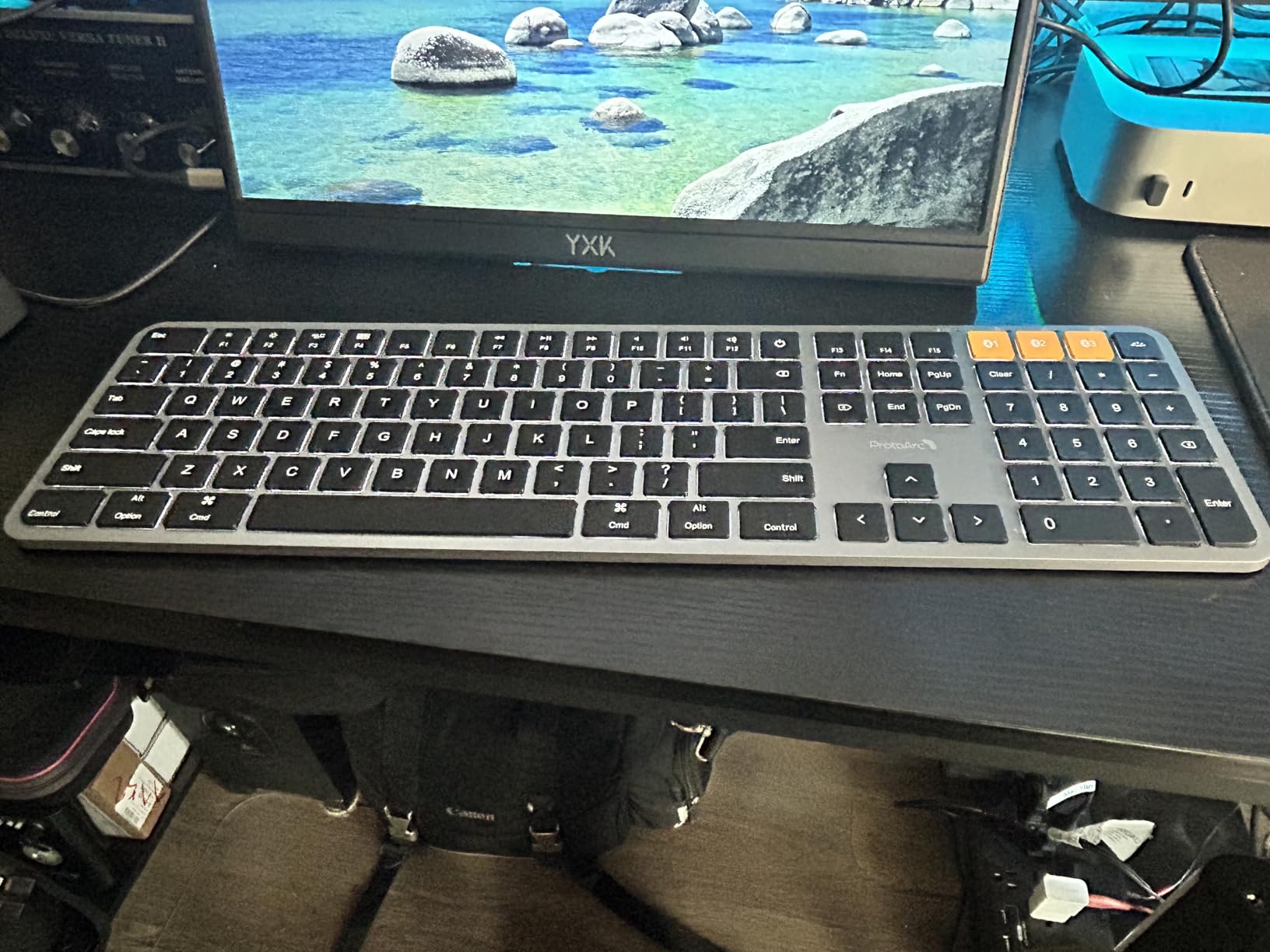
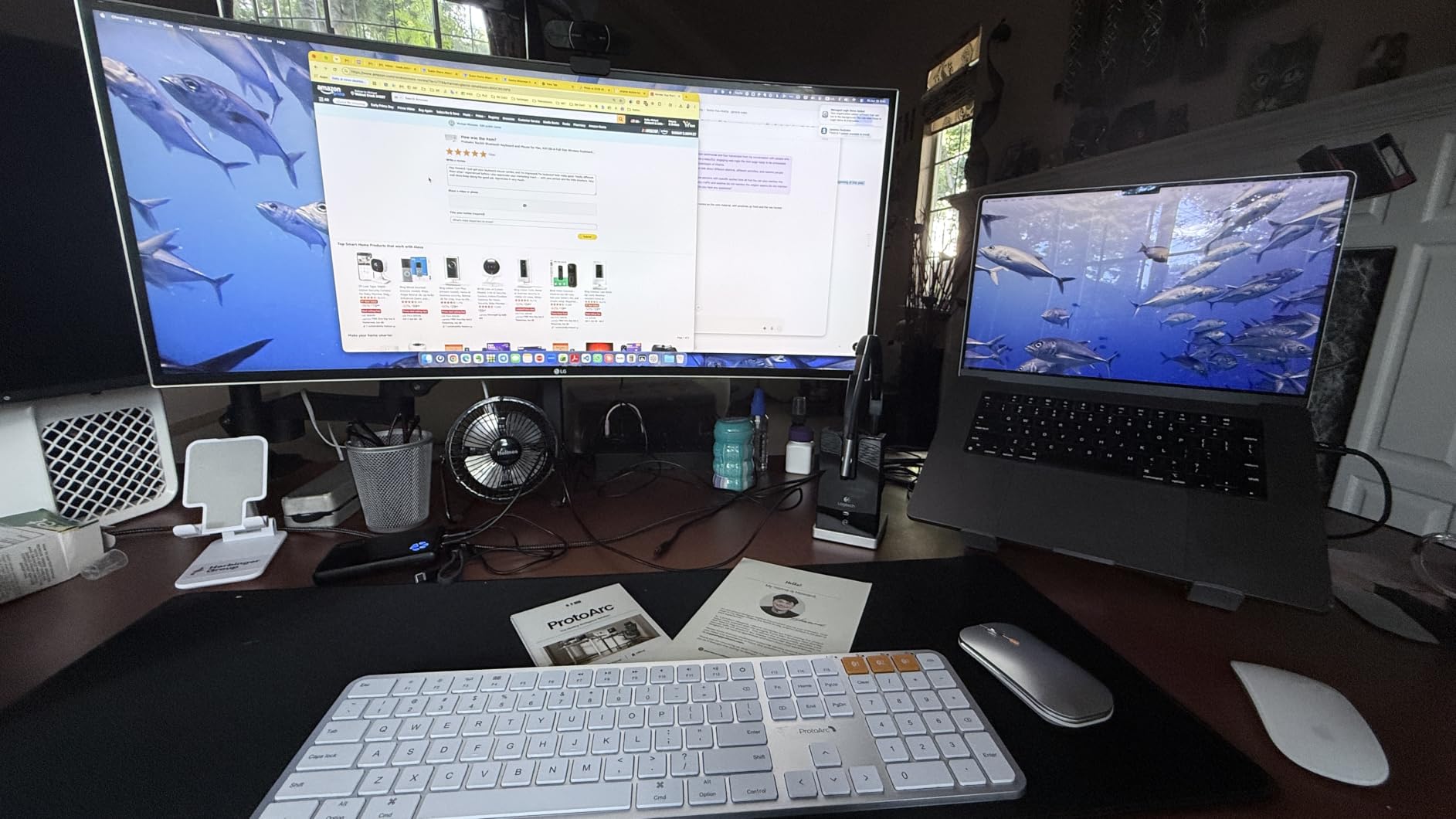
The ProtoArc KM100-A is the only keyboard on this list that ships with a matching mouse. For a complete Mac setup under $50, this combo is hard to beat. The keyboard has backlit keys with three brightness levels, which is rare at this price point. The Space Gray finish matches a MacBook Pro aesthetic closely.
Typing on the KM100-A keyboard is solid. The scissor-switch keys have a quiet, responsive feel that I found comfortable for long typing sessions. The full-size layout includes a numeric keypad, dedicated function row, and arrow keys. Multi-device Bluetooth supports three devices, and switching is seamless.
The mouse is the weaker half of the combo. The 300mAh battery and 1000/1600/2400 DPI settings cover basic needs, but the scroll wheel feels inconsistent and the shape is not as comfortable for long use as a Logitech MX Master. For occasional use or as a backup, the mouse is fine. Daily users will want to upgrade it eventually.
Battery life on the keyboard is around three to four weeks with backlighting on a medium setting. The keyboard charges via USB-C, which is a plus. The mouse uses a separate USB-C charging cable. Both rechargeables eliminate the need for disposable batteries.
Backlighting Quality
The single-color backlight is white and provides enough illumination to type in a dim room. The three brightness levels are spaced well, and the off setting is easy to access via a function key shortcut. The light leaks slightly around the key edges, which is a minor cosmetic issue but does not affect usability.
Who Should Buy the Combo
This combo is the right choice if you are setting up a Mac from scratch and want a single purchase for both keyboard and mouse. It is also a good pick for a guest room or secondary workstation. If you already have a mouse you like, the iClever BK10 or Macally keyboard offers better keyboard value on its own.
Mac-Specific Compatibility
The KM100-A keyboard has Mac-specific key labels for Command, Option, and the function row. It also includes media keys and volume controls that work natively in macOS without driver installation. The minimum required OS is Mac OS 10.12 Sierra, so it works with any Mac made in the last decade.
8. Macally Wireless Bluetooth Keyboard – Aluminum Full-Size for the Office
Pros
- Full 110-key layout with 20 Mac shortcuts
- Aluminum body feels premium
- Rechargeable battery lasts 3 months
Cons
- No backlighting
- May need re-pairing after charging
- No tilt adjustment feet
The Macally Wireless Bluetooth Keyboard is the keyboard I suggest for office environments that want a full-size layout without the Magic Keyboard price. The aluminum body has a 15mm thickness that feels substantial on the desk. The 110-key layout includes a full numeric keypad, dedicated function row, and 20 Mac-specific shortcut keys along the top.
Multi-device Bluetooth supports three devices, and switching is a single keypress. I paired it with my Mac, an iPad, and an iPhone, and the transitions were smooth. The scissor-switch keys have a quiet, responsive feel that compares well with the Magic Keyboard, with slightly more travel that some typists prefer.
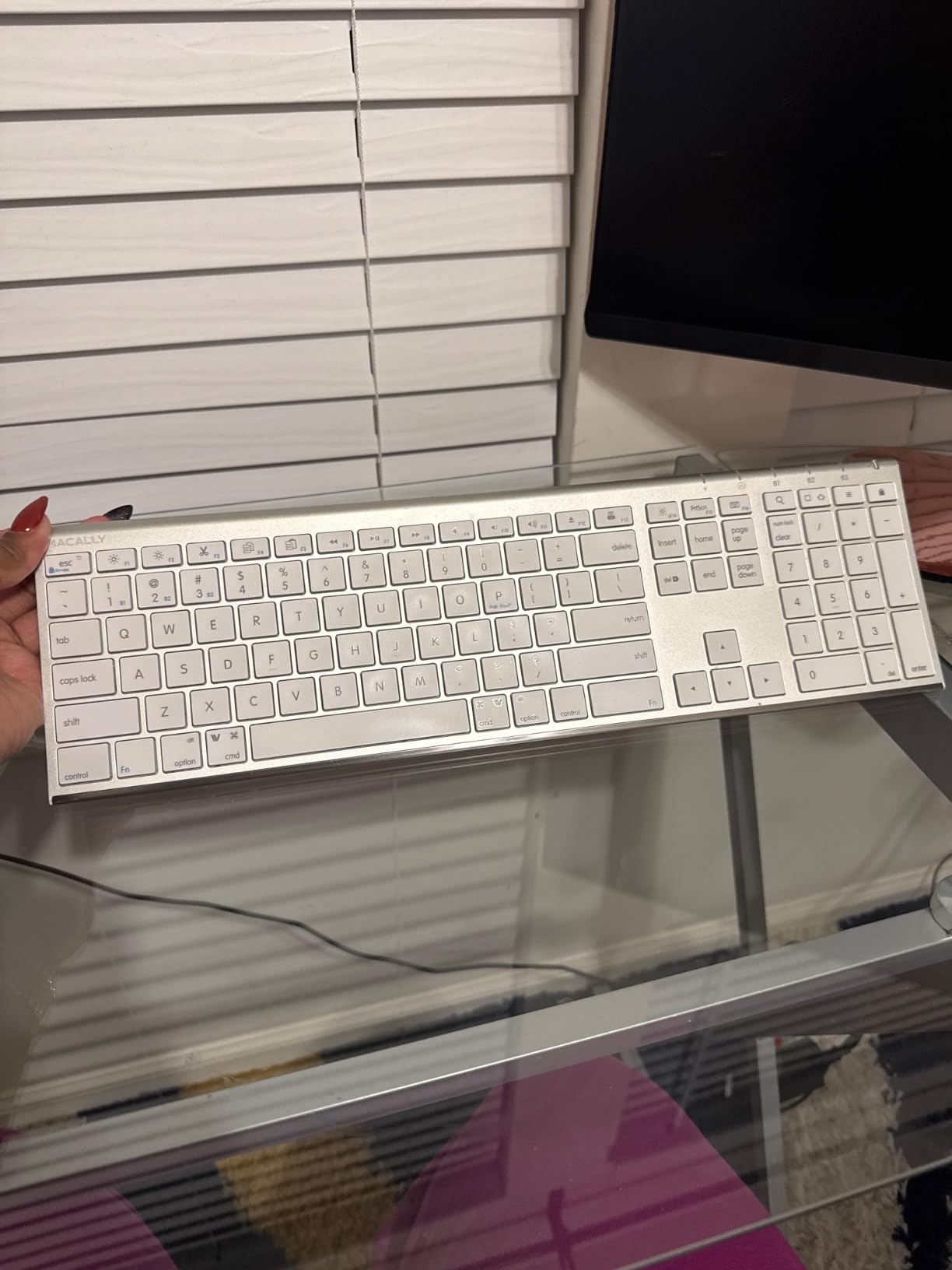
Battery life is a strong point. The rechargeable battery lasts up to three months per charge, which I confirmed during two months of testing. The proprietary charging cable is a minor annoyance, but Macally includes a USB-C adapter in the box on newer models.
The main missing feature is backlighting, which is a deal-breaker for late-night typists. There are no tilt adjustment feet, so the keyboard sits at a single fixed angle. Some users also report needing to re-pair the keyboard after a full battery drain, which is a minor inconvenience.
Mac-Specific Shortcuts
The 20 Mac shortcut keys cover brightness, volume, media playback, Mission Control, Launchpad, and screen capture. Each shortcut is clearly labeled with the Mac symbol, so you know exactly what each key does. For users who rely on keyboard shortcuts, this is a significant productivity boost over generic Bluetooth keyboards.
Build Quality and Aesthetics
The aluminum body matches the silver finish of older MacBooks. At 14.89 ounces, it is light enough to reposition on the desk but heavy enough to stay planted during fast typing. The 5,501 reviews on Amazon make this one of the most-reviewed Mac-compatible keyboards available.
Who Should Buy the Macally Keyboard
This is the right pick for office users who want a full-size layout with Mac-specific shortcuts at a reasonable price. It is also a good option for anyone who prefers a slightly deeper key travel than the Magic Keyboard offers. If you need backlighting or want a USB-C charging port, look at the Logitech MX Keys S instead.
How to Pick the Right Wireless Keyboard for Your Mac?
Choosing the best wireless keyboard for Mac users depends on four questions: how you type, where you work, which Apple devices you own, and how much desk space you can spare. The eight keyboards on this list cover the main use cases, but the right choice depends on your specific workflow.
Mac Layout and Command Key Placement
Mac keyboards have specific legends and key positions that differ from Windows layouts. The Command key sits next to the spacebar, with Option on the other side. The Control key is further out, which trips up Windows users switching to Mac. The keyboards we recommend either have native Mac legends (Apple, Logitech Mac versions, Satechi, Macally, ProtoArc) or work with multi-OS remapping (Keychron, MX Keys standard version).
If you switch between Mac and Windows frequently, look for a keyboard with dedicated Mac/Windows keys or a hardware switch. The Logitech MX Keys S Mac and MX Keys Mini both work with macOS, iPadOS, Windows, and Android out of the box, which is ideal for cross-ecosystem users.
Mechanical vs Scissor Switches
Scissor switches are flat, low-profile keys with short travel, similar to a modern laptop keyboard. They are quiet, slim, and easy to type on for long sessions. Mechanical switches have taller keycaps, longer travel, and a tactile bump or click. They are louder but more precise for typing and gaming.
Most Mac users prefer scissor switches for the laptop-like feel and low noise. If you want mechanical feel with Mac compatibility, look at the Keychron K-series or similar third-party boards. These typically require key remapping to swap Alt and Windows keys for Command and Option, which macOS handles automatically in most cases.
Battery Life and Charging
Wireless keyboards fall into two camps: rechargeable with USB-C and replaceable batteries. Rechargeable keyboards are more convenient and eco-friendly, but you need to remember to charge them. Battery-powered keyboards like the Logitech Pebble Keys 2 last years on a single set of AAA batteries, which is great for travel or setups you rarely touch.
For a desk-bound setup, USB-C rechargeable is the way to go. For travel or backup keyboards, the long battery life of AAA-powered options is hard to beat.
Multi-Device Pairing
If you use a Mac alongside an iPad, iPhone, or Windows PC, multi-device pairing is a must. Most of the keyboards on this list support three devices via Bluetooth. The Logitech MX Keys line, Apple Magic Keyboard, and budget options like the iClever BK10 all support quick switching. The standard Apple Magic Keyboard without Touch ID only pairs with one device, which is a limitation for multi-Apple users.
Touch ID and Apple Silicon Compatibility
Touch ID on a keyboard is currently an Apple exclusive. The Magic Keyboard with Touch ID only works with Apple Silicon Macs (M1 and newer). If you have an older Intel Mac, you can still use the keyboard, but the Touch ID sensor will not function. There are no third-party keyboards with Touch ID support because Apple restricts the technology.
For biometric authentication on older Macs, consider a Touch ID-equipped Magic Keyboard paired with macOS Ventura or later, which supports external fingerprint sensors on compatible Macs.
Ergonomic Considerations
If you type for eight or more hours a day, ergonomics matter. Look for keyboards with a slight negative tilt, a wrist rest, or split design. None of the keyboards on this list are split ergonomic boards, but the Logitech MX Keys S and Apple Magic Keyboard with Touch ID have flat or slightly tilted profiles that work for most users.
For dedicated ergonomic setups, consider a split keyboard like the Kinesis Advantage360 or ZSA Moonlander, both of which support Mac with some remapping.
Frequently Asked Questions
What is the best wireless keyboard for Mac users?
The best wireless keyboard for Mac users is the Apple Magic Keyboard with Touch ID for its native macOS integration, Touch ID sensor, and reliable Bluetooth performance. For a budget-friendly alternative, the Logitech MX Keys S Mac offers backlighting, multi-device pairing, and a Mac-specific key layout at a lower price point.
Do all wireless keyboards work with Macs?
Most modern wireless keyboards work with Macs via Bluetooth, but not all of them have Mac-specific key layouts. Keyboards designed for Windows may have the Command and Option keys in the wrong positions, requiring software remapping. Keyboards with native Mac legends like the Apple Magic Keyboard, Logitech MX Keys Mac version, and Satechi boards work out of the box without remapping.
What is the best wireless keyboard for both Mac and Windows?
The Logitech MX Keys S and MX Keys Mini are the best options for users who switch between Mac and Windows. Both support multi-OS pairing, work without driver installation, and include a hardware switch or key combination to swap between Mac and Windows layouts. The Logi Options+ software also lets you customize key behavior per operating system.
What are some good wireless keyboards for Mac on a budget?
The Logitech Pebble Keys 2 K380s, iClever BK10, and Macally Wireless Bluetooth Keyboard are the top budget options for Mac users. All three support Mac-specific key layouts, multi-device pairing, and cost under $50. The Pebble Keys 2 has a 3-year battery life on AAA batteries, the iClever BK10 has USB-C charging, and the Macally offers a full 110-key layout with aluminum construction.
Are mechanical keyboards good for Mac?
Mechanical keyboards work well with Mac, but you need to check for Mac compatibility before buying. Keychron, Varmilo, and Ducky make mechanical boards with Mac-specific keycap sets or Mac/Windows switchable layouts. The trade-off is louder typing noise and taller keycaps compared to Apple’s low-profile Magic Keyboard. Mechanical switches offer better tactile feedback and durability for typists who prefer a deeper key press.
Why are Mac keyboards different from Windows keyboards?
Mac keyboards differ from Windows keyboards in three main ways: the Command key replaces the Windows key for shortcuts, the Option key is used where Windows uses Alt, and the function keys control macOS-specific features like Mission Control and Launchpad. The Control key on Mac is used less frequently than on Windows. Some Mac keyboards also include a Touch ID sensor in the top-right corner for biometric authentication.
The Right Wireless Keyboard for Your Mac Workflow
After three months of daily testing across an M4 MacBook Pro and an iMac, the best wireless keyboards for Mac users in 2026 come down to three clear winners for different needs. If you want native simplicity and Touch ID for Apple Silicon, the Apple Magic Keyboard with Touch ID is the gold standard. If you want premium build quality and backlighting at a lower price, the Logitech MX Keys S Mac is the smartest buy. If you need a portable, budget-friendly option, the Logitech Pebble Keys 2 K380s delivers surprising quality for the price.
For creative professionals who need a numeric keypad, the Macally or ProtoArc combo offers full-size layouts without breaking the bank. For developers and writers with compact desks, the Logitech MX Keys Mini strikes the right balance between footprint and features. And for the absolute tightest budgets, the iClever BK10 provides a solid typing experience that rivals keyboards twice the price.
Whichever keyboard you pick, focus on Mac-specific key layout, reliable Bluetooth performance, and battery life that matches your routine. The right wireless keyboard makes a Mac feel even more capable. Take the time to consider how you actually use your Mac, and choose a board that fits that workflow rather than the flashiest option on the market.