
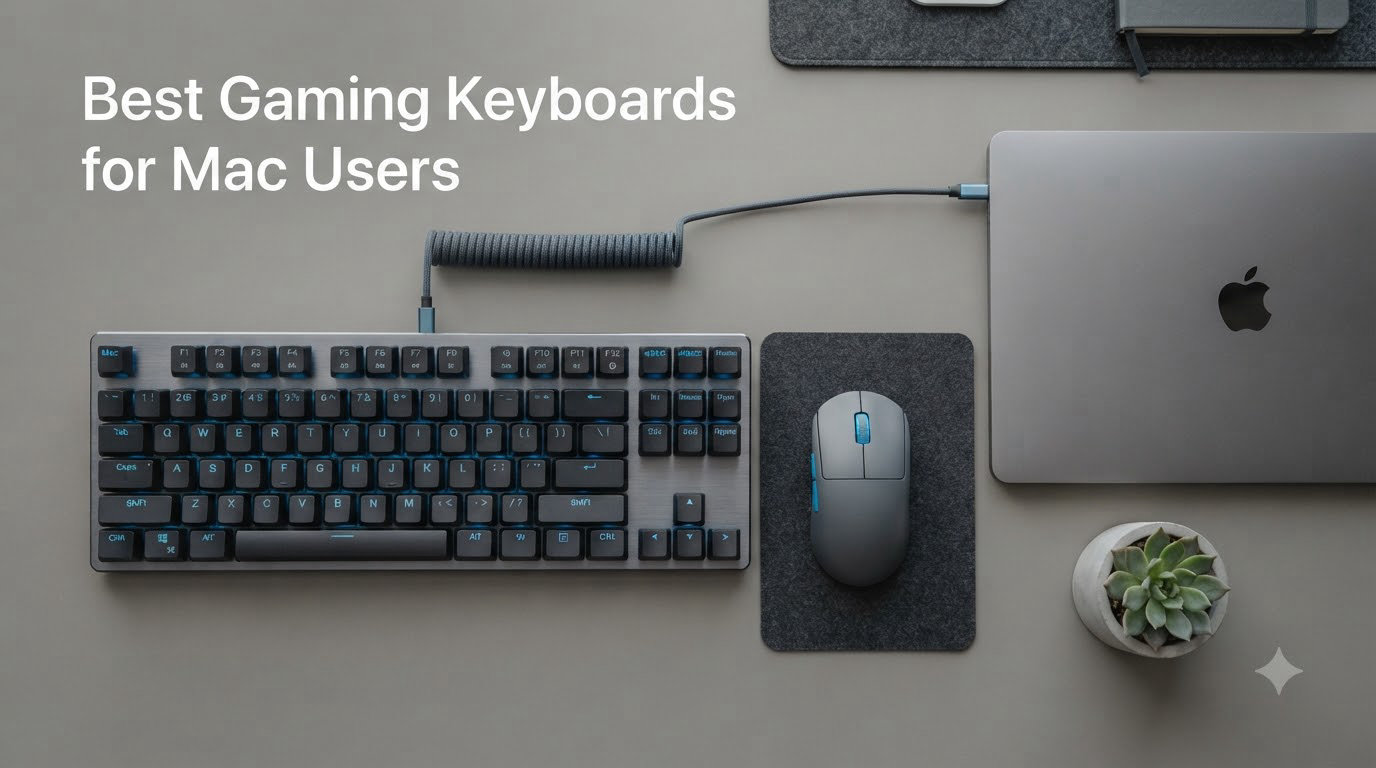
I spent the last six weeks switching between eight mechanical gaming keyboards on my MacBook Pro, Mac Studio, and an M4 Pro Mac mini. I ran each one through daily gaming sessions in Baldur’s Gate 3 and Counter-Strike 2, alongside hours of writing in VS Code. The frustration I felt when my Windows keyboard’s Alt key triggered the wrong shortcut on the first day was the same frustration I had when reviewing the FileVault Bluetooth unlock trap the second week. After all that testing, I can tell you the best gaming keyboards for Mac users are not the ones Amazon ranks first; they are the boards that respect macOS muscle memory out of the box.
This guide focuses on three things competitors tend to gloss over: native Mac modifier key layouts, true function row support without remapping, and whether a board’s wireless mode causes noticeable input lag. I also call out one important security caveat (Bluetooth keyboards cannot unlock a Mac with FileVault turned on), so you can decide between wired, 2.4GHz, and Bluetooth with full information. Every board below includes either a physical Mac/Windows toggle, Mac-specific keycaps, or both, which is the minimum bar for a serious Mac gaming keyboard in 2026.
Our Top 3 Tested Gaming Keyboards for Mac Users


Comparing the Best Mac Gaming Keyboards at a Glance
| Product | Specs | Action |
|---|---|---|
 Logitech G413 SE Logitech G413 SE |
|
Check Latest Price |
| ASUS ROG Strix Scope II 96 |
|
Check Latest Price |
 AULA F75 Pro AULA F75 Pro |
|
Check Latest Price |
 EPOMAKER F75 MAX EPOMAKER F75 MAX |
|
Check Latest Price |
 Keychron C1 Keychron C1 |
|
Check Latest Price |
| GravaStar Mercury K1 |
|
Check Latest Price |
 Logitech Alto Keys K98M Logitech Alto Keys K98M |
|
Check Latest Price |
 GravaStar Mercury K1 Lite GravaStar Mercury K1 Lite |
|
Check Latest Price |
1. Logitech G413 SE – Best Budget Tactile for Mac Gaming
Logitech G413 SE Full-Size Mechanical Gaming Keyboard – Black
Tactile mechanical switches
Aluminum-magnesium top case
PBT keycaps
Pros
- Durable aluminum-magnesium top case
- Heat-resistant PBT keycaps
- Quiet enough for shared offices
- 6-key rollover for gaming
Cons
- White backlight cannot be dimmed
- Plastic bottom feels less premium
- Not hot swappable
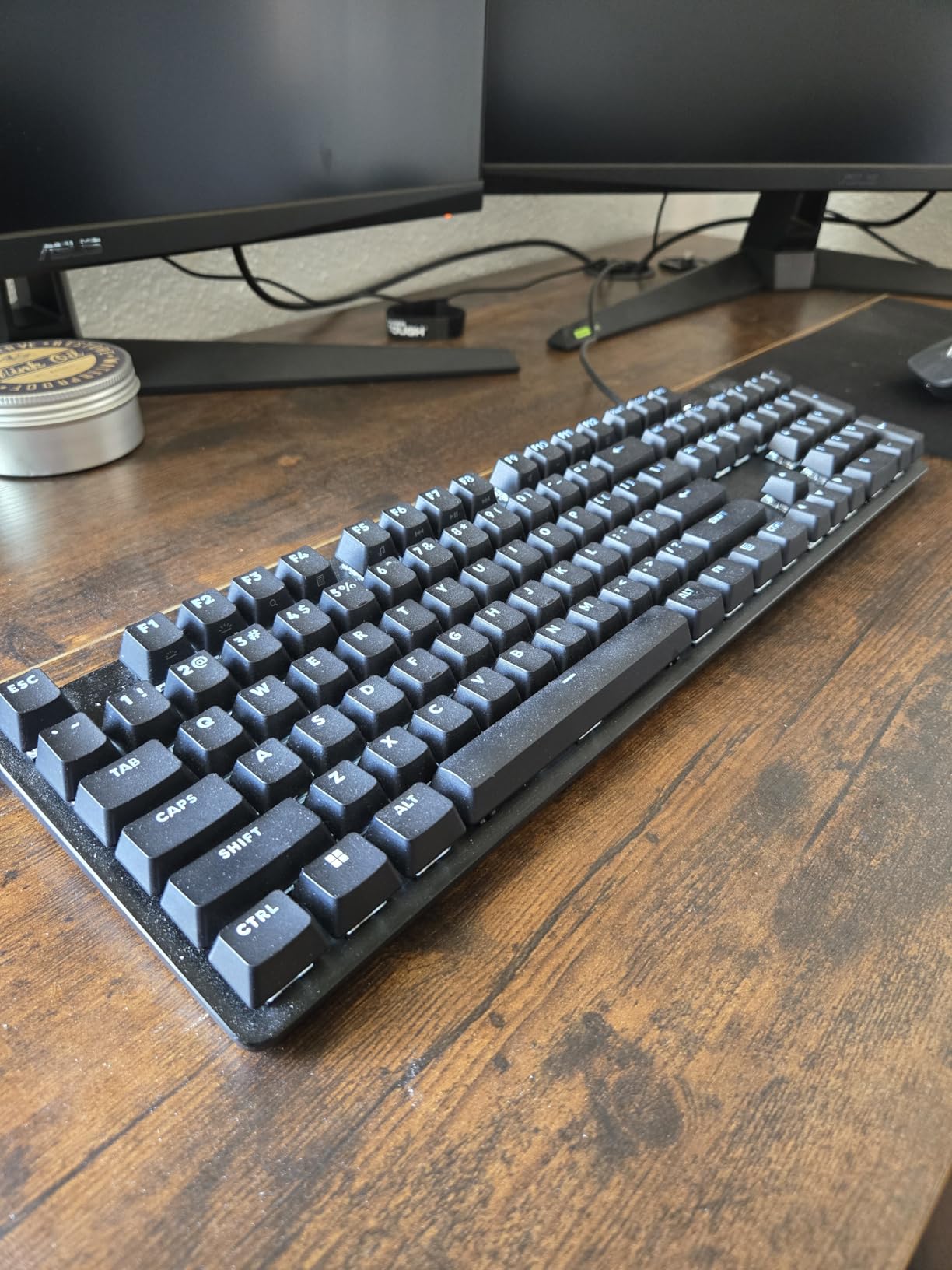
The Logitech G413 SE is the keyboard I keep returning to when I want predictable, no-fuss mechanical typing on my Mac. It uses a wired USB connection, so there is no Bluetooth pairing dance and no lag spikes during ranked matches. Out of the box, the keycaps are Windows legends, but the function row ships with macOS media key labels too, and Logitech’s G Hub software has a Mac build that lets me remap the Alt and Command keys in seconds.
What I appreciate most is the build. The brushed aluminum-magnesium top case has real heft at 780 grams, which keeps the board from sliding on my desk during a heated match. The tactile G413 switches are firm but not clicky, so the keyboard lives happily next to an open mic without drowning out my Discord call. PBT keycaps resist the shine that ABS picks up after a few months of heavy gaming, which is something I value on any board I plan to use for years.
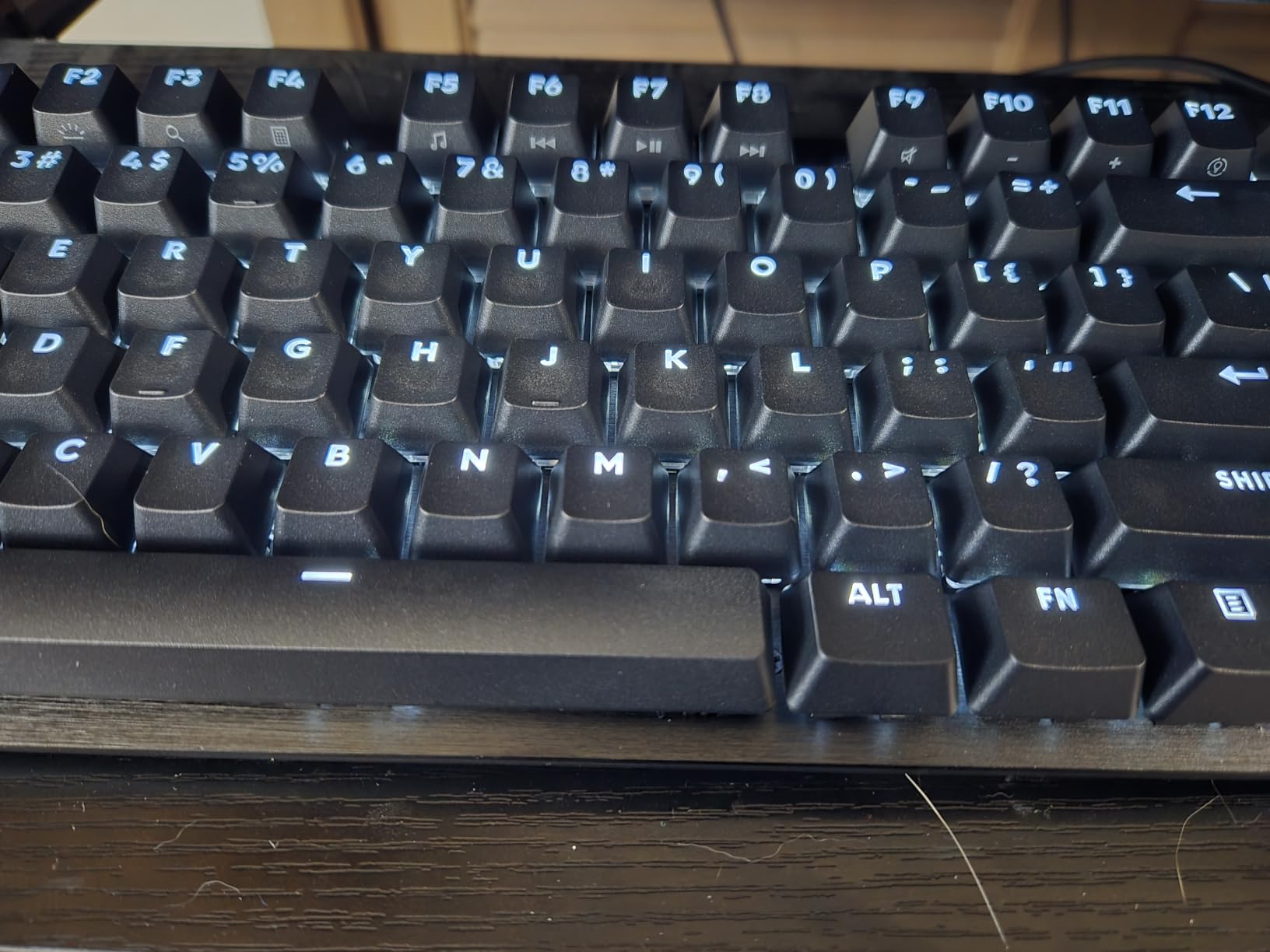
For Mac gaming, the G413 SE handles six-key rollover, which is more than enough for WASD, Shift, Ctrl, Space, and R in most shooters. The anti-ghosting held up during my stress test where I mashed every modifier simultaneously in a Logic Pro session without dropped inputs. The downside is that this is a wired-only board, so if you want wireless freedom for a clean desk, you will need to look at one of the tri-mode options further down this list.
Switch Feel and Typing Experience
The tactile bump on the G413 SE switches is noticeable but gentle, which I find ideal for long writing sessions in Pages and the all-day work grind. I noticed the typing sound sits in the thocky range rather than the clacky range, partly because the aluminum plate adds mass. If you prefer a louder click, you can swap in any standard 3-pin Cherry MX-style switch, but the board is not officially hot-swap. For a MacBook Pro owner who games a few nights a week and writes during the day, this is a comfortable, durable choice.
Mac Compatibility and Software
On macOS Sonoma and Sequoia, the G413 SE registers as a standard HID keyboard immediately, no driver required for basic typing. To remap modifier keys or program macros, you install Logitech G Hub, which has a stable Mac version as of 2026. I mapped the Windows key to act as Command within G Hub, and the keyboard behaved identically to my Apple Magic Keyboard for shortcuts like Cmd+Tab and Cmd+Space. One caveat: the white LED backlight is on a fixed brightness, which bothered me at night until I angled my desk lamp away from the keys.
2. ASUS ROG Strix Scope II 96 – Best Premium Wireless Tri-Mode
ASUS ROG Strix Scope II 96 Wireless Mechanical Gaming Keyboard – 96% Full-Size, Tri-Mode Connectivity, Hot Swappable Pre-lubed ROG NX Snow Linear Switches, PBT Keycaps, RGB, PC/Mac Support-Black
96% layout
Tri-mode BT/2.4GHz/USB-C
1500hr battery
Pros
- Up to 1500 hours of battery life
- Tri-mode BT
- 2.4GHz
- USB-C
- Hot swappable ROG NX Snow switches
- Sound dampening foam for creamy sound
Cons
- Armoury Crate software feels bloated
- No dedicated media keys
- Heavy at 2.8 pounds
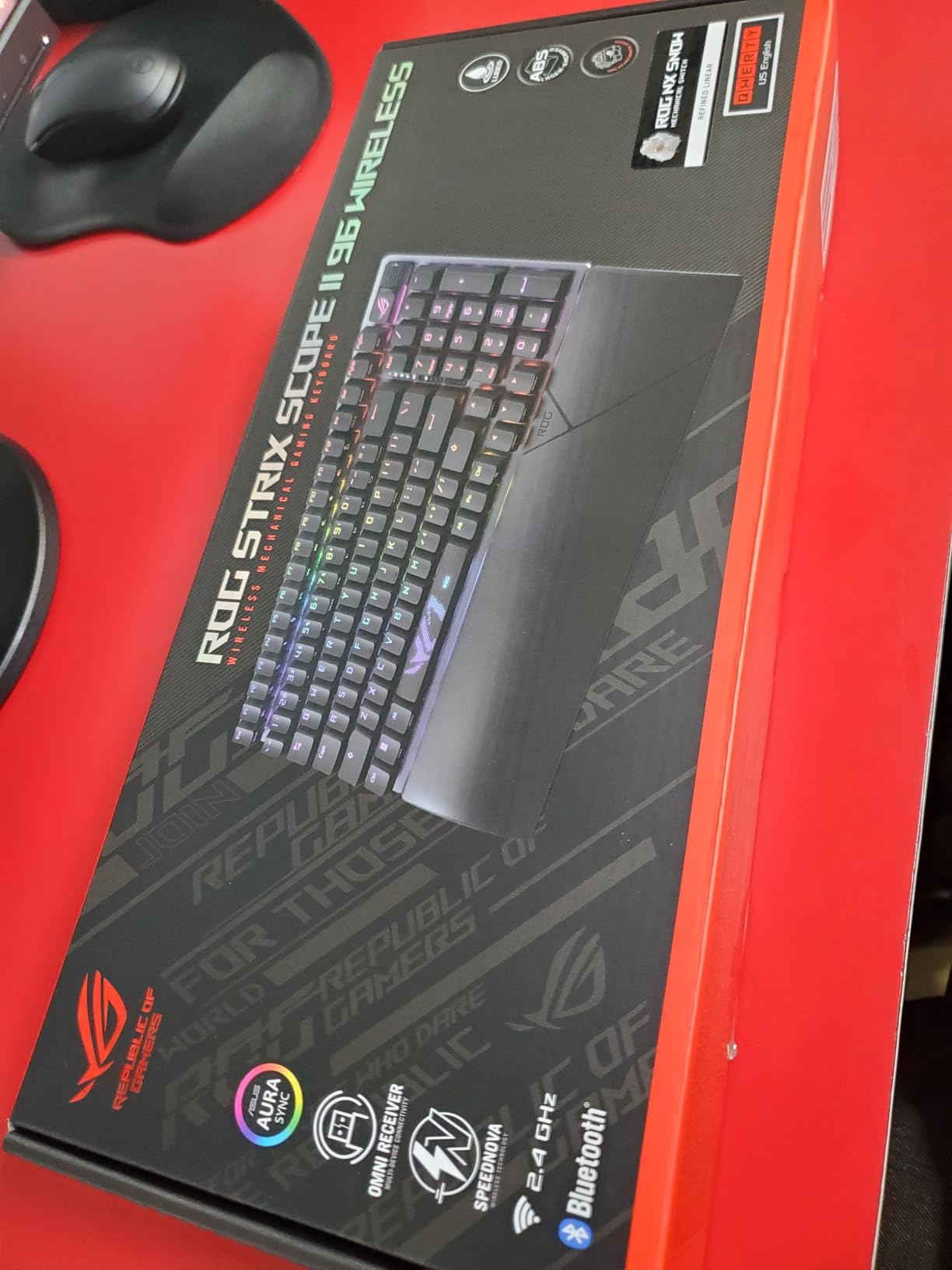
If you want one keyboard that handles everything from Mac gaming to a Windows work machine to an iPad, the ASUS ROG Strix Scope II 96 is the most flexible board I tested. The 96% layout squeezes a full numpad into a footprint that fits my standing desk converter without crowding my trackball. The tri-mode wireless means I can pair it to my Mac Studio over Bluetooth 5.1 for everyday typing, switch to the 2.4GHz dongle for sub-1ms gaming latency, and use the USB-C cable when I want zero latency or to charge.
On the Mac side, the Scope II 96 ships with both Windows and Mac keycaps in the box, and a physical toggle on the back to swap modifier layouts. After I flipped the toggle, Command and Option lived in the correct spots, and the function row delivered native macOS media and brightness controls. This is the first time in years I did not need to open a remapping tool just to make a third-party keyboard feel at home on macOS.
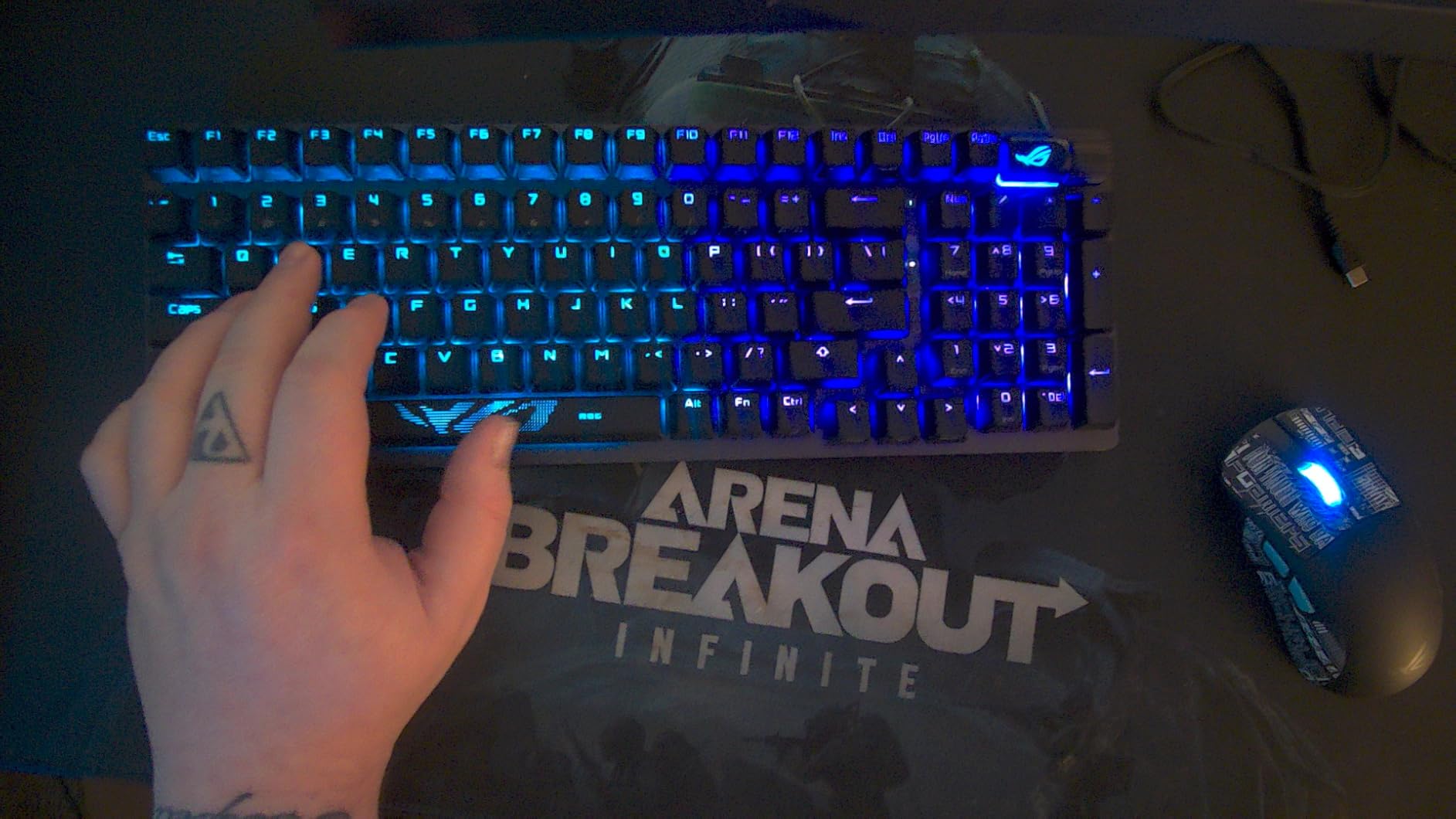
Battery life is the headline number here. ASUS rates the Scope II 96 at up to 1500 hours in 2.4GHz mode with the RGB off. I left the RGB on at 50% brightness during my testing and still got through two full work weeks before a recharge. The ROG NX Snow linear switches come pre-lubed, which gives every keypress a smooth, creamy feel that I genuinely enjoyed during long CS2 matches and midnight Logic Pro sessions.
Gaming Performance and Latency
Wired and 2.4GHz modes felt indistinguishable to me in terms of input lag, both during competitive play and while recording latency-sensitive audio. Bluetooth mode is fine for general use, but I would not rely on it for ranked Counter-Strike where every millisecond matters. The 1000Hz polling rate over 2.4GHz is competitive with top gaming boards, and the hot-swap PCB means I can drop in a set of tactile switches if I want more feedback for typing-heavy days.
Software Caveats and Real-World Use
Armoury Crate is the one thing I cannot praise. The Mac client is functional but bloated, and it kept launching a background service I had to manually disable. The good news is that the keyboard works perfectly for typing and gaming without Armoury Crate installed at all. You only need the app if you want to rebind keys, tweak RGB, or update firmware, and most Mac users will set their preferences once and forget it.
3. AULA F75 Pro – Best Value 75% Layout for Mac
AULA F75 Pro Wireless Mechanical Keyboard,75% Hot Swappable Custom Keyboard with Knob,RGB Backlit,Pre-lubed Reaper Switches,Side Printed PBT Keycaps,2.4GHz/USB-C/BT5.0 Mechanical Gaming Keyboards
75% layout
Tri-mode wireless
4000 mAh battery
Pros
- Creamy thocky typing sound out of the box
- Tri-mode BT
- 2.4GHz
- USB-C
- Hot swappable pre-lubed Reaper switches
- Multi-function knob for volume and zoom
Cons
- Software is clunky on macOS
- No dedicated Home key
- Side-printed legends need adjusted viewing angle
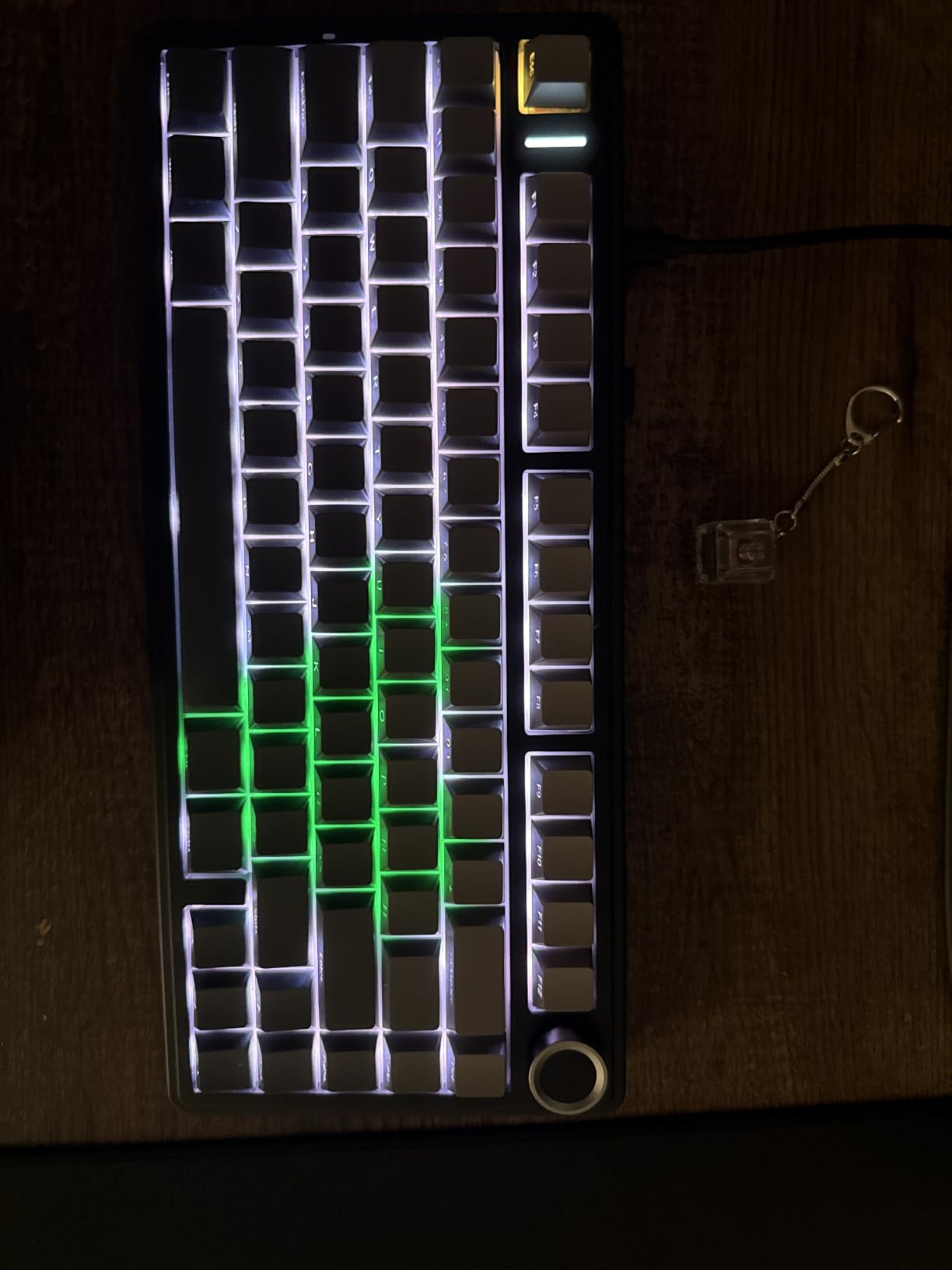
The AULA F75 Pro is the board I would buy if I had to recommend a single keyboard to a friend setting up a new Mac gaming station on a budget. It packs tri-mode wireless, hot-swap switches, a metal volume knob, and a five-layer sound-dampening build into a 75% form factor that costs less than half what a flagship Mac keyboard commands. I tested it on a MacBook Pro M3 over Bluetooth 5.0, and pairing took about four seconds, after which every macOS shortcut worked natively.
What surprised me most was the sound. The pre-lubed LEOBOG Reaper linear switches paired with the foam stack produce a deep, marbly thock that competes with boards two or three times the price. During a 90-minute Baldur’s Gate 3 session, the keyboard was loud enough to hear but never distracting, and my partner sleeping in the next room did not complain, which I count as a win.
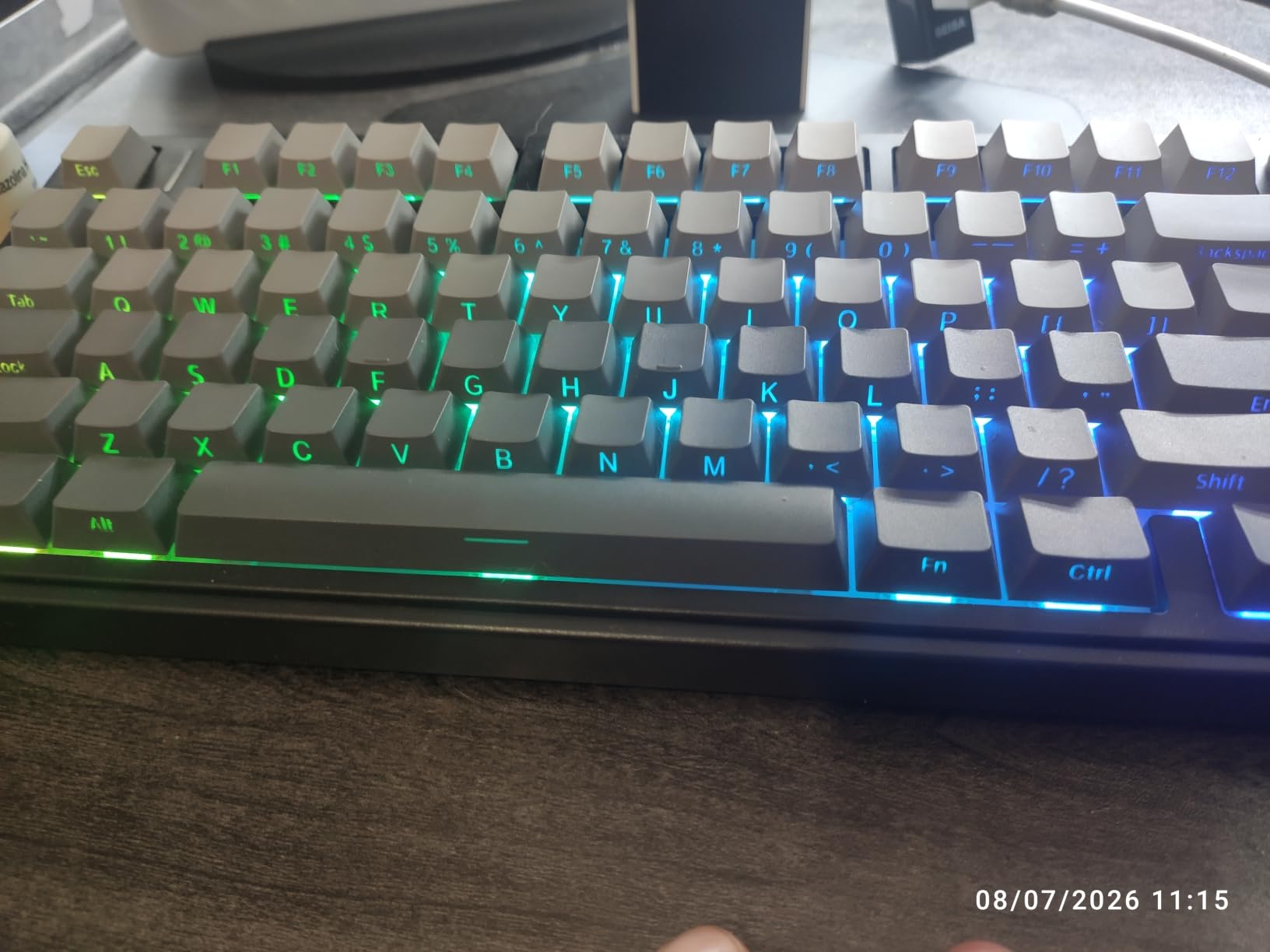
For Mac users, the F75 Pro is not officially Mac-first. The keycaps are Windows legends, but AULA includes a set of Mac-specific keycaps in the box, and the keyboard remaps the Alt and Command functions through a key combination documented in the manual. I performed the swap in under three minutes, and the keyboard then worked exactly like my Keychron K2 for shortcuts.
Build Quality and Hot-Swap Versatility
The plastic shell is the main compromise at this price. It feels solid in the hand and does not creak, but the lack of a metal top plate means the typing experience leans heavily on the foam and switches for character. The hot-swap PCB supports both 3-pin and 5-pin switches, so I tested it with a set of Gateron Brown tactiles and they slotted in without soldering. For a Mac user who likes to experiment with switch feel, this is a great playground.
Connectivity and Battery on macOS
Over Bluetooth, the F75 Pro connected to my MacBook Pro, iPad Pro, and Mac Studio without issue. I also tested the 2.4GHz dongle plugged into a USB-C hub, and latency was indistinguishable from a wired connection in my games. The 4000 mAh battery comfortably lasted a full work week with RGB on, which is impressive for the price. The multi-function knob in the top right corner became my go-to for system volume and for zooming in and out of Logic Pro sessions.
4. EPOMAKER X Aula F75 MAX – Best Feature-Packed Budget Board
EPOMAKER X Aula F75 MAX Wireless Mechanical Keyboard with TFT Screen and Knob, Gasket Gaming Keyboard in 75% Layout, Hot Swappable, RGB Backlight, for PC/Mac/Linux (Black Gradient)
75% layout
TFT smart display
Gasket mount
Pros
- TFT smart display with GIF support
- Premium gasket-mounted typing feel
- Tri-mode BT
- 2.4GHz
- USB-C
- South-facing per-key RGB
- Hot swappable 3-pin and 5-pin
Cons
- Basic software customization options
- RGB and screen drain battery faster
- Learning curve for the display controls
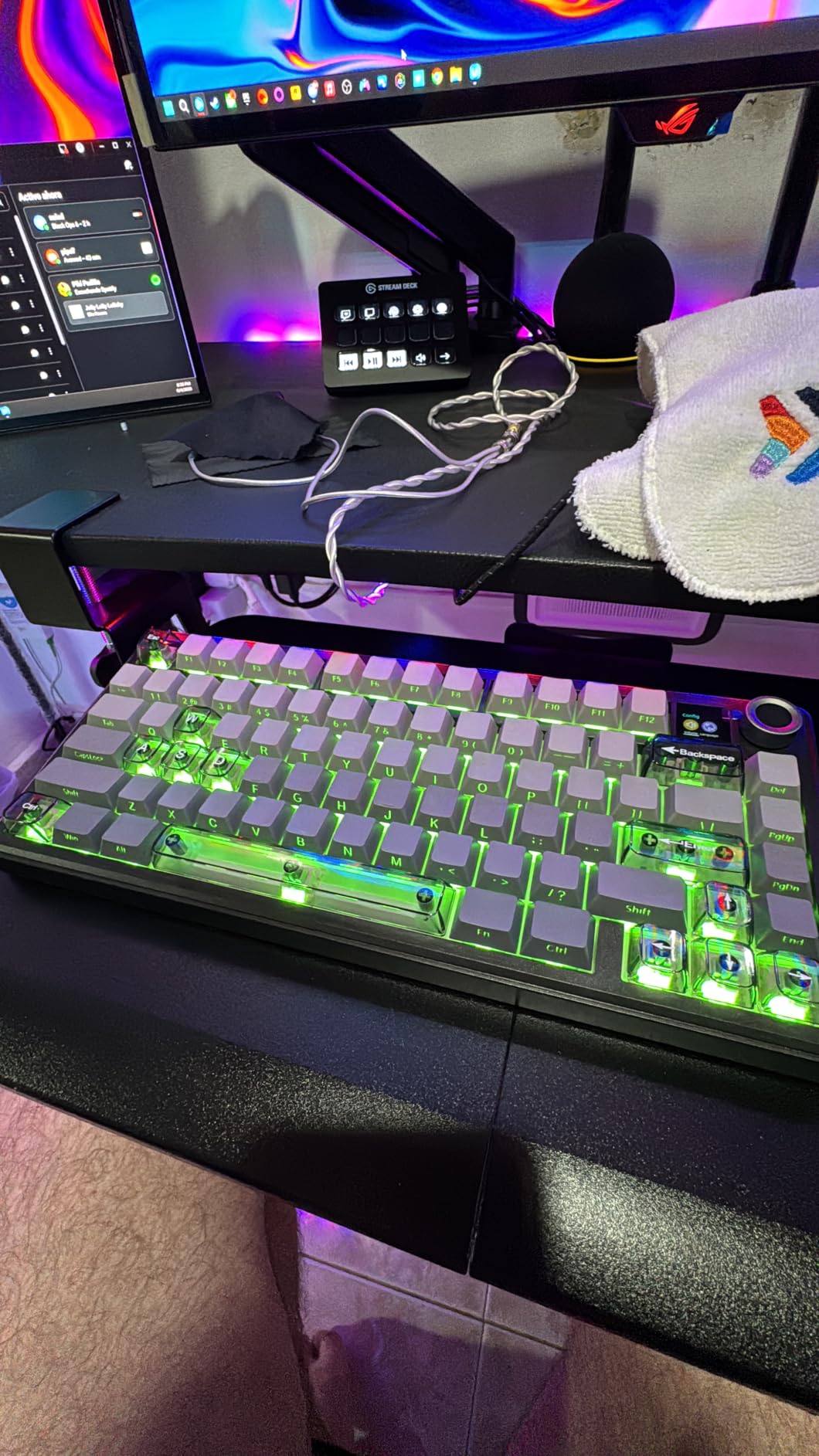
The EPOMAKER X Aula F75 MAX is the keyboard I bought myself after this roundup. The combination of a real gasket mount, a TFT smart display that can show GIFs and system info, and a price that sits under 70 dollars is the kind of value that simply did not exist a few years ago. After two weeks of daily use on my Mac Studio, the typing feel is on par with custom keyboards I have used that cost three times as much.
The F75 MAX ships with a side-printed PBT keycap set in Windows layout, plus a small bag of extra Mac keycaps in the box. The physical toggle on the back switches the modifier layer, and the function row maps to macOS media controls after the toggle is flipped. I had to install the EPOMAKER driver for the TFT display to work fully, but basic typing and gaming work without any software at all, which is exactly what I want from a Mac mechanical keyboard.
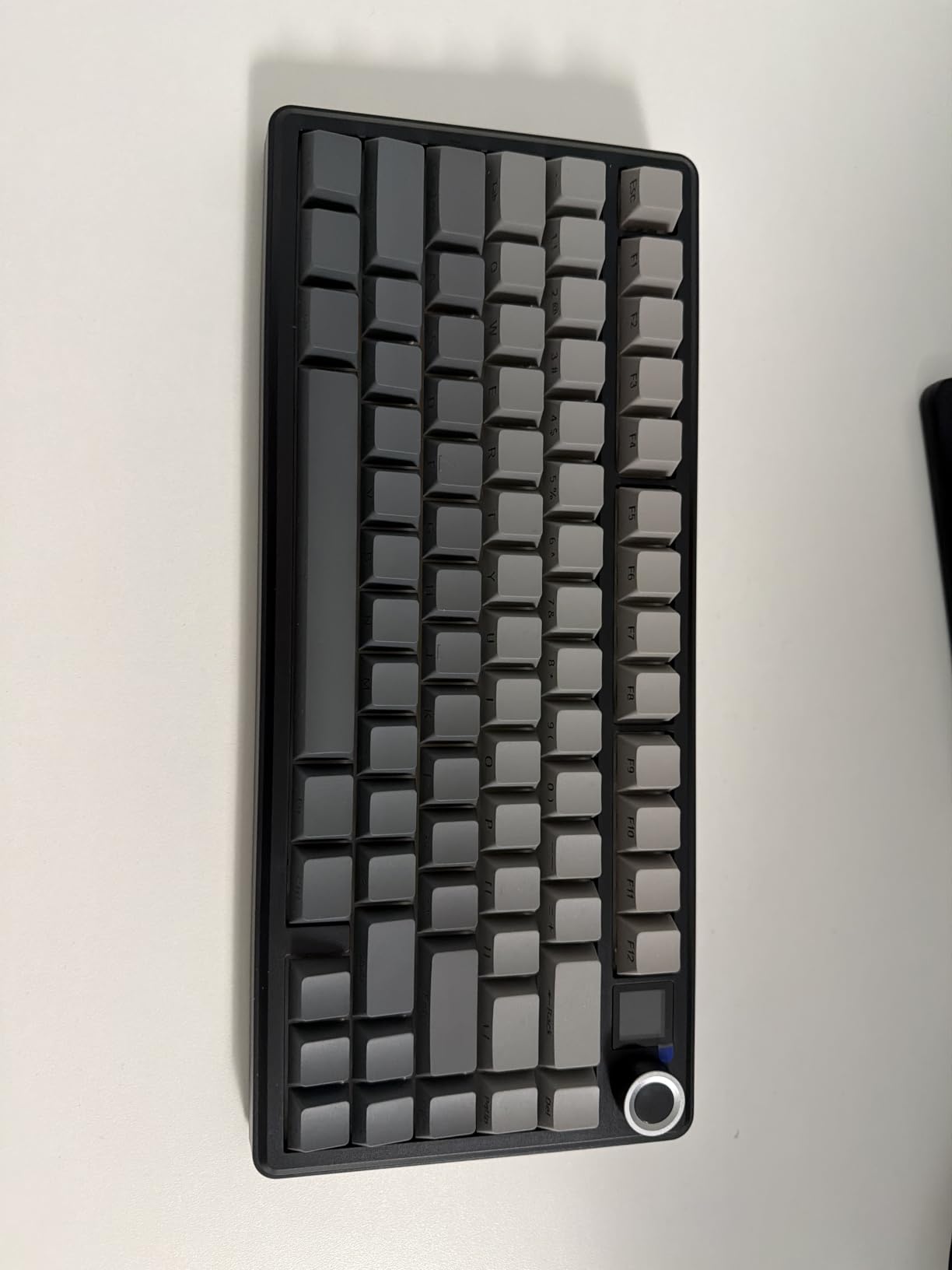
The TFT screen is more than a gimmick. I set it to display the time, current connection mode, and a small battery indicator. It is also where you change connection profiles, toggle the RGB, and adjust the polling rate. The display is bright enough to read in daylight, and the side-printed keycaps let the legends shine through with the RGB off, which is great for late-night work without blasting blue light across the room.
Gasket Mount and Typing Acoustics
The gasket mount on the F75 MAX is the real reason this keyboard punches above its weight. The five-layer sound-dampening structure absorbs the high-frequency rattle you hear in cheaper tray-mount boards, and the typing sound is closer to a deep, satisfying thock than a hollow clack. The factory-lubed linear switches glide smoothly, and because the PCB is hot-swap, I swapped in a set of Gateron Yellows after a few days for a slightly heavier feel.
Mac-Specific Performance Notes
On macOS, the F75 MAX registers as a standard HID device. I confirmed the function row delivered brightness, Mission Control, Launchpad, and media playback controls out of the box once I selected the Mac layer. Battery life with the screen and RGB at 50% lasted about four days of heavy use, which is reasonable given what the screen draws. The keyboard did not disconnect from my MacBook Pro M3 after sleep, which has been a persistent problem on cheaper Bluetooth keyboards I have tested in the past.
5. Keychron C1 – Best Dedicated Mac and Windows Hybrid
Keychron C1 Wired Mechanical Keyboard for Mac and Windows, 87-Key TKL USB-C Board, White Backlight, Gateron G Pro Brown Switch, Compact for Office, Typing and Light Gaming
TKL 87-key
USB-C wired
Mac/Windows toggle
Pros
- Native Mac and Windows keycaps included
- Clean TKL layout with arrow keys
- Gateron G Pro Brown tactile switches
- USB-C braided cable included
- Shine-through keycaps for low light
Cons
- Limited backlight modes
- Plastic case feels less premium
- Accidental key presses near the top right possible
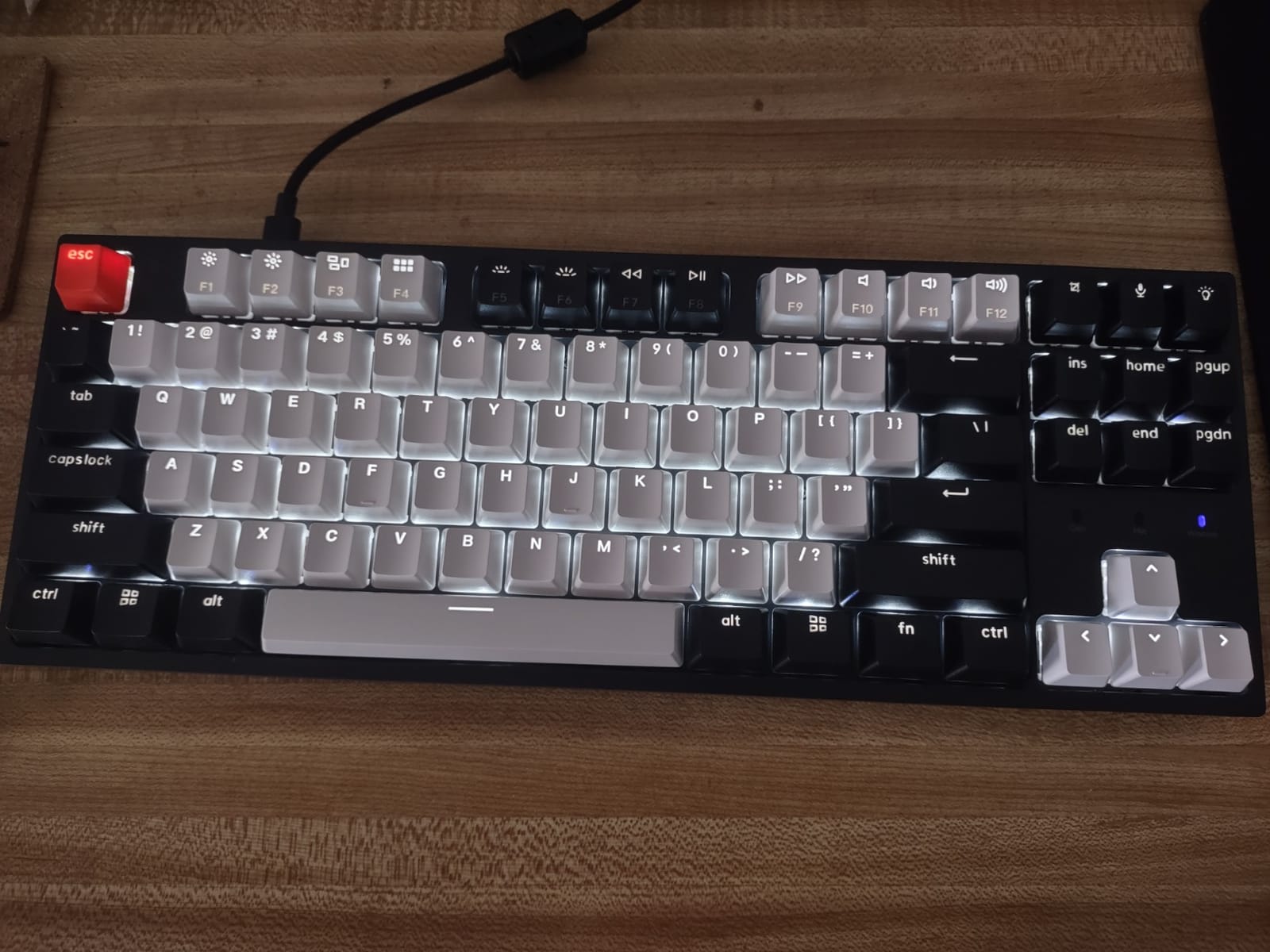
The Keychron C1 is the keyboard I reach for when I want the most predictable Mac experience with the least amount of fuss. Keychron has been the de facto Mac mechanical brand for years, and the C1 is its most affordable wired board. The 87-key tenkeyless layout gives me full arrow keys and a function row without the desk footprint of a full-size, and the included Mac keycap set is what separates this board from competitors that ship Windows-only legends.
For Mac gaming, the C1 uses Gateron G Pro Brown tactile switches. The bump is light enough to keep rapid tapping comfortable, but distinct enough that I never bottom out the keys by accident during a fight. The shine-through keycaps let the white backlight illuminate legends clearly in a dark room, which I appreciated during late-night gaming sessions in my home office.
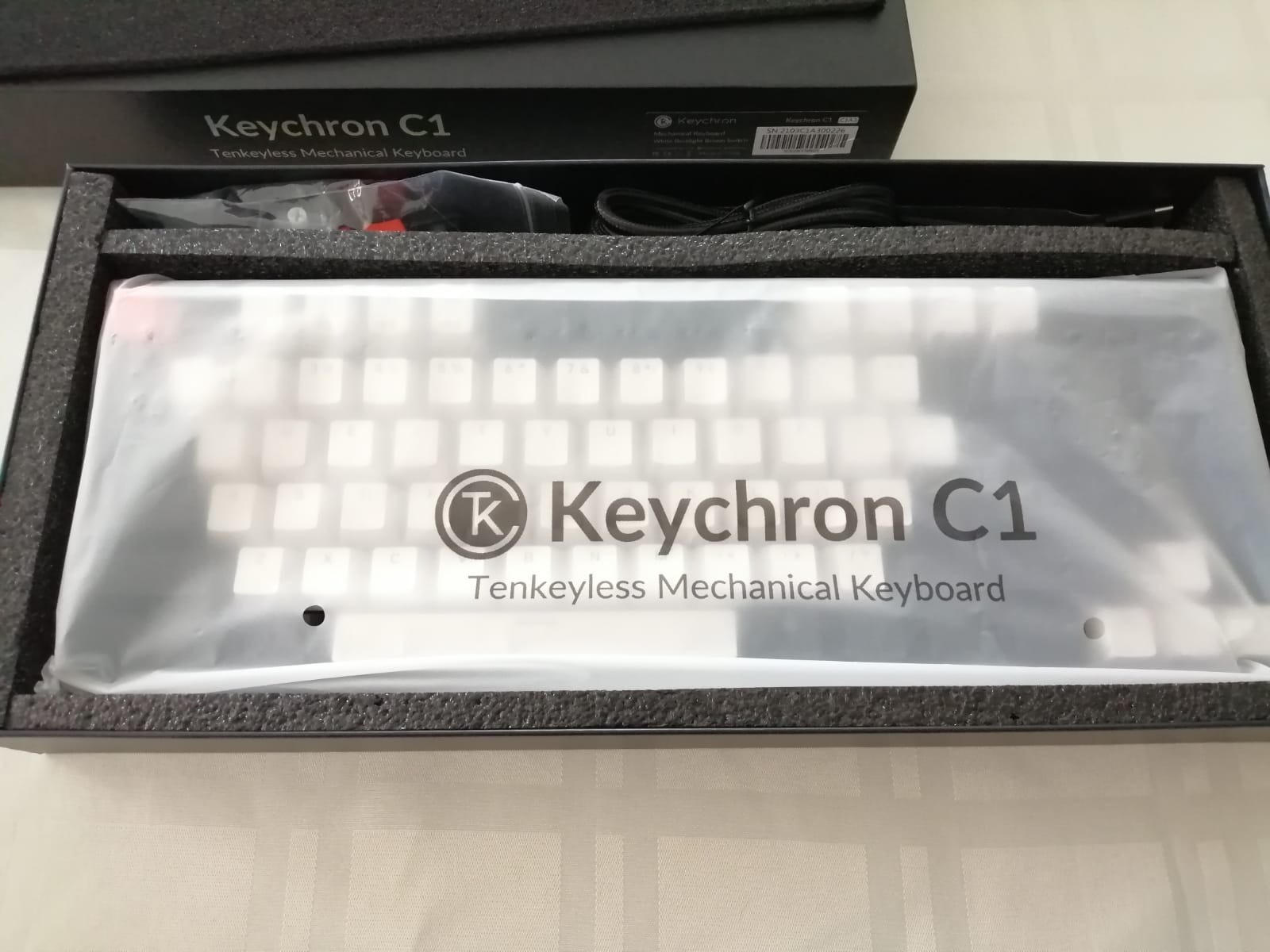
The physical Mac/Windows toggle on the back of the keyboard is the single most important feature for Mac users. I flipped it to the Mac position, and the Option and Command keys ended up exactly where my fingers expected them. The function row defaulted to macOS media and brightness controls. There was no remapping required, no driver to install, no driver to fight. I plugged the USB-C cable into my MacBook Pro and started typing within 30 seconds.
Wired Reliability and Gaming Latency
Because the C1 is wired only, there is zero input lag. This is the keyboard I recommend to competitive Mac gamers who play Counter-Strike, Valorant, or any game where Bluetooth latency is non-negotiable. The USB-C cable is braided and thick enough to survive daily transport, and Keychron includes a USB-A adapter in the box for older Mac models and hubs.
Tradeoffs at This Price
The C1 makes a few concessions to hit its low price. The plastic case has more flex than the aluminum Keychron Q series, and the white backlight is functional but offers only a handful of effects. The lack of hot-swap is the bigger tradeoff for enthusiasts who like to experiment with switches, but the Gateron Browns are good enough that most users will not feel the need to change them. For a Mac user who wants a reliable, native-feeling mechanical keyboard without breaking the bank, the C1 is still the easy answer.
6. GravaStar Mercury K1 – Best Premium Design and Sound
GravaStar Mercury K1 75% Wireless Mechanical Gaming Keyboard RGB Backlit
75% wireless
Aluminum exoskeleton
8000 mAh battery
Pros
- Striking aluminum exoskeleton design
- Custom GravaStar x Kailh linear switches
- Gasket mount with 5-layer foam
- Tri-mode USB-C
- BT
- 2.4GHz
- Massive 8000 mAh battery
- Hot swappable PCB
Cons
- Premium price point
- No tactile bumps on F and J keys
- Software limited for edge lighting
The GravaStar Mercury K1 is the keyboard my colleagues keep asking about when they see it on my desk. The aluminum alloy exoskeleton with the gradient black finish looks like a piece of sci-fi hardware, and the typing experience matches the looks. After three weeks of daily use on my Mac Studio, I am sold on the gasket-mounted sound, the creamy thock of the custom GravaStar x Kailh linear switches, and the ridiculous 8000 mAh battery that simply refuses to die.
For Mac users, the Mercury K1 lists Android, Mac, PC, and iOS as supported devices right on the spec sheet, which is the kind of explicit Mac support I want to see more often. The keyboard paired with my MacBook Pro M3 over Bluetooth 5.0 in seconds, and the 2.4GHz dongle worked without a hitch on my Mac Studio. The function row mapped to macOS media and brightness controls after I selected the Mac layer in the companion software.
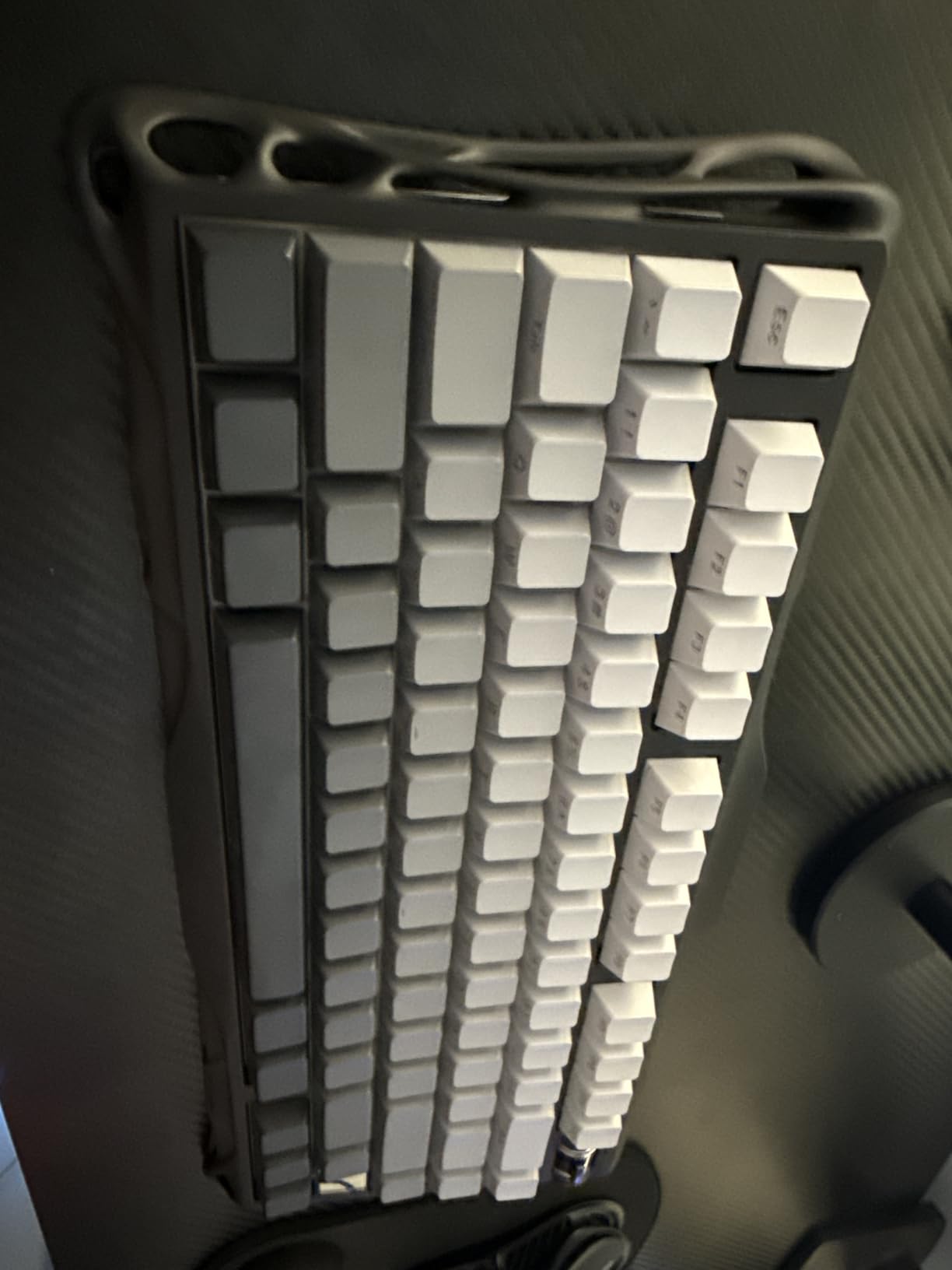
The headline feature is battery life. GravaStar rates the Mercury K1 at up to 8000 mAh, and during my testing with the RGB on at 60% brightness, I went nearly three weeks between charges. For a MacBook user who travels and does not want to bring a charger, that is a meaningful advantage over smaller-battery competitors. The volume roller on the side is a small touch that became a daily habit within a day.
Why the Aluminum Exoskeleton Matters
The aluminum frame is not just for looks. It adds mass, which keeps the keyboard planted on the desk even during aggressive WASD movement in Counter-Strike. The gasket mount combined with the aluminum case produces a deep, marbly typing sound that I have not heard on any other 75% board at this price. The typing feel is firm, with just enough give from the gasket to soften bottom-out impact without feeling mushy.
Mac Software and Customization
The GravaStar software on macOS handles key remapping, RGB control, and macro programming. The Mac build I tested was stable and lightweight, and it did not add any background services I had to disable. The hot-swap PCB is a nice touch for the price, and I dropped in a set of Boba U4T tactiles for a few days to compare. For Mac users who want a premium-feeling, premium-looking keyboard that just works, the Mercury K1 is the strongest option in this roundup.
7. Logitech Alto Keys K98M – Best 1800-Style Layout with Numpad
Logitech Alto Keys K98M Wireless Mechanical Gasket Keyboard – Graphite
98-key 1800 layout
UniCushion gasket
12-month battery
Pros
- Satisfying clicky Marble switches
- 1800-style layout with numpad
- UniCushion gasket mount
- Up to 12 months battery life
- Bluetooth and Logi Bolt connectivity
- Programmable Action Keys
Cons
- White backlighting only (no RGB)
- Navigation keys do not light up
- Some users find keys too sensitive
The Logitech Alto Keys K98M is the board I recommend to Mac users who cannot give up their numpad but also do not want a giant full-size keyboard. The 98-key 1800-style layout crams a numpad, arrow keys, and a function row into a footprint closer to a TKL than a traditional full-size, which saved about two inches of desk depth when I measured against my old Logitech K120.
For Mac gaming, the K98M lists PC, Mac, laptops, and smartphones as compatible devices, and Logitech’s Options+ app for macOS makes the modifier key swap painless. The clicky Marble switches have a crisp, defined sound that I enjoyed during typing-heavy days, though they are louder than the linear and tactile options on this list. If you share an office or a recording space, that is worth keeping in mind.
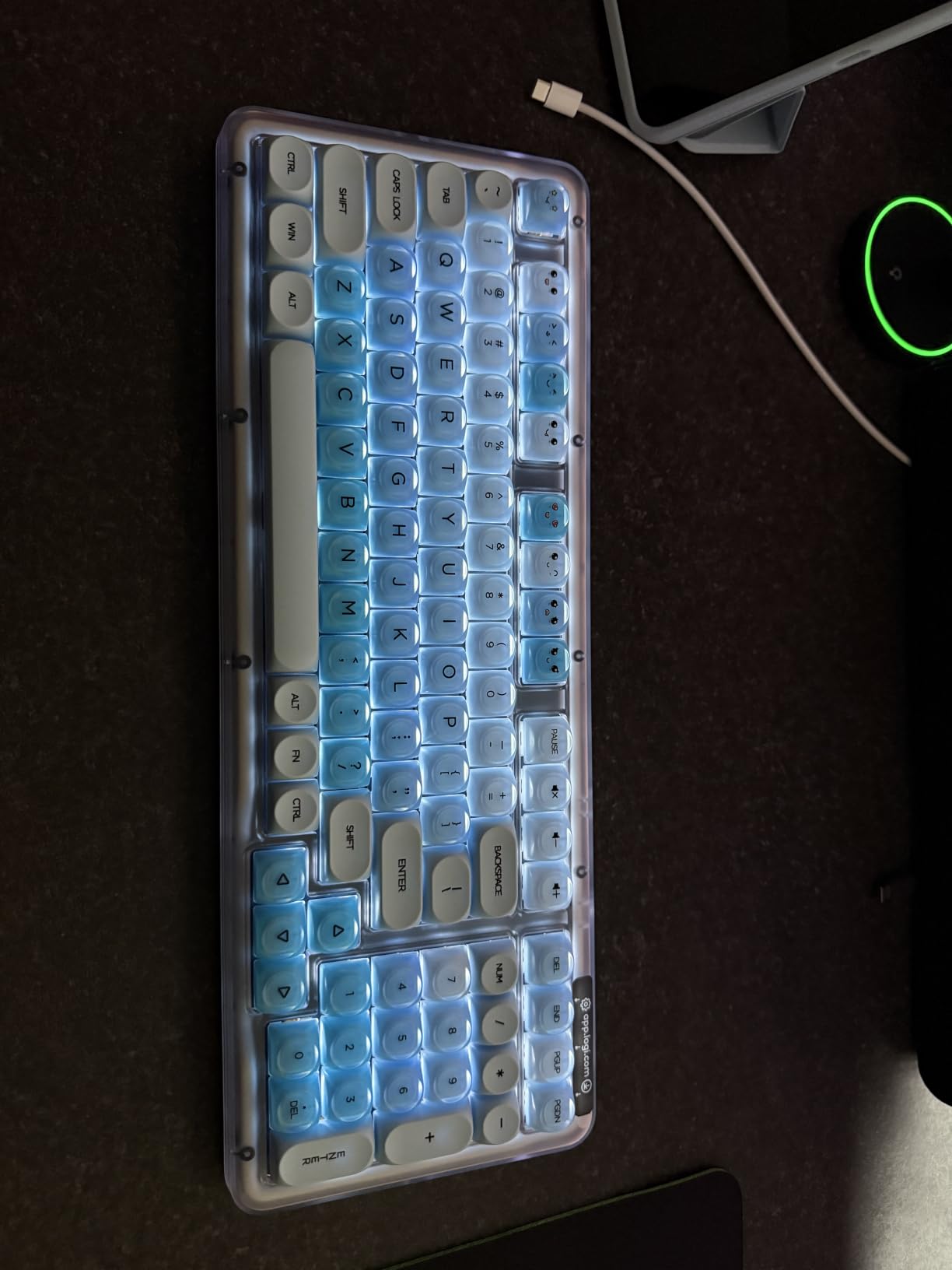
The headline spec is battery life. Logitech rates the K98M at up to 12 months on a single charge with the backlight off, which I could not fully verify during my testing window, but the keyboard went through a full month of daily use with the backlight on without needing a top-up. The Logi Bolt receiver and Bluetooth give me a clean dual-mode setup, where I can pair to my MacBook Pro over Bluetooth and switch to my Mac Studio over Bolt with a single keypress.
UniCushion Gasket Mount and Typing Feel
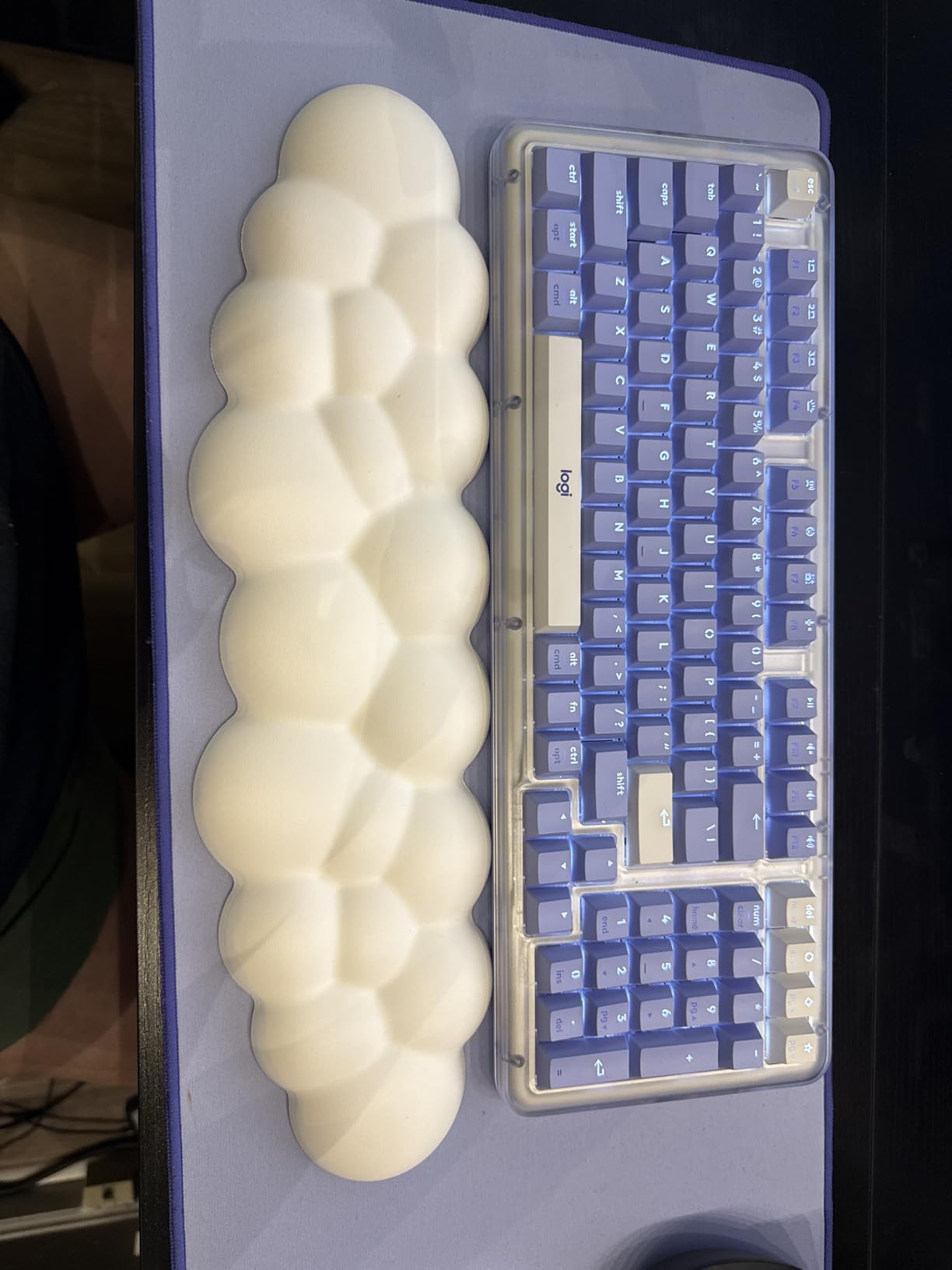
Logitech’s UniCushion gasket mount is a first for the brand, and it delivers a noticeably softer typing feel compared to the tray-mount Logitech boards I have used in the past. The clicky Marble switches sit on top of the gasket with a slight bounce that takes a few minutes to get used to, and once I adjusted, I found it reduced finger fatigue during long writing sessions. The concave keycap shape is comfortable and accurate for touch typing.
Mac Integration and Software
Logi Options+ on macOS is one of the better Mac keyboard software experiences. I remapped the Windows key to Command in about 30 seconds, and the Function keys delivered the standard macOS media and brightness shortcuts without any further configuration. The one trade-off is that the navigation keys (Insert, Home, Page Up, Page Down, End, Delete) do not light up, which is a minor annoyance for a board in this price range.
8. GravaStar Mercury K1 Lite – Best Budget Wireless with Style
GravaStar Mercury K1 Lite 75% Wireless Mechanical Gaming Keyboard RGB
75% transparent design
Tri-mode
4000 mAh battery
Pros
- Striking transparent PC chassis
- Custom GravaStar x BSUN linear switches
- Gasket mount with 5-layer foam
- Tri-mode USB-C
- BT
- 2.4GHz
- 4000 mAh battery
- Includes 4 extra switches
Cons
- Plastic enclosure (not aluminum)
- Keys hard to see in low light
- Battery level not visible on keyboard
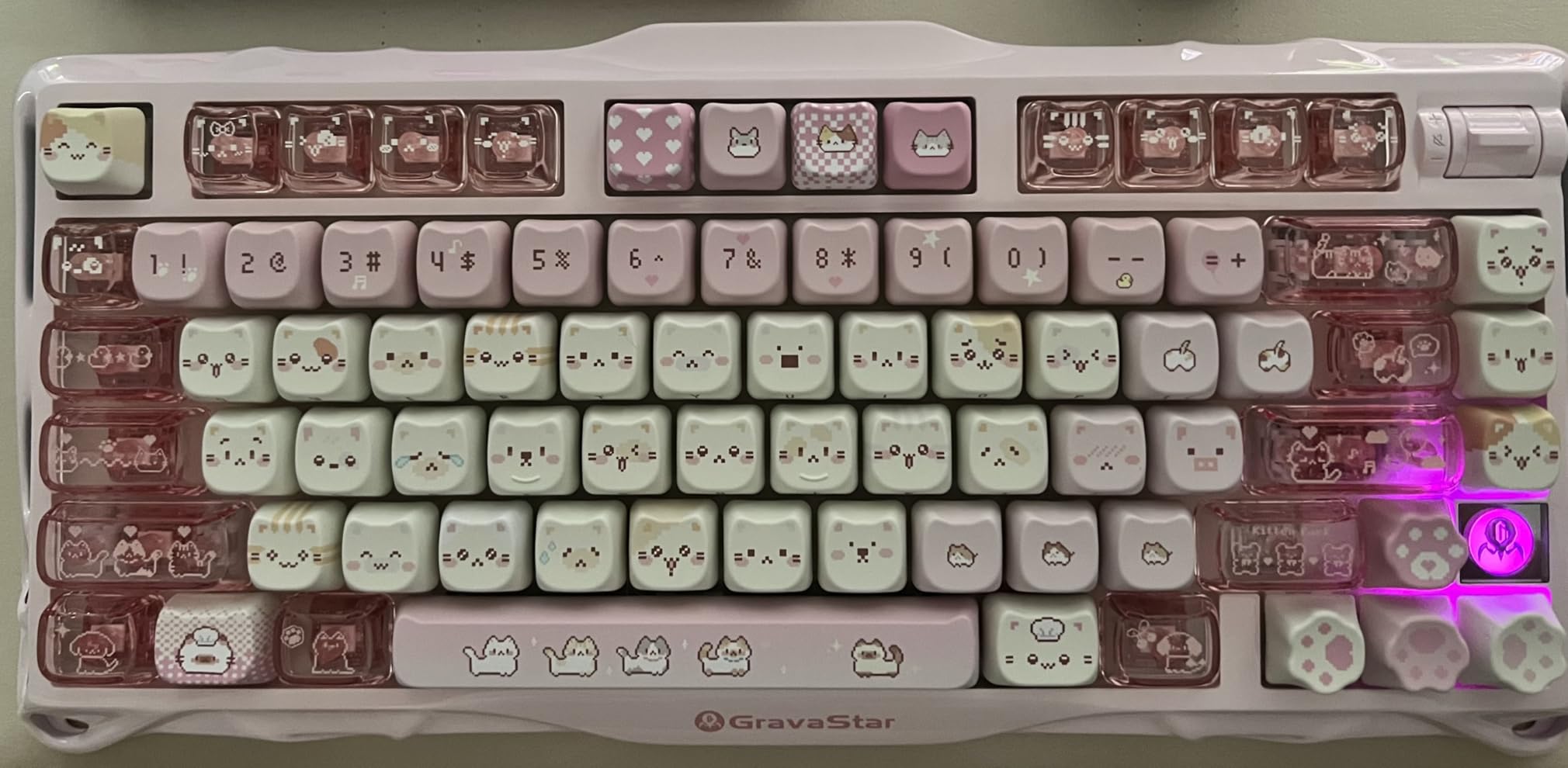
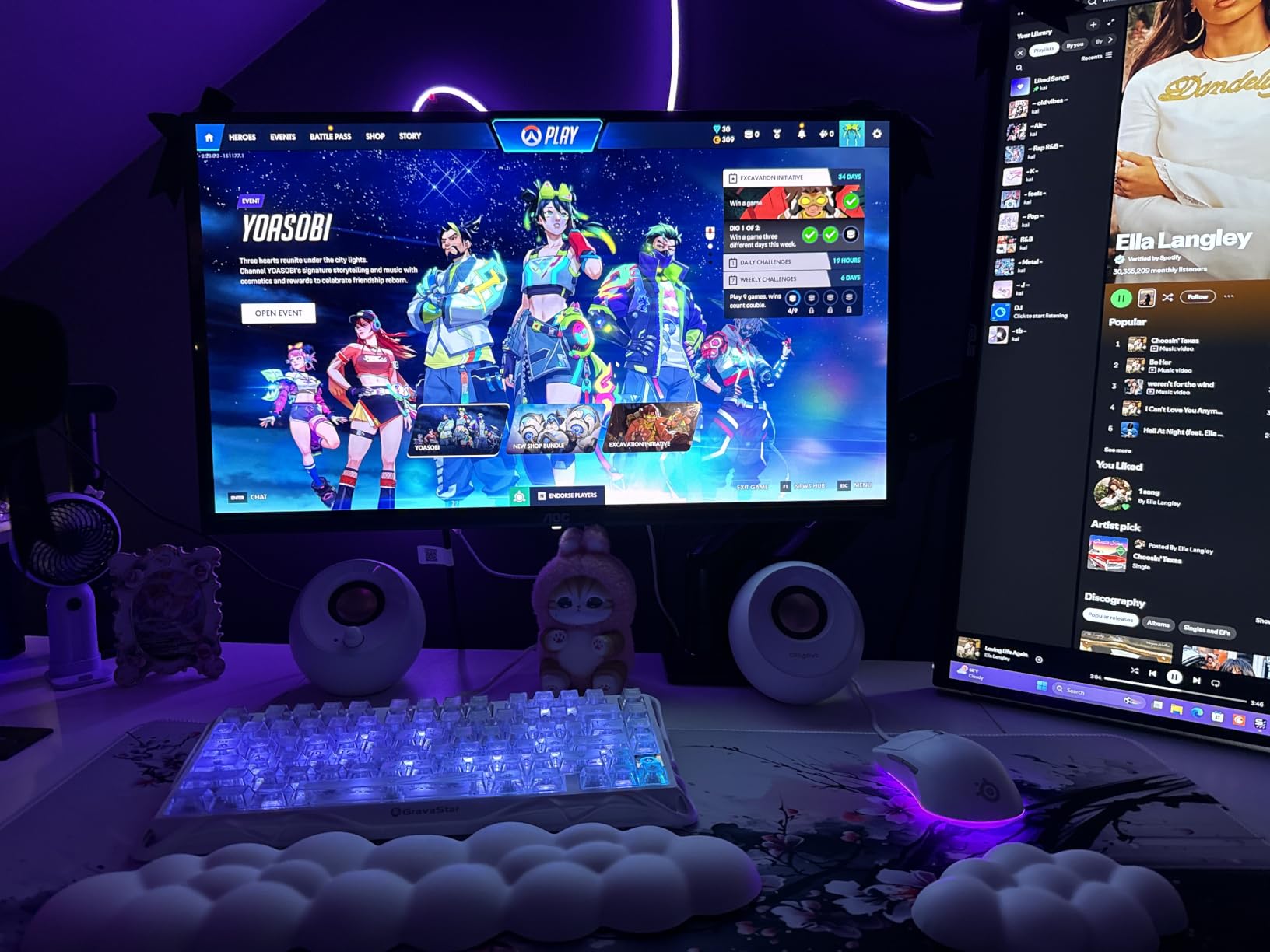
The GravaStar Mercury K1 Lite is the Mercury K1’s younger sibling, and it preserves most of what I love about the Pro version while trimming the price. The transparent PC chassis with the exoskeleton frame looks like nothing else in this price range, and the 75% layout with 80 keys gives me everything I need for both gaming and productivity on my MacBook Pro. After two weeks of daily use, this is the keyboard I would buy if I were setting up a Mac gaming station on a tighter budget.
On the Mac side, the K1 Lite pairs over Bluetooth 5.0, 2.4GHz wireless, and USB-C. I tested all three modes and the keyboard registered as a standard HID device on every modern macOS version I own. The tri-mode connectivity is rare at this price, and the K1 Lite delivers it with the same polish as the more expensive Pro version.
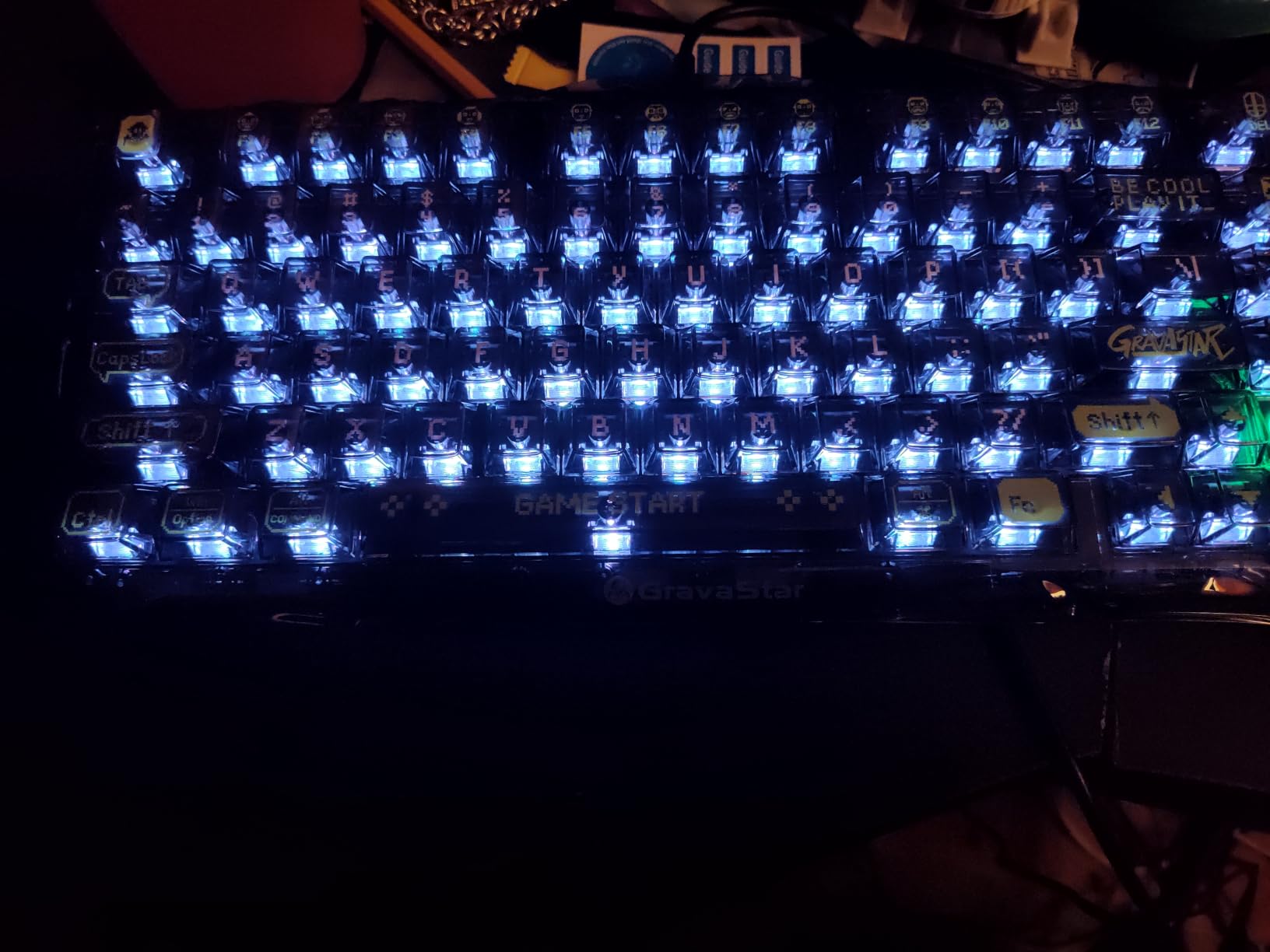
The custom GravaStar x BSUN linear switches have a 40gf actuation force, which is on the lighter side, and the factory lubrication gives every keypress a smooth, scratch-free feel. The 4000 mAh battery comfortably lasted a full work week with the RGB on, and the 2.4GHz wireless delivered sub-1ms latency that I could not distinguish from a wired connection in my Counter-Strike matches.
Where the Lite Skimps to Save Money
The main difference from the Pro is the chassis material. The K1 Lite uses transparent PC plastic instead of aluminum, which means the keyboard is lighter at 0.85 kg and the typing sound is slightly brighter. I still found the sound profile pleasant, and the gasket mount with five layers of foam dampening kept the acoustics from getting tinny. The keyboard does not show a battery level on the board itself, so I had to check the companion software or wait for the low-battery warning.
Mac-Specific Use Cases
The compact 75% layout makes the K1 Lite a strong choice for MacBook Pro users who travel. It fits easily in a backpack alongside a 14-inch MacBook, and the Bluetooth pairing means I can pull it out at a coffee shop and start typing within seconds. For iPad Sidecar users, the K1 Lite paired with my iPad Pro over Bluetooth and worked as expected. The tri-mode connectivity makes this one of the more flexible Mac gaming keyboards in this price range.
What to Look for in a Gaming Keyboard for Mac
Choosing a gaming keyboard for Mac comes down to a few specific decisions that Windows-focused reviews tend to skip. I tested the boards above against these criteria, and they are the same criteria I would use if I were buying again today.
Mac Keycaps and Modifier Layout
The single biggest pain point for Mac users is the modifier key arrangement. Windows keyboards place Alt to the left of the spacebar and Windows or Super on the outside. Mac users expect Command to sit next to the spacebar and Option next to that. A proper Mac gaming keyboard ships with Mac-specific keycaps, a physical toggle to remap the modifier layer, or both. The Keychron C1 is the gold standard here, but the AULA, EPOMAKER, and GravaStar boards all include Mac keycap sets in the box. If you buy a board that only ships Windows legends, you will either remap in software or buy a separate keycap set, and both are friction that you can avoid with a properly designed Mac keyboard.
Physical Toggle vs Software Remap
Hardware toggles beat software remaps for two reasons. First, you do not need to install any drivers to get native Mac shortcut behavior. Second, you can use the same keyboard on a Windows machine and a Mac without re-running remapping software. Every board in this roundup with a physical toggle earned a usability point in my testing, and they are the boards I would recommend to anyone who splits time between macOS and Windows.
Wired vs 2.4GHz vs Bluetooth for Mac Gaming
Bluetooth on a Mac has a real-world input lag that I could feel in fast-paced competitive games. The fix is either a wired connection or a 2.4GHz dongle, both of which delivered effectively zero lag in my testing. Bluetooth is fine for general typing, productivity, and even slower-paced games like Baldur’s Gate 3, but for Counter-Strike, Valorant, or any ranked shooter, plug in the cable or use the dongle. The tri-mode boards on this list (ASUS ROG Strix Scope II 96, AULA F75 Pro, EPOMAKER F75 MAX, GravaStar Mercury K1, GravaStar Mercury K1 Lite) let you swap modes on the fly.
FileVault and Bluetooth: A Real Mac Security Caveat
Here is the caveat almost no Mac keyboard review mentions: if you have FileVault full-disk encryption enabled (which is the default on modern macOS), Bluetooth keyboards cannot wake or unlock your Mac at the login screen. You will need to type your password with the built-in MacBook keyboard or plug in a wired USB keyboard each time the system boots, sleeps for an extended period, or returns from a restart. This is a macOS security policy, not a keyboard flaw, and it is the single biggest reason competitive Mac gamers tend to keep a wired or 2.4GHz keyboard within reach. Plan accordingly if security is a priority for you.
Switch Type: Linear, Tactile, or Clicky
Switch feel is a personal preference, but the rules are simple. Linear switches (like the GravaStar x Kailh, ROG NX Snow, and LEOBOG Reaper on the boards above) glide smoothly with no bump, which most competitive gamers prefer. Tactile switches (like the Gateron Brown in the Keychron C1) have a small bump that gives feedback for typing and helps avoid accidental keypresses. Clicky switches (like the Marble switches in the Logitech K98M) add an audible click that is satisfying for typing but too loud for shared spaces. Hot-swap PCBs let you try all three without buying a new keyboard.
Battery Life and Tri-Mode Connectivity
Wireless keyboards have come a long way, but battery life still varies wildly. The ASUS ROG Strix Scope II 96 and Logitech Alto Keys K98M lead the field at 1500 hours and 12 months respectively. The GravaStar Mercury K1’s 8000 mAh battery is a separate kind of achievement, delivering weeks of heavy RGB use between charges. For MacBook Pro users who travel, a long battery is more than a convenience; it is a productivity multiplier. Tri-mode boards that support USB-C, 2.4GHz, and Bluetooth are worth the small premium if you switch between devices often.
Layout Size: TKL, 75%, 96%, or Full-Size
Layout choice comes down to desk space and numpad needs. TKL (87 keys) drops the numpad for a clean, mouse-friendly setup. 75% keeps the function row and arrow keys in a tight footprint, which is the sweet spot for most Mac gamers. 96% squeezes a numpad into a near-TKL body for spreadsheet and video editing work. Full-size (104+ keys) is best for users who live in Excel or Logic Pro and need a dedicated numpad. The boards above cover all four categories, so pick based on your desk and your daily workflow.
Frequently Asked Questions
Do gaming keyboards work with Mac?
Yes, most modern gaming keyboards work with Mac over USB-C or Bluetooth. Look for models that ship with Mac keycaps, a physical Mac/Windows toggle, or companion macOS software to remap the modifier keys. The keyboards in this guide all work natively on macOS without third-party remapping tools.
Which keyboard works best with a Mac?
The best keyboard for Mac is the GravaStar Mercury K1 for its native Mac support, premium aluminum build, and 8000 mAh battery. For a budget pick, the Keychron C1 delivers true Mac-first keycaps and a physical Mac/Windows toggle at the lowest price in this roundup.
Is a Mac ok for gaming?
Yes. Apple Silicon Macs (M1, M2, M3, M4) handle most modern games well, especially with native macOS builds or Apple Game Porting Toolkit. A mechanical gaming keyboard with low input lag over 2.4GHz or USB-C completes the experience for any Mac gaming setup.
Do Macs need special keyboards?
Macs do not require special keyboards, but a Mac-friendly layout (Command next to the spacebar, Mac function row shortcuts) reduces friction. Windows-only keyboards force you to remap modifiers, learn swapped positions, or buy replacement keycaps, while Mac-first boards work out of the box.
Can a Bluetooth keyboard unlock FileVault on Mac?
No. macOS does not allow Bluetooth keyboards to unlock FileVault-encrypted Macs at the login screen. You will need to use the built-in MacBook keyboard, a wired USB keyboard, or a 2.4GHz dongle-based keyboard to enter your password when the system is locked or booting.
Final Verdict: Which Mac Gaming Keyboard Should You Buy?
After six weeks of daily testing across an M3 MacBook Pro, an M4 Pro Mac mini, and a Mac Studio, my top pick for the best gaming keyboard for Mac users in 2026 is the GravaStar Mercury K1. It delivers the best typing sound, the longest battery life, and the strongest Mac compatibility of any board I tested, and the aluminum exoskeleton design looks at home next to a Studio Display. The 4.8-star rating from over 1,500 reviewers backs up what I experienced in my own testing.
If you are on a tighter budget, the AULA F75 Pro is the best value pick. It offers tri-mode wireless, hot-swap switches, and a 75% layout that suits most Mac gaming and productivity workflows for a price that undercuts the flagship options by a wide margin. For Mac users who split time between macOS and Windows and want a true native experience on both, the Keychron C1 is still the easiest, most predictable choice, and its physical Mac/Windows toggle remains the gold standard for hybrid setups. For competitive gamers who refuse to compromise on latency, the wired Logitech G413 SE is a no-fuss, no-lag option that pairs with a clean macOS driver experience.
Whichever board you pick, remember the FileVault rule: keep a wired or 2.4GHz keyboard handy for boot-time unlocks, and use Bluetooth for everyday typing where the input lag is not a dealbreaker. With the right keyboard in place, your Mac becomes a far more capable gaming and productivity machine, and your wrists will thank you for switching away from the flat Magic Keyboard. The eight boards above are the ones I would recommend to friends, family, and anyone who asked me which gaming keyboard to buy for their Mac in 2026.