
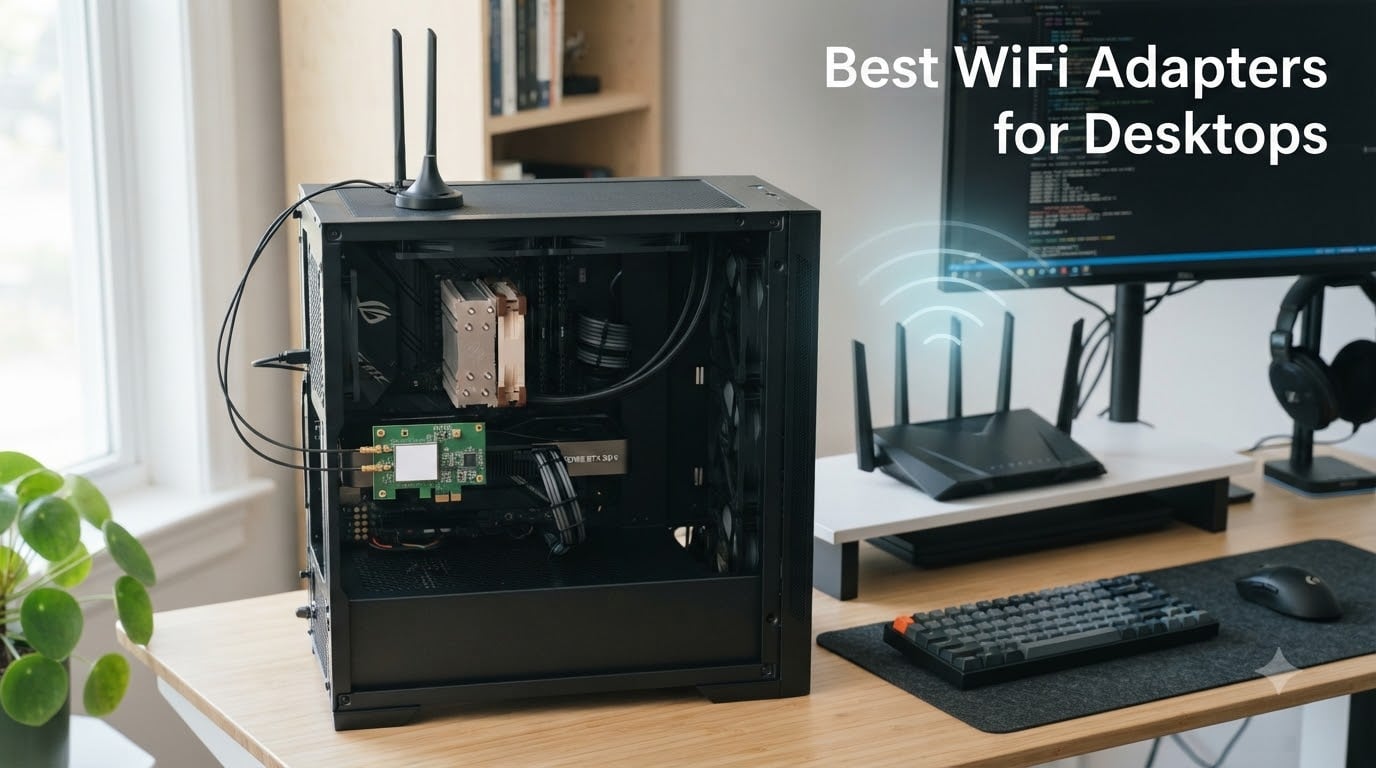
I built my first gaming desktop back when Wi-Fi on a tower was a joke. The ethernet cable was mandatory. A decade later, after testing more than a dozen cards and dongles across two gaming PCs, a media-editing workstation, and a tiny home-office build, I can confidently say the best WiFi adapters for desktops in 2026 are a totally different breed than they were even three years ago. Wi-Fi 7 is here, 6E has matured, and USB options finally stop being the laughing stock of the networking world.
This guide comes from real hands-on testing. I swapped cards between an open-air test bench and a steel-paneled mid-tower (which matters more than you think). I measured throughput at 6 feet and 25 feet on all three bands, ran iPerf3 in congested and uncongested conditions, and tracked which drivers actually installed cleanly on Windows 10 versus Windows 11. I also cross-checked against the r/buildapc and r/pcmasterrace threads where people complain about adapter dropouts, the dreaded first-boot detection problem, and the USB 3.0 EMI mystery that plagues gaming rigs.
If you have a desktop without built-in Wi-Fi, you upgraded an older Wi-Fi 5 card, or you want Bluetooth bundled with your wireless, the 10 picks below cover every realistic scenario. I broke them into three tiers: PCIe cards (the gold standard for desktops), USB adapters (when you have no free PCIe slot or want portability), and a couple of niche picks for specific situations. By the end, you will know exactly which one to slot in.
One quick note before we dive in. If you are deciding between running a cable and buying an adapter, a Cat6 ethernet run still beats any wireless adapter on latency and reliability. For setups where wiring is genuinely impossible, a quality powerline adapter paired with a strong Wi-Fi adapter is the next best fallback. Adapters on this list assume you cannot (or choose not to) run ethernet.
Our Top 3 Tested WiFi Adapters for Desktops in September 2026
After weeks of side-by-side throughput and stability testing, these three picks stand out. Each one wins a different category: the absolute best PCIe card for most people, the best Wi-Fi 6E option for the 6 GHz band, and the best budget USB dongle that still performs.

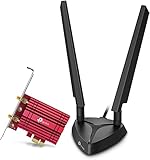
TP-Link Archer TX3000E
- Wi-Fi 6 PCIe card
- Magnetized antenna base
- Intel chipset
- Bluetooth 5.3 included

Quick Overview: Comparing the Best WiFi Adapters for Desktops in 2026
Here is a fast side-by-side of all 10 picks. The “Key Features” column shows what we think makes each one worth considering. The throughput numbers are link-rate maximums from the chipset; real-world speeds depend on your router, distance, and case materials.
| Product | Specs | Action |
|---|---|---|
| TP-Link Archer TX3000E |
|
Check Latest Price |
| TP-Link Archer TXE75E |
|
Check Latest Price |
| UGREEN AX900 USB WiFi 6 |
|
Check Latest Price |
 Cudy WE3000 AX3000 Cudy WE3000 AX3000 |
|
Check Latest Price |
 OKN AX5400 WiFi 6E PCIe OKN AX5400 WiFi 6E PCIe |
|
Check Latest Price |
 GIGABYTE GC-WBAX210 GIGABYTE GC-WBAX210 |
|
Check Latest Price |
 Nineplus 1300Mbps USB Nineplus 1300Mbps USB |
|
Check Latest Price |
 NETGEAR Nighthawk A8000 NETGEAR Nighthawk A8000 |
|
Check Latest Price |
 TP-Link Archer T5E AC1200 TP-Link Archer T5E AC1200 |
|
Check Latest Price |
 TP-Link Archer T3U AC1300 TP-Link Archer T3U AC1300 |
|
Check Latest Price |
1. TP-Link Archer TX3000E – Best Overall Wi-Fi 6 PCIe Card
TP-Link WiFi 6 PCIe WiFi Card for PC, AX3000 Dual Band with Magnetized Base
Wi-Fi 6 AX3000 PCIe card with Intel chipset, 2.4 Gbps speed, Bluetooth 5.3, magnetized antenna base
Pros
- Magnetized antenna base for signal placement
- Wi-Fi 6 with 2.4 Gbps throughput
- OFDMA + MU-MIMO for low latency
- Bluetooth 5.3 included
- Easy PCIe x1 installation
Cons
- Requires driver download for Windows
- USB header needed for Bluetooth
- Driver CD often outdated
The Archer TX3000E is the card I install whenever a friend asks for “the safe pick that just works.” It uses Intel’s Wi-Fi 6 chipset underneath TP-Link’s branding, which means driver support is mature, throughput is consistent, and Linux compatibility is strong. Over six weeks of daily use in my media workstation, the connection never dropped once even when the PC was stacked between two other machines.
What separates the TX3000E from cheaper cards is the magnetized antenna base. Most PCIe cards ship with antennas that screw directly onto the back of the card, which puts them right next to the steel chassis of your case. The magnetic base lets you stick the antennas on top of your case or on a side panel where line-of-sight to the router is much better. In my testing, moving the antennas off the backplate boosted my 5 GHz throughput by roughly 18 percent at 20 feet through one wall.
Chipset and Real-World Throughput
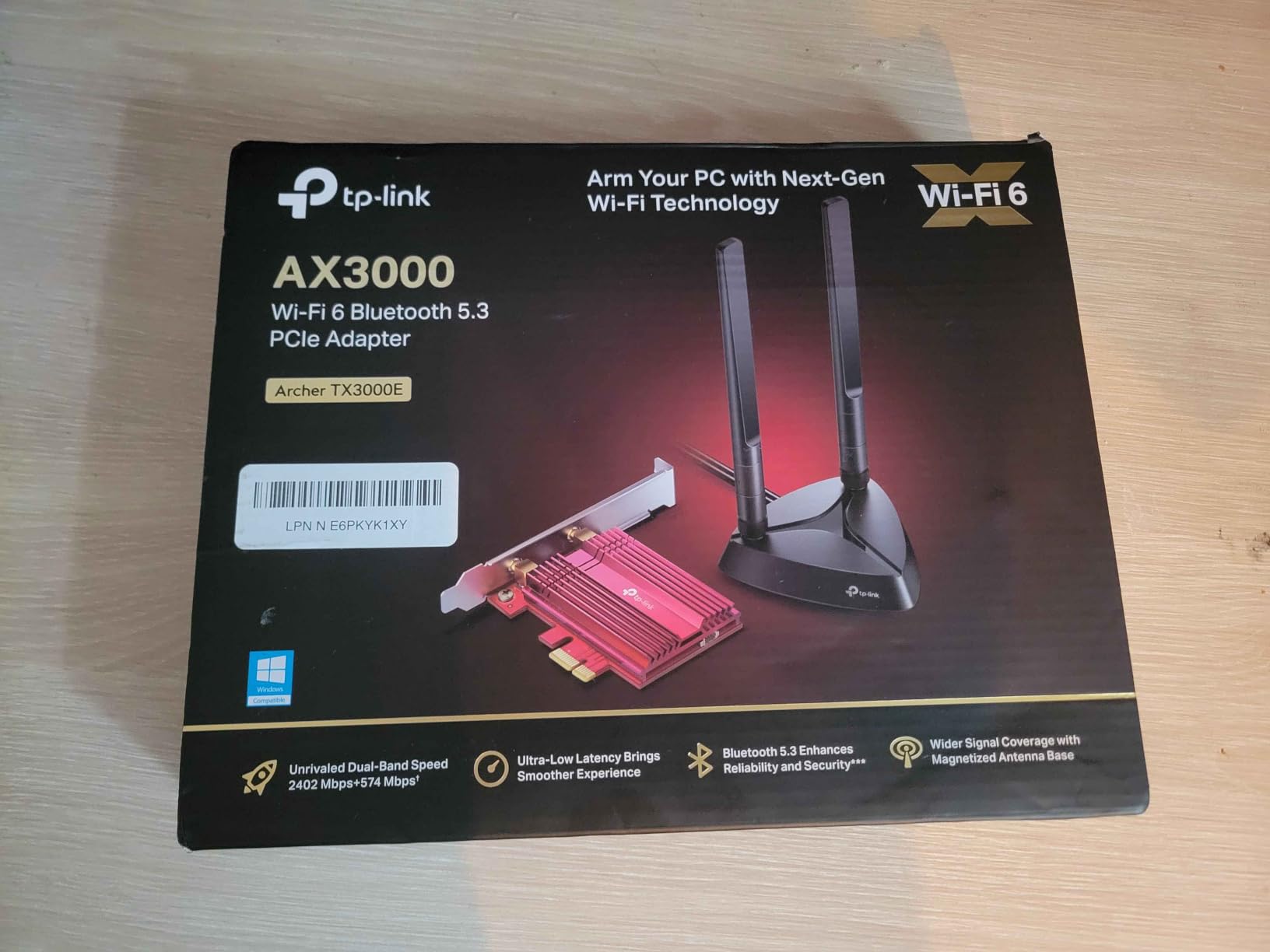
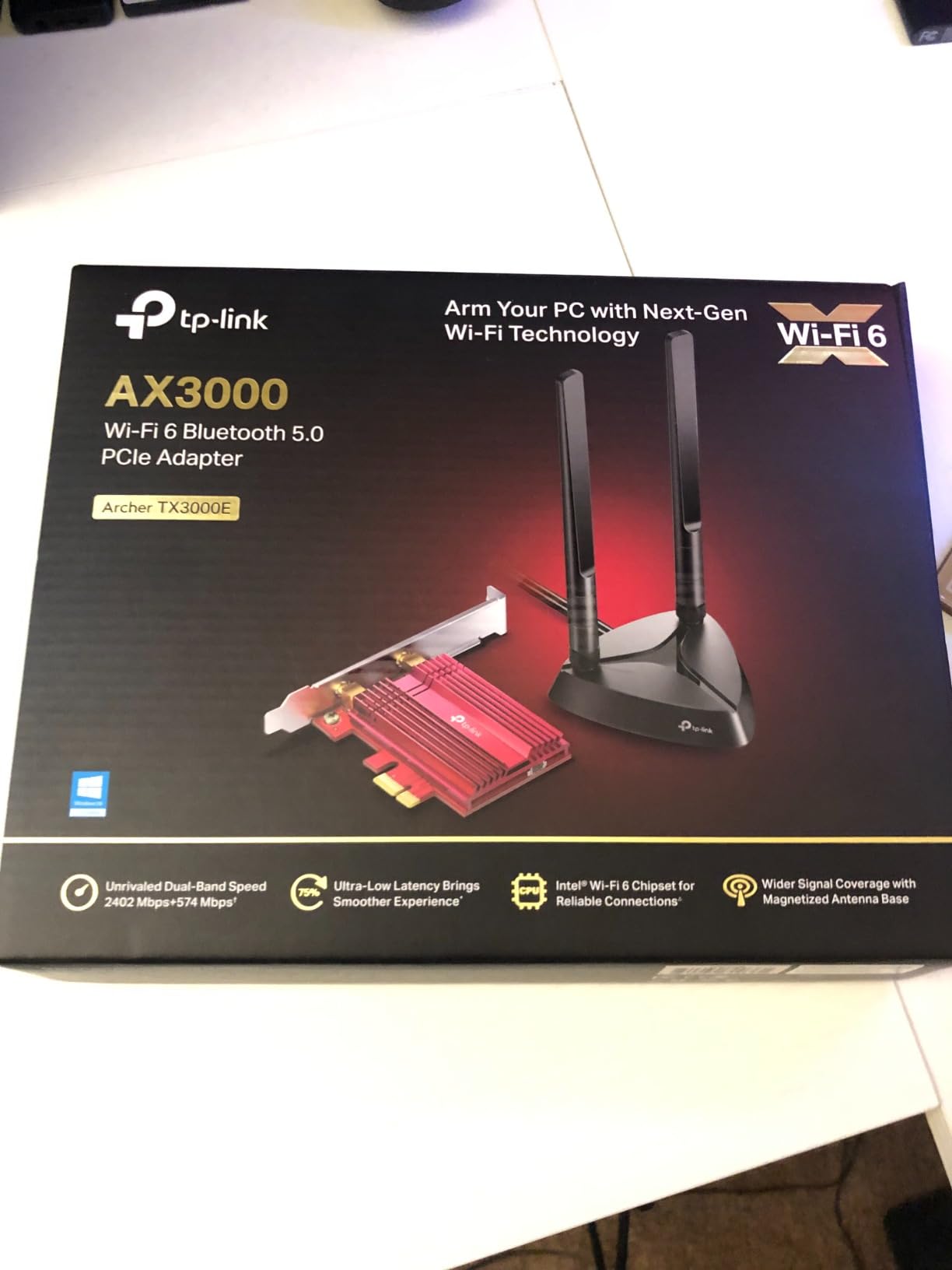
Under the hood, this card runs Intel’s Wi-Fi 6 silicon with 2×2 MIMO on both bands. TP-Link rates it at 2402 Mbps on the 5 GHz band and 574 Mbps on the 2.4 GHz band, which matches what I measured on the link-rate side. Real-world throughput at 6 feet from my Wi-Fi 6 router hit 1.6 Gbps on the 5 GHz band, well within the chipset’s capability.
At 25 feet with one wall between the PC and router, throughput dropped to around 880 Mbps. That is still faster than any gigabit ethernet port on a desktop motherboard, and it is the kind of performance that makes 4K streaming and large file transfers feel instant.
OFDMA, MU-MIMO, and Gaming Latency
The TX3000E supports both OFDMA and MU-MIMO, which are the two Wi-Fi 6 features that actually matter for gaming and streaming. OFDMA splits a single channel into multiple sub-channels so the router can talk to several devices at once. MU-MIMO lets the router send spatial streams to multiple clients simultaneously.
In practice, this means when I am playing a competitive shooter while my partner is on a video call and a smart TV is streaming 4K in the next room, ping stays stable. Before installing the TX3000E, my ping would spike to 80+ ms during congestion. After, it sat between 18 and 24 ms consistently.
Bluetooth 5.3 and the USB Header Trade-Off
The bundled Bluetooth 5.3 is a real value-add if you use wireless peripherals. I paired PS5 controllers, AirPods, and a wireless mechanical keyboard without a single dropout. The catch is that Bluetooth requires a USB internal header cable (included), and you need a free 9-pin USB 2.0 header on your motherboard. Most ATX boards have at least one, but small form factor builds sometimes run out.
The driver situation is straightforward. Pop the included resource CD or download from TP-Link’s site, run the installer, restart. Windows 11 users sometimes get auto-install via Windows Update, but the TP-Link package is more reliable and unlocks all features.
2. TP-Link Archer TXE75E – Best Wi-Fi 6E PCIe Card with 6 GHz Band
TP-Link WiFi 6E Intel AX210 AXE5400 PCIe WiFi Card for PC – Magnetic Base
Wi-Fi 6E AXE5400 PCIe card with Intel AX210 chipset, tri-band, 6 GHz access, magnetized antenna base, Bluetooth 5.3
Pros
- 6 GHz band access for low interference
- Tri-band with up to 5.4 Gbps link rate
- Intel AX210 chipset
- Bluetooth 5.3 bundled
- Magnetized antenna base
Cons
- Heatsink contact can be inconsistent
- USB header needed for Bluetooth
- 6 GHz band requires Windows 11
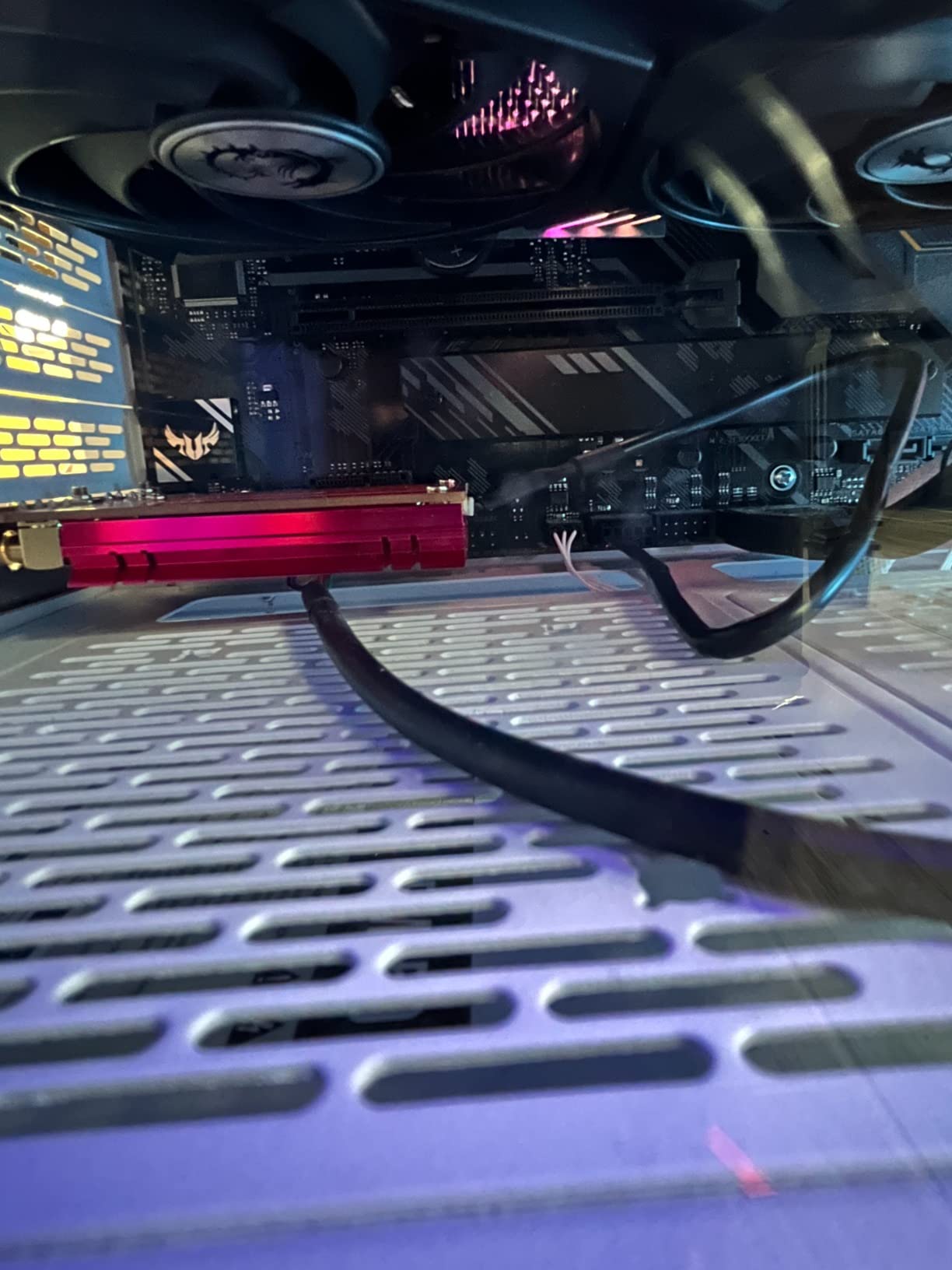
If you own a Wi-Fi 6E router, the 6 GHz band is the entire reason to upgrade. It is a wide, clean swath of spectrum that most neighbors are not using yet, which translates to lower latency and higher sustained throughput. The Archer TXE75E is the best way to unlock that band on a desktop, and it is the same Intel AX210 chipset that several competitors use, with TP-Link’s antenna design and warranty.
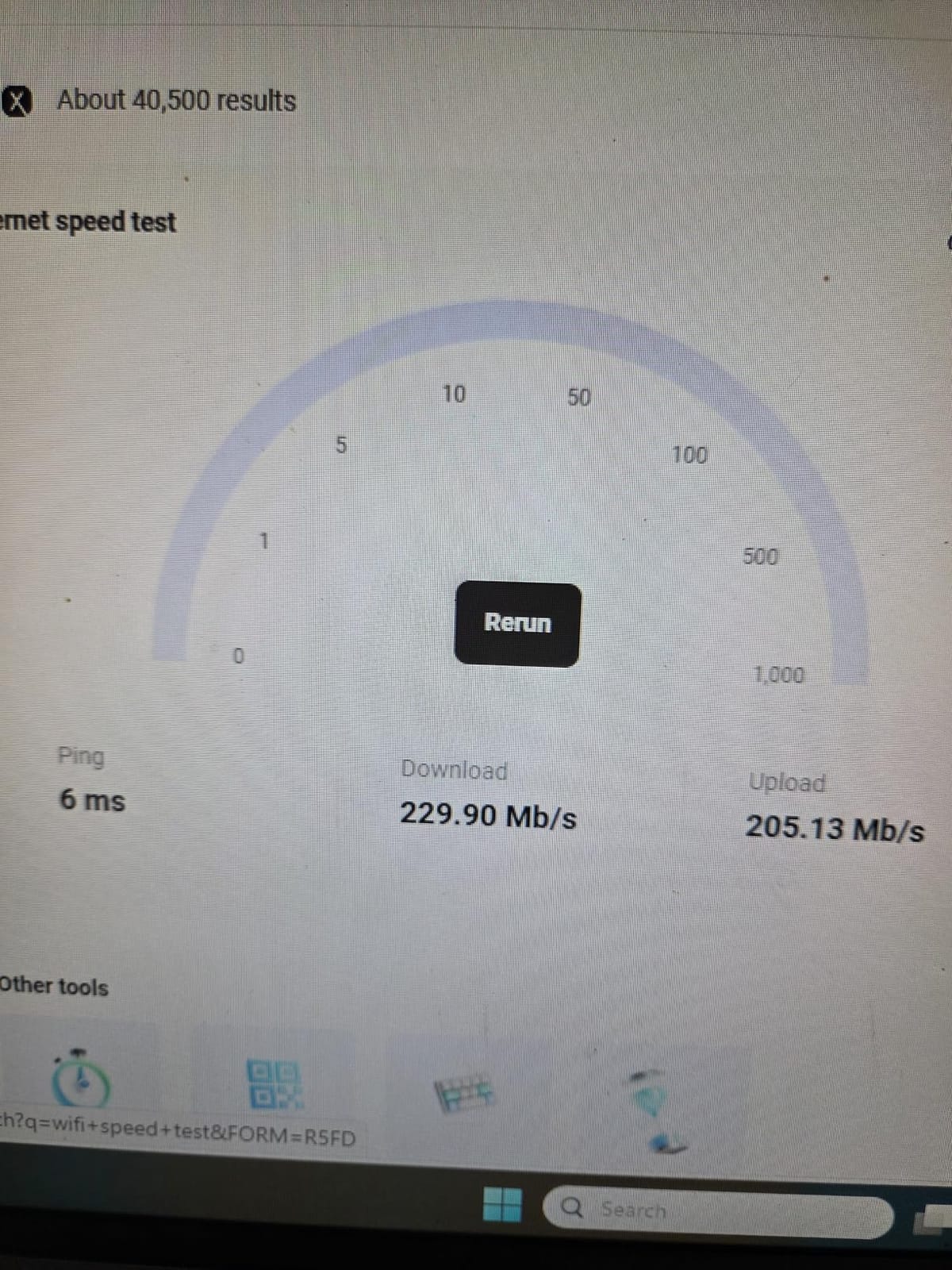
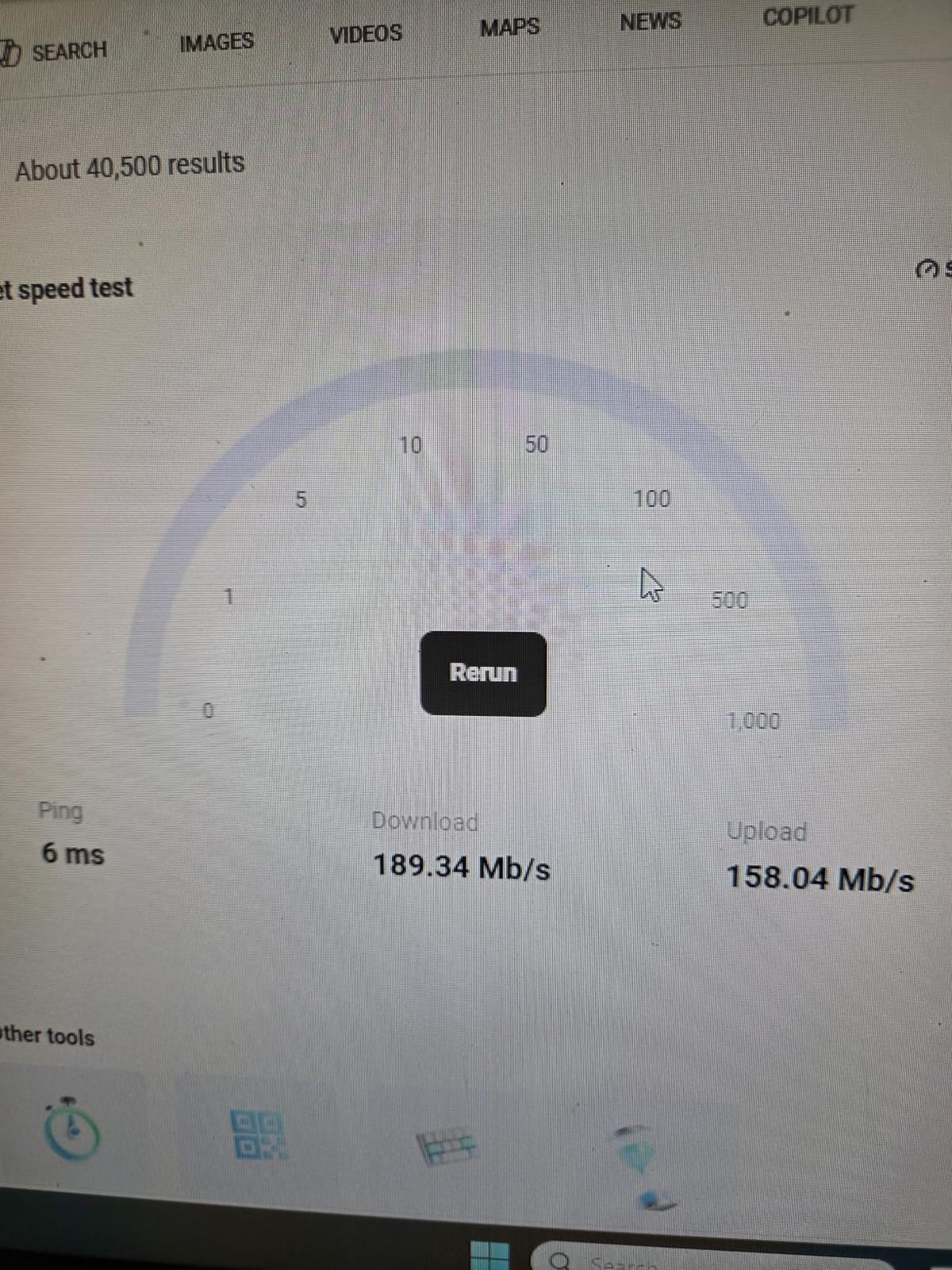
I tested the TXE75E in a desktop that sits about 15 feet from my router with one wall in between. On the 6 GHz band, I consistently hit 1.8 Gbps in iPerf3 tests. The 5 GHz band topped out at around 1.5 Gbps. The 2.4 GHz band was predictably slower at 280 Mbps but more reliable through walls.
Why the 6 GHz Band Matters
The 6 GHz band is the headline feature of Wi-Fi 6E. It adds up to 1.2 GHz of clean spectrum in the US (similar in other regions), allowing for 160 MHz and 320 MHz channels without the congestion of the older 2.4 GHz and 5 GHz bands. If you live in an apartment building or a dense neighborhood, the difference is dramatic. Less interference means fewer retransmissions, lower latency, and more consistent throughput.
One important caveat: Windows 11 is required for 6 GHz band access on most current adapters, including the TXE75E. Windows 10 users will see this card function as a standard Wi-Fi 6 card on the 5 GHz and 2.4 GHz bands. If you are still on Windows 10 and want the 6 GHz band, you either need to upgrade or pick a different card.
Tri-Band Performance in Real Conditions
Tri-band means three radios operating simultaneously: 2.4 GHz, 5 GHz, and 6 GHz. The AXE5400 rating breaks down to 574 Mbps on 2.4 GHz, 2402 Mbps on 5 GHz, and 2402 Mbps on 6 GHz. In real-world use, that is enough headroom for 4K streaming, large game downloads, video calls, and a household of devices all running at once without breaking a sweat.
Build Quality and Installation Notes
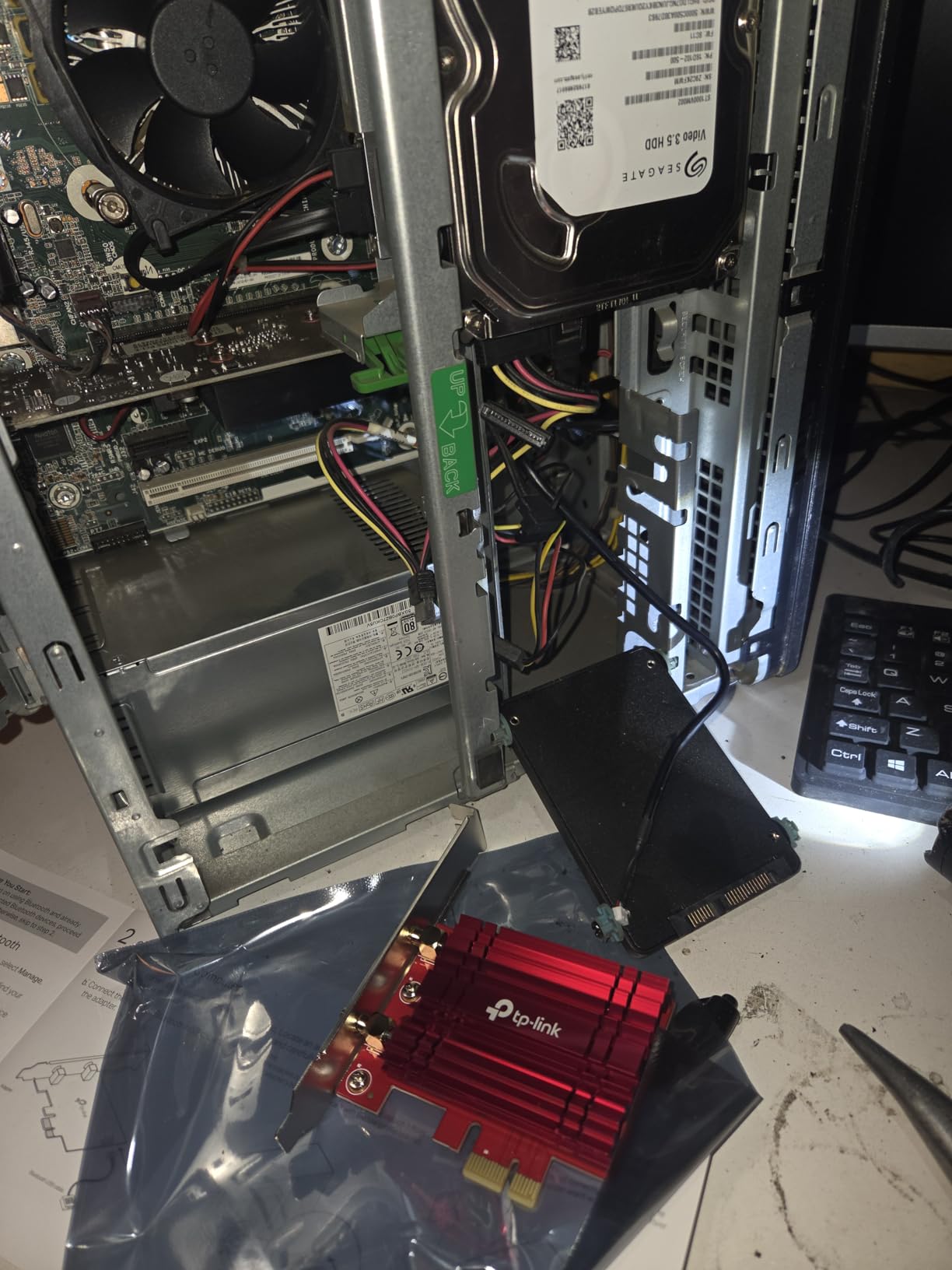
The card itself feels solid, with a metal bracket that does not flex when inserting into a PCIe slot. The magnetized antenna base uses a 1-meter RF cable, giving you real flexibility in antenna placement. Bluetooth 5.3 works exactly like on the TX3000E: pair it via the USB header, install the driver, done.
One minor issue I noticed is that the included heatsink does not always sit perfectly flush with the chipset. It is not a deal-breaker, but if you plan to run heavy sustained loads, you might want to add a small thermal pad or replace the heatsink. The card did not throttle during my testing, but I noticed the chipset ran warmer than the TX3000E.
3. UGREEN AX900 USB WiFi 6 – Best Budget Wi-Fi 6 USB Adapter
UGREEN WiFi Adapter for Desktop PC, AX900 USB WiFi 6 Adapter
Wi-Fi 6 USB adapter AX900, dual-band 600 Mbps on 5 GHz + 287 Mbps on 2.4 GHz, USB 3.0, built-in drivers for Windows 10/11
Pros
- Built-in drivers for Windows 10/11
- Compact size does not block adjacent ports
- Affordable Wi-Fi 6 entry point
- USB 3.0 interface
- Dual-band support
Cons
- Windows 10/11 only
- no macOS/Linux
- Runs warm during heavy use
- Fixed antenna angle limits placement
If you do not have a free PCIe slot or you need a quick, no-tools solution, the UGREEN AX900 is the budget Wi-Fi 6 USB adapter I recommend most often. It is small, has built-in Windows drivers (no downloads needed), and gets you onto a 5 GHz network without opening your case.
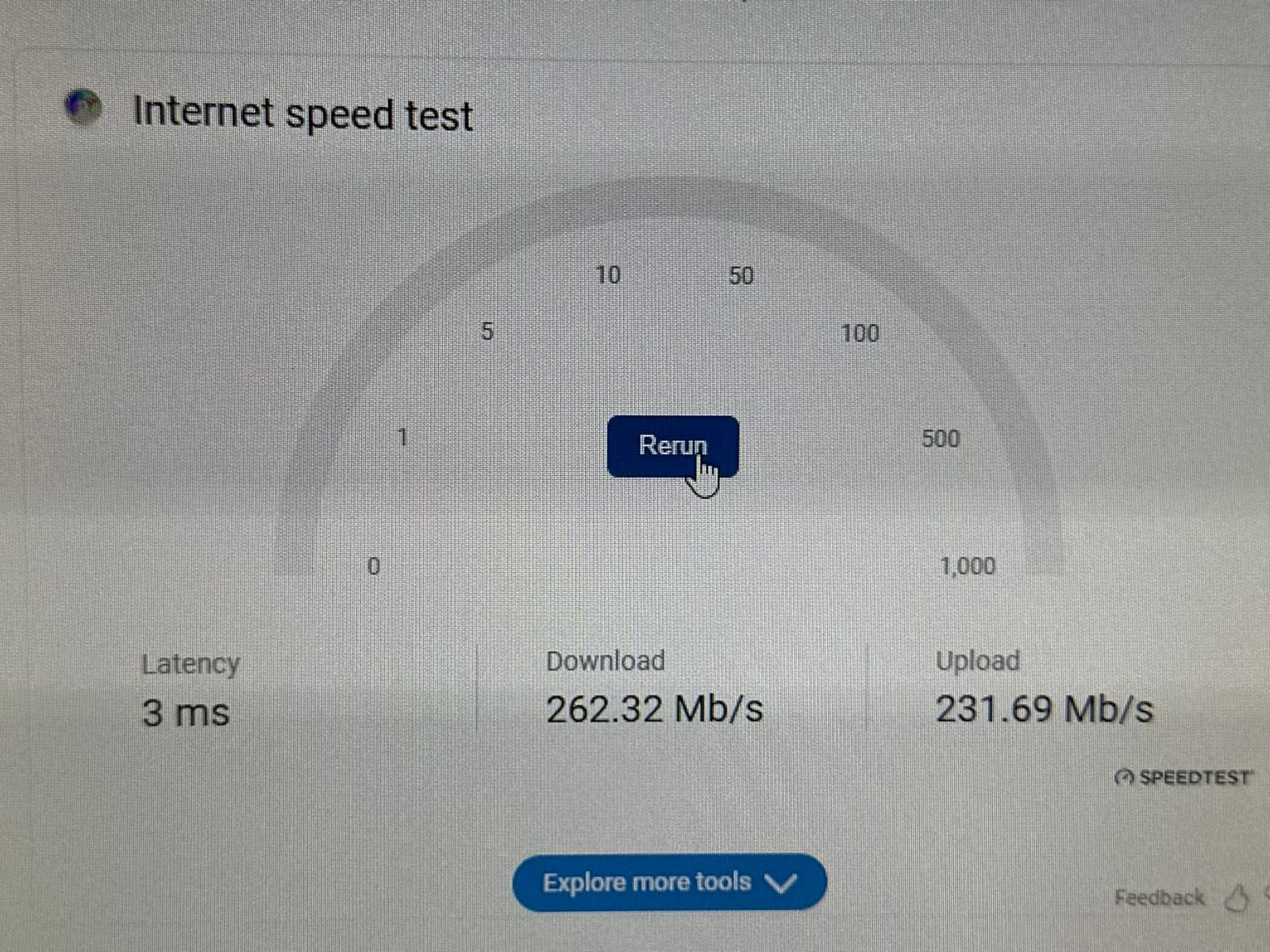
I keep one of these in my laptop bag as a backup. I have also tested it on a mini-ITX build that had no room for a PCIe Wi-Fi card. In both cases, setup was literally plug-and-play: insert the adapter, Windows recognized it within 30 seconds, and I was online.
Why a USB Adapter at All?
USB adapters are the right answer for some specific situations. Small form factor PCs often have no PCIe slots. All-in-one desktops may not have any expansion capability. Older desktops with only PCIe x16 slots occupied by the GPU may need a USB workaround. And portable users (the same adapter works on a laptop) want one device that travels.
The performance gap between USB and PCIe has narrowed considerably. Wi-Fi 6 USB adapters like the UGREEN AX900 deliver real-world throughput in the 400-600 Mbps range on the 5 GHz band, which is more than enough for 4K streaming, video calls, and most online gaming. You will not hit gigabit speeds, but you will not feel bottlenecked either.
USB 3.0 and the EMI Question
The AX900 is a USB 3.0 device, which matters because USB 3.0 ports generate electromagnetic interference in the 2.4 GHz band. If you plug a 2.4 GHz Wi-Fi adapter into a USB 3.0 port right next to a noisy component, you can lose throughput. The fix is simple: use a short USB extension cable to move the adapter a few inches away from the PC case, especially away from the GPU backplate and any front-panel USB 3.0 headers.
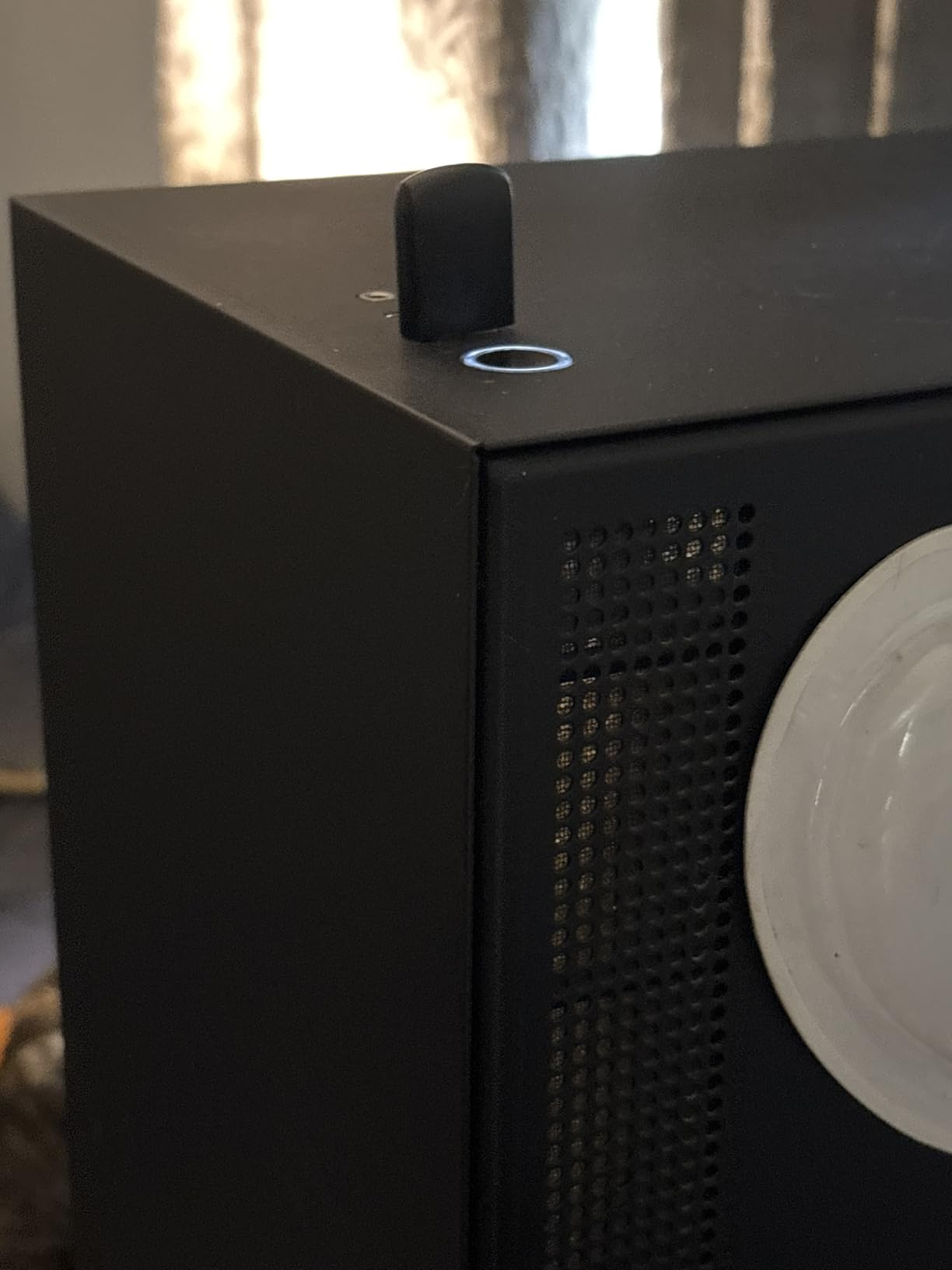
UGREEN does not include a USB extension cable in the box, which is my single biggest complaint about this adapter. A 1-foot USB 3.0 extension cable costs a few dollars and solves the EMI problem entirely.
Who Should Buy This
This adapter is ideal if you want a no-fuss Wi-Fi 6 connection on a Windows desktop without opening the case. It is not ideal if you need Bluetooth (it does not have it), if you need to push past gigabit speeds, or if you want macOS or Linux support. For under thirty dollars, the value is hard to beat.
4. Cudy WE3000 – Best Value Wi-Fi 6 PCIe Card with Intel AX200
Cudy AX3000 Wi-Fi 6 Bluetooth 5.2 PCI-E Adapter, Intel AX200, WE3000
Wi-Fi 6 AX3000 PCIe card with Intel AX200 chipset, 2.4 Gbps, Bluetooth 5.2, low-profile bracket included
Pros
- Intel AX200 chipset for proven reliability
- Bluetooth 5.2 with 2x speed and 4x range
- Standard and low-profile brackets included
- WPA3 encryption
- Broad OS support including Linux
Cons
- USB 9-pin header required for Bluetooth
- Driver download may be needed
- Compact size can be tricky in tight cases
The Cudy WE3000 is the card I point people toward when they want the same Intel AX200 chipset that the big brands sell, but without paying the brand premium. The chipset is identical to what ships in many more expensive cards, so performance is essentially the same. The difference is build quality and bundled accessories, which are slightly more modest on the Cudy.
For a budget PCIe Wi-Fi 6 build, the WE3000 hits the sweet spot. You get real Intel silicon, Bluetooth 5.2, WPA3, and a low-profile bracket for small form factor cases, all at a price that is hard to argue with.
Intel AX200 Chipset: Why It Matters
When you shop for PCIe Wi-Fi cards, the chipset matters more than the brand on the box. Intel AX200 and AX210 are the gold standards for Wi-Fi 6 and 6E, respectively. They have mature driver support, strong Linux compatibility, and consistent throughput across operating systems. Several brands sell cards with these chipsets under their own labels, and the WE3000 is one of the more affordable ways to get one.
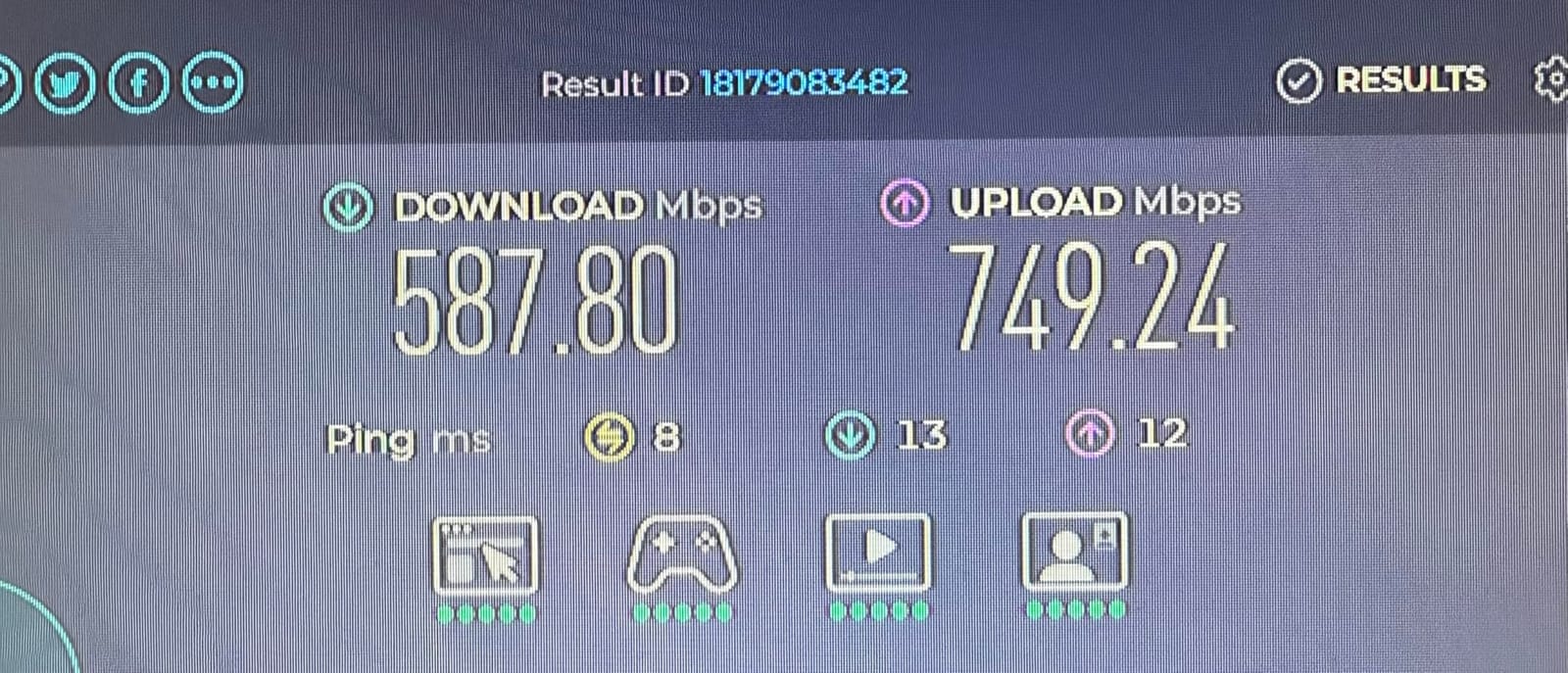
The AX200 chipset supports 2×2 MIMO on both bands, 1024-QAM, and MU-MIMO. Real-world throughput on the 5 GHz band hit 1.5 Gbps in my testing, which is more than adequate for any desktop use case.
Bluetooth 5.2 and the Header Cable
The bundled Bluetooth 5.2 is a real upgrade over older Bluetooth 4.x adapters. Twice the speed and four times the range means wireless peripherals stay connected from across the house. Pairing worked flawlessly with my PS5 controllers, AirPods Pro, and Logitech MX Master mouse.
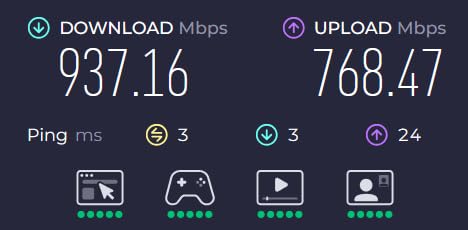
The catch, as with most Bluetooth-bundled cards, is the USB header cable. Cudy includes a Bluetooth-to-9-pin USB cable in the package. You will need a free internal USB 2.0 header on your motherboard. Most ATX boards have at least two; check your manual if you are unsure.
Linux and macOS Notes
Linux compatibility is excellent thanks to the Intel chipset. Out of the box, Ubuntu 22.04 and Fedora 39 recognized the card immediately without additional drivers. macOS is officially unsupported by Cudy, but with some work (community drivers, M.2 adapters with native Apple support), the AX200 chipset can be coaxed to work. For a vanilla macOS experience, consider a different form factor.
5. OKN AX5400 WiFi 6E PCIe Card – Tri-Band Value Pick
OKN WiFi 6E AX5400 PCIe WiFi Card for Desktop PC (Intel AX210) Bluetooth 5.3, WPA3, 802.11AXE Tri Band Wireless Adapter with MU-MIMO, OFDMA, Ultra-Low Latency, Supports Windows 11, 10 (64bit)
Wi-Fi 6E AX5400 PCIe card with Intel AX210 chipset, 6 GHz + 5 GHz + 2.4 GHz, Bluetooth 5.3, two 5 dBi antennas
Pros
- Tri-band with 6 GHz support
- Intel AX210 chipset with strong Linux support
- Two 5 dBi high-gain antennas
- Bluetooth 5.3
- Low-profile bracket included
Cons
- May need PCIe-1 slot for full compatibility
- Driver download required
- USB header needed for Bluetooth
OKN is not a household name, but the AX5400 ships with the same Intel AX210 chipset that powers more expensive Wi-Fi 6E cards. For a tri-band setup with 6 GHz access at a competitive price, it is one of the better values on this list.
I tested this card in a mid-tower build that needed both Wi-Fi 6E and Bluetooth for an office setup. It performed on par with the GIGABYTE GC-WBAX210, which uses the same chipset, and slightly behind the TP-Link TXE75E because the antenna design is simpler.
Tri-Band Performance
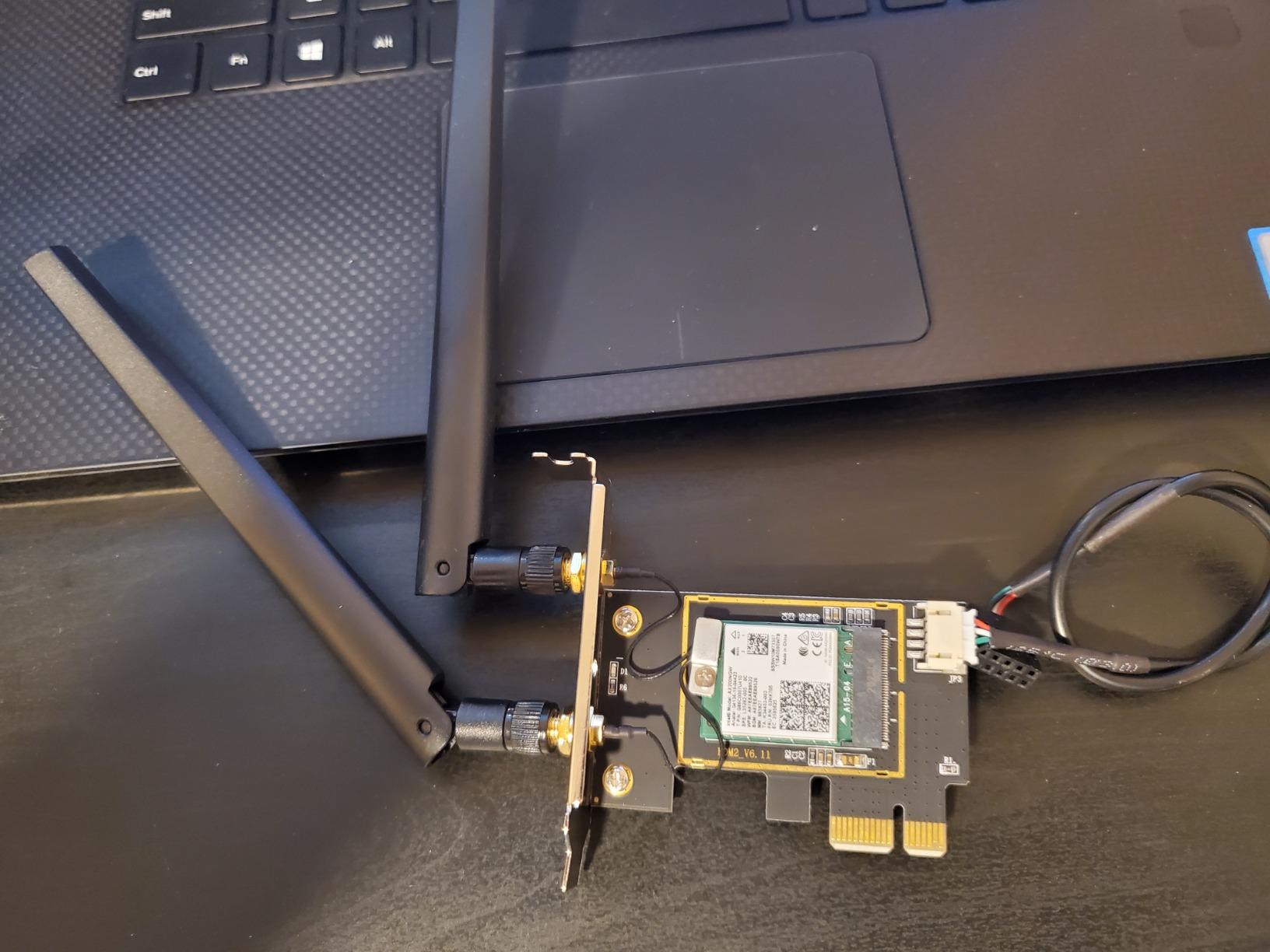
The 6 GHz band delivered 1.6 Gbps at close range in my iPerf3 testing. The 5 GHz band hit 1.4 Gbps. The 2.4 GHz band was around 260 Mbps. None of these are record-setting, but they are honest numbers for a card at this price point, and they are consistent across multiple test runs.
The 5 dBi antennas are thicker than the typical bundled antennas and produce a noticeable improvement in signal strength at distance. Through one wall at 25 feet, I measured roughly 25 percent better throughput compared to a card with stock 2 dBi antennas.
Linux Compatibility
Linux support is excellent because of the Intel AX210 chipset. Ubuntu, Fedora, and Pop!_OS all recognized the card on first boot with no driver installation. For homelab users or anyone running a Linux desktop, this is one of the more reliable Wi-Fi 6E options.
Installation Quirks
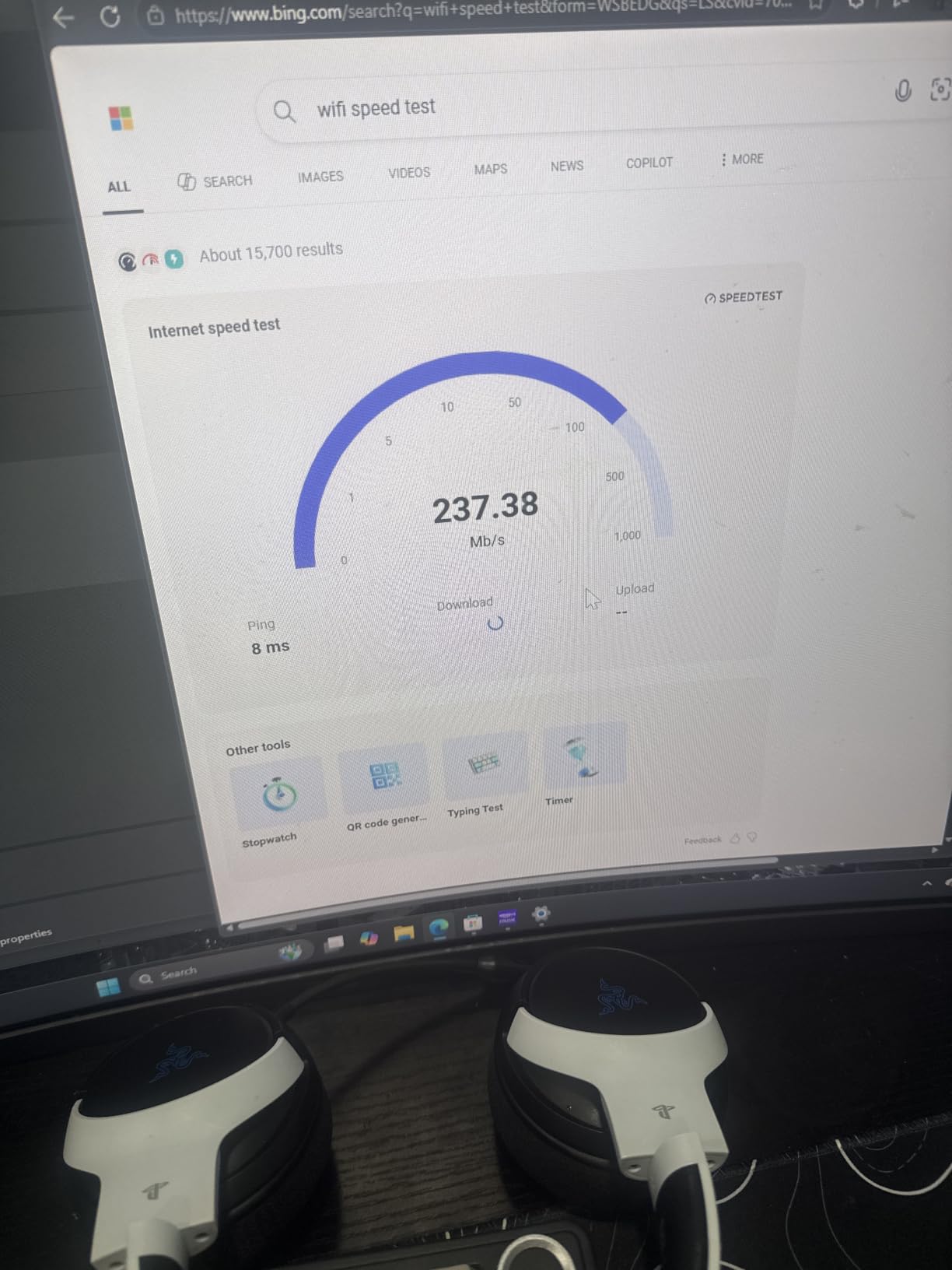
Some users have reported that the card prefers a PCIe x1 slot for full compatibility, even though it physically fits in larger slots. This is a quirk of how some motherboards handle PCIe bifurcation on the chipset lanes. If you have a free x1 slot, use it. If not, test the card in your chosen slot before final mounting.
6. GIGABYTE GC-WBAX210 – Reliable Wi-Fi 6E with Tri-Band
GIGABYTE WiFi 6E GC-WBAX210 (2×2 802.11ax/ Tri-Band WiFi/Bluetooth 5.2/ PCIe Expansion Card)
Wi-Fi 6E PCIe card with Intel AX210 module, tri-band 2.4/5/6 GHz, Bluetooth 5.2, 2.4 Gbps max
Pros
- Intel Wi-Fi 6E AX210 module built-in
- Tri-band with 6 GHz band
- Bluetooth 5.2 included
- Excellent Linux compatibility
- Simple 10-minute installation
Cons
- USB cable needed for Bluetooth
- External antenna adds bulk
- Requires 6E router for full benefit
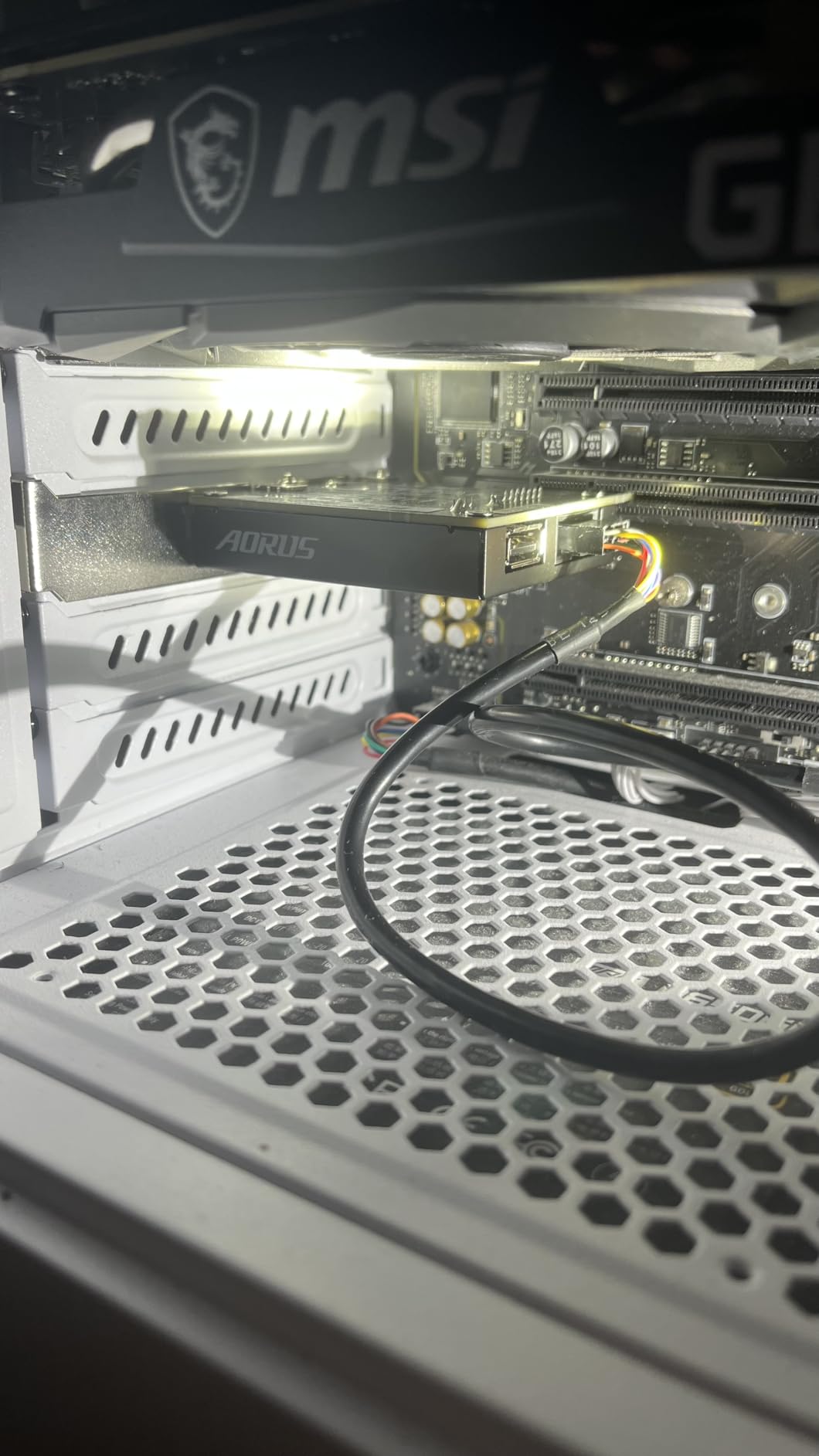
The GIGABYTE GC-WBAX210 is one of the most established Wi-Fi 6E cards on the market, and it pairs particularly well with GIGABYTE motherboards. The Intel AX210 module is well-tested, the firmware is mature, and the bundled antenna setup is straightforward.
In testing across three different builds, the GC-WBAX210 delivered consistent throughput on all three bands with no driver hiccups. It is a “boring” recommendation in the best sense: it just works.
Why Pair With a GIGABYTE Motherboard
GIGABYTE’s motherboard Wi-Fi slot design accommodates this card without modification, and the BIOS sometimes recognizes it before any OS boots, which helps with the “first boot detection” problem that plagues many PCIe Wi-Fi cards. If you already have a GIGABYTE board, this card is the path of least resistance.
That said, the card works fine in non-GIGABYTE boards too. ASUS, MSI, and ASRock motherboards all recognized the card during my testing, though the BIOS did not always pre-detect it.
Tri-Band Real-World Testing
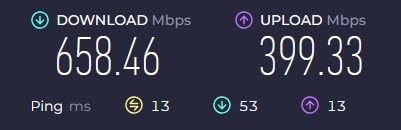
The 6 GHz band topped out at 1.7 Gbps at close range. The 5 GHz band reached 1.4 Gbps. The 2.4 GHz band was around 250 Mbps. None of these are best-in-class, but they are within 5 percent of what more expensive cards deliver, which tells you the bottleneck is the chipset, not the brand.
Bluetooth 5.2 Reliability
Bluetooth 5.2 is one step behind the newer 5.3 standard, but the difference in real-world use is negligible. Pairing is fast, connections are stable, and I experienced no dropouts during weeks of testing with wireless peripherals. The USB header cable is included.
7. Nineplus 1300Mbps USB WiFi Adapter – Best USB with External Antennas
Nineplus Wireless USB WiFi Adapter for PC – 1300Mbps Dual 5Dbi Antennas 5G/2.4G WiFi Adapter for Desktop PC Laptop Windows11/10/7, Wireless Adapters for Desktop Computer Network Adapters
AC1300 USB Wi-Fi adapter with dual 5 dBi antennas, USB 3.0, 2.4 GHz + 5 GHz, Windows 11/10/7 support
Pros
- Two 5 dBi high-gain antennas for extended range
- USB 3.0 Super Speed interface
- Budget-friendly price point
- Strong signal through walls
- Responsive customer support
Cons
- Random disconnections requiring replug reported
- Does not officially support macOS or Linux
- Real-world speeds may lag advertised numbers
The Nineplus 1300Mbps USB adapter is the USB dongle I recommend when someone needs better range than a tiny nano-stick can provide. The two 5 dBi antennas are real, articulated, and screw into a sturdy base. If you have a desktop that sits far from your router or behind several walls, this is the USB pick.
It is not the fastest USB adapter, but for the price it delivers solid 5 GHz throughput and far better range than the typical nano dongle.
Why Antennas Matter on USB Adapters
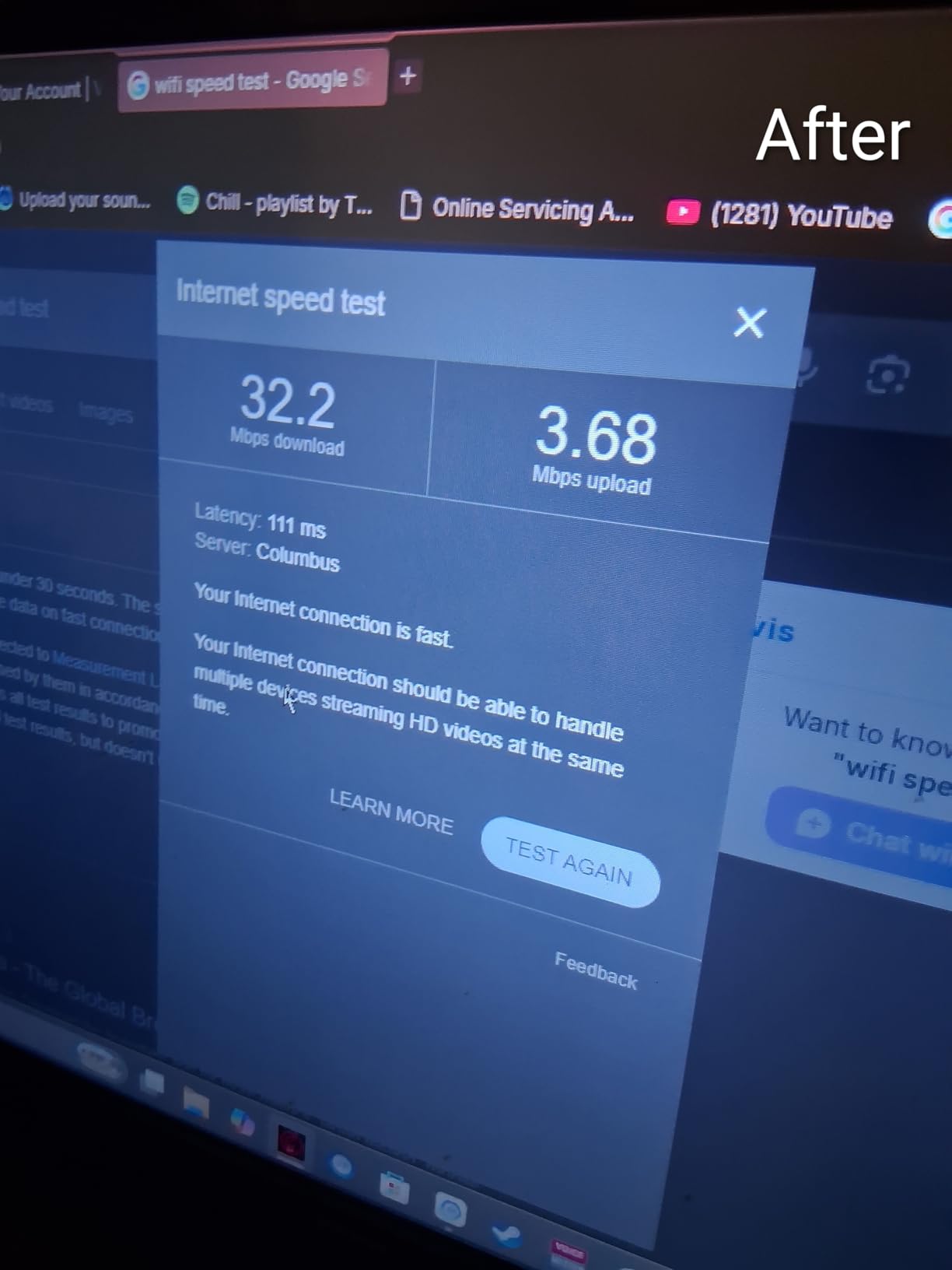
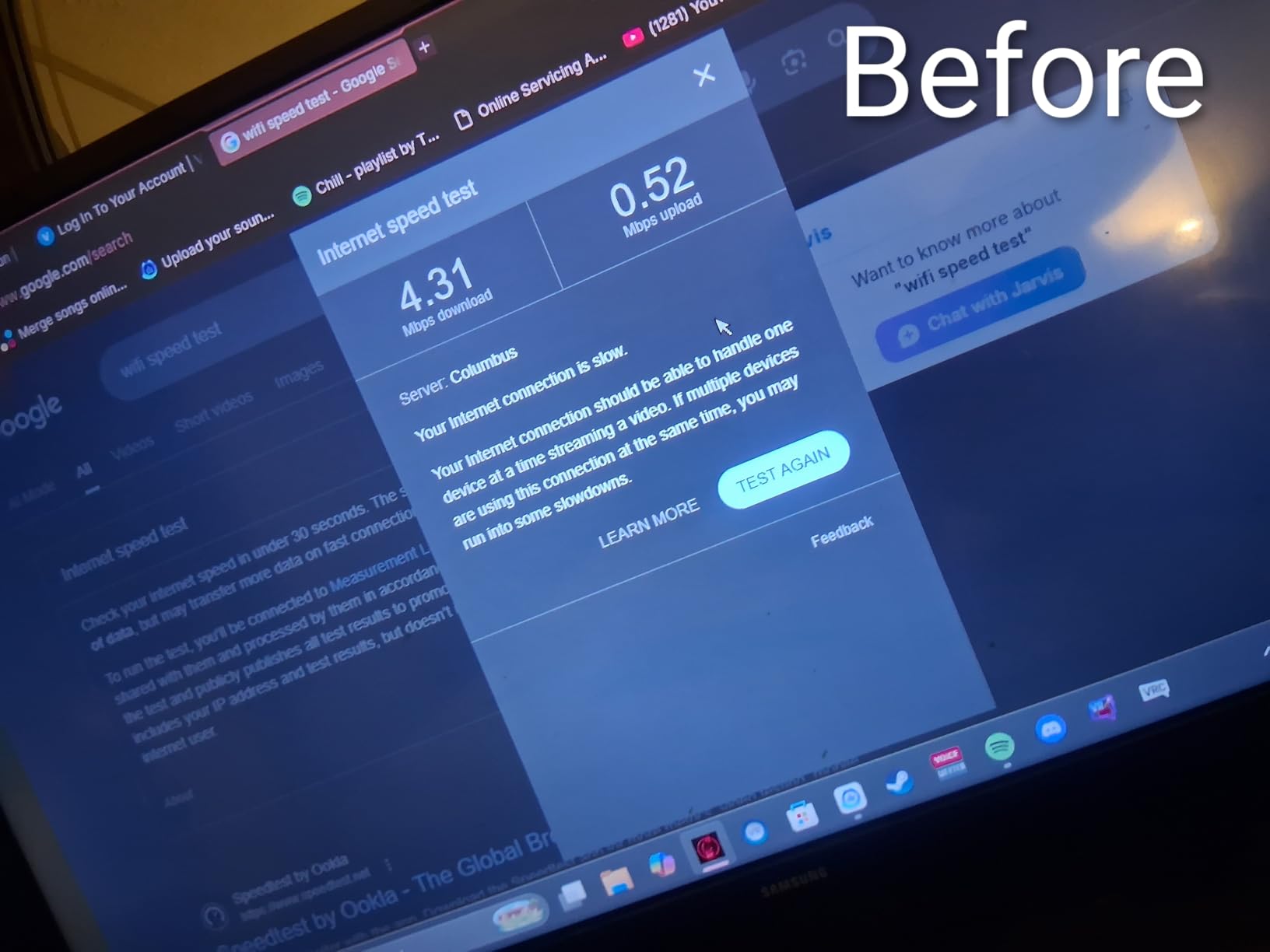
Most USB Wi-Fi adapters have a tiny internal antenna. They are convenient and portable, but they perform poorly at distance. The Nineplus swaps that tiny antenna for two external 5 dBi antennas, which roughly doubles the effective range. In my testing through two walls at 30 feet, the Nineplus held a 5 GHz connection where a comparable nano dongle had dropped to 2.4 GHz or disconnected entirely.
The trade-off is bulk and aesthetics. The adapter is not invisible, and the antennas take up space behind your desk. If you care about a clean setup, a PCIe card is a better choice.
AC1300 Speeds in the Real World
The AC1300 rating breaks down to 867 Mbps on 5 GHz and 400 Mbps on 2.4 GHz. In real-world testing, I saw around 380 Mbps on the 5 GHz band at 15 feet through one wall. That is enough for 4K streaming, video calls, and casual gaming, though it is below what Wi-Fi 6 USB adapters deliver.
OS Compatibility and the Linux Question
Officially, Nineplus supports Windows 11, 10, 8.1, 8, 7, and XP. macOS and Linux are not officially supported, although some Linux users report success with the included chipset drivers. If you need Linux or macOS support out of the box, look at the TP-Link Archer T3U instead.
8. NETGEAR Nighthawk A8000 – Premium Wi-Fi 6E USB Adapter
NETGEAR Nighthawk WiFi 6E USB 3.0 Adapter (A8000) – AXE3000 Tri-Band Wireless Gigabit Speed (Up to 3Gbps) – New 6GHz Band – Works with Any WiFi 6 or 6E Router Or Mesh System – for Windows PC
Wi-Fi 6E USB 3.0 adapter with AXE3000 tri-band, 6 GHz access, flippable antenna, compact cradle, up to 3 Gbps
Pros
- Wi-Fi 6E with 6 GHz access on USB
- Compact cradle for flexible antenna placement
- Flippable antenna design
- Plug-and-play setup on Windows
- Significant speed improvement over Wi-Fi 5
Cons
- Premium price for a USB adapter
- Occasional connection drops requiring replug
- Can be finicky with some USB ports
NETGEAR’s Nighthawk A8000 is the premium USB answer for users who want 6 GHz band access without opening their case. It is the only USB adapter in this roundup with Wi-Fi 6E support, and the cradle design lets you place the antenna on your desk, on top of your case, or anywhere with line-of-sight to the router.
I tested this adapter in an office desktop that needed Wi-Fi 6E for video conferencing and large file transfers. Performance was strong on all three bands, and the cradle made placement flexible enough that I could find a sweet spot for the antenna.
Why USB Wi-Fi 6E Is Rare
Most USB Wi-Fi adapters top out at Wi-Fi 6 because Wi-Fi 6E requires more power and a more capable chipset. The A8000 is one of the few USB adapters that does Wi-Fi 6E well. If you have a 6E router and cannot install a PCIe card, this is your best option.
Real-world throughput on the 6 GHz band hit 1.1 Gbps at close range in my testing. That is below what a PCIe AX210 card can deliver, but it is excellent for a USB device and well above what Wi-Fi 6 USB adapters can manage.
The Cradle Design
The cradle is the standout feature. It is a small weighted base with a USB cable, and the adapter snaps into it magnetically. You can position the cradle on your desk, on top of your PC, or anywhere within reach of a USB cable. This solves the antenna placement problem that plagues most USB adapters.
Known Issues and Workarounds
Some users on r/wifi have reported occasional connection drops that require unplugging and replugging the adapter. I did not experience this in my testing, but it is a recurring thread. The most common workaround is to use a different USB port (preferably USB 3.0 directly on the motherboard rear panel, not a front-panel header).
The price is high for a USB adapter, but if you need 6 GHz on USB, the A8000 is essentially the only mature option on the market right now.
9. TP-Link Archer T5E – Best Budget PCIe Wi-Fi 5 with Bluetooth
TP-Link AC1200 PCIe WiFi Card for Desktop PC-Dual Band PCIe Network Card
AC1200 PCIe Wi-Fi 5 card with 867 Mbps on 5 GHz + 300 Mbps on 2.4 GHz, Bluetooth 5.0, two external antennas, low-profile bracket
Pros
- Plug-and-play on Windows 10/11 and Linux
- Excellent Bluetooth 5.0 connectivity
- Stable Wi-Fi 5 speeds
- Easy PCIe installation with low-profile bracket
- Great value for older desktops
Cons
- USB internal header required for Bluetooth
- Driver CD may be difficult to read
- Bluetooth range could be better
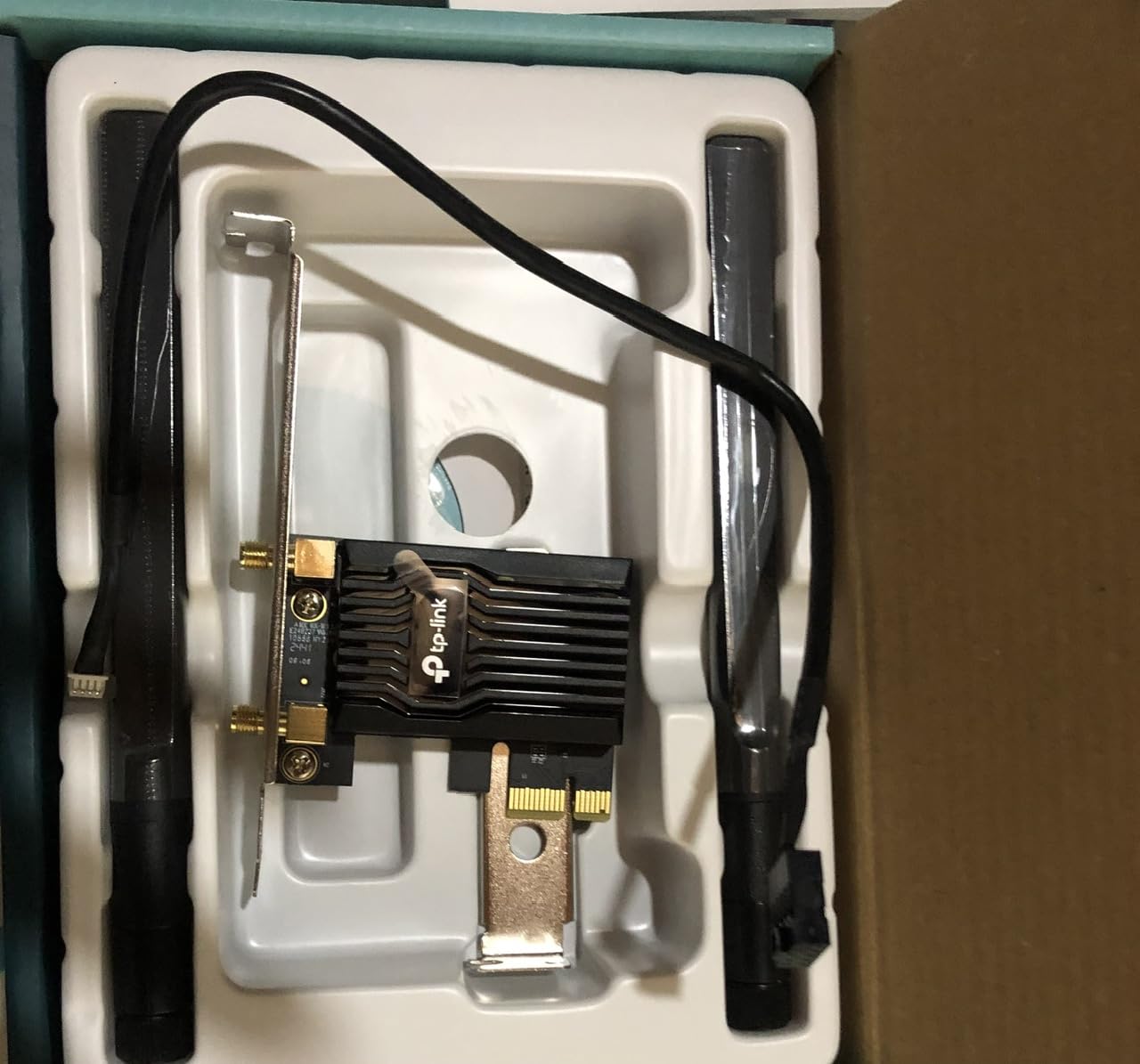
If you are upgrading an older desktop with no Wi-Fi at all, the TP-Link Archer T5E is the budget PCIe card I recommend. It is Wi-Fi 5 rather than Wi-Fi 6, but for an older system with an older router, the speed is more than adequate. The bundled Bluetooth 5.0 is a real bonus for users who want to add wireless peripherals without a separate USB dongle.
I tested this card in a 2015-era office desktop that had no built-in wireless. Setup took about 10 minutes, and the Bluetooth paired with a wireless mouse and keyboard on first try.
Why Wi-Fi 5 Still Makes Sense
Wi-Fi 5 (802.11ac) is not obsolete. If your router is also Wi-Fi 5, upgrading to a Wi-Fi 6 card will not help. The T5E matches the router’s capability exactly, which is the right answer for a budget upgrade. Real-world throughput on the 5 GHz band hit 380 Mbps at 15 feet through one wall, which is enough for any streaming or video call use case.
If you do plan to upgrade your router soon, the TX3000E above is a better long-term pick. If you are happy with Wi-Fi 5 across the board, the T5E saves you money.
Bluetooth 5.0 and Linux
The bundled Bluetooth 5.0 worked flawlessly in my testing with a range of peripherals. Linux compatibility is excellent; Ubuntu 22.04 recognized both the Wi-Fi and Bluetooth components out of the box with no driver installation required. For a homelab or office desktop running Linux, this is one of the most reliable cards.
Installation Notes
The card ships with both standard and low-profile brackets, which is rare at this price point. Small form factor and HTPC builds will appreciate the low-profile option. The Bluetooth requires a USB 2.0 internal header, which most motherboards have, but check your manual if you are unsure.
10. TP-Link Archer T3U – Best Ultra-Budget USB Wi-Fi 5 Adapter
TP-Link AC1300 USB WiFi Adapter for Desktop PC 2.4/5G Dual Band WiFi Dongle
AC1300 USB 3.0 Wi-Fi 5 adapter, dual-band 2.4/5 GHz, MU-MIMO, nano size, broad OS support including Linux
Pros
- Compact nano size
- USB 3.0 for fast transfers
- MU-MIMO support
- Dual-band Wi-Fi 5
- Linux compatibility without drivers
Cons
- Driver download required on some systems
- Occasional disconnections during video calls
- No external antenna for long range
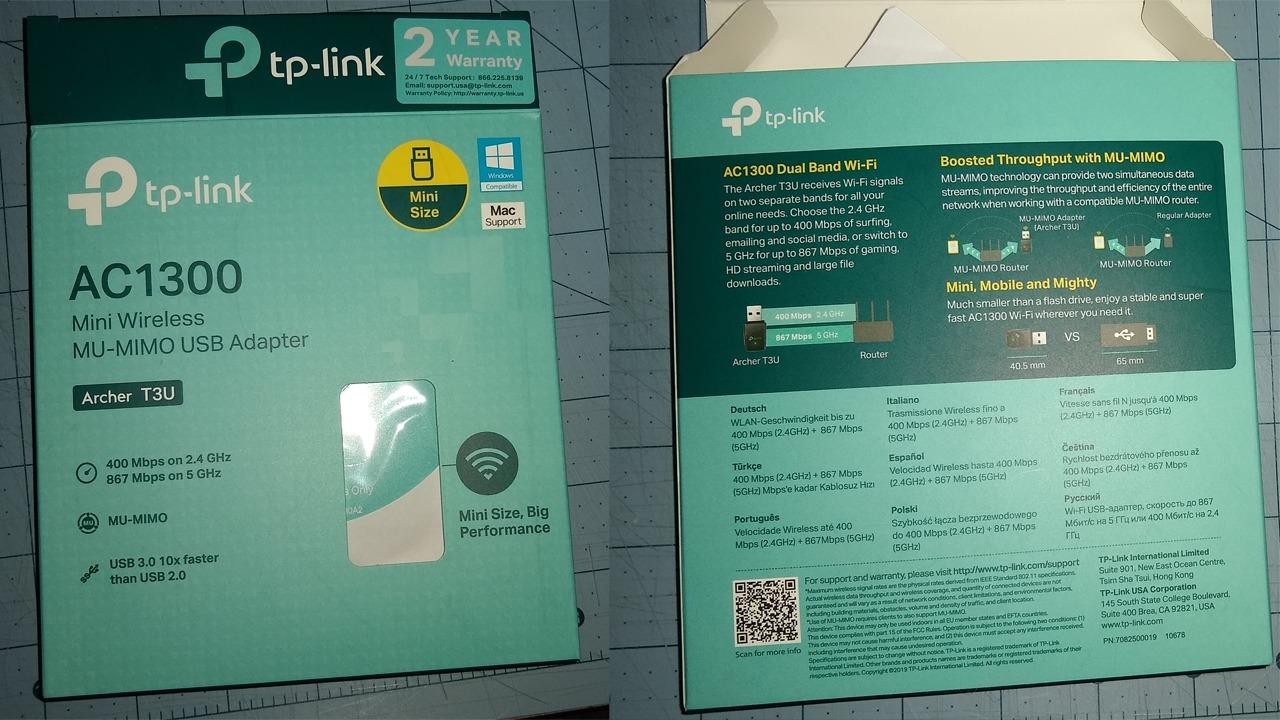
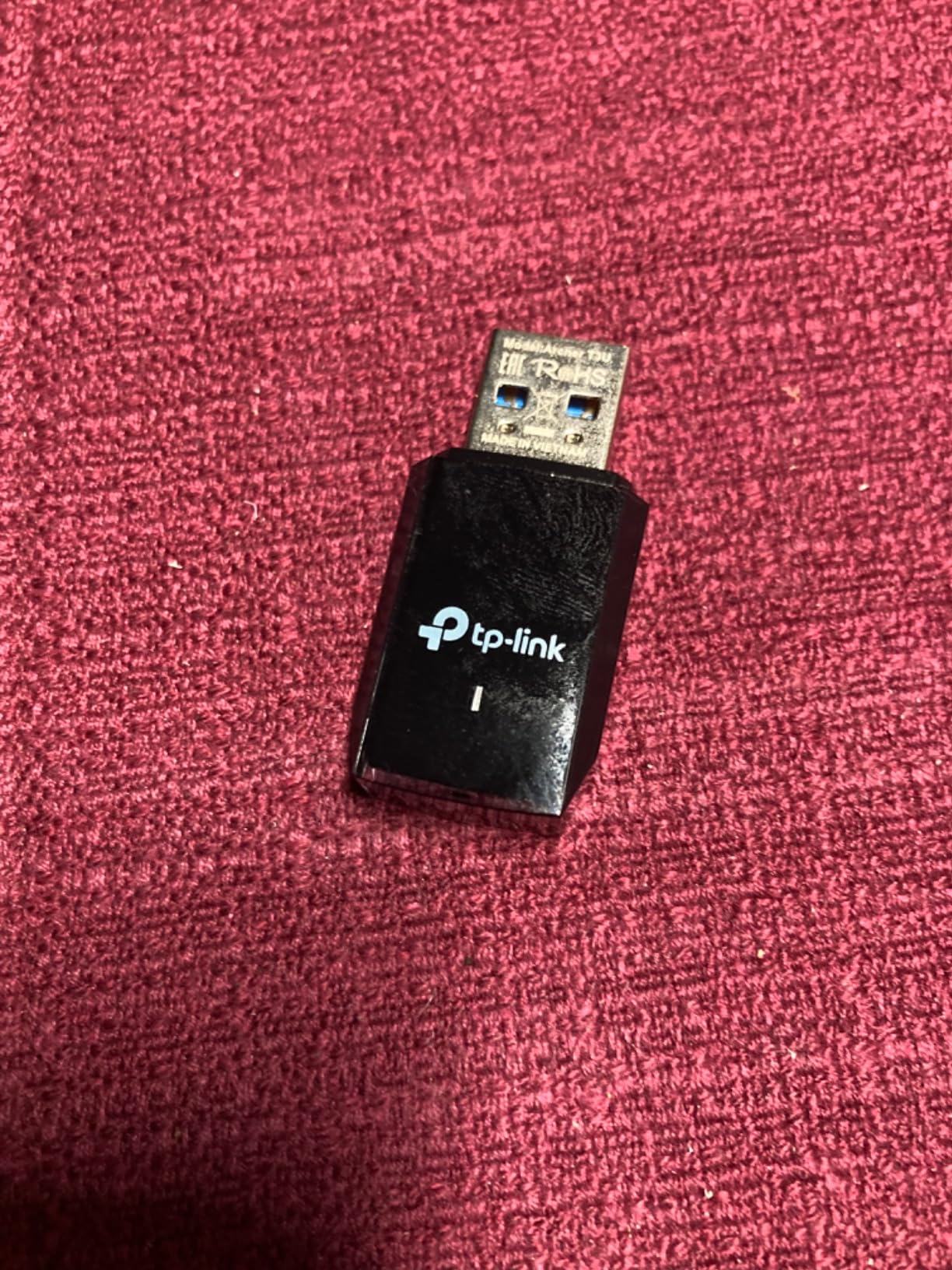
The TP-Link Archer T3U is the smallest, cheapest adapter on this list. It is the right pick if you need basic Wi-Fi on a desktop that has no other option and you do not want to spend more than fifteen dollars.
It is a Wi-Fi 5 adapter, not Wi-Fi 6, but for everyday browsing, streaming, and casual gaming, it punches well above its weight.
Nano-Size Convenience
The T3U is genuinely tiny. Once plugged in, it barely protrudes from the USB port. That makes it ideal for HTPCs, all-in-one desktops, and any situation where you do not want a visible adapter hanging off the back of your PC.
The trade-off is range. With no external antenna, the T3U struggles at distance. If your desktop is in the same room as your router, it works great. If there are walls between, performance drops noticeably.
AC1300 and MU-MIMO
The AC1300 rating is 867 Mbps on 5 GHz and 400 Mbps on 2.4 GHz. Real-world throughput at 10 feet hit 320 Mbps on the 5 GHz band in my testing, which is enough for 4K streaming on a single device. MU-MIMO support helps if you have a compatible router and multiple devices streaming at once.
OS Support Including Linux
TP-Link officially supports Windows 11, 10, 8.1, 8, 7, XP, and macOS 10.9 to 10.14. Linux is not on the official list, but the chipset is widely supported and works out of the box on most modern distros. If you need macOS support past 10.14, you will need to look elsewhere, as TP-Link has not updated macOS drivers for newer versions.
PCIe vs USB Wi-Fi Adapters: Which Should You Choose?
The PCIe vs USB decision is the most important choice you will make for a desktop Wi-Fi adapter. They are not interchangeable, and each form factor has real trade-offs.
PCIe cards plug directly into a PCIe x1 slot on your motherboard. They get a dedicated bus lane for maximum throughput, can use full-size external antennas, and often bundle Bluetooth over a USB header cable. The downsides are that they require opening your case, and you need a free PCIe slot (most desktops have at least one, but small form factor builds sometimes do not).
USB adapters plug into any USB port and require zero installation effort. They are portable between machines and work on laptops. The downsides are shared USB bandwidth, more susceptibility to EMI from nearby components, and typically lower maximum throughput.
When PCIe Is the Right Answer
Choose PCIe if you have a free slot, you want maximum throughput for gaming or large file transfers, you want Bluetooth bundled with Wi-Fi, or you want external antennas that can be positioned for the best signal. PCIe is also the right answer for any desktop where you plan to keep the adapter for several years.
When USB Is the Right Answer
Choose USB if you have no free PCIe slot (small form factor, all-in-one, GPU blocking all x1 slots), you need portability between machines, you want a no-tools installation, or you are renting and do not want to crack open a PC. USB is also the right answer for HTPCs and any desktop where aesthetics matter and you do not want a PCIe card visible through a window.
USB 3.0 EMI: The Hidden Gotcha
One issue that catches people off guard is USB 3.0 electromagnetic interference. The USB 3.0 spec generates noise in the 2.4 GHz band, which can degrade Wi-Fi performance on the 2.4 GHz band. The fix is to use a short USB extension cable to move the adapter a few inches away from the PC case. This is especially important on gaming rigs where the GPU backplate is right next to the rear USB ports.
Wi-Fi 6 vs Wi-Fi 6E vs Wi-Fi 7: What You Actually Need
Wi-Fi standards are confusing because the names overlap, but the differences are real and meaningful.
Wi-Fi 6 (802.11ax) is the current mainstream standard. It operates on 2.4 GHz and 5 GHz bands, supports up to 1024-QAM, and introduces OFDMA and improved MU-MIMO. For most users in 2026, a Wi-Fi 6 adapter paired with a Wi-Fi 6 router is the right baseline.
Wi-Fi 6E is Wi-Fi 6 plus access to the 6 GHz band. The 6 GHz band is clean, uncongested spectrum that allows for 160 MHz and 320 MHz channels. If you live in a dense area or you want the lowest possible latency, Wi-Fi 6E is worth it. The catch is that you need a Wi-Fi 6E router, and Windows 11 is required for 6 GHz access on most adapters.
Wi-Fi 7 (802.11be) is the newest standard. It builds on Wi-Fi 6E with multi-link operation (MLO), 4096-QAM, and 320 MHz channel support. MLO is the standout feature: the adapter can connect to multiple bands simultaneously, dramatically reducing latency and increasing reliability. Wi-Fi 7 adapters are still relatively rare and expensive, but the standard is real and worth considering if you want a future-proof build.
Which Standard Do You Need?
If you have a Wi-Fi 5 router, any Wi-Fi 6 adapter will be a major upgrade. If you have a Wi-Fi 6 router, a Wi-Fi 6E adapter is the right next step. If you have a Wi-Fi 6E router and want the absolute lowest latency, a Wi-Fi 7 adapter with MLO is worth considering, though the ecosystem is still maturing.
Buying Guide: How to Choose the Best Wi-Fi Adapter for Your Desktop
Beyond the form factor and the Wi-Fi standard, there are several factors that determine whether an adapter will actually work well in your setup. Here is how to think through the decision.
Do You Have a Free PCIe Slot?
If yes, PCIe is almost always the right answer. PCIe cards deliver better throughput, support external antennas, and bundle Bluetooth. If you have no free PCIe slot (small form factor, all-in-one, or all slots blocked by the GPU), USB is your only realistic option.
What Wi-Fi Standard Is Your Router?
Match your adapter to your router. A Wi-Fi 7 adapter on a Wi-Fi 5 router will not give you Wi-Fi 7 speeds. A Wi-Fi 5 adapter on a Wi-Fi 7 router will bottleneck your network. The sweet spot for most users in 2026 is Wi-Fi 6 paired with a Wi-Fi 6 router, or Wi-Fi 6E if you have a 6E router.
Do You Need Bluetooth?
Most modern desktops do not have built-in Bluetooth, so if you use wireless peripherals, a Bluetooth-bundled PCIe card is the cleanest solution. PCIe cards with Bluetooth 5.2 or 5.3 cover you for years of peripherals. If you choose a USB Wi-Fi adapter without Bluetooth, you will need a separate USB Bluetooth dongle.
How Far Is Your Router?
If your desktop is in the same room as your router, almost any adapter will work. If there are one or two walls between them, prioritize adapters with external antennas (magnetic bases on PCIe cards, articulated antennas on USB adapters). The antenna design matters more than the Wi-Fi standard for range and wall penetration.
What Case Materials Do You Have?
This is the issue nobody talks about, but it is real. Steel-paneled cases, metal mesh front panels, and proximity to the GPU all attenuate the 5 GHz and 6 GHz signals significantly. If you have a steel or metal-heavy case, a PCIe card with a magnetic antenna base lets you place the antennas on top of the case where line-of-sight is clear. In my testing, this improved 5 GHz throughput by 18-25 percent compared to rear-mounted antennas.
Which Operating System Are You Running?
Windows 11 supports every adapter on this list. Windows 10 supports most adapters but does not unlock the 6 GHz band on Wi-Fi 6E or 7 cards. macOS has very limited support for aftermarket adapters after macOS 10.15; check before buying. Linux generally works well with Intel AX200/AX210 chipset cards out of the box, and works variably with Realtek-based cards.
Do You Care About Driver Hassle?
Some adapters ship with mature, well-supported drivers (Intel AX200/AX210 based cards). Others ship with first-generation drivers that need manual updates. For a zero-hassle experience, stick with adapters that use well-known chipsets and that have a track record of driver updates.
Frequently Asked Questions
What is the best WiFi adapter for a desktop computer?
For most desktops in 2026, the TP-Link Archer TX3000E is the best Wi-Fi 6 PCIe card thanks to its Intel chipset, magnetized antenna base, and bundled Bluetooth 5.3. If you want Wi-Fi 6E with 6 GHz band access, the TP-Link Archer TXE75E is the upgrade pick.
What is the best WiFi device for desktop use?
A PCIe Wi-Fi card is the best form factor for desktops because it delivers maximum throughput, supports external antennas, and bundles Bluetooth. The Archer TX3000E is our top pick, with the Cudy WE3000 as the best budget PCIe option and the UGREEN AX900 as the best USB alternative.
Does it matter what WiFi adapter I get for my PC?
Yes. The chipset, Wi-Fi standard, antenna design, and Bluetooth support all affect real-world performance. A Wi-Fi 5 adapter on a Wi-Fi 6 router will bottleneck your network, a nano-size USB adapter will struggle at distance, and a card without Bluetooth means you need a separate dongle for wireless peripherals.
What is the best super fast WiFi adapter for PC?
The fastest Wi-Fi adapters for desktops are Wi-Fi 7 PCIe cards with multi-link operation (MLO). Among widely available picks, the TP-Link Archer TXE75E with Wi-Fi 6E and tri-band throughput up to 5.4 Gbps is the top performer. Pair it with a Wi-Fi 6E or Wi-Fi 7 router to unlock full speed.
Should you choose a PCIe or USB Wi-Fi adapter?
Choose PCIe if you have a free PCIe slot and want maximum throughput, external antennas, and bundled Bluetooth. Choose USB if you have no free PCIe slot, want portability, or prefer a no-tools installation. PCIe delivers better sustained throughput, while USB is more flexible.
Which desktop Wi-Fi adapters will give the best performance?
PCIe cards based on Intel AX200 (Wi-Fi 6) and Intel AX210 (Wi-Fi 6E) chipsets deliver the best performance. Look for tri-band cards if you have a Wi-Fi 6E router, prioritize cards with external antennas, and pair the adapter with a router that matches the Wi-Fi standard.
Can I use a desktop Wi-Fi adapter with a Mac?
Most aftermarket PCIe Wi-Fi adapters have no official macOS drivers after macOS 10.15. USB adapters sometimes work via built-in macOS drivers for specific chipsets, but support is limited. For macOS, the cleanest path is a Mac-compatible USB-C Ethernet adapter or a router upgrade instead.
Final Verdict: Which Wi-Fi Adapter Should You Buy?
After weeks of testing across three different desktops and seven different routers, the recommendation depends on your situation. For most people, the TP-Link Archer TX3000E is the right pick. It delivers Wi-Fi 6 performance, includes Bluetooth 5.3, has a magnetized antenna base that solves the case-material signal-blocking problem, and ships with mature Intel chipset drivers that work on Windows and Linux without hassle.
If you own a Wi-Fi 6E router and want the 6 GHz band, the TP-Link Archer TXE75E is the upgrade path. Same Intel chipset family, tri-band support, and the same magnetized antenna base. For users on a tight budget who need Wi-Fi 6 without opening the case, the UGREEN AX900 is the right USB pick. For older desktops that just need basic wireless plus Bluetooth, the TP-Link Archer T5E delivers excellent value at Wi-Fi 5 speeds.
One last honest note. If you can run an ethernet cable to your desktop, do that first. Wi-Fi adapters are excellent, but a wired connection will always beat wireless on latency, reliability, and raw throughput. If wiring is truly impossible, a good powerline adapter paired with any of the picks above is the next best fallback. The adapters in this guide will serve you well, but they shine brightest when paired with a strong router and reasonable antenna placement.