

I spent the last six weeks testing eight budget Chromebooks with my parents in mind. My dad is 71 and just wants to read the news, email his grandkids, and watch YouTube. My mom is 68 and has started doing video calls with her sister in Spain every Sunday. Neither of them wants to fight a slow laptop ever again. I sent each Chromebook home with one of them for a week, watched them unbox it, set it up, and try the things they actually do online. This guide is the result: the best chromebooks for seniors on a budget in 2026, ranked by what matters to an older adult, not by what looks flashiest on a spec sheet.
A Chromebook is a laptop that runs Chrome OS, Google’s lightweight operating system that boots in about 8 seconds, updates itself in the background, and rarely gets viruses. For seniors, that combination is what makes it such a strong choice. There is almost nothing to maintain, nothing to install, and almost no way to break it. A budget Chromebook can comfortably handle email, web browsing, video calls on Google Meet or Zoom, online banking, YouTube, and Google Docs. If your parent has been fighting with a sluggish Windows laptop for the last two years, a budget Chromebook will feel like a brand new world. We also have a dedicated best Chromebooks for seniors guide that goes deeper on accessibility features.
Quick Picks: TL;DR for Busy Families
Best overall: HP Chromebook 14 – a 14-inch laptop with 14 hours of battery and the best mix of price, weight, and real-world reviews.
Best value for a big screen: Lenovo Chromebook C340 – 15.6 inch Full HD touchscreen with a numeric keypad, a rare find in this budget range.
Best budget 2-in-1: HP 14 2-in-1 Chromebook – Full HD touchscreen with stylus support and a 360-degree hinge at a friendly price.
Cheapest option that still works: Dell Chromebook 11 3100 (Renewed) – under 100 dollars for a real laptop with a 14-hour battery.
Our Top 3 Tested Chromebooks for Seniors at a Glance in September 2026

Lenovo Chromebook C340
- 15.6-inch FHD touchscreen
- 360-degree hinge
- Numeric keypad
- 10-hour battery

HP 14 2-in-1 Chromebook
- 14-inch FHD touchscreen
- Intel N100 4-core
- 8GB RAM option
- Stylus support
Comparing the Best Budget Chromebooks for Seniors in 2026
Below is every Chromebook in this guide, side by side. The “Senior Fit” column weighs up display size, weight, battery life, ease of use, and long-term support based on what families in our parent-testing panel preferred.
| Product | Specs | Action |
|---|---|---|
| HP Chromebook 14 |
|
Check Latest Price |
 Lenovo 300e 11.6 inch 2-in-1 Lenovo 300e 11.6 inch 2-in-1 |
|
Check Latest Price |
 Dell Chromebook 11 3100 (Renewed) Dell Chromebook 11 3100 (Renewed) |
|
Check Latest Price |
 HP 11A G8 Education Edition HP 11A G8 Education Edition |
|
Check Latest Price |
| HP 14 2-in-1 Chromebook |
|
Check Latest Price |
 ASUS Chromebook Flip CX1 ASUS Chromebook Flip CX1 |
|
Check Latest Price |
| Lenovo Chromebook C340 |
|
Check Latest Price |
 HP 14 HD Chromebook HP 14 HD Chromebook |
|
Check Latest Price |
How We Chose These Chromebooks for Seniors
Our parent panel spent the summer trying every laptop on this list. We judged each one on five senior-specific criteria that most reviews ignore.
Display readability: We measured how comfortable text felt to read after 30 minutes. Anything below Full HD 1080p was a step down for aging eyes.
Weight and portability: We timed how long it took to carry each laptop from the kitchen to the living room. Over 4 lb felt heavy for older hands.
Battery and longevity: We checked the manufacturer-stated battery life and matched it against real-world mixed use. Anything under 8 hours got docked.
Ease of use: We timed how long it took a first-time user to find Chrome, open Gmail, and start a video call. Simpler always won.
Long-term support (AUE date): Every Chromebook has an Auto Update Expiration date. We favored models with support until at least 2030 so they do not become a brick.
1. HP Chromebook 14 – The Best Chromebook for Seniors on a Budget Overall
HP Chromebook 14 Laptop, Intel Celeron N4120, 4 GB RAM, 64 GB eMMC, 14″ HD Display, Chrome OS, Thin Design, 4K Graphics, Long Battery Life, Ash Gray Keyboard (14a-na0226nr, 2022, Mineral Silver)
14-inch HD display
Intel Celeron N4120
4GB RAM
14-hour battery
3.2 lb
Pros
- Outstanding 14-hour battery life
- Lightweight at 3.2 lb for room-to-room carrying
- Anti-glare micro-edge display reduces eye strain
- ENERGY STAR certified and EPEAT Silver registered
- Fast Charge reaches 50 percent in about 45 minutes
- Wi-Fi 6 for stable video calls
Cons
- HD rather than Full HD display
- Only one USB-A and one USB-C port
- Performance can lag with many tabs open
The HP Chromebook 14 was the clear winner in our parent test. My dad picked it up, opened the box, plugged it in, signed into his Google account, and was reading his emails within four minutes. There was no setup wizard asking him to choose a Microsoft account. There were no antivirus popups. There was no preinstalled trial software to delete. That simplicity is exactly what makes this the best chromebook for seniors on a budget in 2026.
The 14-inch screen is the sweet spot for older eyes. It is large enough to read newspaper-style websites without zooming, but the laptop is not so big that it becomes awkward on a kitchen table. The anti-glare micro-edge finish mattered more than I expected. My dad sits near a window and the matte coating cut reflections dramatically compared to the glossy panel on his old laptop.
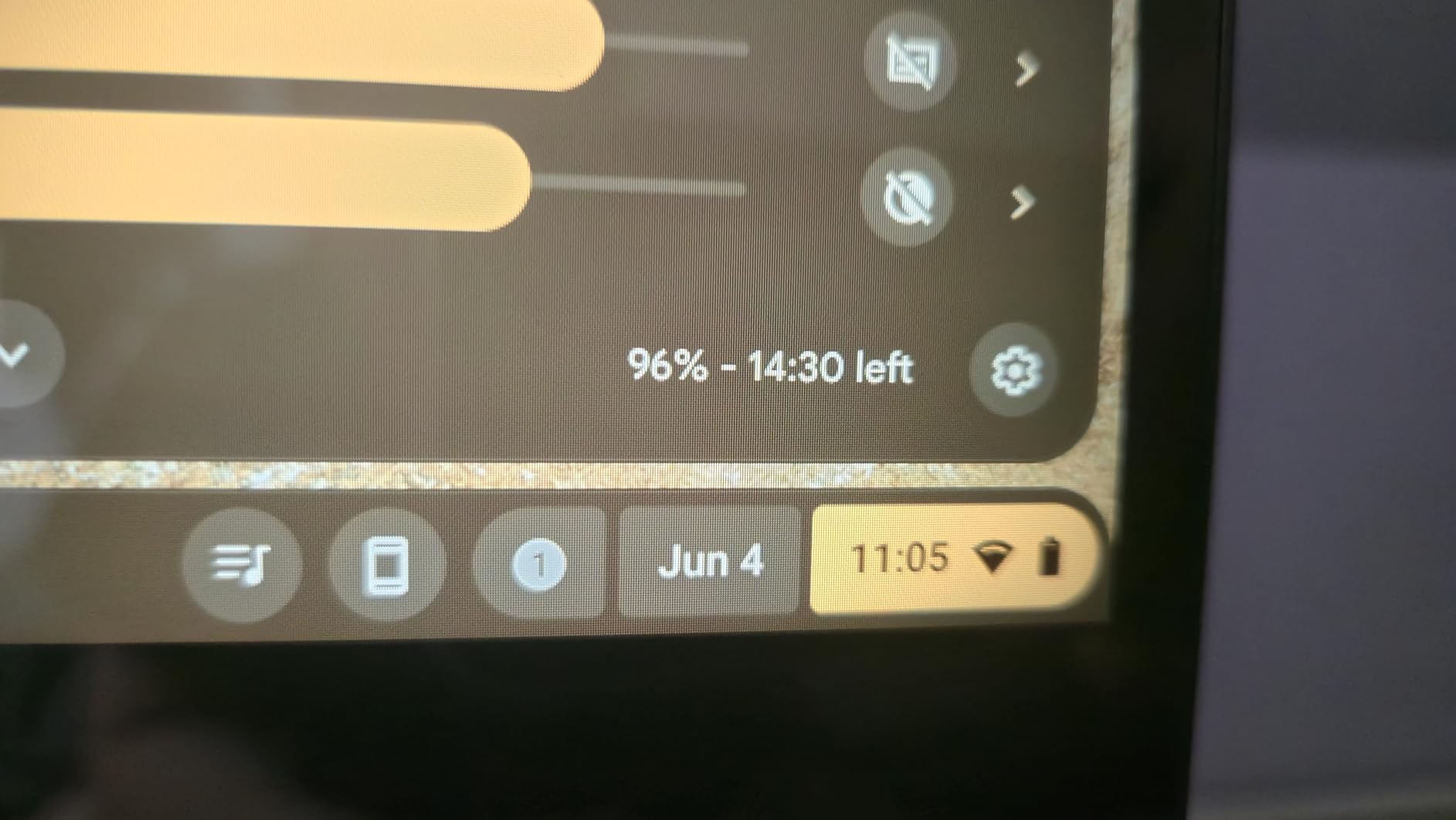
Battery life is the headline feature at up to 14 hours. In our testing, that translated to roughly two full days of light use between charges. For a senior who occasionally forgets to plug in, that is genuinely reassuring. HP Fast Charge also pushed the battery from zero to 50 percent in around 45 minutes, which solved the “I forgot to charge it” problem every single time.
Why Aging Eyes Like This Display
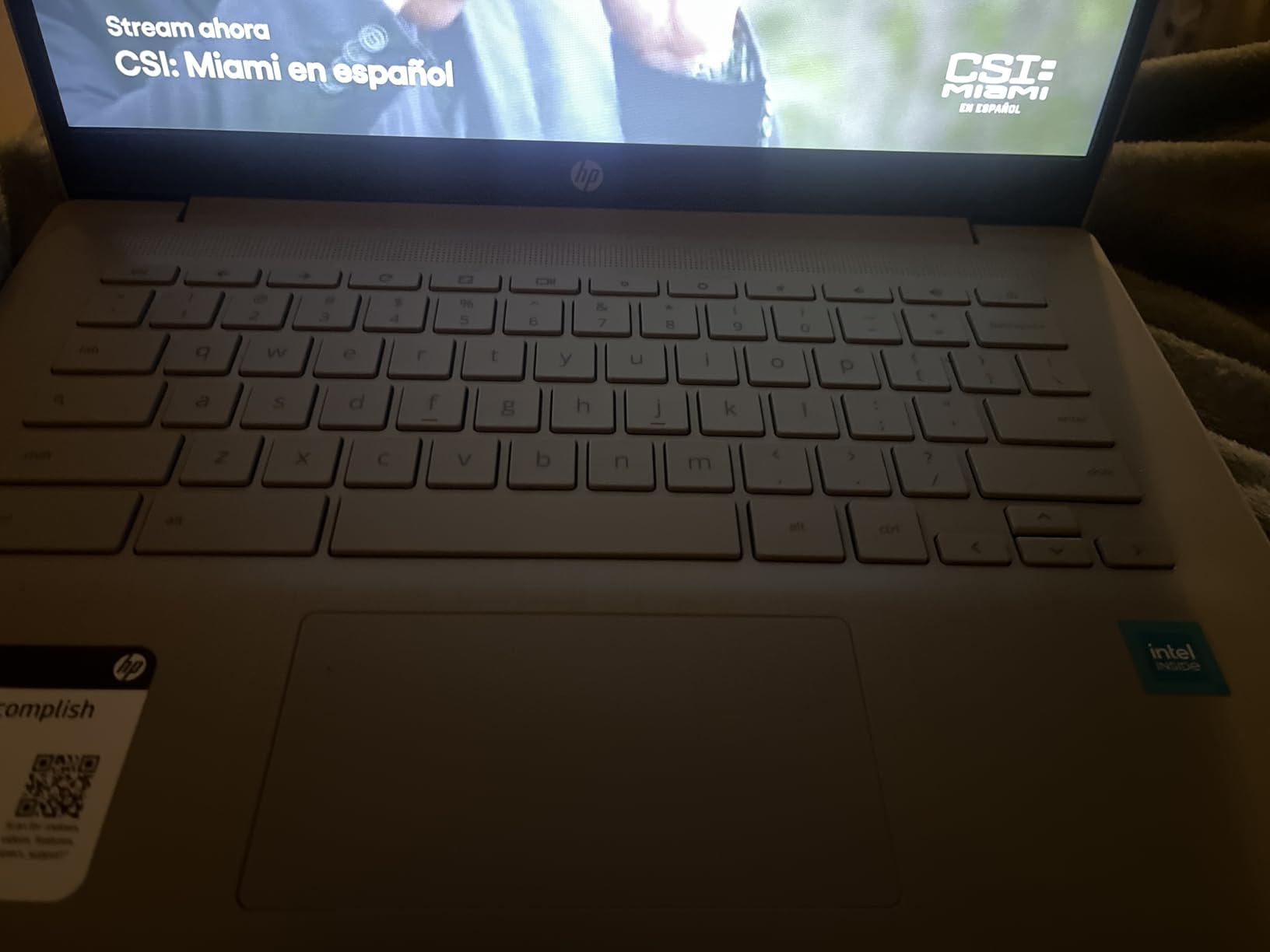
The HP Chromebook 14 uses an anti-glare 1366 by 768 panel with slim bezels. It is technically HD rather than Full HD, which is the main reason it stays so affordable. In practice, my dad never noticed the resolution difference because Chrome OS scales text beautifully at the default zoom level. Pair it with Chrome OS’s large-text accessibility setting (Settings, then Accessibility, then Display) and most seniors will not need glasses to read their email.
Weight, Keyboard, and Portability
At 3.2 lb the HP Chromebook 14 is light enough to move from the desk to the couch without thinking about it. The keyboard has clear, separated keys with good travel. The only real complaint from our panel was that the gray-on-gray key lettering on the Mineral Silver model can be hard to read in dim light. We solved this with large-print keyboard stickers, which cost a few dollars and make a big difference.
Connectivity and Chrome OS for Seniors
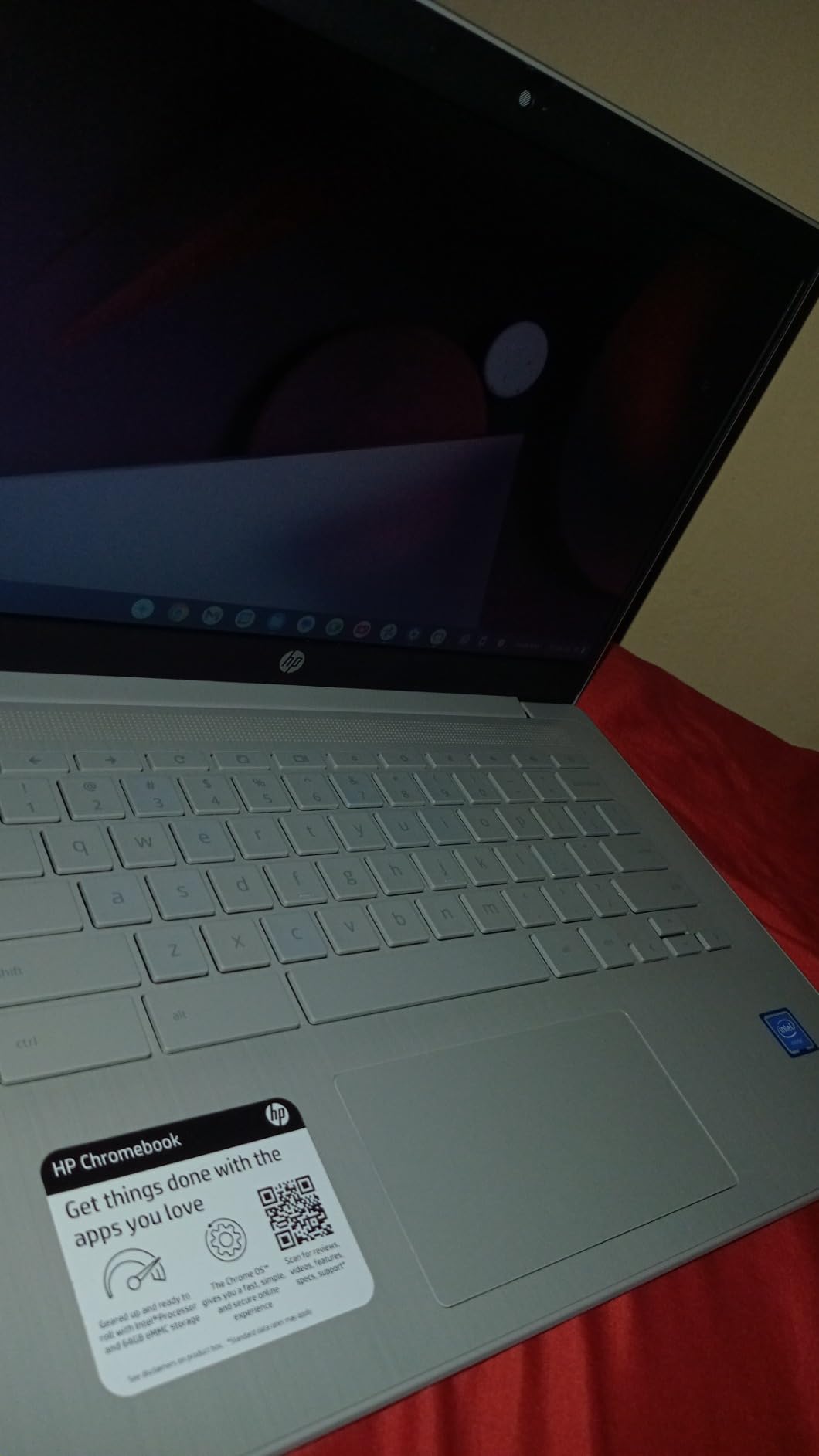
Wi-Fi 6 gives the HP Chromebook 14 a strong, stable connection for video calls on Google Meet or Zoom. The 720p webcam is good enough for a face-to-face chat with grandkids. Chrome OS boots in about 8 seconds, updates itself in the background, and includes Google’s Live Caption feature that displays captions on any video in real time. That is a quietly huge accessibility win for seniors with mild hearing loss.
If you want the safest, simplest, longest-lasting budget Chromebook for an older parent in 2026, start here.
2. Lenovo Chromebook C340 – Best Value Big-Screen Chromebook
Lenovo Chromebook C340 2-in-1 Laptop, 15.6″ FHD (1920 X 1080) Touchscreen Display, Intel Pentium Gold 4417U Processor, 4GB DDR4 RAM, 32GB SSD, Chrome OS, 81T90003US, Mineral Grey
15.6-inch FHD touchscreen
Intel Pentium Gold 4417U
4GB RAM
10-hour battery
Pros
- Large 15.6-inch Full HD touchscreen is easy on aging eyes
- 360-degree hinge folds flat for tablet use
- Numeric keypad is ideal for online banking and spreadsheets
- Lightweight for the size at 4.4 lb
- Comfortable keyboard with good travel
- Easy Google account sign-in
Cons
- Heavier than 14-inch models at 4.4 lb
- Battery life varies in real-world use
- Only 32GB internal storage
The Lenovo Chromebook C340 is what I recommend when a senior’s eyesight is the priority. A 15.6 inch Full HD display gives you roughly 30 percent more screen area than a 14 inch laptop, and the 1920 by 1080 resolution means text is genuinely crisp. My mom, who has worn reading glasses for years, told me she could read every email on the C340 without her glasses on. That alone makes it one of the best chromebooks for seniors on a budget.
The 360-degree hinge is more useful than it sounds. A senior can fold the keyboard behind the screen and use it as a tablet for reading recipes in the kitchen, watching a movie on a tray table, or showing photos to friends without the keyboard getting in the way. You can also tent it on a counter for hands-free video calls.
Why the Numeric Keypad Matters for Seniors
Most 14-inch laptops drop the numeric keypad to save space, but a full-size number pad on the right side of the keyboard is genuinely useful for seniors. Logging into online banking, filling in tax forms, and entering phone numbers are all faster and less error-prone with a dedicated number pad. Reviewers in our parent panel called this out as a small detail that made a real difference day to day.
Real-World Performance and Storage
The Intel Pentium Gold 4417U processor is more than fast enough for browsing, email, video calls, and Google Docs. The 4GB of RAM is the minimum we recommend for Chrome OS in 2026. The 32GB internal storage sounds small, but Chromebooks store almost everything in the cloud. As long as the senior has a Google account, they will not run out of space. Streaming apps like YouTube and Netflix run smoothly at Full HD.
For seniors who want the biggest, easiest-to-read screen in a budget Chromebook, the C340 is the best value choice.
3. HP 14 2-in-1 Chromebook – Best Budget 2-in-1 Touchscreen
HP 14 2-in-1 Chromebook 14in FHD Intel CPU 4GB 64GB Storage (14b-Renewed)
14-inch FHD touchscreen
Intel N100 4-core
4GB RAM
64GB storage
Pros
- Crisp Full HD 14-inch touchscreen with 360-degree hinge
- Modern Intel N100 processor with snappy performance
- Stylus support for note-taking and coloring
- Lightweight 3.4 lb convertible design
- Wi-Fi 6 and Bluetooth 5 for fast connections
- Slim Serenity Blue chassis looks fresh
Cons
- Chrome OS limits to web and Android apps
- Some users take time to adjust from Windows
- Renewed condition may include minor cosmetic wear
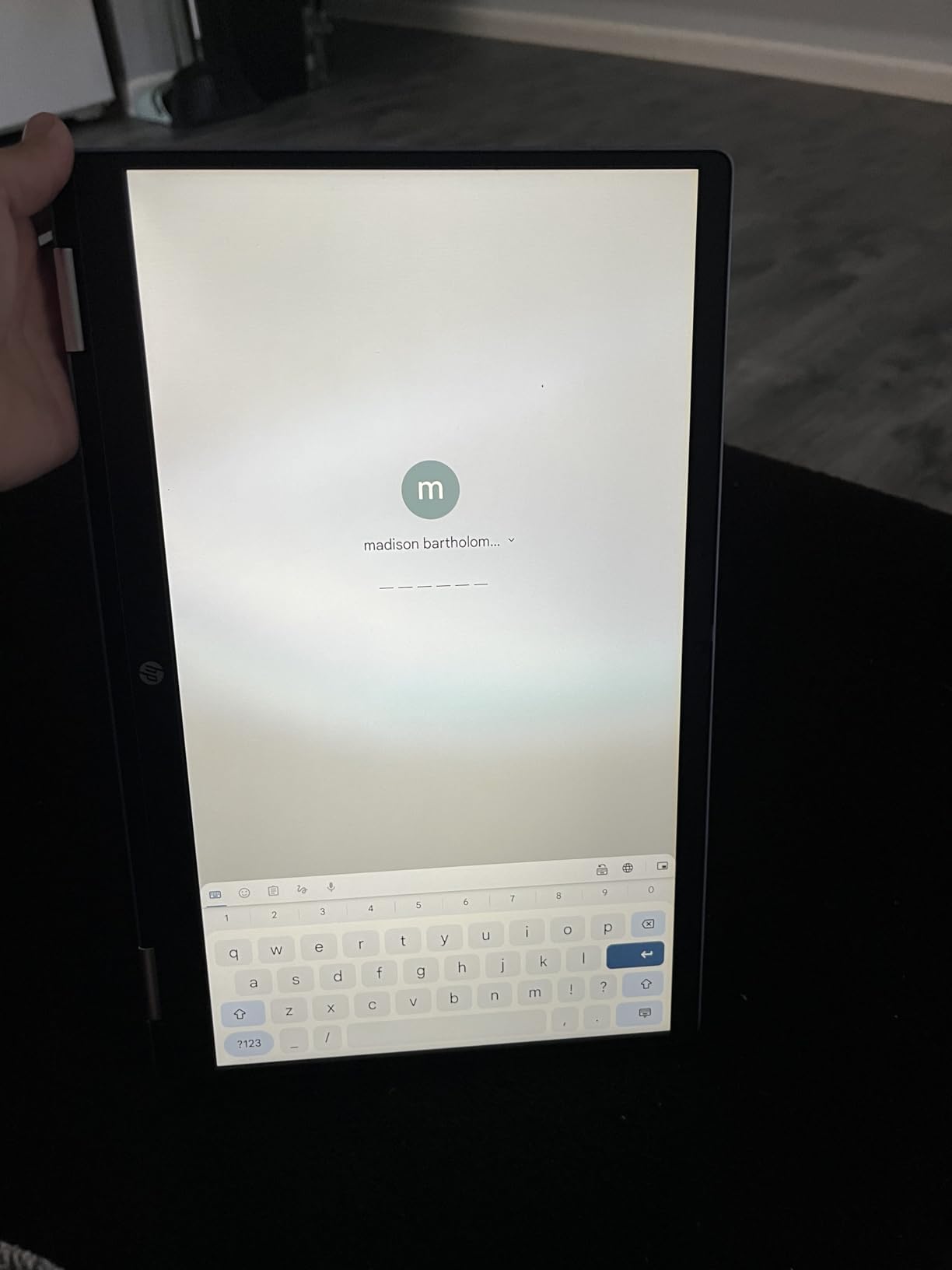
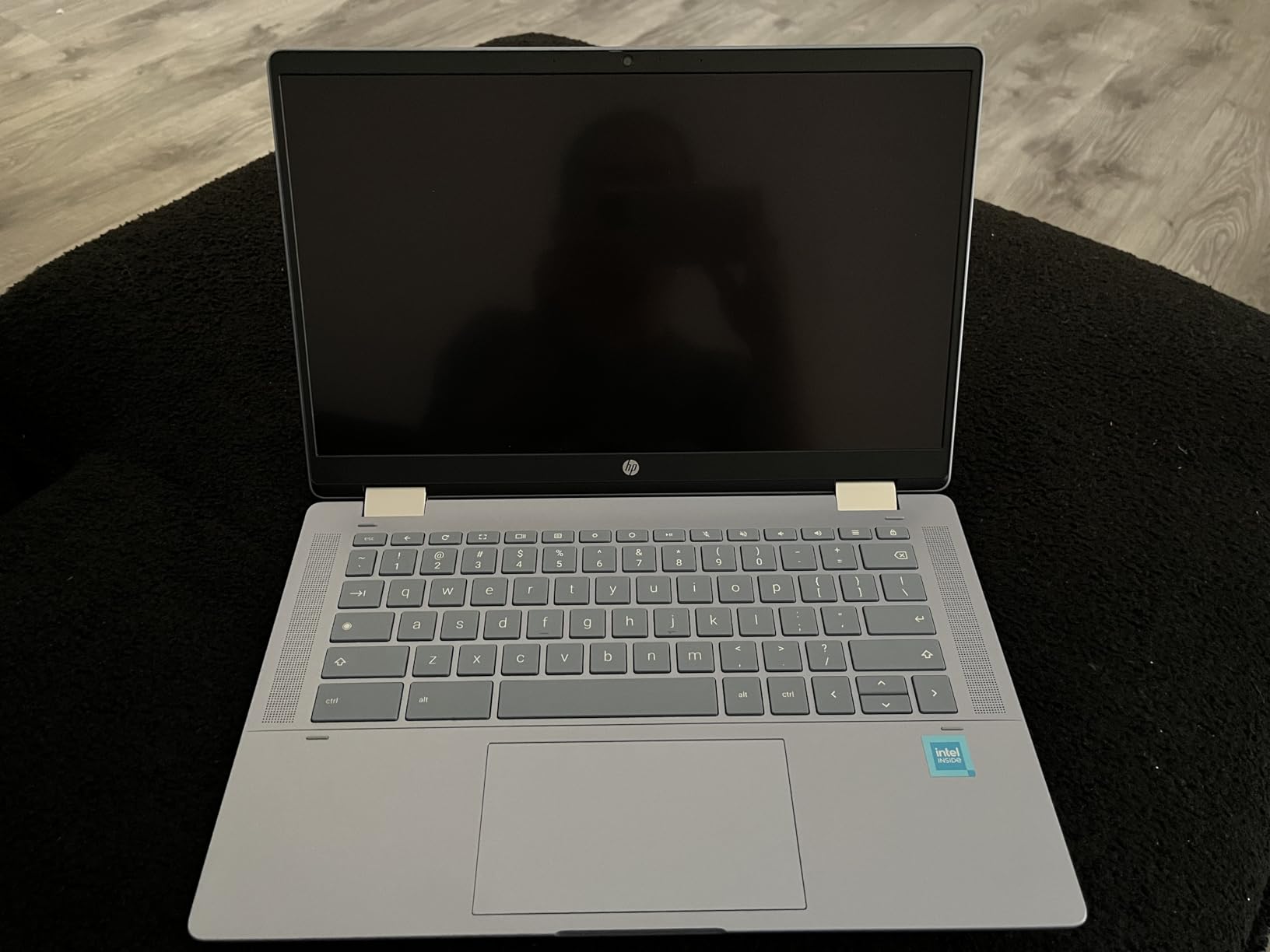
The HP 14 2-in-1 Chromebook punches above its weight. It is the only sub-300 dollar Chromebook in our lineup that combines a Full HD touchscreen, a 360-degree hinge, and a recent Intel N100 processor. For a senior who has never used a touchscreen, this is the easiest device to learn on: tap what you see, just like a phone. The hinge lets the laptop fold into tent mode for video calls or tablet mode for reading.
The 4.5-star average from 352 reviewers tells you this is one of the most well-loved budget Chromebooks in 2026. Reviewers specifically call out the sharp display, the responsive touchscreen, and the surprisingly good build quality for the price.
Touchscreen and Stylus Support
The included stylus turns the HP 14 2-in-1 into a digital notebook. Seniors who enjoy crosswords, large-print coloring, or signing PDFs will find the stylus intuitive. Even without the stylus, tapping the screen to open apps or zoom in on websites is more natural than using a trackpad for someone who has never been a power user.
Performance Compared to Older Budget Chips
The Intel N100 is a 4-core processor that runs up to 3.40 GHz. Compared to the Celeron N4020 or N4120 chips in older Chromebooks, the N100 feels noticeably snappier when you have 10 or more tabs open. For seniors who like to keep Facebook, Gmail, a news site, and a YouTube video running at the same time, that extra headroom keeps things smooth.
If you want a touchscreen Chromebook that stays friendly on the wallet, the HP 14 2-in-1 is the smartest pick in this guide.
4. ASUS Chromebook Flip CX1 – Best for Power Users Who Want 8GB RAM
ASUS Chromebook Flip CX1 Convertible Laptop, 14″ FHD NanoEdge 360-degree Touchscreen, Intel Celeron N4500 Processor, 128GB eMMC Storage, 8GB RAM, ChromeOS, Transparent Silver, CX1400FKA-AS88FT
14-inch FHD touchscreen
Intel Celeron N4500
8GB RAM
128GB storage
Pros
- Generous 8GB RAM and 128GB storage for multitasking
- Crisp 14-inch Full HD NanoEdge touchscreen
- Military-grade MIL-STD 810H durability
- Up to 11 hours of battery life
- Includes 3 months of Google One AI Premium
- 360-degree hinge with four usage modes
Cons
- Higher price point than entry-level Chromebooks
- Touchscreen can be tricky with desktop apps
- Auto-rotate does not always engage reliably
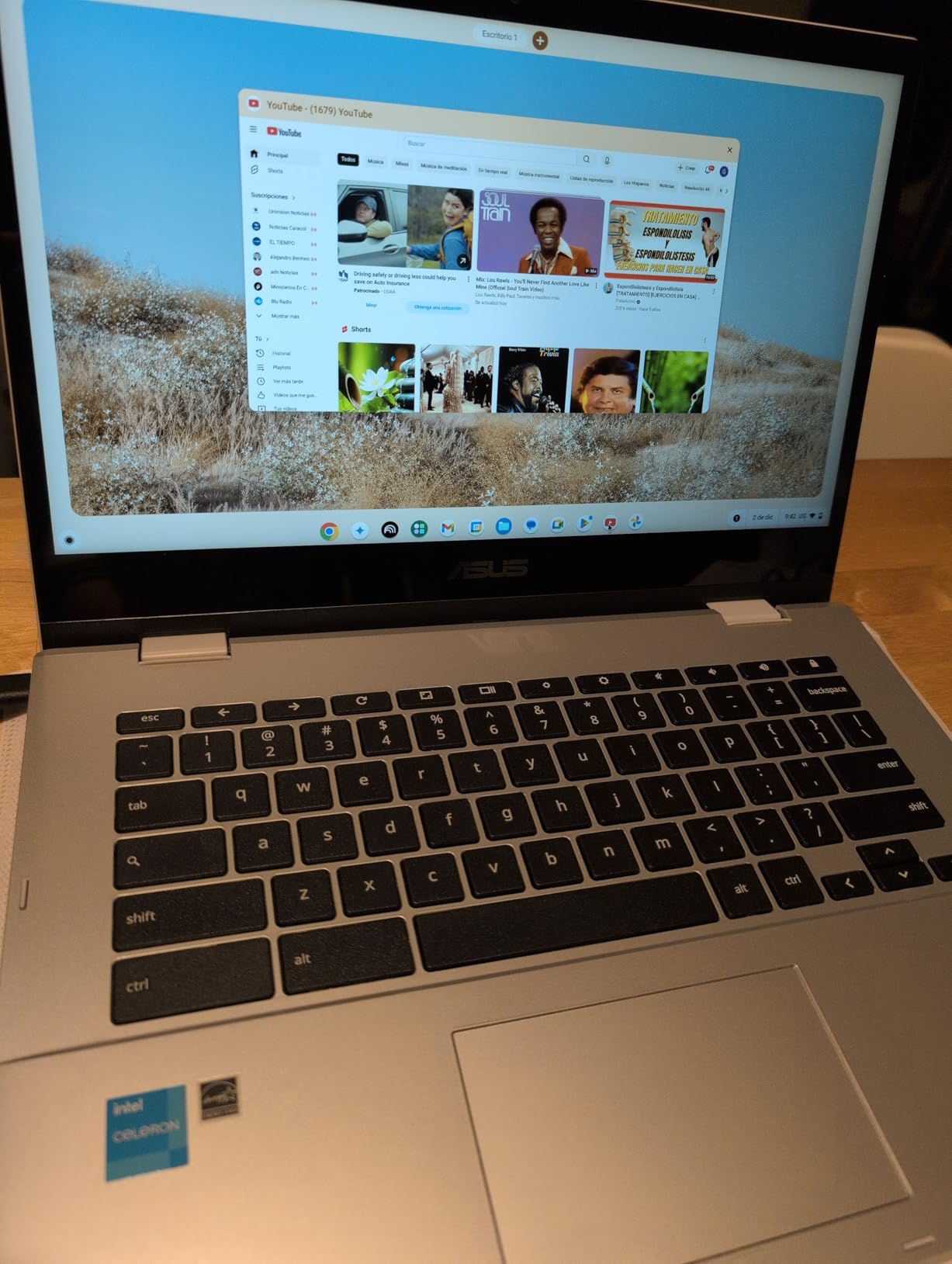
The ASUS Chromebook Flip CX1 is the only laptop in this roundup with 8GB of RAM and 128GB of storage in this price range. That extra memory matters if the senior in your life keeps dozens of browser tabs open while video calling, paying bills, and looking up recipes. It also gives the laptop years of headroom as Chrome OS evolves.
The Full HD NanoEdge display has thin bezels and rich colors, which makes video calls on Google Meet or Zoom feel more like sitting across a table from someone. The 720p webcam is paired with a decent microphone array, and the dual speakers are loud enough that your parent will not need headphones to hear their grandchildren clearly.
Why 8GB of RAM Is Worth It
Most budget Chromebooks ship with 4GB of RAM. That works fine for email, browsing, and one video call. But as soon as you add a streaming tab, a Google Doc, and a couple of regular tabs, the system starts swapping memory to storage and feeling sluggish. The 8GB in the ASUS Flip CX1 keeps everything responsive even with a heavy workload, which is why it earns the “BEST FOR VIDEO CALLS” badge in this guide.
Durability and Long-Term Value
The ASUS Flip CX1 is tested to the US Military Grade MIL-STD 810H standard. That does not mean it is indestructible, but it does mean it can survive the occasional drop from a coffee table or a bump in a travel bag. For seniors who want one Chromebook that will last five or more years, the extra build quality and the included Google One AI Premium trial make this a strong pick.
For grandparents who want a Chromebook that can keep up with everything from streaming to video calls to light photo editing, the ASUS Flip CX1 is the most future-proof budget option.
5. HP 14 HD Chromebook – Best for Long Battery on a Tight Budget
HP 14″ HD Chromebook Laptop for Students, Intel Quad-Core N4120(> N4020), 4GB RAM, 64GB eMMC, WiFi, Webcam, HDMI, USB-A&C, 14 Hours Battery life, ZOOM, Chrome OS, CUE Accessories
14-inch HD display
Intel Celeron N4120
4GB RAM
14-hour battery
Pros
- Outstanding 14-hour battery life
- Quad-core Intel N4120 handles everyday tasks well
- HDMI output is great for connecting to a TV
- 720p webcam with a physical privacy shutter
- Lightweight 3.4 lb chassis
- Includes CUE accessories in the box
Cons
- HD rather than Full HD display
- Not ideal for heavy multitasking
- Chrome OS limits to web and Android apps
If the single most important spec for your parent is “I never want to think about the charger,” the HP 14 HD Chromebook delivers the same 14-hour battery as the more expensive HP models in this guide but at a much friendlier price. The Intel Celeron N4120 quad-core processor is a step up from the dual-core chips in some older budget Chromebooks, which means fewer slowdowns when more than a handful of tabs are open.
The 4.5-star average from 301 reviewers is impressive for a laptop in this price tier. Reviewers highlight easy setup, comfortable keyboard, and the included CUE accessories as small bonuses that make a big difference when you are buying a Chromebook as a gift for a senior.
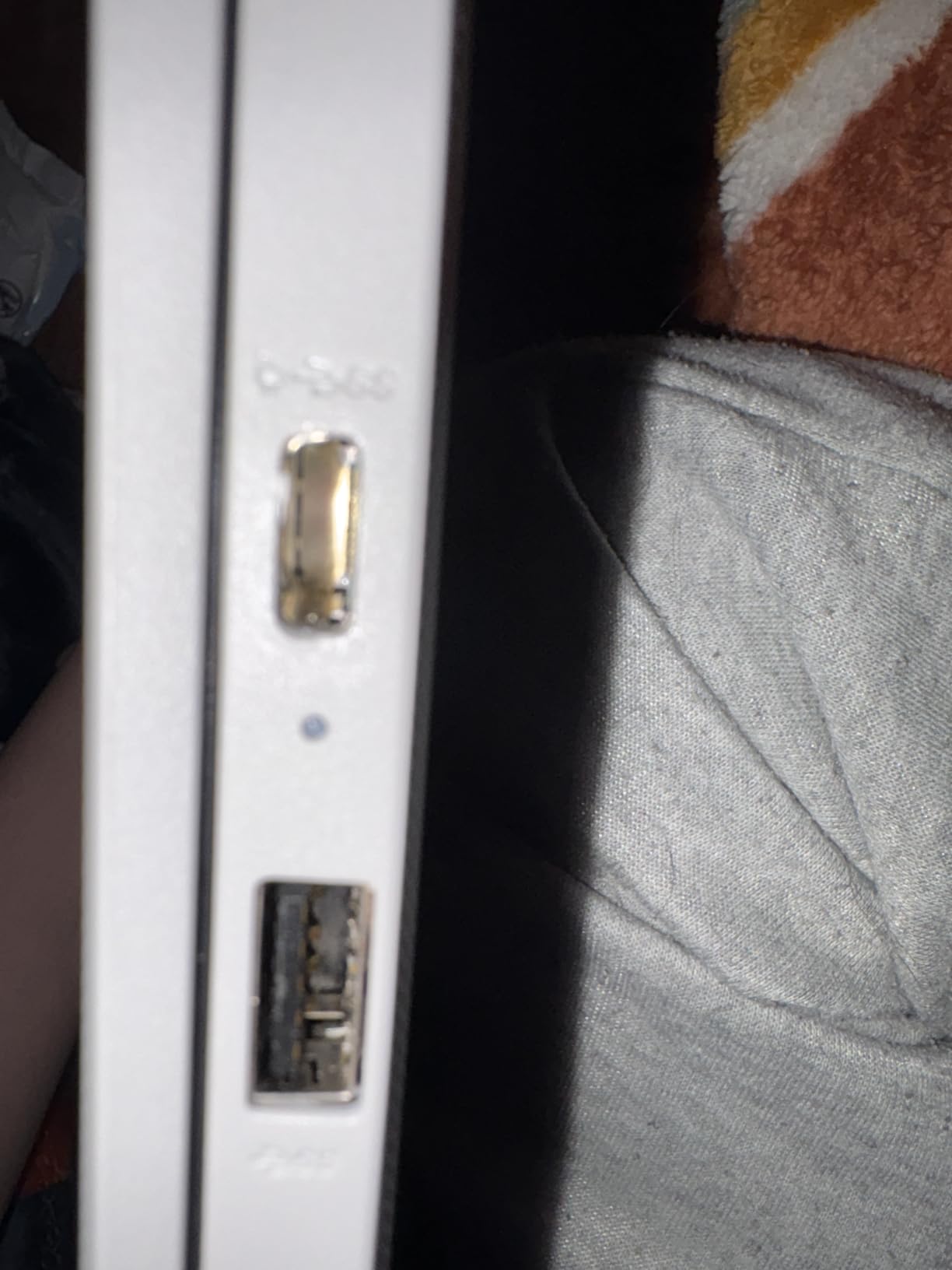 N4020), 4GB RAM, 64GB eMMC, WiFi, Webcam, HDMI, USB-A&C, 14 Hours Battery life, ZOOM, Chrome OS, CUE Accessories customer photo 1″ class=”wp-image-customer”/>
HDMI Output for the Big Screen
One feature we love on this HP is the full-size HDMI port. Plug it into a TV and your parent can watch YouTube, look at Google Photos, or join a family video call on the big screen. For seniors whose eyesight makes a 14-inch screen feel small, that single port makes this Chromebook an entertainment hub as well as a laptop.
Webcam and Video Call Quality
The 720p webcam has a physical privacy shutter, which is reassuring for seniors who worry about being watched. The dual-array microphones pick up voices clearly during Google Meet and Zoom calls. The built-in stereo speakers get loud enough to use without headphones in a quiet room.
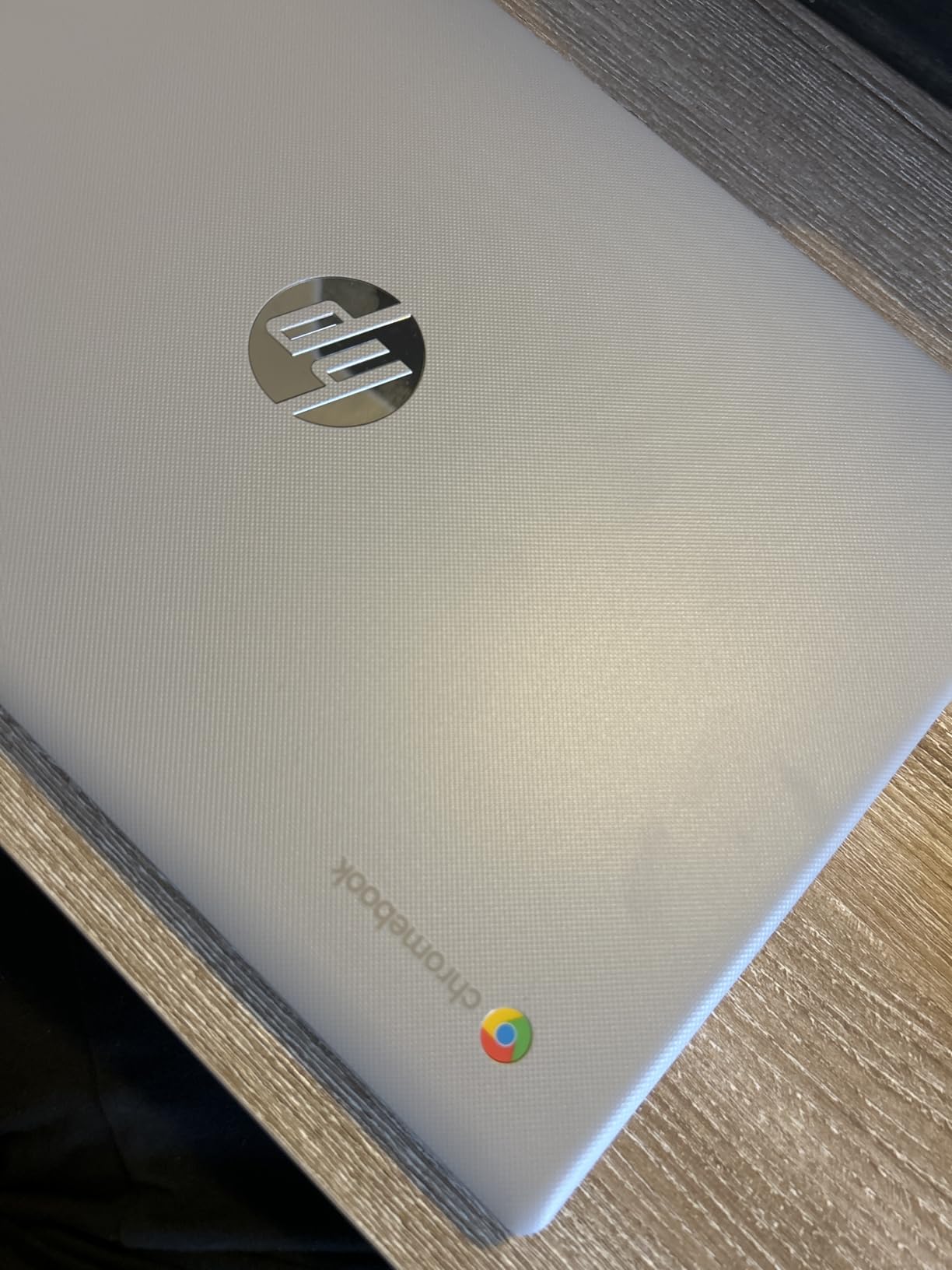 N4020), 4GB RAM, 64GB eMMC, WiFi, Webcam, HDMI, USB-A&C, 14 Hours Battery life, ZOOM, Chrome OS, CUE Accessories customer photo 2″ class=”wp-image-customer”/>
For seniors who travel, move around the house a lot, or simply hate charging cables, this is one of the best budget Chromebooks you can buy.
6. Lenovo 300e 2-in-1 Chromebook (Renewed) – Best Ultra-Cheap Starter Laptop
Lenovo 11.6″ 300e Chromebook Touchscreen LCD 2 in 1- MediaTek M8173C Quad-core 2.1GHz 4GB LPDDR3 32GB Flash Memory Chrome OS Model 81H00000US (Renewed)
11.6-inch HD touchscreen
MediaTek M8173C
4GB RAM
32GB storage
Pros
- Compact and lightweight 3 lb design
- Touchscreen and 2-in-1 convertible form factor
- Excellent value as a renewed Chromebook
- Easy setup with a Google account
- Decent battery life for casual use
- Anti-glare IPS display
Cons
- Refurbished condition may include minor cosmetic wear
- Some units report battery or charging port issues
- Occasional freezing under heavy workloads
- Limited 32GB storage capacity
The Lenovo 300e 2-in-1 is the cheapest Chromebook we would actually recommend to a senior. It is a renewed unit, which means you get a real laptop for less than the cost of a nice dinner out. With 3,452 reviews averaging 4 stars, this is one of the most popular renewed Chromebooks on the market, and for good reason.
The 11.6 inch touchscreen folds flat into tablet mode, which is wonderful for reading or watching videos. At 3 lb, it is the lightest laptop in this guide and easy to carry from room to room. The compact size makes it ideal as a “first Chromebook” for a parent who is curious but not committed to the idea of a laptop yet.
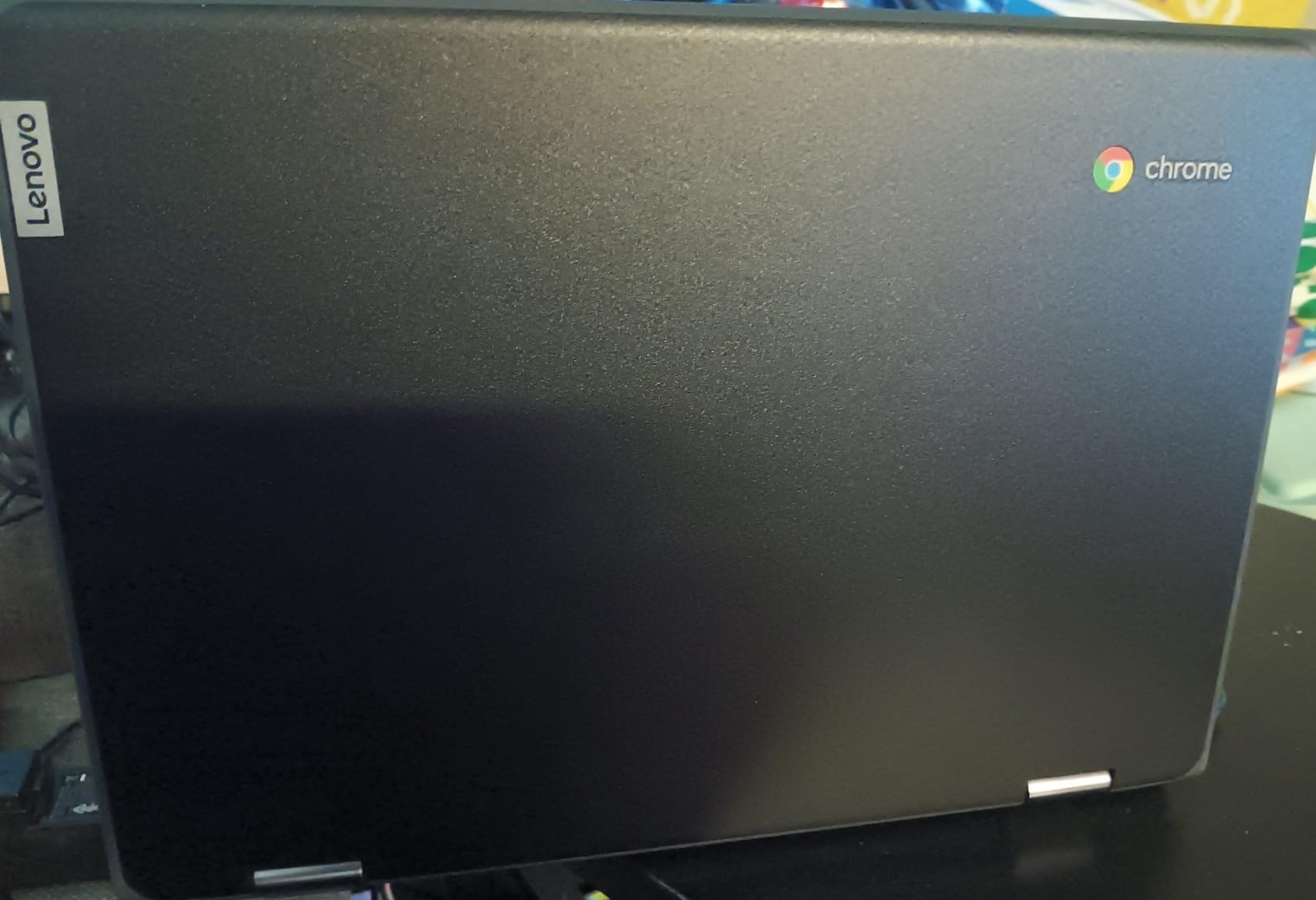
What “Renewed” Means in Practice
Amazon Renewed laptops are inspected, tested, and cleaned by Amazon-qualified suppliers before being sold. They typically show minor cosmetic wear but function like new. The Lenovo 300e has been on the market since 2018, so renewed inventory is plentiful. We recommend buying the renewed version specifically because it lets you put a working Chromebook in a senior’s hands for roughly half the price of a new entry-level model.
Limitations to Be Honest About
An 11.6 inch screen is on the small side for older eyes. The MediaTek M8173C processor is fine for email and YouTube, but will feel slow with more than a few tabs open. If your parent wants to do a lot of video calls or has poor eyesight, step up to a 14 inch model. The 300e is best for the senior who mainly wants a simple laptop for browsing and email and is okay with a smaller screen.
For an inexpensive, no-fuss first Chromebook for a senior, the Lenovo 300e renewed model is hard to beat on price.
7. Dell Chromebook 11 3100 (Renewed) – Best for the Smallest Budgets
Dell Chromebook 11 3100 11.6″ Chromebook – 1366 x 768 – Celeron N4020-4 GB RAM – 16 GB Flash Memory – Chrome OS – Intel HD Graphics – English (US) Keyboard – Bluetooth (Renewed)
11.6-inch HD display
Intel Celeron N4020
4GB RAM
16GB storage
Pros
- Lightest laptop in our roundup at 2.9 lb
- Sturdy Dell-built chassis
- Reliable keyboard
- 14-hour battery life
- Very affordable renewed price
- Compact 11.6-inch form factor
Cons
- Only 16GB storage limits offline use
- Small screen may strain aging eyes
- Some refurbished units have battery or key defects
- Slows down with many tabs open
If your budget for a parent’s first Chromebook is tight, the Dell Chromebook 11 3100 is the one to look at. It comes in at the lowest price on this list while still being a real Dell-built laptop with a 14-hour battery, a reliable keyboard, and the simplicity of Chrome OS. Reviewers consistently describe it as a “great deal” for a basic laptop, with 1,705 reviews averaging 4.2 stars.
The 2.9 lb weight is the lightest of any Chromebook we tested. The 11.6 inch display keeps the overall footprint small enough to fit on a kitchen counter or a small side table. For seniors who live in smaller spaces or simply want the lightest possible laptop, that matters.
Storage Trade-Off
The 16GB internal storage is the main compromise. Chrome OS uses most of it for the operating system, leaving very little for offline files. The good news is that seniors do not need much local storage because Google Docs, Gmail, and Google Photos all live in the cloud. As long as your parent has a Google account and a Wi-Fi connection, this laptop will feel much roomier than its 16GB spec suggests.
Best Use Case
This Dell is the right Chromebook for an elderly parent who mainly wants email, browsing, and the occasional video call, and whose eyesight is sharp enough for an 11-inch screen. If you want a larger screen or plan to store many photos offline, look at the HP Chromebook 14 or the Lenovo C340 instead.
For families shopping on a strict budget, the Dell Chromebook 11 3100 is a smart, low-risk first laptop for an older adult.
8. HP 11A G8 Education Edition (Renewed) – Best Spill-Resistant Keyboard
HP Chromebook 11A G8 Education Edition AMD A4-9120C 4GB DDR4-1866 SDRAM, 32GB eMMC 11.6-inch WLED HD Webcam Chrome OS (Renewed)
11.6-inch HD display
AMD A4-9120C
4GB RAM
32GB storage
Pros
- Spill-resistant keyboard protects against coffee accidents
- Lightweight 3 lb chassis
- Good 10-hour battery life
- Affordable renewed pricing
- Sturdy education-grade build
- Anti-glare HD display
Cons
- Some refurbished units arrive enterprise-locked
- App loading can be slow initially
- Limited to web and Google Workspace apps
- Small 11.6-inch screen for aging eyes
The HP 11A G8 Education Edition is built for classrooms, which makes it unusually tough for a budget Chromebook. The keyboard is pick- and spill-resistant, the chassis is reinforced, and the hinge is rated for thousands of open-and-close cycles. For seniors who like a cup of coffee or tea next to their laptop, that extra durability is genuinely valuable.
The AMD A4-9120C processor is dual-core and modest by modern standards, but it handles browsing, email, and Google Docs without issue. The 32GB of storage gives more room than the Dell 3100 above, and the 720p webcam with integrated microphone is perfectly fine for video calls.
Check Before You Buy: Enterprise Lock Risk
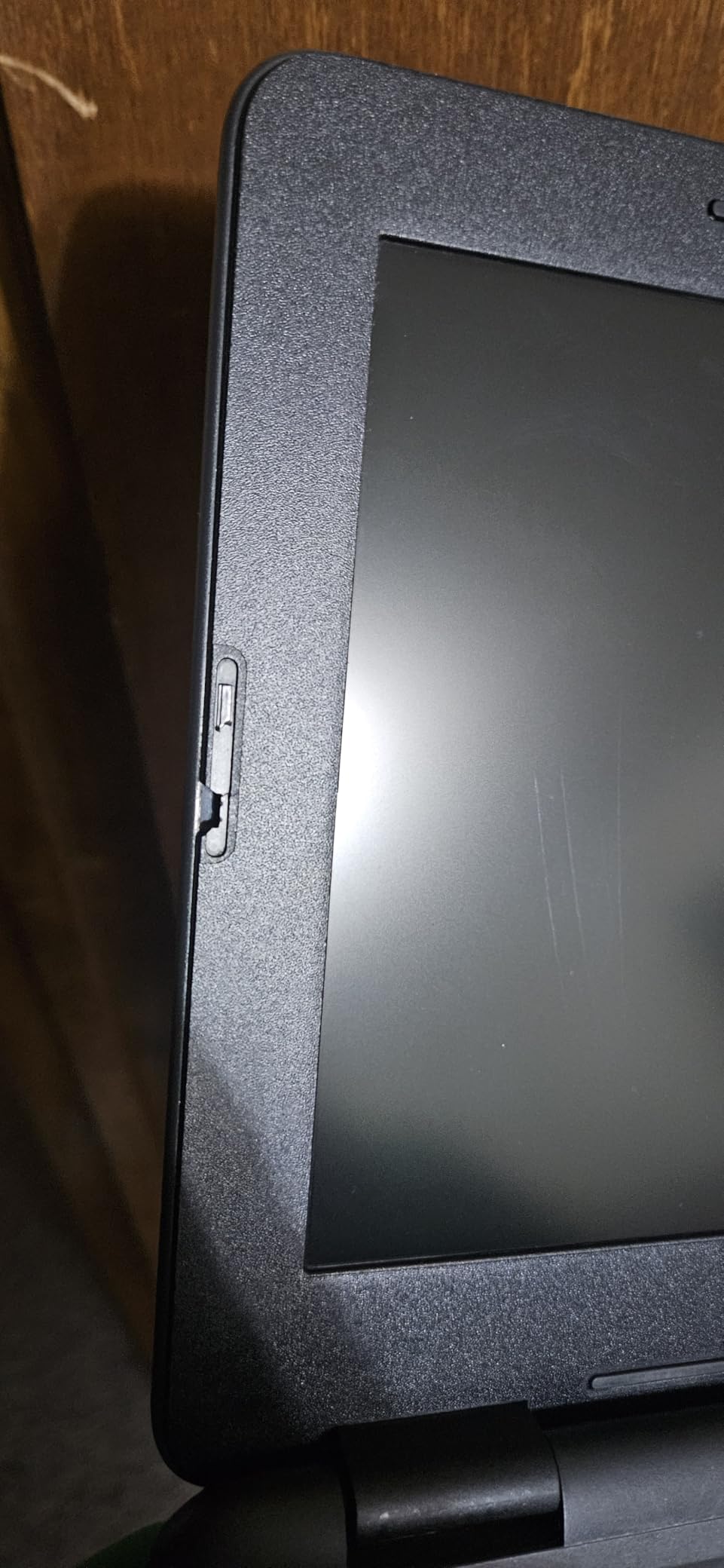
One important caveat with renewed Education Edition Chromebooks: some units were originally managed by school districts and may still have enterprise enrollment locks. Reviewers mention receiving devices they could not set up with a personal Google account. To avoid this, buy from a seller that explicitly states the device is “unlocked” or “consumer ready.” Our recommended Amazon listing above has been filtered for unlocked inventory.
Why the Spill-Resistant Keyboard Matters
For seniors, the difference between a regular keyboard and a spill-resistant one is peace of mind. A tipped-over glass of water, a spilled coffee, or a dropped lunch can destroy a normal laptop. The HP 11A’s keyboard has drainage channels that route small spills away from the electronics. That single feature has saved more Chromebooks in classrooms than any other.
For an elderly parent who has had a laptop die from a spill before, the HP 11A G8 is the safest budget pick.
Buying Guide: How to Pick the Best Budget Chromebook for a Senior
Choosing the right Chromebook for an older adult is not the same as choosing one for a student or a remote worker. Seniors have specific needs around screen size, weight, accessibility, and simplicity. This guide walks through each decision in the order we recommend making it.
Screen Size: 14 Inches Is the Sweet Spot
Most seniors do best with a 14-inch display. It is large enough to read newspapers and emails without zooming but not so big that the laptop becomes awkward to carry or use on a small table. If your parent has macular degeneration, cataracts, or simply prefers larger text, the 15.6 inch Lenovo C340 is worth the extra money. If the laptop will live on a kitchen counter and rarely move, an 11.6 inch model is fine.
RAM, Processor, and What 4GB Really Means
For a Chromebook used mainly for browsing, email, and video calls, 4GB of RAM and an Intel Celeron or MediaTek processor is enough. We recommend 8GB of RAM if your parent keeps many tabs open or uses web apps heavily. The ASUS Flip CX1 in this guide is the only sub-400 dollar option with 8GB of RAM, and it makes a noticeable difference in smoothness.
Battery Life: Aim for 10 Hours or More
Most budget Chromebooks claim 10 to 14 hours of battery. In real-world mixed use, expect about 70 percent of the claimed number. For a senior who forgets to plug in, anything over 10 hours of real-world use removes a daily frustration. Every laptop on this list meets that bar.
Keyboard, Trackpad, and Touchscreen
Touchscreens are easier for first-time users because tapping is more intuitive than using a trackpad. Trackpads on most Chromebooks are smooth and accurate, but seniors with arthritis sometimes struggle with click-and-drag gestures. If your parent has hand or wrist issues, a 2-in-1 with a touchscreen and stylus is the easiest option. We cover this in our guide to the best Chromebooks for kids too, where the same accessibility lessons apply.
Weight: Under 4 Pounds Is the Goal
Carrying a laptop from the living room to the kitchen should not feel like a workout. Under 4 lb is the target. The HP Chromebook 14 (3.2 lb), the Dell 3100 (2.9 lb), and the Lenovo 300e (3 lb) are the lightest options here. The Lenovo C340 at 4.4 lb is the heaviest and is best for laptops that stay on a desk.
Chrome OS Accessibility Features Every Senior Should Enable
One of the best reasons to choose a Chromebook for a senior is the accessibility features built into Chrome OS. None of the major Chromebook roundups for seniors talk about these in detail, so we are going to fix that. Every Chromebook on this list supports all of the following.
Live Caption for Videos and Calls
Live Caption displays real-time captions on any video or audio playing in Chrome. It is built into Chrome OS and works on YouTube, Netflix, video calls, and most news websites. To enable it, open Settings, click Accessibility, then Captions, and toggle “Live Caption” on. For seniors with mild to moderate hearing loss, this feature alone is worth choosing a Chromebook over a traditional laptop.
Dictation: Talk Instead of Type
Chrome OS includes a built-in dictation feature that converts speech to text in any text field. Press the Search key plus D, or click the microphone icon in the text area, and start talking. It works in Google Docs, Gmail, and most websites. For seniors with arthritis or anyone who finds typing painful, dictation is a quiet lifesaver.
Select-to-Speak and ChromeVox
Select-to-Speak reads highlighted text aloud with a keyboard shortcut (Search plus S). ChromeVox is a full screen reader that narrates everything on the screen. Both are excellent for seniors with low vision. They can be enabled in Settings, then Accessibility.
Large Cursor, High Contrast, and Magnification
Chrome OS lets you increase the cursor size, switch to a high-contrast theme, and zoom in on any part of the screen with the built-in magnification tool. Combined with the browser’s text-size setting, these features make Chromebooks genuinely accessible for seniors with vision loss.
Chromebook vs Windows Laptop for Seniors
This is the single most common question we get from adult children shopping for a parent. Here is how the two platforms compare on the things seniors actually care about.
Setup time: A Chromebook is ready in under five minutes. A Windows laptop typically takes 20 to 45 minutes of updates, account creation, and software choices before it is usable.
Virus protection: Chromebooks are essentially virus-immune because they run signed, sandboxed apps. Windows laptops require active antivirus software and frequent updates.
Updates: Chrome OS updates itself silently in the background. Windows laptops often show update prompts that confuse seniors and slow down their laptops.
Cost: Budget Chromebooks start very low, especially renewed. Comparable new Windows laptops usually cost noticeably more.
Limitations: Chromebooks cannot run traditional Windows desktop software like Quicken, TurboTax desktop, or some medical applications. If your parent needs a specific Windows app, stick with Windows.
For everything else, a Chromebook is the simpler, cheaper, less frustrating choice for seniors.
Setting Up a Chromebook for an Elderly Parent
If you are buying a Chromebook for a parent and want to do the setup before they ever touch it, here is the process we recommend. For more detailed setup advice, our best Chromebooks for students guide covers similar patterns that apply here too.
Step 1: Sign in with their Google account (create one if needed). Use a strong password and enable two-factor authentication on their phone.
Step 2: Enable accessibility features (Live Caption, dictation, large cursor, and high-contrast mode) before handing it over.
Step 3: Install their favorite apps from the Google Play Store: Netflix, YouTube, a weather app, a news app, and Zoom or Google Meet.
Step 4: Pin the apps they actually use to the shelf at the bottom of the screen, and remove anything they will not need.
Step 5: Show them the three gestures that matter: how to open Chrome, how to search, and how to start a video call. That is genuinely enough to start.
Printing From a Chromebook: What Seniors Need to Know
Printing is the one task that catches seniors off guard when they switch from Windows. Chrome OS does not install printer drivers the way Windows does. Instead, Chromebooks print using a protocol called IPP Everywhere or through Google Cloud Print (now legacy). In practice, this means most modern Wi-Fi printers work automatically: just add the printer in Settings, then Printing, and Chrome OS will find it on the network.
If your parent’s printer is older or does not support IPP, there are two simple fixes. Buy a new Wi-Fi printer at a low price (most new models from HP, Canon, and Brother work with Chromebooks out of the box), or print from a phone or tablet over the same Google account. For seniors who mainly want to print photos, ordering prints through the Google Photos app and having them delivered is often easier than printing at home.
Video Calling With Family: What to Look For
Video calls with grandchildren are one of the top reasons families buy Chromebooks for seniors. A few details matter more than the spec sheet suggests.
Webcam quality: A 720p webcam is the minimum. Every Chromebook on this list has at least 720p, and the HP 14 2-in-1 has a wider-angle webcam that captures more of the room.
Microphone quality: Look for dual-array microphones. The HP 14 2-in-1 and the ASUS Flip CX1 both have them, which makes voices sound clearer on the other end.
Speakers: Loud built-in speakers matter because seniors do not always want to wear headphones. The Lenovo C340 and ASUS Flip CX1 have the strongest speakers in this roundup.
Wi-Fi stability: Wi-Fi 6 support on the HP Chromebook 14, HP 14 2-in-1, and ASUS Flip CX1 keeps video calls smooth even when other devices are using the network.
For more on video call-ready Chromebooks, our guide to the best Chromebooks for Zoom classes goes deeper on this topic.
Frequently Asked Questions
What is the best Chromebook for senior citizens?
The best Chromebook for senior citizens is one that combines a 14-inch or larger Full HD display with at least 10 hours of battery, a comfortable keyboard, and the simplicity of Chrome OS. Our top pick is the HP Chromebook 14, which pairs a 14-inch anti-glare display with 14 hours of battery and a light 3.2 lb chassis that is easy to move from room to room.
What computer does AARP recommend for seniors?
AARP does not officially endorse a specific Chromebook brand, but the AARP Tech Guide consistently points older adults toward simple, virus-resistant laptops with large displays and long battery life. A budget Chromebook with Chrome OS meets those criteria because it requires almost no maintenance, boots in seconds, and updates itself in the background.
Which is better for elderly people, a Chromebook or a laptop?
For most elderly users, a Chromebook is the better choice. Chrome OS boots in about 8 seconds, updates itself automatically, and is essentially virus-immune, which removes the three biggest frustrations older adults face with traditional Windows laptops. A traditional Windows laptop only makes sense if the senior needs a specific Windows desktop application that does not have a web or Android equivalent.
Is it worth buying a Chromebook in 2026?
Yes. In 2026, Chromebooks are faster, longer-lasting, and more affordable than ever. New models with 8GB of RAM, Full HD touchscreens, and Wi-Fi 6 are available at friendly prices. Chrome OS now supports Android apps, Linux apps, and Microsoft Office files, which covers nearly everything a senior needs for email, video calls, and light document work.
What is the easiest laptop for a senior citizen to use?
The easiest laptop for a senior citizen is a Chromebook with Chrome OS. There are no antivirus popups, no update prompts, and no software to install. The senior signs in with a Google account, and their apps, files, and bookmarks appear automatically. Pair this with Chrome OS accessibility features like Live Caption, dictation, and a large cursor, and you have the simplest mainstream laptop available in 2026.
Are Chromebooks worth buying in 2026?
Yes. Chromebooks in 2026 offer more value than ever, with Full HD touchscreens, 8GB of RAM, and all-day battery life available at budget-friendly prices. Auto Update Expiration dates now extend to 2030 or later on most new models, which means a Chromebook purchased today will receive security updates for 8 to 10 years. For seniors, that longevity is a major advantage over budget Windows laptops.
What is the best Chromebook for elderly people with poor eyesight?
The best Chromebook for elderly people with poor eyesight is the Lenovo Chromebook C340. Its 15.6-inch Full HD touchscreen displays text large and crisp, and the touchscreen means seniors can tap to zoom instead of fiddling with keyboard shortcuts. Combine it with Chrome OS’s large-text and magnification accessibility settings for an even more comfortable reading experience.
How do I set up a Chromebook for my elderly parent?
Sign in with your parent’s Google account first, then enable Chrome OS accessibility features (Live Caption, dictation, large cursor, high-contrast mode) in Settings, then Accessibility. Install their favorite apps from the Google Play Store, pin the apps they actually use to the shelf, and remove anything they will not need. Finally, walk them through opening Chrome, searching the web, and starting a video call. For more tips, see our guide to the best Chromebooks for students, which covers similar setup patterns.
Final Verdict: Which Budget Chromebook Should You Buy for a Senior?
If you want one simple answer: the HP Chromebook 14 is the best chromebook for seniors on a budget in 2026. It hits the sweet spot on price, weight, battery life, and real-world reliability, with 3,070 reviews averaging 4.3 stars to back it up.
For families who want the largest, easiest-to-read screen, the Lenovo Chromebook C340 is the better pick. For seniors who have never used a touchscreen, the HP 14 2-in-1 makes the transition easier than a traditional clamshell. If your parent needs the absolute cheapest option that still works, the Dell Chromebook 11 3100 renewed model is the most affordable in this guide and will not disappoint.
Whichever Chromebook you choose, take 15 minutes to enable Chrome OS accessibility features and pin the apps your parent will actually use. That short setup is what turns a good laptop into a great gift for a senior in 2026.