
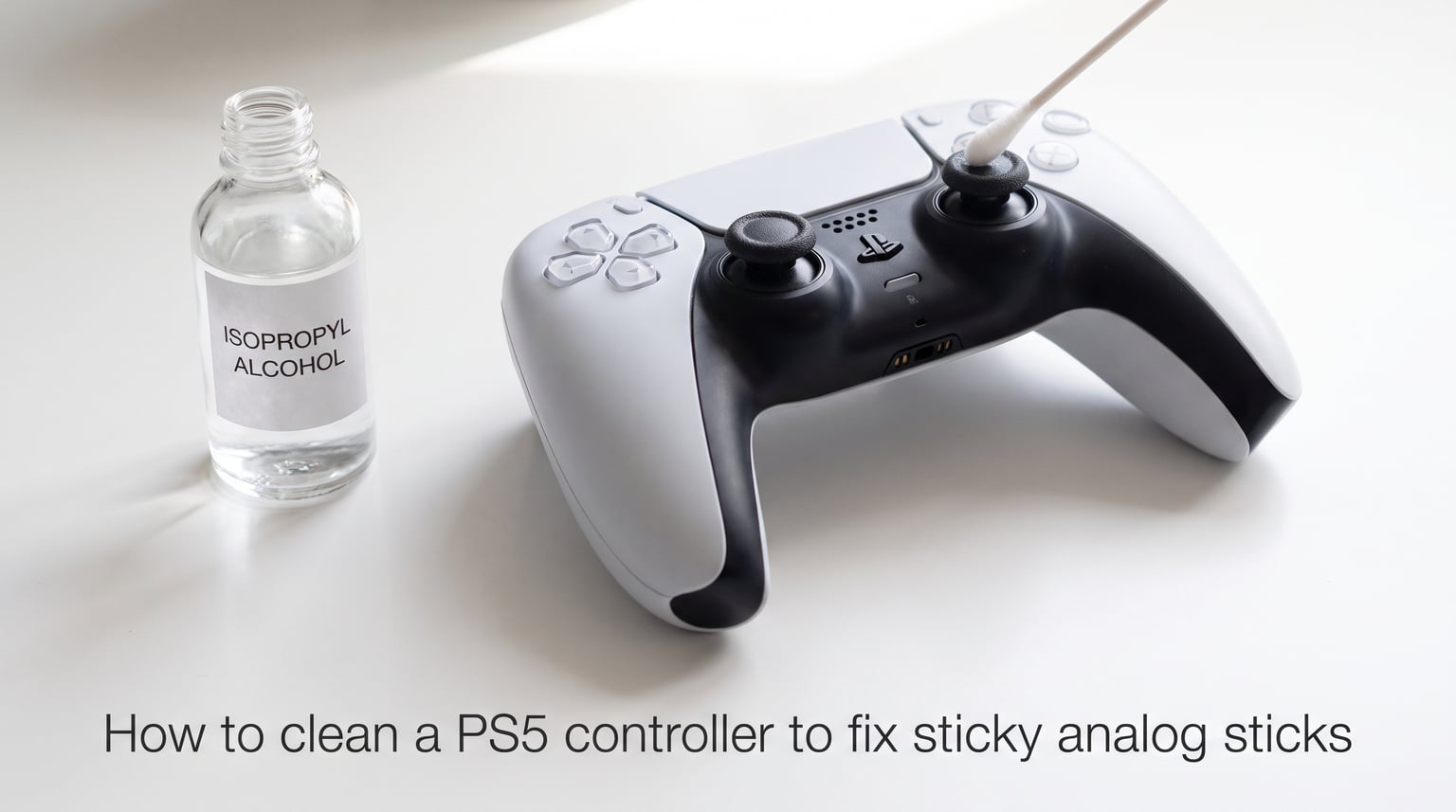
There is nothing worse than settling in for a gaming session only to feel your PS5 controller’s analog stick catch and drag. Sticky analog sticks are one of the most common issues DualSense owners face, and the good news is you can fix it yourself in under 15 minutes. In this guide, I will walk you through exactly how to clean a PS5 controller to fix sticky analog sticks using methods I have tested on multiple controllers over the past two years.
The stickiness usually comes from sweat, skin oils, and food residue that build up on the rubber coating of your thumb sticks. Over time, this residue breaks down the rubber itself, creating that tacky, unpleasant feel. The left analog stick tends to be affected more often because most players use their left thumb more intensively for movement in games.
By the end of this article, you will know how to properly clean your controller, what materials to use (and what to avoid), and how to prevent the problem from coming back. I will also cover when cleaning is not enough and you need to consider a replacement.
What Causes Sticky Analog Sticks on PS5 Controllers
Understanding why your controller got sticky in the first place helps you prevent it from happening again. The PS5 DualSense controller uses a rubberized coating on the thumb sticks for grip and comfort. This coating is vulnerable to several factors that break it down over time.
Sweat and Skin Oils
The most common cause of sticky analog sticks is simply using your controller. Your hands naturally produce sweat and oils during gameplay, especially during intense gaming sessions. These substances gradually break down the rubber coating, turning it from a smooth, grippy surface into a tacky, sticky mess.
This explains why some people notice their controllers becoming sticky even when they keep them clean and do not eat while gaming. The degradation happens from normal use over months or years.
Food Residue and Debris
If you eat snacks while gaming, crumbs and food residue can work their way into the joystick mechanism. Sugary drinks and greasy foods are particularly problematic. Even tiny particles you cannot see can accumulate around the base of the stick and interfere with smooth movement.
Dust and Environmental Factors
Dust particles in your room can settle into the joystick mechanism over time. Combined with natural hand oils, this creates a gritty paste that causes resistance. Humidity also plays a role, as moisture in the air can accelerate the breakdown of the rubber coating.
Why the Left Stick Is More Commonly Affected
Through my own experience and reading countless forum discussions, I noticed a clear pattern: the left analog stick becomes sticky far more often than the right one. This makes sense when you think about how we play games. The left stick handles movement, which means more continuous contact, more pressure, and more friction against your thumb. If you are right-handed, your left thumb may also produce more sweat during intense gameplay moments.
What You Need Before You Start
Gather these supplies before cleaning your PS5 controller. Most of these items are inexpensive and easy to find.
Essential Supplies
Isopropyl alcohol 90% or higher: This is the most important item. I recommend 90% or higher because it evaporates quickly and leaves no moisture behind. Lower percentages contain more water, which is not ideal for electronics.
Cotton swabs (Q-tips): You will use these to apply the alcohol around the analog stick dome. Get the standard cotton swabs, not the precision tips.
Microfiber cloth: A soft, lint-free cloth for wiping down the controller after cleaning. Avoid paper towels, which can leave fibers behind.
Optional Supplies for Deeper Cleaning
Electrical contact cleaner: Products like BW-100 or DeoxIT are designed for electronics and can clean deeper into the mechanism. This is useful if surface cleaning does not fully resolve the issue.
Compressed air: This can help dislodge debris from inside the joystick mechanism, but use it with caution. I will explain the proper technique and warnings in the cleaning section.
Quick Fixes Before Deep Cleaning
Before you start scrubbing your controller, try these quick troubleshooting steps. Sometimes the issue is software-related or requires a simple reset.
Step 1: Restart Your PS5 Console
It sounds basic, but a simple restart can resolve input issues that mimic stick drift or stickiness. Power down your PS5 completely, wait 30 seconds, and power it back on. Test your controller before moving to the next steps.
Step 2: Reset the Controller
The DualSense has a small reset button on the back near the L2 shoulder button. Use a paperclip or sim ejector tool to press and hold this button for 5 seconds. This resets the controller’s firmware connection and can resolve calibration issues.
Step 3: Check for Firmware Updates
Sony occasionally releases firmware updates for the DualSense controller that can fix input issues. Connect your controller to the PS5 via USB cable, go to Settings, then Accessories, then Controllers, and check for updates.
Step 4: Test Your Controller with Gamepad Tester
Before and after cleaning, I recommend testing your controller at hardwaretester.com/gamepad. This free tool shows you exactly how your analog sticks are registering input. You can see if there is drift, dead zones, or if the stick is returning to center properly. This helps you measure whether your cleaning was successful.
How to Clean PS5 Controller Sticky Analog Sticks
Now for the main event. This step-by-step method has worked on every sticky controller I have treated. Follow each step carefully for the best results.
Step 1: Power Off and Disconnect
Before you start cleaning, completely power off your PS5 controller. Hold the PlayStation button until the light bar turns off. This prevents any accidental button presses and ensures no moisture affects the electronics while you work.
Step 2: Surface Cleaning with Isopropyl Alcohol
Dip a cotton swab in 90% isopropyl alcohol. You want it damp, not dripping wet. Gently press the swab against the side of the analog stick dome while rotating the stick in circles. This motion allows the alcohol to work around the entire circumference of the stick.
Apply light pressure and work the swab around the base of the stick where it meets the controller body. This is where debris and sticky residue tend to accumulate most. You may see brown or gray residue on the cotton swab, which is normal.
Step 3: Work the Alcohol Into the Mechanism
After applying the alcohol, continue rotating the analog stick in full circles for about 30 seconds. This helps the alcohol penetrate deeper into the mechanism and break up any debris inside. You want to feel the stick moving more smoothly as you work.
Repeat this process 2 to 3 times with fresh cotton swabs until the swabs come away clean. If the stick still feels sticky after the third application, move on to the deep cleaning step with electrical contact cleaner.
Step 4: Deep Cleaning with Electrical Contact Cleaner
If surface cleaning with alcohol does not fully resolve the stickiness, electrical contact cleaner can reach deeper into the joystick mechanism. Spray a small amount of contact cleaner onto a cotton swab, then apply it the same way you applied the alcohol.
Work the analog stick in circles while applying the contact cleaner. The cleaner will penetrate the internal components and dissolve debris that alcohol could not reach. Products like BW-100 are specifically designed for electronics and evaporate without leaving residue.
Step 5: Using Compressed Air (With Warnings)
Compressed air can help dislodge debris from inside the joystick, but it must be used carefully. The risk is that you can blow debris further into the mechanism rather than out of it, which can make the problem worse.
If you choose to use compressed air, hold the can upright and use short, light bursts while rotating the stick. Never hold the can upside down, as this can spray liquid propellant into your controller. Aim the air at the base of the stick from multiple angles to encourage debris to exit rather than go deeper.
Step 6: Dry and Test
After cleaning, let the controller sit for at least 5 minutes to ensure all the alcohol or contact cleaner has fully evaporated. Wipe down the exterior with a microfiber cloth to remove any residue. Then test the analog stick by connecting it to your PS5 and checking movement in a game or using the Gamepad Tester tool.
WD-40 vs Isopropyl Alcohol vs Contact Cleaner
There is a lot of confusion in gaming forums about what to use on sticky controllers. I have tested all three options, and here is what you need to know.
Why WD-40 Is NOT Recommended
Some people recommend WD-40 for sticky controllers, but I strongly advise against it. WD-40 is a penetrating oil designed for loosening rusted bolts and protecting metal surfaces. While it might temporarily reduce stickiness, it leaves behind an oily residue that attracts dust and debris like a magnet.
Over time, this residue will make your controller even stickier than before. WD-40 can also damage the rubber coating on your thumb sticks and potentially harm the electronic components inside the joystick mechanism.
Why 90% Isopropyl Alcohol Is the Best Choice
Isopropyl alcohol is ideal because it dissolves oils and residue without leaving anything behind. It evaporates completely within seconds, leaving your controller dry and clean. The 90% or higher concentration is important because lower percentages contain too much water.
I have used isopropyl alcohol on multiple controllers without any issues. It is safe for electronics when used properly, inexpensive, and available at any pharmacy or hardware store.
When to Use Electrical Contact Cleaner
Electrical contact cleaner is designed specifically for cleaning electronic components. It is more aggressive than alcohol and can dissolve stubborn residue that alcohol cannot touch. Use it when surface cleaning with alcohol does not fully resolve the stickiness.
Contact cleaner is safe for electronics, evaporates quickly, and leaves no residue. The downside is it costs more than alcohol and may not be available at regular stores. Look for products like BW-100, DeoxIT, or any cleaner labeled for electrical contacts.
Deadzone Workaround for Minor Drift
If your analog stick has a slight drift issue but is not physically sticky, you may be able to mask the problem by adjusting the deadzone settings. This is a software workaround rather than a fix, but it can make games playable while you wait for a replacement controller.
How to Increase Deadzone on PS5
Go to Settings on your PS5, then Accessibility, then Controllers. You will find options to adjust the analog stick deadzone, which is the amount of movement the controller ignores near the center position. Increasing this value can filter out minor drift.
Some games also have their own deadzone settings in the options menu. Check both the system settings and the game settings for the best results.
When Deadzone Adjustment Is Not Enough
If you have to set the deadzone very high to mask the drift, you are losing precision in your controls. This workaround is only useful for minor issues. If your stick is physically sticky or the drift is severe, cleaning or replacement is the real solution.
Use the Gamepad Tester tool to measure how much drift you have before and after adjusting settings. This helps you understand whether the workaround is viable or if you need to take further action.
How to Prevent Sticky Analog Sticks
Once you have cleaned your controller, you want to keep it from getting sticky again. These prevention tips will extend the life of your DualSense and keep it feeling fresh.
Wash Your Hands Before Gaming
This is the single most effective prevention method. Washing your hands removes the sweat, oils, and dirt that break down the rubber coating. You do not need to be obsessive about it, but making it a habit to wash your hands before picking up your controller makes a significant difference.
Avoid Eating While Playing
Salty snacks and greasy foods are the enemy of clean controllers. Food residue combines with your natural hand oils to create a sticky paste that degrades the rubber faster. If you want to snack during gaming, try to wipe your hands before touching the controller or use a separate controller for gaming sessions where you eat.
Store Your Controller Properly
Where you keep your controller matters more than you might think. Avoid leaving it on the charging dock constantly, as the proximity to the heat and charging contacts can accelerate rubber breakdown. Store your controller in a cool, dry place when not in use.
Direct sunlight is also harmful. UV rays degrade rubber over time. Keep your controller in a drawer or cabinet rather than on display in a sunny room.
Regular Light Cleaning
Once a month, give your controller a quick wipe-down with a microfiber cloth and a tiny amount of isopropyl alcohol. This removes accumulated oils before they have a chance to break down the rubber. A few seconds of maintenance prevents hours of deep cleaning later.
Silicone Thumb Stick Covers
For under ten dollars, you can buy silicone covers that fit over your thumb sticks. These provide a barrier between your hands and the rubber coating. If the covers get sticky, you can simply replace them. This is an affordable way to protect your controller from wear.
When Cleaning Is Not Enough
Sometimes cleaning does not fix the problem because the internal mechanism is worn out. Here is how to tell the difference and what to do about it.
Signs the Joystick Mechanism Is Worn
If your analog stick feels gritty even after thorough cleaning, or if it has persistent drift that cleaning did not resolve, the internal components may be worn out. The PS5 joystick uses resistive pads and conductive wipers that physically degrade over time. Once these wear down, no amount of cleaning will fix the issue.
Another sign is if the stick does not return smoothly to center after you release it. This indicates internal damage or debris that cannot be removed without opening the controller.
Joystick Replacement Options
If you are comfortable with electronics repair, you can replace the joystick modules in your DualSense controller. iFixit sells replacement parts and provides detailed guides. However, this requires soldering skills and will void your warranty.
Hall Effect Sensor Upgrade
Some replacement joystick modules use Hall effect sensors instead of the traditional resistive pads. Hall effect sensors are more durable and less prone to drift because they use magnetic fields rather than physical contact. This is a more expensive option but can significantly extend your controller’s lifespan.
When to Consider a New Controller
If your controller is still under warranty and has drift or stickiness issues, contact Sony for a replacement. Attempting to open the controller will void the warranty. If the warranty has expired and the controller has multiple issues beyond just sticky sticks, it may be more cost-effective to buy a new one rather than invest in repairs.
Frequently Asked Questions
How to clean a sticky PS5 analog stick?
Use 90% isopropyl alcohol and a cotton swab. Dampen the swab, then rotate the analog stick in circles while pressing the swab against the dome. Work the alcohol around the base of the stick where debris accumulates. Repeat with fresh swabs until they come away clean, then let the controller dry for 5 minutes before testing.
How to fix a sticky joystick on a PS5 controller?
First, try restarting your PS5 and resetting the controller using the pinhole button on the back. If the stick remains sticky, clean it with 90% isopropyl alcohol and a cotton swab, working the alcohol around the stick while rotating it. For stubborn residue, use electrical contact cleaner. Avoid WD-40, as it leaves residue that attracts dust.
How do you fix a sticky PS5 controller?
Power off the controller completely. Apply 90% isopropyl alcohol to a cotton swab and work it around the analog stick while rotating the stick in circles. This dissolves oils and debris. For deeper cleaning, use electrical contact cleaner. Test your controller at hardwaretester.com/gamepad to check if the cleaning resolved the issue.
Can stick drift be fixed by cleaning?
Yes, if the drift is caused by debris interfering with the joystick mechanism. Cleaning with isopropyl alcohol or electrical contact cleaner can remove this debris and restore proper function. However, if the drift is caused by worn internal components like degraded resistive pads, cleaning will not fix it. In that case, you need joystick replacement or a new controller.
Conclusion
Cleaning sticky analog sticks on your PS5 controller is straightforward with the right approach. Use 90% isopropyl alcohol and cotton swabs to dissolve the oils and debris that cause stickiness. For stubborn cases, electrical contact cleaner goes deeper into the mechanism. Avoid WD-40 entirely, as it leaves residue that makes the problem worse over time.
The best strategy is prevention. Wash your hands before gaming, avoid eating while you play, and give your controller a quick wipe-down once a month. These simple habits will keep your DualSense feeling smooth for years. If cleaning does not resolve the issue, you may need to consider joystick replacement or a new controller.