
Nothing kills movie night faster than pressing power on your TV remote and watching your soundbar sit there completely dark. If your soundbar won’t turn on with your TV over HDMI CEC, you are dealing with one of the most common home theater frustrations out there. The good news is that the vast majority of these issues come down to a handful of settings and connection problems that you can fix yourself in under 15 minutes.
I have spent years helping friends, family, and forum readers untangle their HDMI CEC messes. The solutions almost always involve the same core steps: making sure CEC is actually enabled on every device in the chain, using the correct HDMI ARC port, power cycling everything properly, and occasionally dealing with a stubborn HDMI handshake that needs a hard reset.
This guide walks through every fix in order from simplest to most advanced. Whether you are setting up a new soundbar for the first time or dealing with a CEC setup that suddenly stopped working after months of functioning perfectly, you will find the answer here. We will also cover brand-specific setting names, because Samsung calls it Anynet+, LG calls it Simplink, and Sony calls it Bravia Sync, which trips up a lot of people.
Quick Fixes: Soundbar Won’t Turn On With TV HDMI CEC
Before diving into deep troubleshooting, try these five quick fixes first. They resolve the majority of HDMI CEC power sync issues in just a few minutes.
1. Enable HDMI CEC on both your TV and your soundbar. This sounds obvious, but CEC gets turned off during firmware updates, accidental menu changes, or power surges. Check both devices, not just one.
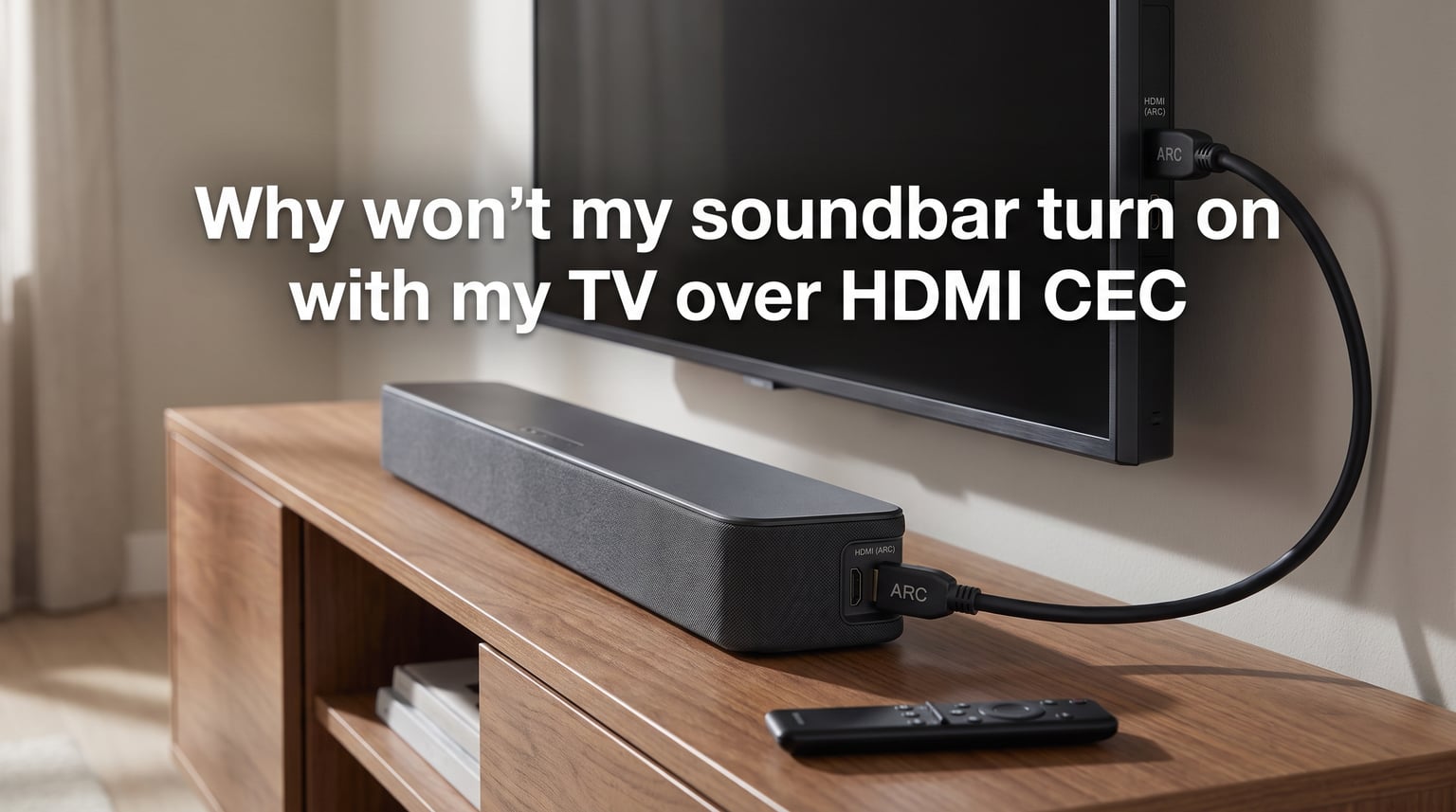
2. Verify your HDMI cable is plugged into the ARC or eARC port. This is usually labeled “ARC,” “eARC,” or “HDMI 2/3” on most TVs. Plugging into a regular HDMI port will give you no CEC communication at all.
3. Power cycle everything by unplugging from the wall. Pull the plug on your TV, soundbar, and any streaming devices. Wait 60 seconds. Plug the TV in first, let it fully boot, then plug in the soundbar.
4. Reconnect HDMI cables in the correct order. Disconnect all HDMI cables from your TV, then reconnect starting with the soundbar ARC connection first, followed by other devices. Connection order matters for the CEC handshake.
5. Check for firmware updates on both devices. A recent firmware update may have reset your CEC settings or introduced a bug. Conversely, a pending update may contain a CEC fix.
What Is HDMI CEC and Why Does It Matter?
HDMI CEC stands for Consumer Electronics Control. It is a feature built into the HDMI standard that lets connected devices talk to each other and send control commands through a single HDMI cable. When CEC works correctly, your TV remote can power on your soundbar, control its volume, and even switch inputs on compatible devices.
The CEC signal travels through pin 13 in the HDMI connector. This tiny pin carries one-way or two-way communication between devices, allowing them to discover each other, negotiate capabilities, and send commands like “power on” or “volume up.” If anything disrupts the signal on pin 13, your soundbar will not respond to your TV.
CEC is separate from ARC (Audio Return Channel), which handles audio transmission from the TV back to the soundbar. You can have ARC working perfectly for audio while CEC fails to trigger power on. Understanding this distinction helps you diagnose whether you have a CEC problem, an ARC problem, or both.
Why Won’t My Soundbar Turn On With My TV Over HDMI CEC: The Full Troubleshooting Guide
If the quick fixes above did not solve your problem, it is time to work through each potential cause systematically. I recommend going through these steps in order, because each one builds on the last.
Step 1: Enable HDMI CEC on Every Device
The most common reason a soundbar won’t turn on with TV HDMI CEC is that CEC is disabled on one or more devices. CEC must be enabled on both the TV and the soundbar for power sync to work. If you have streaming devices like an Apple TV or NVIDIA Shield in the chain, they need CEC enabled too.
Every TV brand buries this setting in a different menu and calls it by a different name. Here is where to find it on the most popular brands:
Samsung TVs: Go to Settings > General > External Device Manager > Anynet+ (HDMI-CEC). Toggle it On. Also check that “Auto Turn Off” and “Receive Power Off” are enabled so your soundbar powers down with the TV.
LG TVs: Navigate to Settings > All Settings > Connection > External Devices > SIMPLINK (HDMI-CEC). Turn it On. Enable “Auto Power Sync” so the soundbar turns on and off with the TV automatically.
Sony TVs: Go to Settings > Channels & Inputs > External Inputs > BRAVIA Sync settings > BRAVIA Sync control. Set it to On. Check “Device auto power off” and ” TV auto power on” as well.
Panasonic TVs: Find it under Setup > Viera Link settings > Viera Link. Make sure “Power on link” and “Power off link” are both set to On.
TCL and Roku TVs: Go to Settings > System > Control other devices (CEC). Enable “HDMI CEC” and “1-touch play.” On Roku TV models, this is sometimes under Settings > System > CEC.
Vizio TVs: Navigate to Settings > System > CEC. Toggle CEC Control to On. Also enable “Device Auto Power Off” and “TV Auto Power On.”
For your soundbar, the CEC setting is usually found in the soundbar’s own setup menu, accessible through its remote or display panel. Some soundbars have a physical CEC toggle. Check your soundbar manual for the exact menu path, since this varies heavily by manufacturer.
Step 2: Use the Correct HDMI ARC Port
CEC communication requires a physical HDMI connection, and for soundbars specifically, that means using the HDMI ARC (Audio Return Channel) port. This port is designed to carry both audio back to the soundbar and CEC control signals between devices. Plugging into any other HDMI port will not work for power sync.
On your TV, look for the HDMI port labeled ARC, eARC, or sometimes marked with a small arrow icon. This is typically HDMI port 2 or 3, but it varies by model. If your TV has eARC instead of ARC, use that port, as eARC is backward compatible with ARC and CEC.
On your soundbar, the connection should go to the port labeled HDMI OUT or HDMI ARC OUT. Do not use the HDMI IN port on the soundbar for the TV connection. The HDMI IN ports on your soundbar are for connecting additional source devices like a game console or Blu-ray player.
Make sure you are using a cable that supports HDMI ARC or eARC. Most HDMI cables manufactured in recent years support ARC, but older or ultra-budget cables may not carry the signal properly. If you have a spare HDMI cable, swap it in to rule out a faulty cable as the culprit.
Step 3: Perform a Full Power Cycle
When CEC works intermittently or suddenly stops after previously functioning, a full power cycle is often the fix. Simply turning devices off with the remote is not enough, because many modern TVs and soundbars enter a low-power standby mode that keeps internal circuits active. These circuits can hold onto a bad CEC handshake state.
Follow this exact sequence for the most effective power cycle:
1. Turn off your TV, soundbar, and all connected HDMI devices using their remotes.
2. Unplug every device from the power outlet. Do not just switch off a power strip, actually unplug from the wall.
3. Wait a full 60 seconds. This gives internal capacitors time to fully discharge and clears any stuck CEC states.
4. Disconnect all HDMI cables from your TV.
5. Plug your TV back in first and power it on. Let it fully boot to the home screen.
6. Reconnect the HDMI cable from your soundbar to the ARC port on the TV.
7. Plug your soundbar back in and power it on.
8. Wait for the CEC handshake to complete, which can take 10 to 30 seconds.
This procedure clears HDCP lockups, resets CEC discovery, and forces devices to renegotiate their connection from scratch. Forum users across Reddit and AVSForum consistently report that this method resolves the majority of sudden CEC failures.
Step 4: Get the Connection Order Right
HDMI CEC uses a discovery process where devices announce themselves to each other in a specific order. If you connect devices in the wrong order, the CEC bus can get confused and fail to recognize your soundbar. This is one of the most overlooked causes of CEC problems, and almost no troubleshooting guide explains it properly.
The correct connection order is: TV first, then soundbar on ARC, then any additional source devices. When you add devices in this sequence, the TV establishes itself as the CEC controller, recognizes the soundbar as an audio device on ARC, and then discovers additional sources. Connecting a source device before the soundbar can cause the TV to assign CEC addresses incorrectly.
If you have a soundbar with multiple HDMI inputs (for passing through a game console or streaming device), the chain should be: source device to soundbar HDMI IN, then soundbar HDMI OUT to TV ARC. This way the soundbar acts as a CEC passthrough hub and the TV still controls power sync.
Whenever you add a new device to your home theater, disconnect everything and reconnect in the correct order. I know this sounds tedious, but it prevents the cascading CEC failures that happen when a new device disrupts an existing handshake chain.
Step 5: Check Audio Format Compatibility
Sometimes CEC appears to fail because of an audio format mismatch rather than an actual CEC communication problem. Your TV may be sending an audio format that your soundbar cannot decode, which causes the soundbar to appear unresponsive or fail to power on correctly during the audio negotiation phase.
Go into your TV’s audio settings and check the digital audio output format. The most compatible setting is PCM (Pulse-Code Modulation), which every soundbar supports. If your TV is set to Dolby Digital Plus, Dolby Atmos, or bitstream passthrough, try switching to PCM to see if CEC power sync starts working.
If PCM works but you want Dolby Digital or Atmos, check whether your soundbar supports those formats over ARC. Standard ARC has limited bandwidth and may not pass through Dolby Atmos or high-bitrate formats. Only eARC (Enhanced Audio Return Channel) supports full uncompressed audio, including Atmos. If you are trying to push Atmos over a standard ARC connection, the format negotiation can fail and break CEC in the process.
Step 6: Update Firmware on Both Devices
Firmware updates are a double-edged sword for CEC. On one hand, manufacturers frequently release patches that fix CEC compatibility issues between specific TV and soundbar combinations. On the other hand, firmware updates can also introduce new CEC bugs or silently reset your CEC settings to default.
Check for available firmware updates on both your TV and soundbar. On most smart TVs, this is found under Settings > Support > Software Update. For soundbars, updates may come through a companion app (like the Bose app, Sonos app, or Samsung SmartThings) or through a USB connection.
If CEC was working perfectly and then broke immediately after a firmware update, check the manufacturer’s support forum. Other users likely reported the same issue, and there may be a rollback procedure or a follow-up patch in development. In the meantime, re-enabling CEC settings after the update often fixes things, since updates frequently reset these toggles.
Advanced Fixes When Standard Troubleshooting Fails
If you have worked through all six steps above and your soundbar still won’t turn on with your TV over HDMI CEC, these advanced solutions address less common but well-documented causes.
The HDMI Pin 13 Tape Trick
HDMI CEC communication happens through pin 13 on the HDMI connector. In rare cases, a device on your HDMI chain sends rogue CEC commands that confuse or disable other devices. This is particularly common with older streaming devices, some cable boxes, and certain Apple TV configurations with Samsung TVs.
The fix that many forum users swear by is blocking pin 13 on the offending device’s HDMI cable using a small piece of tape. Pin 13 is the second-to-last pin on the wider row of pins when looking at the HDMI connector with the longer row facing up. By covering just this pin with a tiny sliver of electrical tape, you block CEC commands from that device while allowing video and audio to pass through normally.
This trick disables CEC for the taped device, so it is best used on devices where you do not need CEC functionality (like a cable box). It prevents rogue CEC commands from disrupting the handshake between your TV and soundbar. Multiple users on Reddit and AVSForum have confirmed this resolves stubborn CEC issues that no other fix could solve.
Deal With HDCP Lockup
HDCP (High-bandwidth Digital Content Protection) is the copy protection protocol that runs alongside HDMI. Sometimes HDCP gets into a locked state where it fails to negotiate properly, and this can block CEC from functioning. Sony’s official support documentation specifically calls this out as an “HDCP lockup.”
The fix for HDCP lockup is the same full power cycle described in Step 3 above. Disconnecting all HDMI cables and power cycling forces HDCP to renegotiate from scratch. If you still suspect HDCP issues, try connecting your soundbar directly to the TV without any other HDMI devices in the chain. If CEC works with only the TV and soundbar connected, one of your other devices is causing an HDCP or CEC conflict.
Add devices back one at a time, testing CEC after each addition. When you find the device that breaks CEC, leave it disconnected or use the pin 13 tape trick on that specific device.
Replace Substandard HDMI Cables
HDMI cable quality matters more for CEC than most people realize. Ultra-budget cables, damaged cables, or cables longer than 15 feet can degrade the CEC signal enough to cause intermittent failures. The audio and video may look fine, but the low-voltage CEC signal on pin 13 is more sensitive to cable quality than the main data lines.
Replace the HDMI cable between your TV and soundbar with a certified Premium High Speed HDMI cable or an Ultra High Speed HDMI cable (required for eARC). Look for cables with the official HDMI certification label. Avoid no-name cables from discount stores, especially for runs longer than 10 feet.
If you are using an HDMI extender, switch, or wall plate in your setup, try removing it temporarily. These accessories can attenuate the CEC signal and cause power sync failures. Connect the soundbar directly to the TV with a single cable to test whether an accessory is the problem.
HDMI CEC vs HDMI ARC vs eARC: Understanding the Difference
One of the biggest sources of confusion in home theater setup is the relationship between CEC, ARC, and eARC. People often use these terms interchangeably, but they are three different things that happen to travel through the same HDMI cable.
HDMI CEC handles device control. It lets your TV turn your soundbar on and off, control volume, and switch inputs. CEC does not require ARC, it can work on any HDMI port where both devices support it. However, for soundbar power sync specifically, you almost always use CEC over an ARC connection.
HDMI ARC (Audio Return Channel) handles audio transmission. It sends audio from your TV back to your soundbar through the same HDMI cable. ARC does not require CEC, but the two features work together in most setups. ARC uses a specific physical port on your TV, while CEC can theoretically work on any port.
HDMI eARC (Enhanced Audio Return Channel) is the newer, higher-bandwidth version of ARC. It supports uncompressed audio, Dolby Atmos, and higher quality formats. eARC can work with or without CEC. On some TVs, you can use eARC for audio while disabling CEC entirely, which is helpful if CEC is causing problems but you still want high-quality audio from your TV to your soundbar.
Here is the key takeaway: if your soundbar powers on with the TV but produces no sound, you have an ARC or audio format issue, not a CEC issue. If your soundbar plays audio fine but will not power on automatically with the TV, you have a CEC issue. Knowing which problem you have saves you from troubleshooting the wrong thing.
Frequently Asked Questions
Why does my sound bar not turn on with TV?
Your soundbar may not turn on with your TV because HDMI CEC is disabled on one or both devices, you are plugged into a regular HDMI port instead of the ARC port, or the CEC handshake has locked up. Enable CEC on both devices, use the ARC port, and power cycle everything by unplugging from the wall for 60 seconds.
How to enable HDMI-CEC on soundbar?
On your soundbar, open the setup menu using the soundbar remote or display panel, look for a CEC, HDMI Control, or System Audio Control option, and toggle it On. On your TV, find the equivalent setting (Samsung Anynet+, LG Simplink, Sony Bravia Sync, or Vizio CEC) and enable it there too. Both devices must have CEC enabled.
Does HDMI-CEC need ARC?
No, HDMI CEC does not technically require ARC. CEC can work on any HDMI port where both devices support it. However, for soundbar power sync specifically, you almost always use CEC over an ARC connection because the soundbar needs to receive audio from the TV through the same cable. ARC provides the audio path while CEC provides the control path.
How to get soundbar to turn on when TV turns on?
Enable HDMI CEC on both your TV and soundbar, connect the soundbar to the TV ARC port with a certified HDMI cable, and enable Auto Power Sync or Power On Link in your TV settings. Power cycle both devices, connecting the TV first and the soundbar second. Wait 30 seconds after boot for the CEC handshake to complete.
Why is HDMI CEC not working?
HDMI CEC may stop working because of a firmware update that reset settings, a device on the HDMI chain sending rogue CEC commands, a faulty HDMI cable, an HDCP lockup, or a connection order issue. Start by re-enabling CEC on all devices, power cycling from the wall, reconnecting HDMI cables in the correct order (TV first, soundbar second), and checking for firmware updates.
Why is my soundbar turning on but no sound?
If your soundbar powers on but produces no audio, you likely have an ARC or audio format issue rather than a CEC problem. Check that your TV audio output is set to the correct format (try PCM first), verify the HDMI cable is plugged into the ARC port on both ends, and make sure your soundbar input is set to HDMI ARC rather than optical or Bluetooth.
Wrapping Up: Getting Your Soundbar and TV in Sync
When your soundbar won’t turn on with your TV over HDMI CEC, the fix almost always comes down to making sure CEC is enabled on every device, using the ARC port, and power cycling properly. The quick fixes at the top of this guide handle the vast majority of cases. If those do not work, the detailed troubleshooting steps and advanced fixes cover every scenario I have encountered across years of helping people solve this exact problem.
Remember the golden rule of CEC troubleshooting: power cycle from the wall, reconnect in the right order (TV first, soundbar second), and enable CEC on both devices. That sequence alone fixes more HDMI CEC issues than every other solution combined. If you are still stuck after trying everything here, the issue is likely a hardware incompatibility between your specific TV and soundbar models, and you may want to contact the manufacturer or try using an optical cable with CEC passthrough as a workaround.