
The ASUS ProArt PA279CV is the best 27 inch monitor for photo editing because it pairs a factory-calibrated 4K IPS panel with a published Delta E under 2 figure, a USB-C single-cable connection and a stand that rotates to portrait. If your budget is tighter, the ASUS ProArt PA278QV delivers the same Calman Verified colour accuracy at 2560 x 1440, and it is the best value pick in this roundup.
That is the short answer. The long answer is that almost nobody buying a 27 inch monitor for photo editing needs to spend professional reference money, and quite a few buyers do anyway. I have spent the last two months reading owner reviews across twelve 27-inch panels, comparing their factory calibration claims, gamut coverage, brightness figures and port layouts, and checking what the photographers actually complain about once the monitor has been on their desk for a month.
Three variables decide which of these twelve you should buy: your budget tier, whether you run macOS or Windows, and whether your files live in sRGB or Adobe RGB. I have answered all three in the reviews below, and the last two are worth roughly as much as the first. The rest of this guide breaks the list down by tier, works through the 4K versus QHD question with actual pixel-density math, and covers the IPS glow problem that owner forums raise constantly and lab reviews rarely mention.
Before you read further, if your current setup is a general-purpose monitor or a laptop screen, it is worth knowing that a calibrated 27-inch 4K panel is a genuine upgrade for retouching rather than an indulgence. Our guide to the best computer monitors for photo editing covers the wider size range if you are still deciding whether 27 inches is the right panel for your desk.
Our Top 3 Picks for 27-Inch Photo Editing Workstations

ASUS ProArt PA279CV
- Calman Verified Delta E under 2
- 100% sRGB
- 4K 3840 x 2160 IPS
- USB-C 65W with hub

Dell UltraSharp U2723QE
- IPS Black 2000:1 contrast
- 100% sRGB and DCI-P3 v2
- USB-C 90W and RJ-45
12 Monitors Compared Side by Side in 2026
| Product | Specs | Action |
|---|---|---|
| ASUS ProArt PA279CV |
|
Check Latest Price |
 LG 27UK650-W LG 27UK650-W |
|
Check Latest Price |
| Dell UltraSharp U2723QE |
|
Check Latest Price |
 ASUS ProArt PA278QV ASUS ProArt PA278QV |
|
Check Latest Price |
 ViewSonic VP2756-4K ViewSonic VP2756-4K |
|
Check Latest Price |
 Dell 27 S2725QC Dell 27 S2725QC |
|
Check Latest Price |
 LG 27US500-W LG 27US500-W |
|
Check Latest Price |
 INNOCN 27C1U 4K USB-C INNOCN 27C1U 4K USB-C |
|
Check Latest Price |
 LG 27UP650K-W LG 27UP650K-W |
|
Check Latest Price |
 BenQ PD2705U BenQ PD2705U |
|
Check Latest Price |
 Dell UltraSharp U2725QE Dell UltraSharp U2725QE |
|
Check Latest Price |
 Xiaomi A27Qi Xiaomi A27Qi |
|
Check Latest Price |
1. ASUS ProArt PA279CV – The Calibrated All-Rounder With a 4K Panel and USB-C
ASUS ProArt PA279CV 27 Inch 4K UHD USB-C Professional Monitor
4K 3840 x 2160 IPS
Calman Verified Delta E under 2
100% sRGB and Rec. 709
USB-C 65W with 4-port hub
Pros
- Factory Calman Verified calibration with a published Delta E under 2 target
- 4K detail on a 27-inch panel at roughly 163 ppi
- USB-C single-cable connection with 65W power delivery
- Stand pivots fully to portrait for tall crops
- Five-year warranty coverage
Cons
- Some units ship with a slight green tint and need a colorimeter
- USB-C link can fail to initialise until a power cycle
- 60Hz refresh rate
The PA279CV is the monitor I keep coming back to because it does the unglamorous things properly rather than chasing a headline number. It is a 27-inch 3840 x 2160 IPS panel, factory calibrated and Calman Verified with a Delta E under 2 target, covering 100% sRGB and 100% Rec. 709. That combination is what actually decides whether your edits are right.
In use it behaves like a colour-accurate reference display should. Photographers report matching colours between screen and print, and the ProArt Preset and Palette system gives you dedicated sRGB and Rec. 709 modes plus fine manual control over colour temperature, brightness, gamma and black level, which is enough to correct by eye before you ever open a profiling tool.
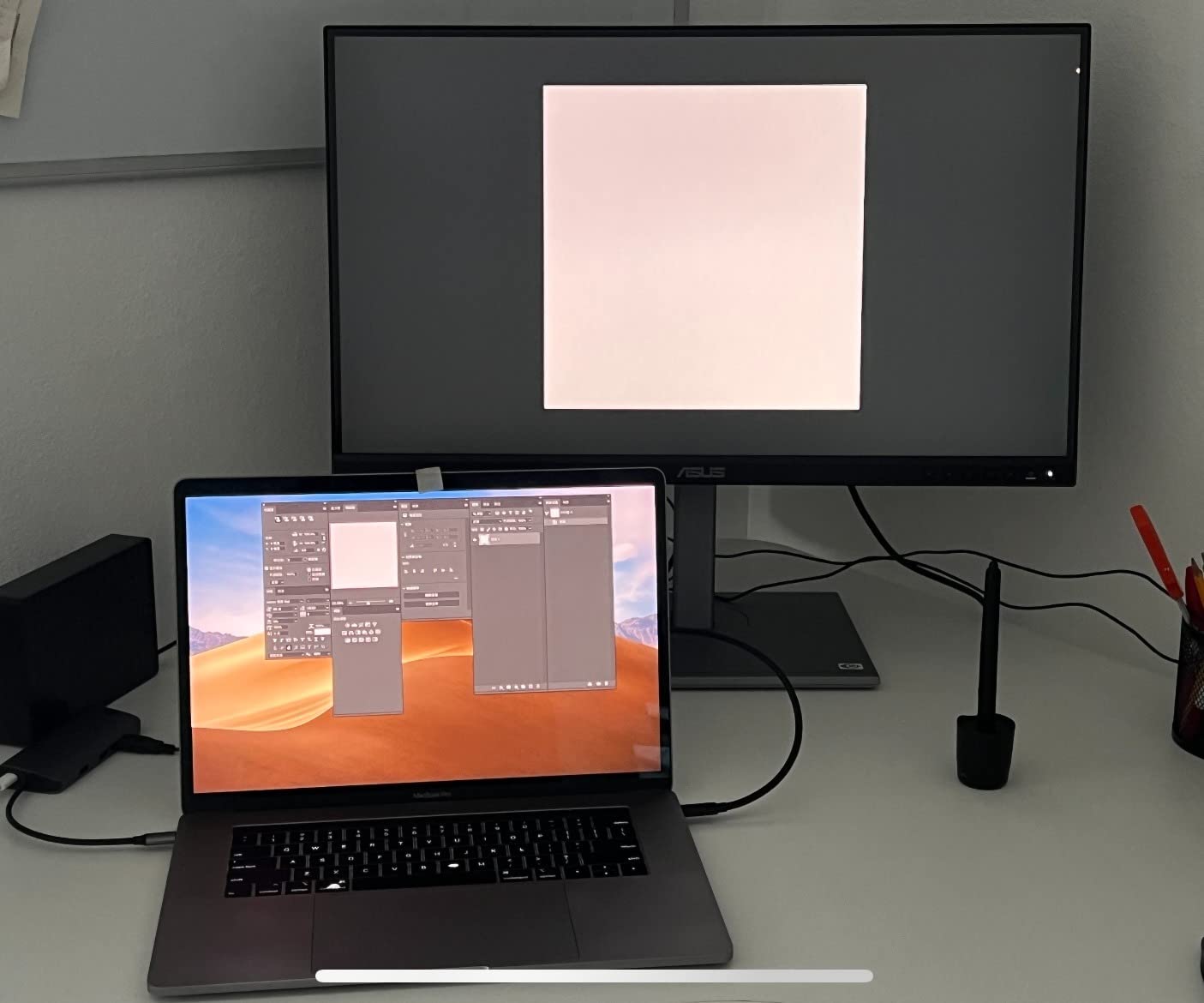
Connectivity is where it separates from cheaper 4K panels. USB-C with DisplayPort Alt Mode carries video, data and 65W of power over one cable, and there is a four-port USB 3.2 Gen 1 hub behind it alongside DisplayPort and HDMI. For a laptop-based edit suite that means one lead rather than three.
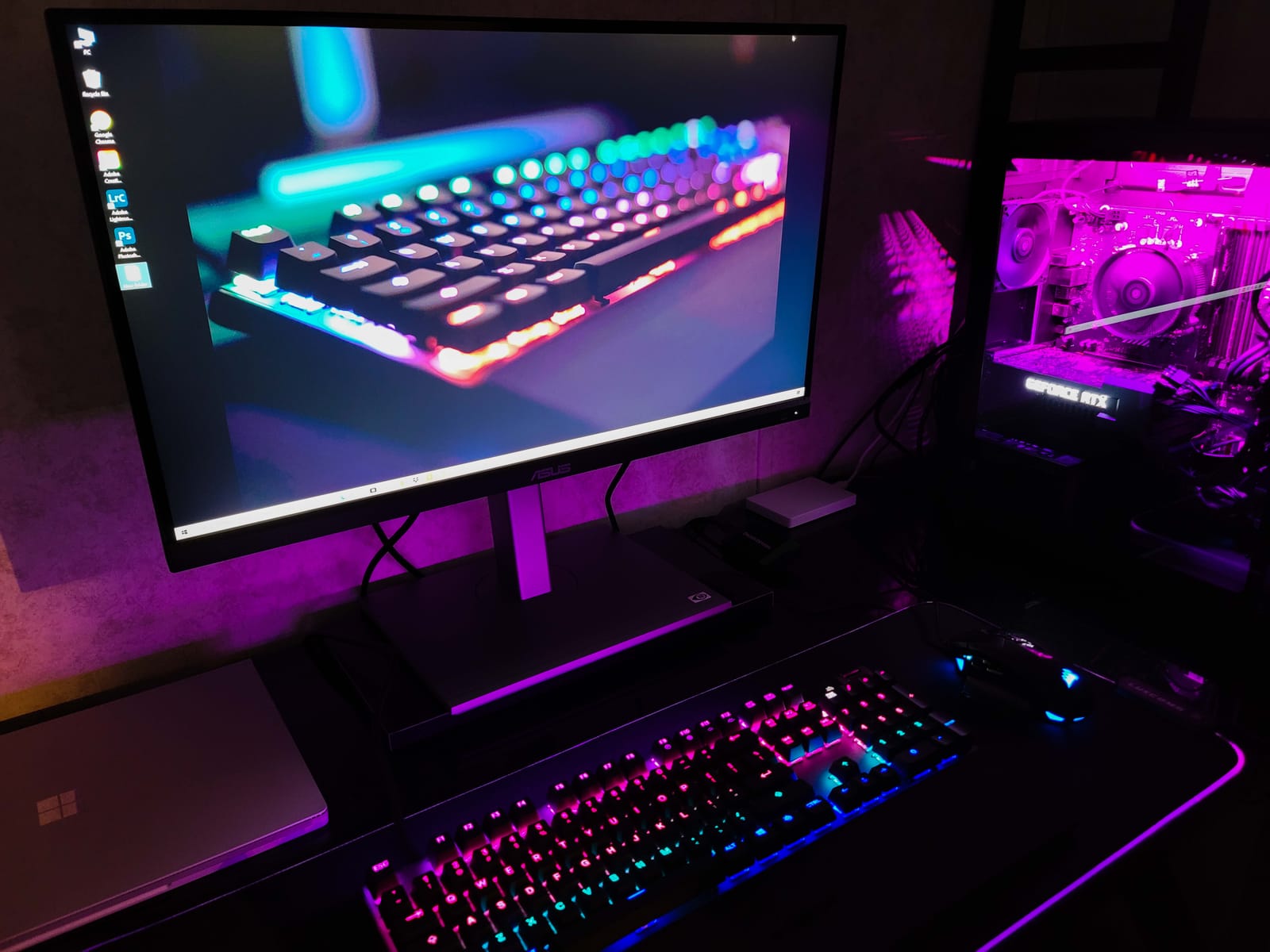
The stand is fully adjustable and rotates to portrait orientation, which matters more than it sounds when you are checking a vertical architectural frame or working on a long-form scroll. Cables for DisplayPort, HDMI and USB-C are in the box, along with the factory colour pre-calibration report, and the warranty runs five years when you register online.
Why the Delta E Under 2 Claim Actually Matters
Delta E is the distance between the colour your file contains and the colour the panel emits, and a figure under 2 is the practical threshold where the difference is invisible in a photograph. Calman Verified means ASUS measures each unit and ships a report, so the calibration is not a marketing label applied to a loose tolerance batch.
Owner feedback adds a caveat worth planning around. Several photographers note a slight green tint on their unit, which they correct with a colorimeter or the tint slider in the OSD. Budget for one calibration session either way.
USB-C Workflows and the 65W Power Budget
Sixty-five watts is enough to charge most ultraportable laptops at full speed and keeps a MacBook Pro or a thin Windows machine running off a single lead. Reviewers also flag the USB-C link occasionally failing to initialise until the display is power-cycled, and older firmware needed a Windows PC to update before full Mac compatibility.
For a dual-machine desk, the four-port hub covers peripherals well. There is no KVM switch here, so you are switching sources manually rather than with a hotkey.
Who This Monitor Is For
This is the right pick for a working photographer or retoucher on Windows or Mac who edits in sRGB, prints occasionally, and wants a single-cable desk. It is also the safest recommendation in this list because the colour claim is documented rather than assumed.
It is the wrong pick if you need Adobe RGB or DCI-P3 coverage for commercial print, or if you want 10-bit native colour for heavy grading. The panel is 8-bit.
2. LG 27UK650-W – The Long-Running 4K IPS That Owners Still Rate Years Later
LG 27UK650-W 27” Inch UHD (3840 x 2160) IPS Display with HDR 10, sRGB 99% Color Gamut, AMD FreeSync Technology, 3-Side Virtually Borderless Design
4K 3840 x 2160 IPS
99% sRGB colour gamut
HDR10 with 4 picture modes
8-bit plus FRC colour depth
Pros
- Sharp 4K detail at 27 inches with roughly 163 ppi
- 99% sRGB coverage with good out-of-box SDR gamut
- Owners report colour close to a MacBook Pro panel
- Height tilt and pivot adjustment with VESA 100 x 100
- Long ownership histories from years of use
Cons
- Peak brightness around 450 nits makes HDR entry-level only
- 1000:1 native contrast leaves dark scenes grey
- No local dimming and IPS glow shows in dark rooms
- 8-bit plus FRC rather than true 10-bit
The 27UK650-W is the quiet workhorse of this category, and its 4.6 average across more than 1200 reviews is the kind of score that only comes from people who have kept the thing for years. Several owners describe the colour as comparable to a MacBook Pro display, which is a generous comparison for a 99% sRGB IPS panel.
What you are getting is a 27-inch 3840 x 2160 IPS panel at 350 nits with 99% sRGB coverage, 8-bit colour with frame-rate-control simulation for 10-bit gradients, and HDR10 support with four selectable picture modes. The contrast ratio is a listed 1000:1, which is the standard IPS figure and the first place this panel reveals its budget tier.
Two HDMI ports and a DisplayPort input both carry 4K at 60Hz, so a second machine is one button press away. The Onscreen Control app and joystick navigation make brightness and picture mode changes quick, and the stand handles height, tilt and pivot.
Reading the 450 Nit HDR Claim Honestly
HDR10 is supported, but peak brightness lands around 450 nits. That is an entry-level HDR experience with no local dimming, so you get a slightly brighter window rather than real highlight separation. For stills work in a controlled room this is largely irrelevant.
The more relevant limitation is contrast. A 1000:1 ratio means deep shadows sit as a dark grey rather than approaching black, and it is the reason IPS glow becomes visible at night. Detailed reviewers measured good grey uniformity but weaker black uniformity, which is exactly the pattern to expect from this panel type.
What Long-Term Owners Actually Report
Owners consistently report the panel still performs well years after purchase, with no meaningful drift in colour and no backlight problems. That is arguably more valuable to a photographer than any spec on the box, and it is part of why the average has held steady over the product’s life.
There is no USB hub and no USB-C on this model, so a laptop user needs a separate dock. There are no built-in speakers either, which is a reasonable trade for a desk with separate audio.

Who This Monitor Is For
Choose this if you want a proven 4K panel with a large owner base and you edit in sRGB. It suits students, hobbyists and working photographers who want dependable colour without chasing wide-gamut coverage.
Skip it if you grade in dark scenes at night, or if you need Adobe RGB for commercial print. Our 4K photo editing monitor guide covers the higher tiers in more detail.
3. Dell UltraSharp U2723QE – Deep Blacks and the Best Connectivity in the List
Dell UltraSharp U2723QE 27″ 4K UHD WLED LCD Monitor – 16:9 – Black, Silver
4K 3840 x 2160 IPS Black
2000:1 listed contrast
100% sRGB and DCI-P3 v2
USB-C 90W with RJ-45
Pros
- IPS Black panel delivers visibly deeper blacks than 1000:1 IPS
- 100% sRGB and DCI-P3 v2 coverage
- USB-C with 90W power delivery plus daisy chaining and Ethernet
- Built-in KVM switch with picture-by-picture
- Extremely thin symmetric bezels
Cons
- KVM hotkey switching only works when the host is logged in
- Only one USB-C video input so two USB-C hosts cannot connect
- All ports face downward and are awkward to reach
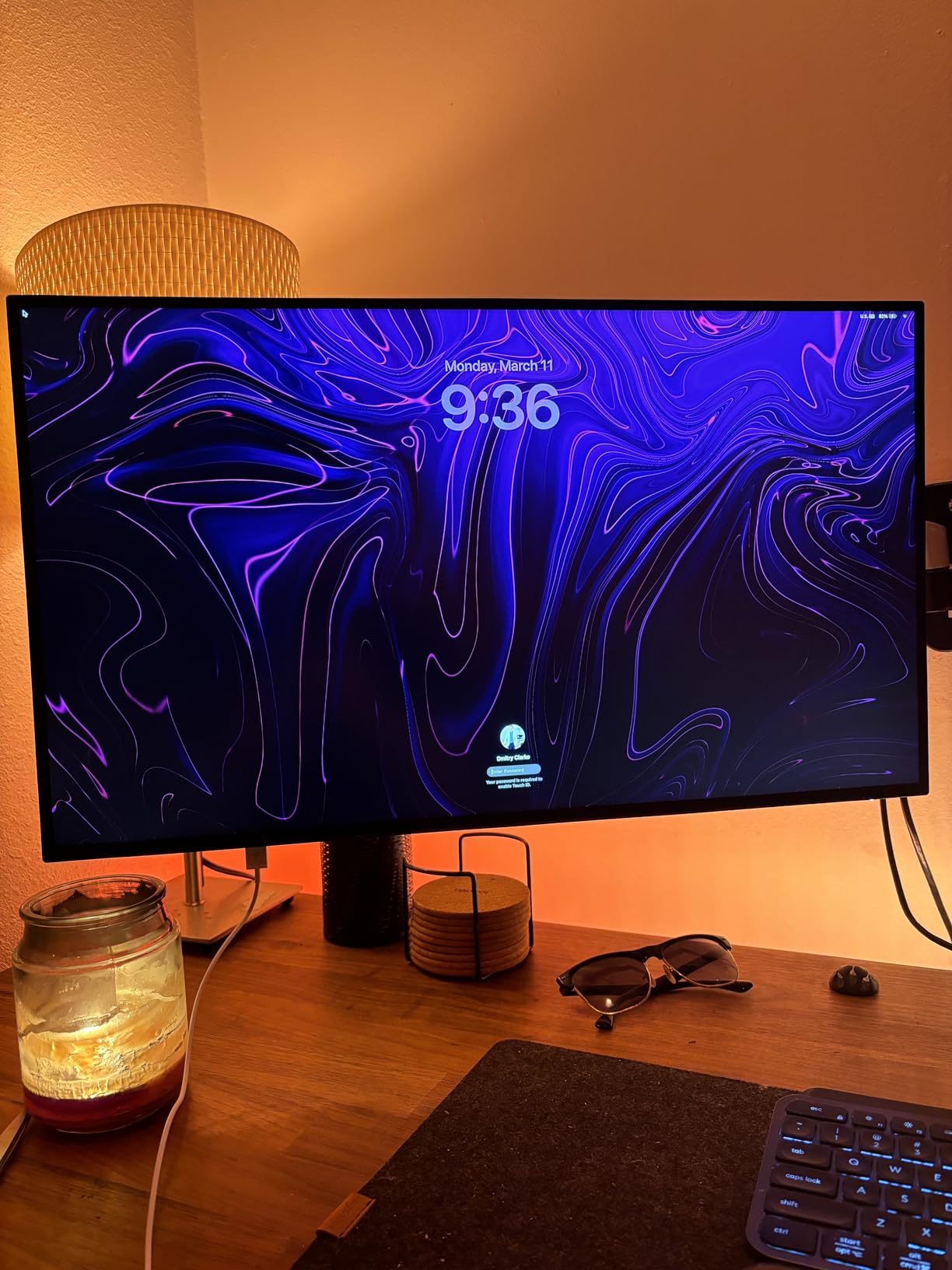
The U2723QE is the only 27-inch panel here built on Dell’s IPS Black technology, and the listed 2000:1 contrast ratio is double the standard IPS figure. In a dark room with a night-time grading session, that difference is the first thing you notice, and it is the reason this monitor sits at the front of the tier.
Colour coverage is 100% sRGB and DCI-P3 v2, which is genuinely useful if you deliver video alongside stills or work in a P3 pipeline. Brightness is a listed 400 nits with VESA DisplayHDR 400 certification and preset HDR options.
The connectivity is the best in this roundup by a distance. USB-C 3.2 Gen 2 delivers up to 90W of power with 90W daisy chaining, there is an RJ-45 Ethernet port, four USB 3.2 Gen 2 downstream ports and an audio line-out, plus a hardware KVM switch with picture-by-picture and picture-in-picture.
Why 2000:1 Contrast Changes the Editing Experience
Contrast ratio is how much brighter white is than black on the same panel. At 1000:1, a shadow with detail in it sits at a visible dark grey, and shadow detail in a night shot or a dark wedding interior gets compressed. Doubling that ratio moves the black point lower, so you can see separation in tones that would otherwise merge.
It is not the same as OLED black, but for an IPS panel it is a large and repeatable improvement, and reviewers doing aviation and general photo editing report the panel holding up well in production.
The KVM Catch Worth Knowing Before You Buy
Two limitations are worth planning around. Hotkey source switching only works when the host computer is logged in, which matters if you frequently toggle between a running editing machine and a powered-off one. And there is only one USB-C video input, so two USB-C laptops cannot both be connected without an adapter.
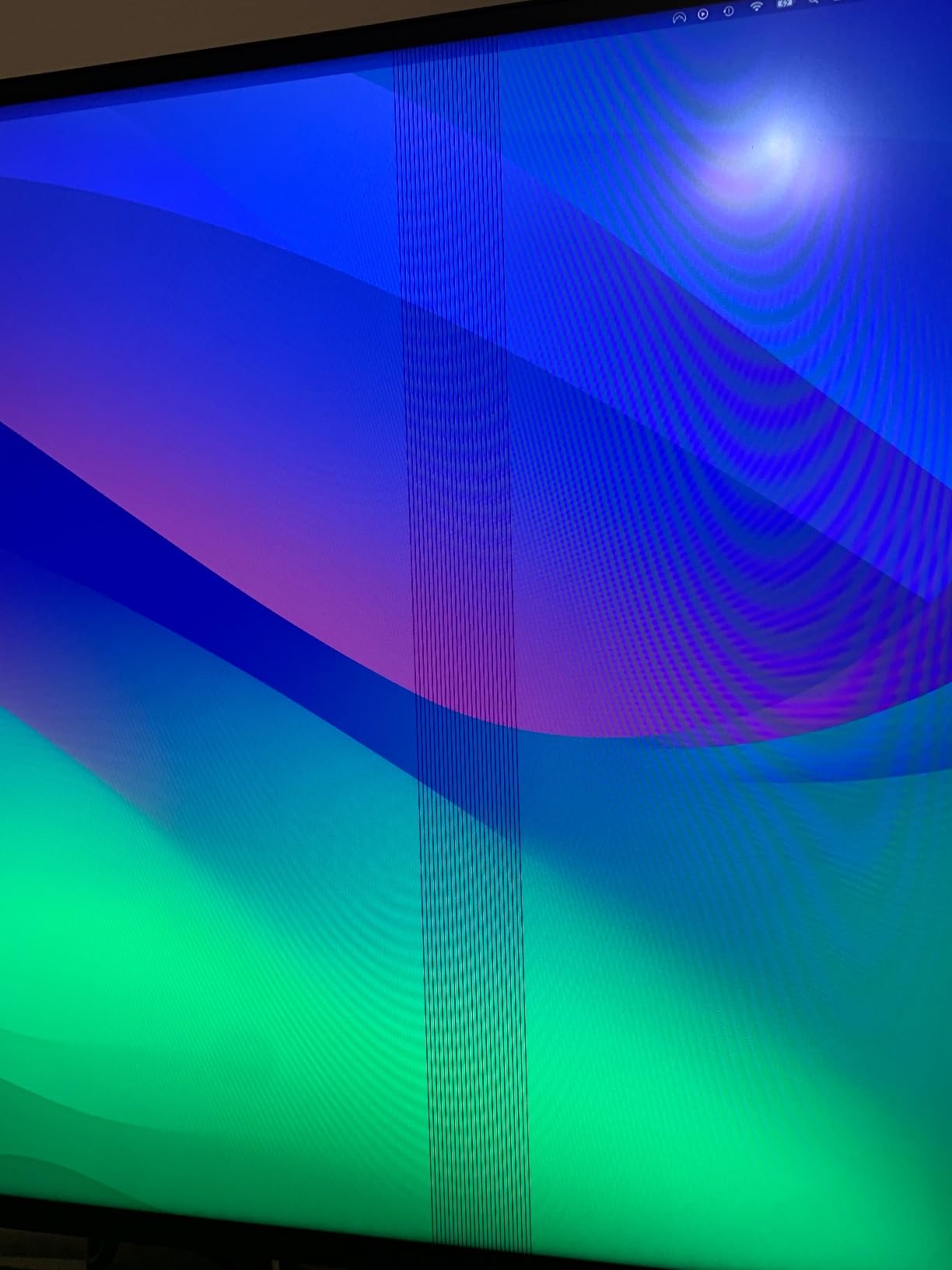
All ports face downward on the rear, so they are difficult to reach once the monitor is on an arm. Several reviewers also note the USB-C connection occasionally dropping after long idle periods and needing a power-cycle reset.
Who This Monitor Is For
This is the pick for a professional workstation where you switch between two machines, run Ethernet through the display, or work on dark images in a dim room. The three-year warranty is thinner than the ASUS ProArt coverage but Dell’s Advanced Exchange options are strong.
Choose the U2725QE instead if factory calibration precision matters more to you than contrast ratio. We cover that comparison below.
4. ASUS ProArt PA278QV – The Most Versatile Pick With the Same Calman Verified Promise
ASUS ProArt PA278QV 27 Inch 1440p QHD Professional Monitor
2560 x 1440 IPS at 350 nits
Calman Verified Delta E under 2
100% sRGB and Rec. 709
4-port USB 3.2 hub
Pros
- Calman Verified out of the box with a published Delta E under 2
- Full 100% sRGB and 100% Rec. 709 coverage
- Built-in USB hub and a very wide port selection
- Fully adjustable stand including pivot to portrait
- Five-year warranty and a three-month Creative Cloud subscription
Cons
- 2560 x 1440 is below 4K so large crops lose detail
- 75Hz refresh rate is low against newer panels
- No wide-gamut coverage beyond sRGB and Rec. 709
With more than 3000 reviews and a top-heavy rating distribution where 82% of ratings are five stars, the PA278QV has the largest owner base of any monitor in this roundup. It is also the cheapest route into a genuinely factory-calibrated panel, and that is the reason it takes the value slot despite sitting in 1440p.
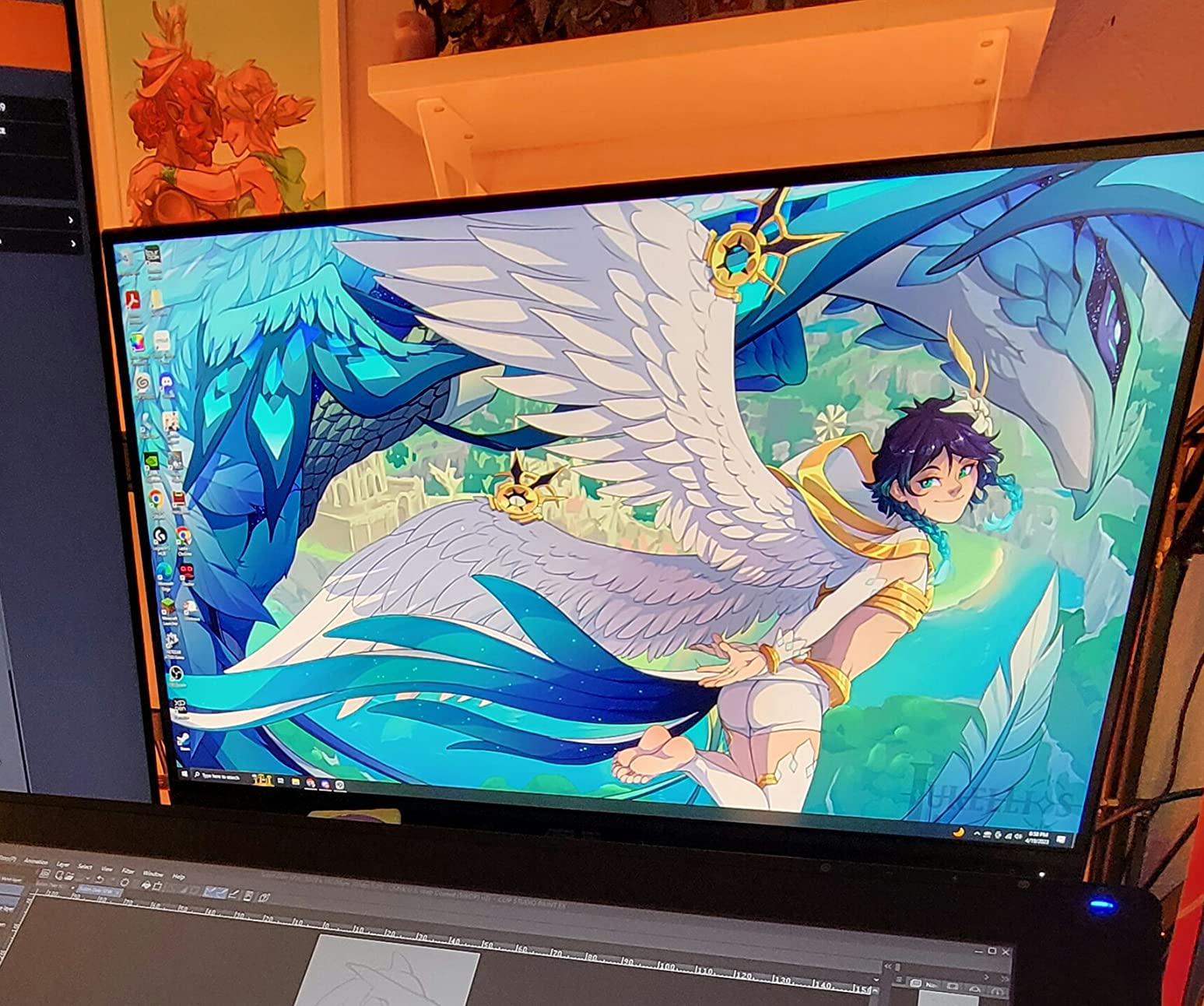
The colour promise is the same one ASUS makes on the PA279CV: Calman Verified, Delta E under 2, 100% sRGB and 100% Rec. 709, at 350 nits on an IPS panel with 178-degree viewing angles. Buyers consistently report accurate factory colour, a clean matte panel and wide off-axis consistency.
Port selection is unusually generous for a budget display. You get DisplayPort, HDMI, DVI-D and Mini DisplayPort, plus a four-port USB 3.2 Gen 1 hub. A DisplayPort-to-miniDP cable and the colour pre-calibration report are in the box.
Where 1440p Falls Short in Photoshop
At 2560 x 1440 on a 27-inch panel you are working at roughly 109 ppi. That is above the 100 ppi floor for judging sharpness, so a full image at fit-to-screen looks clean. The cost shows up when you zoom past 100% to inspect edges, where the extra pixel density of a 4K panel gives you finer, more reliable edge detail.
For a wedding photographer culling thousands of frames, or a retoucher cleaning up product shots at 200% zoom, that is a real difference. For someone colour-correcting and delivering to the web, it is a small one.
The ProArt Preset System and Long Warranty
The ProArt Preset and Palette software exposes brightness, colour temperature, contrast, gamma, saturation and black level as separate controls, with factory presets you can recall at any time. That granularity is what lets a colorimeter profile land on a stable baseline.
The warranty runs three years with a two-year extension on online registration, and a three-month Adobe Creative Cloud subscription is included. ASUS Eye Care adds flicker-free backlighting, a blue light filter and an anti-glare coating.
Who This Monitor Is For
This is the monitor to buy if you want accurate colour, a proper USB hub, a stand that pivots to portrait and a warranty that outlasts most rivals, without moving up to 4K. Budget, student and hobbyist editors land here and stay.
Move up to the PA279CV if you regularly work above 100% zoom on large crops.
5. ViewSonic VP2756-4K – Pantone Validated for Print and Proofing Workflows
ViewSonic VP2756-4K 27 Inch 4K ColorPro Monitor, IPS Display with 100% sRGB and Pantone Validated for Professional Photo Editing, Advanced Ergonomics, 60W USB-C, HDMI, and DisplayPort Inputs
4K 3840 x 2160 SuperClear IPS
Pantone Validated
Delta E under 2 factory calibration
USB-C 60W with daisy chaining
Pros
- Pantone Validated certification is unusual and directly relevant to print work
- Factory calibrated to Delta E under 2 with full sRGB and Rec. 709
- USB-C single-cable with 60W plus built-in USB hub
- DisplayPort daisy chaining for a second 4K display
- Fully adjustable stand including pivot
Cons
- 1000:1 contrast is modest against IPS Black panels
- No wide-gamut coverage despite the ColorPro branding
- No HDR support and no 10-bit native depth
- 60Hz refresh rate only
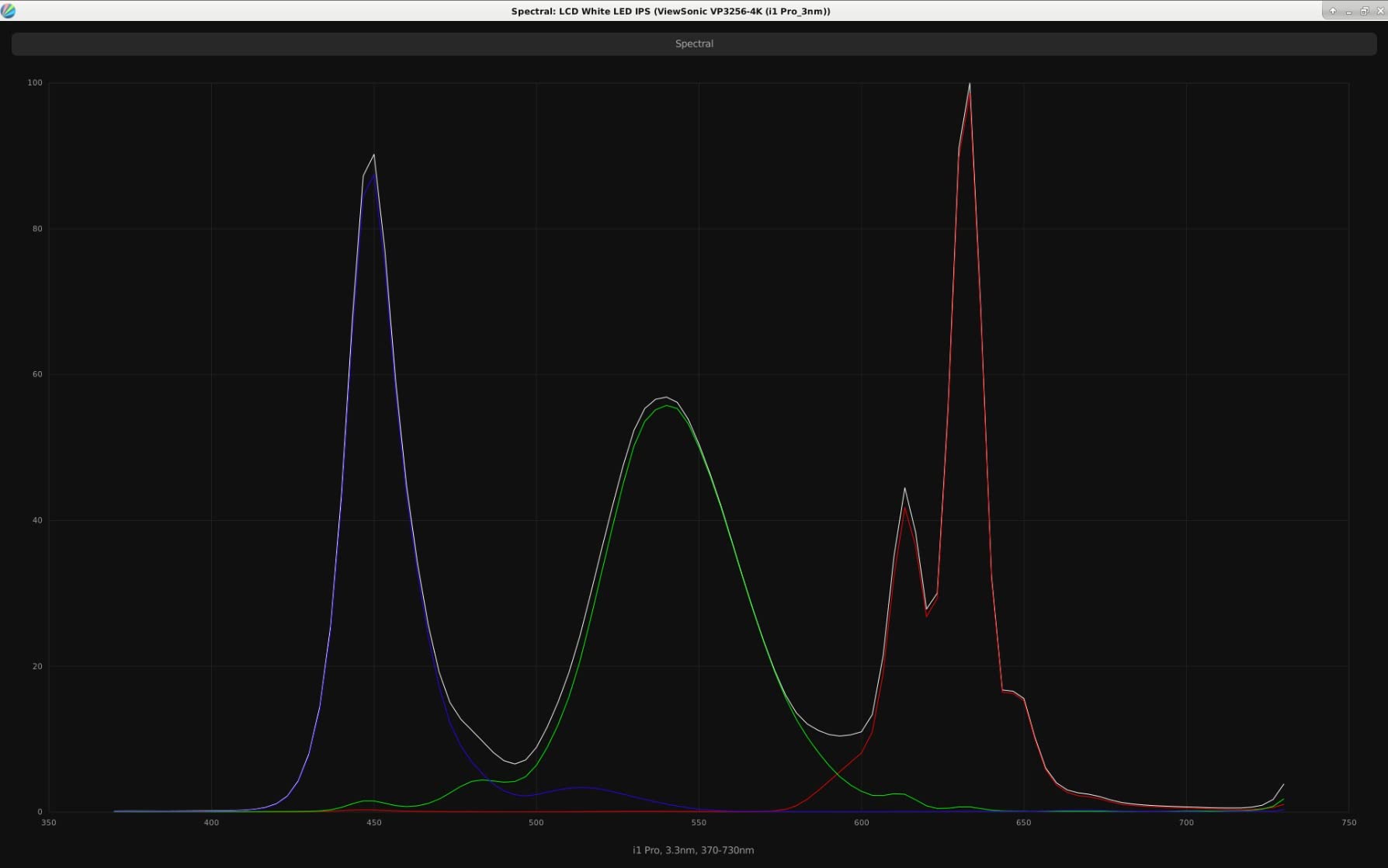
The VP2756-4K is the one to shortlist if you send work to a commercial printer. Pantone Validated certification is unusual at this level and directly relevant to anyone matching screen output to a specific book or catalogue run, and it is the consistent selling point across owner reviews alongside accuracy against printed work.
Underneath it is a 27-inch 3840 x 2160 SuperClear IPS panel, factory calibrated to Delta E under 2 with 100% sRGB and 100% Rec. 709 coverage at 350 nits. A 3-year limited warranty covers parts, labour and backlight.
USB-C delivers 60W of power alongside video and data, and there is a four-port USB hub with USB-A and USB-B upstream connections. DisplayPort daisy chaining means a second 4K display can run from one output, which makes this a good second screen in a two-monitor edit suite.
What Pantone Validated Does and Does Not Promise
Certification means the display has been tested against a defined reference method using Pantone colour references, and it gives you a documented baseline rather than a brand promise. It is not a guarantee of Adobe RGB coverage, and this panel does not offer it.
Sceptics are right to note the gap between the ColorPro branding and the specifications underneath. Coverage is sRGB and Rec. 709, contrast is 1000:1, and there is no HDR support or native 10-bit depth. If you need DCI-P3 or Adobe RGB, this is not the panel.
Multi-Monitor and Docking Flexibility
DisplayPort daisy chaining is the underrated feature here. Run one cable from your workstation to the ViewSonic, then a second from its DisplayPort out to a companion display, and both sit at 4K from a single host port.
The stand covers tilt, swivel, rotation and height, and there is a flicker-free backlight and blue light filter. On-screen control is menu-driven rather than driven by a dedicated puck, so plan on a colorimeter for real profiles.
Who This Monitor Is For
Pick this if you prepare files for a specific printed product, work across two 4K displays, or want the strongest certification story in the sRGB class. It is also a solid secondary editing monitor.
Choose the BenQ PD2705U or the Dell U2723QE if you need a hardware puck or a KVM switch in the same chassis.
6. Dell 27 S2725QC – The Best 4K Panel If You Also Play Games
Dell 27 Monitor S2725QC, 4K UHD IPS, 120Hz, 99% sRGB, 4ms, FreeSync Premium
4K 3840 x 2160 IPS at 350 nits
120Hz and FreeSync Premium
99% sRGB
USB-C 65W with speakers
Pros
- 4K resolution paired with a 120Hz refresh rate
- 99% sRGB IPS coverage adequate for general photo work
- Single USB-C cable carries video data and 65W charging
- ComfortView Plus cuts blue light without shifting colour
- Full ergonomic stand plus a re-engineered speaker system
Cons
- No factory calibration and no published Delta E figure
- 1500:1 contrast falls short of IPS Black panels
- No hardware calibration or wide-gamut coverage beyond sRGB
- One-star ratings point to a small share of panel or early-defect issues
The S2725QC is the mainstream work-and-play monitor in this list, and photo and video editing is an explicitly listed use for it. What you get for your money is a 4K IPS panel at 350 nits with 99% sRGB coverage, a 120Hz refresh rate and FreeSync Premium adaptive sync, which is unusual in a display aimed at productivity.
For a photographer who games on the same machine, that refresh rate removes the single most common compromise in a colour-accurate display. Scrolling a large RAW file in Lightroom is visibly smoother at 120Hz than at 60Hz, and it is the spec that would otherwise nag at you daily.
USB-C provides a single-cable connection with up to 65W of power delivery, and the built-in speaker system was re-engineered for better frequency response. Height, tilt, swivel and pivot adjustment are all present, with a side I/O cover.
Where the Colour Story Falls Short
This panel is not factory calibrated and there is no published Delta E figure, which is the single biggest difference from the ASUS ProArt and BenQ models in this roundup. Ninety-nine percent sRGB coverage is enough for general photo work in a controlled room, but it is not a reference baseline you can profile against with confidence.
The 1500:1 contrast ratio sits between standard IPS and IPS Black, and 10% of ratings are one star, a higher share than most panels here, pointing to a small number of panel or early-defect issues. A one-year Advanced Exchange Service and Premium Panel Exchange back the panel.
ComfortView Plus and Long Sessions
ComfortView Plus reduces blue light emissions to 35% or less without the yellow cast that naive night-mode filters impose. That distinction matters for colour work, because a filter that shifts the white point undermines the calibration you just performed.
The combination of 4K at 120Hz, a proper USB-C dock and a full stand makes this a strong first colour-capable monitor for a hybrid edit-and-play desk.
Who This Monitor Is For
This suits a photographer who games, or a hybrid photo and video editor who wants smooth playback timelines without a second display. It is also a reasonable first colour-accurate upgrade over a general-purpose 4K monitor.
For commercial print or reference-grade accuracy, go to the ProArt PA279CV instead. For a wider field of view, our 27-inch gaming monitor roundup covers higher refresh options.
7. LG 27US500-W – A Clean White 4K Panel for a Studio Desk
LG 27US500-W Ultrafine Monitor 27-Inch 4K UHD (3840×2160) HDR10 IPS Borderless Design Reader Mode Flicker Safe Switch App HDMI DisplayPort – White
4K 3840 x 2160 IPS
Up to 90% DCI-P3
HDR10 support
300 cd/m2 brightness
Pros
- 4K resolution with up to 90% DCI-P3 coverage at an entry tier
- Three-side borderless white design suits a clean desk
- Onscreen Control app simplifies screen splitting and basic setup
- Reader Mode and Flicker Safe reduce eye strain in long sessions
Cons
- 300 cd/m2 is dim against 350 to 450 nit rivals
- 1000:1 contrast gives flat blacks in dark scenes
- No hardware calibration and no USB hub and no USB-C
- Tilt-only stand with no height swivel or pivot
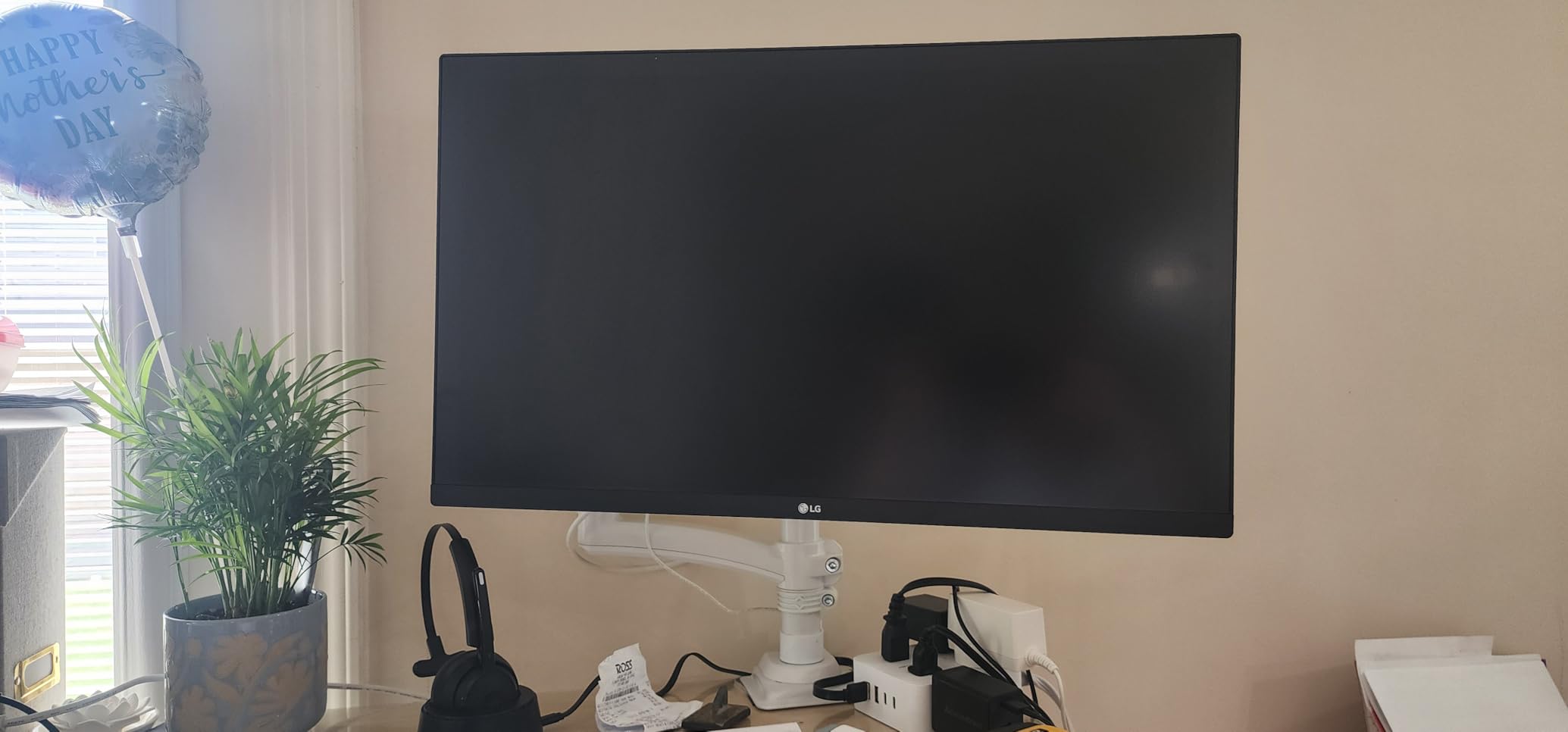
The 27US500-W is the odd one out aesthetically, and for some desks that is the deciding factor. A three-side borderless white design with a 4K panel underneath is a genuinely pleasant object to look at across from you all day, and 90% DCI-P3 coverage is a wider gamut than most of its class offers.
The panel itself is 27-inch 3840 x 2160 IPS at 300 cd/m2 with a 1000:1 contrast ratio, HDR10 support and 178-degree-class wide colour off-axis. The white chassis is not a gimmick; it is the choice for anyone whose studio or office is light-toned.
Onscreen Control handles screen splitting into custom workspaces, and Reader Mode plus Flicker Safe cut eye strain over long editing sessions. Two HDMI inputs and a DisplayPort cover multiple machines, with automatic input detection.
Brightness Is the Limiting Factor in a Bright Room
At 300 cd/m2 this is the second-dimmest panel in the roundup, and that has a concrete effect. In a well-lit room, a 300 nit panel makes mid-tones look muddy and forces you to raise system brightness past the level where a calibration profile holds, which quietly undoes the work you did profiling it.
The 1000:1 contrast ratio compounds the issue in dark scenes, where blacks sit as dark grey. Neither problem is fatal for a controlled-room workflow, but both are visible in daylight next to a brighter neighbour.
Ergonomics and the Missing Connectivity
The stand is tilt-only, with no height adjustment, swivel or pivot. That is the biggest practical compromise here, because you cannot raise the panel to eye level or rotate a vertical frame for review without a separate stand or arm.
There is no hardware calibration support, no USB hub and no USB-C. A small but elevated share of three-star reviews reflects buyers finding the uncalibrated out-of-box colour underwhelming for the money.
Who This Monitor Is For
Choose this for a light-toned studio desk where appearance and borderless design matter and you work in a controlled room. The 90% DCI-P3 figure gives it more headroom than most 4K panels at this level.
If you need to raise the display, profile it properly or dock a laptop with one cable, pick a different model.
8. INNOCN 27C1U – The Cheapest Route Into a USB-C 4K Editing Desk
INNOCN 27″ 4K USB-C Monitor for Laptop MacBook/Mac mini – 16:9 IPS 3840 x 2160 Display, HDR400, DeltaE<2, DisplayPort, HDMI PC Monitor, 1.07B+ Colors, Built-in Speakers, Adjustable Stand, Black
4K 3840 x 2160 IPS
Delta E under 2 target
DisplayHDR 400 at 400 cd/m2
USB-C 65W with DP 1.4 and HDMI 2.1
Pros
- Delta E under 2 factory accuracy target at a notably low price
- 400 cd/m2 brightness with DisplayHDR 400 support
- USB-C 65W alongside DisplayPort 1.4 and HDMI 2.1
- Stand swivels and pivots a full 90 degrees to portrait
- Built-in speakers reduce desktop clutter
Cons
- 1000:1 contrast gives the flattest blacks in the roundup
- 8-bit plus FRC rather than true 10-bit for grading
- No wide-gamut claim beyond sRGB-class coverage
- Only a one-year manufacturer warranty
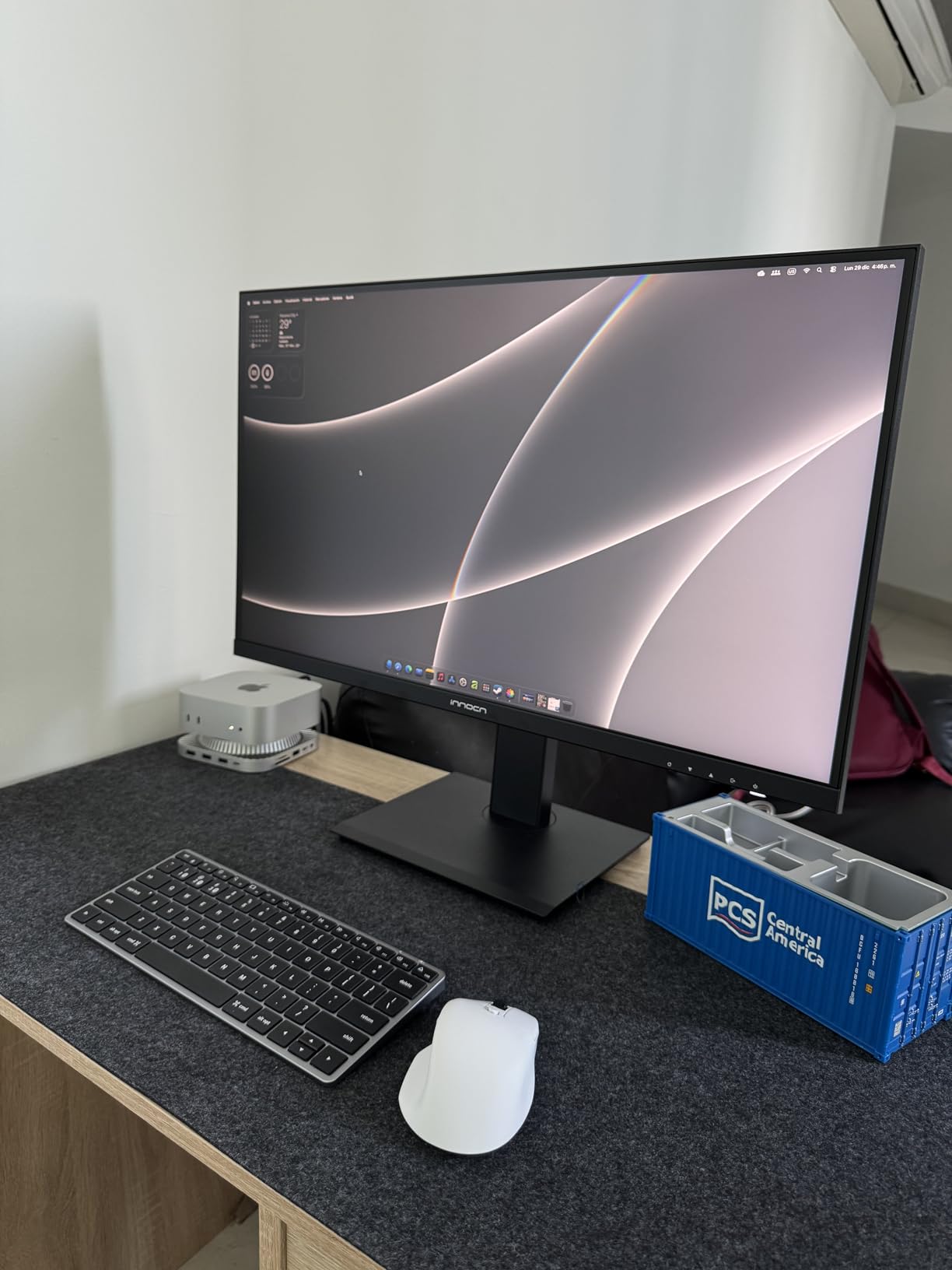
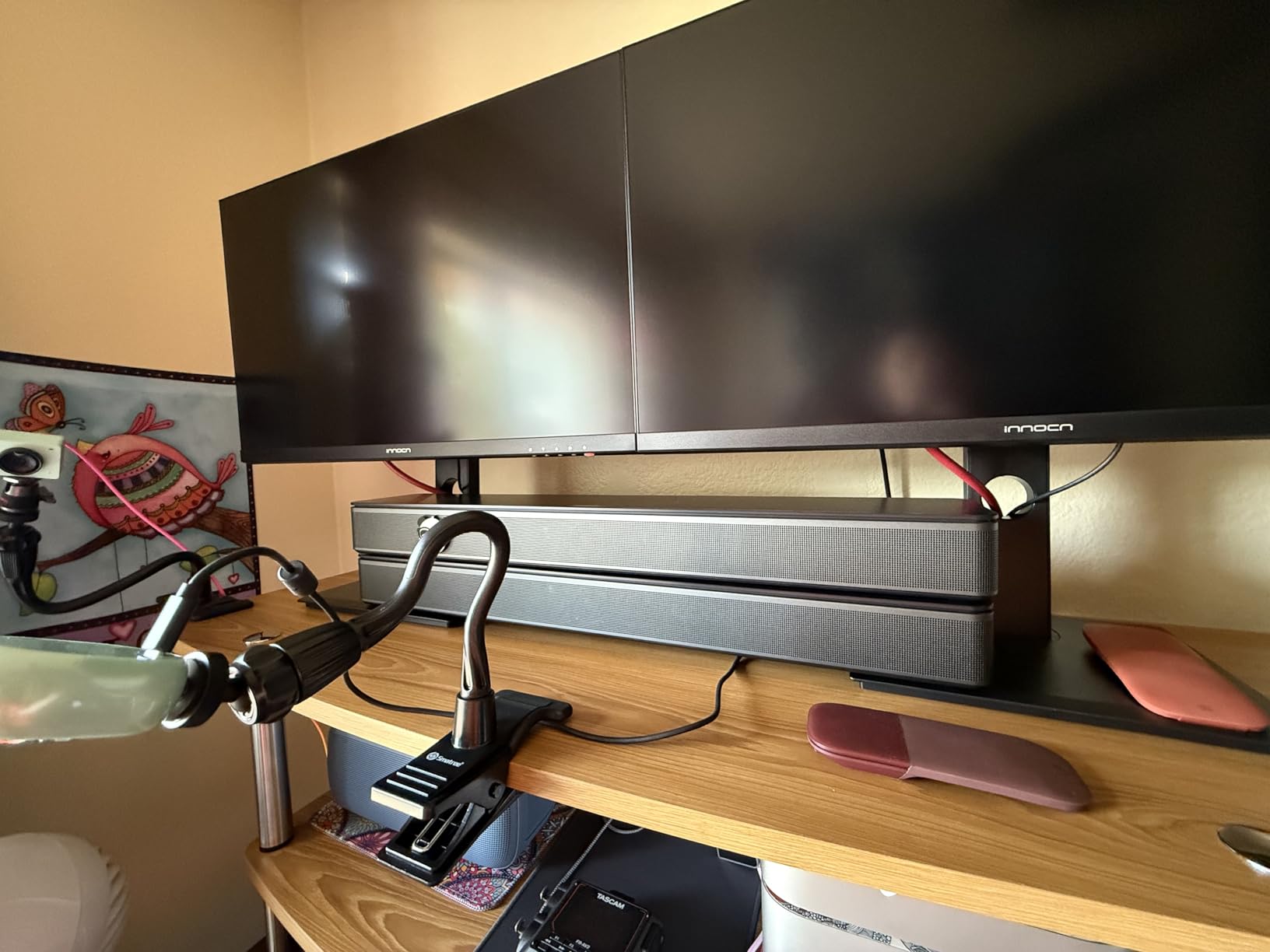
The INNOCN 27C1U is the value entry into a 27-inch 4K desk with USB-C, and buyers consistently cite the Delta E under 2 claim combined with 65W power delivery as the reason. A 4K panel with a documented colour accuracy target and a 90-degree pivot for under three hundred dollars is not a combination that was common a few years ago.
Specifications are 27-inch 3840 x 2160 IPS, 400 cd/m2 brightness, DisplayHDR 400 and 1.07 billion colours via 8-bit plus frame-rate control. The stand is unusually capable for the price, with 45 degrees of swivel, plus or minus 5 inch of height, forward and backward tilt and a full 90-degree pivot to portrait.
Connectivity is USB-C with 65W, DisplayPort 1.4 and HDMI 2.1, plus a 3.5mm audio out and built-in speakers. VESA 75 x 75 mounting is supported.
8-Bit Plus FRC Versus True 10-Bit
Eight-bit colour gives 16.7 million colours. Ten-bit gives more than a billion, and the difference shows as banding in skies, gradients and subtle skin tone roll-offs. Frame-rate control simulates 10-bit output by alternating between adjacent 8-bit values each frame, which smooths gradients effectively for stills but does not deliver the underlying precision.
For a photographer printing large or grading delicate gradients, native 10-bit matters. For web delivery work it rarely becomes visible.
Where the Budget Shows
Contrast is 1000:1, the flattest in this roundup, and the HDR mode falls off in brightness as it maps into a limited luminance range. There is no wide-gamut claim beyond sRGB-class coverage despite the HDR branding, and the warranty is one year with limited brand support infrastructure behind it.
Ratings average 4.3 here, the second-lowest of the twelve, with a 9% one-star share. The criticism concentrates on contrast, HDR brightness falloff and the warranty rather than on the colour accuracy claim failing.
Who This Monitor Is For
This is for a first dedicated editing monitor on a constrained budget, or a portable single-cable setup for a laptop. The stand adjustment and pivot make it a good second screen in a vertical-orientation workflow.
Move up to the ASUS ProArt PA279CV for the same core proposition with a longer warranty and a documented colour report.
9. LG 27UP650K-W – The Widest Gamut You Can Get Without Spending Reference Money
LG 27UP650K-W 27-inch Ultrafine 4K UHD (3840 x 2160) IPS Computer Monitor, 60Hz, 5ms, DisplayHDR 400, Reader Mode, Flicker Safe, HDMI, DisplayPort, Tilt/Height/Pivot Adjustable Stand, White
4K 3840 x 2160 IPS at 400 cd/m2
Up to 95% DCI-P3
DisplayHDR 400
1200:1 contrast
Pros
- 4.7 average with an 84% five-star share
- 95% DCI-P3 coverage is among the widest at this tier
- Matte finish handles ambient and overhead light with minimal glare
- Both HDMI and DisplayPort let two computers attach easily
- Height tilt and pivot adjustment with smooth movement
Cons
- This HDMI version has no USB hub and no USB-C
- No built-in stereo speakers
- Colour temperature runs slightly warm out of the box
- 60Hz refresh rate and unremarkable response times
The 27UP650K-W carries the highest average rating of any 27-inch panel here at 4.7, with 84% of its ratings at five stars. That is a smaller review base than most of this list, but the enthusiasm is consistent, and the reason is a combination of 95% DCI-P3 coverage, 400 cd/m2 brightness and a matte finish that handles overhead light well.
For a photographer working in a room with windows and no hood, the matte anti-glare coating is worth more than a specification sheet suggests. Experienced hobbyist editors say the gamut coverage and shadow-to-highlight reach hold up well for non-critical work.
VESA DisplayHDR 400 certification is included with hardware HDR support, and the Switch app splits the screen into up to six sections with PC and webOS switching. The stand handles height, tilt and pivot.
95% DCI-P3 Versus 100% sRGB: Which One Helps You
These are different gamuts aimed at different delivery targets. sRGB is the web and social delivery space, and covering 100% of it means nothing shifts when your image goes online. DCI-P3 is the cinema standard used by most modern cameras and by Apple displays, and it is what lets you work with footage or stills that originated in a P3 pipeline.
Without a wide-gamut monitor, P3 content gets clipped to sRGB and colours that were saturated on the camera look flat. If you shoot video, work for clients delivering to P3 displays, or simply want headroom, the extra coverage is worth having.
Warm Factory Colour and the Missing USB-C
Two things to plan for. Colour temperature runs slightly warm out of the box and needs adjustment before you profile. And this HDMI variant has no USB hub and no USB-C, so laptop users need a separate dock, and there are no built-in speakers.
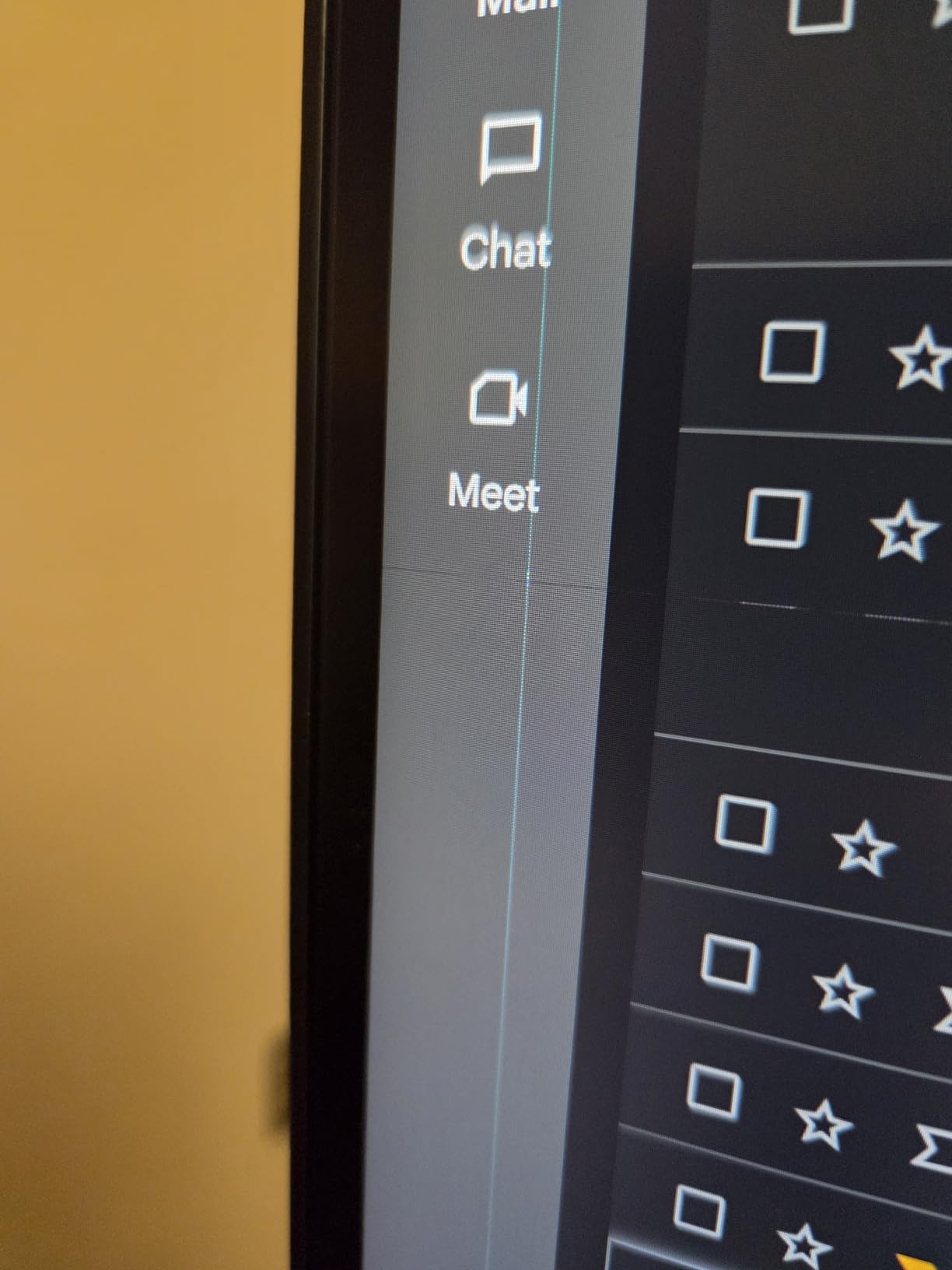
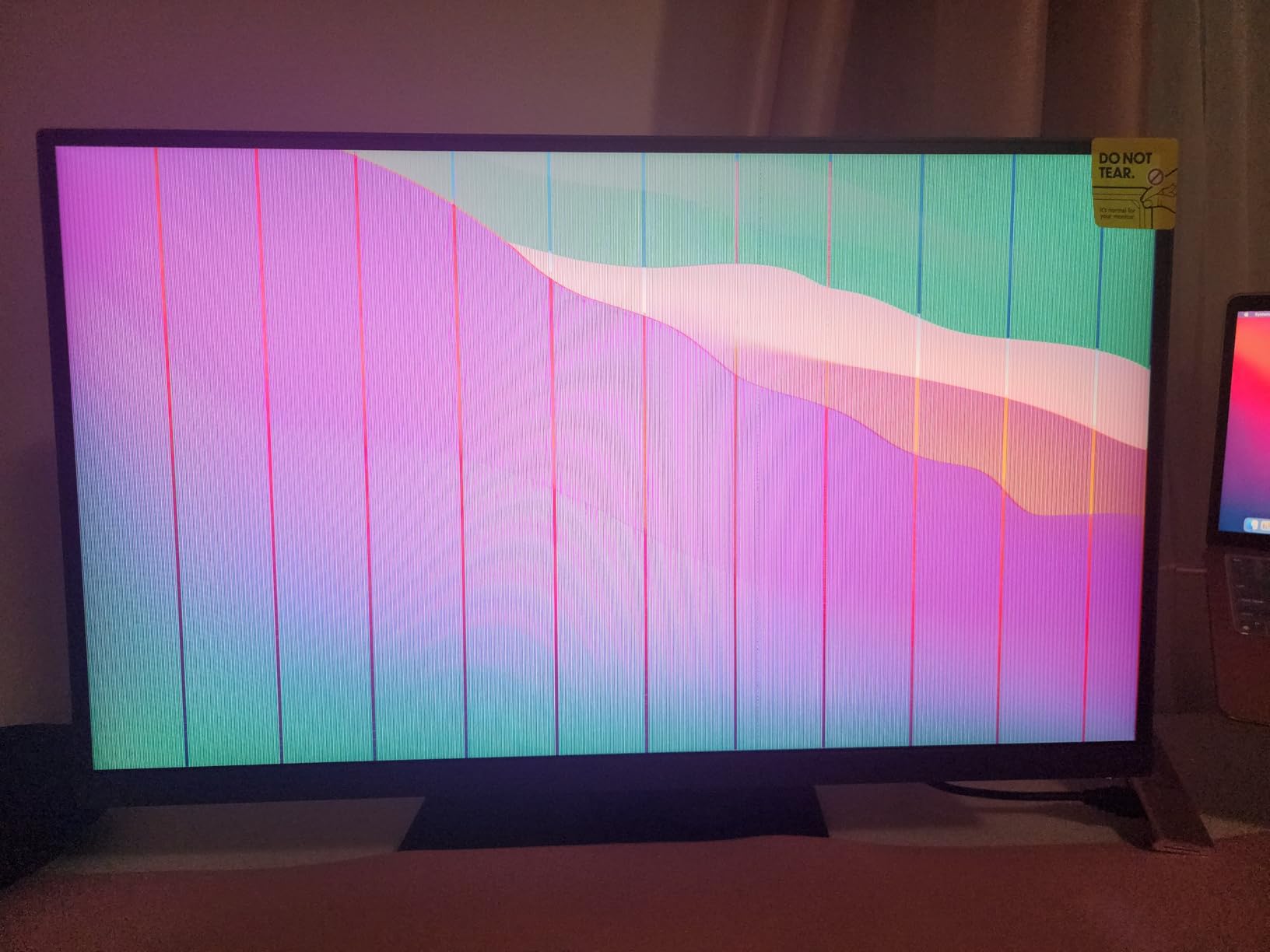
One owner received a unit with transit-damaged panel lines, which is a reminder to inspect the panel on arrival. Owners otherwise describe the 4K clarity, matte glare handling and stand adjustment as the best in their class.
Who This Monitor Is For
This suits a photographer in a bright room who shoots video alongside stills, and wants wide gamut without moving into reference pricing. The matte finish is a genuine advantage for daylight desks.
For a laptop-centred workflow, look at the Dell U2725QE with Thunderbolt 4 instead.
10. BenQ PD2705U – The Reference-Class Pick Built Around a HotKey Puck
BenQ PD2705U Mac-Ready AQCOLOR Monitor 27″ 4K UHD, 99% sRGB &Rec.709, HDR 10, IPS, Factory-Calibrated, Uniformity, 65W USB-C, HotKey Puck, Ergonomic, DisplayPort, KVM, USB Hub
4K 3840 x 2160 IPS
BenQ AQCOLOR factory calibration
Screen uniformity compensation
65W USB-C with KVM switch
Pros
- Owners report colour matching a 27-inch 5K iMac
- Screen uniformity compensation evens brightness across the panel
- HotKey Puck G2 makes switching colour modes fast
- Calibrates to very low Delta E values for the money
- 65W USB-C plus KVM switch and a built-in USB hub
Cons
- 60Hz refresh rate is dated for this class
- 1000:1 contrast and 350 cd/m2 brightness are modest
- No wide-gamut coverage such as Adobe RGB or DCI-P3
- Anti-glare coating is described as coarse and some units show IPS glow
The PD2705U is the monitor that professional visual designers and photographers driving Capture One and Photoshop keep recommending, and the recurring theme in reviews is that it holds close to a 27-inch 5K iMac at a fraction of the cost. One owner calibrated it below Delta E 0.8.
What separates it is the combination of factory calibration under BenQ’s AQCOLOR technology, screen uniformity compensation that evens brightness across the panel, and the HotKey Puck G2 controller. That puck is a physical dial and buttons sitting on your desk, and it makes moving between a Photoshop sRGB mode, a Lightroom Rec. 709 mode and a second machine’s input a two-second job rather than a menu expedition.
Connectivity is 65W USB-C all-in-one, a built-in USB hub with USB-A and USB-B upstream, a KVM switch for two computers from one keyboard and mouse, and an ergonomic stand with height, tilt, swivel and pivot.
Screen Uniformity Compensation Explained
Most LCD panels are brightest in the centre and fall off toward the edges, and this is the effect that shows as a visible difference between the histogram on the left and right of your image. Uniformity compensation measures and corrects that falloff so the panel behaves as one even surface.
It is a real quality differentiator in print and product work, where a client will spot a gradient in a flat wall. It is largely invisible when you are grading video or viewing a high-contrast frame.
Reported Weaknesses to Weigh Honestly
Several limitations appear consistently. The 60Hz refresh rate is dated for a display at this level. Contrast is 1000:1 and brightness is 350 cd/m2, both modest. The sRGB and MacBook modes are reported as questionable compared with the Rec. 709 mode, and some units show IPS glow.
The anti-glare coating is described by reviewers as on the coarse side, which is a visible texture at close viewing distances. One detailed review documents a warranty dispute after an in-warranty failure. If support matters to you, weigh that carefully.
Who This Monitor Is For
Choose this for a Mac-centred desk, or for anyone who wants the fastest possible switching between editing software colour modes and two machines. Users on r/Design consistently point to EIZO and BenQ reference-class panels as the durable choice, and this is the accessible end of that line.
It is not the right pick for Adobe RGB work. The coverage stops at 99% sRGB and Rec. 709.
11. Dell UltraSharp U2725QE – The Tightest Factory Accuracy and the Best Laptop Dock
Dell UltraSharp U2725QE 27-Inch 4K UHD IPS Black Monitor
4K 3840 x 2160 IPS Black
Factory calibrated Delta E under 1.5
99% DCI-P3
Thunderbolt 4 with 140W
Pros
- Tightest factory calibration claim in the roundup at Delta E under 1.5
- 99% DCI-P3 wide gamut with IPS Nano Color
- Thunderbolt 4 with 140W and daisy chaining for two extra 4K displays
- 120Hz refresh makes it viable for motion work
- Ambient light sensor adjusts brightness automatically
Cons
- Listed 1000:1 contrast is lower than the U2723QE despite IPS Black branding
- Higher cost than most 4K colour-accurate rivals
- Highlight clipping in demanding HDR grading
- Smaller owner review base than the U2723QE
The U2725QE is the panel in this roundup that arrives closest to its target colour out of the box. A factory calibration report is included, calibrated to Delta E under 1.5, and that is a tighter figure than anything else here. Alongside 99% DCI-P3 coverage through IPS Nano Color, it is the most technically ambitious 27-inch colour panel in this list.
The Thunderbolt 4 implementation is the reason this is also the best laptop dock in the roundup. One cable carries video, data and up to 140W of power delivery, and the display will daisy-chain up to two additional 4K monitors. For someone moving between a desk and a laptop with a workstation-grade machine, that removes a dock and a pile of cables entirely.
A 120Hz refresh rate with 5ms response makes it viable for motion work, and an ambient light sensor adjusts brightness automatically across long sessions. ComfortView Plus handles blue light reduction, and HDMI 2.1, USB-C, USB-A and RJ-45 cover everything else.
Delta E Under 1.5 Versus Under 2: Does It Matter?
Both figures describe the average colour difference between target and display, and both fall below the threshold where a difference is visible in a photograph. Under 1.5 is meaningfully tighter than under 2, and it matters in two situations: when you are colour-matching a product to a physical sample, and when you are working across several displays that need to agree with each other.
For most retouching work, either figure is excellent. The honest caveat is that a factory figure describes the panel on day one, in a lab, at a specific brightness setting, and it drifts as the backlight ages.
The Contrast Specification Wrinkle
One specification deserves a second look. Despite carrying the IPS Black branding, the listed contrast ratio is 1000:1, which is half the figure Dell lists for the older U2723QE. If dark-scene performance is your priority, the U2723QE is the better-documented choice on that single point.
Reviewers also note highlight clipping in demanding HDR grading, and the 286-review base is smaller than the U2723QE, so there is less long-term owner history behind it. A 9% one-star share is present in the ratings without detail in the returned reviews.

Who This Monitor Is For
This is the pick for a colourist-adjacent photographer who wants the tightest factory accuracy available at 27 inches and docks a laptop with a single Thunderbolt cable. The ambient light sensor also suits anyone who leaves the display running for long stretches.
For deeper blacks in dark work, stay with the U2723QE.
12. Xiaomi A27Qi – The Most Gamut Coverage You Can Get in 1440p
XIAOMI 2K Monitor A27Qi – 27-inch QHD IPS Computer Display, 100Hz Refresh Rate, ΔE<2 Color Accuracy, 95% DCI-P3, 100% sRGB, Low Blue Light Mode, Adjustable Stand, for Home and Office
2560 x 1440 IPS at 250 nits
95% DCI-P3 and 100% sRGB
Factory calibrated Delta E under 2
100Hz with FreeSync
Pros
- 4.7 average with an 87% five-star share
- 95% DCI-P3 alongside 100% sRGB is unusually wide for the tier
- Factory calibration to Delta E under 2 out of the box
- 100Hz refresh rate steps up from 60Hz rivals
- TUL Rheinland certified low blue light and DC dimming
Cons
- 250 cd/m2 is the dimmest panel here and clips in bright rooms
- Only 2560 x 1440 so no 4K detail for large crops
- 1000:1 contrast gives flat blacks
- Tilt-only stand with no height swivel or pivot
- Glossy screen finish is prone to reflections
The Xiaomi A27Qi is the specification outlier of this roundup, and the reason is the colour figure: 95% DCI-P3 alongside 100% sRGB on a 2560 x 1440 panel, factory calibrated to Delta E under 2. Most wide-gamut coverage at 27 inches costs several times more.
It also runs at 100Hz with FreeSync, which no other 1440p panel in this list matches, and the low blue light mode and DC dimming are TUL Rheinland certified. Owners with almost no two- or three-star ratings respond to the combination of calibration, gamut and refresh rate at a budget price point.
The trade-offs are physical rather than electronic. You get 250 cd/m2 brightness, a 1000:1 contrast ratio, a tilt-only stand, ultra-thin bezels suited to multi-monitor setups, DisplayPort 1.4 and HDMI inputs with VESA 75 x 75 mounting.
When 250 Nits Genuinely Causes Problems
Brightness is the limit that decides who this suits. At 250 nits, the panel clips in a bright room, and a heavily backlit studio with daylight streaming through a window is exactly the wrong environment. In a controlled room with blinds down and consistent ambient light, it is perfectly serviceable.
There is also a glossy screen finish, which owners flag as prone to reflections, and 1000:1 contrast gives flat blacks. Pair the ultra-thin bezels with a second display only if you are prepared to work around the seam.
Who This Monitor Is For
This suits a student, a first-time editor or anyone working in a controlled room who wants wide gamut and a 100Hz panel without spending reference money. The 162-review base is the smallest here, so long-term owner history is limited.
For a bright room or large print crops, step up to a 4K panel. Our photo editing laptop guide covers the portable side of a mobile edit suite.
27-Inch 4K vs QHD: Which Resolution Do You Actually Need?
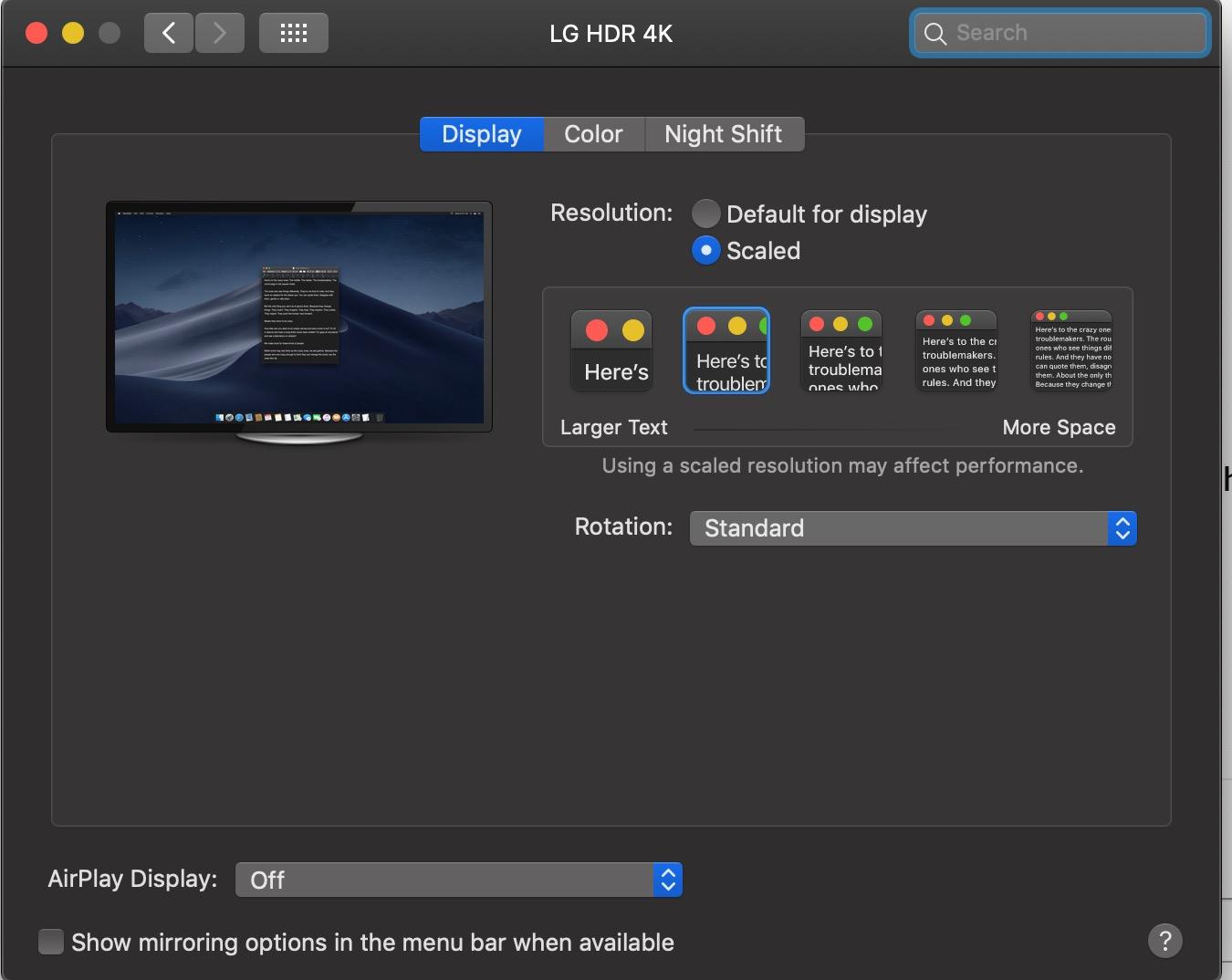
For photo editing at 27 inches, 4K wins, and the reason is pixel density rather than screen size. A 27-inch 3840 x 2160 panel works out at roughly 163 ppi. A 27-inch 2560 x 1440 panel gives roughly 109 ppi. Both clear the 100 ppi floor where images stop looking soft, which is why QHD is not a bad panel, only a coarser one.
The difference shows up the moment you zoom past 100% in Photoshop. At 109 ppi, a 200% zoom on a 24-megapixel RAW file gives you a soft, aliased view of edges. At 163 ppi, the same crop renders finer detail, which matters enormously for hair, fur, eyelashes, foliage and product edges.
It also changes the working layout. A 4K panel at 125% scaling gives a usable workspace equivalent to a 1440p panel at 100%, but with 50% more pixels of headroom for detail work. That is the practical way to think about the upgrade.
QHD remains a legitimate choice when the budget is fixed and your delivery is the web. If you are colour-correcting, culling and exporting for online use, the resolution difference is real but secondary to whether your colour is accurate.
Do You Actually Need Adobe RGB Coverage?
Probably not, and this is where buyers overspend most often. sRGB covers roughly 70% of the volume of the Adobe RGB gamut. That sounds like a serious gap, but the web cannot display the remaining 30% at all, so for anything you deliver online, the extra coverage is invisible to the viewer.
Adobe RGB earns its premium in a specific set of situations: preparing files for a commercial printer who works in Adobe RGB, producing soft proofs for print buyers, editing archival or fine-art work destined for pigment prints, and working with wide-gamut camera output in Capture One.
Here is how I would tier it. If you deliver to Instagram, a website, a client gallery or a SaaS product, 100% sRGB with a Delta E under 2 is genuinely enough, and you should spend your money on a calibrated 4K panel instead. If you print commercially or produce soft proofs, wide gamut is no longer optional. If you shoot video for cinema or broadcast, look for DCI-P3 coverage instead.
None of the twelve monitors in this roundup carries Adobe RGB coverage, and that is a deliberate editorial decision rather than an oversight. Every 27-inch wide-gamut panel we found sits well above this list’s top price, and for the majority of readers buying at 27 inches the money is better spent on 4K resolution, a documented factory calibration and a proper USB-C dock.
What to Look for in a 27-Inch Monitor for Photo Editing
Color Gamut, Color Space and Color Accuracy Explained
These three words get used interchangeably and they describe different things. Color gamut is the range of colours a display can physically produce, expressed as a percentage of a reference space such as sRGB or DCI-P3. Color space is the mathematical definition of a set of colours, like sRGB or Adobe RGB. Color accuracy is how closely the colours your display produces match the reference values, measured as Delta E.
A wide gamut with poor accuracy is worse than useless, because you will correct images toward a target the panel never reaches. For photo editing, the practical requirement is 99% or 100% sRGB coverage with a factory Delta E under 2, and DCI-P3 or Adobe RGB only if your delivery target requires it.
Delta E: the One Accuracy Number Worth Reading
Delta E measures the distance between two colours using a formula that approximates human perception. Under 2 is generally considered invisible in a photograph, under 1 is imperceptible, and above 3 becomes noticeable on large flat areas like skies and studio walls.
Prefer monitors that publish a Delta E figure and ship a calibration report. Every ASUS ProArt, ViewSonic ColorPro, BenQ AQCOLOR and Dell UltraSharp in this list does; the general-purpose panels do not.
Factory Calibration, Hardware Calibration and the Colorimeter Question
Factory calibration means the panel was adjusted before shipping, usually to sRGB or Rec. 709, and a report documents the result. Software calibration uses a colorimeter to generate an ICC profile that corrects the operating system output. Hardware calibration goes further, writing correction values into the monitor’s own 3D LUT so the panel stays accurate across operating systems and brightness settings.
For most photo editors, a good colorimeter and a proper ICC profile is the right investment, and owner forums reflect exactly that habit: people calibrate whatever panel they own rather than buying a self-calibrating display. Check for hardware calibration support only if you switch between Windows and macOS machines or share the display with someone who will not install your profile.
On cadence, re-profile roughly every 30 days, and immediately after moving the display, changing rooms, or starting print-critical work. Backlights drift, and a monitor that was accurate in January is not guaranteed accurate in September.
IPS Glow and Panel Uniformity: the Honest Warning
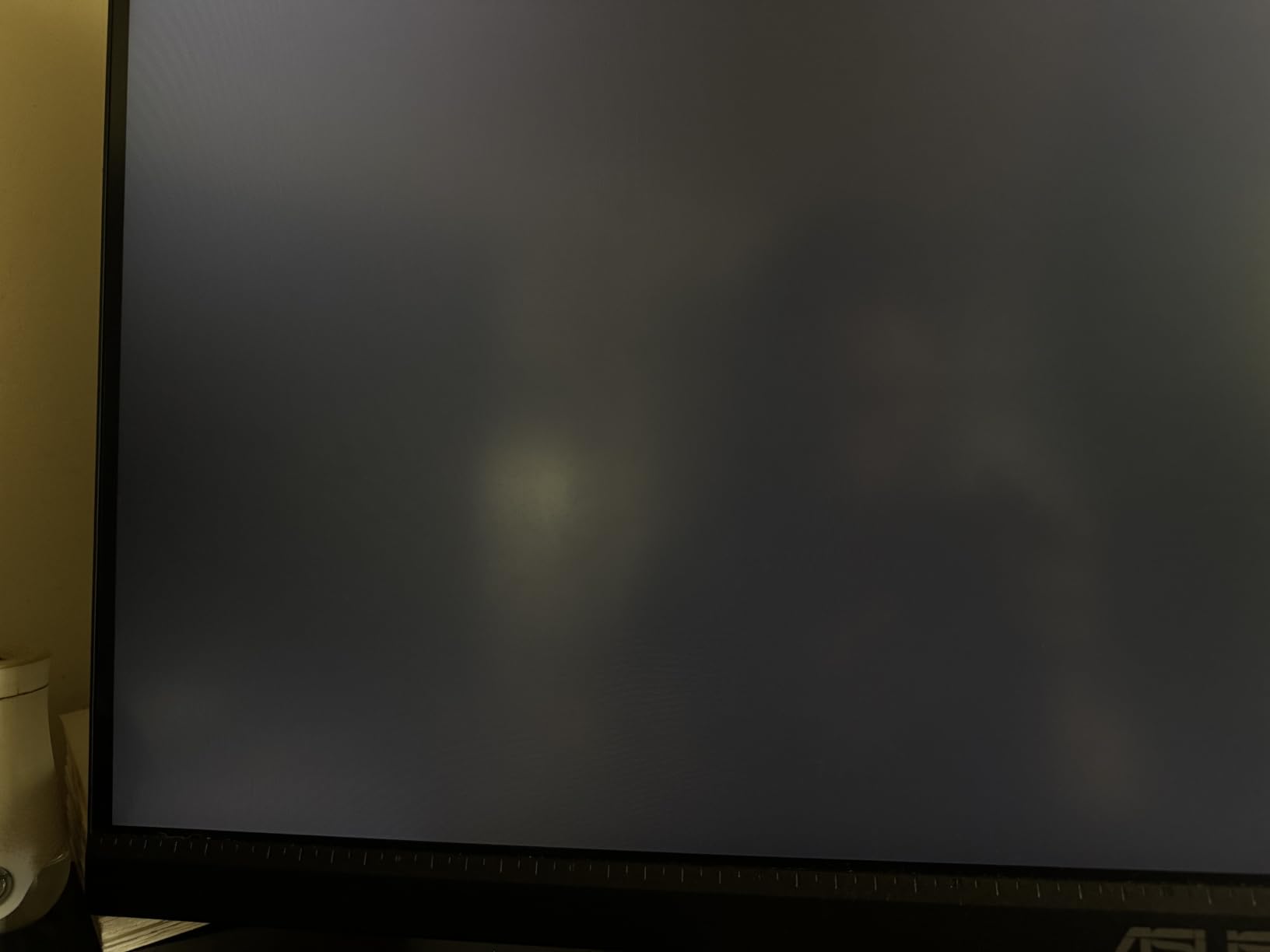
IPS glow is the phenomenon where an IPS panel’s backlight bleeds toward the edges, most visibly in a dark room with a dark image on screen. It looks like a faint haze in the corners rather than true black, and it is a property of the panel type, not a defect. Every IPS panel in this roundup can show it to some degree.
Owner reports are specific about which models show it most. The LG 27UK650 has mild backlight bleed and IPS glow noted as the most cited physical issue, particularly in dark rooms. The BenQ PD2705U has some units showing IPS glow, alongside a coarse anti-glare coating. The Xiaomi A27Qi has a glossy finish that adds reflections on top of whatever the panel itself does.
How to handle it: test the panel in a dark room with a dark image inside the return window, keep the display at a moderate brightness rather than pinned to maximum, and buy from a seller with an easy return policy. Forum buyers consistently treat uniform colour with no visible glow as a deal-breaker for critical work, and that is a reasonable position when you are judging skin tones all day.
Brightness, Contrast and Whether HDR Matters to You
Brightness in this roundup ranges from 250 cd/m2 on the Xiaomi A27Qi to 400 cd/m2 on the Dell U2725QE and LG 27UP650K, with the LG 27UK650 peaking around 450 nits in HDR. For photo editing in a controlled room, 250 to 300 nits is workable, and anything above 350 gives you comfortable headroom in a normally lit office.
Contrast separates the tiers more clearly. Standard IPS sits at 1000:1, the Dell S2725QC is listed at 1500:1, and the Dell U2723QE on IPS Black reaches a listed 2000:1. Higher contrast means darker blacks and more visible shadow separation.
HDR is the spec most often oversold for this use case. DisplayHDR 400 certification is present on the Dell U2723QE, Dell U2725QE, Dell S2725QC, LG 27UP650K, LG 27US500 and INNOCN 27C1U, but without local dimming the result is a brighter window, not real highlight range. If you edit stills in a calibrated SDR environment, prioritise brightness accuracy and contrast instead.
Refresh Rate, Response Time and the Specs You Can Ignore
Refresh rate barely matters for photo editing. Every panel here runs between 60Hz and 120Hz, and the difference only shows when you scroll a large RAW file in Lightroom or scrub a timeline. If you also edit video or game, 120Hz on the Dell S2725QC and Dell U2725QE is a genuine benefit, and 100Hz on the Xiaomi A27Qi is a welcome step up from 60Hz.
Response time figures are the least useful number in the category for stills work, and one listing here even mixes a 0.03ms figure with a 4ms class panel. Ignore them. Adaptive sync, Black Stabilizer and Dynamic Action Sync are gaming features that do nothing for a RAW develop workflow.
Ports, Single-Cable Docking and the Mac versus Windows Desk
The single most useful feature on a 27-inch editing monitor is USB-C with power delivery. One cable carrying video, data and 65W to 140W turns a laptop into a desktop with no dock, and every pick in this list except the LG 27UK650, LG 27US500 and LG 27UP650K offers it.
Thunderbolt 4 on the Dell U2725QE goes further, offering 140W and daisy chaining for two additional 4K displays. The Dell U2723QE and BenQ PD2705U add a hardware KVM switch so one keyboard and mouse control two machines, and the Dell U2723QE also passes Ethernet through RJ-45.
On macOS specifically, r/Design users consistently favour 27-inch panels to pair with compact machines like the Mac mini, and the 27-inch class is the size that matches that footprint. If you are comparing against a 5K Apple display, our general photo editing monitor guide covers the higher-resolution options. Remember that macOS colour management handles Display P3 natively, so a P3-coverage panel integrates more cleanly on a Mac than on Windows.
Ergonomics, Matte Finish and Monitor Hoods
Check for height adjustment and pivot to portrait before anything else. Portrait mode is how you review vertical compositions and tall crops properly, and it is how most photographer’s monitors end up next to a laptop. Six of the twelve picks here pivot to portrait. The LG 27US500 and Xiaomi A27Qi sit at the other end, offering tilt only.
On finish, matte anti-glare coatings handle ambient and overhead light well and are what most editors should choose. Glossy and semi-matte finishes look better in a dark room and behave worse in a bright one. The Xiaomi A27Qi’s glossy surface is the clearest example of that trade-off in this roundup.
None of these monitors ships with a monitor hood, which owners on photography forums treat as a real gap for bright rooms. Third-party hoods are inexpensive and worth adding if your desk faces a window.
Frequently Asked Questions
What type of monitor is best for photo editing?
A 27-inch IPS panel with 8-bit colour depth, 100% sRGB coverage and a factory Delta E under 2 is the practical minimum for photo editing. Add 4K resolution at roughly 163 ppi if you pixel-peep in Photoshop, and wide gamut such as DCI-P3 or Adobe RGB only when your delivery target requires it.
Which is better for a 27-inch monitor, 4K or QHD?
4K is better for photo editing at 27 inches. A 3840 x 2160 panel gives roughly 163 ppi versus about 109 ppi for 2560 x 1440, so zoomed-in views in Photoshop render finer edge detail. QHD remains a legitimate choice for web-delivery retouching on a fixed budget.
Do I need a 4K monitor for photo editing?
Yes, for professional pixel-level retouching. A 27-inch 4K panel delivers roughly 163 ppi, and 100 ppi is the practical floor for judging sharpness in Photoshop. The difference is most visible above 100% zoom on hair, fur, foliage and product edges rather than at fit-to-screen.
Is Adobe RGB coverage worth it for photo editing?
Only if you print commercially or produce soft proofs. sRGB covers roughly 70% of the Adobe RGB volume, but the web cannot display the rest, so for online delivery the extra coverage is invisible to viewers. If you work for commercial printers or fine-art pigment prints, wide gamut becomes necessary.
How often should I calibrate a monitor for photo editing?
Re-profile roughly every 30 days, and immediately after moving the display, changing rooms, or starting print-critical work. Factory calibration describes day one, in a lab, at one brightness setting. Backlights drift with age, and ambient light changes alter how a fixed profile behaves on screen.
Which 27-Inch Monitor Should You Buy?
If you want one recommendation for the best 27 inch monitor for photo editing, take the ASUS ProArt PA279CV. It is a Calman Verified 4K panel with a published Delta E under 2, USB-C with 65W power delivery, a four-port hub, a stand that pivots to portrait and a five-year warranty, and no other pick here matches that combination of documented accuracy and desk practicality.
If your priority is deep blacks and switching between two machines, the Dell UltraSharp U2723QE takes it with IPS Black contrast and the best connectivity in the roundup. If you are on a strict budget, the ASUS ProArt PA278QV delivers the same colour promise in 1440p with the largest owner base we found. If you prepare files for a specific printed product, the ViewSonic VP2756-4K carries Pantone Validated certification. If you want the tightest factory accuracy and a single Thunderbolt cable, the Dell UltraSharp U2725QE is the one.
And if you work in a bright room with a matte panel requirement, the LG 27UP650K-W gives you 95% DCI-P3 and 400 cd/m2 at a rating most of this list cannot match. Whichever you choose, buy a colorimeter, profile it, and re-profile it every month. That habit will improve your work more than any remaining spec on the list.