
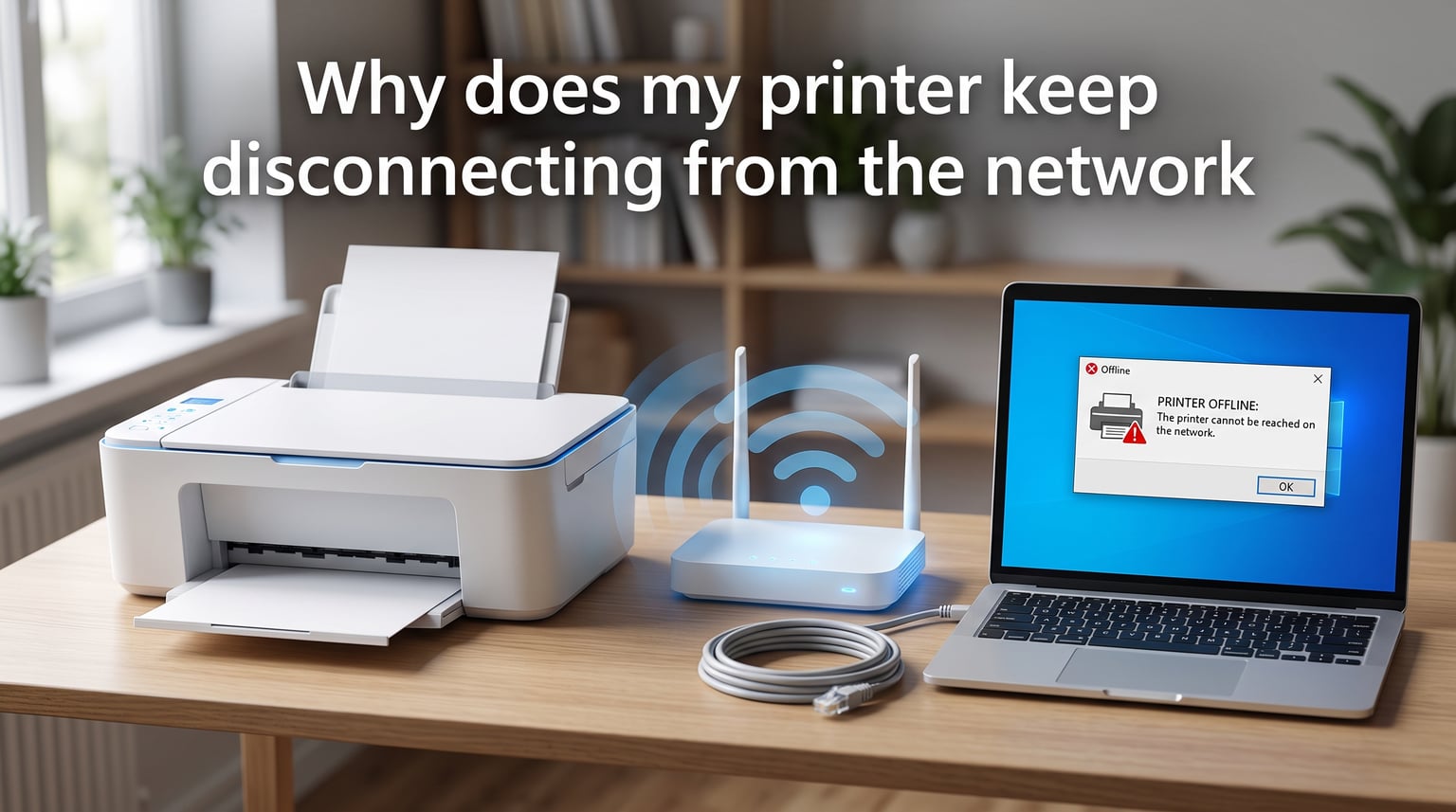
Nothing kills productivity like hitting “Print” and seeing the same dreaded message: Printer offline. If your printer keeps disconnecting from the network, you are not alone. Our support team sees this complaint almost weekly, and the good news is that most disconnections come from just a handful of fixable causes.
In this guide, I will explain why your wireless printer drops off the network and show you exactly how to make it stay connected. We will cover everything from quick power-cycle fixes to router-specific settings like airtime fairness and IPv6. Whether you use HP, Brother, Epson, or Canon, you will find a solution that applies to your setup.
Quick Overview: How to Stop Your Printer from Disconnecting
Start with the fastest wins first. These five actions resolve the majority of printer network connection drops:
- Power cycle your printer, router, and computer in the correct order.
- Move the printer closer to the router or remove physical obstructions.
- Disable sleep mode or power-saving mode on the printer.
- Assign a static IP address or DHCP reservation.
- Update the printer firmware and computer drivers.
If those basics do not help, the issue usually lies in router settings, band selection, or firmware bugs. The sections below walk through each fix in detail.
Common Causes: Why Your Printer Keeps Disconnecting from the Network
Printers are simple devices, but they are surprisingly sensitive to network changes. Understanding the root cause makes troubleshooting much faster.
Weak Wi-Fi Signal Is the Most Frequent Culprit
A wireless printer needs a stable signal to maintain its connection. If the printer sits in a different room, behind a wall, or near a microwave, the signal can fluctuate just enough to knock it offline. One user on Reddit described moving their Brother printer three feet closer to the router and watching days of disconnection issues disappear.
Many printers also have weaker antennas than laptops or phones. A location where your phone gets “two bars” may be too weak for a printer.
Sleep Mode Drops the Connection After Inactivity
This is one of the biggest causes of a printer that disconnects after sitting idle. To save power, printers enter a low-power sleep state. When they wake up, some models fail to reconnect cleanly to the router. The result: your computer thinks the printer is offline until you restart it.
In forum threads, this pattern shows up constantly. People report the printer works fine for a few hours, then disappears. Disabling auto-sleep or extending the sleep timer usually fixes it.
DHCP Lease Expiration Causes IP Address Changes
Your router assigns a temporary IP address to the printer through DHCP. That “lease” expires after a set time, often 24 hours. If the printer and router do not renew the lease cleanly, the printer may get a new IP address. Your computer then tries to print to the old address and fails.
This is why assigning a static IP or DHCP reservation solves so many disconnection problems. The printer always keeps the same address on the network.
Outdated Firmware and Drivers Create Compatibility Bugs
Router firmware updates sometimes change wireless standards or security settings. If your printer firmware is older, it may no longer speak the same language as the router. Driver updates on your computer matter too, because the driver tells the operating system how to reach the printer.
We have seen cases where a single firmware update on an HP printer fixed months of random drops.
Router Incompatibility Is More Common Than You Think
Not all routers and printers get along. Forum users frequently report problems with specific combinations, especially Brother printers paired with Eero, Arris, or ASUS routers. ASUS routers have a feature called airtime fairness that can deprive low-bandwidth devices like printers of enough radio time, causing them to drop.
Eero and Arris routers sometimes disable IPv6 in ways that confuse certain printer models. Enabling IPv6 on the printer side often resolves this.
Network Congestion and Interference Add Instability
If your network has many devices, streaming video, video calls, and gaming all compete for bandwidth. A printer with a weak signal is often the first device to lose its place. Cordless phones, baby monitors, and neighboring Wi-Fi networks on the same channel can also interfere.
Switching the printer to a less crowded 2.4GHz channel or giving it a dedicated band can dramatically improve stability.
Step-by-Step Troubleshooting Guide
Work through these steps in order. Each one targets a different cause, so you can isolate the real problem without guessing.
Pre-Troubleshooting Checklist
Before changing settings, confirm the basics. This saves time and avoids unnecessary resets.
- Make sure the printer is turned on and not showing an error light.
- Print a network configuration page from the printer menu to confirm it has an IP address.
- Check that your computer and printer are on the same network, especially if you use a guest network or Wi-Fi extenders.
- Verify the Wi-Fi password has not changed recently.
- Restart your router if other devices are also acting slow or dropping.
If the printer shows no IP address at all, the wireless setup itself has failed. You will need to rerun the network wizard before anything else.
Step 1: Power Cycle Everything in the Right Order
Power cycling sounds too simple to work, but it clears temporary network states and refreshes the connection. Do it in this specific order:
- Turn off the printer and unplug it from power.
- Unplug your router and modem, if they are separate.
- Wait 60 seconds for capacitors to drain.
- Plug the modem back in and wait for it to fully boot.
- Plug the router back in and wait for Wi-Fi to come online.
- Plug the printer back in and turn it on.
- Wait two minutes, then try printing a test page.
This sequence matters because it lets the router assign IP addresses cleanly before the printer asks for one.
Step 2: Check and Improve Wi-Fi Signal Strength
Most printers need at least a “good” signal to stay connected reliably. Here is how to check and improve it:
- Print a wireless network test page from the printer’s settings menu.
- Look for a signal strength reading. If it says “poor” or “weak,” move the printer.
- Place the printer within 10-15 feet of the router with minimal walls between them.
- Avoid placing the printer near microwaves, cordless phones, baby monitors, or large metal objects.
- Consider a Wi-Fi extender or mesh node if the printer must stay far from the router.
In our testing, simply raising the printer off the floor or moving it away from a TV improved signal enough to stop random disconnects.
Step 3: Disable Power-Saving or Sleep Mode
Sleep mode is convenient for energy savings but is a common reason a printer goes offline after inactivity. Disable or extend it:
- HP: Open the Embedded Web Server by typing the printer’s IP into a browser. Go to Settings > Power Management > Sleep Mode and set it to the longest delay or off.
- Brother: On the printer panel, press Menu > Machine Info. > Sleep Time. Set it to 50 minutes or disable it through the Brother web interface.
- Epson: Press Home > Setup > Printer Setup > Sleep Timer and set it to off or the maximum value.
- Canon: Use the printer menu to find Eco Settings or Power Save and disable auto power off.
After changing this setting, restart the printer and monitor it for 24 hours.
Step 4: Assign a Static IP Address or DHCP Reservation
This is the single most reliable fix for a printer that drops off the network randomly. You have two options.
Option A: DHCP Reservation on the Router
This is usually easier because you manage the address from one place.
- Find the printer’s MAC address on the network config page.
- Log in to your router’s admin page.
- Find the DHCP reservation or static lease section, often under LAN or DHCP settings.
- Add a reservation using the printer’s MAC address and assign an IP address outside the normal DHCP pool.
- Save and restart the printer.
Option B: Static IP on the Printer
- Open the printer’s network settings from its control panel or web interface.
- Change IP configuration from Automatic to Manual.
- Enter an IP address in the same range as your router, for example 192.168.1.50.
- Enter the subnet mask, usually 255.255.255.0.
- Enter the default gateway, which is your router’s IP address.
- Set DNS to your router’s IP or a public DNS like 8.8.8.8.
Make sure the static IP is not in the router’s DHCP range to avoid conflicts. For example, if your router assigns addresses from 192.168.1.100 to 192.168.1.254, use 192.168.1.50.
Step 5: Update Printer Firmware and Computer Drivers
Outdated firmware is a silent cause of many network issues. Here is how to update each major brand.
- HP: Use HP Smart app or visit HP’s support site, enter your model, and download the latest firmware.
- Brother: Use Brother iPrint&Scan or the firmware update tool from Brother’s support page.
- Epson: Download Epson Software Updater from Epson’s website and run it while the printer is connected via USB or network.
- Canon: Use Canon’s IJ Network Tool or download firmware from the support site.
For drivers, go to your computer’s device manager or printer settings, remove the old printer entry, then add it fresh after the firmware update. On Windows, you can also use the “Remove device” option in Settings > Bluetooth & devices > Printers & scanners.
Step 6: Run the Printer’s Network Setup Wizard
If the printer still will not stay connected, rerun the wireless setup from scratch. This is especially important after changing routers or Wi-Fi passwords.
- On the printer, find Network Setup, Wireless Setup Wizard, or Wi-Fi Setup.
- Choose your network name from the list.
- Enter the password carefully. Use the printer’s on-screen keyboard or WPS if supported.
- When finished, print another network config page to confirm a valid IP address.
Avoid using WPS if your router supports it poorly. Typing the password manually is more reliable on some networks.
Step 7: Check Router Settings That Affect Printers
Several router settings commonly cause printers to disconnect. Log in to your router and review these:
- Band steering: Some routers try to push devices to 5GHz. Printers often work better on 2.4GHz. Disable band steering or create separate network names for each band.
- Airtime fairness: On ASUS and some Netgear routers, this prioritizes fast devices and can starve printers. Turn it off.
- IPv6: Some printers need IPv6 enabled. Others need it disabled. Try switching this setting if nothing else works.
- MAC address filtering: Make sure the printer’s MAC address is allowed.
- Guest network isolation: Do not put the printer on a guest network if your computer is on the main network.
After each change, restart the printer and test before moving to the next setting.
Advanced Fixes for Stubborn Disconnections
If the standard steps fail, these advanced fixes address deeper issues. Apply them one at a time so you can identify which one helps.
Enable or Disable IPv6 on the Printer
IPv6 is a newer internet protocol, and some routers handle it inconsistently. Forum users with Eero and Arris routers found that enabling IPv6 on their Brother printers fixed disconnection issues. Others found that disabling IPv6 helped older HP models.
Check the printer’s network menu for an IPv6 setting. Try toggling it, restarting the printer, and testing for 24 hours.
Disable Airtime Fairness on ASUS Routers
ASUS routers include a feature called airtime fairness that gives more radio time to fast devices. Printers are slow, low-bandwidth devices, so they can get pushed out. Several users reported their Brother printers stayed connected after disabling this feature.
To disable it, log in to your ASUS router, go to Wireless > Professional, find Airtime Fairness, and set it to Disable for both 2.4GHz and 5GHz.
Switch the Printer to the 2.4GHz Band
2.4GHz has longer range and better wall penetration than 5GHz. Most printers do not need the speed of 5GHz. If your router broadcasts one network name for both bands, separate them or disable 5GHz temporarily to force the printer onto 2.4GHz.
We generally recommend keeping printers on 2.4GHz unless they are very close to the router and explicitly support 5GHz well.
Reduce DHCP Lease Time
If your router gives out IP leases that last days or weeks, expired leases can cause stale connections. Some users fixed intermittent drops by setting the DHCP lease time to 24 hours or less. This forces more frequent renewals, which can keep the printer’s connection fresh.
Find this setting under LAN > DHCP Server in most routers.
Factory Reset the Printer and Set It Up Fresh
When software settings get corrupted, a factory reset can clear them. This is a last resort because you will need to reconfigure everything.
- Find the reset option in the printer menu, often under Settings > Restore Defaults or Setup > Reset.
- Confirm the reset and wait for the printer to restart.
- Rerun the wireless setup wizard.
- Reinstall the printer on your computer.
Many users in community threads said a factory reset finally resolved issues that had lasted for months.
CUPS Configuration for Mac Users
Mac computers use CUPS, the Common Unix Printing System, to manage printers. Sometimes the CUPS queue holds a stale IP address or corrupted driver.
- Open System Settings > Printers & Scanners.
- Remove the printer.
- Open a browser and go to
http://localhost:631to access CUPS. - Delete any remaining entries for the printer.
- Re-add the printer using the correct IP address.
This fix is especially helpful if your Mac sees the printer but print jobs never complete.
Printer Brand-Specific Disconnection Issues
Different manufacturers have different weak spots. Here is what we see most often.
HP Printers Keep Disconnecting
HP printers frequently go offline due to sleep mode and outdated firmware. Use the HP Smart app to check the printer status and run diagnostics. The app often flags network issues and offers one-click fixes. If the printer shows as offline in Windows but online in HP Smart, the problem is usually the computer’s driver or print spooler.
Restarting the Windows Print Spooler service can also help. Press Windows key + R, type services.msc, find Print Spooler, right-click, and choose Restart.
Brother Printers Lose Network Connection
Brother printers are reliable, but they have well-documented compatibility issues with Eero, Arris, and ASUS routers. The most effective fixes are enabling IPv6, disabling airtime fairness, and assigning a static IP. Brother printers also tend to have aggressive sleep timers, so extending sleep time is often necessary.
If your Brother printer worked fine until you got a new router, router compatibility is almost certainly the cause.
Epson Printers Drop Off Wi-Fi
Epson printers sometimes struggle with dual-band routers that broadcast one network name. Separating the 2.4GHz and 5GHz bands often fixes this. Epson also releases firmware updates that improve Wi-Fi stability, so check for updates regularly.
If your Epson printer disconnects after every restart, save your Wi-Fi settings and run the network setup again.
Canon Printers Go Offline
Canon printers often have aggressive eco modes that shut down wireless radios. Disable auto power off and eco settings if you experience disconnections. Also, Canon’s IJ Network Tool can help diagnose whether the printer is losing the router signal or the computer is losing the printer.
Preventing Future Network Disconnections
Once your printer stays connected, take a few steps to keep it that way.
Consider a Wired Connection When Possible
Ethernet is the most stable connection for a printer. If your printer is near the router, run an Ethernet cable and disable Wi-Fi on the printer. You will eliminate almost every wireless-related disconnection instantly.
Powerline adapters or MoCA adapters can extend Ethernet without running long cables if the printer is in another room.
Place Your Router Strategically
Router placement affects every wireless device, but printers are especially sensitive. Place the router centrally, elevated, and away from metal objects or appliances. If you use a mesh system, make sure the printer connects to the nearest node.
Keep Firmware Updated on a Schedule
Set a reminder to check for printer and router firmware updates every three to six months. Manufacturers release fixes for bugs that cause disconnections, and staying current prevents problems before they start.
Monitor Your Network for Conflicts
If you have many devices, use your router’s admin page to check the client list. Look for duplicate IP addresses or devices you do not recognize. Remove old printer entries from your computer’s printer list to prevent driver confusion.
Frequently Asked Questions
Why won’t my printer stay connected to my Wi-Fi?
The most common reasons are sleep mode shutting down the wireless radio, weak Wi-Fi signal, DHCP lease expiration changing the printer’s IP address, outdated firmware, or router compatibility issues. Disabling sleep mode and assigning a static IP fix most cases.
How to fix network randomly disconnecting?
Power cycle your printer, router, and modem in order. Then improve Wi-Fi signal, disable power-saving mode, assign a static IP, update firmware and drivers, and check router settings like band steering and airtime fairness.
How do I get my printer to stay online?
Keep the printer within range of the router, use a static IP or DHCP reservation, disable sleep mode, update firmware regularly, and place the printer on the 2.4GHz band. For the most stable connection, use Ethernet if possible.
Why does the HP printer keep disconnecting?
HP printers often disconnect due to aggressive sleep timers, outdated firmware, or Windows driver issues. Use the HP Smart app to diagnose, update firmware, restart the Print Spooler service, and disable sleep mode.
Why does my printer disconnect after going to sleep?
Power-saving mode turns off or reduces the printer’s wireless radio. When it wakes, some printers fail to reconnect cleanly. Disable auto-sleep or extend the sleep timer in the printer settings.
Should I use 2.4GHz or 5GHz for my wireless printer?
Most printers work better on 2.4GHz because it has longer range and better wall penetration. Only use 5GHz if the printer is very close to the router and supports it well.
Conclusion
If your printer keeps disconnecting from the network, the cause is usually one of a few things: sleep mode, weak Wi-Fi, an IP address that keeps changing, outdated firmware, or router settings that do not play nicely with printers. The good news is that each of these has a clear fix.
Start with the quick wins: power cycle, move the printer closer, disable sleep mode, and assign a static IP. If the problem persists, dig into router settings like band steering, airtime fairness, and IPv6. For the most stubborn cases, a factory reset and fresh setup usually does the job.
Once everything is stable, keep firmware updated and consider a wired Ethernet connection for maximum reliability. A printer that stays connected saves time, frustration, and wasted paper.