
If your Apple Watch keeps disconnecting from your iPhone, you are not stuck with a broken wearable. I have dealt with this exact issue across multiple Apple Watch models over the last few years, and in most cases the fix takes under five minutes. This guide walks through every solution that actually works, starting with the fastest and moving to deeper fixes if the problem keeps coming back.
You will learn how to read the connection icons, refresh the Bluetooth link, reset network settings, unpair and repair the devices, and decide when the issue is likely hardware. Our team has tested these steps on Apple Watch Series 8, 9, 10, Ultra 2, and the original Ultra, paired with iPhones running iOS 2026.
How to fix an Apple Watch that keeps disconnecting from iPhone: quick checks
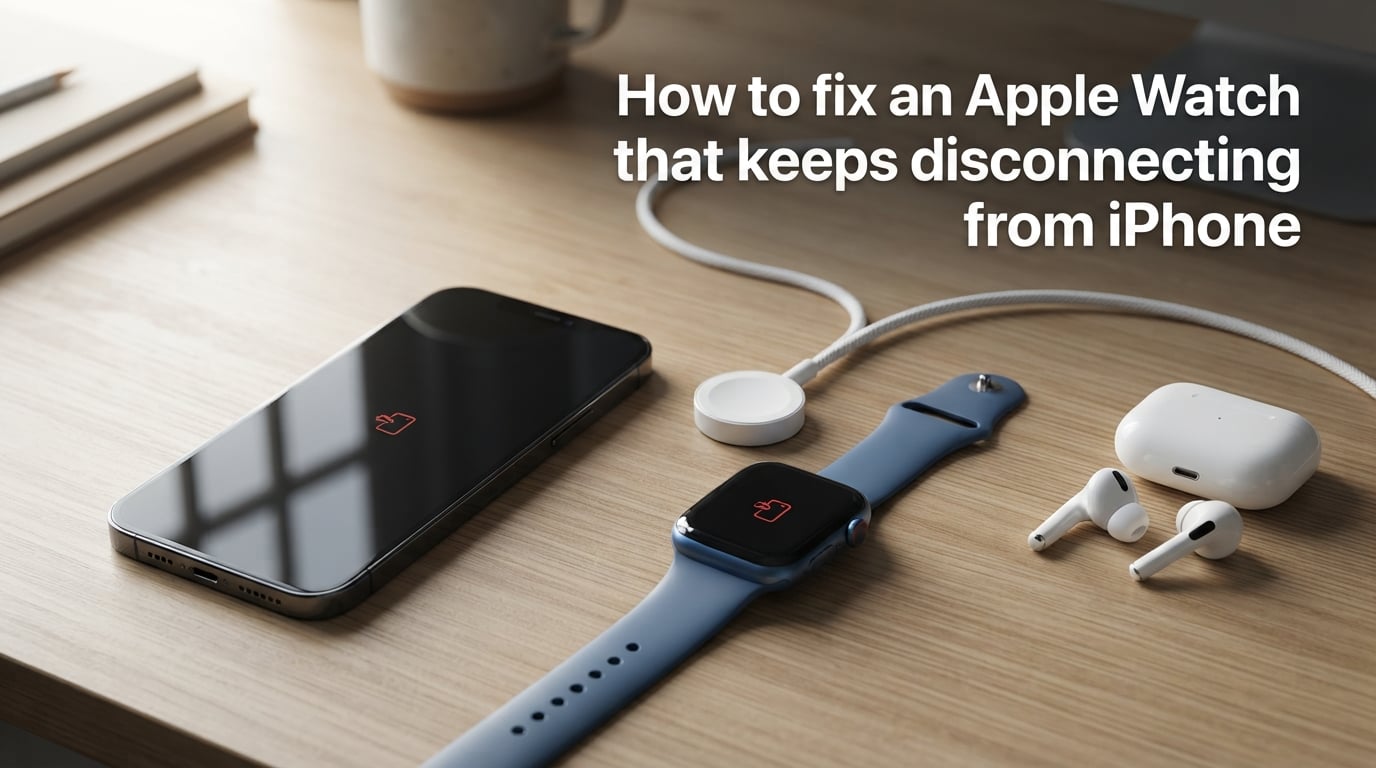
Before you change any settings, look at the top of your watch face. A green iPhone icon means your watch is connected to the phone. A red iPhone icon with a diagonal line through it means the connection is lost. Sometimes you will also see a crossed-out Wi-Fi symbol or a cellular icon, depending on which model you own.
Swipe up on the watch face to open Control Center and tap the iPhone icon to ping your phone. If the phone does not beep or flash, the Bluetooth link is down. You can also open the Watch app on your iPhone; if it says “Disconnected” or spins endlessly, the pairing handshake has failed.
Many Apple Watch connection problems are temporary. A single toggle or restart often restores the link, so do not assume you need a repair appointment right away.
Fast fixes that usually reconnect your Apple Watch
These three fixes solve the majority of Apple Watch pairing issues. Try them in order, checking your watch face after each one to see if the green iPhone icon returns.
Toggle Bluetooth on your iPhone
Open Control Center on your iPhone and tap the Bluetooth icon to turn it off. Wait about five seconds, then tap it again to turn it back on. Wait another ten seconds and check your watch for the green iPhone icon.
If the icon does not appear, open the Settings app, tap Bluetooth, and look for your Apple Watch under My Devices. Tap the blue info icon next to it, choose Disconnect, then tap Connect again. This forces a fresh handshake without removing the pairing.
This simple Bluetooth refresh fixes most cases where the Apple Watch says iPhone disconnected even though both devices are inches apart. I have used this fix myself when my watch lost connection during a workout and activity data refused to sync. It works because iOS sometimes holds onto a stale Bluetooth pairing state and needs to be reset.
Toggle Airplane Mode on both devices
If toggling Bluetooth does not work, force both radios to restart. Open Control Center on your iPhone, tap the airplane icon, wait five seconds, then tap it again. Repeat the same steps on your Apple Watch by swiping up from the watch face and tapping the airplane icon.
Turning Airplane Mode on and off resets Bluetooth, Wi-Fi, and cellular radios at the same time. Several forum users reported that this step worked when the Bluetooth toggle alone did not. It is also faster than restarting both devices.
Restart your iPhone and Apple Watch
A full restart clears background processes that manage the Bluetooth connection. Start with your iPhone: hold the side button and a volume button until you see the power-off slider, then slide it. After the iPhone boots back up, restart the Apple Watch by holding the side button until the power-off slider appears, then drag it.
If your watch is frozen or unresponsive, press and hold both the side button and the Digital Crown for at least ten seconds to force a restart. Release the buttons when you see the Apple logo. Once both devices are on, check the watch face for the green iPhone icon.
Advanced steps when quick fixes fail
If your Apple Watch still will not stay paired, the cause is usually software, distance, or wireless interference. Work through these steps one at a time so you can identify which one actually fixes the issue.
Check distance, walls, and interference
Bluetooth on the Apple Watch has a practical range of about 30 feet in open space. Thick walls, metal cabinets, and large kitchen appliances can shrink that range dramatically. I have seen watches disconnect when the wearer walks into a kitchen while the phone stays in a living room, especially with a microwave or refrigerator between them.
Other electronics can also interfere. Wireless speakers, baby monitors, and crowded Wi-Fi networks on the same 2.4 GHz band can disrupt the Bluetooth signal. Try keeping your iPhone in the same room as your watch for a full day. If the disconnections stop, interference or range is the culprit, not a hardware defect.
Body interference matters too. If you tuck your iPhone deep in a back pocket or inside a metal case, the signal to your wrist can weaken. Move the phone to a front pocket or a bag closer to your watch during workouts.
Update iOS and watchOS
A mismatch between iOS and watchOS versions is a common reason an Apple Watch keeps disconnecting from an iPhone. On your iPhone, go to Settings > General > Software Update. On your watch, open the Settings app, tap General, then Software Update.
Install any available updates and keep both devices on charge during the process. Updates released in 2026 have fixed several Bluetooth pairing bugs for newer iPhone models. If you recently upgraded your iPhone, the watch may be running older firmware that does not communicate well with the new iOS build.
Reset network settings on iPhone
Resetting network settings wipes saved Wi-Fi networks, Bluetooth pairings, and VPN configurations, but it does not erase photos, apps, or messages. Go to Settings > General > Transfer or Reset iPhone > Reset > Reset Network Settings. Enter your passcode, confirm, and wait for the phone to reboot.
After the reboot, reconnect to Wi-Fi and re-pair your Apple Watch if needed. This step is especially helpful when your Apple Watch Bluetooth keeps disconnecting after an iOS update because the network stack can become corrupted during the upgrade. Make sure you know your Wi-Fi passwords before you start.
Unpair and repair your Apple Watch
Unpairing creates a fresh backup of your watch and removes the old pairing record. Open the Watch app on your iPhone, tap All Watches at the top left, tap the info icon next to your watch, then tap Unpair Apple Watch. Enter your Apple ID password when prompted and wait for the process to finish.
After unpairing, set up the watch again by bringing it near your iPhone and following the on-screen prompts. Choose Restore from Backup during setup so you do not lose your watch faces, settings, or health data. If the disconnections started right after you got a new iPhone, this step is usually the fix, because the pairing token from the old phone can conflict with the new one.
Erase and restore the watch
If unpairing does not help, erase the watch completely. On the watch, go to Settings > General > Transfer or Reset Apple Watch > Erase All Content and Settings. Set it up again as new rather than restoring from a backup. This is the most reliable way to rule out a corrupted watchOS installation.
I only recommend this step after you have tried everything else, since you will need to reconfigure complications and app permissions from scratch. In our testing, a clean erase fixed persistent Apple Watch connection problems that survived multiple Bluetooth toggles and restarts.
How to tell if the problem is hardware or software
Software-related disconnections usually follow a pattern. They start after an iOS update, happen only in certain rooms, or go away after a restart or Bluetooth toggle. Hardware problems are more consistent. If your Apple Watch disconnects everywhere, even when the phone is right next to it, and none of the fixes above help, the Bluetooth or Wi-Fi antenna may be damaged.
Look for physical clues too. Cracks around the watch case, water damage indicators, or a history of drops point toward hardware failure. Out-of-warranty repairs can cost around $400 according to forum reports, so it is worth exhausting every software fix before booking a Genius Bar appointment.
One quick test is to try the watch with a different iPhone. If it disconnects from that phone as well, the watch is the problem. If it stays connected, your original iPhone is the more likely source of the Apple Watch pairing issues.
How to stop your Apple Watch from disconnecting in the future
Prevention is mostly about habits and environment. Keep both devices updated to the latest iOS and watchOS versions. Charge your watch overnight near your iPhone so they can complete background syncing without losing power.
Avoid leaving your phone in a different room when you are doing something that depends on the watch, such as workouts or calls. When you upgrade to a new iPhone, unpair your watch from the old phone first, then pair it with the new phone rather than relying on a device-to-device transfer.
If you live in a crowded wireless environment, switch your home Wi-Fi to the 5 GHz band where possible to reduce 2.4 GHz congestion. Also remove any third-party VPN or firewall profiles you no longer use, since they can interfere with the watch’s background connection.
Frequently asked questions
Why won’t my Apple Watch stay paired with my iPhone?
The most common causes are stale Bluetooth pairing, outdated iOS or watchOS, wireless interference, or a corrupted pairing record after a new iPhone setup. Start with a Bluetooth toggle, then update both devices, and unpair and repair if the issue persists.
What do I do if my Apple Watch keeps unpairing?
Try toggling Bluetooth and Airplane Mode, restart both devices, update iOS and watchOS, reset network settings on the iPhone, and finally unpair and repair the watch. If it still unpairs daily, erase the watch and set it up as new.
How do I stop my watch from disconnecting from my phone?
Keep your iPhone and watch within about 30 feet with minimal walls between them, update both devices, avoid heavy 2.4 GHz interference, and restart the devices once a week if you notice frequent drops.
How to fix a disconnected Apple Watch?
Open Control Center on the watch, ping the iPhone, then toggle Bluetooth on the iPhone. If that fails, toggle Airplane Mode on both devices, restart both, and unpair and repair through the Watch app.
Why does my Apple Watch lose connection throughout the day?
Intermittent disconnections are usually caused by distance, interference from kitchen appliances or wireless speakers, a low battery, or software bugs. Test the watch in the same room as your phone for a day to isolate the cause.
Final thoughts on fixing Apple Watch disconnection issues
An Apple Watch that keeps disconnecting from an iPhone is frustrating, but it is rarely a permanent problem. Start with Bluetooth and Airplane Mode toggles, then move through restarts, software updates, and unpairing if the issue persists. If none of those steps work, a hardware check at Apple Support is the next stop.
Track which fix works for you. When the same solution keeps working, you have found your cause, and you can stop repeating steps that do not help. With a methodical approach, most Apple Watch not connecting to iPhone problems are solved in minutes.