
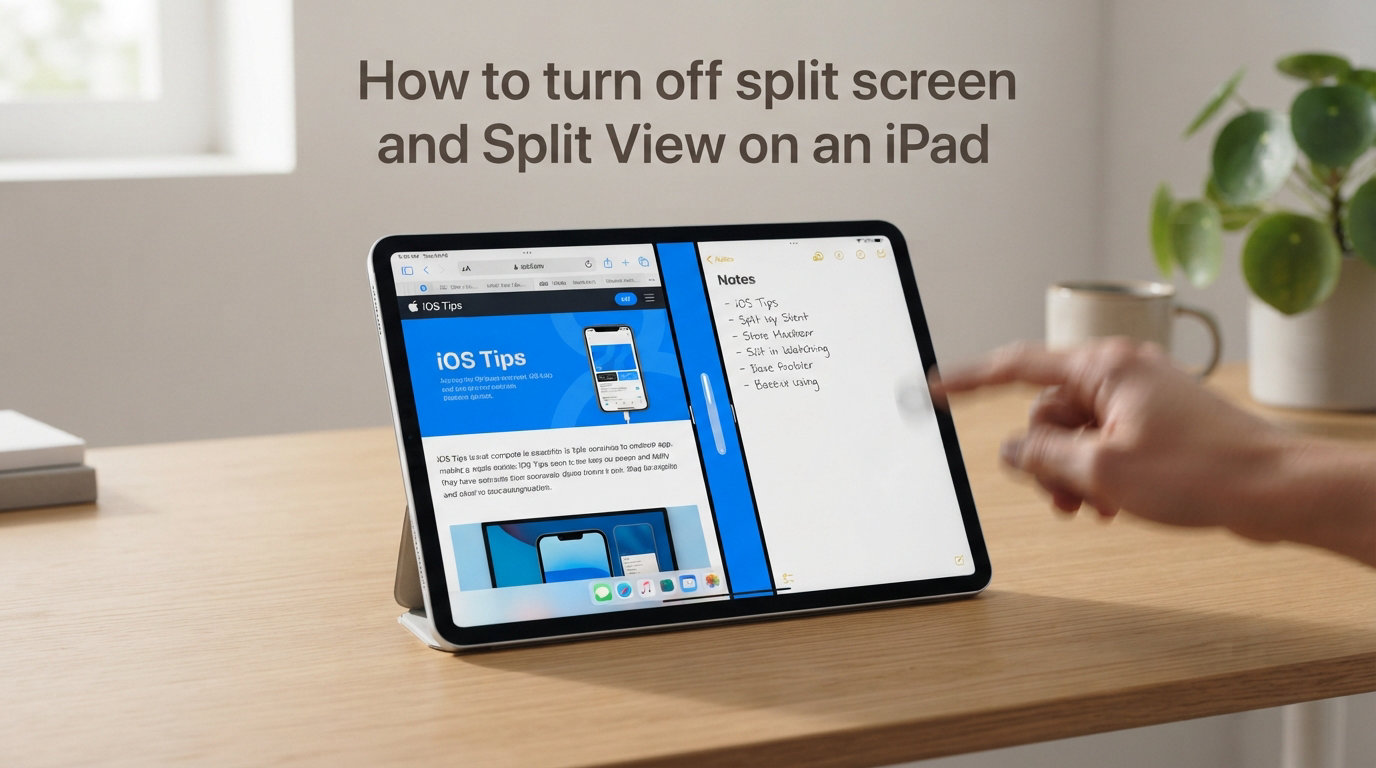
Getting your iPad stuck in split screen mode can be frustrating, especially when you just want to use one app at a time. Whether you accidentally triggered it or a family member enabled it without realizing, knowing how to turn off split screen and Split View on an iPad will save you time and frustration. In this guide, I’ll walk you through every method to exit split screen, close floating windows, and even disable the feature entirely if you prefer single-app mode. By the end, you’ll have all the tools you need to take back control of your iPad display.
Quick Answer: How to Turn Off Split Screen on iPad (TL;DR)
If you’re in a hurry, here’s the fastest way to exit split screen on your iPad:
To exit Split View immediately:
1. Find the vertical divider bar between the two apps on your screen.
2. Press and hold the divider.
3. Drag it all the way to the left or right edge of your screen until one app disappears.
4. Release, and you’re back to full-screen mode.
This works on most iPadOS versions and takes just a few seconds once you know where to look. The key is pressing firmly enough to “grab” the divider before you start dragging.
What Is Split View (Split Screen) on an iPad?
Split View is an iPad multitasking feature that displays two apps side by side on your screen at the same time. A vertical divider bar separates the two apps, and you can adjust the width of each app by dragging this divider left or right. This feature is designed to boost productivity by letting you view and interact with two apps simultaneously—like reading an article while taking notes, or watching a video while browsing the web.
Split View is different from Slide Over (a floating window that hovers over your main app) and Stage Manager (a windowed interface introduced in iPadOS 16). Many users trigger Split View accidentally while swiping or using multitasking gestures. A common way this happens is by accidentally dragging an app icon from the Dock while another app is open. If you’ve ever wondered why your iPad suddenly shows two apps instead of one, you’ve probably activated Split View without meaning to. The good news is that turning it off is simple once you understand how it works.
Method 1: Exit Split Screen by Dragging the Divider
The quickest way to turn off split screen on your iPad is by dragging the divider bar. This method works on iPadOS 15, 16, 17, 18, and 26. Here’s how to do it step by step.
Step 1: Locate the divider bar.
Look for the vertical line running down the middle of your screen (or slightly off-center). This divider separates the two apps in Split View. It’s usually a thin gray or black line that’s easy to miss if you’re not looking for it.
Step 2: Press and hold the divider.
Touch and hold the divider bar until you feel a slight vibration or see visual feedback. Don’t tap quickly—hold it for a moment. This signals to the iPad that you want to manipulate the split view rather than just interact with one of the apps.
Step 3: Drag the divider to the edge.
While holding the divider, drag it all the way to the left or right edge of your screen. Drag left to keep the right app open, or drag right to keep the left app open. The other app will shrink and eventually disappear. As you approach the edge, you’ll see the app you’re closing minimize into a small window before vanishing completely.
Step 4: Release to confirm.
When the divider reaches the edge and one app fills the screen, release your finger. Your iPad is now back in full-screen mode with just one app visible.
Tip: If the divider doesn’t drag smoothly, make sure you’re pressing firmly enough and holding before you start the drag motion. A quick tap won’t work—you need to press and hold. Also, make sure you’re touching the divider itself, not the content on either side of it.
What happens to the closed app? When you drag an app off the screen in Split View, it closes completely. You won’t lose any unsaved work in most apps, but the app will need to be reopened from the home screen or App Library if you want to use it again.
Method 2: Close a Floating Window (Slide Over)
Sometimes you’ll see a smaller window floating over your main app. This is called Slide Over, and it’s different from Split View. Slide Over apps appear as narrow vertical windows on the left or right side of your screen, typically taking up about one-third of the display width. They float on top of your main app and can be dismissed without affecting your full-screen experience. Here’s how to close them.
Step 1: Identify the Slide Over window.
Look for a narrow app window floating on the left or right edge of your screen. It’s typically about one-third the width of your display and appears as a vertical strip with its own content.
Step 2: Swipe it off the screen.
Place your finger on the top of the Slide Over window (the gray bar at the top of the floating window). Swipe quickly toward the edge of the screen where the window is located. If it’s on the right, swipe right. If it’s on the left, swipe left.
Step 3: The window disappears.
The Slide Over app will slide off the screen, leaving your main app in full-screen view.
Alternative method: You can also hide a Slide Over window temporarily by placing your finger on the top bar and swiping it to the side. It will tuck away but remain accessible with a quick swipe from the edge. To fully close it, swipe it off the screen completely.
Difference between Slide Over and Split View: Slide Over lets you quickly peek at an app without leaving your main app, while Split View shows two apps side by side with a divider. Closing a Slide Over window is easier because you just swipe it away, while exiting Split View requires dragging the divider.
Method 3: Disable Split View Completely in Settings
If you want to prevent Split View from activating in the first place, you can disable it entirely in Settings. This is especially useful if children use your iPad or if you find yourself accidentally triggering multitasking features. Many parents disable Split View to prevent their kids from accidentally entering a confusing mode while playing games or using educational apps. Here’s how to turn off split screen permanently on different iPadOS versions.
For iPadOS 17 and 18
Step 1: Open the Settings app on your iPad (the gray gear icon on your home screen).
Step 2: Scroll down and tap on Home Screen & Dock.
Step 3: Tap on Multitasking.
Step 4: Toggle off Allow Multiple Apps.
Once disabled, your iPad won’t enter Split View or Slide Over mode, even if you try to activate them with gestures. The Dock will no longer allow you to drag apps into Split View, and swipe gestures won’t trigger multitasking. You can always turn this setting back on if you decide you want to use Split View in the future.
For iPadOS 26
Apple changed the multitasking settings in iPadOS 26, so the path is different from earlier versions. Here’s the new path:
Step 1: Open the Settings app (gear icon).
Step 2: Tap on Multitasking & Gestures.
Step 3: Select Windowed Apps.
Step 4: Choose your preferred option or disable windowed multitasking entirely.
Note: In iPadOS 26, Split View as we knew it has been replaced with a new windowed interface. The experience is different, but you can still limit multitasking through these settings. The setting may be called “Windowed Apps” or “Allow Multiple Apps” depending on your exact version.
Child-Proofing Tip
If your child keeps accidentally activating Split View and getting frustrated, go to Settings > Multitasking & Gestures (iPadOS 26) or Settings > Home Screen & Dock > Multitasking (iPadOS 17-18) and turn off “Allow Multiple Apps.” This will prevent them from accidentally entering split screen mode while playing games or using educational apps. This simple setting can save both you and your child from unnecessary frustration.
How to Turn Off Split Screen on iPad: iPadOS 26 Changes
If you recently updated to iPadOS 26, you might notice that Split View behaves differently—or doesn’t exist in the same way it used to. Apple redesigned the multitasking system in this update, replacing the traditional Split View with a new windowed apps interface. This change has confused many users who were accustomed to the old way of managing split screens.
In iPadOS 26, apps can appear as overlapping windows rather than strictly side-by-side panels. This gives you more flexibility in how you arrange your apps, but it also means the familiar divider bar might not be present in the same way. To get back to a single full-screen app in iPadOS 26:
Step 1: Look for the three-dot menu at the top of your app window.
Step 2: Tap the three dots to reveal window controls.
Step 3: Tap the red X to close the window or tap the full-screen icon (the diagonal arrows) to expand it.
Alternatively, you can drag the window separator line to resize windows, or swipe windows away from the App Exposé view. To access App Exposé, swipe up slowly from the bottom of the screen and hold until you see your open windows.
Many users find the new system takes some getting used to. If you prefer the old way, unfortunately there’s no setting to revert to the previous Split View behavior. The best approach is to familiarize yourself with the new window controls and gesture-based navigation. You can still achieve a single-app full-screen experience—it just requires using the window controls instead of dragging a divider.
Which iPad Models Support Split View?
Split View and multitasking features are available on most modern iPads, but the exact features vary by model and iPadOS version. Older iPads may not support all multitasking options, and newer features like Stage Manager require specific hardware. Here’s a quick reference to help you understand what your device supports:
Supported iPads for Split View:
– iPad Pro (all models)
– iPad Air 2 and later
– iPad 5th generation and later
– iPad mini 4 and later
iPadOS requirements:
– Split View introduced in iPadOS 9
– Slide Over introduced in iPadOS 9
– Stage Manager introduced in iPadOS 16 (iPad Pro and iPad Air with M1/M2 chips only)
– Windowed Apps in iPadOS 26 (most supported iPads)
If your iPad doesn’t support Split View, you won’t see the multitasking options in Settings, and gestures won’t trigger split screen mode. This is actually a benefit if you’re prone to accidental activation—you won’t need to worry about disabling a feature that isn’t available on your device.
Frequently Asked Questions
How do I get my iPad out of split view?
To get your iPad out of Split View, locate the vertical divider bar between the two apps. Press and hold the divider, then drag it all the way to the left or right edge of your screen. Release when one app disappears and the other fills the screen. This returns your iPad to full-screen mode.
How do I get my split screen back to full screen on my iPad?
Drag the divider bar between the two apps to the edge of your screen. If you drag left, the right app will expand to full screen. If you drag right, the left app will expand. The other app closes, and you’re back to single-app full-screen mode.
How do I get my iPad back to just one screen?
Press and hold the vertical divider between your apps, then drag it completely off the screen to one side. The app you keep will expand to fill the display. Alternatively, you can disable Split View in Settings by turning off Allow Multiple Apps.
How do I deactivate split screen?
To permanently deactivate split screen, go to Settings u0026gt; Home Screen u0026amp; Dock u0026gt; Multitasking (iPadOS 17-18) or Settings u0026gt; Multitasking u0026amp; Gestures (iPadOS 26) and turn off Allow Multiple Apps. This prevents Split View and Slide Over from activating.
Conclusion
Knowing how to turn off split screen and Split View on an iPad is easier than it seems once you understand the methods. Drag the divider to exit quickly, swipe away floating windows, or disable the feature entirely in Settings if you prefer a simpler single-app experience. With iPadOS 26 introducing new multitasking options, the specific steps vary by version, but the core concepts remain the same. Use the quick-exit method when you need immediate relief, or adjust your settings for a more permanent solution. Whether you’re child-proofing your iPad or just want a cleaner single-app experience, you now have everything you need to manage your iPad display exactly the way you want.