
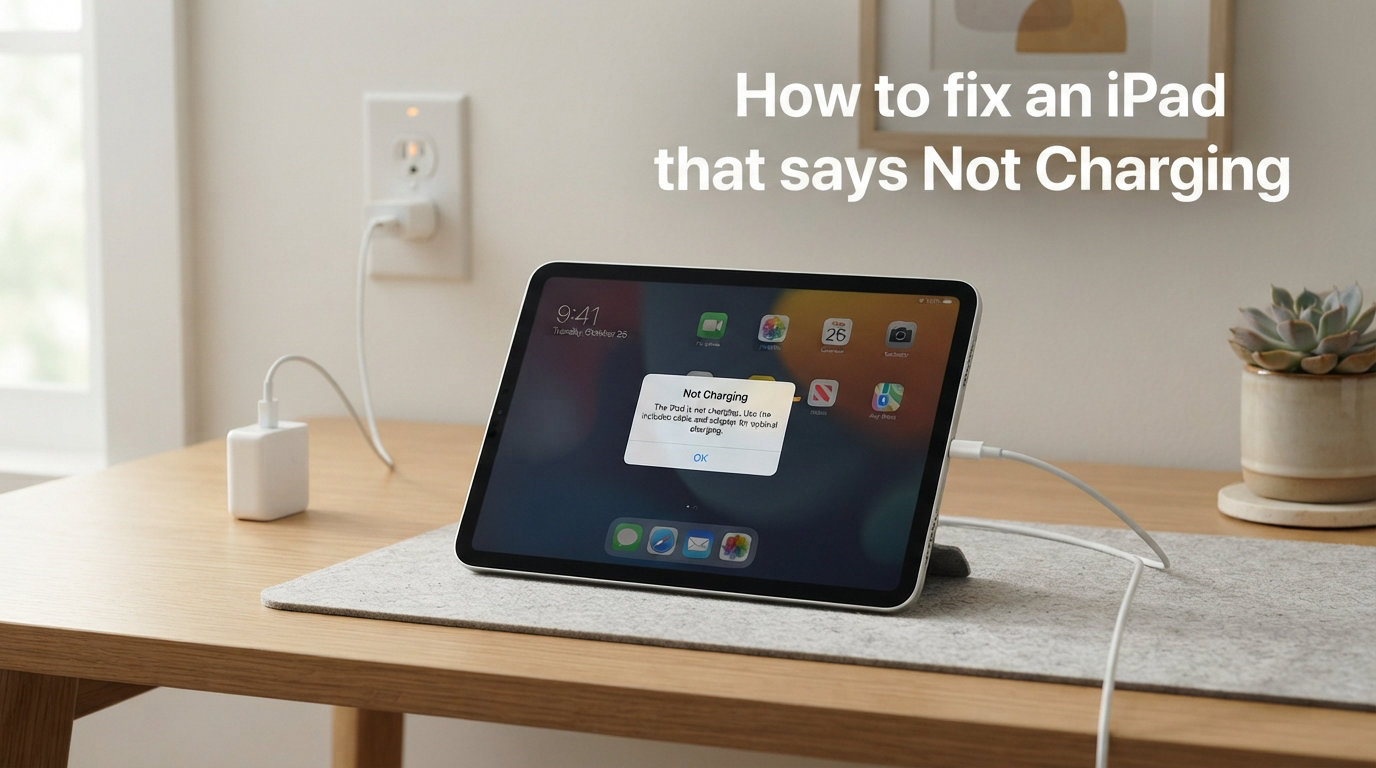
You plug in your iPad, glance at the screen, and see those two frustrating words: Not Charging. It is one of the most common issues iPad owners face, and in most cases, you can fix it yourself in under 15 minutes. Learning how to fix an iPad that says Not Charging starts with understanding that the problem is almost always hardware-related, not a sign your tablet is dying.
Your iPad displays “Not Charging” when it detects a power connection but the incoming wattage is too low to charge the battery. This happens most often when you plug into a computer USB port, use a damaged cable, or have debris packed into the charging port. Sometimes a software glitch after an iPadOS update is the real cause.
In this guide, our team walks you through nine proven fixes, ordered from easiest to most involved. We also cover what to do if your iPad is completely dead, the differences between Lightning and USB-C charging, and exactly when it makes sense to visit an Apple Store.
Quick Diagnostic: Is It the Cable, Adapter, or Port?
Before diving into individual fixes, take 30 seconds to narrow down the problem. This saves you from trying every fix on the list when only one is relevant.
If the iPad shows “Not Charging” immediately when plugged in: the power source or adapter is likely too weak. Try a wall outlet with a 20W adapter.
If the iPad charges intermittently or only at certain angles: your cable or charging port is probably damaged or dirty. Focus on Fixes 1, 4, and 5.
If the iPad stopped charging right after an iPadOS update: you are likely dealing with a software issue. Jump to Fix 5 (force restart) and Fix 6 (software update).
If the iPad was near water or humidity recently: check for corrosion in the charging port. Start with Fix 4 and Fix 9.
How to Fix an iPad That Says Not Charging: 9 Step-by-Step Solutions
Work through these fixes in order. Most users resolve the issue within the first three steps.
Fix 1: Check and Replace Your Charging Cable
The charging cable is the number one cause of iPad charging problems. Cables endure daily bending, pulling, and yanking, and even invisible internal damage can reduce power delivery below what your iPad needs.
Start by inspecting the entire cable length. Look for fraying near both connectors, kinks, or exposed wires. Even cables that look fine on the outside can have broken internal wires. Feel along the cable for any soft or flattened sections.
Check the connector tip closely. If you see discoloration, bent pins (on Lightning connectors), or a loose fit when plugged into the iPad, the cable needs replacing. A proper connection should feel firm and click into place with slight resistance.
Always use an MFi-certified cable. MFi stands for “Made for iPhone/iPad,” and it means Apple has tested and approved the cable for safe power delivery. Cheap gas station cables and many ultra-low-cost options on Amazon lack this certification and frequently cause “Not Charging” errors. MFi-certified cables regulate voltage correctly and protect your battery from damage.
The fastest way to confirm a cable problem is to borrow a known-good cable from another Apple device. If the iPad charges with the borrowed cable, your original cable is the issue.
Fix 2: Check Your Power Adapter
The power adapter (the charging brick that plugs into the wall) is the second most common culprit. Not all adapters deliver enough power to charge an iPad, and older or damaged adapters may have degraded output.
iPad models require different minimum wattage to charge reliably:
– iPad (standard), iPad Air, iPad mini: 20W power adapter minimum
– iPad Pro 11-inch: 20W minimum, 30W or higher recommended for faster charging
– iPad Pro 12.9-inch: 30W minimum, higher wattage adapters speed up charging
If you are using an old 5W iPhone adapter, your iPad will likely display “Not Charging” or charge extremely slowly. The same applies to many third-party phone chargers that output less than 12W.
Computer USB ports are another frequent problem. Standard USB-A ports on most computers deliver only 2.5W to 5W of power. Some newer USB-C ports on laptops can deliver enough power, but many older computers simply cannot keep up with iPad charging demands. Always test with a wall outlet to rule out low-power USB ports.
Check the adapter for physical damage, discoloration, or a loose fit when the cable connects to it. If the USB port on the adapter itself feels wobbly, replace the adapter.
Fix 3: Try a Different Wall Outlet or Power Source
This fix sounds too simple, but it resolves a surprising number of cases. The problem might not be your iPad or cable at all.
Power strips and surge protectors degrade over time. A surge protector that has absorbed several power spikes may still pass electricity but at reduced or inconsistent levels. Try plugging your adapter directly into a wall outlet instead.
Also test a different outlet entirely, preferably one in a different room on a different circuit. If your iPad charges in one outlet but not another, you have an electrical issue in your home, not a device problem.
Avoid charging from extension cords, power strips with many devices attached, or USB ports built into furniture or lamps. These sources often deliver insufficient or inconsistent power.
Fix 4: Clean the iPad Charging Port
A dirty charging port is incredibly common and surprisingly easy to fix. Pocket lint, dust, sand, and fabric fibers get compacted into the port every time you plug in the cable. Over months, this debris builds up until the cable can no longer make proper electrical contact.
Here is how to safely clean your iPad charging port:
Step 1: Power off your iPad completely. This prevents any short circuits during cleaning.
Step 2: Shine a flashlight into the port to inspect for visible debris. You will often see a packed layer of lint or dust at the bottom of the port.
Step 3: Use a wooden or plastic toothpick (never metal) to gently scrape along the inside walls of the port. Work slowly and carefully. Do not dig aggressively, as the pins inside are delicate.
Step 4: Hold the iPad with the port facing down and tap it gently against your palm. This helps dislodge loosened debris.
Step 5: Use a can of compressed air with the straw attachment to blow short bursts into the port. Keep the can upright to avoid spraying liquid propellant.
For USB-C ports on newer iPad Pro models, the cleaning process is similar. USB-C ports have a center pin, so be especially careful not to bend it. Some users on Reddit report that simply blowing forcefully into the port (like cleaning an old game cartridge) resolves the issue immediately.
If you see white or greenish residue inside the port, that indicates corrosion from moisture exposure. In that case, move on to Fix 9 for water damage steps.
Fix 5: Force Restart Your iPad
A force restart clears temporary software glitches that can block charging. This is especially helpful if your iPad stopped charging right after an iPadOS update or if the device has been running for weeks without a restart.
The force restart method depends on your iPad model:
For iPads without a Home button (Face ID models):
Press and quickly release the Volume Up button. Press and quickly release the Volume Down button. Press and hold the Top (power) button until the Apple logo appears on screen, then release it.
For iPads with a Home button:
Press and hold both the Home button and the Top (power) button at the same time. Keep holding both buttons until you see the Apple logo, then release both.
After the iPad restarts, plug it back in and check if it now shows the charging icon instead of “Not Charging.” A force restart does not erase any data or settings.
Fix 6: Update iPadOS to the Latest Version
Software bugs can interfere with charging. Multiple Reddit users have reported their iPads stopped charging immediately after an iPadOS update, only to be fixed by the next point release from Apple.
To check for updates, go to Settings > General > Software Update. If an update is available, install it while your iPad still has some battery life or while connected to a charger that provides at least slow charging.
If your iPad is completely dead and will not turn on, you cannot update it yet. Follow the dead iPad recovery steps later in this guide first, then check for software updates once the device powers on.
If you are running an iPadOS beta version, switching back to the stable release often resolves charging problems. Beta software can contain bugs that affect power management.
Fix 7: Remove Your iPad Case
Some bulky cases, especially rugged or waterproof models, prevent the charging cable from seating fully into the port. The cable clicks partway in but does not reach the contacts needed for power delivery.
Remove your case entirely and try charging. If the iPad charges without the case, you may need to trim the case opening slightly or switch to a thinner case that allows full cable insertion.
This is also worth trying with keyboard cases and docking stations. The Smart Connector on some Magic Keyboard models can sometimes interfere with USB-C charging on iPad Pro.
Fix 8: Turn On Low Power Mode
Low Power Mode reduces your iPad’s energy consumption by limiting background activity, visual effects, and certain features. If your iPad is connected to a weak power source (like a computer USB port) that delivers just barely not enough power, enabling Low Power Mode can tip the balance.
Go to Settings > Battery and toggle on Low Power Mode. Alternatively, add it to your Control Center for quick access through Settings > Control Center.
Once Low Power Mode is active, your iPad draws less power. If your power source provides even a small surplus above what the iPad now needs, it will begin charging slowly. This is not a permanent solution, but it can get you charging when nothing else works in the moment.
Fix 9: Check for Water or Liquid Damage
If your iPad has been exposed to rain, spills, high humidity, or condensation, liquid may have entered the charging port. This causes corrosion on the electrical contacts, which blocks charging.
Signs of water damage in the charging port include white, green, or brownish residue on the pins, a faint burning smell when charging, or visible condensation under the screen.
If you suspect liquid damage, do not plug the iPad in. Power it off and let it dry completely for at least 48 hours in a dry, warm location with good airflow. Do not use a hair dryer or oven, as heat can damage internal components.
After drying, clean the port with a wooden toothpick to remove any corrosion. If corrosion is severe or the port is visibly damaged, you likely need professional repair. Water damage typically voids any remaining warranty.
How to Bring a Completely Dead iPad Back to Life
If your iPad battery has drained to absolute zero and the screen stays black no matter what you press, do not panic. Completely dead iPads require patience and a specific approach.
Connect the iPad to a wall outlet using a known-good 20W or higher power adapter and an MFi-certified cable. Then wait. A completely depleted iPad often needs 15 to 30 minutes on the charger before the screen shows any charging icon at all.
In extreme cases, Reddit users report needing to leave a fully dead iPad plugged in for 1 to 3 days before it began accepting a charge again. This happens when the battery voltage drops so low that the charging controller needs extended time to safely trickle-charge it back to a minimum threshold.
If the iPad does not respond after an hour, try a force restart while it is still plugged in. The combination of being connected to power and a force restart can sometimes jump-start the charging process.
Once the screen shows a red battery icon, you are on the right track. Leave it plugged in until it reaches at least 5% before attempting to power it on.
USB-C vs Lightning: Charging Differences You Should Know
Starting with the 10th-generation iPad and the 2018 iPad Pro lineup, Apple transitioned from the Lightning connector to USB-C. Understanding the differences helps you troubleshoot more effectively.
Lightning connectors (used on iPad 9th gen and earlier, iPad mini 6 and earlier, iPad Air 3 and earlier) have exposed pins on both sides of the connector. These pins are more susceptible to dirt and corrosion damage. Lightning cables carry less power, typically maxing out around 12W to 18W for charging.
USB-C connectors (used on iPad 10th gen and later, all iPad Pro models from 2018 onward, iPad Air 4 and later, iPad mini 7) have a spring-loaded center pin inside the port. This pin can become bent or loose over time, which is a common hardware issue reported on iPad Pro models. USB-C supports higher power delivery, with iPad Pro models capable of accepting up to 30W or more.
If you have a USB-C iPad, you have more charging flexibility. You can use USB-C laptop chargers, USB-C power banks, and even charge other devices from your iPad. However, not all USB-C cables support data and power equally, so a cheap USB-C cable may still cause charging issues.
For USB-C iPad Pro models with a loose port (the cable wiggles significantly even when fully inserted), the port connector inside the iPad may be worn or detached from the logic board. This typically requires professional repair.
When to Contact Apple Support
If you have tried every fix on this list and your iPad still shows “Not Charging” or refuses to charge at all, the problem is likely hardware-related. Here is when to seek professional help:
– The charging port is visibly damaged, bent, or loose inside the iPad
– You see corrosion or burned pins in the port that cleaning cannot resolve
– Multiple known-good cables and adapters fail to charge the device
– The iPad was dropped recently and charging stopped immediately after
Apple Support can run diagnostic tests at an Apple Store or via mail-in service. If your iPad is under warranty or covered by AppleCare+, charging port repairs may be free or low-cost. Out-of-warranty repair costs vary by model but typically range from $199 to $549 depending on the iPad type.
Third-party repair shops can sometimes replace charging ports for less, but this will void any remaining Apple warranty. We recommend getting an official Apple diagnostic first before exploring third-party options.
FAQs
Why is my iPad not charging but its plugged in?
Your iPad says Not Charging when the power source delivers less wattage than the iPad needs, or when the charging cable and port cannot maintain a proper connection. The most common causes are a weak power adapter (under 20W), a damaged charging cable, debris packed into the charging port, or a computer USB port that outputs too little power. Try a different cable, a 20W wall adapter, and clean the charging port.
How to fix an iPad that won’t charge?
Follow these steps in order: 1) Try a different MFi-certified charging cable. 2) Switch to a 20W or higher power adapter plugged into a wall outlet. 3) Clean the charging port with a wooden toothpick and compressed air. 4) Force restart the iPad. 5) Check for iPadOS updates. 6) Remove the iPad case. 7) Try Low Power Mode if using a weak power source. If none of these work, the charging port may need professional repair.
How do I force an iPad to charge?
You cannot literally force an iPad to charge if the hardware connection is faulty. However, a force restart can clear software glitches blocking charging. For Face ID iPads, press and release Volume Up, then Volume Down, then hold the Top button until the Apple logo appears. For Home button iPads, hold both the Home and Top buttons until the Apple logo appears. After restarting, plug the iPad into a 20W wall adapter.
How do I bring my dead iPad back to life?
Connect the dead iPad to a 20W or higher wall adapter using an MFi-certified cable and wait at least 15 to 30 minutes. A completely depleted battery needs time to reach a minimum charge before the screen shows any sign of life. If it does not respond after an hour, try a force restart while still plugged in. In extreme cases, a fully dead iPad may need to stay plugged in for 1 to 3 days before it begins accepting a charge.
Conclusion
Knowing how to fix an iPad that says Not Charging comes down to a simple process of elimination. In roughly 80% of cases, the solution is replacing a worn cable, switching to a proper 20W wall adapter, or cleaning pocket lint from the charging port. These three fixes take less than 10 minutes and cost nothing if you already have spare accessories.
When those basic fixes do not work, a force restart and software update address software-related charging failures. For stubborn cases, removing the case, enabling Low Power Mode, and checking for water damage can make the difference. And if your iPad is completely dead, patience is your best tool, as deeply discharged batteries may need hours or even days on a proper charger.
The key takeaway is this: do not assume your iPad is broken just because it says “Not Charging.” Try each fix in order, use only MFi-certified cables and 20W or higher adapters, and keep your charging port clean. If you have exhausted every step in this guide with no success, contact Apple Support for a hardware diagnostic before spending money on third-party repairs.
Bookmark this guide so you have it ready the next time you or someone in your family sees those two frustrating words on the iPad screen. A few minutes of troubleshooting now can save you an unnecessary repair bill later.