
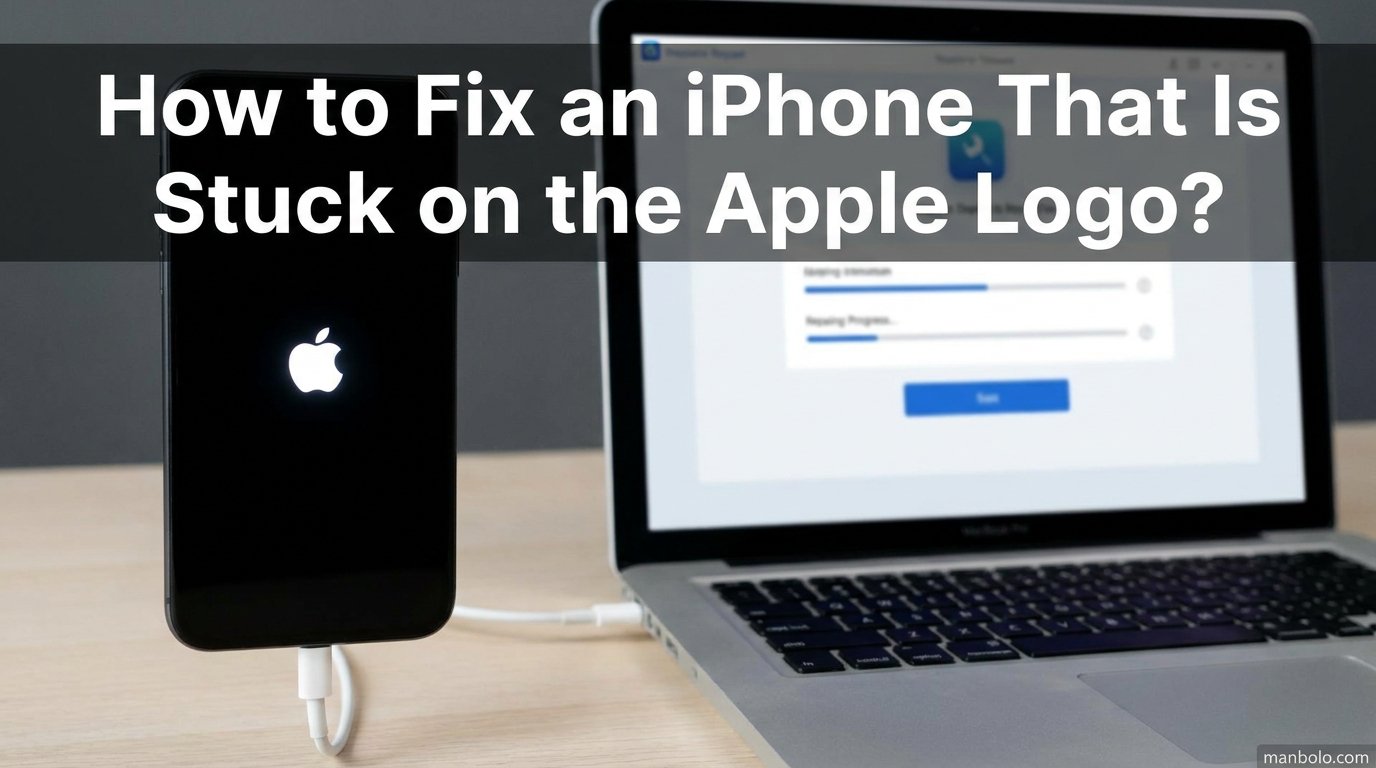
Seeing your iPhone stuck on the Apple logo is one of the most stressful moments a smartphone owner can face. The screen lights up, the Apple appears, and then nothing happens for minutes or even hours. You cannot unlock your phone, check messages, or access your photos.
In this guide, I will show you exactly how to fix an iPhone that is stuck on the Apple logo. I have organized the solutions from the fastest and safest to the more advanced options, so you can try them in order and stop when one works. Most cases are caused by a software hiccup and can be fixed at home, but I will also tell you when it is time to visit Apple Support.
Before you begin, charge your iPhone for at least 30 minutes if possible. A low battery can sometimes mimic a boot loop, and you do not want the device dying halfway through a restore.
Why Is Your iPhone Stuck on the Apple Logo?
Your iPhone shows the Apple logo while iOS loads. If something interrupts that loading process, the phone can freeze on that screen or restart repeatedly in a boot loop. The most common triggers are recent iOS updates, interrupted data transfers, very low storage, jailbreak tweaks, or physical damage.
One pattern I noticed while researching user reports is that phones with almost no free storage seem more likely to get stuck. If your iPhone had only a few hundred megabytes left before the issue started, that is a strong clue that freeing up space could help once you get back in.
Less common but more serious causes include water damage or a failing logic board. If your phone was dropped, exposed to liquid, or started overheating before the logo appeared, software fixes may not be enough.
How Long Should You Wait Before Trying Fixes?
A normal iPhone restart takes 30 seconds to 2 minutes. If the Apple logo appears while iOS is installing an update or transferring data from an old device, Apple says the process can take up to an hour. During that window, a progress bar may move slowly.
If the logo has been on the screen for more than an hour with no progress bar or the bar has not moved, it is time to act. Some users on Reddit report that leaving the phone unplugged for 24 hours drained the battery enough to break the loop and allow a fresh start, but that is more of a last-ditch trick than a reliable fix.
My advice: wait 10 minutes if you are patient, one hour maximum if you saw an update screen, then move to the force restart.
How to Fix an iPhone That Is Stuck on the Apple Logo: Force Restart First
The first thing to try is a force restart. This is different from a normal restart because it cuts power to the system and forces iOS to boot fresh. It will not erase your data. In many cases, one or two attempts will get the phone working again.
Choose the instructions that match your iPhone model.
For iPhone 8, iPhone SE (2nd generation and later), iPhone X, and newer (including iPhone 15/16/17)
- Press and quickly release the Volume Up button.
- Press and quickly release the Volume Down button.
- Press and hold the Side button on the right edge.
- Keep holding even when the Apple logo appears or the screen goes black.
- Release the Side button only when you see the lock screen or recovery mode screen.
For iPhone 7 and iPhone 7 Plus
- Press and hold both the Volume Down button and the Sleep/Wake (Side) button at the same time.
- Keep holding even if the Apple logo appears.
- Release both buttons when the phone restarts and shows the lock screen or recovery mode screen.
For iPhone 6s, iPhone SE (1st generation), and earlier
- Press and hold both the Home button and the Sleep/Wake (Top or Side) button at the same time.
- Keep holding even if the Apple logo appears.
- Release both buttons when the lock screen or recovery mode screen appears.
Do not be discouraged if the first force restart does not fix the issue. Forum users often mention needing 3 to 5 attempts before the phone finally boots normally. Timing matters, especially the quick press-and-release on the volume buttons for newer iPhones.
Restore Your iPhone in Recovery Mode
If a force restart does not work, the next step is recovery mode. You will need a Mac or a Windows PC with the latest version of iTunes, or Finder on macOS Catalina and later. This method reinstalls iOS and can often fix corrupted system files.
Recovery mode gives you two options: Update and Restore. Choose Update first if it is offered, because it tries to reinstall iOS without deleting your personal data. Choose Restore only if Update fails or if you are willing to erase the phone to get it working again.
How to enter recovery mode on iPhone 8 and newer
- Connect your iPhone to your computer using a Lightning or USB-C cable.
- Open Finder on Mac, or iTunes/Apple Devices app on Windows.
- Press and quickly release Volume Up.
- Press and quickly release Volume Down.
- Press and hold the Side button until the recovery mode screen appears (a cable pointing toward a laptop).
How to enter recovery mode on iPhone 7 and 7 Plus
- Connect the iPhone to your computer.
- Open Finder or iTunes.
- Press and hold Volume Down and the Side button together.
- Keep holding until the recovery mode screen appears.
How to enter recovery mode on iPhone 6s and earlier
- Connect the iPhone to your computer.
- Open Finder or iTunes.
- Press and hold the Home button and the Sleep/Wake button together.
- Keep holding until the recovery mode screen appears.
Once the recovery mode screen is visible, your computer should display a dialog. Select Update if you want to keep your data, or Restore if you are ready to erase the device. The process can take 15 to 45 minutes depending on your internet speed.
DFU Mode Restore: The Deepest Software Fix
DFU stands for Device Firmware Update. It is deeper than recovery mode because it bypasses the iOS bootloader entirely and reinstalls both the firmware and the operating system. Think of it as a factory-level software repair.
This method will erase everything on your iPhone. Use it only if recovery mode did not work or if a technician tells you it is necessary. Before you start, make sure you have a recent backup if possible, though many people with a boot-looping phone do not.
How to put iPhone 8 and newer into DFU mode
- Connect your iPhone to a computer and open Finder or iTunes.
- Press and quickly release Volume Up.
- Press and quickly release Volume Down.
- Press and hold the Side button for 10 seconds until the screen goes black.
- While still holding the Side button, press and hold Volume Down for 5 seconds.
- Release the Side button but keep holding Volume Down for another 10 seconds.
- The screen should stay black. If Finder or iTunes detects an iPhone in recovery mode, you are in DFU mode.
How to put iPhone 7 and 7 Plus into DFU mode
- Connect the iPhone to a computer.
- Press and hold the Side button and Volume Down together for 8 seconds.
- Release the Side button but keep holding Volume Down for another 10 seconds.
- The screen should remain black and the computer should detect the device in DFU mode.
How to put iPhone 6s and earlier into DFU mode
- Connect the iPhone to a computer.
- Press and hold the Sleep/Wake button and the Home button together for 8 seconds.
- Release the Sleep/Wake button but keep holding the Home button for another 10 seconds.
- The screen should stay black while the computer detects DFU mode.
After the device is detected, follow the on-screen prompts to restore it. The phone will reboot automatically when finished, and you can set it up as new or restore from a backup.
What NOT to Do When Your iPhone Is Stuck
It is easy to make things worse when you are frustrated. Avoid these common mistakes while troubleshooting your iPhone stuck on the Apple logo.
- Do not mash the buttons randomly. Incorrect timing can put the phone into recovery mode accidentally or interrupt a process that was actually working.
- Do not let the battery drain to zero intentionally. A fully dead battery can make recovery mode harder to enter and may cause further complications.
- Do not download random repair tools from unknown websites. Some third-party programs are safe and well known, but many are scams or contain malware.
- Do not open the iPhone yourself unless you have professional repair experience. Internal damage is not something most users can diagnose safely.
Patience is your best tool here. Each software restore takes time, and interrupting it can corrupt the installation.
When to Seek Professional Help
If none of the software methods above fix the boot loop, the problem is likely hardware. Signs that you need a professional include visible damage, liquid exposure, overheating, strange smells, or the phone getting unusually hot during charging.
Contact Apple Support through the Apple Support app on another device, or make a Genius Bar appointment at an Apple Store. If you have AppleCare+, accidental damage may be covered. Out-of-warranty repairs can still be worth it for newer models, but for older iPhones it may make more financial sense to replace the device.
Third-party repair shops can be cheaper, but Apple may not service a phone that has been opened by an unauthorized technician. Ask about data recovery options before any repair, especially if you do not have a backup.
Frequently Asked Questions
What should I do if my iPhone is stuck on the Apple logo?
Start with a force restart using the correct button sequence for your iPhone model. If that does not work after several tries, restore the device in recovery mode using a computer. As a last resort before repair, use DFU mode restore.
How to fix stuck at Apple logo endless reboot trick?
For an endless reboot loop, force restart the iPhone first. On iPhone 8 and newer, press Volume Up, Volume Down, then hold the Side button. Repeat up to 5 times if needed. If the loop continues, enter recovery mode and choose Update to reinstall iOS without erasing data.
How long will an iPhone be stuck on an Apple logo?
A normal restart takes 30 seconds to 2 minutes. During an iOS update or data transfer, the Apple logo can remain for up to an hour. If the screen is frozen for more than an hour, start troubleshooting with a force restart.
Can I fix an iPhone stuck on the Apple logo without losing data?
Often yes. A force restart does not erase anything. Recovery mode has an Update option that reinstalls iOS while keeping your data. DFU mode and Restore options will erase the device, so they should only be used if Update fails.
Conclusion
Now you know how to fix an iPhone that is stuck on the Apple logo. Start with a force restart, move to recovery mode if needed, and reserve DFU mode for stubborn cases. In most situations, one of these software fixes will bring your phone back to life.
To prevent the problem in the future, keep at least a few gigabytes of free storage on your iPhone, install iOS updates when your battery is reasonably full, and avoid interrupting data transfers. If your iPhone still will not boot after trying everything here, schedule an appointment with Apple Support to rule out hardware damage.