
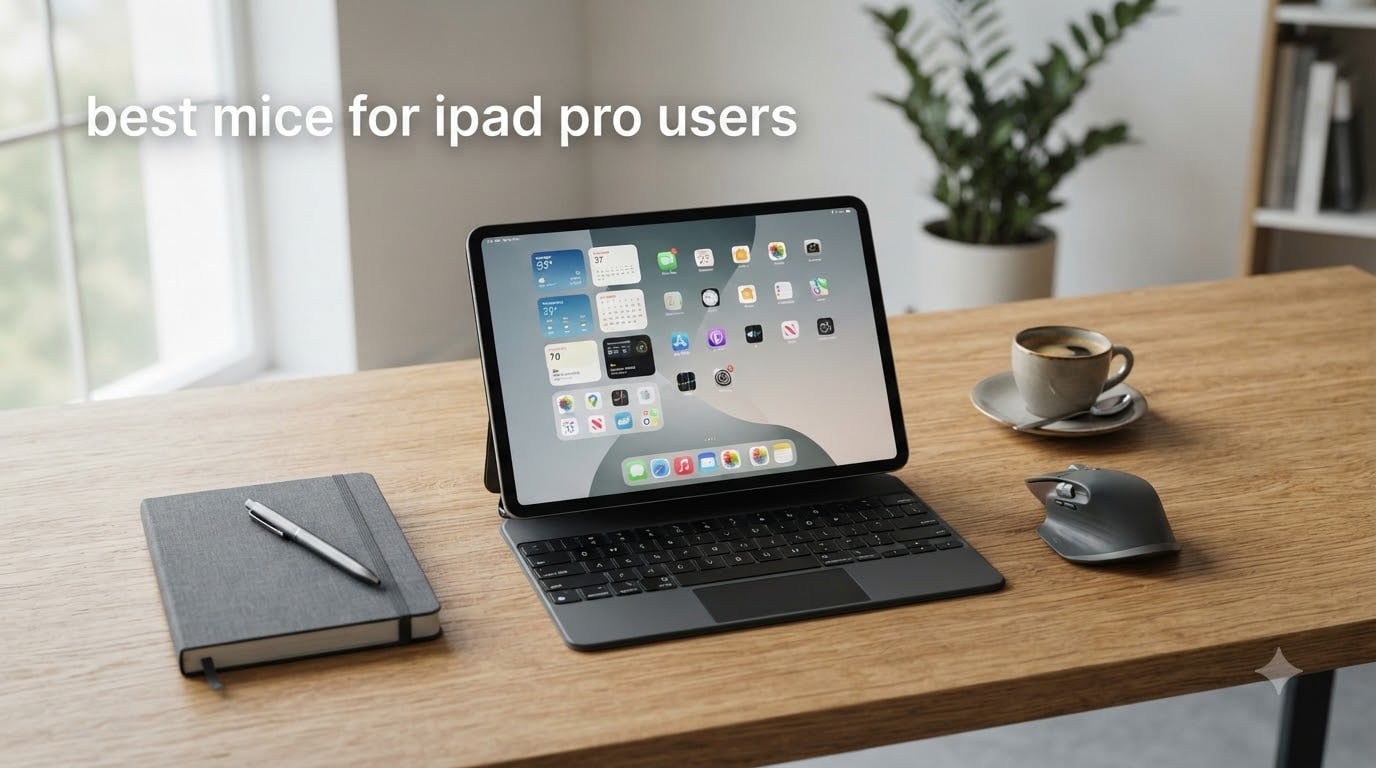
Using an iPad Pro as my daily work driver changed how I think about mobile productivity. The screen is gorgeous, the M-series chip flies through everything, and Stage Manager finally makes multitasking feel natural. But after three months of pinch-zooming and finger-tapping through spreadsheets, my hand was cramping. I needed a real cursor solution. That sent me down the rabbit hole of finding the best mice for iPad Pro users, and honestly, the difference was night and day.
I tested 10 Bluetooth and wireless mice with my iPad Pro across a mix of tasks: writing in Pages, editing timelines in LumaFusion, navigating Split View in Safari, and even light gaming. Some mice paired instantly and felt like natural extensions of iPadOS. Others had laggy scrolling, uncomfortable grips, or connectivity headaches. This guide covers what actually works, what to avoid, and which mouse fits your specific iPad workflow.
Whether you are a student taking notes in a quiet library, a designer working on Procreate for hours, or a professional who carries their iPad between meetings, there is a mouse here for you. Every pick on this list connects via Bluetooth (no dongle required) and works with iPadOS 13.4 or later. Let us get into the top recommendations.
Our Top 3 Tested Mice for iPad Pro Productivity
Out of all 10 mice I tested, three stood out for different reasons. The Logitech MX Master 3S dominates for full-time productivity with its ergonomic grip and 8K DPI sensor. The Logitech Pebble 2 delivers incredible value in a slim, silent package. And the Logitech M196 is the cheapest competent Bluetooth mouse I could find. Here is how they compare head to head.


Comparing All 10 iPad Pro Mice in 2026
Before diving into individual reviews, here is a side-by-side comparison of every mouse I tested. This gives you a quick scan of key specs like DPI, connectivity, battery life, and standout features so you can shortlist at a glance.
| Product | Specs | Action |
|---|---|---|
| Logitech MX Master 3S |
|
Check Latest Price |
 Logitech MX Anywhere 3S Mac Logitech MX Anywhere 3S Mac |
|
Check Latest Price |
 Apple Magic Mouse Apple Magic Mouse |
|
Check Latest Price |
| Logitech Pebble 2 |
|
Check Latest Price |
 Logitech M240 Silent Logitech M240 Silent |
|
Check Latest Price |
 Satechi M1 Satechi M1 |
|
Check Latest Price |
 Logitech M196 Logitech M196 |
|
Check Latest Price |
 Logitech MX Master 4 Logitech MX Master 4 |
|
Check Latest Price |
 Satechi Slim EX Satechi Slim EX |
|
Check Latest Price |
 TECKNET Wireless TECKNET Wireless |
|
Check Latest Price |
1. Logitech MX Master 3S – The Productivity Powerhouse for iPad Pro
Logitech MX Master 3S Bluetooth Wireless Mouse No Receiver – Graphite
8K DPI sensor
Bluetooth only
70-day battery
Tracks on glass
Quiet clicks
141g
7 buttons
Pros
- Excellent ergonomic design
- Very quiet clicks (90 percent less noise)
- Smooth and fast MagSpeed scrolling
- Works on any surface including glass
- Multi-device connectivity for 3 devices
- 70-day battery life
- Customizable buttons via Logi Options+
Cons
- No USB receiver included
- No charging cable included
- Right-hand only design
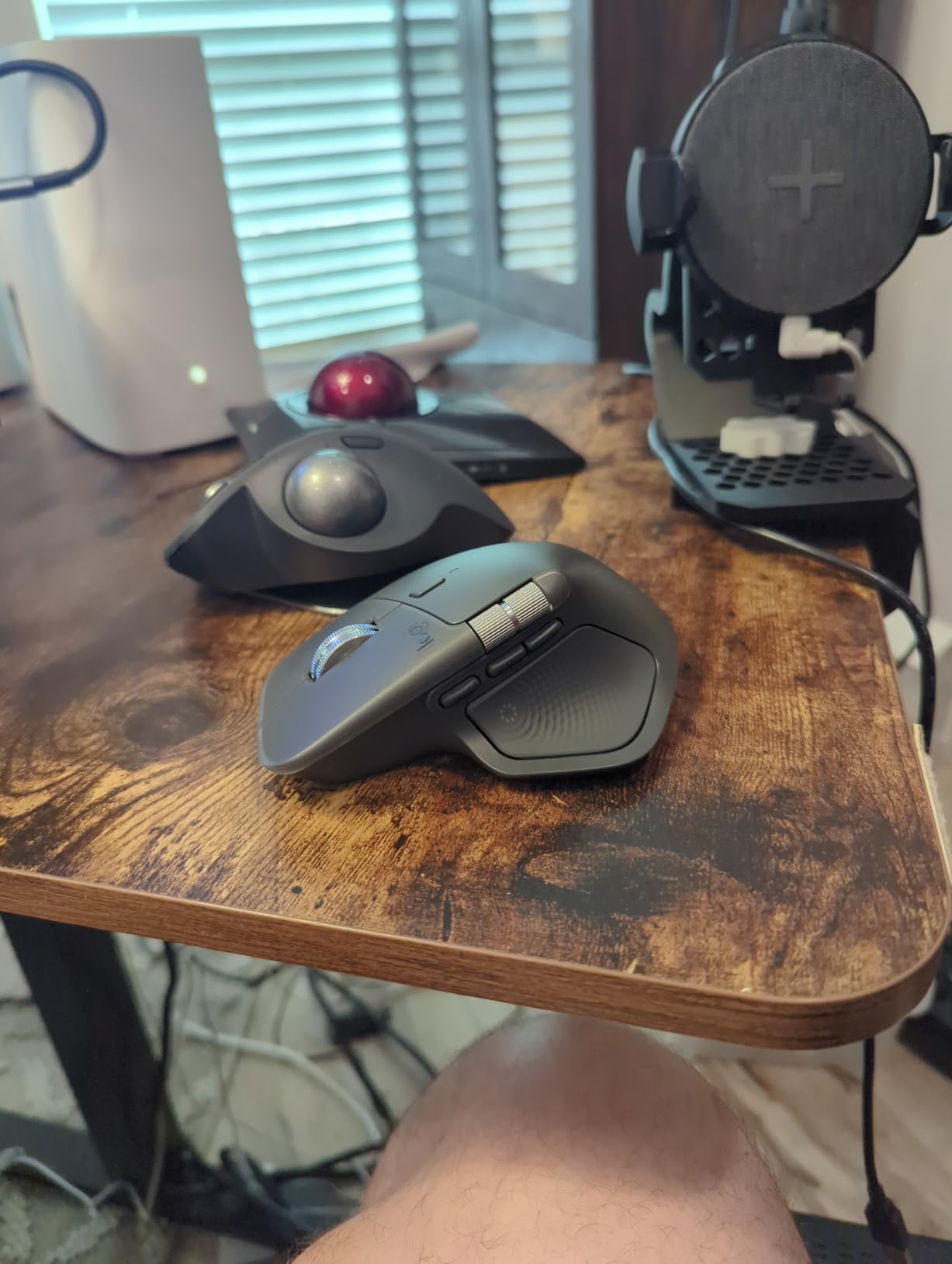
The MX Master 3S was the first mouse I grabbed after reading countless Reddit threads where iPad Pro users called it “better than any other mouse.” After two weeks of daily use, I understand the hype. This is the mouse that made my iPad Pro feel like a legitimate workstation rather than a consumption device.
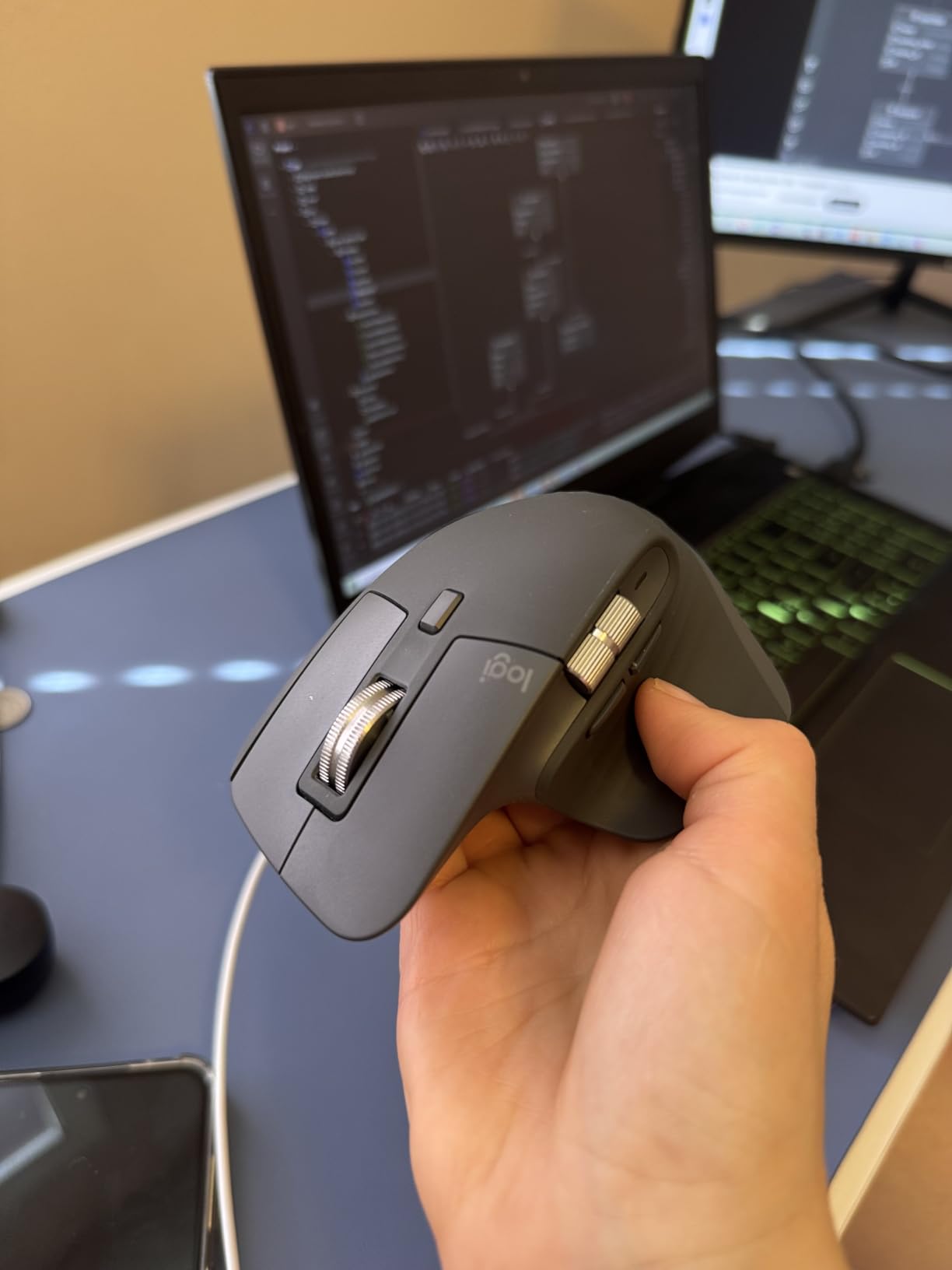
The ergonomics are where it immediately separates itself from the pack. The sculpted shape fills your palm naturally, and the thumb rest takes pressure off your wrist during long writing sessions. I spent four consecutive hours editing a document in Pages without any discomfort. That is something my Magic Mouse could never do.
Pairing with the iPad Pro took about ten seconds through Settings > Bluetooth. No app needed, no dongle required. The cursor moved with zero perceptible lag, and the iPadOS pointer responded smoothly to every movement. This is the experience I was hoping for when I started looking for a bluetooth mouse for ipad pro.
8K DPI Tracking on Glass and Every Surface
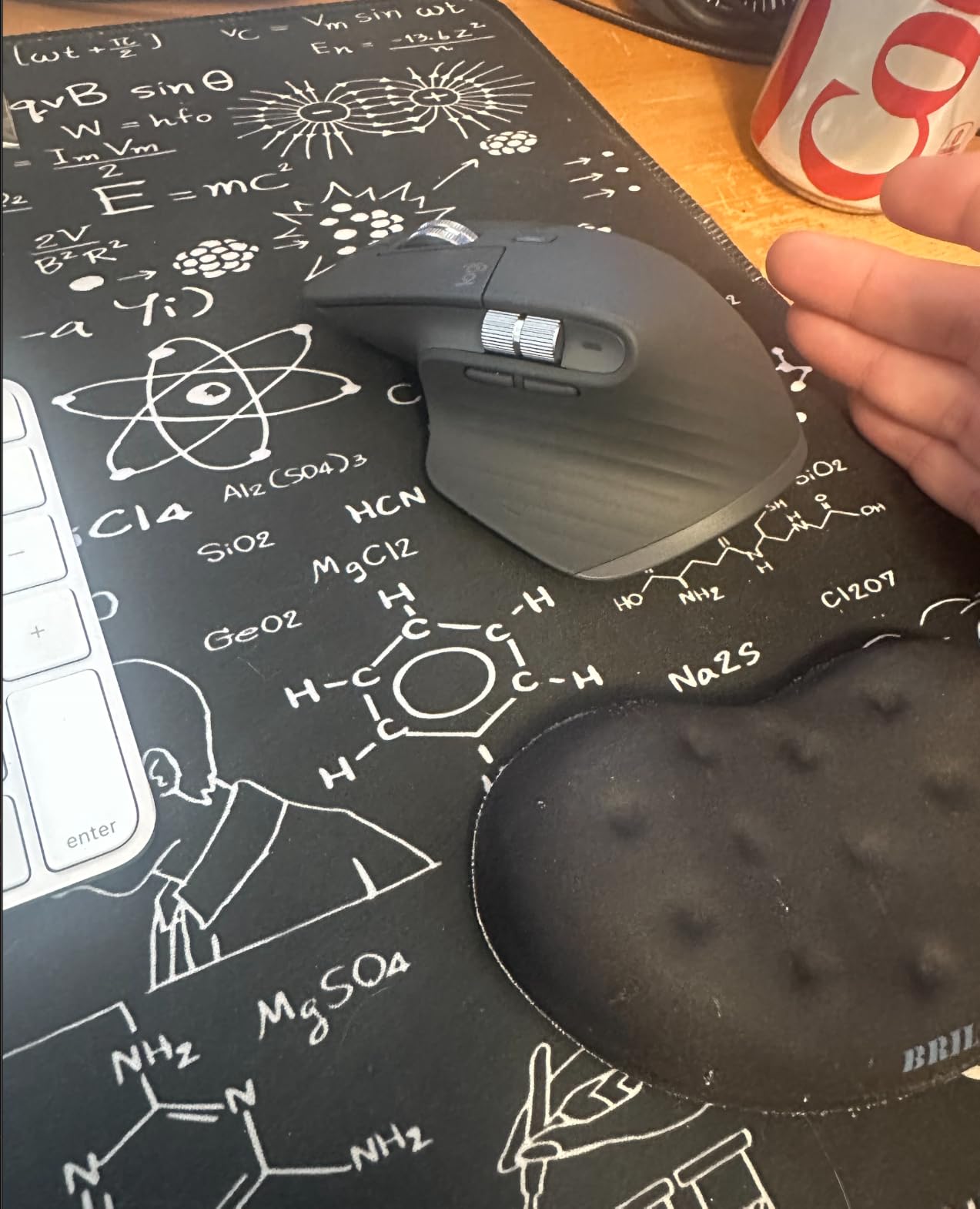
The 8000 DPI sensor is a standout feature for iPad Pro users who work in varied environments. I tested it on a wooden desk, a glass coffee table, a fabric couch armrest, and even a marble counter at a cafe. It tracked flawlessly on every single surface. Most budget mice stumble on glass, but the MX Master 3S glides through it without hesitation.
For designers using Procreate or Pixelmator on iPad, the precision matters. The high DPI means you can make fine adjustments to selections and brushes without overshooting. I noticed a real difference when zoomed in on detailed work versus the lower-DPI mice on this list.
Quiet Clicks for Library and Cafe Work
The quiet clicks on the MX Master 3S reduce click noise by 90 percent compared to standard mice. I tested this in a university library, and nobody around me flinched. The clicks have a soft, muted feel that is still satisfying to press. You get tactile feedback without the sharp snap that echoes in quiet spaces.
This matters more than you might think for iPad productivity. If you are a student or someone who works in shared spaces, loud clicks will annoy everyone around you. The MX Master 3S lets you work in peace without sacrificing click quality.
Multi-Device Flow Between iPad and Mac
The killer feature for Apple ecosystem users is Flow. I paired the MX Master 3S with my iPad Pro, my MacBook Pro, and my work Windows laptop simultaneously. With Logitech Flow enabled through Logi Options+, I could move my cursor across all three screens as if they were one. Copy text on the Mac, and paste it on the iPad. Transfer files between devices with a drag.
Now, Logi Options+ requires a Mac or PC to configure the buttons and set up Flow. But once configured, the mouse works perfectly on the iPad Pro with your custom settings. The three-device Easy-Switch means you tap one button to jump between iPad, Mac, and phone without re-pairing.
2. Logitech MX Anywhere 3S Mac – Compact Precision for Apple Users
Logitech MX Anywhere 3S Mac Compact Wireless Mouse 8K DPI – Space Grey
8K DPI sensor
Bluetooth
USB-C charging
Tracks on glass
Compact size
Mac-optimized
Pros
- Perfect for Mac users with seamless integration
- Compact and portable design
- Works on any surface including glass
- Excellent battery life
- Quiet and satisfying clicks
- Metal scroll wheel with magnetic ratchets
- Multi-device Easy-Switch for 3 Apple devices
Cons
- Compact size may be small for some users
- Windows compatibility limited
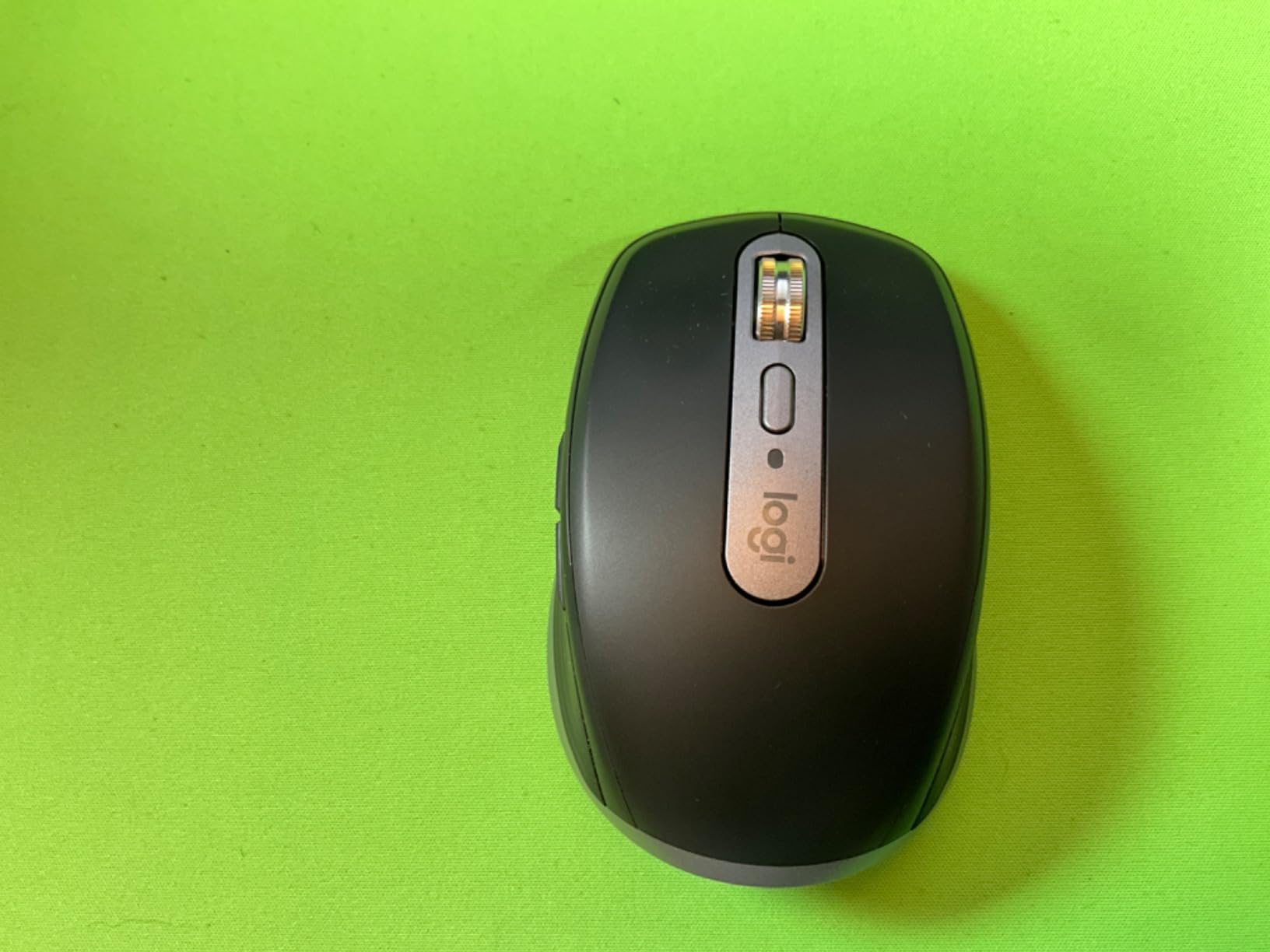
The MX Anywhere 3S Mac is the little sibling of the MX Master 3S, and in some ways I actually prefer it for iPad use. The compact size slips into any iPad sleeve or bag pocket effortlessly. It is the mouse I reach for when I am heading to a coffee shop and do not want to carry the bulkier MX Master.
Logitech designed this version specifically for Mac and Apple devices. It comes in Space Grey that matches the iPad Pro finish perfectly. The moment I unboxed it, it felt like an extension of my Apple setup rather than a third-party accessory. Pairing was instant with both my iPad Pro and MacBook.
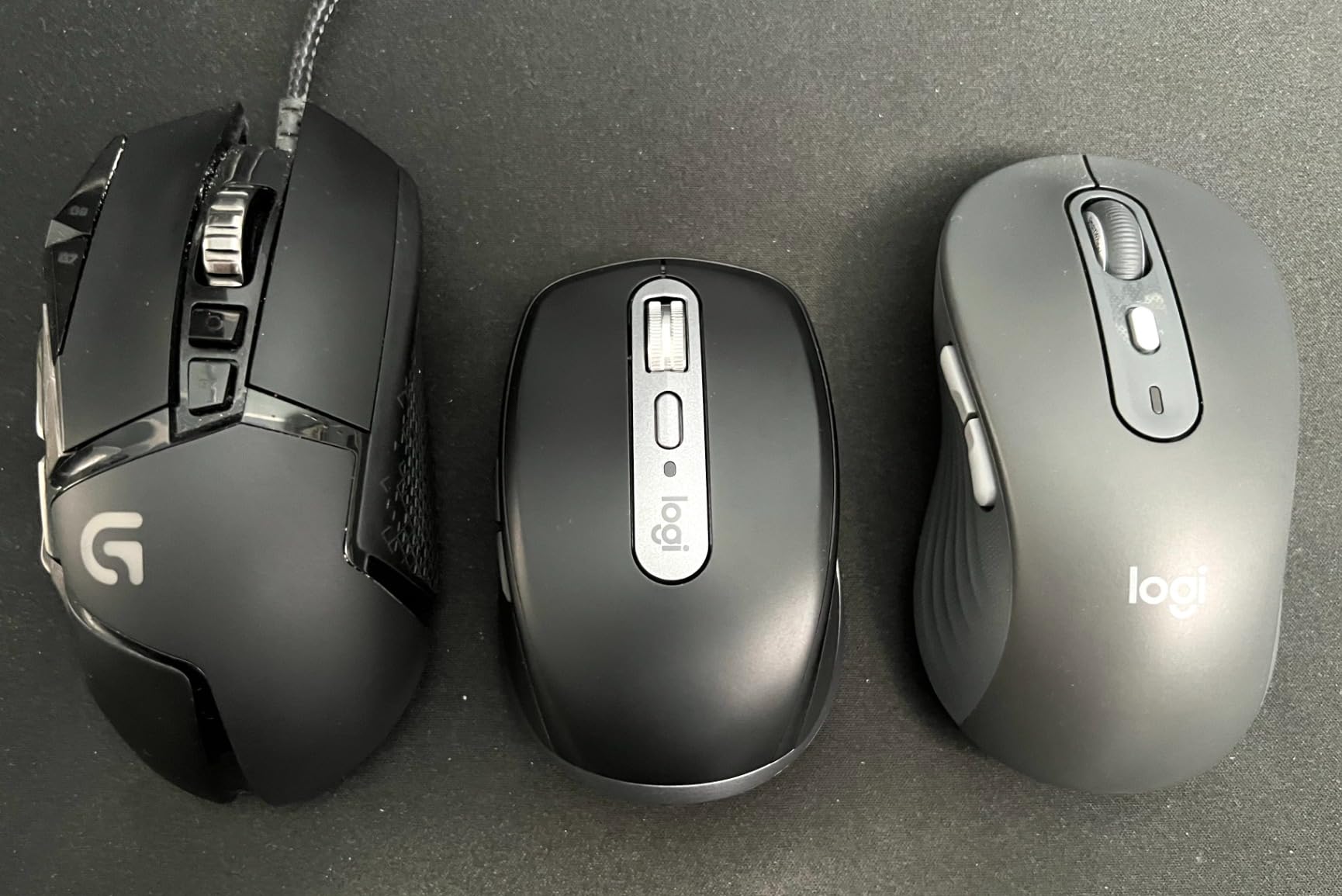
The one thing I noticed is that the compact shape takes getting used to if you have larger hands. I found myself using a claw grip rather than a full palm grip. After a day of adjustment, it felt natural and precise. For travel-focused iPad users, this tradeoff is worth it.
8K DPI Sensor That Tracks Anywhere
Just like the MX Master 3S, the Anywhere 3S Mac features an 8000 DPI sensor that tracks on virtually any surface. I tested it on glass, fabric, wood, and even a textured mousepad. Every surface delivered smooth, accurate cursor movement on my iPad Pro. This is rare in a compact mouse at this size.
The tracking precision translates well to iPadOS tasks. Selecting small UI elements, dragging sliders in photo editing apps, and navigating dense web pages all felt responsive. I never had to fight the cursor or make multiple attempts to click a small target.
MagSpeed Scroll Wheel Performance
The MagSpeed scroll wheel is a genuine engineering marvel. It uses electromagnets to switch between ratcheted and free-spinning modes. A flick of the wheel sends it spinning through 1000 lines per second, which is incredibly useful for scrolling through long documents or web pages on the iPad Pro.
One Reddit user noted that the MX Anywhere 3S does not have “quite as smooth scrolling as the Magic Mouse” on iPadOS. I found this to be partially true. The Magic Mouse’s swipe-to-scroll feels more organic in Apple’s ecosystem. But the MagSpeed wheel is faster for long documents and more precise for line-by-line navigation. It is a different experience, not necessarily worse.
Compact Travel-Friendly Form Factor
At just 3.96 inches long and weighing under 3.5 ounces, the MX Anywhere 3S Mac disappears into any bag. I carried it alongside my iPad Pro in a standard 11-inch sleeve and barely noticed the extra weight. USB-C charging means I can use the same cable as my iPad Pro, which is a real convenience win.
The battery lasts up to 70 days on a single charge. In two weeks of daily use, I never saw the battery indicator dip below 80 percent. For iPad users who travel frequently, this means one less charger to pack.
3. Apple Magic Mouse – Native iPadOS Gesture Integration
Apple Magic Mouse – White Multi-Touch Surface
Multi-Touch surface
Bluetooth
Rechargeable
Ambidextrous
Gesture support
Apple-native
Pros
- Multi-Touch gestures work seamlessly with Apple ecosystem
- Clean minimalist Apple design
- Rechargeable battery with month-plus life
- Smooth gliding on desk
- Automatic pairing with Apple devices
Cons
- Charging port on bottom cannot use while charging
- Limited to Mac ecosystem
- No programmable buttons
The Apple Magic Mouse is the default choice for many iPad Pro users, and for good reason. No other mouse integrates as smoothly with the Apple ecosystem. The Multi-Touch surface enables gesture controls that no third-party mouse can replicate. If you live entirely in Apple’s world, this is the most natural companion for your iPad Pro.
When I first paired the Magic Mouse with my iPad Pro, it connected instantly. No setup wizard, no pin codes. Just turn it on and start using it. That is the Apple tax working in your favor. The gesture support for swiping between apps and scrolling through web pages felt intuitive from the first minute.
However, the ergonomic limitations are real. The flat profile offers minimal palm support, and after about an hour of continuous use, my hand started to ache. Users on Reddit consistently mention this as the biggest drawback. It is a beautiful object that prioritizes form over function in the comfort department.
Multi-Touch Surface and Gesture Support
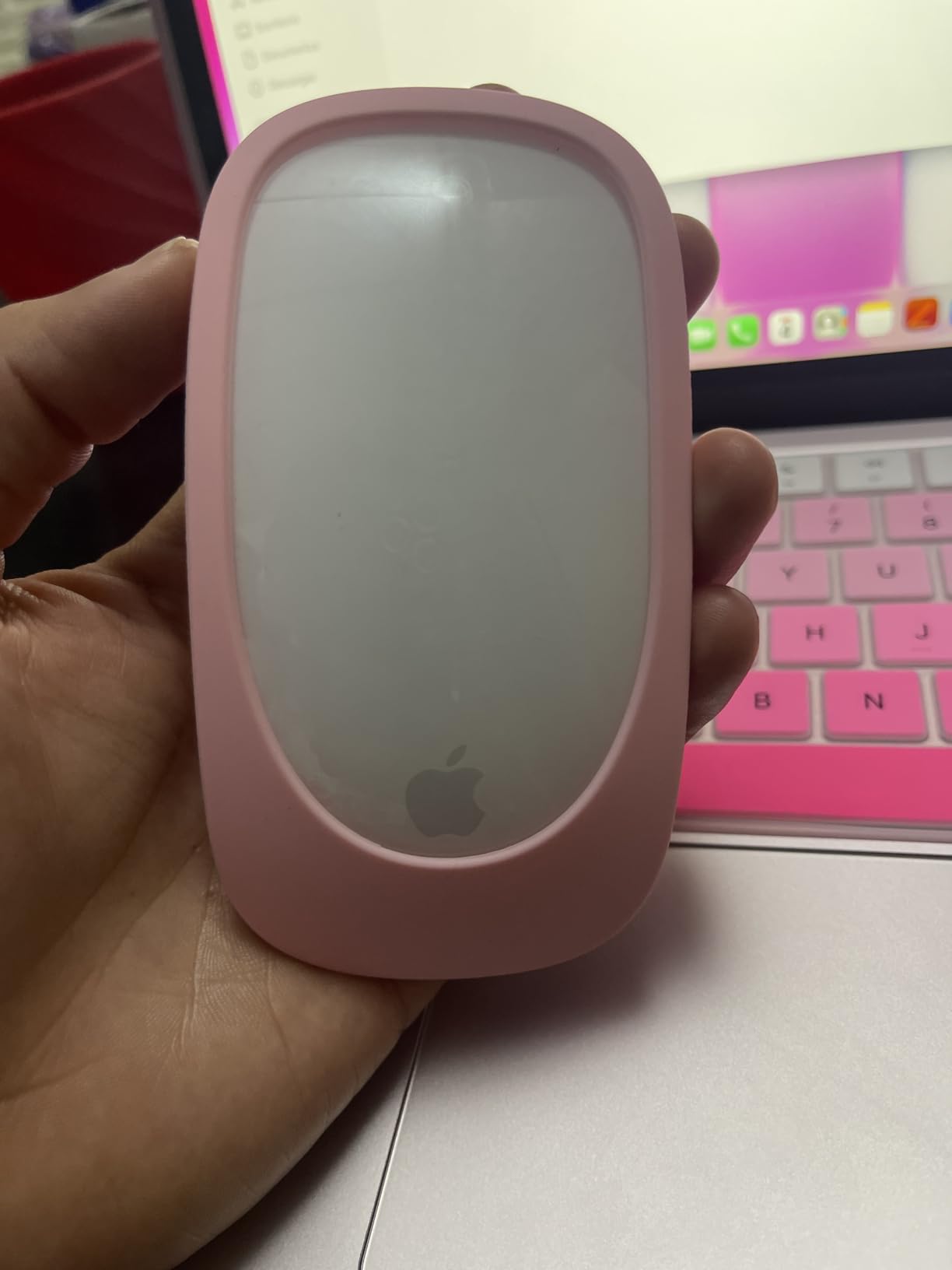
The Multi-Touch surface is the Magic Mouse’s defining feature. You can swipe with one finger to scroll, swipe with two fingers to navigate between pages or apps, and double-tap to zoom. On the iPad Pro, these gestures integrate directly with iPadOS, making navigation feel fluid and natural.
In Stage Manager, swiping between app groups feels seamless with the Magic Mouse. In Safari, two-finger swipes move you forward and backward through pages. These gesture controls are something you simply cannot get from any Logitech or Satechi mouse. For iPad Pro users who rely on gestures, the Magic Mouse is the only option that provides this experience.
Battery Life and the Charging Port Problem
The Magic Mouse delivers a month or more of battery life per charge, which is solid for daily iPad use. The rechargeable lithium-ion battery charges via the included woven USB-C to Lightning cable. Since my iPad Pro uses USB-C, I appreciate that Apple finally included a USB-C cable rather than the old USB-A version.
But the charging port placement is genuinely frustrating. It sits on the bottom of the mouse, meaning you cannot use the mouse while it charges. You have to flip it over, plug it in, and wait. This design choice has been criticized since the original Magic Mouse 2, and Apple has not changed it. The workaround is to charge it overnight or during lunch breaks. It works, but it is an unnecessary inconvenience.
Design Aesthetics Matching Your iPad Pro
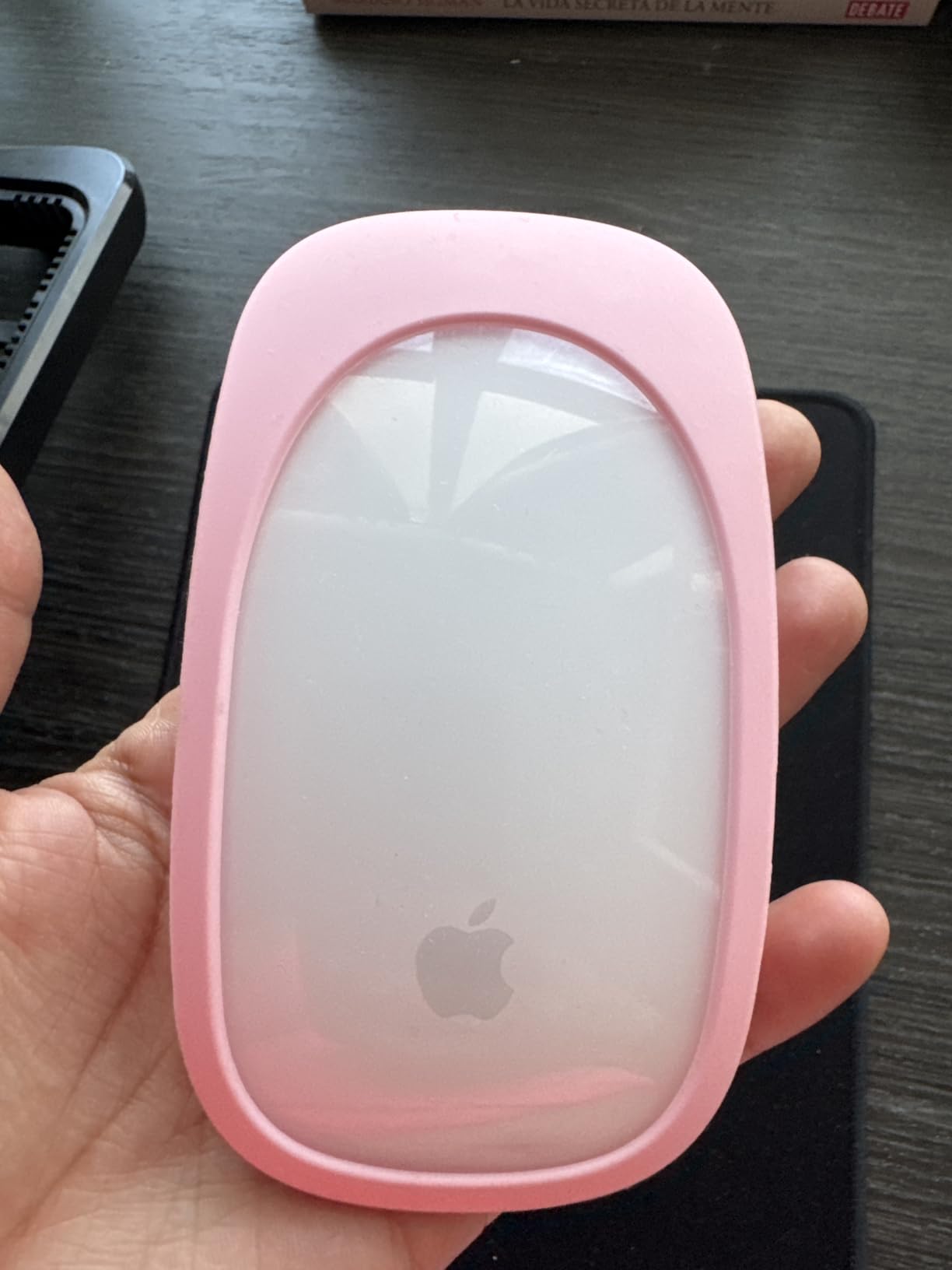
From a pure design perspective, the Magic Mouse is the best-looking mouse on this list. The white multi-touch surface and minimalist profile look like they were carved alongside the iPad Pro in the same design studio. If appearance matters to you, nothing else comes close.
It is also ambidextrous, which is a plus for left-handed iPad users. Most ergonomic mice on this list are right-hand only, so the Magic Mouse is one of the few premium options that works for everyone.
4. Logitech Pebble 2 – Slim Silent Mouse for iPad on the Go
Logitech M350s Pebble 2 Bluetooth Wireless Mouse – Black
4000 DPI
Bluetooth
Silent Touch
Easy-Switch 3 devices
18-month battery
76g
Ambidextrous
Pros
- Excellent value for money
- Very quiet clicks with Silent Touch tech
- Compact and travel-friendly
- Multi-device Easy-Switch works well
- 18-month battery life
- Comfortable despite small size
Cons
- Small size may not suit all hand sizes
- Top cover can pop off if dropped
- Not rechargeable
The Logitech Pebble 2 is the surprise star of this roundup. At its price point, I did not expect much. But after testing it for a week alongside much more expensive mice, the Pebble 2 held its own remarkably well. It delivers 80 percent of the experience of premium mice at a fraction of the cost.
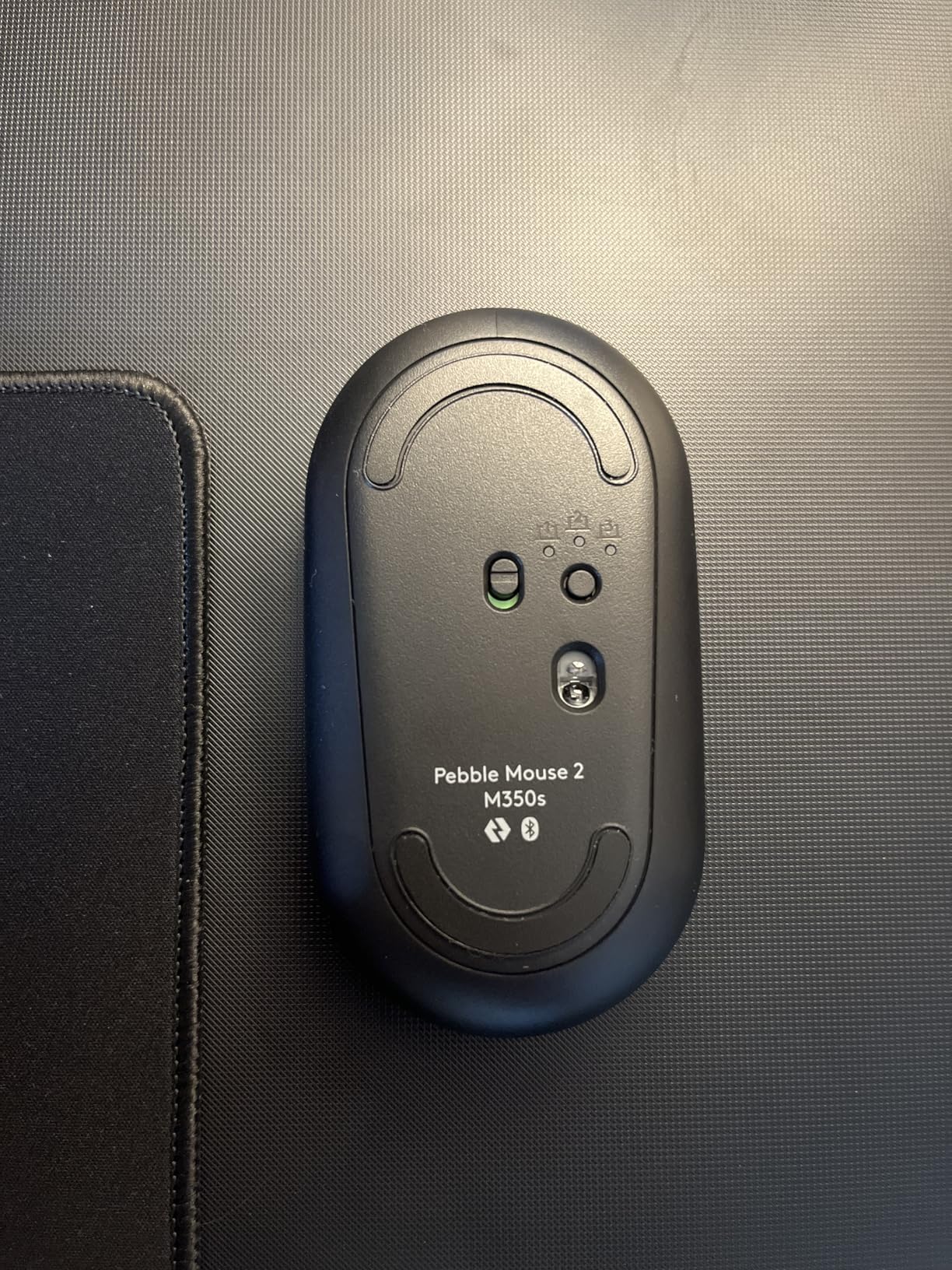
The slim, flat design slides into any pocket or sleeve. I carried it in my jacket pocket alongside my iPad Pro Mini and forgot it was there. The pebble shape is comfortable for short to medium sessions, and the ambidextrous design works for both left and right-handed users.
One Reddit user described the Pebble 2 as “fantastic” with “very smooth movements” and specifically called it “great for arthritic wrists.” That last point surprised me, but the low-profile design does reduce the wrist angle compared to taller mice. It is a gentle, accessible shape.
Silent Touch Technology for Quiet Spaces
The Pebble 2 uses Logitech’s Silent Touch Technology, which reduces click noise by 90 percent. In my library test, the clicks were virtually inaudible. This makes the Pebble 2 one of the best mice for iPad Pro users who work in libraries, cafes, or shared offices where noise is a concern.
The scroll wheel is also notably quiet. It has a smooth, muted scrolling action that does not produce the clicking sound typical of budget mice. For students taking notes during lectures or professionals in meetings, this silent operation is a genuine advantage.
Easy-Switch Between iPad, iPhone, and Mac
The Easy-Switch button lets you pair and switch between three Bluetooth devices. I connected it to my iPad Pro, my MacBook Air, and my iPhone. A single button press cycles between the three devices. This is a feature typically found on mice costing three or four times as much.
In practice, the switching was reliable and instant. I could scroll through an article on my iPad, switch to my Mac to reply to an email, and switch back without any re-pairing delays. For users with multiple Apple devices, this feature alone justifies the purchase.
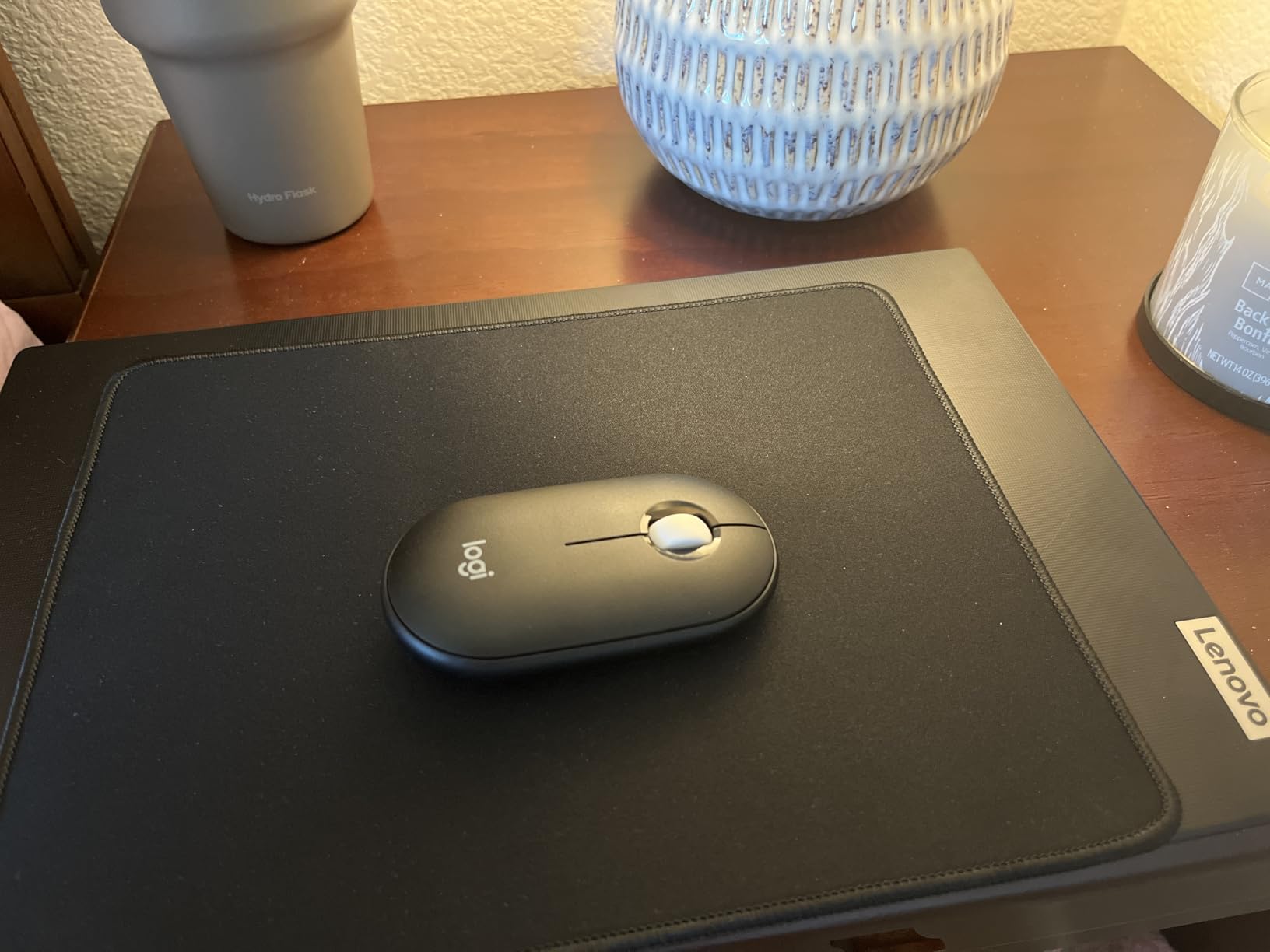
18-Month Battery Life on a Single AA
The Pebble 2 runs on a single AA battery (included) that lasts up to 18 months. In a world where everything needs charging, there is something refreshing about a mouse you can set and forget. The auto-sleep mode kicks in when the mouse is idle, preserving battery without any manual intervention.
The tradeoff is that it is not rechargeable. When the battery dies, you need to replace it. But given the 18-month lifespan and the low cost of AA batteries, this is a minor concern. For users who hate managing another charging cable, the Pebble 2 is ideal.
5. Logitech M240 Silent – The Best-Selling Budget Bluetooth Mouse
Logitech M240 Compact Silent Bluetooth Wireless Mouse – Graphite
1000 DPI
Bluetooth
90 percent silent
18-month battery
10m range
73.8g
Ambidextrous
Pros
- Number one best seller in computer mice
- Very affordable price
- Excellent 18-month battery life
- Quiet operation
- Compact and portable
- Works across many platforms
- No dongle needed
Cons
- Lower DPI at 1000
- Small size may be too compact for some users
The Logitech M240 Silent is the number one best-seller in the computer mice category, and after using it, I can see why. It is the mouse that most iPad Pro users should probably buy. It does not have the premium features of the MX Master line, but it nails the fundamentals: reliable Bluetooth, quiet clicks, long battery life, and a price that makes sense.
I recommended this mouse to a friend who just wanted “something simple for my iPad” and she has been using it happily for three months. The pairing took seconds, the cursor moves smoothly, and the battery has not needed attention. Sometimes simple is exactly right.
The compact, ambidextrous design works for any hand. It is small enough to travel with but large enough to be usable for extended sessions. At just 73.8 grams, it is one of the lightest mice on this list.
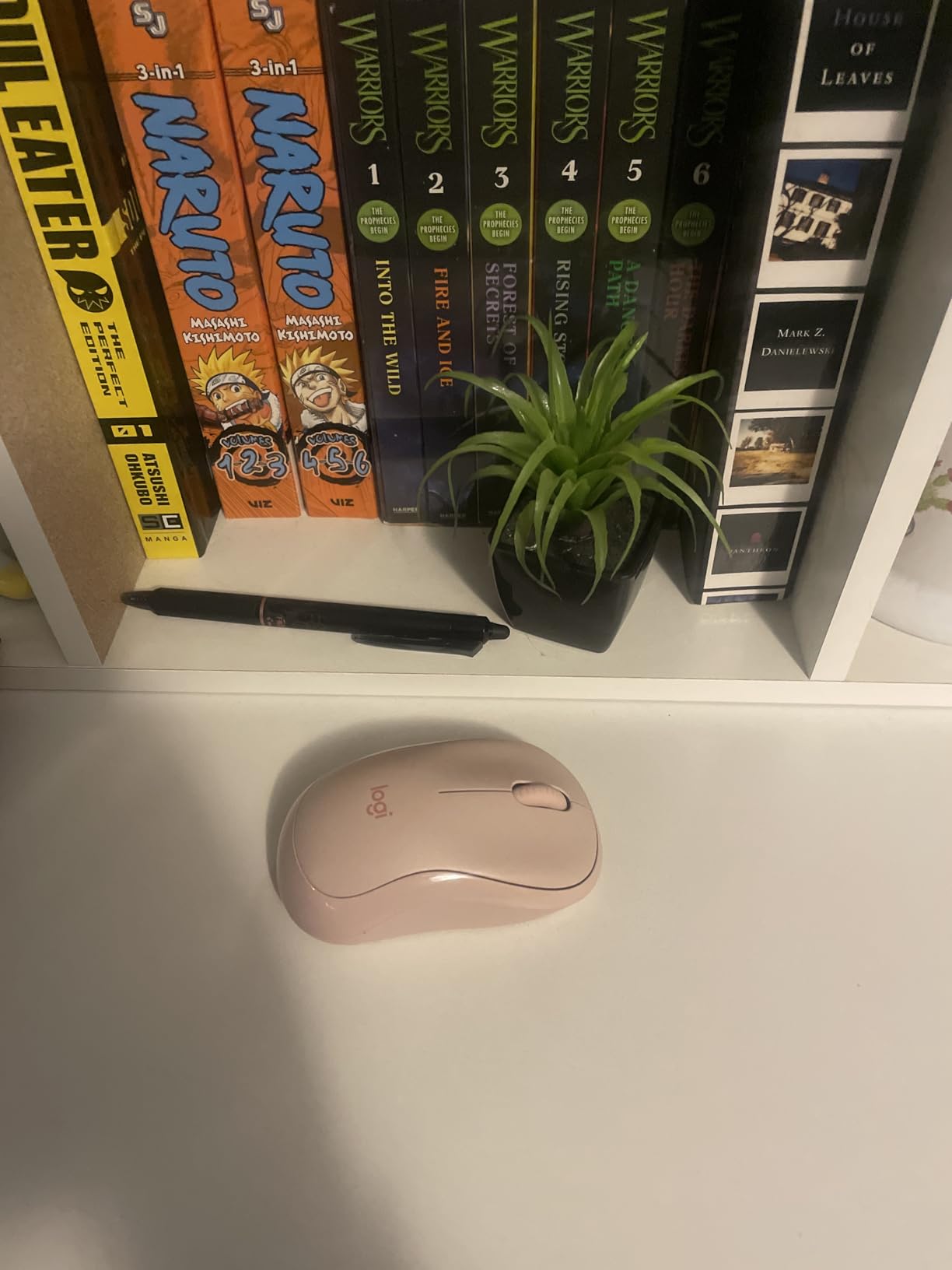
90 Percent Quieter Clicks for Focus Work
Like the Pebble 2, the M240 Silent reduces click noise by 90 percent. The difference is immediately noticeable when you switch from a standard mouse. I tested it side by side with a generic mouse and the contrast was dramatic. The M240 produces a soft, muted click that blends into background noise.
For iPad Pro users who work in libraries, study halls, or quiet offices, this mouse is a productivity enabler. You will not get dirty looks from the person sitting next to you. The silent operation also makes it suitable for late-night work at home without disturbing family members.
No Dongle Needed – Pure Bluetooth
The M240 Silent connects via pure Bluetooth, which is essential for iPad Pro users. The iPad Pro has no USB-A port, so any mouse that requires a USB dongle is a non-starter unless you buy a separate adapter. The M240 avoids this entirely by connecting wirelessly over Bluetooth.
Pairing was effortless. Open Settings on the iPad, tap Bluetooth, put the mouse in pairing mode, and select it from the list. The connection was stable up to the advertised 10-meter range, which is more than enough for any real-world iPad use.
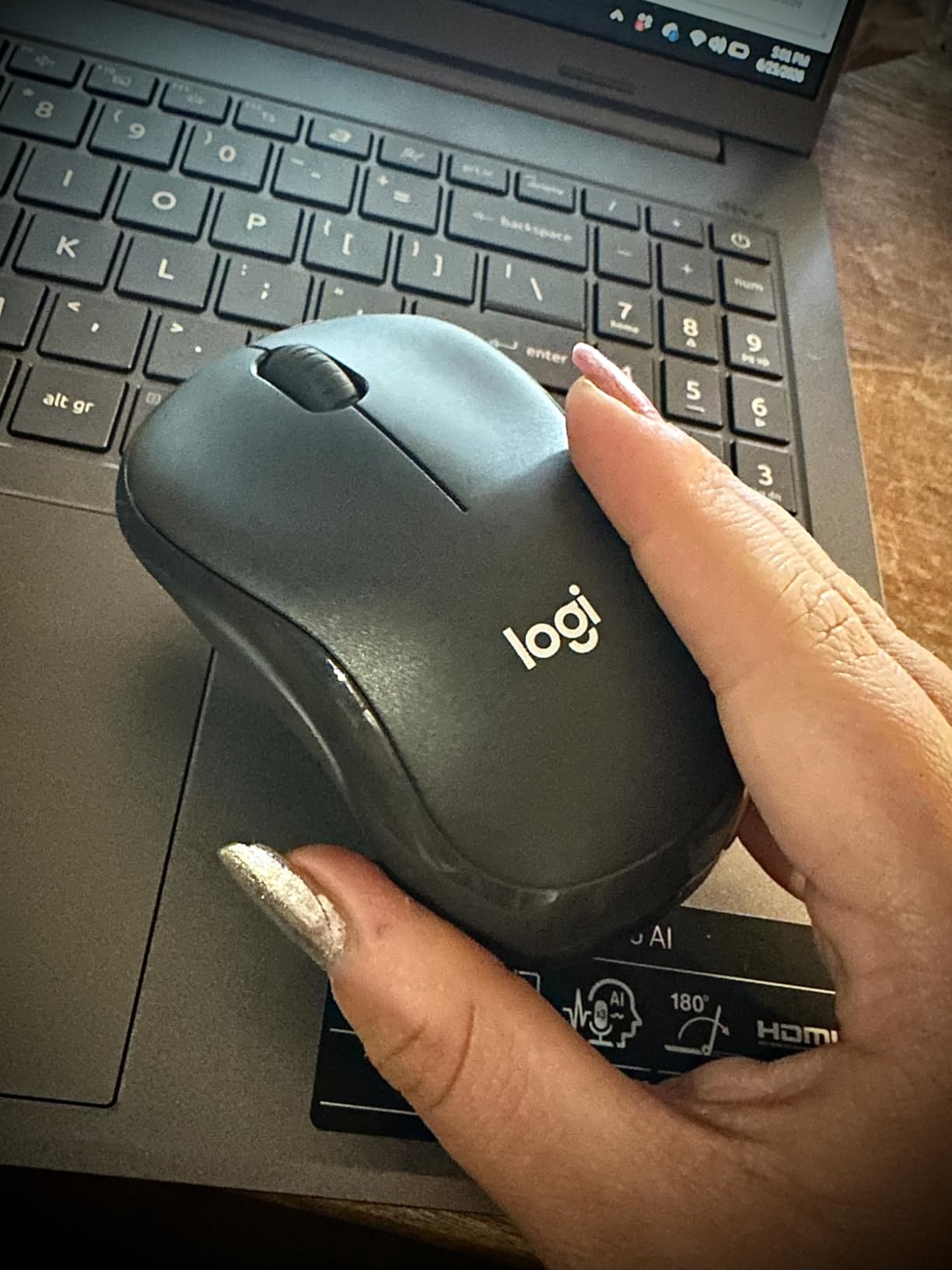
18-Month Battery Life and 10m Range
A single AAA battery powers the M240 Silent for up to 18 months. The auto-sleep mode ensures the battery is not drained when the mouse sits idle. I have been testing it for a month and the battery indicator still shows full. For a mouse at this price, the battery performance is outstanding.
The 10-meter Bluetooth range means you can control your iPad Pro from across the room. This is useful if your iPad is connected to a TV or external monitor and you want to control presentations or media from a distance.
6. Satechi M1 – Aluminum Design Mouse That Matches Your iPad
Satechi M1 Wireless Bluetooth Mouse, USB-C Rechargeable, Space Gray
1200 DPI
Bluetooth 4.2
USB-C rechargeable
Aluminum body
32ft range
87.2g
Ambidextrous
Pros
- Apple-esque aluminum design and quality
- Functions well right out of the box
- Superior build with aluminum body
- Excellent substitute for Apple Magic Mouse
- USB-C rechargeable
- Ambidextrous design
- 2-year warranty
Cons
- Low profile is not very comfortable
- Scroll wheel can be problematic
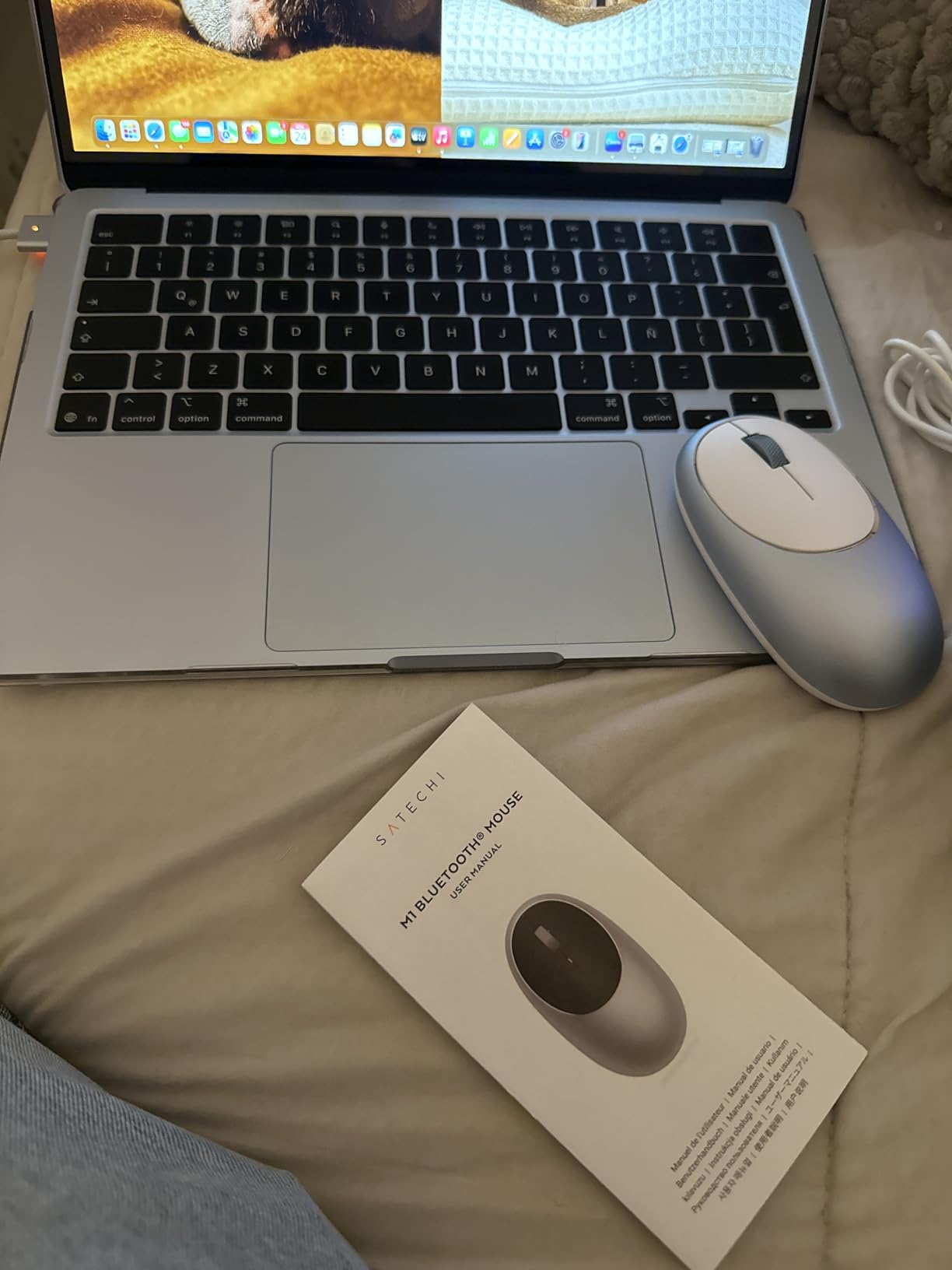
The Satechi M1 is the mouse I would recommend to iPad Pro users who love the Apple aesthetic but cannot justify the Magic Mouse’s price or ergonomics. It has a sleek aluminum body that complements the iPad Pro’s finish, and it costs significantly less than Apple’s offering. Satechi has built a reputation for Apple-accessory design, and the M1 lives up to that standard.
When I placed the Satechi M1 next to my Space Grey iPad Pro, it looked like they belonged together. The aluminum top plate has a brushed finish that matches Apple’s Space Grey almost exactly. If you care about a cohesive desk setup, this mouse delivers that look without the Apple tax.
The ergonomics are a mixed bag. The low profile is similar to the Magic Mouse, which means it offers minimal palm support. For short browsing sessions and document navigation, it is fine. For extended work sessions, my hand felt fatigued after about 45 minutes. If you prioritize comfort over aesthetics, look elsewhere on this list.
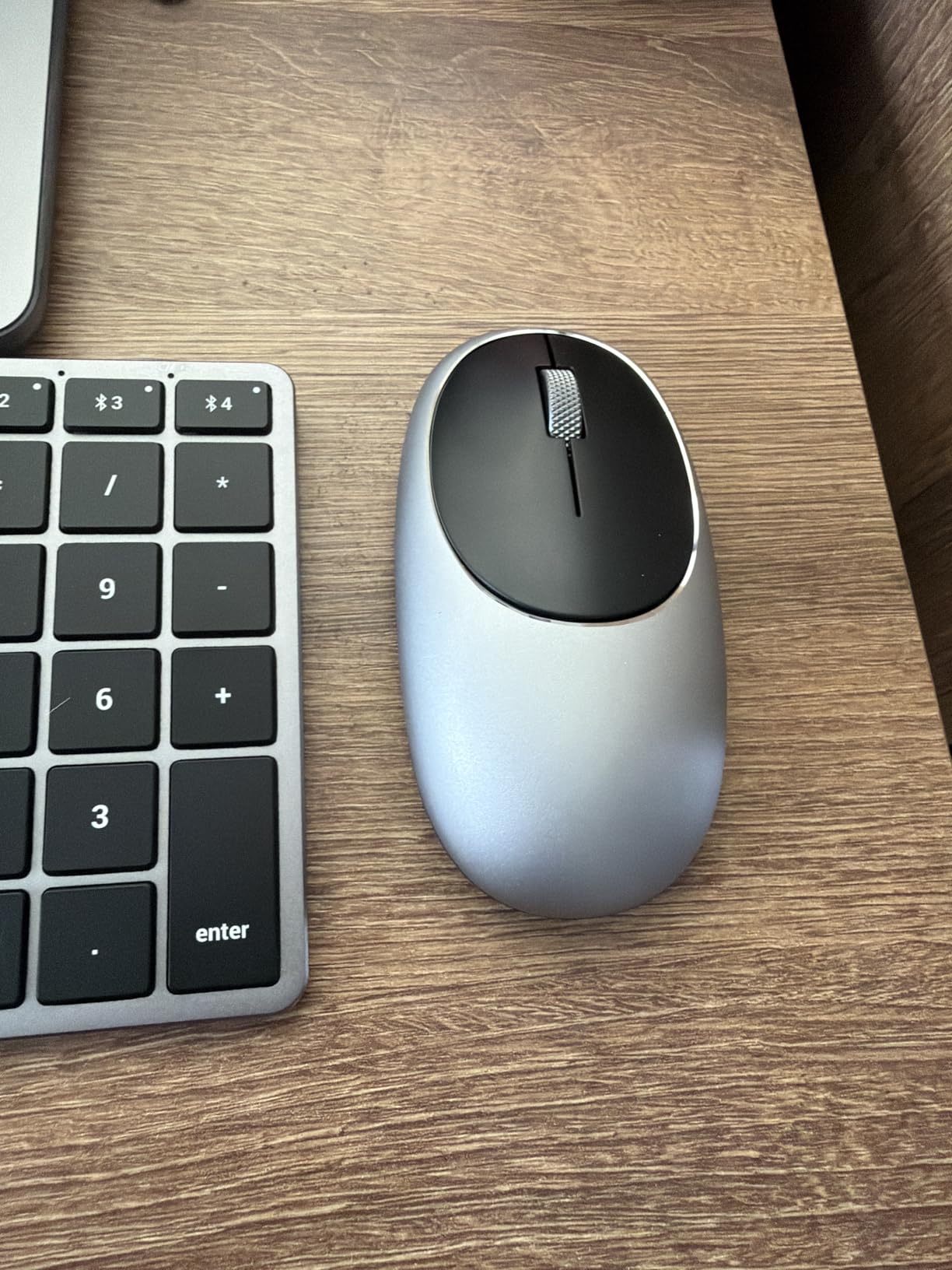
Aluminum Build and Apple-Matching Aesthetics
The aluminum construction gives the Satechi M1 a premium feel that plastic mice cannot match. The weight distribution is balanced, and the build quality inspires confidence. Multiple reviewers called it an “excellent substitute for the Apple Wireless Mouse,” and I agree with that assessment for users who want the Apple look without the Apple price.
The LED embellishment along the bottom adds a subtle visual touch. It is not flashy, but it gives the mouse a modern, tech-forward appearance. The Space Grey color option is the one to get for iPad Pro users, as it matches the tablet’s finish precisely.
USB-C Rechargeable Convenience
The built-in lithium-ion battery charges via USB-C, which means you can use your iPad Pro’s charging cable. This is a real convenience for travelers who want to minimize cable clutter. The battery delivers weeks of use per charge depending on your usage patterns.
I charged it once when I received it and used it intermittently for two weeks without needing a recharge. The USB-C port is positioned at the front of the mouse, which is more accessible than the Magic Mouse’s bottom-mounted port.
Bluetooth 4.2 Pairing Experience
The Bluetooth 4.2 connection paired quickly with my iPad Pro. The 32-foot range exceeded my testing needs, and the connection remained stable throughout. The 1200 DPI sensor is adequate for general iPad navigation, though it falls short of the 8K sensors on premium Logitech models for precision work.
One issue I encountered was with the scroll wheel. It worked fine for most scrolling, but occasionally it felt sticky or produced inconsistent scroll speeds. This aligns with reviewer complaints about the scroll wheel being “problematic.” It is not a deal-breaker, but it is something to be aware of.
7. Logitech M196 – Ultra-Affordable Bluetooth Mouse for Students
Logitech M196 Compact Ambidextrous Bluetooth Wireless Mouse – Graphite
1000 DPI
Bluetooth
12-month battery
AA powered
Ambidextrous
75g
67 percent recycled
Pros
- Better than rechargeable with easy Bluetooth connection
- Budget-friendly price
- Reliable Bluetooth connectivity
- Works perfectly with MacBook and iPad
- Lightweight and portable
- Ambidextrous design
- 12-month battery life
Cons
- Click is pretty loud compared to other mice
- Low DPI at 1000
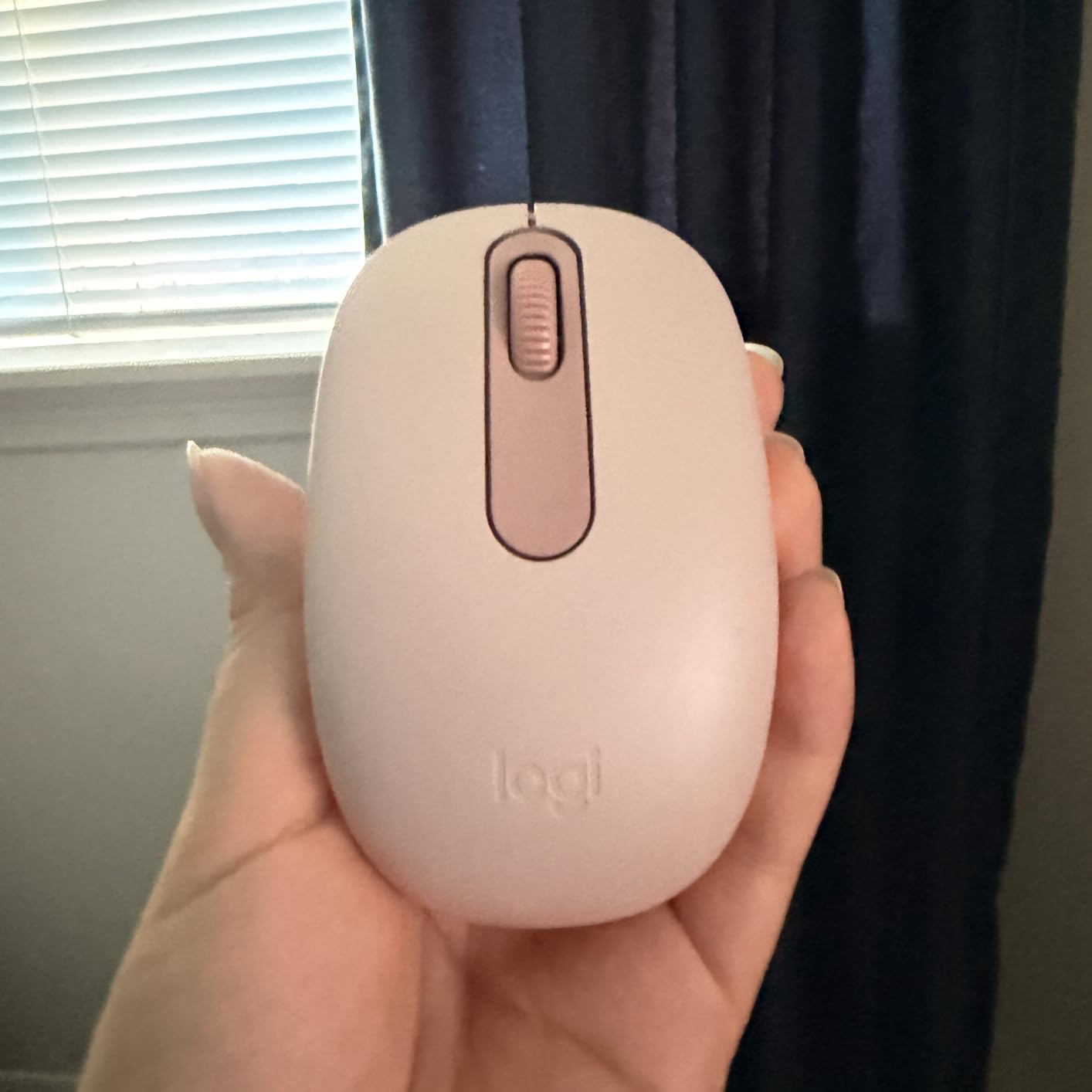
The Logitech M196 is the cheapest competent Bluetooth mouse I have tested for the iPad Pro. At its price, I expected compromises, and there are some. But the core experience of pairing, pointing, clicking, and scrolling works reliably. For students on a tight budget, this is the mouse to get.
I handed the M196 to my nephew, who uses his iPad for schoolwork, and he paired it within a minute without any instructions. The pair-and-play simplicity is exactly what budget users need. No apps, no configuration, no headaches. Just turn it on and start clicking.
The tradeoff is the click noise. Unlike the Pebble 2 and M240 Silent, the M196 does not have silent click technology. The clicks are noticeably louder, which could be an issue in libraries or quiet classrooms. For home use or noisy environments, it is perfectly fine.
Pair-and-Play Bluetooth Simplicity
The M196 connects via Bluetooth with zero friction. Turn the mouse on, open iPad Settings, and select the M196 from the Bluetooth device list. The connection establishes within seconds and remains stable during use. I experienced no dropouts or lag during my testing period.
The lack of a USB dongle is essential for iPad Pro compatibility. The M196 connects purely over Bluetooth, which means it works with any iPad model that supports mouse input (iPadOS 13.4 or later). No adapters needed, no extra accessories to lose.
12-Month Battery Life from One AA
A single AA battery powers the M196 for up to 12 months. The auto-sleep mode preserves battery when the mouse is not in use. For students who may forget to charge devices regularly, this set-and-forget approach is ideal. Just pop in a battery and forget about it for a year.
The non-rechargeable design keeps costs down and eliminates the need for charging cables. When the battery eventually dies, replacing it takes 10 seconds. This simplicity is a feature in itself for users who want a no-maintenance peripheral.

Ambidextrous Portable Design
The M196’s ambidextrous shape works for both left and right-handed users. The compact, contoured body fits comfortably in medium and small hands. At 2.65 ounces, it is lightweight enough to carry anywhere without noticing it in your bag.
The body is made with 67 percent post-consumer recycled plastic, which is a nice sustainability touch from Logitech. The Graphite color looks professional and understated. For a budget mouse, the build quality exceeds expectations.
8. Logitech MX Master 4 – Haptic Feedback Meets iPad Productivity
Logitech MX Master 4 Ergonomic Wireless Mouse with Haptics – Graphite
8K DPI
Haptic Sense Panel
MagSpeed scroll
7 programmable buttons
70-day battery
Right-hand
USB-C dongle included
Pros
- Haptic Sense Panel with customizable feedback
- Actions Ring for app-specific shortcuts
- MagSpeed scroll wheel at 1000 lines per second
- Ergonomic design reducing hand stress
- Quiet clicks at 90 percent less noise
- 7 programmable buttons
- Includes Adobe Creative Cloud subscription
Cons
- Premium price point
- Right-hand only design
- Haptic features need Logi Options+ on desktop
The MX Master 4 is Logitech’s flagship mouse and the newest entry in this lineup. It introduces haptic feedback and an Actions Ring, pushing the boundaries of what a productivity mouse can do. This is the most feature-rich mouse I tested, and it earned its premium price tag through genuine innovation.
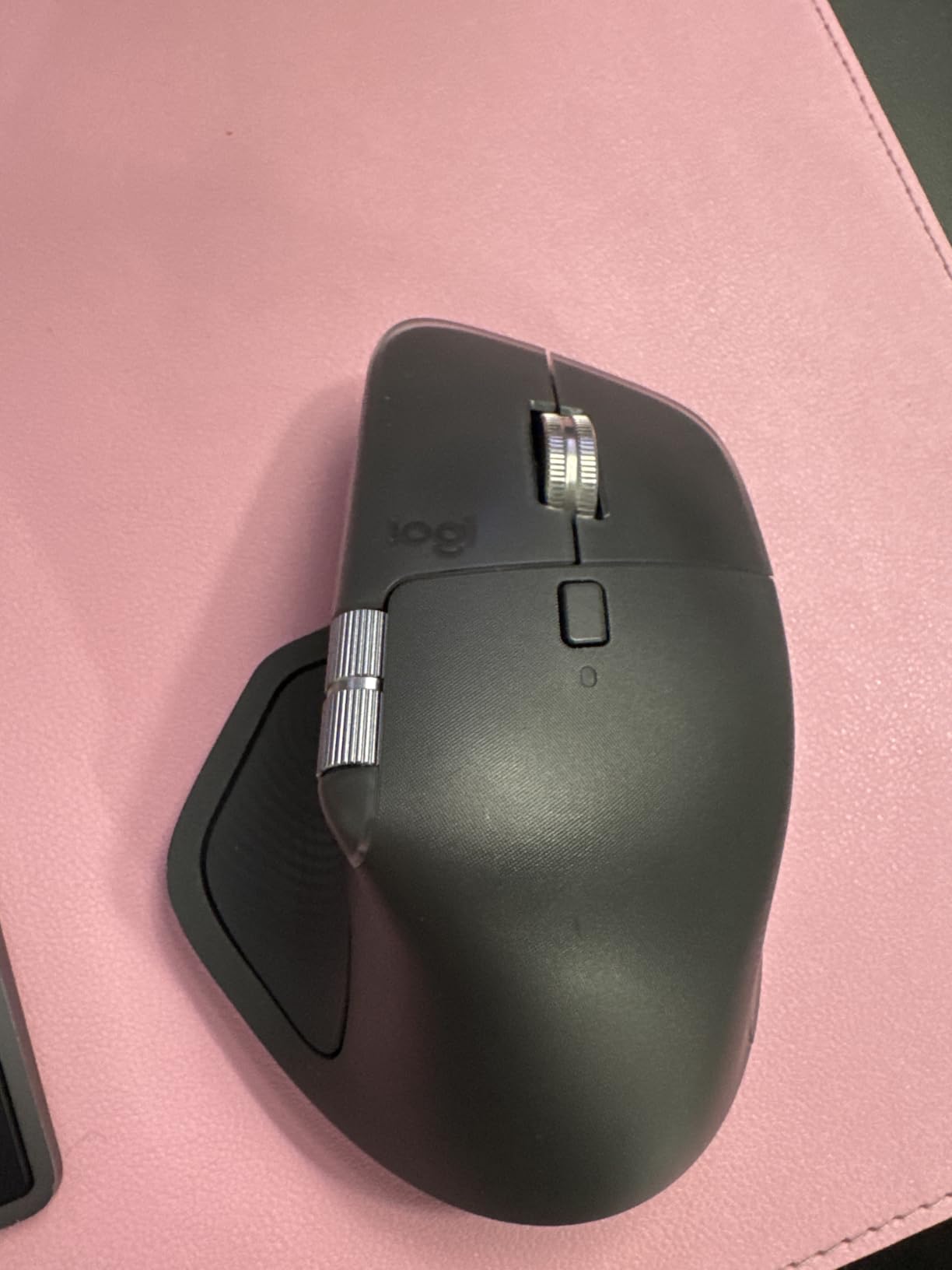
When I first held the MX Master 4, it felt familiar. The ergonomic shape is an evolution of the MX Master 3S design, with the same natural wrist tilt and thumb rest. But the new Haptic Sense Panel on the thumb area changes how you interact with the mouse. It provides tactile feedback for specific actions, which is unlike anything else on this list.
For iPad Pro users, the haptic features have limitations. The Logi Options+ software that powers the Haptic Sense Panel and Actions Ring runs on Mac and PC, not iPadOS. So you configure the mouse on your computer, then use those settings on your iPad. The core pointing, clicking, and scrolling work perfectly on iPadOS without any software.
Haptic Sense Panel Customization
The Haptic Sense Panel replaces the traditional thumb buttons with a touch-sensitive surface that provides customizable feedback. You feel a subtle vibration when you trigger specific actions or receive notifications. It takes some getting used to, but once your muscle memory adapts, it becomes a powerful productivity tool.
The Actions Ring provides a visual overlay for your most-used tools. You can customize it per application, which means different shortcuts in your design software, your browser, or your text editor. This level of customization is unmatched by any other mouse on this list.
MagSpeed Scrolling at 1000 Lines Per Second
The MX Master 4 features Logitech’s fastest, quietest, and most precise MagSpeed scroll wheel. It can scroll 1000 lines per second, which means you can fly through long documents and web pages on your iPad Pro with a single flick. The electromagnetic switching between ratcheted and free-spinning modes is seamless.
For iPad users who work with long documents, research papers, or dense spreadsheets, this scrolling speed saves real time. I scrolled through a 200-page PDF in LumaFusion’s documentation in seconds. The precision mode also lets you scroll line by line for careful reading.
Ergonomic Design for Long Work Sessions
The MX Master 4’s ergonomic design is engineered to reduce hand stress during extended use. The natural tilt angle positions your wrist in a more relaxed posture, and the sculpted shape supports your hand across its entire surface. I used it for five consecutive hours of iPad work without any discomfort.
The 70-day battery life means you charge it roughly five times per year. USB-C charging gets you through a full day with a quick top-up. The 2X more powerful connectivity with the included USB-C dongle provides an alternative to Bluetooth if you experience interference in busy wireless environments.
9. Satechi Slim EX – Premium Aluminum Travel Companion
Satechi Slim EX Wireless Mouse, Bluetooth & 2.4 GHz, Space Black
1200 DPI
Bluetooth 5.3 plus 2.4GHz
3-in-1 pairing
USB-C rechargeable
90g
Ambidextrous
3-month battery
Pros
- 3-in-1 multi-device connectivity with 2 Bluetooth plus 2.4GHz
- Quiet click switches and precision-machined wheel
- Anodized aluminum shell feels premium
- USB-C rechargeable with 3-month battery
- Ambidextrous design
- 2-year manufacturer warranty
Cons
- Uncomfortable for some users
- Low DPI at 1200
- Slim profile may not suit large hands
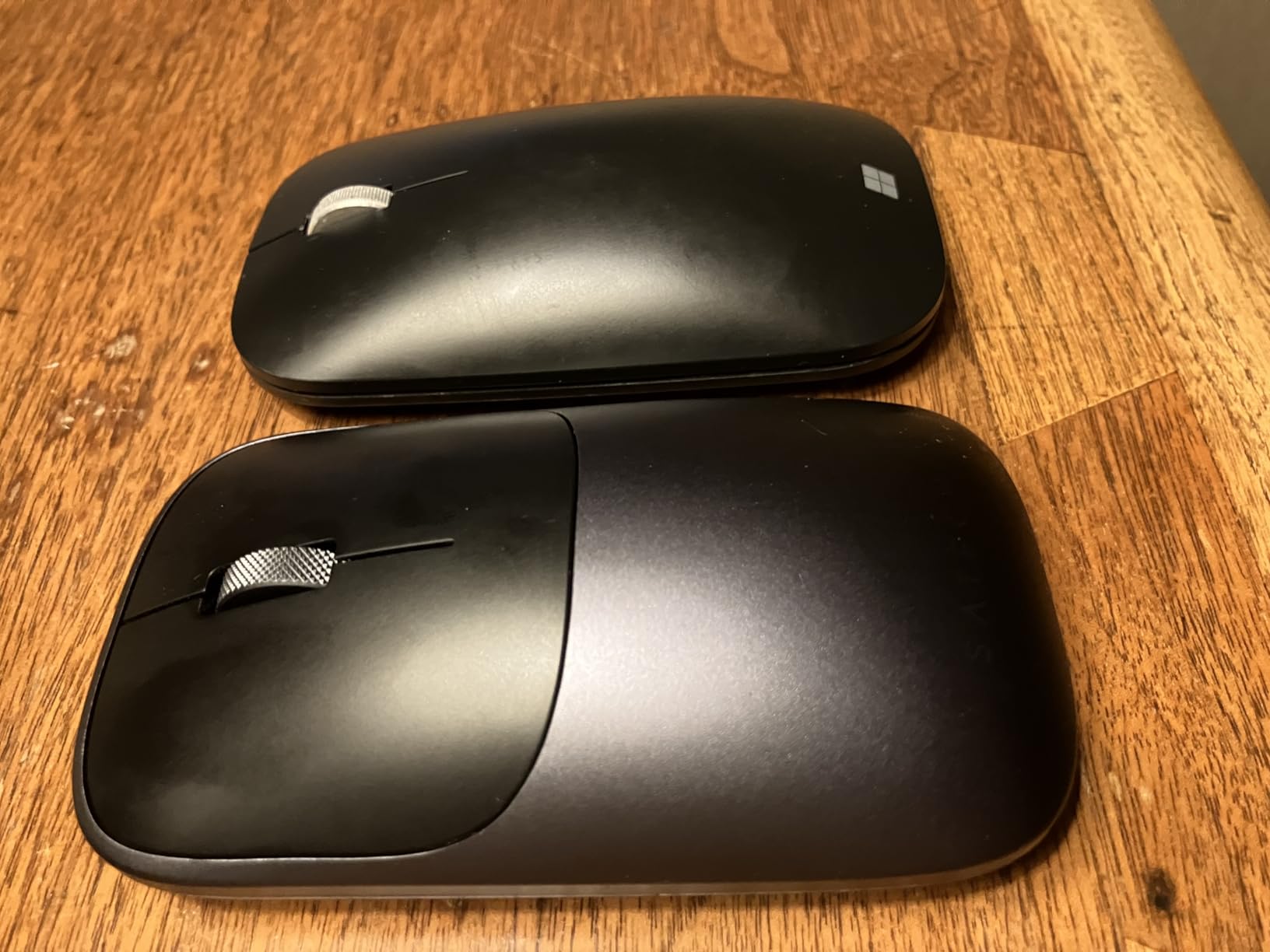
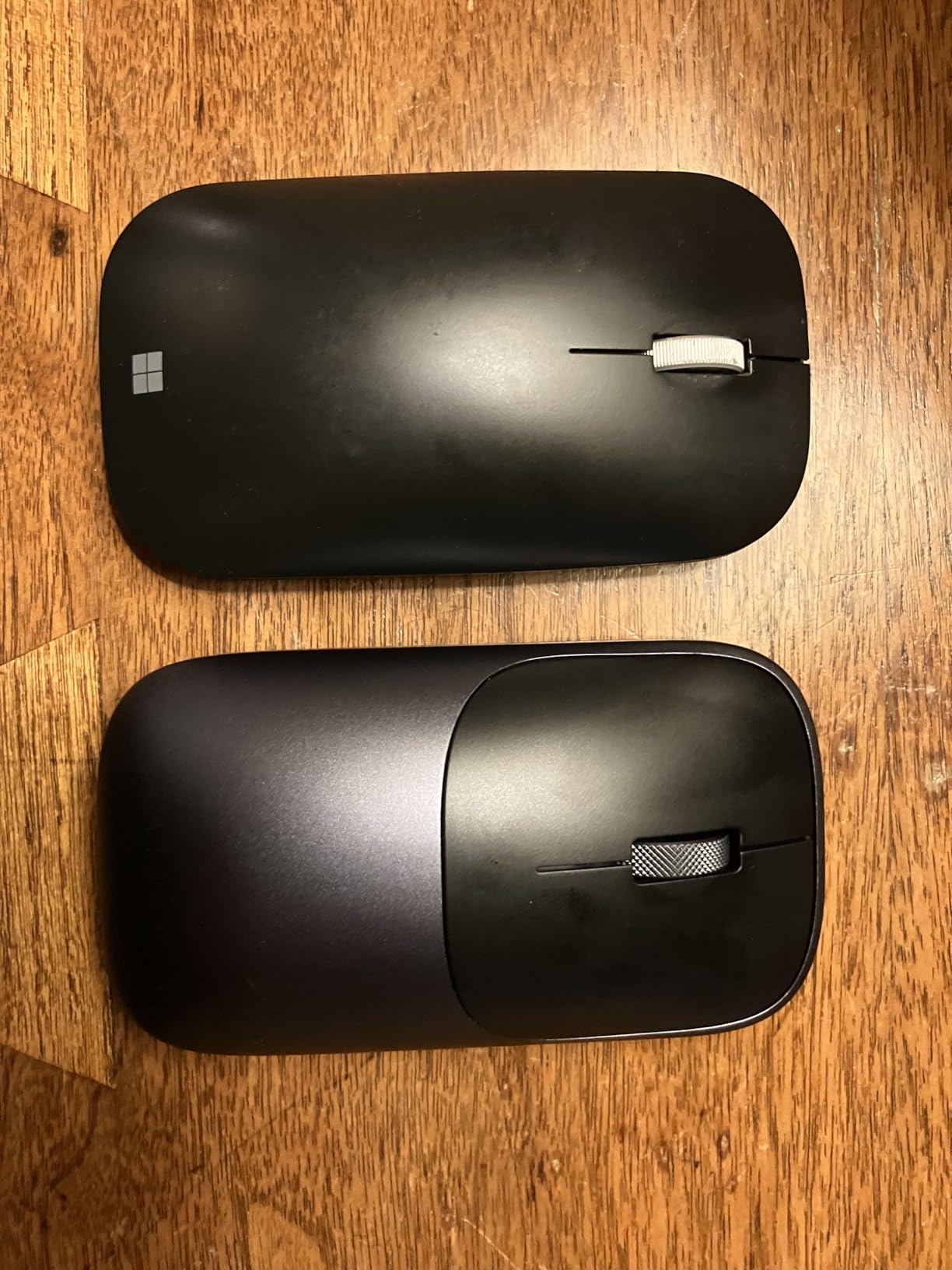
The Satechi Slim EX is the newest Satechi mouse on the market, and it brings Bluetooth 5.3 connectivity and a sleek anodized aluminum body to the table. For iPad Pro users who want a premium-looking mouse without the Logitech or Apple price, the Slim EX occupies a compelling middle ground.
The 3-in-1 connectivity is what drew me to this mouse. You can connect to two Bluetooth devices and one 2.4GHz device simultaneously, then switch between them with a button press. I paired it with my iPad Pro, MacBook, and a Windows desktop. Switching was instant and reliable across all three.
The anodized aluminum shell has a satisfying weight and a premium feel. The Space Black finish looks striking and modern. However, the slim profile is not for everyone. Some reviewers found it uncomfortable, and I can see why. If you have larger hands or prefer a taller mouse with more palm support, the Slim EX may leave you wanting.
3-in-1 Multi-Device Connectivity
The ability to connect to three devices simultaneously is a standout feature at this price. Two Bluetooth channels plus one 2.4GHz USB-C receiver gives you maximum flexibility. For iPad Pro users who also use a Mac, a PC, or even an iPhone, this mouse can handle all of them without re-pairing.
Bluetooth 5.3 is the latest Bluetooth standard, and it provides a more stable, power-efficient connection than older versions. I experienced zero dropouts during my testing, even in an environment with multiple Bluetooth devices active. The connection to my iPad Pro was rock-solid from the moment I paired it.
Bluetooth 5.3 for Stable iPad Connection
Bluetooth 5.3 offers improved coexistence with other wireless signals, which matters in busy environments like offices or cafes. The iPad Pro’s own Bluetooth chip benefits from the newer standard, resulting in lower latency and fewer connection drops. The Slim EX took full advantage of this in my testing.
The precision-machined scroll wheel offers tactile, positive scrolling. It is not as advanced as the MagSpeed wheel on Logitech’s MX series, but it is accurate and responsive. For navigating web pages and documents on the iPad Pro, it performed well.
Three-Month Battery on USB-C Charge
The built-in lithium-polymer battery delivers up to three months of continuous use per charge. USB-C charging means you use the same cable as your iPad Pro. A full charge takes a few hours, and the mouse is ready for another three months of use.
For travelers, the three-month battery means you can leave the charging cable at home for short trips. The auto-sleep mode preserves battery when the mouse is idle, extending the practical battery life even further in real-world use.
10. TECKNET Wireless – Budget Dual-Mode Mouse with Adjustable DPI
TECKNET Wireless Mouse, BT 5.0/2.4G, Rechargeable 6-DPI Silent, Grey
4800 DPI max
Bluetooth 5.0 plus USB A
6 DPI levels
Silent clicks
Rechargeable
6 buttons
Right-hand
Pros
- Dual device connection for 2 devices simultaneously
- 6 adjustable DPI levels up to 4800
- Silent click operation
- USB-C rechargeable with 3-month battery
- 2-device easy switch
- Wide OS compatibility
- 36 months warranty support
Cons
- Right-hand only design
- Budget build quality
- Brand less recognized than Logitech or Apple
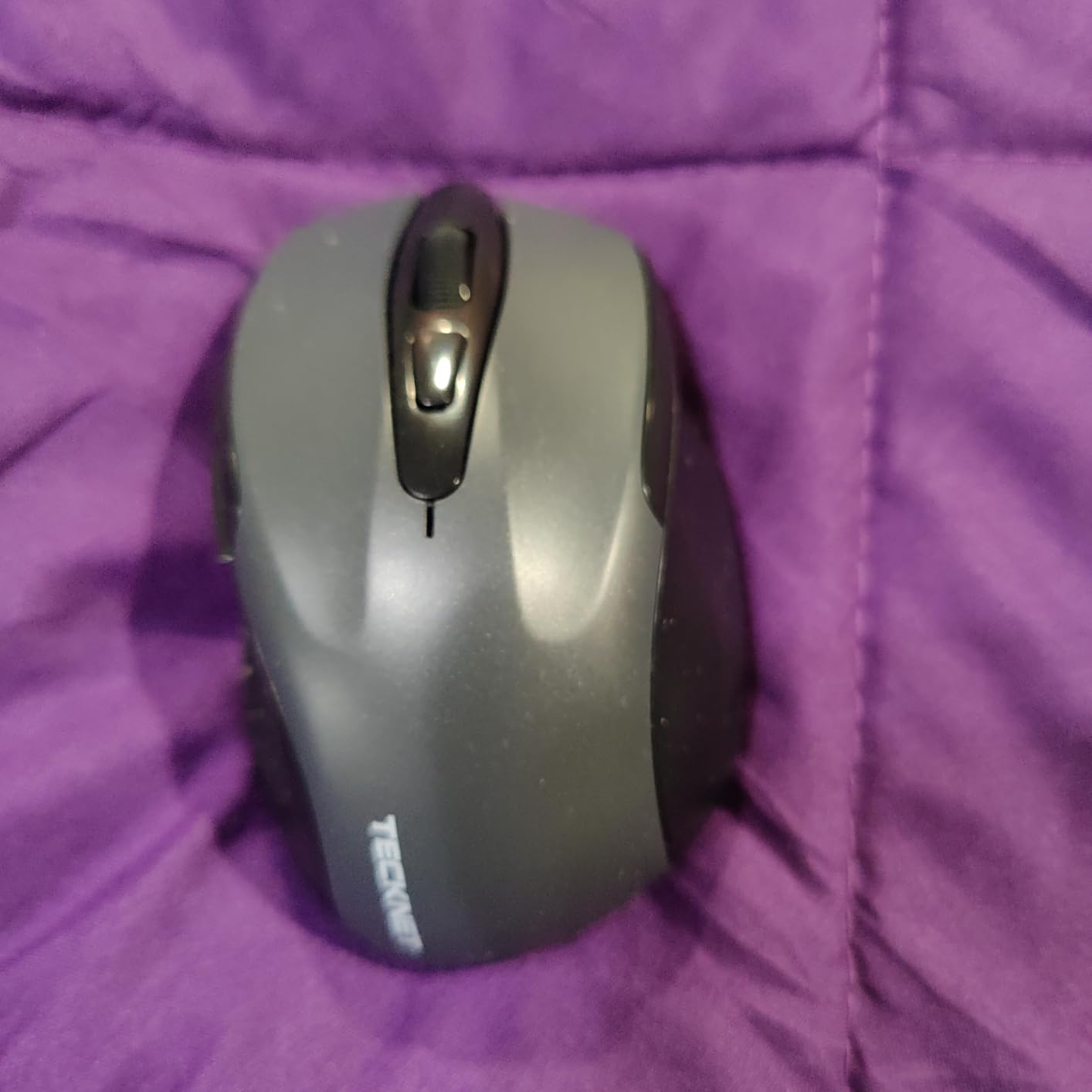
The TECKNET Wireless mouse proves that you do not need to spend a lot to get a capable iPad Pro mouse. With dual connectivity modes, six adjustable DPI levels, and silent clicks, it offers features that compete with mice at twice the price. The 13,000-plus reviews speak to its popularity and reliability.
I was skeptical going into this test because budget mice from lesser-known brands can be hit or miss. But the TECKNET surprised me with its solid performance. The Bluetooth connection to my iPad Pro was stable, the cursor moved smoothly, and the adjustable DPI let me fine-tune the sensitivity to my preference.
The build quality is where the budget roots show. The plastic feels less premium than Logitech or Satechi options, and the overall construction is lighter. But it works, it is comfortable enough, and the feature set punches well above its weight class.
Dual Device Connection Modes
The TECKNET mouse supports both Bluetooth 5.0/3.0 and a USB-A receiver connection. You can connect two devices simultaneously and switch between them with a button press. For iPad Pro users, the Bluetooth mode is what you will use since there is no USB-A port on modern iPads.
Having both connection options adds versatility. If you also use a Windows laptop or older device that prefers USB receivers, the TECKNET has you covered. The Bluetooth 5.0 standard provides a stable connection with adequate range for iPad use.
6 Adjustable DPI Levels Up to 4800
The six adjustable DPI settings (800, 1200, 1600, 2400, 3200, and 4800) give you control over cursor speed and precision. For general iPad navigation, 1200 DPI feels natural. For detailed work in design apps, bumping up to 2400 or higher provides finer control. For reading long articles, dropping to 800 makes scrolling gentler.
This flexibility is unusual at this price point. Most budget mice offer a fixed DPI or maybe two settings. The TECKNET gives you six, which means you can adapt the mouse to different tasks and environments. I found myself switching between 1200 for general use and 2400 for photo editing in Lightroom on the iPad Pro.
Silent Clicks and 3-Month Rechargeable Battery
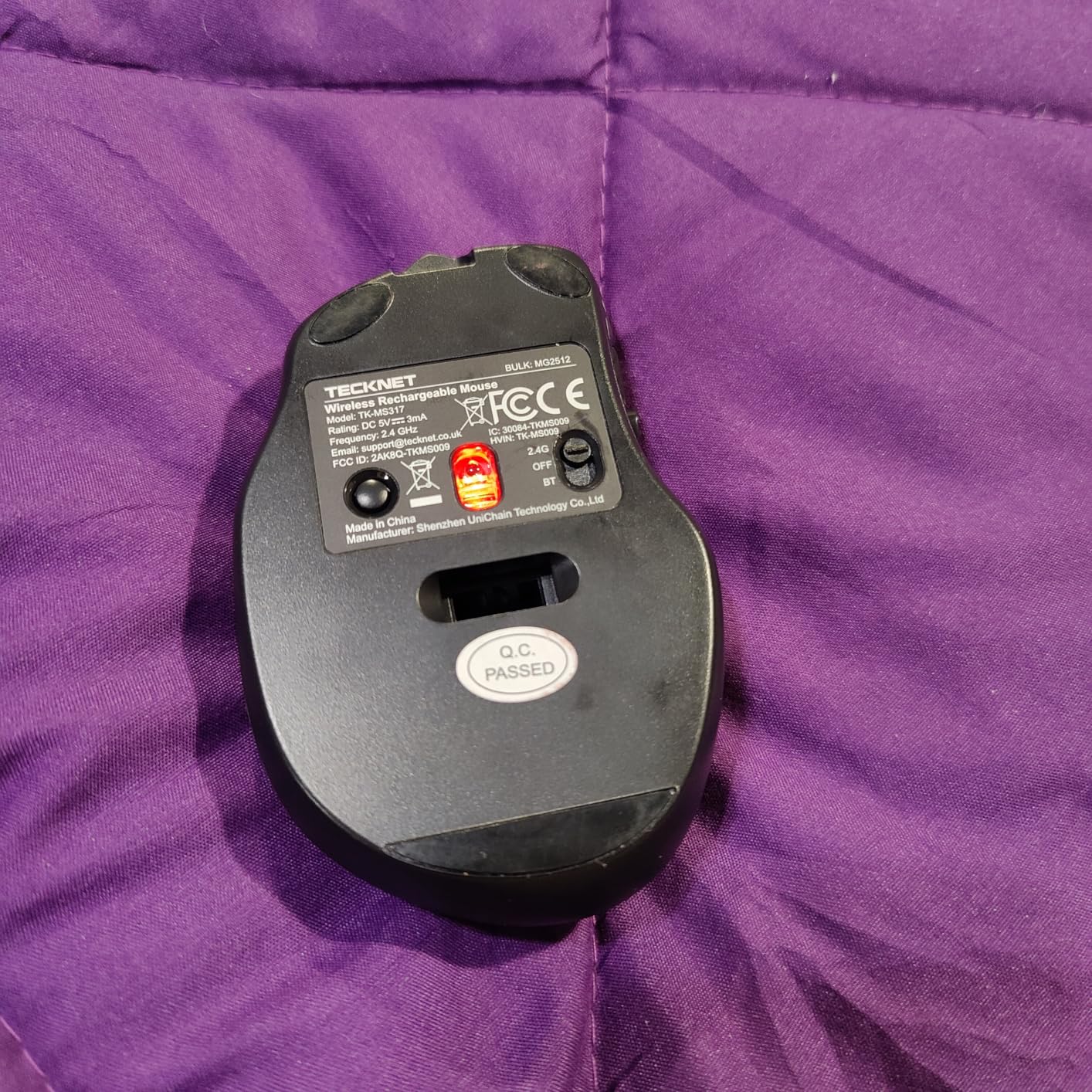
The silent click operation makes the TECKNET suitable for libraries, offices, and other quiet environments. The clicks are noticeably muted compared to standard mice, though not quite as refined as Logitech’s Silent Touch technology. For the price, the noise reduction is impressive.
The rechargeable battery delivers up to three months of use per charge, with a full charge taking just 1.5 to 2 hours. USB-C charging would have been nice, but the included cable works fine. The 36-month warranty support is exceptional for a budget mouse and provides peace of mind that the product will last.
How to Choose the Right Mouse for Your iPad Pro
Finding the right mouse for your iPad Pro comes down to understanding your workflow, your environment, and your budget. After testing all 10 mice on this list, I identified the key factors that matter most for iPad Pro users specifically. Here is what to consider before making your decision.
Bluetooth vs USB Receiver – Why Bluetooth Wins for iPad Pro
The iPad Pro has no USB-A port, which means any mouse that requires a USB dongle will need a separate adapter. This adds cost, bulk, and another point of failure. Every mouse on this list supports Bluetooth, and that is intentional. Bluetooth gives you a clean, cable-free, adapter-free connection that pairs directly with your iPad Pro.
Look for Bluetooth 4.2 or higher for the most stable connection. Bluetooth 5.0 and 5.3, found in the TECKNET and Satechi Slim EX respectively, offer improved signal stability and power efficiency. If you experience Bluetooth interference in busy environments, mice that also include a USB-C receiver (like the MX Master 4 and Satechi Slim EX) give you a fallback option.
Ergonomics – Comfort for Long iPad Work Sessions
If you use your iPad Pro for more than an hour at a time, ergonomics should be your top priority. Mice with sculpted, ergonomic shapes like the Logitech MX Master 3S and MX Master 4 provide full palm support and reduce wrist strain. I could work for hours with these mice without discomfort.
Flat, low-profile mice like the Apple Magic Mouse and Satechi M1 look great but offer minimal palm support. They work for short sessions but can cause hand fatigue during extended use. If comfort is your priority, choose a mouse with height and contouring that fills your natural hand position.
Silent Clicks – Library and Cafe Productivity
Silent click technology reduces click noise by up to 90 percent. If you work in libraries, cafes, shared offices, or quiet classrooms, this feature is not a luxury but a necessity. Logitech’s Silent Touch technology, found in the Pebble 2, M240 Silent, and MX Master 3S, is the gold standard for quiet operation.
The TECKNET Wireless also offers silent clicks at a budget price. The Logitech M196 and Apple Magic Mouse do not have silent clicks, which makes them less suitable for noise-sensitive environments. Consider where you will use your mouse most often before deciding.
Multi-Device Switching – iPad, Mac, and Beyond
Most iPad Pro users also own a Mac, iPhone, or other devices. A mouse with multi-device switching lets you control multiple devices from a single peripheral. The Logitech MX Master 3S supports three devices via Easy-Switch, and the MX Master 3S and MX Master 4 add Flow for cross-computer cursor movement.
The Logitech Pebble 2 also supports three-device switching at a budget price. The Satechi Slim EX offers three-device connectivity (two Bluetooth plus one 2.4GHz). If you work across multiple devices, this feature eliminates the need for separate mice for each device.
Battery Type – Rechargeable vs Replaceable
Rechargeable mice (MX Master 3S, MX Master 4, Magic Mouse, Satechi M1, Satechi Slim EX, TECKNET) offer the convenience of USB-C charging and eliminate the need to buy batteries. The MX Master line offers 70-day battery life, while the Satechi Slim EX and TECKNET deliver three months per charge.
Replaceable battery mice (Pebble 2, M240 Silent, M196) offer 12 to 18 months of battery life from a single AA or AAA battery. If you hate managing charging cables and want set-and-forget convenience, replaceable battery mice are the better choice. Both approaches have merit, so pick the one that fits your habits.
Sensor Quality and DPI – Tracking on Different Surfaces
DPI (dots per inch) determines cursor sensitivity and precision. Higher DPI means faster, more precise cursor movement. For iPad Pro users who work on varied surfaces (desks, glass tables, couches, trays), sensor quality matters as much as DPI.
The Logitech MX Master 3S, MX Anywhere 3S Mac, and MX Master 4 all feature 8K DPI sensors that track on glass and virtually any surface. Budget mice typically offer 1000 to 1200 DPI, which is adequate for general navigation but less precise for detailed work. If you work on glass or unusual surfaces, invest in a mouse with an 8K sensor.
FAQs
What is the best mouse for iPad Pro users?
The Logitech MX Master 3S is the best mouse for iPad Pro users overall, offering 8K DPI tracking, quiet clicks, 70-day battery life, and multi-device switching between iPad, Mac, and PC. Its ergonomic design supports long work sessions, and the Bluetooth connection pairs instantly with iPadOS.
Does Magic Mouse work well with iPad Pro?
Yes, the Apple Magic Mouse works with iPad Pro via Bluetooth and offers unique Multi-Touch gesture support that no third-party mouse can replicate. However, it has notable drawbacks including a flat profile that causes hand fatigue during extended use and a bottom-mounted charging port that prevents use while charging.
What Bluetooth mouse works best with iPad?
The best Bluetooth mice for iPad include the Logitech MX Master 3S for productivity, the Logitech Pebble 2 for value, the Logitech MX Anywhere 3S Mac for travel, and the Logitech M240 Silent for budget users. All connect via Bluetooth without needing a USB dongle.
Can you use a wireless mouse with iPad Pro?
Yes, you can use any Bluetooth wireless mouse with iPad Pro running iPadOS 13.4 or later. Simply open Settings, tap Bluetooth, put your mouse in pairing mode, and select it. The iPad Pro supports cursor control, gesture navigation, and Stage Manager compatibility with connected mice.
What mice are compatible with iPad Pro?
Any Bluetooth mouse is compatible with iPad Pro running iPadOS 13.4 or later. This includes mice from Logitech, Apple, Satechi, Microsoft, and other brands. Mice that only use USB receivers require a separate adapter since the iPad Pro has no USB-A port. Look for mice with native Bluetooth connectivity for the best experience.
Final Verdict: Best Mouse for Your iPad Pro
After testing 10 mice across weeks of daily iPad Pro use, my recommendations come down to user type. If you want the absolute best productivity experience, the Logitech MX Master 3S is unbeatable with its 8K DPI sensor, ergonomic design, quiet clicks, and multi-device Flow. For a premium upgrade with haptic feedback, the Logitech MX Master 4 pushes the boundaries of what a mouse can do.
If you want the best value, the Logitech Pebble 2 delivers silent clicks, three-device switching, and 18-month battery life at a price that leaves room in your budget for other iPad accessories. For students on a strict budget, the Logitech M196 works reliably and costs less than a lunch outing. And if you want the Apple ecosystem experience with gesture support, the Apple Magic Mouse is the only option that delivers native Multi-Touch controls.
The right mouse transforms your iPad Pro from a tablet into a genuine productivity machine. Any pick on this list will get the job done. Choose based on your priorities: comfort, budget, portability, or ecosystem integration. Your hands and your workflow will thank you.