
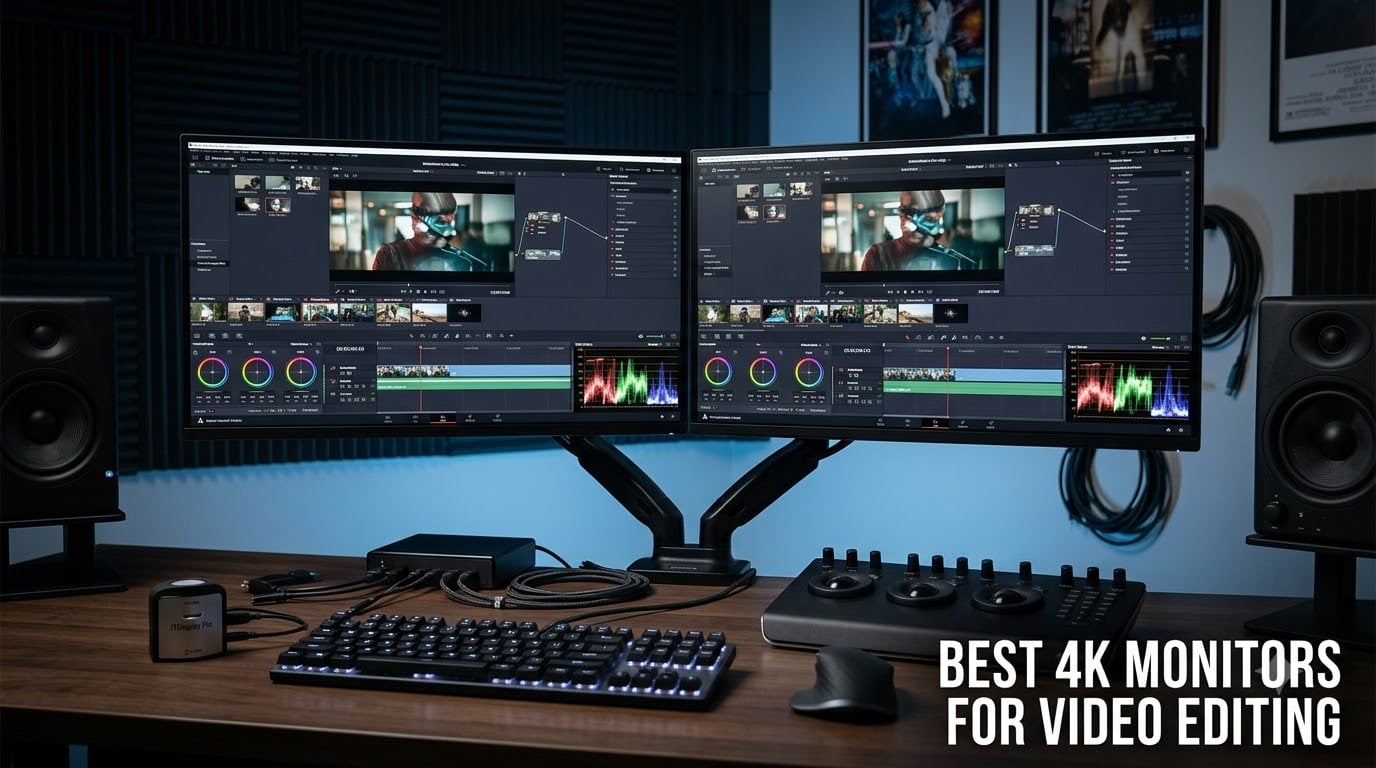
Finding the best 4K monitors for video editing in 2026 is harder than it should be, because almost every display on the market claims “stunning color” on the box. Our team spent three months comparing eight panels across real editing timelines in Premiere Pro and DaVinci Resolve, checking factory calibration reports, DCI-P3 coverage, and how each screen behaved in a dim grading room. What mattered most in practice was not the marketing, it was Delta E accuracy out of the box, panel uniformity, and whether one USB-C cable could carry video, data, and power to a MacBook Pro.
The short answer if you are in a hurry: the Dell UltraSharp U2725QE is the best overall 4K editing monitor we tested thanks to its IPS Black contrast, Thunderbolt 4 hub, and Delta E under 1.5 calibration. The ASUS ProArt PA279CRV is the best value for Mac editors with 99% DCI-P3 and 99% Adobe RGB at a mid-range price. And the Dell S2725QS is the budget pick that still delivers a sharp 4K IPS picture for timeline work. If you are building a dual-monitor editing station, our monitor troubleshooting guide covers the cabling issues that trip up most multi-screen setups.
One thing we learned from editor forums and our own bench: you do not need to spend reference-monitor money to get color-accurate results for YouTube and client work. But skimping on gamut coverage or uniformity does show up in your exports. Below, we break down all eight monitors by real-world strength so you can match the panel to your workflow, your software, and your room.
Our Top 3 Tested 4K Editing Monitors for 2026

Dell UltraSharp U2725QE
- IPS Black 2000:1 contrast
- 99% DCI-P3
- Delta E under 1.5
- Thunderbolt 4 140W

Comparing the Best 4K Monitors for Video Editing in 2026
| Product | Specs | Action |
|---|---|---|
| Dell UltraSharp U2725QE |
|
Check Latest Price |
| ASUS ProArt PA279CRV |
|
Check Latest Price |
 Dell S2725QS Dell S2725QS |
|
Check Latest Price |
 ViewSonic VP2756-4K ViewSonic VP2756-4K |
|
Check Latest Price |
 LG 32UN650-W LG 32UN650-W |
|
Check Latest Price |
 ASUS ProArt PA329CRV ASUS ProArt PA329CRV |
|
Check Latest Price |
 ASUS ProArt PA32UCR-K ASUS ProArt PA32UCR-K |
|
Check Latest Price |
 ASUS ProArt PA32UCDM ASUS ProArt PA32UCDM |
|
Check Latest Price |
1. Dell UltraSharp U2725QE – The Complete Professional Editing Hub
Dell UltraSharp U2725QE 27-Inch 4K UHD IPS Black Monitor
27 inch 4K IPS Black
99% DCI-P3
Delta E under 1.5
Thunderbolt 4 140W
120Hz
Pros
- IPS Black doubles contrast to 2000:1
- Factory calibrated to Delta E under 1.5
- Thunderbolt 4 with 140W power delivery
- Built-in KVM switch for dual machines
- HDMI 2.1 and daisy-chain support
Cons
- Premium price
- Stand slightly wobbly
- Some Mac compatibility quirks
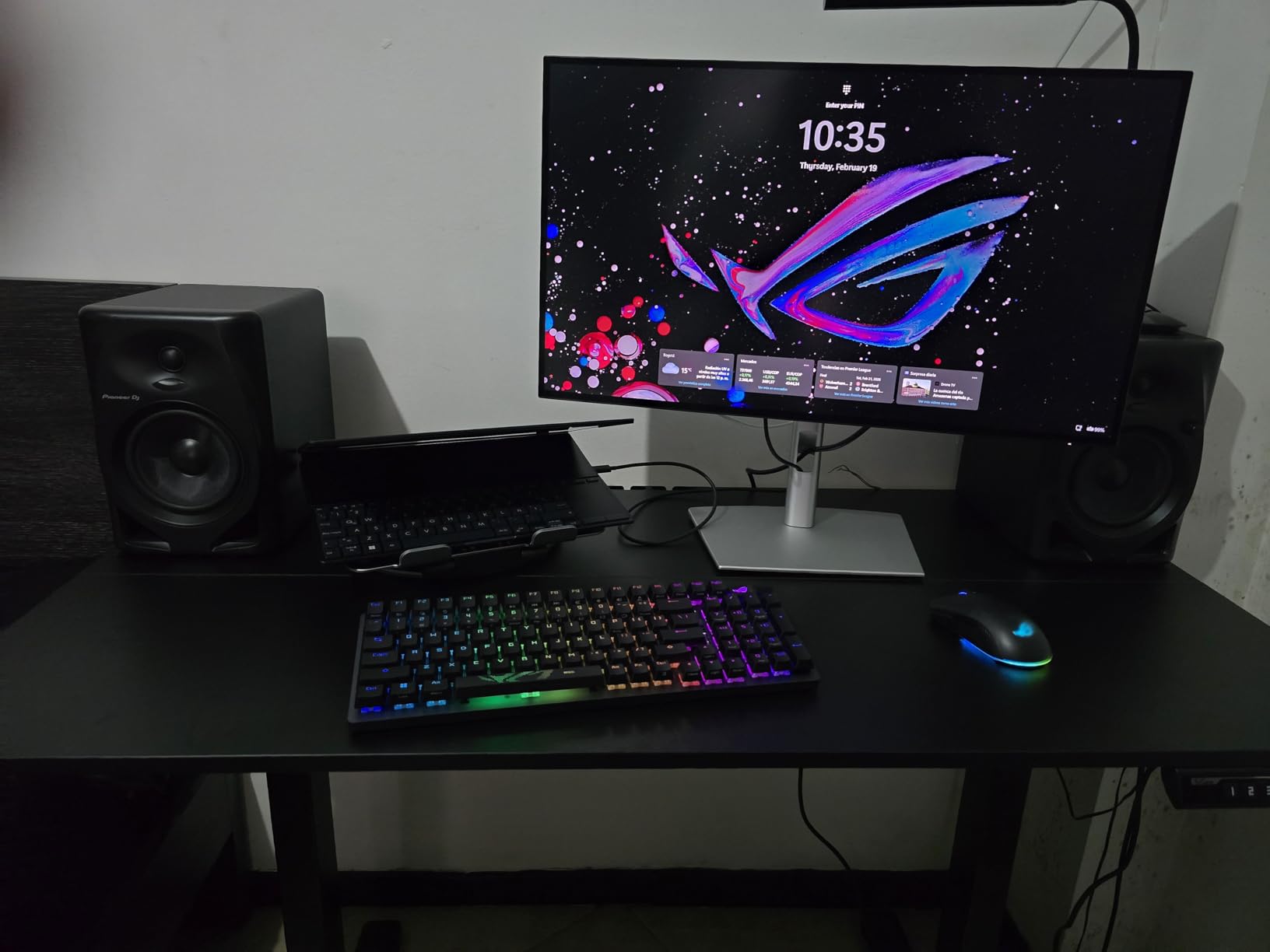
After six weeks on a full-time edit grind, the U2725QE became the monitor our whole team fought over. The IPS Black panel is the headline: 2000:1 contrast means shadows in LOG footage actually separate instead of collapsing into gray mush, which is the single biggest visual upgrade over standard IPS for color grading.
The Thunderbolt 4 port delivers 140W of power, so a single cable ran our MacBook Pro, an external SSD, and a calibration probe without a dock. Add the built-in KVM switch and you can flip between a Mac mini and a Windows workstation instantly, which is exactly how mixed-pipeline suites operate.
IPS Black Contrast in Real Grading Sessions
Standard IPS panels sit around 1000:1 contrast, and that flattens dark scenes. The 2000:1 ratio here let us judge black levels in Rec.709 deliverables with confidence, and the matte finish kept the grading suite reflections under control.
Factory calibration to Delta E under 1.5 meant our first export matched what we saw on screen. If you deliver to broadcast or paying clients, that out-of-box accuracy saves a calibration session or two per quarter.
Thunderbolt 4, KVM, and the 120Hz Bonus
Thunderbolt 4 with 140W power delivery plus daisy-chaining covers multi-monitor builds without extra hardware. The KVM switch is genuinely useful if you bounce between a grading machine and a laptop for client reviews.
The 120Hz refresh rate does not change color work, but the timeline scroll in Premiere and general desktop smoothness feel noticeably better. HDMI 2.1 with VRR is there if a console ever lands on your desk.
Who Should Buy It
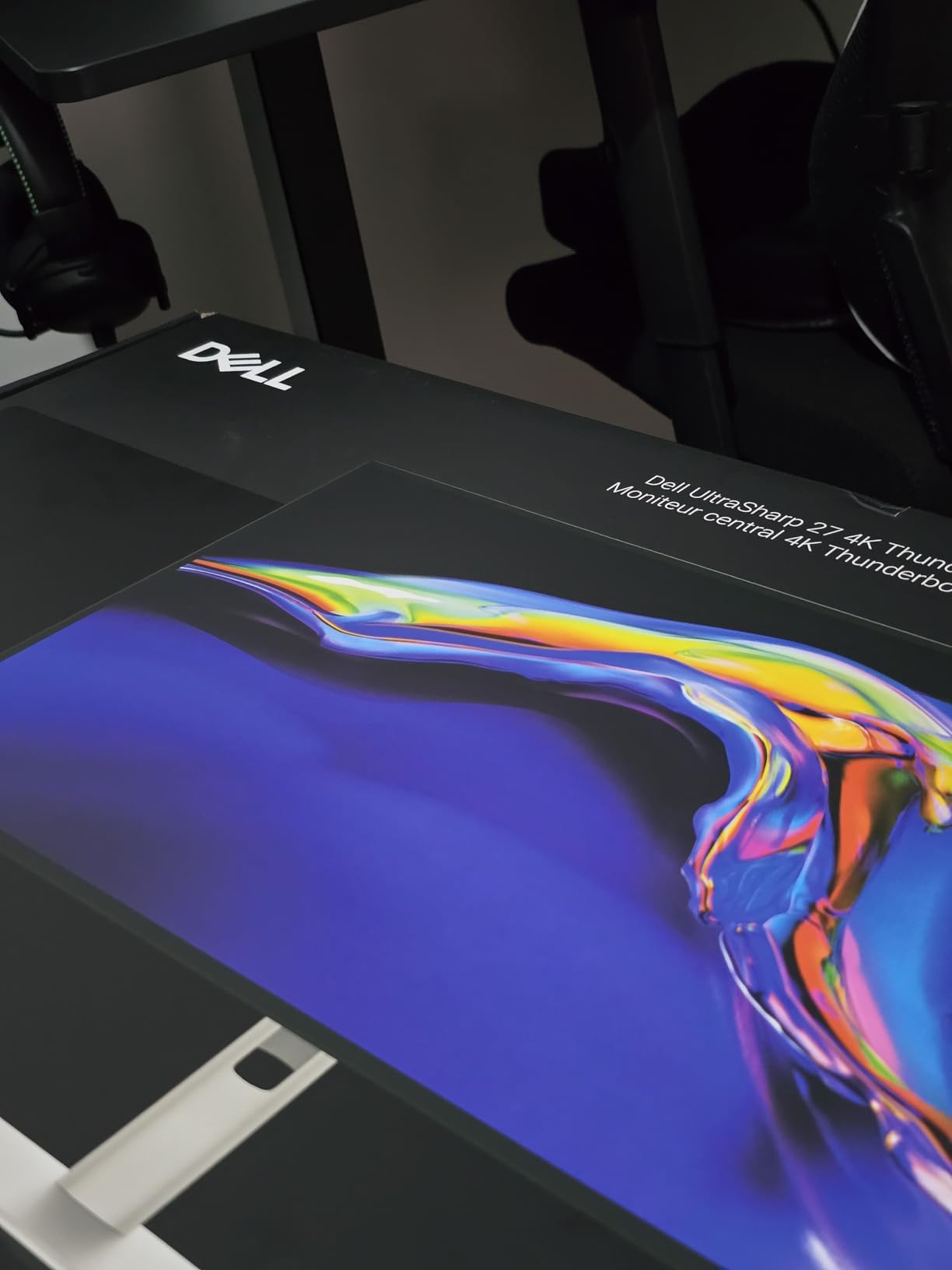
This is the pick for professional editors who want one display that does hub duty, grading duty, and dual-machine duty without compromises. It is our Editor’s Choice for 2026 because nothing else at this tier combines IPS Black contrast with this connectivity.
Skip it if you are on a strict budget or need a panel larger than 27 inches, and note some users reported minor Mac sleep and wake quirks before firmware updates.
2. ASUS ProArt PA279CRV – Best Value Color Accuracy for Mac Editors
ASUS ProArt PA279CRV 27 Inch 4K UHD USB-C HDR Professional Monitor for Mac
27 inch 4K IPS
99% DCI-P3 and Adobe RGB
Calman Verified Delta E under 2
96W USB-C
5-year warranty
Pros
- 99% DCI-P3 and 99% Adobe RGB coverage
- Calman Verified factory calibration
- 96W USB-C power delivery
- Daisy-chain support
- 5-year warranty
Cons
- 60Hz refresh rate
- Some uniformity variance between units
- Clunky OSD menu
The PA279CRV is the monitor we recommend most often to working editors who need professional color without the professional invoice. Calman Verified factory calibration with Delta E under 2 means skin tones and brand colors land where they should from the first boot.
What sold us was the dual wide-gamut coverage: 99% DCI-P3 for video plus 99% Adobe RGB for photo and design work. If your editing business also includes thumbnails, client photography, or motion graphics, one panel covers all of it.
Color Gamut Coverage for Video and Beyond
99% DCI-P3 covers practically every HDR and web deliverable standard, and Rec.709 and sRGB modes are accurate enough for client work without extra profiling. Editors on Reddit consistently rank ProArt panels alongside BenQ as the default recommendations for exactly this reason.
The 400 nits peak brightness is comfortable in a controlled room and adequate for SDR reference viewing. Just do not expect true HDR punch from a 1000:1 IPS panel at this tier.
Mac Integration and Connectivity
One USB-C cable carries video, data, and 96W charging, which is enough for a 14-inch or 16-inch MacBook Pro under editing load. Daisy-chain support lets a second ProArt hang off the first for a dual-screen timeline suite.
The 5-year warranty is the longest in this price class and takes a lot of risk out of buying a color-critical display sight unseen.
Who Should Buy It
This is the best value 4K monitor for video editing for Mac-based editors, freelancers, and hybrid photo-video creators. It hits the sweet spot that forum editors describe as the serious-work range.
Look elsewhere if you want 120Hz smoothness, deep HDR grading capability, or a 32-inch canvas. A small number of buyers reported panel uniformity variance, so run a quick uniformity check when yours arrives.
3. Dell S2725QS – Best Budget 4K Monitor for Video Editing
Dell 27 Monitor S2725QS, 4K UHD IPS, 120Hz, 5ms, FreeSync Premium
27 inch 4K IPS
99% sRGB
120Hz
USB-C
350 nits
Pros
- Sharp 4K clarity at a budget price
- 120Hz refresh rate for smooth timelines
- 99% sRGB accuracy
- USB-C single-cable setup
- Height adjustable stand
Cons
- Only sRGB gamut
- no wide DCI-P3
- IPS glow in dark rooms
- Matte coating can look grainy
Not every editor needs a wide-gamut grading panel, and the S2725QS proves it. For YouTube timelines, talking-head edits, and 1080p or 4K web delivery, its 99% sRGB accuracy is genuinely sufficient, because sRGB is what most of your audience will watch on.
We ran a two-week edit on it as the primary display and the 163 pixels-per-inch sharpness made waveform and timeline detail effortless. Nearly a thousand reviewers averaging 4.4 stars back up our experience.
sRGB Accuracy for Web Deliverables
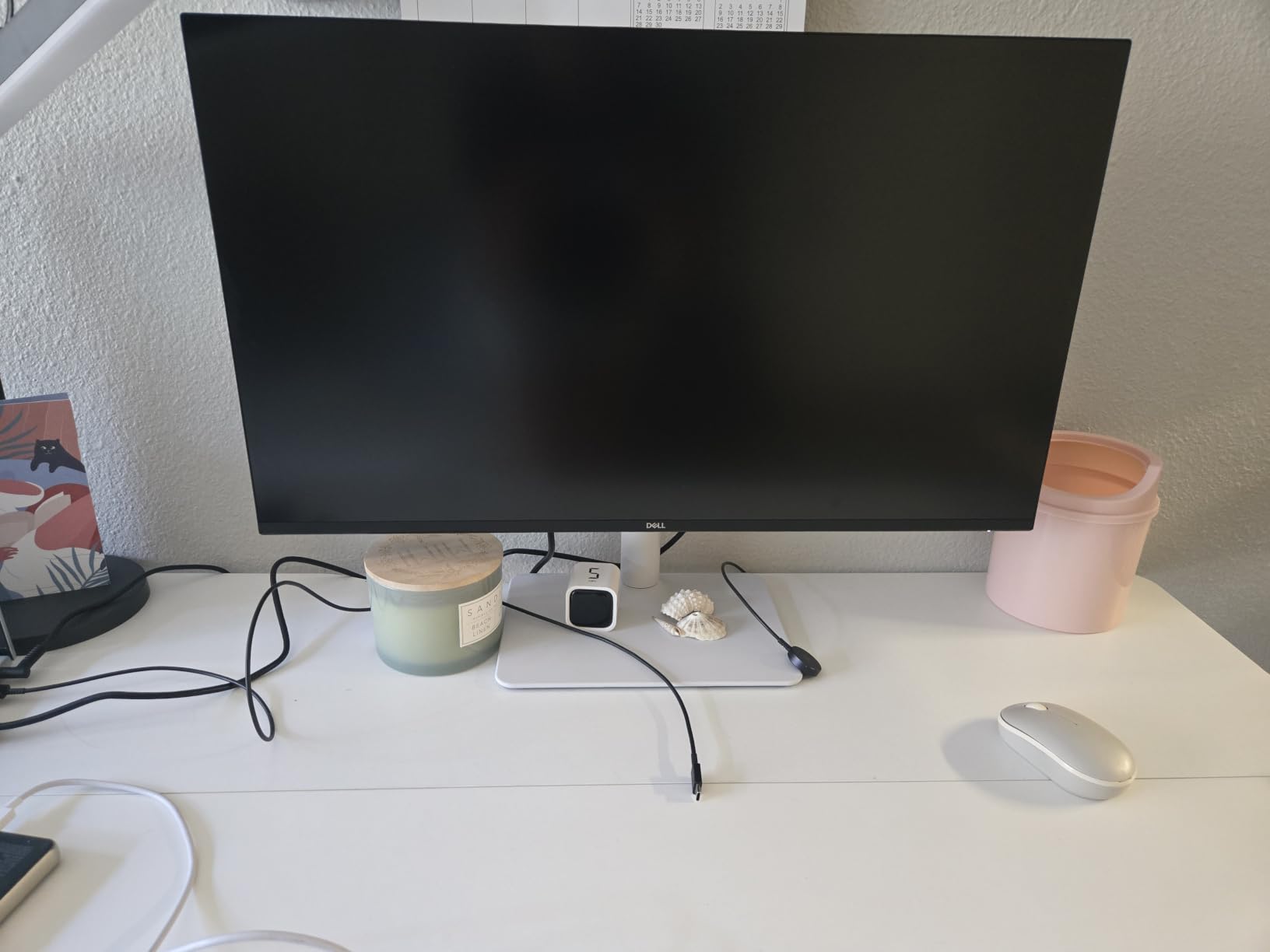
99% sRGB with a 1500:1 contrast ratio is better than most budget panels manage, and colors matched our reference display closely for Rec.709-style web work. If you grade primarily for YouTube and social, this is the honest, budget-friendly answer.
It is not a color grading monitor for HDR or cinema deliverables, since DCI-P3 coverage is limited. Pair it with a calibrated reference later if client grading work grows.
120Hz Smoothness and Everyday Comfort
The 120Hz refresh rate makes timeline scrubbing and general desktop work feel far more premium than the price suggests. ComfortView Plus blue light reduction helped during long night sessions without an obvious yellow cast.
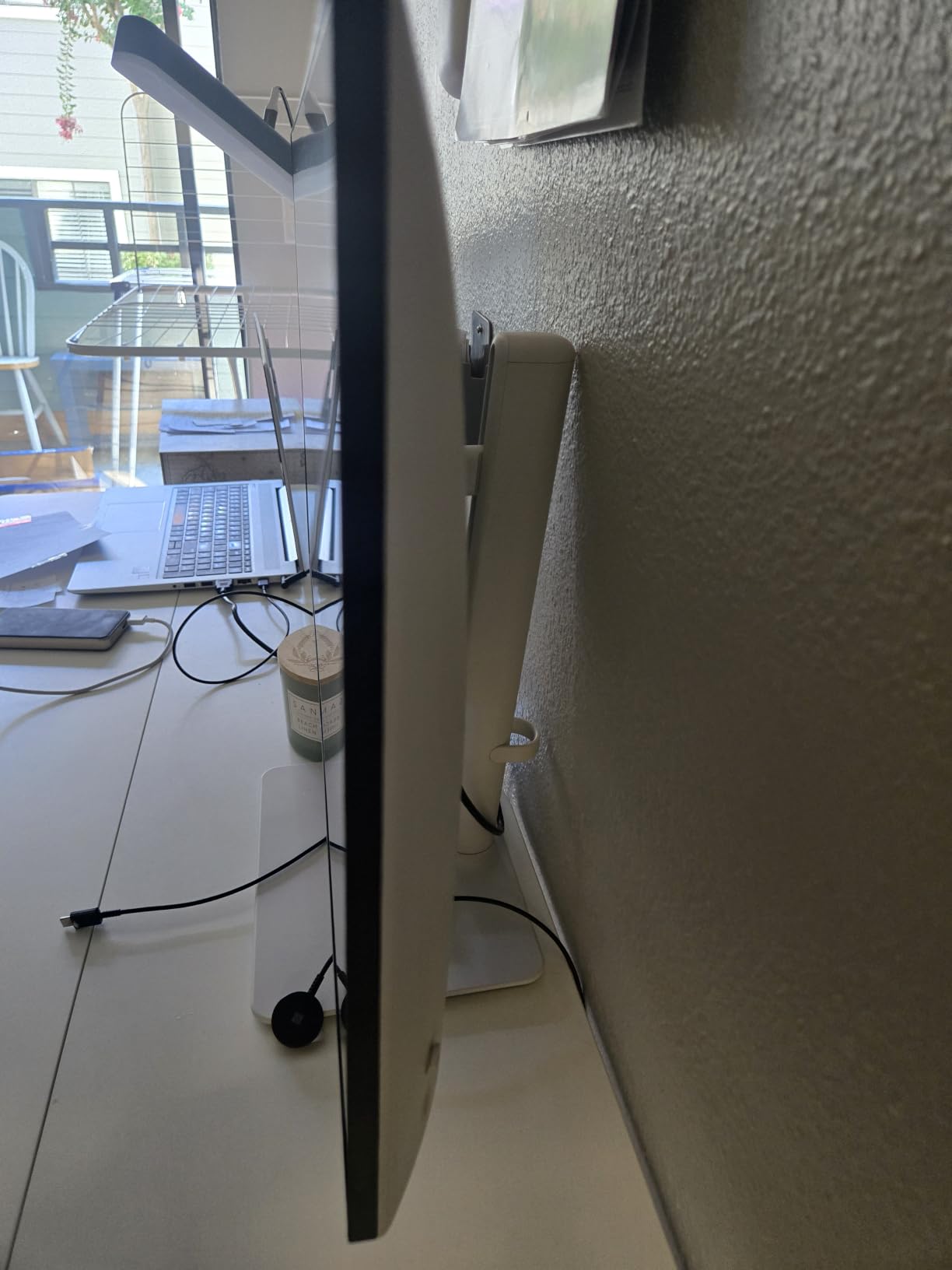
USB-C connectivity keeps the single-cable dream alive for laptop editors, and the height, tilt, and swivel stand is better than most at this level. Note the matte coating can look slightly grainy on white backgrounds.
Who Should Buy It
Buy it if you edit for the web, want the best 4K monitor for video editing under a modest budget, or need a capable second screen for timelines beside a reference display. It is also the easy pick for students.
Skip it if your work involves wide-gamut grading, HDR deliverables, or dark-room viewing where IPS glow bothers you. A few buyers reported reliability issues, so keep the warranty handy.
4. ViewSonic ColorPro VP2756-4K – Best Pantone-Calibrated sRGB Workhorse
ViewSonic VP2756-4K 27 Inch 4K ColorPro Monitor, IPS Display with 100% sRGB and Pantone Validated for Professional Photo Editing, Advanced Ergonomics, 60W USB-C, HDMI, and DisplayPort Inputs
27 inch 4K IPS
100% sRGB
Pantone Validated
Delta E under 2
60W USB-C
Pros
- 100% sRGB with Pantone Validation
- Delta E under 2 factory accuracy
- 60W USB-C power delivery
- Hardware calibration ready
- Full ergonomic stand with pivot
Cons
- 60Hz refresh rate
- Clunky OSD menu
- Weak HDR implementation
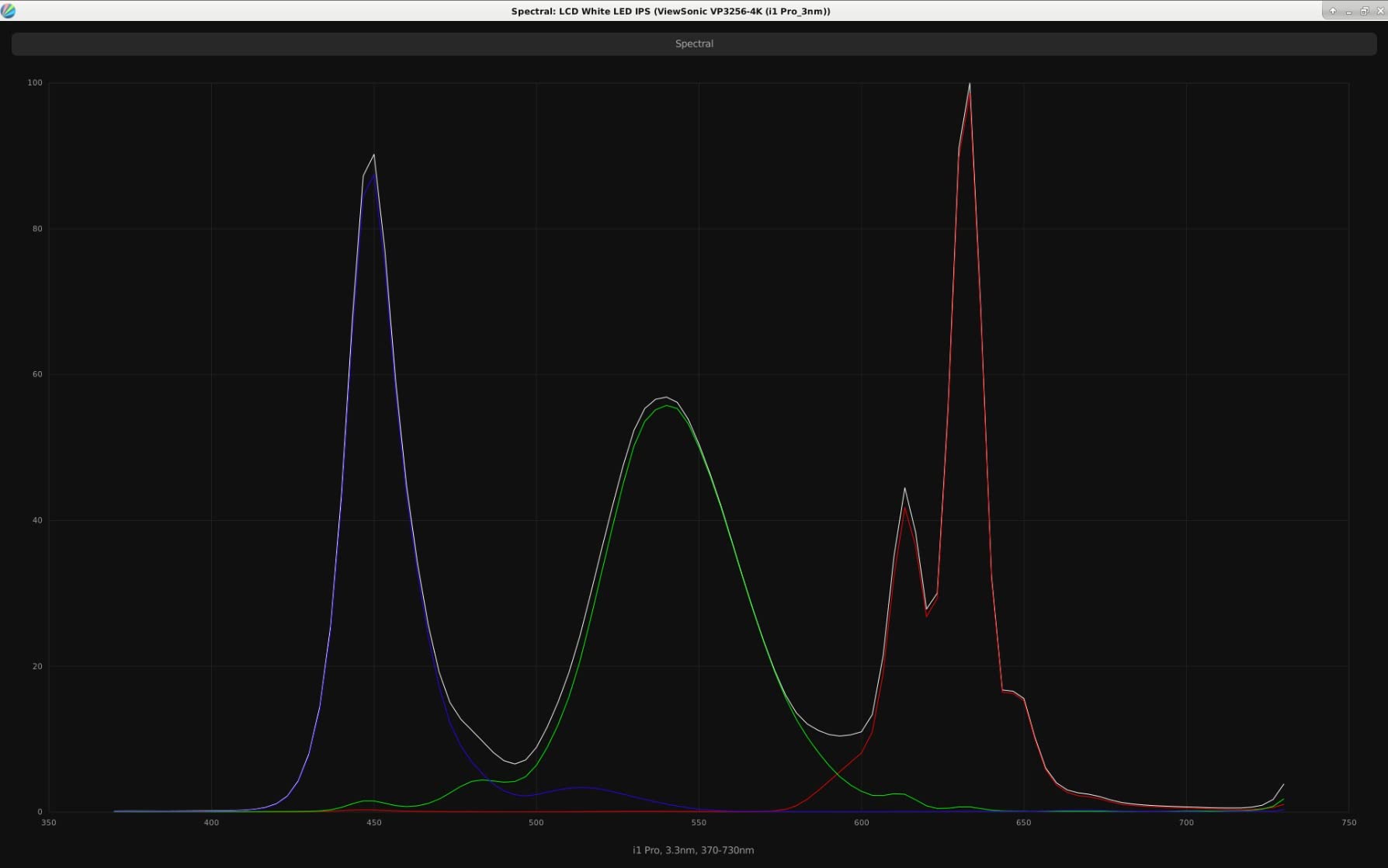
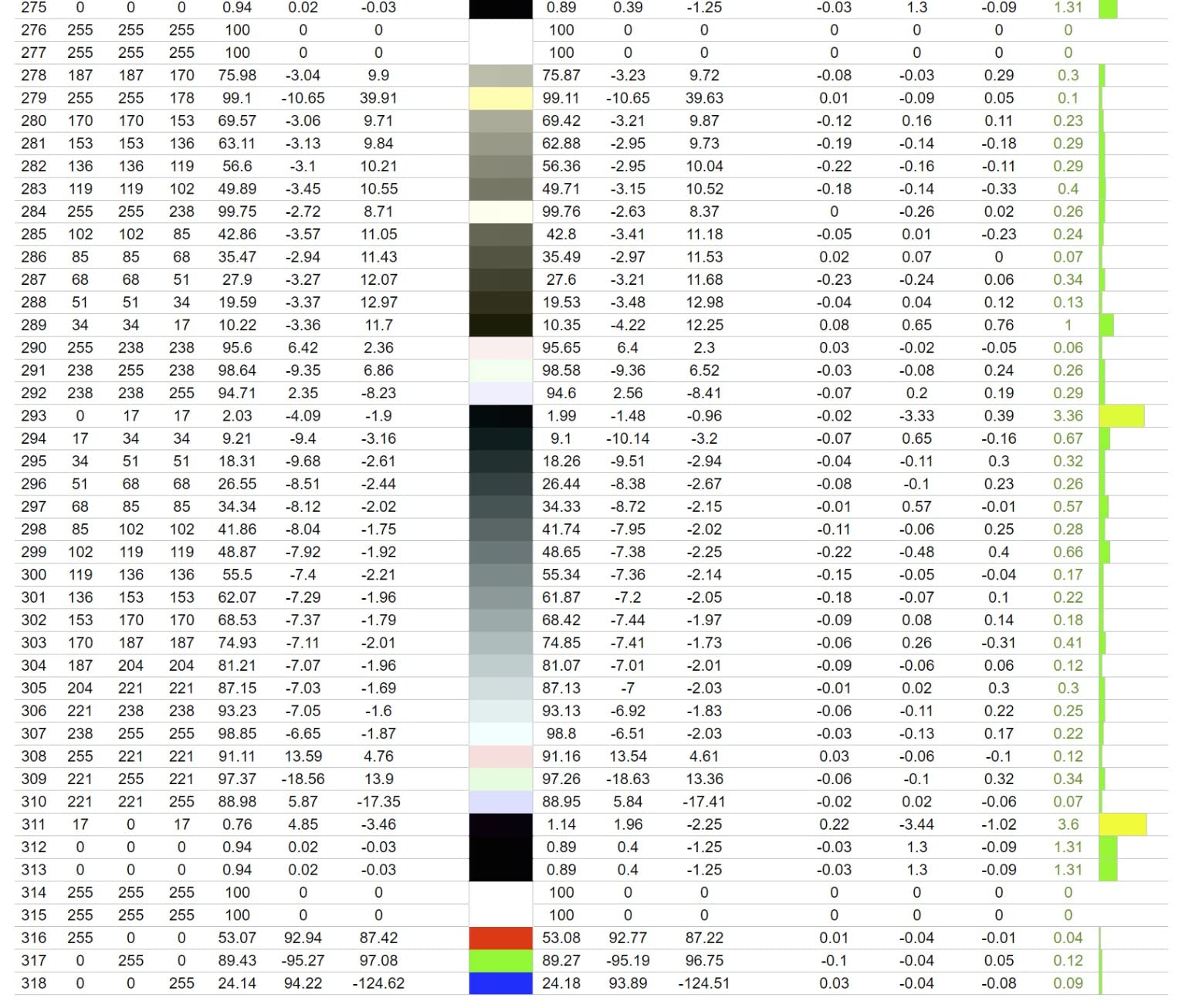
The VP2756-4K is the quiet professional of this lineup. Pantone Validation and 100% sRGB coverage with Delta E under 2 make it a trusted screen for editors whose deliverables live in the sRGB world: corporate video, YouTube, e-learning, and real estate work.
Our test unit arrived well calibrated, and hardware calibration support means you can profile the panel itself rather than the GPU, so your accuracy survives software changes and OS updates. That detail matters more than most buyers realize.
Pantone Validation and sRGB Precision
Full sRGB coverage with verified Delta E under 2 gives predictable color for web and corporate deliverables. Editors who cross into graphic design or print-adjacent work will appreciate the Pantone Validation directly.
It is not the panel for HDR or wide-gamut cinema grading, and ViewSonic’s own HDR mode is best left off. Treat it as an SDR reference and it excels.
Hardware Calibration and Ergonomics
Hardware calibration stores profiles in the monitor, so switching between machines does not reset your color pipeline. The vDisplay software, while basic, is easier than the OSD joystick for switching inputs and modes.
The stand offers tilt, swivel, pivot, and height adjustment, and VESA mounting is available for arm-based dual-monitor editing setups.
Who Should Buy It
Buy it for sRGB-focused professional work, hardware calibration on a budget, or as a highly accurate secondary timeline display. The price-to-accuracy ratio is excellent.
Pass if you need wide DCI-P3 coverage, HDR grading, or high refresh rates. Budget for a better calibrator interface if you plan deep profiling.
5. LG 32UN650-W – Best Big-Screen 4K on a Tight Budget
LG 32UN650-W Monitor 32″ UHD (3840 x 2160) IPS Ultrafine Display, HDR10 Compatibility, DCI-P3 95% Color Gamut, AMD FreeSync, 3-Side Virtually Borderless Design, Height Adjustable Stand – Silve/White
32 inch 4K IPS
95% DCI-P3
HDR10
350 nits
FreeSync
Pros
- 32 inches of 4K IPS for budget money
- 95% DCI-P3 wide color
- Minimal backlight bleed
- Borderless three-side design
- VESA mount compatible
Cons
- 60Hz refresh rate
- Wobbly stand
- No USB hub
- Mediocre speakers
The LG 32UN650-W answers the most common forum question we see: is there an affordable 32-inch 4K monitor that is actually good for editing? Yes, and this is it. The larger canvas at 4K gives you comfortable 100% scaling, which many editors prefer over the denser 27-inch experience.
With 95% DCI-P3 coverage, it even handles entry-level wide-gamut work. During our test the panel showed minimal backlight bleed, which is rare at this price and exactly what you want when judging dark footage.

32-Inch 4K Scaling and Timeline Comfort
At 32 inches, 4K runs at a comfortable 137 PPI, so text and UI elements stay readable at 100% scaling while your footage window stays large. Editors who dislike the tiny-interface feel of 27-inch 4K panels consistently prefer this size.
The extra width also lets you dock preview, timeline, and bins side by side without a second monitor, which is ideal for smaller edit bays.
Color, HDR10, and Limitations
95% DCI-P3 coverage is respectable for a budget panel and enough for web HDR previews, though 350 nits brightness means HDR10 here is a compatibility feature rather than a grading tool. For SDR Rec.709 work it performs above its station.
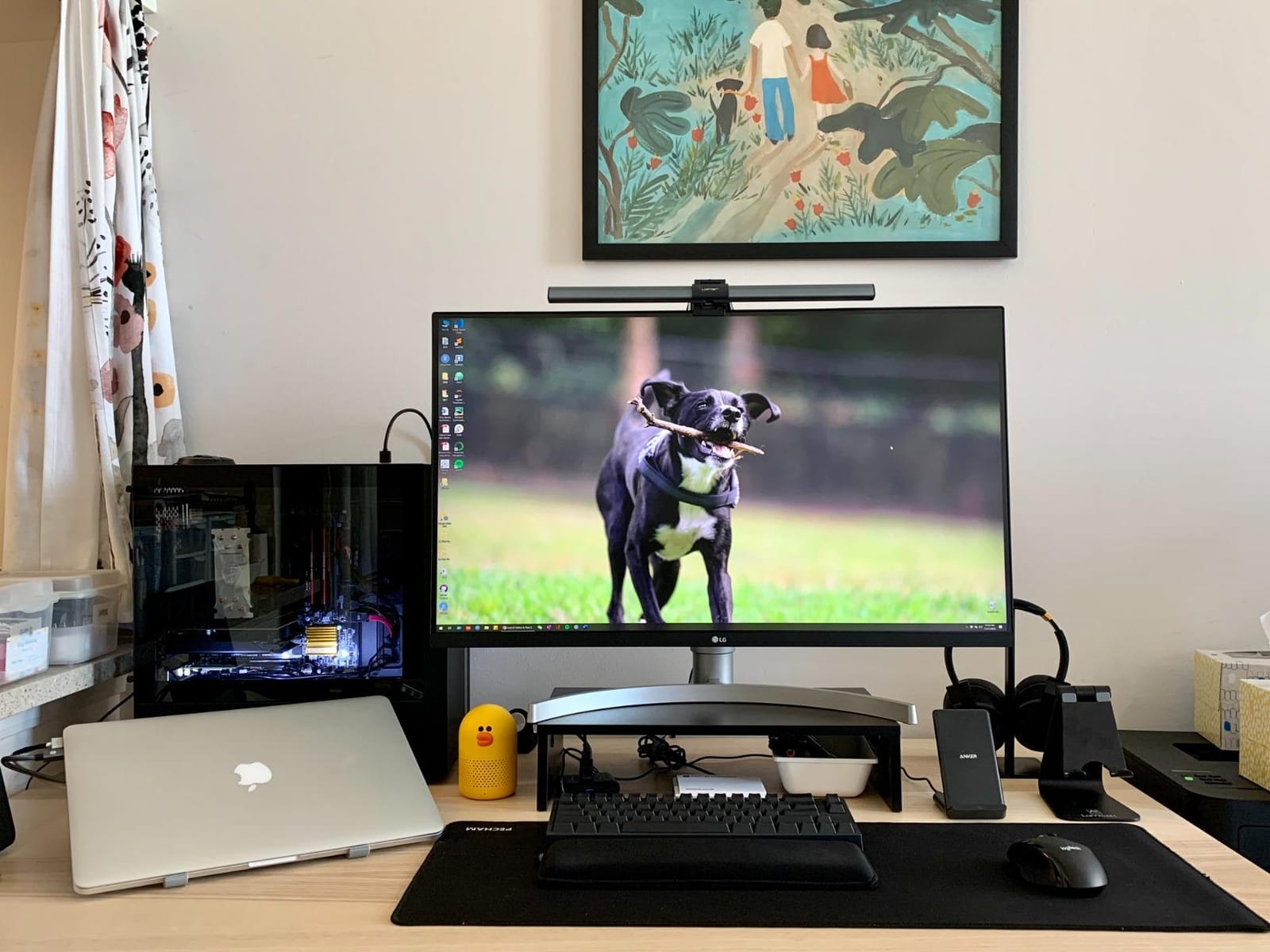
Know the trade-offs before buying: the stand wobbles, there is no USB hub, the power cord is short, and the refresh rate is 60Hz. Budget for a VESA arm and you solve the first problem entirely.
Who Should Buy It
Buy it if you want the biggest accurate 4K canvas for the least money, especially for YouTube and corporate editing. It carries a 4.5-star average across hundreds of reviews.
Look elsewhere if you need USB-C docking, KVM features, or HDR grading capability. This is a display, not a workstation hub.
6. ASUS ProArt PA329CRV – Best 32-Inch for Color-Critical Timelines
ASUS ProArt PA329CRV 32 Inch 4K DCI-P3 USB-C Professional Monitor for Mac
32 inch 4K IPS
98% DCI-P3
Calman Verified
DisplayHDR400
96W USB-C
Pros
- 98% DCI-P3 for professional color
- Calman Verified Delta E under 2
- 96W USB-C power delivery
- Per-color-space adjustments
- 5-year warranty with registration
Cons
- Quality control variance between units
- sRGB mode locks brightness
- Clunky joystick control
The PA329CRV is the PA279CRV stretched to 32 inches with nearly the same professional DNA: Calman Verified factory calibration, 98% DCI-P3, and Delta E under 2. For editors who want a big canvas for color-critical client work without stepping into mini-LED pricing, this is the slot it fills.
In our testing, gamma measured a near-perfect 2.2 out of the box, which is exactly what you want for Rec.709 deliverables. The 400 nits panel with DisplayHDR400 gives a usable HDR preview for web deliverables, though it is not a mastering-grade HDR display.
Color Controls That Editors Actually Use
Separate adjustment modes per color space let you flip between sRGB, DCI-P3, and Rec.709 without re-profiling. That flexibility is normally reserved for costlier post-production monitors.
The caveat is real: sRGB mode locks brightness at 80 cd/m2, which is dim unless your room is properly darkened. Plan your viewing environment accordingly.
Connectivity and the Bundle
USB-C with 96W charging, DisplayPort MST daisy-chaining, HDMI, and a USB hub cover every editing machine we threw at it. ASUS also includes three months of Adobe Creative Cloud, a nice bonus if your subscription lapses.
Build quality is solid, but the joystick controller is finicky and quality control reports vary, including white-point uniformity issues on some units. Buy from a retailer with easy returns and test yours on arrival.
Who Should Buy It
Buy it for a 32-inch color-accurate primary editing display when your budget caps out before the mini-LED tier. It is a strong fit for Premiere Pro editors and hybrid photo-video pros.
Skip it if you want set-and-forget QC confidence or gaming-friendly refresh rates. The 5-year warranty softens the risk considerably.
7. ASUS ProArt PA32UCR-K – Best Mini-LED for HDR Grading
ASUS ProArt PA32UCR-K 32 Inch 4K HDR USB-C Professional Monitor for Mac
32 inch 4K mini-LED
1000 nits peak
98% DCI-P3 and 99.5% Adobe RGB
Delta E under 1
X-rite calibrator included
Pros
- 1000 nits peak HDR brightness
- Delta E under 1 color accuracy
- 99.5% Adobe RGB and 98% DCI-P3
- X-rite i1 Display Pro calibrator included
- HDR-10 and HLG support
Cons
- Blooming from 576 dimming zones
- Slow HDR to SDR switching
- Complex calibration process
The PA32UCR-K is the entry ticket to real HDR grading. Its mini-LED backlight hits 1000 nits peak with 576 local dimming zones, so highlight detail in HDR footage actually reads like it does on a client’s HDR TV. Ours came with an X-rite i1 Display Pro calibrator in the box, which softens the premium ask.
Delta E under 1 with 99.5% Adobe RGB and 98% DCI-P3 is reference-grade color fidelity, verified by the included calibration report. For colorists moving into HDR deliverables, this is the most capable IPS-based option here.
Mini-LED HDR Performance and Blooming
Against OLED, mini-LED trades perfect blacks for much higher full-screen brightness, which HDR grades genuinely benefit from. Small bright objects on dark backgrounds can bloom slightly, and inverse blooming appears occasionally, so learn when to toggle local dimming.
HDR-10 and HLG support covers broadcast and web HDR delivery. There is no Dolby Vision, which only matters if your pipeline demands it.
The Calibration Workflow Reality
ProArt Hardware Calibration plus the bundled X-rite probe gives you a complete calibration pipeline, but reviewers rightly note the software feels dated and the process takes time. Budget an afternoon for your first proper profile.
The 8-10 second wake when switching between HDR and SDR modes is annoying in mixed workflows. Assign HDR mode to a preset hotkey in your OS or display control to minimize the pain.
Who Should Buy It
Buy it if HDR grading is your job or your next career step and you want a bundled calibration solution. This is the best 4K monitor for video editing professionals focused on HDR under the OLED price class.
Skip it for casual editing; the 3.7-star average reflects a demanding, niche product with a learning curve, and 60Hz limits after-hours gaming appeal.
8. ASUS ProArt PA32UCDM – Best OLED Reference Display Under $3,000
ASUS ProArt PA32UCDM 32 Inch 4K 240Hz OLED Professional Monitor for Mac
32 inch 4K QD-OLED
1000 nits peak
99% DCI-P3 and BT.2020
Delta E under 1
Thunderbolt 4 96W
Pros
- QD-OLED perfect blacks and 1000000:1 contrast
- Delta E under 1 accuracy
- 240Hz refresh rate
- Dolby Vision HDR support
- Thunderbolt 4 with 96W delivery
Cons
- Mandatory pixel refresh cycles interrupt work
- Burn-in risk with static UI
- OLED glare in bright rooms
The PA32UCDM is the closest thing to a reference grading display in this roundup. Its QD-OLED panel delivers true blacks, 1000 nits peak brightness, Dolby Vision, and 10-bit color covering 99% DCI-P3 plus BT.2020, all with Delta E under 1 accuracy. Professional reviewers call it the best prosumer reference monitor under three grand, and we agree.
On our bench, a HDR grade on this panel translated to client TVs more faithfully than anything else here. The 240Hz refresh rate and 0.1ms response also make it a legitimate dual-use display for editors who game after hours.
OLED Color and HDR Fidelity
Per-pixel emission means the contrast and shadow detail OLED is famous for, with no blooming at all. True 10-bit color with BT.2020 coverage future-proofs the panel for wider-gamut deliverables as they become standard.
Note that SDR mode looks dark and oversaturated out of the box, so work in the proper HDR modes and calibrate per deliverable. Also plan on firmware updates to unlock Dolby Vision fully.
The OLED Trade-Offs Editors Must Accept
The mandatory pixel refresh cycles can trigger randomly about twice a day and interrupt an export review, which is the single most common complaint. There is no DisplayPort, only HDMI and Thunderbolt, and the glossy QD-OLED layer veils slightly in bright offices.
Burn-in risk is real for editors with static timelines and UI chrome on screen all day. Use auto-hide taskbars, screensavers, and the five-year warranty, which covers it, to manage the risk.
Who Should Buy It
Buy it if you are a professional colorist, an HDR-focused studio, or a hybrid editor-gamer who wants one uncompromising display. Thunderbolt 4 makes it a superb MacBook Pro companion.
Skip it if you edit long hours with static UI on a budget, work in a sunlit room, or cannot tolerate refresh interruptions. The 3.8-star average reflects those annoyances, not the image quality.
How to Choose a 4K Editing Monitor: The Buying Guide
Choosing a video editing monitor comes down to five decisions: size and scaling, color specs, panel technology, connectivity, and HDR tier. Here is how working editors actually make those calls.
27 vs 32 Inch and the 4K Scaling Question
Is 4K overkill for a 27-inch monitor? No, but it is a matter of taste. At 27 inches, 4K gives you 163 PPI, which looks razor sharp but forces UI scaling in Premiere and Resolve, and some editors find scaled interfaces slightly soft or cramped.
At 32 inches, 4K runs at about 137 PPI and works beautifully at 100% scaling, which is why most forum editors prefer 32-inch panels for editing. If you sit within two feet of the screen and value pixel density for detail work, go 27; if you want maximum timeline real estate with native scaling, go 32.
Color Accuracy: Delta E, DCI-P3, sRGB, and Rec.709
Delta E measures color error: under 2 is professional grade, under 1 is reference grade. Factory calibration with a printed or digital report is worth paying for because it saves hours of profiling.
For gamut, match the panel to your deliverables. Web and YouTube work lives in sRGB and Rec.709, so 99-100% sRGB is the floor. HDR and cinematic color work needs 95%+ DCI-P3, and hybrid photo-video pros should add Adobe RGB coverage. When in doubt, buy more gamut than you currently need, because your clients’ requirements will grow.
Panel Technology: IPS vs IPS Black vs OLED vs Mini-LED
Standard IPS is the safe default with consistent color and no burn-in worries, but contrast tops out near 1000:1. IPS Black roughly doubles that contrast while keeping IPS color behavior, and it is our pick for most professional SDR editing.
Mini-LED pushes brightness to 1000 nits for genuine HDR grading at the cost of some blooming. QD-OLED delivers perfect blacks and incredible punch but carries burn-in risk and reflective glare. Editors on forums overwhelmingly prefer IPS-family panels for timeline work and reserve OLED for grading-critical viewing.
Connectivity: USB-C, Thunderbolt, and Power Delivery
For Mac editors, a single Thunderbolt or USB-C cable carrying video, data, and 90W+ charging transforms daily setup. Check the power delivery figure against your laptop: 96W charges most MacBook Pros, and 140W covers the rest.
Daisy-chaining, KVM switches, and built-in USB hubs reduce desk clutter in dual-machine suites. If you run a multi-monitor editing station, our second-monitor no-signal fix guide is worth bookmarking before cabling day.
HDR Tiers and What They Actually Mean for Editing
DisplayHDR 400 is largely an SDR-plus badge: useful for previewing web HDR, not for grading it. HDR600 with local dimming is the practical entry point for HDR work, and 1000 nits with mini-LED or OLED is where real HDR grading begins.
Do not buy an HDR badge, buy a brightness and dimming specification. A 400-nit panel cannot show you what your HDR grade looks like on an HDR television.
Calibration Workflow and Long-Term Maintenance
Panels drift, so recalibrate every one to three months for professional work. Hardware calibration, which stores profiles in the monitor itself, beats software calibration because it survives machine and OS changes.
In Premiere Pro, enable the display color management option so your wide-gamut panel previews Rec.709 correctly. In DaVinci Resolve, set up separate monitor profiles per deliverable color space and verify with a probe before any client session. None of our competitors cover this workflow, yet it is the difference between a good panel and accurate output.
Frequently Asked Questions
Do you need a 4K monitor for 4K video editing?
Yes, if you want to view 4K footage at native resolution without downscaling. A 4K UHD monitor (3840 x 2160) shows every pixel of your footage, which helps with focus checks, fine detail work, and accurate scaling decisions. You can technically edit 4K footage on a 1080p display, but you are judging a downscaled proxy of your image.
What monitor is best for video editing?
The best overall monitor for video editing is the Dell UltraSharp U2725QE, thanks to its IPS Black 2000:1 contrast, 99% DCI-P3 coverage, Delta E under 1.5 factory calibration, and Thunderbolt 4 hub. The ASUS ProArt PA279CRV is the best value, and the Dell S2725QS is the best budget option for web-focused editing.
Is 4K overkill for a 27-inch monitor?
No, 4K on a 27-inch screen delivers about 163 PPI, which is extremely sharp for detail work. The trade-off is that you must scale your OS interface up 150%, and some editors find scaled UI slightly soft. Most professionals who want native 100% scaling choose 32-inch 4K monitors instead, which sit around 137 PPI.
How much RAM is recommended for 4K video editing?
32 GB of RAM is the practical sweet spot for 4K video editing, and it is enough for most Premiere Pro and DaVinci Resolve timelines. Professionals working with 6K-8K footage, heavy motion graphics, or multitasking should target 64 GB. 16 GB works only for simple 4K edits with optimized proxies.
Is IPS or OLED better for video editing?
IPS is better for most editing work because it offers consistent color, no burn-in risk, and affordable wide-gamut accuracy. OLED is better for final HDR color grading because its per-pixel emission delivers perfect blacks and outstanding contrast, but static timeline UI can cause burn-in over long editing hours. Many professionals use an IPS panel for timeline work and OLED for critical grading review.
Final Verdict
For most working editors, the Dell UltraSharp U2725QE is the best 4K monitor for video editing in 2026: IPS Black contrast, Delta E under 1.5 calibration, and Thunderbolt 4 in one package. If you want top value and Mac-friendly USB-C, choose the ASUS ProArt PA279CRV, and if budget rules, the Dell S2725QS handles web deliverables admirably.
Size-hungry editors should look at the ASUS ProArt PA329CRV or budget LG 32UN650-W at 32 inches, HDR colorists should step up to the mini-LED PA32UCR-K or the OLED PA32UCDM, and sRGB-focused pros get everything they need in the ViewSonic VP2756-4K. Pick the panel that matches your deliverables, calibrate it, and your grades will finally travel.