
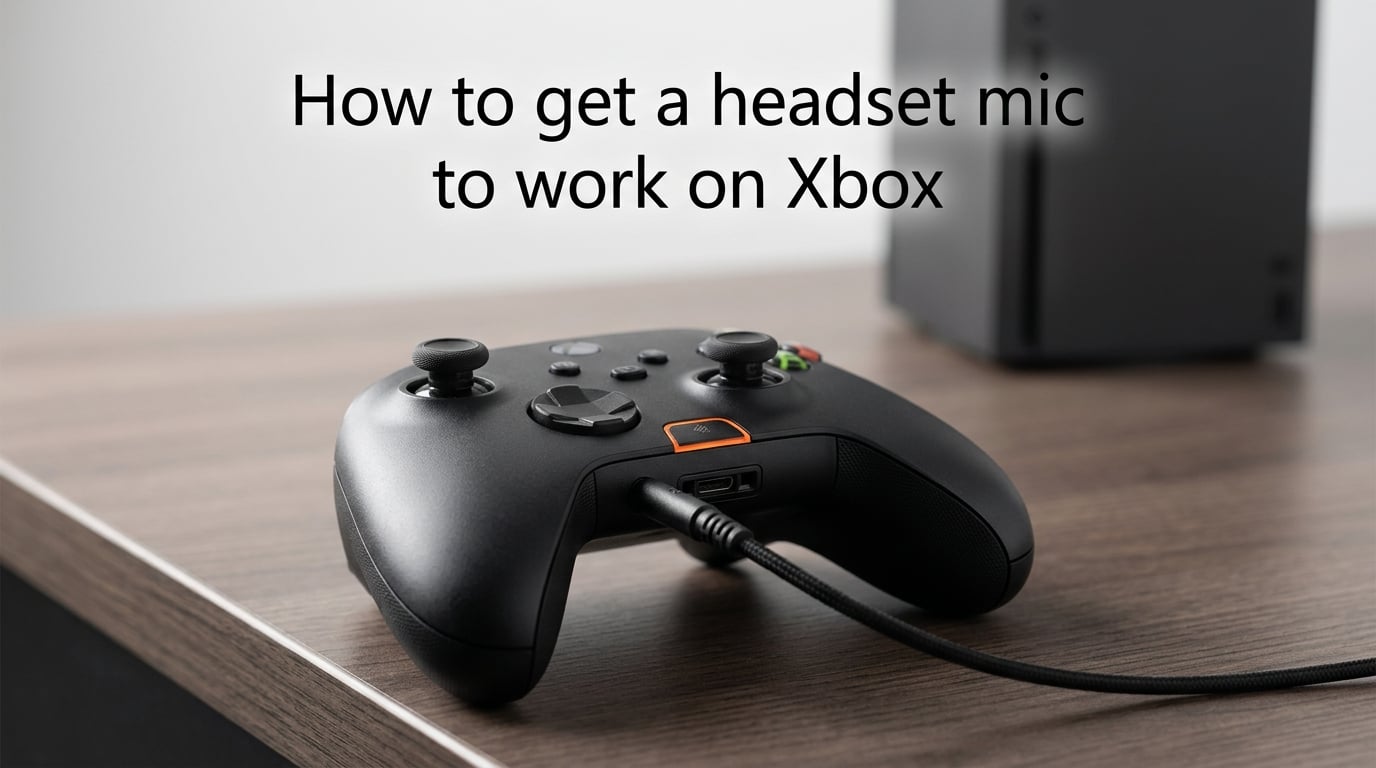
There is nothing more frustrating than settling into a gaming session with your friends, only to realize nobody can hear you. If your headset mic is not working on Xbox, you are far from alone. Thousands of players run into this issue every single week across Xbox Series X, Xbox Series S, and Xbox One consoles.
The good news is that the vast majority of headset mic problems are fixable in under ten minutes. I have spent years troubleshooting Xbox audio issues, and the same handful of fixes solve nearly every case. This guide walks you through each step in order, starting with the simplest and most common solutions.
Whether you are using a wired 3.5mm headset, a wireless headset with a USB adapter, or the official Xbox Wireless Headset, the troubleshooting steps below will help you get your headset mic to work on Xbox. Let us get your voice back into the party chat.
Quick Fix Checklist: Try These First
Before diving into detailed steps, run through this quick checklist. These five fixes solve about 80 percent of all headset mic issues on Xbox:
Unplug your headset and firmly reconnect the 3.5mm jack into the controller
Check that the hardware mute switch on your headset cable or earcup is not engaged
Press the Xbox button, go to the audio settings, and make sure Headset mic is enabled
Adjust the Chat Mixer slider so it is not pinned all the way to game audio
Restart your controller by removing the batteries, waiting ten seconds, and reconnecting
If none of those quick fixes worked, do not worry. The detailed sections below will walk you through every possible cause, from firmware glitches to privacy settings that silently block your microphone.
Step 1: Check the Physical Headset Connection
The most common reason for a headset mic not working on Xbox is a loose or improperly seated physical connection. It sounds obvious, but this single step resolves a surprising number of cases.
For wired headsets, locate the 3.5mm audio jack on the bottom edge of your Xbox controller. Push the connector in firmly until you feel a distinct click. If the plug wobbles or sits loosely, the mic contacts may not be making a proper connection. Some controllers have slightly worn jacks after years of use, which can cause intermittent mic failures.
While you are checking the connection, inspect the cable itself. Look for kinks, fraying, or bent pins on the connector. Even minor cable damage can break the microphone circuit while leaving the headphone speakers working fine. This is exactly why so many users report hearing game audio but having a dead mic.
For wireless headsets that connect via a USB dongle or Xbox Wireless protocol, make sure the adapter is fully inserted into the console or controller. Try unplugging and replugging the USB adapter. If your wireless headset uses a separate chat cable (common with some Turtle Beach and Astro models), verify that specific cable is connected.
Take a moment to clean the connector and port. Dust, pocket lint, and debris can accumulate inside the 3.5mm jack and prevent the microphone contacts from connecting. Use a wooden toothpick or compressed air to gently clear any buildup from both the headset plug and the controller port.
Step 2: Check the Hardware Mute Switch
After verifying the physical connection, the next most common culprit is an accidentally engaged mute switch. This happens more often than you might think, and it is incredibly easy to overlook.
Most wired gaming headsets have an inline mute toggle on the cable. This is usually a small slider or button located partway down the wire, often built into the volume control module. Check whether a red indicator or an orange ring is showing, which typically means the mic is muted. Slide or press it to unmute.
If you have a wireless headset, the mute control is usually a button on one of the earcups. The Xbox Wireless Headset has a dedicated mute button that you can accidentally press when adjusting the headset. Some Astro and HyperX models use a flip-up boom arm design where flipping the mic up automatically mutes it. Make sure the boom arm is fully extended into the speaking position.
Xbox Series X and Series S controllers have a dedicated mute button located just below the Xbox logo button. Pressing it toggles controller-level muting, and a small indicator light illuminates when muted. If that light is on, your headset mic will not transmit any audio regardless of what your headset settings say.
Step 3: Enable Headset Mic in Xbox Audio Settings
This is the fix that solves the problem for most players. Xbox consoles have a specific setting that must be enabled for the headset microphone to function. If this toggle is off, your mic will remain completely silent even though your headset speakers work perfectly.
Here is exactly how to enable the headset mic on your Xbox console:
Press the Xbox button on your controller to open the Guide menu
Scroll right to the Profile and system tab (your gamerpic)
Select Settings, then choose General
Select Volume and audio output
Under the Headset audio section, find the Headset mic toggle
Make sure it is set to Enabled or On
While you are in the audio settings, take a moment to check three related sliders that affect your mic experience. The Mic Monitoring slider controls how much of your own voice you hear through the headset, which helps you avoid shouting. The Headset volume slider controls the overall output level. The Chat mixer slider balances game audio against voice chat.
If the Headset mic toggle is missing entirely from your settings menu, this usually means the Xbox is not detecting a connected headset. Go back to Step 1 and verify the physical connection, then return to the settings menu. The toggle only appears when the console recognizes a headset is plugged in.
One important note: the settings path is nearly identical on Xbox Series X, Series S, and Xbox One, but the menu labels may differ slightly depending on your system software version. Look for Volume and audio output or Audio and music in the General settings category. On older Xbox One firmware, you may find mic controls under Devices and accessories instead.
Step 4: Adjust the Chat Mixer
The Chat Mixer is a frequently misunderstood Xbox feature that directly affects whether your microphone works in practice. Even if your mic is technically enabled, an extreme Chat Mixer setting can make it seem like nobody can hear you.
The Chat Mixer balances the volume between your game audio and your voice chat. When the slider is pushed all the way toward game audio, chat volume drops to near zero, and your outgoing mic signal can effectively be suppressed in party chat. This creates the confusing situation where you can hear the game perfectly but friends say you sound silent or extremely quiet.
To adjust the Chat Mixer, press the Xbox button to open the Guide, then navigate to the audio icon at the bottom of the Guide menu. You will see a slider with game controller on one end and person icon on the other. Slide it toward the center or slightly toward the chat side to ensure voice communication gets enough bandwidth.
Aim for a roughly balanced setting. If the mixer is pinned to either extreme, you will experience audio problems. Most players find a setting slightly favoring game audio works best, but adjust to your personal preference after confirming your mic is transmitting properly.
Step 5: Update Your Controller Firmware
Outdated controller firmware is a surprisingly common cause of headset mic issues on Xbox. The controller processes the audio signal from your headset, and older firmware versions can contain bugs that break microphone input while leaving speaker output untouched.
To update your controller firmware, follow these steps:
Connect your controller to the Xbox console using a USB-C cable (or micro-USB for older Xbox One controllers)
Press the Xbox button to open the Guide
Go to Profile and system, then select Settings
Navigate to Devices and connections, then select Accessories
Select your controller and check for available updates
Follow the on-screen prompts to install any pending firmware
Keep your controller connected via USB until the update finishes completely. Interrupting a firmware update mid-process can corrupt the controller, so be patient and let it run its course. The update typically takes two to five minutes.
If you use a premium gaming headset from Turtle Beach, SteelSeries, Astro, or HyperX, check whether the headset itself has its own firmware. Many modern wireless headsets support firmware updates through companion apps on your phone or PC. A headset firmware bug can absolutely cause mic failures, so it is worth checking the manufacturer support page for your specific model.
The official Xbox Wireless Headset receives updates through the Xbox Accessories app on your console. If you own this headset, open the app periodically to make sure you are running the latest firmware. Several past mic issues with this model were resolved through firmware patches.
Step 6: Restart Your Controller and Console
Sometimes the Xbox software simply needs a fresh start. Temporary glitches in the audio processing pipeline can silence your mic, and a clean restart clears these issues without changing any settings.
Start with a controller restart. Remove the batteries from the back of the controller (or disconnect the rechargeable battery pack). Wait ten full seconds, then reinsert the batteries and press the Xbox button to reconnect. This forces the controller to reinitialize its audio hardware and can resolve mic detection issues.
If the controller restart does not help, move on to a full console restart. Press the Xbox button, go to Profile and system, select Restart console, and choose Restart. This is different from powering down, because it fully reloads the Xbox operating system rather than entering sleep mode. Your headset mic may start working immediately after the reboot.
For stubborn issues, perform a hard reset of the console. Hold the physical power button on the front of the Xbox (or top on Xbox One) for ten seconds until the console shuts down completely. Unplug the power cable from the wall, wait thirty seconds, then plug it back in and power on. A hard reset clears cached data that a normal restart leaves in memory, and it fixes deeper audio glitches that standard restarts miss.
Many users on Xbox support forums report that a hard reset alone fixed mic problems that persisted for weeks. It should not be your first troubleshooting step, but it is worth trying before moving on to more advanced fixes.
Advanced Troubleshooting: When Nothing Else Works
If you have worked through Steps 1 through 6 and your headset mic is still not working on Xbox, it is time to dig deeper. The following solutions address less common but equally frustrating causes.
Try a Different Controller
The 3.5mm headset jack on your controller can wear out or develop internal faults. If you have a second controller, plug your headset into it and test the mic. If the mic works on the second controller, the original controller likely needs repair or replacement. This is especially common on older Xbox One controllers that have seen heavy use over several years.
Test the Headset on Another Device
Plug your headset into a PC, phone, or another console. If the mic does not work on any device, the headset itself is defective and needs replacement. If the mic works fine on other devices but not on Xbox, the problem is definitely with your console, controller, or settings rather than the headset hardware.
This single test saves you from buying a replacement headset when the real problem lies elsewhere. I cannot count the number of forum posts where users bought new headsets only to discover the same mic issue persisted on Xbox.
Check Privacy and Account Settings
Xbox privacy settings can silently block microphone access. This is one of the most overlooked causes of headset mic issues, and most troubleshooting guides skip it entirely. If your Xbox Live account privacy settings restrict communication, your mic will not transmit voice regardless of your hardware setup.
To check your privacy settings, sign in to your Microsoft account at xbox.com on a browser. Go to Privacy and online safety, then review the communication settings. Make sure voice chat and multiplayer communication are set to allow. If you are using a child account, the adult organizer may need to adjust the family safety permissions to enable voice communication.
Re-Pair Wireless Headsets and Adapters
Wireless headsets can lose their pairing connection over time, especially after console updates or power outages. If you use a wireless headset with a USB adapter, try removing the adapter from the console, waiting ten seconds, and reinserting it. Then power cycle the headset itself by turning it off and back on.
For the Xbox Wireless Headset, press and hold the power button until it enters pairing mode, then re-pair it with your console. Hold the pairing button on the headset and the pairing button on your controller simultaneously until they reconnect. This fresh pairing can resolve audio channel conflicts that break mic input.
Brand-Specific Notes
Different headset brands have unique quirks on Xbox. Turtle Beach headsets with the SuperAmp or audio hub require firmware updates through the Turtle Beach Audio Hub app. HyperX Cloud headsets occasionally need their USB sound card dongle replaced if the mic stops working. Astro A50 headsets require the base station to be properly synced with the correct preset loaded.
If you own a SteelSeries Arctis headset, check the retractable mic is fully extended and that the GameDAC or Transmitter firmware is current. Razer headsets paired through the Xbox Wireless program may need the Razer Headset Setup app to configure the mic properly.
Party Chat vs In-Game Chat
Sometimes your mic works fine in Xbox parties but fails in specific games, or vice versa. This usually points to per-game audio settings rather than a system-wide problem. Check the in-game audio or communication settings for separate mic toggles and push-to-talk options. Some games have their own mute features that override system settings.
Also verify your Xbox party chat is set to the correct output. Go to the party options and confirm the audio output is set to headset and speakers, or headset only. If the party output is set to TV speakers only, you may experience mic routing issues.
Xbox Series X/S vs Xbox One: What Is Different?
The troubleshooting steps above work across all Xbox generations, but there are some differences worth knowing if you are switching between consoles or upgrading.
The Xbox Series X and Series S controllers include a dedicated Share button and a dedicated mute button right below the Xbox logo. This mute button provides quick access but is also easy to press accidentally. If your mic suddenly stops working mid-session, check whether that mute indicator light is glowing.
Xbox One controllers also support headsets through the 3.5mm jack and the proprietary expansion port. However, some original launch Xbox One controllers from 2013 do not have a built-in 3.5mm jack at all. If you have one of these older controllers, you need the Xbox One Stereo Headset Adapter that plugs into the expansion port on the bottom.
The settings menus differ slightly between generations. On Xbox Series X and Series S, you will find mic controls under Settings, then General, then Volume and audio output. On Xbox One running the latest firmware, the equivalent settings are under Settings, then Display and sound, then Volume. The exact labels can vary by software update, so look for anything mentioning headset, mic, or chat audio.
Wireless headset compatibility is also worth noting. The Xbox Wireless Headset works on both generations. However, some third-party wireless headsets designed for Xbox One may need a firmware update to function properly on Xbox Series X or Series S. Check the manufacturer documentation if you recently upgraded consoles.
FAQs
Why is my Xbox not picking up my headset mic?
Your Xbox may not be picking up your headset mic because the Headset mic toggle in audio settings is disabled, the physical connection is loose, or a hardware mute switch is engaged. Start by unplugging and firmly reconnecting the 3.5mm jack, then press the Xbox button and navigate to Settings u0026gt; General u0026gt; Volume and audio output to make sure Headset mic is enabled.
How do I use my headset mic on Xbox?
To use your headset mic on Xbox, plug your headset into the controller, press the Xbox button, go to Settings u0026gt; General u0026gt; Volume and audio output, and enable the Headset mic toggle. Adjust the Chat Mixer and Mic Monitoring sliders to your preference, then test your mic in a party chat to confirm it is transmitting your voice.
Why is my Xbox headset not letting me talk?
Your Xbox headset may not let you talk because of an engaged mute switch, an extreme Chat Mixer setting, outdated controller firmware, or privacy settings restricting voice communication. Check the mute switch on your headset cable or earcup, balance the Chat Mixer slider, update your controller firmware via USB, and review your Xbox Live privacy settings for voice chat permissions.
Why is my headset audio working but not mic?
Headset audio working while the mic does not is a common issue usually caused by a partially seated 3.5mm connector, a damaged mic cable, the Headset mic toggle being disabled, or outdated controller firmware. Reconnect the headset firmly, inspect the cable for damage, enable Headset mic in audio settings, and update your controller firmware via a USB connection to the console.
Can I use a USB headset mic on Xbox?
Xbox consoles do not support standard USB headset microphones for voice chat. You need a headset that connects through the 3.5mm controller jack or an officially licensed Xbox Wireless headset. Some USB headsets may output game audio on Xbox, but their microphones will not function for chat. Use a gaming headset designed specifically for Xbox compatibility.
How do I fix my Xbox mic when others cannot hear me?
If your mic transmits but others cannot hear you, check that the Chat Mixer slider is not pushed entirely toward game audio, verify you are not muted at the party or game level, confirm your party chat audio output is set to headset, and make sure in-game communication settings are enabled. Also test your mic in a different party or game to isolate the issue.
Wrapping Up
Getting your headset mic to work on Xbox comes down to a methodical troubleshooting process. Start with the basics: check the physical connection, verify the mute switch, and enable the Headset mic toggle in your audio settings. These three steps fix the problem for most players.
From there, work through the Chat Mixer adjustment, controller firmware update, and console restart if needed. And if you are still stuck, the advanced troubleshooting section covers privacy settings, brand-specific quirks, and controller hardware issues that go beyond the common fixes.
Remember that learning how to get a headset mic to work on Xbox means understanding the full chain from your headset cable to the Xbox audio settings. Bookmark this guide so you can return to it the next time your mic goes silent mid-session. Your party chat teammates will thank you.