
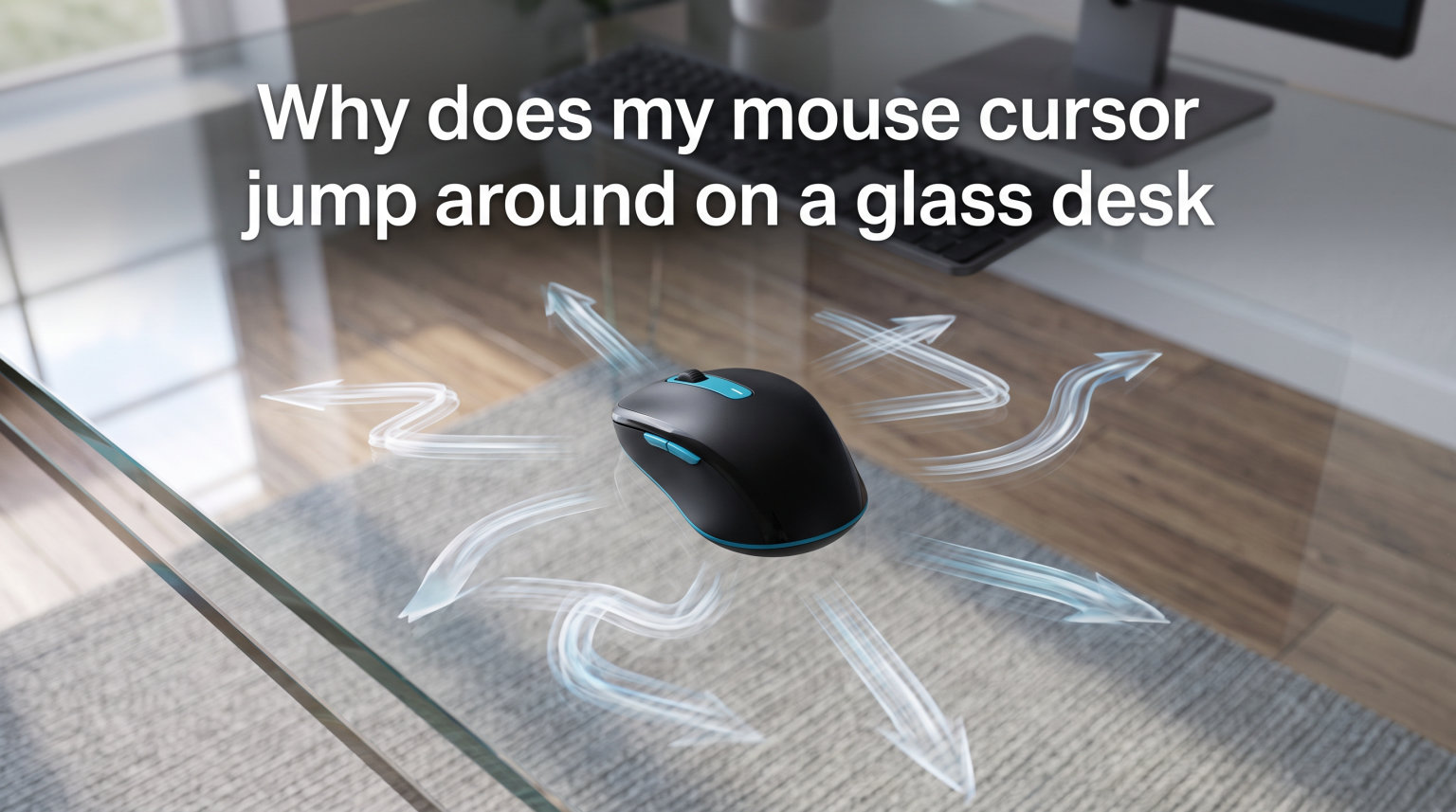
If your mouse cursor jumps around on a glass desk, the problem is your mouse’s optical sensor. Optical and laser mice work by bouncing light off the surface below and imaging the reflection to track movement. Glass is transparent and ultra-smooth, so the light either passes straight through or reflects unpredictably, and the sensor cannot detect any surface texture to calculate movement.
This is one of the most frustrating issues you can run into with a modern desk setup. You bought a sleek glass tabletop, it looks fantastic, and now your wireless mouse refuses to cooperate. The cursor stutters, jumps to corners of the screen, or stops responding entirely in certain spots.
I have dealt with this exact problem across multiple setups, and the good news is that once you understand why it happens, the fixes are straightforward. The issue comes down to how mouse tracking technology fundamentally works and what it needs from the surface beneath it.
How Optical and Laser Mouse Sensors Work
To understand why your mouse cursor jumps on a glass desk, you need to know what is happening inside the mouse itself. Both optical and laser mice use the same basic principle: they are tiny high-speed cameras.
Inside every modern mouse, an LED light or laser diode shines downward onto the surface below. That light bounces back up through a lens and hits a small image sensor, essentially a mini camera chip. This sensor takes thousands of photographs per second, often between 1,500 and 12,000 images depending on the quality of the mouse.
A processor inside the mouse then compares each image to the previous one. By detecting how the microscopic patterns in the images shift between frames, it calculates which direction and how fast the mouse moved. It sends that data to your computer, and the cursor moves accordingly.
Here is the critical part: the sensor needs visible texture and detail on the surface to compare between frames. Think of it like trying to navigate using landmarks. If the surface has microscopic bumps, fibers, or grain, the sensor has plenty of landmarks to track. On a perfectly smooth, featureless surface, there are no landmarks. The sensor is essentially staring at a blank wall.
This is why mouse tracking works beautifully on fabric mouse pads, wood desks, paper, and matte plastic. All of these surfaces have microscopic texture the sensor can lock onto. Even surfaces that look smooth to your eye have irregularities that the sensor sees clearly at high magnification.
Why Your Mouse Cursor Jumps on a Glass Desk: The Science Explained
Now let’s get into the specific physics of why glass surfaces cause mouse tracking issues. There are three separate problems working together.
The Transparency Problem
The biggest issue is that glass is transparent. When your mouse’s LED or laser shines light downward, that light does not bounce back the way it would from a wooden or plastic surface. Instead, a large portion of the light passes straight through the glass and hits whatever is below the desk, whether that is your floor, your legs, or shadow.
The sensor is designed to receive light reflected back from the surface immediately beneath the mouse. When the light travels through the glass instead, the sensor either receives no meaningful reflection or picks up light patterns from objects far below the desk. These patterns are not stable, so the tracking algorithm gets confused.
Reflection vs Refraction on Glass
Even the light that does not pass through the glass does not behave normally. Glass causes two different optical effects that mess with your mouse sensor.
The first is specular reflection. When light hits a smooth glass surface, it bounces off at a predictable angle, like a mirror. This is different from the diffuse reflection you get from a textured surface, where light scatters in all directions. Your mouse sensor is calibrated to expect diffuse reflection, so the mirror-like bounce from glass produces an image that looks distorted or blank.
The second effect is refraction. As light enters and exits the glass, it bends. The speed of light changes when moving from air into glass and back, which shifts the angle of the light beams. This bending means the reflected image the sensor receives is displaced and distorted compared to what it would see from an opaque surface.
Combine transparency, specular reflection, and refraction, and the sensor is receiving a garbled mess of light instead of a clear image of surface texture. The tracking algorithm tries to make sense of it, and the result is erratic cursor movement, stuttering, or complete tracking failure.
Why Glass Creates Dead Spots
Many users report that their mouse works on some parts of a glass desk but not others. This happens because the optical properties of glass are not perfectly uniform across the entire surface. Variations in thickness, small imperfections, surface coatings, and what is visible beneath the desk all affect how the sensor reads each spot.
If there is a dark object under the desk in one area, the sensor might get enough contrast to track briefly. In another area where light passes through more cleanly, tracking fails entirely. This inconsistency is what causes the cursor to suddenly jump or stutter as you move across the desk.
Forum users on Reddit have confirmed this repeatedly. One user reported that their mouse worked fine on the left side of their glass desk but completely died when moved to the right side. The difference was a dark cabinet beneath the left side providing some reflected contrast, while the right side had open floor space underneath.
Solutions: How to Fix Mouse Tracking on Glass Surfaces
Now for the part you came here for. There are several ways to solve this problem, ranging from free and instant to more involved upgrades.
Get a Mouse Pad (The Simplest Fix)
The most obvious solution is also the most effective: use a mouse pad. A mouse pad provides the textured, opaque surface your sensor needs. Even a basic five-dollar cloth mouse pad will completely solve the tracking problem on a glass desk.
If you do not have a mouse pad handy, users on Reddit have shared creative alternatives that work. A sheet of plain paper works surprisingly well. The matte surface has enough texture for the sensor to track reliably. A magazine, a book, a piece of cardboard, or even the back of a notebook can serve as a temporary fix.
One important note from forum discussions: avoid mouse pads with glossy or photo-quality printed surfaces. The reflective coating can cause similar tracking issues to the glass itself. Stick with matte fabric or textured plastic pads with solid colors or simple patterns.
Alternative Surfaces That Work on Glass Desks
If you do not want to use a traditional mouse pad, there are other options. A desk mat or desk pad is a larger version of a mouse pad that covers a significant portion of your desk surface. These are popular with people who want to maintain the aesthetic of their glass desk while solving the tracking problem.
Self-adhesive vinyl film is another option. You can apply a matte or textured vinyl sheet to a section of your glass desk, creating a permanent tracking zone without covering the entire surface. This is a good middle ground if you want to keep the glass look but need functional mouse tracking.
Some users also report success with frosted glass contact paper. The frosted texture diffuses light in a way that gives the sensor enough surface detail to work with. This is an inexpensive option that lets you keep the glass aesthetic while making it mouse-friendly.
Blue LED vs Red Laser: Which Works Better on Glass?
This is where the science gets interesting. Not all mouse sensors are equally bad on glass. The type of light source your mouse uses makes a real difference in how well it handles challenging surfaces.
Traditional optical mice use a red LED light. These are the most common and the most affordable. The red LED produces a relatively narrow beam of light that is great for tracking on textured opaque surfaces but struggles badly on glass. If you have a standard wireless mouse from Logitech or Microsoft, it probably uses a red LED.
Laser mice use an infrared laser instead of an LED. The laser produces a more focused and intense beam of light that can detect finer surface details. Laser mice generally track better on glossy surfaces and semi-transparent materials than standard optical mice. Some laser mice can even work on glass to a limited degree, though performance is still inconsistent.
Blue LED mice, sometimes called BlueTrack or Darkfield sensors depending on the brand, use a blue light source combined with a wider-angle lens. The blue light has a shorter wavelength than red light, which means it can detect finer surface textures. Microsoft’s BlueTrack technology and Logitech’s Darkfield laser technology were both specifically designed to work on surfaces where traditional sensors fail, including glass.
If you need a mouse that works directly on glass without a pad, look for mice marketed with Darkfield, BlueTrack, or similar multi-surface tracking technology. These use advanced sensor designs that can detect the microscopic imperfections even in glass, giving them limited but functional tracking ability on transparent surfaces.
Modern Gaming Mice Designed for All Surfaces
In 2026, gaming mice have come a long way. High-end sensors from companies like PixArt, including the PMW3360 and PAW3395, offer tracking performance that older mice could never match. Some of these sensors are specifically rated for glass surface compatibility.
Logitech’s G series mice with their HERO sensor and some Razer mice with Focus Plus sensors can maintain tracking on glass at a basic level. They may not deliver their full precision on transparent surfaces, but they can prevent the worst cursor jumping behavior.
That said, even the best gaming mice will perform better on a proper surface. If you are doing precision work like photo editing, gaming, or detailed design work, a mouse pad is still worth using even with a high-end mouse.
Other Reasons Your Mouse Cursor Might Jump Around
While glass surfaces are the most common cause of cursor jumping on a glass desk, there are several other potential culprits. If you have already tried a mouse pad and are still experiencing issues, check these possibilities.
Wireless Interference Issues
Wireless mice operate on the 2.4 GHz frequency band, the same band used by Wi-Fi routers, Bluetooth devices, microwave ovens, and cordless phones. If your USB receiver is positioned near a Wi-Fi router or other wireless devices, interference can cause the cursor to jump or stutter.
Forum users frequently report that their mouse starts jumping when downloads are active or when a phone call comes in on a cell phone placed near the receiver. Moving the USB receiver to a different port, ideally on the front of the computer or using a USB extension cable, can dramatically reduce interference.
Bluetooth mice can experience similar issues. If you are using a Bluetooth mouse, try unpairing and re-pairing it, or switch to a mouse with a dedicated USB dongle, which typically provides a more stable connection.
Dirty or Blocked Sensor
The sensor window on the bottom of your mouse can accumulate dust, hair, and debris over time. Even a small piece of lint partially blocking the sensor can cause erratic tracking behavior that mimics the symptoms of a glass surface problem.
Cleaning the sensor is simple. Turn the mouse over and inspect the small window or hole on the bottom. Use a can of compressed air to blow out any dust. For stubborn debris, a cotton swab lightly dampened with isopropyl alcohol works well. Let it dry completely before using the mouse again.
Also check for hair or fibers wrapped around the sensor housing. Long pet hair in particular can work its way into the sensor opening and cause persistent tracking issues.
Driver and Software Problems
Outdated or corrupted mouse drivers can cause cursor jumping on any surface. Windows generally installs basic mouse drivers automatically, but manufacturer-specific drivers from Logitech, Razer, Corsair, and others provide better performance and customization options.
Check the manufacturer’s website for the latest drivers and software for your specific mouse model. Installing the official software can resolve tracking issues and give you access to settings like polling rate adjustment and surface tuning, which lets the mouse calibrate itself to your specific desk surface.
Some users report that Windows updates can occasionally reset mouse settings or cause driver conflicts. If the problem started after a recent update, try rolling back the mouse driver in Device Manager.
Windows Settings That Can Help
Windows has a setting called Enhance Pointer Precision that affects how the cursor responds to mouse movement. This feature is essentially mouse acceleration, which means the cursor moves faster when you move the mouse quickly and slower when you move it slowly.
For some users, especially on surfaces where tracking is already marginal, this setting can make cursor jumping more noticeable. Try disabling it by going to Settings, then Devices, then Mouse, then Additional mouse options, and unchecking the Enhance Pointer Precision box.
You can also try adjusting the pointer speed slider. A lower speed setting can sometimes mask minor tracking inconsistencies by reducing how far the cursor moves for each unit of sensor input.
Frequently Asked Questions
How to stop mouse cursor from jumping around?
To stop your mouse cursor from jumping, first try using a mouse pad or placing a sheet of paper under your mouse. If you are on a glass or glossy desk, this solves the problem in most cases. Also clean the sensor on the bottom of your mouse, move your USB receiver away from Wi-Fi routers, and update your mouse drivers.
Why does my mouse work on glass?
Some mice work on glass because they use advanced sensor technology like Logitech Darkfield or Microsoft BlueTrack. These sensors use specialized light sources and optics that can detect microscopic imperfections in glass surfaces. Standard red LED optical mice generally cannot track on glass.
Why do mice not work on glass?
Most mice do not work on glass because glass is transparent and smooth. The mouse sensor shines light downward and images the reflection to track movement, but on glass the light passes through instead of reflecting back. Without surface texture to image, the sensor cannot calculate movement direction.
How do I fix my jittery mouse pointer?
To fix a jittery mouse pointer, start by using a textured mouse pad instead of a bare desk surface. Clean the sensor window with compressed air, replace the batteries if it is wireless, move the USB receiver closer to the mouse, and update your mouse drivers from the manufacturer website.
Can you use a mouse on a glass desk?
Yes, you can use a mouse on a glass desk by adding a mouse pad, desk mat, or textured surface. Mice with Darkfield or BlueTrack sensors can also track directly on glass with limited success, but for reliable performance a textured surface like a cloth mouse pad is still the best solution.
Conclusion
Understanding why your mouse cursor jumps around on a glass desk comes down to basic physics. Your mouse sensor is a tiny camera that needs surface texture to track movement, and glass is transparent, smooth, and reflective in ways that confuse the sensor. Light passes through instead of bouncing back, and what little reflection occurs is distorted by refraction and specular reflection.
The simplest and most effective fix will always be a mouse pad. Whether you choose a basic cloth pad, a large desk mat, or a high-tech mouse with Darkfield tracking, giving your sensor a proper surface to work with solves the problem immediately. If a mouse pad does not fix the jumping, check for wireless interference, clean your sensor, and update your drivers to rule out other causes.