
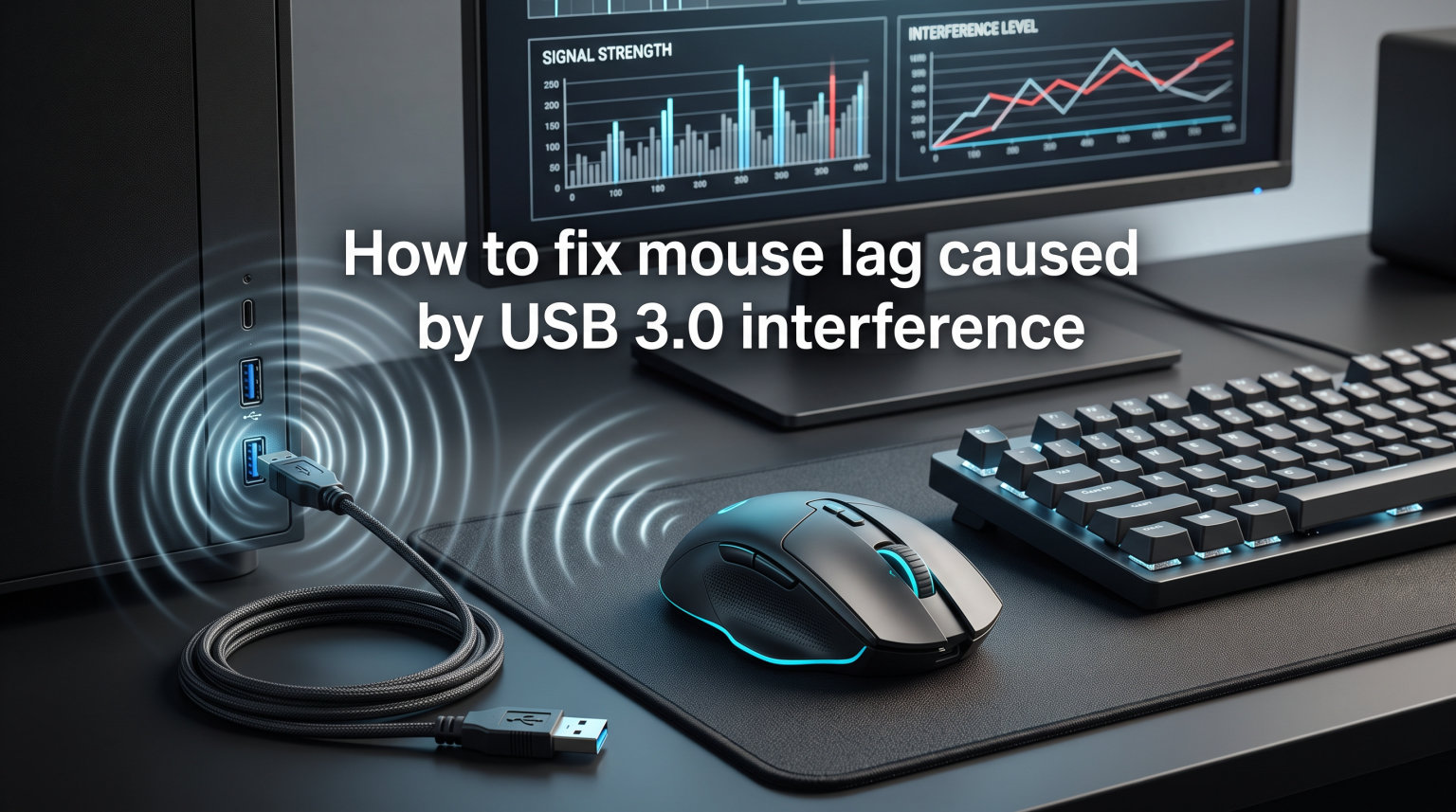
You move your wireless mouse, and the cursor stutters. It freezes for half a second, then jumps across the screen. You replace the batteries, clean the sensor, and update drivers, but nothing works. The problem might not be your mouse at all. It could be the USB 3.0 ports sitting right next to your wireless receiver.
Learning how to fix mouse lag caused by USB 3.0 interference can save you hours of frustration and the cost of replacing a perfectly good mouse. USB 3.0 ports and cables emit radio frequency noise in the same 2.4GHz band that most wireless mice rely on. When your receiver sits too close to an active USB 3.0 port or device, that noise drowns out the mouse signal and your cursor pays the price.
Our team has tested these fixes across gaming rigs, office workstations, Mac Studio setups, and docking station configurations. The solutions below come from a combination of manufacturer documentation (Intel and USB-IF white papers), community-verified workarounds from Reddit and hardware forums, and our own hands-on testing. Whether you are running a Logitech unifying receiver, a Bluetooth mouse, or a wired gaming mouse with a high polling rate, this guide walks you through every fix step by step.
Quick Fixes: How to Fix Mouse Lag Caused by USB 3.0 Interference
Three methods stop USB 3.0 interference without replacing your wireless mouse. These are the fastest fixes, and they resolve roughly 80% of interference cases.
Fix 1: Use a USB extension cable. Plug your wireless receiver into a USB 2.0 extension cable and place the receiver at least 12 inches away from any USB 3.0 port or device. This is the single most effective fix and costs only a few dollars.
Fix 2: Move the receiver to a USB 2.0 port. Most motherboards still include USB 2.0 ports (often black instead of blue). Plugging your 2.4GHz receiver into a USB 2.0 port eliminates the primary source of interference.
Fix 3: Switch to Bluetooth mode. If your mouse supports Bluetooth, pair it directly. Bluetooth operates on frequency-hopping spread spectrum technology that is more resistant to USB 3.0 noise than a standard 2.4GHz dongle.
If none of these quick fixes work, the sections below dig into deeper troubleshooting for every connection type, operating system, and hardware configuration.
Why USB 3.0 Causes Mouse Lag
USB 3.0 interference is electromagnetic noise emitted by USB 3.0 ports and cables that disrupts 2.4GHz wireless signals used by wireless mice and keyboards. The interference is a documented side effect of the technology itself, not a defect in your hardware.
USB 3.0 achieves its 5 Gbps data transfer speed using a technology called spread spectrum clocking (SSC). SSC spreads the electromagnetic emissions across a wider frequency range to pass regulatory compliance tests. The problem is that this spreading lands squarely in the 2.4 to 2.5 GHz range, which is the exact frequency band used by wireless mice, keyboards, and even some Wi-Fi and Bluetooth devices.
Intel published a white paper on this issue titled “USB 3.0 Radio Frequency Interference Impact on 2.4GHz Wireless Devices.” The USB Implementers Forum (USB-IF) followed with their own technical note. Both confirm that USB 3.0 cables and ports radiate broadband noise that can reduce the signal-to-noise ratio of nearby 2.4GHz receivers by 20 dB or more. That is enough to turn a smooth cursor into a stuttering mess.
The interference is worst when USB 3.0 devices are actively transferring data. If you have ever noticed your mouse lagging during a backup to an external SSD or a large file copy to a flash drive, this is why. The cable acts like an antenna, broadcasting noise directly at your wireless receiver.
Logitech unifying receivers are particularly vulnerable. Community testing on Reddit and hardware forums confirms that the small nano receivers, which sit flush against the computer case, have minimal shielding and pick up USB 3.0 noise easily. Users on r/buildapc, r/logitech, and r/MouseReview consistently report that new PC builds with front-panel USB 3.0 ports trigger mouse lag that did not exist on older systems.
Mac Studio users report similar problems. The Mac Studio has multiple USB-C and USB-A ports packed closely together on the back panel. When a USB 3.0 external drive is connected next to a wireless receiver, Mac users on r/mac and r/MacStudio describe cursor stuttering that disappears as soon as the drive is disconnected.
Identify Your Mouse Lag: Symptom-to-Cause Guide
Before applying fixes, you need to confirm that USB 3.0 interference is actually the cause. Mouse lag has many origins, and applying the wrong fix wastes time. Here is how to match your symptoms to the right cause.
Symptom: Cursor stutters or freezes, then jumps to a new position. This is the classic signature of wireless interference. If the stuttering gets worse during file transfers to USB 3.0 drives, USB 3.0 interference is almost certainly the culprit.
Symptom: Cursor feels delayed or sluggish, but does not freeze. This points to a polling rate issue, pointer acceleration setting, or a surface tracking problem rather than interference.
Symptom: Cursor jumps randomly even when you are not moving the mouse. This can indicate a dirty optical sensor, a reflective desk surface, or interference. Try a different mousepad first.
Symptom: Lag only happens when the laptop is on battery power. This is a USB selective suspend or power management issue, not interference.
Symptom: Lag started after upgrading your PC case or motherboard. This is a strong indicator of USB 3.0 interference. Newer cases route front-panel USB 3.0 cables directly past the rear I/O shield where wireless receivers typically plug in.
To confirm the diagnosis, try this isolation test. Unplug all USB 3.0 devices (external drives, hubs, flash drives) from your computer. If the mouse lag stops, USB 3.0 interference is confirmed. Reconnect devices one at a time to identify the worst offender.
Step-by-Step: How to Fix Mouse Lag Caused by USB 3.0 Interference
Here are seven proven fixes for USB 3.0 interference, ranked from most effective to least effective. Work through them in order until your cursor is smooth again.
Fix 1: Use a USB 2.0 Extension Cable
This fix resolves the majority of USB 3.0 interference cases. The concept is simple: move the wireless receiver away from the noise source.
Step 1: Buy a USB 2.0 (not USB 3.0) extension cable, ideally 3 to 6 feet long. A USB 2.0 cable costs around $5 and will not introduce additional interference.
Step 2: Plug your wireless receiver into the female end of the extension cable.
Step 3: Route the cable so the receiver sits on your desk, at least 12 inches away from any USB 3.0 port, cable, or device. The 12-inch rule comes from community testing across multiple Reddit threads and matches Intel’s recommendations in their interference white paper.
Step 4: Test your mouse. If the stuttering is gone, you have confirmed USB 3.0 interference and fixed it in under five minutes.
One important note: do not use a USB 3.0 extension cable. It defeats the purpose because the cable itself radiates noise. Stick with USB 2.0.
Fix 2: Relocate the Receiver to a USB 2.0 Port
If your computer has USB 2.0 ports, move the wireless receiver to one of them. USB 2.0 ports do not generate the 2.4GHz noise that causes interference.
On most desktop motherboards, USB 2.0 ports are black and USB 3.0 ports are blue. On laptops, check your manual or look for the USB trident logo without the “SS” (SuperSpeed) label. Rear I/O ports directly on the motherboard are often preferable to front-panel case ports because the front-panel cable runs through the case interior where it can pick up noise from other components.
If all your ports are USB 3.0 (common on newer laptops and Macs), the extension cable method from Fix 1 is your best option.
Fix 3: Shield USB 3.0 Cables and Devices
If you cannot move the receiver far enough away, reduce the noise at the source. Hardware forum users have developed several DIY shielding methods that work.
The most popular community solution is copper shielding tape. Multiple Reddit users on r/buildapc report wrapping their USB 3.0 hub cables in copper tape and grounding the tape to the computer case. This reduces the radiated noise significantly. You can buy copper shielding tape (the kind used for guitar electronics) for under $10.
A simpler approach: use ferrite chokes. Snap-on ferrite beads attached to USB 3.0 cables suppress high-frequency noise. They clip onto the cable near each end and cost a few dollars each. They are less effective than copper shielding but require no modification.
You can also try repositioning USB 3.0 cables away from the wireless receiver. Even a few inches of separation can make a measurable difference, because electromagnetic field strength drops rapidly with distance.
Fix 4: Switch Your Mouse to Bluetooth Mode
Many modern wireless mice (including models from Logitech, Microsoft, Razer, and others) support both a 2.4GHz USB dongle and Bluetooth. If yours does, switch to Bluetooth.
Bluetooth uses frequency-hopping spread spectrum (FHSS) technology, which changes frequency 1,600 times per second across 79 channels in the 2.4GHz band. This hopping makes Bluetooth significantly more resistant to USB 3.0 interference than a fixed-channel 2.4GHz dongle.
The trade-off is that Bluetooth can introduce slightly higher latency than a dedicated dongle. For office work and browsing, this is imperceptible. For competitive gaming, you may notice a small difference. Test both modes and see which works better for your setup.
Fix 5: Replace USB 3.0 Hubs with USB 2.0 Hubs
USB 3.0 hubs are notorious interference generators. Every port on a USB 3.0 hub radiates noise, and the hub itself amplifies the USB 3.0 signal for distribution. Forum users consistently report that switching from a USB 3.0 hub to a USB 2.0 hub eliminates mouse lag immediately.
If you need USB 3.0 speeds for external drives or SSDs, connect those devices directly to the computer’s USB 3.0 ports. Use a separate USB 2.0 hub for low-speed peripherals like keyboards, mouse receivers, and game controllers.
This separation strategy keeps the high-speed USB 3.0 signals physically away from your wireless receiver while still giving you the convenience of a hub.
Fix 6: Disable Unused USB 3.0 Ports or Controllers
If you have USB 3.0 ports that you are not using, you can disable them at the hardware level to stop them from generating noise.
On Windows, open Device Manager, expand “Universal Serial Bus controllers,” and look for “USB Root Hub (USB 3.0).” Right-click and select “Disable device” for any USB 3.0 root hub that controls ports you are not using. Be careful not to disable the controller managing your boot drive or critical peripherals.
You can also disable USB 3.0 in your system BIOS or UEFI. Look for USB configuration settings and switch the mode from USB 3.0 to USB 2.0. This reduces all USB 3.0 ports to USB 2.0 speeds but eliminates the interference entirely. This is a drastic measure, but it works as a last resort.
Fix 7: Minimize Interference During File Transfers
If your mouse only lags during large file transfers to USB 3.0 external drives, the fix is operational rather than hardware-based. During active transfers, USB 3.0 cables radiate the maximum amount of noise.
Keep your wireless receiver as far from active USB 3.0 cables as possible during transfers. If you regularly back up to an external drive, position the drive and its cable on the opposite side of your desk from the receiver. Better yet, schedule backups for times when you are not actively using the computer.
Another option: use a network-attached storage (NAS) device for backups instead of a USB 3.0 external drive. This eliminates USB 3.0 from the backup equation entirely.
Connection-Specific Troubleshooting
Different mouse connection types need different fixes. Here is how to address USB 3.0 interference for each type of mouse.
2.4GHz Wireless Dongle Mice
2.4GHz dongle mice are the most vulnerable to USB 3.0 interference because they operate on a fixed frequency within the same band as USB 3.0 noise. The dongle is a tiny antenna with minimal shielding.
Start with the USB extension cable method. If that does not fully resolve the lag, try a different USB 2.0 port. Some motherboard USB 2.0 ports are physically routed closer to USB 3.0 traces on the board than others, so port selection matters.
For gaming mice with high polling rates (500Hz or 1000Hz), interference effects are more noticeable because the mouse is transmitting position data more frequently. A single dropped packet at 1000Hz causes a visible stutter. Consider lowering your polling rate to 500Hz as a diagnostic step. If the stuttering decreases, interference is confirmed.
Bluetooth Mice
Bluetooth mice are more resistant to USB 3.0 interference thanks to frequency hopping, but they are not immune. Severe USB 3.0 noise can still cause dropouts and lag, especially if the Bluetooth antenna is integrated into the motherboard near USB 3.0 ports.
If your Bluetooth mouse lags, first check whether your computer has an external Bluetooth antenna. Desktop motherboards with built-in Bluetooth often include a small antenna that attaches to the rear I/O shield. Make sure it is connected and positioned upright.
On laptops, the Bluetooth antenna is built into the screen assembly. Interference from USB 3.0 ports on the side of the laptop can still reach it. Move USB 3.0 devices to the opposite side of the laptop from where the mouse is located.
Wired USB Mice
Wired mice do not use 2.4GHz wireless, so they are immune to USB 3.0 radio interference. However, wired mice can still experience lag from other causes that are easy to confuse with interference.
If your wired mouse stutters, check the USB polling rate. A mouse set to a polling rate that exceeds the USB controller’s capacity can drop updates. Try switching between different USB ports to rule out a failing port. Also check Windows power management settings, which can put USB root hubs to sleep and cause momentary disconnections.
For wired gaming mice, disable USB selective suspend for the mouse’s root hub in Device Manager. This prevents the system from briefly cutting power to the port during idle periods.
Windows, Mac, and Linux USB Interference Fixes
Each operating system handles USB power management differently. These platform-specific fixes address settings that can amplify USB 3.0 interference or cause additional lag.
Windows 10 and Windows 11
Windows has several power management features that affect USB behavior and can worsen mouse lag.
Disable USB selective suspend. Open Control Panel, navigate to Power Options, and click “Change plan settings” for your active power plan. Click “Change advanced power settings,” expand “USB settings,” and expand “USB selective suspend setting.” Set it to “Disabled” for both battery and plugged-in modes. This prevents Windows from intermittently powering down USB ports, which can cause mouse dropouts that mimic interference.
Disable pointer acceleration. Open Mouse Properties from Control Panel, go to the “Pointer Options” tab, and uncheck “Enhance pointer precision.” Pointer acceleration adds software smoothing that can make cursor movement feel laggy or inconsistent, especially for gaming.
Update USB drivers. Open Device Manager, expand “Universal Serial Bus controllers,” right-click each USB Root Hub and USB Host Controller, and select “Update driver.” Outdated USB 3.0 drivers can cause performance issues that compound with interference.
macOS (Mac Studio, MacBook, Mac mini)
Mac users are not immune to USB 3.0 interference. The Mac Studio, with its compact rear panel full of closely spaced USB-C and USB-A ports, is particularly susceptible.
Reorganize port usage. The Mac Studio has USB-C ports on the front and a mix of USB-A and USB-C ports on the back. Connect wireless mouse receivers to the USB-A ports and keep USB 3.0 external drives on USB-C Thunderbolt ports on the opposite side. Physical separation on the Mac Studio’s rear panel is limited, so a USB extension cable is often necessary.
Reset the SMC and NVRAM. On Intel-based Macs, resetting the System Management Controller (SMC) can resolve USB power delivery issues. On Apple Silicon Macs (M1, M2, M3, M4), simply shut down the computer, wait 30 seconds, and restart. This resets USB controller states.
Check Activity Monitor for USB-related processes. Open Activity Monitor and look for processes consuming high CPU during mouse lag episodes. Some backup software and syncing tools create heavy USB 3.0 traffic that triggers interference.
Linux
Linux users face USB interference too, but the troubleshooting path is different.
Disable USB autosuspend. Linux kernels use USB autosuspend by default, which powers down idle USB devices. This can cause wireless receivers to momentarily lose connection. Edit the GRUB configuration by adding “usbcore.autosuspend=-1” to the GRUB_CMDLINE_LINUX_DEFAULT parameter in /etc/default/grub. Run “sudo update-grub” and reboot.
Check polling rate. Use the “evtest” or “libinput” tools to verify your mouse’s polling rate is being detected correctly. Some Linux distributions default to a lower polling rate, which can mask interference issues but also introduce input lag.
Position receivers carefully. The same 12-inch rule applies on Linux. Use a USB 2.0 extension cable to move the receiver away from USB 3.0 ports and devices.
Battery and Power Issues That Worsen Lag
Low battery voltage is a secondary cause of mouse lag that compounds with USB 3.0 interference. When a wireless mouse battery drops below 1.2V (for AA/AAA alkaline batteries), the transmitter weakens. A weaker signal is more easily overwhelmed by USB 3.0 noise.
If your mouse stuttered only after weeks of use, check the batteries first. Fresh alkaline batteries output 1.5V. Rechargeable NiMH batteries output 1.2V nominally, which is close to the threshold where signal strength drops. Some users report that switching from rechargeable to alkaline batteries reduces interference symptoms because the higher voltage gives the transmitter more power.
For mice with built-in rechargeable batteries, keep the charge level above 20%. When the battery gets very low, the power management circuitry reduces transmitter output to conserve energy, making the mouse more vulnerable to interference.
On the computer side, USB power delivery matters too. If a USB 3.0 external drive draws significant power, it can cause voltage fluctuations on shared USB power rails. This is more common on laptops and cheap hubs. Using a powered USB hub (one with its own AC adapter) isolates power draw and can reduce lag.
Prevent Mouse Lag Before It Starts
Once you fix the current interference problem, a few habits will keep it from coming back.
Plan your USB port layout. Reserve USB 2.0 ports for wireless receivers and low-speed peripherals. Dedicate USB 3.0 ports to storage devices and high-bandwidth peripherals. If possible, keep the two groups on opposite sides of the computer.
Use cable management to maintain physical separation between USB 3.0 cables and wireless receivers. Even a few inches of distance dramatically reduces interference, because electromagnetic field strength follows an inverse-square law.
If you use a docking station, choose one that positions ports thoughtfully. Some docks group all USB-A ports together, which puts receivers right next to active USB 3.0 connections. Docks with separated port clusters or a dedicated USB 2.0 zone are better for wireless peripherals.
Finally, keep your mouse firmware and receiver firmware updated. Logitech, Microsoft, and Razer periodically release firmware updates that improve frequency management and interference resilience. Check the manufacturer’s software utility every few months.
Frequently Asked Questions
Why does USB 3.0 cause interference?
USB 3.0 uses spread spectrum clocking to achieve 5 Gbps transfer speeds, which generates broadband radio frequency noise in the 2.4 to 2.5 GHz range. This overlaps with the frequency used by wireless mice and keyboards, reducing their signal-to-noise ratio and causing cursor stuttering.
How do I fix USB mouse lag?
Move your wireless receiver to a USB 2.0 port or use a USB 2.0 extension cable to place the receiver at least 12 inches from USB 3.0 ports and cables. You can also switch to Bluetooth mode, replace USB 3.0 hubs with USB 2.0 hubs for peripherals, and disable USB selective suspend in your power settings.
How do I fix wireless mouse interference?
Use a USB 2.0 extension cable to relocate the receiver away from USB 3.0 devices. Keep USB 3.0 cables at least 12 inches from the receiver. Shield USB 3.0 cables with ferrite chokes or copper tape. Switch to Bluetooth if your mouse supports it. Replace USB 3.0 hubs with USB 2.0 hubs for peripheral connections.
Does USB 3.0 have less latency?
USB 3.0 itself does not inherently have less latency than USB 2.0 for mouse input. A wired USB mouse has the same polling rate latency on both USB 2.0 and USB 3.0 ports. However, USB 3.0 interference can increase perceived latency on wireless mice by causing signal dropouts and stuttering.
Can USB 3.0 affect Bluetooth mice?
Yes, USB 3.0 can affect Bluetooth mice, but less severely than 2.4GHz dongle mice. Bluetooth uses frequency-hopping spread spectrum that changes channels 1,600 times per second, making it more resistant to interference. Severe USB 3.0 noise can still cause Bluetooth dropouts, especially if the Bluetooth antenna is near active USB 3.0 ports.
Why does my mouse lag during file transfers to external drives?
During active file transfers, USB 3.0 cables radiate maximum electromagnetic noise as they carry high-speed data. This noise floods the 2.4GHz band and overwhelms nearby wireless receivers. Moving the receiver away from USB 3.0 cables or using a USB 2.0 extension cable resolves this.
Conclusion
Fixing mouse lag caused by USB 3.0 interference comes down to one core principle: create physical and electrical separation between your wireless receiver and USB 3.0 noise sources. A USB 2.0 extension cable placed at least 12 inches from USB 3.0 ports resolves about 80% of cases. For the rest, shielding cables with ferrite chokes, switching to Bluetooth, replacing USB 3.0 hubs, and adjusting power management settings cover nearly every remaining scenario.
Start with the quick fixes. Test each solution before moving to the next. And remember that USB 3.0 interference is a known, documented issue confirmed by Intel and the USB-IF, not a defect in your mouse. Once you understand the cause, the fix is straightforward and inexpensive.