
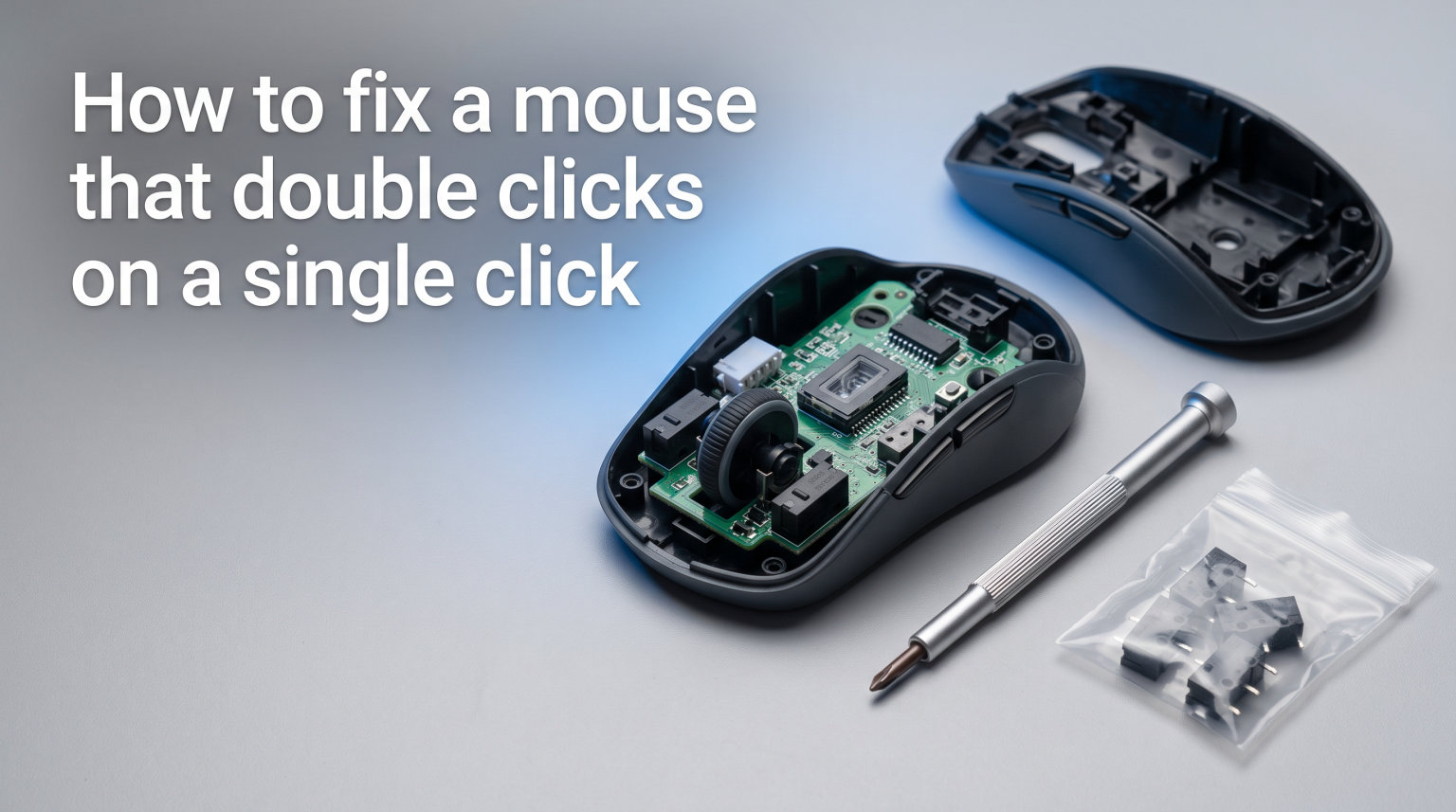
You click once, but your computer acts like you clicked twice. Files open unexpectedly, folders close before you can react, and your gaming accuracy tanks. If you are dealing with this headache, you are far from alone. The mouse double-click problem is one of the most common hardware issues people face, and the good news is that most cases are fixable without buying a new mouse.
In this guide, we will walk you through exactly how to fix a mouse that double clicks on a single click. We cover every method from simple settings adjustments to driver reinstalls, physical cleaning, a clever squeeze-and-shake trick from the Reddit community, and even firmware updates. Whether you are on Windows, macOS, or Linux, you will find a solution that works for your setup.
We have tested these fixes across multiple mice and operating systems. Our team compiled solutions from official vendor documentation, Microsoft Q&A forums, and real user experiences from communities like r/MouseReview. The result is a guide that goes deeper than the typical “adjust your settings” advice you will find elsewhere.
Why Your Mouse Double Clicks on a Single Click
Before jumping into fixes, it helps to understand what is actually happening inside your mouse. The mouse double-click issue almost always falls into one of four categories, and identifying which one you have will save you time.
The Four Types of Double-Click Failures
The first type is mechanical wear. Every mouse button sits on top of a tiny component called a microswitch. After millions of clicks, the metal contact inside that microswitch begins to fatigue. Instead of producing one clean electrical signal, it generates multiple rapid signals from a single press. This is the most common cause, especially on mice that have seen heavy use over a year or more.
The second type is debris contamination. Dust, skin particles, and other debris can work their way into the button mechanism. When foreign matter interferes with the contact surface, the switch can register multiple signals. This type often comes on suddenly rather than gradually.
The third type is software or driver behavior. Corrupted drivers, outdated firmware, or incorrect double-click speed settings can trick the operating system into registering two clicks. Windows updates sometimes trigger this type overnight.
The fourth type is electrical bounce. This is a technical phenomenon where the physical switch metal contacts literally bounce on impact, creating a brief burst of rapid signals. Mouse manufacturers use a debounce time setting to filter this out, but if the debounce window degrades or gets misconfigured, you get double clicks.
Understanding Debounce Time
Debounce time is the small delay — usually measured in milliseconds — that a mouse waits before accepting a second click signal. Think of it as a filter that ignores rapid-fire signals coming from a single physical press. When debounce settings are too low, the mouse passes through every tiny signal fluctuation, and your operating system sees a double click. Most modern gaming mice let you adjust debounce time through their vendor software, which we cover in Method 6.
How to Fix a Mouse That Double Clicks on a Single Click
Now let us get into the actual fixes. We recommend trying these methods in order, starting with the simplest and fastest solutions first. Most people find their answer within the first three methods.
Method 1: Adjust Double-Click Speed Settings
This is the quickest fix and should always be your first attempt. If your double-click speed is set too slow, the operating system may interpret a single click plus a tiny finger movement as a double click. Increasing the speed threshold filters out accidental double registrations.
On Windows 10 and 11:
- Press the Windows key + I to open Settings.
- Go to Bluetooth and devices (Windows 11) or Devices (Windows 10).
- Click on Mouse.
- Find the Double-click speed slider under Additional mouse settings, which may require clicking “Additional mouse settings” to open the classic Mouse Properties window.
- Drag the slider toward Faster in small increments.
- Test the setting by double-clicking the folder icon in the test area at the bottom of the window.
- Click Apply then OK.
On macOS:
- Open System Settings from the Apple menu.
- Scroll down and click on Mouse.
- Locate the Double-Click Speed slider.
- Drag it toward Fast in small increments.
- Test by clicking on a folder or file on your desktop.
This fix works instantly if the problem is sensitivity-related. If it does not help, move on to the next method.
Method 2: Reinstall or Update Mouse Drivers
Driver corruption is a frequent culprit, especially after Windows updates. The HID-compliant mouse driver can develop conflicts that cause click registration problems. Reinstalling it forces Windows to set up a fresh driver instance.
Here is how to do it:
- Right-click the Start button and select Device Manager.
- Expand the Mice and other pointing devices section.
- Right-click your mouse entry (usually labeled “HID-compliant mouse”) and select Uninstall device.
- Confirm the uninstallation.
- Disconnect your mouse from the USB port, wait 10 seconds, and reconnect it.
- Windows will automatically reinstall the driver.
If you have a branded mouse from Logitech, Razer, Corsair, or similar, also check the manufacturer’s website for dedicated driver software. Sometimes the generic Windows driver conflicts with vendor-specific software. Installing the official driver package from the manufacturer can resolve this conflict.
Method 3: Clean the Mouse Physically
Debris inside the button housing is more common than most people realize. Even a tiny particle can interfere with the microswitch contact and cause double registrations. You do not need to disassemble the mouse for basic cleaning.
Compressed air method:
- Turn off your mouse or disconnect it.
- Hold the mouse with the buttons facing down at an angle.
- Use a can of compressed air with the straw attachment.
- Direct short bursts of air into the gap around the affected button.
- Click the button rapidly 10 to 15 times while blowing air to dislodge particles.
- Reconnect and test.
Isopropyl alcohol method:
For stubborn debris, use a cotton swab lightly dampened with 90% isopropyl alcohol. Run it around the button edges, then click the button repeatedly to work the alcohol into the mechanism. The alcohol evaporates quickly and leaves no residue. Let the mouse dry for 5 minutes before reconnecting.
Our team has found that compressed air alone resolves debris-related double-clicking about 70% of the time. It is a low-effort fix worth trying before anything more invasive.
Method 4: Try the Squeeze and Shake Method (No Disassembly)
This is a community-tested fix that originated on Reddit’s r/MouseReview and has since helped thousands of users. One user reported that this method fixed their Logitech G102 for over 9 months without recurrence. It requires zero tools and takes about 30 seconds.
Steps:
- Disconnect the mouse or turn it off.
- Squeeze both mouse buttons firmly for about 10 seconds. Apply steady pressure as if you are pressing both buttons down completely.
- While still holding pressure, give the mouse a few gentle shakes.
- Blow firmly into the underside of the mouse and around the button slits.
- Rapidly click the affected button 30 to 50 times to release any trapped static charge.
- Reconnect and test.
The theory is that this method dislodges debris, resets the microswitch spring tension, and clears trapped static discharge that can interfere with signal registration. While it is a temporary fix rather than a permanent one, many users report months of trouble-free clicking afterward.
This fix is especially useful if you are not comfortable opening your mouse or if you have an expensive gaming mouse you do not want to risk damaging.
Method 5: Check Wireless and Battery Issues
Wireless mice introduce additional variables that wired mice do not have. A weak battery can cause inconsistent power delivery to the microswitch controller, leading to erratic click behavior. Wireless interference can corrupt the click signal data being transmitted to the USB receiver.
Start with the battery:
- Replace disposable batteries with fresh ones, even if the battery indicator shows a charge.
- For rechargeable mice, charge to 100% and test while plugged in if possible.
Address wireless interference:
- Move the USB receiver to a port closer to the mouse, ideally on the same side of the desk.
- Keep the receiver within line of sight of the mouse.
- Move other wireless devices (other dongles, routers, Bluetooth speakers) at least 12 inches away from the receiver.
- Try plugging the receiver into a USB 2.0 port instead of USB 3.0, as USB 3.0 can cause radio frequency interference.
If the double-clicking disappears when you plug the mouse in via cable, you have confirmed a wireless issue rather than a hardware defect.
Method 6: Update Firmware via Vendor Utilities
Mouse manufacturers frequently release firmware updates that address click registration issues, improve debounce algorithms, and fix bugs. If you have never updated your mouse firmware, this is a step worth taking.
Logitech mice: Download Logitech G HUB (for gaming mice) or Logi Options+ (for productivity mice). Open the software, select your mouse, and check for firmware updates. Apply any available updates and restart the software.
Razer mice: Use Razer Synapse. Navigate to your mouse settings and look for firmware update options under the maintenance or about section.
Corsair mice: Open Corsair iCUE, select your mouse, and check the settings panel for firmware updates.
Adjusting debounce settings: Some vendor utilities also let you manually adjust debounce time. If your software has this option, try increasing the debounce time by 1 to 2 milliseconds. This widens the filter window and can eliminate spurious double signals. Gaming mice from brands like Glorious and SteelSeries often expose this setting directly in their software.
Method 7: Use Third-Party Software Fixes
If hardware fixes do not work and you need a software-level band-aid, third-party applications can filter double clicks at the operating system level. The most popular option is a free Windows utility called Double-Click Fix.
This application monitors incoming click signals and discards any click that arrives within a user-defined time window after a previous click. You set the minimum delay between clicks, and the software silently drops anything faster. For example, if you set a 20-millisecond window, any second click arriving within 20ms of the first is ignored.
While this does not address the root cause, it is an effective workaround if you cannot replace or repair the mouse right away. It is particularly useful for gaming mice where the hardware still works but the switch is starting to degrade.
Platform-Specific Solutions
Beyond the standard methods above, Windows and Linux users have additional diagnostic tools at their disposal. These approaches dig deeper into the system level to identify and resolve click registration problems.
PowerShell Diagnostics for Mouse Double Clicking (Windows)
For IT professionals and power users, PowerShell can help diagnose whether the double-click problem is hardware-based or software-based. By querying the system’s input device properties, you can verify driver status and configuration.
Open PowerShell as Administrator and run the following command:
Get-PnpDevice -Class Mouse | Select-Object Status, Class, FriendlyName, InstanceId
This returns the status of all mouse devices recognized by Windows. If the Status column shows anything other than “OK,” your driver has a problem that requires reinstallation.
For deeper diagnostics, check the event log for input device errors:
Get-WinEvent -LogName System -MaxEvents 50 | Where-Object {$_.Message -like "*mouse*"}
This surfaces recent system events related to mouse devices. Error entries here can point to driver crashes, USB connection drops, or power management issues that correlate with your double-click symptoms.
How to Fix Mouse Double Clicking on Linux
Linux users have fewer graphical tools but powerful command-line options. Most distributions use libinput for mouse handling, and you can diagnose click behavior through the terminal.
First, install and run libinput debug-events to see raw click data:
sudo libinput debug-events
Click your mouse button once and observe the output. If you see two button press events from a single physical click, you have confirmed the hardware is sending double signals.
For adjustment, use xinput to modify device properties:
- Run
xinput listto find your mouse device ID. - Run
xinput list-props [device-id]to see adjustable properties. - Look for properties related to click behavior or debounce settings.
For desktop environments like GNOME or KDE, you can also adjust double-click timeout settings through the accessibility or mouse preferences panel. The process varies by distribution, but most modern Linux desktops expose this setting in the main settings application.
When to Replace Your Mouse
Sometimes the microswitch is simply worn out, and no amount of cleaning, software tweaking, or driver reinstalling will fix it. If you have tried every method above and the double-clicking persists consistently across different computers, the hardware is the problem.
Here are the signs that point to permanent failure:
- The double-click happens every time, not intermittently.
- The problem persists on multiple computers.
- Cleaning and driver reinstall produce zero improvement.
- The button feels physically different — mushy, stiff, or unresponsive compared to the other button.
At this point, you have two options: replace the microswitch or replace the entire mouse.
Switch replacement is viable if you have soldering skills. Replacement microswitches from brands like Omron or Kailh cost a few dollars online and can extend the life of an expensive gaming mouse by years. The process involves opening the mouse, desoldering the old switch, and soldering in the replacement. Instructables and YouTube have detailed step-by-step tutorials for popular mouse models.
Whole mouse replacement is the practical choice for most people. If your mouse was inexpensive, the time and tools required for switch replacement outweigh the cost of a new one. If you value your current mouse and want the exact same model, check whether it is still under warranty — many manufacturers cover switch defects.
Frequently Asked Questions
Why is my mouse double-clicking on single click?
Your mouse is double-clicking because of one of four issues: mechanical wear on the microswitch under the button, debris contamination inside the button housing, corrupted or outdated mouse drivers, or electrical bounce that exceeds the debounce time filter. Mechanical wear is the most common cause on mice older than one year.
How to get rid of double-click mouse?
Start by adjusting your double-click speed setting to a faster threshold in Windows Mouse Properties or macOS System Settings. If that does not work, reinstall the HID-compliant mouse driver through Device Manager, then clean the button with compressed air. For wireless mice, replace the battery and move the USB receiver closer. As a last resort, use third-party software like Double-Click Fix to filter spurious clicks at the operating system level.
What causes accidental double clicks?
Accidental double clicks are caused by worn microswitch contacts that produce multiple electrical signals from a single physical press. Other causes include dust and debris interfering with the switch mechanism, software driver corruption (often after Windows updates), low batteries in wireless mice, wireless signal interference, and debounce time settings that are configured too low in vendor software.
How do I fix my double-click?
Try these fixes in order: 1) Increase double-click speed in your OS mouse settings. 2) Reinstall the mouse driver in Device Manager. 3) Clean the button with compressed air and isopropyl alcohol. 4) Try the squeeze-and-shake method: squeeze both buttons for 10 seconds, shake gently, blow into the button gap, then click rapidly 30-50 times. 5) Update firmware through your mouse vendor software. 6) Replace the mouse if the microswitch is permanently worn out.
Wrapping Up
Learning how to fix a mouse that double clicks on a single click starts with understanding the root cause and then working through solutions from simplest to most complex. For most people, the answer lies in one of the first three methods: adjusting double-click speed settings, reinstalling the mouse driver, or cleaning out debris with compressed air.
The squeeze-and-shake method from the Reddit community is a fantastic quick fix that has saved many users from buying a replacement. Firmware updates through vendor software address bugs that manufacturers have already identified and patched. And for Linux users and IT professionals, the PowerShell and libinput diagnostic tools provide visibility that standard guides never mention.
Our recommendation is to always start with the free, non-invasive fixes before considering hardware replacement. Try the settings adjustment first, then driver reinstall, then cleaning. If none of those work, test on a different computer to rule out OS-specific issues. Only when every software and cleaning method has failed should you consider replacing the microswitch or the entire mouse.
If your mouse is still under warranty, contact the manufacturer before attempting any hardware repair. Switch defects are often covered, and you may get a free replacement without picking up a soldering iron. With the methods in this guide, the vast majority of double-click problems can be resolved — often in under 10 minutes.