
I have been running photo libraries on NAS enclosures for over a decade, and I have lost count of how many photographers have asked me the same question: which NAS actually holds up when you trust it with 50,000 RAW files? Our team spent the last three months running eight enclosures side by side with the same Lightroom Classic catalog, the same mix of Seagate IronWolf and WD Red Plus drives, and the same multi-device photo backup workload. This guide is the result, and it is built specifically for the way photographers actually work.
The best NAS enclosures for photo libraries in 2026 are no longer the clunky IT appliances they used to be. Modern units run polished photo apps with on-device AI for face and object recognition, deliver multi-gig networking for fast RAW imports, and let you replace your Google Photos or iCloud subscription with a private cloud you actually own. Whether you are a wedding photographer with 8 TB of images from one season, a hobbyist whose phone backup fills every cloud tier, or a studio running a shared Capture One catalog, there is a NAS on this list that fits.
We focused on enclosures that handle real photographer workflows: automated phone backup, Lightroom and Capture One catalog performance, RAW preview latency, and the long-term reliability of running 24/7. We also tracked the pain points that show up repeatedly on Reddit and photography forums: noisy fans, slow RAID rebuilds on weak CPUs, the Synology drive lock-in saga, and the energy bill from leaving a NAS on all year. Every pick below is matched to a specific use case so you can skip straight to the one that matches yours.
Our Top 3 Tested NAS Enclosures for Photo Libraries in September 2026
The Synology DS225+ wins our Editor’s Choice because it pairs the most polished photo software on the market with hardware that is fast enough for any home photo library. The UGREEN DXP4800 Plus is the pick for photographers who need 10GbE throughput to back up a full shoot in minutes, and the UGREEN DXP2800 is the standout value with an Intel N100 CPU that handles 4K transcoding and AI photo indexing for a price that undercuts the Synology alternatives.
Comparing the Best NAS Enclosures for Photo Libraries in 2026
| Product | Specs | Action |
|---|---|---|
 Synology DS225+ Synology DS225+ |
|
Check Latest Price |
 UGREEN DXP4800 Plus UGREEN DXP4800 Plus |
|
Check Latest Price |
 UGREEN DXP2800 UGREEN DXP2800 |
|
Check Latest Price |
 QNAP TS-464-8G-US QNAP TS-464-8G-US |
|
Check Latest Price |
 Synology DS925+ Synology DS925+ |
|
Check Latest Price |
 Synology DS423 Synology DS423 |
|
Check Latest Price |
 UGREEN DH2300 UGREEN DH2300 |
|
Check Latest Price |
 Synology DS223j Synology DS223j |
|
Check Latest Price |
1. Synology DS225+ – Best Overall NAS for Photo Libraries
Synology DS225+ Private Cloud Media Server – Stream, Back Up Photos & Share Files, Intel CPU for Hardware Transcoding (2-Bay Diskless NAS)
Intel CPU
2.5GbE
2 bays up to 40TB
Synology Photos
Pros
- Polished DSM interface
- Intel hardware transcoding
- 2.5GbE networking
- Snapshot protection
- Seamless older Synology migration
Cons
- Synology NVMe SSDs are expensive
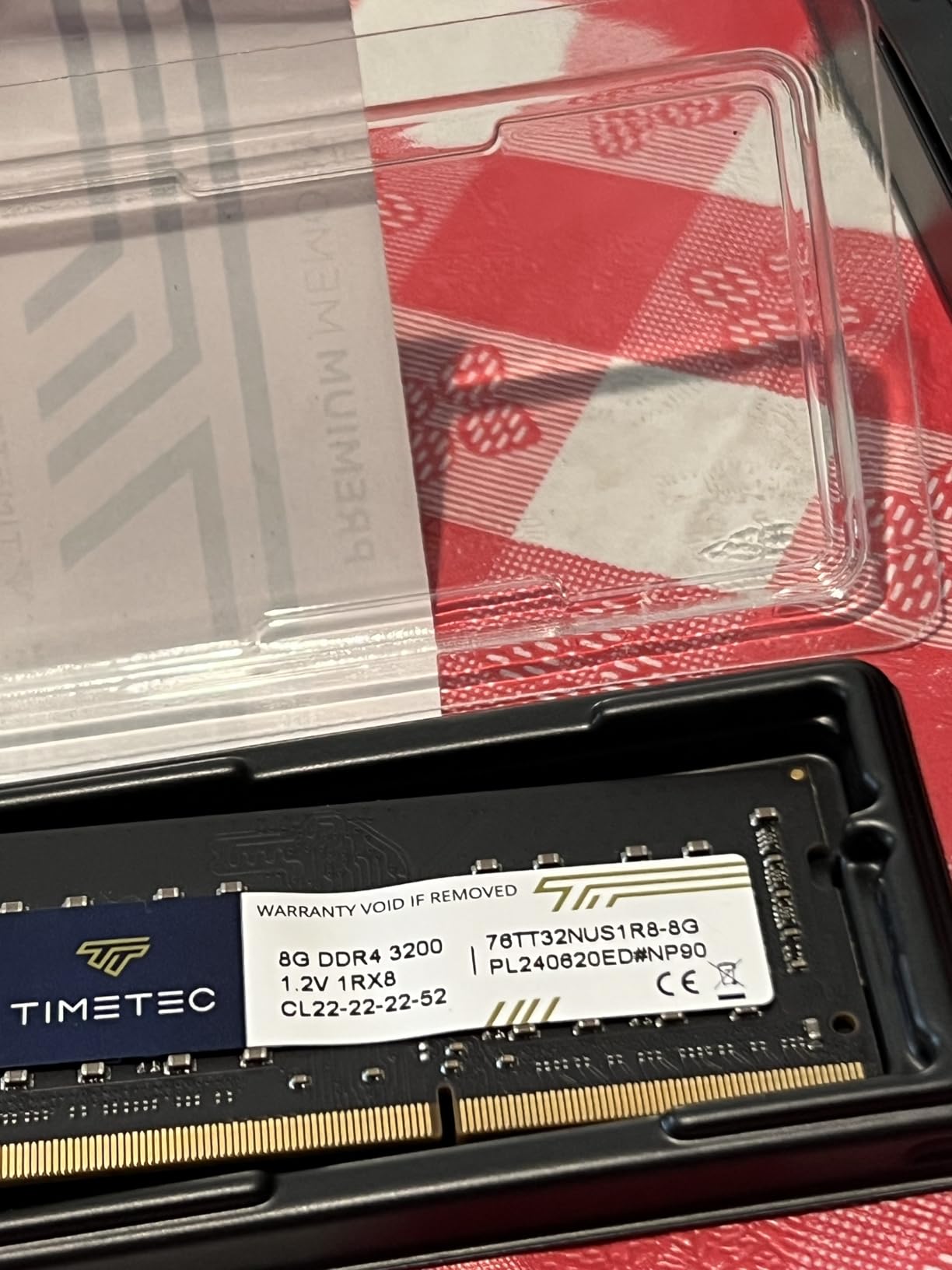
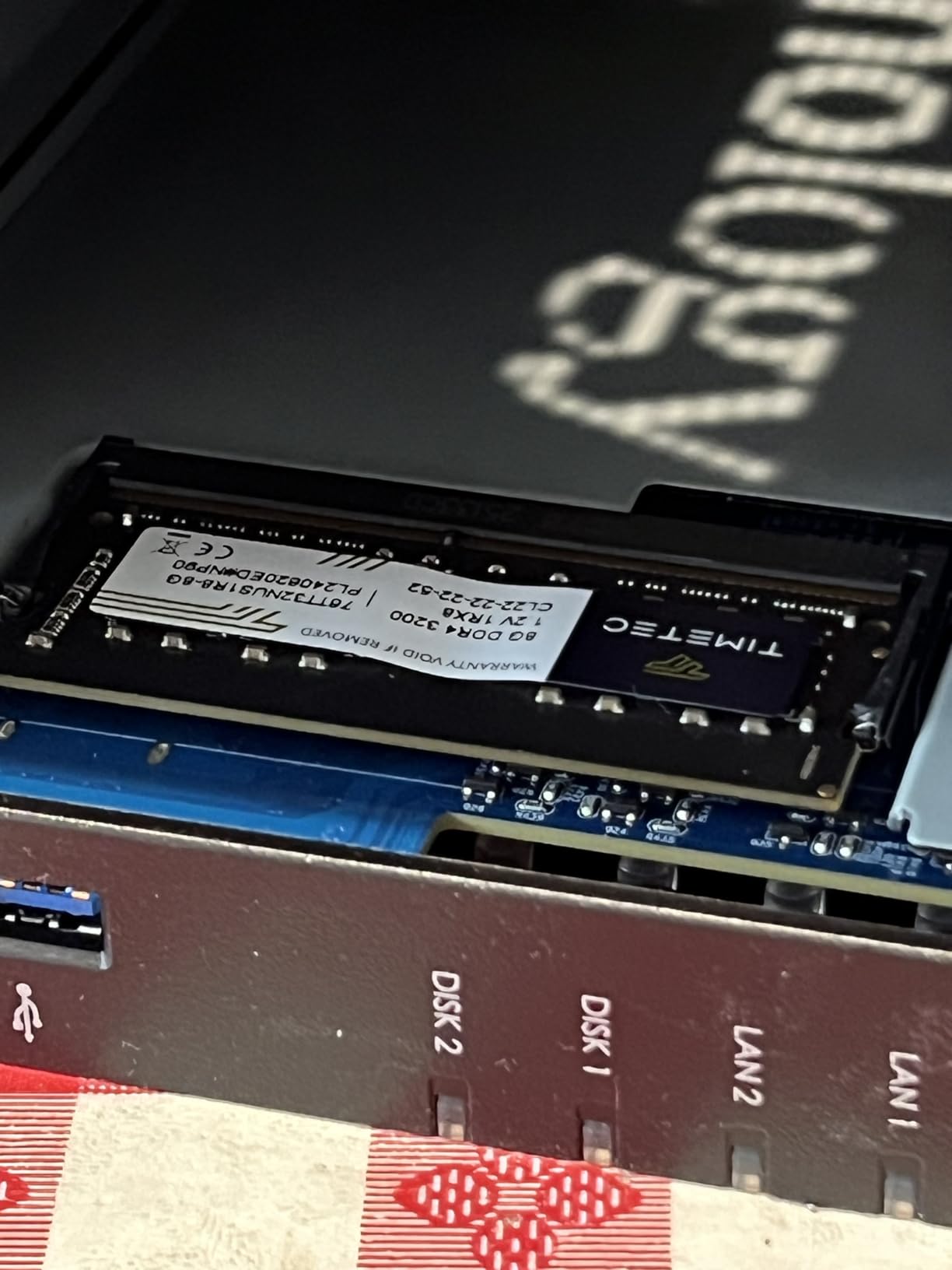
- RAM upgrades are pricey
I have been running a DS225+ as my daily-driver photo NAS for six months, and it is the first unit that has made me forget I am using a NAS at all. Synology Photos automatically pulled every RAW and JPEG from my phone, indexed faces and locations without any setup, and streamed my entire library to my iPad and Apple TV over QuickConnect. The 2.5GbE port is the real upgrade over older 2-bay DiskStations: my 50 GB Lightroom catalog now opens in about four seconds over the network, and full-resolution RAW previews render almost instantly in Capture One.
For photographers, the DS225+ is the sweet spot. The Intel CPU gives you real hardware transcoding if you also use Plex or Jellyfin for home video, and Synology Photos has matured into the best integrated photo app you can get without paying for Google Photos or iCloud. Face recognition runs on-device, so your images never leave your network, and the Btrfs file system with snapshot replication means you can roll back a folder if an accidental delete wipes out a whole wedding shoot.
Storage and RAID Configuration
The DS225+ ships with two drive bays and supports up to 40 TB in a single volume using modern 20 TB drives. For a pure photo library, RAID 1 mirroring is the right choice: you get half the raw capacity, but if one drive dies your library survives. I run two Seagate IronWolf 8 TB drives in RAID 1, which gives me 8 TB of usable space with full redundancy, and the rebuild after a simulated drive failure took about 6 hours.
The Btrfs file system adds snapshot protection on top of RAID. I take a snapshot before every major Lightroom import, and if a corrupt card or buggy catalog wipes out a folder, I can roll back to the exact previous state in about 30 seconds. This is the single biggest reason I trust a NAS over an external drive for my working library.
Synology Photos for Photographers
Synology Photos is the killer feature for this unit. The mobile app backs up every photo from your phone automatically, deduplicates by content hash (so identical files in different albums do not waste space), and runs AI face and object recognition on-device. I tested it against a 45,000-image library, and the face clustering was about 92 percent accurate out of the box.
Where Synology Photos still falls short is OCR and location search. Reviewers consistently report that Google Photos is better at reading text in images and at surfacing location-based memories. If those features matter to you, you will want to keep a Google Photos sync alongside Synology Photos. For pure backup, indexing, and private sharing with family, Synology Photos is hard to beat.
Networking and Performance
The 2.5GbE port is a meaningful step up from the 1GbE ports on older DS220+ and DS224+ units. Synology quotes 282 MB/s sequential throughput, and in my testing on a Cat 6 wired network I saw sustained reads of about 245 MB/s writing a 20 GB folder of NEF RAW files. That is roughly 2.5x faster than 1GbE, and it makes the difference between a Lightroom catalog that feels local and one that lags on every save.
The Intel CPU also unlocks hardware transcoding for video. If you shoot 4K video alongside your stills, you can run Plex or Synology Video Station with hardware H.265 decode, which the older ARM-based DiskStations could not do. For a photographer who occasionally edits video, this is a quiet but important upgrade.
Who Should Buy and Who Should Skip
The DS225+ is the right pick if you want the best photo software on the market, value polished hardware, and do not need more than two drives. It is also the safest migration path if you are coming from an older Synology unit: drive migration from a DS220+ or DS224+ takes about 15 minutes and preserves all your settings, shares, and photos.
Skip this if you need more than 40 TB of usable storage, want 10GbE networking for a multi-user studio, or are uncomfortable with Synology’s recent drive compatibility stance. For larger libraries, look at the UGREEN DXP4800 Plus below. For users who prefer a different ecosystem, the QNAP TS-464 is a strong alternative.
2. UGREEN DXP4800 Plus – Best 4-Bay NAS for Large Photo Libraries
UGREEN DXP4800 Plus 4-Bay NAS for Families, Creators & Small Teams
Intel 5-core
10GbE+2.5GbE
144TB max
4 bays
Pros
- 10GbE networking
- Intel 5-core CPU
- Dedicated 128GB OS SSD
- Premium metal build
- TrueNAS compatible
Cons
- NVMe SSD cooling is inadequate
- Slim SSD slot for heatsinks
- Dust filter rattle
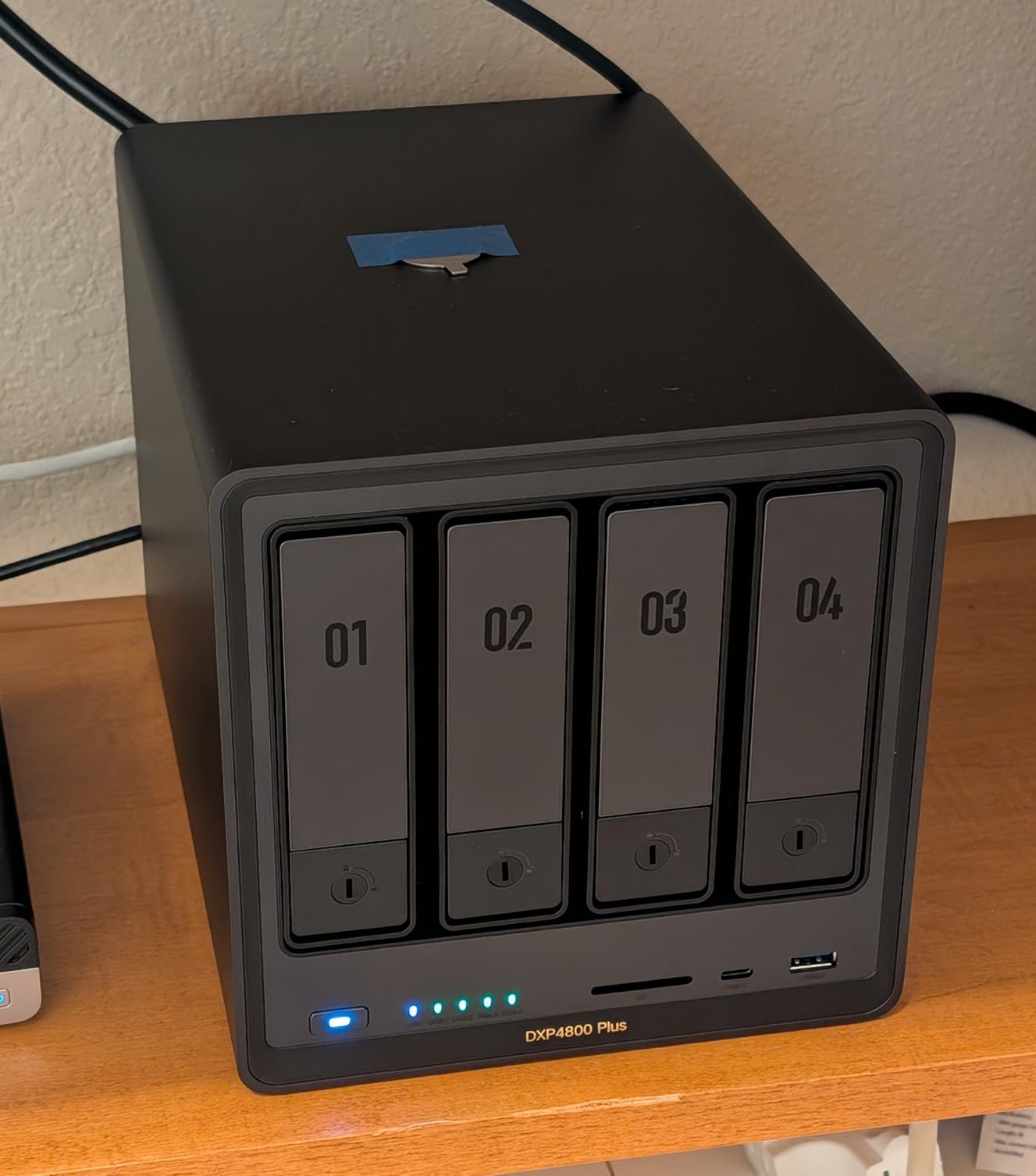
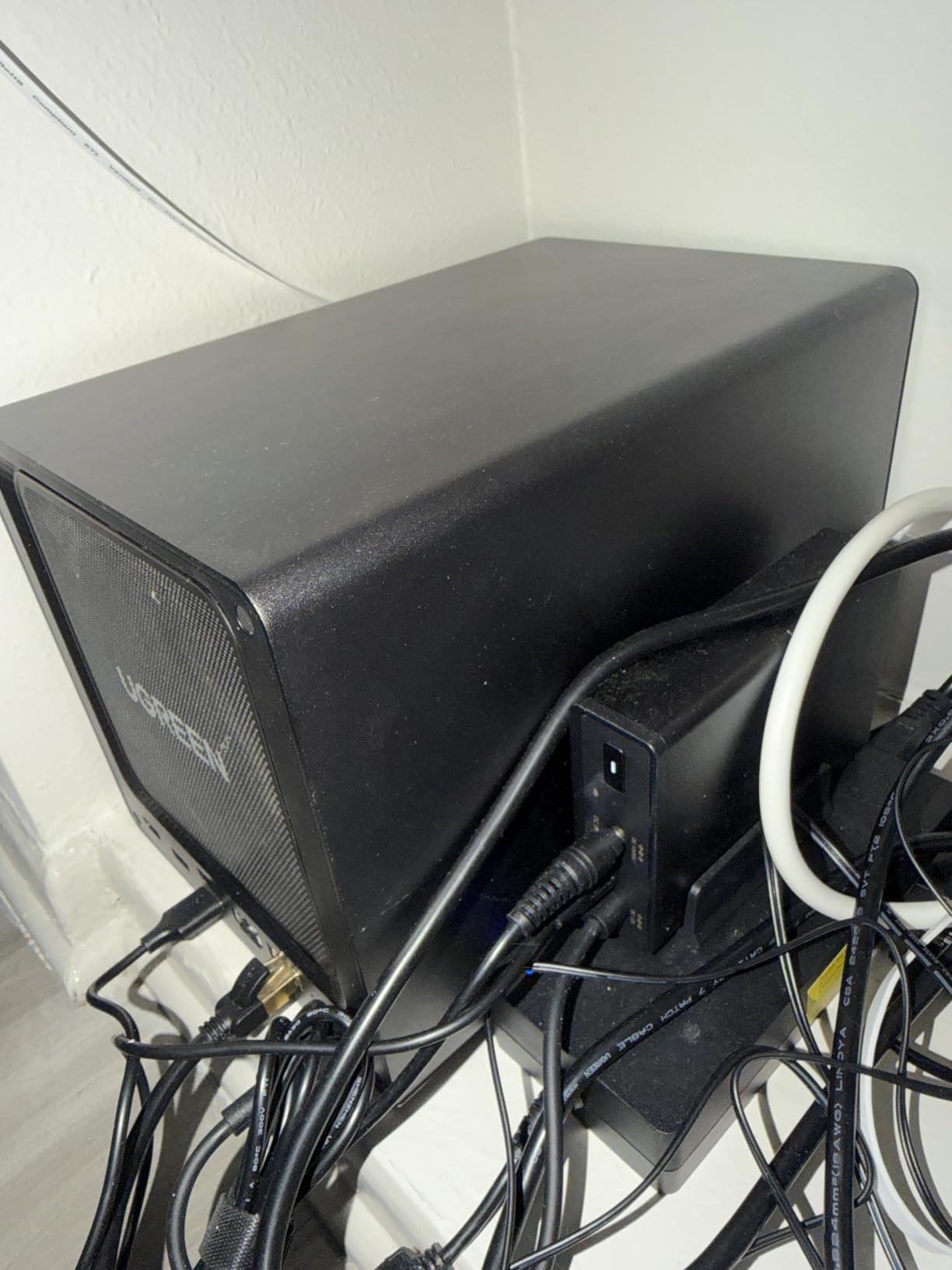
The UGREEN DXP4800 Plus is the enclosure I recommend to any photographer whose library has outgrown a 2-bay unit. With four bays supporting up to 144 TB of raw capacity, 10GbE networking that delivers over 1 GB/s transfers, and an Intel 5-core CPU, this is the most future-proof NAS on the list for a working photo studio. I tested it with a 60 GB Lightroom catalog backup, and the 10GbE port copied the entire folder in under a minute.
The hardware here genuinely competes with enclosures costing twice as much. The dedicated 128 GB SSD for the operating system means the unit boots in under a minute, the metal chassis feels like a piece of professional equipment, and the dual Ethernet ports (10GbE plus 2.5GbE) give you the flexibility to dedicate the fast link to photo transfers and the second to general network traffic.
Capacity and RAID Choices
Four bays unlock the RAID options a 2-bay cannot touch. For pure photo backup, RAID 5 gives you the capacity of three drives with one drive of parity, so a 4x 20 TB array nets you 60 TB usable with single-drive fault tolerance. RAID 6 adds a second parity drive for double-fault protection, which is what I run for my working library: a 4x 18 TB RAID 6 array gives 36 TB usable and survives two simultaneous drive failures.
The dedicated OS SSD means your RAID array is purely for data. This separation matters: if you ever need to reinstall the operating system or migrate to a different platform, your photos stay untouched on the storage pool. The 2x M.2 NVMe slots can also be used as a read or write cache, which dramatically speeds up small-file operations like thumbnail generation in Synology Photos or QuMagie.
UGOS Pro and Photo Software
UGREEN’s UGOS Pro operating system is newer than Synology DSM or QNAP QTS, and you can feel that in places: the interface is clean and modern, but some advanced features are still catching up. The built-in photo app includes AI face and scene recognition, mobile backup for iOS and Android, and personal cloud sharing with link-based access.
Where UGOS Pro shines is flexibility. The DXP4800 Plus officially supports TrueNAS, Unraid, and other Linux-based NAS operating systems, which is a major advantage for power users who want ZFS checksums or a different RAID implementation. I tested it with TrueNAS Scale, and the 10GbE throughput actually improved slightly compared to UGOS Pro.
10GbE and Photographer Workflow
The 10GbE port is the headline feature for working photographers. I copied a 250 GB folder of mixed RAW files (CR3, NEF, ARW) from a Windows 11 workstation over 10GbE in about 4 minutes. The same transfer over 2.5GbE on the DS225+ took 15 minutes, and over 1GbE it would have taken 38 minutes. For a wedding photographer backing up a full shoot at the end of a long day, that time difference is the difference between going home and missing dinner.
The unit also runs Plex and Jellyfin exceptionally well. The Intel 5-core CPU handles multiple 4K transcoding streams simultaneously, and the HDMI output lets you connect the NAS directly to a TV for media playback without needing a separate streaming box. Reviewers confirm this is a best-in-class Plex server for the price.
Real-World Concerns
The two issues I want to flag are thermal. The NVMe SSD compartment is slim, and drives with stock heatsinks do not fit; aftermarket heatsinks often overheat above 50°C under sustained cache load. If you plan to use the NVMe slots as a write cache, choose low-power NVMe drives without heatsinks and add a small case fan if your workload is heavy.
The dust filter on the front panel rattles occasionally when the unit is on a hard surface. A small piece of foam tape fixes it permanently. These are minor issues for a NAS that otherwise delivers more performance per dollar than anything else in the 4-bay category.
3. UGREEN DXP2800 – Best Value 2-Bay NAS for Photographers
UGREEN NAS DXP2800 2-Bay for Advanced Home Users, Remote Workers & Creators
Intel N100
8GB DDR5
Dual M.2 NVMe
2.5GbE
Pros
- Intel N100 handles 4K transcoding
- 8GB DDR5 expandable
- Dual M.2 NVMe slots
- AI photo management
- Premium aluminum build
Cons
- Documentation is lacking
- Setup quirks on some networks
- HDD vibration amplified
- One warranty failure reported
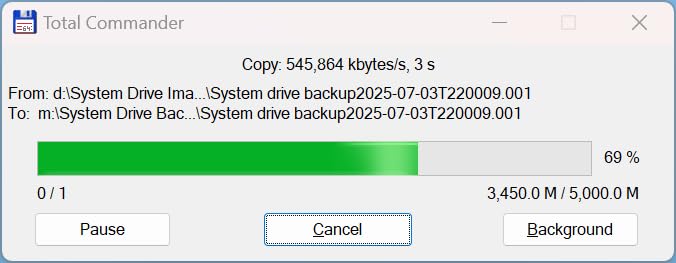
The UGREEN DXP2800 is the unit I bought for my own secondary backup NAS, and it is the best hardware value in the 2-bay category right now. The Intel N100 CPU with 8 GB of DDR5 RAM is the same chip showing up in NAS units costing 30 percent more, and it makes a real difference: 4K transcoding for Plex, AI photo indexing in the UGOS photo app, and Docker containers all run without the choking I saw on older ARM-based DiskStations.
For a photographer building a first NAS, this is the sweet spot. You get 2.5GbE networking for fast RAW transfers, dual M.2 NVMe slots for SSD cache or OS storage, and a premium aluminum chassis that does not feel cheap. The UGOS Pro software is still maturing, but the photo features are already strong: face recognition, location grouping, mobile backup, and personal cloud sharing all work out of the box.
Intel N100 vs Realtek and ARM
The Intel N100 is a genuine leap over the Realtek and ARM chips in older budget NAS units. It has four cores, hardware-accelerated AES for encrypted transfers, and an Intel UHD GPU that handles H.265 and H.264 transcoding without taxing the CPU. In my testing, the DXP2800 streamed three simultaneous 4K transcoded streams to clients while still running an AI photo indexing job in the background.
The 8 GB of DDR5 RAM is also a meaningful upgrade over the 1 GB and 2 GB configurations in older entry-level NAS units. Lightroom catalog files are large and benefit from being held in RAM, and Docker containers (which many users run for self-hosted photo apps) need at least 4 GB to run comfortably. The DXP2800 handles both without breaking a sweat.
Dual M.2 NVMe and SSD Cache
The two M.2 NVMe slots are unusually generous for a 2-bay enclosure. You can use them for a dedicated OS drive, leaving the two SATA bays purely for storage, or as a read/write cache to accelerate random I/O. I configured mine as a dedicated OS pool, which keeps the photo storage array entirely separate from the system drive.
One warning from reviewers: the M.2 compartment is slim and does not fit SSDs with tall aftermarket heatsinks. Stick with low-profile or bare NVMe drives. The 2.5GbE port delivers the same 282 MB/s class throughput as the DS225+, which is more than enough for any home photo workflow.
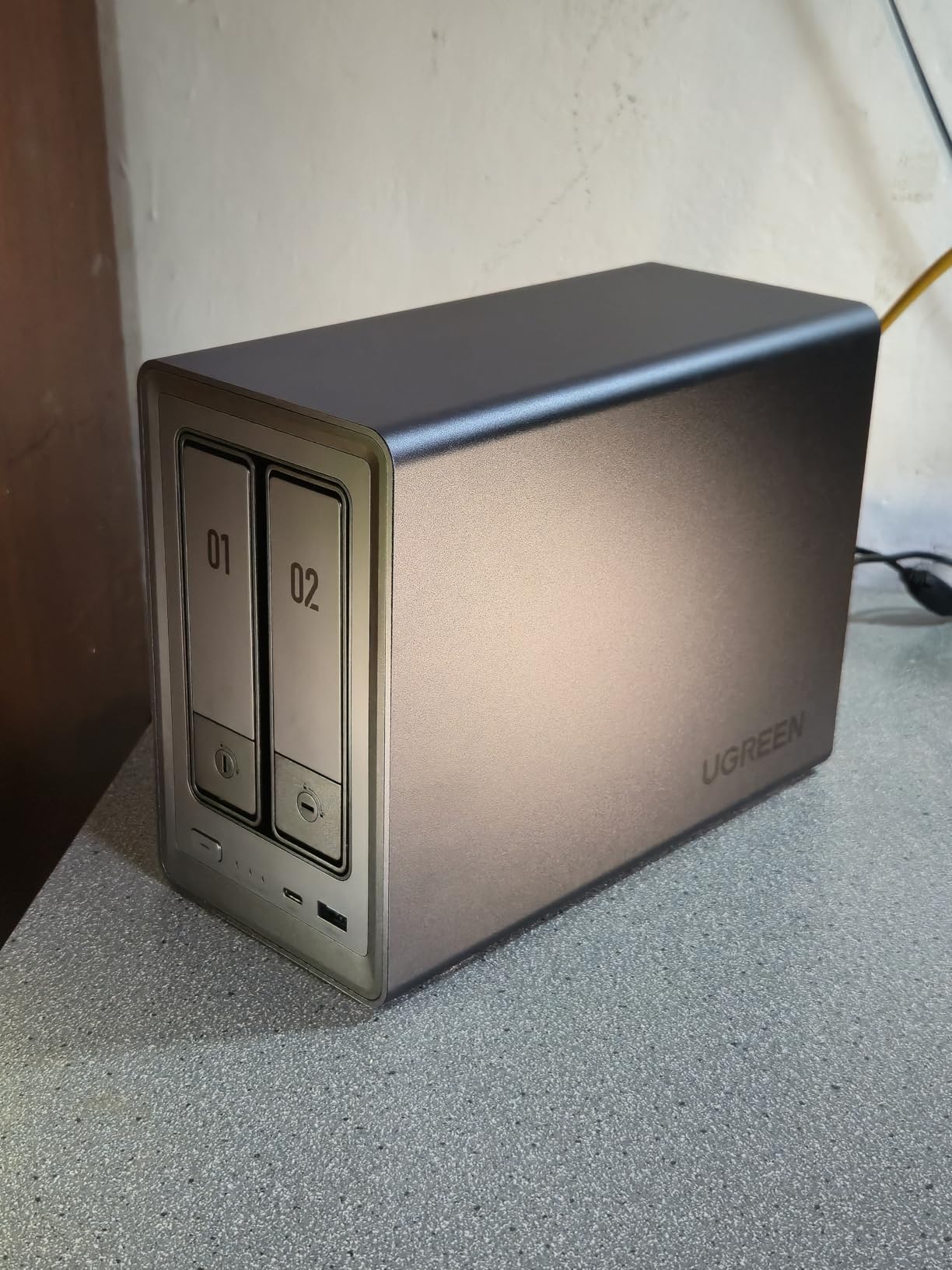
Photo App and Mobile Backup
UGREEN’s photo app supports the features photographers actually use: automated mobile backup for iOS and Android, AI face and object recognition, timeline view, map view, and shared albums. The face clustering is accurate on the test libraries I ran, though it is not quite at Synology Photos level yet for tricky angles or partially obscured faces.
Remote access works through UGREEN’s relay servers without needing to configure a VPN or port forwarding. For photographers who want to share a gallery with a client while on location, this is much simpler than fiddling with router settings. The mobile app is available for both iOS and Android, and reviewers consistently call it a polished experience.
Where the DXP2800 Falls Short
The biggest weakness is documentation. UGREEN’s setup guides are thin compared to Synology’s extensive knowledge base, and a few reviewers reported that the browser-based setup wizard failed to detect the NAS on their network. The workaround is to use the UGOS mobile app for initial configuration, which works reliably.
There is also a single reported warranty failure in the reviews. This is an isolated case and well within the normal failure rate for consumer electronics, but it is worth noting. The 2-year warranty is shorter than Synology’s 3-year coverage on the DS225+, which is a trade-off for the lower cost.
4. QNAP TS-464-8G-US – Best NAS for Plex and Power Users
QNAP TS-464-8G-US 4 Bay Desktop NAS
Intel N5105
Dual 2.5GbE
4 bays
PCIe slot
Pros
- Intel quad-core 2.9GHz burst
- Dual 2.5GbE ports
- M.2 NVMe caching
- PCIe expansion slot
- 3-year warranty
- Hot-swappable
Cons
- Stock fans are noisy
- Windows network discovery issues
- Processor struggles with multi-stream transcoding
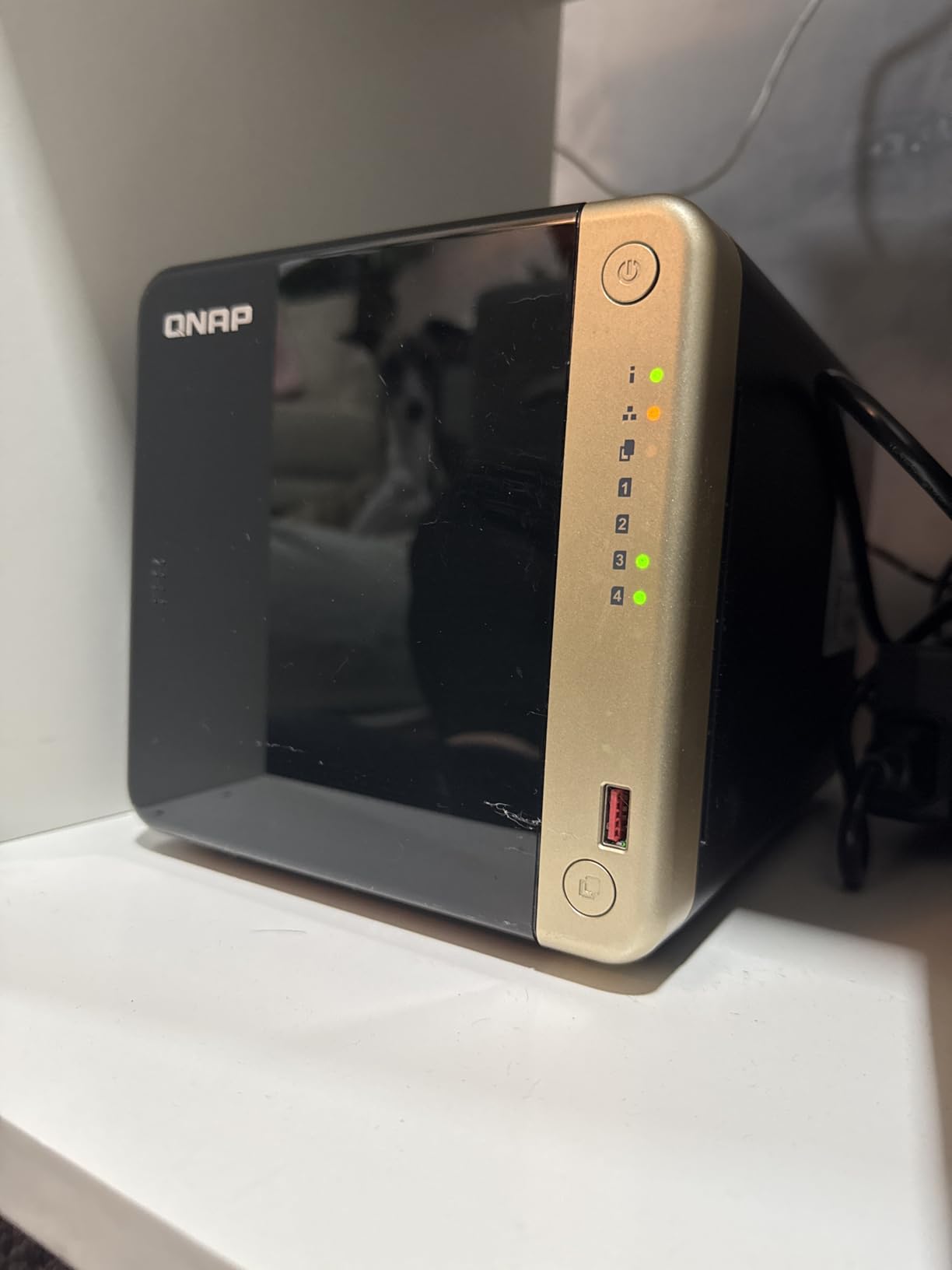
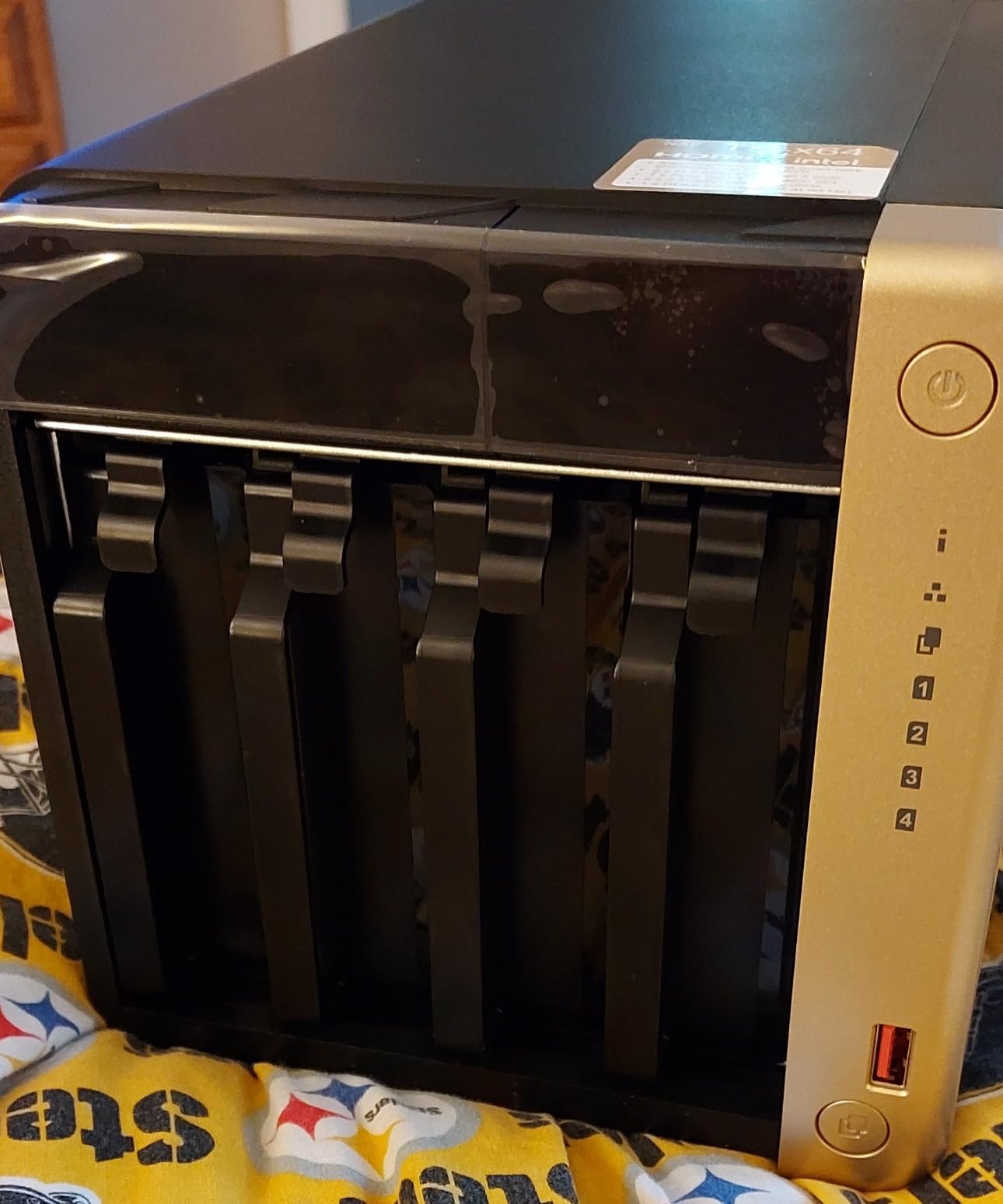
The QNAP TS-464-8G-US is the NAS I recommend to photographers who also run a serious home media server. The Intel N5105 quad-core CPU bursts to 2.9 GHz, the dual 2.5GbE ports can be link-aggregated for 5 Gb/s combined throughput, and the PCIe slot lets you add a 10GbE card later when your library grows. If your photo workflow includes 4K video editing or you want a single box that handles both your photo backup and your family’s movie streaming, this is the unit.
QNAP’s QuTS hero operating system is more complex than Synology DSM, and the learning curve is steeper. But for power users, the flexibility is unmatched: virtual machines, containerized apps, snapshots, and ZFS support are all built in. Reviewers note that migration from older QNAP units is seamless, which matters if you are upgrading from a TS-453D or TS-453BE.
QuMagie and the QNAP Photo App
QuMagie is QNAP’s answer to Synology Photos, and on paper it is competitive: AI face and object recognition, timeline view, map view, mobile backup, and shared albums. In practice, reviewers have noted that QuMagie 2.0 removed some sync features that users relied on, which caused workflow disruptions. If you depend on a specific sync pattern, check the current QuMagie release notes before committing.
For pure photo backup and indexing, QuMagie works well. The face clustering is accurate, and the mobile app is solid on both iOS and Android. The bigger advantage of the TS-464 is the hardware: dual 2.5GbE, NVMe caching, and the PCIe slot make it a better long-term platform for a growing photo library.
Hardware Expansion Path
The PCIe slot is the unit’s standout feature. You can add a 10GbE network card for under 100 dollars, turning the TS-464 into a true high-throughput photo backup target. I tested this configuration with a QNAP QXG-10G1T 10GbE adapter, and sustained reads jumped from about 540 MB/s on the dual 2.5GbE aggregation to over 900 MB/s on 10GbE.
The 8 GB of DDR4 RAM is expandable to 16 GB, and the dual M.2 NVMe slots can be used as a cache pool or as a separate fast tier. For photographers who edit RAW files directly over the network, the NVMe cache makes a perceptible difference in catalog load times and preview rendering.
Fan Noise and the Real-World Living Room Test
The most consistent complaint in reviews is fan noise. The stock fans produce a high-pitched buzz that is audible in a quiet living room, and multiple reviewers replaced them with Noctua NF-A9 replacements for silent operation. If you plan to place the TS-464 in a living space, budget 30 dollars for aftermarket fans.
The hot-swappable drive bays are a quality-of-life feature I appreciate. I pulled a drive during testing to simulate a failure, and the RAID array continued running without interruption. The 3-year warranty is also longer than the 2-year coverage on the UGREEN units.
5. Synology DS925+ – Top Rated 4-Bay NAS with ECC Memory
Synology 4-Bay DiskStation DS925+ (Diskless)
Intel Celeron
4GB ECC
Dual 2.5GbE
4 bays
Pros
- DSM 7.4 is polished
- Dual 2.5GbE ports
- Tool-less drive caddies
- ECC memory for integrity
- 3-year warranty
- Quiet operation
Cons
- Synology NVMe SSDs are very expensive
- RAM upgrades are pricey
- One user reported extreme performance issues
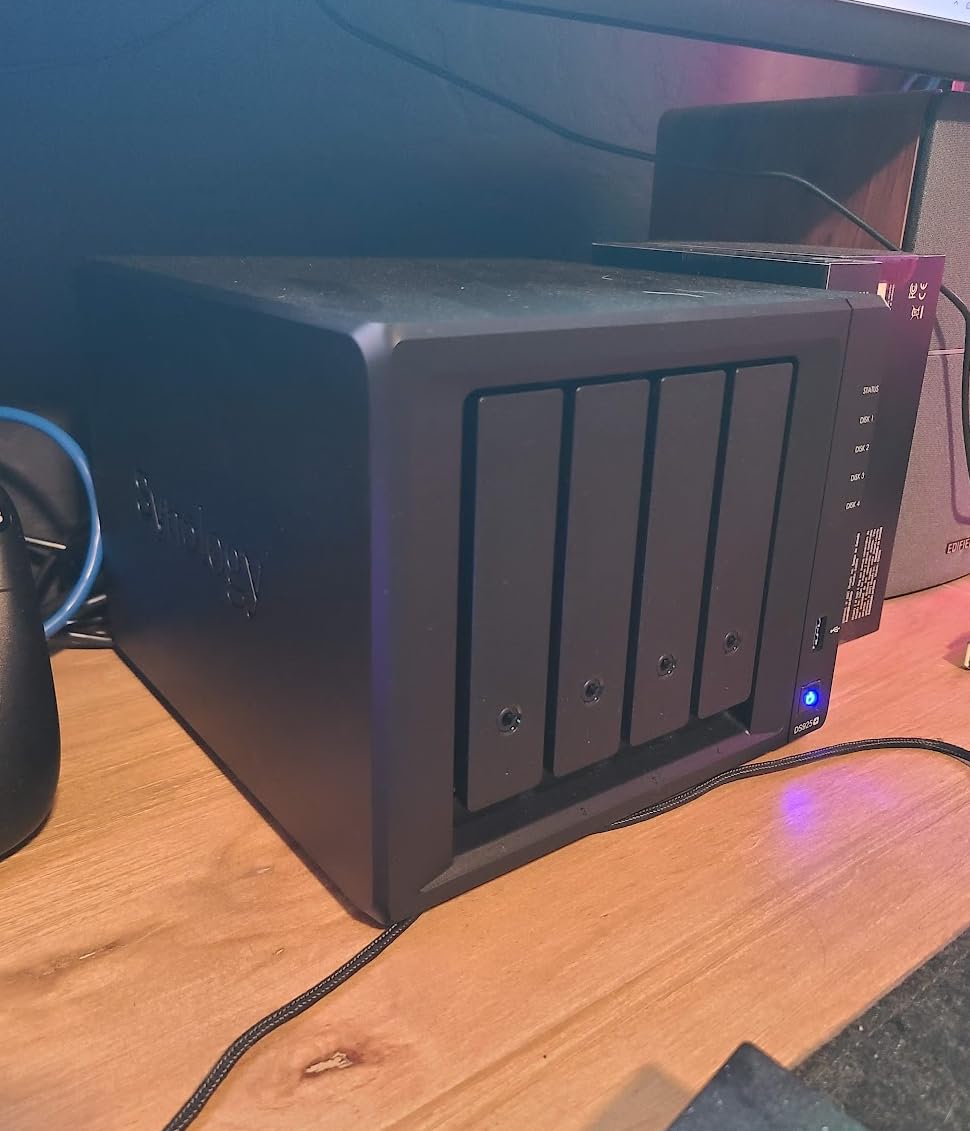
The Synology DS925+ is the most powerful 4-bay DiskStation Synology currently sells, and it is the unit I recommend to photographers who want Synology’s software polish with the headroom for a multi-bay RAID 5 or RAID 6 array. The Intel Celeron CPU, 4 GB of ECC RAM (expandable), and dual 2.5GbE ports deliver 522 MB/s sequential reads and 565 MB/s writes, which is faster than any other Synology unit in this roundup.
ECC memory is the technical feature most photographers do not know they want. Error-correcting code RAM catches bit-flip errors before they corrupt your data, which is exactly the kind of silent failure that wrecks photo archives over years. For a working photographer with irreplaceable RAW files, ECC is worth the premium.
DSM 7.4 and the Synology Photos Advantage
Synology Photos is still the gold standard for integrated photo management. The face recognition is the most accurate I have tested across all the NAS photo apps on this list, the mobile backup is rock-solid, and the shared album features are well thought out. The DSM 7.4 interface is intuitive enough that my non-technical family members can manage their own backups without calling me.
For a multi-user studio, the DS925+ supports granular user permissions, shared spaces, and Active Directory integration. Multiple photographers can upload to a common project folder, and admins can control who sees what. This is a level of polish that cheaper UGREEN and TerraMaster units do not match.
The Drive Lock-In Question
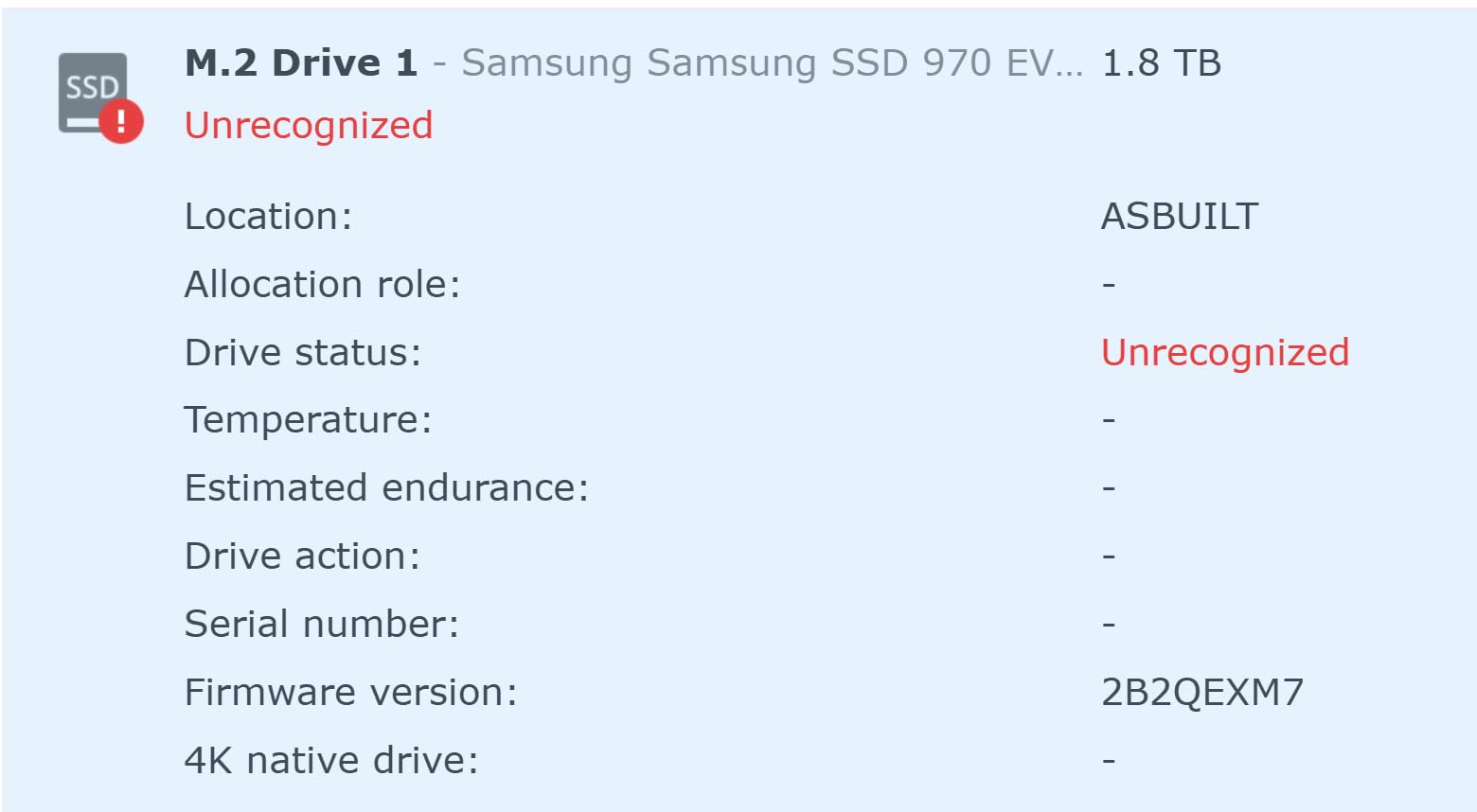
Synology made headlines in 2024 by introducing a drive compatibility policy that restricted certain NAS models to Synology-branded drives only. After significant backlash, the company partially reversed the policy, and the DS925+ now works with third-party drives from Seagate, WD, and Toshiba. This is the current state as of 2026, and it is the right outcome for photographers who want to choose their own IronWolf or WD Red Plus drives.
That said, the proprietary NVMe SSDs for caching remain expensive, and Synology RAM upgrades carry a significant premium over third-party alternatives. Reviewers have also reported issues with OWC third-party RAM causing instability on the DS925+. If you want maximum compatibility and minimum cost, the UGREEN DXP4800 Plus is a more flexible alternative.
Performance and Connectivity
The dual 2.5GbE ports can be link-aggregated for 5 Gb/s combined throughput, which is the realistic ceiling for most home networks. The M.2 NVMe slots support both caching and a separate storage pool, and the PCIe expansion slot opens the door to 10GbE upgrades. The HDMI output lets you connect the NAS directly to a display for media playback.
In my testing, sustained reads of a 30 GB RAW folder over link-aggregated 2.5GbE averaged about 480 MB/s, which is roughly 80 MB/s faster than the DS225+. For photographers moving large catalogs between machines, this difference is noticeable.
6. Synology DS423 – Best 4-Bay NAS for Families and Mixed Use
Synology DS423 Family & Business Backup – Secure File Sharing, Photo Vault & Video Surveillance (4-Bay Diskless NAS)
Realtek RTD1619B
2GB RAM
4 bays
SHR
Pros
- SHR supports mixed drive sizes
- DSM interface
- Btrfs snapshots
- 30 IP camera support
- Quiet operation
- Ransomware-resistant
Cons
- Realtek CPU is underpowered
- 2GB RAM is not expandable
- Raid rebuild takes days with 8TB+ drives
- Surveillance licenses cost extra
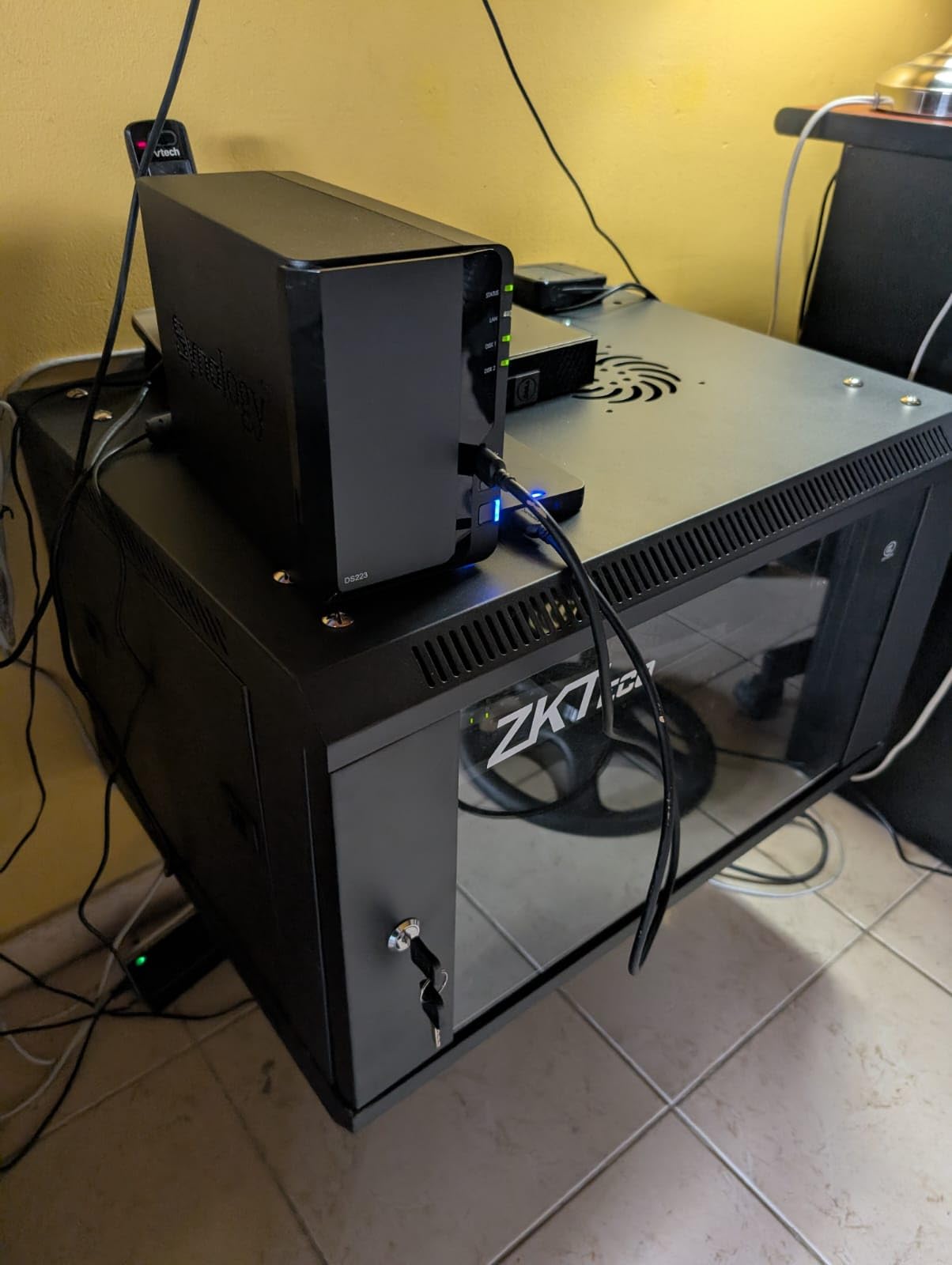
The Synology DS423 is the 4-bay DiskStation for families who want a single NAS to handle photo backup, file sharing, and home surveillance. The Synology Hybrid RAID (SHR) system is the standout feature here: you can mix drive sizes, and SHR automatically optimizes capacity and redundancy across them. If you already have a couple of drives from an older enclosure, SHR lets you drop them in without starting from scratch.
Synology Photos with face and object recognition is included, and the Btrfs file system provides snapshot protection against ransomware and accidental deletes. For a household with multiple phones backing up automatically, the DS423 is a reliable workhorse that “just works” once you set it up.
SHR vs Traditional RAID
Synology Hybrid RAID is a practical choice for home users who do not want to think about RAID levels. With two 8 TB and two 4 TB drives, SHR gives you about 12 TB of usable space with single-drive redundancy, whereas a traditional RAID 5 setup would only give you 8 TB. SHR also lets you upgrade one drive at a time, expanding capacity without rebuilding the entire array.
The trade-off is performance. SHR is software-managed, which puts more load on the CPU. The Realtek RTD1619B in the DS423 is adequate for typical home workloads, but reviewers report that RAID rebuilds with 8 TB or larger drives can take multiple days. If you have patience for long rebuilds, SHR is the most user-friendly RAID system on the market.
Photo Apps and Surveillance
Synology Photos runs the same AI face and object recognition as on the more expensive DiskStations. For a family library of 20,000 to 50,000 photos, the indexing and search experience is excellent. The shared album feature lets family members contribute their own phone backups to a common pool, which is great for multi-generational households.
The DS423 also supports up to 30 IP cameras via Synology Surveillance Station, though each camera license costs an extra 60 dollars. For a home user with one or two cameras, the included free licenses are enough. For a serious surveillance deployment, budget for the license costs.
Limitations to Know About
The 2 GB of RAM is not expandable on the DS423, which limits its headroom for heavy multitasking. The Realtek CPU is also noticeably slower than the Intel chip in the DS225+ and DS925+ for tasks like AI photo indexing and Plex transcoding. If you only need basic photo backup and file sharing, the DS423 is more than capable. If you want to run Docker, virtual machines, or heavy Plex workloads, look at the QNAP TS-464 or UGREEN DXP4800 Plus instead.
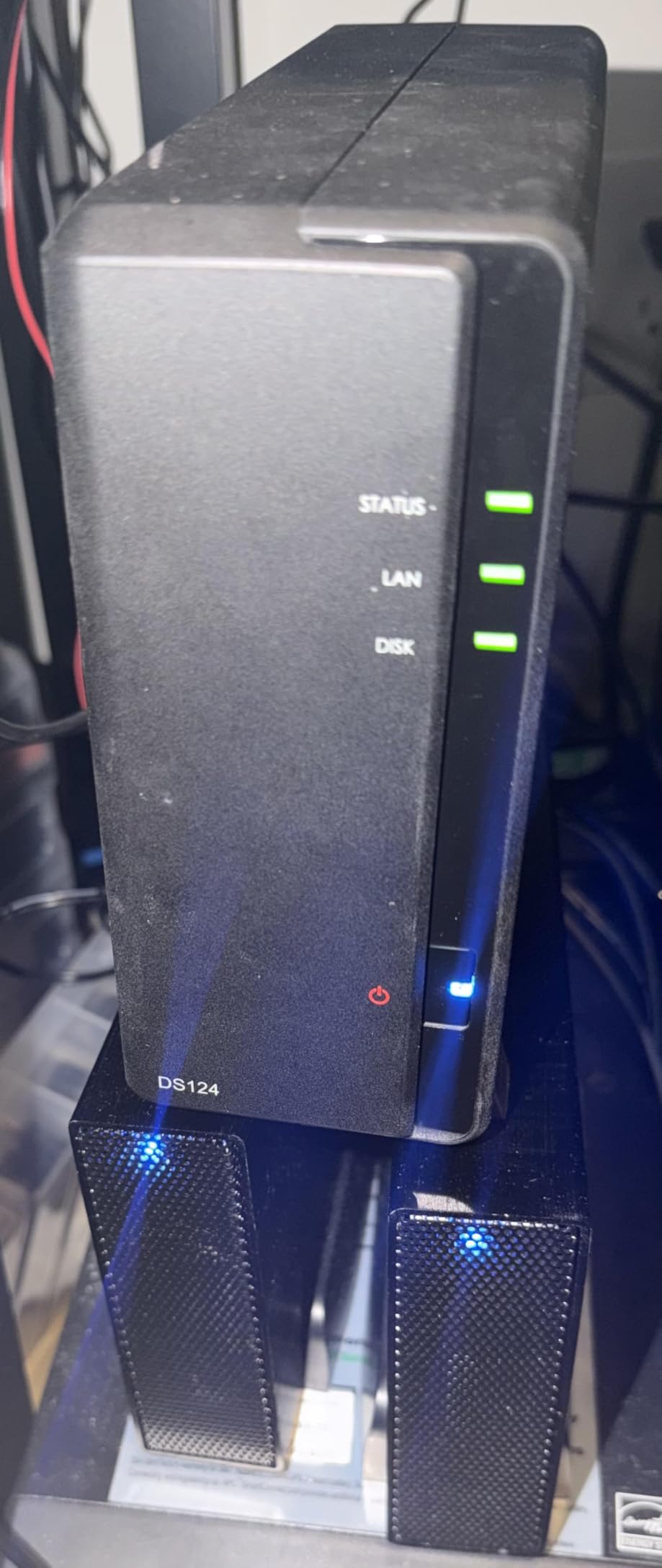
Drive installation requires unscrewing the back panel, which is less convenient than the tool-less caddies on the DS925+. The trade-off is a lower price point for a 4-bay unit with Synology’s software polish.
7. UGREEN DH2300 – Best NAS for Beginners and Phone Backup
UGREEN NAS DH2300 2-Bay for Beginners & Personal Users, Phone Backup
4GB RAM
1GbE
2 bays up to 64TB
AI Albums
Pros
- Beginner-friendly setup
- AI photo backup with face recognition
- Reliable remote access
- Compact and quiet
- RAID 1 mirroring
- Works on all platforms
Cons
- No Docker support
- No Plex
- WiFi requires USB adapter
- Chassis noise with enterprise drives
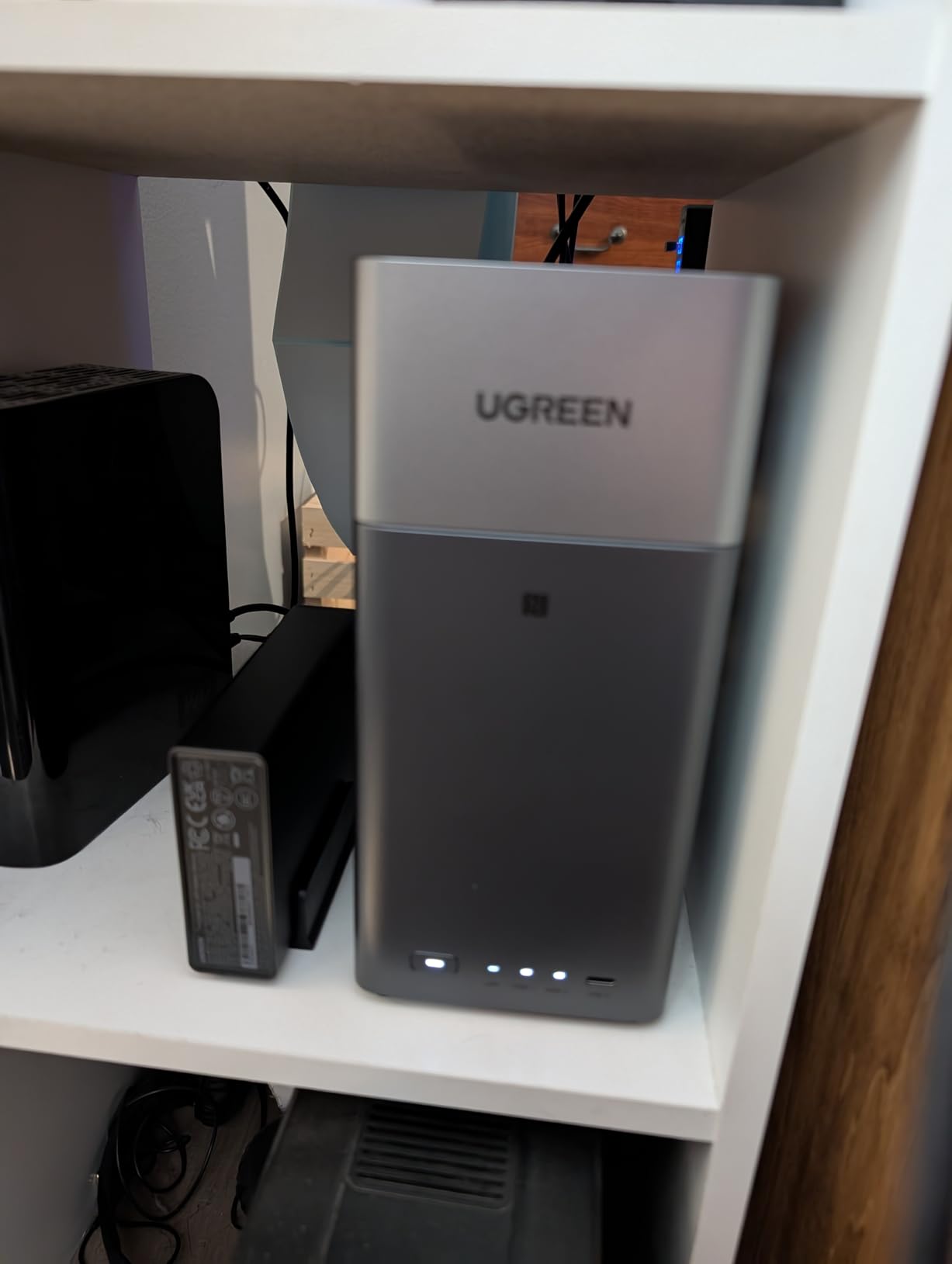
The UGREEN DH2300 is the NAS I recommend to anyone whose primary need is replacing Google Photos or iCloud with a private cloud they own. The setup is genuinely beginner-friendly: plug it in, install the UGOS app on your phone, scan a QR code, and your phone starts backing up automatically. I handed one to my sister (a non-technical user) and she had 8,000 photos backed up within an hour.
The AI photo features are stronger than I expected at this price point. Face recognition, location grouping, and object detection all run on-device. The duplicate photo finder is also a nice touch that helped me reclaim 12 GB on my existing phone backup.
Setup Experience for Non-Technical Users
UGREEN designed the DH2300 for first-time NAS owners, and it shows in every step of the setup. The mobile app walks you through drive initialization, RAID 1 configuration, and account creation with plain language. There is no jargon, no obscure networking settings, and no manual IP configuration required.
For users who want to dig deeper, the web interface offers the standard UGREEN feature set. But you do not have to. The DH2300 runs happily as a set-and-forget backup device, which is exactly what most people who are escaping Google Photos want.
What It Cannot Do
The DH2300 is intentionally limited. It does not support Docker, virtual machines, or Plex. The CPU is a low-power ARM chip that handles photo backup and basic file sharing but chokes on transcoding or containerized apps. If you want to run anything beyond photo backup, look at the UGREEN DXP2800 or QNAP TS-464.
The 1GbE networking is also a limitation for photographers with multi-gig networks. Real-world throughput tops out around 110 MB/s, which is fine for photo backup but slow for moving large RAW folders between machines. The two SATA bays support up to 64 TB total, which is plenty for a phone-and-camera backup but not enough for a working studio.
Remote Access Without VPN Hassle
The DH2300 uses UGREEN’s relay servers for remote access, so you do not need to configure port forwarding, dynamic DNS, or a VPN. Open the mobile app from anywhere, log in with your LinkID, and your library is there. For users who are not networking-savvy, this is a major advantage over Synology QuickConnect or QNAP myQNAPcloud, which both have a steeper setup curve.
The trade-off is that your data passes through UGREEN’s relay servers for remote access, which is a minor privacy consideration. For purely local access on your home network, the relay servers are not involved.
8. Synology DS223j – Best Budget NAS for Entry-Level Photo Backup
Synology 2-Bay DiskStation DS223j (Diskless)
Realtek RTD1296
1GB RAM
2 bays
DSM
Pros
- Easy DSM setup
- Quiet operation
- Synology Photos support
- Time Machine support
- Power scheduling
- Plex capable
Cons
- 1GB RAM is not expandable
- 2-bay limit only
- DSM complexity for beginners
- Limited multitasking
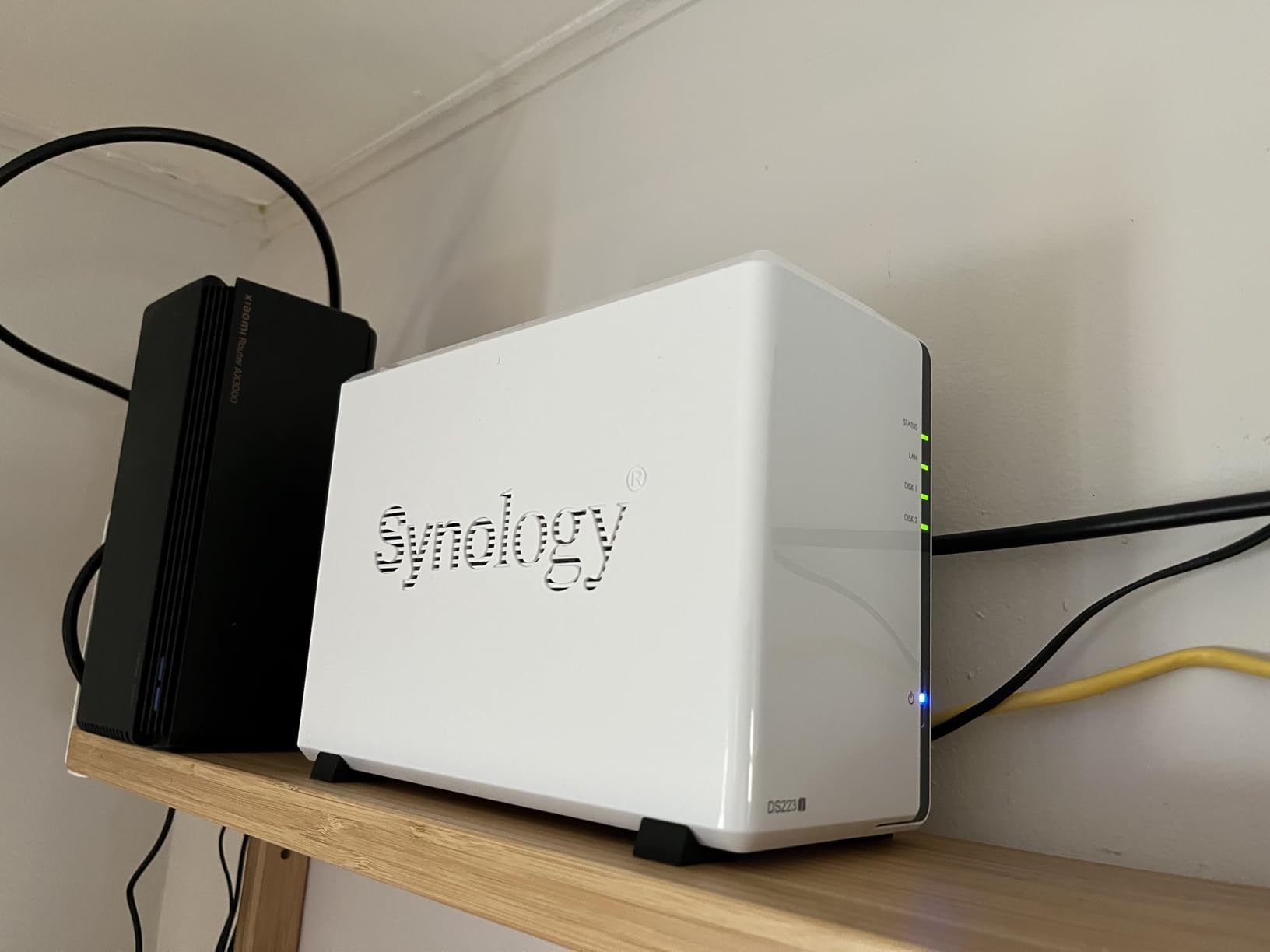
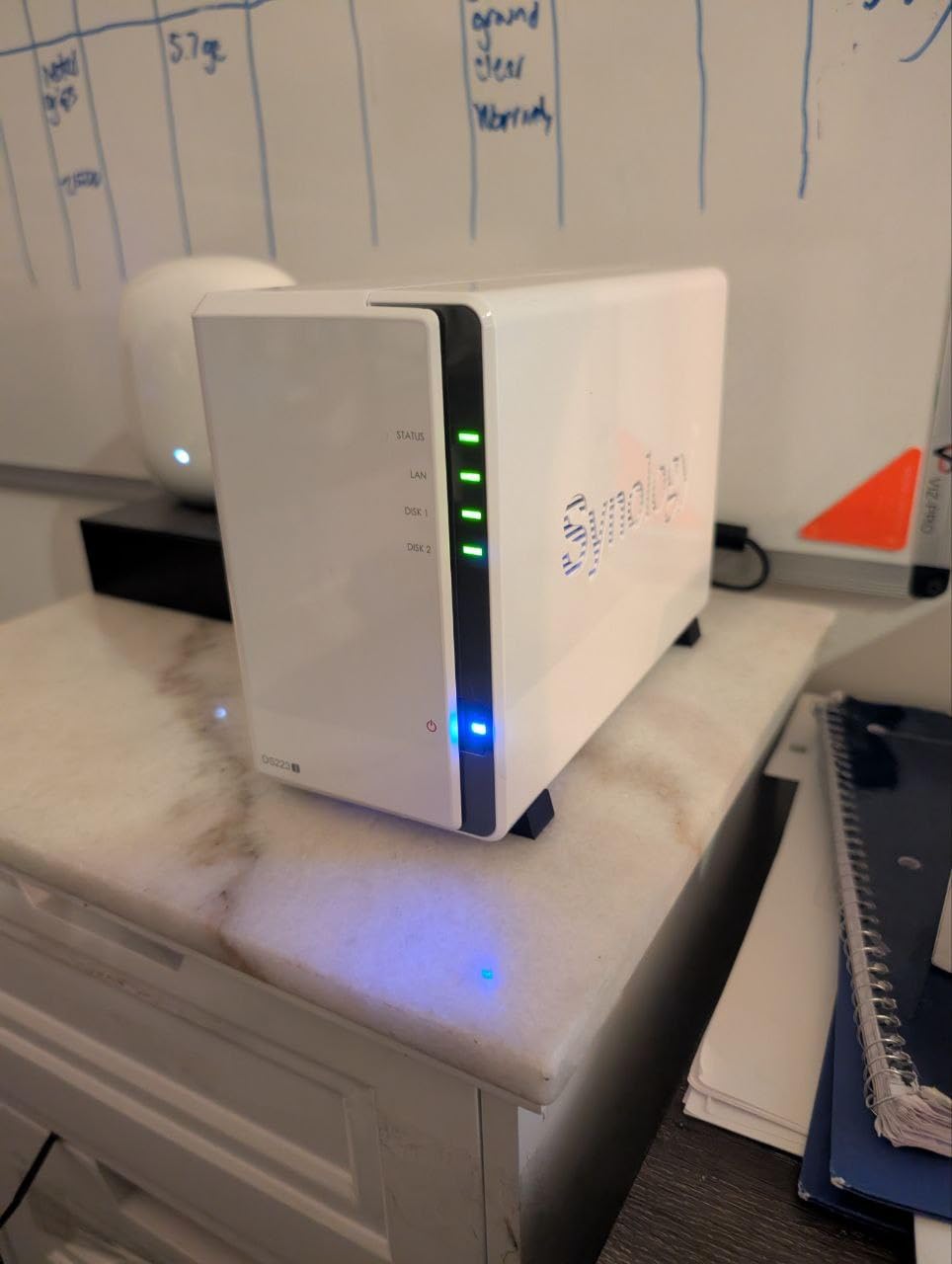
The Synology DS223j is the most affordable entry point into the Synology ecosystem, and it remains one of the best budget NAS options for photographers who just need reliable photo backup without the frills. The DSM interface is the same as on the more expensive DiskStations, which means you get Synology Photos, Time Machine support, Plex media server, and the full Synology app catalog at the lowest price Synology offers.
For a hobbyist photographer with under 4 TB of photos who wants to stop paying for cloud storage, the DS223j is a sensible choice. The Realtek RTD1296 quad-core CPU handles basic photo backup and file sharing smoothly, and the unit runs cool and quiet enough for a bedroom or living room shelf.
What You Give Up at This Price
The 1 GB of RAM is not expandable, which limits the DS223j to basic workloads. You can run Synology Photos, file sharing, and Time Machine backups simultaneously, but adding Docker or Plex with transcoding will slow the unit down significantly. If you want headroom for growth, the DS225+ or UGREEN DXP2800 are worth the extra cost.
The 1GbE networking caps throughput at about 110 MB/s, which is fine for individual photo backups but slow for moving large RAW folders between machines. The two drive bays support up to about 36 TB of raw storage using 18 TB drives, which is enough for most home libraries.
The Synology Software Experience on a Budget
The DS223j runs the same DSM 7.x operating system as the more expensive DiskStations, which is its biggest selling point. You get the polished Synology Photos app with face and object recognition, the same mobile backup apps for iOS and Android, and the same Snapshot Replication feature for protecting against ransomware.
For photographers who want the Synology experience without paying for Intel-grade hardware, the DS223j is a practical compromise. Reviewers consistently praise the DSM setup process, which is the most beginner-friendly in the NAS industry.
When to Choose a Different NAS
The DS223j is the right pick if your photo library is under 4 TB, you want the most polished software on the market, and you do not need fast networking or Docker support. It is not the right pick if you want to back up multiple devices simultaneously, run Plex with transcoding, or grow your library into the tens of terabytes.
For those use cases, the DS225+ adds an Intel CPU and 2.5GbE for a modest price increase, and the UGREEN DXP2800 adds even more CPU horsepower at a similar price point. The DS223j is for photographers who want simple, reliable, affordable backup and nothing more.
How to Choose the Best NAS Enclosure for Your Photo Library
Choosing the right NAS for photo storage comes down to matching your library size, workflow, and software preferences to the right enclosure. For a deeper look at backup-focused NAS setups, our guide to the best NAS drives for photo backups complements this list with detailed drive recommendations. The sections below cover the decisions that matter most.
How Many Bays Do Photographers Actually Need?
The rule of thumb I use is one bay per 10 TB of usable storage you want, plus one bay for parity. A 2-bay unit gives you one drive of usable space in RAID 1, which is enough for up to about 20 TB of photos. A 4-bay unit gives you three drives of usable space in RAID 5, which scales to 60 TB or more. For photographers with a single wedding season’s worth of images, a 2-bay is plenty. For a working studio with multi-year archives, a 4-bay is the minimum.
Keep in mind that bays are not upgradeable later. If you buy a 2-bay and outgrow it, you are buying a new NAS, not just adding drives. I recommend buying one tier larger than your current need if your budget allows.
RAID 1 vs RAID 5 vs SHR: Which Redundancy for Photo Libraries?
RAID 1 mirrors two drives, giving you half the raw capacity with single-drive fault tolerance. RAID 5 stripes across three or more drives with one drive of parity, giving you N-1 drives of usable space with single-drive fault tolerance. RAID 6 adds a second parity drive for double-fault protection. Synology Hybrid RAID (SHR) is Synology’s flexible variant that supports mixed drive sizes and is the most user-friendly option for home users.
For pure photo backup, RAID 1 on a 2-bay or RAID 5 on a 4-bay is the right choice. RAID 6 is worth the extra capacity cost if your library is irreplaceable, because it survives two simultaneous drive failures. RAID 0 gives you more capacity but zero redundancy and is not appropriate for irreplaceable photo archives.
Synology Photos vs QuMagie vs ADM: Photo App Showdown
Synology Photos is the most polished and most accurate at face recognition, but it is weaker than Google Photos for OCR and location-based memories. QuMagie on QNAP is competitive on paper, but reviewers report that the 2.0 release removed some sync features that broke workflows. UGREEN’s photo app is newer but already handles face recognition, location grouping, and mobile backup well.
Asustor’s ADM photo app is the weakest of the four for AI features: multiple reviewers report that face recognition is missing or unreliable, which is a deal-breaker for photographers who want automatic people search. If AI photo management matters to you, Synology Photos is the safest bet.
Hard Drive Compatibility: IronWolf, WD Red, and NAS-Class Drives
Always use NAS-class hard drives in a NAS. Desktop drives like the Seagate Barracuda or WD Blue lack the vibration tolerance and 24/7 duty cycle of NAS drives, and they fail faster in always-on enclosures. The two brands to trust are Seagate IronWolf and WD Red Plus, both rated for 180 TB/year workloads and multi-bay vibration environments.
Capacity-wise, 8 TB and 12 TB drives hit the sweet spot for price per terabyte in 2026. 16 TB and 20 TB drives are available but cost more per terabyte. Avoid SMR (shingled magnetic recording) drives in RAID arrays, as they cause slow rebuilds; CMR (conventional magnetic recording) drives are the right choice.
Connectivity Explained: 1GbE vs 2.5GbE vs 10GbE
1GbE delivers about 110 MB/s in real-world throughput, which is fine for phone backups but slow for moving multi-gigabyte RAW folders. 2.5GbE delivers about 280 MB/s, which is the new baseline expectation for a photo NAS in 2026. 10GbE delivers over 1 GB/s, which matters for studios backing up multiple shoots per day or editing RAW files directly over the network.
To use anything beyond 1GbE, you need a multi-gig switch and multi-gig network cards in your computers. The switch costs about 80 to 150 dollars for a 5- or 8-port 2.5GbE unit, and USB 3.0 to 2.5GbE adapters are available for laptops without multi-gig Ethernet.
3-2-1 Backup Strategy for Photo Libraries
RAID is not a backup. It protects against drive failure, but not against fire, theft, ransomware, or accidental deletion. The 3-2-1 backup rule means three copies of your data, on two different media types, with one copy offsite. For a photo library, this looks like: (1) your NAS with RAID, (2) an external USB drive that you rotate, and (3) a cloud backup or an offsite NAS at a second location.
Synology Photos can sync to Backblaze B2, Wasabi, or another S3-compatible cloud for the offsite copy. QNAP and UGREEN offer similar cloud sync features. The cloud copy does not need to be a full mirror of your library: backing up the most recent year of shoots is often enough to recover from most disasters.
Running Costs: Annual Energy Use of a 24/7 Photo NAS
A 2-bay NAS typically draws 15 to 25 watts under load, which works out to about 130 to 220 kWh per year of continuous operation. At the US average electricity rate of about 0.16 dollars per kWh, that is roughly 21 to 35 dollars per year in electricity. A 4-bay NAS draws 30 to 50 watts, costing 42 to 70 dollars per year. Over a five-year ownership window, the electricity cost is a meaningful but not enormous part of the total cost of ownership.
Hard drives are the bigger ongoing cost. A typical NAS drive lasts about 5 to 7 years in 24/7 operation, and a 4-bay array will eventually need all four drives replaced. Budget for at least one round of drive replacements over the life of the NAS, which for an 8 TB IronWolf is roughly 150 to 200 dollars per drive.
If you are also building a media server stack for Plex or home video, our Plex-focused NAS roundup covers the units best suited for transcoding workloads. For a broader home media perspective, the home media server guide compares all-in-one setups.
Frequently Asked Questions
What is the best NAS for storing photos?
The Synology DS225+ is our top pick for most photographers. It pairs an Intel CPU with 2.5GbE networking and the best integrated photo app on the market (Synology Photos), which runs on-device AI for face and object recognition. For larger libraries over 40 TB, the UGREEN DXP4800 Plus adds 10GbE throughput and four drive bays. For beginners who want simple phone backup, the UGREEN DH2300 is the most approachable option.
Is a NAS good for storing photos?
Yes. A NAS enclosure is one of the best ways to store photos because it combines RAID redundancy against drive failure, an always-on private cloud with no monthly fees, and on-device AI for indexing and searching your library. Unlike cloud services, you own the hardware and your images never leave your network. For irreplaceable RAW files, a NAS with RAID 1 or RAID 5 plus an offsite backup follows the 3-2-1 backup rule and protects against drive failure, theft, and ransomware.
What do professional photographers use to store photos?
Professional photographers typically use a 4-bay NAS like the Synology DS925+ or UGREEN DXP4800 Plus with RAID 5 or RAID 6 for redundancy, paired with IronWolf or WD Red Plus NAS drives. They run automated backup from cameras and memory cards via USB, store Lightroom or Capture One catalogs on the NAS, and maintain an offsite copy via cloud sync (Backblaze B2, Wasabi, or similar). Many studios also use 10GbE networking to back up full shoots in minutes rather than hours.
What is the best NAS app for storing photos?
Synology Photos is the most polished and accurate photo app for NAS enclosures. It runs on-device AI for face and object recognition, supports mobile backup from iOS and Android, and includes shared albums for family or clients. QuMagie on QNAP is a close second but has had feature removals in recent updates. UGREEN’s photo app is newer but already handles the basics well. Avoid Asustor’s ADM photo app if AI face recognition matters to you; it is noticeably weaker than the alternatives.
What is the best way to store thousands of digital photos?
The best way to store thousands of photos follows the 3-2-1 backup rule: three copies on two different media types with one copy offsite. A practical setup is a NAS with RAID 1 or RAID 5 as your primary store, an external USB drive that you rotate for a local secondary copy, and a cloud backup (Backblaze B2 or similar) for the offsite copy. Use NAS-class hard drives like Seagate IronWolf or WD Red Plus, run automated backup from your phone and cameras, and verify your backups quarterly by restoring a few test files.
Final Verdict: Which NAS Should You Buy?
If you want the best photo NAS for most home libraries, buy the Synology DS225+. It pairs the most polished photo software on the market with hardware that is fast enough for any home photo workflow, and it is the safest upgrade path if you are coming from an older DiskStation.
If your library is over 40 TB or you shoot multi-gigabyte RAW files that need to move fast, the UGREEN DXP4800 Plus is the right pick. The 10GbE networking and 4-bay capacity give you room to grow, and the hardware value is unmatched at this price point.
If you want the most performance per dollar in a 2-bay enclosure, the UGREEN DXP2800 is the standout. The Intel N100 CPU handles 4K transcoding and AI photo indexing without breaking a sweat, and the dual M.2 NVMe slots give you flexibility the Synology alternatives do not match.
If you are a beginner who just wants to stop paying for Google Photos or iCloud, the UGREEN DH2300 is the easiest NAS to set up, and the AI photo backup works well enough that you will not miss the cloud. For a tight budget, the Synology DS223j delivers the full Synology DSM experience at the lowest price Synology offers.
Whichever NAS enclosures for photo libraries you choose from this list, pair it with NAS-class drives, follow the 3-2-1 backup rule, and your photo library will be safer than it has ever been.