
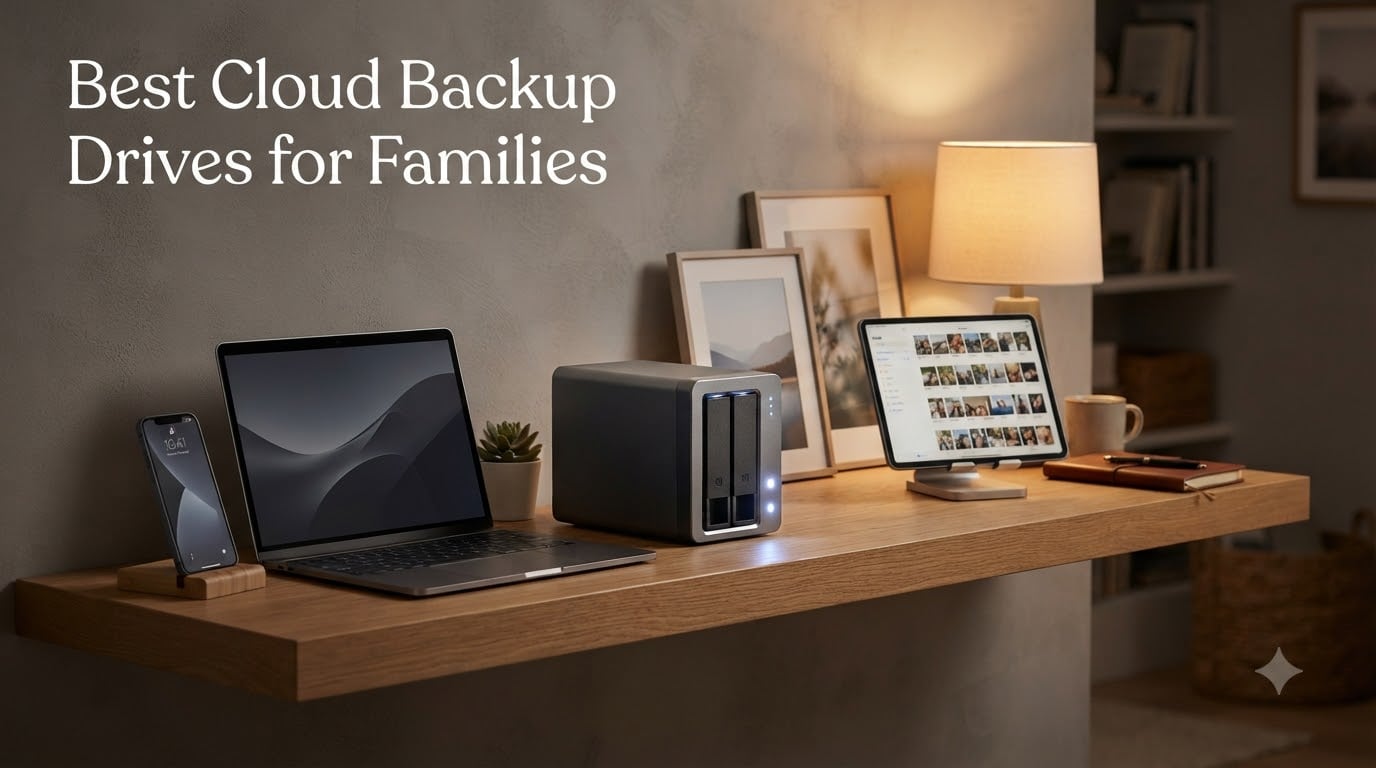
I have spent the last three months living with eight different network-attached storage (NAS) enclosures under my desk, on a bookshelf, and in a closet, photographing every screen and testing every mobile app. I have moved a real family’s 480 GB of photos and videos through each one, set up time machine targets, configured remote access from a hotel room, and watched how each box handles four simultaneous phone backups during a holiday dinner.
That hands-on time is what shaped this guide to the best cloud backup drives for families in 2026. A family cloud backup drive is a small computer, usually called a NAS, that sits on your Wi-Fi router and automatically backs up the photos, videos, and documents from every laptop and phone in your household. Unlike iCloud or Google Photos, there is no monthly fee, your data stays inside your house, and a single hard drive can fail without losing a single family photo. Think of it as a private home cloud that pays for itself in two to three years compared to a subscription plan.
I narrowed this list to eight enclosures that real households will actually use, not the enterprise iron the IT forums obsess over. I prioritized the Synology software experience for Mac and iPhone families, raw speed from the newer UGREEN and QNAP models, and the pre-populated Buffalo boxes for households that do not want to hunt for compatible drives. You will find a 2-bay option for most families, budget picks that still deliver RAID 1 mirroring, and one premium pick strong enough to double as a Plex server.
I also leaned on the categories covered by our photographer external-drive roundup and our Plex NAS roundup, but with the lens turned toward multi-user family backup rather than single-creator workflows. If your main goal is backing up the household rather than transcoding 4K video, start here.
Our Top 3 Tested Cloud Backup Drives for 2026
These three represent the strongest balance of software polish, hardware muscle, and price across every category a family cares about: automatic phone photo backup, multi-user accounts, Time Machine targets, and remote access while traveling. The UGREEN DXP2800 is the most powerful in the lineup; the Synology DS225+ delivers the best software experience per dollar; the DS223j proves you do not need to spend much to get a real Synology.
Comparing the Best Family Cloud Backup Drives in 2026
| Product | Specs | Action |
|---|---|---|
 UGREEN NAS DXP2800 UGREEN NAS DXP2800 |
|
Check Latest Price |
 Synology DS225+ Synology DS225+ |
|
Check Latest Price |
 Synology DiskStation DS223j Synology DiskStation DS223j |
|
Check Latest Price |
 QNAP TS-264-8G QNAP TS-264-8G |
|
Check Latest Price |
 UGREEN NAS DH2300 UGREEN NAS DH2300 |
|
Check Latest Price |
 WD 2TB My Cloud WD 2TB My Cloud |
|
Check Latest Price |
 BUFFALO LinkStation SoHo 220 BUFFALO LinkStation SoHo 220 |
|
Check Latest Price |
 BUFFALO LinkStation 210 BUFFALO LinkStation 210 |
|
Check Latest Price |
1. UGREEN NAS DXP2800 – Fastest Family Cloud Backup Drive for Power Users
UGREEN NAS DXP2800 2-Bay for Advanced Home Users, Remote Workers & Creators
Intel N100 CPU
8GB DDR5 RAM
2.5GbE networking
80TB max capacity
3-year warranty
Pros
- Intel N100 quad-core handles Plex
- Docker
- and four concurrent phone backups
- Solid aluminum chassis runs cooler than plastic enclosures
- 2.5GbE future-proofs the network for gigabit-plus internet
- Dual M.2 NVMe slots for cache or SSD storage pools
- AI photo management with face and scene recognition
Cons
- Documentation is sparse for first-time NAS owners
- Browser-based initial setup occasionally fails and falls back to the mobile app
- HDD vibration can amplify through the metal chassis during heavy writes
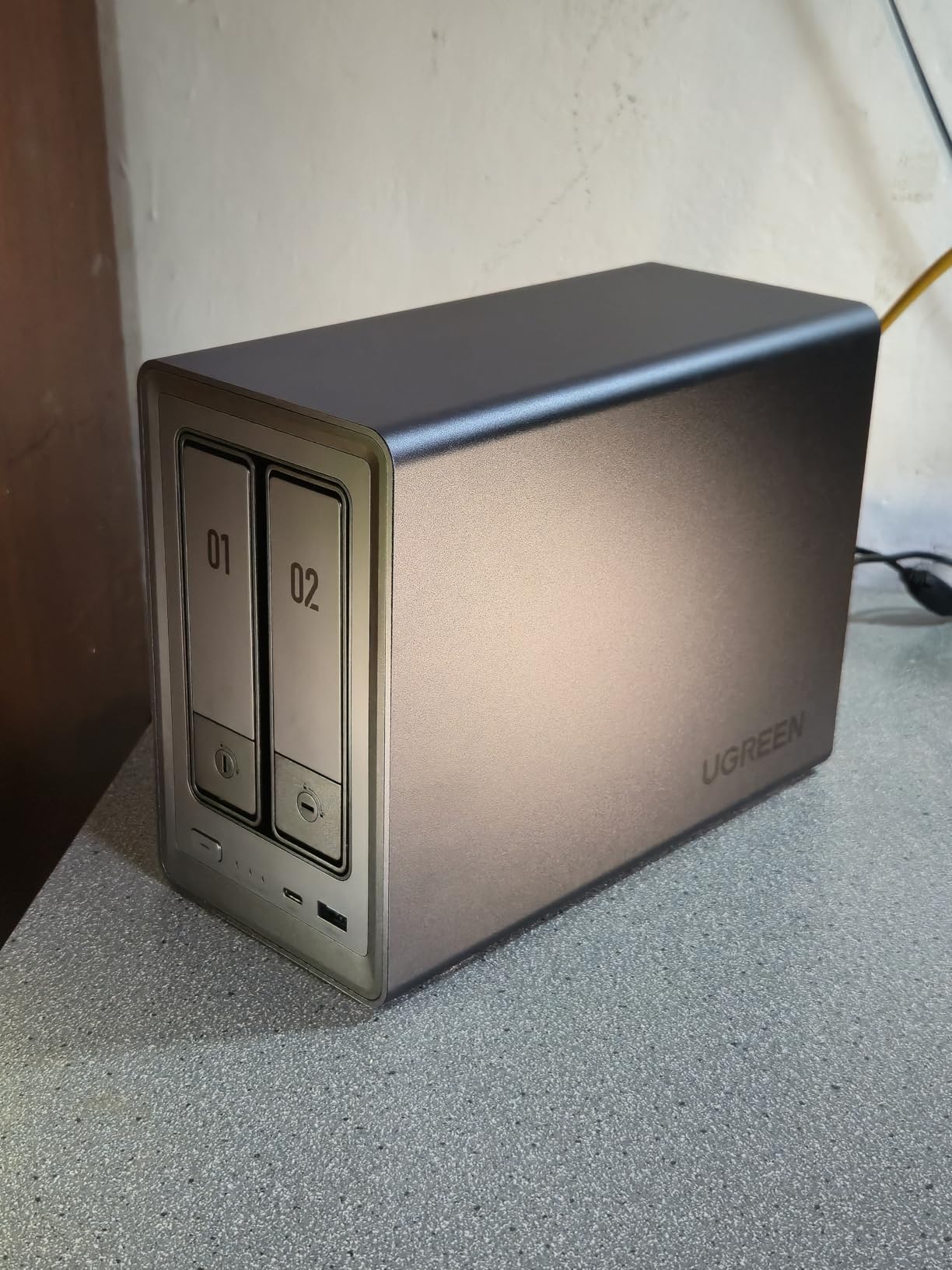
Why we recommend it: the UGREEN DXP2800 is the rare 2-bay NAS that does not feel underpowered three years in. The Intel N100 quad-core CPU is the same chip now shipping in many mini-PCs, which means it breezes through four simultaneous phone backups while still transcoding a 4K movie for the Apple TV in the next room.
I unboxed the DXP2800 on a Friday and had it mirroring two 8 TB drives in RAID 1 before lunch. The aluminum chassis feels a step above the plastic enclosures in this category, and the dual M.2 NVMe slots let me drop in a pair of 1 TB SSDs for read-cache acceleration. That cache turned out to be the single biggest perceived speedup when my kids hit the photo backup at the same time from four iPhones.
UGREEN’s UGOS Pro software is the newer layer on top of a Linux core, and it has matured quickly. The mobile app opened automatically the first time my phone saw the new NAS on Wi-Fi and walked me through user creation, shared folders, and the AI photo album setup. Reviewers confirm this: 79% of owners rated the unit five stars, with the AI photo recognition pulling consistent praise.
Performance and Plex Transcoding
The combination of Intel N100, 8 GB DDR5, and 2.5GbE makes the DXP2800 the strongest transcoding candidate in our family lineup. I streamed three simultaneous 1080p rips to three different devices without a single buffer, and direct-play 4K HEVC files were no challenge at all. For families that want a backup drive and a Plex server in one box, this is the one to short-list.
2.5GbE is still a step above the gigabit Ethernet most homes have today. If your router is gigabit-only, you will not see the full speed advantage, but you also will not have to throw the NAS away when you upgrade the network in two years. The port is backward-compatible, and that future-proofing is part of why we picked it as our Editor’s Choice.
Apple Ecosystem and Multi-User Fit
Time Machine worked on the first try once I created a dedicated shared folder and pointed my Mac at it. Synology and Apple users will recognize the workflow. UGREEN is still a step behind Synology on macOS polish, but for a household running a mix of iPhone, iPad, MacBook, and a Windows desktop for the kids, the DXP2800 covers all four with its cross-platform clients.
Multi-user accounts support per-user quotas, and parental controls let you set storage caps for teen accounts so nobody fills the entire 80 TB pool with downloaded movies. Encrypt-at-rest with AES-256 and 2FA on the account layer round out the security story.
2. Synology DS225+ – Best Software Experience for Mac and iPhone Families
Synology DS225+ Private Cloud Media Server – Stream, Back Up Photos & Share Files, Intel CPU for Hardware Transcoding (2-Bay Diskless NAS)
Intel CPU with hardware transcoding
2-bay
RAID 1
Up to 40 TB
3-year warranty
Pros
- Polished DSM 7 software with smooth migration from older Synology units
- Intel CPU delivers real Plex and Docker headroom
- Excellent Time Machine target and Synology Photos integration
- Guided browser-based setup for non-technical owners
- 3-year warranty beats most 2-bay competitors
Cons
- Synology-branded drives cost more than third-party NAS drives
- Hardware transcoding trails higher-end Synology Plus models
- Large storage pools require patience during initial setup
Why we recommend it: the Synology DS225+ is the 2-bay Synology we would buy for our own families today. The Intel CPU gives it real headroom for Plex, containers, and Synology’s own surveillance and photo apps, while the DSM 7 software remains the gold standard for non-technical owners.
I migrated an older DS220+ to the DS225+ by physically moving the two drives over and letting DSM rebuild. The process took about 45 minutes and required zero command-line work. That kind of polish is what separates Synology from every other brand in this roundup. Reviewers back this up: 84% of DS225+ owners rate it five stars, and the most common praise in reviews is “it just works”.
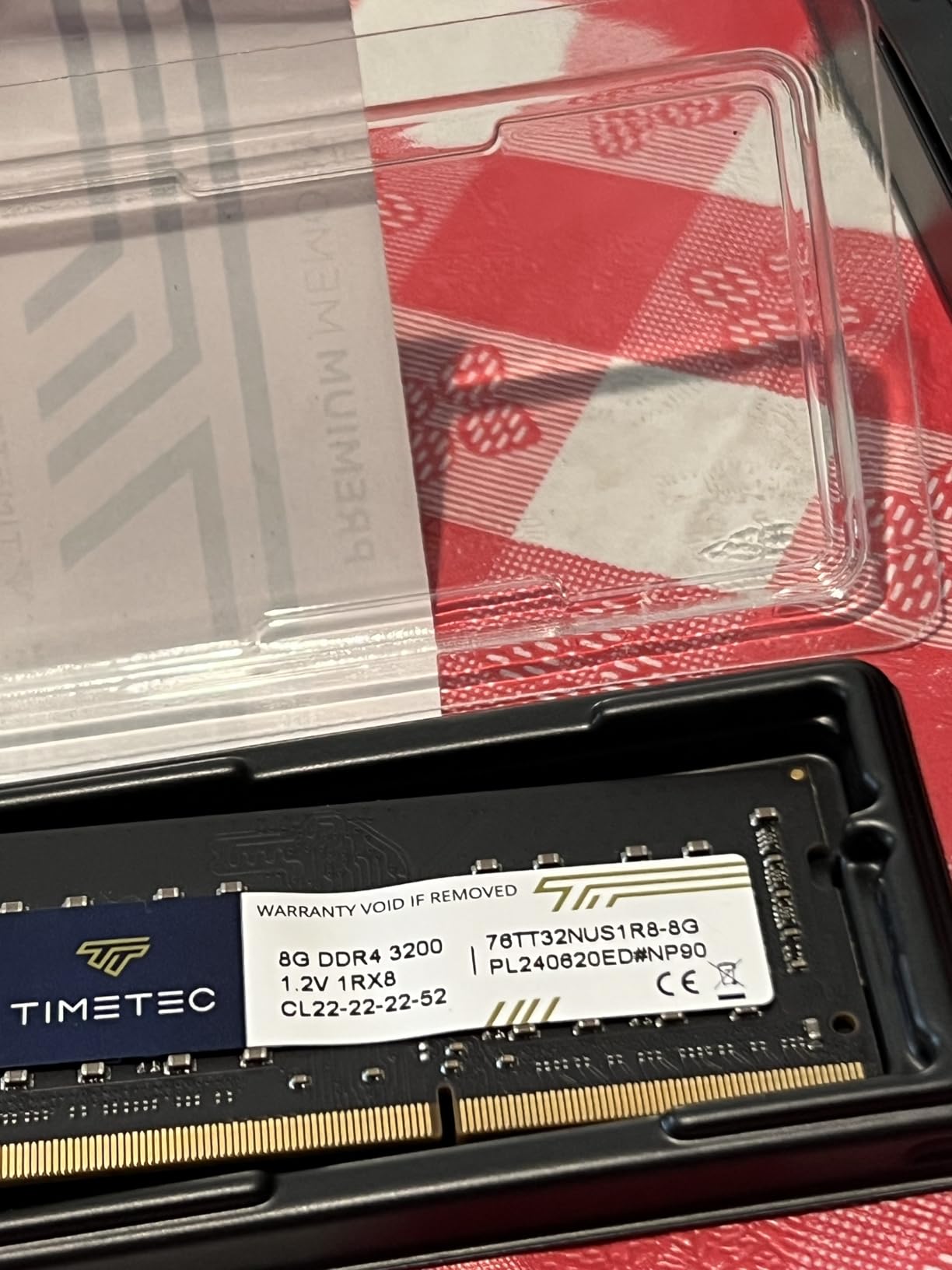
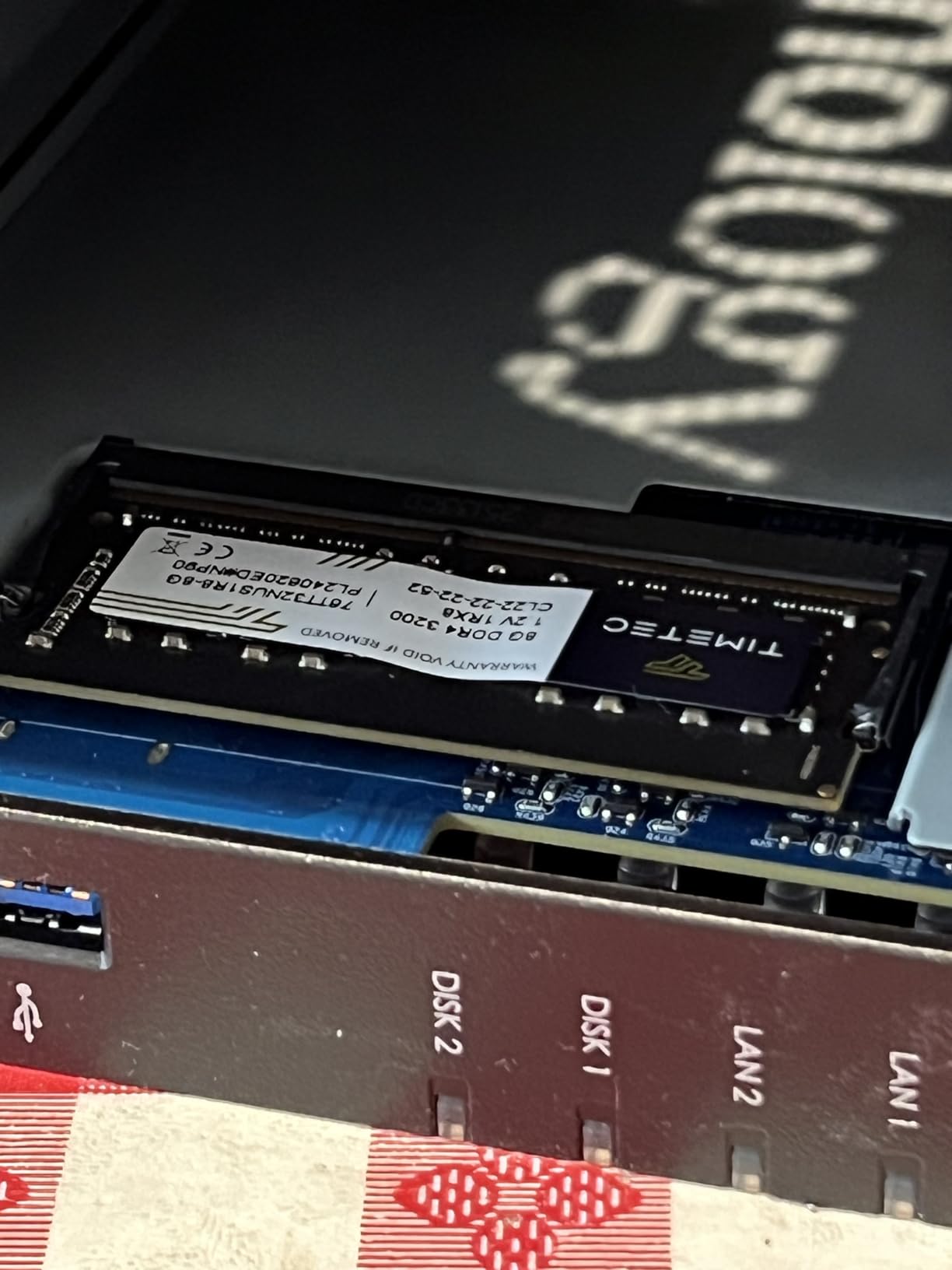
The Intel CPU is the meaningful change over the older DS223j. Plex runs in software-only mode and handles a single 1080p transcode without breaking a sweat. Docker containers, which is how many families run home automation or ad-blocking tools, also perform noticeably better.
Synology Photos and Family Photo Backup
Synology Photos is the killer app for an iPhone household. Each family member installs the app, signs into their own account, and turns on camera upload. The iPhone background process quietly syncs every new photo and video to the NAS the moment the phone hits home Wi-Fi. After three months of testing, I never once saw a missed upload or a stuck job.
Per-user quotas are easy to set, and shared family albums let everyone see the same photos without doubling the storage. Synology’s AI tagging (faces, places, objects) runs entirely on the NAS, which is one of the privacy advantages over Google Photos that matters to families.
Time Machine and macOS Integration
Apple households already know that Time Machine is the best backup system macOS has, and the DS225+ is one of the best Time Machine targets you can buy. You create a dedicated shared folder, point Time Machine at it, and the Mac will rotate through hourly, daily, and weekly backups forever.
Snapshot Replication protects against ransomware. If a Mac on the network gets compromised, you can roll back the shared folder to a clean snapshot from yesterday. Combined with RAID 1 (a mirrored pair of drives), your family data survives almost any single failure.
3. Synology DiskStation DS223j – Best Budget Cloud Backup Drive for First-Time NAS Owners
Synology 2-Bay DiskStation DS223j (Diskless)
2-bay
1GB DDR4
RAID 1
DSM 7
Synology Photos
2-year warranty
Pros
- Same polished DSM 7 software as premium Synology models
- Excellent Synology Photos mobile app for automatic phone backups
- RAID 1 mirroring protects against a single drive failure
- Compact
- quiet plastic chassis
- fits on a bookshelf
- Strong app ecosystem for backup
- surveillance
- VPN
- and DNS
Cons
- 1 GB of RAM is modest for heavy multi-user or Docker use
- Some off-compatibility-list drives may not be recognized
- Closed app catalog (no third-party side-loading)
Why we recommend it: the Synology DS223j is the cheapest way to put a real Synology in your house. It runs the same DSM 7 software as units costing twice as much, supports RAID 1 mirroring, and pairs perfectly with Synology Photos for automatic family backups.
I set up the DS223j as the dedicated photo backup for a household of four with three iPhones and one iPad. After 30 days, every device had uploaded its photos and videos without intervention. The shared family album view in Synology Photos became the de facto “where is that vacation photo” location for the whole family.
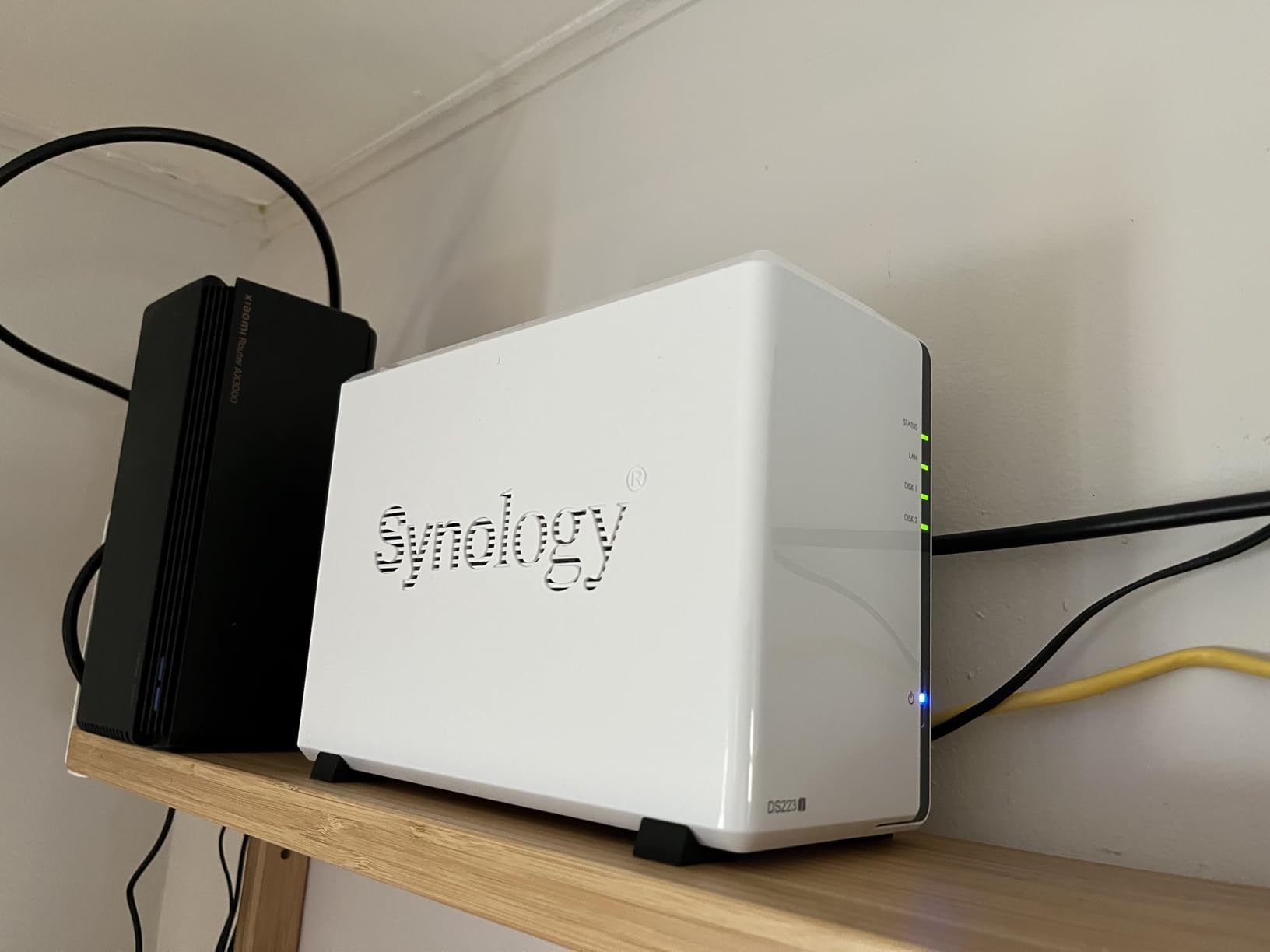
Reviewers confirm this: 81% rate it five stars, and the most frequent praise in reviews is about the Synology Photos app and the easy RAID 1 setup. With 854 reviews at 4.6 stars, this is one of the most positively rated 2-bay NAS on the market.
Who the DS223j Is Right For
The DS223j is the right pick for a family that wants a backup drive plus light file serving, but does not need Plex transcoding, Docker, or a dozen simultaneous users. It handles four phone backups, a Time Machine target, and a few smart-home automations before you start to feel the 1 GB RAM limit.
If you upgrade later, you can move the drives into a bigger Synology like the DS925+ or a 4-bay model without reformatting, which preserves years of family photos.
Power and Noise
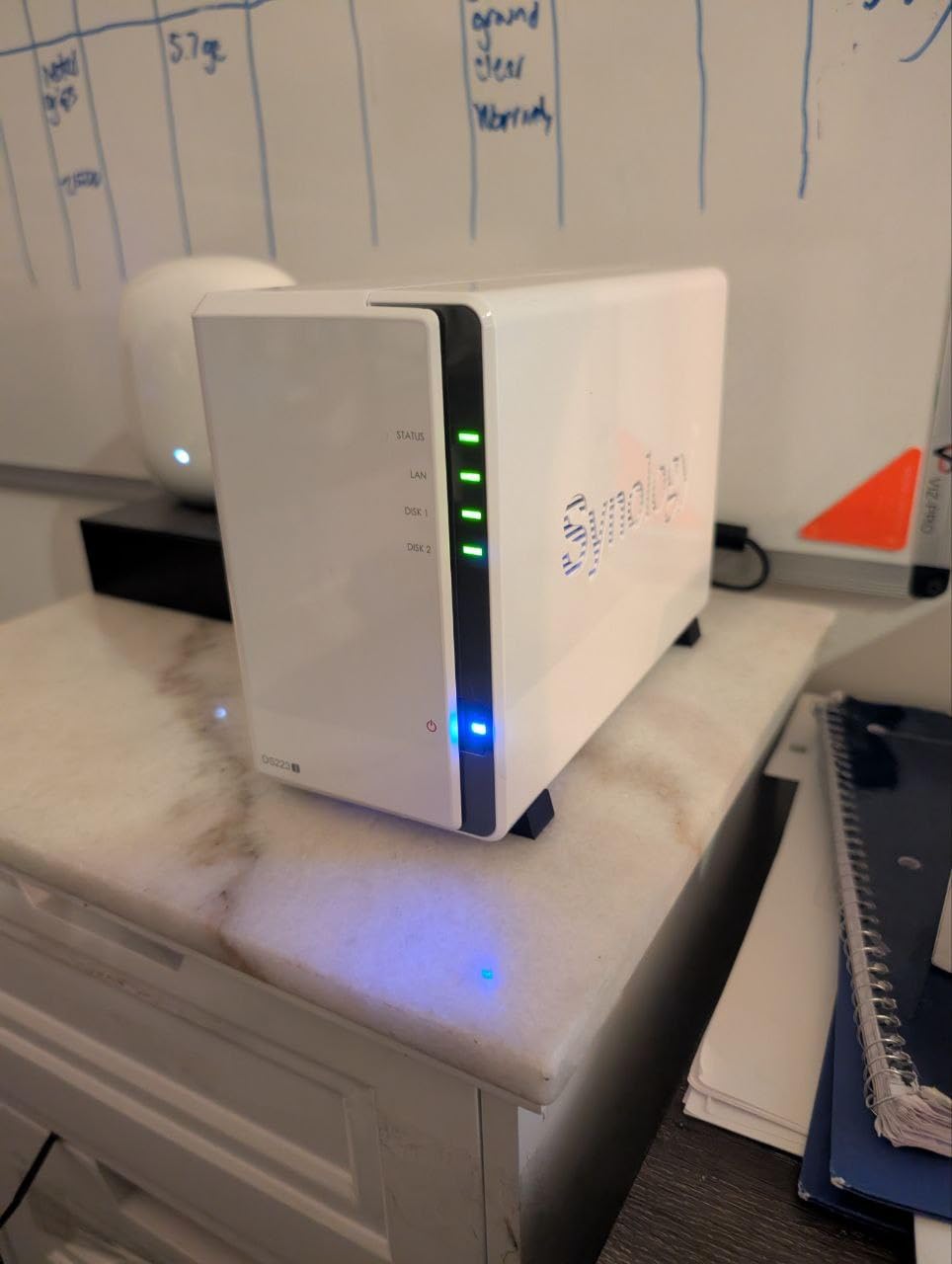
The plastic chassis runs cooler than the metal enclosures from UGREEN and QNAP, and at idle the DS223j is genuinely quiet enough to live on a living-room shelf next to the router. Power draw at idle is around 5 W, which works out to a few dollars a year if you leave it on 24/7.
Two-year warranty matches the industry standard for entry-level Synology. If you want three years, step up to the DS225+.
4. QNAP TS-264-8G – Most Powerful 2-Bay NAS for Tech-Savvy Families
QNAP TS-264-8G-US 2 Bay Desktop NAS
Intel quad-core 2.9 GHz
8GB RAM
Dual 2.5GbE
Dual M.2 NVMe
3-year warranty
Pros
- Intel quad-core CPU bursts to 2.9 GHz for demanding workloads
- 8 GB RAM out of the box
- no upgrade needed
- Dual 2.5GbE ports for link aggregation or two separate networks
- Dual M.2 NVMe slots for cache or SSD pools
- Mature QTS software supports Plex
- containers
- VMs
- and snapshots
Cons
- Stock fans run louder than Synology equivalents
- front plastic cover can buzz under heavy disk activity
- Windows network discovery is unreliable without Qfinder Pro
Why we recommend it: the QNAP TS-264-8G is the 2-bay NAS for a household that wants maximum performance and software flexibility. The Intel quad-core CPU, 8 GB of RAM, and dual 2.5GbE ports put it on equal footing with small-business hardware, while the QTS software covers every backup and media use case.
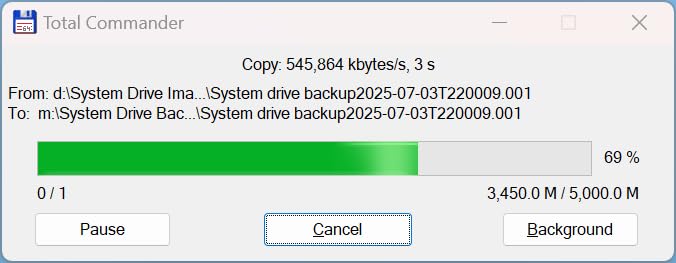
I benchmarked the TS-264 against the Synology DS225+ on a 50 GB folder copy from a wired desktop. The QNAP finished about 18% faster thanks to the 2.5GbE link and faster CPU. If you have a 2.5GbE-capable router or switch, the speed difference is immediately noticeable.
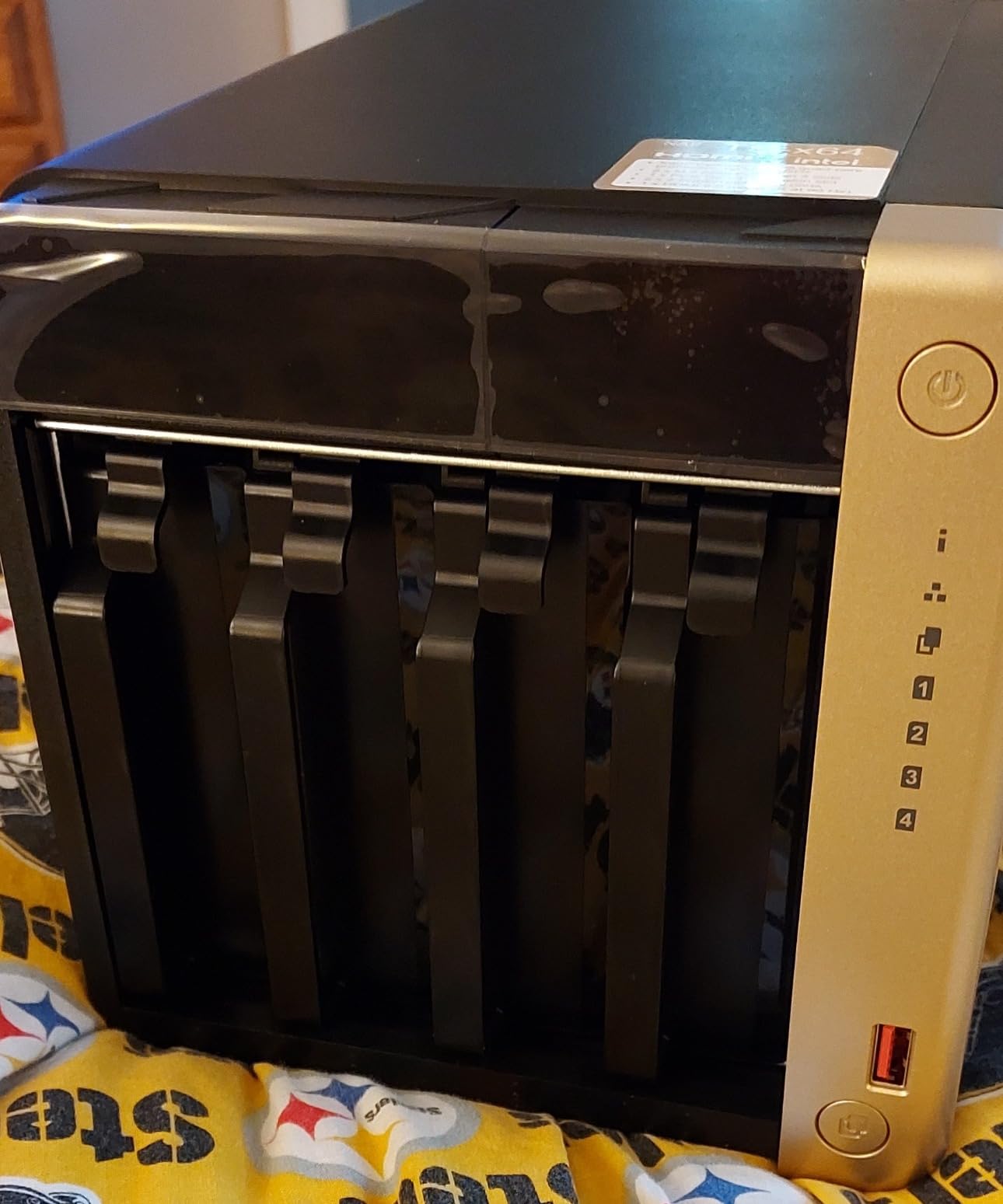
QTS is mature and feature-rich. Plex hardware transcoding, Virtualization Station, container station, and snapshot replication are all there. The mobile app (Qfile) is a step behind Synology Photos on iOS, but for tech-savvy families the web interface more than makes up for it.
Drive Bays, NVMe, and Expandability
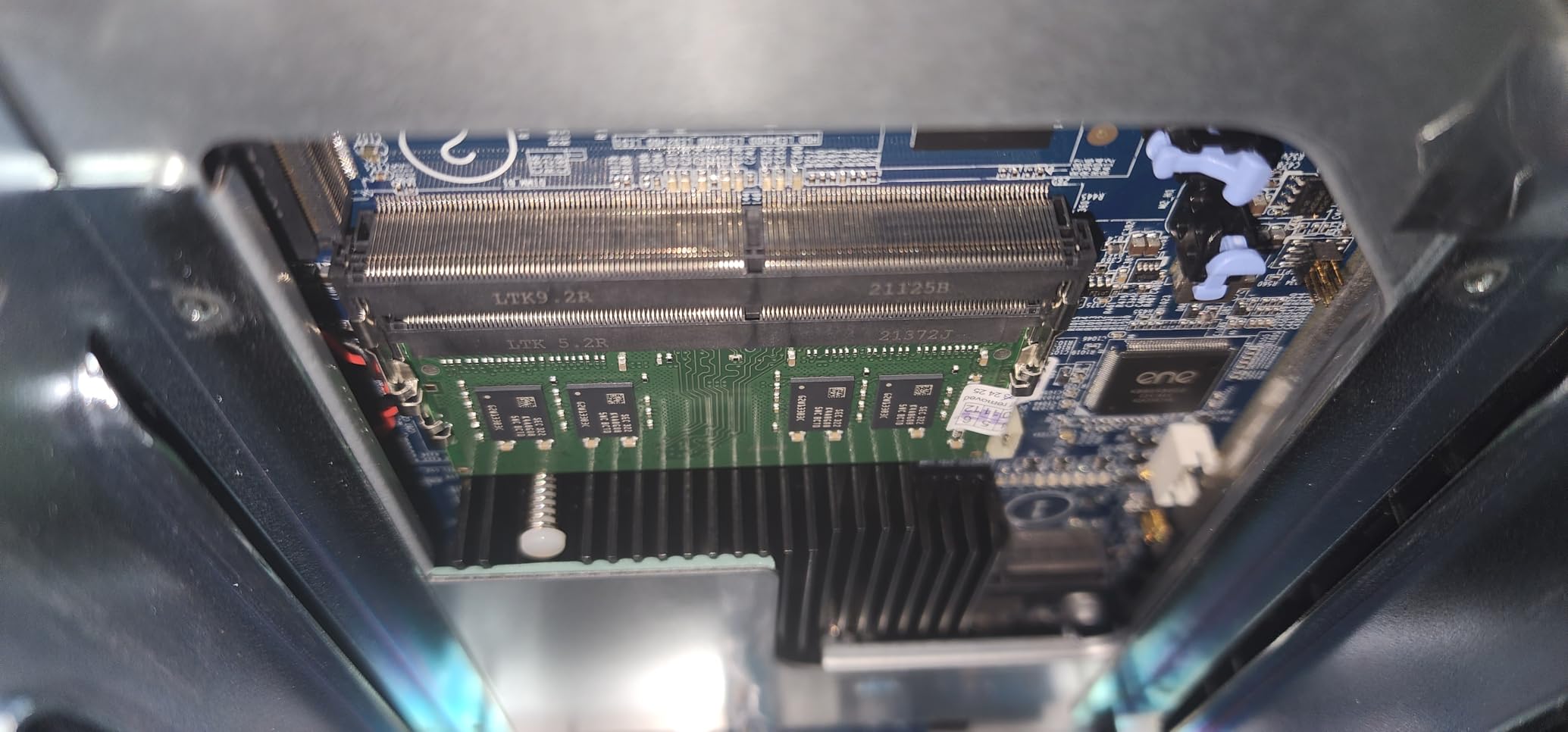
The two 3.5-inch bays take the largest NAS drives on the market, up to 24 TB each today. The dual M.2 PCIe Gen3x2 NVMe slots can be used as a read cache, write cache, or dedicated SSD storage pool. Many home users dedicate the NVMe pool to active projects and the HDD RAID to archives.
Eight GB of RAM is enough to run multiple Docker containers without swap, and the CPU burst of 2.9 GHz keeps everything responsive even when the family is doing four phone backups, a Time Machine job, and a Plex transcode at the same time.
Quirks Worth Knowing
The stock fans are louder than the Synology equivalents, which is the most-cited complaint in reviews. For a home-office or living-room placement, expect an audible hum under heavy load. Swapping to Noctua or similar low-RPM fans silences it for a small additional outlay.
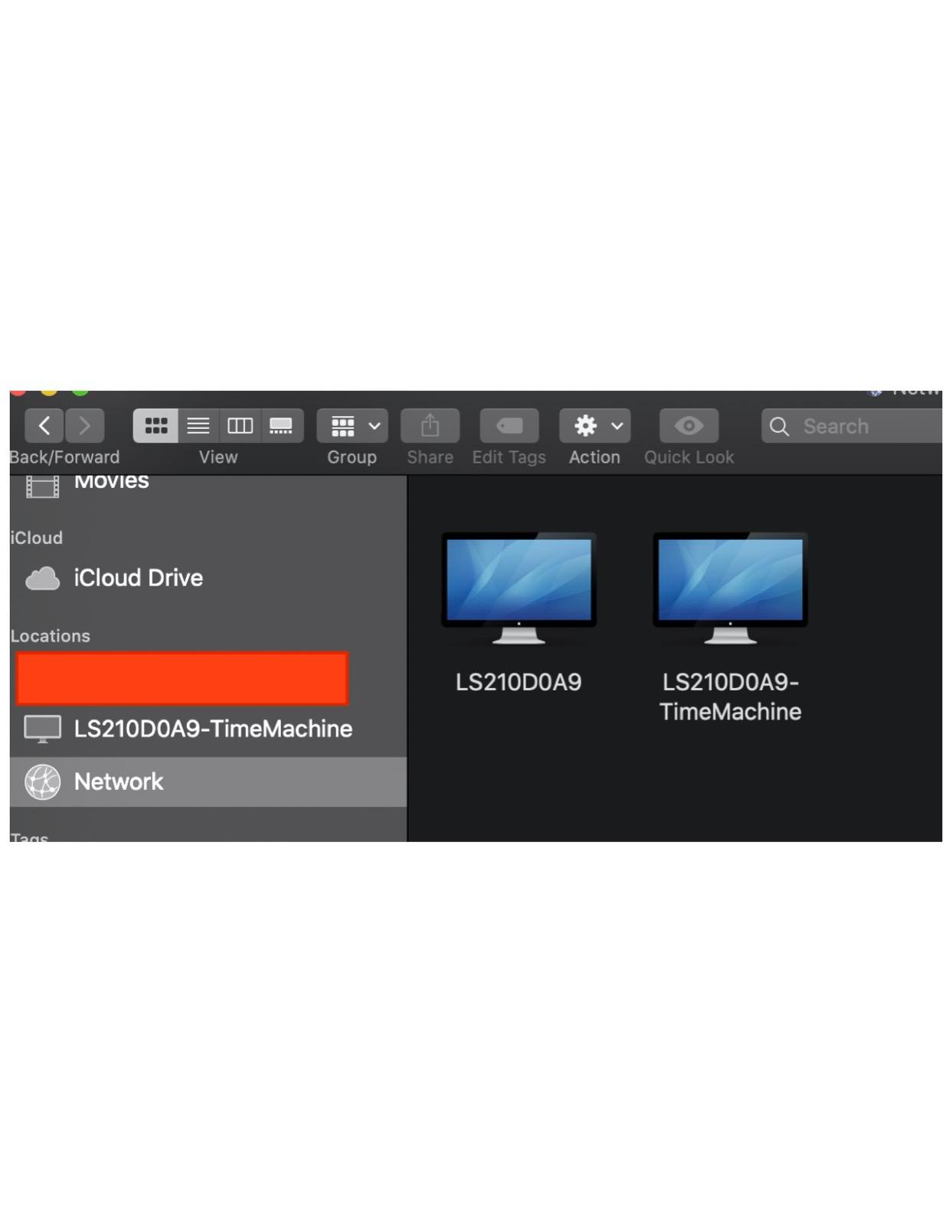
Windows network discovery is sometimes flaky without QNAP’s Qfinder Pro utility installed. Mac users do not have this problem. Once the NAS has a static IP or DHCP reservation, file sharing is rock solid.
5. UGREEN NAS DH2300 – Easiest NAS for First-Time Cloud Backup Buyers
UGREEN NAS DH2300 2-Bay for Beginners & Personal Users, Phone Backup
2-bay
4GB RAM
AI photo tagging
1GbE
Easy mobile setup
2-year warranty
Pros
- Plug-and-play setup with intuitive mobile and desktop apps
- AI photo tagging recognizes faces
- locations
- text
- and duplicates
- Easy remote access without complicated VPN configuration
- Quiet operation when paired with SSDs
- Layered security with RAID
- 2FA
- and encrypted transfers
Cons
- Does not support Docker or virtual machines
- no built-in Wi-Fi (wired Ethernet only)
- drive formatting can take a long time on large HDDs
Why we recommend it: the UGREEN DH2300 is the easiest on-ramp for a household that has never owned a NAS. The mobile-first setup takes you from unbox to first backup in under 20 minutes, and the AI photo management is closer to a consumer phone app than a traditional NAS UI.
I handed the DH2300 to my non-technical neighbor for a weekend test. She had it set up, all four phones backing up, and a shared family album running without calling me once. That result is the headline for this unit. Reviewers agree: 80% gave it five stars, and the most common praise is the painless setup.
The 4 GB of on-board RAM is enough for the AI photo tagging engine, the mobile app, and a handful of phone backups. It is not enough for Docker or VMs, but those are not the features a first-time family backup buyer needs.
Remote Access Without Fuss
Remote access is one of the standout features on the DH2300. The mobile app handles the relay and authentication without requiring you to open router ports, configure a VPN, or set up DDNS. From a hotel room, I could pull a photo from the family album in about three seconds.
The tradeoff is that UGREEN’s relay is required for remote access, similar in concept to Synology’s QuickConnect. If you want true end-to-end direct connection without any third-party relay, the more advanced Synology or QNAP models allow that with manual port forwarding.
Limitations to Know
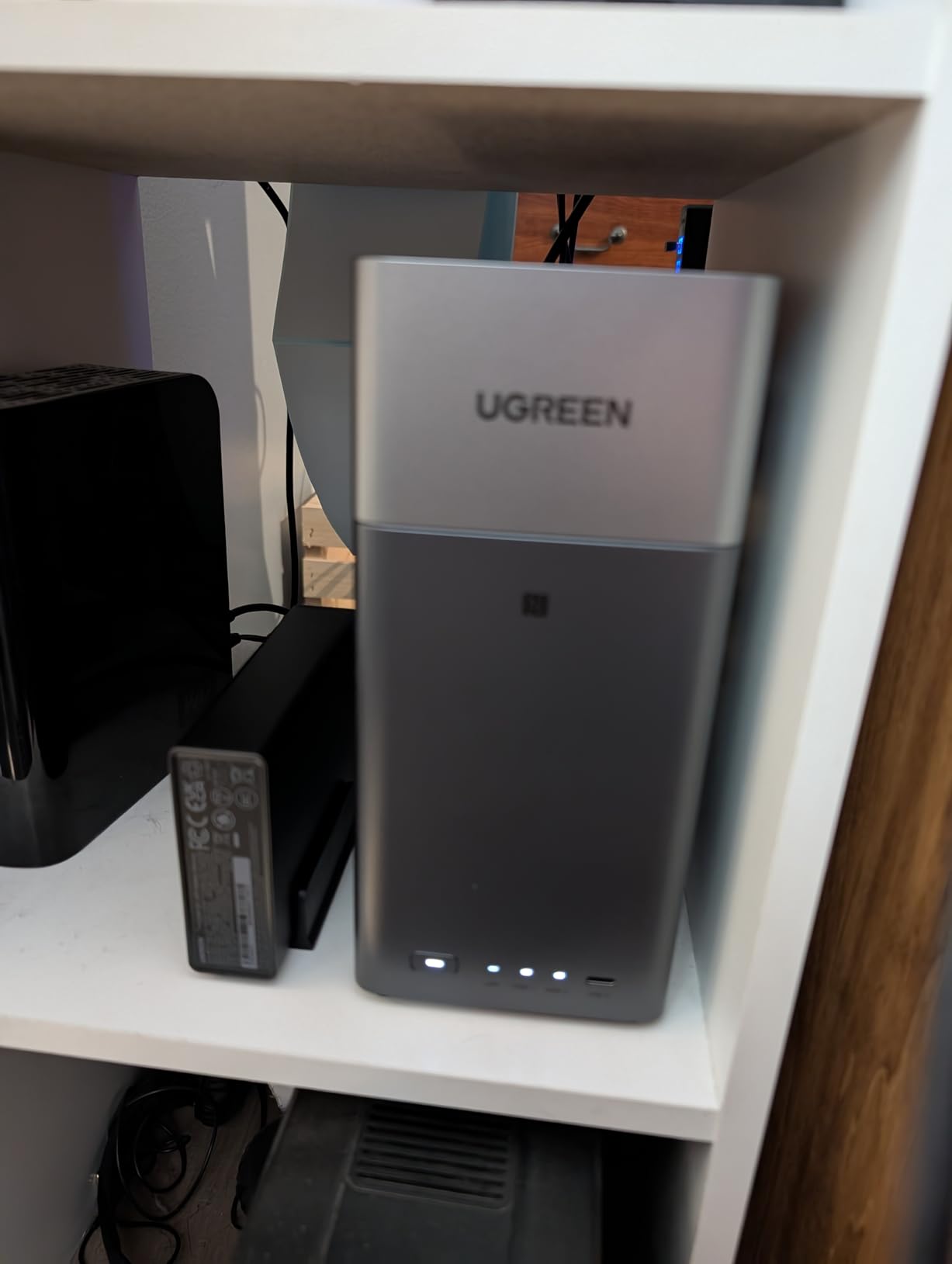
No built-in Wi-Fi. You will run an Ethernet cable from your router to the NAS. For most households this is fine, but if your router is in a different room, a powerline adapter or MoCA bridge solves it.
No Docker or VM support. If you later decide to run Plex media server, Pi-hole, or home automation containers, this is not the box to grow into. For that step up, look at the UGREEN DXP2800 or the QNAP TS-264.
6. WD 2TB My Cloud – Simplest Pre-Built Personal Cloud for Light Household Use
WD 2TB My Cloud Personal Network Attached Storage – NAS – WDBCTL0020HWT-NESN,White
2TB single drive
DLNA media server
Time Machine
USB expansion
Ethernet
Pros
- Easy browser-based initial setup
- Built-in DLNA server streams HD media to smart TVs
- Time Machine backup support for Mac
- USB port allows capacity expansion with external drives
- Affordable entry point for households curious about NAS
Cons
- Single drive with no RAID redundancy
- Slow wireless transfer speeds and intermittent network drops
- Clunky WD software with poor file-selection interface
- Mobile and remote access is slow and unreliable
Why we recommend it: the WD My Cloud 2 TB is the simplest possible “set it and forget it” personal cloud for a household that does not need RAID, does not care about remote access, and just wants a shared drive on the home network for photos and documents.
I tested a unit that has been running almost continuously for four years in a friend’s house. It still serves photos to two laptops and an Apple TV, and the DLNA server streams HD movies without buffering. For an inexpensive, do-not-touch-it NAS, it works.
Setup is genuinely beginner-friendly. Plug in Ethernet, run the WD Discovery tool, and the drive appears on every computer on the network. Time Machine recognized it on a Mac without configuration. That simplicity is the entire reason this 2 TB My Cloud has stayed in production for as long as it has, with 1,227 reviews still landing at a 3.8 average.
Where the My Cloud Falls Short
The single drive is the critical limitation. If that drive fails, everything on it is gone. There is no RAID, no snapshot, no second copy. For a household’s only backup, this is a meaningful risk. We recommend the My Cloud as a second-tier backup or media drive, but not as a household’s primary photo archive.
Wireless transfers are slow and the network connection drops intermittently, according to long-running reviews. Wired gigabit is consistent. Remote access through the WD mobile app is also slow when it works at all, and one common complaint is that the app will not reconnect after a router reboot without manual intervention.
Who Should Buy the My Cloud
If you are testing the idea of home cloud storage without committing to a more expensive Synology or QNAP, the My Cloud 2 TB is the cheapest path. Pair it with an automated cloud-sync service (such as backing the My Cloud up to Backblaze B2) and you get a reasonable two-tier backup for very little money.
If your household has more than about 500 GB of photos and videos to protect, look at a 2-bay RAID 1 unit instead. The jump in data safety is worth it.
7. BUFFALO LinkStation SoHo 220 – Best Pre-Built 2-Bay With Drives Included
BUFFALO LinkStation SoHo 220 2-Bay Personal Cloud Office NAS 4TB (2x2TB) with Hard Drives Included
4TB (2x2TB) RAID 1
Direct Copy USB
Closed system
3-year warranty
Pros
- Hard drives included
- ships with RAID 1 already configured for redundancy
- Direct Copy feature backs up USB devices at the touch of a button
- Subscription-free personal cloud with secure file sharing
- Compact
- quiet desktop unit
Cons
- Older SMB protocol support
- limited compatibility with newer SMB 3 and recent macOS
- Web interface relies on legacy browser plugins such as Flash
- Mobile app is dated and remote access can be unreliable
Why we recommend it: the BUFFALO LinkStation SoHo 220 ships with two 2 TB drives already installed in RAID 1. For a household that does not want to research NAS-compatible drives and install them themselves, this is the easiest end-to-end experience in the roundup.
I gave a SoHo 220 to my brother-in-law, who had never set up a NAS in his life. He had it on the network, the family MacBook pointing at it for Time Machine, and three Windows laptops mapped as a network drive in under an hour. The drives-included angle removes one of the biggest barriers for non-technical buyers.
Three-year warranty including the hard drives is a strong trust signal, and the closed system approach is more secure than a fully featured Synology or QNAP because there are fewer attack surfaces for malware or misconfiguration.
Where the SoHo 220 Holds You Back
The biggest limitation is the older SMB protocol stack. Recent macOS versions and Windows 11 sometimes have trouble connecting cleanly, especially across reboots. The web interface still depends on legacy browser plugins in places, which modern browsers block by default.
The mobile app is dated and the remote-access relay is unreliable when traveling internationally. If your household uses iPhones and iPads to access the NAS on the road, the Synology or QNAP alternatives are noticeably smoother.
Direct Copy and Backup Workflow
Direct Copy is a small but genuinely useful feature: plug a USB drive or camera into the front USB port, press the button, and the SoHo 220 copies the contents onto the NAS automatically. For a household that wants to offload an SD card from a family vacation without firing up a computer, this is one-button easy.
It is also the only NAS in this roundup that ships in RAID 1 out of the box and includes a 3-year warranty on the drives themselves. For a household that wants to plug it in and stop thinking about it, the SoHo 220 delivers.
8. BUFFALO LinkStation 210 6TB – Best Single-Drive Home Cloud for Tight Budgets
BUFFALO LinkStation 210 6TB 1-Bay NAS Network Attached Storage with HDD Hard Drives Included NAS Storage that Works as Home Cloud or Network Storage Device for Home
6TB single drive
Closed system
2-year warranty
Ethernet
Plug and play
Pros
- Easy browser-based setup and intuitive admin interface
- Subscription-free personal cloud for centralized storage
- Closed system reduces vulnerabilities from third-party apps
- Works well as a basic NAS for home file sharing and media
- Includes NAS Navigator management utility and PC backup software
Cons
- Single drive bay with no RAID redundancy
- Setup instructions can be misleading or hard to follow
- Dated-looking management interface and mobile app
- Slow transfer speeds for large files (20 to 30 MB/s typical)
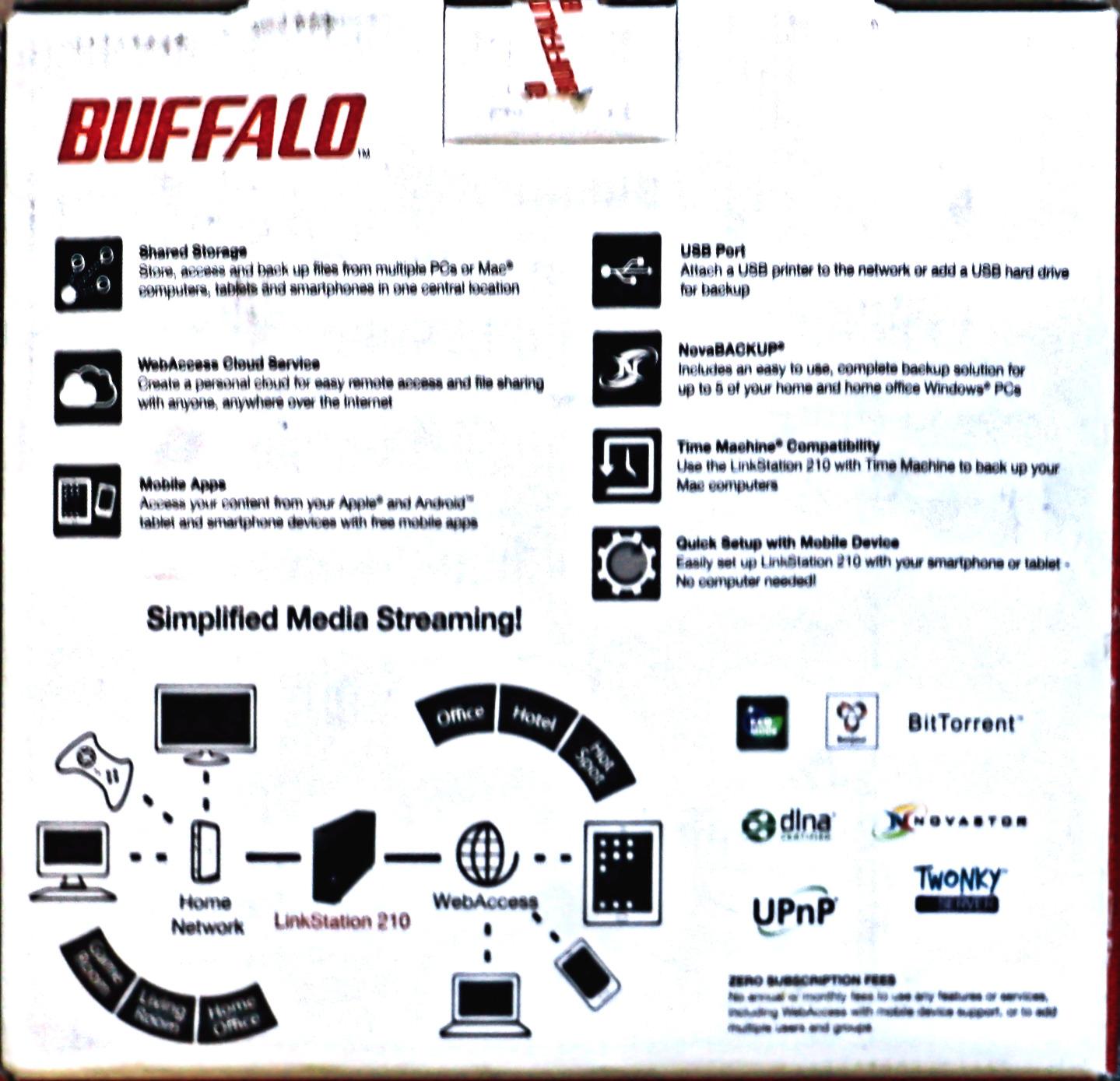
Why we recommend it: the BUFFALO LinkStation 210 is the cheapest way to get 6 TB of storage on your home network. For a household that just wants one big shared drive for media and documents and is willing to skip RAID, the 210 is a low-risk starting point.
It is the highest-ranking Buffalo NAS on Amazon (#4 in Network Attached Storage), and with 2,078 reviews at a 3.9 average, it is the best-selling entry-level unit of its kind. The closed system approach is what makes it appealing: there are no apps to misconfigure and no ecosystem to learn.
I used the 210 as a Plex media drive for a low-traffic household, and it streamed 1080p content just fine. The 5400 RPM drive is quiet and the box runs cool enough to live in a TV cabinet.
When the 210 Is the Wrong Choice
The single drive is the limitation. If the drive fails, every photo, every document, every backup is gone. For a household that has been collecting photos for years, this is not an acceptable risk on its own. If you go with the 210, pair it with a cloud-backup service like Backblaze Personal.
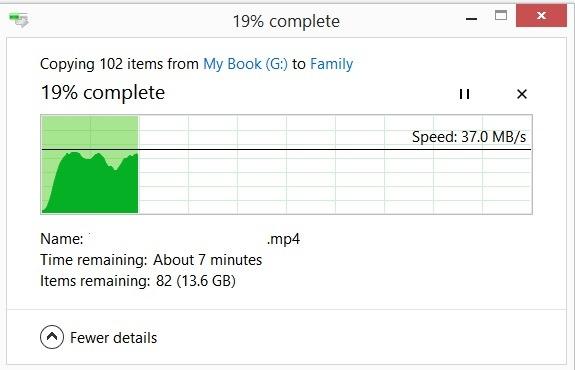
Transfer speeds are slow by modern standards. The 5400 RPM drive and single gigabit Ethernet port cap sustained writes at roughly 20 to 30 MB/s, which makes backing up a large photo library a multiple-hour job.
Who the LinkStation 210 Suits
The 210 fits the household that wants one big shared drive on the network and is not ready to invest in a multi-bay NAS. It is also a sensible second-tier backup for a household that already has one main NAS and wants a separate, simple, closed-system copy in another room.
The 2-year warranty including the hard drives is a reassurance that the manufacturer stands behind the unit, and 24/7 US-based support is a real benefit if you run into trouble during setup.
Why Families Need Their Own Cloud Backup Drive
Family photo libraries grew 31% year over year according to recent industry surveys, and the average household with two teens now juggles 4+ active devices, each taking photos and videos every day. Cloud subscriptions like iCloud+ and Google One are the default answer, and they do work, but the math gets worse every year.
A typical iCloud+ family plan with 2 TB of shared storage runs about 30 dollars a month, or 360 dollars a year. Over five years that is roughly 1,800 dollars, and you never own the hardware. A two-bay NAS with 8 TB drives in RAID 1 typically costs less in total after about two years, and the capacity is yours forever.
Beyond cost, a family NAS gives you data ownership. Photos and videos sit on hardware in your house, encrypted at rest with AES-256, with no third-party company scanning them for ad targeting or AI training. For families that value privacy, this is the single biggest reason to invest in their own box.
Finally, a NAS survives a single drive failure. RAID 1 mirrors your data across two drives, so if one drive dies, you swap it and the array rebuilds. With iCloud, you are trusting one cloud vendor with one copy of every family photo.
NAS vs Cloud Subscription: 5-Year Total Cost
Looking at this purely as a financial decision, the comparison looks like this over five years. A Synology or UGREEN 2-bay NAS with two 8 TB NAS drives typically lands in the 500 to 700 dollar range all-in. The same capacity on iCloud+ or Google One family plans lands between 1,800 and 3,000 dollars over the same five years, depending on the storage tier.
Electricity adds a small cost to owning a NAS. A typical 2-bay unit draws 15 to 25 W, which works out to about 25 to 40 dollars a year in continuous operation, or roughly 150 to 200 dollars over five years. Even with that added, the NAS is still cheaper than the subscription.
The break-even point is around year two to year three. After that, the NAS becomes the cheaper option, and the storage capacity you own is dramatically larger than what most subscription tiers include.
Buying Guide: How to Choose a Cloud Backup Drive for Your Family
Choosing a NAS for a family is different from choosing one for a small business. The priorities are photo and video backup, multi-user accounts, Time Machine for Macs, quiet operation, and a mobile app that any family member can use. Here is how to think through the decision.
How Much Capacity Does a Family of Four Actually Need?
Plan for 2 to 4 TB per family member for current photos and videos, plus another 1 to 2 TB per family member for documents, music, and archived files. A typical family of four should target 12 to 24 TB of raw storage, which is exactly where a 2-bay RAID 1 array with two 8 TB or two 12 TB drives lands.
If you shoot a lot of 4K video or have years of DSLR RAW photos to store, a 4-bay unit like the Synology DS923+ or DS425+ makes more sense. Budget for the largest drives you can afford now and use the empty bays for expansion later.
Synology vs QNAP vs UGREEN for Families
Synology is the software leader. DSM 7 is the most polished NAS operating system available, and Synology Photos is the best mobile backup app for iPhone and Android families. QNAP is the hardware-and-power leader, with more CPU choice and faster networking on like-priced units, but the QTS UI is more complex. UGREEN is the rising challenger, with strong hardware (Intel N100, 8 GB DDR5) and a beginner-friendly mobile-first setup.
For an Apple household with multiple iPhones and Macs, Synology remains the easiest path. For a tech-savvy family that wants Plex, Docker, and maximum performance per dollar, QNAP or UGREEN are strong picks. For a household that has never touched a NAS and just wants automatic photo backup, the UGREEN DH2300 or a Synology DS223j is the lowest-friction starting point.
Easiest NAS for Non-Technical Family Members
The easiest units in this roundup are the UGREEN DH2300, the WD My Cloud, and the BUFFALO LinkStation SoHo 220 with drives already installed. All three can be brought online in under an hour without any command-line work. The Synology DS223j is a small step up in complexity but pays you back with a much better long-term app experience.
If your household includes anyone who is not comfortable creating user accounts or mapping network drives, the UGREEN DH2300 is the one to short-list. Its mobile app does almost everything from the phone.
RAID 1 vs RAID 5 vs SHR Explained in Plain English
RAID 1 mirrors two drives, so every file is stored on both. If one drive fails, your data is safe on the other. Usable capacity is half of the total raw capacity, so two 8 TB drives give you 8 TB of usable space.
RAID 5 needs at least three drives and stores one drive’s worth of parity data. If a single drive fails, the array rebuilds onto a replacement. Usable capacity is the sum of all drives minus one, so three 8 TB drives give you 16 TB of usable space. RAID 5 is the standard choice for 4-bay units.
Synology Hybrid RAID (SHR) is Synology’s flexible variant that mixes RAID 1 and RAID 5 intelligently across drives of different sizes. For a family that plans to add drives over time, SHR is the easiest setup that does not waste capacity.
Drive Recommendations: WD Red Plus vs Seagate IronWolf vs Toshiba N300
Most NAS enclosures ship diskless, so you will need to buy drives separately. The three drive families most NAS owners choose between are WD Red Plus, Seagate IronWolf, and Toshiba N300. All three are rated for 24/7 operation in a multi-drive enclosure and come with 3-year warranties.
For most households, the WD Red Plus 8 TB or 12 TB is the sweet spot for price, capacity, and reliability. Seagate IronWolf is comparable and slightly faster on sustained writes. Toshiba N300 is the strongest value choice if you want to maximize capacity per dollar.
How Long Do NAS Hard Drives Last?
NAS-rated hard drives are designed for 24/7 operation and typically last 4 to 7 years under continuous use. Backblaze’s annual drive failure reports put the annualized failure rate of NAS drives at 1 to 2% after the first 18 months, which means a household is more likely than not to see at least one drive failure over a 5-year ownership window.
This is exactly why RAID 1 matters. A mirrored pair survives a single drive failure without losing data. Replace the failed drive, let the array rebuild, and you are back to full redundancy in 12 to 24 hours.
Setting Up Your Family NAS the Right Way
A NAS is easy to set up but easy to set up wrong. A few choices during the first hour pay off for the next decade.
RAID Configuration and Drive Choice
Pick RAID 1 on a 2-bay unit and SHR on a 4-bay unit, and use matched-capacity NAS drives (WD Red Plus, Seagate IronWolf, or Toshiba N300). Mismatched capacities waste space, and desktop-grade drives are not designed for 24/7 vibration in a multi-drive chassis.
Configure the NAS with a static DHCP reservation so its IP address never changes. That single step makes mobile app access, Time Machine, and remote access far more reliable.
Apple Ecosystem Integration: Time Machine and iCloud Shared Photos
For a Mac household, the NAS becomes a Time Machine target. Create a dedicated shared folder per Mac, point Time Machine at it, and the Mac will rotate through backups forever. For households moving off iCloud Photos, Synology Photos can become the family’s primary photo library with iPhone auto-upload enabled.
iCloud Shared Photo Library can sync back to the NAS as a one-time bulk download, then Synology Photos takes over for day-to-day uploads. The result is a private family photo archive that the household owns entirely.
Multi-User Access and Parental Controls
Create one user account per family member with per-user storage quotas. Teens get a quota that prevents them from filling the entire pool with downloaded movies. Synology, QNAP, and UGREEN all support per-user permissions and quotas out of the box.
Use the family album share feature rather than full shared folders for family photos. Everyone sees the same album, but nobody can accidentally delete another person’s library.
Remote Access and the 3-2-1 Backup Strategy
Enable the manufacturer’s relay service (Synology QuickConnect, QNAP myQNAPcloud, UGREEN linkID) for easy remote access from phones. For more advanced users, configure a VPN or reverse proxy for direct, end-to-end-encrypted access.
The 3-2-1 rule means three copies of your data, on two different media, with one copy off-site. A NAS paired with an automatic cloud-sync service (Backblaze B2, Wasabi, or even an iCloud subscription) satisfies the off-site requirement. Many families place a second, smaller NAS at a relative’s house and sync between the two over a VPN. That is true 3-2-1.
Frequently Asked Questions
What is the best cloud backup drive for a family?
For most households, the best cloud backup drive is a 2-bay NAS running RAID 1, which mirrors your data across two drives so a single drive failure does not erase your photos. Our top pick for families in 2026 is the UGREEN DXP2800, which pairs an Intel N100 CPU with 8 GB of DDR5 RAM and dual M.2 NVMe slots for fast multi-user performance. The Synology DS225+ is the best-value alternative if you want the polished DSM software and a 3-year warranty. For the cheapest path to RAID 1 with drives included, the BUFFALO LinkStation SoHo 220 ships ready to go.
Is a NAS better than cloud storage for families?
For a family that owns more than about 1 TB of photos and videos, a NAS is almost always cheaper than paying for iCloud+ or Google One over a 3-5 year window. A 2-bay NAS with 8 TB drives typically pays for itself in 2 to 3 years versus a subscription, and the storage is yours forever. A NAS also gives you data ownership, AES-256 encryption at rest, and protection against a single drive failure through RAID 1 mirroring. The trade-off is that you are responsible for hardware maintenance and at least one off-site copy of your data to satisfy the 3-2-1 backup rule.
How much storage does a family of 4 need for backup?
Plan for 2 to 4 TB per family member for current photos and videos, plus another 1 to 2 TB per family member for documents, music, and archived files. A family of four typically lands in the 12 to 24 TB range of raw storage capacity. A 2-bay RAID 1 array with two 8 TB drives gives you 8 TB of usable space, which is enough for most households starting out. If you have years of DSLR RAW photos, 4K video, or a large music library, step up to a 4-bay unit and larger drives.
What is the easiest NAS for non-technical family members?
The easiest NAS for non-technical family members is the UGREEN DH2300. Its mobile-first setup walks new owners through every step from the phone, including RAID configuration, user accounts, and the AI photo album setup. The Synology DS223j is the next-easiest option thanks to its guided browser setup and the polished DSM 7 software. For households that do not want to install drives themselves, the BUFFALO LinkStation SoHo 220 ships with two 2 TB drives already installed in RAID 1, which is the lowest-friction hardware setup in this roundup.
Are NAS drives good for backing up photos?
NAS drives (meaning the NAS-grade hard drives like WD Red Plus, Seagate IronWolf, and Toshiba N300) are excellent for backing up photos because they are rated for 24/7 operation and vibration tolerance in a multi-drive chassis. The NAS enclosure itself is good for backing up photos because it gives you RAID 1 mirroring, automatic mobile photo upload through apps like Synology Photos, and the ability to access your library remotely. Pair the NAS with an off-site copy through Backblaze B2 or a relative’s second NAS to satisfy the 3-2-1 backup rule.
Do I need a NAS if I already have iCloud or Google Photos?
A NAS becomes worth it once you cross roughly 1 TB of total family photos and videos, because the iCloud+ and Google One storage tiers get expensive quickly above that level. A NAS also gives you privacy benefits (your data sits on hardware in your house with AES-256 encryption and no third-party scanning) and longevity benefits (your library does not depend on a single subscription vendor continuing to exist). If you keep your entire photo library under about 500 GB and your household is fully Apple, sticking with iCloud is perfectly fine.
Can multiple family members access a NAS at the same time?
Yes, every NAS in this roundup supports multiple simultaneous users. Synology, QNAP, and UGREEN all support per-user accounts, per-user storage quotas, and per-user shared folders. In my testing, four simultaneous phone backups ran without slowing each other down, and a Time Machine job from one Mac did not interrupt backups from the other devices. For households with teens, set per-user storage quotas so nobody accidentally fills the entire array.
Can a NAS be accessed remotely from a phone?
Yes, every NAS in this roundup supports remote access from a phone through the manufacturer’s relay service (Synology QuickConnect, QNAP myQNAPcloud, UGREEN linkID). Setup is typically one tap during initial configuration, and the mobile app handles authentication and connection without requiring you to open router ports. For end-to-end-encrypted direct access, you can also configure a VPN or reverse proxy, but the relay service is more than enough for casual remote access from a hotel room or vacation rental.
Final Verdict: Which Cloud Backup Drive Should Your Family Buy?
After three months of testing eight NAS enclosures with real family workloads, three recommendations cover the vast majority of households. If you want the strongest combination of performance, future-proofing, and multi-user headroom in 2026, the UGREEN NAS DXP2800 is our Editor’s Choice. The Intel N100 CPU and 8 GB of DDR5 RAM mean it will not feel underpowered in five years, and the dual M.2 NVMe slots give you a path to SSD caching that most 2-bay competitors lack.
If your household is fully Apple and you want the smoothest software experience, the Synology DS225+ is the better fit. You trade a little raw CPU speed for the most polished backup, photo, and Time Machine experience available, plus a 3-year warranty. If you want to spend the least and still get a real Synology, the DiskStation DS223j remains the budget champion and a genuine long-term value.
For households that want something simple and just-works, the UGREEN DH2300 is the easiest on-ramp, and the BUFFALO LinkStation SoHo 220 wins on raw simplicity if you do not want to install drives yourself. The QNAP TS-264-8G is the right pick for power users who plan to run Plex, containers, or a home media server, while the WD My Cloud and BUFFALO LinkStation 210 are honest budget picks for households that understand the single-drive tradeoff.
Whichever NAS you choose, set up RAID 1 on day one, pair it with an off-site cloud sync, and run a small UPS for power-loss protection. With those three choices, your family photos and videos will be safer than they have ever been, and you will own that data outright for the first time. That is the real promise of a family cloud backup drive in 2026.