
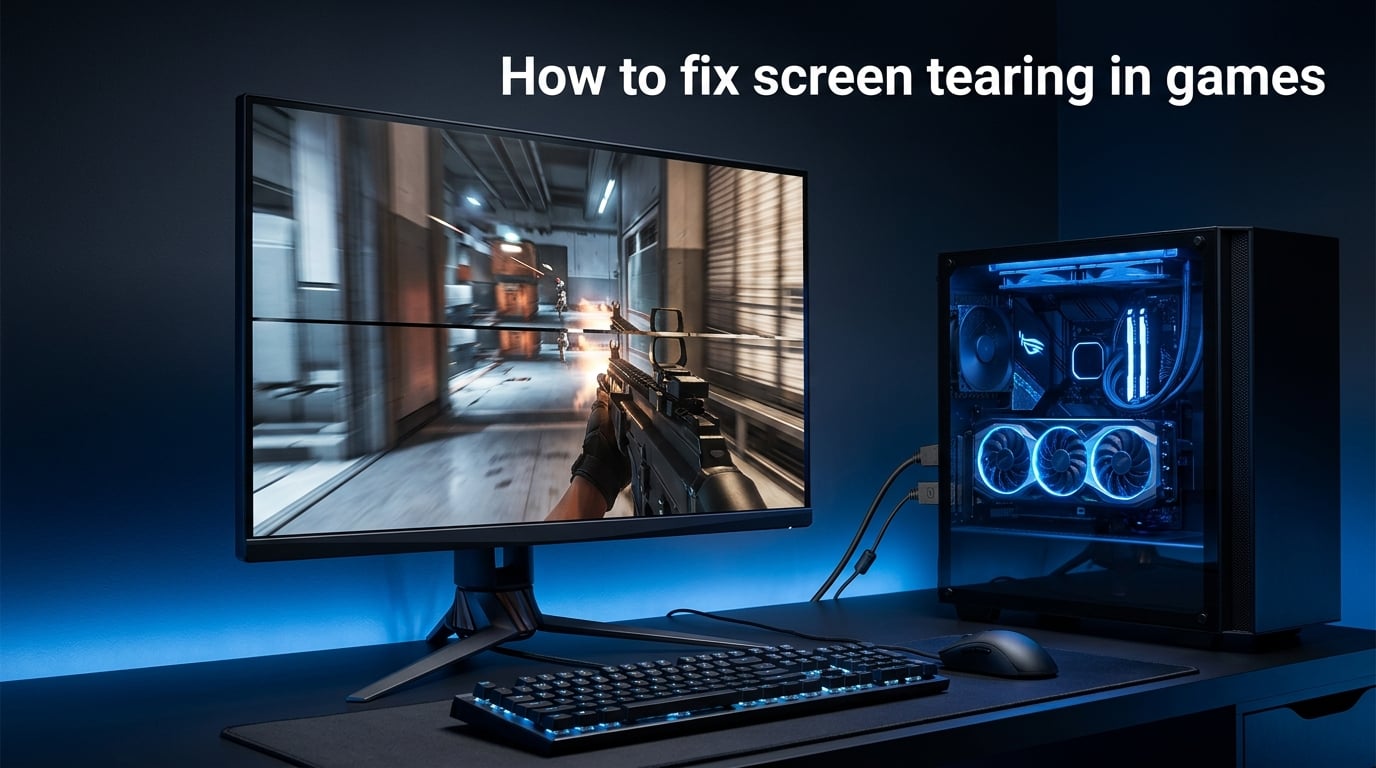
You are mid-firefight, tracking an enemy with your crosshair, when a jagged horizontal line rips across your screen. The top half of the frame shows one position and the bottom half shows another. That jarring visual split is screen tearing, and it is one of the most frustrating issues a PC gamer can face.
The good news is that screen tearing is entirely fixable. In this guide on how to fix screen tearing in games, I will walk you through every solution from the simplest toggle to advanced driver-level fixes. Whether you are running an NVIDIA RTX card or an AMD Radeon setup, you will find step-by-step instructions below.
We will cover VSync, G-Sync, FreeSync, frame rate capping, Windows display settings, and advanced troubleshooting for stubborn cases. By the end, you will have a tear-free gaming experience with minimal input lag.
What Is Screen Tearing?
Screen tearing is a visual artifact where your display shows two or more partial frames at the same time, creating a visible horizontal line where the frames do not align. The area above the line shows one moment in time and the area below shows a slightly different moment.
This happens because your monitor refreshes its screen top-to-bottom at a fixed interval measured in Hertz. A 60Hz monitor refreshes 60 times per second, and a 144Hz monitor refreshes 144 times per second. When your GPU sends a new frame to the display mid-refresh, the monitor swaps to the new frame partway through drawing. The result is that ugly tear line.
Tearing is most visible during fast camera movement in first-person shooters, racing games, or any scene where the entire viewport shifts rapidly. You might not notice it in slow-paced strategy games, but it becomes distracting the moment you spin your character around.
Why Does Screen Tearing Happen?
The root cause is a desync between your GPU frame rate and your monitor refresh rate. Your graphics card does not wait for the monitor to finish a refresh cycle before sending a new frame. It just pushes frames as fast as it can render them.
If your GPU outputs 120 FPS but your monitor runs at 60Hz, the monitor receives two frames during a single refresh cycle. It starts drawing the first frame, gets interrupted by the second frame halfway through, and switches. That mid-refresh switch is what creates the tear line.
This synchronization failure can happen in either direction. Your GPU can be faster than your monitor or slower. Any time the two are not perfectly aligned, tearing becomes possible. Even high-end setups with an RTX 5070 and a 144Hz monitor can tear if the frame rate does not match the refresh rate exactly.
How to Fix Screen Tearing With VSync
Vertical synchronization, or VSync, is the oldest and simplest fix for screen tearing. It forces your GPU to wait for the monitor to finish its current refresh cycle before sending the next frame, synchronizing the two. When VSync is enabled, the GPU holds back frames until the monitor is ready for them.
Here is how to enable VSync in your game:
Step 1: Open your game settings menu and navigate to the Graphics or Video section.
Step 2: Look for an option called VSync, Vertical Sync, or V-Sync.
Step 3: Toggle it to On or Enabled.
Step 4: Apply the settings and restart the game if prompted.
If your game does not have a built-in VSync option, you can force it through your graphics driver. For NVIDIA, open the NVIDIA Control Panel, go to Manage 3D Settings, find Vertical Sync in the global settings list, and set it to On. For AMD, open AMD Adrenalin, go to Gaming, then Graphics, and set Wait for Vertical Refresh to Always On.
VSync does have trade-offs. Because it holds frames back, it introduces input lag. Your mouse movements can feel slightly less responsive. VSync can also cause stuttering if your frame rate drops below your refresh rate, since it then syncs to a fraction of the refresh rate. For competitive gaming, VSync alone is rarely the best choice.
How to Fix Screen Tearing With NVIDIA G-Sync
G-Sync is NVIDIA’s variable refresh rate technology, and it is a far better solution than plain VSync. Instead of forcing the GPU to wait, G-Sync makes the monitor’s refresh rate dynamically match the GPU frame rate in real time. The monitor refreshes exactly when a new frame is ready, eliminating tearing without the input lag of traditional VSync.
To use G-Sync, you need three things: an NVIDIA graphics card (GTX 10-series or newer), a G-Sync Compatible or G-Sync Ultimate monitor, and a DisplayPort connection. HDMI support varies by monitor and card generation, but DisplayPort is the reliable choice.
Here is how to enable G-Sync step by step:
Step 1: Connect your monitor to your GPU using a DisplayPort cable.
Step 2: Open the NVIDIA Control Panel.
Step 3: Navigate to Set up G-Sync under the Display section.
Step 4: Check the box for Enable G-Sync, G-Sync Compatible.
Step 5: Select your monitor and check Enable settings for the selected display.
Step 6: Click Apply and confirm.
After enabling G-Sync, you should also cap your frame rate a few FPS below your refresh rate and enable VSync in the NVIDIA Control Panel set to On. This combination is the gold standard for tear-free, low-lag gaming. G-Sync handles the tearing, the frame cap keeps you within the G-Sync range, and VSync catches any frames that exceed the refresh rate.
How to Fix Screen Tearing With AMD FreeSync
FreeSync is AMD’s variable refresh rate technology. It works on the same principle as G-Sync: the monitor adjusts its refresh rate to match the GPU frame rate dynamically. FreeSync monitors use the Adaptive Sync standard over DisplayPort and HDMI, making them generally more affordable than G-Sync displays.
FreeSync comes in three tiers. Standard FreeSync covers the basics of tear-free gaming. FreeSync Premium adds support for at least 120Hz at minimum FHD resolution and Low Framerate Compensation, which doubles frames when your FPS drops below the monitor minimum. FreeSync Premium Pro adds HDR support on top of everything else.
Here is how to enable FreeSync step by step:
Step 1: First, enable FreeSync on your monitor using its built-in OSD menu. The exact location varies by brand, but look under gaming or display settings.
Step 2: Open AMD Adrenalin software.
Step 3: Click the Gear icon, then go to Display.
Step 4: Toggle AMD FreeSync to Enabled.
Step 5: Click Apply and restart any games that are currently running.
As with G-Sync, you should cap your frame rate a few FPS below your refresh rate when using FreeSync. This keeps you within the FreeSync range and prevents the monitor from falling back to a fixed refresh rate. AMD users on forums report that combining FreeSync with a frame rate target control in Adrenalin eliminates tearing completely even in demanding titles.
How to Fix Screen Tearing by Capping Frame Rate
Capping your frame rate is one of the most effective ways to eliminate screen tearing, especially when used alongside a variable refresh rate technology. When you cap your FPS below your refresh rate, your VRR system can keep up with every frame the GPU produces.
The optimal frame rate cap is 3 FPS below your monitor refresh rate. For a 144Hz monitor, cap at 141 FPS. For a 60Hz monitor, cap at 57 FPS. This small buffer keeps you safely inside the VRR window.
You can cap your frame rate in three places. The best option is the in-game frame limiter, which usually adds the least input lag. Look for a frame rate limit or max FPS setting in the graphics options. The second option is the NVIDIA Control Panel under Manage 3D Settings, where you will find Max Frame Rate. Set it to your target and apply. The third option is RivaTuner Statistics Server, or RTSS, which is a free third-party tool that works with any GPU. RTSS provides a rock-solid frame cap that many competitive players prefer.
One thing to keep in mind: if you are using G-Sync or FreeSync, never cap your frame rate exactly at your refresh rate. That tiny gap of 3 FPS is what keeps the VRR system active and prevents tearing from creeping back in at the edge of the range.
Windows Display Settings and Driver Updates
Before any of the solutions above will work properly, you need to make sure Windows is configured correctly. The most common overlooked setting is the monitor refresh rate itself. Many users buy a 144Hz monitor and never realize Windows defaulted it to 60Hz.
Here is how to check and fix your refresh rate:
Step 1: Right-click your desktop and select Display Settings.
Step 2: Scroll down and click Advanced Display Settings.
Step 3: Select your monitor at the top if you have multiple displays.
Step 4: Find the Refresh Rate dropdown and set it to the highest available value.
Step 5: Close the settings window.
If you are running Windows 11 and recently installed the 25H2 update, you may have noticed new screen tearing in games that were previously fine. Microsoft changed the desktop compositor behavior in this update, which can interfere with exclusive fullscreen applications. If this happens to you, try running your games in borderless windowed mode instead of exclusive fullscreen. The compositor handles frame presentation differently in borderless mode and often resolves tearing that appeared after the update.
Outdated or corrupted drivers are another frequent culprit. I recommend doing a clean driver install using Display Driver Uninstaller, or DDU. Download DDU, boot into Windows Safe Mode, run DDU to completely remove your current GPU driver, then install the latest driver fresh from NVIDIA or AMD. This eliminates any leftover registry entries or conflicting settings that could cause tearing. Forum users across Reddit and Tom’s Hardware consistently recommend this as a first troubleshooting step when nothing else works.
Finally, check your Windows power plan. Setting it to High Performance prevents the GPU from downclocking during lighter scenes, which can cause sudden frame rate fluctuations that lead to tearing. NVIDIA forum users have confirmed that switching to High Performance resolved tearing that persisted despite having VSync enabled.
Advanced Fixes When Standard Solutions Fail
Sometimes VSync, G-Sync, and FreeSync are not enough. If you have tried everything above and tearing persists, here are the advanced fixes that forum users swear by but most guides never mention.
For NVIDIA users on any version of Windows, Force Full Composition Pipeline is a powerful fix. This setting forces the desktop compositor to always run, which can eliminate tearing in windowed and borderless applications. To enable it, open the NVIDIA X Server Settings on Linux or the NVIDIA Control Panel on Windows. In the Control Panel, go to Manage 3D Settings, and look for the option under Power Management Mode or create a custom resolution profile with composition forced on. Manjaro Linux forum users report this is the single most reliable fix for NVIDIA tearing on that platform.
Your display cable matters more than you might think. If you are using HDMI and experiencing tearing with a FreeSync or G-Sync Compatible monitor, switch to DisplayPort. DisplayPort 1.2 and later fully supports variable refresh rate with consistent bandwidth. HDMI 2.1 supports VRR on newer hardware, but older HDMI standards do not. Many tearing issues on Reddit trace back to users running an HDMI 1.4 cable on a monitor that needed DisplayPort for adaptive sync.
Multi-monitor setups introduce their own tearing problems. If your primary gaming monitor has a different refresh rate than your secondary display, Windows can struggle to sync frames correctly across both. The best workaround is to run your game in exclusive fullscreen on the primary monitor and turn off the secondary display while gaming. Alternatively, using matching monitors with the same refresh rate eliminates the desync entirely.
Console players are not immune to screen tearing. Xbox and PlayStation games can tear when the internal frame rate exceeds what the console can output consistently. On Xbox, go to Settings, then General, then TV and Display Options, and make sure the console is set to the correct refresh rate for your TV. Enable Auto Low-Latency Mode if available. On PlayStation 5, go to Settings, Screen and Video, and set the resolution and refresh rate manually. If your TV supports HDMI 2.1 VRR, enable it in the PlayStation VRR settings for supported games. This is an area no major gaming guide covers, yet console players search for solutions constantly.
Frequently Asked Questions
Is it possible to fix screen tearing?
Yes, screen tearing is completely fixable. The most effective solutions are enabling VSync, using a variable refresh rate technology like G-Sync or FreeSync, and capping your frame rate a few FPS below your monitor refresh rate. Most users eliminate tearing entirely with these three steps.
Does VSync fix screen tearing?
VSync fixes screen tearing by forcing your GPU to wait for the monitor to complete each refresh cycle before sending a new frame. However, it introduces input lag and can cause stuttering when your frame rate drops below your refresh rate. For competitive gaming, G-Sync or FreeSync is a better choice than VSync alone.
Is VSync better on or off?
VSync should be turned on for visual quality in single-player games where input lag does not matter. It should be turned off for competitive multiplayer games where every millisecond of response time counts. If you have G-Sync or FreeSync, keep VSync off in-game and on in the NVIDIA Control Panel for the best balance of smoothness and responsiveness.
Is screen tearing permanent?
No, screen tearing is not permanent and does not damage your monitor or GPU. It is simply a synchronization issue between your graphics card frame rate and your monitor refresh rate. It can be resolved at any time by adjusting display settings or enabling adaptive sync technologies.
Why does screen tearing happen even with VSync on?
Screen tearing with VSync enabled usually means the game is running in borderless windowed mode where the Windows compositor overrides VSync, your drivers are outdated or corrupted, or the Windows 25H2 compositor change is interfering with frame presentation. Try a clean driver install with DDU, switch to exclusive fullscreen, or enable Force Full Composition Pipeline for NVIDIA.
Conclusion
Screen tearing is frustrating but entirely solvable. The best approach for how to fix screen tearing in games is to combine a variable refresh rate technology with a frame rate cap. Enable G-Sync or FreeSync, cap your FPS 3 frames below your refresh rate, and turn on VSync in your GPU control panel.
If those standard fixes do not work, check your Windows refresh rate setting, do a clean driver install with DDU, verify you are using DisplayPort, and try Force Full Composition Pipeline for NVIDIA. Console players should ensure their HDMI 2.1 VRR setting is active on both the console and the display.
With the right combination of settings, you can achieve completely tear-free gaming with minimal input lag. Start with the basics, work through the troubleshooting steps, and enjoy smooth, artifact-free gameplay.