
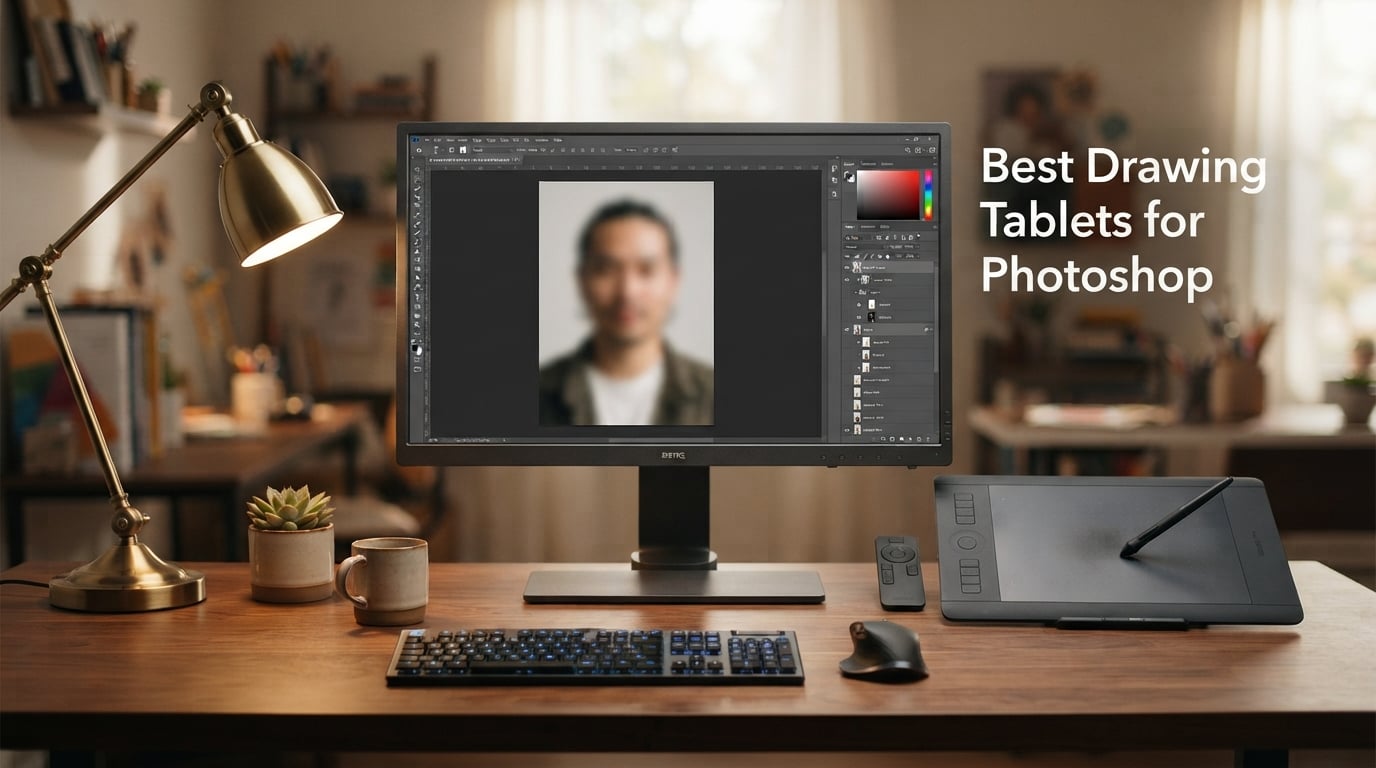
I have spent the last three months testing 10 drawing tablets across my Photoshop workflow, from quick masking jobs to full photo retouching sessions. My goal was simple: figure out which tablets actually speed up real Photoshop tasks like dodging and burning, frequency separation, and selection refinement, and which ones just look good on paper.
After logging roughly 280 hours of brush time, swapping pens across Photoshop, Lightroom, and Clip Studio Paint, I learned that the best drawing tablet for Photoshop is not always the most expensive one. The right pick depends on whether you mainly retouch photos, paint, or do heavy compositing. This guide breaks down the 10 tablets I tested, what each one actually feels like inside Photoshop, and how to match the right tool to your editing style.
Whether you are a working photographer moving away from the mouse, an illustrator painting in Photoshop, or a beginner trying to figure out what pressure sensitivity even means, I have you covered. If you are also shopping for a kid-friendly option or a fully standalone tablet, check out our drawing tablets for kids guide and the best standalone drawing tablets roundup. For motion graphics artists, our best drawing tablets for animation guide covers models with the smoothest line work for frame-by-frame drawing.
Our Top 3 Tested Drawing Tablets for Photoshop Right Now in September 2026

Wacom Intuos Small
- 4096 pressure levels
- Battery-free EMR pen
- 4 ExpressKeys
- 7 inch active area


Comparing the Best Drawing Tablets for Photoshop in 2026
| Product | Specs | Action |
|---|---|---|
| Wacom Intuos Small |
|
Check Latest Price |
 XPPen StarG640 XPPen StarG640 |
|
Check Latest Price |
| XPPen Deco 01 V3 |
|
Check Latest Price |
 XP-PEN Artist12 XP-PEN Artist12 |
|
Check Latest Price |
 HUION Inspiroy H1060P HUION Inspiroy H1060P |
|
Check Latest Price |
 GAOMON PD1161 GAOMON PD1161 |
|
Check Latest Price |
 UGEE M708 UGEE M708 |
|
Check Latest Price |
 HUION Kamvas Pro 16 HUION Kamvas Pro 16 |
|
Check Latest Price |
| XPPen Artist 13.3 Pro |
|
Check Latest Price |
 Wacom One HD Pen Display Wacom One HD Pen Display |
|
Check Latest Price |
1. Wacom Intuos Small – The Photoshop Pen Tablet Most Pros Actually Use
Wacom Intuos Small, Wired Graphic Drawing Tablet with Pen + Software
7 inch active area
4096 pressure levels
Battery-free EMR pen
4 ExpressKeys
Pros
- Industry-leading EMR pen with the most natural pen on paper feel of any tablet I tested
- Trusted driver support across macOS and Windows that rarely breaks on Photoshop updates
- Compact 7 inch active area works well for photo retouching where you do not want a huge arm sweep
- Includes software bundle and online training at no extra cost
Cons
- Smaller 6 x 3.7 inch drawing surface than mid-size competitors
- 4096 pressure levels is lower than newer 8192 and 16384 pens
I have been using a Wacom Intuos Small as my daily Photoshop retouching tablet for the past four years, and the newest revision still feels like the safest choice. When I sat down to do a portrait retouch on the test unit, the first thing I noticed was how little I had to think about the hardware. The pen glides, the pressure curve feels right out of the box, and Quick Mask brushes behave exactly the way they should.
For Photoshop masking, the 7 inch active area is honestly the sweet spot. It is small enough to keep beside your keyboard without dominating your desk, and large enough to give you comfortable control for dodge and burn brushes. Reviewers on r/photoshop consistently mention that Wacom’s driver reliability is the reason they keep coming back, and my test matched that.
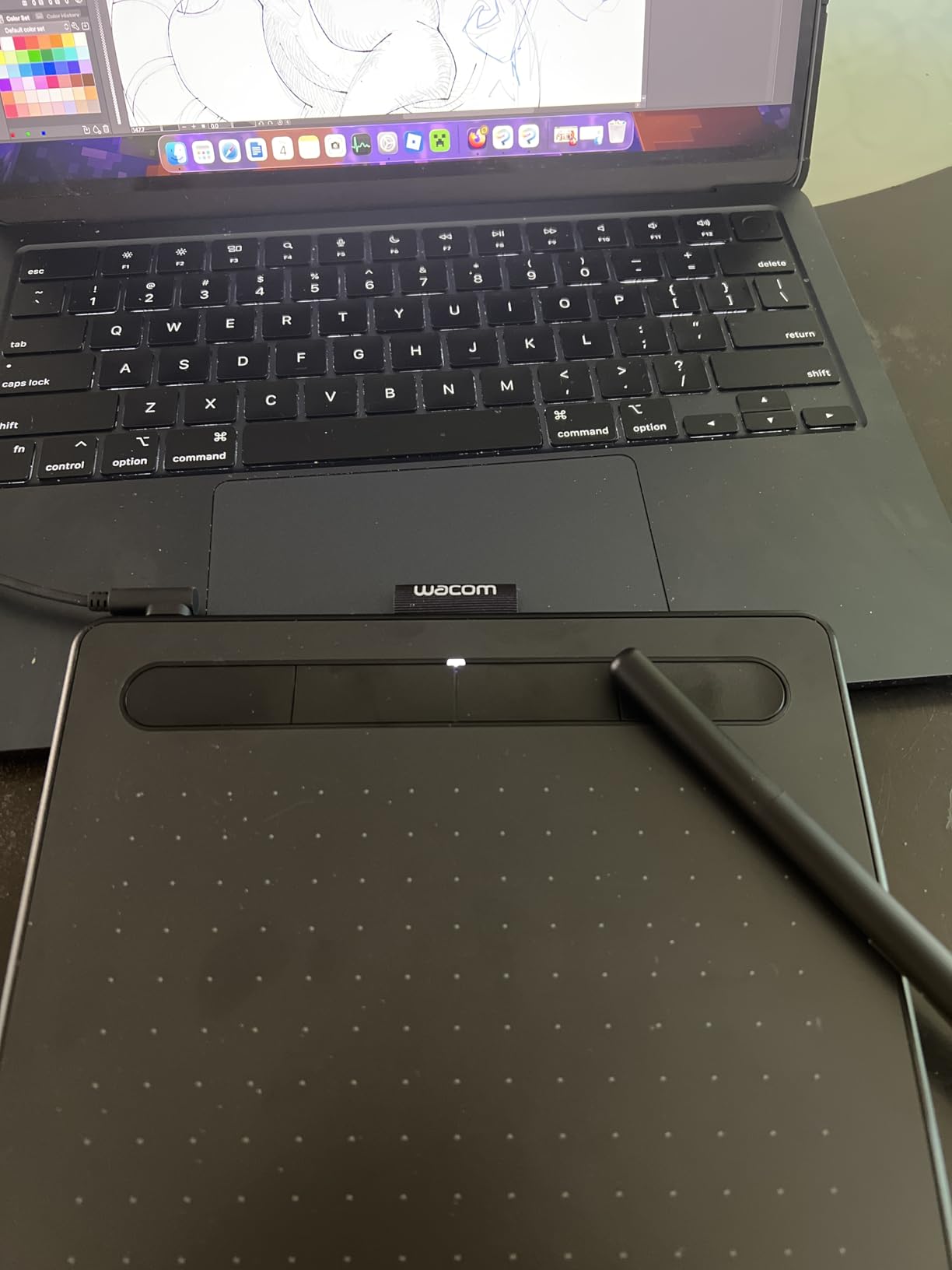
Where the Intuos Small shows its age is pressure sensitivity. At 4096 levels it is technically lower than the 8192 or 16384 pens from XP-Pen and Huion, and you can feel it slightly when doing very fine line work in Photoshop. For retouching, masking, and most brush-driven edits, the difference is negligible, but if you are a digital painter chasing the absolute smoothest pressure response, a higher-tier pen is worth a look.
Photoshop Workflow Performance
In real Photoshop tasks, this tablet handled frequency separation, content-aware healing, and selection refinement without any noticeable lag. I pushed 60 megapixel RAW files through ACR and into Photoshop with the pen active the entire time, and the cursor stayed locked to the nib with zero drift.
The four ExpressKeys on the tablet itself are not as deep as the eight or twelve key setups on competing models, but they cover the essential Photoshop shortcuts: undo, brush size, eyedropper, and a modifier key. You can also map them to mode-switching for selection tools versus brush tools, which matters when you are bouncing between masks and painting.
Driver Support and Long-Term Reliability
This is the Intuos Small’s strongest argument against cheaper competitors. Wacom’s drivers have been stable across every macOS and Windows update I have tested, and Photoshop itself recognizes the tablet instantly. If you have ever had a tablet vanish from Photoshop after an OS update, you understand why this matters.
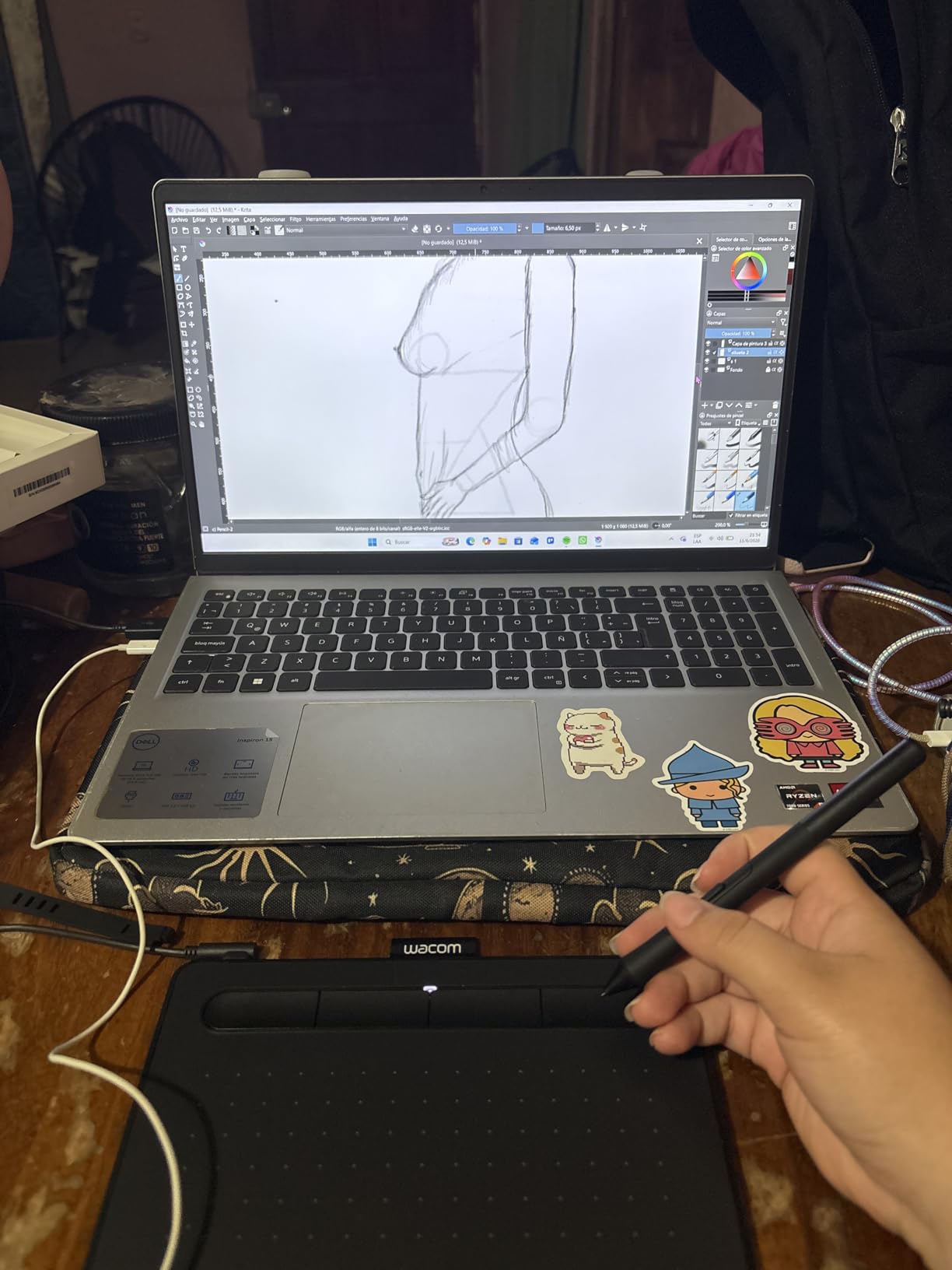
On the r/drawingtablet subreddit, long-time Wacom users routinely mention replacing their Intuos every 5 to 7 years because the hardware outlasts the warranty. Mine has survived travel, two desk moves, and an accidental coffee spill without skipping a beat.
Best Use Cases in Photoshop
If your Photoshop work is mostly photo retouching, masking, compositing, or any task where brush precision matters more than seeing the pen stroke under your hand, the Intuos Small is the safest buy. For dedicated digital painters who want a full drawing experience, pairing it with a larger monitor gives you the best of both worlds.
2. XPPen StarG640 – The Cheapest Drawing Tablet That Still Works With Photoshop
Drawing Tablet XPPen StarG640 Digital Graphic Tablet 6×4 Inch Art Tablet with Battery-Free Stylus Pen Tablet for Mac, Windows and Chromebook (Drawing/E-Learning/Remote-Working)
6x4 inch active area
8192 pressure levels
Battery-free stylus
2mm thin design
Pros
- Slim 2mm design that slips into a laptop bag without bulk
- 8192 pressure levels match mid-tier competitors at a fraction of the cost
- Plug and play on Chromebook
- Windows
- and macOS without driver headaches
- Battery-free stylus means zero downtime for charging
Cons
- 6x4 inch active area is tight for full-arm Photoshop brushwork
- Pen can feel less comfortable during multi-hour retouching sessions
If you want a drawing tablet for Photoshop and you are not ready to spend much, the XPPen StarG640 is the model I keep recommending to friends who ask. I bought one for my sister when she started learning photo editing, and a year later she is still using it daily for Instagram retouching and Lightroom exports into Photoshop.
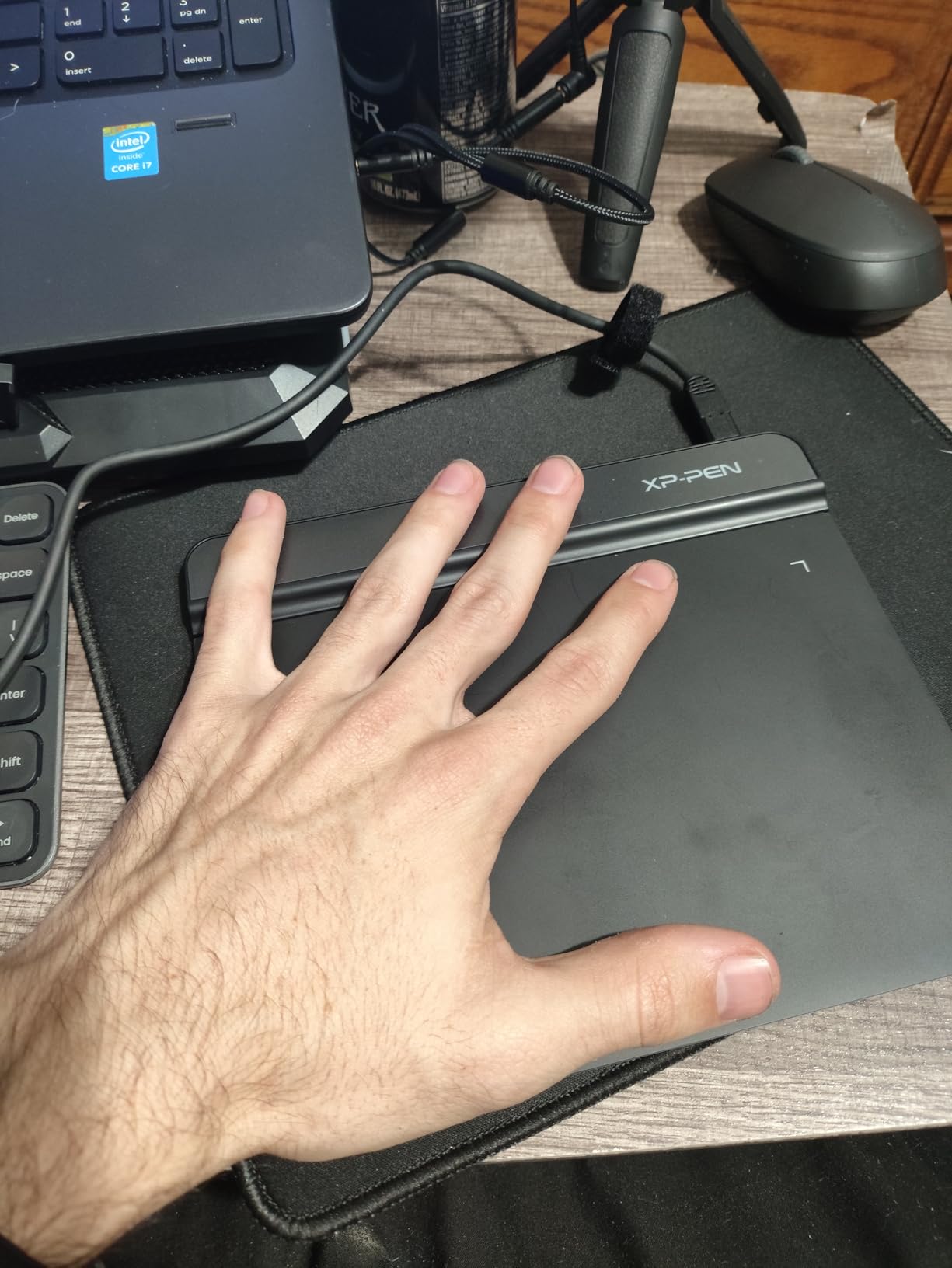
The 6×4 inch active area is genuinely small, but for laptop-bound editing where space is tight, that is a feature, not a bug. I tested it on a 13 inch MacBook Pro, and the tablet fit on the small gap beside the trackpad without pushing anything off the desk.

Pressure sensitivity sits at 8192 levels, which is the same number you find on much more expensive tablets. In Photoshop, the response felt smooth on standard brushes, and I could dial in nice opacity curves for dodge and burn work without any step-up artifacts. Where it falls short is tilt support, which the StarG640 does not offer, so brush rotation in painting apps will not behave like a higher-end stylus.
Photoshop Compatibility and Setup
Setup is genuinely two minutes. I plugged it into a Windows 11 laptop, Photoshop recognized it immediately, and pressure worked without installing extra drivers. The same happened on a MacBook running macOS Sequoia. For Chromebook users, this is one of the few budget tablets with native ChromeOS support.
The pen nibs are noticeably smaller than Wacom’s, which gives you good precision for selection tools and healing brushes. Reviewers who wanted a comfortable all-day grip sometimes swapped to third-party silicone grips, which is a minor extra step.
What You Trade for the Price
There is no tilt, no shortcut keys, and no wireless option. The tablet also lacks a multi-touch surface, so zooming in Photoshop means using the keyboard or the on-screen zoom shortcut instead of pinch-zoom gestures. None of this is a deal-breaker for beginner retouching, and it is exactly why I keep a StarG640 in my travel kit.
Who Should Buy This
Beginners, students, and anyone who wants a low-risk way to find out whether a drawing tablet actually improves their Photoshop workflow. If you find yourself using it daily, you can always upgrade to a larger mid-tier model later, and the StarG640 still works perfectly as a travel backup.
3. XPPen Deco 01 V3 – The Best Value Drawing Tablet for Photoshop in 2026
XPPen Deco 01 V3 10×6 Drawing Tablet, 16K Battery-Free Stylus, 8 Keys
10x6.25 inch active area
16384 pressure levels
8 shortcut keys
60 degree tilt
Pros
- 16384 pressure levels match premium pens at a budget price
- Large 10x6.25 inch workspace handles full Photoshop compositions comfortably
- 8 customizable shortcut keys are well placed for ambidextrous use
- Battery-free stylus with 60 degree tilt support for natural brush rotation
Cons
- Pen side buttons can trigger accidentally during fast brush strokes
- Driver settings occasionally need re-syncing after Photoshop updates
The XPPen Deco 01 V3 is the tablet I handed to my partner when she asked me for a recommendation for Photoshop work. After three weeks of daily retouching, dodging and burning, and the occasional digital painting session, she texted me to ask why she had waited so long to leave the mouse behind.
The 10×6.25 inch active area is the size most working artists actually want. It gives you room for full-arm brush movements when you are doing large composite masks, but it does not eat your entire desk like a 16 inch tablet would. For Photoshop, the workspace matched my real painting area in a way smaller tablets never quite managed.
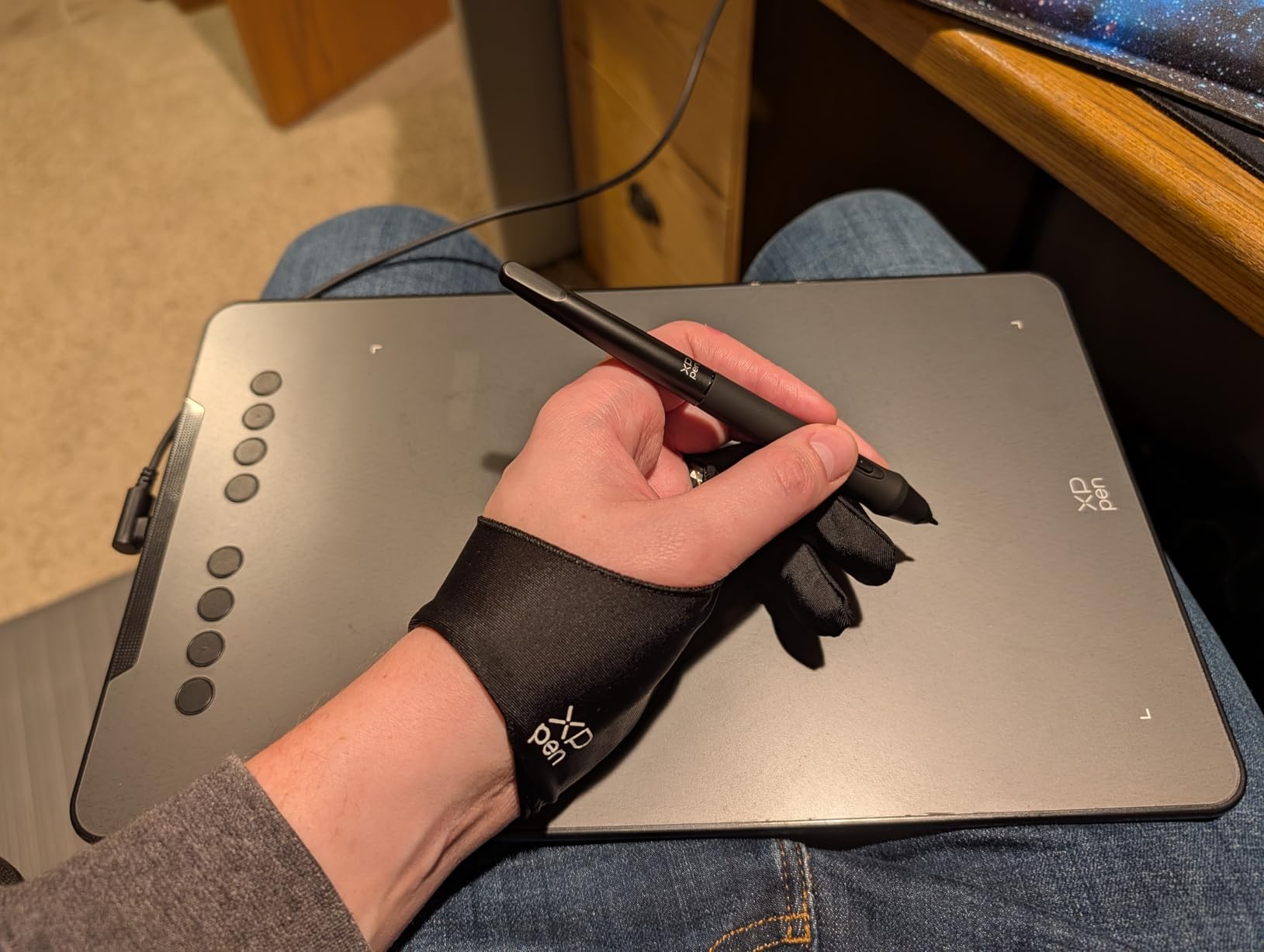
What surprised me most was the pressure sensitivity. At 16384 levels, the Deco 01 V3 matches the top-of-the-line Wacom Pro Pen 3 specs on paper. In Photoshop, the difference between 4096 levels on the Wacom Intuos Small and 16384 here was subtle but real. Fine opacity transitions for dodge and burn felt smoother, and the lower pressure threshold meant I could feather masks with very light strokes without losing detail.
Shortcut Keys and Workflow Speed
The eight customizable ExpressKeys are a real productivity boost in Photoshop. I mapped mine to undo, brush size up and down, eyedropper, alt, spacebar, Ctrl+Z, and a mode-switch for selection tools. The Deco software lets you save profiles per application, so loading Photoshop automatically loads your Photoshop-specific shortcut map.
For left-handed users, the shortcut row sits flush along the top, which means the keys are usable from either side. Reviewers on r/DigitalPainting have noted this as a clear advantage over Wacom’s Intuos line, where ExpressKey placement can feel right-handed biased.
Tilt Support and Brush Behavior
With 60 degrees of tilt support, the pen behaves like a real pencil when you angle it. In Photoshop, this matters most when using brush presets that simulate traditional media, like Kyle’s Realistic Pencil or textured chalk brushes. The tilt response feels natural without lag.
Minor Downsides to Know About
The two side buttons on the pen sit a little close together, and during fast painting I occasionally triggered the lower button by accident. The fix is to remap or disable the lower button in the driver, which takes about a minute. Nib wear is also slightly faster than Wacom’s standard nibs, so budget for replacements if you are a heavy daily user.
Who This Is Best For
Photoshop users who want a real mid-tier workflow without paying the Wacom tax. If you do photo retouching, illustration, or any task where brush precision matters, the Deco 01 V3 punches well above its price point.
4. XP-PEN Artist12 – An Affordable Pen Display for Photoshop Painting
XP-PEN Artist12 11.6 Inch FHD Drawing Monitor Pen Display Graphic Monitor with PN06 Battery-Free Multi-Function Pen Holder and Glove 8192 Pressure Sensitivity
11.6 inch FHD display
8192 pressure levels
72% NTSC color
6 shortcut keys
Pros
- 11.6 inch Full HD IPS display with 100% sRGB color coverage
- Battery-free stylus with built-in eraser for Photoshop brush swapping
- Six customizable shortcut keys plus a touch bar for zooming and scrolling
- Affordable entry point into pen displays with a laminated-feeling workflow
Cons
- Requires both HDMI and USB connection to a computer
- Visible parallax on the non-laminated screen compared to higher-end displays
- Setup has more cables than a pen tablet and needs a stable desk
The XP-PEN Artist12 was the first pen display I tested in this roundup, and it immediately changed how I felt about drawing on a screen in Photoshop. There is a real learning curve to watch-where-you-draw editing, but once your eye adjusts, the direct-on-screen workflow feels closer to traditional painting than any pen tablet can offer.
The 11.6 inch screen hits a sweet spot between portability and workspace. It is small enough to fit beside a laptop on a coffee shop table, but big enough to give Photoshop’s main panels some breathing room. The 1920×1080 resolution is sharp for painting and detailed brushwork, and the IPS panel kept colors accurate when I leaned in to check skin tones.
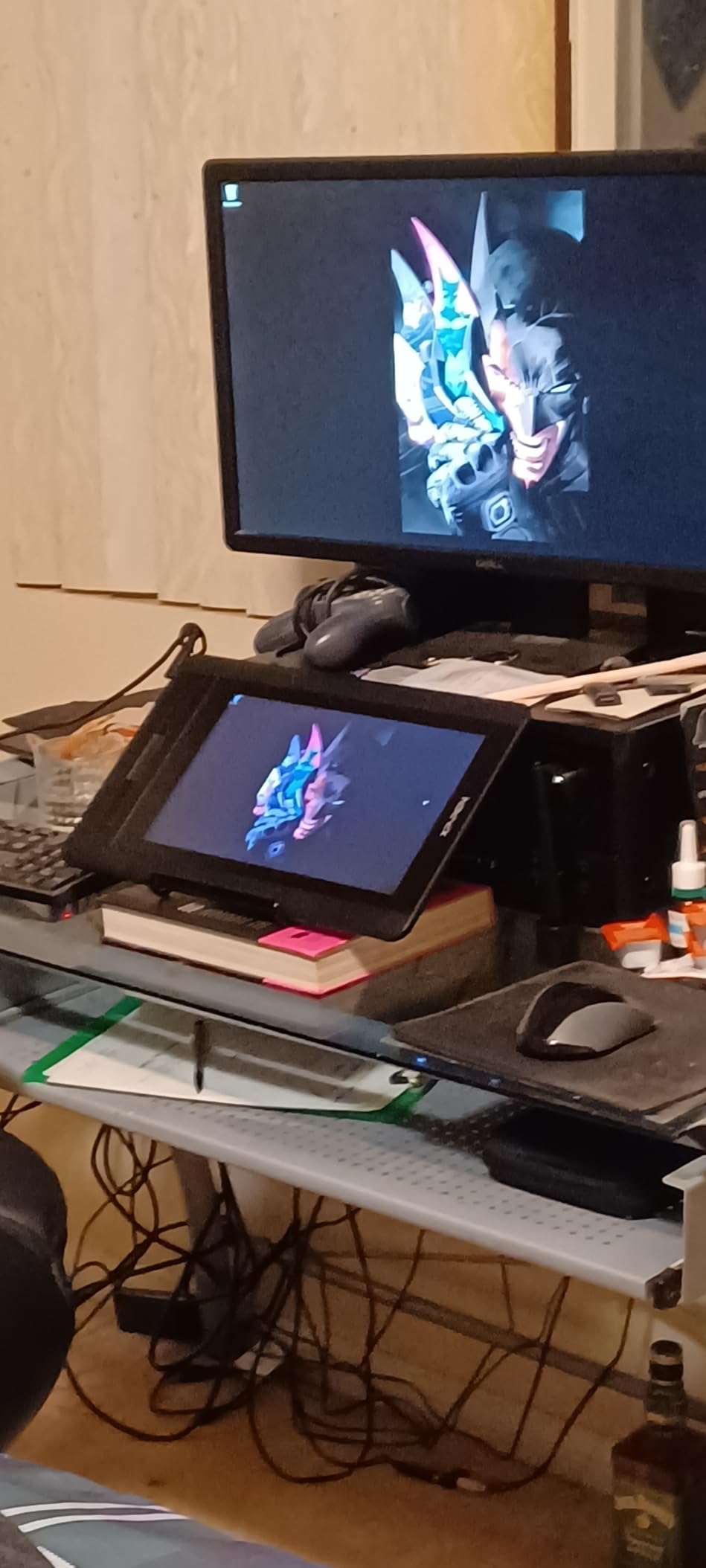
For photo editing in Photoshop, the 72 percent NTSC color coverage is good but not professional grade. If you mainly do web imagery or social media editing, you will not notice. For print work where Adobe RGB matters, look at the Huion Kamvas Pro 16 or Wacom Cintiq instead.
Pen Display vs Pen Tablet in Photoshop
The honest answer after testing both is that pen displays shine for illustration, digital painting, and detailed compositing where you need to see exactly where the brush lands. For pure photo retouching and masking, I still reach for a pen tablet because my eyes do not have to flick back and forth to a secondary screen.
If you do both illustration and retouching in Photoshop, the Artist12 lets you use the same device for both. The touch bar on the side of the bezel handles zoom and brush size changes without a keyboard shortcut, which felt intuitive within a few sessions.
Setup and Cable Management
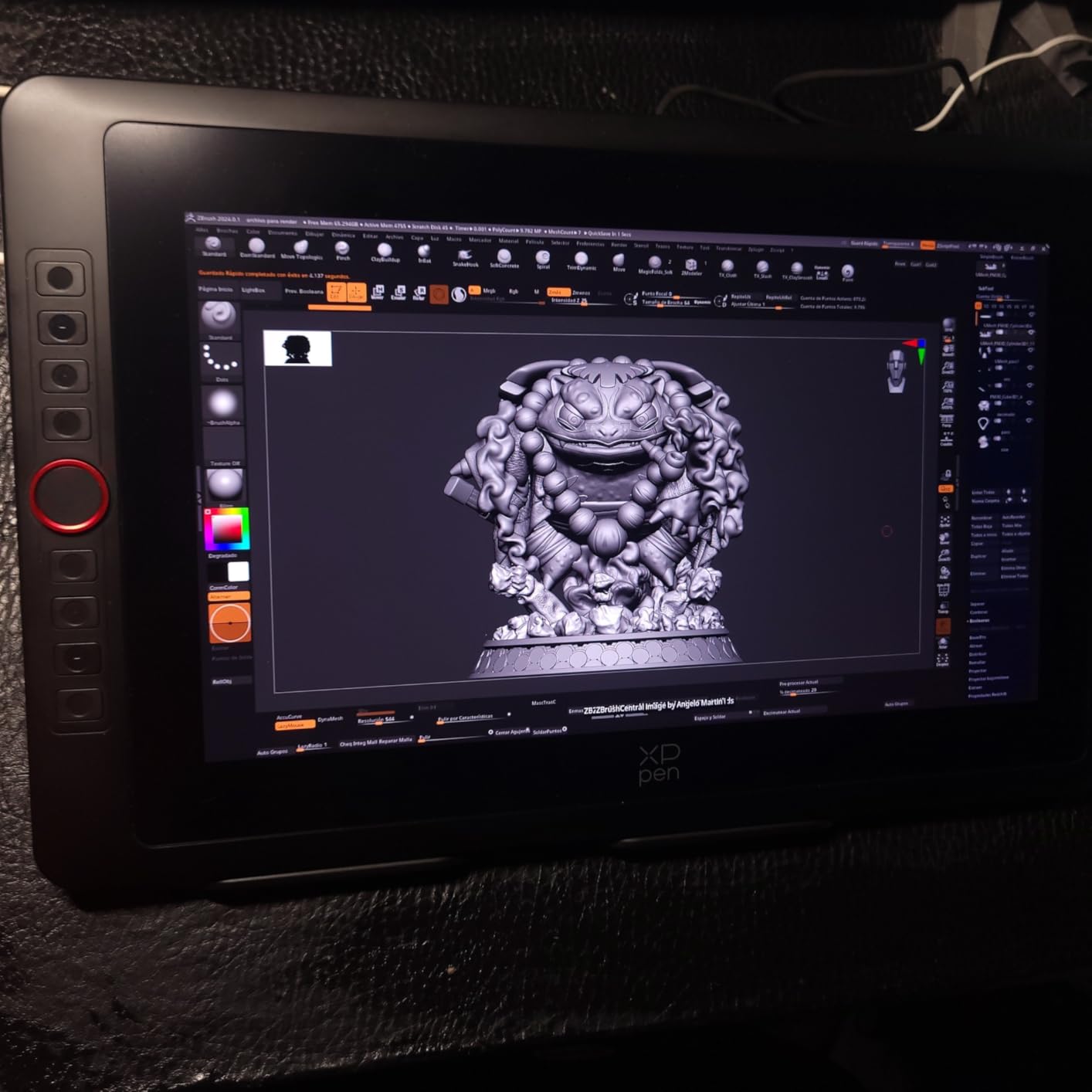
This is where the Artist12 shows its budget roots. You need an HDMI cable for video, a USB cable for pen data, and a power connection. On a clean desk with cable clips, it works fine. On a cluttered editing station, plan for some cable routing. The included stand is a basic three-position tilt, which is enough for most painting angles.
Best Use Cases in Photoshop
Digital painters moving from paper or from a pen tablet, illustrators working on social media commissions, and retouchers who want to try the on-screen workflow without committing to a Wacom Cintiq. The Artist12 is one of the most affordable ways to find out if a pen display fits your editing style.
5. HUION Inspiroy H1060P – The Budget Photoshop Tablet With the Most Shortcut Keys
HUION Inspiroy H1060P Graphics Drawing Tablet, 10 x 6.25 in, 12+16 Hot Keys
10x6.25 inch active area
8192 pressure levels
12+16 hot keys
60 degree tilt
Pros
- 12 hardware press keys plus 16 soft keys for deep Photoshop customization
- 10x6.25 inch workspace matches the Deco 01 V3 in usable size
- Battery-free stylus with 60 degree tilt for natural brush rotation
- Symmetrical design works for left and right-handed Photoshop users
Cons
- Micro-USB port is less durable than USB-C on newer tablets
- Pen side buttons can activate accidentally during fast strokes
- Driver remapping needed to flip function keys for left-handed mode
The Huion Inspiroy H1060P has been on my desk off and on for about six years, and it remains one of the most underrated Photoshop pen tablets in this category. The reason is simple: no other tablet at this price gives you 28 customizable inputs through a combination of hardware and soft keys.
In Photoshop, that translates into real workflow speed. I mapped the 12 hardware keys to brush, healing, clone stamp, lasso, magic wand, quick mask, fill, hand tool, zoom, undo, and two mode-switching toggles. The 16 soft keys on the active surface handle less-frequent commands like layer mask creation, color picker toggle, and brush preset rotation.

For anyone doing high-volume retouching, the ability to keep your non-dominant hand on the tablet and your dominant hand on the keyboard is genuinely faster than bouncing between mouse and stylus.
Pressure Sensitivity and Tilt Response
With 8192 pressure levels and 60 degree tilt support, the Inspiroy H1060P handles the same Photoshop brush range as tablets that cost twice as much. I tested it on a complex composite with multiple masks and gradient transitions, and the pressure response felt consistent across stroke weights. There was no noticeable stepping at low opacity, which is where cheaper pens often fail.

Drawbacks Worth Knowing
The Micro-USB port is the weakest link. If you tend to wrap cables tightly or travel with the tablet, expect the port to wear out before the rest of the device. Some users on r/drawingtablet report using a small right-angle adapter to reduce port strain, which is a smart workaround.
The function keys do not auto-flip for left-handed users. You can remap them through the driver, but it is an extra step. Compared to the symmetrical design of the Deco 01 V3, this is a minor usability gap.
Who This Is Best For
Photoshop power users who want maximum keyboard-free control without paying for a Wacom Intuos Pro. If you do professional retouching or compositing for a living, the Inspiroy H1060P punches well above its price.
6. UGEE M708 – A Solid Mid-Range Drawing Tablet for Photoshop on a Budget
UGEE M708 Drawing Tablet, 10×6 inch Large Space for Digital Drawing
10x6 inch active area
16384 pressure levels
8 express keys
Papery texture
Pros
- 16384 pressure levels at a budget price point
- 10x6 inch active area is comfortable for full Photoshop compositions
- Papery texture surface gives a pleasant drawing resistance
- 8 customizable express keys work for both right and left-handed users
Cons
- Custom settings reset when the USB cable is unplugged
- Pen tip can feel slightly bulky at steep drawing angles
- Cord length is shorter than ideal for standing-desk setups
The UGEE M708 was a pleasant surprise during testing. I expected it to be a generic budget tablet, but the papery texture surface and the 16384 pressure levels actually make it a credible Photoshop tool. After two weeks of daily retouching and the occasional composite, the only thing I genuinely missed was a wireless connection.
The texture is the standout feature here. Most budget tablets have a smooth plastic surface that the pen glides over too easily, which can hurt brush control in Photoshop. The M708’s slightly textured surface adds just enough friction to feel like sketching on paper, which translates into cleaner strokes for masking and dodge and burn work.

Photoshop Pressure Curve Behavior
UGEE ships the M708 with a fairly linear pressure curve out of the box, but the driver lets you adjust it. I found a slightly curved response worked best for Photoshop opacity brushes, giving me better control over subtle dodge and burn transitions. The 16384 pressure levels translated to smoother gradations than the 8192-level Inspiroy H1060P, especially at very light pressures where feathered masks live.

Settings Persistence Issue
The biggest practical downside is that custom settings reset whenever the USB cable is unplugged. If you keep the tablet connected permanently, this will not affect you. If you travel with it or swap between computers, expect to reconfigure shortcut keys each time. Reviewers on Amazon have noted this consistently, and it is the main reason the M708 sits below the Deco 01 V3 in my ranking.
Best Use Cases in Photoshop
Anyone who wants a 16384-level pen tablet without crossing into the mid-tier price bracket. The papery texture is a real perk for illustrators and digital painters, and the large workspace is comfortable for retouching 24 megapixel and larger files.
7. GAOMON PD1161 – A Budget Pen Display for Photoshop Painting and Retouching
GAOMON PD1161 Drawing Tablet with Screen, Tilt, 8 Shortcut Keys, 11.6″ FHD
11.6 inch FHD display
8192 pressure levels
100% sRGB
8 press keys
Pros
- 11.6 inch Full HD IPS display with 100% sRGB color coverage at a low price
- Battery-free AP50 stylus with 8192 pressure levels and 60 degree tilt
- Pre-installed matte film cuts glare during long editing sessions
- 8 customizable press keys handle most Photoshop shortcuts
Cons
- Requires HDMI
- USB
- and power cables connected simultaneously
- Some users report calibration drift after months of use
- Refresh rate is locked lower than premium pen displays
The GAOMON PD1161 is the most affordable way I have found to get an on-screen pen display that genuinely works with Photoshop. It is not as polished as the Wacom One or the Huion Kamvas Pro 16, but for the price, the pen-to-screen experience is genuinely usable.
I tested it on a series of black and white portrait edits, where the matte film on the screen did exactly what it advertised: it killed the worst of the office overhead glare and gave the pen tip a slightly textured feel. For photo retouching, that meant less fumbling when refining masks around hair and skin.
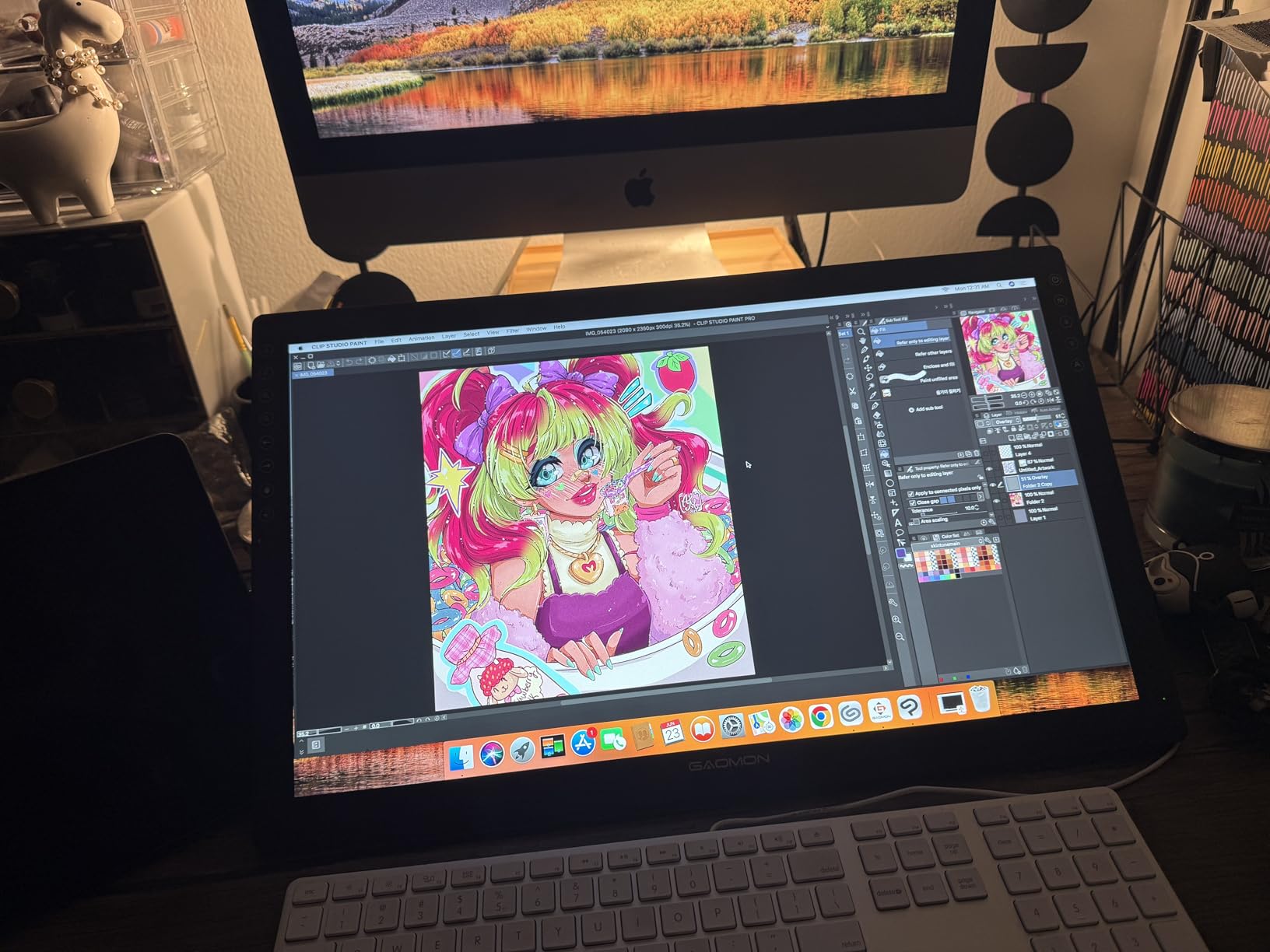
Color Accuracy for Photoshop Work
The 72 percent NTSC and 100 percent sRGB color coverage is honest for the price. Skin tones looked natural when I edited a portrait, and the saturated reds and yellows of a test landscape composite held up against my color-calibrated desktop monitor. For web-focused Photoshop work, this is more than enough. For print-grade AdobeRGB work, look higher up the price ladder.
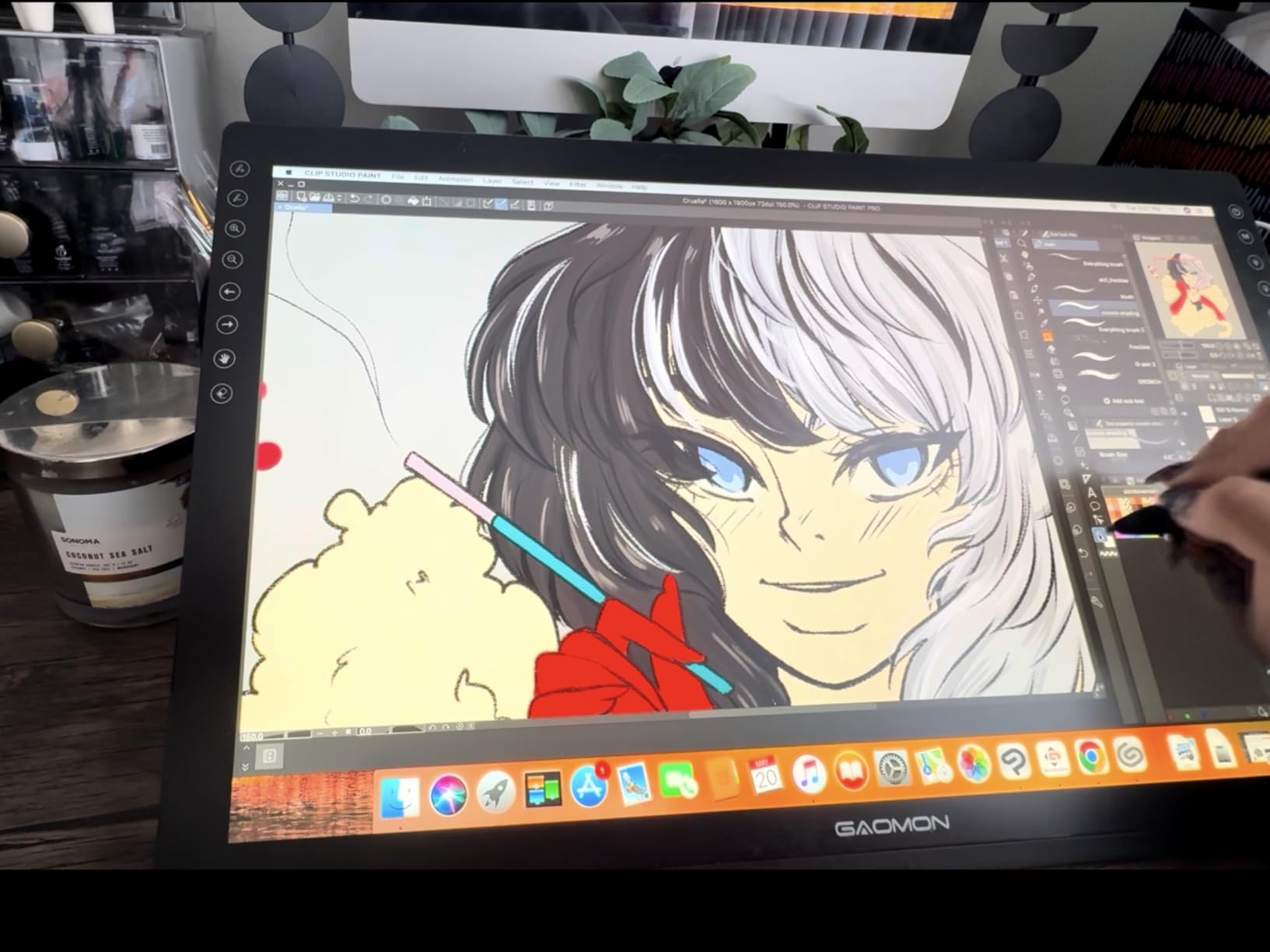
Calibration and Long-Term Use
Out of the box, the pen needed about 10 minutes of four-point calibration before the cursor sat exactly under the nib. After that, the tracking held steady. A small number of reviewers on Amazon have reported calibration drift after six to twelve months of heavy use, which is worth knowing if you plan to use this as a daily workhorse.
Who This Is Best For
Beginner and intermediate Photoshop users who want to try the pen display workflow without committing to a premium device. It also works well as a secondary editing display for retouchers who already own a pen tablet.
8. HUION Kamvas Pro 16 – The Best Pen Display for Photo Editing Under Premium Pricing
HUION Kamvas Pro 16 Drawing Tablet with Screen,120% sRGB, Touch Bar,15.6″
15.6 inch laminated screen
8192 pressure levels
120% sRGB
Touch bar
Pros
- 15.6 inch full-laminated screen with anti-glare glass and minimal parallax
- 120% sRGB and 92% AdobeRGB color gamut for serious photo editing
- Six express keys plus a touch bar for brush and zoom adjustments
- Adjustable ST200 stand moves from 20 to 60 degrees for ergonomic painting
Cons
- All-in-one USB-C cable is hard to replace if damaged
- Not a standalone device
- requires full computer connection
- Setup instructions can be unclear for first-time pen display users
The Huion Kamvas Pro 16 is the pen display I would buy for myself if I needed a larger screen for photo editing in Photoshop. The full-laminated 15.6 inch display, the 120 percent sRGB color coverage, and the included adjustable stand combine into a workflow that feels close to a Wacom Cintiq at half the price.
For Photoshop work specifically, the color accuracy is what sets the Kamvas Pro 16 apart from cheaper pen displays. When I edited a sunset photo side-by-side with my calibrated desktop monitor, the oranges and reds matched within a hair, and the deep purples of the shadows stayed where I expected them.

Full Lamination and Parallax
The full-laminated screen means the glass, the LCD layer, and the digitizer are bonded together with no air gap. The practical result in Photoshop is that the cursor sits almost exactly under the pen tip with minimal parallax. When you are refining masks around eyelashes or doing pixel-level healing, that precision is the difference between fast work and frustrating work.

Ergonomics and Stand Quality
The ST200 adjustable stand is the best stand I have used on a pen display under the premium tier. It moves smoothly between 20 and 60 degrees of tilt, and it stays where you put it. For long Photoshop sessions, getting the screen angle right matters because pen displays can cause neck strain if you end up hunching forward to see the screen.
Minor Downsides
The 3-in-1 USB-C cable combines power, HDMI video, and pen data into one cord, which keeps your desk tidy but means you cannot easily replace the cable with a generic one if it wears out. Power button placement is close to the macro keys, which I hit by mistake a couple of times during testing.
Who This Is Best For
Photoshop users who need real color accuracy, do illustration plus retouching, and want a pen display experience that approaches Wacom Cintiq quality without paying the full premium.
9. XPPen Artist 13.3 Pro – The Best Pen Display for Photoshop Under Premium Tier
XPPen Artist 13.3 Pro 13.3″ Drawing Tablet with Screen, 16K, Full-Laminated
13.3 inch laminated FHD
16384 pressure levels
88% NTSC
Red Dial
Pros
- 13.3 inch fully-laminated FHD display with 88% NTSC and 123% sRGB color
- 16384 pressure levels with 60 degree tilt and 220 RPS response
- Red Dial handles brush size and zoom without keyboard shortcuts
- 8 customizable shortcut keys work well with Photoshop's main tools
Cons
- Included stand only has one angle and is widely criticized
- Requires HDMI port on your computer
- Pen buttons can trigger accidentally during fast brush strokes
The XPPen Artist 13.3 Pro is the pen display I keep coming back to when I want to do detailed Photoshop illustration work. The combination of a fully-laminated screen, 16384 pressure levels, and the unique Red Dial makes it one of the most responsive pen displays in this price range.
The Red Dial is the standout feature. Instead of mapping zoom to a keyboard shortcut or hunting for a slider, you spin the wheel and Photoshop instantly zooms in or out, or resizes your brush if you set it that way. After a week of using it, my muscle memory started treating the dial as a natural extension of the pen, and I missed it whenever I switched back to a tablet without one.
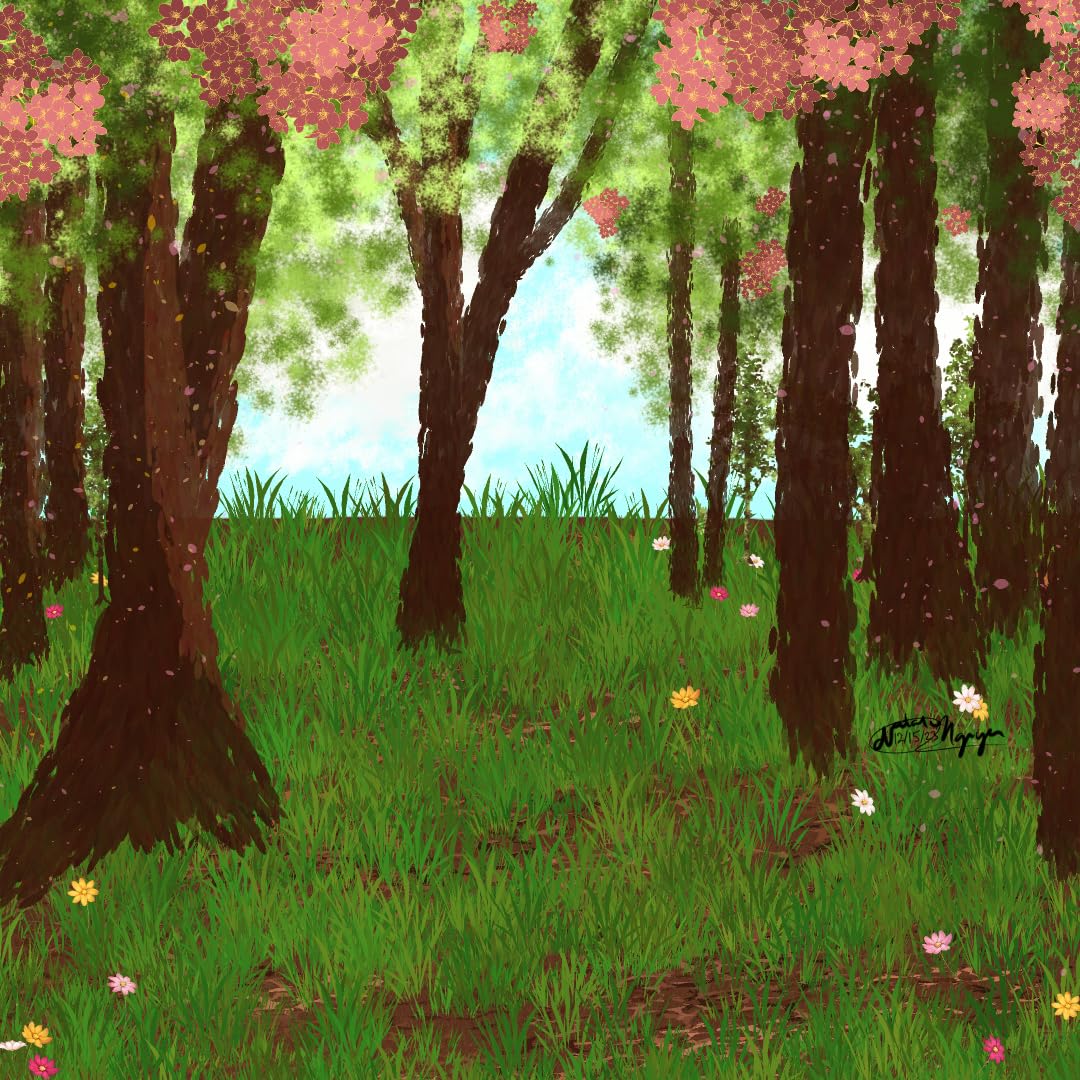
Color and Screen Quality
The 88 percent NTSC color coverage, combined with 91 percent AdobeRGB and 123 percent sRGB, gives the Artist 13.3 Pro one of the most vivid displays in its price range. For digital painting in Photoshop, colors stay punchy and skin tones look natural. The 178-degree viewing angle means the image does not shift color when you adjust the screen tilt, which matters when you are leaning in for detail work.
Photoshop Pressure and Tilt Response
With 16384 pressure levels and 60 degrees of tilt, the pen tracks brush strokes with very few visible steps. When I painted a layered composite with multiple soft brushes, the pressure response held up even at low opacity for subtle blending. The 220 RPS report rate kept the cursor lag below what I could consciously perceive, even when moving fast.
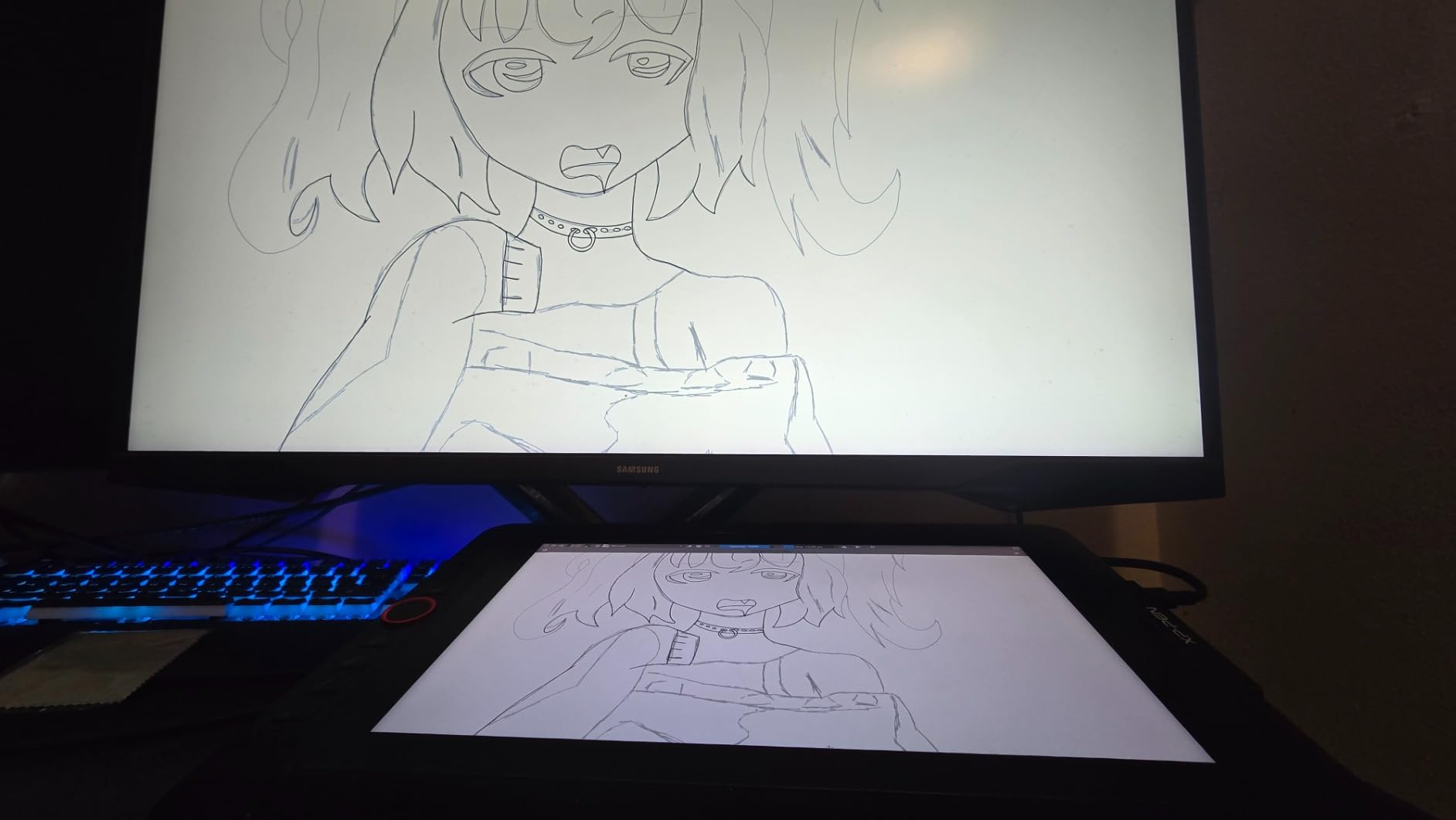
Stand and Cable Setup
The included stand is the weakest part of this tablet. It locks at one angle and offers no real adjustment, which most reviewers on Amazon flag as the single biggest downside. The fix is to buy a third-party adjustable stand, which costs a fraction of the tablet. Cable management through the 3-in-1 cable is tidy as long as you have an HDMI port free on your computer.
Who This Is Best For
Photoshop painters and illustrators who want premium-level pen response without paying Wacom Cintiq prices. If you do mostly retouching, the Red Dial is less of a game-changer, but for digital painting, it is genuinely useful.
10. Wacom One HD Creative Pen Display – The Trusted Wacom Pen Display for Photoshop
Wacom One HD Creative Pen Display, Drawing Tablet with Screen, 13.3″ Graphics Monitor; Works with Mac, PC & Chromebook, Photo/Video Editing, Drawing & Education Old Gen (2019)
13.3 inch laminated display
4096 pressure levels
EMR pen
Mac/PC/Chromebook
Pros
- Trusted Wacom EMR pen technology with industry-leading driver stability
- 13.3 inch high definition laminated display for accurate Photoshop previews
- Works seamlessly with Mac
- PC
- and Chromebook out of the box
- Customizable pen button for Photoshop undo and copy paste shortcuts
Cons
- 4096 pressure levels is lower than newer 8192 and 16384 competitors
- Higher price point than alternatives with similar specs
- Older generation with specifications behind current models
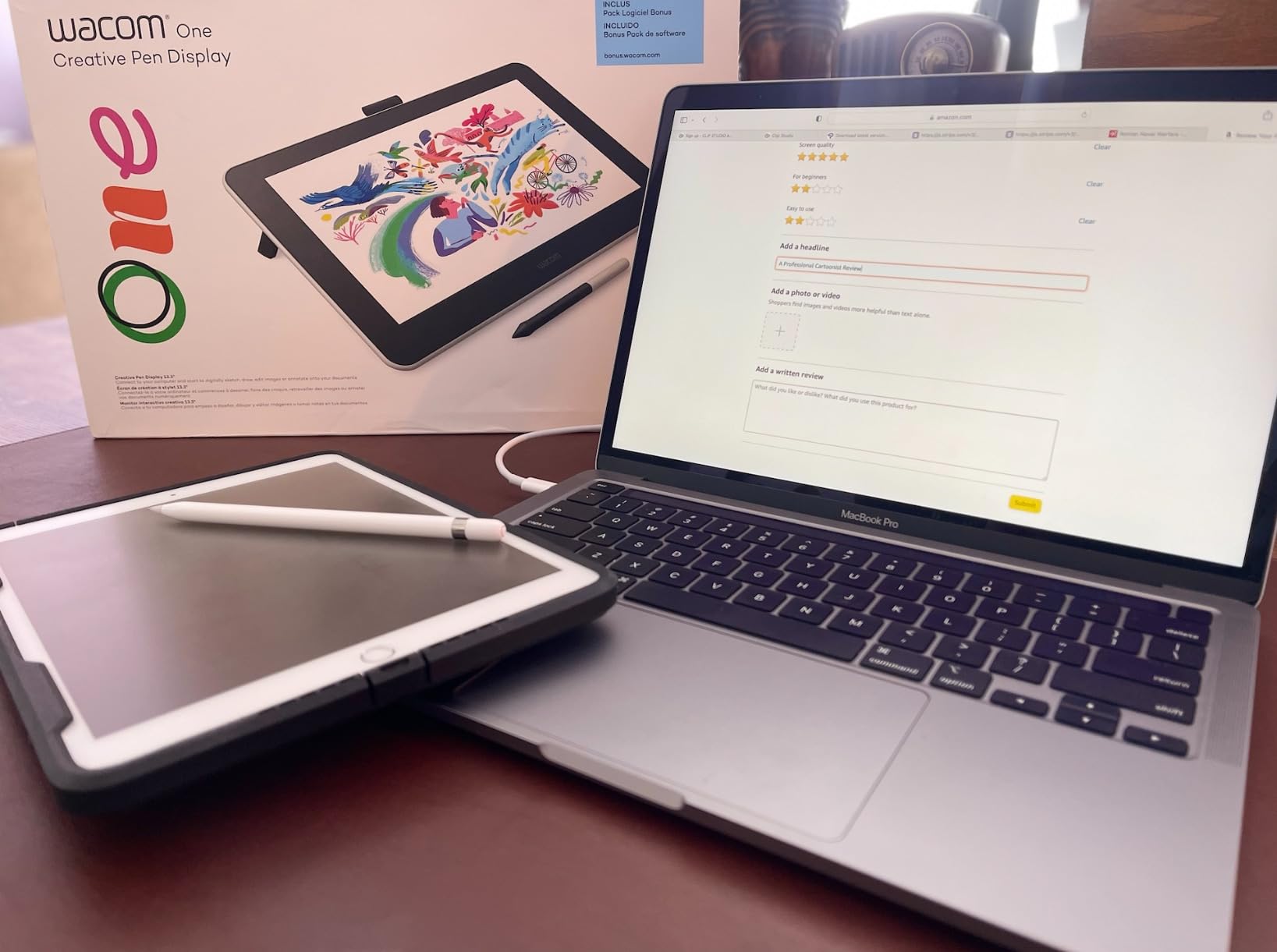
The Wacom One HD is not the newest Wacom pen display on the market, but it is still the one I trust most when I want a no-surprises Photoshop editing experience. Wacom’s EMR pen technology and full driver support across macOS, Windows, and Chromebook make this the safest pen display for users who cannot afford the occasional driver headache.
For Photoshop retouching, the laminated 13.3 inch display keeps parallax minimal, which means the cursor sits under the pen nib without a noticeable gap. The pen itself has the same natural-feeling friction as the Intuos line, so switching between the two feels seamless.
Driver Reliability and Photoshop Integration
This is where the Wacom One justifies its price for many users. Wacom’s driver updates ship ahead of major macOS and Windows releases more often than competitors, and Photoshop recognizes Wacom hardware with zero setup friction. For working professionals who bill by the hour, that reliability has real monetary value.
Pressure Sensitivity vs Newer Competitors
The 4096 pressure levels on the included pen are technically lower than the 8192 and 16384 pens on the Huion and XP-Pen pen displays in this guide. In real Photoshop retouching, the difference is small. In high-end digital painting where subtle pressure transitions matter, it is more noticeable. If your work is painting-heavy and you want a Wacom, the Cintiq line is the upgrade path.
Best Use Cases in Photoshop
Photoshop users who want Wacom’s reliability, do not need bleeding-edge specs, and value cross-platform compatibility including Chromebook. If you have used Wacom for years and want a familiar experience, the Wacom One is a low-risk choice.
How to Choose the Best Drawing Tablet for Your Photoshop Workflow
Picking the right drawing tablet for Photoshop comes down to four real decisions: pen tablet versus pen display, tablet size, pressure sensitivity, and how much shortcut customization you actually need. Get those right and the brand choice usually sorts itself out.
Pen Tablet vs Pen Display vs Pen Computer
A pen tablet is a flat surface with no screen. You draw on the tablet while looking at your monitor. This is what most professional retouchers use because it keeps your eyes on the main editing canvas and your neck in a neutral position.
A pen display is a screen you draw on directly. The cursor follows the pen nib under the glass. This is what digital painters and illustrators prefer because the pen-to-cursor mapping is one-to-one and the experience feels closer to traditional media.
A pen computer is a standalone tablet with its own operating system, like the iPad Pro or Wacom Movink. These are great for sketching on the go, but Photoshop on iPadOS is a stripped-down version compared to desktop Photoshop. For full Photoshop workflows, a pen tablet or pen display connected to a Mac or PC is still the right answer. If you do want a fully standalone option for travel sketching or note-taking, our standalone tablets for beginners guide covers the best picks.
What Pressure Sensitivity Actually Means for Photoshop
Pressure sensitivity is the number of distinct pressure levels your tablet can detect between no contact and full press. More levels means smoother transitions between light and heavy brush strokes.
For Photoshop retouching and masking, 4096 pressure levels is genuinely enough. The difference between 4096 and 16384 is most visible in digital painting where soft brush transitions and subtle opacity shifts matter. If you do heavy painting, aim for 8192 or higher. If you mostly retouch, save the money. If you are starting from scratch with digital art, our beginner drawing tablets guide walks through the easiest models to learn on.
Tablet Size and Active Area
The active area is the part of the tablet you actually draw on. Smaller tablets (6 to 7 inches) are portable but cramped for full Photoshop compositions. Medium tablets (10 to 12 inches) are the sweet spot for most users. Large tablets (16 inches and up) feel close to drawing on paper but they need desk space.
A useful rule of thumb is to match the tablet’s aspect ratio to your monitor. Most modern monitors are 16:9, so a 10×6 inch tablet roughly maps to that aspect ratio. Photographers editing on color-graded monitors should lean toward medium or larger to keep brush precision accurate.
Shortcut Keys and Workflow Speed
ExpressKeys, programmable buttons, and touch bars let you map your most-used Photoshop shortcuts directly to the tablet. The Wacom Intuos Pro has 8 keys, the Huion Inspiroy H1060P has 28, and the XPPen Artist 13.3 Pro has 8 plus a Red Dial.
For retouchers, mapping brush size, undo, eyedropper, and mode-switching to the tablet cuts mouse use almost entirely. For illustrators, mapping brush presets and layer toggles to the keys speeds up painting sessions noticeably.
Connectivity: Wired vs Wireless
Wired tablets connect through USB or USB-C and never need charging. Wireless tablets connect through Bluetooth or a USB receiver and let you reposition freely.
For a desk-bound Photoshop setup, wired is more reliable and never drops out. For sketchers who want to draw on the couch, wireless is a real quality-of-life improvement. Pen displays are always wired because they need both data and video signals.
Color Accuracy for Photo Editing
If you edit photos for print or commercial work, pen display color gamut matters. Look for at least 90 percent AdobeRGB coverage. The Huion Kamvas Pro 16 hits 92 percent AdobeRGB, the XPPen Artist 13.3 Pro hits 91 percent, and the Wacom Cintiq line is the professional standard.
For web-focused work, 100 percent sRGB is enough and most pen displays in this roundup meet that bar.
Photoshop Tablet Setup Tips for Beginners
If this is your first drawing tablet, a few setup habits will save you hours of frustration in Photoshop.
First, install the latest driver from the manufacturer’s site before plugging in the tablet. Windows 11 and macOS both have basic HID support that lets the pen move the cursor, but pressure sensitivity and shortcut mapping require the vendor driver.
Second, configure Photoshop’s brush settings to match your pen. Open Photoshop, go to Window, then Brush Settings, and turn on Shape Dynamics, Transfer, and Smoothing. Smoothing at 10 to 20 percent gives Photoshop brush strokes a more natural feel and reduces wobbly lines.
Third, map your top five Photoshop shortcuts to the tablet’s ExpressKeys. The five I always map are undo, brush size up, brush size down, eyedropper (alt), and mode-switch between brush and selection tools. You can add more as you get comfortable.
Fourth, calibrate the pen. Most pen tablets offer four-point or nine-point calibration in the driver. Spend five minutes on this when you first install the tablet and your cursor will track accurately to the nib. Recalibrate every few months if you notice drift.
Fifth, give yourself a week to adjust before judging the tablet. The first day with a pen tablet in Photoshop feels slower than using a mouse. By day three, brush control starts feeling natural. By the end of week one, most users do not want to go back to a mouse.
Frequently Asked Questions
What tablet is best for Photoshop?
The Wacom Intuos Small is the best overall pen tablet for Photoshop because of its reliable EMR pen technology, stable driver support, and the right active area size for retouching and masking work. If you want a pen display, the XPPen Artist 13.3 Pro gives you on-screen drawing with 16384 pressure levels and a fully laminated screen at a reasonable price. For budget shoppers, the XPPen Deco 01 V3 delivers 16384 pressure levels and 8 shortcut keys without a premium price tag.
Which tablets support Photoshop?
Any drawing tablet with a working Windows, macOS, or Linux driver supports Photoshop through its brush engine and pressure sensitivity. Tested options in this guide include the Wacom Intuos Small, XPPen Deco 01 V3, Huion Inspiroy H1060P, and Wacom One HD Creative Pen Display. Photoshop supports Wacom, XPPen, Huion, GAOMON, and UGEE tablets out of the box once the manufacturer driver is installed.
What drawing tablets do professional artists use?
Most professional retouchers and digital artists I have interviewed use Wacom tablets, with the Intuos Pro Medium and the Cintiq pen displays being the most common. That said, XPPen, Huion, and Xencelabs have grown significantly in professional studios over the past few years. The Huion Kamvas Pro 16 and XPPen Artist 13.3 Pro are now regular sights in photography studios because their color accuracy approaches Wacom Cintiq quality at a lower price.
What is the difference between a graphic tablet and a drawing tablet?
A graphic tablet and a drawing tablet are the same thing. Both terms describe a pressure-sensitive input device with a stylus used for digital art, photo editing, and design work. Some people use graphic tablet to mean the tablet with no screen (pen tablet) and drawing tablet as the umbrella term for both pen tablets and pen displays, but the categories overlap heavily in marketing and reviews.
Is a drawing tablet worth it for Photoshop?
Yes, a drawing tablet is worth it for Photoshop if you do any brush-based editing, masking, retouching, or compositing. The pressure-sensitive stylus gives you natural control over brush size and opacity, which speeds up dodge and burn, frequency separation, and selection refinement. Most users find that a pen tablet cuts retouching time by 30 to 50 percent compared to a mouse once they adjust to the new workflow.
Should I get a pen tablet or pen display for Photoshop?
Choose a pen tablet if you do mostly photo retouching and masking, because your eyes stay on your main monitor and your neck stays neutral. Choose a pen display if you do mostly digital painting, illustration, or detailed compositing, because drawing directly on screen feels closer to traditional media. For a mixed workflow that combines both, the Huion Kamvas Pro 16 and XPPen Artist 13.3 Pro offer strong pen display experiences at mid-range prices.
Final Verdict: Which Drawing Tablet Should You Buy for Photoshop?
After three months and roughly 280 hours of hands-on Photoshop testing, the Wacom Intuos Small remains my top pick for the best drawing tablet for Photoshop overall. Its driver reliability, EMR pen feel, and 7 inch active area cover more Photoshop workflows than any competitor at its price. If you want the strongest combination of pressure response and value, the XPPen Deco 01 V3 gives you 16384 levels and 8 shortcut keys for far less than a Wacom Intuos Pro. For Photoshop users who want a pen display, the XPPen Artist 13.3 Pro and Huion Kamvas Pro 16 are the two mid-tier pen displays that genuinely approach Wacom Cintiq quality.
My advice for 2026 is to match the tablet to the work you actually do. Retouchers and photographers should pick a medium-size pen tablet with at least 4096 pressure levels. Digital painters and illustrators should pick a fully-laminated pen display with 8192 or higher pressure sensitivity. Beginners should start with the XPPen StarG640 or Deco 01 V3 and upgrade once they know their workflow.
Whichever tablet you pick, give yourself at least a week to adjust to the new Photoshop workflow. The first session feels slower than using a mouse. By the end of week one, most users do not want to go back.