
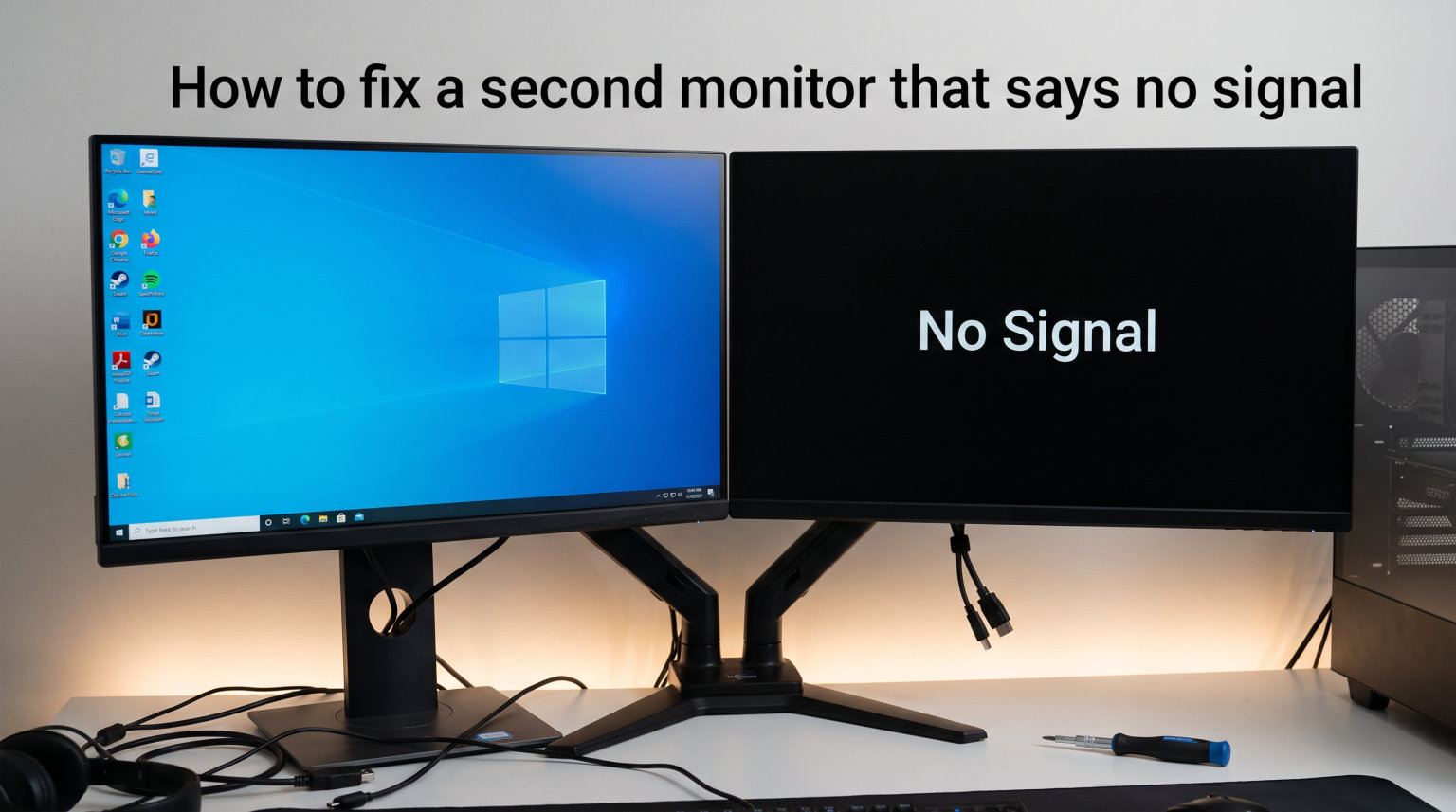
Seeing a “No Signal” message on your second monitor is frustrating, especially when your primary display works perfectly fine. The good news is that this is one of the most common multi-monitor problems, and the vast majority of cases can be resolved in under 10 minutes without any special tools.
A “No Signal” error simply means your monitor is powered on and ready, but it is not receiving any video data from your computer through the connected cable. The disconnect could be caused by something as basic as a loose HDMI cable, or it could stem from outdated graphics drivers, incorrect display settings, or a wrong input source selection on the monitor itself.
In this guide, I will walk you through exactly how to fix a second monitor that says no signal, starting with the quickest fixes that solve most cases. I have organized the troubleshooting steps in order of likelihood, so you can work through them top to bottom and stop as soon as your second display comes back to life. I will also cover advanced scenarios that many guides skip entirely, including no signal issues after waking from sleep, after a GPU upgrade, and when using a KVM switch.
Quick Fixes to Try First
Before diving into detailed troubleshooting, try these four quick actions. These solve the majority of second monitor no signal issues within a couple of minutes.
1. Unplug and Reconnect the Video Cable
Unplug the video cable from both the monitor end and the computer end. Wait five full seconds, then reconnect both ends firmly until you feel them click or seat fully. A cable that looks connected can still be slightly loose, and even a millimeter of gap can interrupt the signal handshake between your GPU and the monitor.
While you are at it, check the cable for visible damage. Bent pins (on VGA or DVI connectors), frayed sections, or kinks near the connectors can all cause intermittent signal loss. If the cable is older than a few years, it may simply need replacing.
2. Verify the Monitor Input Source
Many monitors have multiple inputs (HDMI 1, HDMI 2, DisplayPort, VGA), and they do not always auto-detect the active connection correctly. Use the monitor’s built-in menu buttons to manually select the input that matches the port your cable is plugged into.
This is an incredibly common oversight. If your cable is in HDMI 2 but the monitor is set to HDMI 1, you will see “No Signal” even though everything is connected properly. Press the menu or input button on your monitor and cycle through each option until you find the right one.
3. Restart Your Computer
A full restart forces Windows to re-detect all connected displays and reinitialize the graphics driver. This is different from a shutdown followed by a power button press, since Fast Startup in Windows can skip the full driver reload.
To do a proper restart, click Start, select the Power icon, and choose Restart (not Shut Down). Once the system boots back up, check if your second monitor shows a display.
4. Toggle the Display Mode With Windows+P
Press the Windows key and the letter P at the same time to open the Project menu. Use the arrow keys or mouse to cycle through the options: PC screen only, Duplicate, Extend, and Second screen only. Select Extend (or Duplicate if you want both screens showing the same content), then check whether your second monitor activates.
Sometimes Windows defaults to “PC screen only” after an update, a driver change, or waking from sleep. This quick toggle re-engages the second display without digging through settings menus.
How to Fix a Second Monitor That Says No Signal: Step-by-Step Troubleshooting
If the quick fixes above did not resolve the issue, work through these detailed steps in order. Each one targets a specific root cause, and I have ranked them from most likely to least likely based on forum reports and real-world repair data.
Step 1: Check All Cable Connections Thoroughly
Start with the physical layer. Power off both your computer and your monitor, then inspect every connection point along the video signal path. Unplug and replug each cable at both ends.
Pay special attention to the GPU side of the connection. Many desktop computers have video outputs on both the motherboard I/O panel and the dedicated graphics card. If your CPU has integrated graphics, the motherboard HDMI or DisplayPort output may be active instead of the GPU outputs, which can cause confusion when setting up a dual monitor configuration.
Make sure your second monitor cable is plugged into the same graphics card as your primary monitor. Mixing motherboard and GPU outputs is a frequent cause of one monitor working while the other shows no signal.
Step 2: Confirm the Monitor Input Source Manually
I mentioned this in the quick fixes, but it deserves a more detailed look because it accounts for a surprisingly large percentage of no signal cases. Every monitor has a physical menu system accessible through buttons on the bezel, edge, or bottom of the screen.
Navigate to the Input or Source menu and verify it matches your physical cable connection. If your monitor has an Auto Input option, toggle it off and manually select the correct input instead. Auto-detection can sometimes pick the wrong port, especially if you have multiple cables connected simultaneously.
Also check whether your monitor firmware needs an update. Some Dell, ASUS, and LG monitors have firmware updates available through their respective software utilities that fix input detection bugs. This is particularly relevant for newer HDMI 2.1 monitors connected to recent GPUs.
Step 3: Check Display Settings in Windows
Open Settings by pressing Windows+I, then go to System and click Display. Scroll down to the Multiple displays section. If your second monitor is not showing in the display layout at the top, click the Detect button.
Windows 10 and Windows 11 both have this Detect button, and clicking it forces the operating system to scan for connected displays. If the monitor appears after clicking Detect but still shows no image, check the display mode dropdown and make sure it is set to Extend these displays or Duplicate these displays rather than Disconnect this display.
If you see the second monitor in the layout but it is grayed out or marked as “Not connected,” select it and look for a Reconnect display option. Sometimes Windows needs a manual prompt to re-establish the connection after a minor power fluctuation or driver hiccup.
Step 4: Update Your Graphics Drivers
Outdated, corrupted, or conflicting graphics drivers are one of the most common causes of a second monitor showing no signal. This is especially true after a Windows update, which can silently overwrite your manufacturer-specific GPU drivers with generic ones.
To update through Device Manager, right-click the Start button and select Device Manager. Expand the Display adapters section, right-click your graphics card, and select Update driver. Choose Search automatically for drivers and let Windows find and install the latest version.
For the best results, download drivers directly from your GPU manufacturer instead. If you have an NVIDIA card, use GeForce Experience or download from the NVIDIA website. For AMD cards, use AMD Adrenalin or the AMD support page. For Intel integrated or discrete graphics, use the Intel Driver and Support Assistant. These manufacturer-specific drivers include multi-monitor fixes that the generic Windows drivers often lack.
I recommend doing a clean installation rather than an overlay update if you have been having persistent issues. Both NVIDIA and AMD installers offer a “clean install” or “factory reset” option that removes old driver files completely before installing the new ones.
Step 5: Try a Different Port on Your Graphics Card
Individual ports on a graphics card can fail or have compatibility issues with specific monitors. If your GPU has multiple HDMI or DisplayPort outputs, move the cable to a different port and see if the second monitor activates.
Be aware that some GPUs have limitations on how many simultaneous displays they can drive through certain port types. For example, some NVIDIA RTX cards support four displays total but only three via DisplayPort simultaneously. Check your GPU specifications if you are running three or more monitors.
If you are using a USB-C or Thunderbolt connection for your second monitor, try a different USB-C port on your computer or dock. Not all USB-C ports support DisplayPort Alt Mode, and using a port that only carries data will result in a no signal error on the connected monitor.
Step 6: Test With a Different Cable or Monitor
Cables fail more often than most people expect. HDMI and DisplayPort cables are particularly prone to internal damage that shows no visible signs on the outside. Swap in a cable that you know works, ideally one that is currently being used successfully with another display.
If a different cable solves the problem, the original cable was faulty. If you are using a very long cable run (over 10 feet for HDMI or 6 feet for DisplayPort without active signal boosters), signal degradation could be the root cause. Switch to a shorter cable or an active (powered) cable for longer runs.
Similarly, connect the second monitor to a different computer or laptop to rule out a hardware failure in the monitor itself. If the monitor shows no signal on another system, the issue is the monitor’s internal hardware and may require professional repair or replacement.
Step 7: Install Pending Windows Updates
Microsoft regularly releases updates that include display driver patches, USB-C fixes, and multi-monitor behavior improvements. Go to Settings, then Update and Security (or Windows Update in Windows 11), and click Check for updates.
Install all pending updates, including optional ones, then restart your computer. Pay particular attention to any updates labeled as hardware-related or driver updates, as these can directly affect how Windows communicates with external displays.
Conversely, if the no signal problem started immediately after a Windows update, consider uninstalling the most recent update. Go to Update History, click Uninstall updates, and remove the most recent entry. If the second monitor starts working again, you can delay reinstalling that specific update until Microsoft issues a fix.
Step 8: Run the Built-In Hardware Troubleshooter
Windows includes a hardware troubleshooter that can automatically detect and fix common device issues, including display problems. Press Windows+R to open the Run dialog, type msdt.exe -id DeviceDiagnostic, and press Enter to launch the Hardware and Devices troubleshooter.
Follow the on-screen prompts and let Windows scan for problems. If it finds display-related issues, it will attempt to fix them automatically or recommend specific actions. This tool is particularly helpful if you are not comfortable manually editing device settings or rolling back drivers.
Advanced Fixes for Stubborn No Signal Issues
If you have worked through all eight steps above and your second monitor still says no signal, the problem likely falls into one of these specialized categories. These scenarios come directly from real user reports on forums like Reddit and Microsoft Answers, and they require fixes that most basic guides do not cover.
Fix No Signal After Sleep or Hibernation
Many users report that their second monitor works fine on a fresh boot but shows no signal after the computer wakes from sleep or hibernation. This is a known power management issue related to how Windows handles display re-initialization on wake.
To fix this, open Settings, go to System, then Power and sleep. Click Additional power settings, then click Choose what the power buttons do on the left sidebar. Click Change settings that are currently unavailable, then uncheck Turn on fast startup (recommended). Save your changes and restart your computer.
Disabling Fast Startup forces a full driver reload on every boot, which prevents the sleep-wake signal handshake issue. You can also try setting your PCIe Link State Power Management to Off in the advanced power settings under PCI Express, as this can interfere with GPU-to-monitor communication after sleep.
Fix No Signal After a GPU Upgrade
Upgrading your graphics card can trigger second monitor no signal issues if old driver remnants conflict with the new GPU. I have seen this reported frequently with upgrades from older cards (like a GTX 1060) to newer RTX cards (like a 4070 Ti).
Before installing the new GPU drivers, use Display Driver Uninstaller (DDU) to completely remove all traces of the previous graphics drivers. Boot into Safe Mode, run DDU, and let it clean the system. Then install fresh drivers specific to your new GPU from the manufacturer website.
Also check your motherboard BIOS settings. Some motherboards default to disabling the iGPU (integrated graphics) when a dedicated GPU is detected, which can interfere with multi-monitor setups if you were previously routing one monitor through the motherboard video output. Make sure all your monitors are connected directly to the new graphics card.
Fix KVM Switch Signal Loss
If you use a KVM switch to share monitors between multiple computers, signal loss on the second monitor is a well-known issue. The problem usually stems from the KVM switch not properly emulating the display connection when switching between systems, causing the GPU to stop outputting signal.
To fix KVM-related no signal issues, try powering off the monitor before switching inputs on the KVM, then powering it back on after the switch is complete. This forces the monitor to re-handshake with the active computer. You can also try using a KVM switch with DisplayPort emulation (sometimes called DDM or Display Data Channel emulation), which maintains the connection state even when switched away.
If possible, connect your second monitor directly to the computer without going through the KVM to confirm the KVM is the source of the problem. If direct connection works, the KVM switch itself needs upgrading or replacing.
Understand HDMI and DisplayPort Version Differences
Cable and port version mismatches can cause no signal issues that are hard to diagnose because everything appears to be connected correctly. HDMI 2.0 and HDMI 2.1 have different maximum bandwidth capabilities, and using an HDMI 2.0 cable with an HDMI 2.1 port running at high refresh rates (4K at 120Hz or above) will result in a black screen or no signal error.
Similarly, DisplayPort cables come in different certifications. A standard DisplayPort 1.2 cable may not work reliably with a DisplayPort 1.4 port running at maximum bandwidth. Always use a cable certified for the highest version your hardware supports, especially for high-resolution or high-refresh-rate monitors.
If you recently changed your resolution or refresh rate settings and lost signal on the second monitor, boot into safe mode or use your primary monitor to lower the resolution and refresh rate to standard values (1080p at 60Hz), then gradually increase them to find the stable maximum for your cable and port combination.
Frequently Asked Questions
Why does my second monitor say no signal when everything is plugged in?
Your second monitor can show no signal even when fully plugged in if the monitor is set to the wrong input source, Windows is not configured to extend to the second display, or your graphics drivers are outdated. Check the monitor input menu first, then press Windows+P and select Extend. If neither works, update your GPU drivers from the manufacturer website.
How to fix PC not detecting 2nd monitor?
Open Settings, go to System, then Display, and click the Detect button under Multiple displays. If that does not work, update your graphics drivers, try a different port on your GPU, and test with a different cable. Make sure both monitors are connected to the same graphics card, not split between the motherboard and GPU.
Why is HDMI 2 saying no signal?
HDMI 2 saying no signal usually means the monitor input is not set to HDMI 2, the cable connected to that port is loose or faulty, or the port on the GPU is not active. Use the monitor menu buttons to select HDMI 2 as the input, reseat the cable at both ends, and try plugging into a different HDMI port on your computer.
How to get signal on second monitor?
To get signal on your second monitor, reseat the video cable at both ends, set the correct input source on the monitor, press Windows+P and choose Extend, then update your graphics drivers. If the monitor still shows no signal, try a different cable, a different port on your GPU, or connect the monitor to another computer to test for hardware failure.
Why does my second monitor lose signal after waking from sleep?
This is a power management issue caused by Fast Startup or PCIe Link State Power Management interfering with the display handshake on wake. Disable Fast Startup in Power Options and set PCIe Link State Power Management to Off in advanced power settings. Also update your graphics drivers to the latest manufacturer version.
Why did my second monitor suddenly stop working?
A second monitor that suddenly stops working after functioning fine is usually caused by a Windows update overwriting GPU drivers, a loose cable from movement or vibration, a GPU driver crash, or a failing cable. Start by reseating all cables, then check for recent Windows updates that may have replaced your graphics drivers. Roll back or reinstall manufacturer drivers if needed.
Conclusion
Learning how to fix a second monitor that says no signal comes down to checking connections first, then working through software causes like input source selection, display settings, and graphics drivers. The quick fixes at the top of this guide resolve most cases, but the advanced troubleshooting steps cover the stubborn scenarios involving sleep wake cycles, GPU upgrades, and KVM switches. If none of these steps restore your second display, the monitor itself may have a hardware fault that requires professional diagnosis.