
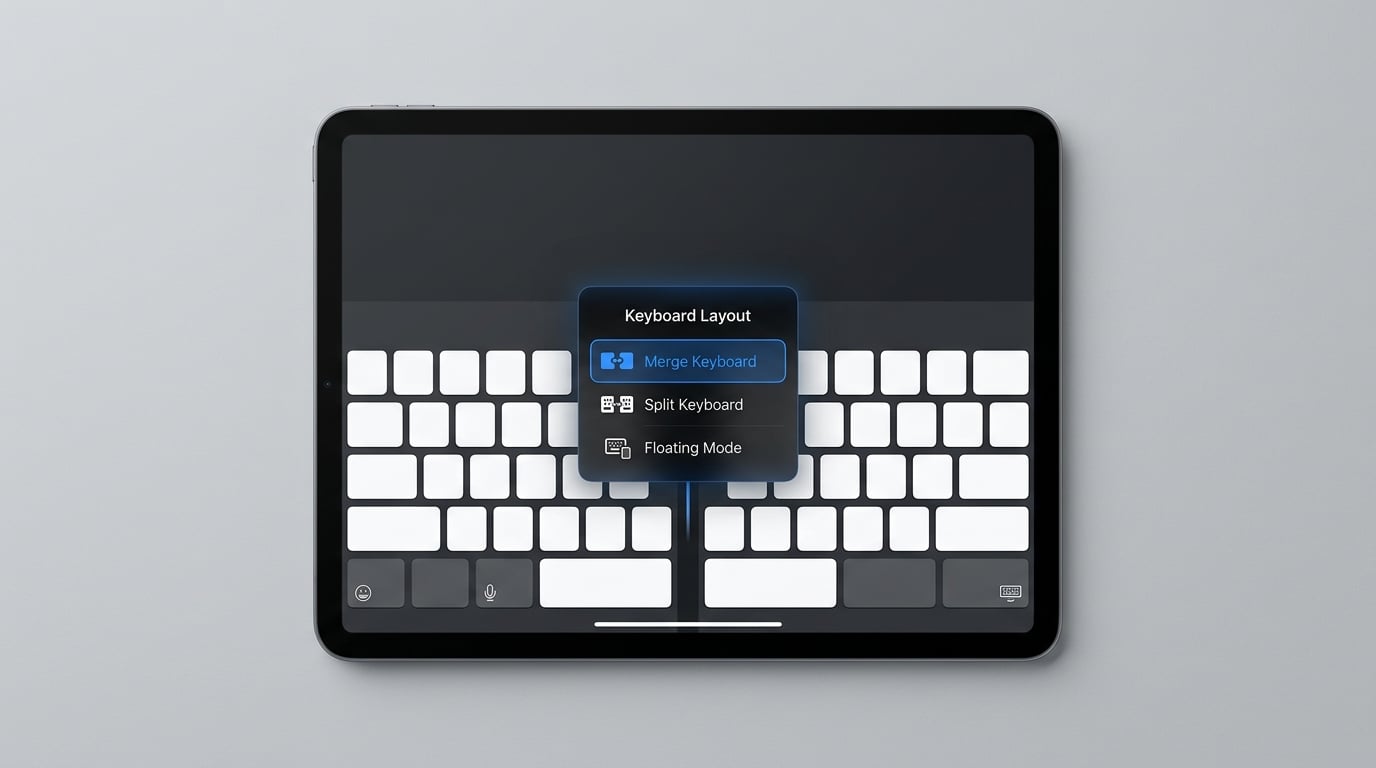
You are tapping away on your iPad and suddenly the keyboard splits in half, sitting at opposite edges of the screen. Sound familiar? This is the iPad split keyboard feature, and it is easy to activate by accident with a stray gesture. The good news is that you can merge it back to the default full-size keyboard in just a few seconds.
Our team has tested this on multiple iPad models running iPadOS 17 and iPadOS 18. Below, we walk through every method to merge a split keyboard back to normal on an iPad, including fixes for floating keyboards and troubleshooting steps for when things go wrong.
Whether you have a split keyboard or a floating keyboard, the solution is slightly different. We cover both scenarios so you can get your onscreen keyboard back to normal regardless of what happened.
How to Merge a Split Keyboard Back to Normal on an iPad: Quick Steps
If you need the fastest answer, here it is. These three steps work on every iPad model that supports a split keyboard:
- Place your finger on the keyboard button in the lower-right corner of either keyboard half. It looks like a small rectangle with a line at the bottom.
- Keep holding and slide your finger up to the word Merge or Dock and Merge in the pop-up menu.
- Release your finger. The two halves snap together into the default full-size keyboard centered at the bottom of the screen.
That is all it takes. The keyboard returns to its normal centered position immediately.
Step-by-Step Guide: How to Merge a Split Keyboard on an iPad
Let us break down the process in more detail so nothing goes wrong. The method relies entirely on the keyboard button, which is the small icon tucked into the bottom-right corner of the onscreen keyboard.
Step 1: Open Any Text Field
First, make sure the keyboard is visible on screen. Open Notes, Messages, Safari’s address bar, or any app where you can type. Tap inside a text field so the split keyboard appears.
Step 2: Find the Keyboard Button
Look at the bottom-right corner of either keyboard half. You will see a small key with an icon that looks like a tiny keyboard with a downward line. This is the Hide Keyboard key, also called the keyboard button. It is your gateway to the merge menu.
Step 3: Touch and Hold
Press and hold that keyboard button without lifting your finger. Do not just tap it. A quick tap hides the keyboard entirely, which is not what you want. A sustained press reveals a small pop-up menu with two or three options: Merge, Dock and Merge, and sometimes Undock.
Step 4: Slide and Release
While still holding, slide your finger up to the option you want. Here is the difference between the two merge options:
- Merge joins the two halves back together but keeps the keyboard floating wherever it currently sits on screen. Use this if you like the keyboard floating higher up but want it as a single piece.
- Dock and Merge joins the halves and snaps the keyboard back to the bottom of the screen, restoring the default full-size keyboard in its standard position. This is what most people want.
Release your finger once your fingertip lands on the correct option. The keyboard merges instantly.
How to Merge a Floating Keyboard Back to Normal
Sometimes the problem is not a split keyboard but a floating keyboard. This is a smaller, movable keyboard that can sit anywhere on the screen. It often appears when you pinch the keyboard with two fingers or use an Apple Pencil. Here is how to get the default keyboard back.
Method 1: The Two-Finger Pinch (Spread Gesture)
Place two fingers on the floating keyboard and drag them apart, like a reverse pinch. The keyboard expands back to full size and docks at the bottom of the screen. This is the fastest method and works in most apps.
Method 2: Use the Full Button
Look at the floating keyboard’s small toolbar. You will see a icon with two arrows pointing outward, labeled Full on some iPad models, or a grid-like icon in the corner. Tap it. The floating keyboard immediately returns to the full-size, docked default keyboard.
Method 3: Keyboard Button Menu
Just like with the split keyboard, you can touch and hold the keyboard button on the floating keyboard. A menu appears with options including Dock and Merge. Slide to that option and release. The floating keyboard docks and returns to full size.
Which iPad Models Support Split Keyboard?
Not every iPad can split its keyboard. Apple limited the split keyboard feature to specific models, which is why many users on newer devices cannot find the option at all.
The split keyboard is available on the iPad mini and the iPad 9th generation and earlier. If you own an iPad Air, iPad Pro, iPad 10th generation or newer, or the iPad mini 6 and later, the split keyboard feature is not available on your device.
Instead, newer iPads have the floating keyboard. This is why some users search for how to merge a split keyboard and find nothing helpful. If your keyboard looks small and movable but not split, you are dealing with a floating keyboard, not a split one. Use the floating keyboard merge methods above.
How the Split Keyboard Gets Enabled Accidentally
This is the question no competitor answers. The split keyboard activates when you touch and hold the keyboard button and slide to Split. It also toggles on if you go to Settings > General > Keyboard and turn on the Split Keyboard switch. A stray thumb press while typing can trigger it without you realizing.
To prevent accidental activation, you can disable the split keyboard feature entirely. Go to Settings > General > Keyboard and toggle off Split Keyboard. After that, the Split option disappears from the keyboard button menu and no accidental gesture can activate it.
Troubleshooting: When Merge Does Not Work
Sometimes the Merge or Dock and Merge option does not appear when you touch and hold the keyboard button. Or the keyboard stays split no matter what you try. Here are the fixes that work, starting from the simplest.
Fix 1: Force Quit and Reopen the App
Swipe up from the bottom of the screen to open the app switcher. Find the app you are using, swipe it up to close it, then reopen it. Tap a text field and check if the keyboard appears normally. This clears minor software glitches.
Fix 2: Restart Your iPad
Press and hold the top button and either volume button until the power-off slider appears. Drag the slider, wait 30 seconds, then press and hold the top button to restart. After the reboot, open any text field and the keyboard should behave normally.
Fix 3: Toggle Split Keyboard in Settings
Go to Settings > General > Keyboard. Find the Split Keyboard toggle. Turn it off, wait a moment, then turn it back on. Open a text field and try the touch-and-hold merge method again. This refreshes the keyboard setting without deleting anything.
Fix 4: Reset All Settings
If nothing else works, reset all settings. This is a community favorite from Reddit and Apple Support Communities. Go to Settings > General > Transfer or Reset iPad > Reset > Reset All Settings. This restores all system settings to defaults, including keyboard settings, without erasing your data or apps. After the reset, your keyboard returns to the default full-size layout.
How to revert split keyboard on iPad?
Touch and hold the keyboard button in the bottom-right corner of either keyboard half, slide your finger up to Dock and Merge, then release. The two halves rejoin into the default full-size keyboard at the bottom of the screen.
How do I merge a split keyboard on my iPad?
Press and hold the keyboard button in the lower-right corner of the keyboard, slide up to Merge or Dock and Merge, and lift your finger. The split halves join back into a single full-size keyboard instantly.
How do I make my keyboard go back to normal on my iPad?
Touch and hold the keyboard button, then select Dock and Merge from the pop-up menu. This restores the default centered, full-size keyboard at the bottom of the screen.
How can I unsplit my keyboard?
Place your finger on the keyboard button in the bottom-right corner, hold until the menu appears, slide to Dock and Merge, and release. Your keyboard unsplits and returns to its normal full-size position.
Conclusion
Merging a split keyboard back to normal on an iPad takes just one gesture: touch and hold the keyboard button, slide to Dock and Merge, and release. For floating keyboards, pinch outward with two fingers or tap the Full button. If the merge option never appears, toggle the Split Keyboard setting or reset all settings. Now you know exactly how to merge a split keyboard back to normal on an iPad and prevent it from happening again.