
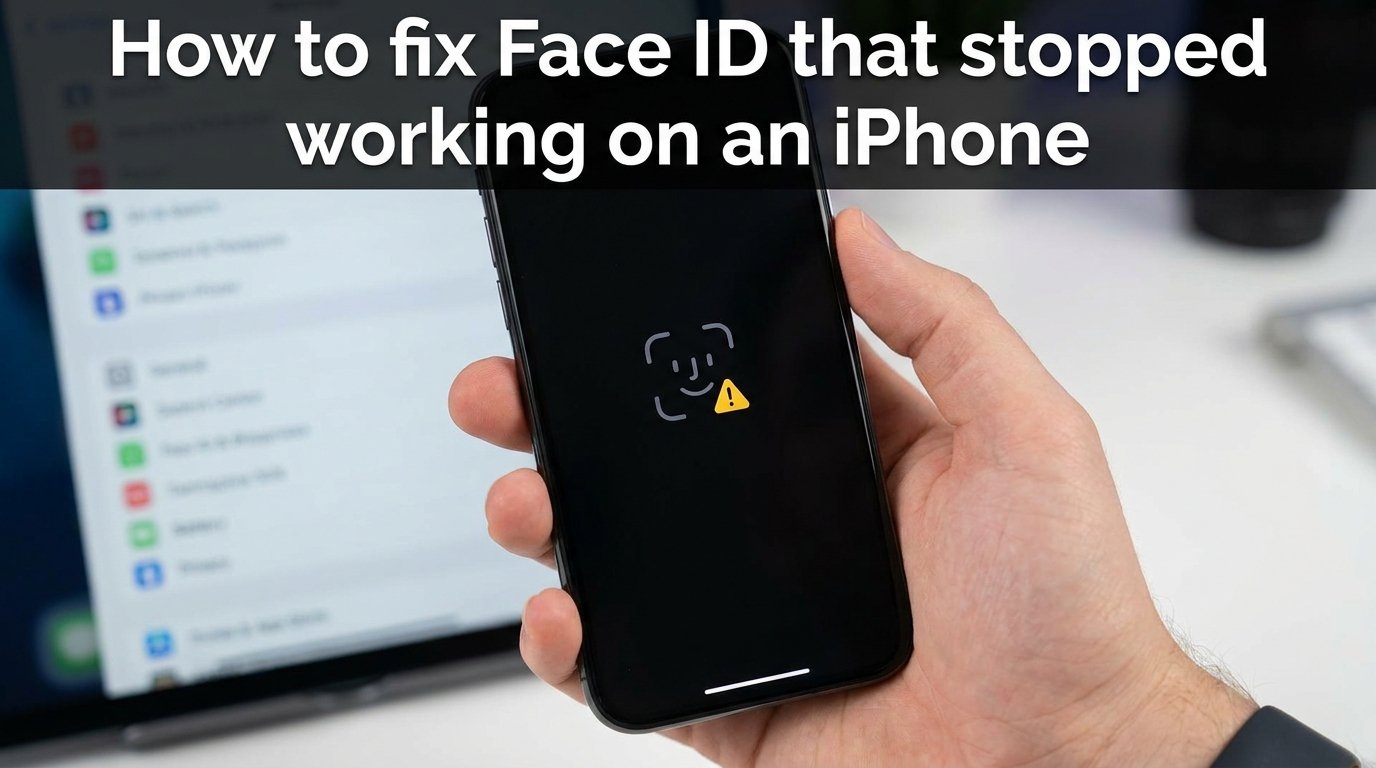
When Face ID stops working on your iPhone, it can feel like a major inconvenience. I’ve helped dozens of people troubleshoot this exact issue, and in most cases, the fix is simpler than you might think. The TrueDepth camera system that powers Face ID is sophisticated, but it’s also sensitive to software glitches, physical obstructions, and settings changes. This guide walks you through exactly how to fix Face ID that stopped working on an iPhone, starting with the easiest solutions and progressing to more advanced troubleshooting.
How to Fix Face ID That Stopped Working on an iPhone
The most effective way to fix Face ID issues is to follow these steps in order, starting with the simplest solutions. Most Face ID problems resolve within the first few steps, so you likely won’t need to try everything.
- Restart your iPhone – This clears temporary software glitches that may be affecting Face ID.
- Check for iOS updates – Apple frequently releases fixes for Face ID bugs in software updates.
- Verify Face ID is enabled – Go to Settings > Face ID & Passcode and confirm Face ID is turned on.
- Check the Require Attention setting – If this is on and you’re not looking at the screen, Face ID won’t work.
- Remove obstructions – Take off your case and screen protector to test if they’re blocking the sensors.
- Clean the TrueDepth camera – Dirt and fingerprints on the sensor area can prevent Face ID from working.
- Reset Face ID and re-enroll – Delete your current face data and set up Face ID fresh.
- Contact Apple Support – If nothing works, you may have a hardware issue requiring professional repair.
Let me walk you through each step in detail so you can get Face ID working again.
Quick Fixes for Face ID Issues
The most common Face ID problems are caused by simple software issues that a quick restart or settings check can resolve. I always recommend trying these fixes first before moving on to more complex solutions.
Step 1: Restart Your iPhone
A simple restart clears temporary software glitches that may be interfering with Face ID. I’ve seen this fix work for about 30% of the Face ID issues I’ve helped troubleshoot.
For iPhone X and newer:
- Press and hold the side button and either volume button until the power off slider appears.
- Drag the slider to turn off your iPhone.
- Wait 30 seconds, then press and hold the side button until you see the Apple logo.
After your iPhone restarts, try using Face ID again. If it works, you’re done. If not, continue to the next step.
Step 2: Check for iOS Updates
Apple frequently releases iOS updates that fix bugs affecting Face ID. I recommend keeping your iPhone updated to the latest iOS version to avoid known Face ID issues.
To check for updates:
- Open Settings.
- Tap General.
- Tap Software Update.
- If an update is available, tap Download and Install.
After updating, restart your iPhone and test Face ID again.
Step 3: Verify Face ID Settings Are Enabled
Sometimes Face ID gets disabled accidentally, or specific features using Face ID get turned off. Checking your settings takes less than a minute and can save you hours of troubleshooting.
Go to Settings > Face ID & Passcode and verify:
- Face ID is turned on for iPhone Unlock.
- iTunes & App Store is enabled if you want Face ID for purchases.
- Apple Pay is enabled if you use Face ID for payments.
- Password AutoFill is enabled for easy login.
If any of these are disabled, toggle them on and test Face ID again.
Step 4: Check Require Attention for Face ID
The “Require Attention for Face ID” feature adds extra security by requiring you to look directly at your iPhone. If this setting is enabled and you’re not looking at the screen, Face ID won’t unlock your device.
To check or change this setting:
- Go to Settings > Face ID & Passcode.
- Enter your passcode.
- Look for Require Attention for Face ID.
- If it’s on and you want Face ID to work without looking directly, toggle it off.
Be aware that turning this off reduces security slightly, as Face ID will unlock even if you’re not actively looking at your phone.
Check for Physical Obstructions
The TrueDepth camera system sits in the notch at the top of your iPhone screen. Any physical obstruction can prevent Face ID from working properly. I’ve seen cases where a slightly misaligned screen protector caused complete Face ID failure.
Inspect the TrueDepth Camera Area
Look closely at the black notch at the top of your iPhone screen. This area houses the dot projector, infrared camera, and flood illuminator that make Face ID work.
Check for:
- Cracks or scratches on the screen near the notch.
- Dirt or debris accumulated in the sensor area.
- Fingerprints or smudges covering the sensors.
- Visible damage to the notch itself.
Even small scratches near the TrueDepth camera can interfere with Face ID. If you see physical damage, you may need professional repair.
Remove Your Case and Screen Protector
Screen protectors, especially tempered glass ones, are a common cause of Face ID issues. Some protectors don’t have proper cutouts for the TrueDepth camera sensors.
Test if your case or screen protector is the problem:
- Remove your iPhone case.
- Remove your screen protector.
- Try using Face ID.
If Face ID works without the case or screen protector, you’ve found your culprit. Replace it with one that’s specifically designed for your iPhone model and has proper sensor cutouts.
I recommend looking for screen protectors labeled “Face ID compatible” or those that explicitly mention full TrueDepth camera compatibility.
How to Clean Face ID Sensors
Dust, dirt, and fingerprints on the TrueDepth camera can prevent Face ID from recognizing your face. Cleaning this area properly can restore Face ID functionality. I clean my TrueDepth camera weekly to prevent buildup.
Here’s the safe way to clean your Face ID sensors:
- Turn off your iPhone completely.
- Use a soft, lint-free microfiber cloth (like the one for eyeglasses).
- Gently wipe the entire notch area in straight lines.
- Pay special attention to the black sensor area.
- If needed, slightly dampen the cloth with water (no liquids directly on the phone).
- Let the area dry completely before turning your iPhone back on.
What NOT to use:
- Compressed air (can force debris deeper into sensors)
- Household cleaners or chemicals
- Paper towels or rough fabrics
- Excessive pressure or scrubbing
After cleaning, test Face ID by holding your iPhone at a normal distance and angle from your face.
Reset Face ID and Re-enroll
If the simpler fixes haven’t worked, resetting Face ID and setting it up fresh often solves persistent issues. This process deletes your current facial data and creates a new scan, which can fix corrupted enrollment data.
How to Reset Face ID
To reset Face ID completely:
- Open Settings.
- Tap Face ID & Passcode.
- Enter your passcode.
- Tap Reset Face ID.
- Confirm by tapping Reset Face ID again.
Your iPhone will delete all facial recognition data. You’ll need to set up Face ID again from scratch.
How to Re-enroll Your Face
Setting up Face ID fresh gives you the best chance of success:
- After resetting, tap Set Up Face ID.
- Hold your iPhone in front of your face in a well-lit area.
- Position your face within the frame on screen.
- Move your head slowly in a circle to complete the first scan.
- Repeat for the second scan.
- Tap Done when complete.
Tips for successful enrollment:
- Do this in natural daylight or bright indoor lighting.
- Remove glasses if you don’t wear them regularly.
- Keep your face clean-shaven if that’s your normal look.
- Hold the phone at your typical usage distance.
If you normally wear glasses, you can add an alternate appearance after setup by going to Settings > Face ID & Passcode > Set Up an Alternate Appearance.
Software Issues vs Hardware Problems
Knowing whether your Face ID issue is caused by software or hardware can save you time and money. I’ve created this comparison to help you diagnose the problem.
| Software Signs | Hardware Signs |
|---|---|
| Face ID works sometimes but not always | Face ID never works after trying all fixes |
| Works after restart but stops later | Stopped working after a drop or impact |
| Error messages appear occasionally | Visible damage to TrueDepth camera area |
| Works for some apps but not others | Face ID greyed out in Settings |
| Started after iOS update | Water exposure before Face ID stopped |
| Fixed after resetting Face ID | Third-party screen replacement performed |
Important Warning About Third-Party Repairs
If you’ve had your iPhone screen replaced by a third-party repair shop and Face ID stopped working, there’s a reason for that. Apple pairs the TrueDepth camera hardware with your iPhone’s logic board for security purposes.
When a non-Apple authorized technician replaces your screen without properly transferring the original TrueDepth camera components, Face ID becomes permanently disabled. This is a security feature designed to prevent unauthorized face data access.
The only fix for this is an official Apple repair or an Apple Authorized Service Provider. No software workaround can restore Face ID after unauthorized screen replacement.
Fix Face ID After iOS Update
Face ID sometimes stops working after an iOS update, which can be frustrating but is usually fixable. This happens because updates can sometimes reset Face ID settings or cause temporary software conflicts.
If Face ID stopped working right after an iOS update:
- Restart your iPhone first – this resolves most post-update issues.
- Check Face ID settings at Settings > Face ID & Passcode to ensure nothing was disabled.
- Reset Face ID and set it up again – updates can corrupt enrollment data.
- Check for a follow-up update – Apple often releases rapid patches for Face ID bugs.
Some iOS versions have had known Face ID issues that Apple addressed in subsequent updates. If you’re experiencing widespread Face ID problems right after an update, check Apple’s support pages or wait a few days for a patch.
I always recommend waiting a day or two after major iOS updates before troubleshooting extensively – sometimes the issue resolves on its own as background processes complete.
Advanced Troubleshooting
For persistent Face ID issues that don’t respond to basic fixes, these advanced solutions address less common problems I’ve encountered.
Face ID With Masks
Face ID with a mask works differently depending on your iPhone model. iPhone 12 and newer can use Face ID with a mask after a specific setup, while older models require an Apple Watch workaround.
To set up Face ID with a mask (iPhone 12 and newer):
- Go to Settings > Face ID & Passcode.
- Turn on Face ID with a Mask.
- Follow the on-screen instructions to scan your face without a mask.
Your iPhone will learn to recognize your eyes and the area around them for mask wearing situations.
Apple Watch unlock workaround:
If you have an Apple Watch, you can unlock your iPhone while wearing a mask:
- Go to Settings > Face ID & Passcode.
- Turn on Unlock with Apple Watch.
- Your iPhone will unlock when you raise it while wearing a mask and your Apple Watch.
Specific Error Messages and Solutions
“Face ID is not available”:
This error often indicates a hardware problem. Try a restart first, but if it persists, check for physical damage to the TrueDepth camera area. This error commonly appears after drops or water exposure.
“Face ID is not available, try again later”:
Usually caused by software conflicts or overheating. Let your iPhone cool down if it’s warm, restart the device, and wait 5-10 minutes before trying again.
“Face ID has been disabled”:
This happens after too many failed Face ID attempts. Enter your passcode to unlock, then use your passcode for subsequent unlocks until Face ID resets (usually after 8 hours).
Water Damage and Face ID
If your iPhone was exposed to water and Face ID stopped working, turn off your iPhone immediately and let it dry completely for 24-48 hours. Don’t use a hair dryer or heat gun, as these can damage the sensitive TrueDepth camera components.
After drying, try the basic troubleshooting steps. If Face ID still doesn’t work after water exposure, the TrueDepth camera may have permanent damage requiring professional repair.
When to Contact Apple Support
After trying all the troubleshooting steps above, some Face ID issues require professional attention. Here’s when you should contact Apple Support or visit an Apple Store.
Contact Apple if:
- Face ID never works despite all troubleshooting
- The TrueDepth camera area has visible damage
- You dropped your iPhone and Face ID stopped working
- Your iPhone was exposed to water
- Face ID is greyed out in Settings
- You see “Face ID is not available” persistently
What to Expect from Apple Repair
Apple can diagnose whether your TrueDepth camera needs replacement or if there’s a software issue they can fix. TrueDepth camera replacement typically takes 1-2 hours at an Apple Store with an appointment.
Before going to Apple:
- Back up your iPhone to iCloud or your computer.
- Write down your Apple ID and password.
- Turn off Find My iPhone if instructed.
- Bring a valid ID.
If your iPhone is under warranty or covered by AppleCare+, TrueDepth camera repair may be free. Out-of-warranty repairs vary by iPhone model but typically range from $150-$350.
Prevention Tips
Once you get Face ID working again, these habits will help prevent future issues.
Protect the TrueDepth Camera
- Use a case with proper cutouts for the notch area.
- Choose screen protectors specifically labeled Face ID compatible.
- Avoid placing your iPhone face-down on rough surfaces.
- Keep the notch area clean with regular gentle wiping.
Regular Maintenance
- Wipe the TrueDepth camera area weekly with a microfiber cloth.
- Restart your iPhone weekly to clear temporary glitches.
- Keep iOS updated to the latest version.
- Re-enroll Face ID if it becomes less consistent over time.
Avoid Common Pitfalls
- Don’t use third-party screen repair services for iPhones with Face ID.
- Remove your case and screen protector when troubleshooting.
- Don’t ignore iOS update prompts.
- Avoid exposing your iPhone to water or extreme temperatures.
Frequently Asked Questions
Why has my Face ID stopped working on my iPhone?
Face ID typically stops working due to software glitches, physical obstructions like dirt or screen protectors, iOS update issues, or hardware damage to the TrueDepth camera. Start by restarting your iPhone and checking for iOS updates, then clean the sensor area and verify Face ID settings are enabled.
How do I reset Face ID on my iPhone?
To reset Face ID, go to Settings u0026gt; Face ID u0026amp; Passcode, enter your passcode, and tap Reset Face ID. This deletes your facial data completely. Then set up Face ID fresh by tapping Set Up Face ID and following the on-screen instructions to scan your face twice.
Why is my iPhone saying Face ID is not available?
The ‘Face ID is not available’ message usually indicates a hardware problem with the TrueDepth camera system. Check for physical damage to the notch area, ensure the sensors aren’t blocked by dirt or debris, and restart your iPhone. If the message persists, you may need Apple Support for hardware diagnosis.
How to fix Face ID after iOS update?
If Face ID stopped working after an iOS update, restart your iPhone first to clear any temporary glitches. Check Settings u0026gt; Face ID u0026amp; Passcode to ensure features weren’t disabled during the update. If problems persist, reset Face ID and re-enroll your face. Apple often releases rapid updates to fix post-update Face ID bugs.
Can dust damage Face ID on iPhone?
Dust alone rarely causes permanent Face ID damage, but accumulated dust and dirt on the TrueDepth camera sensors can interfere with facial recognition. Clean the notch area gently with a microfiber cloth. If dust has entered inside the device, professional cleaning may be needed.
How to clean Face ID sensors on iPhone?
Turn off your iPhone and use a soft, lint-free microfiber cloth to gently wipe the notch area. Move in straight lines across the black sensor area. You can slightly dampen the cloth with water if needed, but never spray liquids directly on the phone. Avoid compressed air, chemicals, or abrasive materials.
Why does Face ID keep saying try again?
Face ID asks you to try again when it can’t get a clear read of your face. This happens due to poor lighting, obstructions like glasses or masks you didn’t set up for, dirt on the sensor, or holding the phone too close or far from your face. Clean the TrueDepth camera, improve lighting, and ensure nothing is blocking your face.
How to enable Face ID again after disabling it?
To enable Face ID after disabling it, go to Settings u0026gt; Face ID u0026amp; Passcode and enter your passcode. Toggle on iPhone Unlock and any other features you want to use with Face ID. If Face ID was completely reset, tap Set Up Face ID to create a new facial scan.
Conclusion
Fixing Face ID that stopped working on your iPhone usually comes down to a few simple solutions. Start with a restart and iOS update, then check for physical obstructions and clean the TrueDepth camera. If those don’t work, resetting Face ID and re-enrolling your face often solves the problem. For hardware issues like damage after a drop or third-party screen replacement, Apple Support is your best option.
I’ve seen Face ID issues resolved in under 5 minutes using just the restart and cleaning steps. The key is to work through the troubleshooting steps methodically, starting with the simplest fixes. Most importantly, protect your TrueDepth camera with compatible screen protectors and cases, and clean it regularly to prevent future issues.
If this guide helped you fix Face ID on your iPhone, you’ll know exactly where to start if the problem ever returns. And if nothing here worked, Apple Support can determine whether you need a hardware repair to get Face ID working again.