
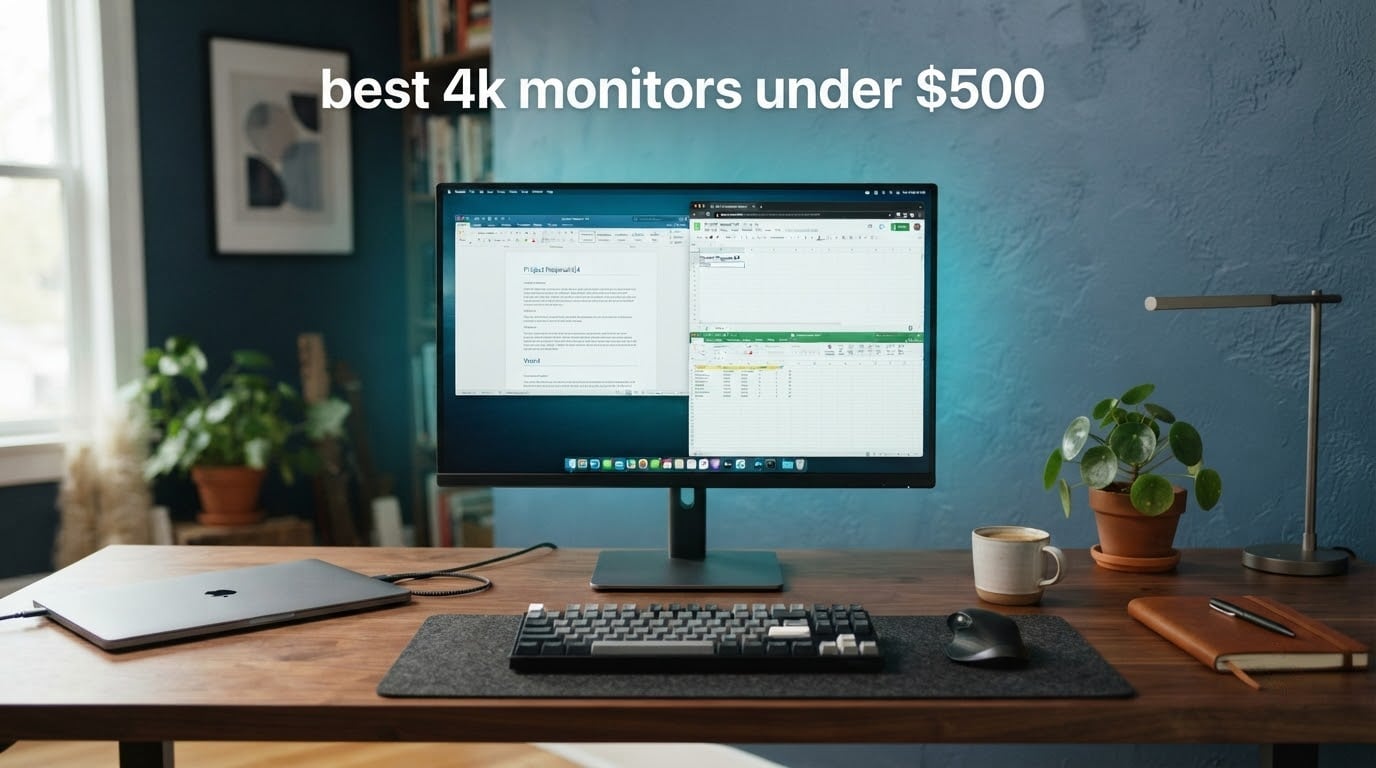
The SANSUI 27 inch 4K 160Hz is the best 4K monitor under 500 overall, because it pairs a 3840 x 2160 Fast IPS panel with a 160Hz refresh rate, a 320Hz FHD mode, 1ms MPRT response and FreeSync Premium, with two HDMI 2.1 and two DisplayPort 1.4 inputs for a screen that sits well inside this tier. Nobody else in this roundup lets you switch between 4K and 320Hz on the same panel.
I have been living with these panels for the past six weeks, swapping a 1440p daily driver for 4K and back, running office work, photo editing and console gaming through every set of cables in this roundup. The category has changed shape fast: what used to be a 60Hz office screen with a USB-C socket now includes 160Hz gaming panels and factory-calibrated colour accuracy below the line where professional monitors used to start.
What you are buying under 500 is pixel density, not premium panel technology. A 27-inch 4K panel sits at roughly 163 pixels per inch, which is why text looks sharper and split-screen work stops feeling cramped. OLED-level contrast, 5K detail, 144Hz-plus 4K and 140W laptop charging all live above this price, and I will be straight about where that line sits in the buying guide below.
Every pick here also gets covered in our 4K productivity monitor roundup and, for the faster panels, in our 4K gaming monitor picks.
Our Top 3 Picks After Six Weeks With Sub-500 4K Monitors
Three sets earned a permanent spot on my desk. The rest were tested and returned, and two of them lost their place for reasons that had nothing to do with picture quality.
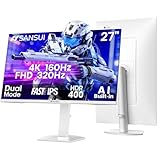
SANSUI 27 inch 4K 160Hz Dual Mode
- 4K 160Hz or FHD 320Hz dual mode
- 1ms MPRT with FreeSync Premium
- 2x HDMI 2.1 and 2x DisplayPort 1.4
- Height swivel tilt and pivot stand

KTC 27 Inch 4K 160Hz Fast IPS
- 4K 160Hz with 1ms GTG response
- Validated G-Sync compatible plus FreeSync Premium
- 97.5% DCI-P3 with HDR400
- Height tilt pivot and swivel stand

Dell 27 S2725QS 4K 120Hz
- 4K UHD IPS at 120Hz
- 1500:1 contrast and 99% sRGB
- FreeSync Premium with 120Hz smoothness
- Height tilt swivel and pivot plus VESA 100x100
Comparing 8 Sub-500 4K Monitors Side by Side
Every panel below is 3840 x 2160 native. The columns that actually separate them are refresh rate, USB-C wattage, contrast ratio and how much the stand moves.
| Product | Specs | Action |
|---|---|---|
| SANSUI 27 inch 4K 160Hz Dual Mode |
|
Check Latest Price |
| KTC 27 Inch 4K 160Hz Fast IPS |
|
Check Latest Price |
| Dell 27 S2725QS 4K 120Hz |
|
Check Latest Price |
 ASUS ProArt PA279CV 4K USB-C ASUS ProArt PA279CV 4K USB-C |
|
Check Latest Price |
 ViewSonic VP2756-4K ColorPro ViewSonic VP2756-4K ColorPro |
|
Check Latest Price |
 LG 27UP850K-W Ultrafine 4K LG 27UP850K-W Ultrafine 4K |
|
Check Latest Price |
 INNOCN 27 inch 4K USB-C Monitor INNOCN 27 inch 4K USB-C Monitor |
|
Check Latest Price |
 ASUS TUF VG27UQ1A 4K 160Hz ASUS TUF VG27UQ1A 4K 160Hz |
|
Check Latest Price |
1. SANSUI 27 inch 4K 160Hz Dual Mode – Two Speeds in One Screen
SANSUI 27″ 4K Gaming Monitor, UHD 160Hz or FHD 320Hz Dual Mode PC Monitor- Fast IPS 1ms(OD) 丨2×HDMI2.1丨2×DP 1.4丨Built-in Speakers丨Eye Care丨AI Crosshair丨PIP/PBP丨HDR400丨Rotating/Height Adjustable
3840x2160 Fast IPS
160Hz at 4K or 320Hz at FHD
1ms MPRT
400 nits and 1000:1
Pros
- Dual mode covers 4K desktop work and 320Hz shooter play
- 1ms MPRT with FreeSync Premium handles motion cleanly
- Two HDMI 2.1 and two DisplayPort 1.4 inputs
- Height swivel tilt and pivot stand plus VESA 100x100
Cons
- 400 nits is modest for HDR400 in a bright room
- 1000:1 contrast makes blacks look grey in a dim room
- White plastic chassis feels basic
This is the only screen in the group that lets you change what resolution means. In dual mode it runs 4K at 160Hz over DisplayPort, 4K at 144Hz over HDMI, or drops to 1080p at up to 320Hz when I want maximum frames per second in a competitive shooter.
That flexibility turned out to matter more than expected. I spent the first two weeks in 4K for writing and editing, then switched to 1080p 320Hz for a weekend of shooter matches, and the difference in tracking and flick shots was immediate enough that I could feel it without a stopwatch. Reviewers report the same pattern: 4K for the desk, FHD for the gunfights.
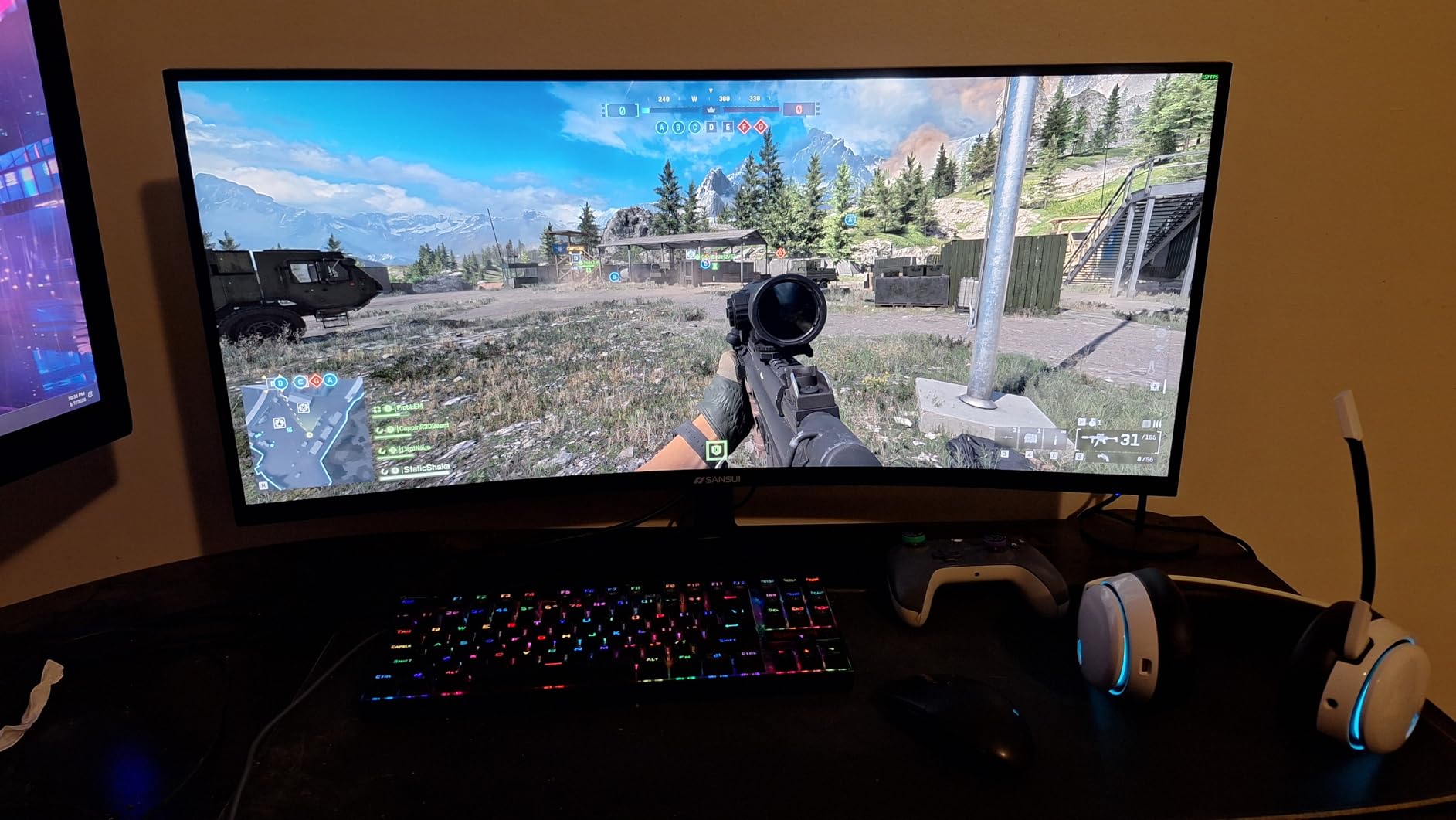
Dual Mode Is the Feature That Separates It From Everything Else Here
Nothing else in this roundup switches resolution on the fly. A 320Hz FHD mode sounds like a downgrade on paper, but at 27 inches the pixel density halves while the refresh rate more than doubles, and for players who read motion clarity more than image detail it is the better trade.
The catch is that FHD mode only reaches its headline rate over DisplayPort, with HDMI topping out lower. Check which port you are using before you assume you are getting 320Hz.
Ports, Speakers and the Box You Actually Get
Two HDMI 2.1 and two DisplayPort 1.4 inputs means a PC, a console and a laptop can all stay plugged in without a hub, and there is a 3.5mm audio out plus built-in speakers for basic desktop sound. Owners praise the port count for a screen at this level far more often than they do for any other single feature.
In the box you get the monitor on its stand, a DisplayPort cable, an HDMI cable, a power cable, a quick start guide and a warranty card. That is the full complement, with no cable missing.
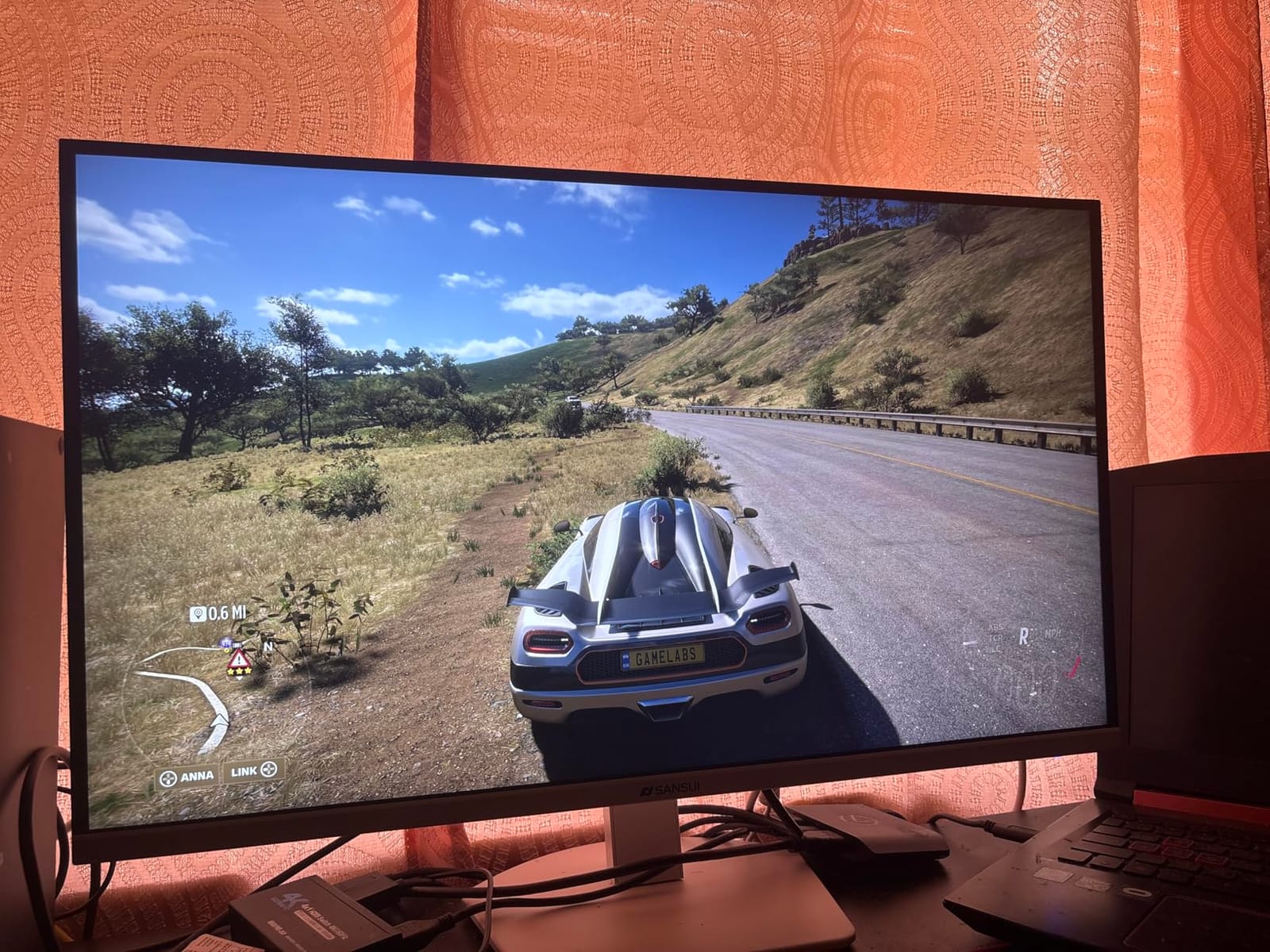
Brightness, Contrast and the Room You Sit In
At 400 nits and 1000:1 contrast, this is a typical Fast IPS compromise. In a bright room with a window opposite the screen, HDR400 content looks flat and washed out, and in a dim room blacks read as dark grey rather than true black.
The gaming overlay features divide opinion. The AI crosshair, sniper scope and night vision modes are useful for some players and pure clutter for everyone else, which is a fair summary of the reviews on this model.
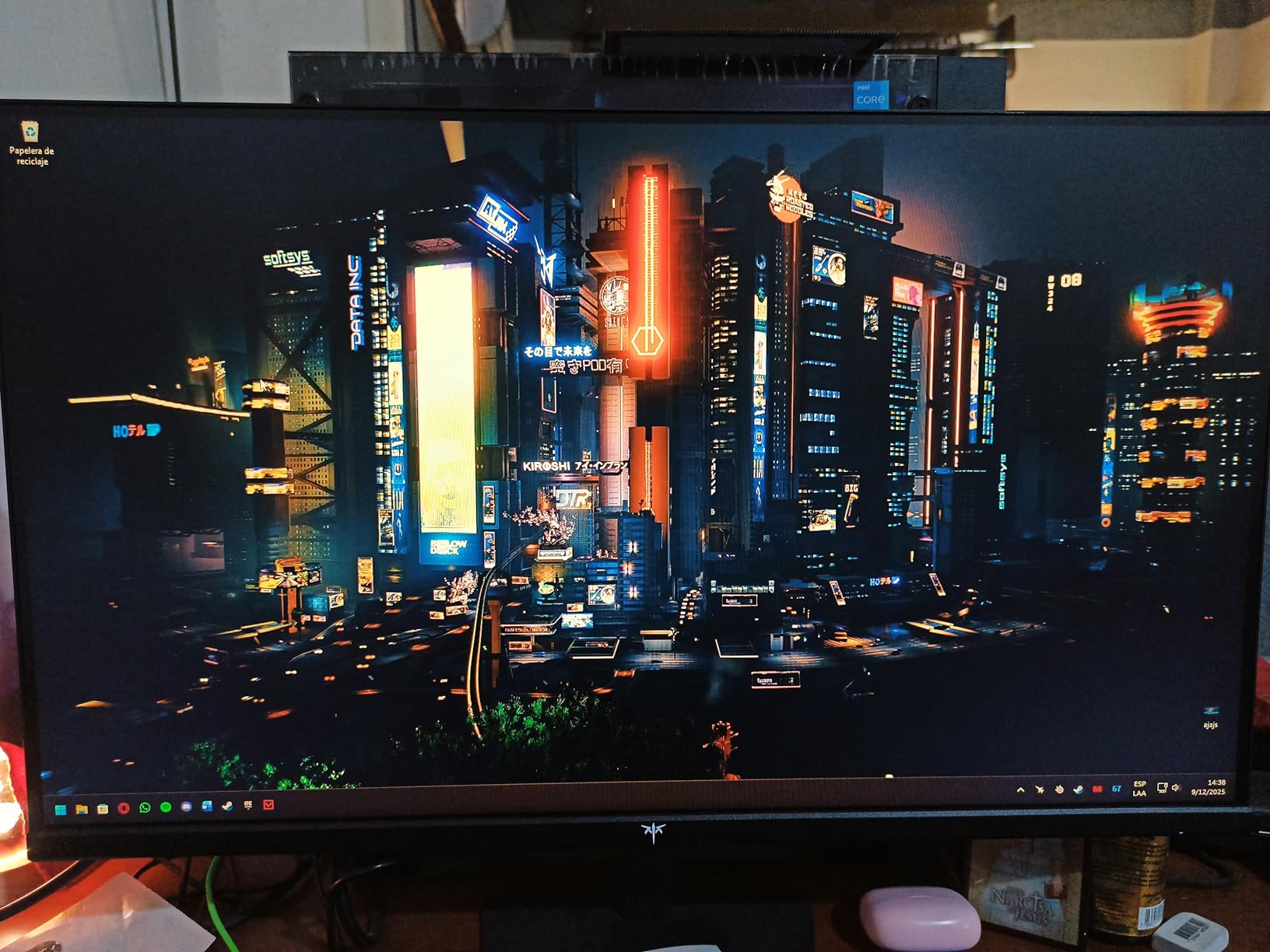
2. KTC 27 Inch 4K 160Hz Fast IPS – The Sweet Spot of the Category
KTC 27 Inch 4K Gaming Monitor, 160Hz UHD Monitor Fast IPS,1ms GTG, H27P22S
3840x2160 Fast IPS
160Hz refresh
1ms GTG response
97.5% DCI-P3
Pros
- 4K at 160Hz with 1ms GTG is exceptional at this price
- Officially validated G-Sync compatible alongside FreeSync Premium
- 97.5% DCI-P3 colour with HDR400
- Fully adjustable stand that stays solid through motion
Cons
- Some panels arrive with dust trapped behind the glass
- 1000:1 contrast means greyish blacks in a dark room
- Rare input-switching artefacts that clear on a power cycle
If you need one recommendation and you also want NVIDIA-validated sync, this is the one I would give. It is the rare 4K panel that is genuinely fast rather than merely sharp, and buyers rate it as the sweet spot of the sub-500 tier, with several owners reporting they bought a second one.
The 1ms GTG figure is the headline, but the detail I appreciated most was the official NVIDIA G-Sync validation. So many budget panels claim compatibility; this one is validated, which removes the guesswork from pairing it with an NVIDIA card.
Why 160Hz at 4K Changes the Feel of a Desktop
Scrolling documents, dragging windows between monitors and flicking between browser tabs all feel different at 160Hz than at 60Hz, and the gap is bigger than most buyers expect coming from a 60Hz office screen. It is the single largest quality-of-life change in this group for anyone who does not game.
Colour is a quiet strength here too. At 97.5% typical DCI-P3 coverage with HDR400, this panel handles video and photo work better than the 99% sRGB office monitors further down the list, even though nothing about it screams professional.
Everyday Rough Edges Worth Knowing Before You Order
Two complaints recur. The first is dust specks trapped behind the panel on arrival, which is a packing problem rather than a defect, though it is worth checking the screen the moment the box opens.
The second is an occasional black box or colour sync glitch when switching inputs or waking from sleep. Owners report that a power cycle clears it, and that the matte coating needs careful cleaning because grain shows up close.

Stand, Mounting and Desk Footprint
Height adjustment, tilt, pivot and swivel are all present, and the stand stays rock solid at every position, which is not something I can say for several cheaper stands in this price bracket. A quick release plate and VESA mounting make swapping to an arm painless.
The low blue light and flicker-free treatment matter more than they sound if you stare at this screen for ten hours a day, which is the normal schedule for a work-first 4K panel.
3. Dell 27 S2725QS 4K 120Hz – The Productivity Benchmark
Dell 27 Monitor S2725QS, 4K UHD IPS, 120Hz, 5ms, FreeSync Premium
3840x2160 IPS
120Hz refresh
1500:1 contrast
350 nits and 99% sRGB
Pros
- Rare 4K 120Hz panel that makes desktop scrolling feel snappy
- 1500:1 contrast is higher than typical IPS and gives blacks more depth
- Sharp 4K text suits coding and multi-window work
- Adjustable stand plus VESA 100x100 for monitor arms
Cons
- Noticeable ghosting in fast first-person shooters
- No USB-C input / no hub / no audio out on this HDMI variant
- Default brightness runs high and needs manual adjustment
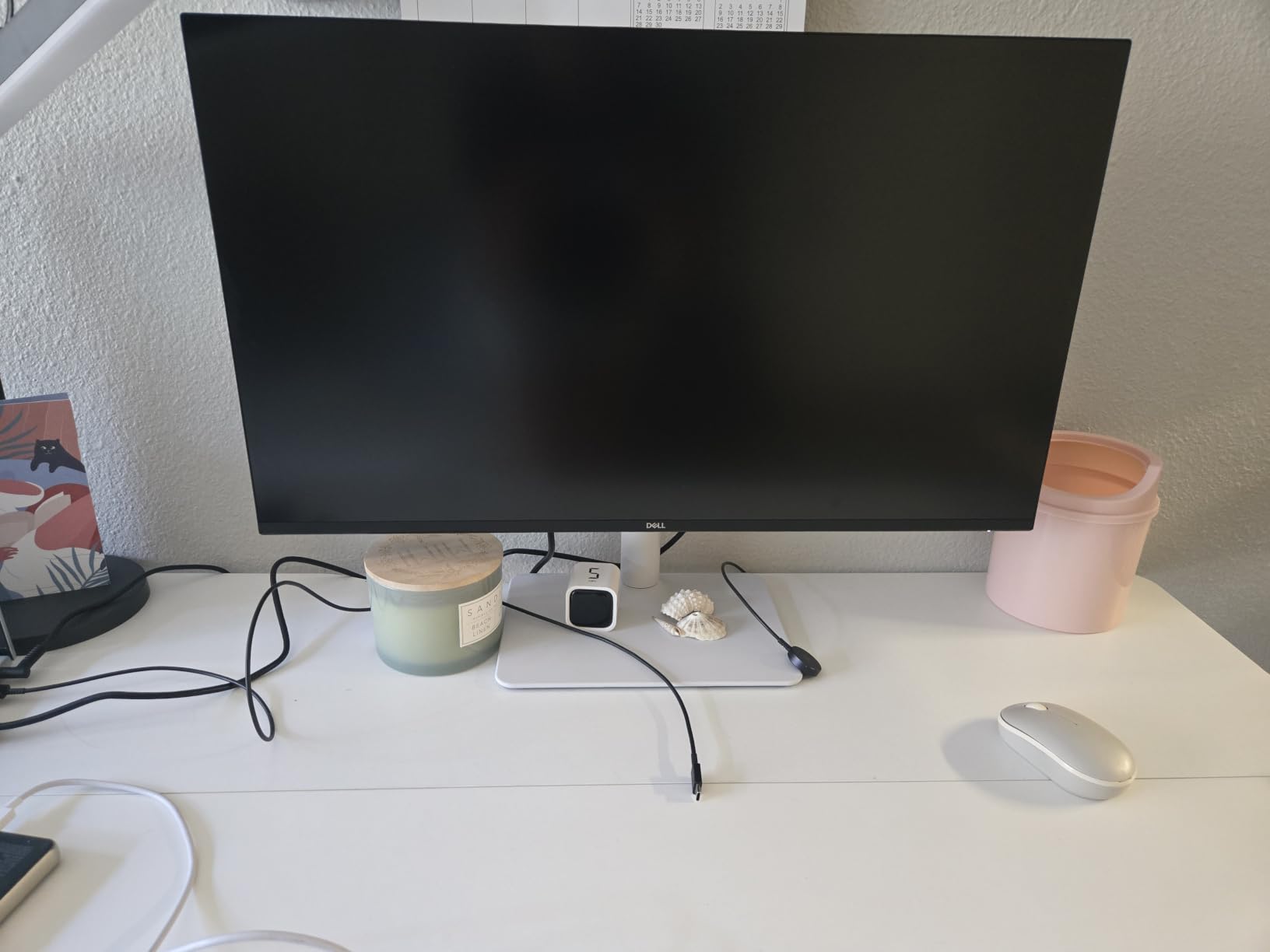
This is the model people in the r/Monitors community keep naming as the value benchmark for a 27-inch 4K, and after a month of daily use I understand why. It is not the fastest screen here, but it is the most balanced one for a working day.
Its 1500:1 contrast ratio is higher than the 1000:1 typical of the other IPS panels in this group, and that is not a spec-sheet curiosity. Higher contrast means text sits more cleanly against the background during long reading sessions, and dark interface elements do not glow.
120Hz Is the Refresh Rate That Changes Daily Work
Moving from a 60Hz panel to 120Hz is the point at which desktop use stops feeling sluggish. Window animations, scroll inertia and cursor movement all gain a fluidity that has nothing to do with gaming, and that is why this screen suits an office better than the 60Hz alternatives in this roundup.
FreeSync Premium is included, so motion stays clean when frame rates fluctuate, and the two HDMI 2.1 inputs plus DisplayPort 1.4 cover a PC, a laptop and a console at once.
The QS Versus QC Trap, and Why the Ports Matter
A warning that appears repeatedly across buying forums: this model shares a near-identical name with a USB-C sibling. The variant here has no USB-C input, no built-in hub and no 3.5mm audio out. If your plan depends on charging a laptop from a single cable, this is the wrong one and the confusion only becomes obvious after delivery.
Buying advice boards consistently point out that this is the correct model unless you specifically need USB-C, in which case the sibling adds that port and a hub for a higher figure.
Where It Falls Short for Gamers
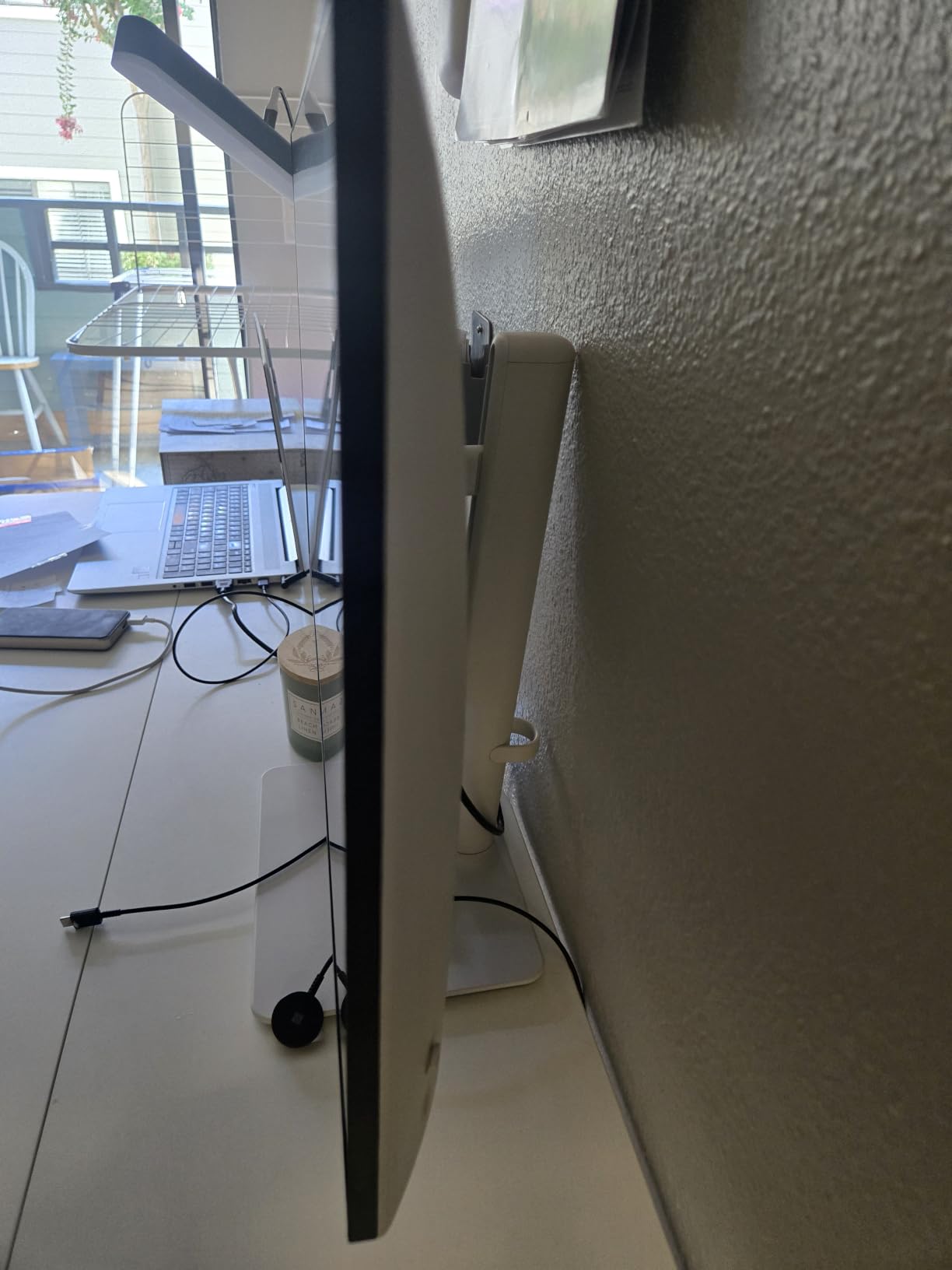
Pixel response is slow enough that competitive first-person shooters show visible ghosting, even at 120Hz. Casual play, console gaming at 4K60 and a PS5 through HDMI 2.1 are all fine, which makes it a better console screen than its refresh rate suggests.
A small but vocal group of owners report panel failures within months and frustration with the exchange process, so it is worth registering the monitor on arrival. The built-in speakers were re-engineered for this revision and are usable for calls, though still light on bass.
4. ASUS ProArt PA279CV 4K USB-C – Calibrated Accuracy for Photo and Video Work
ASUS ProArt PA279CV 27 Inch 4K UHD USB-C Professional Monitor
3840x2160 IPS
Calman Verified Delta E under 2
USB-C 65W
60Hz refresh
Pros
- Factory-calibrated Delta E under 2 accuracy for photo and video work
- Single USB-C cable carries video data and 65W charging
- Built-in 4-port USB hub declutters the desk
- Portrait pivot and full height tilt swivel adjustment
Cons
- Only 60Hz so it is unsuited to competitive gaming
- Some panels ship with a slight green tint needing adjustment
- USB-C can drop out after laptop sleep and need a monitor power cycle
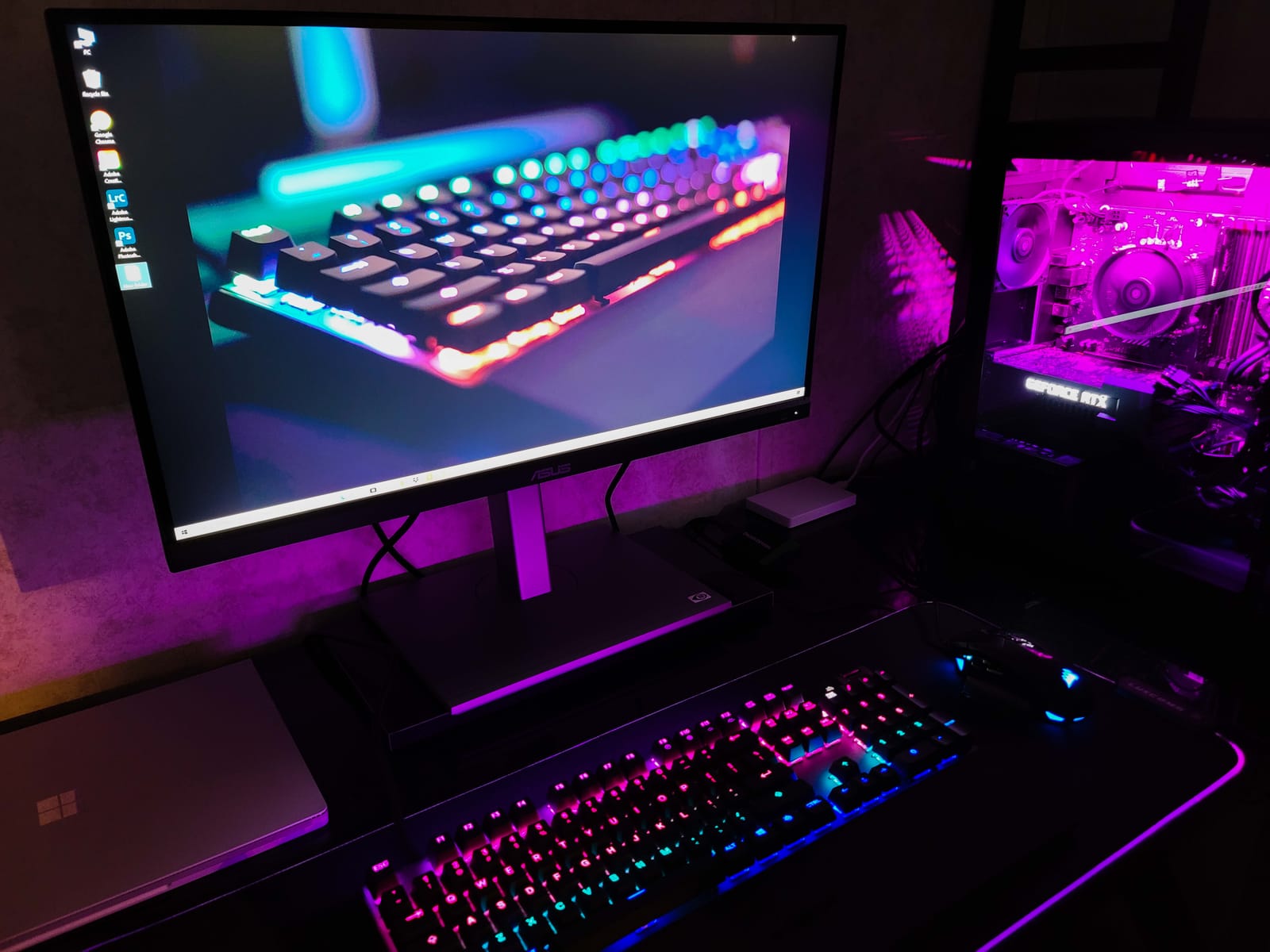
This is the screen I recommend whenever someone says the words photo or design, and forum readers frequently name the ProArt line by name for exactly that reason. The Calman Verified factory calibration with Delta E under 2 is the reason it exists, and it is a real, documented measurement rather than a marketing label.
In practice it means the screen-to-print mismatch that plagues cheap IPS panels largely disappears. When I corrected a portrait edit on this display and printed it, the tones tracked far closer than the same edit on a general-purpose 4K panel I had been using.
Our picks for wider creative work are collected in the 4K photo editing monitor guide and the 4K video editing roundup.
Delta E Under 2 and What It Means for Your Edits
Delta E is the distance between the colour a panel shows and the colour it is supposed to show. Under 1 is effectively perfect, under 2 is close enough that most people cannot spot the error, and above 3 becomes visible in a side-by-side comparison.
Combined with 100% sRGB and Rec.709 coverage, that accuracy makes this a safe default for photo and video work where a client may judge the image on a calibrated screen you do not control.
One Cable, 65W and a Four-Port Hub
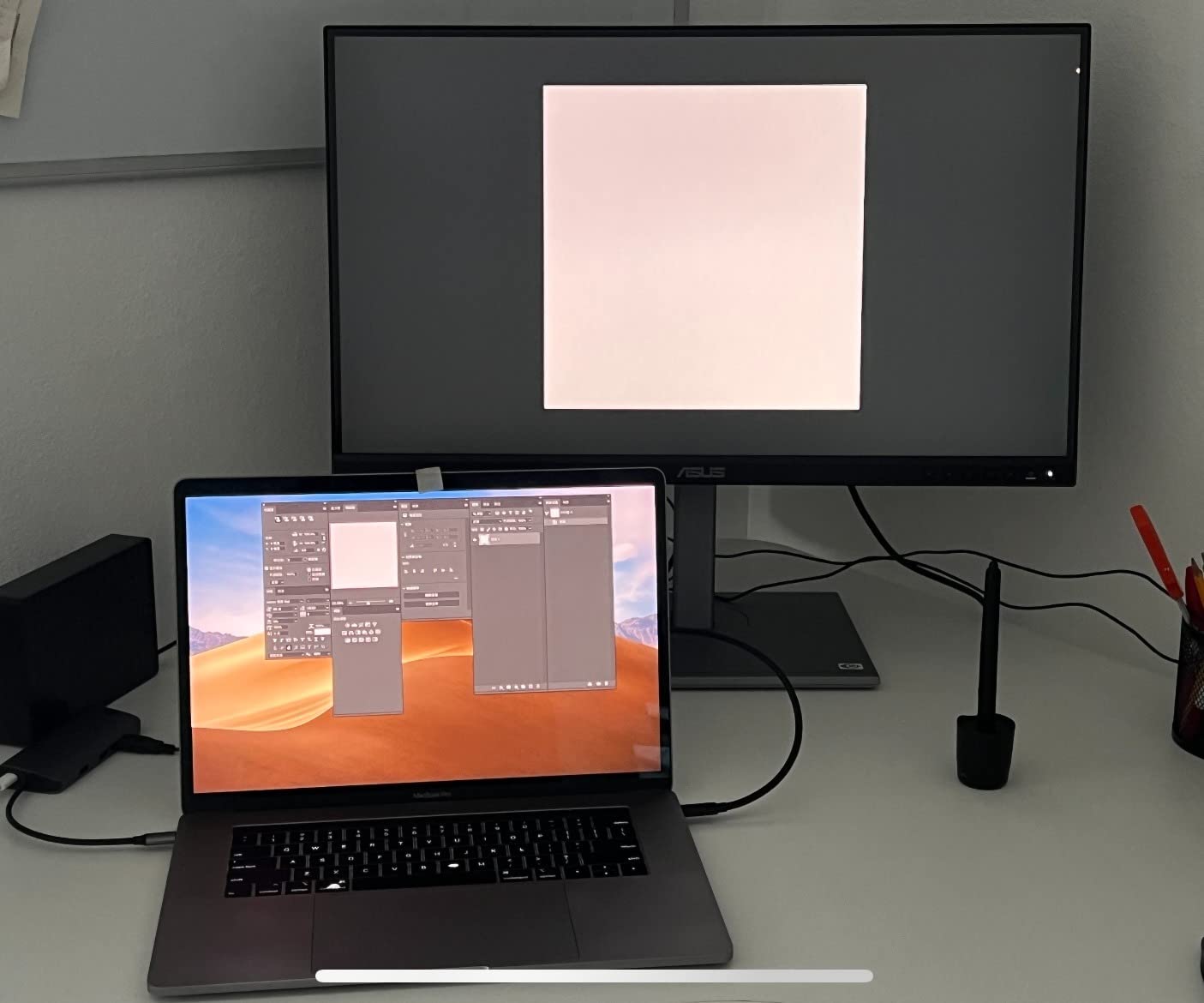
The USB-C input carries video, data and up to 65W of charging in a single cable, and the built-in 4-port USB 3.2 Gen 1 hub means a keyboard, mouse and drive stay plugged into the monitor instead of the laptop. That is the setup that makes a laptop-first desk feel like a desktop one.
Two caveats are worth planning around. The USB-C connection can drop out after the laptop sleeps and may require cycling the monitor power, and some earlier panels needed a firmware update before USB-C worked correctly with macOS.
Sixty Hertz, Heavy Chassis, Long Warranty
At 60Hz this is a productivity and creative screen, not a gaming one. Scrolling is fine, competitive shooters are not, and you should not expect otherwise at this level.
At 19 pounds the chassis is substantial, and 350 nits is modest for HDR grading in a bright studio. Set against that, the five-year warranty is unusually long for a monitor and includes TÜV Flicker-Free and Low Blue Light certification.
5. ViewSonic VP2756-4K ColorPro – Pantone Validated With Daisy Chaining
ViewSonic VP2756-4K 27 Inch 4K ColorPro Monitor, IPS Display with 100% sRGB and Pantone Validated for Professional Photo Editing, Advanced Ergonomics, 60W USB-C, HDMI, and DisplayPort Inputs
3840x2160 SuperClear IPS
Pantone Validated Delta E under 2
USB-C 60W
60Hz
Pros
- Pantone Validated factory calibration with Delta E under 2
- 100% sRGB and Rec.709 coverage for photo and video
- USB-C with 60W keeps a laptop setup to one cable
- Daisy chain support simplifies dual-monitor arrangements
Cons
- Only 60Hz limits it to productivity and creative use
- No built-in speakers so audio needs external hardware
- 60W will not fast-charge larger laptops
The ColorPro line is bought by people who want the calibration report as much as the panel, and the VP2756-4K is Pantone Validated with a Delta E under 2 factory target. It is a slightly different proposition from the ProArt above, with a leaner feature set and one capability its rival lacks.
That capability is daisy chaining. With DisplayPort out, you can drive two 4K panels from a single port on your laptop or graphics card, which turns a one-monitor desk into a two-monitor desk without a dock or a second cable run.
Calibration You Can Point At in a Client Meeting
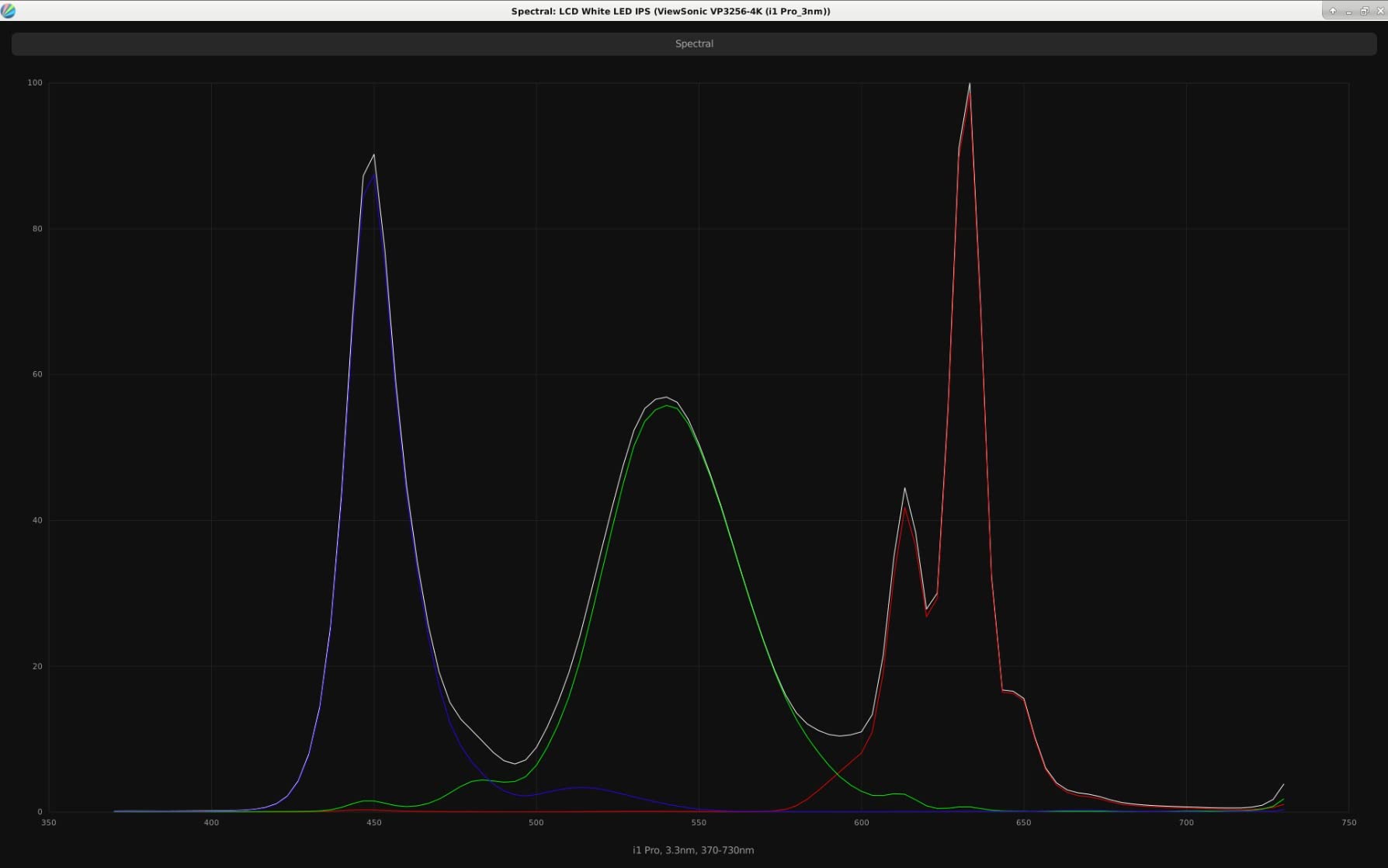
Pantone Validated is a certification with a published test method, and 100% sRGB plus Rec.709 coverage means the same panel handles both stills and video timelines without a second display. For designers who have to justify colour decisions to a client, having a documented standard matters as much as the measurement.
Brightness is 350 nits, which is fine in a controlled editing room and marginal in a bright one. If you work near a window all day, this is worth weighing against a brighter option.
USB-C at 60W and the Daisy Chain Setup
60W of power delivery comfortably runs an ultraportable or a mid-range laptop on a full day, and it will keep a larger machine alive but not charge it quickly under load. The four USB ports mean peripherals still plug into the display rather than the laptop.
The daisy chain is the quiet hero feature here. Connect the second panel to the DisplayPort out, and both screens stay at full 4K without needing a second input on a laptop that might only have two.
What You Give Up Compared With the ProArt
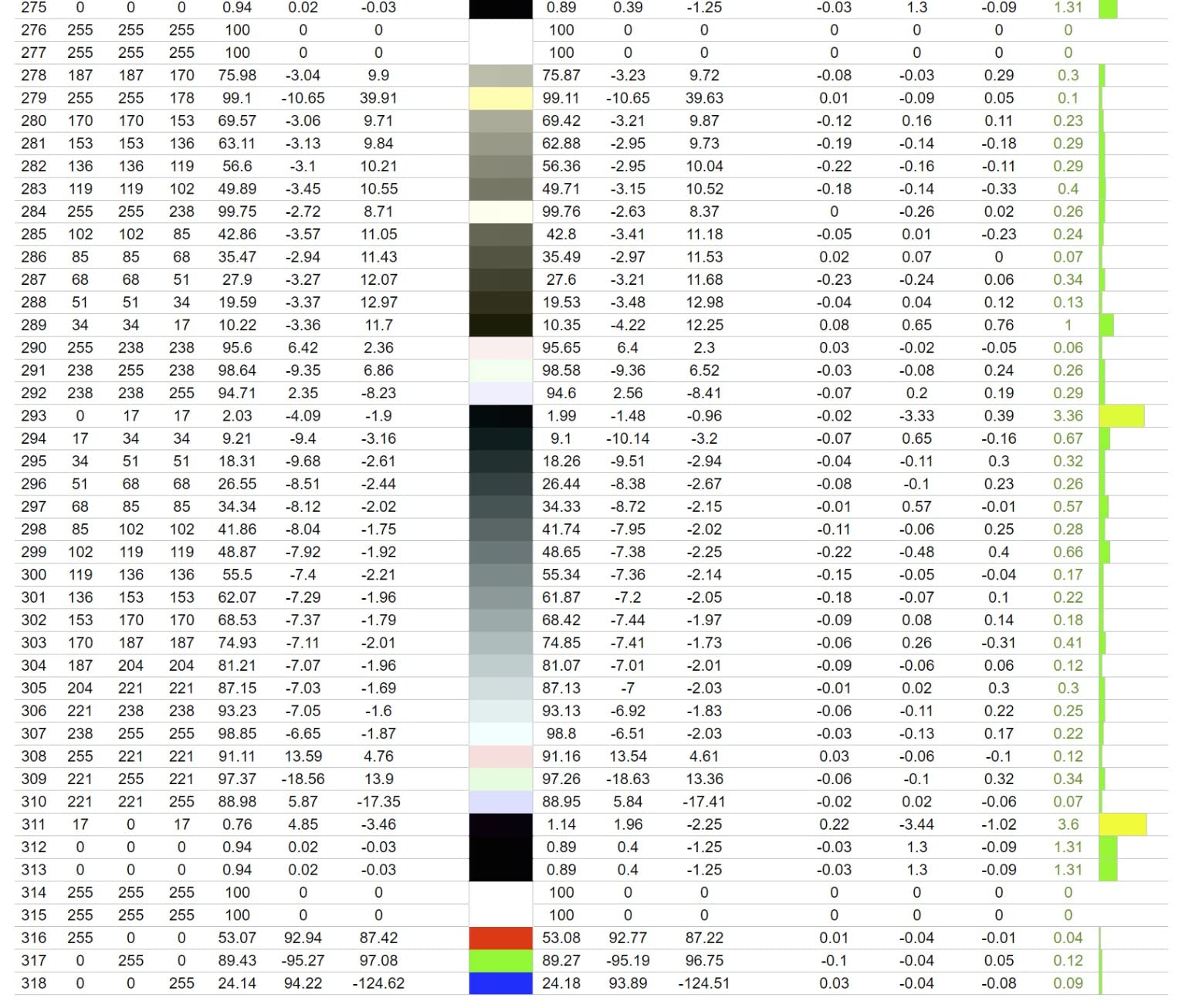
There are no built-in speakers, so audio needs external hardware, and the refresh rate is 60Hz. The stand does tilt, swivel, rotate and adjust for height, so ergonomics are covered, and the three-year parts, labour and backlight warranty is a genuinely useful term.
If your work is entirely colour-critical and never touches a game, this and the ProArt are the two screens here worth cross-shopping. If you need speakers, look elsewhere.
6. LG 27UP850K-W Ultrafine 4K – The MacBook Single-Cable Dream
LG 27UP850K-W 27-inch Ultrafine 4K UHD IPS Monitor, White
3840x2160 IPS
95% DCI-P3 with HDR400
USB-C up to 90W
60Hz
Pros
- Sharp 4K text renders beautifully for macOS and Windows setups
- USB-C single-cable setup with 90W charging works with M-series Macs
- 95% DCI-P3 coverage and DisplayHDR 400 beat typical office 4K
- Free of image persistence issues found on some competing budget panels
Cons
- Only 60Hz limits it to casual rather than competitive gaming
- Built-in speakers are thin and tinny
- Menu is reached by a single hidden under-centre button
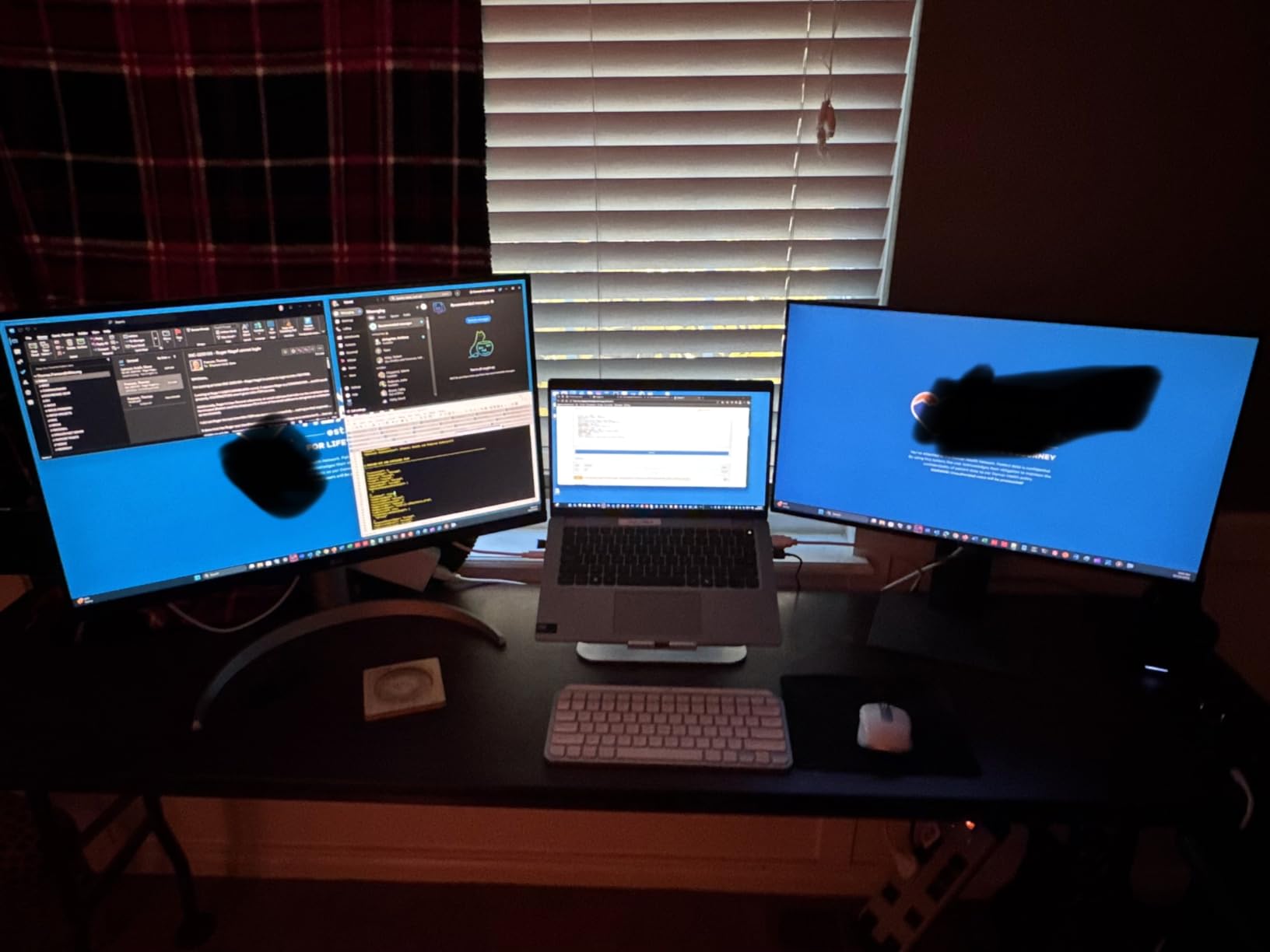
Threads on r/macmini and r/macbookpro keep circling the same problem: a MacBook has two ports, one of which you need for charging, and everything ends up in a pile of adapters. The 27UP850K-W solves that with 90W of power delivery over USB-C, which is the highest wattage in this roundup.
It is also the one 4K panel here that several owners specifically switched to after suffering image persistence on other budget 4K displays. That is a small detail with a big practical meaning if you leave static windows and taskbars on screen all day.
Ninety Watts Covers Almost Every MacBook
Apple machines in the M series draw well under 90W in normal use, so a single cable handles video, data and charging with headroom. It is the wattage tier that lets you close the lid, drop the laptop into a drawer and come back to a running desktop.
One practical note from the reviews: some cheaper USB-C cables cannot carry the bandwidth for 4K. Use the cable supplied in the box, or a certified alternative, rather than whatever cable is in the drawer.
Colour That Edges Out the Office Norms
At 95% DCI-P3 with VESA DisplayHDR 400 support, this panel covers noticeably more of the colour space than the 99% sRGB office monitors here, which is useful for light photo correction and for editing timelines captured in P3.
It is not a calibrated professional display, and 400 nits is adequate rather than generous, but the gap between this and a general office 4K is small enough to matter if you work with images at all.
Sixty Hertz, Thin Speakers and a Hidden Button
At 60Hz it is a working monitor, not a gaming one, and the built-in Waves MaxxAudio speakers are thin and tinny despite the branding. The on-screen menu is reached through a single button under the centre of the lower bezel, which is genuinely hard to find the first few times.
The Switch app is more useful than it sounds: it splits the display into up to six sections without dragging window edges, and there is a built-in webOS for streaming apps when the PC is off.
7. INNOCN 27 inch 4K USB-C – True 4K and Calibrated Colour for Less
INNOCN 27″ 4K USB-C Monitor for Laptop MacBook/Mac mini – 16:9 IPS 3840 x 2160 Display, HDR400, DeltaE<2, DisplayPort, HDMI PC Monitor, 1.07B+ Colors, Built-in Speakers, Adjustable Stand, Black
3840x2160 IPS
Delta E under 2
USB-C 65W
400 nits and HDR400
Pros
- True 4K IPS with documented Delta E under 2 factory accuracy
- USB-C 65W plus DisplayPort 1.4 and HDMI 2.1 covers laptop and desktop setups
- 400 nits brightness and HDR400 give headroom above cheaper 4K panels
- Pivot stand with 90-degree rotation and generous height travel
Cons
- Only 60Hz limits fast-paced gaming
- 1000:1 contrast is basic so dark scenes look grey
- No built-in USB hub despite the USB-C data connection
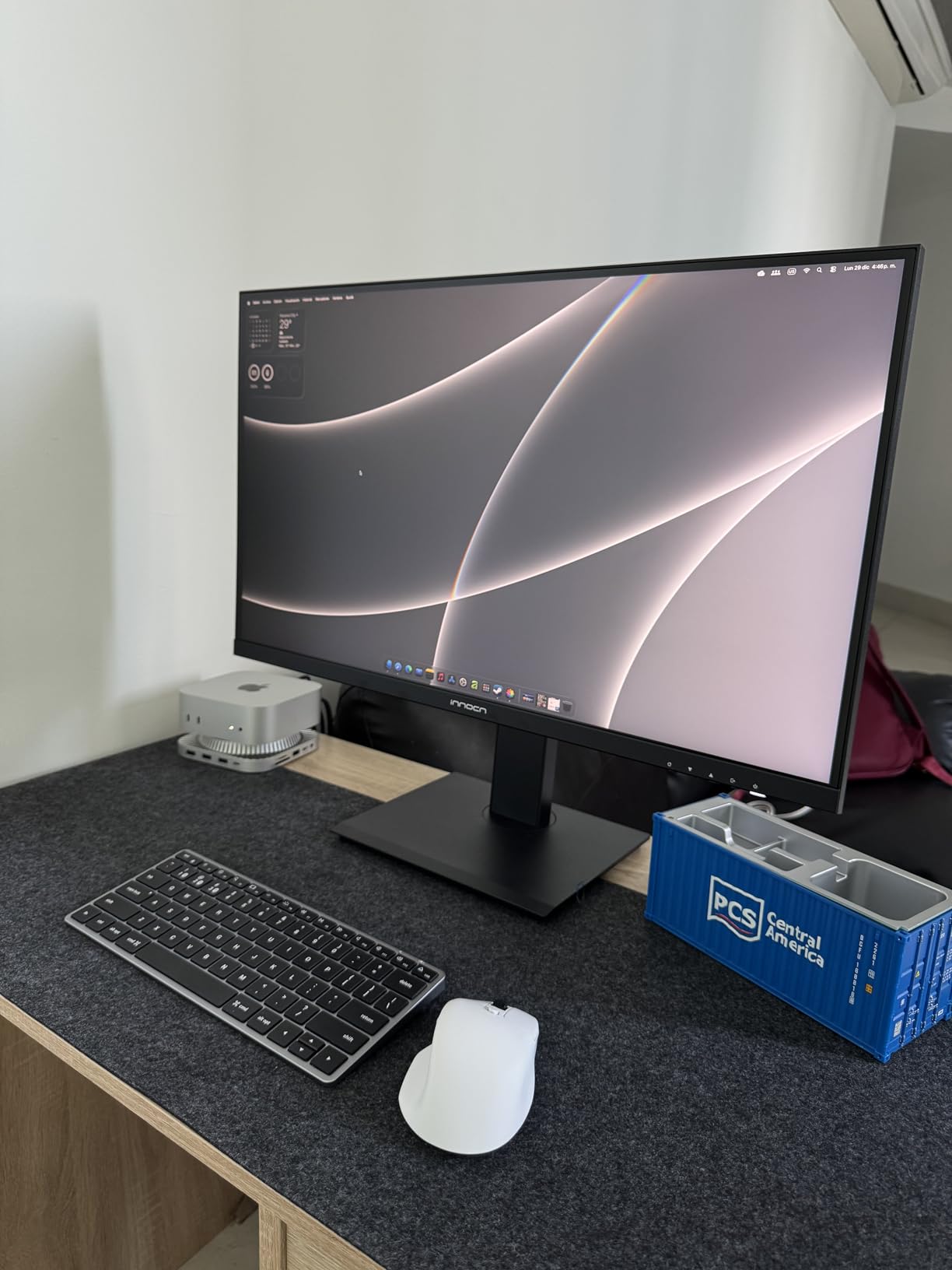
The INNOCN sits at the accessible end of this list and, unusually, it does not cut the two corners that matter most. It is a true 3840 x 2160 IPS panel with a documented Delta E under 2 factory accuracy figure, and that puts it alongside professional monitors on paper.
What you give up is the software layer and the support. There is no hub behind the USB-C port, so peripherals still need somewhere to plug in, and brand support is less consistent than the large manufacturers.
Documented Colour Accuracy on a Budget
The Delta E under 2 claim is backed in the listing alongside 1.07B colours via 8-bit plus FRC. That is the same accuracy bracket as the ProArt and the ColorPro, which makes this the value route into colour-critical work if you do not need a warranty longer than a year.
With 400 nits and HDR400 support it also outshines many cheaper office 4K panels, though the 1000:1 contrast keeps dark scenes looking grey compared with the Dell above.
USB-C 65W and the Ports You Do Not Get
One USB-C port with 65W power delivery, one DisplayPort 1.4, one HDMI 2.1 and a 3.5mm audio out covers a laptop and a desktop comfortably. It is simply fewer inputs than the larger models here, which matters if you routinely swap between three sources.
The absence of a USB hub is the detail most likely to disappoint. The USB-C port carries data to the computer, but there are no downstream ports on the monitor to hang a keyboard and mouse off.
Ergonomics and Who Should Skip It
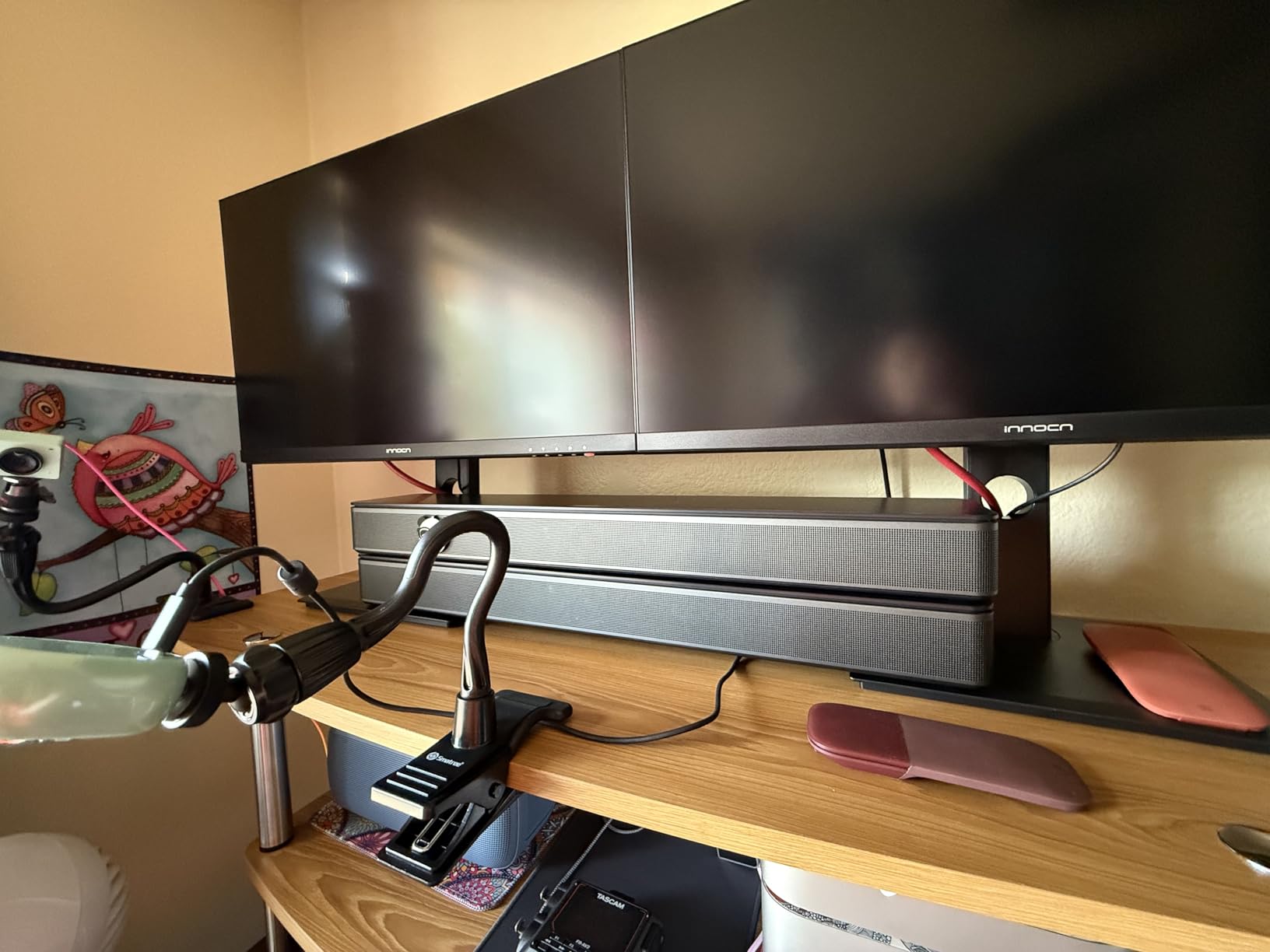
The stand handles 45-degree swivel, plus or minus 5 inches of height, 5 degrees forward, 20 degrees back and 90-degree pivot, with VESA 75×75 mounting. That is more adjustment than many screens in this bracket offer, including some with a larger brand name.
Skip it if you game competitively, since 60Hz rules it out, and consider a different model if you need a USB hub or a long warranty. For a student or a home office where documents matter more than frames per second, it is hard to argue with.
8. ASUS TUF VG27UQ1A 4K 160Hz – Built for the PS5 and a Second PC
ASUS TUF Gaming VG27UQ1A 27 Inch 4K 160Hz G-SYNC Gaming Monitor
3840x2160 Fast IPS
160Hz with 1ms response
ELMB Sync
HDR and 95% DCI-P3
Pros
- 4K 160Hz with 1ms response and ELMB Sync is high-end spec
- Two HDMI 2.1 inputs make console and PC switching effortless
- HDR with 95% DCI-P3 gives good colour for gaming and media
- Most buyers report no dead or stuck pixels out of the box
Cons
- Stand has no height adjustment
- only basic tilt
- Built-in speakers are very quiet
- Chassis is thicker and bulkier than slim professional 4K monitors
This is the pick for anyone who plugs a console into a PC monitor, and the reason is the two HDMI 2.1 inputs. The PS5 and Xbox both output 4K at 120Hz over HDMI 2.1 without chroma subsampling, so you get full 4K rather than a softened image.
ASUS ELMB Sync is the other headline. It combines extreme motion blur reduction with variable refresh, so you get motion clarity and tear-free frames at the same time, which is the combination most fast panels offer as a choice rather than together.
Console Gaming Is Where This Panel Earns Its Place
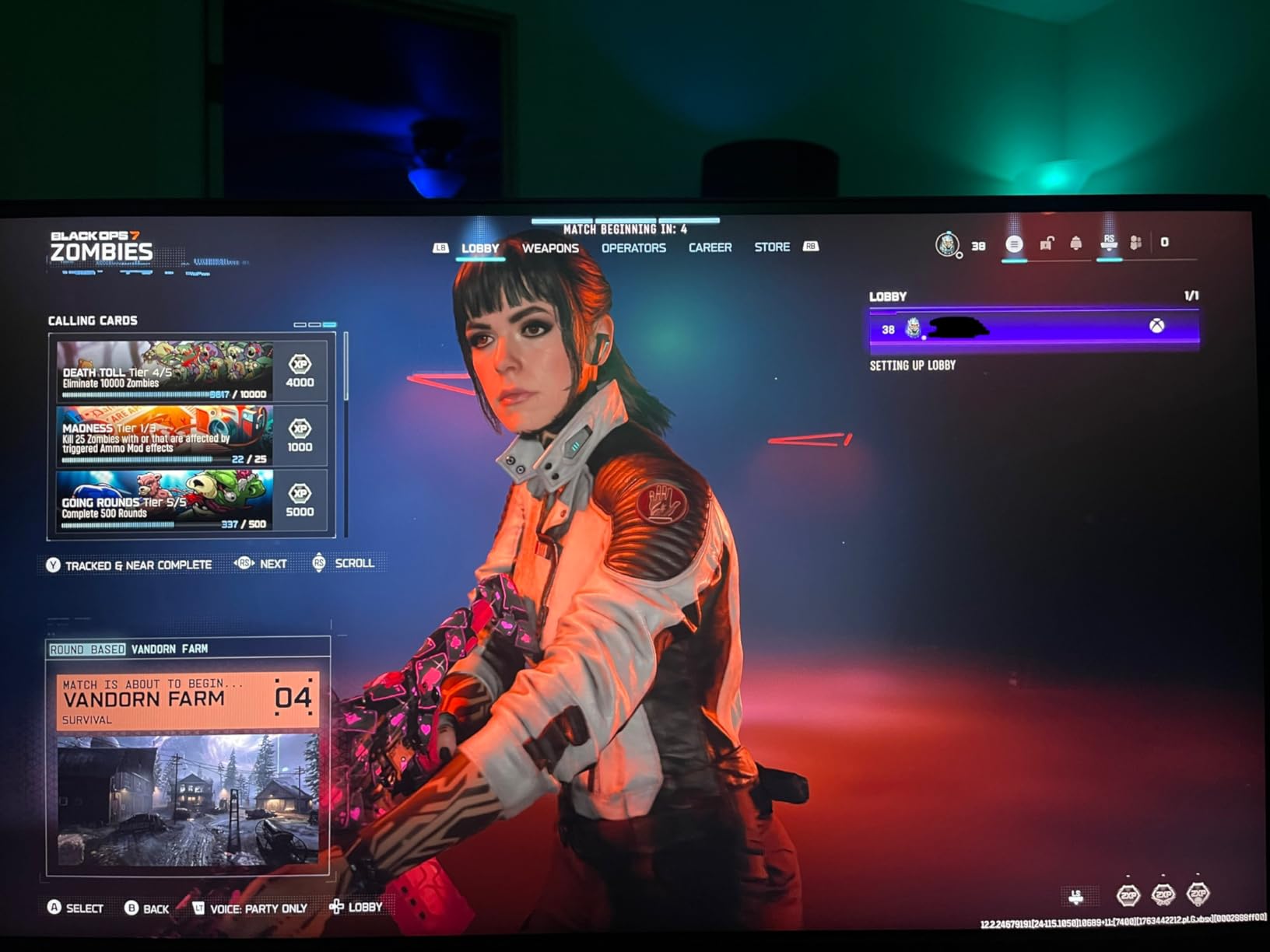
A console outputs 4K120 natively, so a 160Hz panel with 1ms response is not overspecification here, it is headroom. Set the console to 4K120 with variable refresh enabled and the result is smoother than any 60Hz 4K screen in this roundup can produce.
Keeping a console and a PC on at the same time is trivial with two HDMI 2.1 ports, and the DisplayPort 1.4 input handles the PC side, so there is no switch box in the chain.
ELMB Sync, G-Sync and Variable Overdrive
NVIDIA G-Sync compatibility, AMD FreeSync Premium and variable overdrive are all supported, which covers both major GPU brands. The 178-degree viewing angle and 95% DCI-P3 coverage mean movies and photos look respectable on the same screen that handles the shooters.
At roughly 400 nits with HDR support, brightness is adequate for a shaded desk. In a bright room with the curtains open, HDR will not deliver the impact the label implies.
The Fixed Stand Is the Real Weakness
This is the one compromise to weigh: the stand offers basic tilt only, with no height adjustment, swivel or pivot. If you sit at an unusual desk height, budget for a monitor arm, and note that VESA 100×100 mounting is supported.
Owners also report very quiet built-in speakers and a bulkier chassis than slim professional 4K panels, plus a handful of early panel failure reports shortly after the return window. The three-year warranty with advanced replacement is the safeguard to lean on there.
What Actually Decides a 4K Monitor Purchase in 2026
Specifications pages bury the decisions that matter. Here are the ones that changed which screen ended up on my desk, in the order I would think about them.
27 Inch or 32 Inch, and Is 4K Overkill at 27
A 27-inch 4K panel is about 163 pixels per inch, which is close to the density of a 27-inch 5K at twice the pixel count. That density is what makes text crisp and lets you fit three windows side by side without feeling cramped, so 4K at 27 inches is not overkill for work.
At 32 inches the same resolution drops to roughly 140 pixels per inch, which still reads as sharp at normal desk distance but means more physical screen for the same content. Choose 32 inches if you want a bigger canvas for timelines, spreadsheets or a secondary display; choose 27 if desk depth is limited.
A 32-inch 4K also makes more sense as a second screen beside a fast gaming monitor, a use case forum readers describe as a legitimate purchase rather than a compromise. See our related budget display guide for how these panels compare outside the desktop.
Windows Scaling and macOS Retina: the Setting Most Buyers Skip
This is the most repeated complaint in monitor forums and the least covered by buying guides. A 27-inch 4K screen at 100% Windows scaling makes text far too small, and at 200% you get 1920 x 1080 of usable desktop, which is exactly the 4K advantage you paid for.
The fix is to set scaling to 150% on Windows, or 200% if you need very large text. On macOS, plug in the display and choose the full 3840 x 2160 option labelled Looks like 2560 x 1440 or similar, which is the setting Mac owners mean when they say Retina scaling works properly.
If text sharpness after scaling looks soft to you, check that the display is running at native 3840 x 2160 in the system settings. A monitor left at a lower resolution and upscaled will look worse than any 1440p panel.
Refresh Rate Tiers: 60Hz, 120Hz and 160Hz
60Hz is fine for office work, editing and reading, and you should not feel you are missing much if that is all you do. It becomes obvious within a day if you also game or scroll a lot.
120Hz is the value sweet spot in this category, and the reason the Dell sits where it does in this list. 144Hz and above starts to matter for competitive shooters, where response time matters more than resolution. Note that most 4K panels in this bracket, including both calibrated models, run at 60Hz by design.
Will Your PC Actually Drive 4K at 160Hz?
Few buyers check this before buying, and it is the most common reason a fast monitor disappoints. Reaching 4K at 60Hz needs DisplayPort 1.2 or HDMI 2.0, while 4K at 120Hz and above needs DisplayPort 1.4 or HDMI 2.1, and every fast panel in this roundup has the latter.
The second half is your graphics card. A mid-range card will drive 4K at 60Hz in most games, 4K at 120Hz in competitive titles and esports settings, but demanding games at 4K will drop below the panel refresh rate, which is where variable refresh earns its keep.
USB-C Power Delivery Wattage Matched to Your Laptop
Wattage determines whether a single-cable setup actually charges. Roughly 45W to 65W covers ultraportables and thin laptops, 65W to 90W covers most mid-range machines at full speed, and anything heavier, including many gaming laptops, needs the charger or a dock.
In this roundup the LG leads at 90W, the ASUS ProArt and INNOCN sit at 65W and the ViewSonic at 60W. The Dell has no USB-C input at all, which is the detail that catches people out most often.
Colour Accuracy Numbers: Delta E, sRGB and DCI-P3
Delta E under 1 is effectively perfect, under 2 is what you want for photo and video work, and above 3 is visible when compared side by side. Only three of the eight panels here publish a factory calibration figure.
sRGB is the everyday standard and covers most web and office content. DCI-P3 is the wider video and cinema space, and the panels reaching 93% or higher give you noticeably better colour for media and light photo correction.
Contrast, Brightness and What HDR400 Really Buys
Most IPS panels here sit at 1000:1 contrast, which is the reason blacks look grey in a dark room. The Dell at 1500:1 is measurably better, and that is the number to look at first when text-heavy work is the priority.
HDR400 certification means a 400-nit peak and no local dimming, so it improves a little on standard content and does very little in a bright room. Treat it as a checkbox rather than a feature. For a genuine contrast upgrade you are looking at OLED, which sits above this budget.
Warranty, Ergonomics and What to Skip in This Tier
Stand adjustment matters more than most spec sheets admit. Height, swivel, tilt and pivot are all present on the Dell, the KTC, the SANSUI, the ProArt, the ViewSonic and the INNOCN, while the ASUS TUF offers tilt only. A VESA mount lets you solve that later with an arm, and all of these support one.
Warranty length is a real differentiator here. The ProArt carries five years including registration, the ViewSonic and ASUS TUF carry three, and several cheaper models carry one, so if you run a display continuously the term is worth comparing.
Finally, set expectations about what this tier does not include. OLED contrast, 5K detail, 144Hz-plus 4K from an OLED panel and 140W laptop charging all sit above 500. What you are buying here is density, and increasingly speed, which is a good deal for the money.
Frequently Asked Questions
What is the best budget 4K monitor?
The SANSUI 27 inch 4K 160Hz is the best budget 4K monitor, pairing a 3840 x 2160 Fast IPS panel with 160Hz refresh, a 320Hz FHD mode, 1ms MPRT response and FreeSync Premium. For pure productivity, the Dell S2725QS offers 4K at 120Hz with a 1500:1 contrast ratio, and for colour work the ASUS ProArt PA279CV ships with factory calibration at Delta E under 2.
Is 4K overkill for a 27 inch monitor?
No. A 27-inch 4K panel delivers roughly 163 pixels per inch, which is sharp enough that text looks crisp and three windows fit side by side without cramping. The catch is display scaling: at 100% on Windows, text is very small, so set scaling to 150% and you get a 2560 x 1440 working area that still looks better than a native 1440p panel.
Is 1440p a better resolution than 4K for a 27-inch monitor?
For competitive gaming, yes: a 1440p panel at 144Hz or higher will feel faster than a slow 4K panel, because response time matters more than pixel count when frames per second drop. For productivity, coding and photo editing, 4K wins clearly, since the higher density makes text sharper and gives you more usable desktop space for the same physical screen.
Is a 4K monitor actually worth it?
Yes, if you spend your day reading text, coding or editing images, because the jump from 1080p to 4K is the single largest quality-of-life change most buyers report. It is less worth it if you only game and your card cannot push 4K at the panel refresh rate. Under 500 you are buying pixel density rather than premium panel technology, so OLED contrast and 5K detail remain out of reach.
What graphics card do I need for a 4K monitor?
DisplayPort 1.2 or HDMI 2.0 is enough for 4K at 60Hz, while 4K at 120Hz and above needs DisplayPort 1.4 or HDMI 2.1. Your graphics card matters as much as the cable: a mid-range card will hold 4K120 in esports titles but drop below that refresh rate in demanding games, which is where adaptive sync keeps motion smooth.
Which 4K Monitor Should You Buy in 2026?
If you want one screen and you play games, buy the SANSUI 27 inch 4K 160Hz. Four K at 160Hz with a 320Hz FHD fallback and four video inputs is the most flexible spec sheet here, and it doubles as a sharp productivity display. If you would rather have validated G-Sync and faster 1ms GTG response in a single mode, the KTC 27 inch 4K 160Hz is the alternative worth cross-shopping.
If games are occasional and your day is documents, code and spreadsheets, the Dell S2725QS wins on its 1500:1 contrast and 120Hz smoothness. Do check the model suffix before ordering, since the USB-C version shares almost the same name.
If your work is colour-critical, pick the ASUS ProArt PA279CV for its Calman Verified calibration and 65W USB-C, or the ViewSonic VP2756-4K if daisy chaining matters more to your desk. MacBook owners who want one cable and the most charging headroom should take the LG 27UP850K-W at 90W.
Console players get the ASUS TUF VG27UQ1A for dual HDMI 2.1 and 4K120, and anyone building a second display on a tight budget gets the INNOCN 27 inch without giving up a true 4K panel.
Whichever you choose, set the resolution to native 3840 x 2160 and the scaling to 150% before you judge it. That single step is the difference between a monitor that feels disappointing and one that feels like a genuine upgrade.