
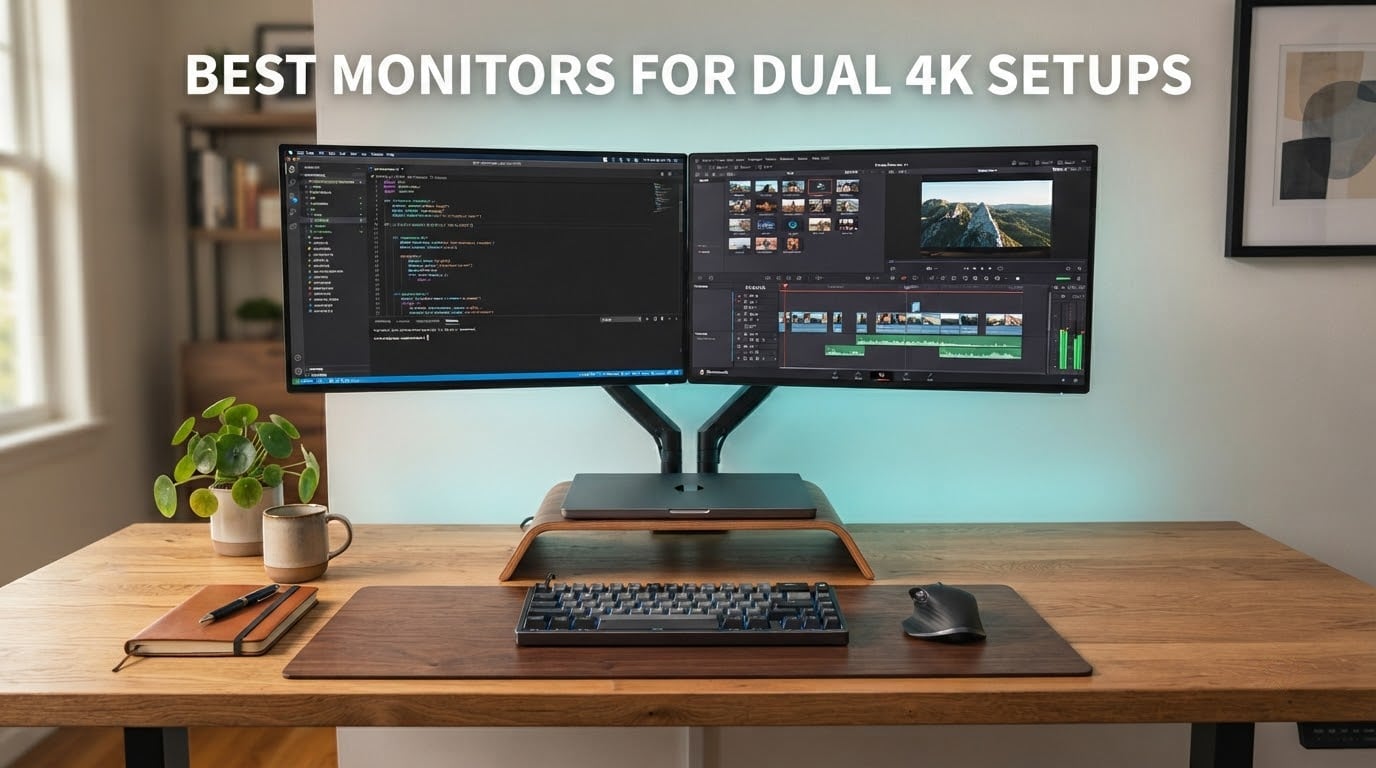
Two 4K panels side by side give you roughly double the desktop of one 4K screen at identical pixel density, and that is the closest rectangular workspace you can build without curving a single ultrawide around your face. But the best monitors for dual 4k setups are not simply the two best 4K monitors on the market. They are two panels that share the same diagonal, the same panel technology, the same scaling behaviour and a stand you can actually align. I went through eight current 27-inch and 31.5-inch 4K options, read the owner reviews closely and worked through the four things that decide whether a dual 4K desk works: matching, scaling, GPU bandwidth and desk width. If you want the shorter version, our guide to monitors for dual setups covers the general case, and this one stays locked to 4K.
Our best overall pair is the Dell 27 Plus S2725QS, because it is the only panel here that combines 163 pixels per inch, a 120Hz refresh rate, a 1500:1 contrast ratio and a fully adjustable stand at a price that makes buying two of them a realistic decision rather than a luxury one.
Our Top 3 Dual 4K Picks Tested for Text, Speed and Desk Fit in 2026

Dell 27 Plus S2725QS
- 3840x2160 IPS at 120Hz
- 1500:1 contrast
- 99% sRGB
- Fully adjustable stand

Dell UltraSharp U2725QE
- IPS Black at 120Hz
- Thunderbolt 4 with 140W
- Factory calibrated to Delta E under 1.5
A note on what the ratings below mean. Every score in this roundup is the current owner rating for that specific model, copied exactly as published, alongside the number of owners who left it. A 4.4 across more than a thousand reviews tells you something different from a 4.4 across a couple of hundred, which is why the top three slots here are not simply the three highest numbers on the page.
Comparing All 8 Monitors for Dual 4K Setups in 2026
| Product | Specs | Action |
|---|---|---|
| Dell 27 Plus S2725QS |
|
Check Latest Price |
 LG 27US500-W LG 27US500-W |
|
Check Latest Price |
 LG 27UP850K-W LG 27UP850K-W |
|
Check Latest Price |
| Dell UltraSharp U2725QE |
|
Check Latest Price |
 ASUS TUF VG27UQ1A ASUS TUF VG27UQ1A |
|
Check Latest Price |
 ASUS VP327Q 32 inch ASUS VP327Q 32 inch |
|
Check Latest Price |
 LG 32UP83AK-W LG 32UP83AK-W |
|
Check Latest Price |
 MSI PRO MP273U MSI PRO MP273U |
|
Check Latest Price |
Is 4K Overkill for a 27-Inch Monitor?
No. A 27-inch 4K panel gives roughly 163 pixels per inch, so at 150% scaling text renders crisply and windows stay compact. A 32-inch 4K panel lands nearer 138 pixels per inch, which sits comfortably at 125% or even 100%. Both sizes benefit from 4K; 27-inch simply wants more scaling help than 32-inch does.
That is the entire argument for 4K at these sizes, and it is why nearly every panel in this roundup makes sense as a pair. A 27-inch 4K screen at 100% scaling produces interface elements roughly half the physical size of the same panel on a 1080p monitor, and most people find that unusable within a day. Turn scaling to 150% and the pixel density does its job, giving you text that is smaller than on a 1080p screen but far sharper than on a 1440p one.
The 32-inch case is different in a useful way. Because a 32-inch 4K panel is only around 138 pixels per inch, you can run it at 125% and still get more usable desktop than a 27-inch 4K at 150%, which is the configuration we prefer for split-screen work. A matched pair of 27-inch panels is the more comfortable choice on a normal desk, and a matched pair of 31.5-inch panels needs a desk considerably wider than most people have.
8 Monitors Reviewed for Dual 4K Setups
1. Dell 27 Plus S2725QS – The Best 4K Panel to Buy Twice
Dell 27 Monitor S2725QS, 4K UHD IPS, 120Hz, 5ms, FreeSync Premium
3840x2160 IPS
120Hz
1500:1 contrast
99% sRGB
163 PPI
Height tilt swivel pivot
Pros
- 163 PPI at 27 inches makes text crisp at 150 percent scaling
- 120Hz refresh is a real upgrade over 60Hz in daily work
- 1500:1 contrast beats the 1000:1 typical of IPS
- Full height tilt swivel and pivot adjustment for pairing two panels
- Two HDMI and DisplayPort so each screen takes its own cable
Cons
- No USB-C and no built-in USB hub
- No 3.5mm audio out jack for external headphones or speakers
- Slow pixel response causes visible ghosting in competitive shooters
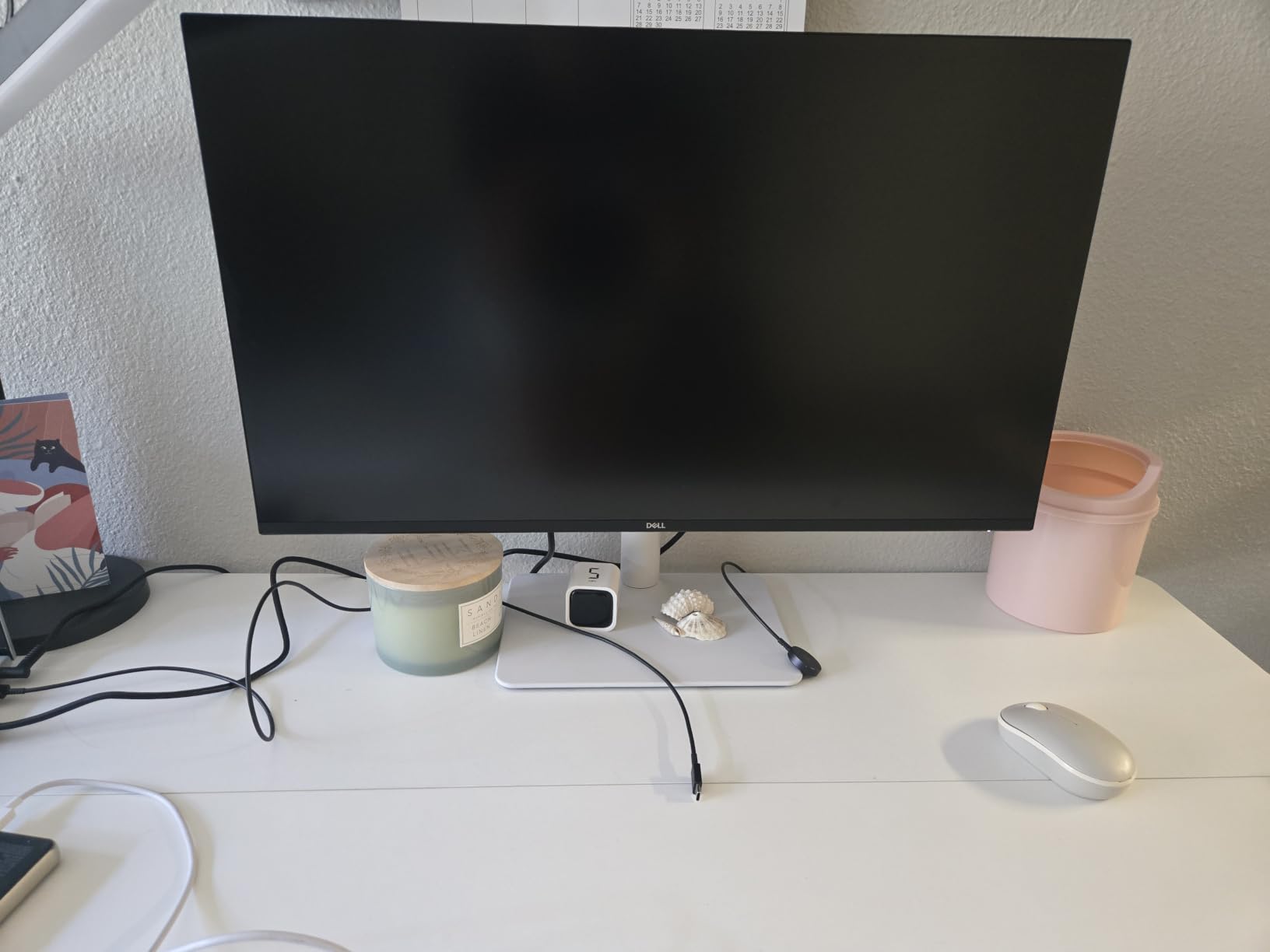
Buy two of these and you have covered the majority of what a dual 4K desk is actually for. At 27 inches with 163 pixels per inch, the S2725QS is dense enough that text stays sharp at 150% scaling, and owners consistently describe the jump from a 1080p or 1440p screen as immediately obvious. The 120Hz refresh rate is the quiet advantage here: it is not a gaming feature, it is a general responsiveness feature that makes dragging windows and scrolling documentation feel smoother on both screens.
The stand is the detail that gets overlooked in single-monitor reviews and dominates them in a pair. This one adjusts for height, tilt, swivel and pivot, and the listed panel width of about 24 inches means two of them plus a small bezel gap need close to 50 inches of desk. Owners who set these up side by side report that the extra contrast over a typical 1000:1 IPS panel is visible in dark interfaces, which matters if you spend the day in a code editor or a terminal.
Text Clarity and the 150% Scaling Sweet Spot
This is the panel to buy if your day is text. At 163 pixels per inch, 150% scaling produces roughly 1.4 physical pixels per rendered pixel, which avoids the fractional-scaling blur that shows up on lower-density 4K panels. The ComfortView Plus filter reduces blue light output to 35% or below without a visible colour shift, which matters when two identical panels sit side by side and any tint difference between them reads as a fault.
Reviewers flag the matte finish as showing a faint grain on full-white screens in a dark room. If you work in a dim studio and stare at white documents, that is worth knowing before you commit.
Refresh Rate, Ghosting and Where It Falls Short
The 0.03ms figure in the specifications is a marketing number, and the owner reviews are more useful: they describe noticeable ghosting on fast motion, which is why this is a work monitor rather than a competitive gaming one. Adaptive sync is FreeSync Premium, so variable refresh works on supported GPUs.
The two real compromises are physical. There is no USB-C input and no USB hub, so a MacBook user needs a dongle, and there is no 3.5mm audio out, so adding external speakers means reaching behind the monitor. A small number of owners report early hardware failures and difficulty getting warranty service resolved.
Pairing It With a Second Identical Panel
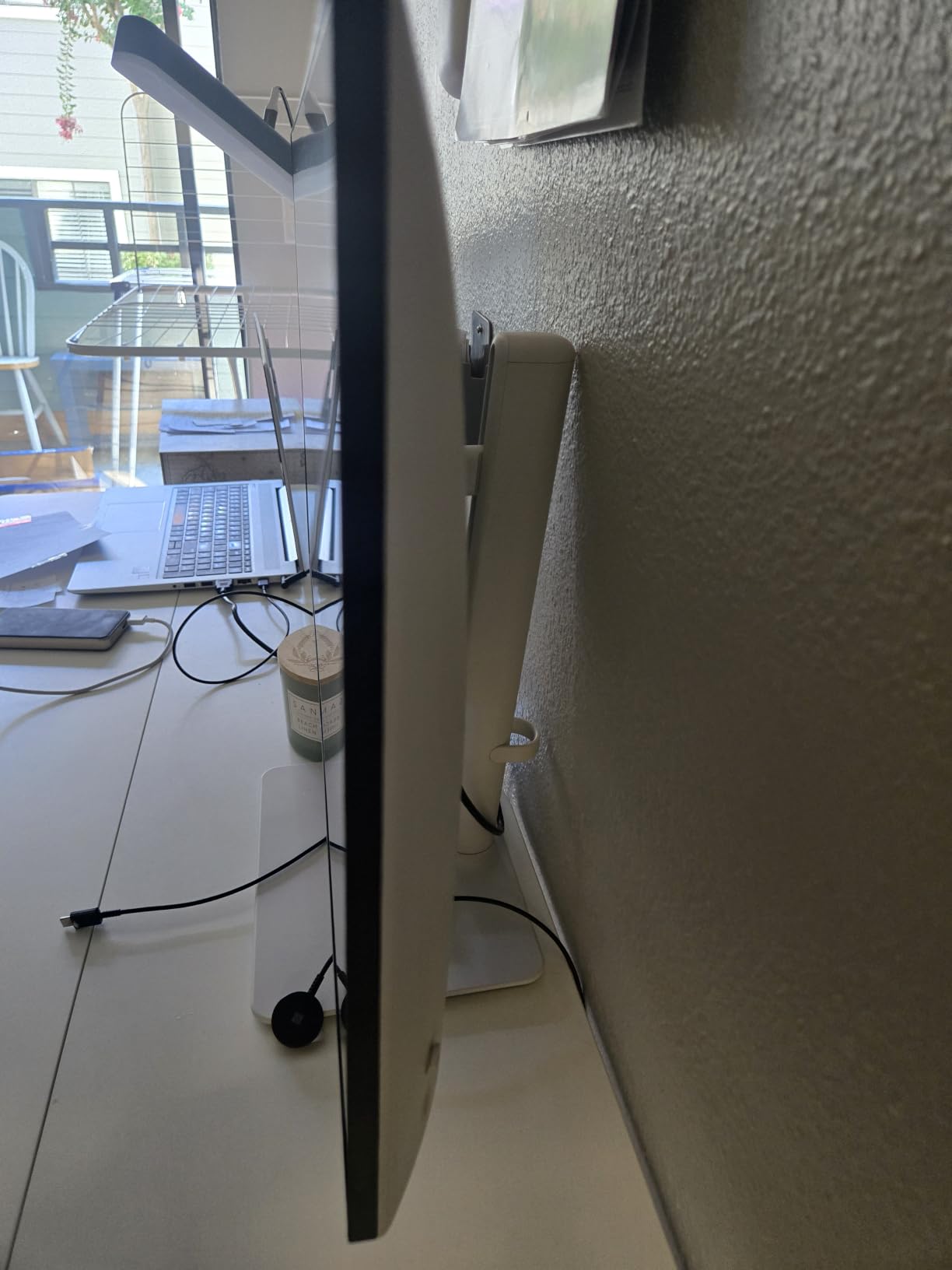
Two S2725QS panels sharing a model number is the easiest matched pair in this roundup. Identical firmware, identical panel batch behaviour and a stand that can be set to matching height removes the three mismatch sources that forum users complain about most: apparent text size, white-point difference and physical alignment.
If your GPU only has room for two cables, run one DisplayPort and one HDMI per panel. The two HDMI ports and the DisplayPort 1.4 input on each monitor mean you never have to daisy chain to get both screens at full refresh.
2. LG 27US500-W – A Clean 4K Workhorse at the Bottom of the Range
LG 27US500-W Ultrafine Monitor 27-Inch 4K UHD (3840×2160) HDR10 IPS Borderless Design Reader Mode Flicker Safe Switch App HDMI DisplayPort – White
3840x2160 IPS
60Hz
300 cd per m2
Up to 90% DCI-P3
Tilt-only stand
12.1 lb
Pros
- Sharp 4K text at a mid-range price point
- Up to 90% DCI-P3 coverage with HDR10
- Three-sided borderless design in white
- Onscreen Control offers display split in a few clicks
- Flicker Safe and Reader Mode for long sessions
Cons
- 60Hz feels sluggish next to 120Hz 4K panels
- Stand offers tilt only with no height or pivot range
- 170 degree viewing angle is narrower than 178 degree panels
- No USB-C and no integrated USB hub
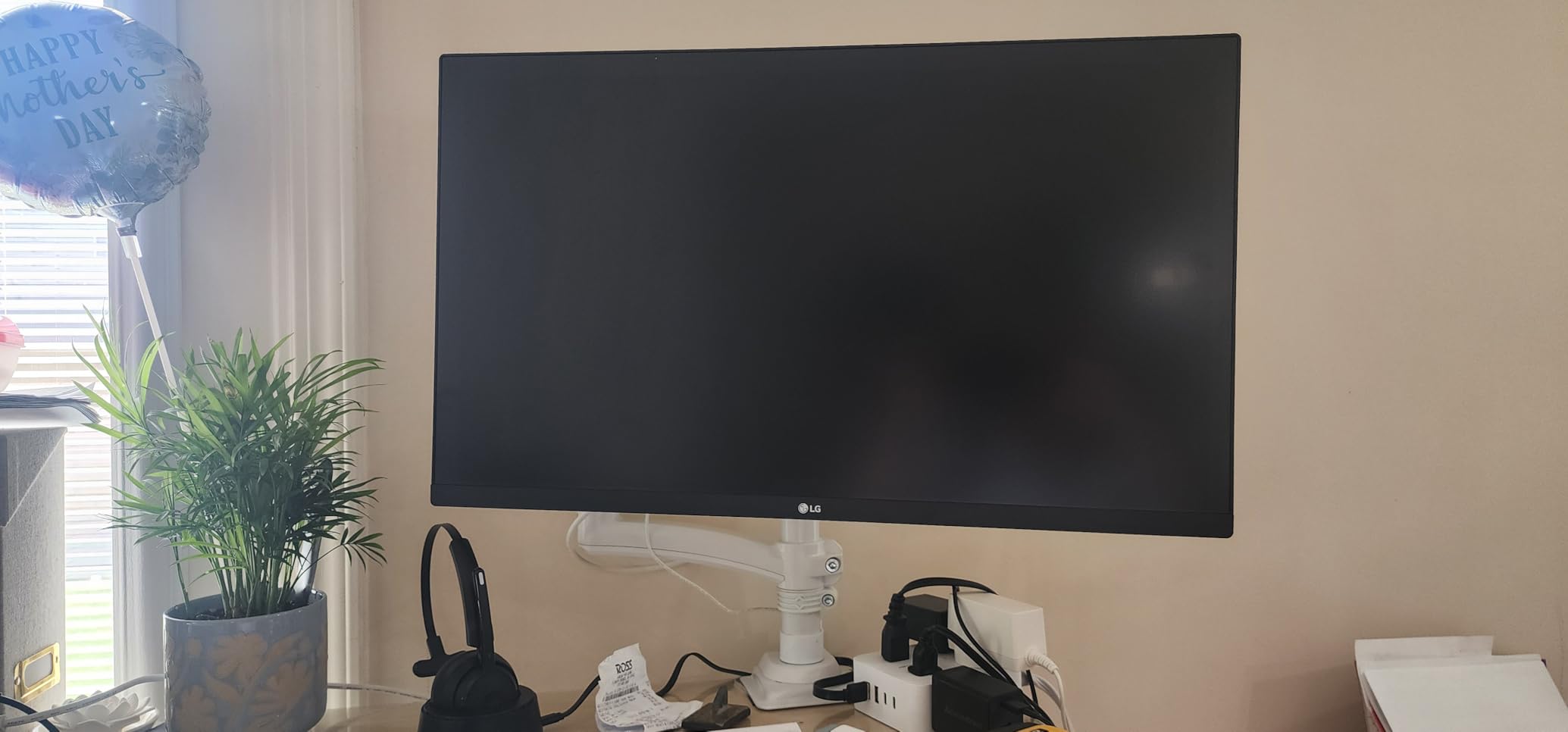
This is the panel to buy when the goal is two sharp 4K screens on a desk that cannot grow any wider, and when motion smoothness is not part of the brief. Owners treat it as a dependable budget 4K IPS workhorse: clean text, accurate colour for general multimedia work and setup that takes minutes rather than an afternoon of OSD menus.
At 27 inches it shares the same 163 pixels per inch density as the Dell above, so 150% scaling behaves identically on both. The white three-sided borderless design also reads well in a pair, because the frame disappears from view more than most 27-inch monitors in this price bracket.
Where the 60Hz Cap Bites in a Pair
Two 60Hz screens side by side feel slower than one 60Hz screen, because your eye adapts to the pair as a single surface and any lag on either panel registers across the whole. If you spend most of the day reading, writing and editing documents, that difference matters much less. If you move windows constantly, it shows.
The 300 cd per m2 brightness and up to 90% DCI-P3 coverage are more than most general work needs and are fine for light photo review. They are not enough for HDR grading, and the panel makes no HDR400 claim.
Stand Adjustment Is the Real Weakness in a Dual Desk
Tilt-only is the one specification that should decide this for you. Matching two tilt-only stands means matching two heights by eye, and any half-centimetre difference puts your head at a slight angle between screens. Because this panel weighs 12.1 pounds, a pair also benefits from arms, and the lack of a hub means cables run separately to each machine.
Owners also note that the 170 degree viewing angle is slightly narrower than the 178 degree panels in this roundup, which is visible if your second screen sits well off to the side rather than square to your chair.
Who This Pair Suits
A writer, a student or an office user building a first dual 4K desk will get the most from this. Text is the priority, the price is the lowest of any 27-inch 4K pair here, and the borderless design keeps the pair looking tidy even on a smaller desk.
Skip it if you want to dock a laptop with one cable, or if your workflow involves dragging windows all day and you have spent time on a 120Hz screen before. The lack of a hub is the practical blocker for MacBook users, which is why the LG below wins that group.
3. LG 27UP850K-W – Best Value Pick for MacBook and Laptop Docks
LG 27UP850K-W 27-inch Ultrafine 4K UHD IPS Monitor, White
3840x2160 IPS
60Hz
95% DCI-P3
DisplayHDR 400
USB-C 90W
Height tilt pivot
Pros
- USB Type-C delivers video data and up to 90W of charging on one cable
- 95% DCI-P3 gamut with DisplayHDR 400
- Two HDMI plus DisplayPort two USB 3.0 ports and a headphone jack
- Switch app splits the screen into up to six sections with one hotkey
- Height tilt and pivot adjustment
- No image persistence reported unlike several cheaper 4K IPS panels
Cons
- 60Hz panel limits appeal for gamers
- Built-in speakers are thin and tinny
- Under-screen joystick OSD is unintuitive
- White plastic backing feels less sturdy
The strongest owner rating in this roundup belongs to a monitor that is not the fastest or the most colour-accurate, which tells you something useful about what this audience values. The USB Type-C port carries video, data and up to 90W of charging in one cable, and that single fact turns two of these panels into a complete laptop workstation with no dock in the middle.
Owners also report no image persistence, which several cheaper 4K IPS panels in the same bracket struggle with. The Switch app splits the screen into as many as six sections from one hotkey, and the ergonomic stand adjusts in height, tilt and pivot, so two panels can be aligned precisely without arms.
USB-C at 90W and What It Replaces on a Dual Desk
On a dual 4K desk the usual mess is a dock, a power brick and a video cable per screen. This panel collapses all of that into one USB-C run per monitor, which is why it is the pick for anyone driving two external displays from a MacBook or a thin Windows laptop. Two cables in, two powered displays out, and the laptop charged on both.
The port selection is the best in this roundup for the money: two HDMI, DisplayPort, two USB 3.0 ports and a headphone jack. Brightness of 400 cd with DisplayHDR 400 and 95% DCI-P3 coverage is a step up from the LG above it in this list, and owners note the absence of the smearing some budget IPS panels show.
The 60Hz Ceiling and the Speakers
Sixty hertz is the compromise, and it is the one buyers mention first. There is no way to raise it, and no dual-mode trick that changes it, so if you want 4K at a refresh rate above 60 the ASUS gaming panel further down is the only choice in this group.
Built-in speakers are thin, and the on-screen menu is reached only through the under-screen control button with volume buried inside it. Out-of-box colour leans slightly warm, so for colour-critical work expect to spend a few minutes in the OSD before the two panels match.
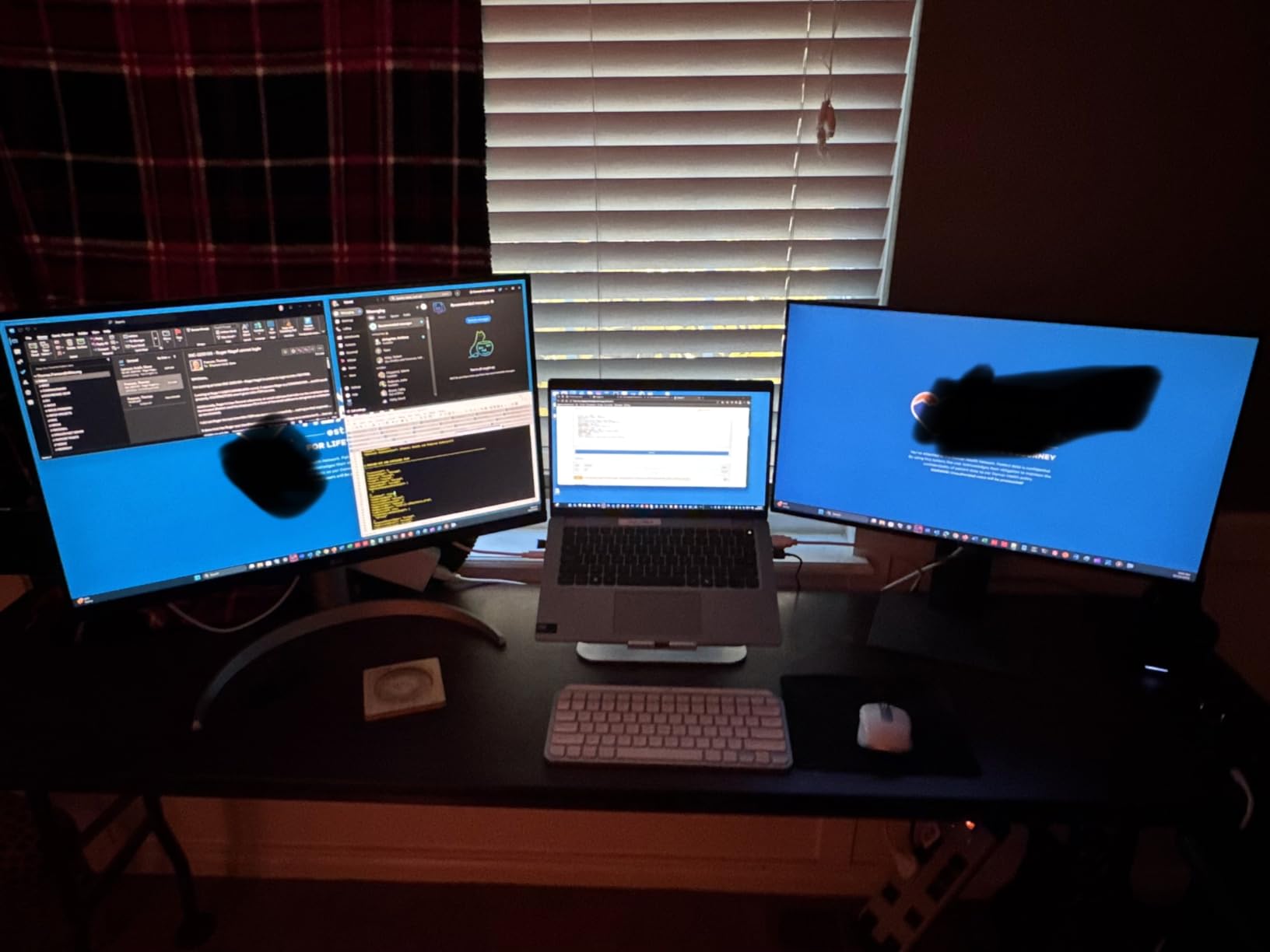
Two of These on a MacBook Desk
This is the pairing I would build for a MacBook user, and the answer to the docking question that dominates dual-monitor support threads. Per-display HiDPI scaling on macOS gives you a proper looks-like resolution, and the USB-C feed means the machine is charging while both panels run at native 3840 by 2160.
The two drawbacks are honest ones. At 60Hz, cursor motion is not what you get on a 120Hz panel, and the white plastic backing feels less solid than the metal-feeling alternatives. Neither affects daily office work.
4. Dell UltraSharp U2725QE – The Premium Pick for Laptop-Driven Desks
Dell UltraSharp U2725QE 27-Inch 4K UHD IPS Black Monitor
3840x2160 IPS Black
120Hz
Thunderbolt 4 with 140W
Daisy chain to two extra 4K
15 height positions
Pros
- Thunderbolt 4 carries video data and up to 140W of power on one cable
- Daisy chain support for up to two additional 4K monitors
- IPS Black panel factory calibrated to Delta E under 1.5 with 99% DCI-P3120Hz refresh with 5ms response and G-Sync adaptive sync
- Ambient light sensor for automatic brightness matching
- Ethernet alongside HDMI 2.1 USB-C and USB-A
Cons
- Most expensive panel in this roundup
- Daisy chain needs a Thunderbolt 4 host and cable
- 5ms response is modest for competitive gaming despite 120Hz
This is the panel to buy when the two 4K screens are fed by a laptop rather than a desktop tower, because it is the only one here that solves the cable problem properly. Thunderbolt 4 carries video, data and up to 140W of charging over a single cable, and the monitor will daisy chain to as many as two additional 4K displays from that one feed.
For colour work it ships with a factory calibration report and a Delta E under 1.5 on an IPS Black panel covering 99% of DCI-P3, which is the strongest accuracy claim in this roundup. The ambient light sensor adjusts brightness automatically, and with two of these side by side that feature helps them track the same room lighting without manual OSD matching.
Daisy Chaining Two U2725QE Panels From One Port
Two of these on a Thunderbolt 4 laptop need exactly one port to run both screens plus charging, which is the cleanest dual 4K wiring in this group. Connect the laptop to one panel over Thunderbolt 4, run DisplayPort out to the DisplayPort in on the second, and both run at full 4K.
That depends entirely on the host. Without Thunderbolt 4 on the laptop, the daisy chain is unavailable and you are back to one cable per panel plus a charging cable. The same is true on a desktop, where the extra hub is less useful because the tower already has ports.
Colour Accuracy, the Calibration Report and Pairing
The factory calibration report that ships in the box is what makes this a credible two-screen colour setup. Two panels from the same production batch, both factory calibrated, both with an ambient light sensor, is the closest you get to a matched pair without a professional calibrator. The IPS Black technology also gives darker blacks than the standard IPS panels elsewhere in this list.
Brightness of 450 and 120Hz make it a genuine all-rounder rather than an office panel, and 15 height positions make matching two stands easier than almost anything else at this size.

Where the Price and 5ms Response Bite
This is the most expensive panel in the roundup, and buying two is a serious outlay. The 5ms response time is fine for everything except competitive shooters, where the ASUS TUF below is a better tool even though it is less accurate in colour.
Owners also note the daisy chain is not a general-purpose feature. If your host is a desktop with two free DisplayPort 1.4 outputs, spend the money on a pair of cheaper 120Hz panels and put the difference toward a better arm.
5. ASUS TUF VG27UQ1A – The Best 4K Gaming Panel in the Pair
ASUS TUF Gaming VG27UQ1A 27 Inch 4K 160Hz G-SYNC Gaming Monitor
3840x2160 Fast IPS
160Hz
1ms GtG
95% DCI-P3
HDMI 2.1
VESA 100x100
Pros
- 160Hz refresh at native 4K with 1ms Fast IPS response
- ELMB Sync combines motion blur reduction with variable refresh
- G-Sync Compatible plus FreeSync Premium and variable overdrive
- HDMI 2.1 handles 4K 120Hz console play without chroma subsampling
- 95% DCI-P3 gamut with HDR support
- VESA 100x100 mount suits dual monitor arms
Cons
- Stand has no height adjustment and limited ergonomics
- Brightness is modest for HDR content
- Built-in speakers are very quiet and thin
- Bulkier design with bezels that are not as slim as rivals
Almost every dual 4K owner in the forums is running a productivity panel on both sides and a faster one on one side. This is the panel that fills the fast side. At 160Hz with a 1ms Fast IPS response and ELMB Sync, it is the only monitor in this roundup that plays 4K at a genuine high refresh rate, and it pairs cleanly with a slower 4K panel for the second screen.
The HDMI 2.1 port carries 4K at 120Hz from a console without chroma subsampling, and the monitor supports both G-Sync Compatible and FreeSync Premium with variable overdrive. Owners describe the 4K text in menus and in-game UI as crisp despite the speed, which is unusual for a high-refresh panel.
Running 4K Desktop and High-Refresh Play on the Same Panel
At 4K and 160Hz, this panel does the dual-mode job on its own. Keep it at native 3840 by 2160 for the desktop, then drop to 1080p for competitive titles, where the doubled effective refresh and the lower render load are what actually produce the frame rate gains players care about. This is the pattern forum users keep asking about, and a fast 4K panel answers it without a second monitor.
ELMB Sync is the feature that makes motion look controlled at those frame rates without the usual overdrive shimmer. The 95% DCI-P3 coverage and HDR support are enough for console and single-player work on the same screen.
Ergonomics Are the Weak Point in a Two-Monitor Desk
The stand has no height adjustment, and the listed body is bulkier with thicker bezels than the other 27-inch panels here. In a pair, matching two fixed-height stands by eye is harder, and the deeper bezel eats into the desk-width budget.
Mount these on a dual monitor arm. The VESA 100×100 pattern is standard, and the 10.6 pound weight is well within what a gas-spring arm handles. Brightness is modest for HDR content, the built-in speakers are very quiet, and a minority of owners report early panel failures and dead pixels.

Pairing It With a Second Panel
The deliberate mixed setup is the sensible one here: this panel on the side you play on, a slower 4K work panel on the other. The mismatch is fine as long as both are IPS, because the common complaint about mixed pairs is a visible difference in text size and white point, not a difference in panel family.
If you want two fast panels instead, the refresh rates match the ASUS VG327U-style 4K 160Hz models that share this panel’s approach, though they cost considerably more. Our gaming monitors for dual setups guide covers that tier in more depth.
6. ASUS VP327Q – The Widest Workspace Per Unit of Desk
ASUS VP327Q 32 Inch 4K UHD Computer Monitor, HDMI, DisplayPort, Speakers
3840x2160 on 31.5 inch
60Hz
3000:1 contrast
99% sRGB
Dual HDMI plus DisplayPort
6.9 kg
Pros
- 31.5-inch 4K panel at four times Full HD density
- 3000:1 contrast ratio is the highest in this roundup
- Dual HDMI plus DisplayPort connects a laptop PC and console at once
- ASUS Eye Care with TV-certified flicker-free and low blue light filters
- Built-in speakers and VESA mount compatibility
- Three year warranty with advanced replacement
Cons
- 60Hz with DisplayPort 1.2 and HDMI 2.0 interfaces
- Finicky firmware where a power-cycle can take the HDMI port offline
- Single on-off button used as a joystick for the OSD
- Some buyers report washed-out colour and darker edges on a VA panel
If your desk is wide and shallow, this is the efficient option. A 31.5-inch 4K panel at roughly 138 pixels per inch gives you noticeably more desktop than a 27-inch 4K at the same scaling percentage, and two of them create a workspace that behaves like a very wide single screen without the curve of an ultrawide.
Owners are enthusiastic about the pixel density and the 3000:1 contrast ratio, which is the highest listed figure among these eight panels. The dual HDMI plus DisplayPort arrangement also means a laptop, a desktop and a console can all be connected to a single panel without a switch.
Desk Width Is the Deciding Factor at 31.5 Inches
This is the panel where the desk arithmetic stops being negotiable. The listed width of 28.1 inches per panel means a pair needs close to 57 inches plus a gap before you account for any inward tilt. Most desks marketed as large sit at 60 inches, which leaves almost no margin.
Two 27-inch panels at about 24 inches each need close to 50 inches, which is why the 27-inch picks dominate this roundup. If you can mount these on arms and angle them in by ten degrees, the fit works. On a fixed stand with a straight desk edge, it does not.
Reliability Reports and the Panel Question
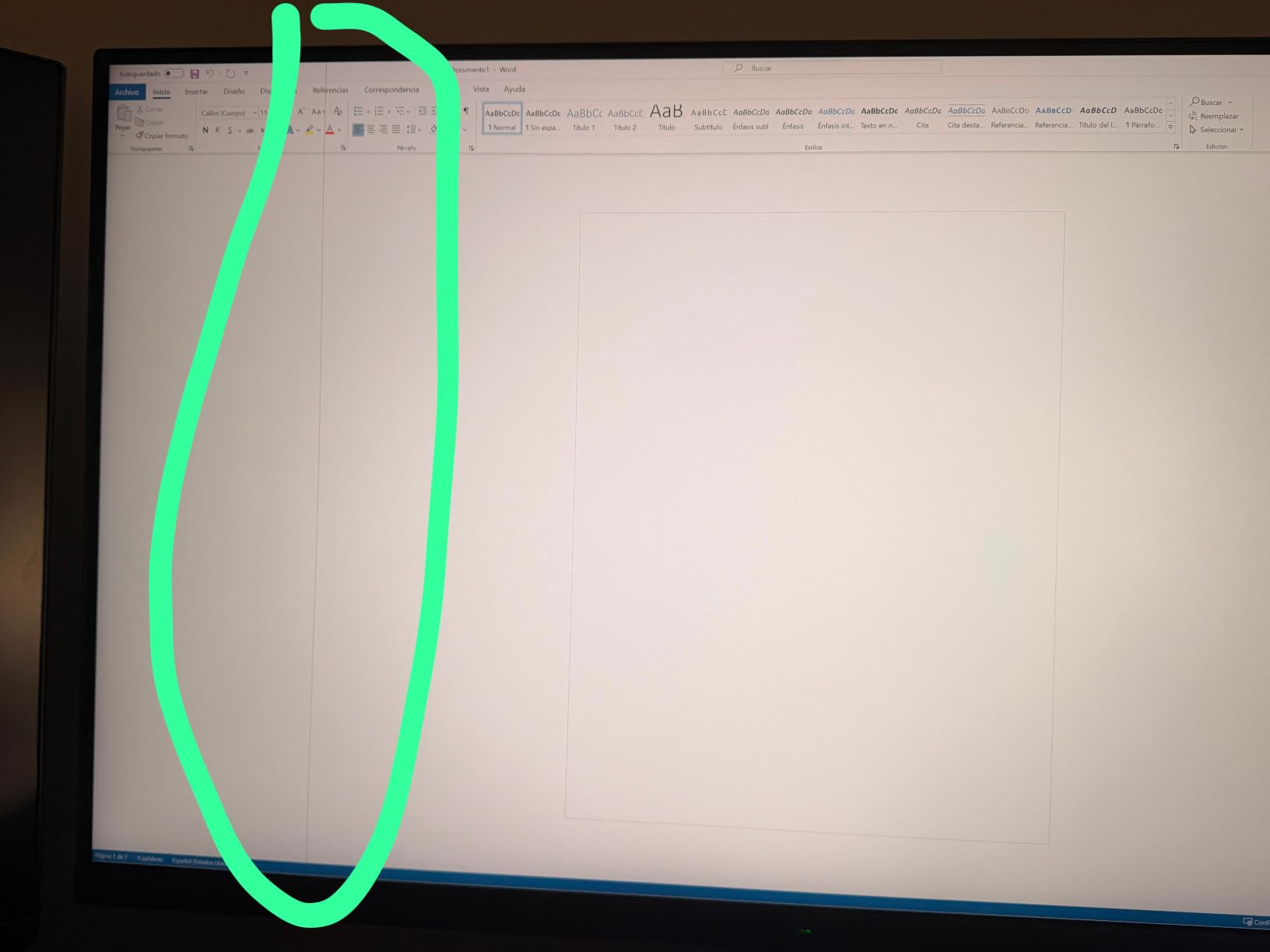
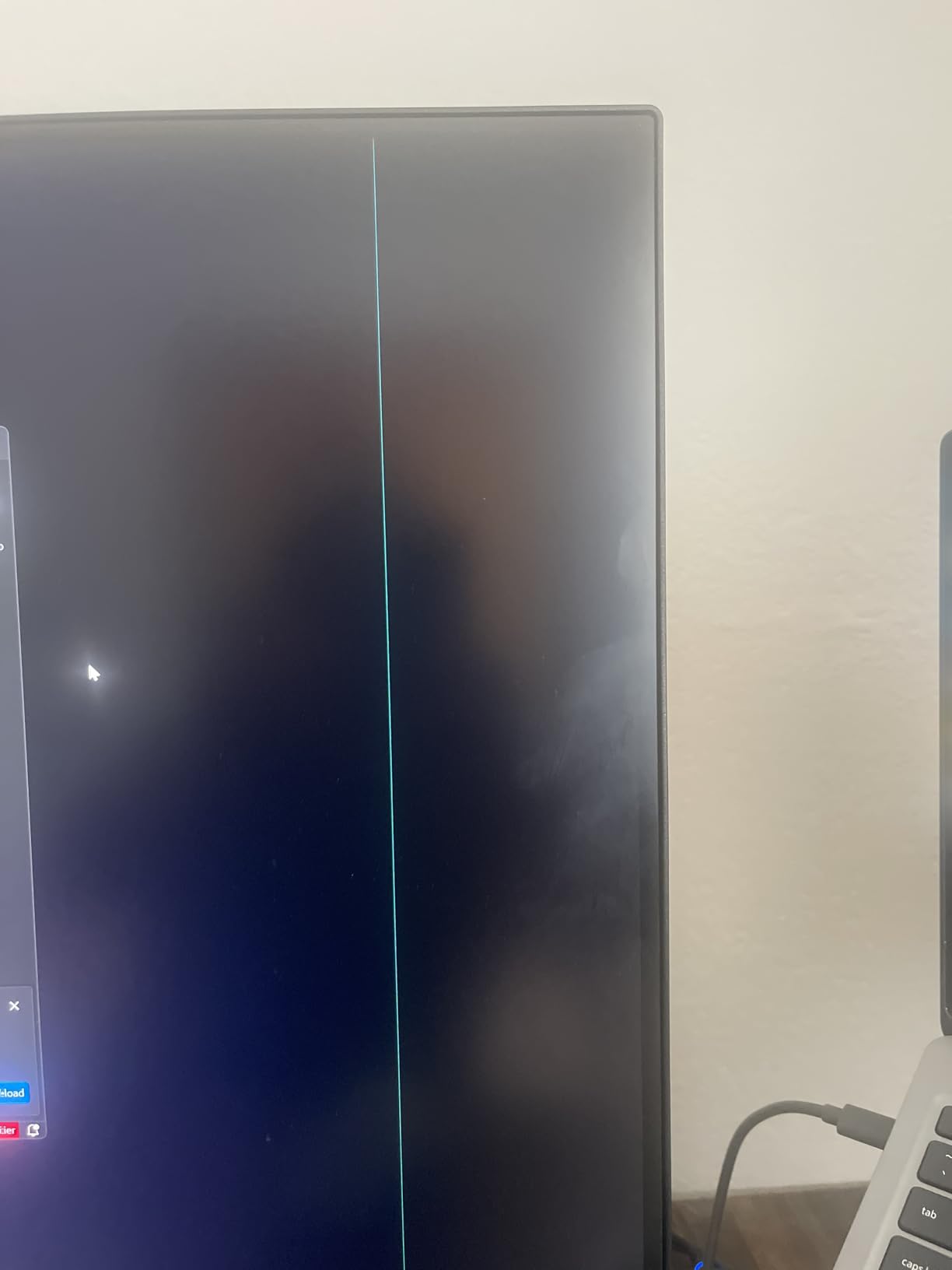
Be honest about the review profile here. The critical mass of owner reviews is about reliability: screens going black, power-cycling, dead pixel lines within weeks, and a VESA mount that some buyers say is not load-bearing. A minority also report receiving a VA panel rather than the IPS the listing implies, with washed-out colour and darker corners.
The firmware behaviour is odd in a specific way: the HDMI port can stop responding and the monitor power-cycles, with the fix requiring a DisplayPort cable just to reach the on-screen display. That is a poor experience in a pair, because a second panel losing signal takes half your desk with it.
Who This Pair Works For
Multi-client work, trading desks, video wall-style monitoring and spreadsheet-heavy finance work are the natural fits. If you want more windows and less scrolling, the extra screen inches deliver that in a way two 27-inch panels cannot.
Buy the 27-inch picks if your desk is under 60 inches, if you care about warranty service, or if you plan to game on one of the two screens. Two of these need a desk that was built for the job, and the older DisplayPort 1.2 and HDMI 2.0 interfaces cap the refresh ceiling.
7. LG 32UP83AK-W – The Balanced 31.5-Inch Dock for Large Desks
LG 32UP83AK-W 32-inch Ultrafine 4K UHD (3840 x 2160) IPS Computer Monitor, 60Hz, HDR10, Built-in Speaker, Reader Mode, HDMI, DisplayPort, USB Type-C 60W PD, Tilt/Height/Pivot Adjustable Stand, White
3840x2160 on 31.5 inch IPS
60Hz
95% DCI-P3
HDMI10
USB-C 60W
Height tilt pivot
Pros
- 31.5-inch 4K IPS with consistent brightness from wide viewing angles
- USB Type-C handles 4K video data and up to 60W charging on one cable
- HDR10 based on up to 95% DCI-P3 gamut
- Height tilt and pivot adjustment for matching a pair
- Two HDMI plus DisplayPort and three USB 3.0 ports
- Reader Mode for long reading sessions
Cons
- 60Hz refresh limits it for fast-paced gaming
- 60W charging is below the 90W the 27-inch sibling provides
- Only a one year parts and labor warranty
- Higher power consumption than comparable 32-inch 4K panels
This is the 31.5-inch option for people who need a dock built into the monitor. The USB Type-C port handles 4K video, data and up to 60W of charging in one cable, and the stand adjusts in height, tilt and pivot so two panels can be aligned without arms. Owners highlight exactly these two features when describing why the pair works on a two-monitor desk.
The 95% DCI-P3 coverage and HDR10 support make it reasonable for photo and video review, and the 350 cd brightness is consistent across viewing angles, which matters when one screen sits slightly further from your chair than the other.
60W Versus 90W and What a Laptop Actually Needs
The charging figure is the one to check against your laptop. Sixty watts will comfortably run an ultrabook or a MacBook Air and keep the battery topped up, but a power-hungry machine may sit at the charger limit and warm up under sustained load. The 27-inch LG in this roundup offers 90W on the same port, so if you run a larger laptop the smaller panel is the smarter pairing.
Everything else about the connection is well covered: two HDMI, DisplayPort and three USB 3.0 ports, so peripherals can plug into the monitors rather than into a separate dock.
Warranty, Refresh and the Desk Question
One year of parts and labor is the shortest warranty in this roundup, and it is a real difference when you are buying two. The ASUS panels here carry three-year terms with advanced replacement, and the Dell includes a three-year advanced exchange service.
Sixty hertz is the ceiling, and the panel weighs 8.3 kilograms, which is manageable on a proper arm. As with the ASUS 31.5-inch above, the listed width of 28.1 inches means a pair needs close to 57 inches of desk, so measure before ordering.

Matched Pair or One of Two?
Two of these make a strong large-desk productivity pair, and the height plus pivot adjustment is a genuine advantage over the fixed stands in this price bracket. The single-cable docking is what tips it for laptop users, and the reading features suit long document work.
It is the wrong choice for a desk under 60 inches, for competitive gaming, and for anyone who plans to keep these for five years and wants the longer warranty coverage.
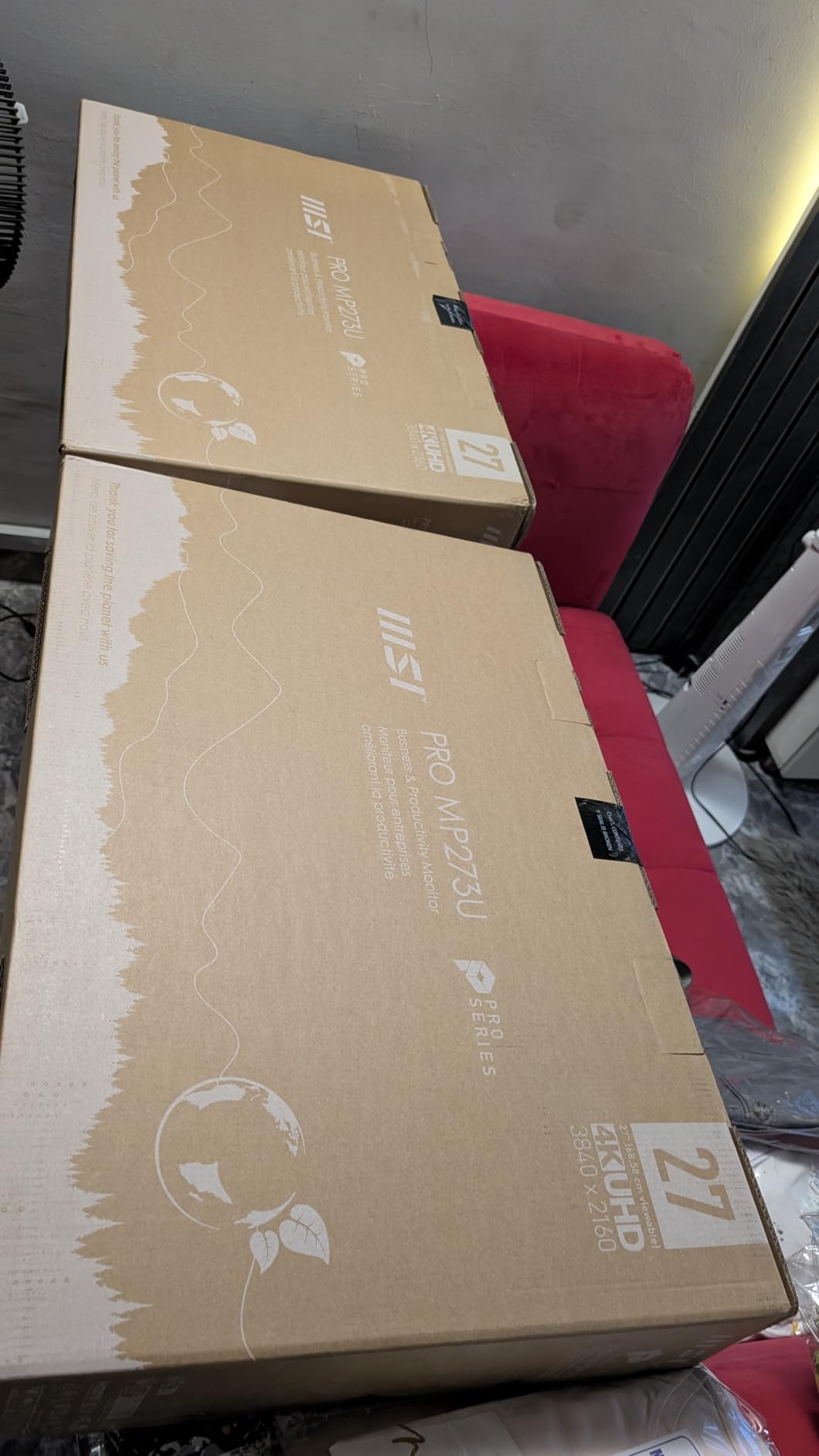
8. MSI PRO MP273U – The Colour-Accurate Budget Entry
msi PRO MP273U, IPS 3840 x 2160 (UHD) Computer Monitor, 4K, 60 Hz, Adaptive-Synch, HDMI, DisplayPort, 4ms (GTG), Black
3840x2160 IPS
60Hz
4ms GTG
95% Adobe RGB and 99% DCI-P3
TUV certified
8.7 lb
Pros
- Native 3840x2160 IPS at the lowest price in this roundup
- 95% Adobe RGB and 99% DCI-P3 with Delta E under 2 accuracy
- Four times the pixel density of Full HD for photo video and design work
- TUV Rheinland certified flicker-free and low blue light features
- Built-in Eye-Q Check tool for tuning the display
- Three year manufacturer warranty
Cons
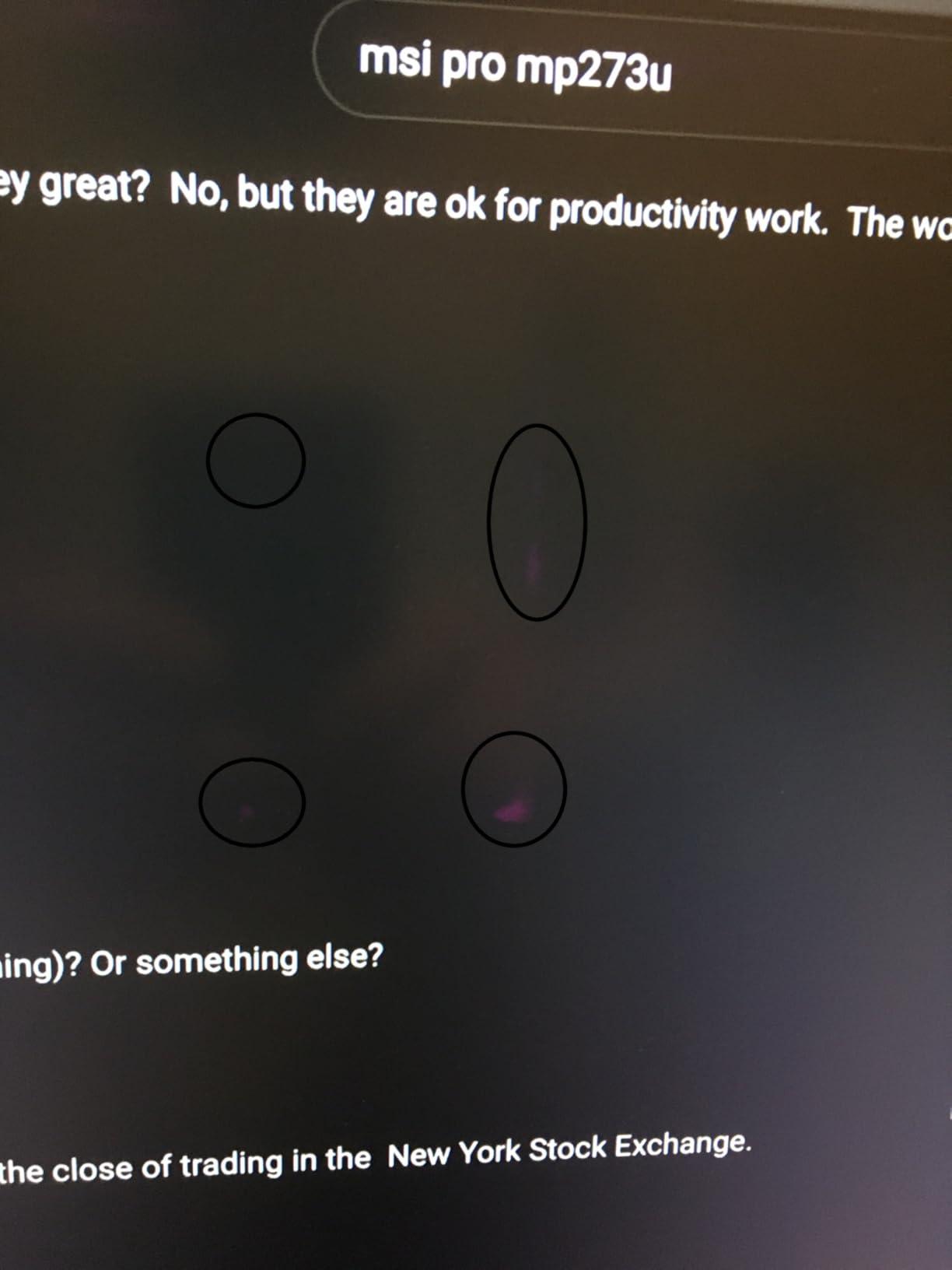
- 60Hz refresh with only 4ms GTG response
- Single HDMI port alongside DisplayPort
- No numeric contrast ratio listed and contrast is low
- Stand adjustment range is not detailed in the listing
The most surprising specification in this roundup sits on the cheapest panel. Colour gamut coverage of 95% Adobe RGB, 99% DCI-P3 and 139% sRGB with Delta E under 2 accuracy is a claim you normally see on panels costing several times more, and reviewers single it out as the reason to buy this one.
For photo editing, print work and general video production, wide Adobe RGB coverage matters more than refresh rate, which makes this a sensible second panel next to a faster primary. The 8.7 pound weight and 24.15 inch listed width also keep a pair manageable on a normal desk.
Colour Accuracy as the Selling Point
On a dual setup, a wide-gamut panel is more useful than most spec sheets suggest, because you can leave colour-critical work on one screen and keep reference material, code and communication on the other. The 99% DCI-P3 and 95% Adobe RGB figures mean that split works without constantly switching colour profiles, and the Delta E under 2 rating is good enough for client work that is not a print proof.
The TUV Rheinland flicker-free and low blue light certifications are the other reason this panel suits long sessions. The built-in Eye-Q Check tool walks you through a vision assessment to set the display up, which is unusually helpful when you are buying two.
Where the Entry Tier Shows
Sixty hertz and 4ms GTG response, a single HDMI port, an unlisted and low contrast figure, and a stand whose adjustment range is not documented. The stand is the one to verify before buying, because a fixed-height stand is painful to match in a pair.
At four times the pixel density of Full HD, the text experience matches the other 27-inch 4K panels here at 150% scaling. You lose the 120Hz responsiveness that the Dell S2725QS provides, and nothing else in the text-first experience.
Best Used as the Second Panel
Our recommended use for this one is as the secondary display beside a faster primary, where its wide gamut handles reference images and assets while the primary carries the interactive work. That also solves the stand problem, because only one panel needs to match your chair height exactly.
Two of these side by side is a legitimate low-cost dual 4K desk, and the three-year manufacturer warranty is the longest in this roundup. Check the stand height first.
How to Set Scaling So Two 4K Monitors Look Right
The most reported frustration in dual-monitor forums is not picture quality. It is that one screen’s text looks larger than the other’s even though both run the same resolution. That happens because your operating system scales each display independently, and two panels of different sizes have different pixels per inch. Set both to the same percentage and the smaller screen’s text becomes visibly smaller than the larger screen’s.
Why Is Everything So Small on a 4K Monitor?
Because the panel is rendering the full 3840 by 2160 pixel grid at 100% scaling, which makes every interface element half the physical size it was on a 1080p monitor of the same size. The panel is working exactly as designed. The fix is display scaling, and it takes about thirty seconds per screen.
125% or 150% on a 27-Inch 4K Panel
Start at 150% on a 27-inch 4K panel, which leaves roughly 1.4 physical pixels per rendered pixel and keeps text sharp. Step down to 125% if 150% feels cramped, and step up to 175% if you want larger text and do not mind less desktop space. The rough rule is that a 27-inch 4K panel wants 150% and a 32-inch 4K panel wants 125%.
Setting Per-Display Scale in Windows 11
- Open Settings, then go to System, then Display.
- Select the first display and set its resolution to 3840 by 2160 in the Display resolution dropdown. Do this for the second display as well.
- With each display selected in turn, choose its scale from the Scale dropdown. Set the first to 150% and the second to 150% if the two panels are the same size, or 150% and 125% if the second panel is a 32-inch model.
- Open System, then Display, then Scale, and run the display scale test on each screen. Adjust until the circle on the left is as round as possible and the text on the right is the size you want.
- Open the ClearType Text Tuner, which is available from the search bar, and walk through the wizard for each display. This is what sharpens text rendered at fractional scales.
Setting HiDPI Looks-Like Resolution in macOS
macOS handles this differently. Open System Settings, then Displays, select each 4K panel in turn and choose a Looks Like resolution from the list. On a 27-inch panel, the two entries just above native give you a HiDPI workspace with sharp text. On a 31.5-inch panel, the option just above native is the equivalent. Set both panels to the same Looks Like option, or use the physically similar one on each.
Why Text Goes Blurry and How to Fix It
Blurry text at 4K has four common causes, and all four are fixable. The resolution is set to something other than native 3840 by 2160, the scale is a fractional value that the application does not handle, the application ignores per-monitor DPI settings entirely, or the panel is one whose subpixel rendering softens text. Check the resolution first, then confirm the application was launched after you changed the scale, then look for a compatibility setting inside the application.
A matte anti-glare coating on a high-density panel is a fifth cause, and it is not fixable in software. It produces a faint grain on solid white backgrounds in a dark room rather than soft text, and it is a fair trade for the glare resistance that makes a dual desk usable with overhead lighting.
Dual-Mode Play: 4K Desktop, 1080p Speed on One Panel
If you want both the dense 4K desktop and a high frame rate in competitive titles on the same screen, set the game to 1080p and leave the desktop at 3840 by 2160. The panel upsamples the smaller frame, the render load drops sharply, and the effective input response improves. This is the dual-mode pattern forum users ask about most often, and a high-refresh 4K panel handles it better than a 60Hz one.
Can Your GPU Drive Two 4K Monitors?
Almost certainly yes, but the refresh rate you get depends on the ports and the standard they support. Two 4K panels at 60Hz need very little bandwidth. Two 4K panels at 120Hz need DisplayPort 1.4 with DSC or HDMI 2.1 with full bandwidth, and that is where laptop docks and older cards start to fall short. Check your outputs before you buy two high-refresh panels.
60Hz Pairs: Almost No Limit
Two 4K monitors at 60Hz is a very light load. Any discrete graphics card of the last decade, any integrated graphics with USB Type-C output, and any desktop CPU with a modern integrated GPU will drive two 3840 by 2160 panels at 60Hz without complaint. This is the configuration of four of the eight panels in this roundup.
120Hz and 160Hz Pairs: Where the Limits Start
Two 4K panels at 120Hz require DSC over DisplayPort 1.4 or full-bandwidth HDMI 2.1. Most discrete cards handle this comfortably on at least two outputs. Integrated graphics and USB Type-C docks are where problems appear, and the documented pattern in support forums is a dock that drives one screen at full 4K and drops the second to a lower refresh rate.
The 160Hz panel in this roundup is the demanding case. Two of those at full rate is a serious load, and the honest answer is to run one at 160Hz and pair it with a 60Hz or 120Hz productivity panel, which is how we would build a mixed dual 4K gaming desk anyway.
Laptops, Docks and the MST Trap
If your machine is a laptop, the limiting factor is the dock or the port, not the graphics. Verify the dock’s stated output configuration in writing before buying, and check whether it supports MST or dual-output DisplayPort. A dock that presents a single MST stream may enumerate both displays while sharing bandwidth, which shows up as a downgraded refresh rate on the second screen rather than as a missing display.
The same applies to DisplayPort daisy chaining over MST. Two displays appear, both are 4K, and the second one quietly runs slower than the first. That is a bandwidth-sharing behaviour, not a fault, and it is the single most common reason buyers report that only one of their monitors is fast.
Daisy Chain, KVM, or Two Cables?
Run two separate cables from your GPU to your monitors whenever your hardware allows it. Daisy chaining saves a port but frequently forces the second panel to a lower refresh rate, and a KVM switch adds a box between your computer and your screens. Two direct cables is the fastest, simplest and most reliable option, and on a desktop with two or more outputs it costs nothing extra.
When Two Cables Are the Right Answer
Almost always, on a desktop. One cable per panel gives each monitor the full bandwidth of its port, full refresh rate on both, and independent settings in the on-screen display. It also means one failed cable takes out one screen rather than both.
When Daisy Chaining Is Worth It
When your laptop has exactly one display output, or when your GPU exposes fewer usable ports than you have panels. The Dell UltraSharp U2725QE in this roundup supports daisy chaining to two additional 4K displays from one Thunderbolt 4 feed, which is the specific case where chaining is the right design rather than a compromise.
The caveat is that a chained panel is rarely the equal of a directly connected one. Check the published specifications for the second display’s maximum refresh rate before you commit, because the answer is often 60Hz regardless of what the panel can do on its own.
When a KVM or a Switch Earns Its Place
A KVM switch earns its place when you routinely move between two machines and want one button press to move keyboard, mouse and both screens. A dedicated switch earns its place when you want to plug a console or a laptop into the same two panels without replugging your computer. Our HDMI switches for 4K setups guide covers the switching side, including the refresh rate limits that matter at 4K.
On a desk with two USB-C monitors, check whether the monitors themselves can switch inputs. Several of the panels in this roundup support on-screen input switching, which removes the need for a separate box in the most common case.
How Big Is a Dual 4K Desk?
Two 27-inch 4K panels need close to 50 inches of desk width, and two 31.5-inch panels need close to 57 inches, before you allow any gap at the centre. Most desks advertised as large are 60 inches, which is why 27-inch dominates this roundup and why so many dual 4K buyers end up returning a 32-inch pair.
Desk Width by Configuration
- Two 27-inch 4K panels: about 24 inches per panel, so roughly 50 inches including a small centre gap.
- One 27-inch plus one 32-inch: roughly 52 to 53 inches, and the mismatched panel sizes make text sizing harder to align.
- Two 31.5-inch 4K panels: about 28 inches per panel, so roughly 57 inches before the gap.
- One 43-inch 4K panel: about 40 inches, which fits a normal desk and removes the bezel gap entirely.
Arms, Height and Neck Strain
Mounting on arms changes the fit question. Arms let you set both panels to exactly the same top edge, angle them ten degrees inward, and push the pair back from the desk edge, which reduces neck rotation between the two screens. Every 27-inch panel in this roundup uses a VESA 100×100 pattern, so standard dual monitor arms fit.
Two mismatched heights are the quiet cause of neck strain in dual setups. If the top edges sit at different heights, your eyes correct constantly and one shoulder drops. The Dell UltraSharp with its 15 height positions and the two LG panels with height plus pivot adjustment make matching easy, while fixed stands force you to guess.
Desk Depth and Viewing Distance
A 27-inch 4K panel is comfortable at roughly 60 to 80 centimetres of viewing distance, which is where 163 pixels per inch resolves cleanly and the scaling settings above behave as expected. Push a 31.5-inch panel much further back than that and text starts to soften, which is the argument for arms on the larger panels in this roundup.
Lift the closed laptop onto a stand and the second screen becomes a laptop with a keyboard, not a third display competing for desk depth. Our laptop stands for dual monitor setups guide covers that arrangement if you plan to work this way daily.
Buy Two Identical Monitors or a Matched Pair?
Buy two of the exact same model whenever your budget allows. Identical panels share a model number, a firmware version and a panel batch behaviour, which removes the three mismatch sources people complain about most: different apparent text size, different white points and different heights. Every legitimate exception to this rule involves a workflow reason, not a saving.
The Legitimate Exceptions
A mixed pair makes sense in three situations. First, the deliberately mixed work-and-play desk, where a high-refresh gaming panel handles games and a colour-accurate panel handles editing. Second, the vertical-secondary layout, where a second panel is rotated 90 degrees to show far more lines of code or a long document. Third, the budget case, where a 4K primary is paired with a 4K panel at a different price point from a later production run.
What does not make sense is pairing two different models at similar sizes. You will spend the saving and then spend an evening trying to make the two screens look alike.
Colour Matching Panels Bought at Different Times
If the two panels come from different batches or different brands, brightness and white point will differ slightly, and the difference is far more visible side by side than on its own. Panels with an ambient light sensor handle room lighting automatically, and factory calibration reports give you a documented starting point for each screen.
Spend ten minutes with a brightness matching tool and set both panels to the same luminance before you judge colour. Half the colour-mismatch complaints in dual setups turn out to be a brightness difference, not a gamut difference.
Dual 4K Buying Guide: The Criteria That Matter in a Pair
Size and PPI Decide Your Scale Setting
Size is not just about screen area, it determines the scaling percentage you will live with. A 27-inch 4K panel at about 163 pixels per inch wants 150% scaling. A 32-inch 4K panel at about 138 pixels per inch wants 125%. Choose the size first, then commit to its scale setting, then check that the two panels share it.
Panel Type: Why IPS Wins for Two-Screen Text Work
IPS is the right default for a dual 4K desk. It gives consistent colour and brightness from wide viewing angles, which matters when one panel sits slightly off-axis, and it renders text cleanly at high pixel density. VA panels show darker edges on a wide screen and smear on motion. QD-OLED and OLED panels deliver deeper blacks and near-instant response, but two of them double your burn-in surface area and their subpixel text rendering is worth checking against your own eyes if you read all day.
Refresh Rate: When 60Hz Is Genuinely Enough
Sixty hertz is fine for document work, code review, browsing and video. One hundred and twenty hertz is noticeable every time you move a window, and it is the single upgrade owners most often describe as a bigger change than they expected. Above 120Hz, the case narrows to gaming, where the faster panel earns its place on one side of the desk rather than both.
USB-C Power Delivery and Hub Ports on a Dual Desk
On a dual setup, port selection saves more desk space than any other feature. A USB-C input with 60W to 90W of power delivery replaces a power brick and a video cable per monitor. Check the wattage against your laptop, check that the hub has enough USB-A ports for your peripherals, and check whether there is an Ethernet jack, which several of these panels include.
Adaptive Sync, HDR and What Actually Shows on a Pair
Adaptive sync matters if you play on one of the two screens, and you should match it to your GPU vendor. HDR400 on a 400-nit panel is a visible improvement over SDR for desktop use, while true HDR needs a brighter panel and a real local dimming implementation, which is beyond what this price range delivers.
Adjustment options deserve a check for the same reason as ports. Height, tilt, swivel and pivot control determine whether you can match two panels cleanly, and every panel here with height adjustment is easier to pair than every panel without it.
Frequently Asked Questions
Is 4K overkill for a 27 inch monitor?
No. A 27-inch 4K panel delivers roughly 163 pixels per inch, so text stays crisp at 150% scaling and windows remain compact. A 32-inch 4K panel sits nearer 138 pixels per inch and is comfortable at 125%. 4K is not overkill at either size; it is the reason text looks sharp at all.
Which scaling is better for a 4K monitor, 125% or 150%?
Use 150% on a 27-inch 4K panel and 125% on a 32-inch 4K panel. The 27-inch panel is dense enough that 150% keeps text sharp, while the 32-inch panel is less dense and would show faint softness at 150%. If you need larger text, step up to 175% on the 27-inch.
Why are my dual monitors showing different sizes?
Your operating system scales each display independently, and two monitors of different sizes have different pixels per inch. The same percentage therefore produces different physical text sizes. Match the physical panel size and set each display’s scale separately, then verify both are running native 3840 by 2160 rather than a scaled mode.
Why is text blurry on my 4K monitor?
Four causes account for almost every case: the resolution is not set to native 3840 by 2160, the scale percentage is fractional and the application does not handle it, the application ignores per-monitor DPI settings, or the panel’s subpixel rendering softens text. Confirm the resolution first, restart the application after changing scale, and look for a compatibility setting inside it.
Can you run two 4K monitors on one graphics card?
Yes in the vast majority of cases. Two 4K panels at 60Hz need very little bandwidth and work on almost any modern GPU. Two 4K panels at 120Hz or 160Hz need DisplayPort 1.4 with DSC or full-bandwidth HDMI 2.1. Laptops and USB-C docks are the usual failure point, where the second display silently drops refresh rate.
Can you daisy chain two 4K monitors?
You can, but the second panel is often limited to 60Hz and some panels lose variable refresh when chained. Daisy chaining makes sense on a laptop with one display output or when the monitor supports it explicitly. On a desktop with two or more outputs, run two separate cables and both panels run at full refresh.
Should I buy two identical monitors for a dual setup?
Yes, whenever your budget allows. Identical models share a firmware version and panel behaviour, which removes mismatched text size, white point and height. The legitimate exceptions are a deliberately mixed work-and-play desk, a vertically rotated secondary panel, and a budget pairing where the second panel comes from a later production run.
What size monitor is best for dual monitor setup?
Two 27-inch 4K panels need close to 50 inches of desk width and are the most comfortable default. Two 31.5-inch 4K panels need roughly 57 inches, which exceeds most desks. One 43-inch 4K panel needs about 40 inches and removes the bezel gap. If your desk is under 60 inches wide, two 27-inch panels or a single large panel are the realistic options.
Is a 43 inch monitor better than two 27 inch monitors?
A single 43-inch 4K panel removes the bezel gap, the matching problem and the neck rotation between two screens, and it fits a normal desk. You give up independent scaling between the two halves and the ability to run different applications full-screen on each side. It suits consolidating users more than dual 4K specialists.
Which Dual 4K Pair Should You Buy?
If you want one answer for most people, the Dell 27 Plus S2725QS is the panel to buy twice. It is the only monitor here that pairs 163 pixels per inch with a 120Hz refresh rate, a 1500:1 contrast ratio and a stand that adjusts in all four directions, and buying two of them costs less than a single premium panel from a year or two ago.
If you drive two external displays from a laptop, the LG 27UP850K-W is the pick, because its USB Type-C port carries video, data and up to 90W of charging in one cable and removes the dock from the desk entirely. If your laptop has Thunderbolt 4 and you also edit colour, the Dell UltraSharp U2725QE goes further still, with 140W of power, a factory calibration report and daisy chaining to two extra 4K displays.
If you play on one screen, the ASUS TUF VG27UQ1A is the fast side of a mixed pair, running native 4K at 160Hz with a 1ms response. If your desk is wide and your work is window-heavy, the ASUS VP327Q gives you the most desktop per inch of desk, though its reliability reports deserve attention. And if colour accuracy is the reason you are upgrading, the MSI PRO MP273U offers 95% Adobe RGB and 99% DCI-P3 at the lowest entry point here.
Whichever pair you choose, buy two of the same model, set both to native 3840 by 2160, start at 150% scaling on 27-inch panels or 125% on 32-inch ones, and run one cable per monitor. Those four steps solve the majority of the problems people report with dual 4K setups, and they cost nothing. Our picks and the rest of the current 4K range are updated for 2026, so check the details before you commit.