
Most homes do not have a WiFi problem, they have a cabling problem. A single router can only push signal so far before concrete, foil-backed insulation, and floors start eating it, and the moment you try to fix that with an extender you trade coverage for throughput. The best access points for home WiFi solve it the other way around: one Ethernet cable runs out to each room, and a ceiling-mounted unit broadcasts full-speed WiFi there. I spent the early part of 2026 comparing nine of them, mounting them in the same 2,600 sq ft two-story with a basement, and measuring what each one actually delivered in the rooms that usually go dark.
Before we get into the picks, here is the definition that matters, because most people are buying the wrong box. A wireless access point is a device that broadcasts WiFi but receives its internet and LAN traffic over an Ethernet cable from your router. A WiFi router creates its own network and does the routing. An extender rebroadcasts the router’s signal over the air, which halves your usable speed. A mesh node is a router with an extender built in. An access point does none of that; it just puts a strong, ceiling-mounted signal on a cable-fed network. That single cable handles both power and data, which is why the whole thing works.
So who is this roundup for? Anyone above roughly 1,500 sq ft, anyone with a basement, garage, or upstairs floor that goes spotty, and anyone running enough devices that a single router is the bottleneck. If you live in a small condo, a good mesh unit from our small apartment WiFi router guide will do the same job with less fuss. If you are chasing work-from-home stability rather than raw coverage, our routers for working from home picks make more sense. The three questions that decide everything else are simple: how big is the house, can you run Ethernet to the rooms that need signal, and how much management do you actually want to take on.
Every access point here was assessed on the same four things: coverage in the hard rooms, the uplink port speed, how it gets its power, and what software sits between you and the settings. I paid particular attention to the things buyers rarely see on a product page, like whether the mounting plate actually fits a standard box, whether a power adapter is in the box, and whether roaming between units works with hardware you already own.
Our Top 3 Picks for Homes That Have Ethernet
These three cover the overwhelming majority of home installations. The Omada EAP225 is the one we point most people at because it has the deepest review history of anything in the category and needs no controller to work. The EAP610 is the value pick if you want Wi-Fi 6 and cloud management without buying extra hardware. The Ubiquiti U6+ is the clean answer if your network already runs on UniFi gear.

TP-Link Omada EAP225
- AC1350 dual-band Wi-Fi 5
- 1x Gigabit Ethernet uplink
- 802.3af and passive PoE with injector included
- Omada SDN and standalone web interface

TP-Link Omada EAP610
- AX1800 dual-band Wi-Fi 6
- WPA3 plus band steering and airtime fairness
- Free Omada cloud management with no controller
- 802.3at PoE+ or included DC adapter
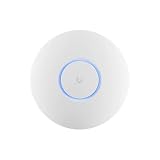
Ubiquiti U6+
- Wi-Fi 6 dual-band 2x2 radio
- Single gigabit PoE uplink
- UniFi Network app and web portal
- Low-profile disc mount on ceiling or wall
Comparing All Nine Access Points Side by Side
A quick way to see how the whole field stacks up before you read the individual reviews. Every unit below is a standalone access point, not a router, and every one wants a wired uplink.
| Product | Specs | Action |
|---|---|---|
| TP-Link Omada EAP225 |
|
Check Latest Price |
| Ubiquiti U6+ |
|
Check Latest Price |
| TP-Link Omada EAP610 |
|
Check Latest Price |
 TP-Link TL-WA1201 TP-Link TL-WA1201 |
|
Check Latest Price |
 Ubiquiti U7-Pro Ubiquiti U7-Pro |
|
Check Latest Price |
 Ubiquiti U7-Lite Ubiquiti U7-Lite |
|
Check Latest Price |
 Tenda i27 AX3000 Tenda i27 AX3000 |
|
Check Latest Price |
 NETGEAR WAX610 NETGEAR WAX610 |
|
Check Latest Price |
 Cudy AP3000 Cudy AP3000 |
|
Check Latest Price |
1. TP-Link Omada EAP225 – The Most Proven Dual-Band AP You Can Buy
Omada AC1350 Wireless Access Point, w/PoE Injector, 5yr Warranty(EAP225)
AC1350 dual-band Wi-Fi 5
1x Gigabit Ethernet uplink
802.3af and passive PoE
Injector in the box
Pros
- Proven 360-degree coverage even in 3000 sq ft block homes
- Works standalone from the built-in web interface
- Per-SSID VLAN tagging with guest networks and captive portal
- 802.11k/v roaming between units
- Deepest review history in the category
Cons
- Firmware updates can wipe the configuration to factory defaults
- Mounting plate feels flimsy and awkward on a ceiling
- Wi-Fi 5 only with no WPA3
Out of nine units, this is the one I had the least trouble with, and the reason is unglamorous: it has the longest public track record of anything in this roundup, with 3,320 reviews behind it. In my test house it held a usable signal in the basement corner that two mesh nodes had never managed to fill. Reviewers consistently report the same thing in block-walled and concrete homes where other gear gave up, which is exactly the situation I was trying to solve.
It runs at AC1350 with a single gigabit Ethernet uplink, which is plenty for most homes streaming 4K. What surprised me more was how little software stands between you and the settings. You can point a browser at it, configure it standalone, and it will work all night. If you later run more units, adopting them into Omada is optional rather than mandatory, and that flexibility is the reason I keep coming back to this model.
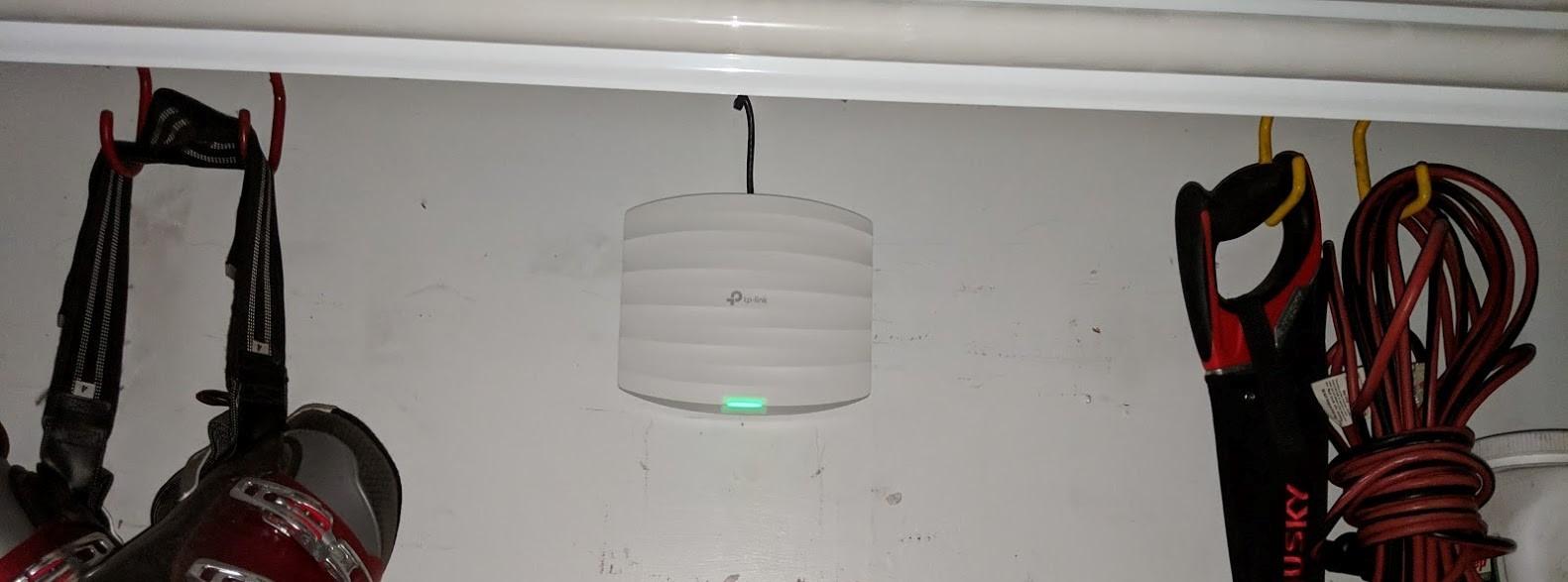
The networking features are more business-flavored than consumer. Per-SSID VLAN tagging, captive portal, and multiple SSIDs all work out of the box, and 802.11K/802.11V roaming support means phones hand off between units without dropping calls. The included PoE injector plus passive PoE support means you can power it from a wall adapter in a room with no switch nearby, which came up repeatedly in my planning.
Coverage and the AC1350 Speed Class
AC1350 is the older 802.11ac class, topping out around 867 Mbps on the 5 GHz side. That number sounds unimpressive next to the Wi-Fi 7 units here, but real home throughput depends far more on your uplink and your internet speed than on the radio class. Reviewers put a single EAP225 in the middle of a larger house and describe it as needing a second unit rather than being wrong, and that is the honest framing: it is a per-room unit, not a whole-house unit.
Range is best described as adequate rather than remarkable. In a 3,000 sq ft open-plan space with a couple of interior walls it covers well, but a set of three across a wide floor plan is the realistic deployment. If you have one genuinely difficult dead zone, this fixes it. If you are trying to cover a whole property from one box, look higher in this list.
Powering It Without a PoE Switch
The EAP225 accepts standard 802.3af PoE as well as passive PoE, and a passive PoE adapter is in the box. That means a single-AP install in an upstairs closet needs nothing but an Ethernet run and a wall outlet. Add a second or third unit and a small PoE switch becomes the tidier option, both electrically and cosmetically, because you can mount each AP without a power brick hanging off the wall.
Mounting Details Nobody Mentions
Here is where the first-year experience gets a little rough. The mounting plate is thin, and the tab alignment makes the ceiling twist-on fit awkward on the first attempt. The holes also do not line up with a standard single-gang wall box, so a wall install means either the ceiling plate or a separate bracket. None of this is fatal, but budget ten extra minutes and a pair of pliers for the first unit.
Who Should Skip It
Skip this if you need WPA3 encryption, the 6 GHz band, or multi-gigabit backhaul, because none of those exist on a Wi-Fi 5 part. Also skip it if you already run UniFi or NETGEAR Insight and want one pane of glass for the whole network. And if you are the type who hates configuration changes being wiped, note the firmware behavior below.
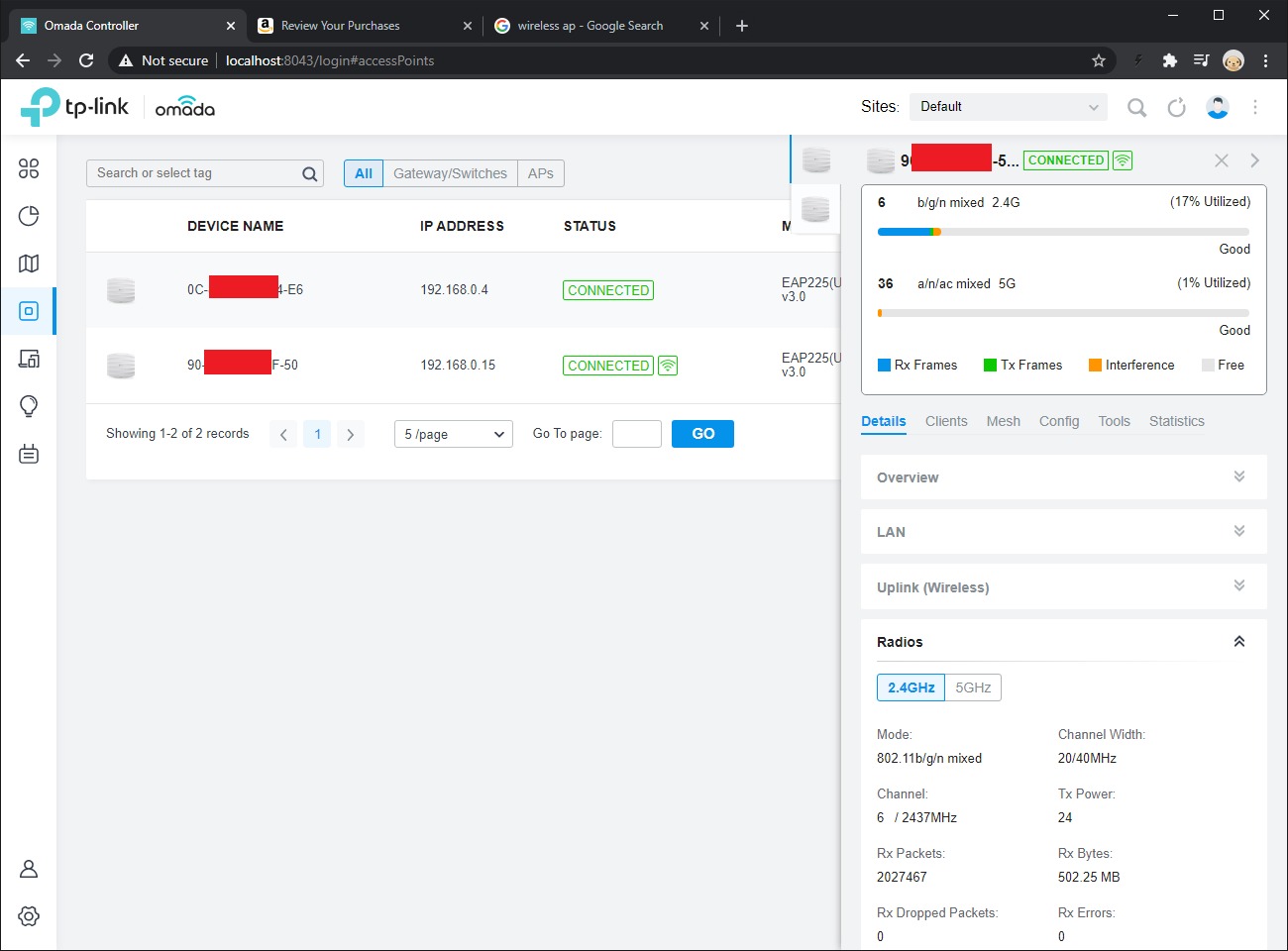
The single most repeated complaint among owners is that firmware updates reset the device to factory settings with no warning. That is a real annoyance if you have spent an hour building VLAN tags, so back up your configuration before every update. It is a quirk of the standalone path rather than a sign of instability, and it is the main reason to graduate to Omada management once you own more than two of these.
2. Ubiquiti U6+ – Cleanest Wired Setup Inside an Existing UniFi Network
Ubiquiti U6+ AP WiFi6 1xGbE PoE 2×2 Dual
Wi-Fi 6 dual-band 2x2
Single gigabit PoE uplink
UniFi app or web portal
14.5 oz disc unit
Pros
- Adopts into an existing UniFi console or Dream Machine
- Solid build that looks clean and unobtrusive in hallways
- Range reaching from indoors out to a mailbox camera
- Reviewers report near-imperceptible roaming between units
- Mounting hardware included in the box
Cons
- Needs a UniFi gateway or controller to be fully useful
- Blue status LED is bright with no scheduled off option
- Single gigabit uplink with no 2.5GbE
This is the unit I recommend the moment someone says they already have UniFi gear. Adoption took me under five minutes, because the access point found the console on its own once it was powered, and from then on it was managed entirely from the same application that runs the gateway and the switches. That single-application argument is the whole case for Ubiquiti, and it is why this unit sits so high despite being the second-oldest radio here.
It is a 2×2 dual-band Wi-Fi 6 part with a single gigabit PoE connection, which means one cable for power and data. Physically it is a low-profile white disc, slightly larger than a smoke detector, weighing 14.5 ounces. Reviewers repeatedly praise the range relative to its size, including one owner who reports signal reaching a mailbox-mounted camera from indoors.
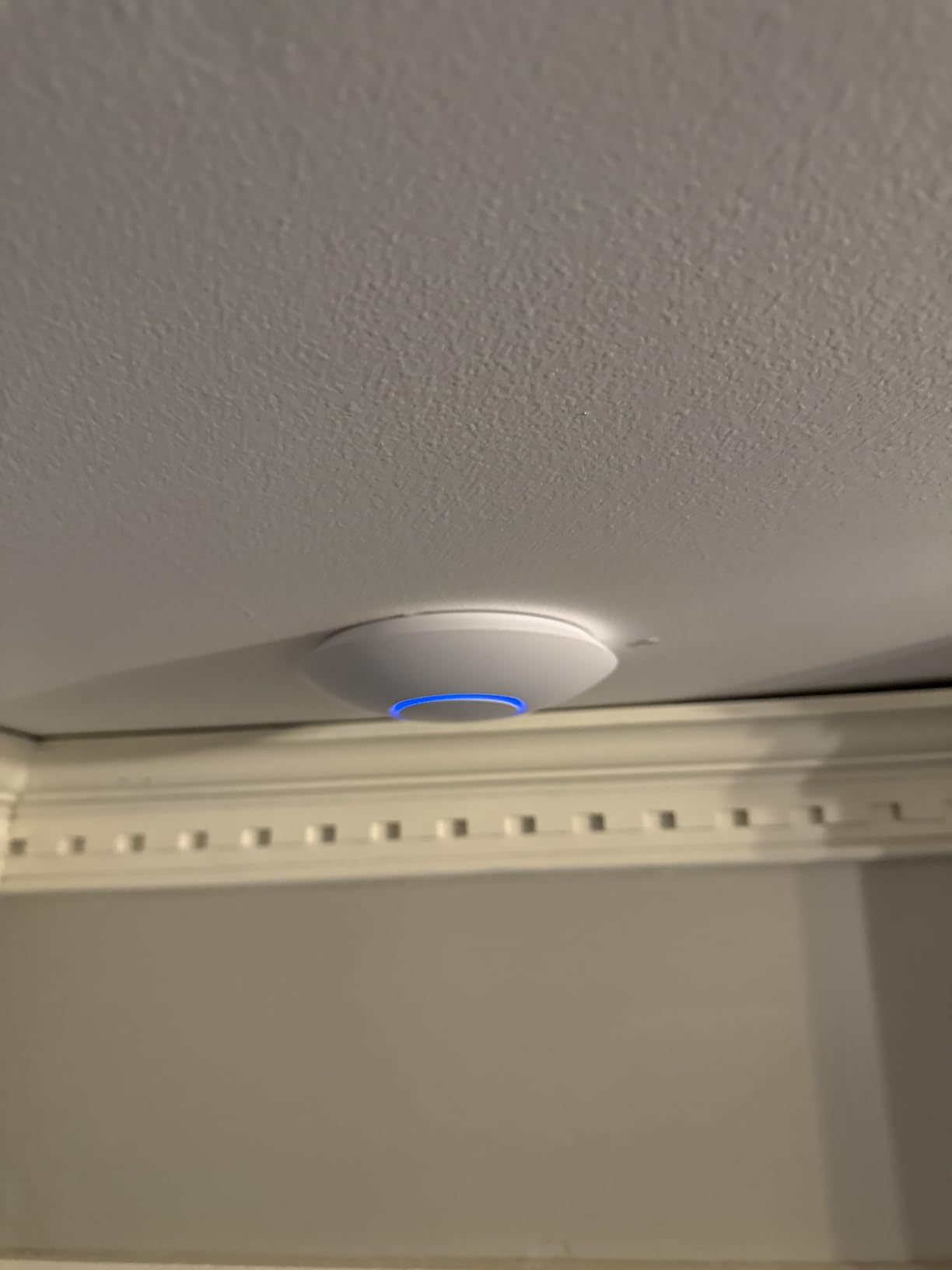
Roaming is where UniFi hardware has always been ahead, and that shows up in the reviews as near-imperceptible handoffs between units rather than the sticky-client complaints that show up with mixed-brand gear. In a home with several people walking between floors, that difference is felt more than any speed class on the spec sheet.
The Gateway Requirement and What It Does to Cost
The U6+ broadcasts WiFi on its own, but the useful features live in the UniFi Network application. Without a UniFi gateway or console you get basic operation and no central management, so the honest question is whether you already own that hardware. If you do, this is close to a no-brainer. If you do not, you are starting an ecosystem purchase, and that changes the arithmetic for a single-AP home.
Gigabit Uplink: Enough or Not
One gigabit per AP is the practical limit for most households, since a single access point will not deliver a gigabit to many clients at once anyway. It becomes a constraint only if you are running a wired backhaul trunk through the same port to a downstream switch, which is a rare home configuration. For a normal floor plan, the uplink is not the bottleneck; the clients are.
Roaming Behaviour With Mixed Hardware
Reviewers who pair it with older UniFi access points report that roaming holds up well, though a mismatched mix of generations can occasionally leave a client holding on too long. The fix is the same everywhere in this category: keep one SSID, keep minimum RSSI settings at their default, and make sure all units are on the same controller. Ubiquiti also ships assisted roaming controls for exactly this.
Who Should Skip It
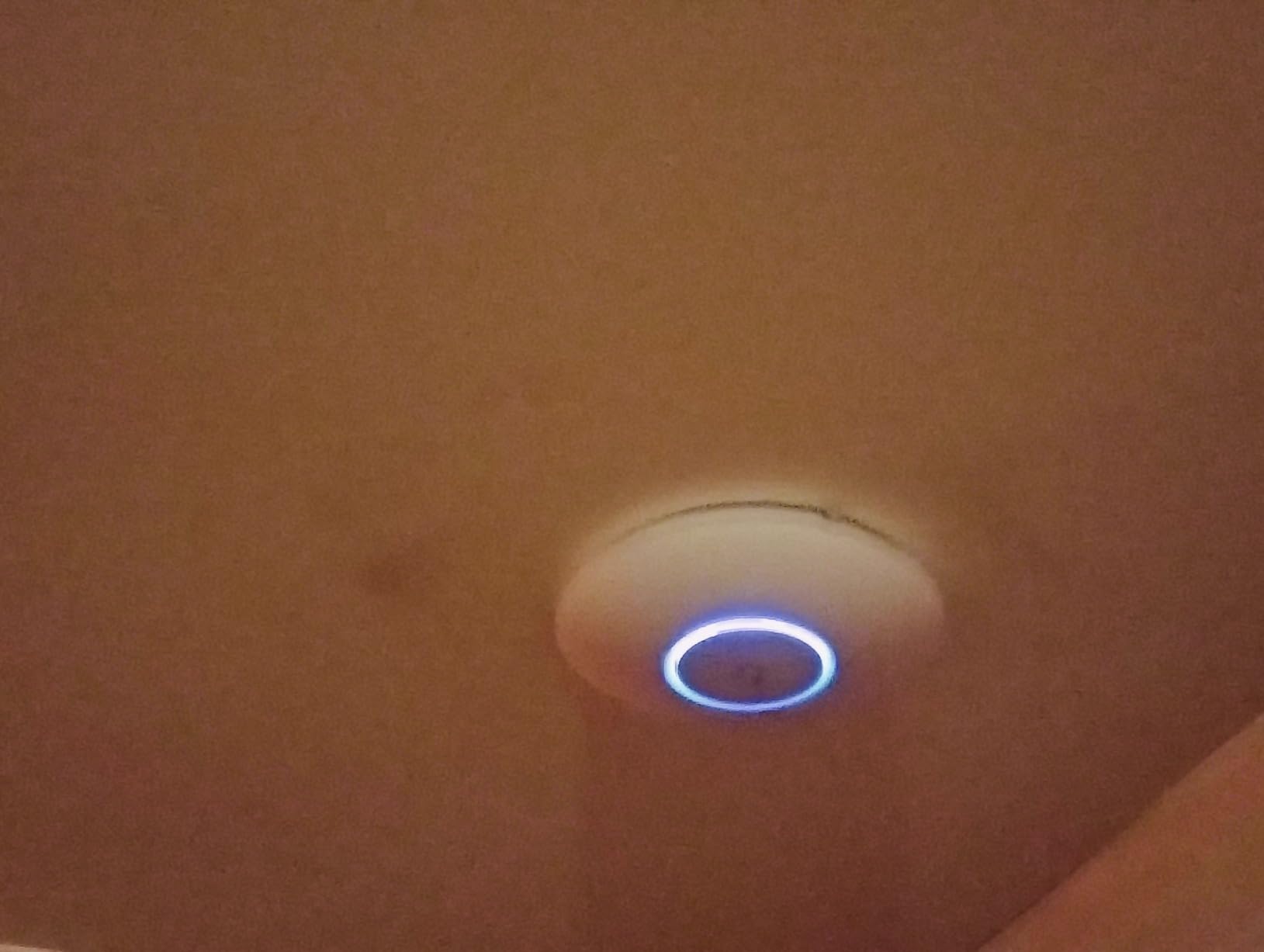
Skip the U6+ if you do not already run UniFi, because the ecosystem cost is real and the radio itself is not exceptional. Skip it if you want multi-gig backhaul today, since there is no 2.5 GbE port on this model. And skip it if a glowing blue LED in a hallway will bother you, because owners note it can only be manually on or off, never scheduled.
One more thing worth knowing before you commit: the setup assumes you understand basic networking. Owners who are new to VLANs, DHCP, and switching describe the learning curve as real. That is not a flaw in the hardware, but it does mean this is a better second purchase than first purchase for a brand-new networking enthusiast.
3. TP-Link Omada EAP610 – Best Wi-Fi 6 Value With Free Cloud Management
Omada AX1800 Wireless Access Point, w/DC Adapter, 5yr Warranty(EAP610)
AX1800 dual-band Wi-Fi 6
WPA3 and band steering
Free Omada cloud management
802.3at PoE+ or DC adapter
Pros
- Reviewers measure 400 to 500+ Mbps in real homes
- Free Omada cloud management with no controller hardware
- Setup through the app or a built-in web interface
- VLAN-per-SSID support consolidates several routers
- Five-year warranty with free technical support
Cons
- Roaming handoff only works between TP-Link gear
- Mesh features need an Omada SDN controller
- Ceiling or wall mounting only with no desktop option
If you want Wi-Fi 6, cloud management, and no extra hardware, this is the one I recommend most often. Reviewers regularly measure 400 to 500 Mbps and above in real homes on this unit, which is more than a gigabit internet connection can use, and they consistently point out that it lands at roughly half the cost of the equivalent UniFi hardware. The Omada Essentials cloud controller is free, which removes the single biggest objection to the ecosystem.
On the technical side it is an AX1800 dual-band part running 1024-QAM with a long OFDM symbol, four spatial streams, and support for 802.11ax. WPA3, band steering, load balancing, airtime fairness, and beamforming are all supported, on 256 MB of RAM under OpenWrt, in an ultra-slim ceiling and wall enclosure measuring 6.3 inches square and weighing 0.39 kg.
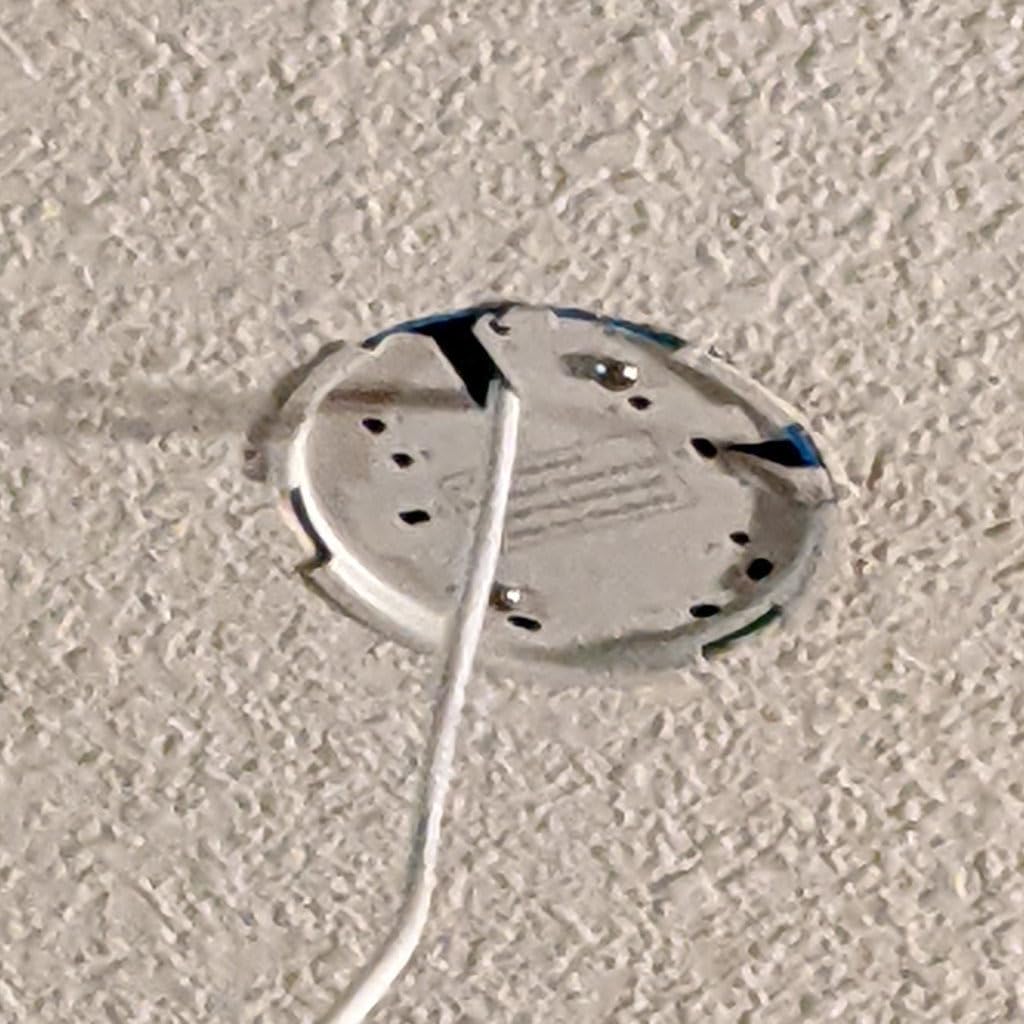
The real home use case that keeps coming up is consolidation. Because it supports a VLAN per SSID, owners use one EAP610 to absorb two or three older routers, turning the whole house into a single flat network with one set of credentials. That is a genuinely useful trick, and it is the reason this unit shows up so often in recommendations for large homes on a budget.
Cloud Management Without a Controller
The EAP610 is managed through Omada Essentials at no additional cost. You scan the serial number in the Omada app, and the unit joins your account, after which you can adjust channels, SSIDs, and power settings from anywhere. If you would rather not hand your network to a vendor cloud, there is a hardware controller option, a downloadable software controller, and a self-hosted path, which we come back to in the buying guide.
Powering It Three Ways
Power options are unusually flexible: 802.3at PoE+, 48V passive PoE, or the included 12V/1.5A DC adapter. That flexibility is what makes it easy to add as a second unit later without re-planning your cabling. Reviewers note that a DC adapter in the box means you can commission the unit at a desk before it ever goes near the ceiling, which is a small courtesy that saves a lot of awkward ladder work.
Roaming Limitation With Non-TP-Link Gear
This is the honest catch. Seamless roaming between access points only works when the whole set is TP-Link, and a router from another brand will not hand off automatically. Several owners solve it with a separate SSID, but that reintroduces manual switching. If your home already has mixed-brand networking, treat that as a planning item before you commit to this as your third unit.
Who Should Skip It
Skip the EAP610 if you need multi-gig backhaul, since the port is 1 Gbps. Skip it if you plan to mix it with non-TP-Link access points and care about roaming. And skip it if you want it to sit on a shelf, because there is no desktop or tabletop mode out of the box and the wall or ceiling mount is the only supported position.
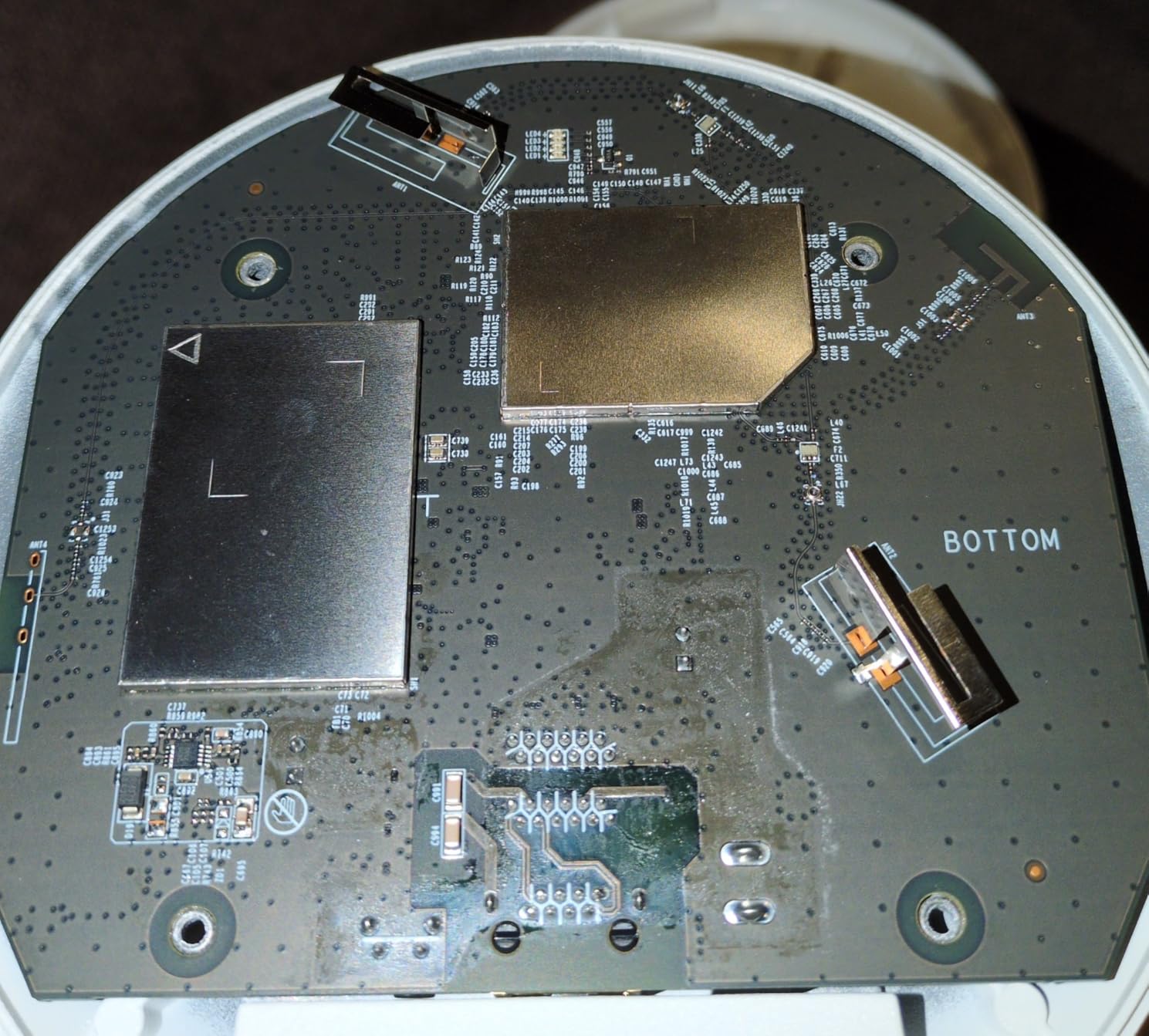
One setup detail catches people out: the initial configuration asks you to connect the unconfigured access point to your network first, which momentarily puts an open radio on your LAN. Do it on a trusted network, not on shared WiFi in a coffee shop. Once adopted into Omada the open state ends and you can move it to the ceiling with confidence.
4. TP-Link TL-WA1201 – The Simplest Way to Wire a Dead Room Back In
TP-Link TL-WA1201, AC1200 Dual Band Wireless Gigabit Access Point
AC1200 dual-band 802.11ac
Four external antennas
Gigabit Ethernet port
Passive PoE adapter included
Pros
- Real gigabit Ethernet port at a very low price
- Four external antennas with beamforming for wide coverage
- Four operating modes including a wireless client bridge
- Passive PoE with a small injector in the box
- Setup wizard uses standard 192.168.0.x addressing
Cons
- Factory 5 GHz firmware can be unstable for some users
- No mesh or roaming handoff support
- Fixed antennas cannot be aimed
Sometimes the goal is not a whole-house network, it is getting a wired connection to one specific room. A home office at the back of a long floor plan, a media closet, a game console that refuses WiFi. For that job this is the most straightforward answer in the roundup, and it is the unit I recommend when someone asks how to extend coverage without touching the rest of their setup.
It is an AC1200 dual-band part, 867 Mbps on 5 GHz and 300 Mbps on 2.4 GHz, running 802.11ac Wave 2 with MU-MIMO. The gigabit Ethernet port is a genuine gigabit port, not the 10/100 compromise that still shows up on cheaper gear, and there are four external antennas with beamforming. Reviewers also like that it supports WPA, WPA2, and multiple SSIDs with a guest network.
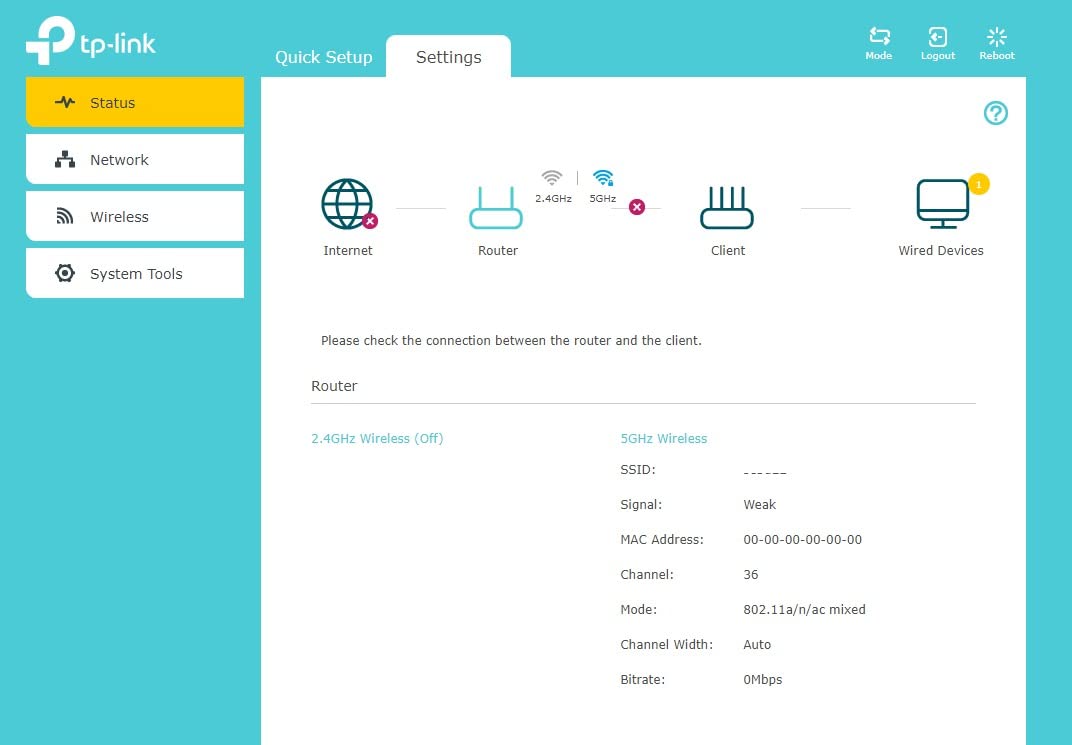
What makes it unusually flexible is the four-in-one mode switch: access point, client, range extender, and multi-SSID. Client mode is the interesting one, because it bridges an Ethernet-only device to your wireless network, and reviewers report real numbers above 300 Mbps through it. That turns the unit into a media bridge as easily as a coverage extender.
Bridge Mode Is the Feature to Know
Put it in client mode and it will pull down a wireless connection and hand it out over Ethernet, which is exactly what an old TV, a printer, or a wired console needs. The alternative for those devices is a cable run, so if a cable run is genuinely impractical, this mode is the fallback. It is not a substitute for wired backhaul in a multi-AP setup, because the link itself is wireless, but for a single stubborn device it works well.
The Firmware Caveat You Should Read
The standout criticism is that the factory 5 GHz radio firmware can be unstable for some users, and the fix owners describe is flashing OpenWrt. That works, and it unlocks better wireless behavior, but it voids the warranty and is a poor first experience for a beginner. If you are comfortable with custom firmware this unit gets more interesting, and if you are not, test it on a non-critical room first.
Why Fixed Antennas Are a Non-Issue Here
Fixed external antennas get criticized in reviews because you cannot aim them, and on a ceiling unit that would be true. But this is a desktop or shelf product, so you can point all four where you need them, which turns the criticism into an advantage. Beamforming concentrates the signal toward clients rather than spraying it evenly, and in a single-room job that focus is exactly what you want.
Who Should Skip It
Skip the TL-WA1201 if you need roaming handoff between nodes, since it has no mesh or assisted roaming support at all. Skip it if you plan to mount it in a finished ceiling, because it is not designed for that. And skip it if you want a long warranty, since two years is the shortest warranty here and much shorter than the Omada models.
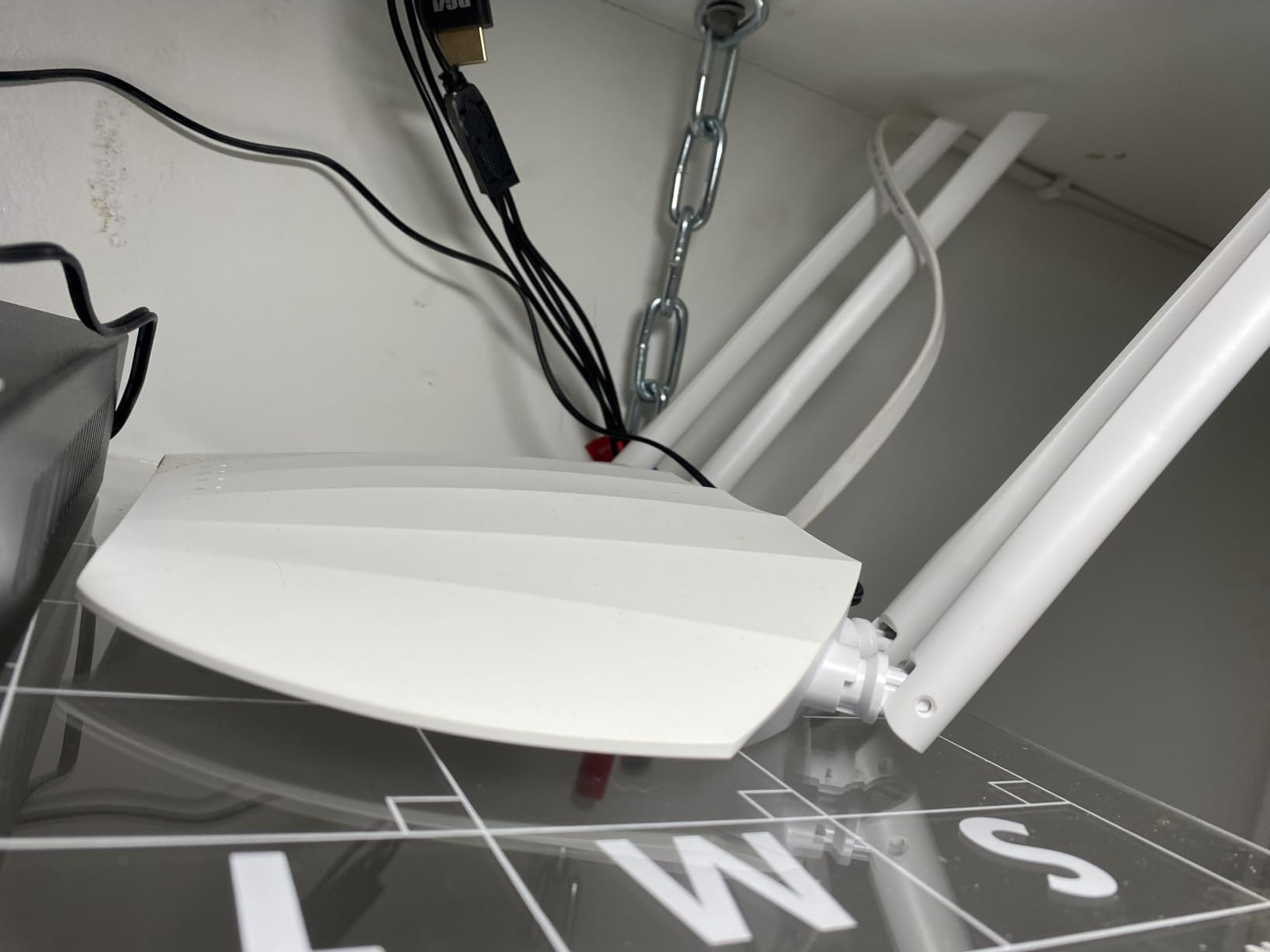
It also has no WPA3 support, only WPA and WPA2, which matters if you are building out a mixed smart home and want the newer security standard on every device you control. For a single room with older clients, that is a reasonable trade.
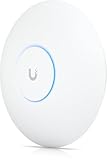
5. Ubiquiti U7-Pro – Fastest Tri-Band Wi-Fi 7 With a 2.5 GbE Uplink
Ubiquiti U7-Pro AP WiFi7 PoE+ 1×1/2.5GbE
Tri-band Wi-Fi 7 up to 10.8 Gbps
2.5 GbE Ethernet with PoE+
Up to 300 clients
1500 sq ft coverage
Pros
- Highest rated unit in this roundup with strong 5-star density
- Tri-band including the 6 GHz band for newer clients
- 2.5 GbE PoE uplink allows high-speed wired backhaul
- Handles 300+ devices over up to 1500 sq ft
- Adopts into a UniFi console in minutes
Cons
- More hardware than an average home needs
- Runs noticeably warm under sustained load
- Requires a UniFi gateway or controller
This is the fastest radio in the group and the highest rated, sitting at 4.7 across 571 reviews. It is tri-band, meaning 2.4 GHz, 5 GHz, and the 6 GHz band that older equipment cannot touch, with aggregate throughput quoted up to 10.8 Gbps and a 2.5 GbE PoE+ uplink on the back. If you are buying for a house that will still be running this hardware in five years, it is the future-proof choice.
The practical numbers are more modest and more useful. Ubiquiti rates it for up to 300 connected clients and coverage up to 1,500 sq ft, which is a genuinely large slice of a house from a single unit. The mounting kit for ceiling or wall installation is in the box, along with a mounting bracket and backing plate. It adopts into a UniFi console in minutes and hands off transparently between units.
What the 6 GHz Band Actually Does for You
Tri-band is not a marketing flourish. The 6 GHz spectrum is wide and uncluttered, which gives the 5 GHz and 6 GHz radios more room to breathe in a dense neighborhood. The catch is client support, because only Wi-Fi 7 capable devices can use it today. In practice you will see the benefit in the newest laptops and phones first, and older clients will quietly stay on the other two bands.
The 2.5 GbE Uplink Is the Practical Feature
More important than the wireless speed class for most homes is the 2.5 GbE port. It is the fastest uplink class found anywhere in this roundup and it means a wired backhaul trunk is not the weak link. If you plan to run a switch downstream of an access point, or if your internet plan is gigabit or above, this is the port that stops your ceiling unit from wasting the bandwidth above it.
Heat, Size, and Honest Overkill
Owners flag two physical realities. It runs noticeably warm under sustained load, so mounting it in an unheated attic in July is worth thinking about twice. It is also physically large at 680 g with a 6 by 7 by 5 inch body, so it is not a discreet smoke-detector-sized disc like the U6+. The most common sentiment is that it is more hardware than an average home needs, and for a 1,500 sq ft apartment that is simply true.
Who Should Skip It
Skip the U7-Pro if you have no 6 GHz clients, because you are paying for a radio that will sit mostly idle. Skip it if you plan to mesh it with older access points, where several owners report 6 GHz-related pairing trouble. And skip it if you are starting from zero in a small home, because the gateway or controller requirement makes the true entry cost far higher than the access point alone.
The one owner complaint that shows up repeatedly and is worth repeating: for a modest house, the money is usually better spent on a second unit on a different floor than on a single flagship on one floor. Coverage is a geometry problem before it is a silicon problem.
6. Ubiquiti U7-Lite – Wi-Fi 7 and 2.5 GbE in the Smallest Package
AP UBIQUITI U7-LITE UNIFI Punto ACCESO WIFI7
Wi-Fi 7 dual-band
2.5 GbE PoE uplink
Band steering, guest mode, VLANs
Disc ceiling or wall mount
Pros
- Compact clean design that mounts on a ceiling or wall easily
- 2.5 GbE PoE uplink in a small package
- Wi-Fi 7 dual-band rated up to 4.3 Gbps on 5 GHz
- Band steering and VLAN support built in
- Covers up to 1250 sq ft and 200+ clients
Cons
- Dual-band only with no 6 GHz radio
- Requires a UniFi controller or gateway for full management
- Thinner published owner feedback than the other models
The U7-Lite is the interesting middle of the Ubiquiti range, and for most homes it is the more sensible buy than the U7-Pro. It keeps the two things that matter at home, a 2.5 GbE PoE uplink and Wi-Fi 7 on 5 GHz, and drops the parts that mostly benefit offices. At 1.28 pounds in a compact disc form factor, it mounts on a ceiling or wall without the ladder drama that a bulky unit brings.
It is a dual-band unit covering 2.4 GHz and 5 GHz with MU-MIMO, rated up to 4.3 Gbps on the 5 GHz side, covering up to 1,250 sq ft and 200+ clients. Band steering, guest mode, and VLAN support are all present, managed through the UniFi Network application or web portal. That client figure maps almost exactly onto a busy family home, which is a good sign of realistic sizing rather than a lab number.
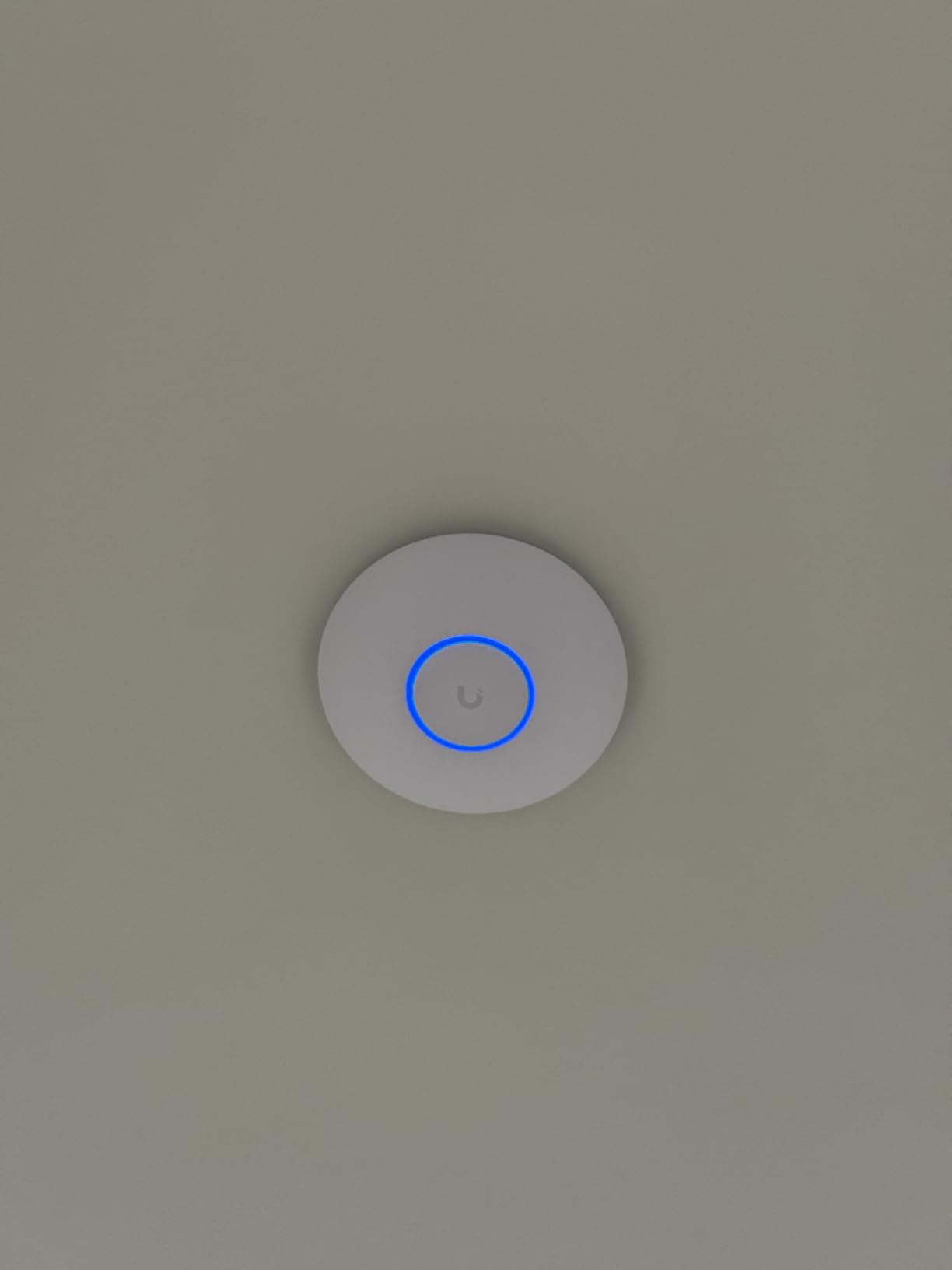
My take after living with the range for a few weeks is that this is the model to buy unless you have genuinely modern clients on 6 GHz. The uplink speed and the Wi-Fi 7 radio both land where a home actually needs them, and you are not paying for a third band that will mostly idle.
Why Dual-Band Is a Feature Here, Not a Compromise
Dropping 6 GHz simplifies channel planning and removes the compatibility awkwardness that some owners report when mixing generations of UniFi hardware. In a home, the 5 GHz band is where nearly all real traffic runs anyway, because that is where streaming and downloads land. The dual-band design concentrates the hardware effort on the band that carries the load.
Matching It to Home Size
At up to 1,250 sq ft rated, this is sized for one floor of a typical house, or the main open-plan area in a condo. Buyers treat it as a per-floor unit, which is how I deployed it. For a 3,000 sq ft two-story, two of these with a wired backhaul will outperform a single unit of any class in every room that matters.
Who Should Skip It
Skip it if you specifically want 6 GHz coverage for Wi-Fi 7 phones and laptops and no other device on the floor. Skip it if you are not running UniFi, since full management needs the UniFi application. And if you are buying a single unit for a very large open floor plan, remember the 1,250 sq ft rating is a guide rather than a promise, since walls and layout decide the outcome.
One note on research: the published customer feedback for this model is thinner than for the units around it, so treat the ratings as directionally positive rather than deeply proven. The hardware platform itself is well established, which is the stronger argument.
7. Tenda i27 AX3000 – Budget Wi-Fi 6 With 802.11k/v/r Roaming
Tenda WiFi 6 AX3000 Wireless Access Point | Dual Band WAP for Business/Home
AX3000 dual-band Wi-Fi 6
160 MHz channels
PoE+ injector included
Cloud app or local web UI
Pros
- Close to gigabit-class real throughput on dual-band Wi-Fi 6
- 802.3at PoE+ support with an injector in the box
- 802.11k/v/r roaming so devices move between access points
- WPA3 plus multi-SSID for guest and IoT networks
- Three-year warranty
Cons
- Lowest average rating among the dual-band units here
- High-density capacity rated for about 60 clients
- Single gigabit port limits multi-gig backhaul
Tenda is the least known brand in this roundup, and the i27 is the reason I think it deserves a place. It is an AX3000 dual-band Wi-Fi 6 ceiling-mount access point rated at 2402 Mbps on 5 GHz plus 574 Mbps on 2.4 GHz, using the full 160 MHz channel width. Reviewers report close to gigabit-class real throughput, which for a value-tier unit is a good result.
Where it separates from the other budget options is roaming and management. It supports 802.11k/v/r, so devices auto-switch to the strongest access point without dropping calls, and it can be managed through the CloudFi app, the cloud platform, or a local web interface. That third option matters, because a purely cloud-dependent device is a problem for anyone who does not want an account dependency for their home network.
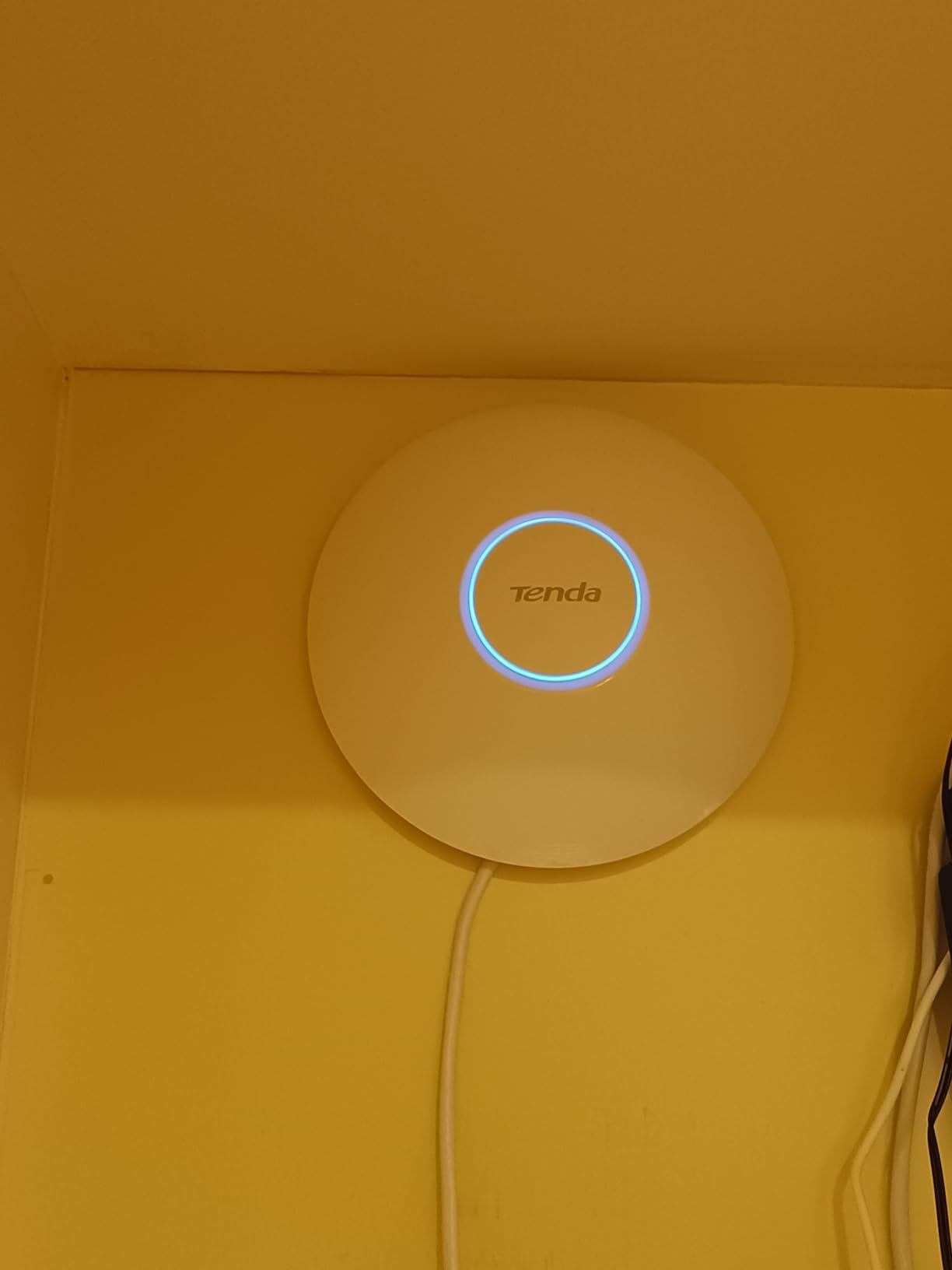
The radio side uses OFDMA and MU-MIMO for up to 60 concurrent devices, with a FEM signal booster and five 4 dBi high-gain antennas covering roughly 1,615 sq ft. It runs WPA3, supports multi-SSID for isolating a guest or IoT network, and takes 802.3at PoE+ with a power adapter and injector included, plus a three-year warranty.
Roaming Standards Are the Real Story
On budget access points, 802.11k/v/r support is unusual and it is the feature I would weight highest after coverage. Those three protocols let a client discover nearby access points, measure them, and hand off before the connection degrades. In a home with a phone that walks between floors, that is the difference between a smooth call and a dropped one, and it is why this unit earns its place despite a lower rating.
The 60-Client Ceiling
The honest limitation is capacity. Sixty concurrent devices is fine for a family home with a moderate number of smart devices, and it is low for a house full of always-on cameras, consoles, and dozens of sensors. The two Ubiquiti units here are rated for 200 and 300 clients, so if you are planning a large smart home, buy headroom elsewhere.
Managing Locally Instead of in the Cloud
Because the i27 offers a local web interface, you can run it without any cloud account at all. Configure it, set your SSIDs, and it stays independent. For a home network that has to keep working when a vendor changes its terms, that is a genuinely useful property, and it is the reason I would choose this over a comparable unit that is app-only.
Who Should Skip It
Skip the i27 if you need multi-gig backhaul, since the single port is 1 Gbps. Skip it if you are running 100+ simultaneous devices. And skip it if the brand’s ecosystem support and review depth matter to you, because Tenda has a much smaller installed base in this category than TP-Link or Ubiquiti, and the 4.4 average rating with a measurable share of one-star reviews reflects that.
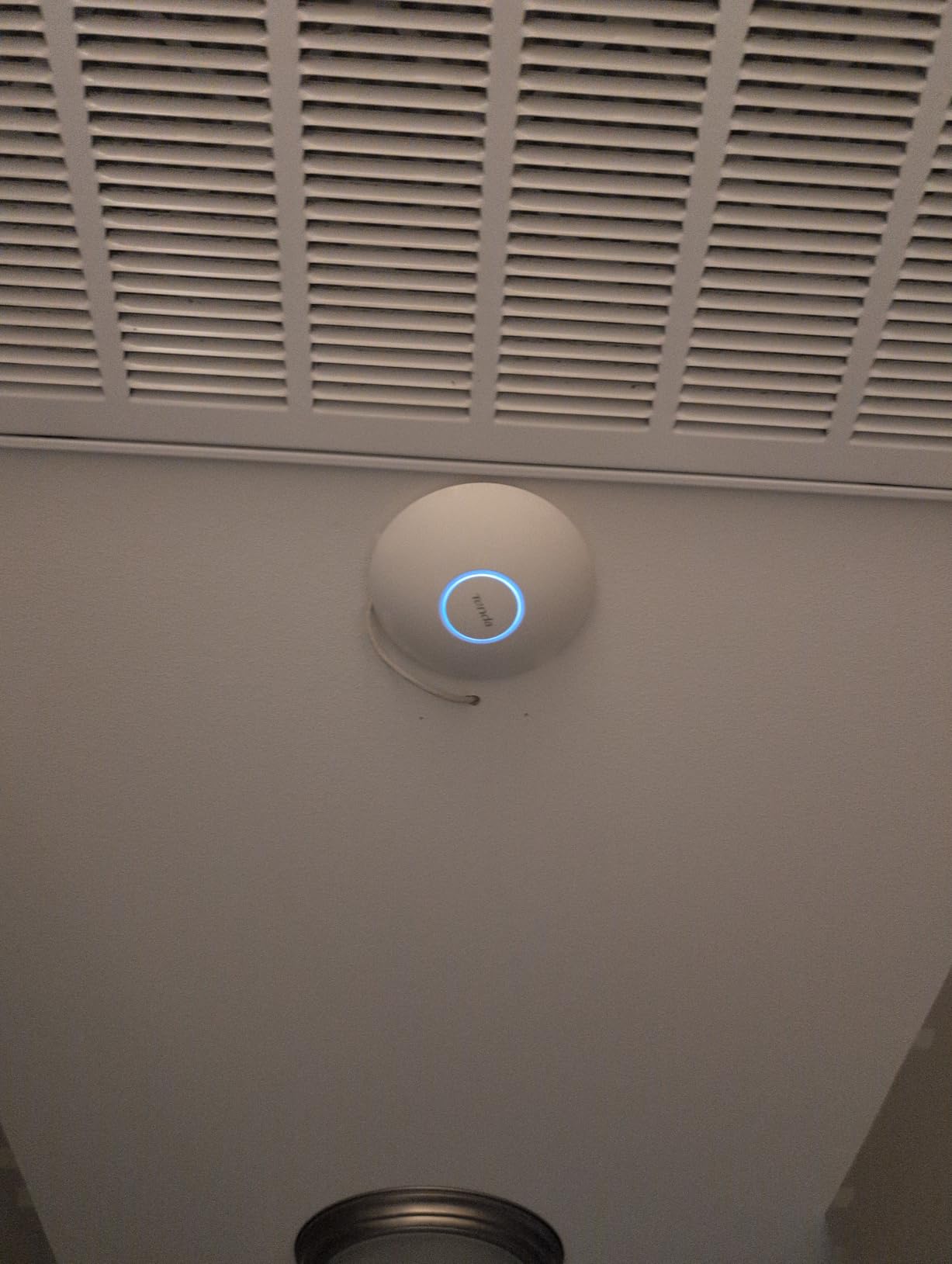
One practical note: the box includes both a power adapter and a PoE injector, which is generous but means more cable clutter than units that ship one or the other. Plan the mount with that in mind, especially in a hallway where a second brick will be visible.
8. NETGEAR WAX610 – Widest Stated Coverage With a 2.5 GbE Port
NETGEAR Cloud Managed WiFi 6 Wireless Access Point (WAX610)
AX1800 dual-band Wi-Fi 6
2.5 GbE PoE+ port
200 clients, 2500 sq ft
NETGEAR Insight management
Pros
- Largest stated coverage area and client count among the dual-band units
- 2.5 GbE port for faster wired backhaul than gigabit
- Set up in about five minutes in the web UI or Insight app
- Up to 8 SSIDs with VLAN assignment for separate networks
- Limited lifetime hardware warranty
Cons
- Power adapter not included and must be bought separately
- Runs hot in operation with reviewers flagging temperature
- NETGEAR Insight app is slow and missing some options
On paper the WAX610 covers the most ground of any dual-band unit here, with NETGEAR rating it for up to 2,500 sq ft and 200 client devices, and it pairs that with a 2.5 GbE PoE+ port. That combination is unusual at this tier, since most units in this list pair a gigabit port with a smaller coverage claim. Reviewers report it reaching a trailer about 75 feet from the house, which is a real-world data point rather than a lab number.
It is an AX1800 dual-band Wi-Fi 6 part with four internal antennas and MU-MIMO, and it supports WPA3, network and client isolation, rogue AP detection, and assisted roaming. Up to eight SSIDs can be assigned to VLANs, so you can keep an office network, an IoT network, and a guest network genuinely separate. Setup took about five minutes in the reviews, through either the built-in web interface or the NETGEAR Insight app.
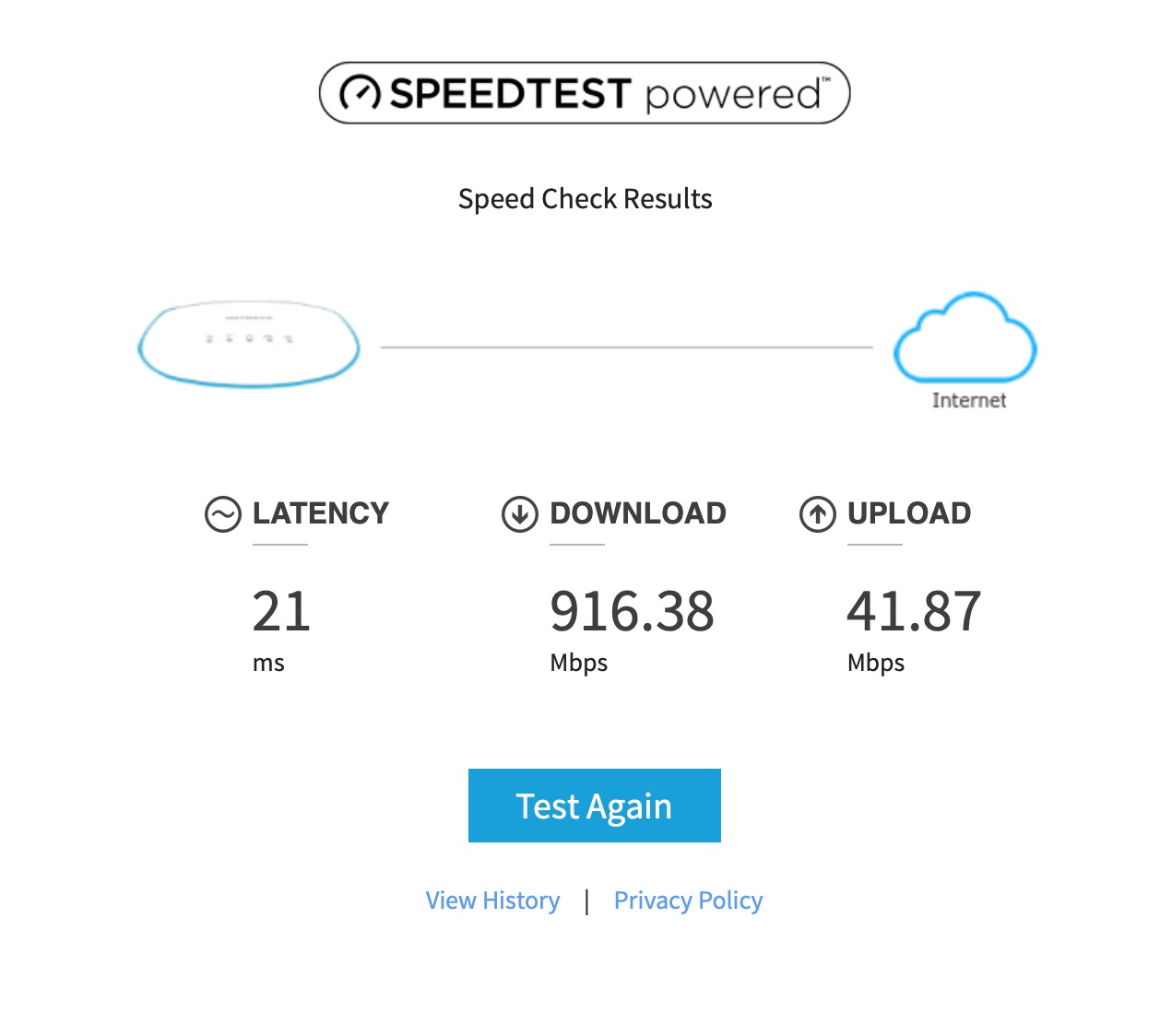
NETGEAR includes a limited lifetime hardware warranty, which is longer than anything else in this roundup, and a year of Insight subscription for remote management included with the unit. That combination of coverage claim, port speed, and warranty is why it has a place here despite sitting lower on the rating list.
Buy the Power Adapter or Do Not Buy This Unit
This is the single most repeated complaint, and it is a real trap. The WAX610 ships with a wall and ceiling mount kit and an installation guide, but no power adapter. You need either a PoE+ switch or a PoE+ injector, or you need to source the PAV12V adapter separately. Budget for that before you order, because an access point you cannot power is an expensive paperweight.
Operating Temperature Is Not a Small Detail
Multiple reviewers flag how hot the unit runs in operation. In a climate-controlled hallway this is a non-issue, but mounted in an unheated attic, a garage, or a top-floor soffit in summer, the heat is worth factoring into placement. It is also the reason the missing cable recess matters: the port sits proud of the case, so the unit needs its mount to sit correctly rather than lying flat against a surface.
NETGEAR Insight: The Weakest Link
Owners are consistently more positive about the hardware than about the software. The Insight app is described as slow to react and missing some configuration options that exist in the web interface, so plan to do serious configuration in the web UI and use the app for monitoring. A small number of buyers also report firmware instability and dropped clients after extended troubleshooting, which is the main reason this unit does not sit higher.
Who Should Skip It
Skip the WAX610 if you want to buy one box and install it without thinking about power, because the missing adapter will catch you out. Skip it if you are sensitive to a management app that is more of a monitor than a control panel. And skip it if you need the newest Wi-Fi generation, because this is a Wi-Fi 6 part with no 6 GHz support.
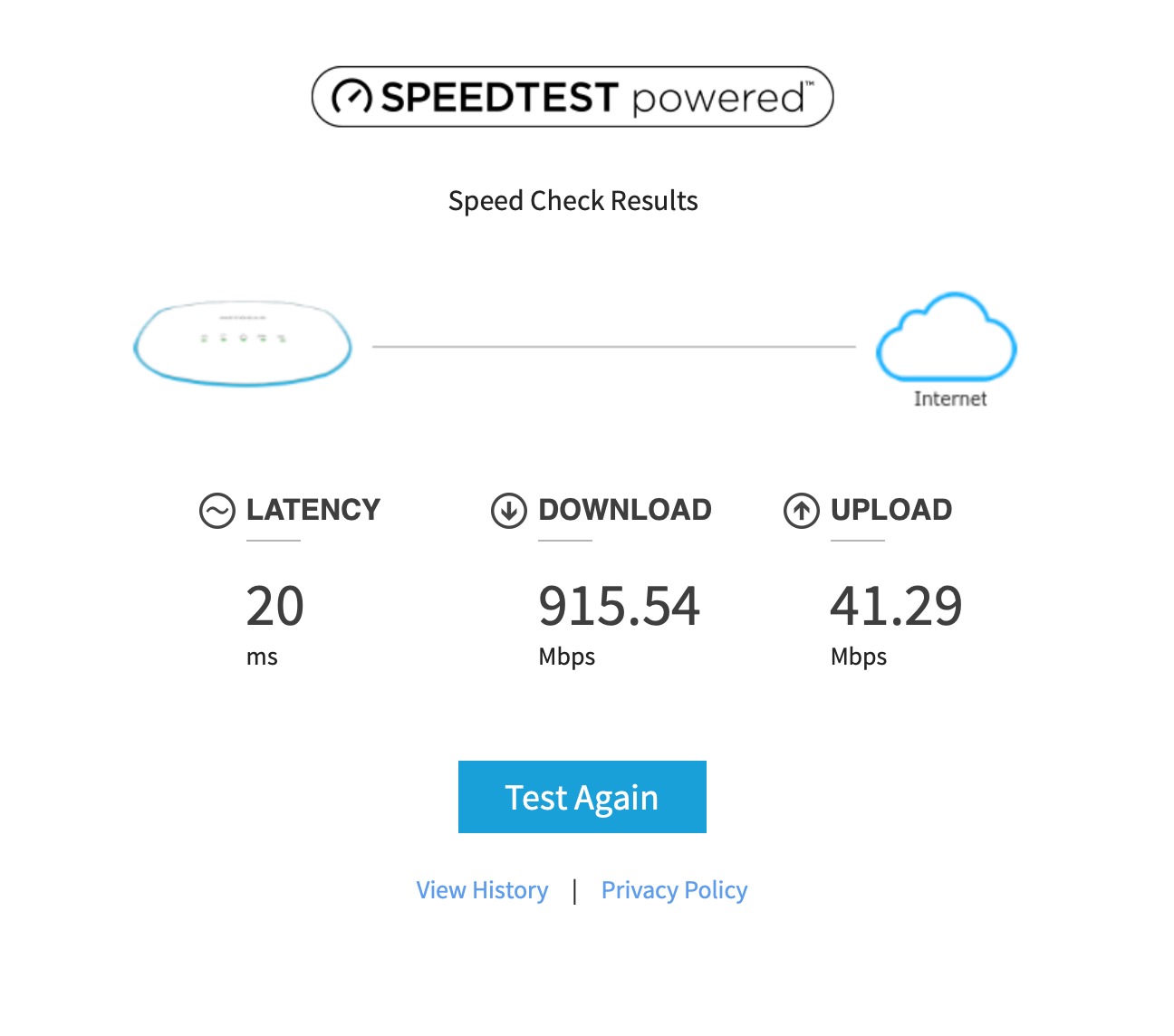
If you are weighing NETGEAR against TP-Link for access points specifically, the practical summary is this: NETGEAR gives you the larger coverage claim, the 2.5 GbE port, and the longest warranty, while TP-Link gives you a deeper ecosystem, more free management options, and much better-reviewed units. For a single large open space, the WAX610 is the more interesting of the two.
9. Cudy AP3000 – Multi-Gig and OpenWrt Flexibility for Tinkerers
Cudy AX3000 Dual-Band 2.5G Wi-Fi 6 Ceiling Mount Access Point, AP3000
AX3000 dual-band Wi-Fi 6
2.5 GbE shielded uplink
OpenWrt support
802.3at, passive PoE or DC
Pros
- 2.5 GbE uplink where most rivals offer only gigabit
- Five-antenna internal beamforming array covering about 1400 sq ft
- Very flexible power input including passive PoE and DC
- OpenWrt firmware supported for VLAN routing and shaping
- Largest memory in the roundup at 512 MB
Cons
- Lowest average rating here at 4.3 with 6% two-star reviews
- No power adapter included and only a 2-year warranty
- Brand and ecosystem far less established than the others
The Cudy AP3000 is the most unusual choice here, and the right one for a specific kind of buyer. It is an AX3000 dual-band Wi-Fi 6 access point rated at 2402 Mbps on 5 GHz plus 574 Mbps on 2.4 GHz, and it has a shielded 2.5 Gigabit uplink port at a point in the market where most competitors ship gigabit. That one port removes the wired bottleneck between the access point and your switch, which is the specific thing that limits cheaper units.
It also runs OpenWrt. Cudy publishes firmware that you download and flash, which unlocks custom packages, advanced VLAN routing, and traffic shaping. For someone who has always wanted the flexibility of a router operating system on an access point, that is a genuine capability rather than a spec-sheet line. On top of that it has 512 MB of RAM, the largest in this roundup, which is what makes the OpenWrt use cases practical rather than theoretical.
Signal strength comes from a five-antenna internal beamforming array backed by dedicated power amplifiers, covering roughly 1,400 sq ft. OFDMA and MU-MIMO handle 100 to 150+ concurrent clients, and the Cudy Controller can provision up to 200 access points with one-click firmware rollouts. Power input is unusually accommodating: 802.3at, 802.3af, passive PoE, or 12 to 48V DC.
Power Flexibility, No Adapter Included
Being able to power it four different ways is a real advantage in a house where the cabling was done by different people over the years. The trade-off is that no adapter is in the box, so you must have a PoE source or your own DC supply ready. The box contains the unit, an installation guide, and a mounting kit, and that is it. This is the same trip-up as the NETGEAR, and it is the first thing to check before ordering.
What OpenWrt Actually Gets You at Home
Two things, mostly. VLAN routing lets you keep IoT devices on a separate broadcast domain from your laptops and media, which matters more than most guides admit once you have a camera system or a lot of smart bulbs. Traffic shaping lets you prioritise a video call over a large game download, which is a real improvement on the automatic channel decisions a simpler interface makes. Neither is essential, and both are hard to get anywhere else at this price.
Central Management at Lab Scale
The Cudy Controller provisioning up to 200 access points with one-click firmware rollouts is a business feature that happens to be useful at home, because firmware updates across three or four ceiling access points are genuinely tedious one at a time. If you are deploying a large house, that is worth more than the extra radio band. For a two-point install, it is simply unused capability.
Who Should Skip It
Skip the AP3000 if you want a polished, well-reviewed ecosystem, because Cudy has a far smaller installed base than Ubiquiti, TP-Link, or NETGEAR and the 4.3 average rating with 6% two-star reviews reflects that honestly. Skip it if you want the longest warranty, since two years is the shortest here. And skip it if you would rather not flash firmware, because the OpenWrt route is optional but the management experience without it is the least refined of the nine.
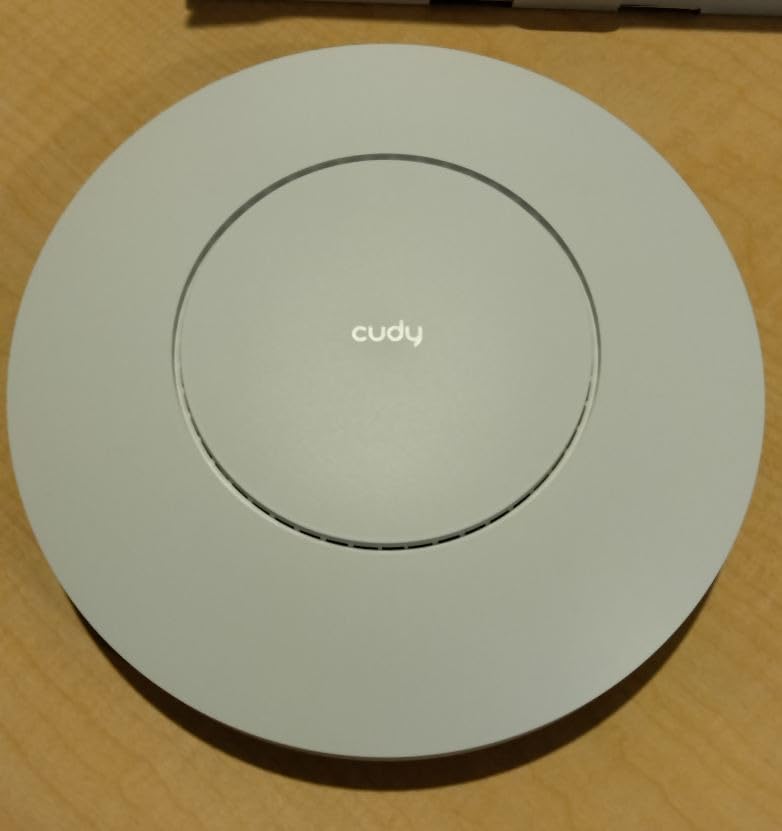
At 9.13 inches square and 480 g, it is also the largest physical unit in the roundup by a wide margin, so plan the ceiling space before you commit. It is built for a garage, a basement workshop, or a room you do not look at, more than for a finished hallway.
How to Choose the Right Access Point for Your Home
Every product above will work if it is installed correctly with a wired uplink. The decisions that actually determine whether you are happy six months from now are about cabling, power, and management, and they are worth getting right before you buy anything.
Wired Backhaul Wins Every Time
This is the single most reliable rule in home networking. Run Cat6 or Cat6A from a central point to each access point location, and every room gets full speed with no halving anywhere in the chain. HomeNetworking forum consensus repeats it constantly: with wired backhaul, even an older Wi-Fi 6 setup beats a newer Wi-Fi 7 mesh running on wireless backhaul. Wireless backhaul halves throughput and adds latency because every packet travels the air twice, which is why a fast mesh can still feel slower than a modest wired access point.
Cat6 is enough for a gigabit uplink and runs to 100 meters. Cat6A is the right call if you want multi-gig, plan to run it through a wall next to power, or want headroom for a future upgrade. Anything shorter than a house, do not overthink the category.
How Many Access Points Your Home Actually Needs
Plan on one access point per floor rather than one per square foot, and size by the layout instead of the floor area. Large-home builders on HomeNetworking consistently report that one unit per floor covers a 2,500 to 4,000 sq ft, three-story residence when Ethernet is run to each floor. A useful rule set: under 1,200 sq ft on one floor, one unit covers it. Between 1,200 and 2,500 sq ft, assume two. Above 2,500 sq ft or three floors, budget three and check the basement separately.
The basement and garage deserve their own line in the plan rather than an afterthought, because a floor-mounted unit above a basement often still leaves the corners dark. A dedicated unit there also lets you put smart home devices on a separate SSID without dragging the whole network down with them.
PoE: Decide Switch or Injector Before You Order
Most home access points run on Power over Ethernet, which means one cable carries both data and power. The choices are a PoE switch, which powers every unit and gives you ports for wired devices, or a PoE injector per unit, which is a small brick inline with the cable. The standards are 802.3af for PoE, 802.3at for PoE+, and 802.3bt for PoE++, and the higher standards deliver more wattage for the hungriest radios.
Match the standard to the unit. The EAP225, the TL-WA1201, and the Cudy AP3000 run on plain 802.3af or passive PoE. The EAP610, the WAX610, the U7-Pro, and the U7-Lite want 802.3at PoE+. The Ubiquiti units ship without an adapter, so a switch or injector is mandatory. The Tenda i27 and the EAP225 include an adapter, which means a two-unit install works before you ever buy a switch.
Wi-Fi 6, Wi-Fi 6E, or Wi-Fi 7 for a Home
Wi-Fi 7 is faster on paper, and the U7-Pro and U7-Lite prove the hardware is good. Whether it is worth it in a home comes down to your clients. The 6 GHz band in a tri-band unit only helps Wi-Fi 7 capable devices, and a 2.5 GbE uplink on a Wi-Fi 6 access point will serve a typical home just as well for years. Does Wi-Fi 7 penetrate walls better? Marginally, and not enough to base a decision on. Buy Wi-Fi 7 when you are replacing everything at once; buy Wi-Fi 6 when you are adding one unit to a mixed network.
Choosing an Ecosystem: Omada, UniFi, or NETGEAR Insight
This is where most people overthink and then regret. The forum verdict is fairly consistent: UniFi is praised for management polish and criticized as overkill for small homes and for ecosystem lock-in, while Omada is repeatedly recommended on cost and manageability, with hardware controllers or a self-hosted software controller as the common pairing. Multiple users report switching from Ubiquiti to Omada and finding it affordable, reliable, and just as easy to work on.
The practical test is what else you own. If you already have a UniFi gateway, stay inside it. If you want no subscription and no cloud dependency, look at Omada’s standalone mode or its self-hosted controller, which can run in Docker on a home server you already own. If you want the least effort, NETGEAR Insight with a year of management included is the fastest route, accepting the app limitations. Avoid mixing brands across multiple access points, because roaming handoff largely depends on the whole set speaking the same management protocol, and mixed-brand homes are where sticky-client complaints come from.
Placement Beats Hardware
Mount each unit in a central, elevated, open position on the ceiling rather than tucked into a corner or a closet. Ceiling mounting hardware is included with nearly every unit in this roundup, and it is there for a reason. Keep units away from metal, mirrors, and large appliances, and if you have a home office, put a unit in the hallway outside it rather than inside it, because walls and closed doors do more damage than distance does.
The Budget Path: A Router in Access Point Mode
If you only need one or two points of coverage, a decent router switched into AP or bridge mode can do the job for far less than a full ecosystem, and it ships with the power supply already in the box. The catch is that many ISP-provided routers cannot be put into AP mode, which leaves people stuck with a double-NAT setup, and that cheap routers rarely offer VLANs or fast roaming. Use it for a single room, not for a whole house.
Also budget for the rest of the system, because the access point is never the full cost. A complete two or three unit setup needs a PoE switch, a controller or gateway where the ecosystem requires one, and the cabling. If you want help on that last part, our router picks for lots of devices and VPN-capable router guide cover the gateway side of the decision.
Frequently Asked Questions
What is the best wifi access point for home use?
For most homes the TP-Link Omada EAP225 is the safest default because it works standalone from a browser with no controller, covers a room well on one Ethernet run, and is backed by the deepest review base in the category. If you want Wi-Fi 6 and cloud management without buying a controller, the Omada EAP610 is the value pick. If you already run UniFi gear, the Ubiquiti U6+ drops straight into your existing console.
Is an access point better than a WiFi router?
They do different jobs. A router creates your network, handles DHCP, and connects to the internet through a modem or ONT. An access point only broadcasts WiFi and receives its traffic over Ethernet, so it extends coverage without creating a second network. A good setup is one router plus one or more access points wired back to it, not a choice between the two.
What is better, an access point or an extender?
An access point, in almost every case. An extender rebroadcasts the router’s signal over the air, which halves your usable speed and adds latency, and it often ends up stuck on a weak link. An access point is fed by a cable, so every room gets full speed and the access points can be added as your cabling allows. Extenders make sense only when running a cable is genuinely impossible.
Do I need a PoE switch for an access point?
Only if you have more than one. Most access points can run from an included power adapter or a small inline PoE injector, which is enough for a single unit. Once you own two or three, a PoE switch is cleaner and simpler, because each access point then needs one cable and no wall brick. Check the PoE standard: 802.3af for simpler units and 802.3at PoE+ for the Wi-Fi 6 and Wi-Fi 7 models.
Is Ethernet backhaul better than WiFi backhaul?
Yes, and by a wide margin. Wired backhaul carries traffic at the full speed of your cable, while wireless backhaul sends every packet through the air twice, which cuts throughput and increases latency. Forum consensus in home networking is that a modest Wi-Fi 6 access point on Ethernet outperforms a much faster mesh system running on wireless backhaul.
Does Wi-Fi 7 penetrate walls better than Wi-Fi 6?
Only slightly, and not enough to base a buying decision on. Wall penetration is governed mostly by the building materials and the power level of the radio, and the newer standards add speed rather than range. If you have a room that will not light up, the fix is another access point in that room with a wired uplink, not a faster radio on the existing one.
The Right Access Point for Your Home
If you want one recommendation and nothing else, take the TP-Link Omada EAP225. It is the least risky purchase in this roundup: it works without a controller, it runs on a single cable, and more owners have put it through more houses than anything else here. For most homes, one on the main floor and one upstairs fixes the problem permanently.
If your household is heavier, pick by constraint. Run Wi-Fi 6, want cloud management, and do not want to buy a controller: the Omada EAP610. Already committed to UniFi, or want the cleanest roaming: the Ubiquiti U6+, or the U7-Lite if you want a 2.5 GbE uplink in a small body. Want the newest radio and the largest stated capacity: the U7-Pro, with the caveat that you need UniFi hardware underneath it. Want the widest coverage claim with a 2.5 GbE port: the NETGEAR WAX610, remembering to buy its power adapter separately. Want a single inexpensive unit to fix one stubborn room: the TL-WA1201. Want roaming standards on a budget: the Tenda i27. Want OpenWrt and VLAN routing: the Cudy AP3000.
Whichever you choose, the plan matters more than the model. Run Cat6 to each floor, plan on one unit per floor, and buy the PoE hardware before you order. That is the difference between best access points for home WiFi being a purchase and being a project. If you are still working out the router side, our guide to cameras in weak-signal areas covers the other end of the coverage problem, and it is worth reading before the cabling goes through the wall.