
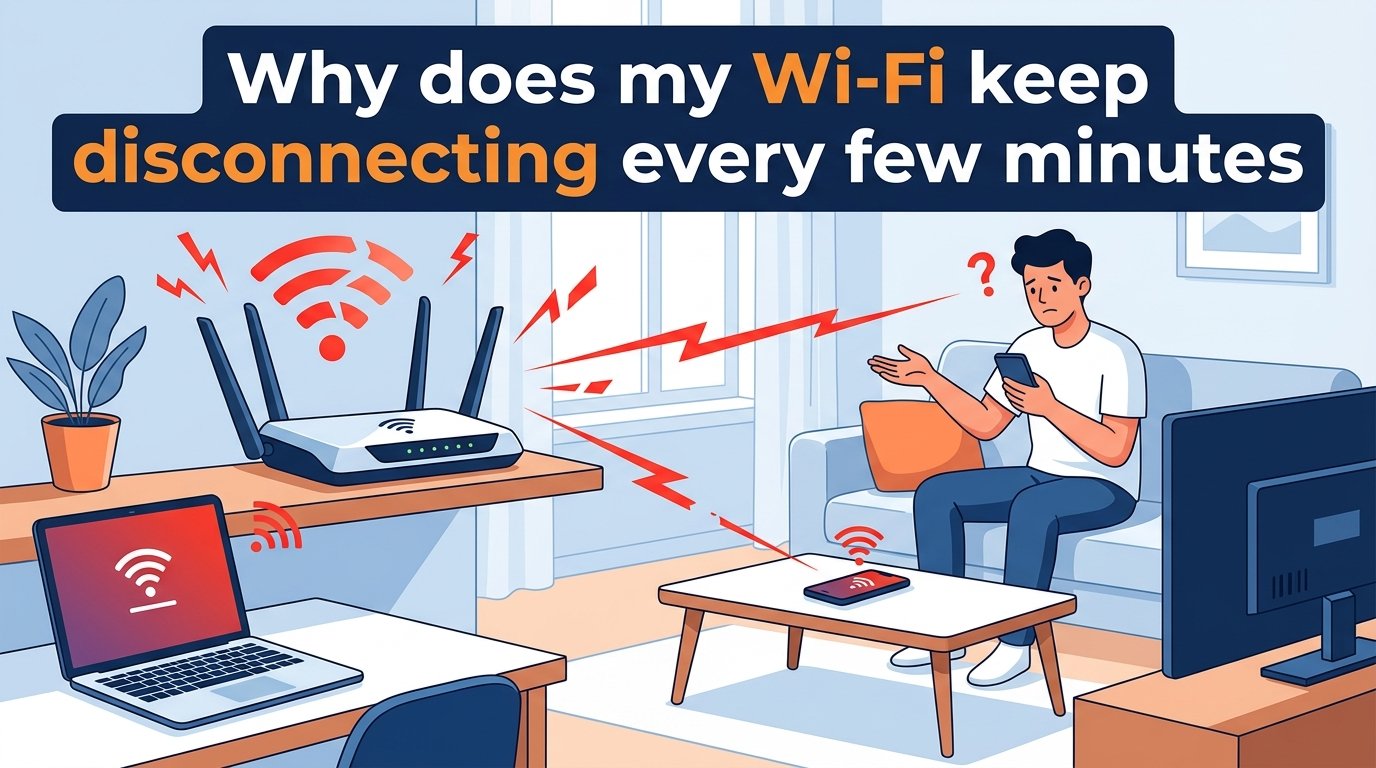
There’s nothing more frustrating than settling into work or a gaming session only to have your Wi-Fi keeps disconnecting every few minutes. I’ve dealt with this issue countless times, and the constant interruptions can completely derail productivity. The good news is that most WiFi disconnection problems have straightforward solutions once you identify the root cause.
Your WiFi disconnects repeatedly because of router glitches, weak signal strength, network congestion, outdated firmware, or ISP issues. Sometimes the problem lies with your specific device’s network adapter or power settings. This guide walks you through every possible cause and the exact steps to fix WiFi that keeps dropping, whether you’re on Windows, Mac, iPhone, or Android.
Quick Fix Checklist: Try These First
Before diving into detailed troubleshooting, work through this quick checklist. I’ve found that about 70% of WiFi disconnection issues resolve with these basic steps.
Restart your router and modem – Unplug both for 30 seconds, then plug back in. Wait 2-3 minutes for full restart.
Restart your device – A simple restart often fixes temporary network adapter glitches.
Check for service outages – Visit your ISP’s website or call their support line to rule out area-wide problems.
Move closer to your router – Weak signal strength causes frequent disconnects, especially through walls.
Forget and reconnect to the network – Go to your WiFi settings, forget the network, then reconnect with your password.
Turn off battery saver mode – Many devices cut power to WiFi adapters to save battery.
Check your cables – Ensure all ethernet and coaxial cables are firmly connected.
If none of these work, keep reading for detailed solutions tailored to your specific situation.
Why Wi-Fi Keeps Disconnecting: Common Causes
Understanding why your WiFi keeps disconnecting helps you choose the right fix faster. Let me break down each cause and its telltale signs.
Router or Modem Needs a Restart
Routers and modems accumulate temporary glitches over time, especially if they run for weeks without restart. These devices manage hundreds of connections daily, and memory leaks or process buildup eventually cause instability. The classic sign is WiFi working fine one moment, then disconnecting repeatedly the next.
I restart my router weekly as preventive maintenance. Most modern routers have a restart option in their admin panel, or you can simply unplug them for 30 seconds.
Weak Wi-Fi Signal Strength
Distance and physical obstructions weaken your WiFi signal dramatically. Walls, floors, large appliances, and even fish tanks can block or interfere with wireless signals. When signal strength drops below a certain threshold, your device disconnects and struggles to reconnect.
Check your WiFi icon – if you see one or two bars, signal weakness is likely your culprit. Moving your router to a more central location or adding a mesh system often resolves this permanently.
Network Congestion
Too many devices competing for bandwidth causes disconnections, especially during peak usage hours. Every device on your network shares the same WiFi channel and bandwidth. When multiple people stream 4K video, game online, or download large files simultaneously, your router may drop connections to manage the load.
The 2.4GHz band is particularly prone to congestion because it has fewer channels and faces interference from neighbors’ networks. Switching to 5GHz often helps if your router supports dual-band connections.
Outdated Router Firmware
Router manufacturers release firmware updates that fix bugs, patch security vulnerabilities, and improve stability. Running outdated firmware leaves you vulnerable to known issues that cause disconnections. Many users never update their router firmware, missing critical fixes for connectivity problems.
Check your router’s admin panel for firmware updates. Most modern routers have an automatic update option you should enable.
ISP Issues and Service Outages
Sometimes the problem isn’t yours at all – it’s your internet service provider. ISPs experience outages, maintenance windows, and equipment failures that affect your connection. If your WiFi stays connected to the router but has no internet, the issue likely lies with your ISP.
Check your ISP’s status page, call their support line, or use a service like DownDetector to see if others in your area report problems.
Network Adapter Driver Problems
Your device’s network adapter needs proper drivers to communicate with your router. Outdated, corrupted, or incompatible drivers cause frequent disconnects, especially after Windows updates. This issue affects Windows users more frequently than Mac or mobile users.
Forum discussions reveal that Windows 11 users particularly struggle with WiFi stability after system updates. Lenovo laptops with MediaTek WiFi 6 adapters are notably prone to driver-related disconnection issues.
Physical Cable Issues
Loose or damaged cables between your modem and router, or from your modem to the wall connection, cause intermittent connectivity. Coaxial cables and ethernet cables can degrade over time or come loose during cleaning. Check all cable connections firmly seated in their ports.
How to Fix Wi-Fi That Keeps Disconnecting
Now let’s walk through detailed troubleshooting steps. I’ll cover solutions from simplest to most complex, so start at the top and work down.
Step 1: Properly Restart Your Router and Modem
A proper restart flushes temporary memory and reinitializes all processes. This single step resolves most WiFi disconnection issues.
Unplug your router from power.
Unplug your modem from power.
Wait 30 seconds (this allows capacitors to fully discharge).
Plug in your modem first.
Wait 2-3 minutes for the modem to fully boot and establish connection.
Plug in your router.
Wait another 2-3 minutes for the router to fully boot.
Reconnect your devices to WiFi.
Step 2: Update Router Firmware
Keeping your router firmware current ensures you have the latest bug fixes and stability improvements.
Find your router’s IP address (usually printed on the bottom, typically 192.168.1.1 or 192.168.0.1).
Enter that IP in your browser’s address bar.
Log in with your admin credentials (default credentials are on the router label).
Navigate to Firmware Update or Administration section.
Check for updates and install if available.
Let the router restart completely after the update.
Enable automatic firmware updates if your router offers this option.
Step 3: Optimize Router Placement
Router placement dramatically affects signal strength and stability. Here are the key principles:
Place your router in a central location in your home.
Elevate it on a shelf or table rather than the floor.
Keep it away from metal objects, appliances, and electronics.
Avoid corners, closets, and enclosed spaces.
Point antennas vertically for best horizontal coverage.
Keep away from cordless phones, microwaves, and baby monitors.
Step 4: Switch WiFi Channels
Overlapping WiFi channels from neighboring networks cause interference and disconnections. Switching to a less congested channel often stabilizes your connection.
For 2.4GHz networks, channels 1, 6, and 11 are non-overlapping and generally best. For 5GHz networks, interference is less common but you can still experiment with different channels.
Log into your router’s admin panel.
Navigate to Wireless Settings.
Find Channel selection (may be set to Auto).
Try different channels and test your connection stability.
Use a WiFi analyzer app on your phone to see which channels are least congested.
Step 5: Perform a Network Reset (Windows)
Windows 10 and 11 have a built-in network reset that reinstalls network adapters and resets settings to defaults.
Open Settings (Windows key + I).
Go to Network & Internet.
Scroll down and click Network reset.
Click Reset now.
Confirm and let Windows restart.
After restart, reconnect to your WiFi network.
This fix resolves persistent driver and configuration issues that standard troubleshooting misses.
Step 6: Check Router Logs for Patterns
Your router maintains logs of connection events that reveal patterns in disconnections. Different router brands provide different log access methods.
For ASUS routers: Log in to the admin panel, go to System Log > Wireless Log. Look for repeated disconnection messages.
For NETGEAR routers: Navigate to Administration > Logs. Check for DHCP or connection timeout messages.
For TP-Link routers: Go to System Tools > System Log. Look for wireless authentication or association failures.
For Linksys routers: Access Connectivity > Diagnostics > Logs. Review for repeated connection drops.
Device-Specific Solutions for Wi-Fi Disconnects
Sometimes the issue is specific to your device rather than your network. Here are targeted fixes for each platform.
Windows 10 and 11 Fixes
Windows users face unique challenges with WiFi stability, especially after system updates. Try these solutions in order.
Update Network Adapter Drivers:
Right-click Start and select Device Manager.
Expand Network adapters.
Right-click your WiFi adapter and select Update driver.
Choose Search automatically for drivers.
Restart your computer after installation.
Disable Power Management:
Windows often cuts power to your network adapter to save battery, causing disconnects.
Open Device Manager and find your WiFi adapter.
Right-click and select Properties.
Go to the Power Management tab.
Uncheck “Allow the computer to turn off this device to save power.”
Click OK and restart.
Reset Network Settings via Command Prompt:
Open Command Prompt as administrator and run these commands one by one:
netsh winsock resetnetsh int ip resetipconfig /releaseipconfig /renewipconfig /flushdns
Restart your computer after running these commands.
For MediaTek WiFi 6 Adapter Issues:
Users report that Lenovo laptops with MediaTek MT7921 adapters have persistent disconnect issues. If you have this adapter, download the latest driver directly from MediaTek or Lenovo’s support site rather than using Windows Update.
Mac Fixes
Mac users have fewer WiFi issues, but when they occur, these steps usually resolve them.
Reset Network Preferences:
Click the Apple menu and select System Settings.
Go to Network.
Click the three dots next to your network.
Choose Forget This Network.
Reconnect by entering your password.
Delete WiFi Preferences Files:
Open Finder and press Command + Shift + G.
Type /Library/Preferences/SystemConfiguration/
Delete these files: com.apple.airport.preferences.plist, NetworkInterfaces.plist, preferences.plist.
Restart your Mac.
Reconnect to your WiFi network.
Flush DNS Cache:
Open Terminal and run: sudo dscacheutil -flushcache; sudo killall -HUP mDNSResponder
iPhone and iPad Fixes
iOS devices occasionally develop WiFi connectivity issues that require reset.
Forget and Reconnect:
Go to Settings > WiFi.
Tap the info icon next to your network.
Tap Forget This Network.
Reconnect by selecting the network and entering your password.
Reset Network Settings:
Go to Settings > General > Transfer or Reset iPhone.
Tap Reset.
Select Reset Network Settings.
Enter your passcode to confirm.
Your device restarts – reconnect to WiFi.
This resets all saved WiFi passwords, so have them ready.
Disable WiFi Assist:
Sometimes WiFi Assist switches you to cellular when it shouldn’t. Go to Settings > Cellular and scroll down to turn off WiFi Assist.
Android Fixes
Android phones have their own set of WiFi troubleshooting options.
Forget Network and Reconnect:
Go to Settings > Network & Internet > WiFi.
Tap and hold your network name.
Select Forget network.
Reconnect by selecting the network and entering your password.
Turn Off Battery Optimization for WiFi:
Android’s aggressive battery saving can cut power to WiFi.
Go to Settings > Battery.
Tap Battery optimization.
Find your WiFi or network settings app.
Set it to “Don’t optimize.”
Reset Network Settings:
Go to Settings > System > Reset options.
Tap Reset WiFi, mobile & Bluetooth.
Confirm the reset.
Reconnect to your WiFi network.
When to Contact Your Internet Service Provider
Not all WiFi problems are yours to solve. Here’s how to tell when it’s time to call your ISP.
Signs the problem is on their end:
Your router shows connected but you have no internet access.
Multiple devices in your home experience the same disconnects simultaneously.
The problem started suddenly without any changes on your end.
Neighbors report similar issues (indicates area outage).
Your modem’s indicator lights show abnormal patterns.
Speed tests show dramatically lower speeds than you pay for.
Information to have ready when you call:
Your account number or phone number on the account.
Description of the problem and when it started.
What troubleshooting steps you’ve already tried.
How often disconnects occur and if there’s a pattern.
Whether the issue affects all devices or just some.
Request they check for signal issues at your address and ask about equipment upgrades if your modem or router is more than 3-4 years old.
FAQs
How do I fix my WiFi constantly disconnecting?
Start by restarting your router and modem – unplug both for 30 seconds, then plug back in. If that doesn’t work, check for firmware updates, move closer to your router, forget and reconnect to the network, and disable battery saver mode on your device. For persistent issues, update your network adapter drivers or reset network settings.
Why does my WiFi keep disconnecting every few minutes?
WiFi disconnects every few minutes due to router memory buildup, weak signal strength, network congestion, outdated firmware, or ISP issues. Device-specific causes include outdated drivers, power management settings cutting power to the WiFi adapter, or battery saver modes. Identifying the pattern helps pinpoint the cause.
Why won’t my WiFi stay connected to my phone?
Phones often disconnect due to battery optimization settings that cut power to WiFi to save battery. Turn off battery saver mode or add your WiFi settings to the battery optimization exemption list. Also try forgetting the network and reconnecting, and check if your phone’s software needs updating.
How do I get my WiFi to stay connected?
Keep your router firmware updated, place it in a central location away from obstructions, restart it weekly to clear memory, switch to a less congested WiFi channel, and ensure your devices have current network drivers. For persistent issues, consider upgrading to a mesh system for better coverage or a newer router with improved stability.
Why does my internet keep disconnecting and reconnecting?
Intermittent internet disconnections typically stem from router overheating, loose cable connections, ISP outages in your area, or failing equipment. Check all cable connections, ensure your router has proper ventilation, and verify there are no service outages. If the router is more than 3-4 years old, it may need replacement.
Is my WiFi being hacked if it keeps disconnecting?
While possible, frequent disconnects are rarely caused by hacking. More likely causes include router glitches, signal interference, outdated firmware, or ISP issues. Signs of a hacked network include unknown devices on your network, changed router settings you didn’t make, or significantly slower speeds. Check your router’s connected devices list and change your WiFi password if suspicious.
Summary
WiFi that keeps disconnecting every few minutes usually has a straightforward fix once you identify the cause. Start with the basics: restart your router and devices, check for firmware updates, and ensure proper router placement. Most issues resolve at this stage. For persistent problems, work through device-specific solutions for your platform, and don’t hesitate to contact your ISP when troubleshooting points to their equipment or service issues. With the right approach, you can restore stable WiFi and eliminate those frustrating interruptions for good.