
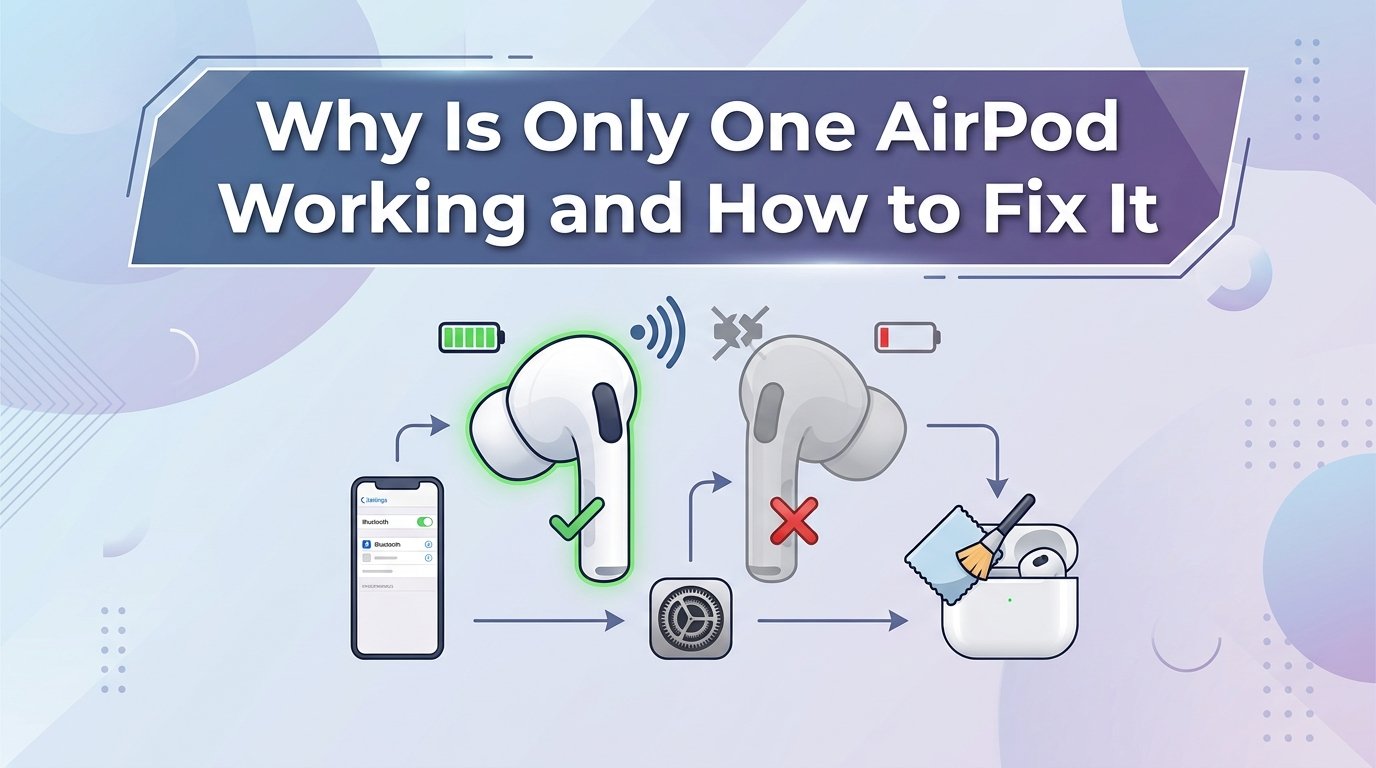
You pop in your AirPods, hit play, and suddenly realize only one ear is producing sound. If you are wondering why is only one AirPod working and how to fix it, you are far from alone. This is one of the most common AirPod problems users report across Reddit, Apple Support Communities, and tech forums.
The good news is that most cases have a simple fix. I have dealt with this issue myself multiple times across different AirPods generations, and in nearly every situation, the solution took under five minutes. Whether your left AirPod has gone silent, your right AirPod will not connect, or one side is noticeably quieter, this guide walks you through every troubleshooting step.
We will cover the common causes, quick fixes, a full reset procedure, cleaning techniques, audio balance settings, device-specific troubleshooting for iPhone, Mac, and Android, and when it is time to contact Apple Support. By the end, you should have your AirPods back to working in both ears.
Common Causes of One AirPod Not Working
Several factors can cause a single AirPod to stop producing sound or refuse to connect. Understanding the root cause helps you pick the right fix instead of trying everything blindly.
Battery Imbalance Between AirPods
Battery drain is the most frequent culprit. AirPods drain at slightly different rates depending on which one handles the microphone, Active Noise Cancellation, or connection duties. Over time, one AirPod may have significantly less charge than the other.
If one AirPod has been sitting outside the charging case while the other was charging, it may be completely dead. This happens more than you might think. You set the case down, one AirPod falls out, and only the other one charges overnight.
Bluetooth Connectivity Issues
Sometimes your iPhone or iPad connects to only one AirPod at a time. Bluetooth pairing can get out of sync, especially if you switch between devices frequently. A software glitch in the Bluetooth stack may also cause one earbud to drop the connection while the other stays paired.
Signal interference from nearby devices, Wi-Fi routers, or microwaves can also disrupt the connection to one AirPod more than the other.
Debris and Earwax Buildup
This is the cause people overlook most often. Earwax, dust, and debris accumulate in the speaker mesh over weeks and months of regular use. Once the mesh is partially or fully blocked, sound either becomes muffled or stops entirely from that AirPod.
Reddit users in r/airpods frequently report that after weeks of frustration with one silent AirPod, a thorough cleaning solved the problem completely. The buildup happens gradually, so you may not notice it until the audio cuts out.
Software and Firmware Glitches
AirPods rely on firmware to manage connections, audio processing, and features like Active Noise Cancellation. If a firmware update fails or installs incorrectly, one AirPod may stop functioning properly. Software bugs in iOS, iPadOS, or macOS can also cause audio routing issues.
Firmware updates happen automatically in the background when your AirPods are connected and charging, so you might not even realize one was interrupted. An incomplete update can leave one AirPod unresponsive.
Physical or Water Damage
Drops, impacts, sweat, and water exposure can damage the internal components of an AirPod. While standard AirPods (Gen 1-3) have no water resistance rating, AirPods Pro are rated IPX4 for sweat and water resistance. Even so, the resistance degrades over time.
If your AirPod has taken a hard drop onto concrete or been through the washing machine, the damage may be permanent. In these cases, replacement is usually the only option.
Quick Fixes to Try First
Before diving into a full reset or deep cleaning, try these quick checks. They resolve the problem in the majority of cases and take less than two minutes each.
Check Battery and Charging Status
Open the charging case lid near your iPhone or iPad. A battery status card should pop up on screen showing the charge level of each AirPod and the case itself. Look carefully at the individual levels.
If one AirPod shows 0% or does not appear at all, the issue is almost certainly battery-related. Place both AirPods in the case and let them charge for at least 15-30 minutes. Make sure the case itself has adequate charge, indicated by the status light on or inside the case.
Check that each AirPod is seated properly in the case. The magnetic snaps should hold them firmly. If an AirPod sits slightly crooked, it may not make contact with the charging pins. Remove it and reseat it firmly until you feel the magnet grab.
Reconnect via Bluetooth
Toggle Bluetooth off and on from Control Center on your iPhone or iPad. Wait a few seconds after turning it off before re-enabling it. This forces your device to re-establish the connection with both AirPods.
If that does not work, go to Settings > Bluetooth, tap the “i” icon next to your AirPods, and select “Forget This Device.” Then place both AirPods in the case, open the lid, and press and hold the setup button on the back until the status light flashes white. Reconnect by bringing the case near your iPhone.
How to Reset Your AirPods (Step by Step)
A full factory reset is the single most effective fix for one AirPod not working. This process clears all paired devices, wipes firmware state, and forces a fresh connection. I recommend trying this before anything else if the quick fixes above did not help.
Here is the complete reset procedure:
Step 1: Place both AirPods in the charging case and close the lid. Wait at least 30 seconds. This ensures the AirPods power down completely and the case registers both units.
Step 2: Open the Settings app on your iPhone or iPad. Go to Bluetooth and find your AirPods in the device list. Tap the “i” icon next to them.
Step 3: Tap “Forget This Device” and confirm. This removes the AirPods from your device’s Bluetooth memory entirely.
Step 4: With the AirPods still in the case, open the lid. Look at the status light inside the case (or on the front for newer models).
Step 5: Press and hold the setup button on the back of the case. Hold it for about 15 seconds. The status light will flash amber a few times, then flash white. The amber flash indicates the AirPods are being reset. The white flash means they are in pairing mode.
Step 6: Bring the open case near your iPhone or iPad. The setup animation should appear on screen. Tap “Connect” and follow the prompts to complete pairing.
Step 7: Test both AirPods by playing audio. If both earbuds now produce sound, the reset was successful.
For AirPods Pro 2, the procedure is nearly identical. The setup button is on the back of the charging case, and you may also feel a chime when the reset completes. Some AirPods Pro 2 users report needing to perform the reset twice before both earbuds reconnect properly, so do not give up after one attempt.
If you are resetting AirPods Max, the process is slightly different. Instead of a setup button on a case, press and hold the Digital Crown and the Noise Control button simultaneously for about 15 seconds until the status light flashes amber then white.
Cleaning Debris from Your AirPods Speaker Mesh
If the reset did not fix the issue, debris buildup is your next suspect. This is especially common if you use your AirPods during workouts, in dusty environments, or have been using them for several months without cleaning.
Here is how to clean your AirPods safely and effectively:
Step 1: Gather your tools. You will need a clean, dry, soft-bristled brush (a new toothbrush works well), a microfiber cloth, and optionally a piece of Blu-Tack or similar adhesive putty. Never use liquids, sharp objects, or compressed air.
Step 2: Hold the AirPod with the speaker mesh facing down. This orientation lets dislodged debris fall out rather than being pushed deeper.
Step 3: Gently brush the speaker mesh with the soft-bristled brush. Use light, sweeping motions. Do not press hard. The mesh is delicate and can be damaged by aggressive brushing.
Step 4: For stubborn debris, press a small piece of Blu-Tack gently against the mesh and pull it away. The tacky surface grabs debris without pushing it further in. Repeat several times until no more debris comes off on the putty.
Step 5: Wipe the exterior of the AirPod with a dry microfiber cloth. Make sure no moisture is present.
Step 6: For AirPods Pro, remove the silicone ear tips before cleaning. Pull them straight off, clean the mesh underneath, and rinse the tips with water separately. Make sure the tips are completely dry before reattaching them.
After cleaning, test the AirPod. Many users are amazed at how much louder and clearer a “broken” AirPod becomes after a proper cleaning session. Apple’s official support documentation also recommends this as a primary troubleshooting step.
Checking Audio Balance Settings
Sometimes the problem is not with the AirPods at all. Your iPhone or iPad has an audio balance slider in Accessibility settings that can route more sound to one ear than the other. If this slider gets accidentally shifted, one AirPod may seem much quieter or completely silent.
Here is how to check and fix the audio balance:
Step 1: Open Settings on your iPhone or iPad.
Step 2: Go to Accessibility > Audio/Visual (this is under the Hearing section).
Step 3: Look for the Balance slider under the Hearing section. It should be set exactly in the middle, at L 50 / R 50.
Step 4: If the slider is off-center, drag it back to the middle. The change takes effect immediately.
Step 5: Play audio and check if both AirPods now produce equal volume.
This setting can get changed accidentally when your phone is in your pocket and the screen is touched, or if a child has been playing with your device. It is a quick check worth doing before attempting more complex fixes.
Device-Specific Troubleshooting
The steps above cover the universal fixes, but different devices can introduce their own quirks. Here is how to tackle the one-AirPod problem on specific platforms.
Fixing One AirPod Not Working on iPhone and iPad
iPhone and iPad are the most common devices paired with AirPods, and most fixes work well here. Start with the quick battery check and Bluetooth reconnection steps. If those fail, do a full factory reset as described above.
If the problem persists, try resetting your network settings. Go to Settings > General > Transfer or Reset iPhone > Reset > Reset Network Settings. This clears all saved Wi-Fi passwords and Bluetooth pairings, so you will need to reconnect to Wi-Fi networks afterward. But it can resolve deep Bluetooth stack issues that prevent one AirPod from connecting.
Also check for iOS updates. Go to Settings > General > Software Update and install any pending updates. Apple occasionally releases patches that fix Bluetooth audio routing bugs affecting AirPods.
Fixing One AirPod Not Working on Mac
Mac-specific AirPod issues are underserved in most troubleshooting guides, which is a problem since forum users frequently report difficulty with Mac Bluetooth management. If one AirPod is silent on your Mac, try these steps.
First, click the Bluetooth icon in the menu bar. Hover over your AirPods and click the X or “Disconnect.” Wait a few seconds, then click “Connect” again. This forces a fresh connection attempt to both earbuds.
If that does not work, go to System Settings > Bluetooth, find your AirPods, click the “i” or details icon, and select “Forget This Device.” Then put the AirPods back in pairing mode and reconnect.
For persistent Mac issues, try killing the Bluetooth daemon. Open Activity Monitor, search for “bluetoothd,” and force quit it. macOS will restart the process automatically. Then reconnect your AirPods. This clears stuck Bluetooth states without rebooting your entire Mac.
You can also try resetting the Bluetooth module entirely. Hold Shift and Option while clicking the Bluetooth menu bar icon, then select “Reset the Bluetooth module.” This is a hidden option that most users do not know about.
Fixing One AirPod Not Working on Android
AirPods work with Android devices, but you lose some Apple ecosystem features. If one AirPod is not working on Android, the troubleshooting approach is slightly different.
Go to Settings > Connected devices > Bluetooth. Find your AirPods in the list, tap the gear icon next to them, and select “Unpair” or “Forget.” Then reset the AirPods using the setup button method described earlier and pair them again.
Android’s Bluetooth implementation varies by manufacturer, so you may need to also toggle Airplane Mode on and off to reset all radio connections. On some Samsung and Pixel devices, clearing the Bluetooth cache can help. Go to Settings > Apps > Show system apps > Bluetooth > Storage > Clear Cache.
Left vs Right AirPod: Why One Side Fails More Often
Reddit users in r/airpods consistently report that the left AirPod fails more frequently than the right. This is not just anecdotal frustration. There are real technical reasons for the asymmetry.
By default, the microphone on AirPods is set to “Automatically Switch AirPods,” but in practice, the right AirPod often handles the primary microphone duty because it also manages the connection to your device. This means the right AirPod may drain slightly faster in terms of active processing, but the left AirPod sometimes enters a lower-power state that does not wake up properly when audio resumes.
Additionally, the left AirPod may be more prone to debris buildup depending on your dominant hand and how you handle the AirPods. Many users subconsciously handle the right AirPod more carefully since it is easier to reach with their dominant hand.
If your left AirPod is the one that keeps failing, a factory reset is your best first step. Follow up with a thorough cleaning. If neither works, the battery in the left AirPod may be degraded beyond recovery, which requires service or replacement.
For AirPods Pro 2 users, ear tip fit detection can also cause asymmetry. If the ear tip seal is compromised on one side, the AirPod may disable Active Noise Cancellation or produce reduced audio. Try swapping ear tips between left and right to see if the problem follows the tip or the AirPod body.
Tips to Prevent AirPod Audio Issues
Prevention saves you from repeating the troubleshooting process every few weeks. Here are the maintenance habits that keep both AirPods working reliably.
Always store both AirPods in the charging case when not in use. This keeps them charged, protected from debris, and paired with your devices. Leaving one AirPod on a desk or in a pocket is the fastest way to create a battery imbalance.
Clean your AirPods weekly if you use them daily. A quick brush of the speaker mesh with a soft-bristled brush takes about 30 seconds and prevents the gradual buildup that eventually blocks sound entirely.
Keep your firmware and iOS updated. Apple pushes AirPods firmware updates silently, but they only install when the AirPods are connected and charging. Leaving them in the case near your iPhone overnight ensures updates apply smoothly.
Avoid exposing AirPods to extreme temperatures. Leaving them in a hot car or freezing garage can damage the battery cells and internal components. The optimal storage temperature range is between -10 and 45 degrees Celsius.
Use a protective case for the charging case itself. Drops can misalign the internal charging pins, causing one AirPod to charge intermittently. A silicone or hard shell case absorbs impact and keeps the charging contacts aligned.
When to Contact Apple Support
If you have tried every fix in this guide and one AirPod still produces no sound, it is time to seek professional help. Here is how to know when you have exhausted your options.
If a single AirPod shows 0% battery after 30 minutes of charging, will not connect even after a factory reset, or produces no sound after thorough cleaning, the problem is likely hardware-related. Internal battery failure, speaker driver damage, or a broken Bluetooth antenna require professional service.
Check your warranty status at checkcoverage.apple.com using the serial number found in Settings > Bluetooth > “i” icon next to your AirPods. Apple’s limited warranty covers manufacturing defects for one year. AppleCare+ extends coverage and includes accidental damage protection for a reduced service fee.
If your AirPods are out of warranty, you can purchase a replacement for a single AirPod rather than buying an entirely new set. Contact Apple Support through the Support app, online chat, or visit an Apple Store or authorized service provider. Have your serial number ready.
Sometimes a single replacement AirPod is the most cost-effective solution. The replacement will pair with your existing case and functioning AirPod without issues after a standard reset.
FAQs
How do I reset a single AirPod?
You cannot reset just one AirPod individually. The reset process applies to both AirPods as a pair. Place both in the charging case, press and hold the setup button on the back for 15 seconds until the status light flashes amber then white, then reconnect them to your device. This factory reset clears all settings from both AirPods simultaneously.
Why is my AirPod only playing on one side?
The most common reasons are battery imbalance, Bluetooth connectivity glitches, debris blocking the speaker mesh, or shifted audio balance settings in Accessibility. Start by checking battery levels for each AirPod, then reconnect via Bluetooth, and if needed perform a full factory reset. Cleaning the speaker mesh and checking the audio balance slider in Settings u0026gt; Accessibility u0026gt; Audio/Visual are also effective fixes.
Why is only one AirPod dead?
One AirPod may be dead because it was not seated properly in the charging case, the charging pins are blocked by debris, or the battery has degraded. Remove both AirPods, clean the contacts inside the case, reseat them firmly, and charge for 30 minutes. If it still shows 0% after charging, the battery may need professional service or replacement.
How do I fix an unresponsive AirPod?
First, place both AirPods in the case and charge them for 30 minutes. Then forget the AirPods in your Bluetooth settings and perform a factory reset by holding the setup button for 15 seconds until the light flashes amber then white. Reconnect to your device and test. If the AirPod remains unresponsive, clean the speaker mesh and charging contacts. If nothing works, contact Apple Support as the issue may be hardware-related.
Conclusion
Dealing with one silent AirPod is frustrating, but as this guide shows, most cases are fixable at home in minutes. The key steps are checking battery levels, reconnecting via Bluetooth, performing a factory reset, cleaning the speaker mesh, and verifying audio balance settings in Accessibility.
Understanding why is only one AirPod working and how to fix it comes down to identifying the root cause. Start with the simplest fixes and work your way up. If nothing in this guide resolves the issue, Apple Support can provide warranty service or a single replacement AirPod without requiring you to buy a whole new set.
Keep your AirPods clean, stored in the case when not in use, and updated with the latest firmware. These simple habits prevent most audio issues before they start.