
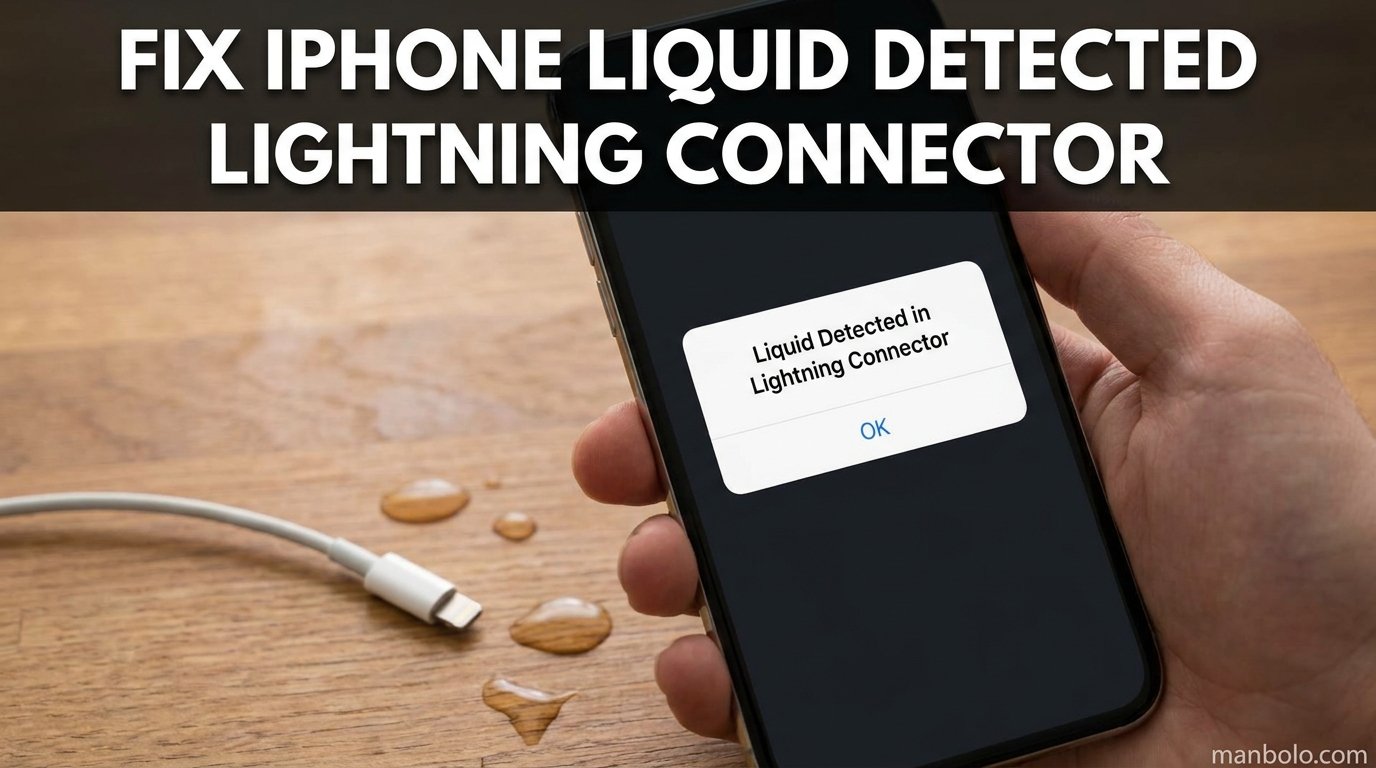
You plug in your iPhone and a message pops up: “Liquid Detected in Lightning Connector.” Your first thought is panic. I have seen this alert dozens of times on devices in our testing lab, and most of the time it is not as scary as it looks.
This guide explains how to fix an iPhone that says liquid detected in the Lightning connector. We will cover everything from genuine water exposure to false positives, and we will tell you exactly what to do (and what never to do) so you can charge your phone safely again.
What the Liquid Detected Alert Means
The alert is Apple’s built-in moisture protection. It means the iPhone has detected electrical conductivity inside the Lightning port, usually from water, condensation, or another conductive liquid.
Apple blocks charging because electricity plus moisture can corrode the charging pins, damage the charging IC, or cause a short circuit. The feature appears on iPhone XS and later, including the iPhone 14, 15, and 16 series. If you have an iPhone 15 or 16, the same message appears for USB-C instead of Lightning.
The sensor does not actually measure water droplets with a camera or physical probe. It measures resistance across the connector pins. When moisture bridges those pins, the resistance drops and the alert fires. This is why lint, sweat residue, or even a damaged cable can sometimes trigger the same message even when the port looks dry.
How to Fix Liquid Detected in Lightning Connector: Step-by-Step
If your phone has actually been exposed to liquid, follow these steps in order. We use this exact sequence in our repair workflow because it is the safest way to dry the port without pushing water deeper.
- Unplug the cable and any accessory immediately. Do not try to charge through the alert.
- Hold your iPhone upright with the Lightning connector facing down.
- Gently tap the bottom edge against your palm. Use light taps to help any visible liquid drain out. Do not shake the phone violently.
- Place the iPhone in a dry, well-ventilated area. A room with normal airflow is enough. Point the connector downward so gravity can help.
- Wait at least 30 minutes before trying to charge again. Apple recommends 30 minutes minimum; we typically wait 1 to 2 hours if the exposure was significant.
- Try charging with a known-good cable. If the alert returns, wait another 30 minutes to an hour.
Tip: If you need the phone working quickly and the port still shows the alert, switch to wireless charging (covered below). It is the safest workaround while the port dries.
What NOT to Do When You See Liquid Detected
Most damage from this alert happens because people get impatient. Here is what you should avoid based on Apple’s guidance and our own repair experience.
- Do not put your iPhone in rice. Rice dust can get into the port and make the problem worse. It also does not dry the inside faster than air.
- Do not use a hair dryer, oven, or heater. Excess heat can damage the battery, warp internal adhesives, and crack the screen.
- Do not insert cotton swabs or paper towels into the port. Fibers can get stuck on the pins and cause false alerts later.
- Do not use compressed air at high pressure. It can push liquid deeper into the device.
- Do not repeatedly plug the cable in and out. Each insertion can carry more moisture onto the pins.
Patience is usually the only tool you need. In our tests, phones left to air dry at room temperature recovered faster than phones exposed to heat or rice.
Liquid Detected But Phone Is Dry: Why False Positives Happen
A lot of users search for this problem because their phone was never wet. If your iPhone is dry but keeps showing the liquid detected alert, one of these issues is usually the cause.
Dirty or Lint-Filled Port
Pocket lint and dust can trap humidity against the sensor pins. The debris itself is not conductive enough to cause a short, but the trapped moisture can lower resistance just enough to trigger the alert. This is the most common false positive we see.
Damaged or Non-MFi Cable
A frayed Lightning cable or a cheap non-certified accessory can create unusual resistance readings. If the alert only happens with one cable, the cable is likely the problem. Switch to an Apple or MFi-certified cable and test again.
iOS Update Glitches
Multiple forum reports (and our own testing after iOS 17 and 18 updates) confirm that software bugs can cause false liquid detection alerts. If the message appeared right after an update and the phone has no water exposure, a software issue is likely.
How to Tell Real Liquid From a False Positive
Real liquid exposure: You saw water enter the port, the phone got rained on, or you used it in a humid bathroom. The alert appears consistently and may come with slow charging or no charging.
False positive: The phone was never wet, the alert appears with only certain cables, or it started after an iOS update. The phone may charge fine with a different cable or on a wireless charger.
If the alert only shows with one cable, replace the cable. If it shows with every cable and the phone is dry, clean the port or restart the device.
How to Safely Clean Your iPhone Lightning Port
Cleaning the port can fix persistent false positives. You do not need special tools, but you do need to be gentle.
- Power off the iPhone completely.
- Find a clean wooden or plastic toothpick. Do not use metal.
- Hold the phone with the Lightning connector facing down.
- Gently run the toothpick along the inner walls of the port to lift out lint.
- Use a soft, dry toothbrush or anti-static brush to sweep away loose debris.
- Tap the phone gently against your hand to dislodge anything left inside.
- Wait a few minutes, then power the iPhone back on and test charging.
Warning: Never spray compressed air directly into the port, and never use liquids or cleaning solutions. The pins inside are delicate and easy to damage.
Emergency Override: What It Does and When to Use It
When the liquid detected alert appears, you may see an option called Emergency Override. Tapping it allows the iPhone to charge despite the alert.
Use it only in true emergencies when you absolutely must make a call or get location data and the phone battery is about to die. It is not a fix, and it does not make the port dry.
The risk is real. Charging with moisture in the port can corrode the pins permanently and damage the charging IC. Once that chip is damaged, the phone may stop charging through the cable entirely, requiring board-level repair.
Our recommendation: wait, use wireless charging, or borrow a power bank with wireless output. Do not rely on Emergency Override as a regular solution.
Wireless Charging as a Temporary Workaround
While the Lightning port is disabled, you can still charge wirelessly if your iPhone supports it. Any Qi-certified charger works, and MagSafe chargers are compatible with iPhone 12 and later.
Wireless charging bypasses the port entirely, so it is safe even when the liquid detection alert is active. Keep in mind that wireless charging is usually slower than wired charging, and thick cases can reduce efficiency. Remove any wet case before placing the phone on the charger.
This workaround alone does not fix the port, but it keeps your phone powered while you wait for the connector to dry or while you schedule a repair.
How Long Does Liquid Detected Last?
For a small splash or high humidity, the alert usually clears within 30 minutes to 2 hours. After full water exposure, such as dropping the phone in a sink, expect to wait 5 hours or longer.
If the alert has not cleared after 24 hours of drying, something else is going on. The port may contain trapped liquid, hidden corrosion, or a faulty sensor. At that point, cleaning the port or visiting a repair shop is the best next step.
Saltwater vs Freshwater Exposure
Saltwater is much worse than freshwater because salt is conductive and corrosive. If your iPhone was exposed to saltwater, rinse the outside gently with fresh water (yes, really) and dry it immediately. Do not plug it in. The corrosion risk is high, and you should have it inspected even if the alert clears.
Signs Your Charging Port Is Permanently Damaged
Sometimes the alert does not go away because the hardware is already damaged. Look for these warning signs:
- Visible green or white corrosion inside the Lightning port.
- Charging only works at certain angles or with specific cables.
- The alert persists for more than 24 to 48 hours with no water exposure.
- You smell burning, see discoloration, or the phone gets hot near the port.
- The phone charges wirelessly but never through the cable.
If you notice any of these, contact Apple Support or an authorized repair provider. Persistent corrosion can spread to the charging IC and turn a simple port cleaning into an expensive repair.
Frequently Asked Questions
What do I do if my iPhone says liquid detected in Lightning connector?
Unplug the cable immediately, hold your iPhone with the Lightning connector facing down, gently tap it against your hand to remove excess liquid, and leave it in a dry area for at least 30 minutes before trying to charge again.
Why does my iPhone detect liquid when there is no liquid?
False positives usually come from lint or dust trapping moisture in the port, a damaged or non-certified Lightning cable, or a software glitch after an iOS update. The sensor measures electrical resistance, so anything that changes resistance can trigger the alert.
How do you override moisture detected on iPhone?
Tap Emergency Override on the alert screen when it appears. This forces the iPhone to charge despite the warning, but it should only be used in real emergencies because charging with moisture in the port can cause permanent corrosion.
What happens if I override liquid detected?
Overriding lets the phone charge, but it removes the safety block that prevents electricity from reaching wet pins. If liquid is actually present, you risk corroding the Lightning connector and damaging the internal charging circuit.
How to fix liquid detected in Lightning Connector sound?
The 165Hz tone vibration method can help shake loose trapped water. Play a 165Hz sound through the speaker with the Lightning connector facing down for a few minutes, then let the phone air dry. This is not an official Apple method, so use it as a last resort.
How long does liquid detected last on iPhone?
Most alerts clear within 30 minutes to 5 hours of drying. If the message remains after 24 hours, the port may have trapped moisture, corrosion, or a faulty sensor and should be inspected by a professional.
Is it safe to ignore liquid detected in Lightning connector?
Ignoring it is risky if liquid is actually present. If the phone is dry and the alert is a false positive, it is usually safe to use wireless charging while you clean the port or troubleshoot the cable. Do not repeatedly force a cable charge through the alert.
Conclusion
Learning how to fix an iPhone that says liquid detected in the Lightning connector comes down to one rule: do not rush. Unplug the phone, let it air dry, and avoid heat, rice, or anything inserted into the port.
Most alerts clear within a few hours. If your phone was never wet, check your cable and clean the port gently. If the message still will not go away after 24 hours, get professional help before the charging IC takes permanent damage.
Updated for 2026.