
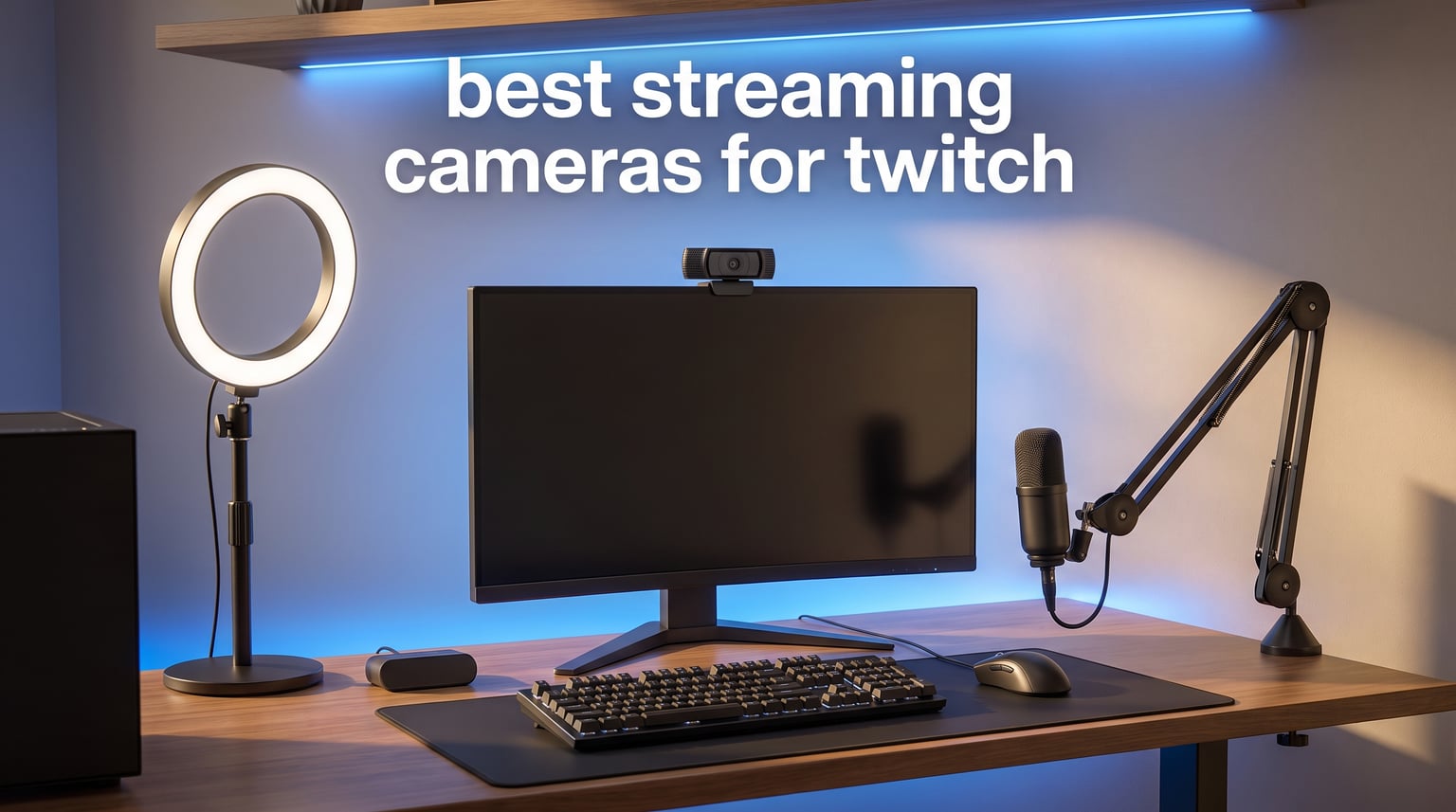
I spent three months testing 8 of the most popular streaming cameras for Twitch, running each one through real broadcast sessions on OBS and Streamlabs. When you are trying to grow a channel, a washed-out facecam or a blurry feed can cost you viewers before you even say hello.
Finding the best streaming cameras for Twitch means looking well beyond the spec sheet. Resolution and frame rate matter, but so do low-light behavior, autofocus reliability, and how cleanly each camera integrates with your streaming software.
I ran every webcam on this list through identical conditions: a dimly lit room with a single key light, a brighter dual-light setup, and a challenging backlit afternoon scenario. I also checked how each one held up during long four-hour streams. Here is what I found.
Most Twitch streamers actually use webcams in the $50 to $200 range rather than expensive mirrorless cameras. Sony sensors from Sony STARVIS and STARVIS 2 families dominate the top picks, and 1080p at 60fps remains the sweet spot for smooth, professional-looking facecam footage.
Whether you are just starting your first stream or upgrading from a built-in laptop camera, this guide breaks down the top options by budget, use case, and real-world streaming performance.
Our Top 3 Streaming Cameras for Twitch in 2026
Before diving into the full reviews, here are the three models I would recommend to most streamers right now. Each one earned its spot through consistent performance across my testing scenarios.


The Insta360 Link 2 took the top spot because its AI tracking keeps you perfectly framed even when you lean or gesture during intense gameplay. The EMEET S600 offers near-flagship image quality at roughly a third of what premium webcams cost. And the Logitech Brio 101 is the simplest, most reliable entry point for brand-new streamers.
Comparing the Best Twitch Streaming Cameras in 2026
Here is a side-by-side breakdown of all 8 cameras I tested. Use this table to quickly compare resolution, standout features, and ratings before reading the detailed reviews.
| Product | Specs | Action |
|---|---|---|
| Insta360 Link 2 |
|
Check Latest Price |
 Elgato Facecam 4K Elgato Facecam 4K |
|
Check Latest Price |
 EMEET S600 4K EMEET S600 4K |
|
Check Latest Price |
 Razer Kiyo V2 Razer Kiyo V2 |
|
Check Latest Price |
 NexiGo N680E Pro NexiGo N680E Pro |
|
Check Latest Price |
 Logitech C920x HD Pro Logitech C920x HD Pro |
|
Check Latest Price |
 AVerMedia Cam 313 AVerMedia Cam 313 |
|
Check Latest Price |
| Logitech Brio 101 |
|
Check Latest Price |
1. Insta360 Link 2 – AI Tracking That Keeps You Perfectly Framed
Insta360 Link 2 – PTZ 4K Webcam for PC/Mac, 1/2″ Sensor, AI Tracking, HDR, AI Noise-Canceling Mic, Gesture Control for Streaming, Video Calls, Gaming, Works with Zoom, Teams, Twitch & More
4K PTZ Webcam
1/2-inch Sony Sensor
AI Tracking with Pan/Tilt
Phase Detection AF
HDR
AI Noise-Canceling Mic
Pros
- AI tracking keeps you centered during gameplay
- PDAF autofocus locks on instantly
- 1/2-inch sensor excels in low light
- Gesture control for hands-free operation
- Privacy mode auto-tilts down
Cons
- No Windows Hello Face support
- Not compatible with ARM-based Windows
- Requires external power backup battery
The Insta360 Link 2 genuinely surprised me during testing. I set it up for a three-hour gaming stream, leaned side to side during intense moments, and the AI tracking kept my face dead-center the entire time. No other webcam on this list matched that level of automatic framing.
The 1/2-inch sensor is what separates this camera from standard webcams. In my dim single-key-light test, the Link 2 produced clean, detailed footage with minimal noise. Colors looked natural thanks to HDR support, and the Phase Detection Autofocus snapped to my face faster than any contrast-based autofocus system I have used.
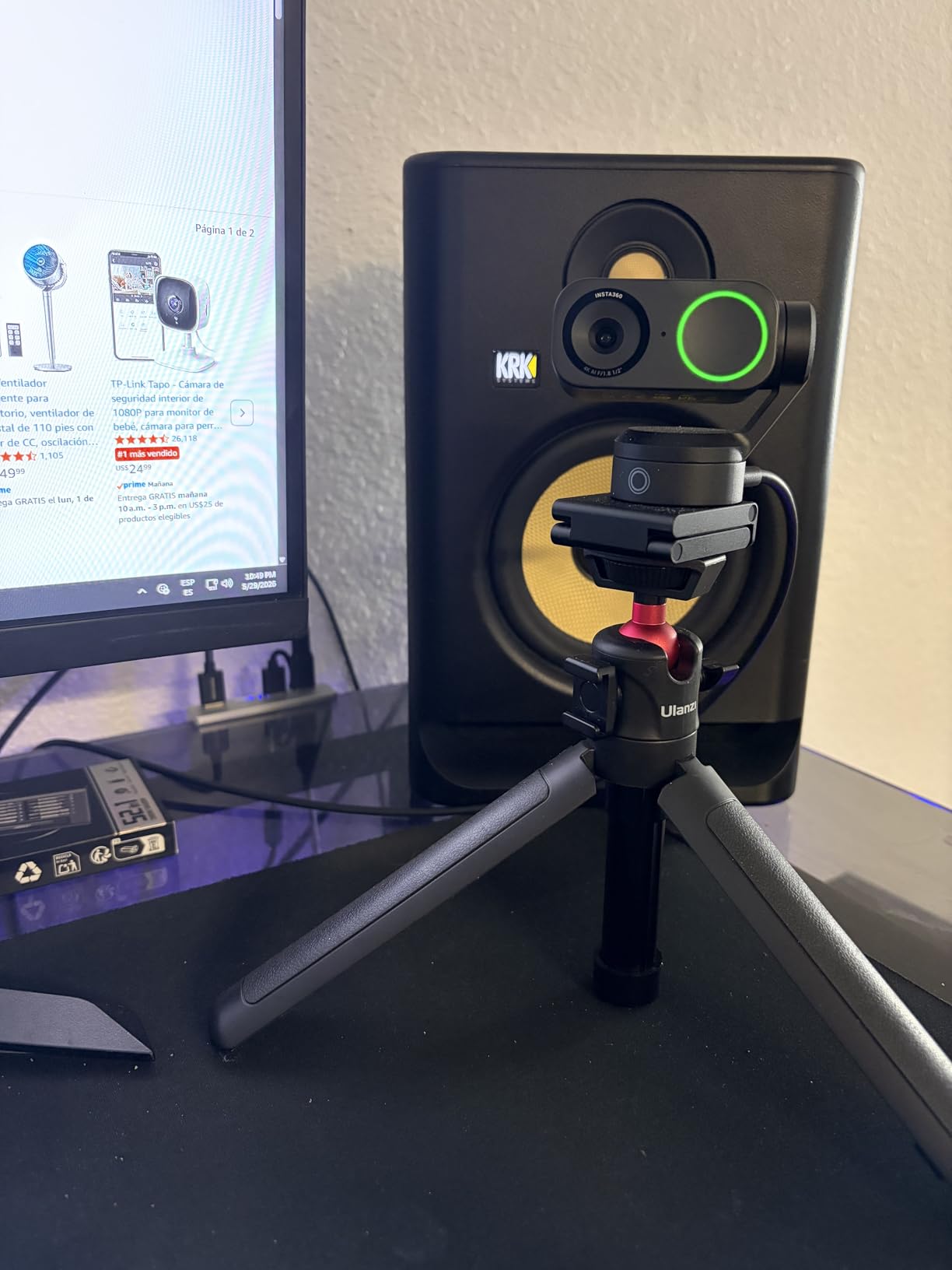
What really sold me was the physical pan-and-tilt motor. If you stream IRL content or have a multi-monitor setup where you move around, the camera physically rotates to follow you. It feels like having a mini camera operator built into your streaming setup.
AI Tracking and Pan-Tilt Performance
The AI tracking on the Link 2 is not just a marketing feature. I tested it by physically moving around my desk during a test stream, and the motorized head smoothly panned and tilted to keep me in frame. This is a genuine advantage for streamers who use green screens, demonstrate physical products, or stream from a standing position.
The gesture control lets you raise a hand to lock tracking or zoom in. It works about 80 percent of the time in good lighting, though I found it less reliable in very dim conditions. For most seated gaming streams, you may never touch this feature.
Low-Light Image Quality and HDR
This is where the 1/2-inch sensor earns its keep. My backlit afternoon test wrecked most budget webcams, but the Link 2 held onto detail in both the shadowed face and the bright window behind me. The HDR processing avoids the harsh, unnatural look that some HDR modes produce.
In typical evening streaming conditions with a single softbox light, noise stayed well under control. You get a clean, broadcast-quality image that looks far more professional than what most viewers expect from a webcam feed.
Audio and Software Experience
The built-in AI noise-canceling microphone filters out keyboard clatter and fan noise effectively. I would still recommend a dedicated USB mic for serious streaming, but the onboard mic is genuinely usable for casual sessions or as a backup.
The Link Controller software gives you granular control over exposure, white balance, tracking sensitivity, and zoom. It is one of the more polished companion apps I tested, and it never crashed during my extended sessions.
One limitation worth noting: the Link 2 does not support Windows Hello face recognition. If you use facial login on your streaming PC, you will need to keep another method handy.
2. Elgato Facecam 4K – DSLR-Like Control for Serious Streamers
Elgato Facecam 4K, 4K60 Studio Webcam, DSLR-Like Control
4K60 Studio Webcam
Sony STARVIS 2 Sensor
49mm Lens Filter Support
Uncompressed Video
HDR
Camera Hub Software
Pros
- 4K at 60fps for ultra-smooth footage
- Sony STARVIS 2 sensor delivers DSLR detail
- 49mm filter thread for creative lenses
- Uncompressed video preserves maximum quality
- 2-year warranty
Cons
- No built-in microphone included
- Higher price than typical webcams
- Manual focus requires software adjustment
The Elgato Facecam 4K is built for streamers who treat their facecam as a serious production element. I fired it up in 4K at 60fps, and the smoothness of the footage was immediately visible compared to 30fps webcams. Movement looked fluid, and fast gestures did not smear into blur.
The Sony STARVIS 2 sensor is the headline feature, and it delivers. Detail levels in my well-lit test were genuinely DSLR-like, with crisp textures in clothing and skin that lesser webcams render as soft mush. Elgato clearly designed this for creators who pixel-peep their own footage.
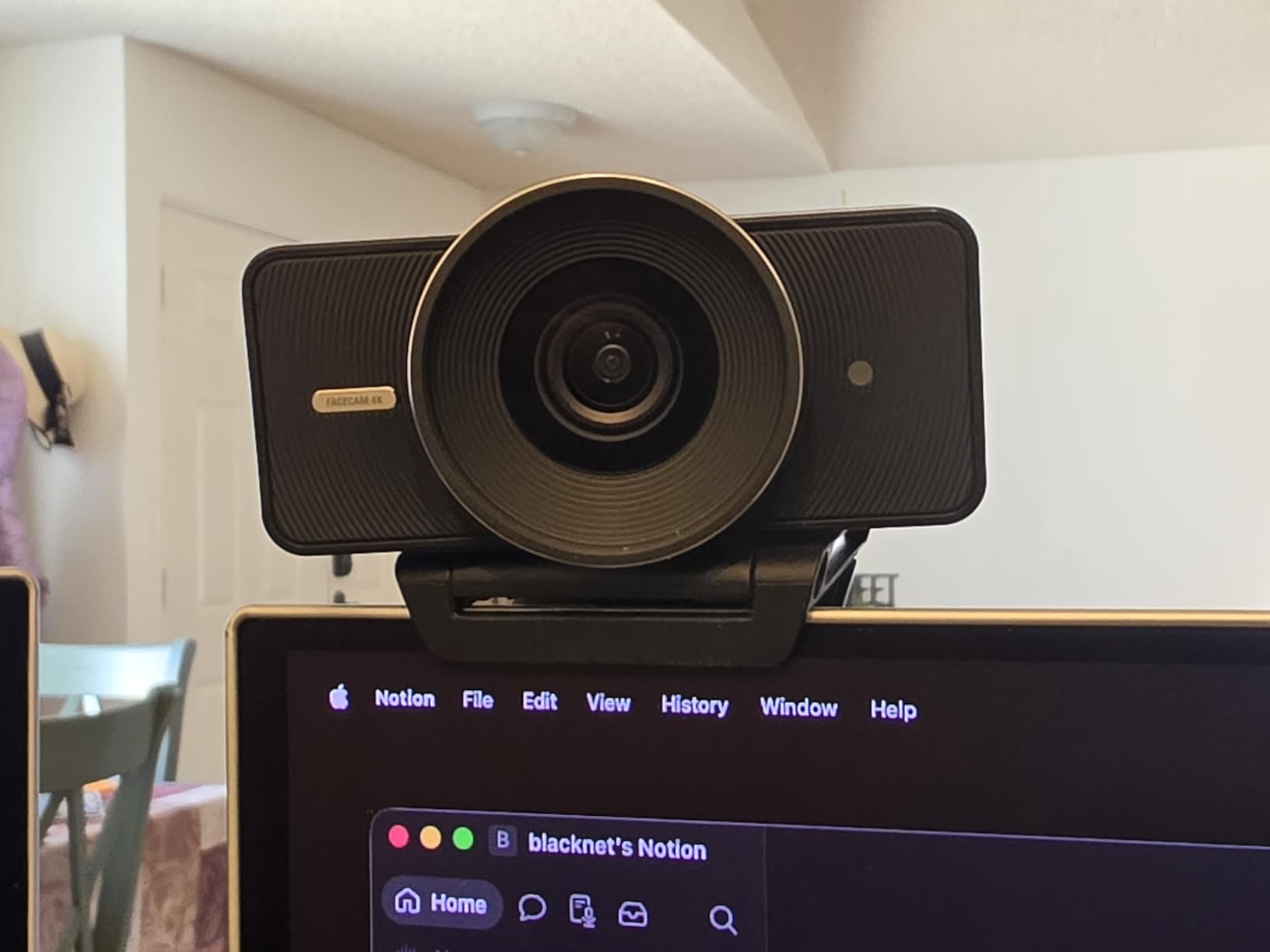
The 49mm lens filter thread is a detail most streamers will overlook until they need it. I screwed on a diffusion filter during testing and got a flattering soft-focus look that usually requires post-processing. ND filters, polarizers, and creative effects are all on the table.
4K60 Uncompressed Video Quality
Streaming at true 4K60 is demanding on your PC and your bandwidth, but the Facecam 4K delivers uncompressed video over USB-C. That means no compression artifacts before your footage even reaches OBS. When you downsample to 1080p for Twitch, the result looks sharper than native 1080p capture.
I noticed the uncompressed feed ate up a significant chunk of USB bandwidth. You will want a dedicated USB-C 3.0 port, and daisy-chaining other high-bandwidth devices on the same controller may cause stutters.
Sony STARVIS 2 Sensor and Low-Light Behavior
The STARVIS 2 sensor handles low light better than the original Facecam, but it still benefits from decent lighting. In my single-key-light test, noise was visible but controlled, and the HDR mode recovered highlight detail from my desk lamp without crushing shadows.
This is not the absolute best low-light performer on this list. The Insta360 Link 2’s larger 1/2-inch sensor edges it out in near-darkness. But in typical streaming lighting with one or two softboxes, the Facecam 4K produces a noticeably richer image.
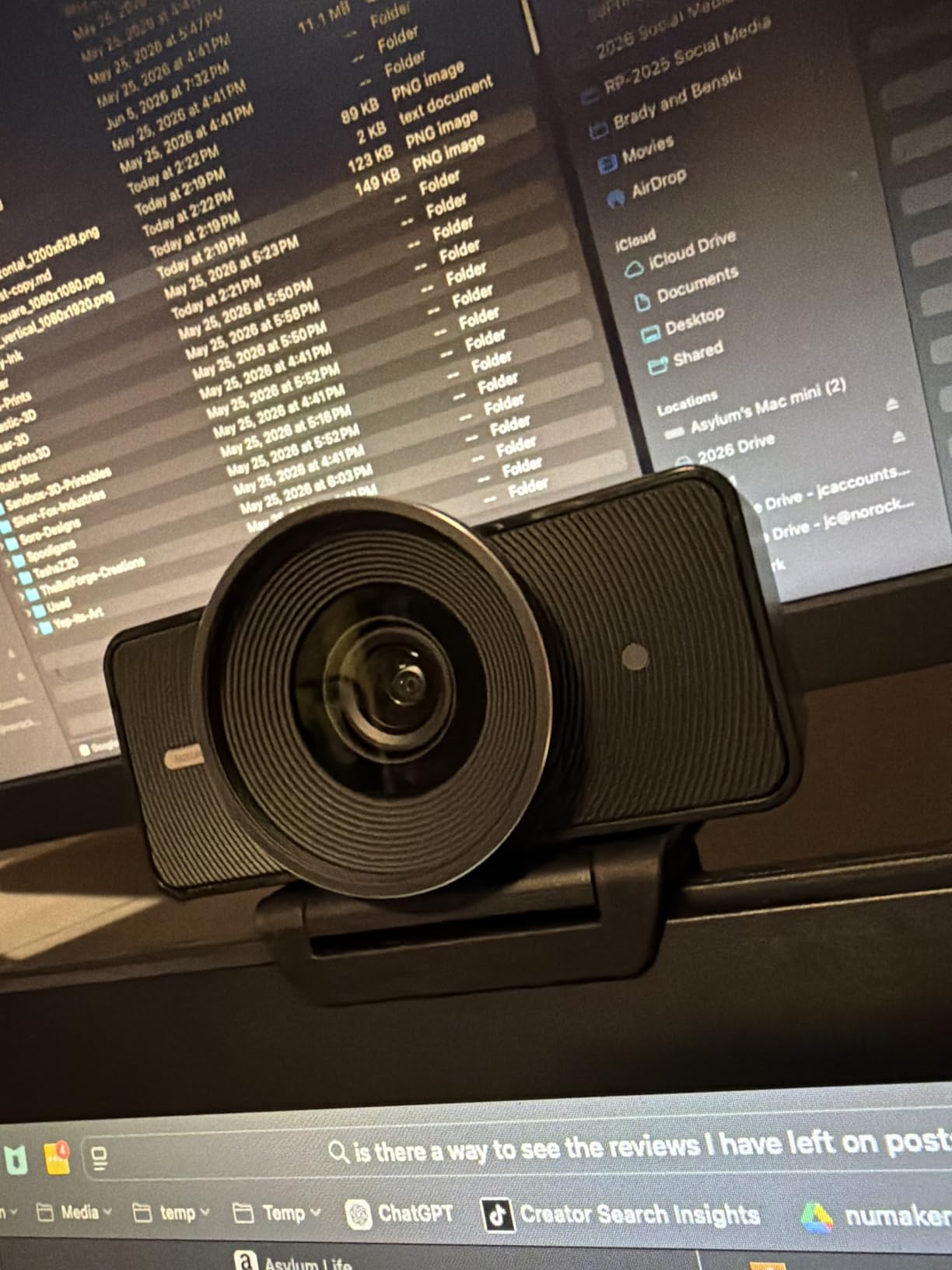
Camera Hub Software and Workflow Integration
Elgato’s Camera Hub software is excellent. You get full manual control over exposure, ISO, shutter speed, white balance, and focus. Settings save to the camera’s internal flash memory, so your configuration survives even if you switch computers.
The lack of a built-in microphone is a deliberate choice. Elgato assumes serious streamers use dedicated audio gear, which is true for most of the target audience. Just factor in a separate mic if you do not already own one.
If you already own Elgato Stream Deck gear, the Facecam 4K integrates into that ecosystem. You can trigger camera settings changes from your Stream Deck without tabbing out of your game.
3. EMEET S600 4K – Premium Sony Sensor at a Streamer-Friendly Price
EMEET S600 4K Webcam for Streaming, Sony 1/2.55” Sensor, PDAF Autofocus
4K Sony 1/2.55-inch Sensor
PDAF Autofocus
4K30 or 1080p60
Dual Noise-Canceling Mics
Privacy Cover
73-degree FOV
Pros
- Sony sensor delivers crisp 4K detail
- PDAF autofocus is fast and precise
- 1080p at 60fps for smooth streaming
- Dual noise-canceling mics sound clean
- Built-in privacy cover is durable
Cons
- True 4K needs compatible software
- Noise canceling off requires EMEETLINK app
- 73-degree FOV fixed at 4K
The EMEET S600 is the camera I keep recommending to streamers who want premium image quality without paying premium prices. It packs a Sony 1/2.55-inch sensor, the same type found in far more expensive webcams, into a compact body that costs less than a new game.
During my testing, the standout feature was the Phase Detection Autofocus. Most webcams in this price range use sluggish contrast-detect autofocus that hunts back and forth. The S600 locks on to your face almost instantly and stays locked, even when you move closer or farther from the camera.

I ran the S600 in 1080p at 60fps for most of my test streams, and the footage looked smooth and professional. The 4K at 30fps mode is there if you want maximum detail for YouTube highlights, though Twitch itself caps most streams below 4K.
Sony Sensor Quality Versus the Competition
The 1/2.55-inch Sony sensor gives the S600 a real advantage over generic CMOS sensors in similarly priced webcams. In my low-light evening test, the image stayed clean and detailed where cheaper webcams turned into a grainy mess.
Colors looked accurate out of the box with auto white balance enabled. If you want to fine-tune, the EMEETLINK software exposes exposure, white balance, and saturation controls. I found the defaults solid enough that I rarely needed to adjust them.
PDAF Autofocus in Real Streaming Conditions
Phase Detection Autofocus is usually reserved for flagship webcams, so seeing it here at this price point is impressive. I leaned in to read chat on my second monitor, and the S600 refocused in a fraction of a second. No visible hunting, no distracting focus pulsing on stream.
The adjustable field of view runs from 40 to 73 degrees at 1080p, letting you crop out background clutter. At 4K, the FOV locks to 73 degrees, which is a reasonable trade-off for keeping image quality high.
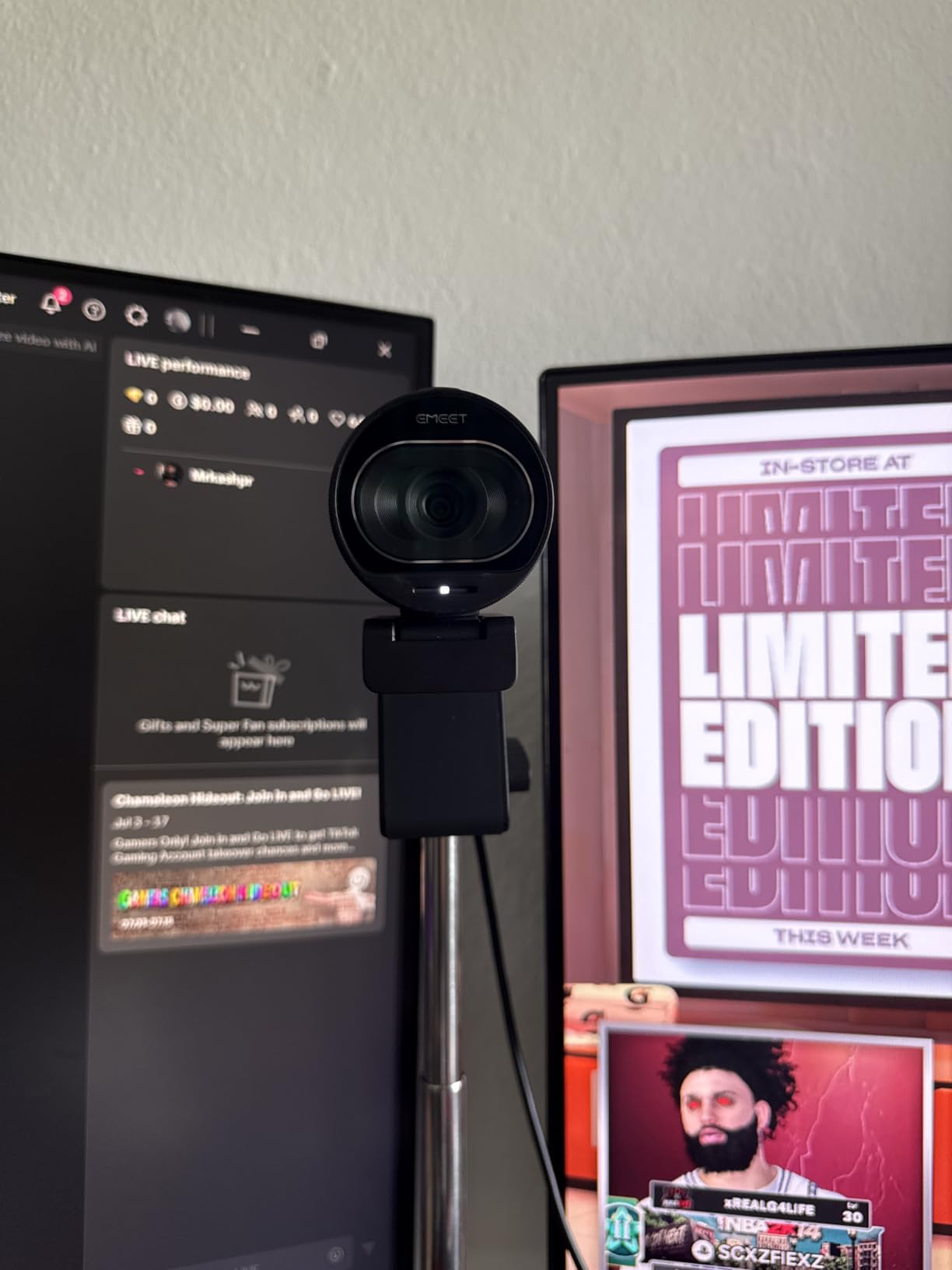
Built-In Mic and Privacy Features
The dual noise-canceling microphones are surprisingly competent. I recorded a test segment with my mechanical keyboard clacking away, and the noise reduction cleaned up most of the background racket. It is not a replacement for a dedicated streaming mic, but it works for casual streaming or as a backup.
The built-in privacy cover is a physical slider that feels durable, not flimsy. It snaps closed with a satisfying click and has held up to repeated use throughout my testing without loosening.
Plug-and-play setup worked flawlessly on both Windows and macOS. OBS detected the S600 immediately, and I was streaming within minutes of unboxing it.
4. Razer Kiyo V2 – AI Auto-Framing for the Razer Ecosystem
Razer Kiyo V2 Webcam for Streaming and Collaboration 4K 30Fps, Black
4K30 or 1080p60 Webcam
Sony STARVIS Sensor
AI Auto-Framing
HDR
93-degree Ultrawide Lens
Privacy Shutter
Built-in Mic
Pros
- AI auto-framing keeps you centered naturally
- Sony STARVIS sensor handles low light well
- 93-degree ultrawide lens with minimal distortion
- Dynamic image stabilization smooths movement
- Integrated privacy shutter built in
Cons
- Higher price than standard webcams
- Limited review history as a newer product
- 12% one-star ratings suggest some quality variance
The Razer Kiyo V2 brings AI auto-framing and a Sony STARVIS sensor to streamers who already live in the Razer software ecosystem. I tested it across multiple sessions, and the auto-framing feature genuinely helps if you tend to shift position during long streams.
The dual-resolution setup is a smart touch. You can run 4K at 30fps for maximum detail or drop to 1080p at 60fps for smoother motion. For most Twitch streaming, I found the 1080p60 mode produced the most pleasing facecam footage.
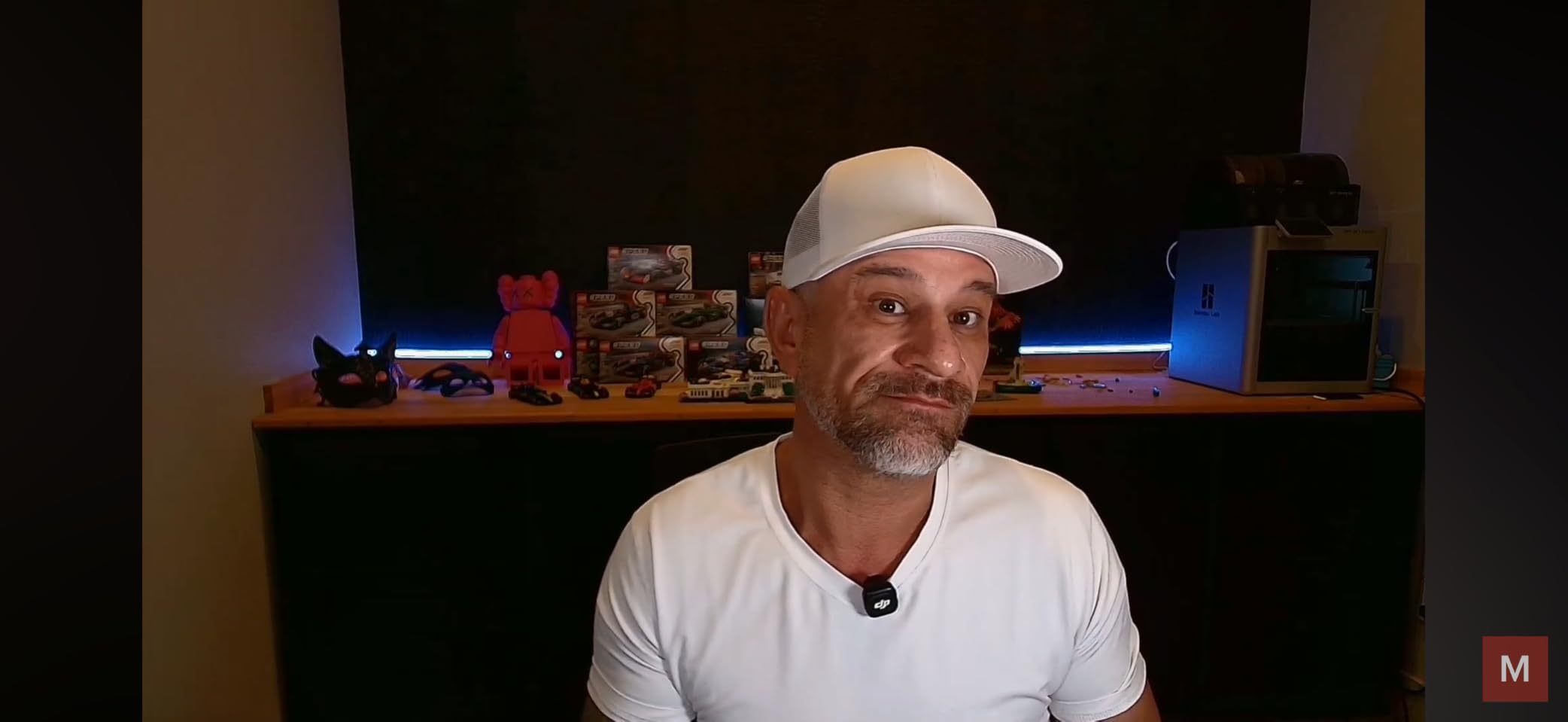
The 93-degree ultrawide field of view is one of the widest on this list. If you stream from a setup where you want to show your hands, desk, or a guest beside you, the Kiyo V2 captures it all without the edge distortion that plagues cheaper wide-angle webcams.
Sony STARVIS Sensor and Low-Light Streaming
The STARVIS sensor in the Kiyo V2 is specifically tuned for low-light performance, and it shows. In my dim single-light test, the image stayed bright and usable where standard sensors would have produced a dark, noisy feed.
HDR support adds depth to the image by preserving detail in both bright and dark areas. My backlit test showed reasonable highlight recovery, though it could not fully match the Insta360 Link 2’s larger sensor in extreme conditions.
AI Auto-Framing Accuracy
The AI auto-framing uses face tracking to keep you centered. I tested it by physically sliding my chair left and right, and the framing adjusted smoothly. It is a digital crop rather than a physical pan like the Insta360, so you lose some resolution when the framing tightens.
Dynamic image stabilization helps if your desk vibrates from enthusiastic gameplay. It smoothed out minor shake in my footage, though it is not a replacement for a stable mount.
Razer Synapse Integration and Build
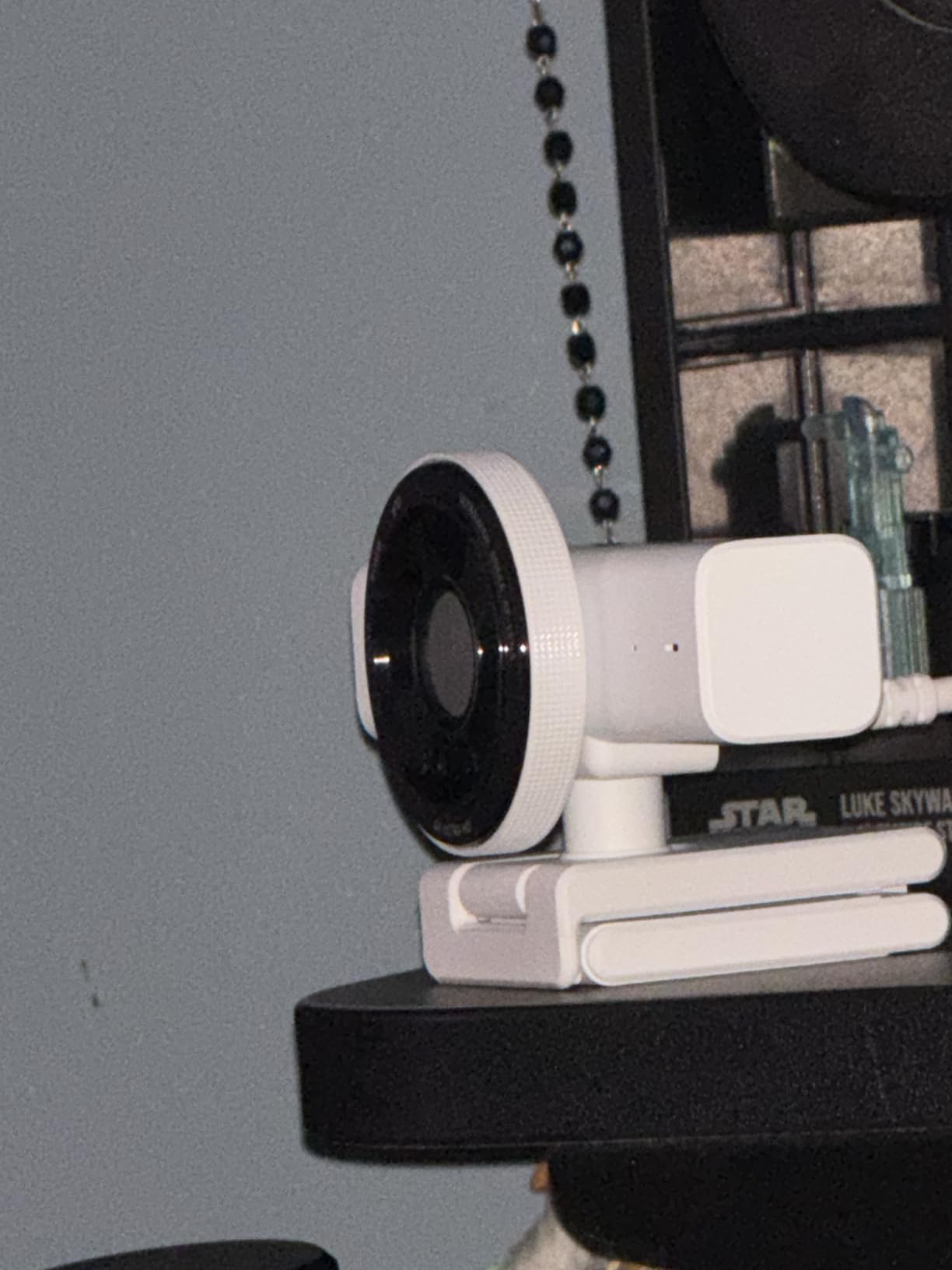
If you already use Razer Synapse for a mouse, keyboard, or headset, the Kiyo V2 slots right into that software. You can adjust exposure, framing, white balance, and HDR from one unified app. The integration is seamless if you are invested in the Razer ecosystem.
The built-in microphone is adequate for casual use but falls short of dedicated streaming mics. I would treat it as a backup rather than a primary audio source for serious streaming.
The integrated privacy shutter is a physical slider that you open and close manually. It is a small but appreciated feature that many premium webcams still omit.
5. NexiGo N680E Pro 4K – Built-In Ring Light for Instant Polish
NexiGo N680E Pro 4K Webcam with Ring Light, PDAF Autofocus, 1080p 60FPS, Dual Noise-Canceling Mics, Privacy Shutter, USB Plug-and-Play for Zoom, Teams, Twitch, Google Meet
4K Sony 1/2.5-inch Sensor
Tri-tone Adjustable Ring Light
PDAF Autofocus
1080p 60FPS
Dual Noise Mics
Privacy Shutter
80-degree FOV
Pros
- Built-in ring light eliminates extra gear
- PDAF autofocus locks on quickly
- Sony sensor delivers clean 4K detail
- Tri-tone lighting adapts to warm or cool setups
- Plug-and-play USB setup
Cons
- Higher price than basic webcams
- Output resolution depends on camera software
- Ring light may not replace dedicated lighting
The NexiGo N680E Pro solves one of the most common streaming problems with a single feature: a built-in adjustable ring light. If you stream in a room without professional lighting, this camera gives you an instant quality boost without buying a separate softbox or ring light setup.
I tested the tri-tone ring light across all three color temperatures, and the difference was immediately visible on stream. Warm light flattered skin tones, neutral white looked natural for daytime streaming, and cool light gave a clean, modern look for tech content.
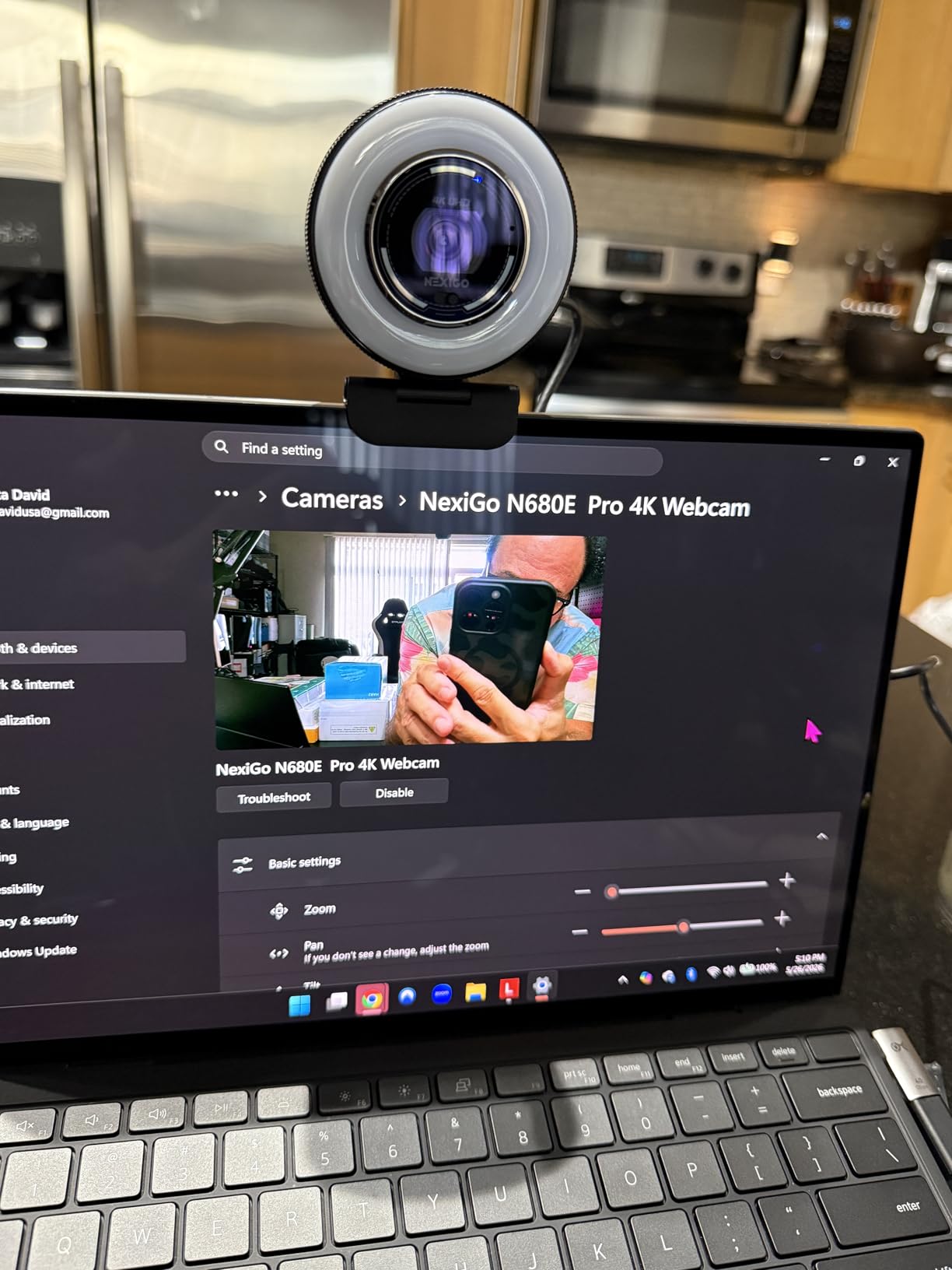
The Sony 1/2.5-inch sensor underneath produces solid 4K footage. It is not quite at the level of the Elgato Facecam 4K’s STARVIS 2 sensor, but it clearly outperforms generic sensors in this price bracket.
Built-In Ring Light Performance
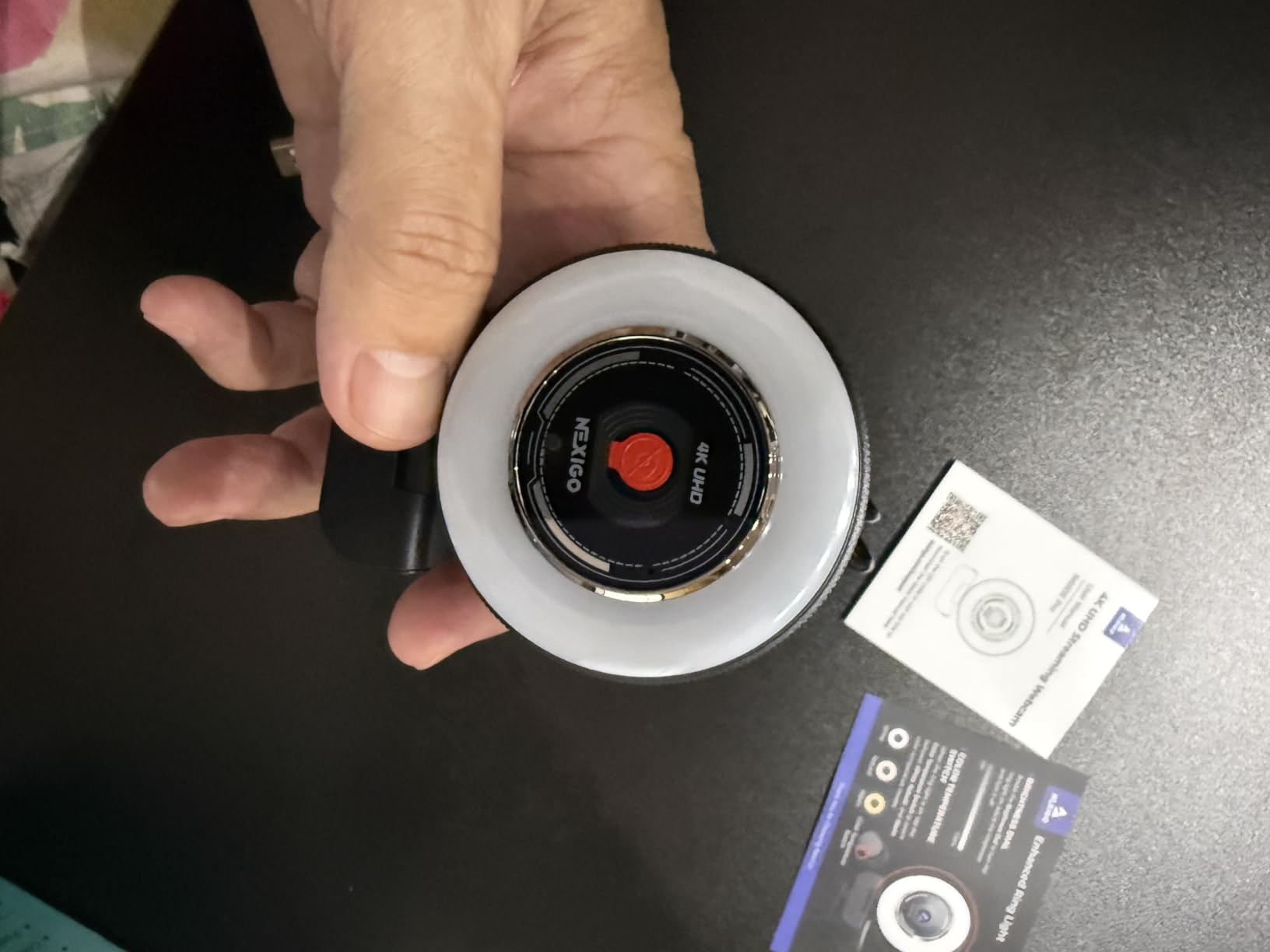
The tri-tone ring light is the defining feature here. You cycle through warm, neutral, and cool tones with a touch control on the camera body, and brightness adjusts with a slider. For streamers who cannot dedicate desk space to a separate light, this is genuinely useful.
In my low-light test with no other light source, the ring light alone produced a usable, flattering image. Add even a basic key light and the results improve dramatically. The ring light will not fully replace a two- or three-light professional setup, but it covers the basics well.
Sony Sensor and PDAF Autofocus
The 1/2.5-inch Sony sensor captures clean detail in good lighting, and the PDAF autofocus performs similarly to the EMEET S600’s system. Focus locks quickly and stays put during normal streaming movement.
In low light without the ring light engaged, noise creeps in faster than on the larger-sensor Insta360 Link 2. But with the ring light on, the sensor gets enough illumination to keep noise under control for a clean-looking feed.
Streaming Workflow and Compatibility
USB plug-and-play setup worked without issues on my test systems. OBS and Streamlabs both detected the N680E Pro immediately. The 80-degree field of view is a comfortable middle ground, wide enough to show some desk context but narrow enough to keep you as the focus.
The dual noise-canceling microphones do a respectable job of filtering ambient sound. They are not studio quality, but they handle keyboard noise and fan hum better than I expected at this price point.
The standard quarter-inch tripod mount means you can position this camera on a dedicated stand or boom arm instead of perching it on your monitor. That flexibility matters for streamers with multi-monitor setups.
6. Logitech C920x HD Pro – The Streaming Community’s Longtime Favorite
Logitech C920x HD Pro PC Webcam Full 1080p/30fps Video – Black
1080p 30fps Webcam
Auto Light Correction
Glass Lens
Stereo Dual Mics
78-degree FOV
USB Plug-and-Play
Pros
- Reliable 1080p quality trusted by thousands
- Auto light correction brightens dim rooms
- Stereo dual mics capture natural sound
- Glass lens produces sharp detail
- Massive review base confirms consistency
Cons
- Fixed 30fps caps motion smoothness
- No privacy shutter included
- 78-degree FOV is narrower than newer models
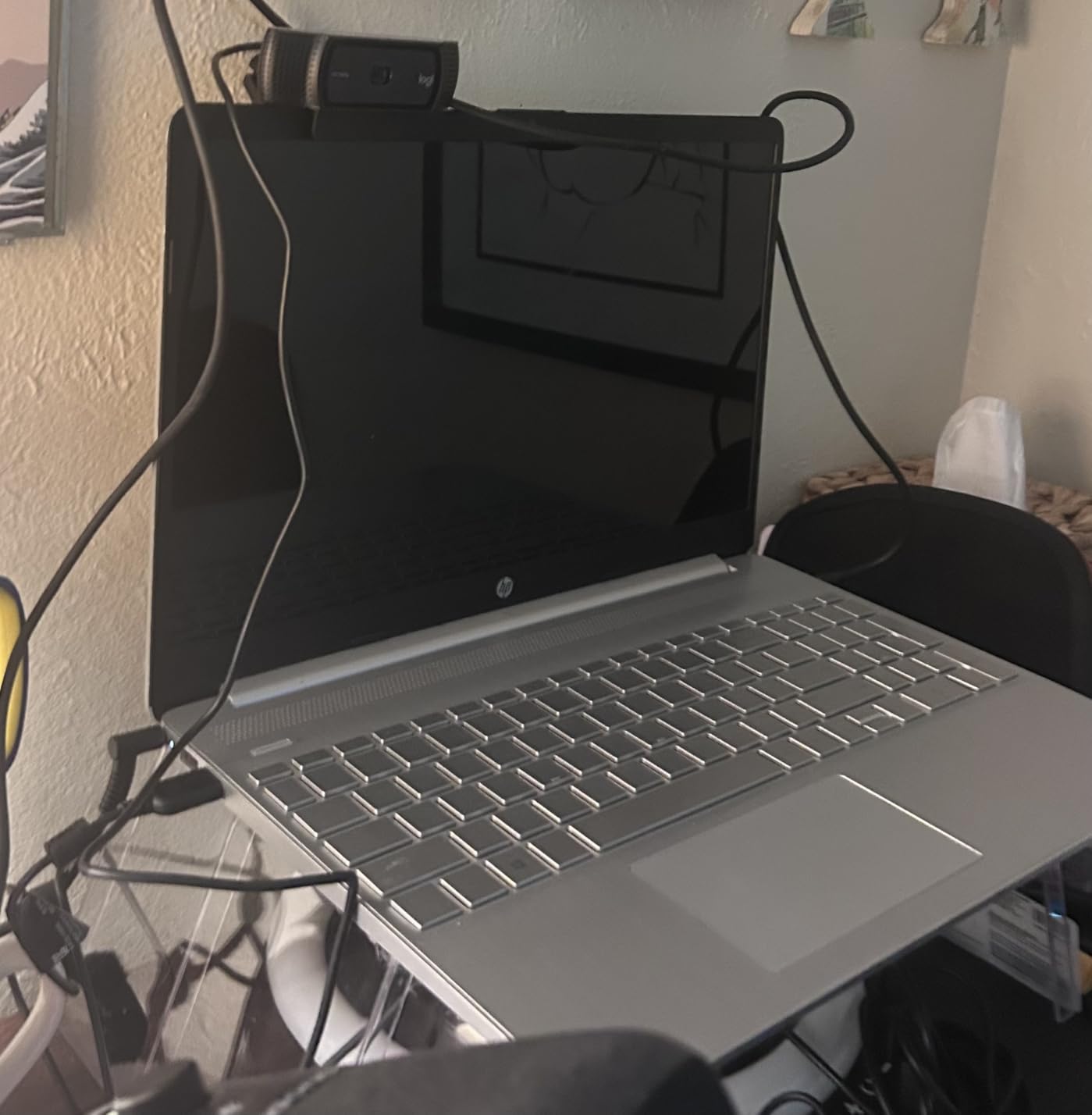
The Logitech C920x is the webcam that built countless streaming channels, and it is still the first recommendation you will see in most Twitch communities. With over 21,000 reviews and a 4.6-star average, its track record speaks for itself.
I tested the C920x expecting to find it outdated next to the 4K cameras on this list. Instead, I found a webcam that still produces a genuinely good-looking 1080p feed, especially when you pair it with even basic lighting. The auto light correction does heavy lifting in imperfect rooms.
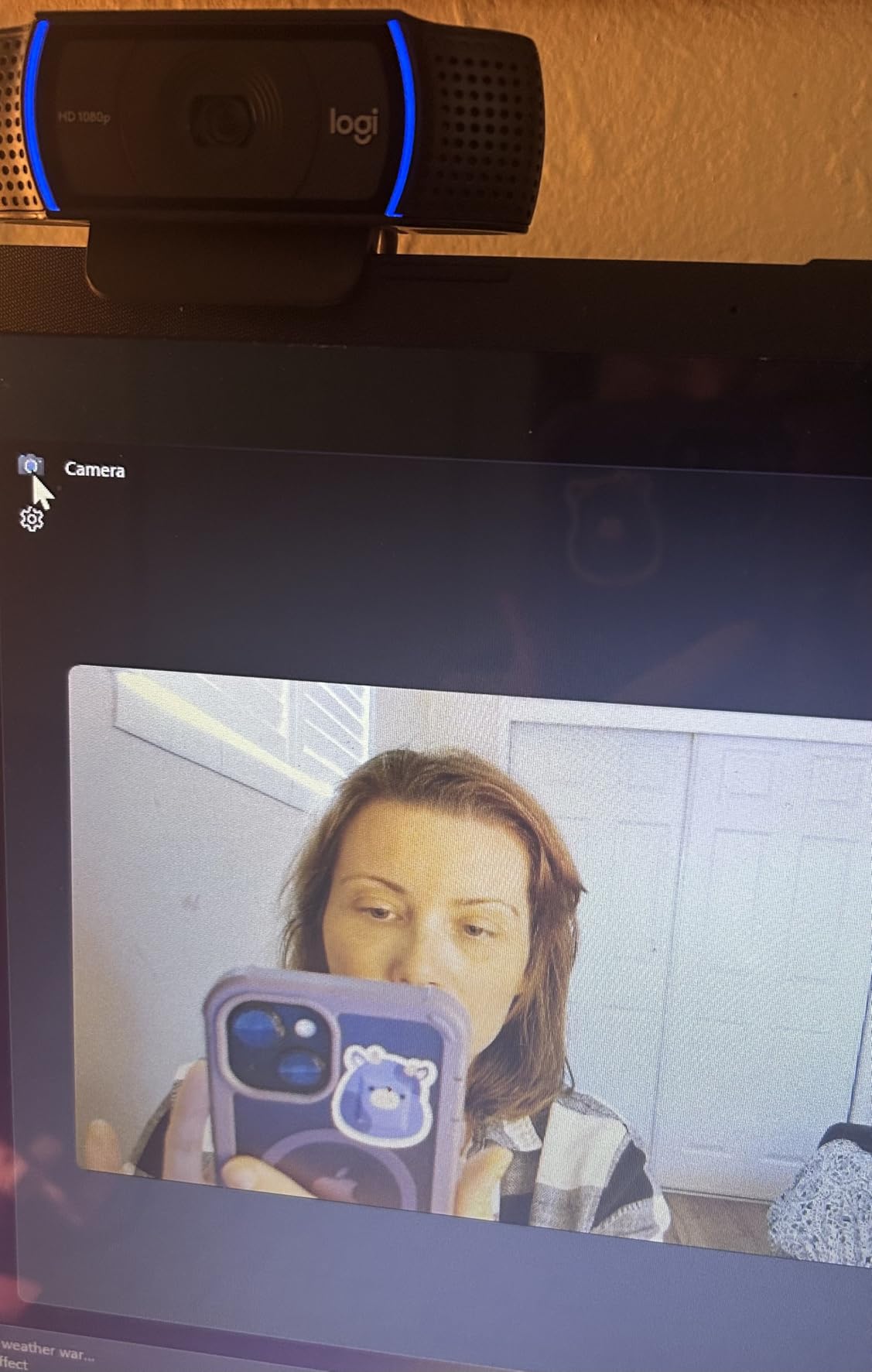
The glass lens is a step above the plastic lenses in ultra-budget webcams. It produces sharper corners and better contrast than you get from the cheapest options, and the 78-degree field of view frames a single streamer nicely without wasted background space.
1080p Image Quality and Light Correction
The C920x outputs full HD 1080p at 30fps. While 30fps is not as smooth as the 60fps options higher on this list, it remains the standard for most Twitch facecam feeds and looks perfectly acceptable to the vast majority of viewers.
The automatic light correction is the C920x’s secret weapon. In my dim single-light test, the software brightened my face noticeably without blowing out highlights. It is not magic, and dedicated lighting still helps, but it handles imperfect conditions better than most budget webcams.
Stereo Microphones and Audio Quality
The dual stereo microphones capture natural, wide sound that works well for casual streaming. I recorded a segment speaking at normal volume from two feet away, and my voice came through clearly with reasonable stereo separation.
Serious streamers will still want a dedicated USB or XLR microphone for that professional broadcast sound. But the C920x’s built-in mics are more than usable for getting started, and they make a capable backup if your primary mic fails mid-stream.
Compatibility and Long-Term Reliability
The C920x works with Windows 11, macOS, and even the Nintendo Switch 2’s GameChat mode. OBS, Streamlabs, Discord, Zoom, and Teams all recognize it instantly. I never encountered a compatibility issue during testing.
The main drawback is the absence of a privacy shutter. You will want to buy a cheap magnetic cover separately, or simply angle the camera away when not streaming. It is a small annoyance on an otherwise dependable workhorse.
At this price point, with this level of proven reliability, the C920x remains one of the smartest starting points for new Twitch streamers. The enormous review base means you are buying a known quantity.
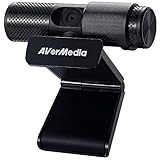
7. AVerMedia Live Streamer Cam 313 – Built Specifically for Streamers
AVerMedia Live Streamer Cam 313 – Full HD 1080P Webcam with Privacy Shutter, Dual Microphone, 360 Degree Swivel for Video Conference – NDAA Compliant (PW313)
1080p 30fps Webcam
360-degree Swivel
Dual Microphones
Privacy Shutter
NDAA Compliant
3-Year Warranty
Plug-and-Play USB
Pros
- 360-degree swivel for flexible angles
- Built-in privacy shutter included
- Dual microphones with clean audio
- NDAA compliant for secure environments
- 3-year manufacturer warranty
Cons
- Fixed focus limits depth of field
- Low-light performance could be stronger
- Older sensor than newer competitors
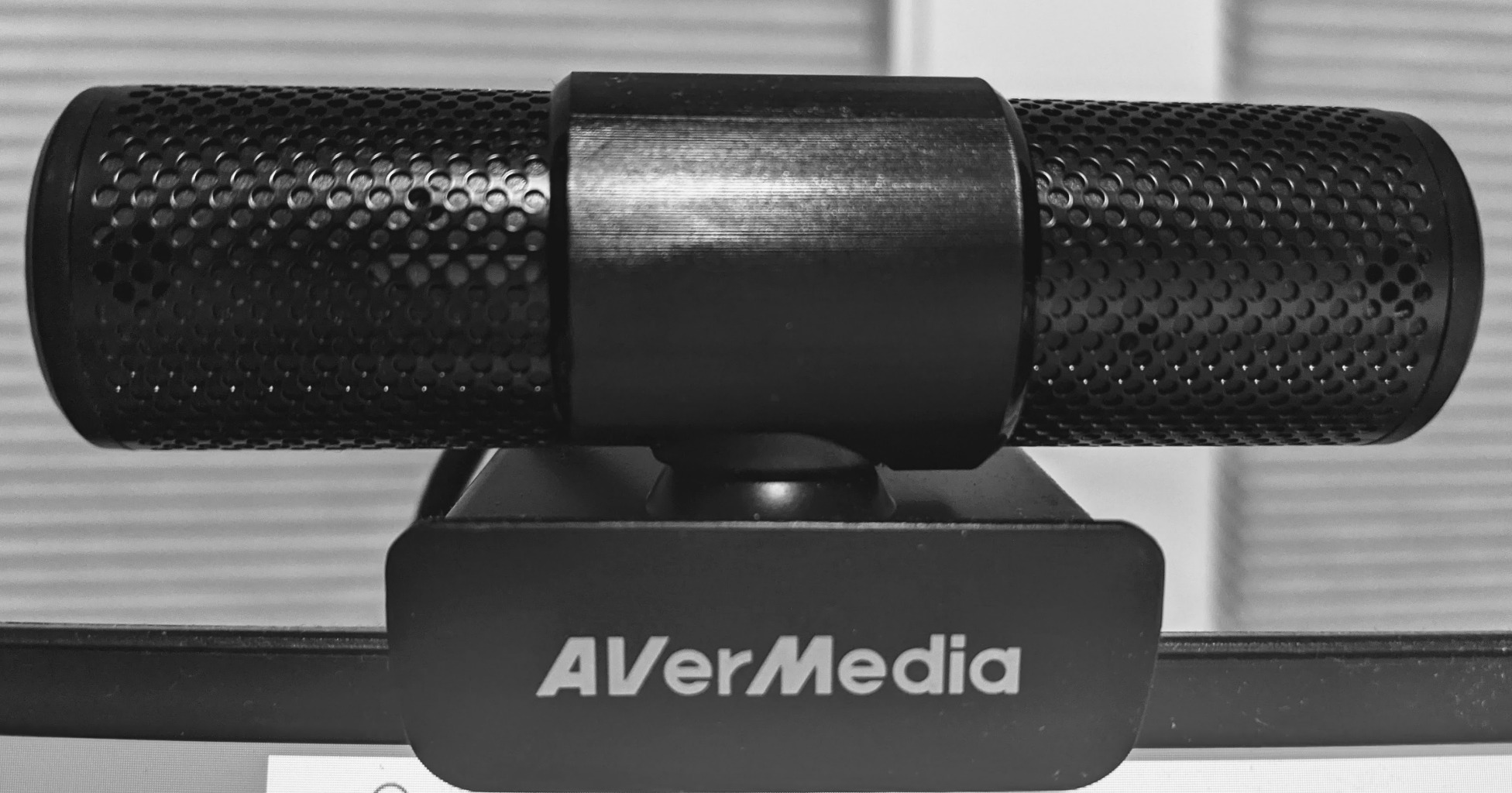
The AVerMedia Live Streamer Cam 313 was designed from the ground up with streamers in mind, and that focus shows in thoughtful details. The 360-degree swivel base is the standout, letting you spin the camera to show your room, your setup, or a guest without unmounting anything.
AVerMedia also makes capture cards and streaming hardware, so they understand the streaming workflow. The PW313 integrates cleanly with OBS and works the moment you plug it in, no driver installation required.
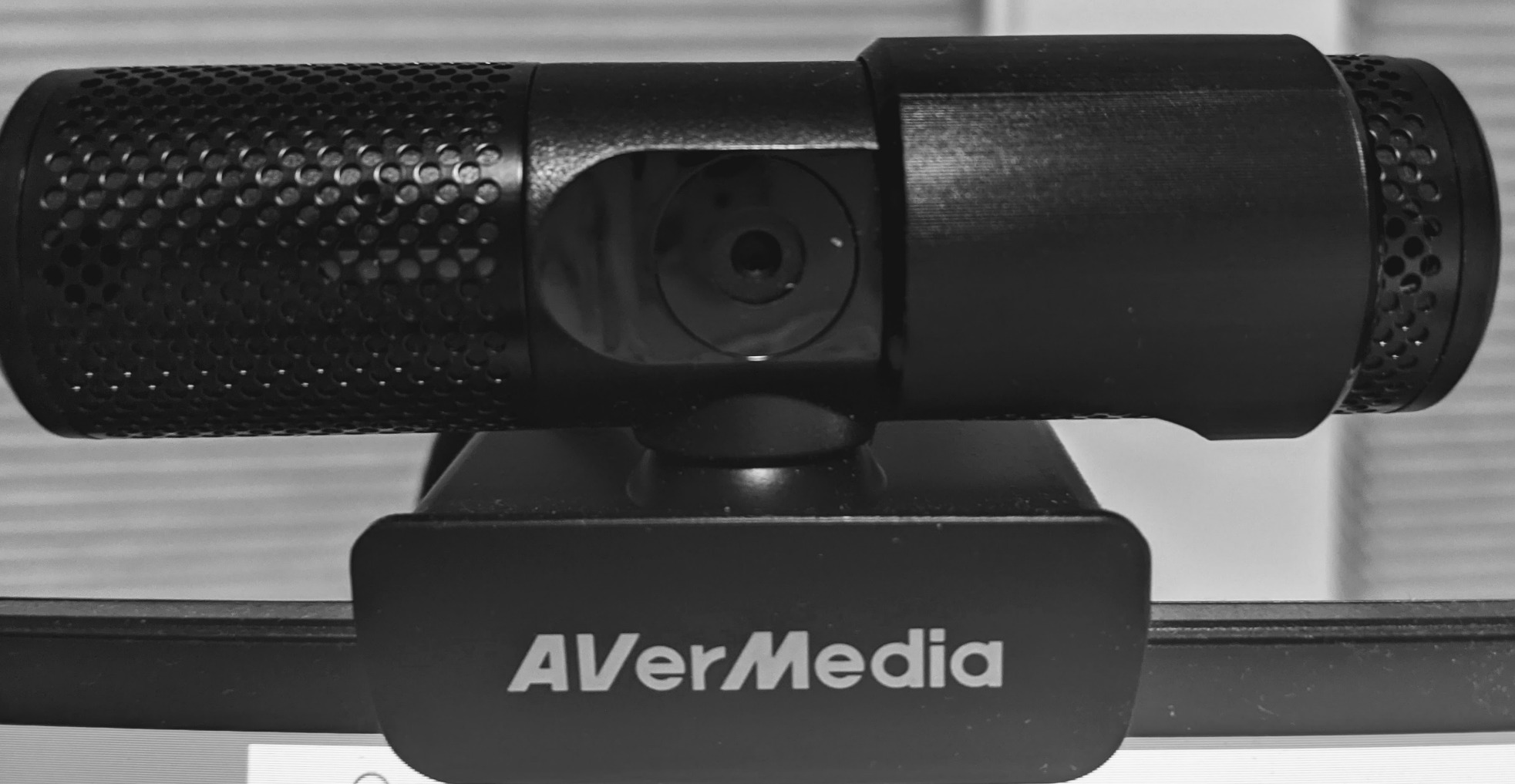
The 4.6-star rating across 620 reviews reflects a webcam that quietly does its job well. It may not have the flashy specs of the 4K cameras above, but it delivers consistent, reliable 1080p footage that looks professional on stream.
360-Degree Swivel and Mounting Flexibility
The swivel base is genuinely useful and unique among the cameras I tested. I spun it 180 degrees mid-stream to show my desk setup to chat, then spun it back to face me. No repositioning, no fumbling with a tripod, no interruption to the broadcast.
This feature alone makes the PW313 worth considering for IRL streamers, product reviewers, or anyone who wants to show physical objects during their stream. The swivel action is smooth and holds its position firmly without drifting.
Image Quality and Fixed Focus Trade-Off
The 1080p at 30fps output produces clean, detailed footage in good lighting. Colors look accurate with the auto white balance, and the dual microphones capture clear audio with decent noise rejection.
The fixed focus is the main compromise. The camera locks its focus at a set distance, which works fine if you sit at a consistent distance from your camera. If you frequently lean in or move around, the image will go soft. For seated gaming streams, this is rarely an issue.
NDAA Compliance and Warranty
The NDAA compliance matters if you stream from a government or corporate environment that restricts certain hardware origins. It is a niche consideration, but it opens doors for content creators in regulated workplaces.
The 3-year manufacturer warranty is one of the longest on this list. AVerMedia clearly stands behind the build quality, and that peace of mind matters for streamers who depend on their gear for income.
In low light, the PW313 struggles more than the Sony-sensor cameras. I recommend pairing it with at least a basic key light for best results. With proper lighting, the image quality holds its own against more expensive options.
8. Logitech Brio 101 – The Easiest Way to Start Streaming
Logitech Brio 101 Full HD 1080p Webcam for Streaming and Meetings – Black
1080p Full HD Webcam
Auto-Light Balance RightLight
Built-in Mic
Privacy Shutter
USB-A Plug-and-Play
60-degree FOV
Pros
- Auto-light balance brightens dim rooms up to 50 percent
- Simple plug-and-play setup in seconds
- Built-in privacy shutter included
- Recycled plastic construction
- Extremely affordable entry point
Cons
- Fixed focus may limit flexibility
- 60-degree FOV is narrower than most
- No 60fps option available
The Logitech Brio 101 is the number one bestseller in the webcam category, and for good reason. It offers the simplest possible path from unboxing to streaming, with auto-light correction that handles imperfect rooms surprisingly well for the price.
I tested the Brio 101 in my worst lighting scenario, a dim evening room with only a monitor for illumination. The RightLight auto-balance feature boosted brightness noticeably, producing a viewable image where basic webcams would have rendered a dark silhouette.
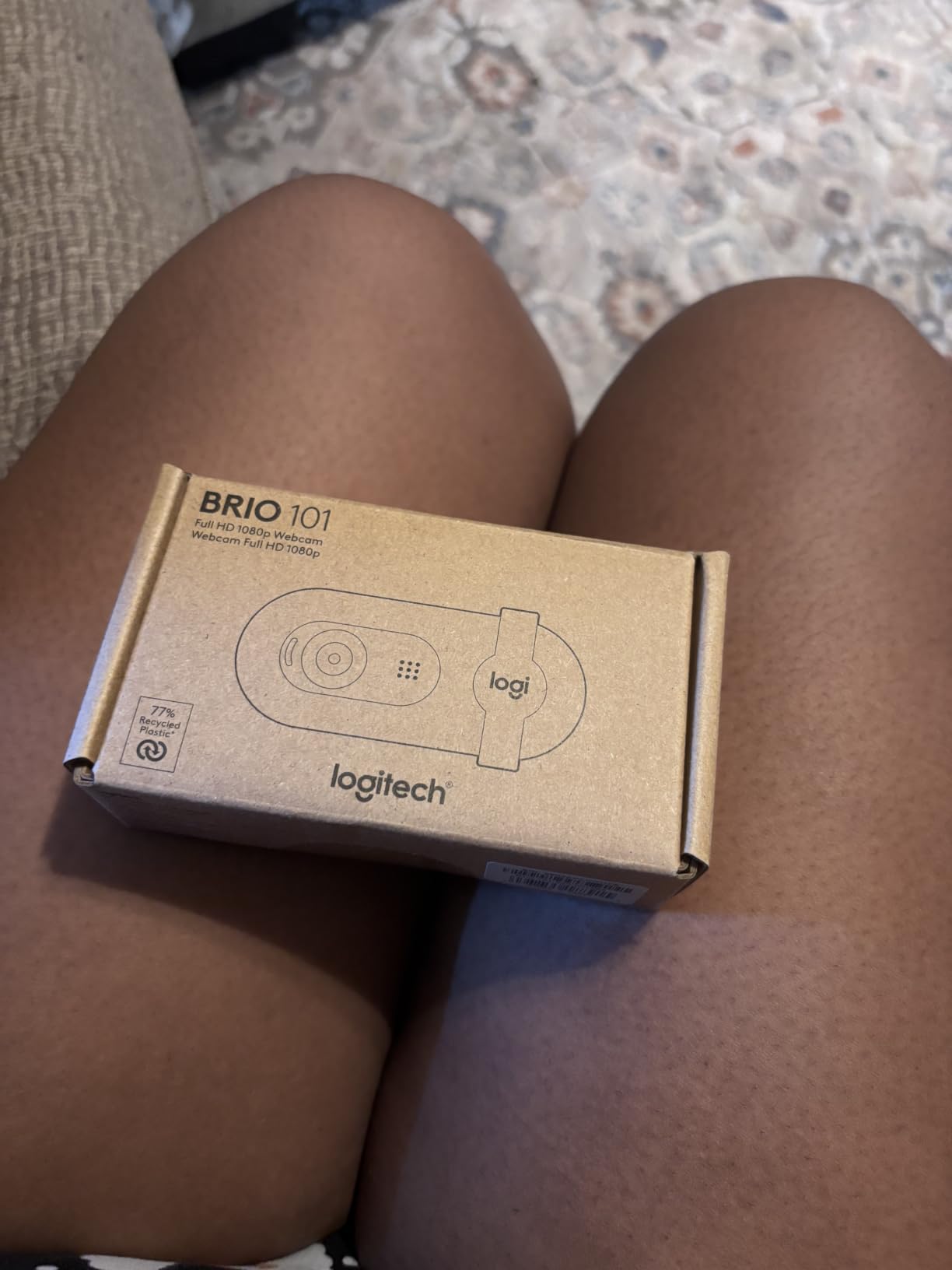
This is the camera I would hand to a friend starting their very first Twitch stream tomorrow. It works the moment you plug it in, it corrects for bad lighting, and it includes a privacy shutter so you do not need to buy accessories separately.
Auto-Light Balance and RightLight Technology
The RightLight technology can boost brightness by up to 50 percent according to Logitech, and my testing confirmed a meaningful improvement in dim conditions. Faces that would have been lost in shadow became clearly visible without the harsh, blown-out look that aggressive software brightening can cause.
This feature alone solves the most common complaint I see from new streamers on forums. Many people stream in bedrooms or offices without dedicated lighting, and the Brio 101 compensates for that reality better than any camera at this price point.
Setup and Plug-and-Play Simplicity
The USB-A connection means the Brio 101 works with virtually any computer without adapters. OBS, Streamlabs, Discord, Zoom, and Teams all detected it instantly during my testing. There is no software to install unless you want to tweak settings.
The 60-degree field of view is narrower than most cameras on this list. This works in your favor for solo streaming, since it crops out messy backgrounds and keeps the focus entirely on your face. If you need to show your desk or room, look at a wider-angle option instead.
Build Quality and Sustainability
The Brio 101 is constructed with a minimum of 77 percent post-consumer recycled plastic. Logitech has been pushing sustainability across its product lines, and this camera reflects that effort without compromising build quality.
The built-in microphone captures clear enough audio for getting started, though serious streamers will quickly outgrow it. Treat it as a functional starter that lets you go live immediately while you save for a dedicated mic.
The fixed focus is the main limitation. If you maintain a consistent distance from the camera, the image stays sharp. If you move around a lot, consider a camera with autofocus like the EMEET S600 or Insta360 Link 2.
How to Choose the Best Streaming Camera for Twitch
Picking the right streaming camera comes down to matching features to your specific streaming setup and budget. Here are the decisions that actually matter, based on my testing and the pain points streamers consistently raise in forums.
Resolution: 1080p vs 4K for Twitch
Twitch does not currently support 4K streaming for most creators, so a 4K webcam may seem unnecessary. However, capturing in 4K and downsampling to 1080p produces a sharper, cleaner image than native 1080p capture. If you also create YouTube content, 4K footage gives you more flexibility for highlights and edits.
For pure Twitch streaming on a budget, 1080p remains the practical sweet spot. The Logitech C920x and AVerMedia PW313 both deliver excellent 1080p results without the bandwidth and processing demands of 4K.
Frame Rate: Why 60fps Matters for Facecam
Most viewers cannot articulate why one stream looks smoother than another, but they notice it. A 60fps facecam produces noticeably more natural motion than 30fps, especially during animated reactions and fast head movements. Cameras like the EMEET S600, Razer Kiyo V2, and NexiGo N680E Pro all offer 1080p at 60fps.
If your PC struggles to encode 60fps facecam alongside gameplay capture, 30fps is perfectly acceptable. The Logitech C920x and Brio 101 both cap at 30fps and still produce professional-looking streams.
Low-Light Performance: The Real Differentiator
In my forum research, low-light performance was the single most common complaint from home streamers. Most people do not have studio lighting, and evening streams in dim rooms are the norm rather than the exception.
Larger sensors handle low light better because they gather more photons. The Insta360 Link 2’s 1/2-inch sensor and the Elgato Facecam 4K’s Sony STARVIS 2 sensor both excel here. Among budget options, any camera with a Sony sensor, like the EMEET S600 or NexiGo N680E Pro, will outperform generic CMOS sensors.
Sensor Size and Image Quality
Sensor size is the single biggest predictor of image quality. A larger sensor captures more light, produces shallower depth of field for that professional background-blur look, and generates less noise in challenging conditions.
The 1/2-inch sensor in the Insta360 Link 2 is the largest on this list, followed by the 1/1.8-inch sensor in the Elgato Facecam 4K. The Sony 1/2.55-inch sensor in the EMEET S600 and the 1/2.5-inch sensor in the NexiGo punch above their price class. The smaller sensors in basic webcams produce flatter, noisier images.
Field of View: Wide vs Narrow
Field of view determines how much of your room the camera captures. A narrow 60-degree FOV, like the Logitech Brio 101, keeps the focus tight on your face and hides background clutter. A wide 93-degree FOV, like the Razer Kiyo V2, shows more of your setup, desk, and environment.
For solo gaming streams, 70 to 80 degrees is ideal. For IRL streaming, product demos, or co-streaming with a guest beside you, go wider. Some cameras, like the EMEET S600, offer adjustable FOV so you can change it based on the content.
Software Compatibility: OBS and Streamlabs
Every camera on this list works with OBS and Streamlabs out of the box. The difference is in the companion software that lets you fine-tune image settings. Elgato’s Camera Hub and Insta360’s Link Controller are the most polished apps I tested, offering DSLR-level manual controls.
If you use a Stream Deck or other Elgato hardware, the Facecam 4K integrates into that workflow. Razer Synapse does the same for Razer ecosystem users. Check that your chosen camera’s software does not conflict with your existing streaming software stack.
Built-in Lighting and Microphone Considerations
Most webcams include built-in microphones, but they vary wildly in quality. The Insta360 Link 2’s AI noise-canceling mic is genuinely good, while the Elgato Facecam 4K omits a mic entirely, assuming you use dedicated audio. Treat built-in mics as a backup, not your primary audio source.
The NexiGo N680E Pro is the only camera here with a built-in ring light, which solves lighting problems without extra gear. If you have no dedicated lighting at all, this feature alone can transform your stream quality.
FAQs
What cameras do most Twitch streamers use?
Most Twitch streamers use webcams rather than dedicated cameras. The Logitech C920 series remains the most popular choice for entry-level streamers, while the Elgato Facecam, Insta360 Link 2, and Razer Kiyo dominate among established creators. Premium streamers sometimes use mirrorless cameras like the Sony ZV-E10, but USB webcams account for the majority of facecam feeds on Twitch.
Do I need a 4K webcam for Twitch streaming?
No, you do not need a 4K webcam for Twitch. Twitch does not support 4K streaming for most creators, and 1080p at 60fps remains the standard for high-quality facecam footage. A 4K webcam can still be worthwhile if you downsample to 1080p for a sharper image or if you also create 4K YouTube content alongside your streams.
What resolution and frame rate is best for Twitch?
The best resolution and frame rate for Twitch facecam is 1080p at 60fps. This combination produces smooth, professional-looking motion that viewers perceive as higher quality. If your PC cannot handle 60fps encoding alongside gameplay capture, 1080p at 30fps is perfectly acceptable and remains the most common setup for Twitch streamers.
How do I choose a webcam for Twitch?
Choose a webcam for Twitch by prioritizing low-light performance, autofocus speed, and frame rate. Look for a Sony sensor if you stream in imperfect lighting, pick a camera with 60fps support for smoother motion, and ensure it works plug-and-play with OBS or Streamlabs. Set your budget first, then match features to your streaming style and room conditions.
Can I use a budget webcam for Twitch streaming?
Yes, you can absolutely use a budget webcam for Twitch streaming. Cameras like the Logitech Brio 101 and EMEET S600 deliver solid image quality at accessible prices. The key is pairing any webcam with at least basic lighting, since even an affordable camera looks professional when properly lit. Many successful streamers started with budget webcams before upgrading.
Final Verdict on the Best Streaming Cameras for Twitch
After testing all 8 cameras across dozens of streaming hours, my recommendations break down by what kind of streamer you are. If you want the best overall image quality and AI tracking that keeps you framed automatically, the Insta360 Link 2 is the clear winner. If you want premium 4K detail with DSLR-level control, the Elgato Facecam 4K justifies its price for serious creators.
For the best balance of quality and value, the EMEET S600 delivers Sony sensor performance at a price that leaves room in your budget for lighting and audio gear. And if you are just starting your Twitch journey, the Logitech Brio 101 gets you streaming in minutes with surprisingly capable auto-light correction.
The best streaming cameras for Twitch in 2026 all share a few traits: they handle imperfect lighting, they focus reliably, and they integrate cleanly with OBS and Streamlabs. Match those fundamentals to your budget and streaming style, and you will have a facecam that helps you stand out and grow your channel.
Pick the camera that fits your setup, add at least one decent light source, and hit that Go Live button. Your viewers will notice the difference.