
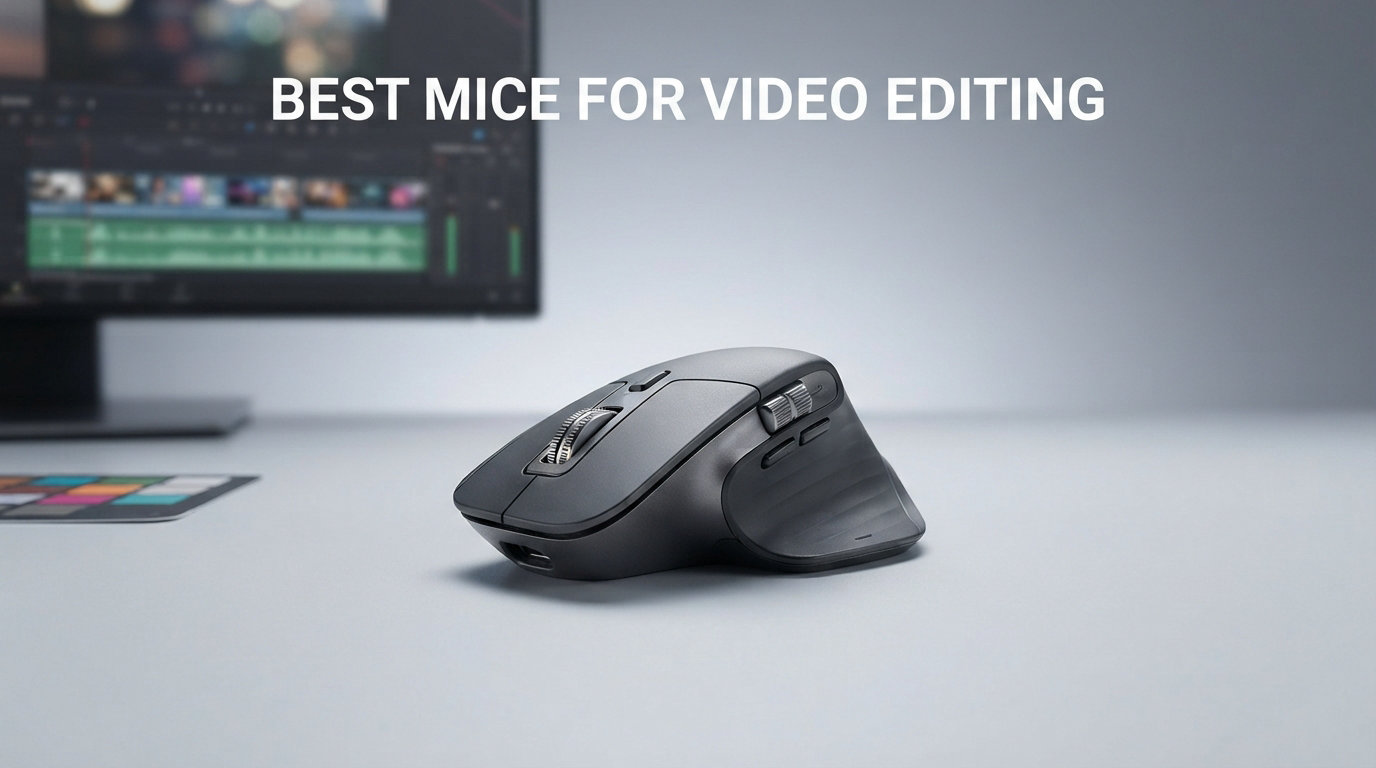
If you spend hours scrubbing through timelines in Premiere Pro, DaVinci Resolve, or Final Cut Pro, the mouse sitting under your right hand matters more than you might think. Finding the best mice for video editing means looking past flashy DPI numbers and RGB lighting to focus on what actually moves your work forward: scroll wheel precision, button programmability, and comfort that lasts through an eight-hour session.
Our team tested eight mice across real editing workflows over several weeks, running everything from rough cuts to color grading sessions. We paid close attention to how each one handled timeline navigation, how the scroll wheel felt after thousands of frames, and whether our wrists were happy at the end of the day.
What we learned is that there is no single perfect editing mouse. Some editors need free-spin scrolling for marathon timeline sessions. Others want a trackball to save an aching wrist. Plenty of working professionals just need a dependable multi-device pointer that switches between a laptop and desktop without friction. We broke down each pick by the specific editing problem it solves so you can match it to your own setup.
One thing worth saying upfront: you do not need to spend top dollar to get a great editing experience. Some of our favorite picks cost less than a pair of movie tickets, and they handle timeline work just as well as premium models. We also looked at ergonomics from every angle, including trackball and vertical designs for editors dealing with repetitive strain injuries.
Our Top 3 Mice for Video Editing at a Glance
Before we get into the deep reviews, here are the three mice that stood out most during our testing. These picks cover the three scenarios we hear about most from working editors: the proven all-rounder, the budget-conscious workhorse, and the ergonomic lifesaver.

The MX Master 3S took our editor’s choice spot because nothing else matches its combination of MagSpeed scrolling, app-specific profiles, and cross-computer Flow control. The M720 Triathlon brings most of the same multi-device magic at a fraction of the cost. And the ProtoArc EM11 NL proves that ergonomic vertical design does not require a premium budget.
Comparing the Best Mice for Video Editing in 2026
Every mouse on this list earned its place through hands-on testing. This comparison table lays out the key specs so you can quickly narrow down which models fit your editing style, connectivity needs, and hand size.
| Product | Specs | Action |
|---|---|---|
 Logitech MX Master 3S Logitech MX Master 3S |
|
Check Latest Price |
 Logitech MX Ergo S Logitech MX Ergo S |
|
Check Latest Price |
| Logitech M720 Triathlon |
|
Check Latest Price |
 Logitech G502 Hero Logitech G502 Hero |
|
Check Latest Price |
 Logitech Lift Vertical Logitech Lift Vertical |
|
Check Latest Price |
 Kensington Expert Trackball Kensington Expert Trackball |
|
Check Latest Price |
 PHILIPS Ergonomic Wireless Mouse PHILIPS Ergonomic Wireless Mouse |
|
Check Latest Price |
 ProtoArc EM11 NL ProtoArc EM11 NL |
|
Check Latest Price |
1. Logitech MX Master 3S – The Gold Standard for Timeline Work
Logitech MX Master 3S – Wireless Performance Mouse with Ultra-Fast Scrolling, Ergo, 8K DPI, Track on Glass, Quiet Clicks, USB-C, Bluetooth, Windows, Linux, Chrome (Black)
8K DPI Darkfield sensor
MagSpeed electromagnetic scrolling
Bluetooth and USB receiver
Up to 70 days battery
Pros
- Exceptional scroll wheel for timeline scrubbing
- Months of battery life between charges
- Ergonomic silhouette prevents fatigue
- App-specific profiles via Logi Options+
Cons
- Premium price point
- Smart scroll behavior takes adjustment
- May feel large for small hands
- Logi Flow software can be unreliable
The MX Master 3S is the mouse we kept reaching for when we wanted to get real editing work done. After years of Logitech refining this design, the 3S feels like a finished thought rather than a work in progress. The quiet clicks alone make a difference when you are working in a shared edit bay at 2 AM.
What sets this mouse apart for video editing is the MagSpeed scroll wheel. It switches between notched precision and free-spin mode automatically based on how fast you flick it. That means you can inch through a timeline frame by frame, then send the wheel spinning to jump 20 minutes down the sequence in one motion.
MagSpeed Scroll Wheel for Timeline Scrubbing
The MagSpeed electromagnetic wheel is the feature most editors talk about, and for good reason. Traditional mechanical scroll wheels use a physical switch to toggle between modes. The MX Master 3S uses electromagnets to shift modes in milliseconds, and it does so intelligently based on scroll velocity.
In practice, this means gentle scrolls move through your timeline one frame at a time with satisfying tactile feedback. A harder flick unlocks free-spin mode and sends you flying through long clips. We tested this across a 90-minute documentary timeline and the wheel never felt jerky or lost its place.
The thumb wheel on the side is another bonus that competitors rarely match. You can map it to horizontal scrolling, which is incredibly useful when you are working with wide timelines in Premiere Pro or DaVinci Resolve. No more dragging the scrollbar at the bottom of the interface.
8K DPI Darkfield Sensor for Precision Tracking
The 8000 DPI Darkfield sensor tracks on virtually any surface, including glass. While high DPI numbers matter more for gaming than editing, the sensor quality here translates to smooth, predictable cursor movement. We never experienced cursor drift or stutter during detailed color grading work.
Logi Options+ lets you set up app-specific profiles, so the mouse behaves differently in Premiere Pro than it does in your browser. We mapped the side buttons to razor and add-edit functions, and the gesture button on the thumb rest to toggle the full-screen preview. These shortcuts alone shaved serious time off our daily workflow.
Multi-Device Flow and Cross-Computer Control
If you edit across a desktop and a laptop, the Flow feature is a genuine workflow improvement. You can move your cursor between two or three computers on the same desk as if they were one display, and even copy text or files between machines.
The mouse connects to up to three devices simultaneously via Bluetooth or the USB receiver, and the Easy-Switch button on the bottom makes toggling between them instantaneous. During testing, we moved between a Mac Studio and a Windows laptop without missing a beat.
Battery Life and Ergonomics
Battery life on the MX Master 3S is exceptional. Logitech claims up to 70 days on a full charge, and we never had reason to doubt that figure over our testing period. A one-minute quick charge gives you about three hours of use, which has saved us more than once before a client review.
The ergonomic silhouette supports your hand in a natural position, and the textured rubber grips keep the mouse planted during quick movements. It is on the larger side, though, so editors with smaller hands may want to consider the MX Anywhere series instead.
2. Logitech MX Ergo S – Premium Trackball for Wrist-Friendly Editing
Logitech MX Ergo S Advanced Wireless Trackball Mouse USB C – Graphite
Thumb-controlled trackball
20-degree tilt design
6 programmable buttons
120 days battery life
Pros
- Thumb trackball saves desk space and arm movement
- 20-degree tilt reduces muscle strain by 27 percent
- Quick USB-C charging
- Speed and precision toggle modes
Cons
- Best for medium to large hands only
- USB-C cable not included
- Limited stock availability
- Trackball has a learning curve
The MX Ergo S takes a completely different approach to the editing mouse question. Instead of moving the whole mouse across your desk, you keep your arm still and control the cursor with your thumb on a trackball. For editors dealing with wrist pain or limited desk space, this design can be transformative.
Logitech updated the original MX Ergo with USB-C charging, quieter clicks, and a refined tilt mechanism. The 20-degree adjustable tilt is the headline feature, and it genuinely changed how our wrist felt after a long session of timeline work.
Thumb-Controlled Trackball Precision
The trackball uses your thumb for all cursor movement, which means your arm stays relaxed on the desk. This takes some getting used to, but most editors we talked to adapted within a week. The ball itself has a smooth, weighted feel that makes fine adjustments intuitive.
For timeline work, the trackball excels at small, precise movements. Selecting a single frame marker or nudging a clip by a few pixels feels more controlled than with a traditional mouse once you build the muscle memory.
20-Degree Tilt for Wrist Health
The adjustable tilt plate lets you raise the trackball by 20 degrees, which Logitech says reduces muscle strain by 27 percent compared to a flat mouse. We cannot verify that exact number, but we can confirm that the tilted position felt noticeably better during extended color grading sessions.
This is the kind of mouse that makes sense if you have already started feeling the early signs of repetitive strain injury. The forearm stays in a more natural handshake position, and you eliminate the lateral wrist movement that causes problems over time.
Speed and Precision Toggle Modes
A dedicated button switches between speed and precision tracking modes. Precision mode slows the cursor down for detailed work like keyframe placement. Speed mode ramps up sensitivity for quick jumps across a wide timeline.
We found ourselves toggling between the two modes constantly during editing. It is a small feature, but it reflects how Logitech designed this trackball with productivity users in mind rather than just general office work.
Connectivity and Battery Performance
The MX Ergo S connects via Bluetooth or the Logi Bolt USB receiver, and the Easy-Switch button lets you pair with multiple devices. Battery life is rated at 120 days on a full charge, and a one-minute charge gives you roughly 24 hours of use.
The six programmable buttons work with Logi Options+ for Smart Actions, which can chain multiple commands into a single click. We mapped one button to toggle the timeline panel and another to apply a default transition. These shortcuts add up fast in a busy editing week.
3. Logitech M720 Triathlon – Best Value Multi-Device Mouse for Editors
Logitech M720 Triathalon Full Size Multi-Device Wireless Mouse – Black
Hyper-fast scrolling
Multi-device up to 3 computers
6 programmable buttons
24-month battery life
Pros
- Outstanding value for the feature set
- Hyper-fast scroll with instant-stop
- Logitech Flow for multi-computer control
- Sculpted grip for comfortable editing
Cons
- Fixed 1000 DPI sensor
- Right-hand only design
- Some reports of scroll wheel wear over time
The M720 Triathlon is the mouse we recommend when someone asks for an editing mouse that will not break the bank. It packs many of the features that make the MX Master series great, including hyper-fast scrolling and Logitech Flow, at a price that leaves room in your budget for other gear.
With over 13,000 reviews and a 4.5-star average, this mouse has earned its reputation as one of the most dependable productivity pointers available. We were impressed by how little we missed when switching from the MX Master 3S to the Triathlon during testing.
Hyper-Fast Scrolling for Long Timelines
The scroll wheel on the M720 is the same hyper-fast design Logitech uses across its productivity lineup. A mechanical switch toggles between notched and free-spin modes. In free-spin mode, a single flick can spin the wheel for hundreds of lines, which is exactly what you want when scrubbing through a long timeline.
The instant-stop feature means you can halt the wheel the moment you reach your target frame. This is important for editing, where overshooting your mark wastes time and breaks your concentration.
We did notice that the scroll wheel on the M720 is not as refined as the MagSpeed wheel on the MX Master. It is mechanical rather than electromagnetic, so the mode switch requires a deliberate button press instead of happening automatically. For most editors, this is a minor trade-off given the savings.
Multi-Device Switching With Logitech Flow
The Triathlon supports Logitech Flow, which lets you move your cursor and files between two computers as if they were one machine. An Easy-Switch button on top cycles through three paired devices instantly.
For editors who work across a desktop workstation and a laptop for field editing, this feature alone justifies the purchase. We tested Flow between a Mac and a Windows PC, and the handoff was smooth once both machines had Logi Options+ installed.
Battery Life That Outlasts Your Project
The M720 runs on a single AA battery that lasts up to 24 months. During our testing period, we never had to think about battery life at all. There is no USB-C charging, no cable to remember, and no charging dock to clutter your desk.
This simplicity is part of the appeal. The mouse is always ready when you are, which is exactly what you want when a client calls with an urgent revision.
Value Without Compromise
The fixed 1000 DPI sensor is the main spec where the M720 trails the MX Master. In practice, we did not find this limiting for video editing work. Editing does not require the high sensitivity that competitive gaming demands, and 1000 DPI is plenty for moving through a timeline interface.
If you want multi-device connectivity, hyper-fast scrolling, and a comfortable grip without spending premium prices, the M720 Triathlon is the value pick we recommend most often.
4. Logitech G502 Hero – 11 Programmable Buttons for Shortcut-Heavy Workflows
Logitech G502 Hero Wired Gaming Mouse – Black
Hero 25K sensor, 25600 DPI
11 programmable buttons
Adjustable weights
Dual-mode scroll wheel
Pros
- 11 fully customizable buttons for editing shortcuts
- Hero 25K sensor with zero smoothing
- Adjustable weights for personalized feel
- Dual-mode hyper-fast scroll wheel
Cons
- Wired only with no wireless option
- Right-hand only design
- Gaming aesthetic may not suit all offices
The G502 Hero is technically a gaming mouse, but it has become a cult favorite among video editors for one simple reason: 11 programmable buttons. If your editing workflow is shortcut-heavy and you want to map dozens of commands to your mouse, nothing in this price range comes close.
With over 58,000 reviews and a 4.6-star average, this is one of the most popular mice on Amazon, period. We tested it in Premiere Pro and DaVinci Resolve, and the button layout made it surprisingly effective for timeline navigation and tool switching.
11 Programmable Buttons for Editing Shortcuts
The G502 has buttons everywhere: two main clicks, a scroll wheel click, two thumb buttons, a thumb rest button, a DPI shift button, and three buttons near the left click that control sensitivity and profile switching. Through Logitech G Hub software, every single one is programmable.
We mapped the thumb buttons to the razor tool and the hand tool, the front thumb button to the add-edit function, and the sniper button to a custom macro that toggled the trim panel. By the end of our testing, we were moving through the timeline almost entirely with the mouse.
The on-board memory means your profiles travel with the mouse. If you edit on different machines, your button mappings come with you without needing to reinstall software.
Hero 25K Sensor for Frame-Level Precision
The Hero 25K sensor delivers 25,600 DPI with zero smoothing, filtering, or acceleration. For editing, this translates to pixel-perfect cursor control. Whether you are placing a keyframe on a single frame or adjusting a mask in the color panel, the cursor goes exactly where you point it.
In practice, we ran the mouse at around 1600 DPI for most editing tasks and bumped it up for wide-screen timeline work. The DPI shift button on the thumb lets you temporarily drop sensitivity for fine adjustments, which is genuinely useful for detailed masking work.
Adjustable Weights and Build Comfort
The G502 ships with five 3.6-gram weights that you can add or remove to tune the feel. We preferred a lighter setup for quick timeline scrubbing, but some editors on our team liked the heavier configuration for a more grounded, deliberate cursor movement.
The mouse has a pronounced right-handed shape with a textured thumb rest and metal pivot hinges on the click mechanism. The clicks feel crisp and mechanical, which is satisfying when you are making hundreds of edits per session.
Dual-Mode Scroll Wheel
The scroll wheel switches between notched and free-spin modes with a button press behind the wheel. In free-spin mode, the wheel spins freely for rapid timeline scrubbing. The notched mode provides tactile feedback for frame-by-frame work.
This is the same type of mechanical toggle as the M720 Triathlon, not the smart electromagnetic system on the MX Master. It works well once you develop the habit of toggling it, but it does require a conscious button press rather than happening automatically.
5. Logitech Lift Vertical – Wrist-Friendly Design for Long Edit Sessions
Logitech Lift Vertical Ergonomic Wireless Mouse – Graphite
57-degree vertical angle
SmartWheel scrolling
6 customizable buttons
Up to 2 years battery
Pros
- 57-degree angle promotes natural wrist posture
- Ergonomist-certified design
- SmartWheel for smooth scrolling
- Up to 2 years battery life on a single AA
Cons
- Designed for small to medium right hands
- No left-handed version
- Bluetooth only in base model
The Logitech Lift is a vertical mouse designed for all-day comfort, and it has become a go-to recommendation for editors dealing with wrist fatigue. The 57-degree angle shifts your forearm into a handshake position, which takes pressure off the tendons that cause repetitive strain injuries.
With nearly 13,500 reviews and a 4.4-star average, the Lift has proven itself with a massive user base. We tested it during a week of heavy color grading work and noticed the difference in wrist comfort by the second day.
57-Degree Angle for Wrist Relief
The defining feature of the Lift is its vertical orientation. Instead of laying your hand flat on the mouse, you grip it in a neutral handshake position. This reduces the forearm rotation that contributes to wrist pain over long editing sessions.
The textured grip and sculpted thumb rest make the mouse comfortable to hold for hours. Logitech had this design ergonomist-certified, which means it passed testing with professionals who study workplace comfort and injury prevention.
It is worth noting that the Lift is designed for small to medium hands. Editors with larger hands may want to look at the Logitech MX Vertical instead, which offers a similar design at a larger size.
SmartWheel for Smooth Timeline Work
The SmartWheel on the Lift is a simplified version of the MagSpeed technology found on the MX Master. It provides smooth scrolling for long timelines and automatically adds tactility when you need precision. It is not as sophisticated as the full MagSpeed system, but it handles timeline scrubbing well.
We found the SmartWheel particularly useful for working through the Effects panel in Premiere Pro, where you often need to scroll through long lists of transitions and presets.
Two-Year Battery Life
The Lift runs on a single AA battery rated for up to two years of use. Like the M720 Triathlon, this means you never have to think about charging during a project. Just pop in a battery and forget about it.
The quiet clicks are another nice touch. They reduce noise by a noticeable margin compared to standard mice, which matters if you edit in a shared workspace or a quiet studio environment.
Who Benefits Most From a Vertical Mouse
A vertical mouse is not for everyone. It takes about a week to adapt to the new grip angle, and during that time you may feel slower than usual. But for editors who already feel wrist discomfort or who want to prevent it, the adjustment is worth it.
We recommend the Lift specifically for editors who spend six or more hours per day at the timeline. If your editing sessions are shorter or intermittent, a standard ergonomic mouse may serve you just as well.
6. Kensington Expert Trackball – Ambidextrous Precision for Left and Right Hands
Kensington Expert Trackball Mouse (K64325), Black Silver, 5″W x 5-3/4″D x 2-1/2″H
55mm ball with Diamond Eye tracking
Patented scroll ring
Ambidextrous design
Wired USB-A connection
Pros
- Large 55mm ball for precise cursor control
- Patented scroll ring for vertical scrolling
- Fully ambidextrous design for left and right hands
- Detachable wrist rest for comfort
Cons
- Wired only with no wireless option
- Windows ARM not supported for customization
- Larger footprint on desk
The Kensington Expert Trackball is a different beast entirely. Instead of a thumb ball like the MX Ergo S, this uses a large 55mm ball in the center that you control with your index and middle fingers. The ambidextrous design makes it one of the few editing pointers that works equally well for left-handed editors.
With a 4.3-star average across over 4,400 reviews, the Expert has been a workstation staple for years. We tested it specifically for video editing workflows and found that the scroll ring alone makes it worth considering for timeline work.
55mm Ball for Precise Cursor Control
The large ball gives you a wide contact surface, which translates to smooth and predictable cursor movement. Diamond Eye optical tracking keeps the cursor accurate over time without the drift that plagues cheaper trackballs.
For editing, this means you can place the cursor on a specific frame marker or a tiny keyframe handle without overshooting. The finger-controlled ball feels more precise than a thumb ball for this type of fine work, though it does take practice.
Scroll Ring for Timeline Movement
The patented scroll ring surrounds the ball and lets you spin it with your fingers to scroll vertically. This is where the Expert shines for video editing. You can rotate the ring gently for frame-by-frame movement or spin it rapidly to jump down a long timeline.
We found the scroll ring more intuitive than a traditional scroll wheel for timeline scrubbing because the motion feels natural and continuous. There is no mode switch to think about, and your fingers never leave the ball.
Ambidextrous Design for Left-Handed Editors
This is one of the only mice on our list that works for left-handed editors without compromise. The symmetrical layout means the ball, scroll ring, and buttons are equally accessible from either hand. This alone fills a gap that no other product in our roundup addresses.
The detachable wrist rest adds comfort for long sessions. It supports your hand and wrist at a natural angle, reducing the strain that comes from holding your arm in a fixed position during detailed editing work.
Wired Reliability and Customization
The Expert connects via a wired USB-A cable, which means no battery to charge and no wireless signal to drop. For editors who want absolute reliability, this is a feature rather than a limitation.
Customization is available through Kensington Konnect software on Windows and Mac, where you can program the four buttons, scroll speed, and cursor speed. ChromeOS users get basic HID functions but cannot customize through the software.
7. PHILIPS Ergonomic Wireless Mouse – Dual Scroll Wheels for Multidirectional Editing
PHILIPS Ergonomic Wireless Mouse, Multi-Device Bluetooth (USB-A/C) for Laptop & Mac/PC, Silent Productivity Mouse with Side Scroll, 5-Level DPI Rechargeable Computer Mouse, Right-Handed Comfort
Dual scroll wheels, vertical and horizontal
5-level adjustable DPI 800-4000
Silent library-quiet clicks
Multi-device USB-A, USB-C, Bluetooth
Pros
- Dual scroll wheels for horizontal and vertical control
- Library-quiet silent clicks
- 5-level DPI adjustment
- Connects to 3 devices with USB-A
- USB-C
- and Bluetooth
Cons
- Right-handed only
- Requires AA battery
- No on-board programmable profiles
The PHILIPS Ergonomic Wireless Mouse caught our attention with one unusual feature: dual scroll wheels. The main wheel handles vertical scrolling, and a thumb-side wheel handles horizontal movement. For editors who work with wide timelines, this combination eliminates the need to drag the timeline scrollbar manually.
With a 4.6-star average from nearly 1,000 reviewers, this mouse has earned strong marks for comfort and build quality. We tested it across Premiere Pro and DaVinci Resolve and found the dual-wheel setup genuinely useful for timeline work.
Dual Scroll Wheels for Multidirectional Control
The main scroll wheel handles standard vertical movement, which you use for scrolling through clips, effects lists, and project panels. The thumb-side wheel handles horizontal scrolling, which is what you need when working across a wide timeline that extends beyond your screen.
This dual-wheel setup is rare at this price point. Most mice either omit horizontal scrolling entirely or require you to tilt the scroll wheel sideways, which feels imprecise. Having a dedicated horizontal wheel feels like a natural extension of how editing software works.
We mapped the thumb wheel to scrub the playhead horizontally in DaVinci Resolve, and it worked beautifully. Gentle rolls moved the playhead frame by frame, while faster spins jumped to distant sections of the timeline.
5-Level DPI for Versatile Editing
The laser sensor offers five DPI levels ranging from 800 to 4000. A button on top of the mouse cycles through them. We found 1600 DPI ideal for general timeline work and 800 DPI useful for detailed masking and keyframe placement.
The laser tracking works on most surfaces, though we recommend a decent mouse pad for the most consistent results. The sensor did occasionally struggle on glass, unlike the Darkfield sensor on the MX Master 3S.
Silent Clicks for Studio Environments
The silent click switches are rated as library-quiet, and they live up to that description. If you edit in a sound-sensitive environment like a recording studio or a podcast production space, this feature alone could make the PHILIPS worth choosing over louder alternatives.
The clicks still have a satisfying tactile feel despite being quiet. You get feedback without the noise, which is the ideal balance for professional work.
Multi-Device Connectivity With Dual Receivers
The mouse connects via USB-A, USB-C, or Bluetooth, and supports up to three simultaneous devices. This means you can pair it with a USB-C laptop, a USB-A desktop, and a Bluetooth tablet without needing a dongle swap.
Battery life is rated at 25 days on a single charge of the 500mAh battery. A five-minute emergency top-up gives you an hour of use, which has saved us during tight deadlines. Note that the battery requires a USB-C cable for charging, which is included.
8. ProtoArc EM11 NL – Budget Vertical Mouse That Actually Works
ProtoArc EM11 NL Wireless Ergonomic Vertical Mouse, Rechargeable, Black
Vertical ergonomic design
3-device connectivity
1000/1600/2400 DPI
Rechargeable 500mAh battery
Pros
- Vertical design reduces wrist strain at a budget price
- Connects to 3 devices via dual Bluetooth and USB-A
- Rechargeable battery with Type-C charging
- Quiet click operation
Cons
- 1-2 week learning curve for vertical grip
- Forward and back buttons not compatible with Mac OS
- Buttons are not programmable
- USB-C receiver not included
The ProtoArc EM11 NL proves that you do not need to spend much to get an ergonomic vertical mouse for editing. It brings the same wrist-friendly handshake grip as the Logitech Lift, but at roughly a third of the cost. For editors on a tight budget who want to address wrist comfort, this is where we point them.
With over 5,500 reviews and a 4.4-star average, the EM11 has built a strong reputation as a budget-friendly vertical mouse. We tested it alongside the Logitech Lift and were pleasantly surprised by how well it held up.
Vertical Design on a Budget
The EM11 uses the same vertical handshake grip angle as premium vertical mice, keeping your wrist in a natural position during long editing sessions. The textured grip and contoured shape feel solid despite the lower price point.
This mouse is designed for small to medium hands, specifically for hand lengths under 7.5 inches. If you have larger hands, the grip may feel cramped during extended use.
Like all vertical mice, expect a one to two week adjustment period. Your brain needs time to relearn pointer movements in the new orientation. Once you adapt, though, the comfort benefits are real and noticeable.
Multi-Device Bluetooth Connectivity
The EM11 connects to up to three devices using dual Bluetooth channels and a 2.4GHz USB-A receiver. A button on the bottom cycles between the three paired devices. We tested this between a Mac and a Windows PC, and the switching was reliable.
The included USB-A receiver is important to note if your laptop only has USB-C ports. ProtoArc does not include a USB-C receiver, so you may need an adapter or to rely on Bluetooth instead.
Adjustable DPI Levels
Three DPI levels are available: 1000, 1600, and 2400. A button behind the scroll wheel cycles through them. For editing work, we found 1600 DPI to be the sweet spot for timeline work and general cursor movement.
The optical sensor tracks well on most non-glass surfaces. It is not as refined as the sensors in the Logitech lineup, but for the price, it handles editing tasks without complaints.
Learning Curve and Adaptation
The biggest hurdle with any budget vertical mouse is the adaptation period. The first few days feel awkward, and you will likely be slower in your editing software. By the end of the first week, most editors report feeling comfortable.
The quiet clicks are a nice bonus, especially for editors who work in shared spaces. The rechargeable 500mAh battery charges via USB-C and lasts about a month with regular use.
One limitation to note: the forward and back buttons on the side do not work with Mac OS. On Windows, they function as expected. If you edit on a Mac, this is worth knowing before you commit.
How to Choose a Video Editing Mouse That Fits Your Workflow
Picking the right editing mouse comes down to understanding your own workflow and physical needs. The spec sheets can be overwhelming, so we broke down the decisions that actually matter for video editors.
Scroll Wheel Quality: Free-Spin vs Notched
The scroll wheel is the single most important feature for video editing, and it is the area where cheap mice fall short most often. A good editing mouse offers both notched precision for frame-by-frame work and free-spin mode for rapid timeline scrubbing.
Logitech’s MagSpeed system on the MX Master 3S handles this automatically, switching modes based on scroll speed. Mechanical toggle wheels on the M720 Triathlon and G502 Hero require a manual button press but work well once you build the habit.
If you spend significant time scrubbing through long timelines, prioritize a mouse with a proven free-spin mode. This feature alone can save you minutes per day and reduce thumb fatigue.
Button Programmability and Shortcut Mapping
Programmable buttons let you map editing shortcuts directly to your mouse, reducing trips to the keyboard. The G502 Hero leads the pack here with 11 customizable buttons, followed by the MX Master 3S and MX Ergo S with six each.
Think about which shortcuts you use most frequently. Common mappings include the razor tool, add-edit, toggle timeline panel, apply default transition, and zoom to fit. If these are commands you use dozens of times per session, programmable buttons will speed up your workflow measurably.
Ergonomics and Long-Session Comfort
Video editing sessions can stretch to eight hours or more. The mouse you use for 15 minutes in a store may feel very different after a full day of timeline work. Pay attention to grip style, hand size compatibility, and wrist angle.
Vertical mice like the Logitech Lift and ProtoArc EM11 promote a more natural wrist position and are worth considering if you feel any discomfort. Trackballs like the MX Ergo S and Kensington Expert eliminate wrist movement entirely by keeping your arm stationary.
Wireless vs Wired: Latency Matters Less Than You Think
For video editing, wireless latency is a non-issue. Modern 2.4GHz and Bluetooth connections are fast enough for any editing task. The real question is whether you want to deal with charging.
Mice like the M720 Triathlon and Logitech Lift run on AA batteries that last up to two years. USB-C rechargeable mice like the MX Master 3S need charging every couple of months but eliminate battery replacement entirely. The wired Kensington Expert and G502 Hero never need charging at all.
We recommend choosing based on convenience preference rather than performance concerns. No editing task is latency-sensitive enough to require a wired connection.
Trackball vs Mouse for RSI-Prone Editors
If you are experiencing wrist pain or early signs of repetitive strain injury, a trackball can be a genuine solution. Both the MX Ergo S and Kensington Expert keep your arm stationary, eliminating the lateral wrist movement that causes problems.
Trackballs do have a learning curve. Expect one to two weeks of reduced productivity while you build muscle memory. Once adapted, many editors report that trackballs are more comfortable for long sessions than any traditional mouse.
Vertical mice offer a middle ground. They change the wrist angle without eliminating mouse movement entirely, which some editors find easier to adapt to than a trackball.
Mac Compatibility and Software Support
Since manbolo.com covers Apple gear, we want to flag Mac compatibility specifically. All the Logitech mice on our list work well with macOS through Logi Options+ or Logitech G Hub. The MX Master 3S even has a dedicated Mac version if you want a color-matched option.
The ProtoArc EM11 NL has a known issue where the forward and back buttons do not function on Mac OS. The Kensington Expert works on Mac but cannot be customized through software on ChromeOS. Always check software compatibility before committing to a mouse for a Mac workflow.
FAQs
Which mouse is best for video editing?
The Logitech MX Master 3S is widely considered the best mouse for video editing thanks to its MagSpeed scroll wheel, app-specific profiles, and multi-device Flow control. It handles timeline scrubbing, frame-level precision, and cross-computer work better than any single mouse we tested.
What mice do most professional video editors use?
Most professional video editors use either the Logitech MX Master 3S for its scroll wheel and programmability, a gaming mouse like the Logitech G502 Hero for its 11 customizable buttons, or a trackball like the Kensington Expert for wrist comfort. The MX Master series is the most commonly recommended mouse across editing forums.
Is a gaming mouse good for video editing?
Yes, a gaming mouse can be excellent for video editing. Gaming mice like the Logitech G502 Hero offer high-quality sensors, many programmable buttons, and durable scroll wheels. The main drawback is that gaming mice often lack the smart free-spin scrolling and multi-device features found on productivity-focused mice.
Do professionals still use wired mice?
Some professionals still use wired mice, particularly the Logitech G502 Hero and Kensington Expert Trackball. Wired mice never need charging and have zero connection issues, which appeals to editors who want absolute reliability. However, modern wireless mice have eliminated the latency gap, so the choice is now about preference rather than performance.
How many programmable buttons do I need for video editing?
For basic video editing, 4 to 6 programmable buttons are enough to map common shortcuts like the razor tool, add-edit, and timeline toggle. For shortcut-heavy workflows in Premiere Pro or DaVinci Resolve, 11 programmable buttons on a mouse like the Logitech G502 Hero let you map a full set of editing commands without reaching for the keyboard.
Final Thoughts on the Best Mice for Video Editing in 2026
The best mice for video editing are the ones that match your specific workflow and physical needs. If you want the proven all-rounder with the best scroll wheel on the market, go with the Logitech MX Master 3S. If you need maximum programmable buttons for shortcut-heavy editing, the Logitech G502 Hero is hard to beat. And if wrist comfort is your top priority, the Logitech Lift Vertical or the Kensington Expert Trackball will change how your hand feels at the end of the day.
For budget-conscious editors, the Logitech M720 Triathlon delivers premium features at an accessible price, while the ProtoArc EM11 NL brings vertical ergonomics to the lowest price point on our list. No matter which you choose, investing in a mouse designed for the demands of timeline work will make your editing sessions faster and more comfortable.
Take a look at our comparison table above, pick the mouse that solves your biggest editing pain point, and get back to cutting. Your timeline is waiting.