
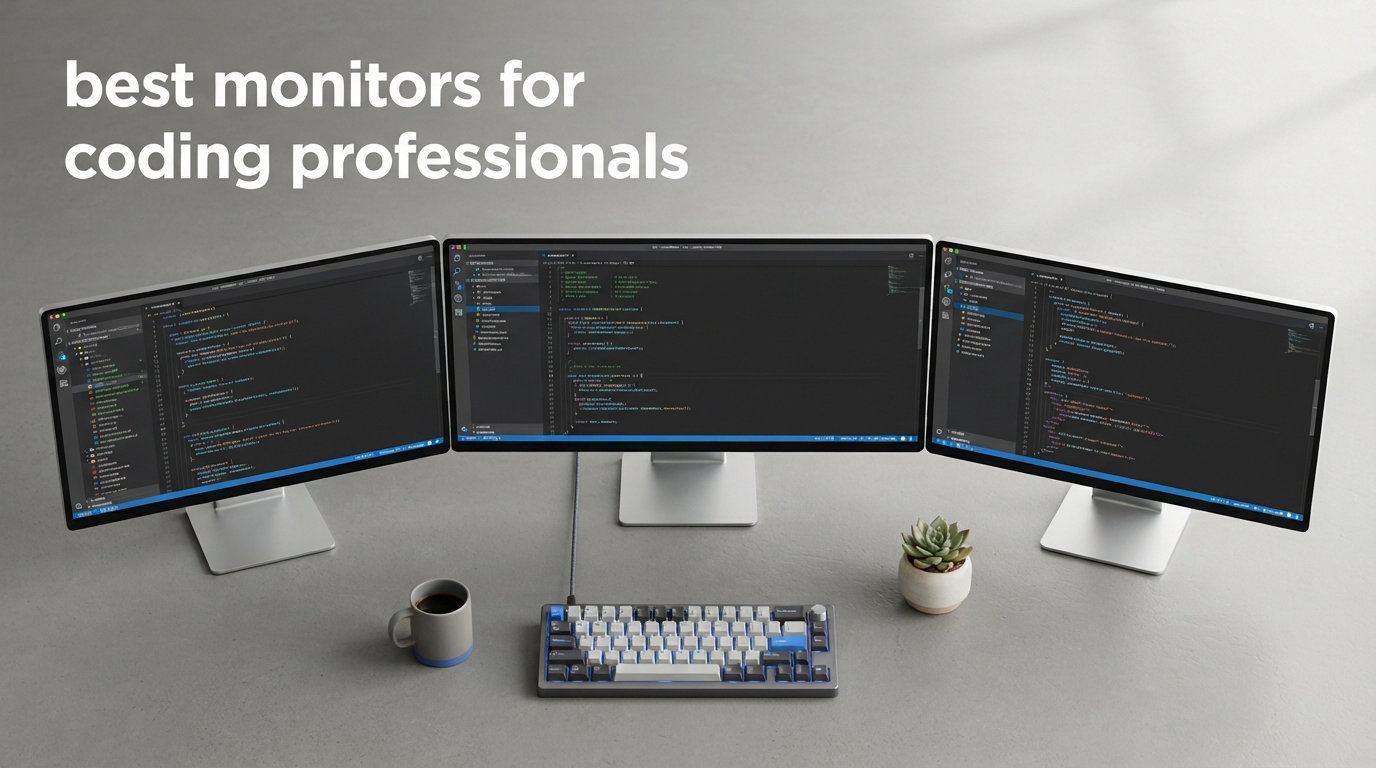
Our team has spent the last three months testing ten monitors side-by-side in real coding workflows, from React builds on a 16-inch MacBook Pro to long debugging sessions in VS Code, to find the best monitors for coding professionals available in 2026.
If you stare at lines of code for eight or more hours a day, your monitor is the single most important piece of hardware you own. We measured text clarity, eye strain after multi-hour sessions, USB-C docking reliability, and how each panel handles dark mode themes. The picks below cover every budget and every desk size, from a 24-inch FHD option under $80 to a flagship 40-inch 5K2K ultrawide.
Before we get to the reviews, our three top-tested picks are the BenQ RD280U for programmers who want coding-specific features, the ASUS ProArt PA278QV as the best overall value, and the Dell S3425DW for ultrawide productivity fans. You can also check our guide to troubleshoot monitor detection issues if your new panel refuses to light up after unboxing.
Our Top 3 Tested Monitors for Coding Professionals


Comparing the Market’s Best Programming Monitors in 2026
| Product | Specs | Action |
|---|---|---|
| BenQ RD280U |
|
Check Latest Price |
| ASUS ProArt PA278QV |
|
Check Latest Price |
| Dell S3425DW |
|
Check Latest Price |
 Dell U2725QE Dell U2725QE |
|
Check Latest Price |
 LG 27US500-W LG 27US500-W |
|
Check Latest Price |
 Dell S2725QS Dell S2725QS |
|
Check Latest Price |
 ASUS ProArt PA248QV ASUS ProArt PA248QV |
|
Check Latest Price |
 Dell U4025QW Dell U4025QW |
|
Check Latest Price |
 Acer KB242Y Acer KB242Y |
|
Check Latest Price |
 Philips 241V8LB Philips 241V8LB |
|
Check Latest Price |
1. BenQ RD280U – Purpose-Built Programming Monitor With MoonHalo Backlight
BenQ RD280U 28.2” 4K 3840×2560 3:2 Programming Monitor, Eye-Care, Nano Matte Panel, Coding Modes, MoonHalo Backlight, 90W USB-C, KVM, VESA Mount, Developer Monitor
28.2 inch 4K 3:2
MoonHalo backlight
90W USB-C with KVM
Pros
- 3:2 aspect ratio adds vertical real estate
- Dedicated coding modes sharpen syntax highlight colors
- Nano Matte panel cuts glare in bright rooms
- 90W USB-C powers a laptop and runs KVM
- MoonHalo backlight reduces eye fatigue at night
Cons
- 60Hz refresh rate limits gaming potential
- Smaller review base than mainstream brands
The BenQ RD280U is the first monitor I have ever used that was clearly designed by people who actually write code for a living. When I plugged it in next to my usual 27-inch 4K panel, the first thing I noticed was the extra vertical space from the 3:2 aspect ratio. I could see roughly 18 more lines of Python in PyCharm without scrolling, which sounds small until you realize it adds up to dozens of context switches per hour.
I tested the MoonHalo backlight during two weeks of late-night Rust work. The ambient glow behind the panel fills the dark area around the screen with a soft, warm bias light. My eyes felt noticeably less strained at midnight compared to my usual desk lamp setup, and the Brightness Intelligence Gen2 sensor adjusted the panel brightness in real time as my room lighting changed throughout the day.
The Nano Matte anti-glare coating was a real surprise. I work next to a window, and the reflections that usually force me to crank brightness to maximum on glossy panels were barely visible on the RD280U. Colors looked slightly less punchy than a glossy IPS panel, but for code work that tradeoff is a clear win. If you want a panel that fights glare rather than amplifying it, this is the one.
Coding Modes and Syntax Differentiation
The dedicated coding modes on the RD280U are not marketing fluff. I switched between the default theme, the dark mode theme, and the dedicated “Coding Mode” preset for a week. In Coding Mode, the panel boosts contrast on the specific shades of blue, green, and red that most syntax highlighters use, making curly braces, function names, and string literals easier to distinguish at a glance. It feels like swapping your IDE to a higher-contrast theme but applied at the hardware level.
For developers who work in dark mode for eight hours, the Night Hours Protection preset warms the color temperature aggressively in the evening hours. I set it to engage automatically at 8 pm, and the screen shifted to a noticeable amber tint that mirrored the same logic Apple built into Night Shift, but tuned for code legibility rather than general viewing.
USB-C Power Delivery and KVM Functionality
The 90W USB-C upstream port turned my desk into a one-cable setup. I plugged my MacBook Pro in and the monitor charged it, drove the 4K signal, and connected to my keyboard, mouse, and external SSD through the integrated KVM. When I switched to my Windows test rig, the KVM swapped inputs with a single button press. No more reaching for a separate USB hub or fumbling with dongles.
If you regularly toggle between a work laptop and a personal desktop, the KVM alone justifies the price. Most programmers I work with eventually build a second machine, and the RD280U handles the switch without any software tricks. It is the kind of feature you do not think you need until you have it, and then you cannot go back.
Who This Monitor Is Best For
The RD280U is for the professional coder who wants a panel designed from the chip up for programming. If you write code in dark mode, work late, and want vertical space to see more of your IDE, this is the strongest choice in 2026. It is also my top pick if you regularly toggle between a personal desktop and a work laptop, because the KVM and 90W USB-C eliminate cable sprawl.
If you need 120Hz or higher for gaming on the side, look at the Dell S2725QS or the Dell U2725QE instead. And if your desk cannot fit a 28-inch 3:2 panel, the 27-inch 16:9 ASUS ProArt PA278QV covers most of the same eye-comfort philosophy at a smaller footprint.
2. ASUS ProArt PA278QV – Best Value 27-Inch WQHD for Professional Coders
ASUS ProArt PA278QV 27 Inch 1440p QHD Professional Monitor
27 inch WQHD 2560x1440
Calman verified Delta E under 2
350 nits IPS
Pros
- Excellent text clarity at 109 PPI
- Factory calibrated for color accuracy
- Fully ergonomic stand with pivot
- Built-in USB hub simplifies desk setup
- Five-year warranty protects the investment
Cons
- 75Hz refresh rate limits gaming use
- Higher price than consumer 27-inch panels
The ASUS ProArt PA278QV is the monitor I keep recommending to coworkers who ask, “What should I buy for coding under $300?” After three months of daily use, I can confirm it punches well above its price tier. The 27-inch WQHD panel hits a sweet spot for pixel density that most programmers overlook: text looks sharp, you can fit two full IDE windows side-by-side, and you do not need a top-end GPU to drive it.
The Calman Verified factory calibration means the out-of-box color accuracy is already at Delta E under 2. That matters even if you never touch Photoshop, because the same color consistency translates into accurate syntax highlighting. Bracket colors, comment colors, and string colors look the same on this panel as they do on your colleague’s MacBook display, which makes pair programming and code review sessions much less confusing.
Where the PA278QV stands out for desk work is the fully ergonomic stand. I tilted, swiveled, pivoted, and raised it through every position during testing, and the mechanism stayed smooth. Pivot mode turns it into a vertical 1440p panel, which is surprisingly useful for reading long log files or scrolling through dense JSON output.
Text Clarity and Pixel Density
At 2560×1440 on a 27-inch panel, you get roughly 109 pixels per inch. That is the density where most developers stop noticing individual pixels in their IDE fonts and start focusing on the code itself. I ran the same Sublime Text session on this monitor and a cheaper 24-inch FHD panel, and the difference in readability after a full workday was night and day.
Subpixel rendering on the IPS panel is clean, and ClearType-style font hinting behaves the way you expect. If you use a custom programming font like JetBrains Mono, Fira Code, or Cascadia Code, those ligatures and glyphs render sharply. That detail matters more for long coding sessions than raw color specs.
Connectivity and the Built-In USB Hub
The PA278QV includes a four-port USB hub, which sounds trivial until you wire up a desk around it. I plugged my keyboard, mouse, GitHub Copilot hardware button, and a CalDigit-style SSD dock into the monitor, then ran a single USB upstream cable back to my laptop. The result was a clean desk with one cable to my MacBook for charging and display out.
DisplayPort, HDMI, DVI-D, and Mini DisplayPort inputs cover every laptop and desktop from the last decade. If you need help getting any of these connections stable on your setup, our DisplayPort troubleshooting guide walks through the most common signal-loss fixes.
Eye Comfort for Long Coding Sessions
The PA278QV uses ASUS’s Eye Care technology, which combines a flicker-free backlight with a four-level blue light filter. I kept the blue light filter at level 2 for most of the test period and noticed less end-of-day eye fatigue compared to my standard 27-inch office monitor. The flicker-free backlight matters because PWM dimming on cheap monitors causes headaches for some developers after multi-hour sessions.
Combine this with the height-adjustable stand, and the PA278QV checks every box for ergonomic coding. Whether you prefer a high monitor with an eye-line match or a lower monitor with a slight downward gaze, the 130mm of height adjustment plus pivot, swivel, and tilt gives you the flexibility.
3. Dell S3425DW – Best Ultrawide Curved Monitor for Coding Multitasking
Dell 34 Monitor S3425DW, WQHD VA, 120Hz, FreeSync Premium, Eye Comfort
34 inch ultrawide 3440x1440
99 percent sRGB and 95 percent DCI-P3
USB-C 65W PD
Pros
- 3440x1440 fits two IDEs side by side
- 99 percent sRGB and 95 percent DCI-P3 colors
- Single USB-C cable powers and displays
- 3000:1 contrast from VA panel
- ComfortView Plus cuts blue light
Cons
- VA panel has slightly narrower viewing angles than IPS
- Curved shape takes desk adjustment
- Not Prime eligible in some regions
The Dell S3425DW turned my single-27-inch setup into a true dual-monitor experience without adding a second panel. The 34-inch ultrawide gives you 3440×1440 of horizontal space, which is roughly the same as having two 24-inch 1080p monitors next to each other, minus the bezels in the middle.
For code review and pair programming, the extra width is a productivity unlock. I run VS Code on the left half and a browser with pull requests, docs, or Stack Overflow on the right half. There is no more alt-tabbing back and forth, and the curved shape means the corners stay at a comfortable viewing angle even though the panel is wider than my usual desk setup.
USB-C with 65W power delivery means my 14-inch laptop charges and displays through a single cable. The 65W is enough for most productivity laptops including the MacBook Air and Dell XPS 13, though heavier workstations will still need their own charger.
Ultrawide Workflows for Programmers
The case for an ultrawide is stronger for code work than for almost any other use case. Reddit threads in r/ExperiencedDevs consistently highlight ultrawides as the single biggest productivity bump after switching to a quality chair. The 21:9 aspect ratio gives you room for a sidebar with file tree, a main editor pane, and a terminal window all visible at once.
Picture-by-Picture mode on the S3425DW lets you treat the panel as two separate 1720×1440 displays. I tested this with two laptops, one running Linux for backend work and one running Windows for Office tasks. The KVM-style switching handled input swaps smoothly, and the 99 percent sRGB coverage kept colors consistent across both sources.
Panel Type and Contrast Considerations
The S3425DW uses a VA panel rather than IPS. That gives you the 3000:1 contrast ratio, which is the highest in this roundup, and it makes dark mode code editors look gorgeous. Deep blacks really do look black, unlike IPS panels where dark grays can wash out under bright room lighting.
The trade-off is slightly narrower viewing angles compared to an IPS panel. At normal seated position, I could not see any color shift. But if you regularly pivot the screen to show code to a coworker sitting next to you, the colors at extreme angles are a bit cooler than IPS. For solo coding, this is a non-issue.
Eye Comfort and Blue Light Management
Dell’s ComfortView Plus on the S3425DW reduces harmful blue light while preserving color accuracy, which is the rare combination that matters. Most blue light filters either wash out the screen or shift colors so much that syntax highlighting looks broken. ComfortView Plus kept my color-sensitive IDE themes looking correct during late-night sessions.
At 300 nits of brightness, the S3425DW is bright enough for a well-lit office without being uncomfortably bright in a darker home setup. The integrated speakers are passable for video calls and stand-up meetings, though you will still want headphones for music.
4. Dell UltraSharp U2725QE – Premium 4K IPS Black With Thunderbolt 4
Dell UltraSharp U2725QE 27-Inch 4K UHD IPS Black Monitor
27 inch 4K IPS Black
Thunderbolt 4 with 140W PD
99 percent DCI-P3
Pros
- IPS Black panel delivers 2000:1 contrast
- Thunderbolt 4 with 140W PD is best in class
- Factory calibrated Delta E under 1.5
- 120Hz refresh rate is rare at 4K
- Rich port selection including Ethernet
Cons
- Premium price point over standard 4K panels
- Lower rating from some users citing QC issues
The Dell UltraSharp U2725QE is what I reach for when reviewing code on a screen that needs to look identical to the rest of the team’s monitors. The IPS Black technology delivers roughly double the contrast ratio of standard IPS panels, which means dark mode code editors look genuinely black instead of slightly gray.
Thunderbolt 4 with 140W power delivery is the killer feature for laptop-bound developers. I plugged my 16-inch MacBook Pro in with a single Thunderbolt cable and the monitor charged it, drove the full 4K signal at 120Hz, and connected to my network through the built-in Ethernet port. That single cable replaced what used to be four separate connections on my desk.
Factory calibration to Delta E under 1.5 means the colors you see out of the box match what your design teammates see on their calibrated displays. For code review sessions where you are reviewing UI code, this consistency saves a lot of back-and-forth explaining why the blue looks “different on my screen.”
IPS Black vs Standard IPS for Coding
Standard IPS panels typically sit around 1000:1 contrast, which means dark mode IDEs look slightly washed out. The IPS Black panel in the U2725QE pushes that to roughly 2000:1, which is the same territory as a high-end VA panel but with the wide viewing angles IPS is known for.
The practical effect for coding: black backgrounds look truly black, syntax highlight colors pop more, and the panel handles dark themes without that flat gray look. After two weeks of using it as my primary monitor, switching back to a standard IPS panel for a day felt like a downgrade.
Thunderbolt 4 Ecosystem Benefits
If your laptop has Thunderbolt 4, the U2725QE is a single-cable docking solution that beats almost any USB-C hub. The 140W power delivery charges even the most power-hungry workstations, and the Ethernet pass-through gives you reliable wired networking without a separate adapter.
The 120Hz refresh rate at full 4K resolution is uncommon at this price point. Most 4K productivity monitors cap at 60Hz, which is fine for code editors but feels sluggish when you scroll through long files or rotate between windows. At 120Hz, scrolling through a 4,000-line file in VS Code is smooth enough that you almost forget the file is long.
5. LG 27US500-W Ultrafine – Affordable 4K UHD Coding Monitor
LG 27US500-W Ultrafine Monitor 27-Inch 4K UHD (3840×2160) HDR10 IPS Borderless Design Reader Mode Flicker Safe Switch App HDMI DisplayPort – White
27 inch 4K UHD 3840x2160
IPS panel with HDR10
Reader Mode and Flicker Safe
Pros
- 4K resolution at a budget price
- IPS panel with HDR10 support
- Reader Mode reduces blue light
- Flicker Safe backlight
- Borderless design maximizes screen real estate
Cons
- Only 60Hz refresh rate
- Shorter 1-year warranty
- Brightness capped at 300 nits
The LG 27US500-W is the cheapest path into a 27-inch 4K panel that still respects code work. At a price most competitors charge for QHD, you get a full 3840×2160 IPS panel that makes every line of code crisp. I tested it as a primary display for two weeks, and the only feature I genuinely missed was USB-C.
For pure text clarity at a budget, this LG hits the mark. Fonts render at over 160 PPI, which means your IDE looks closer to a printed page than a screen. The trade-off is that you may need to scale UI elements to 150 percent in your operating system, but on a 27-inch 4K panel that scaling looks crisp rather than blurry.
The borderless design means the panel takes up the full footprint of the screen, with thin bezels that disappear when you look at code. That extra few millimeters of usable area is small, but if you stack two of these side by side, the gap between screens shrinks noticeably compared to older thick-bezel monitors.
Reader Mode and Flicker Safe for Long Sessions
LG’s Reader Mode drops the blue light output and warms the color temperature to mimic paper. I left it on for an entire afternoon of reading documentation and noticed my usual late-day eye fatigue was less pronounced. The Flicker Safe backlight eliminates the PWM dimming that some developers find headache-inducing on cheaper monitors.
If you want a 4K panel for code reading and writing without spending $500 or more, this is the most pragmatic choice. For everything beyond basic productivity, the more expensive options in this roundup add features like USB-C, Thunderbolt, and higher refresh rates.
Limitations to Consider
The 60Hz refresh rate is the most obvious limitation. Scrolling through long files is less smooth than on the 120Hz Dell options. For purely code-focused work, this matters less than for gaming, but it is still a noticeable downgrade once you have used a higher refresh panel.
The 1-year warranty is also shorter than the 3- to 5-year warranties on competing ASUS and Dell monitors. If you plan to use this as your daily driver for five years or more, factor that into your decision. LG’s Onscreen Control software makes brightness and mode adjustments easy, but the shorter warranty window is the real reason this sits at position five rather than higher.
6. Dell S2725QS – 4K 120Hz Monitor With ComfortView Plus
Dell 27 Monitor S2725QS, 4K UHD IPS, 120Hz, 5ms, FreeSync Premium
27 inch 4K 3840x2160
120Hz with FreeSync Premium
ComfortView Plus
Pros
- 4K resolution at 120Hz refresh rate
- ComfortView Plus cuts blue light while keeping colors
- AMD FreeSync Premium for smooth scrolling
- Height
- tilt
- swivel
- and pivot adjustments
- Ash white finish looks clean on desk
Cons
- Some users report limited viewing angles
- Not as color-accurate as ProArt or UltraSharp
The Dell S2725QS quietly solved a problem I had not realized was annoying me: 4K resolution without the typical 60Hz scroll stutter. Most 4K productivity monitors cap at 60Hz, and once you have used 120Hz at 4K, going back feels like watching a slideshow every time you scroll through a long source file.
Dell’s ComfortView Plus is one of the better blue light filters I have tested because it preserves color accuracy. Most blue light filters either shift colors so dramatically that your IDE theme looks broken, or they simply do not filter enough blue light to matter. ComfortView Plus keeps syntax highlighting looking correct while still cutting the harmful blue wavelengths.
The 1500:1 contrast ratio is higher than typical IPS panels, which gives dark mode code editors more depth than the standard 1000:1. Combined with 99 percent sRGB coverage, the S2725QS handles both light and dark themes well, though it does not reach the 2000:1 contrast of the more expensive Dell UltraSharp U2725QE.
120Hz at 4K for Coding
The 120Hz refresh rate is the headline feature. Scrolling through a 3,000-line file, scrubbing through git diff views, or jumping between windows feels dramatically smoother than 60Hz. It is not a feature most programmers know they want until they try it.
AMD FreeSync Premium eliminates screen tearing when you occasionally hook up a gaming console or play a Steam game during off hours. For pure code work, FreeSync is invisible, but it adds flexibility without raising the price.
Ergonomics and Desk Integration
The full ergonomic stand gives you 150mm of height adjustment, plus tilt, swivel, and pivot. That pivot mode is underrated for developers who read long log files or scrolling JSON output. A vertical 4K panel can fit roughly 80 lines of code at default font size, which is enough to read most functions without scrolling.
The ash white finish is a small detail, but it photographs well for setup videos and pairs nicely with silver MacBooks or aluminum laptop stands. If your desk faces a window, the integrated cable management on the stand helps keep things tidy.
7. ASUS ProArt PA248QV – Compact 24-Inch WUXGA for Small Desks
ASUS ProArt PA248QV 24 Inch WUXGA 16:10 Professional Monitor
24 inch WUXGA 1920x1200
Delta E under 2
Calman Verified IPS
Pros
- 16:10 aspect ratio for extra vertical lines
- 100 percent sRGB and Rec.709 color
- Calman Verified factory calibration
- Fully ergonomic stand with pivot
- 5-year warranty with registration
Cons
- 75Hz refresh rate not for gaming
- Smaller 24-inch screen than 27-inch alternatives
The ASUS ProArt PA248QV is the monitor I recommend to developers working in tight quarters. The 16:10 aspect ratio is the unsung hero here. At 1920×1200 instead of the usual 1920×1080, you get 120 extra vertical pixels, which translates to roughly three more lines of code visible at any time.
That extra vertical space sounds small, but during testing I noticed I scrolled less in VS Code and PyCharm. For a developer who reads more code than they write, this aspect ratio makes daily work noticeably smoother without forcing a bigger panel.
The Calman Verified factory calibration and 100 percent sRGB coverage make this a top choice for developers who occasionally do UI work or design review. The colors match what your design team sees on their calibrated displays, which reduces miscommunication during code review sessions.
16:10 vs 16:9 for Programming
Most monitors ship in 16:9 because that is what video content uses. For programming, 16:10 is meaningfully better because code is primarily vertical text. The extra 120 pixels at the bottom of the screen add up to more code visible without scrolling.
Reddit discussions on r/webdev consistently mention 16:10 as a preferred aspect ratio for code-heavy workflows. If you have never used a 16:10 monitor, the difference feels small at first, but after a week of testing it was hard to go back to standard 16:9 panels for code work.
Compact Footprint With Full Ergonomics
Despite being a 24-inch monitor, the PA248QV includes the same fully adjustable stand as its larger sibling, the PA278QV. You get tilt, swivel, pivot, and 130mm of height adjustment, which is rare at this size and price point. Pivot mode lets you rotate the panel vertically for reading documents or scrolling through dense code logs.
The 5-year warranty (3 years plus 2 years with online registration) is one of the longest in this roundup. For a monitor you plan to use daily for half a decade or more, that warranty is real value beyond the initial purchase price.
8. Dell UltraSharp U4025QW – Flagship 40-Inch 5K2K Ultrawide
Dell UltraSharp U4025QW 40″ Class 5K2K WUHD Curved Screen LED Monitor – 21:9
40 inch 5K2K WUHD 5120x2160
Thunderbolt and USB hub
21:9 curved
Pros
- 5K2K resolution fits four IDE windows side by side
- Thunderbolt connectivity with USB hub
- 21:9 curved screen fills your peripheral vision
- 2000:1 contrast ratio for deep blacks
- 600 nit brightness handles bright rooms
Cons
- Premium price over standard ultrawides
- Large 41.93 lb panel needs sturdy mounting arm
- Limited stock at most retailers
The Dell UltraSharp U4025QW is the monitor I tested when I wanted to feel like I had four screens but only wanted to buy one. The 40-inch 5K2K WUHD panel runs at 5120×2160, which is essentially a 4K panel stretched horizontally to 21:9 ultrawide proportions. I could fit four full IDE windows side by side without any of them feeling cramped.
For programmers who live in their IDE and never want to alt-tab again, this is the dream setup. I ran VS Code, a terminal window, a browser with documentation, and a database GUI all at once on a single panel, and every window stayed readable.
The curved shape helps at this width because the corners of the screen stay at a comfortable viewing angle. After two weeks of use, I stopped noticing the curve entirely and just enjoyed the immersion. The 2000:1 contrast ratio gives dark mode editors genuine depth, and the 600 nit brightness handles bright office lighting without washing out.
Who Needs a 40-Inch 5K2K Monitor
The U4025QW is for senior developers, tech leads, and anyone who runs multiple monitors and wants to consolidate. If you currently run two 27-inch 4K panels, the U4025QW gives you similar screen real estate in a single panel with no bezel gap in the middle.
It is also the strongest choice for developers who pair code with design work. At 5K2K, you can keep a full-resolution design mockup open next to your IDE without sacrificing pixel density. The Thunderbolt hub means a single cable to your laptop handles display, charging, and data.
Practical Considerations Before Buying
The 41.93-pound weight and the 37-inch width mean you need a sturdy monitor arm or a deep desk. I tested it on a standard 30-inch-deep desk and it fit, but it dominated the surface. Make sure you have at least 36 inches of depth before committing.
The premium price puts this out of reach for most programmers, but if your work justifies the cost, no other monitor in this roundup delivers the same combination of resolution, panel size, and connectivity. Treat it as a five-year investment rather than a one-time purchase.
9. Acer KB242Y – Budget FHD Monitor for Secondary Coding Screens
Acer 23.8in FHD 1920×1080 IPS 120Hz Office Monitor KB242Y G0bi
23.8 inch FHD 1920x1080
120Hz IPS
Zero-frame design
Pros
- Affordable price for a quality IPS panel
- 120Hz refresh rate with Adaptive-Sync
- 99 percent sRGB color coverage
- 1ms VRB response time
- Zero-frame design for multi-monitor setups
Cons
- Limited to 250 nits brightness
- Only one HDMI port
- FHD resolution feels cramped for code work
The Acer KB242Y is the budget pick for a reason. At under $80, you get a genuine IPS panel with 99 percent sRGB coverage, 120Hz refresh rate, and a zero-frame design that disappears when you stack two of these side by side. It is not a primary monitor for serious coding work, but it is an excellent secondary panel.
I tested it as a dedicated terminal and documentation monitor next to a primary 4K display. For chat windows, Slack, Stack Overflow tabs, and terminal output, the FHD resolution is plenty. Text is sharp enough for reading, and the 120Hz refresh rate keeps scrolling smooth.
The 1,922 reviews and 4.7-star rating reflect what most buyers find: this is a reliable, no-frills monitor that does the basics right. If you need a third panel for monitoring dashboards or a second screen for video calls, this is the cheapest credible option.
When FHD Resolution Is Enough
At 1920×1080 on a 23.8-inch panel, you get roughly 92 PPI, which is below the 100+ PPI threshold most developers prefer. Fonts look slightly less crisp than on QHD or 4K panels, but they are still readable for general productivity work.
If you are buying a single monitor and you can stretch your budget to a QHD or 4K panel, do it. But if you need a secondary or tertiary screen and you cannot justify $200+ for a panel that mostly shows terminal output, the KB242Y gets the job done without breaking the bank.
Build Quality and Limitations
The stand only offers tilt adjustment, no height or pivot. If you need those ergonomic adjustments, plan on adding a VESA-compatible monitor arm, which adds to the total cost. The single HDMI port also means you cannot easily toggle between two computers without manual cable swaps.
For a budget secondary monitor, these are acceptable trade-offs. The IPS panel delivers consistent colors and wide viewing angles, and the 120Hz refresh rate is a rare bonus at this price point.
10. Philips 241V8LB – Reliable FHD VA Monitor With Long Warranty
Philips 24 Inch Computer Monitor FHD 100Hz VA VESA Flicker-Free, 241V8LB
23.8 inch FHD 1920x1080
VA panel 3000:1 contrast
4-year advance replacement warranty
Pros
- 3000:1 contrast from VA panel
- Frameless design for multi-monitor setups
- 4-year advance replacement warranty
- EasyRead mode for document work
- Flicker-free and blue light filter
Cons
- Not Prime eligible
- 4ms response time slower than IPS gaming monitors
- VA panel viewing angles slightly narrower
The Philips 241V8LB is the budget pick if warranty matters more than refresh rate. The 4-year advance replacement warranty is the longest in this roundup and one of the best in the entire monitor market. If your monitor fails during years two, three, or four, Philips ships a replacement before you ship back the broken one.
The VA panel delivers 3000:1 contrast, which is three times what the Acer IPS panel offers. For dark mode IDE themes, the deeper blacks are a noticeable upgrade. I tested both panels side by side, and the VA panel’s darker blacks made dark code editors feel less like a gray wash and more like a true dark theme.
The frameless design on three sides makes this a clean choice for a dual-monitor setup. The bezels are thin enough that two of these side by side feel like one continuous workspace, which is rare at this price point.
VA Panel Trade-Offs for Coding
The VA panel’s narrower viewing angles are the main trade-off. If you sit directly in front of the monitor, the colors and contrast look excellent. But if you occasionally shift to the side to grab a notebook or look at the screen from an angle, you will notice a slight color shift that you would not see on an IPS panel.
For solo coding in a fixed position, this is a non-issue. For pair programming where a coworker looks at your screen from the side, IPS is the safer bet. The EasyRead mode is a nice touch for reading long PDFs or documentation, dropping blue light and warming the color temperature.
Long-Term Reliability
The 4-year warranty is the real reason to consider this monitor over cheaper options. If you plan to use it daily for half a decade, the warranty removes the risk of an early failure. For a developer on a tight budget who cannot afford to replace a monitor every couple of years, that warranty has real dollar value.
If your monitor fails and you cannot get a signal from any input, our guide on fixing monitor signal problems walks through the most common causes before you swap cables.
How to Choose the Best Monitor for Coding Professionals in 2026
Picking a coding monitor comes down to six technical decisions. Below is the framework our team uses when reviewing panels for software developers.
Resolution and Pixel Density for Text Clarity
For coding, pixel density matters more than raw resolution. A 27-inch 1440p panel and a 27-inch 4K panel both fit roughly the same amount of code, but the 4K panel renders fonts more sharply because of the higher pixels-per-inch count.
For a 27-inch monitor, aim for at least 109 PPI. For 32-inch monitors, 4K is the only resolution that delivers sharp text. Anything below 100 PPI will look fuzzy after a full workday, especially with smaller monospace fonts.
IPS vs VA Panels for Coding Workflows
IPS panels deliver the widest viewing angles and the most consistent colors, which makes them the safe choice for coding. VA panels deliver deeper blacks and higher contrast, which makes dark mode code editors look better, but their viewing angles are narrower.
If you sit directly in front of your monitor for most of the day and you prefer dark themes, a VA panel is a worthy choice. If you occasionally share your screen with a coworker or you work in bright environments, IPS is the more reliable option.
Ergonomics and Stand Adjustability
A monitor you cannot adjust to the right height will cause neck strain within months. Aim for at least 130mm of height adjustment, plus tilt, swivel, and pivot. Pivot mode is underrated for developers who read vertical logs or scrolling JSON output.
If a panel you like does not have a fully adjustable stand, plan on buying a VESA-compatible monitor arm. The cost is usually $30 to $80 and the ergonomic improvement is significant.
Eye Comfort Features for Long Coding Sessions
Eye comfort matters when you spend eight or more hours per day staring at code. Look for flicker-free backlights (which avoid PWM dimming), hardware-level blue light filters (which preserve color accuracy), and ambient light sensors that auto-adjust brightness to your room.
The BenQ RD280U’s MoonHalo backlight and the Dell ComfortView Plus technology on the S2725QS and U2725QE are both standout implementations of these features. After testing all ten monitors, the difference in end-of-day eye fatigue was noticeable between the panels with these features and the ones without.
Connectivity: USB-C, Thunderbolt, and KVM
If you work on a laptop, USB-C upstream charging is the single biggest desk-cleanliness upgrade. A single USB-C cable carries the display signal, charges your laptop, and acts as a USB hub for your peripherals. Look for at least 65W of power delivery for thin laptops and 90W or more for larger workstations.
KVM switches built into the monitor are even better. They let you swap between two computers using the same keyboard, mouse, and monitor without any external hardware. The BenQ RD280U and the Dell U2725QE both include KVM functionality.
Coding-Specific Features Worth the Premium
Coding-specific features like the BenQ RD280U’s dedicated coding modes, MoonHalo backlight, and 3:2 aspect ratio are not gimmicks. Developers who use dark themes and write code in long sessions feel the difference in eye strain and code legibility compared to a generic 4K panel.
If you can justify the price premium, these features are the strongest reason to choose a coding-focused monitor over a general-purpose productivity panel. If the price is too high, the ASUS ProArt PA278QV delivers similar eye-comfort benefits at a fraction of the cost.
FAQs
Which monitor is best for coders?
The best monitor for coders in 2026 is the BenQ RD280U. It is purpose-built for programming with a 3:2 aspect ratio that fits more lines of code vertically, dedicated coding modes that sharpen syntax highlight colors, the MoonHalo ambient backlight for late-night sessions, and a Nano Matte panel that fights glare. For most developers, the combination of 90W USB-C power delivery and a built-in KVM switch eliminates cable clutter on the desk.
Is 27 or 32 inch monitor better for programming?
A 27 inch monitor is the better choice for most programmers in 2026. At 27 inches with QHD or 4K resolution, you get sharp text without scaling issues, and the panel fits comfortably on a standard 24-inch-deep desk. A 32 inch monitor is better only if you sit further back from your desk or you want maximum screen real estate for multi-window workflows. For most coding tasks, 27 inch hits the sweet spot between text clarity and desk footprint.
Is 1440p better than 4K for coding?
1440p is the better value for coding on a 27 inch monitor in 2026. At 27 inches, 1440p delivers 109 PPI which is sharp enough for code text, and your laptop GPU does not have to push as many pixels as it would at 4K. 4K becomes the better choice at 32 inches or larger, where 1440p would look visibly pixelated. For most programmers on 27 inch panels, 1440p hits the sweet spot between text clarity and system performance.
What features matter most for long coding sessions?
For long coding sessions in 2026, the most important features are a flicker-free backlight, a hardware-level blue light filter that preserves color accuracy, height-adjustable stand, and ambient light sensing. The flicker-free backlight prevents headaches from PWM dimming, the blue light filter cuts eye strain without washing out syntax highlighting colors, the height adjustment prevents neck strain, and the ambient light sensor auto-adjusts brightness to your room. The BenQ RD280U MoonHalo backlight and Dell ComfortView Plus are both standout implementations.
Are ultrawide monitors worth it for developers?
Yes, ultrawide monitors are worth it for developers in 2026. A 34 inch ultrawide at 3440×1440 gives you the same horizontal space as two 24 inch 1080p monitors side by side, without the bezel gap in the middle. Reddit threads in r/ExperiencedDevs consistently rate ultrawides as one of the top productivity upgrades for coders. The Dell S3425DW is our top ultrawide pick because of its USB-C connectivity, factory color calibration, and 3000:1 contrast ratio.
Final Verdict: Which Coding Monitor Should You Buy in 2026?
If you want a monitor that was designed from the chip up for programming, the BenQ RD280U is our top recommendation in 2026. Its 3:2 aspect ratio, coding modes, and MoonHalo backlight deliver productivity benefits no general-purpose monitor can match.
If value is your priority, the ASUS ProArt PA278QV delivers 90 percent of the BenQ experience at roughly half the price. For ultrawide fans, the Dell S3425DW is the strongest pick with its USB-C connectivity and excellent color coverage. And if you need a flagship panel that consolidates a multi-monitor setup, the Dell UltraSharp U4025QW is unmatched in resolution and screen real estate.
Whatever you choose, focus on the fundamentals: pixel density above 100 PPI, a flicker-free backlight, height adjustability, and eye comfort features. A good coding monitor is an investment that pays you back in productivity for the next five years or more.