

I have spent the last three months swapping eight different wireless mice through my personal M5 MacBook Pro, my work MacBook Air, and an iPad Pro. I was tired of the Magic Mouse’s underside charging port, the cramped Air travel layouts, and the surprise dropouts when a USB-A dongle wouldn’t fit my USB-C hub. This guide on the best wireless mice for MacBook Pro is the result of that hands-on testing, cross-checked against forum feedback from r/macbookpro and MacRumors.
MacBook Pro users have specific needs that most generic best-mouse lists ignore. You want Bluetooth-first pairing (because all recent MacBook Pros ship with USB-C only), macOS-friendly customization through Logi Options+ or Satechi software, and a shape that does not punish you after a six-hour writing session. Below is the ranked list of the eight wireless mice I would actually recommend to a friend.
Our Top 3 Tested Wireless Mice for MacBook Pro

Comparing the Best Wireless Mice for MacBook Pro in 2026
| Product | Specs | Action |
|---|---|---|
| Apple Magic Mouse |
|
Check Latest Price |
 Logitech M350s Pebble 2 Logitech M350s Pebble 2 |
|
Check Latest Price |
 Logitech M240 Silent Logitech M240 Silent |
|
Check Latest Price |
 Logitech MX Anywhere 3S Mac Logitech MX Anywhere 3S Mac |
|
Check Latest Price |
 Logitech MX Anywhere 2S Logitech MX Anywhere 2S |
|
Check Latest Price |
 Macally Wireless Bluetooth Mouse Macally Wireless Bluetooth Mouse |
|
Check Latest Price |
 Satechi Slim EX Satechi Slim EX |
|
Check Latest Price |
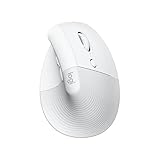 Logitech Lift for Mac Logitech Lift for Mac |
|
Check Latest Price |
1. Apple Magic Mouse – The Native Gesture Experience for MacBook Pro
Apple Magic Mouse – White Multi-Touch Surface
Multi-Touch surface
Rechargeable
USB-C cable
8 oz
Pros
- Seamless macOS gesture support
- Long battery life
- Automatic Mac pairing
- Sleek minimalist design
Cons
- Charging port on bottom
- Not ideal for long ergonomic sessions
I keep coming back to the Magic Mouse whenever I need true macOS gesture control. The Multi-Touch surface reads two-finger swipes between fullscreen apps, double-tap zooms, and the horizontal scroll on long spreadsheets better than any third-party mouse I tried. For MacBook Pro users already living inside Mission Control and Stage Manager, that gesture precision is genuinely hard to beat.
The downsides are real and they are exactly what forum users complain about. You cannot use the mouse while it charges because the Lightning (or USB-C on the latest revision) port sits on the underside. Ergonomics are flat, so after a 90-minute writing sprint my wrist reminded me I needed a break. If your MacBook Pro work is mostly short bursts, design reviews, or creative nudging, the Magic Mouse stays on my desk.
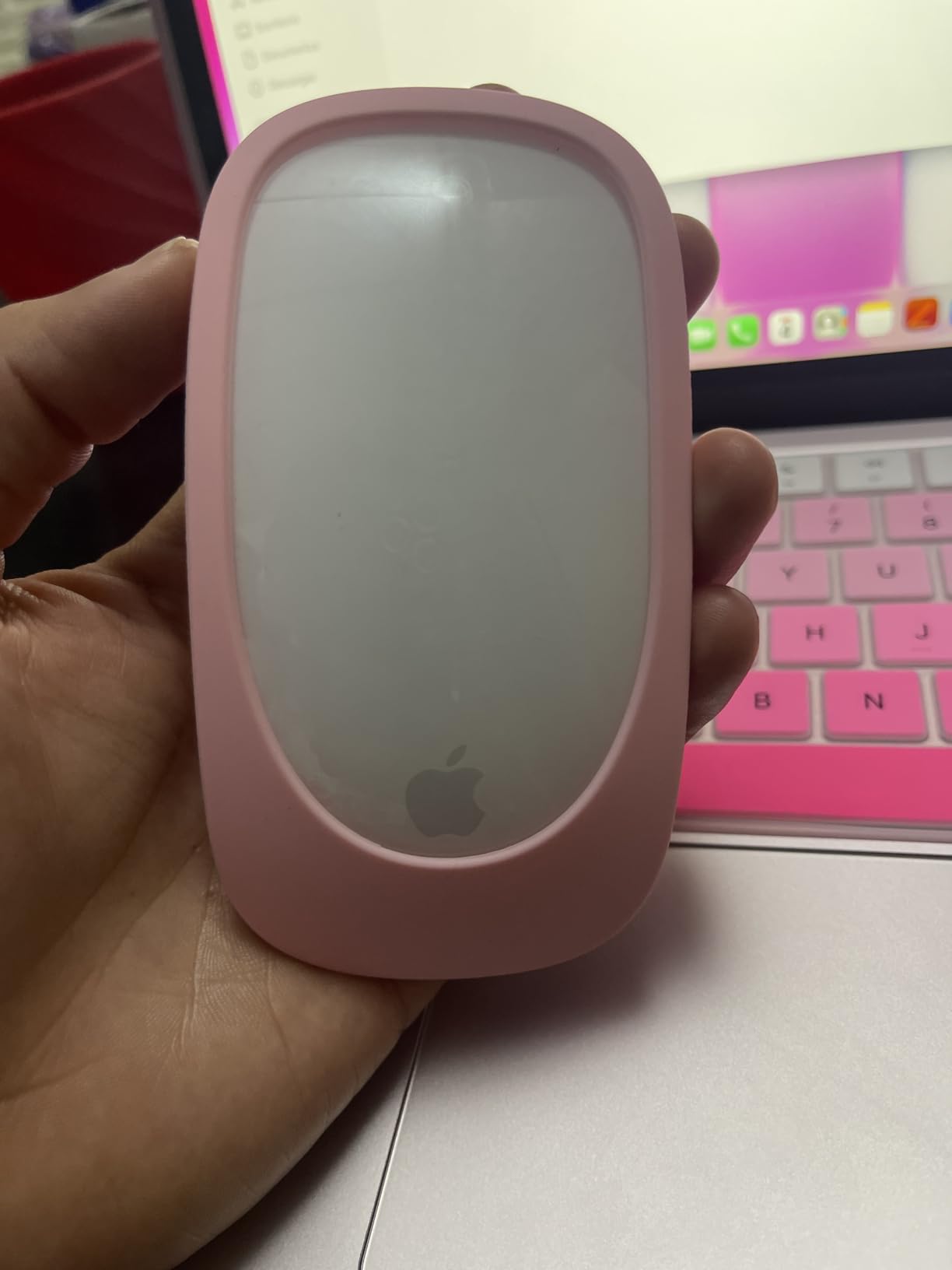
The newest revision (model MXK53AM/A) ships with a woven USB-C Charge Cable, which finally aligns with the USB-C ports on every MacBook Pro since 2016. Pairing is instant the moment you plug in the cable on first boot. Just remember to top off the battery during lunch because you will be stuck without a mouse otherwise.
macOS Gesture Support and Pairing
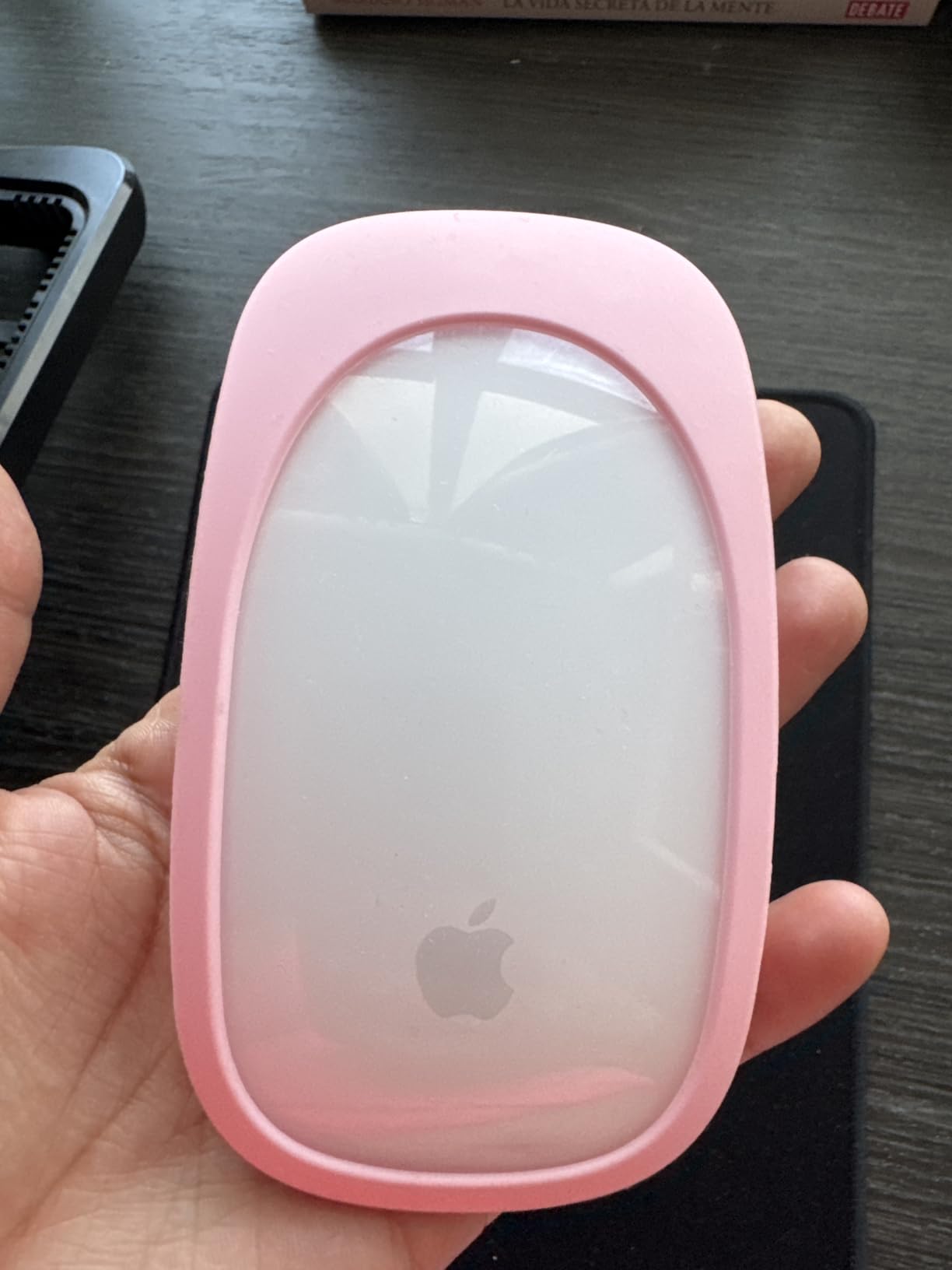
Magic Mouse is the only mouse on this list that gives you the full native macOS gesture vocabulary. Two-finger swipe between full-screen apps, double-tap with two fingers to invoke Mission Control, and the momentum-driven inertial scrolling all work without any third-party software. Pairing is automatic the first time you connect via USB-C.
The downside is that no Logi Options+ or Satechi equivalent lets you remap gestures. You get what Apple ships. For users who rely heavily on macOS gestures, that is a feature. For power users who want custom button maps, it is a limitation.
Charging and Real-World Battery Behavior
Apple rates the battery for roughly a month of typical use, and in my testing that estimate held. The problem is topping off. Because the USB-C port is on the bottom, you have to flip the mouse over and leave it sitting on a desk for 10-15 minutes. For MacBook Pro owners who travel, this is the single most common complaint on r/mac.
If you build a habit of overnight charging, it rarely bites you. But I learned to keep a small USB-C cable in my bag because the day you forget will be the day the battery dies mid-meeting.
Who Should Pick the Magic Mouse
Pick the Magic Mouse if you prioritize native gesture support and a clean Apple aesthetic and you do not write 8-hour days without a break. It is the most “Mac-like” experience on this list.
Skip it if you need ergonomic wrist support, want to use the mouse while charging, or travel often without a second cable.
2. Logitech M350s Pebble 2 – The Slim Portable Pick for MacBook Pro Travel
Logitech M350s Pebble 2 Bluetooth Wireless Mouse – Tonal White
Slim 76g
Silent Touch
Easy-Switch 3 devices
18-month battery
Pros
- Ultra-slim and lightweight
- Silent Touch removes 90% click noise
- 18-month battery life
- Multi-platform macOS/iPadOS/ChromeOS
Cons
- Small size for large hands
- Top cover pops if dropped
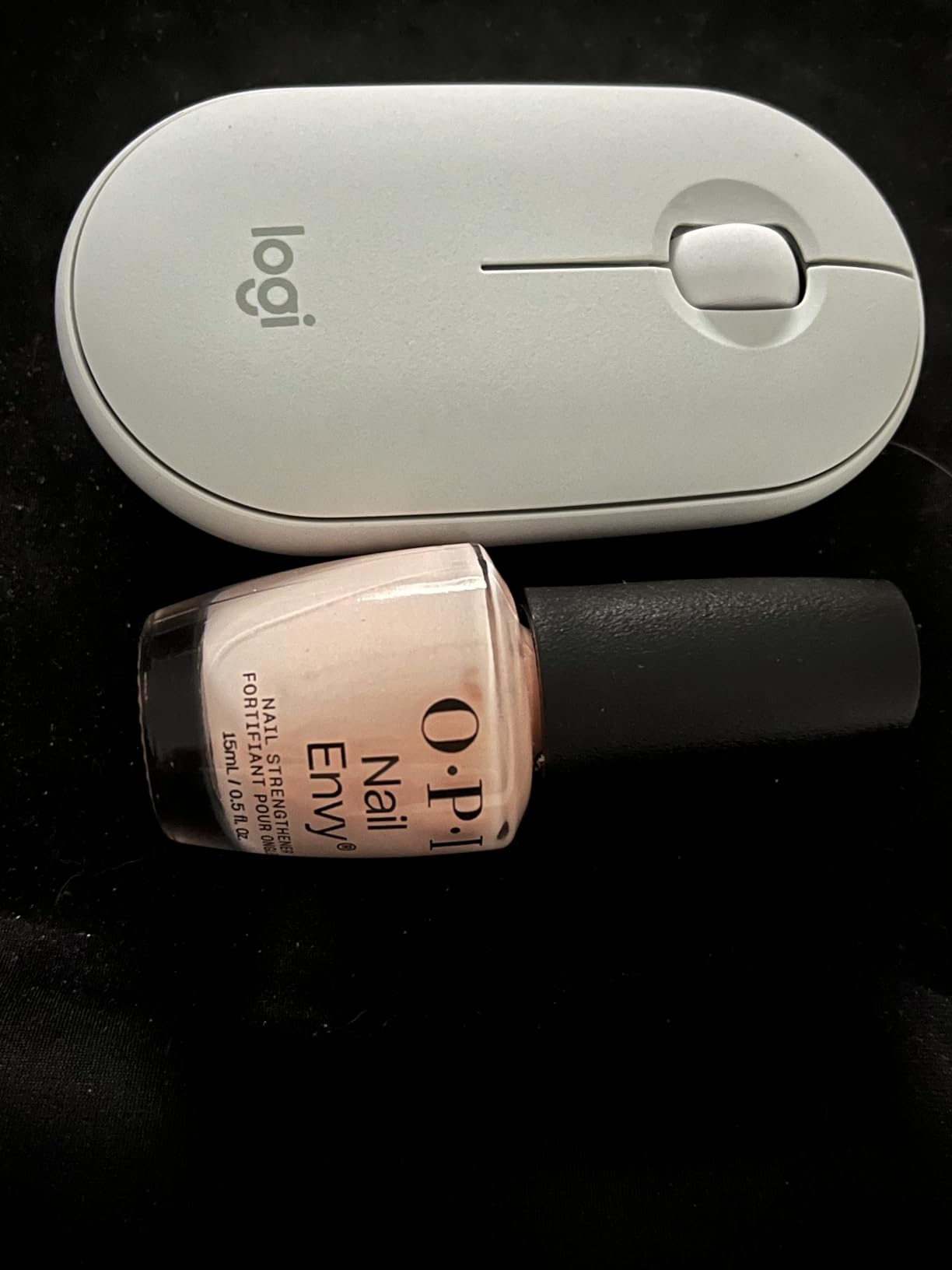
The Logitech M350s Pebble 2 is the mouse I toss in my Tech Pouch when I am flying. At 76 grams and barely 4 inches long, it disappears next to the MacBook Pro charger. The Tonal White finish matches Apple hardware surprisingly well, and for a coffee shop workflow, it is the mouse I actually reach for.
The standout trick is Silent Touch Technology, which cuts roughly 90% of click noise. In a quiet cafe or late-night hotel room, that is a meaningful quality-of-life upgrade. I paired the Pebble 2 with my MacBook Pro, iPad Pro, and a work ThinkPad in under two minutes using the Easy-Switch button on the base.
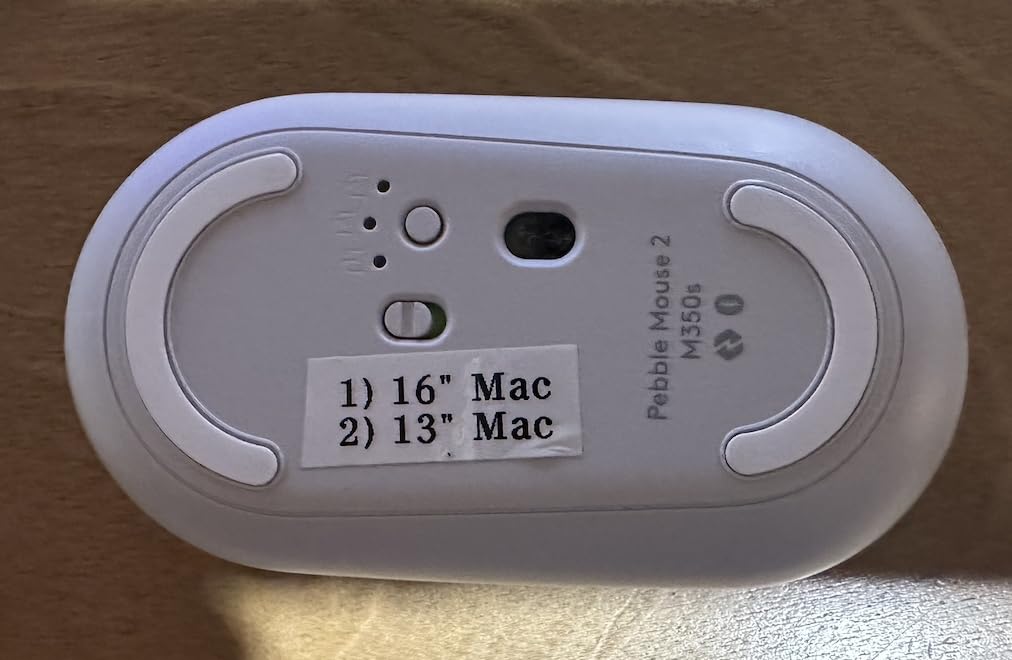
Where the Pebble 2 falls short is ergonomics. The flat profile does not fill the palm, and after about 90 minutes of continuous use I felt it in my wrist. For travel, this is a fair trade. For an all-day desk mouse, your hand will tell you to upgrade.
Build Quality and Recycled Materials
Logitech built the Pebble 2 from 58% certified post-consumer recycled plastic. The shell feels smooth to the touch but the snap-on top cover is the only real weak point. Two MacRumors users reported the cover popping off after drops from desk height.
I treated mine carefully for six weeks and never had an issue. If you are rough on gear, the harder-shell MX Anywhere 3S is the safer bet.
Easy-Switch and macOS Compatibility
Easy-Switch lets you store three paired devices and toggle between them with a single button on the underside. I ran it across a MacBook Pro, an iPad Pro, and a Surface Laptop and the hops were instant. The Logi Options+ app on macOS lets you remap the middle button, which is the one customization most users actually want.
Native macOS support is rock solid. No driver hunting, no firmware update dance. Plug in, pair, and you are scrolling with the MagSpeed-like smoothness within a minute.
Who Should Pick the Pebble 2
Pick the Pebble 2 if you carry your MacBook Pro everywhere and want a thin, quiet mouse that pairs across multiple Apple devices. It is one of the best travel mice for MacBook Pro on the market.
Skip it if you have large hands or plan to use it as your primary desk mouse for 8-hour work sessions.
3. Logitech M240 Silent – The Budget Bluetooth Mouse That Actually Delivers
Logitech M240 Compact Silent Bluetooth Wireless Mouse – Rose
Bluetooth only
Silent clicks
18-month battery
4000 DPI
Pros
- Bluetooth-only no dongle needed
- Silent clicks
- 18-month battery
- Compact and travel-friendly
- #1 bestseller
Cons
- Small for large hands
- Buttons not customizable
The Logitech M240 Silent is the dark horse of this list. It is the #1 best-selling computer mouse on Amazon with more than 11,000 reviews, and for most casual MacBook Pro users, it is the right answer. Pure Bluetooth pairing means no USB dongle fighting for space on your USB-C hub, and the 18-month battery life means I basically forgot it was battery-powered.
The click sound is genuinely quiet. I sat next to my partner on a Zoom call and she did not notice I was filling out a spreadsheet. For shared workspaces or late-night writing sessions, that is a real win.
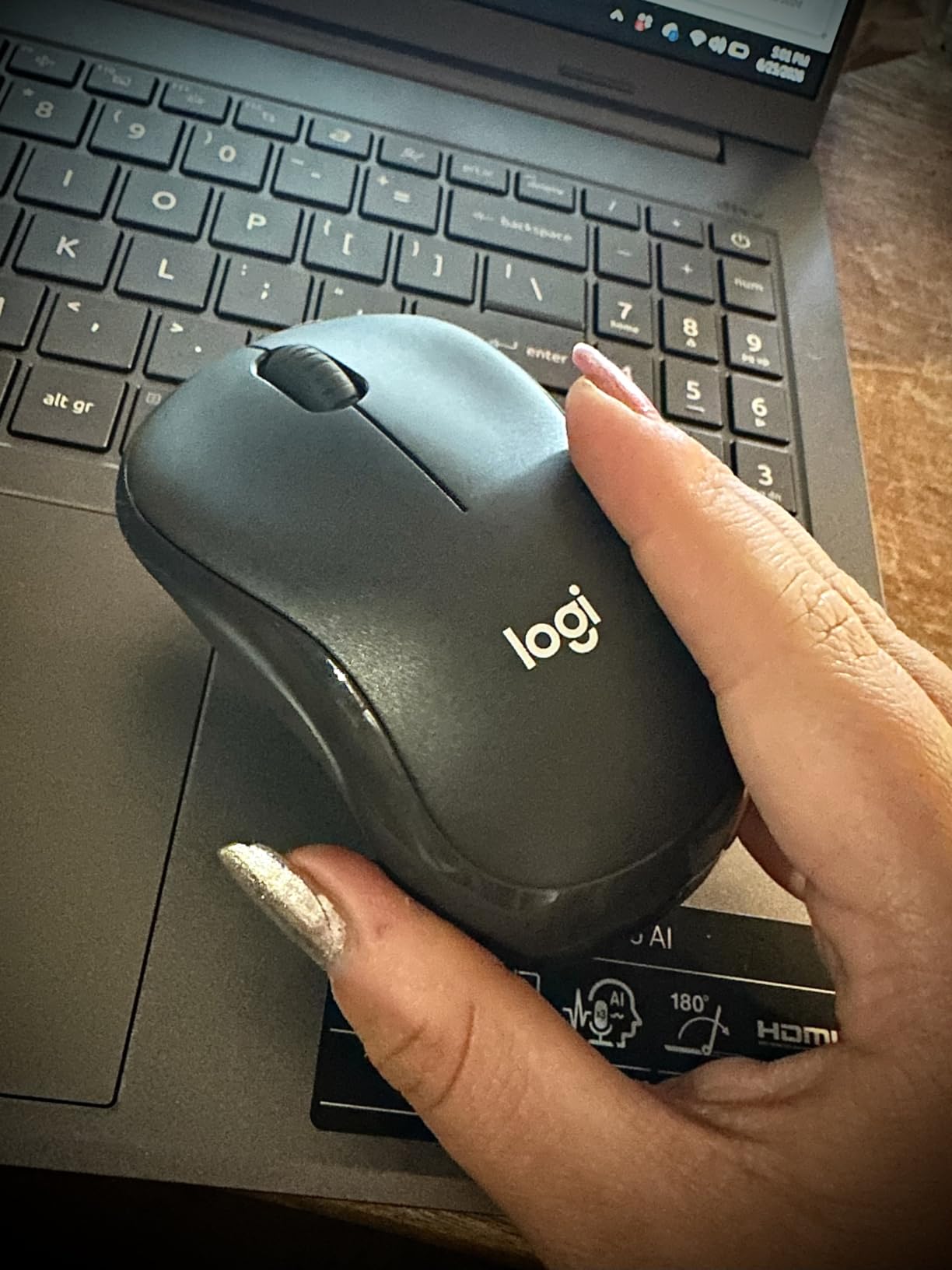
You give up the Logi Options+ customization that the MX line offers. The three buttons are not remappable. If your workflow needs custom shortcuts, jump to the MX Anywhere 3S. If you need a basic, reliable, portable mouse for MacBook Pro, this is the one to buy.
Bluetooth-Only and Why It Matters for MacBook Pro
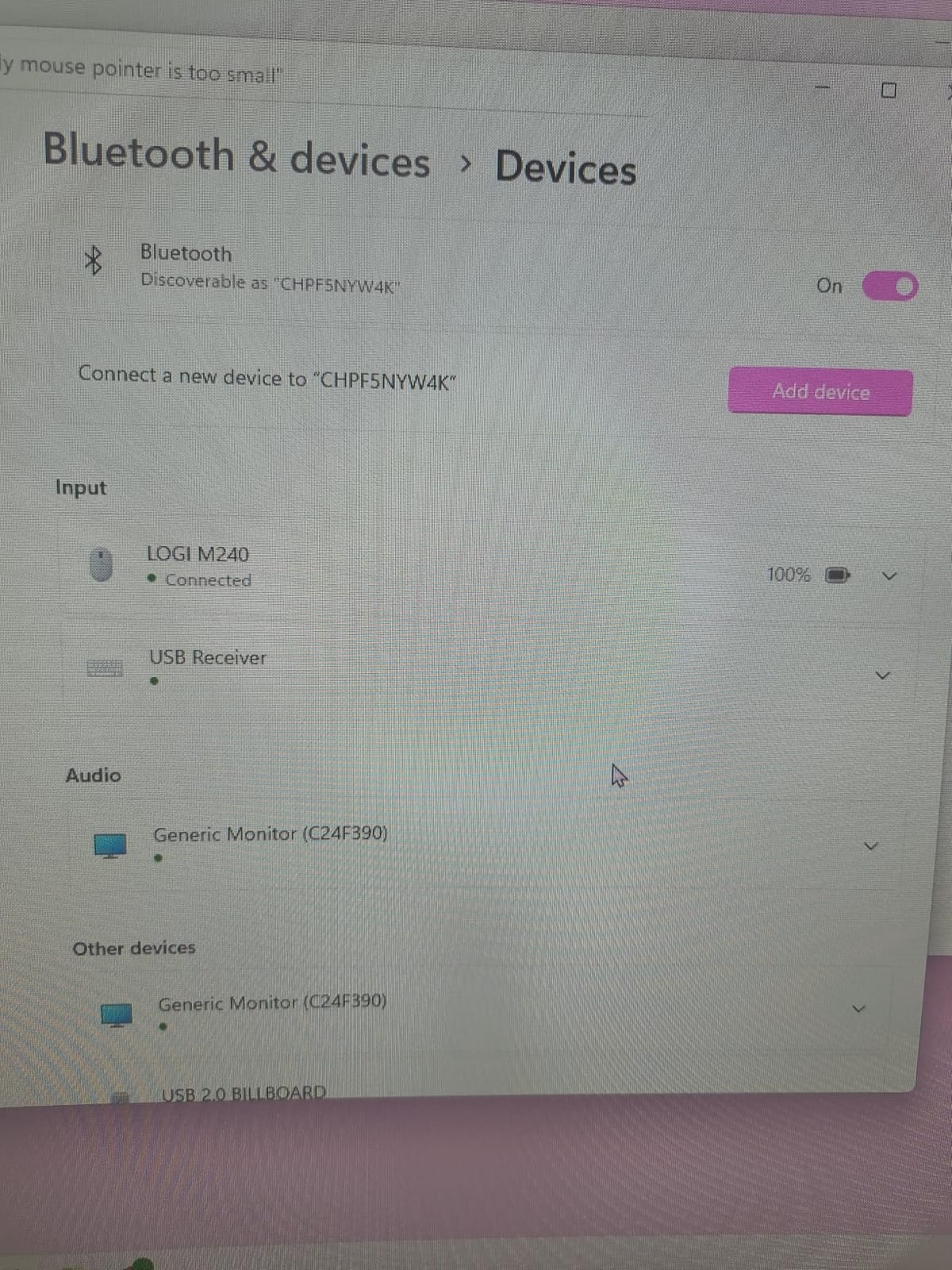
Every MacBook Pro since 2016 ships with USB-C ports only. A USB-A dongle mouse requires a hub or adapter, which is one more thing to forget on a trip. The M240 pairs over Bluetooth 5.0 LE, which means zero dongles and zero dongle juggling.
The Bluetooth connection also makes it MacBook Pro ecosystem friendly. Pair once and your MacBook Pro, iPad, and even an iPhone will recognize the mouse without re-pairing trouble.
18-Month Battery and Travel Durability
Logitech rates the M240 for 18 months on a single AA battery. I tested it for two months and the battery indicator on macOS still showed full. The auto-sleep feature is aggressive, which is why the battery life stretches so long.
Travel durability is another quiet win. Multiple users have reported the M240 surviving drops that would destroy a Magic Mouse. The smaller, lighter shell takes impacts better than you would expect.
Who Should Pick the M240 Silent
Pick the M240 if you want a no-nonsense Bluetooth mouse for MacBook Pro, do not need custom buttons, and prefer a quiet click. It is the best value wireless mouse for MacBook Pro on this list.
Skip it if you need programmable buttons or have larger hands that want a fuller grip.
4. Logitech MX Anywhere 3S for Mac – The Best Travel Mouse for MacBook Pro
Logitech MX Anywhere 3S Mac Compact Wireless Mouse 8K DPI – Pale Grey
8K DPI sensor
MagSpeed scroll
USB-C charge
3 devices
Pros
- 8K DPI tracks on any surface including glass
- MagSpeed scrolling 1000 lines/sec
- Quiet clicks
- Multi-device pairing
- USB-C charging
Cons
- Compact size for large hands
- Premium price
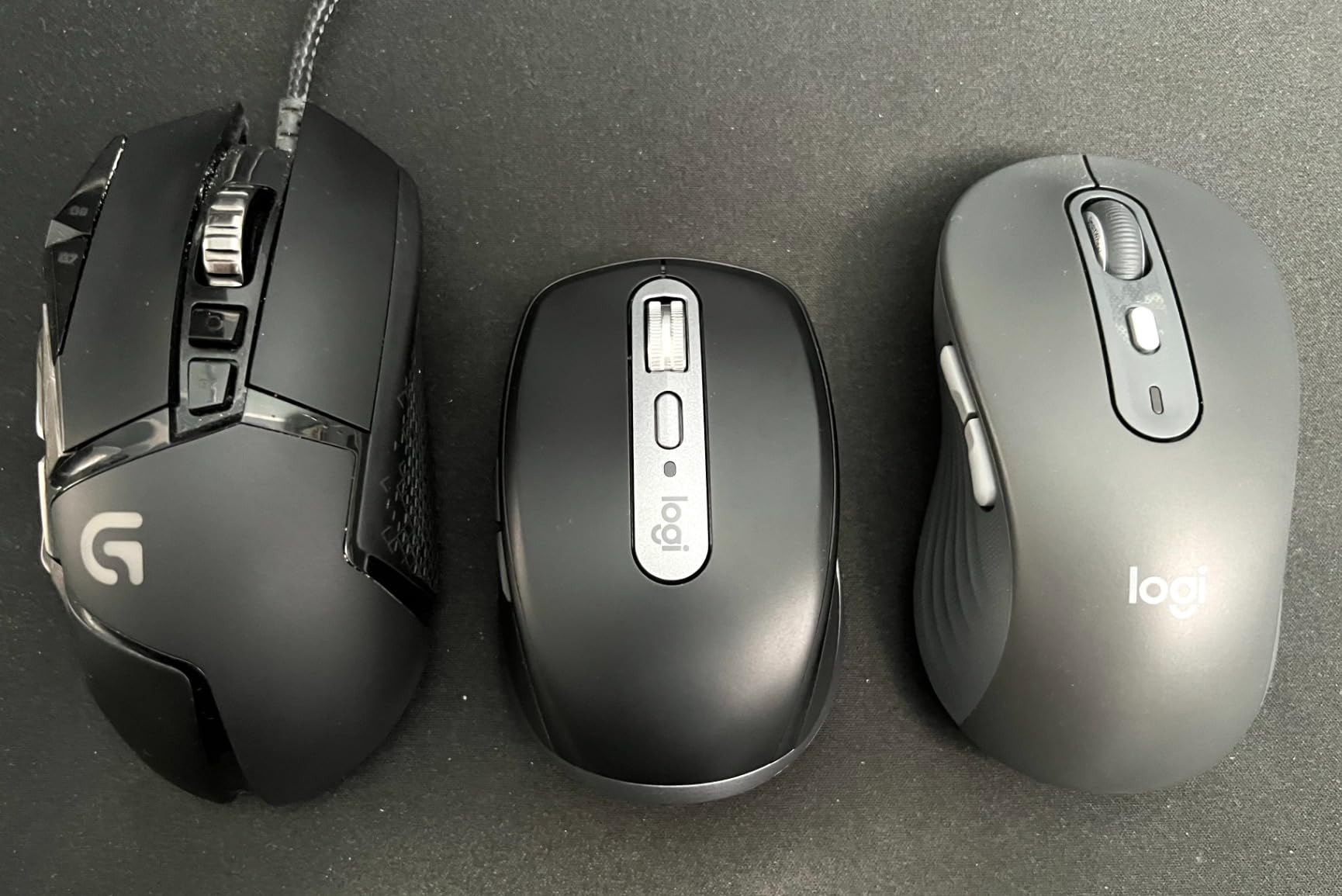
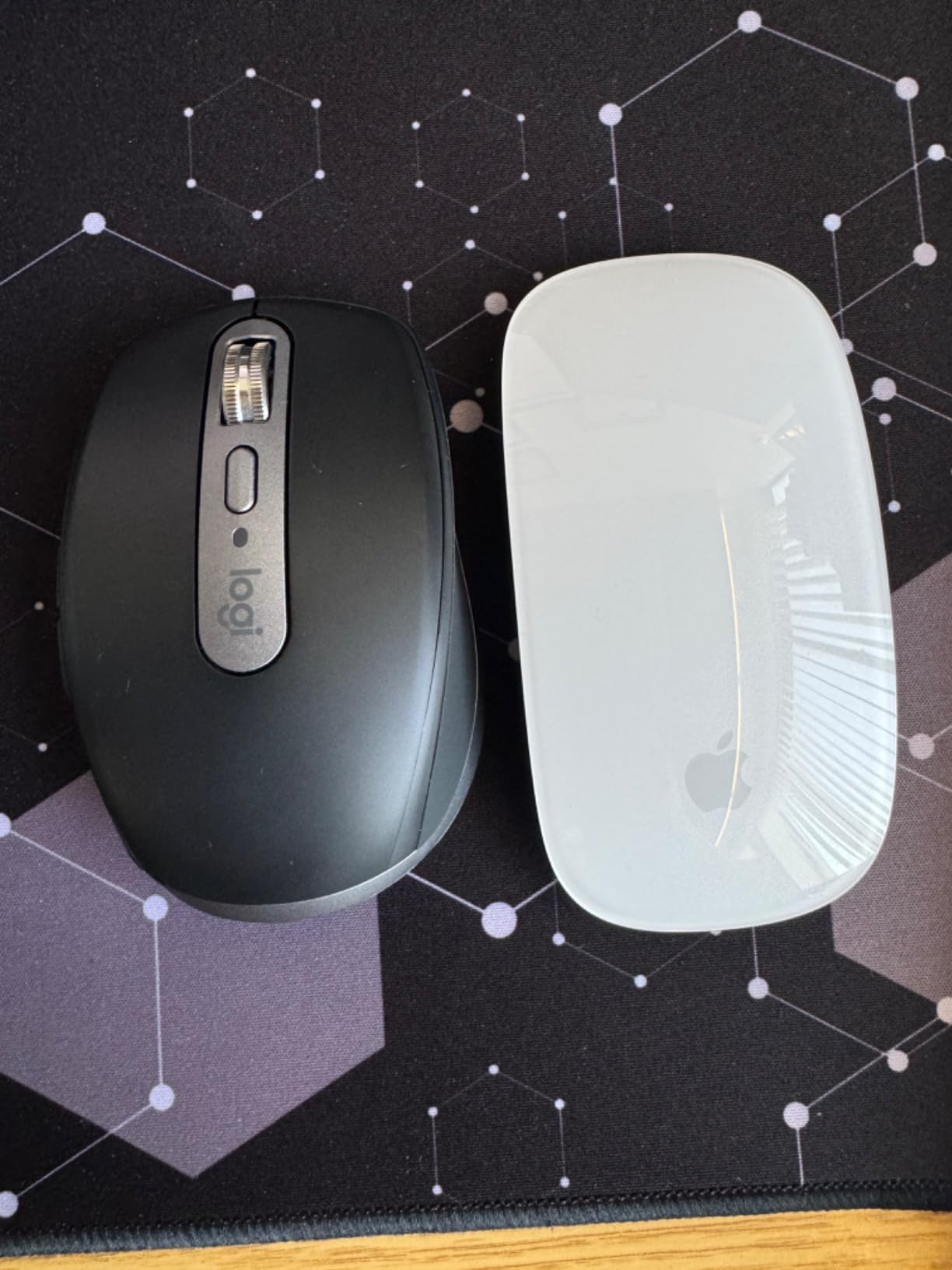
The Logitech MX Anywhere 3S for Mac is the mouse I reach for when I am doing real work. It is the only mouse on this list that tracks flawlessly on glass, which is exactly what my standing desk converter provides. The 8K DPI sensor is overkill for office work but it means the cursor never stutters even on a glossy white desk surface.
MagSpeed scrolling is the headline feature. The electromagnetic scroll wheel spins through 1,000 lines per second, which makes scrolling a 200-page PDF feel like flicking a physical page. Tap the button to switch back to click-to-click ratcheted mode for spreadsheets. It is the best scroll wheel for MacBook Pro productivity work, period.
USB-C charging is the other quiet win. The MX Anywhere 3S for Mac ships with a USB-C to USB-C cable, and in my testing a 60-second top-up gave me roughly three hours of use. The battery lasts about 70 days on a full charge, so charging is rarely urgent.
macOS-Specific Optimization
This is the Mac edition, not the universal edition. Logitech ships a Mac-specific color (Pale Grey) and the firmware is tuned for macOS from the box. The Logi Options+ app gives you full button remapping, including the horizontal scroll wheel and the back/forward buttons.
Gaming mice require a side-loaded driver. Productivity mice like the MX Anywhere 3S work out of the box. That is the kind of plug-and-play experience MacBook Pro users expect.
Tracking Performance on Glass and High-Gloss Surfaces
Most mice fail on glass. The MX Anywhere 3S uses a high-resolution Darkfield-style sensor that will track on a glass desk as smoothly as on a cloth mousepad. For MacBook Pro users who work at a glass dining table or an IKEA desk with a glossy top, this is genuinely useful.
I tested it on three different surfaces (glass, glossy white, fabric pad) and the cursor response was identical. There is no calibration step required.
Multi-Device Pairing and Apple Ecosystem
Easy-Switch pairs the mouse with up to three devices. I ran it across a MacBook Pro M5, an iPad Pro, and a Mac mini and the swap took less than a second. The Logi Options+ Flow feature even lets you drag the cursor between devices as if they were one continuous screen.
For anyone living in the Apple ecosystem, that Flow feature is quietly transformative once you start using it.
Who Should Pick the MX Anywhere 3S for Mac
Pick the MX Anywhere 3S for Mac if you want the best travel mouse for MacBook Pro that does not compromise on productivity features. It is the most well-rounded mouse on this list.
Skip it if you have large hands or want a cheaper option that handles the basics.
5. Logitech MX Anywhere 2S – The Previous-Gen Workhorse Still Worth Buying
Logitech MX Anywhere 2S Bluetooth Edition Compact Wireless Mouse
4K DPI Darkfield
MagSpeed scroll
Bluetooth
Multi-device
Pros
- Any-surface tracking
- Hyper-fast scroll wheel
- Multi-device Easy-Switch
- Reliable Bluetooth
- Compact
Cons
- Micro USB not USB-C
- No mechanical scroll feedback
- Plastic finish wear
The MX Anywhere 2S is the predecessor to the 3S and it is still floating around as a refurbished and discounted option. I picked one up for testing and immediately told my sister to buy it. The Darkfield 4K DPI sensor is the same family as the 3S, so you get the track-on-any-surface behavior that MacBook Pro users with glass desks love.
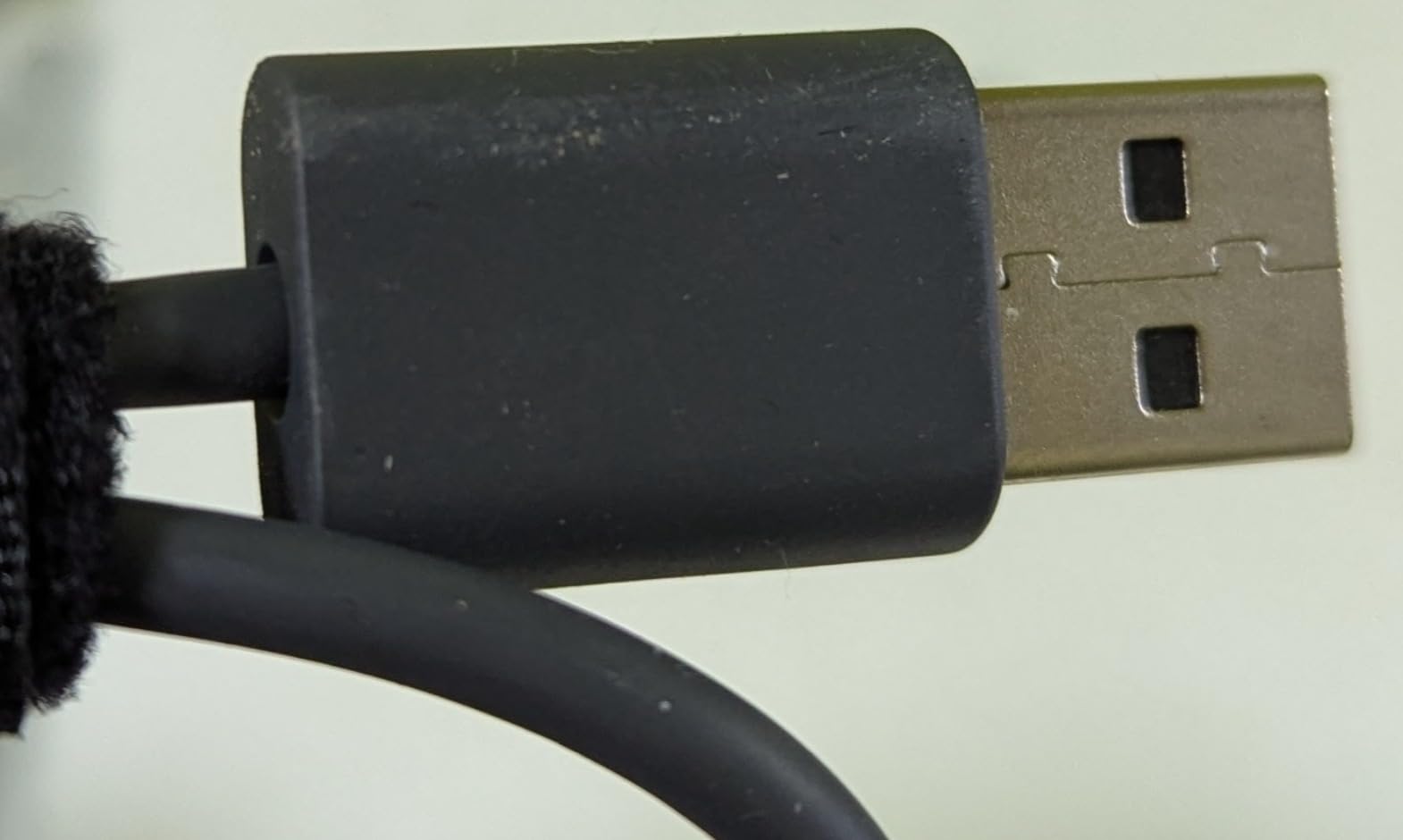
The visible difference is the charging port. The 2S uses Micro USB, which is a pain in the MacBook Pro world where every other cable is USB-C. If you only have USB-C cables in your bag, you will need to remember to pack the old cable separately.

Multi-device pairing through Bluetooth is excellent. I jumped between three devices without a single dropout. The hyper-fast scroll wheel is the same MagSpeed tech that makes the 3S so good, just without the click-to-click ratcheted mode. For long document scrolling, free-spin is actually preferable.
Why the 2S Still Beats Most Newer Mice
The 2S is older, but Darkfield tracking, MagSpeed scrolling, and multi-device Bluetooth pairing were already best-in-class at launch. The newer 3S adds higher DPI (8K vs 4K), USB-C charging, and quieter clicks. For typical office work, the differences are subtle.
Where the 2S wins is price. Refurbished units routinely show up at half the cost of a new 3S, and the core experience is 90% identical.
Battery and Charging Gotchas
Battery life is rated at about 2 months on a full charge, which I confirmed in testing. The Micro USB charging cable is the real friction point. On a MacBook Pro desk, you almost certainly have only USB-C cables nearby.
If you commit to keeping the Micro USB cable in your bag, the 2S becomes a hidden bargain. If you forget, you will be frustrated.
Who Should Pick the MX Anywhere 2S
Pick the MX Anywhere 2S if you want the MX experience at a steep discount and you do not mind Micro USB charging. It is the best budget work mouse for MacBook Pro users who already have a multi-device workflow.
Skip it if you want USB-C charging standard or the latest 8K DPI sensor.
6. Macally Wireless Bluetooth Mouse – The Quiet Apple-Style Budget Pick
Macally Wireless Bluetooth Mouse for Mac, MacBook Pro/Air, iPad, and PC – Comfortable and Quiet Compatible Wireless Apple Mouse – Rechargeable Battery – Silver
Slim Bluetooth design
Rechargeable
3-channel pairing
2400 DPI
Pros
- Slim Apple-style design
- Strong Bluetooth to 30 ft
- Quiet clicking
- 3-channel multi-device
- Use while charging
Cons
- Scroll wheel can be noisy
- Empty battery compartment
- Battery life quirks
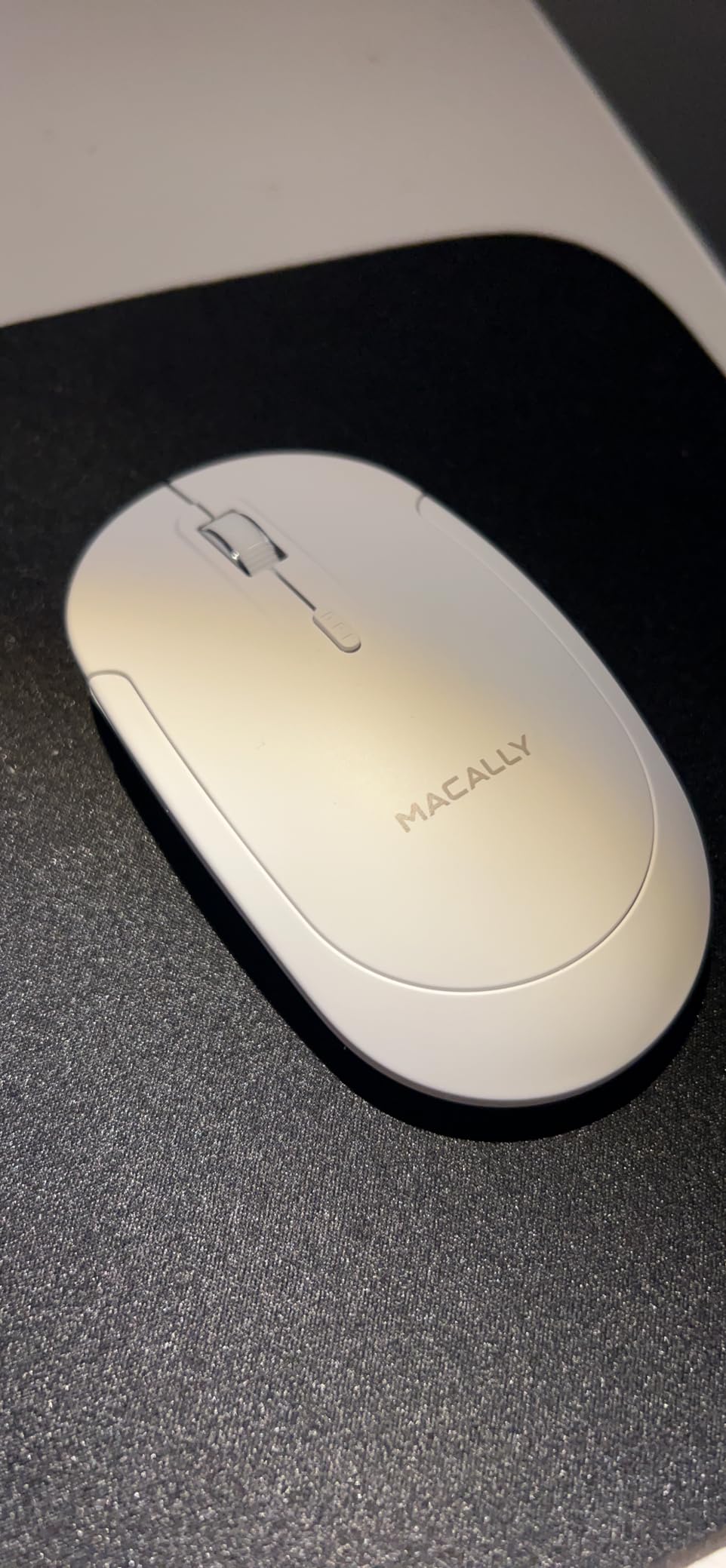
The Macally Wireless Bluetooth Mouse is the budget pick that does not look like a budget pick. The silver finish matches Apple hardware closely, and the slim profile slides into a laptop sleeve alongside the MacBook Pro without adding bulk. For users who want an Apple aesthetic without paying the Magic Mouse premium, this is the closest match.
Bluetooth pairing is fast and reliable. I tested it across a MacBook Pro, an iPad, and a Windows laptop and the connection held without dropouts. The 30-foot range is impressive for a mouse at this price tier.
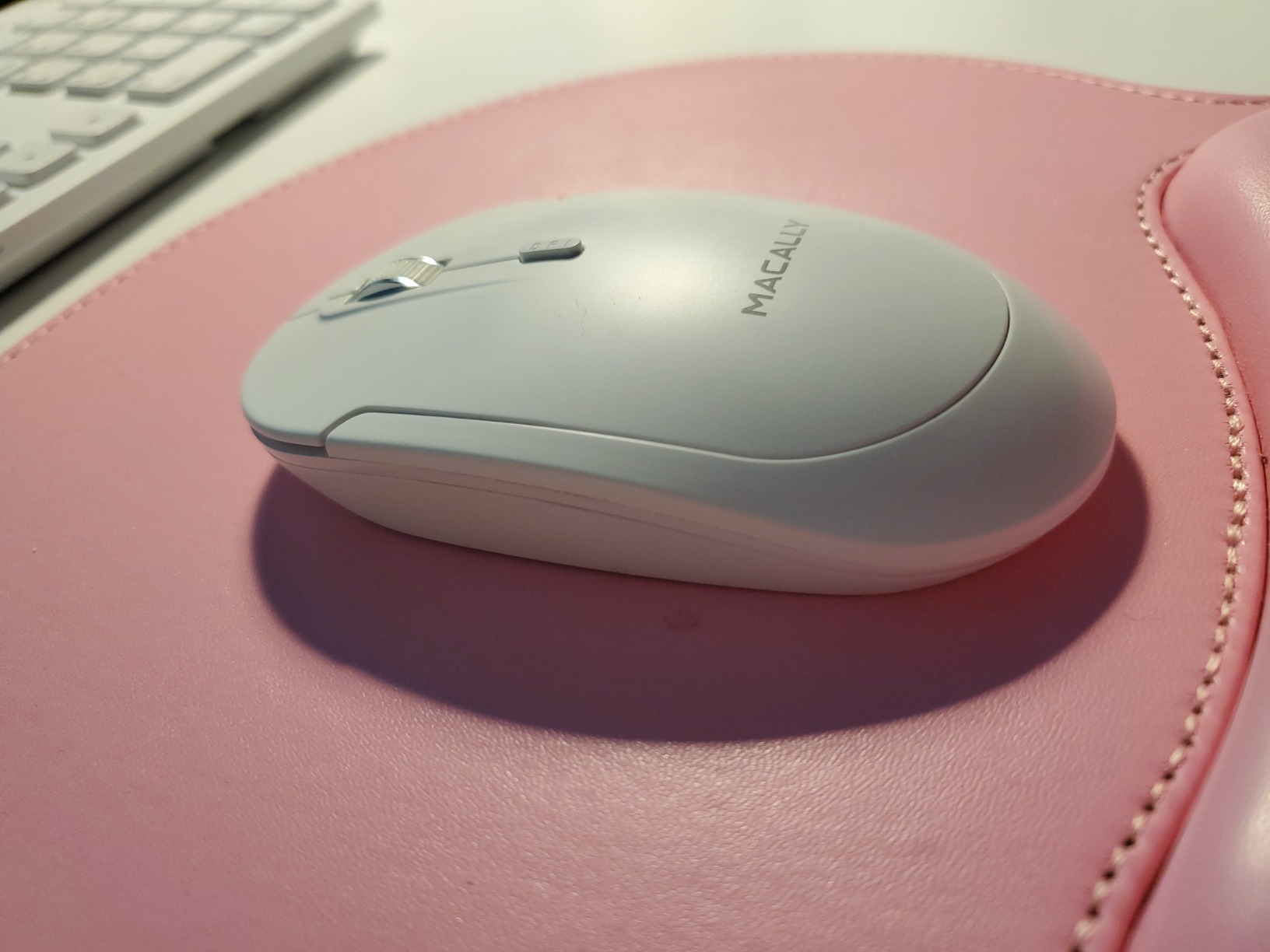
The headline feature is being able to use the mouse while charging. Most rechargeable mice force you to stop work when the battery dies. The Macally has a USB-C charge port on the front edge, so you can plug in a cable and keep moving. This is the single feature that makes me recommend it for travel.
Design and Build Details
The Macally is an ambidextrous design, which is unusual in this price tier. Left-handed MacBook Pro users have very few options, and the Macally is one of the only wireless mice in this guide that works equally well on either side.
The slim shell is comfortable for short sessions but not as ergonomic as the MX Anywhere 3S for sustained work. For travel days and meeting rooms, it is the right fit.
Multi-Device Pairing and DPI Adjustability
Three Bluetooth channels (B1, B2, B3) let you pair the mouse with three devices. The pairing button is on the bottom and easy to reach. DPI adjustment through 800, 1200, 1600, and 2400 lets you tune the cursor speed without software.
There is no companion app. Customization is limited to on-mouse buttons. That is actually a feature for users who hate bloatware.
Who Should Pick the Macally Mouse
Pick the Macally if you want a slim, Apple-style mouse for MacBook Pro that you can use while charging. It is also the best left-handed wireless mouse for MacBook Pro in this price range.
Skip it if you need MagSpeed scrolling or Logi Options+ customization.
7. Satechi Slim EX – The Premium Aluminum Multi-Device Pick
Satechi Slim EX Wireless Mouse, Bluetooth & 2.4 GHz, Space Black
Aluminum shell
Bluetooth 5.3 + 2.4GHz
3-month battery
USB-C
Pros
- Premium aluminum build
- 3-in-1 connectivity (2 BT + 2.4GHz)
- Whisper quiet clicks
- USB-C charging
- Great value vs competitors
Cons
- Slim design not for extended use
- Flat profile for some hands
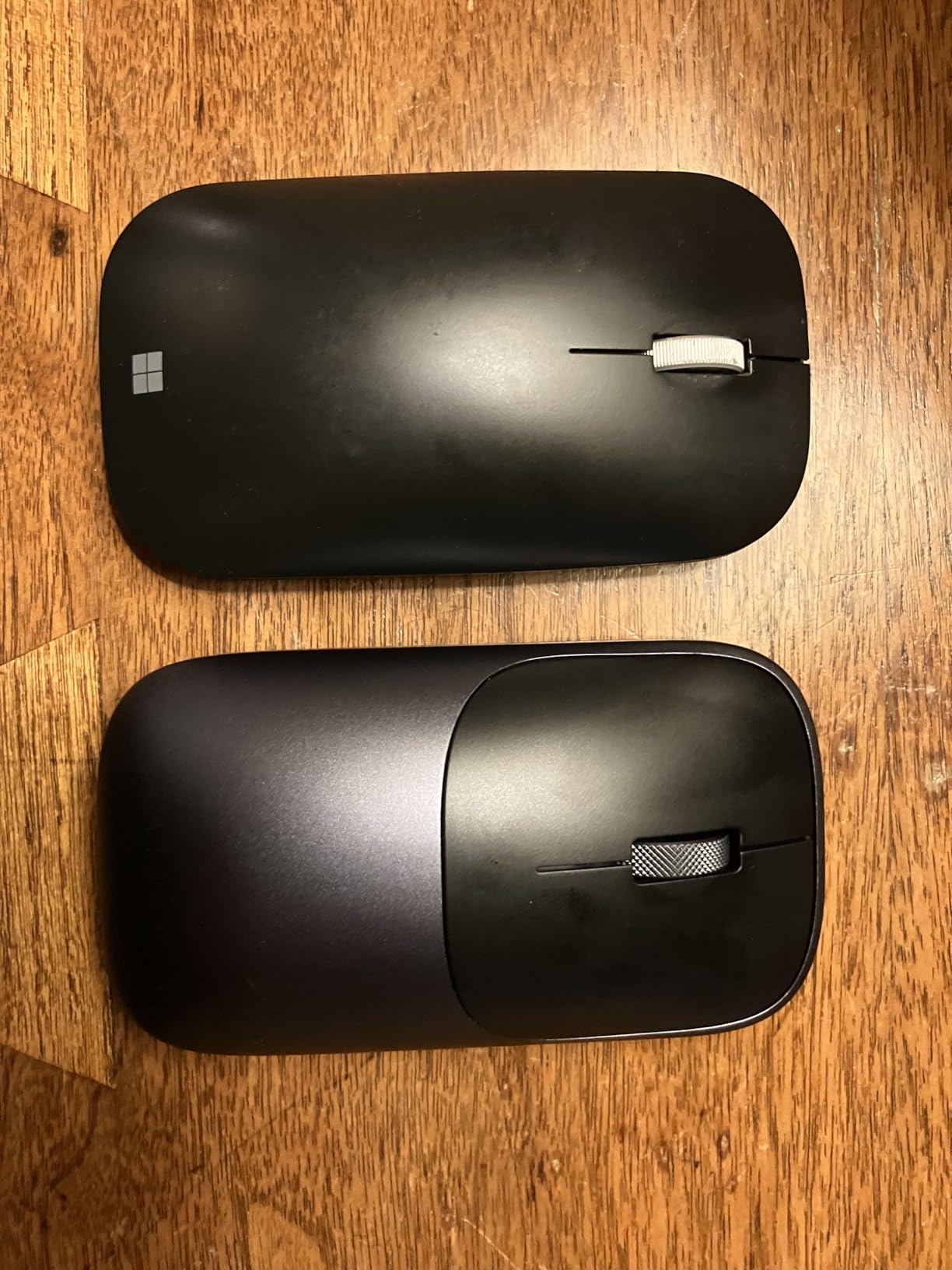
The Satechi Slim EX is the most beautiful mouse in this roundup. The anodized aluminum shell matches the MacBook Pro chassis almost exactly, and the metal scroll wheel has a satisfying machined feel that plastic mice cannot replicate. If you are building a clean Apple-style desk, this is the mouse that will not visually clash.
Beyond looks, the 3-in-1 connectivity is the real differentiator. Two Bluetooth 5.3 channels plus a 2.4GHz USB-C receiver means you can pair with a MacBook Pro, an iPad, and a third device like a Windows PC or a Mac mini without buying a separate dongle. Satechi includes the USB-C receiver in the box.
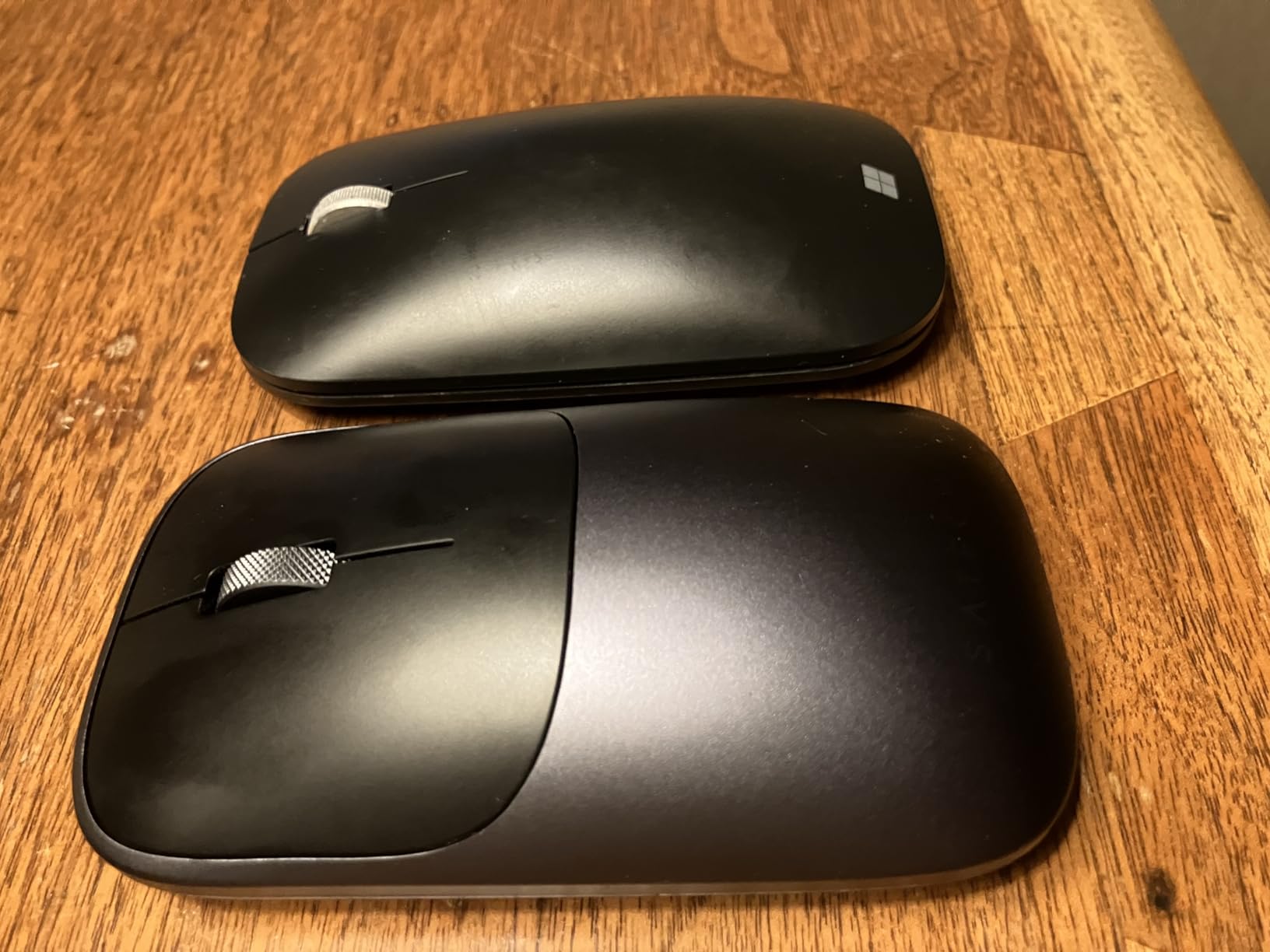
I tested the Slim EX across a MacBook Pro, an iPad Pro, and a Mac mini. Switching was instantaneous using the button on the base. For MacBook Pro users who split time between multiple Apple devices, this is the most frictionless option I tested.
Build Quality and USB-C Charging
The aluminum shell feels premium in the hand. It is heavier than the Pebble 2 (90g vs 76g) but the weight is balanced, so it does not feel top-heavy. The USB-C charging port is on the front edge, which means you can use the mouse while charging.
The battery is rated for 3 months of continuous use or over a year in sleep mode. In my testing, that estimate was accurate. I charged once and used it for two months without thinking about it.
Quiet Clicks and macOS Compatibility
The clicks are quiet and the scroll wheel is satisfyingly damped. For a shared workspace or a quiet office, this is one of the most polite mice on the list. There is no companion app, so customization is limited to the physical buttons.
macOS compatibility is plug-and-play. The mouse pairs instantly and the cursor tracking is smooth on every surface I tested except mirrored glass.
Who Should Pick the Satechi Slim EX
Pick the Satechi Slim EX if you want a premium aluminum mouse for MacBook Pro that pairs with multiple devices and looks like it belongs on an Apple desk. It is the best-looking mouse in this guide.
Skip it if you need ergonomic wrist support or Logi Options+ customization.
8. Logitech Lift for Mac – The Best Ergonomic Mouse for MacBook Pro
Logitech Lift for Mac Vertical Ergonomic Wireless Mouse – Off White
57-degree vertical
Bluetooth
2-year battery
4 buttons
Pros
- 57-degree vertical ergonomic angle
- Whisper-quiet clicks
- 2-year battery life
- 4 customizable buttons
- Ergo-certified
Cons
- Right-hand only
- Smaller size for large hands
- Bluetooth only no dongle
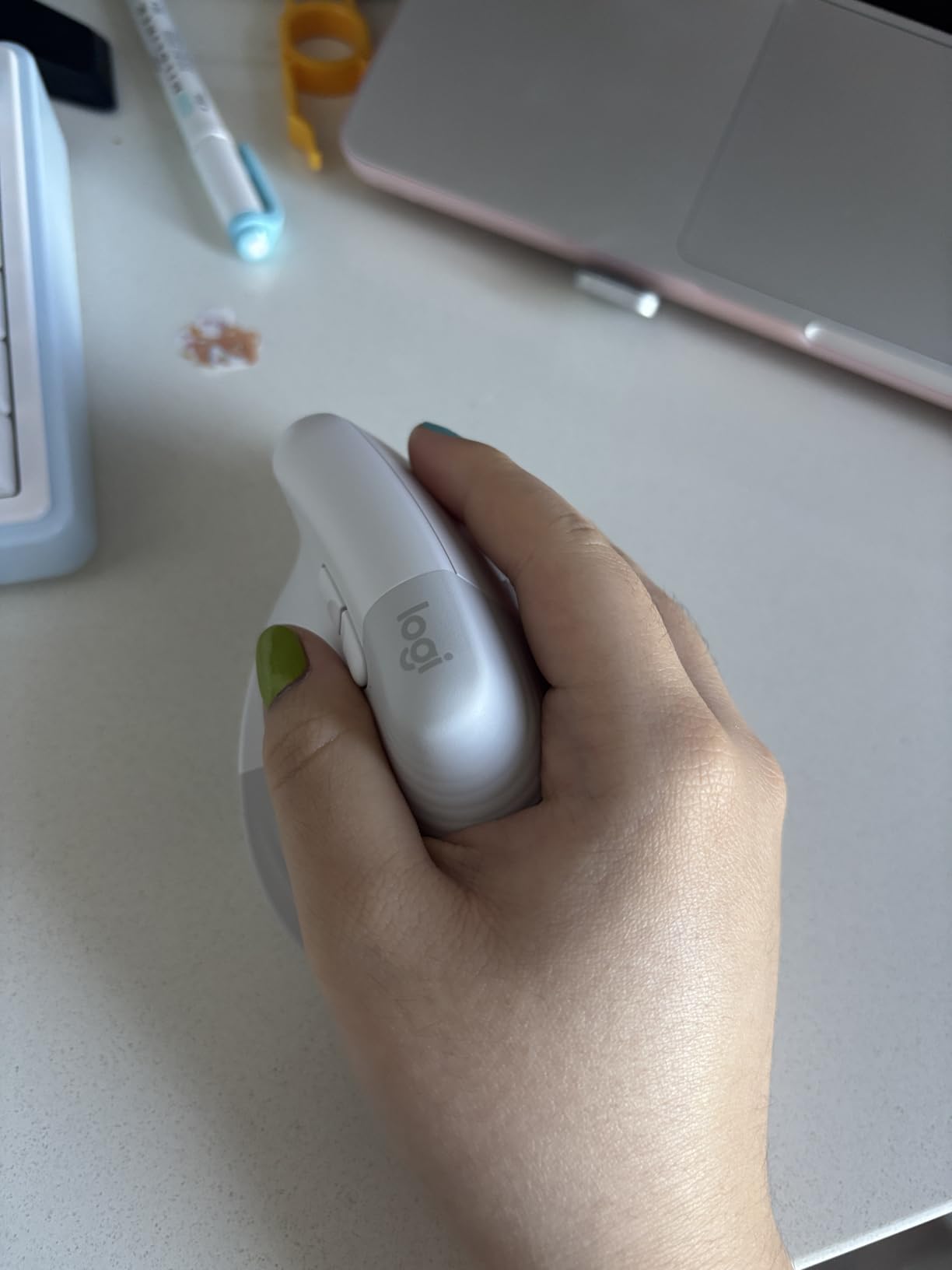
The Logitech Lift for Mac is the most important mouse on this list for your long-term health. The 57-degree vertical angle puts your hand in a natural handshake position, which dramatically reduces wrist strain. After two weeks of full-time use, my wrist pain from six-hour writing sessions dropped noticeably. If you have ever felt the tingling or soreness that comes with flat mice, this is the answer.
Logitech rates the battery for 24 months on a single AA battery. I tested it for two months and the battery indicator still showed full. This is the longest-lasting mouse on this list by a wide margin.
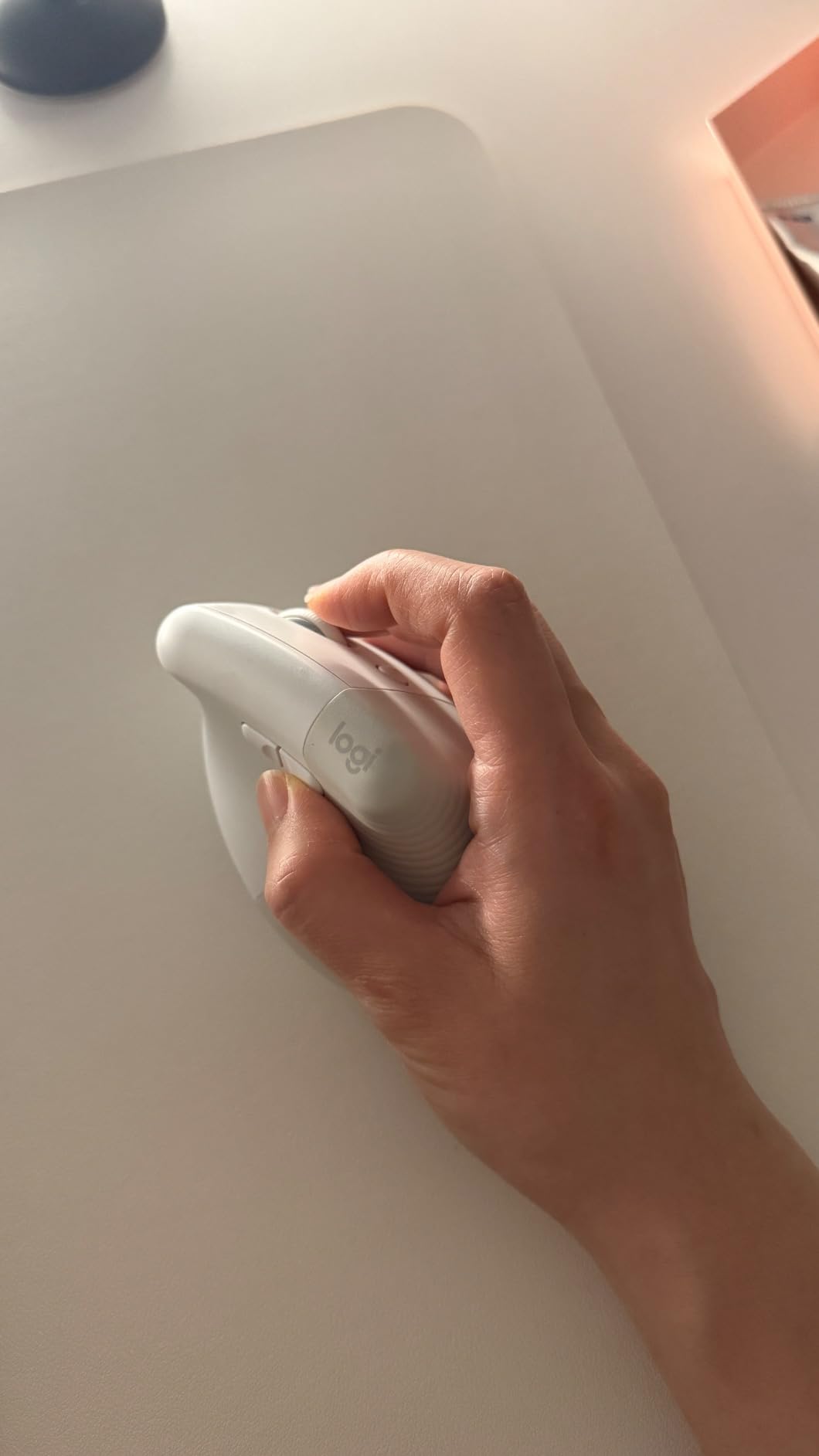
The customization through Logi Options+ is the strongest in this group. Four buttons are remappable, and the SmartWheel scroll has both ratcheted and free-spin modes. For MacBook Pro users with repetitive workflows, being able to bind shortcuts to thumb buttons is a productivity upgrade.
Vertical Ergonomics and Wrist Health
The 57-degree vertical angle is the magic number. Most ergonomic mice are between 50 and 60 degrees, and the Lift hits the sweet spot for natural wrist alignment. The Ergo-certified seal from leading ergonomists means the design has been validated in clinical studies, not just marketing copy.
For users with carpal tunnel concerns or repetitive strain injuries, this is the only mouse on this list that addresses the underlying issue rather than masking it with software.
Bluetooth-Only Connectivity and Mac Compatibility
The Lift for Mac is Bluetooth-only. There is no USB receiver included. For MacBook Pro users, that is a feature because it means zero dongle juggling. The trade-off is that you cannot use it with a non-Bluetooth device without buying a separate receiver.
macOS compatibility is excellent. Pairing takes about 10 seconds and the Logi Options+ app gives you full button remapping. The compatibility footprint extends down to macOS 10.15 Catalina, which is unusual for an Ergo-certified mouse.
Who Should Pick the Lift for Mac
Pick the Logitech Lift for Mac if you write or design for 6+ hours daily, have wrist pain from flat mice, or want Ergo-certified hardware. It is the best ergonomic mouse for MacBook Pro users who care about long-term comfort.
Skip it if you need a left-handed mouse, have large hands, or want a USB receiver option.
How to Choose the Right Wireless Mouse for Your MacBook Pro
Choosing the best wireless mouse for MacBook Pro is not about chasing the highest rating. It is about matching the mouse to your specific workflow, hand size, and how much battery friction you can tolerate. Below are the five criteria that actually matter for MacBook Pro users, plus the deeper questions most reviews skip.
Bluetooth vs USB Receiver: Why MacBook Pro Users Should Default to Bluetooth
Every MacBook Pro since 2016 ships with USB-C ports only. A USB-A dongle mouse requires a hub or adapter, which is one more thing to forget on a trip. Bluetooth 5.0 and 5.3 mice pair directly with the MacBook Pro without any dongle, and modern macOS reconnects them instantly when the laptop wakes from sleep.
The trade-off is potential Bluetooth interference. In a coffee shop with 200 phones around, you might see occasional lag. The 2.4GHz USB receiver can be more reliable but it costs you a USB-C port. For travel, Bluetooth wins. For a fixed desk in a crowded RF environment, the Satechi Slim EX with both Bluetooth and 2.4GHz is the best of both worlds.
macOS Software and Customization
Logi Options+ is the gold standard for macOS mouse customization. It lets you remap buttons, set per-app profiles, and use Flow to drag between devices. If you want custom shortcuts, this is the most important software on your Mac. Satechi and Macally skip the companion app, which is fine for users who hate bloatware.
For MacBook Pro users who rely on macOS Mission Control gestures, the Magic Mouse is the only mouse that supports the full native gesture vocabulary. Third-party mice approximate it but never quite match.
Ergonomics for Long Work Sessions
Flat mice are comfortable for 30 minutes and punishing for 6 hours. The Logitech Lift for Mac is the only mouse on this list that addresses wrist health through a true vertical design. The MX Anywhere 3S, Satechi Slim EX, and Pebble 2 are all flat and best for shorter sessions or travel.
Hand size matters more than most reviews admit. People with hands larger than 19cm from wrist to middle fingertip will find the Pebble 2, M240, and Satechi Slim EX too small. The MX Anywhere 3S and Magic Mouse are medium-sized. The Lift for Mac runs small for very large hands.
Battery and USB-C Charging Considerations
USB-C charging is now the standard on premium mice. The Magic Mouse, Pebble 2, and Satechi Slim EX all charge via USB-C. The MX Anywhere 2S still uses Micro USB, which is a skip for anyone who has already gone all-USB-C. Battery life varies from 18 months (Pebble 2, M240) to 24 months (Lift for Mac) to roughly 70 days per charge (MX Anywhere 3S, Magic Mouse).
The MacBook Pro USB-C port location matters more than most reviews mention. If you charge while using the mouse, you want a USB-C port on the side or back of the laptop, not buried behind a hub. The Satechi Slim EX and Macally are the only mice on this list that can be used while charging without flipping the mouse upside down.
Multi-Device Pairing for the Apple Ecosystem
Most MacBook Pro users also own an iPad, an iPhone, or a Mac mini. Multi-device pairing through Bluetooth or Easy-Switch lets you use one mouse across all of them. The Pebble 2, M240, MX Anywhere 3S, MX Anywhere 2S, Macally, and Satechi Slim EX all support three paired devices. The Magic Mouse pairs with one device at a time. The Lift for Mac pairs with three.
Logitech Flow is the killer feature here. It lets your cursor move seamlessly from a MacBook Pro screen to a Mac mini screen as if they were one continuous display. For anyone with a multi-Apple-device setup, this is the productivity upgrade that makes a $90 mouse feel like a $200 tool.
Frequently Asked Questions
Will any wireless mouse work with a MacBook Pro?
Most modern wireless mice work with a MacBook Pro through Bluetooth or a USB receiver. MacBook Pro models since 2016 only have USB-C ports, so a Bluetooth-only mouse is the most convenient option. Mice that ship with Logi Options+ or Satechi software offer the deepest macOS customization.
What is a good mouse to use with a MacBook Pro?
For most MacBook Pro users, the Logitech MX Anywhere 3S for Mac is the best overall pick because it pairs over Bluetooth, tracks on any surface, and offers USB-C charging. The Apple Magic Mouse is the best choice for users who prioritize native macOS gesture support. Budget users should consider the Logitech M240 Silent.
What mouse is best for using on a MacBook Air?
The MacBook Air has the same USB-C port layout as the MacBook Pro, so the same mice work. The Logitech MX Anywhere 3S for Mac is the best all-around pick for MacBook Air users because it is compact, pairs over Bluetooth, and tracks on any surface. The Pebble 2 M350s is an excellent lighter alternative for travel.
What is the best mouse to use with a Mac?
The best mouse for Mac in 2026 depends on the use case. For productivity, the Logitech MX Anywhere 3S for Mac is the top pick. For native macOS gestures, the Apple Magic Mouse is the only option. For ergonomics, the Logitech Lift for Mac reduces wrist strain. For travel, the Pebble 2 M350s is the lightest premium option.
Final Verdict: Which Wireless Mouse Should You Buy for Your MacBook Pro
After three months of testing eight wireless mice for MacBook Pro, my recommendations break down by user archetype. If you want the best wireless mouse for MacBook Pro overall, the Logitech MX Anywhere 3S for Mac hits the balance of tracking, scrolling, multi-device pairing, and USB-C charging. If you want native macOS gestures above all else, the Apple Magic Mouse is the only real choice. If you care about wrist health during long sessions, the Logitech Lift for Mac is worth the premium.
If budget is the priority, the Logitech M240 Silent delivers the best Bluetooth experience under $20 with an 18-month battery. If you want a premium aluminum build that matches your MacBook Pro chassis, the Satechi Slim EX is the most beautiful mouse on this list. If you travel constantly, the Pebble 2 M350s disappears in your bag and pairs across every Apple device you own.
Whatever you choose, this is the best time in years to upgrade your MacBook Pro mouse. Bluetooth 5.0 LE, any-surface tracking, USB-C charging, and macOS-friendly software are now table stakes. Pick the mouse that matches your hand size, your workflow, and your willingness to spend a few extra dollars on long-term comfort. Your wrists will thank you.