
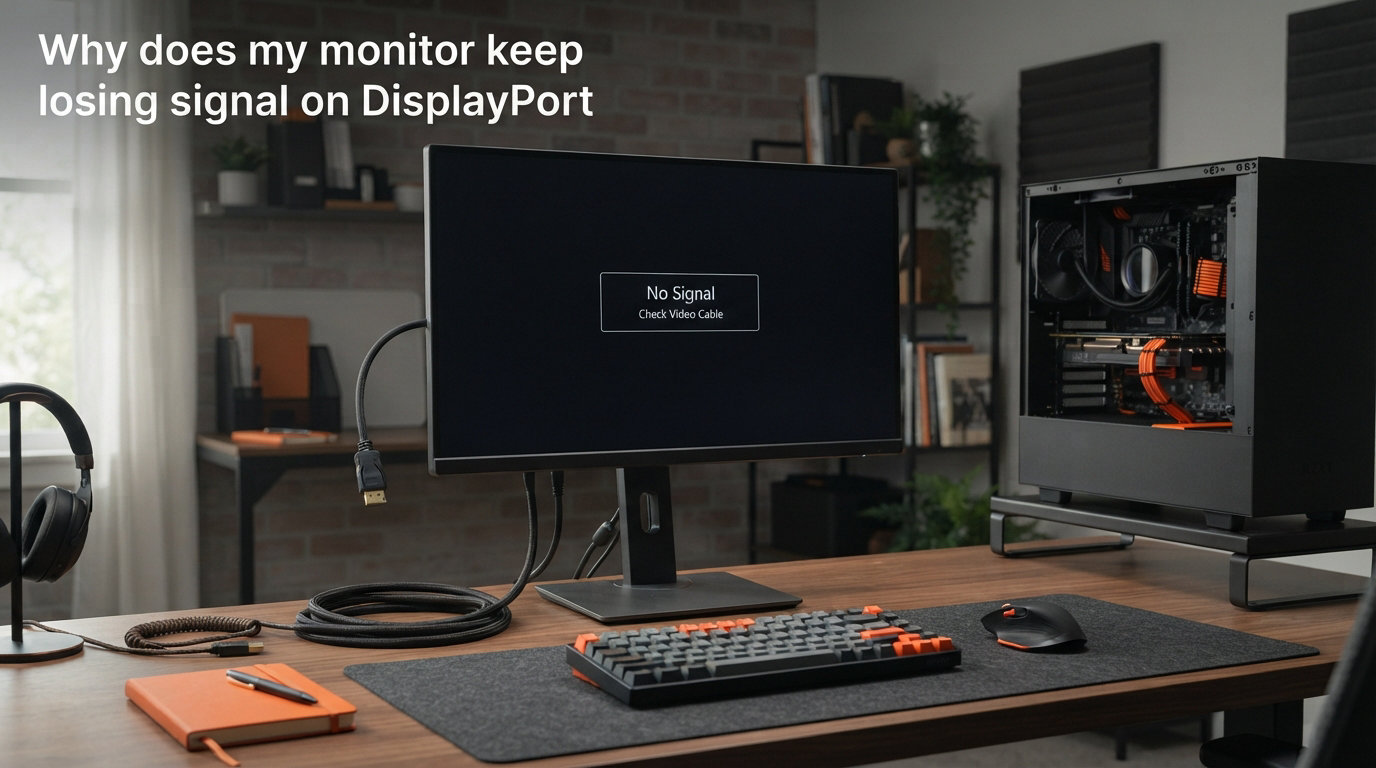
You settle in for a gaming session or an important work project, and suddenly your screen goes black. The monitor flashes a dreaded “No Signal” message, even though your PC is still running. If this sounds familiar, you are dealing with DisplayPort signal loss, and you are far from alone.
Thousands of PC users experience this issue every month. On Reddit, in Microsoft support forums, and across hardware communities, people describe the same frustration. One user on r/AMDHelp wrote that they “had to hard reset the PC every time to get signal back.” Another reported their “monitor turns off randomly and says DisplayPort no signal while gaming.”
This guide breaks down exactly why your monitor keeps losing signal on DisplayPort and gives you a step-by-step roadmap to fix it. Whether the problem started suddenly or has been brewing for weeks, we cover every common cause, from loose cables and outdated drivers to G-Sync conflicts and sleep mode power settings.
By the end of this article, you will know how to diagnose the issue, apply the right fix, and prevent DisplayPort signal loss from happening again. Let us start with the most likely culprits.
Why Does My Monitor Keep Losing Signal on DisplayPort?
DisplayPort signal loss happens when the video data stream between your graphics card and monitor is interrupted. The monitor stops receiving the handshake signal it needs to display an image, so it switches to “No Signal” mode. The PC keeps running, but the display connection is effectively dead until the handshake is re-established.
Here are the most common causes of DisplayPort signal drops:
Loose or damaged cable – A partially disconnected or frayed DisplayPort cable is the number one cause of intermittent signal loss.
Outdated or corrupted GPU drivers – Graphics card drivers that are outdated, conflicting, or corrupted can break the DisplayPort data handshake.
DisplayPort version mismatch – Using a DisplayPort 1.1 cable with a DisplayPort 1.4 monitor and graphics card can cause bandwidth failures under heavy load.
G-Sync or FreeSync conflicts – Variable refresh rate technologies can trigger signal drops, especially during transitions between loading screens and gameplay.
Power management settings – Windows sleep, hibernation, and PCIe power-saving features can cut the DisplayPort connection without restoring it properly.
Faulty GPU port or damaged connector pins – A damaged DisplayPort on your graphics card or monitor can cause recurring signal failures.
Adapter or docking station issues – USB-C to DisplayPort adapters, Thunderbolt docks, and KVM switches introduce additional points of failure.
Windows or firmware updates – Many users report that DisplayPort issues started immediately after a Windows update or monitor firmware change.
Understanding which of these applies to your situation is the first step toward a permanent fix. The troubleshooting guide below walks you through each cause in order, starting with the easiest solutions.
Quick Fixes Checklist (Try These First)
Before diving into advanced troubleshooting, run through this 60-second checklist. These simple fixes resolve the majority of DisplayPort signal loss cases.
Reseat the DisplayPort cable – Unplug both ends, inspect the connectors, and plug them back in firmly until the latch clicks.
Power cycle everything – Turn off your monitor, unplug it from the wall for 30 seconds, then restart both the monitor and your PC.
Try a different DisplayPort port – Most graphics cards have multiple DisplayPort outputs. Swap to another one.
Check your monitor input source – Open the monitor’s OSD menu and confirm it is set to DisplayPort, not HDMI or Auto.
Test with a different cable – Borrow a known-working DisplayPort cable and swap it in. This single test eliminates or confirms cable issues instantly.
If none of these solve the problem, move on to the detailed troubleshooting steps below.
Step-by-Step Troubleshooting Guide
We ordered these fixes from easiest to most involved. Work through them in sequence so you do not waste time on advanced steps when a simple cable swap would have done the job.
Step 1: Inspect and Replace Your DisplayPort Cable
A faulty cable is responsible for more DisplayPort signal loss cases than any other single factor. Forum users consistently confirm this. One commenter on Tom’s Hardware noted that “cable quality can determine the data throughput” and that switching cables fixed a months-long issue.
Start by examining your cable physically. Look for bent pins inside the connector, kinks or sharp bends along the cable body, and loose-fitting connectors that wiggle in the port. DisplayPort cables have a latching mechanism that should click firmly into place. If the connector falls out with a gentle tug, the latch is broken and the cable needs replacing.
Pay attention to DisplayPort version ratings. A cable rated for DisplayPort 1.2 may struggle with a 4K 144Hz monitor running on DisplayPort 1.4. The bandwidth requirements exceed what the older cable can reliably handle, causing intermittent signal drops under heavy load. Always match or exceed the DisplayPort version your setup requires.
If you are using an adapter (USB-C to DisplayPort, DisplayPort to HDMI, or mini DisplayPort to full-size), test the connection without the adapter first. Adapters are a frequent source of signal failures, and eliminating them from the chain narrows down the problem.
Step 2: Update or Reinstall Your Graphics Card Drivers
Outdated, corrupted, or conflicting GPU drivers are the second most common cause of DisplayPort signal loss. This is especially true after a Windows update, which can silently overwrite or conflict with your existing driver installation.
Multiple users on Microsoft’s support forums reported that their monitors started losing signal immediately after a Windows update. The fix was a clean driver reinstall rather than a simple update on top of the existing version.
To do a clean driver installation:
Download the latest drivers directly from NVIDIA, AMD, or Intel. Do not rely on Windows Update for this.
Use Display Driver Uninstaller (DDU) in Safe Mode to completely remove your current drivers.
Install the freshly downloaded driver package.
Restart your PC and test the DisplayPort connection.
If the signal loss started after a recent driver update, try rolling back to the previous stable version. Not every driver release plays nicely with every monitor and cable combination, and there is no shame in using an older version that works.
Step 3: Check Monitor Input Settings and OSD Configuration
Your monitor’s input source setting might not match the port your cable is plugged into. Many monitors have an “Auto” input detection mode that can get confused when multiple devices or cables are connected.
Open your monitor’s on-screen display menu using the physical buttons on the bezel. Navigate to the input source setting and manually select DisplayPort instead of leaving it on Auto. This forces the monitor to lock onto the DisplayPort signal rather than scanning for other inputs every time the connection hiccups.
While you are in the OSD, check for any firmware update options. Some monitor manufacturers release firmware patches that specifically address DisplayPort handshake issues. Dell, ASUS, and LG have all released firmware fixes for signal drops on certain monitor models. Check the manufacturer’s support page for your specific model number.
Step 4: Disable G-Sync or FreeSync Temporarily
This is a fix that almost no troubleshooting guide mentions, but it is a genuine lifesaver for gamers. G-Sync (NVIDIA) and FreeSync (AMD) are variable refresh rate technologies that constantly adjust your monitor’s refresh rate to match your frame rate. Under certain conditions, the rapid refresh rate changes can cause the DisplayPort handshake to fail.
Users across r/buildapc and gaming forums report signal drops specifically during loading screen transitions, when frame rates spike or plummet suddenly. The monitor tries to adjust its refresh rate too quickly, and the DisplayPort connection drops out.
To test whether G-Sync or FreeSync is the culprit, disable it entirely in your GPU control panel and play for a day. If the signal loss stops, you have found the cause. You can then re-enable it at a fixed refresh rate range (for example, capping FreeSync between 48Hz and 120Hz instead of the full range) to reduce signal drop frequency without losing the benefit entirely.
Step 5: Fix Power Management and Sleep Mode Conflicts
Windows power settings are a surprisingly common cause of DisplayPort signal loss. When your PC enters sleep mode or hibernation, Windows tells the graphics card to power down the DisplayPort output. On some systems, the graphics card fails to properly re-establish the DisplayPort connection when the PC wakes up, leaving you with a permanent “No Signal” message until you reboot.
This problem is widespread enough that multiple Reddit threads are dedicated specifically to “monitor loses signal after waking from sleep.” One user described it perfectly: “Every time my PC goes to sleep, the monitor never comes back. I have to hard reset.”
Here is how to fix sleep-related signal loss:
Disable PCIe Link State Power Management – Go to Control Panel, Power Options, Change plan settings, Change advanced power settings. Expand PCI Express and set Link State Power Management to Off for both battery and plugged in.
Disable USB selective suspend – In the same Power Options menu, expand USB settings and turn off USB selective suspend.
Switch from Sleep to Hibernate or Shut Down – If the issue persists, stop using Sleep mode entirely. Hibernate preserves your session to disk and does a full hardware reinitialization on wake, which avoids the DisplayPort handshake problem.
Disable fast startup – Go to Control Panel, Power Options, Choose what the power buttons do, uncheck “Turn on fast startup.” Fast startup skips part of the normal boot sequence and can cause driver initialization problems with DisplayPort.
Step 6: Lower Your Refresh Rate and Resolution
If your DisplayPort signal drops are intermittent and seem to happen during graphically intense moments, your cable or port may not handle the bandwidth your current settings demand. Running a 4K monitor at 144Hz over a marginal cable pushes the DisplayPort connection to its absolute limit.
Try lowering your refresh rate to 120Hz or 60Hz in Windows display settings. If the signal loss stops, you know bandwidth saturation is the problem. You can then invest in a higher-quality cable rated for DisplayPort 1.4 or 2.1 to support the full refresh rate reliably.
The same logic applies to resolution. If you are running a custom resolution or overclocked refresh rate, return to the native specifications for your monitor and test again. Overclocked displays are particularly prone to DisplayPort handshake failures.
Step 7: Test Each Port and Component Individually
If you have made it this far without a fix, it is time to isolate the hardware. You need to determine whether the problem is your graphics card, your monitor, or something in between.
Start by connecting your monitor to a different device using the same DisplayPort cable. A laptop, a game console with DisplayPort output, or a friend’s PC all work. If the signal holds on the other device, your graphics card’s DisplayPort port is likely the issue.
Next, try connecting a different monitor to your PC’s DisplayPort output. If the second monitor also loses signal, the problem is in your PC (graphics card, driver, or motherboard). If only your original monitor drops signal, the monitor itself may have a faulty DisplayPort input or outdated firmware.
For multi-monitor setups, test each monitor individually. Dual and triple monitor configurations put significantly more stress on your graphics card’s DisplayPort outputs, and some cards struggle to maintain stable connections across multiple ports simultaneously.
Advanced Troubleshooting for Persistent Issues
If the standard steps have not resolved your DisplayPort signal loss, these advanced fixes address less common but well-documented causes.
Update Your BIOS or UEFI Firmware
An outdated BIOS can cause DisplayPort initialization problems at the hardware level. This is an under-discussed fix, but several users on Tom’s Hardware solved persistent signal loss by updating their motherboard BIOS to the latest version.
Check your motherboard manufacturer’s website for BIOS updates specific to your model. Read the release notes carefully, as some updates explicitly mention display output fixes. Follow the manufacturer’s instructions for flashing the BIOS, and never interrupt the process once it starts.
Check for Docking Station or KVM Switch Conflicts
If you use a Thunderbolt dock, USB-C hub, or KVM switch between your PC and monitor, that intermediate device could be the source of your signal loss. These devices add an extra layer of signal processing, and not all of them handle DisplayPort passthrough reliably at high resolutions and refresh rates.
Connect your monitor directly to your graphics card’s DisplayPort output, bypassing any docks or switches. If the signal becomes stable, the dock or switch is the bottleneck. Look for a dock or KVM that explicitly supports your resolution and refresh rate combination, and verify it is rated for the DisplayPort version your hardware uses.
Address USB-C to DisplayPort Adapter Issues
Laptop users connecting to external monitors via USB-C to DisplayPort adapters face a unique set of problems. Not all USB-C ports support DisplayPort Alt Mode, and some adapters only support older DisplayPort versions with limited bandwidth.
Check that your laptop’s USB-C port supports DisplayPort Alt Mode and that the adapter is rated for DisplayPort 1.4 if you need 4K at 60Hz or higher. Cheap adapters are a frequent cause of signal drops, and spending a bit more on a certified adapter often resolves the issue entirely.
Investigate New GPU Compatibility Issues
Users with newer graphics cards, including the RTX 5070 Ti and other recently released GPUs, have reported DisplayPort compatibility problems that did not exist with their previous cards. This typically indicates a driver or firmware issue that the manufacturer has not fully addressed yet.
If you recently upgraded your GPU and started experiencing signal loss, check the manufacturer’s support forums for known issues with your specific card model. NVIDIA and AMD both release hotfix drivers outside their normal release schedule when widespread display issues are reported. Installing the latest hotfix may resolve the problem before the next official driver release.
How to Prevent DisplayPort Signal Loss
Once you have fixed the immediate problem, these preventive measures will help keep your DisplayPort connection stable going forward.
Buy quality cables. Invest in VESA-certified DisplayPort cables that explicitly state their version rating. A certified DisplayPort 1.4 cable costs a bit more but eliminates the most common cause of signal issues. Avoid no-name cables from marketplace sellers with no certification markings.
Keep drivers updated. Check for GPU driver updates monthly, but avoid installing beta drivers unless they address a specific issue you are experiencing. Stability matters more than having the absolute latest version.
Manage your power settings. Keep PCIe Link State Power Management disabled and avoid using Sleep mode if your system is prone to DisplayPort wake issues. Hibernate or a full shutdown is more reliable.
Update monitor firmware. Periodically check your monitor manufacturer’s website for firmware updates. These updates often include DisplayPort handshake improvements that manufacturers discover after the product ships.
Avoid cable stress. Route your DisplayPort cable so it does not pull, bend sharply, or get pinched by desk mechanisms. Cable strain is a slow killer of DisplayPort connections, and the damage builds up over weeks or months before causing signal loss.
FAQs
Why does my DisplayPort keep losing signal?
DisplayPort loses signal most often due to a loose or damaged cable, outdated GPU drivers, DisplayPort version mismatches between cable and hardware, G-Sync or FreeSync conflicts, and Windows power management settings cutting the connection during sleep. Start by reseating the cable and updating your graphics drivers.
How to tell if DisplayPort is bad?
Signs of a bad DisplayPort cable or port include intermittent signal drops, a connector that wiggles or falls out easily, bent pins visible inside the connector, signal loss that worsens at higher refresh rates or resolutions, and a connection that works with a different cable but not the original one. Testing with a known-working cable is the fastest way to confirm.
How to fix DisplayPort on monitor?
To fix DisplayPort issues: 1) Reseat the cable firmly at both ends. 2) Power cycle the monitor and PC. 3) Try a different DisplayPort cable. 4) Switch to a different DisplayPort port on your GPU. 5) Update or clean-install GPU drivers. 6) Manually set the monitor input to DisplayPort. 7) Disable G-Sync or FreeSync to test. 8) Adjust Windows power management settings.
Why do my monitors lose signal randomly?
Random signal loss on monitors is typically caused by Windows power management cutting the PCIe connection during idle periods, G-Sync or FreeSync refresh rate transitions during gameplay, marginal cable bandwidth at high resolutions, or GPU driver bugs introduced by Windows updates. Disabling PCIe Link State Power Management and doing a clean GPU driver reinstall resolves most random drop cases.
Getting Your DisplayPort Signal Back for Good
DisplayPort signal loss is frustrating, but it is almost always fixable without replacing hardware. The vast majority of cases come down to a cable issue, a driver problem, or a power management conflict, all of which you can resolve in under an hour.
Work through the troubleshooting steps in order. Start with the simple fixes like reseating cables and swapping ports, then move to driver reinstalls and power setting adjustments if needed. The G-Sync and FreeSync angle is especially worth testing if your signal drops happen during gaming, since this cause is overlooked by most guides.
If you have tried every step in this guide and the signal loss persists, the issue may be a hardware fault on your graphics card or monitor. Contact the manufacturer for warranty support, as a failing DisplayPort port typically requires a repair or replacement rather than a software fix.
For most users, though, understanding why your monitor keeps losing signal on DisplayPort is the hard part. The actual fix is usually straightforward once you identify the cause. We hope this guide helped you get your display back and keep it stable for the long run.