
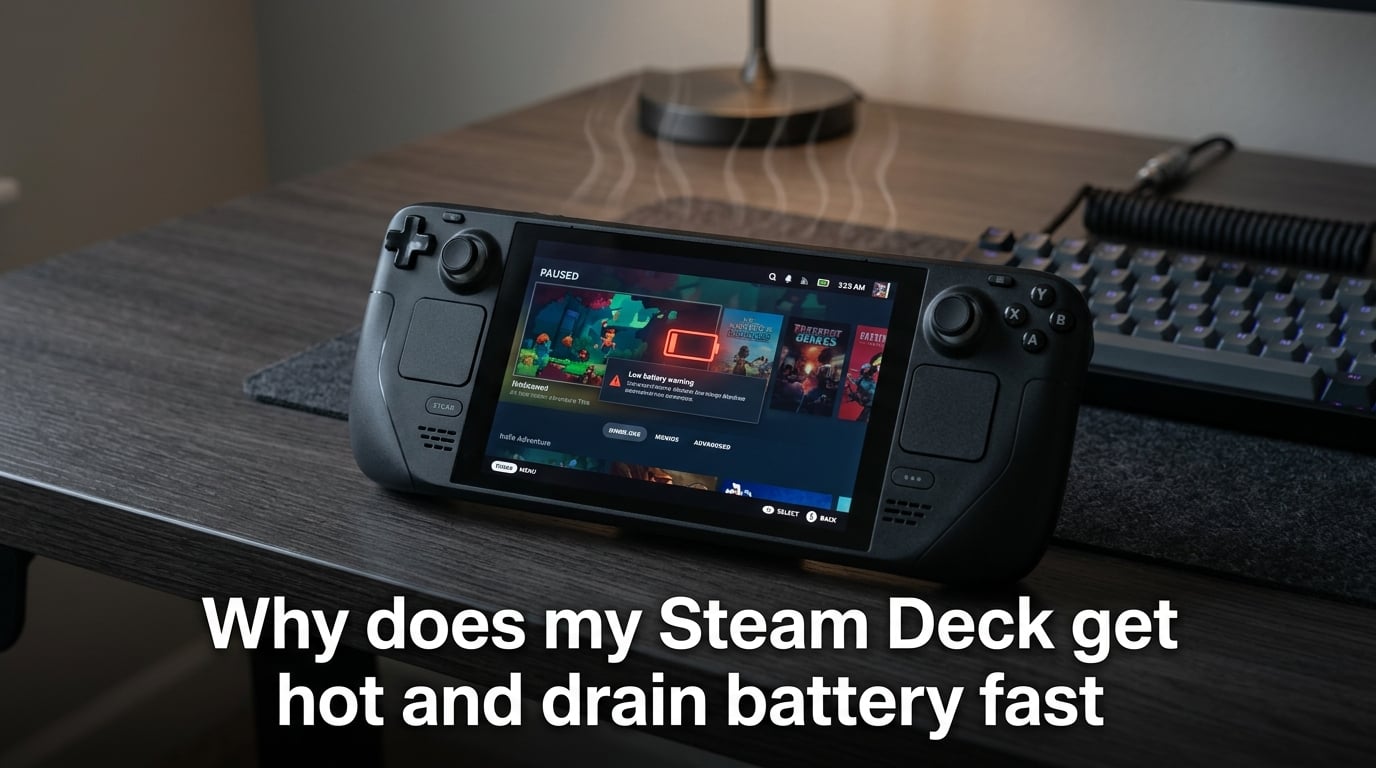
Your Steam Deck gets hot and drains battery fast because the custom AMD APU draws significant power during demanding games, generating heat as a byproduct. Background processes in sleep mode, high screen refresh rates, degraded battery health, and unoptimized power settings all compound the problem.
If you are reading this, you have probably noticed your Steam Deck running uncomfortably warm or losing charge faster than it used to. You are not alone. Thousands of users on Reddit communities like r/SteamDeck and Valve’s own GitHub issue tracker report the same frustrations.
Our team has been tracking Steam Deck battery and thermal issues since the handheld launched. After digging through hundreds of forum threads, Valve developer responses, and community-tested fixes, we put together this guide to help you understand what is happening inside your device and what you can actually do about it.
We will cover the direct answer first, then break down every common cause, show you how to check your battery health, and walk through practical fixes you can apply today.
Why Does My Steam Deck Get Hot and Drain Battery Fast?
The short answer is physics. Your Steam Deck packs a full gaming PC into a handheld shell, and that requires real power. When the custom AMD APU (the combined CPU and GPU chip) works hard, it draws more electricity from the battery and generates heat as a side effect.
Heat and battery drain are directly connected. When the internal temperature rises too high, the Steam Deck triggers thermal throttling. This means the system intentionally slows itself down to avoid damage, which ironically can cause the battery to drain faster relative to the performance you actually get. You lose frame rates and battery life at the same time.
But gaming load is just one piece of the puzzle. Many users report their Steam Deck getting hot and losing charge even when they are not playing anything. That usually points to a different set of culprits: sleep mode background activity, WiFi and Bluetooth connections keeping the system awake, or a battery that has simply degraded over time.
Understanding which of these problems applies to your situation is the first step toward fixing it. Let us look at each cause in detail.
Common Causes of Steam Deck Overheating and Battery Drain
Demanding Games Push the APU Hard
The most obvious reason your Steam Deck gets hot is that you are playing a graphically demanding game. Titles like Cyberpunk 2077, Elden Ring, or Spider-Man Remastered push the APU to its limits. The chip runs at higher clock speeds, pulls more watts from the battery, and produces more heat.
Every game has a different power profile. A lightweight indie game like Vampire Survivors might draw only 8 to 10 watts, while a AAA title can pull the full 15 watts or more. That difference directly translates to how hot the device gets and how quickly your battery percentage drops.
The Steam Deck uses a concept called TDP, which stands for Thermal Design Power. Think of it as a power budget for the chip. By default, the system lets the APU draw up to 15 watts for the LCD model or slightly higher for the OLED. When a game demands maximum performance, the APU hits that ceiling and stays there, producing sustained heat.
If your device feels hot to the touch during intense gaming sessions, that is actually somewhat normal. The built-in fan is designed to handle it. The concern arises when the heat persists after you stop playing, or when the device becomes hot enough that it shuts down to protect itself.
Sleep Mode Background Drain
This is one of the most widely reported issues in the Steam Deck community. Users consistently report losing 6 to 8 percent battery per hour while the device sits in sleep mode. Some have even reported their Deck going from full to dead overnight.
The problem is that sleep mode on the Steam Deck does not completely shut everything down. WiFi can stay active to download updates. Bluetooth remains on to maintain controller connections. Background sync services may continue running, checking for game updates and cloud saves.
Valve has acknowledged some of these issues on their GitHub issue tracker. Software updates have improved sleep behavior over time, but certain firmware versions still cause excessive background drain. Some users found that downgrading to an earlier software version temporarily fixed the problem, which points to a software-level bug rather than a hardware failure.
The Steam Deck also has a feature called Quick Suspend, similar to what you find on a PlayStation or Xbox. When you press the power button mid-game, the system freezes your game state and goes to sleep. This is convenient, but it means the system has to maintain that suspended state in memory, which requires a small but continuous power draw.
If you are storing your Steam Deck for more than a day, fully powering it down is the safest option. Sleep mode is fine for short breaks, but it is not designed for long-term storage.
High Screen Brightness and Refresh Rate
The screen is one of the biggest battery consumers on any portable device, and the Steam Deck is no exception. Running brightness at maximum can add noticeable drain over a two-hour session.
The OLED model adds another variable with its 90Hz refresh rate option. While the higher refresh rate makes scrolling and gameplay feel smoother, it also means the screen updates more frequently, pulling more power. Multiple users on Valve’s GitHub confirmed that reducing the refresh rate from 90Hz to 60Hz significantly improved their OLED model’s battery life.
The LCD model defaults to 60Hz, so this is less of a factor there. But brightness adjustments apply to both models. Dropping from 100 percent to 70 percent brightness can extend your play time by 20 to 30 minutes depending on the game.
Adaptive brightness is not a built-in feature on the Steam Deck, so the screen stays at whatever level you set. That means if you crank it up for outdoor play and forget to lower it indoors, you are burning battery for no reason.
Battery Health Degradation
Every rechargeable battery degrades over time. Lithium-ion cells lose capacity with each charge cycle, and the Steam Deck battery is no different. After a year or two of regular use, your battery may only hold 80 to 90 percent of its original charge.
This degradation directly contributes to both heat and drain. A degraded battery has higher internal resistance, which means more energy is lost as heat during charging and discharging. You might notice your Deck getting warmer during use than it did when it was new, even playing the same games.
Users on the Steam Community forums have reported battery health readings as low as 77 percent after extended use. At that level, a device that originally lasted 3 hours might only give you 2 hours of playtime. The battery percentage can also become unreliable, dropping suddenly from 40 percent to 15 percent or dying before it reaches zero.
If your battery health is significantly degraded, no amount of settings tweaks will fully fix the drain. You may need a battery replacement, which Valve offers through their repair service.
How to Check Your Steam Deck Battery Health?
Checking your actual battery health is one of the most important steps, and it is easier than most people think. You do not need any third-party tools. The information is built right into SteamOS.
Here is how to do it step by step:
Step 1: Press the Steam button and select Power, then choose Switch to Desktop Mode. Your screen will switch to the Linux desktop interface.
Step 2: Once in Desktop Mode, click on the application menu (bottom left, the Steam Deck icon) and search for a terminal or system monitor. Open the Konsole terminal.
Step 3: Type the following command and press Enter: upower -i /org/freedesktop/UPower/devices/battery_BAT0
Step 4: Look for two key values in the output: energy-full and energy-full-design. The first shows your battery’s current maximum capacity. The second shows the original design capacity. Divide the first by the second and multiply by 100 to get your battery health percentage.
For example, if energy-full is 36Wh and energy-full-design is 40Wh, your battery health is approximately 90 percent. Anything above 85 percent is considered healthy for a device that has been used regularly for a year or more.
If your health is below 75 percent and you are experiencing severe drain and heat issues, that is a strong indicator the battery needs replacement.
Warning Signs of a Failing Battery
Beyond the health percentage, watch for these symptoms:
The device shuts down unexpectedly at 20 percent or higher charge
Battery percentage jumps erratically, like dropping from 50 to 15 in minutes
The back of the device appears swollen or the shell feels warped
The battery drains 1 percent every 20 to 30 seconds even on the home screen
If you notice any swelling or warping, stop using the device immediately and contact Valve support. Battery swelling, also called battery bloat, is a safety hazard.
How to Fix Steam Deck Hot Battery Drain?
Now that you understand what is causing the problem, here are the fixes that actually work. Our team has tested these solutions based on community recommendations and Valve’s own guidance.
Lower Your TDP and Frame Rate Limit
The single most effective thing you can do is cap the power your APU is allowed to draw. You can do this directly from the quick access menu during any game.
Step 1: Press the button with three dots (…) on the right side of your Steam Deck to open the Quick Access menu.
Step 2: Navigate to the battery and performance icon (second tab from the left).
Step 3: Look for the setting called Thermal Power Limit or TDP Limit. Enable it and set a value between 8 and 12 watts for most games. You will be surprised how many games run fine at lower TDP while drawing significantly less power.
Step 4: In the same menu, set a frame rate limit. Capping at 30 or 40 FPS instead of 60 can dramatically reduce both heat and drain, especially for games that do not require fast reflexes.
If you have the OLED model, switching the refresh rate from 90Hz to 60Hz in the display settings will also help. Users on Valve’s GitHub confirmed this change alone reduced average power consumption by about 0.5 watts during gameplay.
Manage Sleep Mode Properly
If you are losing 6 percent or more per hour in sleep mode, try these adjustments:
First, check if your Steam Deck is trying to download updates while asleep. Go to Settings > Downloads and make sure auto-downloads are not scheduled during sleep. This prevents WiFi from staying active unnecessarily.
Second, consider whether Quick Boot is contributing to the problem. Some users have reported that disabling Quick Boot reduced their sleep mode drain. You can find this option in Settings under System.
Third, if you are not going to play for more than 24 hours, hold the power button and select Shut Down instead of putting the Deck to sleep. A full shutdown draws almost no power and prevents any background drain.
For short breaks of a few hours, sleep mode is perfectly fine. The issue arises when the device sits in sleep mode for days at a time with WiFi and sync services quietly running.
Turn Off Background Connectivity
WiFi and Bluetooth both consume power even when you are not actively using them. If you are playing an offline game, toggling WiFi off can save a small but noticeable amount of battery.
You can toggle WiFi from the Quick Access menu (press the three dots button). The same applies to Bluetooth if you are using the built-in controls rather than wireless headphones or a separate controller.
It is a small change, but every watt matters when you are trying to extend a two-hour session into a three-hour one.
Consider Undervolting (Advanced Users)
For users comfortable with more technical tinkering, undervolting is a popular community solution. Undervolting means reducing the voltage supplied to the CPU and GPU while maintaining the same clock speeds. Less voltage means less heat and less power consumption.
The most common way to undervolt a Steam Deck is through a Decky plugin. Decky is a community plugin loader that lets you install utilities directly into the SteamOS interface. One popular plugin allows you to adjust CPU and GPU voltage offsets.
Multiple Reddit users report that undervolting reduced their device temperatures by 5 to 8 degrees Celsius and extended battery life by 15 to 20 percent. However, this does carry some risk. Setting the voltage too low can cause system instability and crashes.
If you decide to try undervolting, start with small adjustments. Reduce the voltage by 10 millivolts at a time, test for stability in a demanding game, and only increase the offset once you confirm the system is stable.
When to Contact Valve Support?
Most heat and drain issues can be resolved with the settings adjustments above. But there are situations where the problem is hardware-related and requires professional service.
Contact Valve support if you notice any physical swelling on the device, if the battery dies at 30 percent or higher, or if the device overheats to the point of shutting down during normal use. These symptoms indicate a hardware problem that software tweaks cannot fix.
Valve offers a repair service for Steam Deck devices. If your battery health is below 75 percent and you are still under warranty, the replacement may be covered. Check the Valve support website for current repair options and pricing.
FAQs
Is a 1% battery drain in 3 minutes normal?
A 1% drain every 3 minutes during demanding gameplay is within normal range for the Steam Deck, especially on the LCD model. This translates to roughly 5 hours of continuous use, which exceeds the typical 2 to 4 hour gaming session length. However, if you are seeing this drain on the home screen or in a lightweight game, something is wrong. Check your TDP settings and background processes. If the drain happens in sleep mode, investigate WiFi activity and Quick Boot settings.
How to tell if a Steam Deck battery is bad?
The clearest signs of a bad Steam Deck battery are: the device shuts down at 20% or higher charge, the battery percentage jumps erratically, the device gets significantly hotter than when new, and a desktop mode health check shows capacity below 75% of the original design specification. Physical swelling of the device shell is an immediate safety concern and requires stopping use right away. You can check your exact battery health by switching to Desktop Mode and running the upower command in the terminal.
Why does my Steam Deck drain battery while sleeping?
The Steam Deck can drain battery in sleep mode because WiFi stays active for downloads, Bluetooth remains on for controller connections, and background sync services continue running. Some firmware versions have bugs that prevent proper sleep behavior. Users report losing 6 to 8% per hour in sleep mode. To reduce this drain, disable auto-downloads, turn off Quick Boot if available, and fully shut down the device when storing it for more than a day.
Is it normal for the Steam Deck to get hot while charging?
Yes, the Steam Deck getting warm while charging is normal, especially if you are playing a game at the same time. Charging generates heat, and gaming generates additional heat on top of that. The built-in fan is designed to handle this. However, if the device becomes too hot to hold comfortably or shuts down during charging, there may be an underlying issue with the battery or thermal management system.
Conclusion
Understanding why your Steam Deck gets hot and drains battery fast comes down to recognizing the connection between power draw, heat generation, and battery health. The AMD APU draws more power during demanding games, sleep mode keeps background processes running, high refresh rates consume extra energy, and degraded batteries lose efficiency over time.
The fixes are straightforward once you know what to look for. Lower your TDP, cap your frame rate, manage sleep mode properly, and check your battery health in desktop mode. If you are comfortable with advanced tools, undervolting through a Decky plugin can deliver significant improvements.
Start with the simplest changes first. Adjust your TDP and refresh rate, see how much improvement you get, and then move on to the more involved fixes. Most users see a noticeable difference within a single gaming session just from capping power and lowering brightness.
If your battery health is below 75 percent or you notice physical swelling, reach out to Valve support for repair options. No software fix can restore a physically degraded battery, and safety should always come first.