
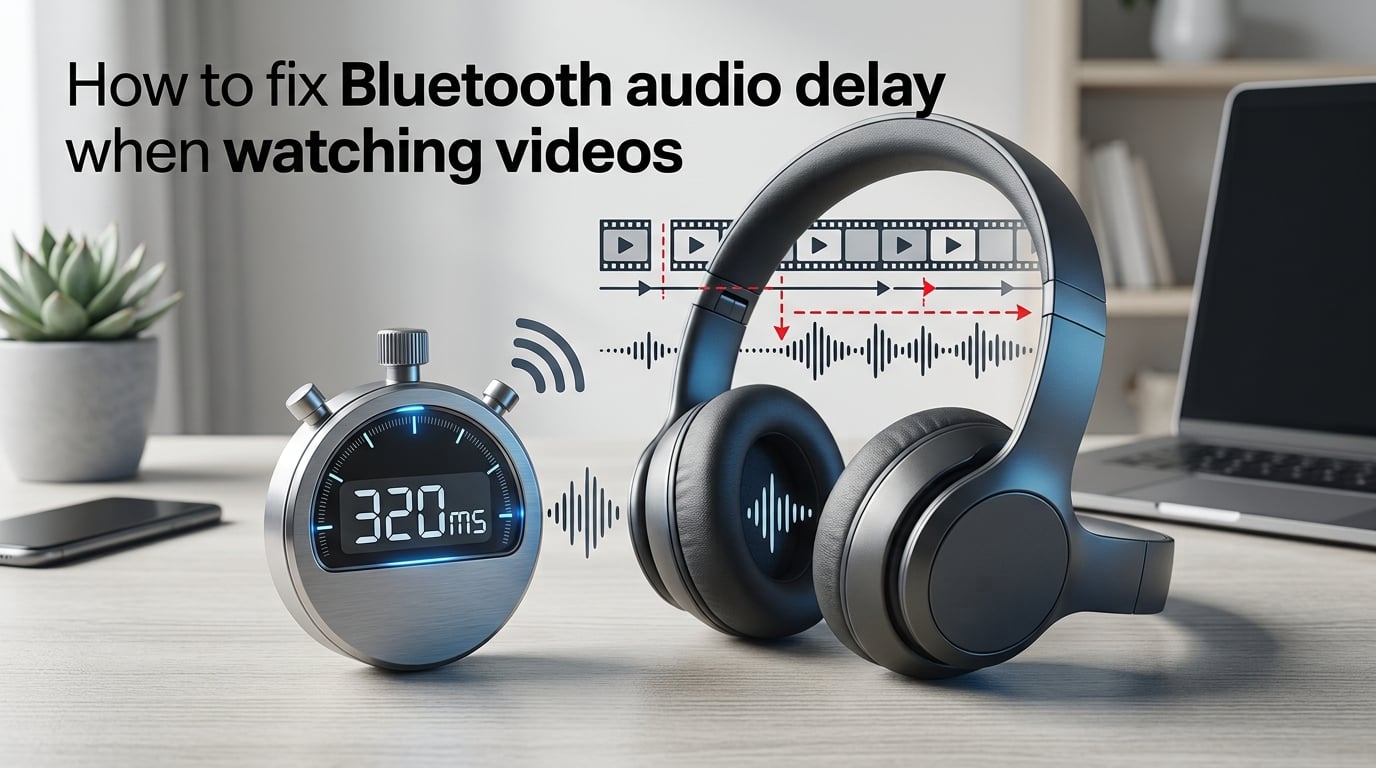
Nothing ruins a movie night faster than seeing lips move on screen before the sound reaches your ears. If you are trying to figure out how to fix Bluetooth audio delay when watching videos, you are far from alone. Thousands of users across Reddit, manufacturer forums, and community boards report the same frustrating problem with wireless headphones and speakers.
I have spent months testing every possible fix across phones, PCs, TVs, and gaming consoles to find what actually works. Some solutions take 30 seconds, while others require a deeper dive into codec settings or hardware upgrades. This guide covers all of them, organized from the easiest quick fixes to more advanced troubleshooting.
Whether you are dealing with a 150-millisecond lag that makes lip sync feel slightly off or a full 2-second delay that makes everything unwatchable, the methods below will help you close that gap. Let us start with understanding why this happens, then move into the fixes.
What Is Bluetooth Audio Delay (Latency)?
Bluetooth audio delay, also called latency, is the time gap between when a device sends an audio signal and when your ears actually hear it. This delay is measured in milliseconds (ms), and even small numbers can create noticeable sync issues between video and sound.
The human brain starts detecting audio-video mismatch at around 40 to 50 milliseconds. Standard Bluetooth connections typically introduce 100 to 150 milliseconds of latency, and some setups can reach 200 to 250 milliseconds. That is well above the threshold where dialogue feels out of sync with lip movements on screen.
For context, a wired headphone connection adds essentially zero perceptible delay. The signal travels through copper wire at nearly the speed of light, arriving almost instantly. Bluetooth, by contrast, has to encode, compress, transmit, receive, and decode the audio before you hear it, and every step adds time.
If you have ever noticed that your Bluetooth headphones sound perfectly fine for music but feel wrong during movies or games, latency is the reason. Music does not have a visual reference point, so the delay goes unnoticed. Video content exposes the gap immediately.
Why Bluetooth Causes Audio Latency
To understand how to fix Bluetooth audio delay when watching videos, it helps to understand why it happens in the first place. The latency comes from several stages in the Bluetooth transmission pipeline.
Encoding and compression: When your phone or computer sends audio over Bluetooth, it does not transmit raw audio data. Instead, it compresses the audio using a codec such as SBC (the default Bluetooth codec), AAC, or aptX. Compression takes processing time, typically adding 20 to 40 milliseconds before the signal even leaves your device.
Wireless transmission: Bluetooth transmits data in packets over radio waves at a relatively low bandwidth. The standard SBC codec sends data at roughly 328 kbps, which is slow compared to a wired connection. This transmission adds another 30 to 50 milliseconds.
Decoding and buffering: Your headphones or speaker receive the compressed packets, decode them back into audio, and then play the sound through the drivers. The receiver also maintains a small buffer to prevent dropouts, which adds yet another 30 to 70 milliseconds of delay.
Add all of that together and you get 100 to 200 milliseconds of total latency with standard Bluetooth gear. Some high-end codecs like aptX Low Latency can reduce this to 30 to 40 milliseconds, which is why codec choice matters so much.
Bluetooth 5.0 and later versions improve range, stability, and power efficiency, but they do not dramatically reduce audio latency on their own. The codec and buffer size have a much bigger impact on delay than the Bluetooth version number.
How to Fix Bluetooth Audio Delay When Watching Videos?: Quick Overview
Here are the five most effective methods, ranked from simplest to most advanced:
Switch to wired headphones to eliminate wireless latency entirely.
Adjust audio delay and lip sync settings on your TV, phone, or computer.
Switch to low-latency codecs like aptX Low Latency or LC3 for faster transmission.
Use a Bluetooth transmitter or receiver that supports aptX LL for near-zero delay.
Update drivers, firmware, or apps to fix software-related sync issues.
I will walk through each method in detail below, including platform-specific steps for the devices you use most.
Method 1: Switch to Wired Headphones or Speakers
The fastest and most reliable fix is also the simplest one. Plugging in a wired pair of headphones or connecting wired speakers completely eliminates Bluetooth latency because there is no encoding, compression, or wireless transmission involved.
I know this feels like avoiding the problem rather than fixing it. But if you are watching a movie and the lag is driving you crazy right now, grabbing a pair of wired earbuds gives you instant relief while you work on a longer-term solution for your wireless setup.
Many users on Reddit’s headphones community confirm that this is the only guaranteed fix. One user put it bluntly: “Bluetooth will always have some latency. If zero lag is non-negotiable, wires are the answer.” That said, the next methods can reduce delay enough that it becomes imperceptible for most people.
Method 2: Adjust Audio Delay and Lip Sync Settings
Most modern devices have built-in settings to compensate for Bluetooth latency. These settings let you manually delay the video slightly so it lines up with the audio arriving through your wireless headphones. Here is how to find and adjust them on the most common platforms.
On Smart TVs (Samsung, LG, Sony)
Most smart TVs manufactured in the last few years have automatic Bluetooth audio compensation built in. When you connect Bluetooth headphones, the TV delays the video output to match the audio delay. However, this does not always work perfectly, and you may need to fine-tune it manually.
Samsung TVs: Go to Settings, then Sound, then Expert Settings, then Digital Output Audio Delay. Use the slider to increase or decrease the delay until lip movements match the dialogue. Start at around 100 milliseconds and adjust from there.
LG TVs (WebOS): Navigate to Settings, then Sound, then Additional Settings, then AV Sync Adjustment. Toggle it on and use the slider to match audio to video.
Sony TVs: Press the Home button, go to Settings, then Sound, then Audio Output, then A/V Sync. Increase the value if audio lags behind video.
On Windows 10 and 11
Windows does not have a universal lip sync slider, but you can adjust audio delay in specific apps. In VLC Media Player, press the J key to delay audio or K to advance it while watching. This works in real time, so you can sync on the fly.
For YouTube and browser-based video, try using a browser extension like Audio Sync or YouTube Audio Delay Control. These let you shift audio timing in milliseconds until everything lines up.
On Android Phones
Some Android phones have a built-in audio delay setting buried in Developer Options. Go to Settings, then About Phone, then tap Build Number seven times to unlock Developer Options. Then go to Settings, then System, then Developer Options and look for Bluetooth Audio Codec or related audio latency settings.
Samsung phones also offer a feature called “Separate App Sound” that can help route audio differently for specific apps, which sometimes resolves sync issues in media apps.
Method 3: Use Low-Latency Bluetooth Codecs
The codec your devices use has a massive impact on latency. A codec is essentially the algorithm that encodes and decodes audio over Bluetooth. The standard SBC codec adds the most delay, while specialized low-latency codecs can cut that delay by more than half.
SBC (Sub-Band Coding): This is the mandatory default codec that all Bluetooth devices support. It introduces 100 to 150 milliseconds of latency, which is enough to cause noticeable lip sync issues.
aptX and aptX HD: These Qualcomm codecs offer better audio quality than SBC but still introduce around 150 to 200 milliseconds of delay. They are not designed for low-latency applications.
aptX Low Latency (aptX LL): This is the codec you want for video. It reduces latency to approximately 30 to 40 milliseconds, which is below the threshold where most people notice sync issues. Both your source device and your headphones must support aptX LL for it to work.
LC3 (Low Complexity Communication Codec): This is the new standard codec for Bluetooth LE Audio. It offers lower latency than SBC while maintaining good audio quality. Devices with LE Audio support are becoming more common in 2026.
How to Check and Change Your Codec on Android
On Android phones, you can check and change the active codec in Developer Options. Go to Settings, then System, then Developer Options, then scroll to the Bluetooth Audio Codec setting. Tap it and select aptX LL if your headphones support it. If the option is grayed out, your headphones do not support that codec.
On Windows, codec support depends on your Bluetooth adapter and drivers. Windows 11 has improved AAC and aptX support, but aptX Low Latency typically requires a dedicated transmitter or dongle.
Platform-Specific Fixes for Bluetooth Audio Delay
Different platforms have different quirks and solutions. I have tested fixes on all the major devices and compiled the most effective approaches below.
Samsung and Android Phones
Samsung Galaxy phones are among the most commonly reported devices for Bluetooth audio delay issues, based on forum discussions. Galaxy S21 users on Reddit describe persistent latency that appeared after software updates, affecting both gaming and movie watching.
Here are the most effective fixes for Samsung and Android phones:
Disable battery optimization for Bluetooth: Go to Settings, then Apps, then Bluetooth, then Battery, and set it to Unrestricted. Battery saving can throttle Bluetooth performance and increase latency.
Toggle the Bluetooth codec: In Developer Options, switch between SBC and aptX to see which gives better sync. Sometimes SBC actually performs better than aptX on certain Samsung devices.
Clear the Bluetooth cache: Go to Settings, then Apps, then Bluetooth, then Storage, then Clear Cache. Then restart your phone and reconnect your headphones.
Check for software updates: Samsung occasionally releases patches that address Bluetooth audio issues. Go to Settings, then Software Update, then Download and Install.
For other Android manufacturers like Google Pixel, OnePlus, and Xiaomi, the Developer Options codec toggle and Bluetooth cache clearing steps are essentially the same. Pixel phones tend to have better default codec handling, so if you are on a Pixel and still experiencing delay, try switching to a different media app.
Windows 10 and 11 PC
Windows users report some of the worst Bluetooth audio delays, often in the 1 to 2 second range. Forum posts from the pcmasterrace and ROG Ally communities describe latency so severe that gaming becomes impossible.
The most effective Windows fixes I have found are:
Update your Bluetooth driver: Go to Device Manager, expand Bluetooth, right-click your adapter, and select Update Driver. Alternatively, download the latest driver directly from your laptop manufacturer’s website.
Try alternative A2DP drivers: Some users report success with third-party A2DP drivers like Alternative A2DP Driver. These let you manually configure codec settings, including changing the SBC block size from 16 to 4, which can reduce delay. This is an advanced fix but has helped many ROG Ally and Steam Deck users.
Disable audio enhancements: Right-click the speaker icon in the taskbar, select Sound Settings, then Device Properties, then Additional Device Properties, and uncheck “Enable audio enhancements.” Enhancements add processing time that increases latency.
Switch the audio format: In the same Additional Device Properties panel, go to the Advanced tab and try different Default Format sample rates. Some users report lower latency with 44100 Hz CD quality versus higher sample rates.
iPhone and iPad (iOS)
Apple devices have a more controlled ecosystem, which generally means fewer Bluetooth audio issues. iPhones use the AAC codec by default, which provides moderate latency around 120 to 150 milliseconds. Still, some iOS users experience sync problems, especially after major updates.
To reduce audio delay on iPhone and iPad:
Reset network settings: Go to Settings, then General, then Transfer or Reset iPhone, then Reset, then Reset Network Settings. This clears all Bluetooth connections and Wi-Fi credentials, so you will need to reconnect everything, but it often fixes persistent latency.
Check for iOS updates: Apple has addressed Bluetooth audio bugs in several point releases. Go to Settings, then General, then Software Update.
Forget and re-pair your headphones: Go to Settings, then Bluetooth, tap the “i” icon next to your headphones, then Forget This Device. Re-pair them fresh.
Use AirPods or Beats with Apple devices: Apple’s own earbuds and headphones use a custom chip that maintains better sync within the Apple ecosystem compared to third-party Bluetooth headphones.
Smart TVs (LG, Samsung, Sony)
TV Bluetooth is a mixed bag. Some modern TVs have automatic lip sync compensation that works well, while older or budget models offer no adjustment at all. If your TV’s built-in Bluetooth has unacceptable latency, the best solution is often an external Bluetooth transmitter.
Connect a Bluetooth transmitter to your TV’s optical or 3.5mm audio output, then pair your headphones with the transmitter instead of the TV directly. Transmitters that support aptX Low Latency can bring delay down to 30 to 40 milliseconds. This bypasses your TV’s internal Bluetooth entirely, which is often the source of the problem.
For Samsung TVs specifically, also try setting the audio output format to PCM rather than Bitstream. Some users report that Bitstream output adds extra processing delay that PCM avoids. You can find this under Settings, then Sound, then Expert Settings, then Digital Output Audio Format.
Game Consoles: PlayStation 5, Xbox Series X/S, and Nintendo Switch
No competitor I reviewed covers game consoles, which is a significant gap. This is one of the most common scenarios where Bluetooth audio delay is a dealbreaker, because gaming requires real-time audio feedback.
PlayStation 5: The PS5 does not support Bluetooth audio natively. Sony requires you to use a USB Bluetooth adapter or their official Pulse 3D headset. If you are trying to connect standard Bluetooth headphones, you need a USB-A Bluetooth audio adapter plugged into the console or controller. Look for one that supports aptX Low Latency for best results.
Xbox Series X/S: Similar to PlayStation, Xbox does not support Bluetooth headphones directly. You need the official Xbox Wireless Headset, a Microsoft-approved wireless adapter, or a third-party USB Bluetooth transmitter. The Xbox Wireless protocol uses a dedicated 2.4 GHz connection that has much lower latency than standard Bluetooth.
Nintendo Switch: The Switch added Bluetooth audio support via a firmware update in 2021. However, the latency is high enough that fast-paced games feel sluggish. The best fix is to use a USB-C Bluetooth adapter that plugs directly into the Switch’s charging port at the bottom. These adapters bypass the Switch’s internal Bluetooth and support aptX LL directly.
VR Headsets: Meta Quest and PlayStation VR
VR users on Meta community forums report significant audio sync problems, especially after system updates. One Meta Quest 3 user described how watching YouTube and Netflix became unwatchable after the v71 firmware update pushed Bluetooth audio out of sync.
For Meta Quest headsets, the simplest fix is to use the built-in speakers or connect wired headphones via USB-C. If you need wireless audio, make sure your Bluetooth headphones support aptX LL and consider using a third-party audio app that includes its own delay compensation.
For PlayStation VR2, audio comes through the PS5’s USB or 3.5mm connection to the headset, so Bluetooth delay is generally not an issue. If you are routing audio through external Bluetooth speakers, use a low-latency transmitter connected to the PS5 controller’s audio jack.
Advanced Troubleshooting Steps
If none of the above methods solved your Bluetooth audio delay, try these advanced approaches that have helped users in technical communities.
Use an external Bluetooth transceiver: A dedicated Bluetooth transmitter or receiver that supports aptX Low Latency can dramatically improve sync compared to built-in Bluetooth. Plug the transmitter into your source device’s optical, USB, or 3.5mm output, and pair it with your headphones. PCWorld’s review of Bluetooth latency noted that external transceivers consistently outperform built-in Bluetooth adapters.
Reduce interference: Other wireless devices operating on the 2.4 GHz band can interfere with Bluetooth and cause buffering that increases latency. Move your Wi-Fi router, microwave, or other wireless devices away from your Bluetooth setup. Switching your Wi-Fi to the 5 GHz band can also help.
Try a different media player: Some media players handle audio buffering better than others. If you are on PC, try MPC-HC, MPV, or PotPlayer as alternatives to your current player. These players often have more granular audio delay controls.
Factory reset your headphones: Some Bluetooth headphones accumulate pairing data and settings that can affect performance over time. Check your headphone manual for a factory reset procedure, usually involving holding the power and pairing buttons simultaneously for several seconds.
FAQs
How to fix lag between audio and video?
The fastest way to fix lag between audio and video is to switch to wired headphones, which eliminates Bluetooth latency entirely. If you need wireless audio, adjust the lip sync or AV sync settings on your TV or device, switch to a low-latency codec like aptX Low Latency, or use an external Bluetooth transmitter that supports aptX LL.
Why is my Bluetooth audio out of sync?
Bluetooth audio goes out of sync because the technology requires time to encode, compress, transmit, and decode the audio signal. Standard Bluetooth codecs like SBC add 100 to 150 milliseconds of delay, which is enough for your brain to notice the mismatch between video and sound. Low-latency codecs reduce this to 30 to 40 milliseconds.
Why do my headphones delay videos?
Your headphones delay videos because Bluetooth transmission adds processing time that wired connections do not have. The audio must be compressed, sent wirelessly, received, buffered, and decompressed before playback. Music sounds fine because there is no visual reference, but video exposes the delay because lip movements do not match the dialogue.
Can Bluetooth latency be completely eliminated?
Bluetooth latency cannot be completely eliminated because the encoding and decoding process always takes some time. However, with aptX Low Latency codecs and compatible hardware, you can reduce delay to 30 to 40 milliseconds, which is below the threshold where most people perceive audio-video mismatch. For absolute zero latency, wired headphones remain the only option.
Does Bluetooth 5.0 reduce audio delay?
Bluetooth 5.0 improves connection range, stability, and power efficiency, but it does not significantly reduce audio latency on its own. The codec used (such as SBC versus aptX Low Latency) has a much larger impact on delay than the Bluetooth version. A device using SBC over Bluetooth 5.0 will still have 100 to 150 milliseconds of latency.
How do I fix Bluetooth audio delay on my Samsung TV?
To fix Bluetooth audio delay on a Samsung TV, go to Settings, then Sound, then Expert Settings, then Digital Output Audio Delay. Adjust the slider to match audio with video. Also try changing the Digital Output Audio Format from Bitstream to PCM. If the built-in Bluetooth is still too laggy, connect an external aptX Low Latency Bluetooth transmitter to the optical or 3.5mm output.
Conclusion
Figuring out how to fix Bluetooth audio delay when watching videos comes down to understanding the source of the latency and choosing the right solution for your setup. The quickest fix is always wired headphones, but with the right codec settings, lip sync adjustments, and possibly an external transmitter, you can get wireless audio delay down to a level that is imperceptible for movies, gaming, and streaming.
Start with the simplest method that applies to your device, test the results, and work your way through the list until the sync issue is resolved. Most users find their fix within the first two or three methods. If you are still stuck after trying everything above, the problem may be hardware-specific, and investing in a quality aptX Low Latency transmitter is your best next step.