
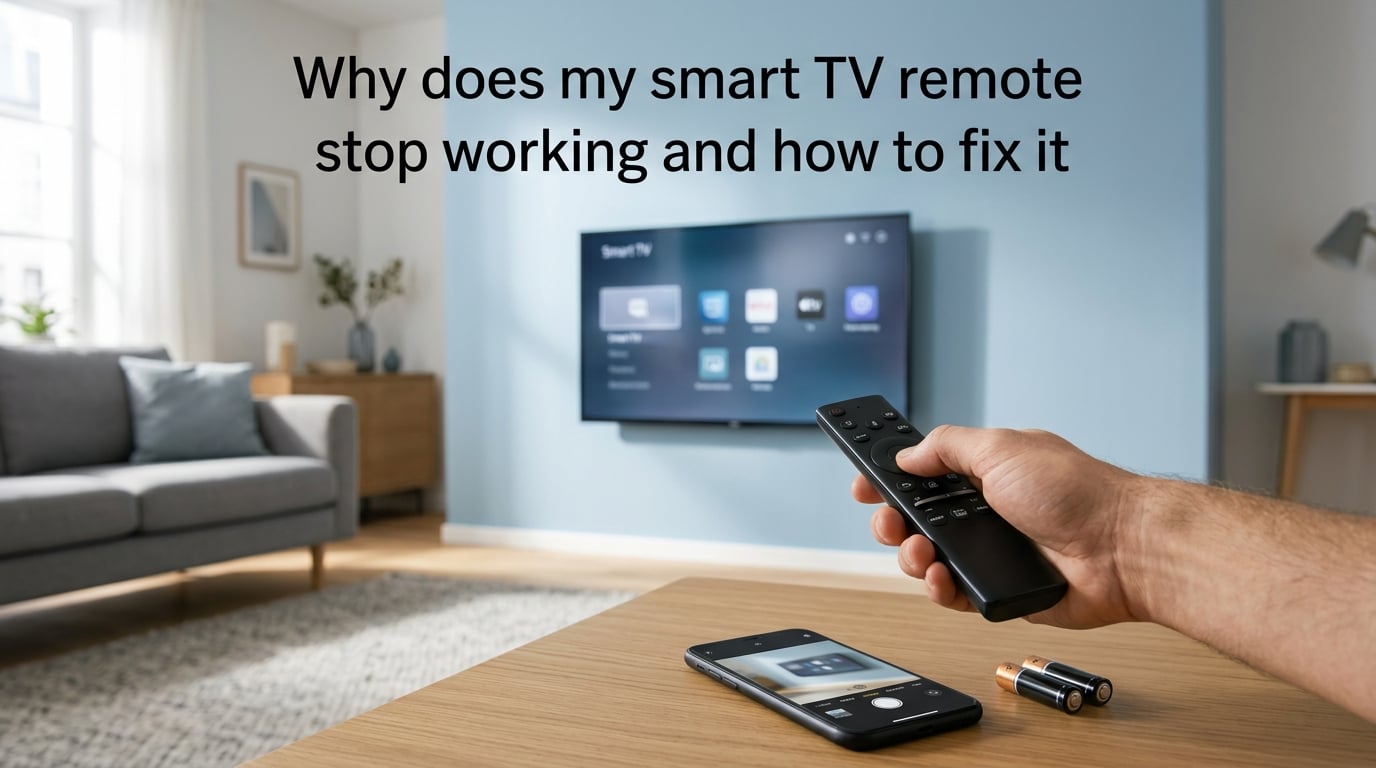
You pick up the remote, press the power button, and nothing happens. If your smart TV remote stopped working, you are dealing with one of the most common home entertainment headaches of 2026. The good news is that most remote failures have simple fixes you can try in under 10 minutes.
Our team has spent years testing and troubleshooting smart TV remotes across Samsung, LG, Roku, and other major brands. We have compiled the exact diagnostic steps that work for the majority of cases where a smart TV remote is not working. Whether your remote died suddenly, stopped responding after an update, or works intermittently, this guide walks you through every fix from simplest to most advanced.
Start with the basics like battery replacement and power cycling, then move to pairing resets and signal testing. By the end, you will know exactly what is wrong and whether you need a replacement or just a quick reset.
Common Reasons Your Smart TV Remote Stops Working
A smart TV remote can stop working for five main reasons: dead or corroded batteries, lost Bluetooth or RF pairing, a blocked or dirty IR sensor, electronic interference from nearby devices, or firmware updates that break the remote-to-TV connection.
Battery issues account for the majority of sudden remote failures. Even if your remote still shows a red light or brief signs of life, weak batteries cannot sustain the signal strength needed for reliable communication. Battery corrosion on the contact terminals is another frequent culprit that many people overlook.
Pairing loss is the second most common cause, especially with smart TV remotes that use Bluetooth instead of infrared. These remotes maintain a wireless handshake with your TV, and that connection can drop after power outages, firmware updates, or even when the TV has been unplugged for several days. Reddit users across r/samsung and r/Roku frequently report this exact scenario.
Physical obstructions, direct sunlight hitting the IR sensor, and interference from LED lights or other wireless devices can also cause your TV remote to stop responding. In rare cases, the problem is not the remote at all but a failing IR sensor module or mainboard inside the TV itself.
Understanding Your Remote Type: IR vs Bluetooth vs RF
Before troubleshooting, you need to know what type of remote you have. The fix depends entirely on the technology your remote uses to communicate with the TV.
Infrared (IR) remotes are the traditional type that require a direct line of sight to the TV. They send an invisible light pulse from the remote’s LED to a receiver on the TV’s front panel. If anything blocks that path, the signal cannot reach the TV. Most basic remotes included with budget TVs still use IR technology.
Bluetooth remotes are standard on modern smart TVs from Samsung, LG, and others. These connect wirelessly without needing line of sight, which is why you can point them any direction and still control the TV. However, Bluetooth remotes require pairing, and that pairing can break. Samsung’s Solar Remote and LG’s Magic Remote both fall into this category.
Radio Frequency (RF) remotes work similarly to Bluetooth but use a different frequency band. They also do not require line of sight. Some Roku and Fire TV remotes use RF technology combined with IR for basic functions.
Here is the key difference for troubleshooting: if your remote only works when pointed directly at the TV, it is likely IR-based, and you should focus on line-of-sight and sensor issues. If it works from any angle, it uses Bluetooth or RF, and your focus should be on re-pairing.
How to Fix a Smart TV Remote Not Working: Step-by-Step Troubleshooting
If you want to know how to fix a TV remote that stopped working, follow these steps in order. Each one addresses a specific failure point, and most people find their fix within the first three steps.
Step 1: Power cycle both the TV and the remote. Unplug your TV from the wall outlet and wait a full 60 seconds. While waiting, remove the batteries from your remote and hold the power button for 15 seconds to drain any residual charge. This clears temporary software glitches that can block remote signals. Plug the TV back in, reinsert the batteries, and test.
Step 2: Replace the batteries with fresh ones. Do not use batteries from another device. Even batteries that work in a clock may not deliver enough current for a remote. Use a matched pair from the same package. If you see any white or green residue on the battery contacts, clean it with a cotton swab dipped in white vinegar, then dry thoroughly before inserting new batteries.
Step 3: Re-pair the remote. For Bluetooth smart remotes, pairing can drop after updates or power cycles. The pairing process varies by brand, but generally involves holding a specific button combination near the TV. See our brand-specific section below for exact instructions.
Step 4: Check the IR sensor on the TV. If you have an IR remote, make sure nothing is blocking the sensor, which is usually a small dark window on the front or bottom bezel of the TV. Clean it gently with a microfiber cloth. Direct sunlight, LED light bars, and even glossy decorations nearby can interfere with IR reception.
Step 5: Remove sources of interference. Other Bluetooth devices, Wi-Fi routers placed too close to the TV, fluorescent lights, and even microwave ovens can interfere with remote signals. Turn off nearby wireless devices temporarily and test the remote again.
Step 6: Perform a factory reset on the TV. If the remote works physically but the TV does not respond to any commands, the TV’s software may be the problem. You will need to access the TV’s settings menu using the physical buttons on the back or side of the TV, or by using the manufacturer’s phone app.
Step 7: Test with a universal remote or phone app. This is the definitive test. If a different remote or your phone app controls the TV perfectly, your original remote has a hardware issue. If nothing works, the problem is with the TV’s sensor or mainboard.
How to Test if Your Remote Is Sending a Signal (Camera Test)
One of the most useful diagnostic tricks is the smartphone camera test, and almost no competitor explains why it works. Infrared light is invisible to the human eye, but the CMOS sensor in your phone’s camera can detect it.
Here is how to do it. Open your phone’s camera app and switch to the front-facing camera. Point the top edge of your TV remote at the camera lens. Press and hold any button on the remote while looking at your phone screen.
If your remote is working, you will see a faint purple or white glow coming from the IR LED at the tip of the remote. No glow means the remote is not sending a signal, which confirms the problem is with the remote itself rather than the TV.
This test only works for IR remotes. Bluetooth and RF remotes do not use infrared light, so the camera test will show nothing even on a perfectly functioning remote. For those, you need to rely on pairing indicators like blinking lights or on-screen prompts.
Brand-Specific Remote Troubleshooting (Samsung, LG, Roku)
Different brands have their own quirks when it comes to remote issues. Here are the specific fixes that users on Reddit and manufacturer support forums report working most reliably.
Samsung Smart Remote (Including Solar Remote)
Samsung smart remotes are among the most reported for pairing issues. After firmware updates, the Bluetooth connection between the Samsung remote and TV frequently breaks. The fix that Samsung’s own support team recommends is holding the Return and Play/Pause buttons simultaneously for 10 seconds while pointing the remote at the TV. A red light on the remote will blink, indicating it is searching for a connection.
For the Samsung Solar Remote specifically, users report that USB-C charging does not always restore functionality even when the battery is full. If the remote flashes red when charging but still will not connect, try the Return and Enter button reset. If that fails, remove any charging cable, take out the batteries if your model has them, wait 30 seconds, then re-pair from scratch.
LG Magic Remote
The LG Magic Remote can lose its pairing after power outages or extended periods of inactivity. To re-pair, point the remote at the TV and press and hold the OK button and Home button at the same time for about 5 seconds. The remote should show a red LED indicator, and the TV will display a pairing confirmation message.
If the pointer function stops working but buttons still work, press and hold the Back and Home buttons for 5 seconds to reset the pointer calibration. This is a common issue that does not require a full re-pair.
Roku Remote
Roku remotes that stop working usually need a simple re-pair. Open the battery compartment on the back of the remote and locate the small pairing button. Press and hold it for about 5 seconds until the pairing light starts flashing. Wait for the on-screen pairing prompt to appear on your TV, then follow the instructions.
If only certain buttons stop working on a Roku remote, the button membrane underneath may be worn out. This is a hardware issue that typically requires replacement rather than a software fix.
When New Batteries Do Not Fix the Problem
If your TV remote is not working even with new batteries, the problem goes beyond simple power drain. This is one of the most frustrating scenarios because the obvious fix does not work.
Battery contact corrosion is the first thing to check. Look at the metal springs and tabs inside the battery compartment. If you see white, green, or brown deposits, that is corrosion blocking the electrical connection. Clean it with white vinegar on a cotton swab, scrub gently, and dry completely before inserting batteries.
Firmware updates are another hidden cause. Samsung TV updates are known to corrupt Bluetooth connections between the remote and TV. If your remote stopped working right after an update, the solution is re-pairing rather than replacing batteries.
Physical damage from drops, spills, or humidity can also cause a remote to fail permanently. If the circuit board inside has cracked or the conductive pads under the buttons have worn through, new batteries will not help.
Using Your Phone as a Temporary Remote
If your physical remote is broken and you need to access TV settings right away, your smartphone can save the day. Every major TV manufacturer offers a free remote app that connects over Wi-Fi.
Samsung users can download SmartThings, LG users should use the LG ThinQ app, Roku has its official Roku app, and Fire TV users can use the Amazon Fire TV app. These apps let you navigate menus, type searches with your phone keyboard, and control volume and power.
The phone app is also an excellent diagnostic tool. If the app controls your TV perfectly but the physical remote does not, you have confirmed the TV is fine and the remote needs fixing or replacement.
Signs Your Remote Has Hardware Damage
Sometimes the diagnosis is straightforward: the remote is physically broken and needs replacing. Here are the warning signs that point to hardware failure rather than a fixable software issue.
If only certain buttons work while others do not respond at all, the conductive membrane under those buttons has likely worn out. This happens from years of use and is common on remotes that are over three years old.
Liquid damage is another obvious cause. If your remote got wet from a spill, rain, or humidity, water can short the internal circuit board. Remove the batteries immediately, let the remote dry in a warm place for 48 hours, and test again. If it still does not work after drying, the board is permanently damaged.
A remote that worked fine yesterday and shows no physical damage but produces no IR signal on the camera test likely has a failed transmitter LED or internal component. At that point, replacement is more cost-effective than repair.
How to fix an unresponsive TV remote?
Start by power cycling your TV and remote: unplug the TV for 60 seconds, remove the remote batteries, and hold the power button for 15 seconds. Then replace the batteries with a fresh matched pair. If that does not work, re-pair the remote by holding the brand-specific button combination near the TV. Finally, test the remote with the smartphone camera trick to see if it is sending any signal.
How do I reset my smart TV remote?
To reset a smart TV remote, remove the batteries and hold the power button for 15 seconds to drain residual charge. Then reinsert fresh batteries. For Samsung remotes, hold Return and Play/Pause for 10 seconds. For LG Magic Remote, hold OK and Home for 5 seconds. For Roku, press and hold the pairing button inside the battery compartment for 5 seconds.
How do I reboot my remote?
To reboot a TV remote, remove the batteries completely and press every button twice to discharge any stored energy. Wait 30 seconds, then insert fresh batteries. For smart remotes that are rechargeable, connect the charging cable for at least 30 minutes, then hold the reset button combination specific to your brand.
How to revive a dead remote?
Clean the battery contacts with white vinegar on a cotton swab to remove corrosion. Replace with brand-new batteries from a fresh pack. Hold the power button for 15 seconds with batteries out to reset the internal circuit. If the remote still shows no signs of life after these steps, test it with a smartphone camera for IR output. No signal means the remote has hardware failure and needs replacement.
Why is my smart TV not responding to the remote?
Your smart TV may not respond to the remote due to lost Bluetooth pairing, a dirty or blocked IR sensor, firmware glitches, or interference from nearby wireless devices. Power cycle the TV by unplugging it for 60 seconds, then re-pair the remote. If the TV does not respond to any remote or its physical buttons, the issue may be the TV’s internal sensor or mainboard.
Why is my TV remote not working even with new batteries?
If new batteries do not fix the problem, check for corroded battery contacts inside the compartment and clean them with vinegar. The remote may also have lost its Bluetooth pairing after a firmware update, requiring a re-pair. Physical damage from drops or liquid can cause internal component failure that batteries cannot fix. Use the smartphone camera test to check if the IR LED is producing any signal.
Why has the TV remote stopped working?
A TV remote typically stops working due to dead batteries, lost pairing after a software update, blocked IR sensor, electronic interference, or physical damage. Battery drain is the most common cause, followed by pairing loss on Bluetooth smart remotes. Start with battery replacement and power cycling, then move to re-pairing and signal testing to identify the specific cause.
Why would a remote control suddenly stop working?
The most common reason a remote suddenly stops working is battery drain, even if it showed no warning signs. Other sudden causes include firmware updates that break Bluetooth pairing, power surges that reset the TV, or electronic interference from newly installed devices. Physical damage from a drop or liquid spill can also cause immediate failure.
Getting Back in Control
When your smart TV remote is not working, the fix usually comes down to three things: fresh batteries, a proper power cycle, and re-pairing. Start with those basics before assuming your remote is broken. The smartphone camera test is your best diagnostic tool for confirming whether the remote itself is sending a signal.
If nothing in this guide solves the problem, use your phone’s remote app to confirm the TV is functioning. A working app means the issue is definitely the remote, and a replacement is your next step. Most smart TV remotes last 3 to 5 years with regular use, so if yours is older, replacement may be the most practical option.