
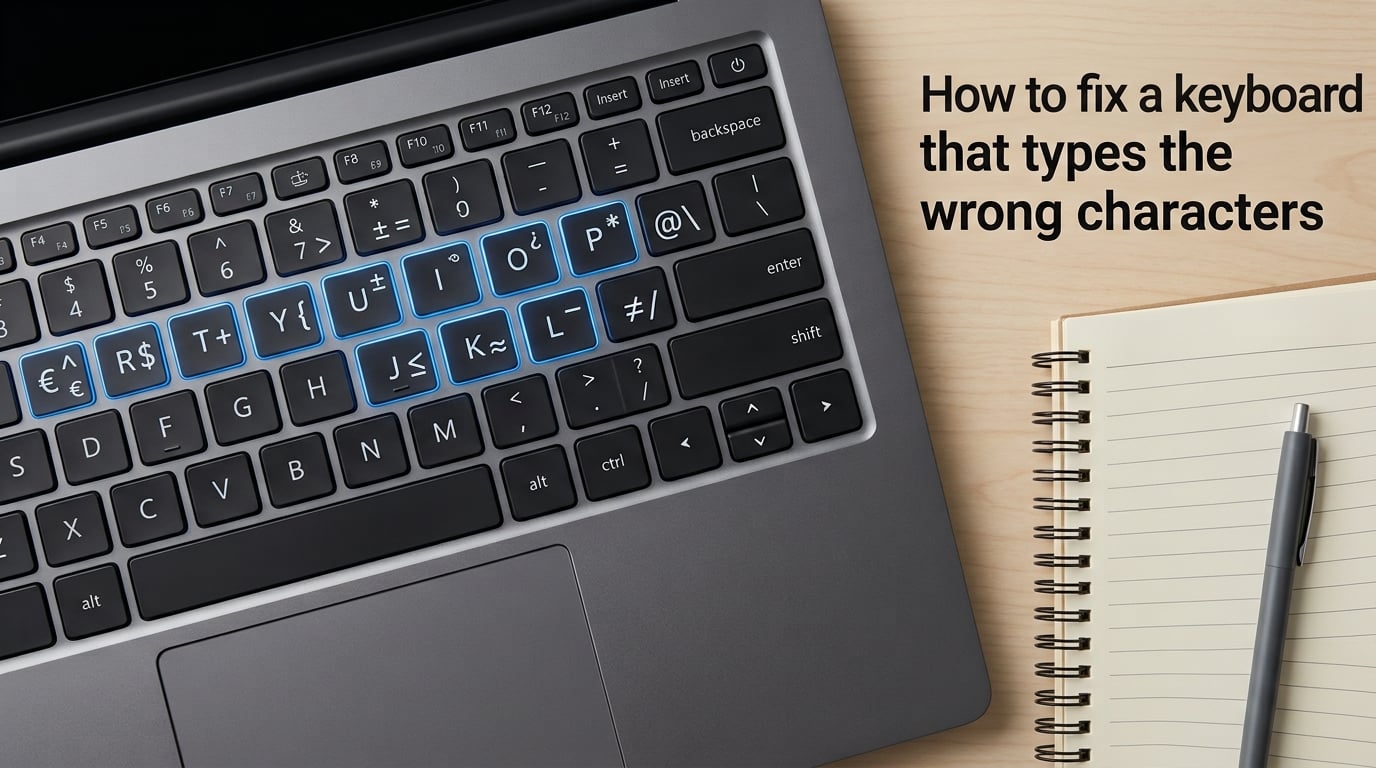
There is nothing more frustrating than pressing a key and watching the wrong symbol appear on your screen. Whether your @ sign shows up as ” or your number keys are producing symbols instead of numbers, this guide walks you through exactly how to fix a keyboard that types the wrong characters on any system.
In most cases, the problem comes down to two things: NumLock being accidentally enabled or the wrong keyboard layout selected in your operating system. We have helped dozens of users troubleshoot this issue, and the fixes below cover everything from 10-second quick solutions to advanced driver reinstallation.
By the end of this guide, you will know how to switch keyboard layouts on Windows 10, Windows 11, and macOS, prevent accidental language switching, and identify when the problem is actually hardware-related. Let us start with the fastest fixes first.
Quick Fixes: Try These First
Before diving into system settings, try these quick fixes. Most keyboard wrong character issues get resolved right here in under a minute.
1. Check the NumLock Key
If your laptop keyboard is typing numbers instead of letters, NumLock is almost certainly the culprit. When NumLock is enabled, certain letter keys (typically U, I, O, J, K, L, M) act as a number pad. This is the single most common cause of wrong characters on laptops.
Press the NumLock key once to turn it off. On some laptops, you may need to hold the Fn key while pressing NumLock. One user on Reddit’s r/techsupport community reported that Fn+NumLock was the only combination that worked on their Windows 10 laptop after standard NumLock did nothing.
Look for a small indicator light on the key or a notification on your screen confirming NumLock status. If the light is on, NumLock is active and that is your problem.
2. Press Shift + Alt to Cycle Keyboard Layouts
If pressing the @ key produces ” instead, you likely have a UK keyboard layout active instead of US (or vice versa). The quickest fix is to press Shift + Alt simultaneously. This shortcut cycles between installed keyboard layouts in Windows.
Many users accidentally trigger this shortcut while typing without realizing it. A common report from forums: “I was typing normally and suddenly my symbols were all wrong.” Pressing Shift + Alt again switches you back to your correct layout immediately.
3. Use the Taskbar Language Switcher
Look at the bottom-right corner of your Windows taskbar. You should see a language abbreviation like ENG, UK, or FR. Click it and select your preferred keyboard layout from the list that appears.
If you only see one language listed, that means only one keyboard layout is installed and the problem is likely something else. If you see multiple layouts, simply click the correct one to switch instantly.
4. Try the Windows Key + Space Shortcut
On Windows, pressing the Windows key + Space cycles through all installed input languages and keyboard layouts. Hold the Windows key and tap Space repeatedly until the correct layout appears.
A small overlay appears on the right side of your screen showing the current layout name. This method works on both Windows 10 and Windows 11 and is often faster than using the taskbar.
Why Is My Keyboard Typing Wrong Characters?
Understanding the root cause helps you fix the problem permanently instead of just patching it temporarily. Here are the most common reasons your keyboard types wrong characters.
Wrong Keyboard Layout Selected
Your keyboard does not actually produce characters on its own. It sends scan codes to your computer, which then maps those codes to characters based on the active keyboard layout. If the wrong layout is selected, your computer interprets your key presses using a different mapping system.
For example, the US QWERTY layout places the @ symbol above the number 2 key. The UK layout places ” above the 2 key and @ above the apostrophe key. If your system is set to UK layout but you are using a US keyboard, pressing Shift + 2 gives you ” instead of @.
Multiple Input Languages Installed
Windows and macOS often come with multiple keyboard layouts pre-installed, especially on computers sold internationally. We have seen laptops from manufacturers like Lenovo and HP ship with both US and UK English layouts active by default.
One user from Norway shared that their new laptop came pre-installed with Norwegian and English keyboard layouts. They kept accidentally switching between them while coding, which caused symbols like brackets and braces to appear in the wrong places.
Accidental Keyboard Shortcuts
The Shift + Alt and Shift + Space combinations are the most common triggers for accidental layout switching. These shortcuts are built into Windows by default, and they activate without any warning or confirmation dialog.
If you type fast or use keyboard shortcuts frequently in your workflow, you may hit these combinations without noticing. The fix is to either disable the shortcuts entirely or remove unwanted keyboard layouts so there is nothing to switch to.
NumLock Accidentally Enabled
On laptops without a dedicated number pad, NumLock repurposes certain letter keys as numbers. The key is usually located near the top-right of the keyboard and can be pressed accidentally while reaching for Backspace or other nearby keys.
This issue is particularly common on compact laptops where keys are closer together. The fix is simple: press NumLock again to disable it, or use Fn + NumLock on some models.
Outdated or Corrupted Keyboard Drivers
Sometimes the issue is not about layout at all. Corrupted or outdated keyboard drivers can cause keys to register incorrectly. This is less common than layout issues but does happen, particularly after Windows updates or system migrations.
If none of the layout fixes above resolve your problem, driver reinstallation is the next logical step. We cover this in the advanced troubleshooting section below.
Hardware Damage
Water damage, debris under keys, and worn-out membrane contacts can all cause keys to register incorrectly. If your keyboard produces wrong characters consistently regardless of layout settings, driver updates, or operating system, physical damage may be the cause.
Spilling even a small amount of liquid on a laptop keyboard can cause permanent character mapping issues as the electrical contacts corrode over time.
How to Fix Keyboard Typing Wrong Characters on Windows 11?
Windows 11 reorganized its settings menu compared to Windows 10. Here is the step-by-step process to fix keyboard layout issues specifically on Windows 11.
Step 1: Open Language Settings
Press the Windows key + I to open Settings. Alternatively, right-click the Start button and select Settings. Navigate to Time and Language on the left sidebar, then click Language and Region.
This section contains all your installed languages and their associated keyboard layouts.
Step 2: Check Your Preferred Languages
Under the Preferred Languages section, you will see a list of all installed languages. Look at the language currently at the top of the list. If it shows English (United Kingdom) and you are using a US keyboard, that is your problem.
Click the three dots next to each language entry to open the options menu. Select Move up to prioritize your preferred language.
Step 3: Remove Unwanted Keyboard Layouts
Click on your primary language (for example, English (United States)) to expand its options. Click the three dots and select Language Options. Scroll down to the Keyboards section.
Here you will see all keyboard layouts installed for that language. If you see layouts like United Kingdom or United States International alongside your standard US layout, remove the ones you do not need by clicking the three dots next to each one and selecting Remove.
Keeping only one layout prevents accidental switching entirely. This is the most permanent fix for recurring wrong character issues.
Step 4: Disable Keyboard Layout Shortcuts
To prevent Windows 11 from switching layouts when you accidentally press Shift + Alt, you need to disable the shortcut. Still in Settings, go to Time and Language, then click Typing.
Click Advanced keyboard settings on the right side. Then click Input language hot keys. A new window opens called Text Services and Input Languages.
Go to the Advanced Key Settings tab. Select Between input languages and click Change Key Sequence. Uncheck both Switch input languages and Switch keyboard layout options. Click OK to save.
This permanently disables the shortcuts that cause accidental language switching. You will need to use the taskbar or Windows + Space to switch layouts manually going forward.
How to Fix Keyboard Typing Wrong Characters on Windows 10?
Windows 10 has a slightly different settings layout but follows the same general process. Here is how to fix it step by step.
Step 1: Access Region and Language Settings
Press the Windows key + I to open Settings. Click on Time and Language, then select Region and Language from the left sidebar. You will see your current country or region and a list of installed languages below it.
Step 2: Set the Correct Default Language
Under the Languages section, identify your preferred language. Click on it and select Set as default. This ensures your system boots into the correct keyboard layout every time.
If your preferred language is not listed, click Add a language and search for it. Select it from the results and click Next, then Install.
Step 3: Remove Extra Keyboard Layouts
Click on your preferred language and select Options. Under the Keyboards section, you will see all installed keyboard layouts. Click on each unwanted layout and select Remove.
Many Windows 10 systems come with both US and Canadian French or US International layouts pre-installed. Removing the extras eliminates any chance of accidental switching.
Step 4: Disable the Language Switch Shortcut
From the Region and Language settings page, click Additional date, time, and regional settings. This opens the Control Panel. Click Language, then click Advanced settings on the left side.
Under the Switching input methods section, click Change language bar hot keys. Go to the Advanced Key Settings tab. Select Between input languages, click Change Key Sequence, and uncheck both options. Click OK.
Now Shift + Alt will no longer switch your keyboard layout. One Windows 10 user on r/computers confirmed this was the permanent fix after months of random layout switches disrupting their work.
Step 5: Override the Default Input Method
Still in the Advanced settings page, check the box that says Use the desktop language bar when it is available. Also check Let me set a different input method for each app window if you want per-app control.
For most users, the override setting should be set to your primary language. This prevents Windows from defaulting to a different layout when switching between applications.
How to Fix Keyboard Typing Wrong Characters on macOS?
Mac users are not immune to keyboard layout issues. Here is how to fix wrong characters on macOS.
Step 1: Check System Settings
Open System Settings from the Apple menu. Scroll down and click Keyboard in the left sidebar. Look at the Text Input section and click the Edit button next to Input Sources.
You will see a list of all installed input sources. The one with a checkmark is your currently active layout.
Step 2: Remove Unwanted Input Sources
If you see layouts you do not need (such as British, U.S. International, or ABC Extended), select them and click the minus button at the bottom of the list. Keep only the layout that matches your physical keyboard.
For most users in the United States, this should be U.S. only. Removing extras prevents accidental switching via the Fn key or Control + Space shortcut.
Step 3: Disable Automatic Switching
macOS has a feature that automatically switches input sources based on the document you are working in. If this is causing problems, go back to the Keyboard settings and uncheck Use smart caps and automatically switch to a document’s input source.
Step 4: Check Your Physical Keyboard Layout Setting
If you are using a non-Apple keyboard with your Mac, the keyboard type might be set incorrectly. macOS may prompt you to identify your keyboard when you first connect it. If you chose the wrong type, symbols will be mapped incorrectly.
Open System Settings, go to Keyboard, and click the Setup Keyboard button under Text Input. Follow the prompts to re-identify your keyboard type.
Advanced Troubleshooting: When Basic Fixes Do Not Work
If you have tried all the fixes above and your keyboard still types wrong characters, the issue may be deeper. Here are the advanced troubleshooting steps we recommend.
Reinstall Your Keyboard Driver
Corrupted drivers can cause keys to register as completely different characters. Here is how to reinstall your keyboard driver on Windows:
Right-click the Start button and select Device Manager. Expand the Keyboards section. Right-click your keyboard device and select Uninstall device. Check the box that says Attempt to remove the driver for this device if it appears. Click Uninstall.
Restart your computer. Windows automatically reinstalls a fresh keyboard driver during startup. This resolves issues caused by corrupted driver files or Windows updates that left behind broken driver data.
If the problem persists after reinstalling, visit your keyboard manufacturer’s website (Logitech, Dell, HP, etc.) and download the latest driver for your specific model. Install it manually and restart your computer.
Run the Keyboard Troubleshooter
Windows has a built-in keyboard troubleshooter that can detect and fix common issues automatically. Go to Settings, then System, then Troubleshoot, then Other troubleshooters. Find Keyboard in the list and click Run.
The troubleshooter checks for driver issues, settings conflicts, and hardware problems. It takes about two minutes and can resolve issues you might have missed.
Scan for Malware
In rare cases, malware can intercept your keyboard input and produce different characters. This is uncommon but worth checking if nothing else works. Run a full system scan using Windows Defender or your preferred antivirus software.
Keyloggers and input-modifying malware sometimes alter keystroke behavior as a side effect of their data collection. A thorough scan rules this out.
ISO vs ANSI Keyboard Layout Differences
If you recently purchased a keyboard from another country, you may have an ISO layout keyboard when your system expects an ANSI layout, or vice versa. ISO keyboards (common in Europe) have an extra key next to the left Shift key and a taller Enter key. ANSI keyboards (standard in the US) have a wider Enter key and no extra Shift key.
If your physical keyboard does not match your system’s configured layout, keys will produce wrong characters. Fix this by matching your system layout to your physical keyboard type, or by using keyboard remapping software.
Bluetooth Keyboard Reconnection Issues
Bluetooth keyboards sometimes switch to a different layout after disconnecting and reconnecting. This happens because the operating system reassigns the default input method when a Bluetooth device pairs.
If your Bluetooth keyboard keeps typing wrong characters after reconnection, unpair it completely and pair it again. During the pairing process, make sure your system’s default language is set correctly before connecting.
One user reported their Logitech K360 wireless keyboard kept switching to a French layout after every reconnection. The fix was removing all French keyboard layouts from Windows entirely so there was nothing to switch to.
Use PowerToys to Remap Keys (Windows)
If you have a non-standard keyboard and want to remap specific keys, download Microsoft PowerToys (free from the Microsoft Store). Open the Keyboard Manager tool and click Remap a key.
You can reassign any key to produce any character or trigger any action. This is useful for keyboards with unusual layouts or for users who want to customize their typing experience after fixing the underlying issue.
How to Tell If Your Keyboard Is Physically Damaged?
Sometimes the problem is not software at all. Here is how to identify hardware issues.
Test With an External Keyboard
If you are on a laptop, connect an external USB keyboard and test it. If the external keyboard types correctly while the laptop keyboard produces wrong characters, the laptop keyboard has a hardware problem.
This is the fastest way to isolate whether the issue is software or hardware. If the external keyboard also types wrong characters, the problem is in your system settings or drivers.
Look for Water Damage Signs
If you recently spilled liquid on your keyboard, even a small amount, corrosion can cause keys to register incorrectly. Signs include keys that feel sticky, keys that produce multiple characters at once, or keys that only work intermittently.
Water damage gets worse over time. If you suspect liquid damage, have the keyboard inspected by a technician immediately. One forum user reported their keyboard started producing wrong characters two weeks after a minor spill, because corrosion had slowly damaged the membrane contacts.
Check for Key Ghosting
Key ghosting occurs when pressing one key registers as another key entirely. Press each key one at a time in a text document and verify each produces the correct character. If certain keys consistently produce wrong characters regardless of layout settings, the keyboard hardware is failing.
When to Replace Your Keyboard
If your keyboard has water damage, broken membrane contacts, or worn-out key switches, replacement is often more cost-effective than repair. Laptop keyboards can usually be replaced for a reasonable cost by a service technician. External keyboards simply need to be swapped out.
Preventing Future Keyboard Layout Problems
Once you fix the issue, take steps to prevent it from happening again.
Remove all keyboard layouts except the one you actually use. This eliminates the possibility of accidental switching entirely. If you need multiple languages for work, disable the switching shortcuts and switch manually through the taskbar instead.
Be aware of the Shift + Space shortcut on some systems. While Shift + Alt is the more common layout switcher, certain configurations use Shift + Space or Control + Shift. Check your shortcut settings and disable any you do not actively use.
If you travel internationally or buy computers from different regions, always check the keyboard layout setting on first boot. Many computers sold in Europe come with multiple layouts pre-installed, and the default may not match the physical keyboard.
FAQs
How do I fix keyboard keys typing random characters?
Press NumLock to disable it (or Fn + NumLock on laptops). If that does not work, press Shift + Alt to cycle your keyboard layout back to the correct one. You can also click the language abbreviation in your taskbar and select the right layout.
How to fix keyboard typing special characters?
Your keyboard layout is likely set to the wrong region. Go to Settings u0026gt; Time and Language u0026gt; Language and Region, remove any unwanted keyboard layouts, and keep only your correct one. The most common mix-up is having UK layout when you need US layout, which swaps the @ and u0022 symbols.
How do I get my keyboard symbols back to normal?
Press Shift + Alt or Windows + Space to cycle through your installed keyboard layouts until your symbols return to normal. Then go to your language settings and remove any extra layouts to prevent the problem from recurring.
Why does my keyboard keep typing wrong letters when I press on it?
You likely have multiple keyboard layouts installed, and you are accidentally switching between them using the Shift + Alt shortcut. Go to your language settings, remove all layouts except the correct one, and disable the switching shortcut to prevent accidental changes.
When I press a key on my keyboard it types different letters Windows 10, how do I fix it?
On Windows 10, go to Settings u0026gt; Time and Language u0026gt; Region and Language. Check your installed languages and remove any extras. Then click Advanced settings and disable the language switching hot keys under Change language bar hot keys to stop the Shift + Alt shortcut from changing your layout.
Conclusion
Knowing how to fix a keyboard that types the wrong characters comes down to identifying the root cause: NumLock, wrong keyboard layout, driver issues, or hardware damage. In most cases, removing extra keyboard layouts and disabling the Shift + Alt shortcut permanently solves the problem.
Start with the quick fixes (NumLock and layout switching), then work through the Windows 11, Windows 10, or macOS settings guides if needed. If all else fails, test with an external keyboard to rule out hardware damage.
Take five minutes today to clean up your installed keyboard layouts. Remove every layout you do not use, disable the switching shortcuts, and you will never deal with wrong characters again.