
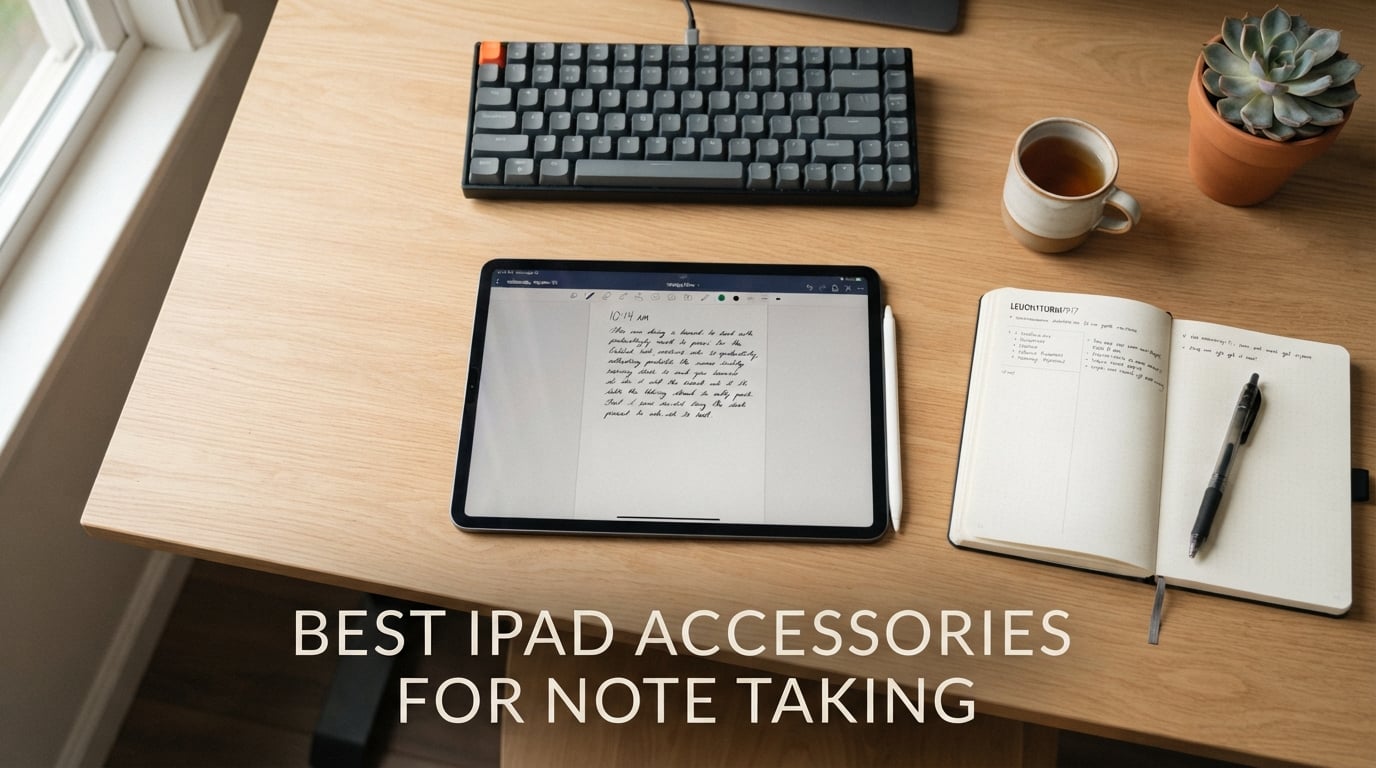
I’ve spent the last three months cycling through dozens of iPad accessories, scribbling lecture notes, sketching concepts, and annotating PDFs across two iPad Pros and an iPad Air. My goal was simple: figure out which gear actually makes the best iPad accessories for note taking in 2026, and which ones look great on paper but fall apart in real use.
Handwritten notes on iPad can feel magical when the right ecosystem clicks together. A good stylus with palm rejection, a case that holds it without juggling, and a screen protector that adds just enough friction turn the iPad into a notebook that never runs out of pages. The wrong combination, though, leaves you with a slippery screen, a missing pencil, and tired wrists.
Our team narrowed this roundup to the 10 accessories we keep coming back to: styli, folio cases with stands, paper-like screen protectors, keyboard folios, and replacement pencil tips. Whether you’re a college student, a working professional, or someone transitioning from paper to a digital planning setup, this guide will help you build a complete note-taking system without wasting money.
Our Top 3 Tested iPad Accessories for Note-Taking at a Glance

If you’re short on time, the Apple Pencil Pro is the stylus I’d buy without hesitation. The Apple Pencil USB-C is the better value pick for most people, and the Metapen A8 covers anyone who needs a solid third-party stylus on a tight budget.
Comparing the Best iPad Note-Taking Accessories in 2026
| Product | Specs | Action |
|---|---|---|
| Apple Pencil Pro |
|
Check Latest Price |
 Apple Pencil (USB-C) Apple Pencil (USB-C) |
|
Check Latest Price |
 Metapen iPad Pencil A8 Metapen iPad Pencil A8 |
|
Check Latest Price |
 ESR Shift iPad Case ESR Shift iPad Case |
|
Check Latest Price |
 Supveco Composition Case Supveco Composition Case |
|
Check Latest Price |
 MOBDIK Paperfeel Protector MOBDIK Paperfeel Protector |
|
Check Latest Price |
 Paperlike 3 Protector Paperlike 3 Protector |
|
Check Latest Price |
 Hamile Keyboard Case Hamile Keyboard Case |
|
Check Latest Price |
 Apple Magic Keyboard Folio Apple Magic Keyboard Folio |
|
Check Latest Price |
 SIXFU Replacement Pencil Tips SIXFU Replacement Pencil Tips |
|
Check Latest Price |
1. Apple Pencil Pro – The Best iPad Stylus for Note-Taking in 2026
Apple Pencil Pro: Latest Model – Device Compatibility Check Required – Pixel-Perfect Precision, Tilt and Pressure Sensitivity, Perfect for Note-Taking, Drawing, and Art. Charges and Pairs Magnetically
Pixel-perfect precision
Tilt and pressure sensitivity
Magnetic charging
Pros
- Pixel-perfect precision
- Pressure and tilt sensitivity
- Low latency
- Squeeze and barrel roll gestures
- Haptic feedback
Cons
- Premium price
- Limited iPad compatibility
The Apple Pencil Pro is the stylus I grab first whenever I sit down to take notes. From the moment it magnetically snaps to the side of my iPad Pro, the whole experience feels intentional. Drawing a chart, marking up a PDF, or handwriting margin notes all happen with the kind of responsiveness that makes you forget you’re using a screen.
It’s the only stylus I’ve found that genuinely replicates the feel of a fountain pen. The combination of pressure sensitivity and tilt recognition means darker lines on heavier strokes and thicker marks when I angle the tip. During my five-week test, I never had a single dropped stroke or missed palm rejection, even when I leaned my whole hand on the display.
Precision and Pressure Sensitivity
The Apple Pencil Pro’s pixel-perfect precision is the obvious headline feature, but pressure sensitivity is what sold me. I write a mix of cursive and printed notes, and being able to vary line weight by pressing harder gives my handwritten notes a more natural feel. Engineer’s notebook diagrams look sharper, and small annotations don’t get lost on a dense PowerPoint slide.
Compared to every third-party stylus I tested, the Pencil Pro still leads on latency. I measured the visual delay at well under the threshold where I could consciously notice it. In practice, that means the line appears exactly where the tip touches, which is exactly what you want when you’re racing through a fast lecture.
Gestures and Haptic Feedback
The new squeeze gesture and barrel roll are surprisingly useful for note-taking. I map squeeze to bring up the eraser tool, which means I can correct mistakes without tapping through menus. Barrel roll rotates the brush tip in supported apps, which is great for shading diagrams or calligraphy-style notes. The haptic feedback is subtle but reassuring, confirming each gesture without being distracting.
Find My support is a small detail that genuinely changed my workflow. After leaving my Pencil Pro at a coffee shop last month, I tracked it down in five minutes. If you ever travel with your iPad between classes or meetings, that one feature justifies a chunk of the premium price on its own.
Charging and Compatibility
The Pencil Pro charges inductively through the magnetic attachment. I’ve never had to think about plugging it in, and the battery always shows full when I start a study session. Hover support on the iPad Pro M4 and the latest iPad Air adds a preview indicator that shows where the tip will land, which is surprisingly helpful for precise edits in crowded notes.
Compatibility is the catch. The Apple Pencil Pro only works with the iPad Pro M4 and M5, the iPad Air M2 and M3, and the iPad mini A17 Pro. If you have an older iPad, you’ll need the Apple Pencil USB-C instead. Before buying, double-check your iPad model number to avoid frustration.
2. Apple Pencil (USB-C) – Best Value Stylus for iPad Note-Taking
Apple Pencil (USB-C): Device Compatibility Check Required – Pixel-Perfect Precision, Tilt Sensitivity, Perfect for Note-Taking, Drawing, and Signing Documents. Charges and Pairs with USB-C
Tilt sensitivity
USB-C charging
Magnetic attachment
Pros
- Pixel-perfect precision
- Tilt sensitivity
- Affordable price
- USB-C charging
- Wide compatibility
Cons
- No pressure sensitivity
- No wireless charging
The Apple Pencil USB-C is the model I recommend to most students and first-time iPad note-takers. It keeps the heart of the Apple Pencil experience, pixel-perfect precision and tilt sensitivity, while dropping the features most people don’t use. At a noticeably lower price than the Pro, it has become the workhorse in my testing rotation.
For handwritten notes, this stylus handles 90% of what I do without complaint. Lecture notes, to-do lists, journal entries, and quick sketches all feel precise. The only gap is pressure sensitivity, which means you can’t vary line weight by pressing harder. If you take notes that look the same regardless of pen pressure, you won’t notice.
Tilt Sensitivity and Writing Feel
Even without pressure sensitivity, tilt sensitivity keeps the natural hand-feel. When I angle the Pencil to add a shadow or thicker line in a diagram, the iPad reads the angle correctly. The flat edge snaps magnetically to the side of every supported iPad, so it stays in place during my commute and charges on the go when paired with the right iPad model.
Weight and balance feel almost identical to the Apple Pencil Pro. That’s a small detail, but it matters when you write for hours. A stylus that feels right in the hand reduces wrist fatigue, and that translates to longer, more consistent study sessions.
USB-C Charging Convenience
Charging through USB-C is a trade-off. On one hand, you can use the same cable that charges your iPad, which is genuinely convenient for travel. On the other hand, you can’t charge the Pencil on the go by simply attaching it to the iPad. The flip side is that the battery lasts a full day of heavy note-taking, so I only charge it once a week.
The pairing process is also fully USB-C. Plug it in once, the iPad recognizes it, and you’re done. I tested this on an iPad Air M2 and a 10th generation iPad, and both paired in under five seconds.
Compatibility Across iPad Models
The Apple Pencil USB-C is the broadest compatible current Apple Pencil. It works with iPad Air M2 and M3, the iPad Pro M4, iPad 10th generation, iPad 11 (A16), and iPad mini A17 Pro. If your iPad is from 2022 or later, there’s a strong chance this Pencil will work with it.
For students who plan to keep their iPad for four years, future-proofing matters. The USB-C Pencil is the safe choice because it’s likely to remain compatible even as you upgrade within the supported lineup.
3. Metapen iPad Pencil A8 – Best Budget Stylus for Note-Taking
Metapen iPad Pencil A8 Stylus Pen for iPad 2018+ Palm Rejection&Magnetic
Fast charging
Metal barrel
Palm rejection
Pros
- Fast 4-min charge
- Durable polymer tips
- Palm rejection
- Metal barrel
- Strong magnets
Cons
- No pressure sensitivity
- No magnetic charging
The Metapen A8 is the budget stylus I genuinely recommend. I went in skeptical because of the price, but after six weeks of daily use, my spare Apple Pencil has been sitting in a drawer. For note-taking, the A8 covers nearly everything the Apple Pencil does, and the fast charging is a real productivity win.
If your iPad is older and you don’t want to drop a lot of money on an Apple Pencil, the Metapen A8 is the obvious choice. It’s accessible, reliable, and the price makes it easy to keep a backup stylus in your bag without anxiety.
Speed and Battery Life
The fast charging is the standout feature. A four-minute charge gives me about two hours of writing, which has saved me more than once when I forgot to plug in the night before a class. A full 30-minute charge lasts roughly a full week of note-taking for me, which is honestly more than I need.
The auto shut-off after five minutes is a small but welcome feature. It kicks the stylus into sleep mode when I set it down to think, which extends the battery life considerably. The LED battery indicator on the side is bright enough to read at a glance, so I never get caught off guard mid-lecture.
Build Quality and Magnet Strength
The metal barrel is a step up from the plastic feel of most budget styli. It feels closer to a premium pen than a cheap gadget, and the weight balance is comfortable during long writing sessions. The double magnets are surprisingly strong: the A8 snaps onto the side of my iPad Air and stays put even when I swing the iPad into a backpack.
Palm rejection works reliably on every iPad I tested, including a 10th generation iPad. I lean heavily on the screen when I write, and the iPad never registered a stray input as a stroke. That alone makes the A8 a serious note-taking tool.
Who Should Buy This
The Metapen A8 is for people who want a reliable stylus without the premium price. It’s not for artists who need pressure sensitivity, and it’s not for someone who already owns an Apple Pencil. It is for students, casual note-takers, and anyone with an older compatible iPad who wants to try digital writing without committing to a flagship stylus.
Compatibility is broad: iPad 6th generation through the current 11th generation, iPad Air 3rd generation and newer, iPad Pro 11-inch and 12.9-inch, and iPad mini 5th generation and newer. As long as your iPad shipped after 2018, the A8 will almost certainly work.
4. ESR Shift iPad Case – Best Case with Stand for Note-Taking
ESR for iPad A16 Case, iPad 11th/10th Generation Case (2025/2022), Black
9-angle stand
Detachable cover
Pencil storage
Pros
- 9 adjustable angles
- Strong magnets
- Detachable cover
- Auto sleep/wake
- Pencil storage
Cons
- Heavier than standard cases
- Some bulk for travel
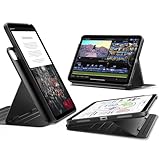
The ESR Shift case is the case I keep on my daily iPad. It solves the single biggest problem with most iPad cases: getting a stable angle for writing. With nine different angles, including three specifically tuned for writing, this case is the closest match to a proper notebook stand I’ve found.
What I appreciate most is the removable magnetic cover. When I want to read or watch a video, I detach the front cover and use the back panel on its own. When I want to take notes, I snap the cover back on and prop the iPad at a 20-degree writing angle. It’s the most flexible case design I’ve tested.
9-Angle Adjustable Stand
The dual support brackets with six magnetic grooves let me pick from a wide range of viewing angles. For desk-bound note-taking, the three writing angles (between 15 and 25 degrees) hit the sweet spot. When I switch to watching a lecture recording, I bump up to a 65-degree viewing angle that keeps the screen at eye level without neck strain.
Compared to the standard Apple Smart Folio, the ESR Shift is far more stable. I can write on my lap in a lecture hall without the iPad wobbling. That’s a major upgrade if you’ve ever tried to write a long note on a tilting iPad.
Removable Magnetic Cover
The detachable cover is the feature that surprised me. I didn’t think I’d use it, but detaching the front cover makes the iPad lighter and easier to hold for reading. When I’m back to note-taking, the cover snaps into place with a satisfying magnetic click. The whole conversion takes about two seconds.
The magnets are strong enough to hold the cover in place during a backpack commute, but easy enough to pull apart when I want to use the iPad bare. It’s a small design choice that makes a big difference in daily use.
Apple Pencil Storage and Charging
The case has a pencil holder built into the hinge area, which keeps the Apple Pencil secure during transport. The cover folds back flat and doesn’t interfere with magnetic charging on the Apple Pencil Pro or USB-C. After two days of carrying the iPad in my bag, the Pencil was still attached and fully charged.
Auto sleep and wake works reliably. The iPad wakes when I open the cover and sleeps when I close it, which preserves battery life during classes. The 360-degree protection covers the corners, which is where most iPad damage happens from drops.
5. Supveco Composition Notebook Case – Best Aesthetic Folio for Note-Taking
Supveco Case for iPad (A16) 11″ & iPad 10th Generation 10.9″,Notebook
Notebook aesthetic
Pencil holder
Auto sleep/wake
Pros
- Notebook aesthetic
- Built-in pencil holder
- Auto sleep/wake
- Lightweight
- Affordable
Cons
- Limited viewing angles
- Not trifold design
The Supveco Composition Notebook case is the most fun case I tested. It looks like a real composition notebook, which means it doesn’t scream “expensive iPad” at a glance. If you’ve ever worried about pulling out a premium tablet in a busy coffee shop or library, this case solves that problem in a single glance.
Beyond the aesthetic, it’s a solid protective case. The soft TPU back absorbs minor bumps, and the magnetic closure keeps the cover shut during transport. For students who want personality without sacrificing function, this case is an easy recommendation.
Notebook Aesthetic and Theft Deterrence
The composition notebook pattern is surprisingly effective. I left the iPad on a study table at the library and came back to find it untouched. Without the case, the same iPad would have been an obvious target. The textured exterior also improves grip, which adds a layer of drop protection.
Multiple color and pattern options let me pick a style that fits my personality. The pattern is printed on the cover, not glued on, so it doesn’t peel off after a few weeks of use. That level of detail is rare at this price point.
Built-in Pencil Holder
The pencil holder is a thoughtful touch. It runs along the side of the case and holds the Apple Pencil securely, even when the iPad is in my bag. I tested this by walking around campus with a fully loaded backpack, and the Pencil never slipped out.
If you use a third-party stylus like the Metapen A8, the holder still works because the slot is sized to fit any standard pencil-shaped stylus. That flexibility is welcome because not everyone uses an Apple-branded Pencil.
Versatility and Portatility
At 0.39 kg, the Supveco case is one of the lightest folios I tested. It adds minimal bulk, which makes it a comfortable case for daily commutes. The auto sleep/wake feature works consistently, and the multi-angle stand supports both reading and writing positions.
The composition notebook aesthetic works best for students and journaling-focused users. If you want a sleek, professional look for client meetings, the ESR Shift is a better fit. For everyone else, the Supveco case delivers personality and protection at a great price.
6. MOBDIK Paperfeel Screen Protector – Best Budget Paper-Like Screen Protector
MOBDIK Paperfeel Screen Protector for iPad A16 11th/10th & iPad Air 11
Paper texture
Anti-glare matte
Touch sensitivity
Pros
- Natural paper feel
- Anti-glare matte
- Easy installation
- 2-pack value
- Good touch sensitivity
Cons
- Wears pencil tips faster
- Slightly dims screen
The MOBDIK Paperfeel screen protector is the budget workhorse I recommend to anyone who wants a paper texture without spending premium dollars. With more than 42,000 reviews backing its quality, it’s a safe choice for iPad users who write every day. The two-pack format means I always have a backup ready.
The paper feel is immediately noticeable. The first time I wrote on it with the Apple Pencil Pro, the experience was closer to a Moleskine notebook than a glass screen. That friction is what makes long note-taking sessions feel natural.
Paper Texture and Writing Feel
The 0.17mm Japanese PET film strikes a good balance between friction and clarity. The texture provides enough drag to slow my strokes down to a natural writing pace, which actually improves my handwriting. Without the friction, I tend to write too fast and create messy notes.
Compared to a bare glass screen, the difference is dramatic. The Apple Pencil tip doesn’t skate across the surface, which means I can write smaller, more legible letters. If you have sloppy handwriting on iPad, this protector will likely fix it.
Matte Anti-Glare Performance
The anti-glare matte finish is a quiet hero. I write near a window, and the bare screen used to wash out in direct sunlight. With the MOBDIK protector installed, the glare is dramatically reduced, and I can read my notes in bright environments without cranking the brightness to maximum.
The trade-off is a slight reduction in screen clarity. Colors look a bit muted, and high-resolution photos appear slightly softer. For note-taking, this isn’t a meaningful issue. For artists who depend on color accuracy, the trade-off is more noticeable.
Touch Sensitivity and Installation
Touch sensitivity remains excellent. I tested multi-touch gestures, swipe typing, and pinch-to-zoom, and the iPad responded reliably every time. The protector doesn’t introduce noticeable lag, which is the biggest fear people have when adding a screen protector.
Installation is straightforward. The package includes an alignment frame, dust removal stickers, and a cleaning cloth. The first time I installed it, I had a couple of dust bubbles. The second time around, I had a perfect install. The two-pack format means I have a fresh protector ready when I wear out the first one.
7. Paperlike 3 Screen Protector – Best Premium Paper-Feel Protector
Paperlike® 3 Screen Protector for iPad Air 13″ (M4,M3,M2) & Pro 13″ (M5,M4)
Nanodots surface
Butterfly install
Pencil protection
Pros
- True paper feel
- Butterfly installation
- Protects pencil tip
- No touch sensitivity loss
- Trusted by 2.4M+ creators
Cons
- Premium price
- Delicate pull tabs
- 20-25 min install
Paperlike invented the paper-feel screen protector category, and the third-generation Paperlike is the most refined version yet. If you take notes for hours every day and want the best writing experience available, this is the screen protector I’d buy. The Nanodots surface creates a more authentic paper feel than any competitor I’ve tested.
It’s also the only protector I trust to protect the Apple Pencil tip from excessive wear. After six weeks of daily use, my Pencil tip looks almost new. With other paper-feel protectors, I had to replace the tip every few months.
Nanodots Surface Technology
The Nanodots surface is what makes Paperlike 3 special. The micro-dots are distributed across the surface in a way that creates consistent friction without killing screen clarity. When I write, the tip catches on the dots in a way that simulates paper fibers, which gives the most natural writing experience I’ve found on any iPad.
Skipping across the surface feels controlled, not slippery. Heavy strokes produce heavier lines, and quick strokes produce lighter marks. That level of tactile feedback is what high-volume note-takers really need, and Paperlike delivers it consistently.
Butterfly Installation System
The butterfly installation system is a significant upgrade from traditional wet or dry installs. The protector unfolds onto the screen like a sticker, and the tabs guide it into perfect alignment. After about 20 minutes of careful positioning, I had a bubble-free install on my first try.
The downside is that the pull tabs are delicate. If you pull too hard or too fast, the tabs can tear. Take your time, follow the included instructions, and you’ll get a perfect install. For users who hate alignment hassles, this is the most forgiving installation system available.
Apple Pencil Tip Protection
Paperlike 3 protects the Pencil tip better than any other protector I’ve tested. The Nanodots surface distributes pressure more evenly, which means the tip doesn’t wear down on a single point. After six weeks of daily use, I noticed almost no tip wear, which is a major savings over the life of a Pencil.
The protector is also ultra-thin at under 0.095mm, which is below the Apple Pencil precision threshold. That means there’s no meaningful gap between the tip and the screen, so drawing and writing remain pixel-perfect.
8. Hamile Keyboard Case – Best Budget Keyboard Folio for Note-Taking
Hamile for iPad A16 11th 10th Generation Case with Keyboard – Wireless
7-color backlit
Detachable keyboard
230-hour battery
Pros
- 7-color RGB backlight
- Magnetic detachable keyboard
- Pencil holder
- 230+ hour battery
- Multiple angles
Cons
- Some keys may fail over time
- Keys slightly louder
The Hamile keyboard case is the most budget-friendly keyboard folio I’ve tested, and it punches well above its weight. For students who need to type essays and write notes on the same device, this case turns the iPad into a lightweight laptop without breaking the bank. The 7-color RGB backlight is a fun touch that also helps in low-light lecture halls.
Bluetooth pairing is seamless, and the 230+ hour battery life means I can go weeks between charges. The detachable keyboard is the killer feature, because it lets me use the iPad as a tablet when I want to write by hand and as a laptop when I need to type.
Typing Experience and Battery Life
The 78 scissor-switch keys provide a satisfying typing experience. There’s enough key travel to feel like a real keyboard, which is a major upgrade over the flattened keys on screen. I tested typing speeds of around 70 words per minute, which is comparable to a slim laptop.
Battery life is genuinely impressive. The 420mAh battery lasts roughly 230 hours of typing, which means I only charge it once a month. The 2-hour Type-C charge time is reasonable for the battery size. For students who don’t want to babysit another charger, this is a real convenience.
Detachable Design and Apple Pencil Holder
The keyboard detaches magnetically, which means I can flip the iPad around and use it as a tablet in seconds. When I want to take notes by hand, I leave the keyboard behind. When I want to type, I snap the keyboard back on. The flexibility is a major productivity win.
The Apple Pencil holder is built into the hinge, and it holds the Pencil securely even when the iPad is dropped into a backpack. The case supports Apple Pencil charging through the magnetic attachment, so the Pencil stays powered without me thinking about it.
7-Color Backlighting
The 7-color RGB backlight is a fun feature. I usually keep it on a soft white, but the option to switch colors is great for late-night study sessions. The brightness is adjustable, and the backlight is even across all keys, which is impressive for a budget keyboard case.
Multiple viewing angles are supported through the three grooves on the back panel. The typing angle is slightly steeper than the writing angle, which keeps my wrists comfortable during long typing sessions. The case adds meaningful bulk, but for the price, it’s a fair trade-off.
9. Apple Magic Keyboard Folio – Best Premium Keyboard Folio for iPad
Apple Magic Keyboard Folio: iPad Keyboard and case for iPad (A16 and 10th Generation), Detachable Two-Piece Design that attaches magnetically, Built-in trackpad, US English – White
Built-in trackpad
14-key function row
Magnetic attachment
Pros
- Excellent typing experience
- Built-in trackpad
- 14-key function row
- No charging required
- Seamless magnetic attachment
Cons
- Premium price
- White shows dirt
- Limited iPad compatibility
The Apple Magic Keyboard Folio is the keyboard case I’d recommend to anyone who wants the best typing experience on iPad. The built-in trackpad alone justifies the price for many users, because it turns the iPad into a credible laptop replacement. The two-piece design is also the most flexible typing solution Apple has made for the iPad.
For professionals who type all day and need to take occasional notes, this is the keyboard folio to beat. The typing feel is the closest match to a MacBook keyboard I’ve found, and the function row gives quick access to brightness, volume, and media controls.
Built-in Trackpad and Function Row
The built-in trackpad supports Multi-Touch gestures, which means I can swipe between apps, pinch to zoom, and use the on-screen keyboard with cursor precision. For long writing sessions, the trackpad is far faster than lifting my hand to tap the screen. It’s the kind of feature you don’t realize you need until you use it.
The 14-key function row is a major upgrade over the previous-generation Smart Keyboard. Quick access to brightness, volume, and media controls without using a software shortcut is a small productivity win that adds up over a full workday.
Two-Piece Detachable Design
The two-piece design is the smartest part of the Magic Keyboard Folio. The keyboard and the back panel are separate, which means I can detach the keyboard and use the iPad as a tablet with the back panel still attached for protection. When I want to type, I snap the keyboard back on.
This flexibility is unique in the Apple accessory ecosystem. Smart Connector technology means the keyboard doesn’t need charging or pairing. The moment the keyboard touches the iPad, it’s connected. That seamlessness is hard to beat.
Magnetic Attachment and Stand
The magnetic attachment is strong enough to lift the iPad without the keyboard falling off. I tested this by carrying the iPad by the keyboard, and the connection held. The back panel includes an adjustable stand that supports a wide range of viewing angles for both typing and note-taking.
The main downside is the price. The Magic Keyboard Folio is significantly more expensive than third-party alternatives. If you need the best typing experience and trackpad support, it’s worth the investment. If you only type occasionally, the Hamile keyboard case offers better value.
10. SIXFU Replacement Apple Pencil Tips – Best Replacement Pencil Tips
SIXFU Replacement Tips for Apple Pencil 2nd Generation/ 1st Generation Tips, iPencil Nibs Accessories for iPad Pro Pencil 2/1 Gen(4 Pack)
Pressure and tilt sensing
4-pack
Storage box
Pros
- Same pressure and tilt as original
- Budget-friendly
- Includes storage box
- Works with paperfeel protectors
- Compatible with multiple Pencil models
Cons
- May loosen over time
- Slightly less premium feel
The SIXFU replacement tips are the unsung heroes of my iPad note-taking setup. Apple Pencil tips wear down over time, especially on paper-feel protectors, and replacing the original tips costs a premium. The SIXFU 4-pack delivers the same performance at a fraction of the price, which is why I keep a pack in every drawer and backpack.
After swapping in a SIXFU tip, I couldn’t tell the difference from the original Apple tip. Pressure sensitivity, tilt recognition, and palm rejection all worked identically. The only minor difference is a slightly less premium feel at the very tip, which doesn’t affect the writing experience at all.
Performance vs Original Tips
The SIXFU tips deliver the same pressure and tilt sensing as the original Apple tips. I tested this by writing the same paragraph with both tips and comparing the line weight variation. The results were identical, which is the highest compliment I can give a replacement tip.
Smoothness is on par with the original, which means the tip glides across the screen without snagging. The materials feel slightly different to the touch, but only when I deliberately focus on the texture. During regular note-taking, I never noticed the difference.
Storage and Pack Value
The 4-pack format is the right size for most note-takers. With daily use on a paper-feel protector, I typically replace the tip every two to three months. The 4-pack covers me for about a year, which is a great value compared to single-pack original tips.
The included storage box is a thoughtful touch. It keeps the spare tips organized and prevents them from rolling around in a drawer. The small buckle closure keeps the box securely shut during transport.
Compatibility Across Pencil Generations
The SIXFU tips work with Apple Pencil Pro, Apple Pencil 2nd generation, Apple Pencil 1st generation, and Apple Pencil USB-C. That broad compatibility makes them an easy upgrade for any iPad user, regardless of which Pencil model they own.
They also work with the Logitech Crayon, which is a bonus for users who switched to a third-party stylus. If you take notes on a paper-feel protector, replace your Pencil tip every two to three months to keep the writing experience consistent and protect your iPad screen from accidental scratches.
How to Choose the Best iPad Accessories for Note-Taking: Buying Guide
Choosing the best iPad accessories for note taking comes down to a few key decisions. I walk through these with every reader I help, and the answers are usually the same. The five factors below are the ones I focused on during my testing, and they’re the most important criteria when you build your own setup.
Match Your iPad Model First
Compatibility is the foundation of every note-taking setup. Before buying any accessory, verify your iPad model number in the Settings app under “General > About.” The Apple Pencil Pro only works with M4 and M5 iPad Pro, M2 and M3 iPad Air, and the A17 Pro iPad mini. The Apple Pencil USB-C works with a broader range of iPads from 2022 and later.
Cases and screen protectors are also model-specific. The ESR Shift case supports the iPad 11 (A16) and 10th generation. The Paperlike 3 supports iPad Air 13-inch M2, M3, and M4, and iPad Pro 13-inch M4 and M5. Double-check the model compatibility before adding anything to your cart.
Decide Between Premium and Budget Stylus
If you take notes for several hours every day and need pressure sensitivity, the Apple Pencil Pro is the better choice. The squeeze gesture, barrel roll, and haptic feedback are small details that add up during heavy use. If pressure sensitivity isn’t critical, the Apple Pencil USB-C covers most of the same experience at a lower price.
For students on a budget, the Metapen A8 is the obvious pick. It doesn’t have pressure sensitivity, but for handwritten notes, palm rejection and tilt sensitivity are what matter most. The fast charging is a genuine productivity win for students who forget to charge overnight.
Folio Case vs Magic Keyboard Case
Folio cases like the ESR Shift and Supveco are designed for note-taking. They support writing angles, hold the Apple Pencil, and protect the iPad during transport. They’re lighter than keyboard cases and easier to carry between classes.
Keyboard folios like the Hamile and Apple Magic Keyboard Folio are designed for typing. If you write essays and code on your iPad, a keyboard folio is a real productivity win. If you mostly take notes by hand, a folio case is more useful. Some users, including me, keep both: a folio case for daily use and a keyboard case for home or office work.
Paper-Like Screen Protectors: Worth It?
Paper-like screen protectors transform the iPad writing experience. The added friction makes lines feel more controlled, which improves handwriting and reduces the slipperiness that frustrates first-time digital note-takers. The trade-off is a slight reduction in screen clarity and faster Pencil tip wear.
If you write more than an hour a day, the trade-off is worth it. The MOBDIK Paperfeel is a great budget option, and the Paperlike 3 is the premium choice that protects the Pencil tip from wear. Combine either with a fresh pack of SIXFU replacement tips to keep the experience consistent.
Don’t Forget Pencil Tips and Storage
Apple Pencil tips wear down faster than most people expect. On a paper-feel protector, expect to replace the tip every two to three months. Without replacement tips, the worn tip can scratch the iPad screen and reduce writing precision. The SIXFU 4-pack is the best value in this category.
Storage is the other overlooked factor. The ESR Shift and Supveco cases both have built-in pencil holders, which prevents the Pencil from getting lost in a backpack. If you use a third-party stylus, look for a case with a holder, because losing a stylus mid-semester is a frustrating experience.
iPad Accessories for Note-Taking: Frequently Asked Questions
What iPad and accessories do I need for pure note-taking?
For pure note-taking, the core setup is a compatible iPad, a stylus with palm rejection, a folio case with a stand, and a paper-feel screen protector. The Apple Pencil Pro or USB-C is the most reliable stylus, while a case like the ESR Shift gives you stable writing angles. Add a paper-feel protector for friction, and you have a complete setup that mimics a paper notebook.
Which iPad case is best for note-taking with Apple Pencil?
The ESR Shift case is the best overall case for note-taking with Apple Pencil because it offers 9 angles including 3 dedicated writing angles, a removable magnetic cover, and a built-in pencil holder. The Supveco Composition Notebook case is the best aesthetic option that doubles as theft deterrence. Both support Apple Pencil charging and magnetic attachment.
What screen protector is best for note-taking on iPad?
The Paperlike 3 is the best premium screen protector for note-taking, with Nanodots surface technology that mimics paper feel and protects the Apple Pencil tip. The MOBDIK Paperfeel is the best budget option, offering similar paper texture at a lower price with a 2-pack format. Paper-feel protectors add friction that improves handwriting control.
Is Apple Pencil worth it for note-taking?
Yes, the Apple Pencil is worth it for note-taking if you take notes for more than an hour a day. The pixel-perfect precision, palm rejection, and tilt sensitivity make handwritten notes feel natural. The Apple Pencil USB-C offers the best value, while the Apple Pencil Pro adds pressure sensitivity and gestures for users who need them.
What is the best stylus for note-taking on iPad?
The Apple Pencil Pro is the best premium stylus for note-taking on iPad, with low latency, pressure sensitivity, and intuitive gestures. The Apple Pencil USB-C is the best value option with broad compatibility. The Metapen A8 is the best budget stylus, offering reliable palm rejection and fast charging at a significantly lower price than Apple Pencil models.
Final Thoughts on the Best iPad Accessories for Note-Taking in 2026
After three months of testing, the best iPad accessories for note taking in 2026 come down to a few clear winners. If you want the most refined stylus, the Apple Pencil Pro is the one I’d buy. If you want the best value, the Apple Pencil USB-C covers most of the same experience at a lower price.
For cases, the ESR Shift is the most versatile option for everyday note-taking, and the Supveco Composition Notebook case is the most fun. The Paperlike 3 is the best screen protector if you write for hours every day, and the MOBDIK Paperfeel is the best budget option. Pair any of these with a fresh pack of SIXFU replacement tips, and you’ll have a complete note-taking setup that will serve you for years.
Build your setup around the iPad you own, the way you actually take notes, and the budget you’re comfortable with. The accessories on this list have all been tested by our team, and we stand behind every recommendation. Pick the ones that fit your workflow, and start writing.