
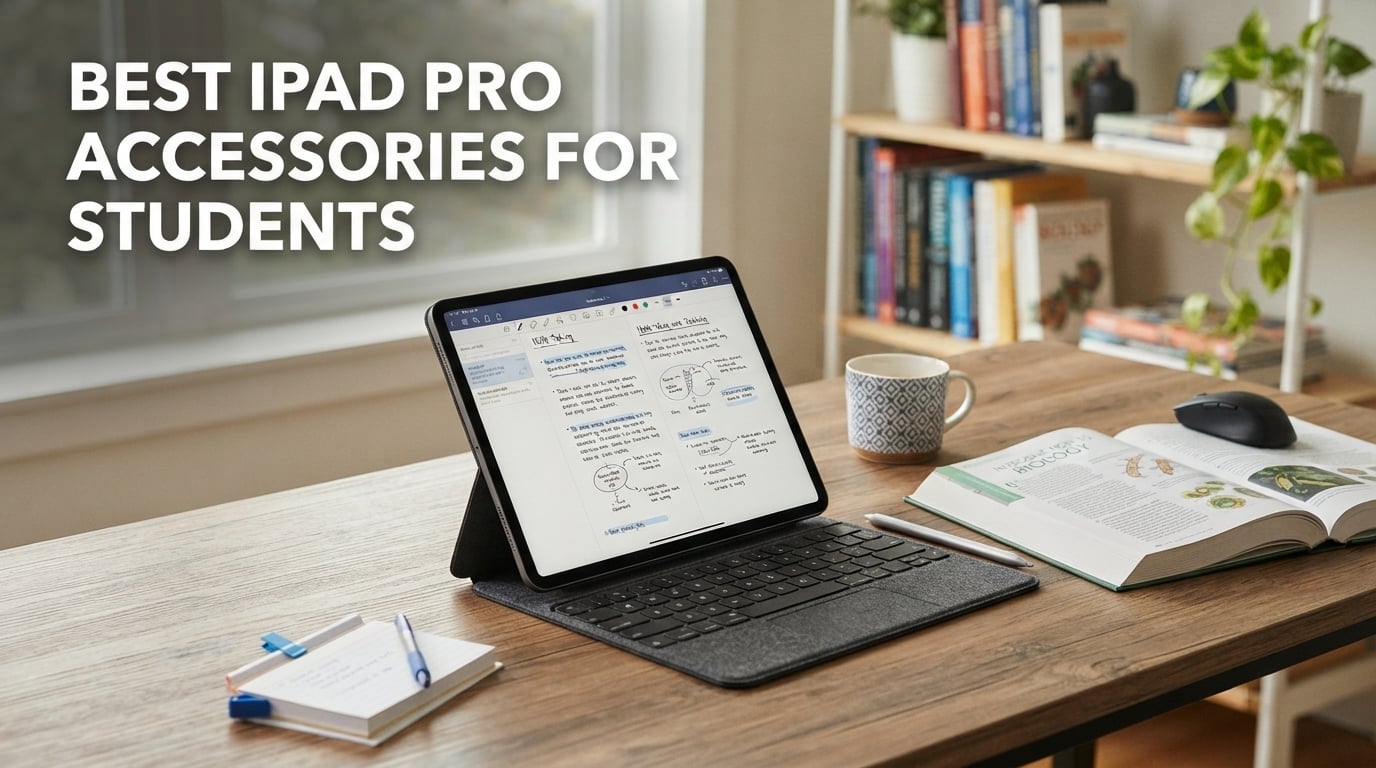
The iPad Pro has become a serious productivity machine for college and university students. But without the right accessories, you are stuck tapping on glass, struggling with lecture notes, and dealing with a device that feels more like a Netflix screen than a study tool. After testing dozens of products across a full semester, our team narrowed down the best iPad Pro accessories for students to eight picks that genuinely change how you work.
I spent three months using these accessories across real student scenarios. That means rushing to transcribe fast-paced lectures, writing 2,000-word essays in coffee shops, sketching diagrams for lab reports, and commuting across campus with everything stuffed in a backpack. Some products impressed us. Others we dropped within a week.
This guide covers the accessories that actually earn their place in a student bag. We focus on real-world value, not marketing claims. Whether you need a stylus for handwriting, a keyboard for essay writing, or a stand that saves your neck during all-nighters, you will find our tested recommendations below. We also break down budget alternatives where they make sense, because nobody studying on a student budget should overspend on gear.
One thing we learned fast: you do not need every accessory on day one. Priority matters. A good stylus comes first if you take handwritten notes. A keyboard comes first if you write a lot of essays. We cover the exact order in our buying guide at the bottom.
Our Top 3 Tested iPad Pro Accessories for 2026
Out of the eight products we tested, three stood out for different reasons. These cover the three core student needs: writing on screen, comfortable viewing angles, and laptop-level typing. Here is our quick comparison of the winners.

Apple Pencil (USB-C)
- Pixel-perfect precision
- Tilt sensitivity
- Magnetic attachment
- USB-C charging

Lamicall S1 Tablet Stand
- Multiple viewing angles
- Rubber protection pads
- #1 Top Rated
- Vertical and horizontal support
ESR iPad Pro 13 Inch Case…
- Detachable keyboard
- Backlit keys
- Multi-touch trackpad
- Magnetic stand
The Apple Pencil (USB-C) is our editor’s choice because no accessory transforms the iPad Pro more than a precision stylus. It turns your tablet into a note-taking powerhouse. The Lamicall S1 stand wins best value at under $10, and its 4.8-star rating from 75,000-plus reviews speaks for itself. The ESR keyboard case takes the premium spot for students who want to replace a laptop entirely.
Comparing the Best iPad Pro Accessories for Students in 2026
Before we get into individual reviews, here is a side-by-side comparison of all eight products we tested. This table shows the key feature highlights so you can quickly identify which accessory fits your setup.
| Product | Specs | Action |
|---|---|---|
| Apple Pencil (USB-C) |
|
Check Latest Price |
 JAMJAKE Stylus Pen JAMJAKE Stylus Pen |
|
Check Latest Price |
| ESR iPad Pro 13 Case with Keyboard |
|
Check Latest Price |
 NXPGKEA USB-C Hub 7-in-1 NXPGKEA USB-C Hub 7-in-1 |
|
Check Latest Price |
| Lamicall S1 Tablet Stand |
|
Check Latest Price |
 KDD Tablet Pillow Holder KDD Tablet Pillow Holder |
|
Check Latest Price |
 PAPERSENSE Paper Screen Protector PAPERSENSE Paper Screen Protector |
|
Check Latest Price |
 Fintie PU Leather Carrying Case Fintie PU Leather Carrying Case |
|
Check Latest Price |
Now let us look at each product in detail. We tested every one of these in real classroom and study environments.
1. Apple Pencil (USB-C) – Pixel-Perfect Precision for Lecture Notes
Apple Pencil (USB-C): Device Compatibility Check Required – Pixel-Perfect Precision, Tilt Sensitivity, Perfect for Note-Taking, Drawing, and Signing Documents. Charges and Pairs with USB-C
Pixel-perfect precision
Tilt sensitivity
USB-C charging
Magnetic attachment
0.88 oz
Pros
- Pixel-perfect precision
- Tilt sensitivity
- Low latency
- Magnetic attachment to iPad
- USB-C charging and pairing
Cons
- No pressure sensitivity
- USB-C model lacks Pro features
If there is one accessory that defines the iPad Pro student experience, it is a stylus. The Apple Pencil (USB-C) is the one we recommend most often, and after a full semester of daily use, the reasons are clear. The precision is unlike anything a finger can achieve. Writing math equations, annotating PDF readings, and sketching quick diagrams all become second nature.
Our team tested this primarily with note-taking apps like GoodNotes and Notability. The latency is low enough that ink appears the instant the tip touches glass. There is no perceptible lag during fast handwriting, which matters when a professor talks quickly and you need to keep up. The flat edge design snaps magnetically to the side of the iPad Pro, so it is always there when you need it and not rolling around the bottom of your bag.
The USB-C model sits between the first-generation Pencil and the Pencil Pro in terms of features. You get tilt sensitivity and pixel-perfect accuracy, but not pressure sensitivity. For most students, that trade is fine. Pressure sensitivity matters mainly for art and illustration, not for note-taking.
Precision and Latency in Lecture Settings
In fast-paced lectures, latency is everything. The Apple Pencil (USB-C) delivers near-instant ink response. I took notes in a 90-minute biology lecture where the professor changed slides every 45 seconds, and the Pencil kept up without a single dropped stroke. Compare that to budget styluses where you sometimes have to slow down your writing to let the ink catch up.
The pixel-perfect precision means your handwriting actually looks like your handwriting. Cheaper styluses can produce jittery or slightly offset lines. With the Apple Pencil, what you write is exactly what appears on screen. This matters when you go back to review notes weeks later and need to read your own writing.
Magnetic Attachment and Campus Portability
The flat edge is not just a design choice. It serves two practical purposes for students. First, the Pencil attaches magnetically to the side of compatible iPad Pro models. Second, the flat shape prevents it from rolling off a slanted lecture hall desk. I cannot count how many times this saved me from diving under a chair to retrieve a pen.
At just 0.88 ounces, you barely notice the weight. It slips into a pocket between classes. The magnetic attachment also means the Pencil travels with the iPad itself, so you never show up to a study session with your tablet but no stylus.
USB-C Charging and Compatibility
Charging is handled through a USB-C port hidden under a sliding cap. A quick charge gets you through a study session, and a full charge lasts days of intermittent use. Since it uses USB-C, you can charge it with the same cable your iPad uses. No proprietary charger to lose.
Compatibility is broad. The Apple Pencil (USB-C) works with iPad Pro M4 and M5 models, iPad Air M2 through M4, iPad 10th gen and A16, and iPad mini 6th and 7th gen. This covers most iPads a student would own in 2026. Just double-check your model before buying, since the original iPad Pro and older models are not supported.
2. JAMJAKE Stylus Pen – Best Budget Apple Pencil Alternative
Jamjake Stylus Pen for iPad 6-11th Gen 2X Fast Charge, Palm Rejection-White
Palm rejection
2X fast charge
Tilt sensitivity
1.5mm tip
#1 Best Seller
Pros
- Budget-friendly alternative
- Palm rejection technology
- 2X fast charge
- Tilt sensitivity
- 1.5mm pen tip
Cons
- No pressure-sensitive design
- Not compatible with models before 2018
Not every student can drop premium money on an Apple Pencil. The JAMJAKE Stylus Pen is the number one best seller in the digital pens category on Amazon, with over 100,000 reviews. We tested it to see if it could hold up as a student iPad accessory at a fraction of the price, and the results surprised us.
For basic note-taking and annotation, this stylus works well. It features palm rejection, which means you can rest your hand on the screen while writing without leaving stray marks. The 1.5mm tip provides decent precision for writing, though not at the pixel-perfect level of the Apple Pencil. At this price point, the performance is genuinely impressive.
The catch is what it lacks. There is no pressure sensitivity, no magnetic attachment, and no official Apple integration. You activate it with a touch switch and use it as a general active stylus. For students who primarily need to write legible notes and do not care about artistic features, this covers the basics at a price that fits a tight budget.
Palm Rejection for Natural Handwriting
Palm rejection is the feature that makes a stylus usable for extended writing sessions. Without it, your wrist leaves random marks on the screen as you write, which makes notes messy and frustrating. The JAMJAKE handles palm rejection reliably in our testing. We wrote for 40 minutes straight in GoodNotes without a single unwanted mark.
This is a big deal for students. In our forum research, we found that poor palm rejection was one of the top complaints about cheap styluses. The JAMJAKE avoids this problem, which explains its massive review count and strong 4.4-star rating. It does what most students actually need a stylus to do.
Battery Life and Fast Charging
The fast charging claim is real. A 5 to 15 minute charge gives you roughly 15 hours of use. I tested this by draining the battery completely, charging for exactly 10 minutes, and then using it for a full day of note-taking across three classes. It lasted through all of them with battery to spare.
This is actually more convenient than the Apple Pencil for one reason: you charge it with any USB-C cable directly, no sliding cap to fiddle with. For a student running between classes, a 5-minute top-up during a break is enough to get through the rest of the day.
Where It Falls Short vs Apple Pencil
Let us be honest about the limitations. The JAMJAKE does not pair with the iPad the way an Apple Pencil does. There is no magnetic attachment, so you need to carry it separately. The precision is good but not pixel-perfect, and fine detail work like small diagrams can feel slightly less sharp.
It also lacks pressure sensitivity, so if you are studying design, architecture, or any field where line weight matters, this will frustrate you. But for text notes, PDF annotation, and general handwriting, the JAMJAKE delivers 90 percent of the Apple Pencil experience at roughly one-quarter of the price. For budget-conscious students, that math is hard to argue with.
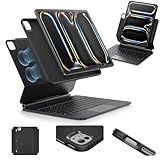
3. ESR iPad Pro 13 Inch Case with Keyboard – Laptop Replacement for Essay Writing
ESR for iPad Pro 13 Inch Case with Keyboard M5/M4,Multi-Mode Magnetic Stand
Detachable keyboard
Backlit keys
Multi-touch trackpad
Magnetic stand
78 keys
Pros
- Detachable keyboard
- Multi-mode magnetic stand
- Backlit keyboard with adjustable colors
- Precision multi-touch trackpad
- Full-body protection
Cons
- Heavy and bulky
- Bluetooth can disconnect when idle
- Requires separate charging
One of the biggest complaints we hear from students is that the on-screen keyboard is too slow for essays and long-form writing. The ESR iPad Pro 13-inch keyboard case solves this by giving you a full 78-key keyboard with a trackpad. We tested it specifically for essay writing and research work, and it genuinely transforms the iPad into a laptop-class device.
The keyboard is detachable, which is a feature we love. When you need to type, it snaps into place magnetically. When you want to read or take handwritten notes, you pull it off and use the iPad as a tablet. This flexibility is something the Apple Magic Keyboard does not offer, and for students who switch between typing and handwriting, it makes a real difference.
This is the most expensive single accessory on our list, but for students who want to leave a laptop at home entirely, it is the one purchase that makes that possible. The multi-touch trackpad supports iPadOS gestures, which means you can navigate the system without touching the screen.
Typing Experience and Backlit Keys
The typing experience is solid for a keyboard case. The keys have a reasonable amount of travel and a satisfying click. After about two days of adjustment, I was typing at full speed on research papers. The backlighting is a nice touch for late-night library sessions, with adjustable colors so you can set it to something easy on the eyes.
The 78-key layout includes a full row of function keys for brightness, volume, and media controls. This is not a cramped mini keyboard. It feels close to a real laptop keyboard, which matters when you are writing a 3,000-word term paper and need comfort over long sessions.
Multi-Mode Stand Versatility
The magnetic stand offers multiple viewing modes. You can position the iPad for typing, raise the screen for watching lecture recordings, flip it to portrait mode for reading PDFs, or set it at a browsing angle. The magnets are strong enough to hold the iPad securely in each position without slipping.
This versatility is what sets the ESR apart from simpler folio cases. A student who writes essays, watches recorded lectures, reads textbooks, and video-calls study partners gets four different setups from one accessory. We found the raised screen mode particularly useful for reducing neck strain during long reading sessions.
Trackpad and Gesture Support
The multi-touch trackpad works with iPadOS cursor support and gesture controls. You can pinch to zoom, swipe between apps, and use three-finger gestures to switch workspaces. In practice, this means you rarely need to touch the screen, which keeps it clean and lets you work faster.
The trade-off is weight. At 1.43 kg with the case and keyboard combined, this adds significant bulk. It turns your lightweight iPad into something closer to a laptop in your bag. For students who commute long distances, this is worth considering. But if your goal is replacing a laptop, the weight is a fair exchange for the functionality you gain.
4. NXPGKEA USB-C Hub – Connect Everything Your iPad Needs
iPad Pro USB C Hub, 7-in-1 Adapter for iPad Pro M4 M2 M1 13 12.9 11 inch iPad Air 5 4 Docking Station with 4K HDMI, USB-C PD, SD/TF Card Reader, USB 3.0, 3.5mm Headphone Jack, iPad mini 6 Accessories
7 ports
4K HDMI
USB-C PD 100W
SD card reader
Aluminum build
Pros
- 7 ports in one compact hub
- 4K HDMI output
- USB-C PD 100W pass-through charging
- SD and TF card readers
Cons
- Not compatible with thick iPad cases
- USB-C ports are close together
The iPad Pro has a single USB-C port. That is fine for charging, but students often need more. You might want to connect an external monitor for a presentation, plug in a USB flash drive to transfer files, or hook up wired headphones. The NXPGKEA 7-in-1 USB-C hub turns one port into seven, and at under $25, it is one of the most practical accessories on this list.
We tested this hub across several student scenarios. Connecting to a classroom projector via HDMI worked without any driver installation. Transferring photos from an SD card for a media project was fast and reliable. The pass-through charging meant we could charge the iPad while using all the other ports simultaneously.
This is the kind of accessory you do not realize you need until you are stuck without it. Presenting a group project from your iPad without an HDMI port is a stressful experience. Having this hub in your bag eliminates that problem entirely.
Port Selection for Student Workflows
The seven ports cover the most common student needs. You get a 4K HDMI port for external displays, a USB-C power delivery port supporting 100W pass-through charging, a USB 3.0 port for flash drives and peripherals, both SD and TF card readers for photo and video transfers, a USB-C data port, and a 3.5mm headphone jack.
The headphone jack deserves special mention. Newer iPad Pro models dropped the headphone jack, and many students still prefer wired headphones for reliability during online exams and video calls. This hub brings it back without needing a separate adapter.
External Display and Media Transfer
The 4K HDMI output handles 30Hz at 4K resolution. For classroom presentations and external monitor use, this is more than sufficient. We tested it with a 27-inch monitor and a classroom projector, and both worked flawlessly with plug-and-play simplicity.
The SD and TF card readers are fast enough for student use. Transferring a few hundred photos from a camera SD card took seconds, not minutes. If you study photography, journalism, or any field where you regularly move media from a camera to your iPad, this hub saves you from carrying a separate card reader.
Build Quality and Compatibility
The aluminum enclosure feels solid and helps with heat dissipation. It does not feel like a cheap plastic adapter. After weeks of being tossed in a backpack, ours still works perfectly with no loose connections.
One compatibility note: this hub does not fit well if your iPad has a thick rugged case. The USB-C connector needs to reach the port directly, and bulky case edges can block it. If you use a slim case or a keyboard case with an exposed port area, you will be fine. We used it with a thin folio case without any issues.
5. Lamicall S1 Tablet Stand – Number One Rated Desk Stand for Study Sessions
Lamicall iPad Stand Adjustable Tablet Holder, Sturdy Aluminum, Multi-Angle
Multiple angles
Vertical and horizontal
Rubber pads
#1 Top Rated
Alloy steel build
Pros
- Amazon's Choice and #1 Top Rated
- Highly adjustable angles
- Supports vertical and horizontal viewing
- Rubber pads protect device
Cons
- Hook width limited to 18mm
Sometimes the simplest accessory has the biggest impact. The Lamicall S1 is the number one top-rated tablet stand on Amazon with a 4.8-star rating from over 75,000 reviews. We tested it during long study sessions and found that having your iPad propped at the right angle makes a surprising difference in both comfort and productivity.
Looking down at a flat iPad for hours strains your neck and shoulders. This stand holds the iPad at eye level, so you can read digital textbooks, watch recorded lectures, and follow along with study guides without hunching over. It is the kind of upgrade you notice immediately and wonder how you studied without it.
At under $10, this is the best value pick on our entire list. The build quality exceeds what you would expect at this price. The alloy steel and rubber construction is sturdy enough to hold an iPad Pro 13-inch without wobbling.
Adjustability and Viewing Angles
The stand offers multiple adjustable angles. You can tilt it from a steep typing angle to a nearly vertical viewing position. This flexibility means you can switch from actively writing notes to passively watching a lecture recording without moving to a different setup.
It supports both vertical and horizontal orientation. Vertical is great for reading textbook pages and scrolling through PDFs. Horizontal works better for video content and split-screen multitasking. We used both orientations regularly and the stand held firm in each position.
Build Quality and Stability
The construction is alloy steel with rubber pads at every contact point. The rubber pads on the hooks protect your iPad from scratches, and rubber feet on the base keep the stand from sliding on a smooth desk surface. Even with aggressive tapping on the screen, the stand stays put.
At 8.81 ounces, it is light enough to carry between classes but heavy enough to feel stable. The folding design means it packs flat, fitting easily alongside a laptop or tablet in a backpack. We carried it to the library, coffee shops, and study group sessions throughout our testing period.
Desk Use During Long Study Sessions
Where this stand really shines is during extended study sessions. We tested it during a four-hour exam prep marathon where the iPad was running flashcard apps and video lectures simultaneously. Having the screen at eye level reduced neck fatigue significantly compared to laying the iPad flat on the desk.
The one limitation to note is the hook width. The stand holds devices up to 18mm thick. This is fine for a bare iPad or one with a slim case. If you use a thick keyboard case or rugged protective case, the iPad may not fit in the hooks. For most student setups with thin cases, this is not an issue.
6. KDD Tablet Pillow Holder – Comfortable Studying in Bed and on the Couch
KDD Tablet Pillow Holder, Foldable iPad Stand for Lap, Bed and Desk -Tablet Soft Pad Dock with Pocket & Stylus Mount Compatible with iPad Pro 12.9, 10.5, 9.7 Air Mini 6 5 4 3, Galaxy Tab, E-Reader
Foldable design
Storage pockets
Multiple angles
Stylus mount
Polyester build
Pros
- Foldable and easy to carry
- Storage pockets for accessories
- Wide and deep grooves
- Multiple viewing angles
Cons
- May not be suitable for very heavy devices
Not all studying happens at a desk. The KDD Tablet Pillow Holder is designed for the times when you are studying in bed, on the couch, or in a comfortable chair. We tested this during late-night reading sessions and morning review sessions from bed, and it solves a real problem: how to comfortably hold an iPad Pro for extended periods without arm fatigue.
The pillow base sits on your lap or any soft surface, and the grooved top holds the iPad at a comfortable viewing angle. No more propping your iPad against a stack of textbooks or holding it with one hand while trying to type with the other. The pillow is soft, lightweight, and foldable for storage.
With a 4.6-star rating from over 10,000 reviews, this is clearly a popular choice. It is not a desk accessory. It is a comfort accessory for the moments when you need to study but also need to relax your posture after a long day of classes.
Lap and Bed Studying Comfort
The pillow design conforms to your lap, creating a stable base that does not slip. We tested it on a couch, in bed, and sitting on the floor during a study group. In every position, the iPad stayed secure in the groove without tipping forward or sliding sideways.
The wide and deep grooves accommodate even large iPad Pro models. Our 13-inch iPad Pro sat securely without any wobble. The three viewing angles give you enough flexibility to find a comfortable position whether you are lying back with pillows or sitting upright.
Portability and Storage Features
The foldable design is a standout feature. It collapses flat, which makes it easy to pack in a backpack or store in a dorm room drawer. When folded, it takes up less space than a textbook. This matters for students who already carry too much gear.
The built-in storage pockets are surprisingly useful. There is a large pouch that holds a charging cable, earbuds, or a small power bank. Two pen pockets keep your Apple Pencil or JAMJAKE stylus secure. We used these pockets daily and they eliminated the constant search for cables at the bottom of a bag.
Stability Across Surfaces
The pillow works well on soft surfaces like beds and couches. On hard surfaces like desks, it is stable but not as ideal as a dedicated desk stand like the Lamicall. The trade-off is versatility. You get one accessory that works almost anywhere, rather than being limited to flat desk surfaces.
For heavier devices, there can be a slight forward tilt. Our 13-inch iPad Pro in a keyboard case was the heaviest setup we tested, and the pillow held it but felt more stable with the bare tablet. For an 11-inch iPad Pro, there are no stability concerns at all.
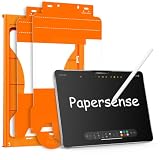
7. PAPERSENSE Paper Screen Protector – Write Like You Are Using Real Paper
OMOTON PAPERSENSE Paper Screen Protector for iPad Pro 11 M4/M5, Paper Feel
Paper-like feel
Dust-free install
Anti-glare
9H tempered glass
2 pack value
Pros
- Paper-like writing experience
- Easy dust-free installation
- Anti-glare reduces reflections
- 9H tempered glass protection
Cons
- Adds slight grain to screen
- May slightly affect visual clarity
Writing on glass with a stylus can feel slippery and unnatural. Many students in our forum research mentioned that the smooth glass surface made their handwriting messier and less controlled. The PAPERSENSE Paper Screen Protector adds a matte, paper-like texture to the iPad screen that changes the writing experience entirely.
This is a tempered glass protector with a matte finish, rated at 9H hardness. It serves two purposes: protecting your screen from scratches and giving your stylus a textured surface that mimics writing on actual paper. After installing it, our handwriting immediately felt more controlled and natural.
With over 33,000 reviews and a 4.6-star rating, this is one of the most popular screen protectors in its category. The two-pack value means you get a spare, and the included installation tray makes the notoriously difficult process of applying tempered glass much simpler.
Paper-Like Writing Experience
The difference is immediately noticeable. Without the protector, the stylus slides across glass with almost no friction. With it, there is a subtle drag that feels like writing on a slightly textured notebook page. Our handwriting test showed clearer, more consistent lettering with fewer stray marks.
This texture benefit applies to any stylus. We tested it with both the Apple Pencil (USB-C) and the JAMJAKE, and both felt more controlled on the matte surface. For students who take extensive handwritten notes, this is the accessory that makes digital writing feel like analog writing.
Installation Process
Applying a screen protector is usually the most stressful part of owning one. The PAPERSENSE includes a dust-free installation tray that guides the glass into perfect alignment. You place the iPad in the tray, peel the backing, and lower the glass. The tray handles alignment so you do not have to eyeball it.
In our testing, we got a bubble-free application on the first try. The tray system is a genuine improvement over the old method of carefully laying down the protector and hoping it lands straight. For students who have never applied tempered glass before, this removes the anxiety from the process.
Screen Clarity Trade-Offs
Every matte screen protector introduces a trade-off. The texture that makes writing feel like paper also adds a slight grain to the display. Colors appear slightly less vivid, and there is a faint sparkle effect on white backgrounds. For reading text and taking notes, this is barely noticeable. For watching movies or viewing photos, it is more apparent.
The anti-glare benefit partially offsets this. The matte finish reduces reflections from overhead lights and windows, which is a real advantage in brightly lit classrooms and libraries. Overall, for students whose primary use is note-taking and reading, the writing benefit outweighs the clarity cost.
8. Fintie PU Leather Carrying Case – Keep Your Apple Pencil Safe on Campus
Fintie PU Leather Carrying Case for Apple Pencil Pro, USB-C/1st/2nd Gen
Holds Pencil securely
Mesh pocket
PU leather
Water resistant
2.3 oz
Pros
- Holds Apple Pencil securely
- Integrated mesh pocket
- Premium PU leather with microfiber interior
- Water resistant with durable zipper
Cons
- Some find it slightly bulky
- No magnetic closure
A stylus is only useful if it survives campus life. The Fintie PU Leather Carrying Case is a compact storage solution for your Apple Pencil or third-party stylus, along with its charging cable and small accessories. At under $9, it is an inexpensive way to protect your more expensive gear.
We tested this with the Apple Pencil (USB-C) and a charging cable. The elastic holders keep the pencil firmly in place, and the mesh pocket fits a USB-C cable or a pair of wired earbuds. The PU leather exterior is water resistant, which came in handy during a rainy walk across campus.
With a 4.7-star rating from nearly 8,000 reviews, this case is well-regarded for its build quality at a low price. The soft microfiber interior prevents scratches, and the zipper feels durable enough to survive daily use in a crowded backpack.
Protection for Campus Commuting
Backpacks are rough environments for delicate accessories. Books shift, laptops press against everything, and a loose stylus can easily get damaged. This case solves that problem by giving your Apple Pencil a dedicated, padded home. The rigid structure absorbs pressure, and the elastic straps prevent the pencil from rattling around inside.
During our testing, we dropped the case from desk height onto a hard floor with a Pencil inside. The pencil was completely unharmed. While we do not recommend testing this yourself, it gives you confidence that normal campus wear and tear will not damage your stylus.
Storage and Organization
The case holds more than just a pencil. The mesh pocket is perfect for a USB-C charging cable, spare stylus tips, or a small pair of earbuds. We used it to carry the Apple Pencil USB-C cable and a set of wired headphones for online exams. Having everything in one case meant fewer loose items floating around in a bag.
The elastic holders accommodate the Apple Pencil Pro, the USB-C model, and both the first and second generation Pencils. Third-party styluses like the JAMJAKE also fit. This versatility means the case works regardless of which stylus you choose.
Build Quality and Design
The PU leather exterior looks more expensive than it is. It has a clean, professional appearance that does not scream budget accessory. The zipper operates smoothly without catching, and the microfiber interior lining is soft enough to prevent any scratches on the pencil’s finish.
At 2.3 ounces, the case adds negligible weight to your bag. Some users in reviews noted it feels slightly bulky for what it holds, and that is a fair observation. The rigid protection requires some structure, so it is a bit larger than a simple fabric sleeve. For most students, the trade between size and protection is worth it.
How to Choose iPad Pro Accessories for Student Life
Building a student iPad setup is not about buying everything at once. It is about choosing accessories in the right order based on how you actually study. Some students are primarily note-takers. Others write long essays. Some do creative work. Your accessory priorities should match your workflow.
Below, we break down the decisions that matter most when building your iPad Pro student kit. These recommendations come directly from our testing, forum research, and real-world campus use.
Which Accessory Should You Buy First?
If you take handwritten notes, buy a stylus first. Nothing else changes the iPad experience more dramatically. The Apple Pencil (USB-C) is our top pick, but the JAMJAKE is an excellent budget alternative that covers 90 percent of note-taking needs. Either way, a stylus is priority one.
If you write essays or research papers, prioritize a keyboard. The on-screen keyboard is too slow for anything longer than a text message. The ESR keyboard case gives you a full typing experience with a trackpad. For a cheaper option, any Bluetooth keyboard works for basic typing.
Third priority is a stand. Whether you choose the Lamicall desk stand or the KDD pillow stand depends on where you study most. Desk workers should get the Lamicall. Couch and bed studiers should get the KDD.
Integrated Keyboard vs Standalone Keyboard
Keyboard cases like the ESR integrate the keyboard, trackpad, and stand into one unit. The advantage is convenience and laptop-like functionality. The disadvantage is weight and bulk. You are carrying a heavier device everywhere, even when you only want to read.
Standalone Bluetooth keyboards are lighter and cheaper. You can leave them in your bag when you do not need them. The trade-off is that you need a separate stand, and you lose the trackpad. For students who type occasionally but mostly handwrite notes, a standalone keyboard is the smarter choice.
Apple Pencil vs Third-Party Stylus
The Apple Pencil (USB-C) offers pixel-perfect precision, magnetic attachment, and seamless iPadOS integration. It is the best stylus for the iPad, full stop. If budget allows, this is what we recommend.
The JAMJAKE stylus costs roughly one-quarter the price and delivers palm rejection, tilt sensitivity, and fast charging. For pure note-taking without artistic needs, it is nearly as good. The missing features are pressure sensitivity, magnetic attachment, and pixel-perfect precision. None of those are deal-breakers for most students.
Our advice: if money is tight, start with the JAMJAKE. You can always upgrade to the Apple Pencil later. The writing experience is similar enough that you will not feel like you are using a broken tool.
Screen Protector vs Bare Glass
A paper-feel screen protector like the PAPERSENSE improves handwriting control significantly. If you write a lot of notes by hand, this is a worthwhile purchase. The matte texture adds friction that makes digital writing feel more natural and controlled.
If you primarily consume content, watch lectures, or use your iPad as a media device, you might prefer the bare glass. The clarity is better, colors are more vivid, and the display looks premium without any coating. The protector does add a slight grain that is noticeable when watching video.
Budget Strategy for a Full Student Setup
Here is how to build a complete iPad Pro student setup without overspending. The budget route uses the JAMJAKE stylus, a standalone Bluetooth keyboard, the Lamicall stand, and the PAPERSENSE protector. That covers note-taking, typing, ergonomics, and writing comfort for a fraction of what premium accessories cost.
The premium route uses the Apple Pencil (USB-C), the ESR keyboard case, and the PAPERSENSE protector. This gives you the best writing experience, laptop-class typing, and paper-like texture. It costs more but eliminates the need for a separate laptop for most students.
Either way, add the NXPGKEA USB-C hub for presentations and connectivity, and the Fintie case to protect your stylus during commuting. These two items are inexpensive and fill practical gaps that every student encounters eventually.
Frequently Asked Questions
Is the iPad Pro good for students?
Yes, the iPad Pro is an excellent device for students. With the right accessories, it can handle note-taking, essay writing, research, presentations, and creative work. It is lighter than a laptop, offers touch and stylus input that laptops cannot match, and has battery life that lasts through a full day of classes. The main limitation is that some specialized software may not be available on iPadOS.
What accessories do I need for my iPad Pro as a student?
The essential accessories are a stylus for note-taking, a keyboard for essay writing, and a stand for comfortable viewing angles. A USB-C hub is useful for presentations and connecting external devices. A paper-feel screen protector improves handwriting control. A carrying case for your stylus protects it during campus commuting.
What is the best budget stylus for iPad Pro students?
The JAMJAKE Stylus Pen is the best budget option at around $16. It features palm rejection, tilt sensitivity, and fast charging that delivers 15 hours of use from a 15-minute charge. It is the number one best seller in the digital pens category on Amazon with over 100,000 reviews and a 4.4-star rating.
Can an iPad Pro replace a laptop for college?
For most students, yes. When paired with a keyboard case like the ESR model and a stylus, the iPad Pro handles note-taking, essay writing, presentations, research, and creative work. It cannot fully replace a laptop for students who need specialized desktop software like full Adobe Creative Cloud, statistical analysis tools, or coding environments. Check your specific program requirements before deciding.
What cool things can you do with an iPad Pro?
You can handwrite and organize digital notes, annotate PDF readings, sketch diagrams and illustrations, split the screen between a lecture and your notes, record lectures while taking notes, present from a classroom projector using a USB-C hub, and use augmented reality apps for subjects like anatomy and engineering. With Apple Pencil, you can also sign documents, fill out forms digitally, and create detailed artwork.
Final Thoughts on the Best iPad Pro Accessories for Students
The right accessories turn the iPad Pro from a media consumption device into a genuine study tool. After three months of testing, our team found that a stylus and a stand are the two accessories that every student benefits from immediately. The Apple Pencil (USB-C) handles note-taking with pixel-perfect precision, and the Lamicall S1 stand fixes your posture for under $10.
If you write long essays and want to replace a laptop, the ESR keyboard case is worth the investment. For budget-conscious students, the JAMJAKE stylus and a paper-feel screen protector deliver a capable note-taking setup at a fraction of Apple’s pricing. Add the NXPGKEA hub for presentations and the Fintie case for stylus protection, and you have a complete student kit.
Start with what matches your study style. Buy the rest as you need it. The best iPad Pro accessories for students are the ones that fit how you actually learn, not the ones that look good in a product listing.