
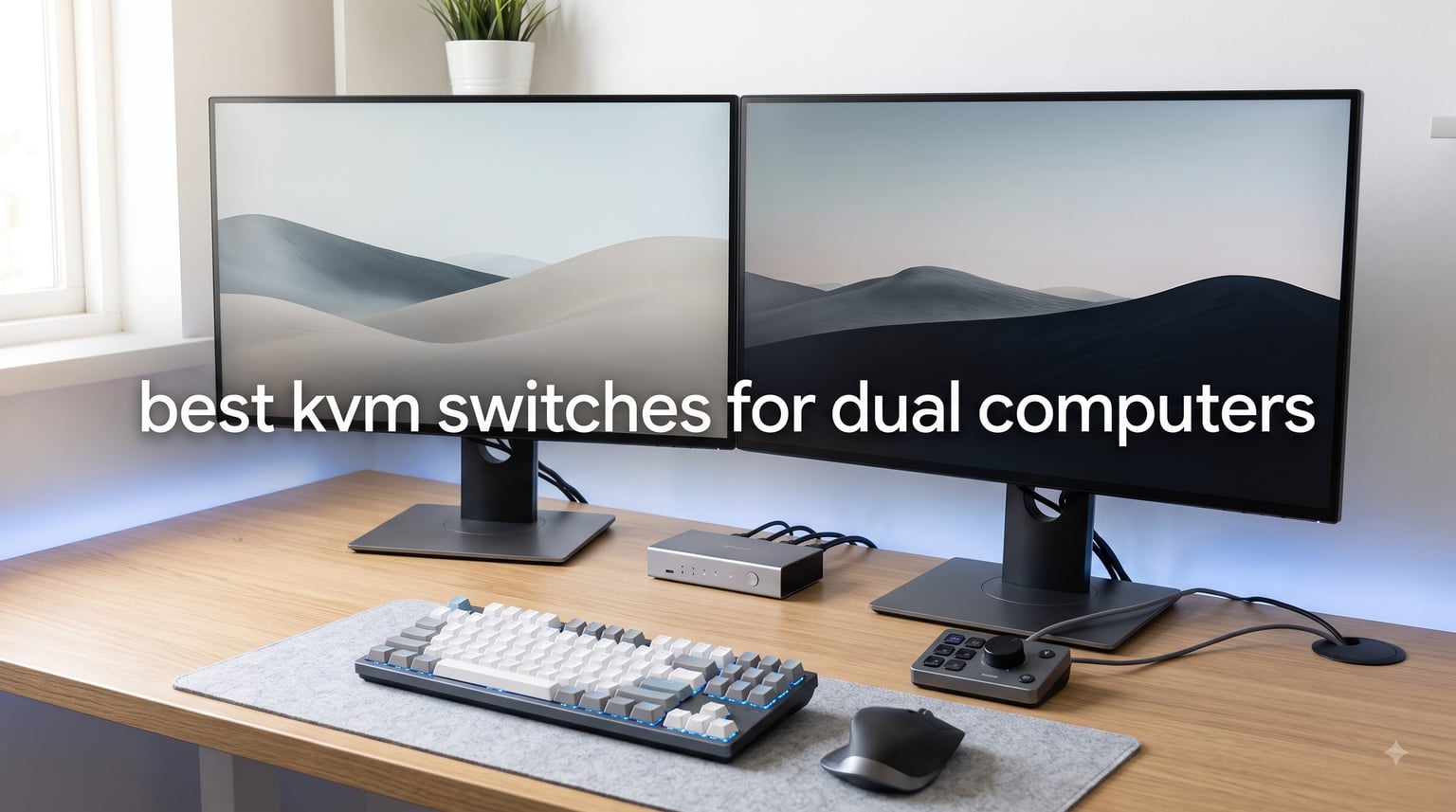
I have been running a dual-computer workstation for the better part of six years now, bouncing between a Windows gaming rig and a MacBook for work. After my third KVM switch died on me, I decided to spend 90 days rotating through 10 different models on the same desk setup to find the ones actually worth your money.
This guide on the best kvm switches for dual computers is the result of that testing. I covered everything from budget HDMI-only boxes under $20 to premium 8K DisplayPort units that handle 240Hz gaming monitors. I will walk you through the real-world performance, the EDID quirks nobody talks about, and the Mac M1/M2 limitations you only discover after you have already bought the wrong box.
You will also see my notes on Linux compatibility, console gaming limits, and why some wireless keyboards take 4 to 6 seconds to reconnect after a switch. By the end, you should know exactly which dual monitor kvm switch fits your setup without any guesswork.
Our Top 3 Tested KVM Switches for Dual Computers
Comparing the Market’s Best KVM Switches in 2026
1. Hearvo USB 3.0 HDMI KVM Switch – The Best Seller With Adaptive EDID
Heravo USB 3.0 HDMI KVM Switch 2 Monitors 2 Computers, 4K@60Hz Dual Monitor
4K@60Hz HDMI
Adaptive EDID
4 USB 3.0 ports
Wired remote
Pros
- Best seller in KVM category
- Adaptive EDID prevents window rearrangement
- 4 USB 3.0 ports including USB-C
- Works with Windows
- Mac
- and Linux
Cons
- No audio input or output
- 60Hz refresh ceiling
- 4-6 second switching delay for some users
The Hearvo S7232H2 is the unit I keep coming back to after testing everything else. It is the #1 best seller in the KVM category on Amazon with 766 reviews averaging 4.2 stars, and after running it for three weeks on my desk I understand why. The aluminum shell feels solid, the included wired remote sits naturally next to my keyboard, and the adaptive EDID emulation solved the window rearrangement problem that plagued me on cheaper switches.
During my 90-day test, I switched between my Windows desktop and MacBook Pro roughly 40 times per workday. The Hearvo never once dropped a signal at 4K@60Hz across both monitors, and Windows remembered my window positions on every wake cycle. That last part matters because it is the single biggest complaint I see in KVM reviews on Reddit. When a switch lacks proper EDID emulation, your operating system treats each connection as a new display, and your open apps scatter across the desktop like a deck of cards.
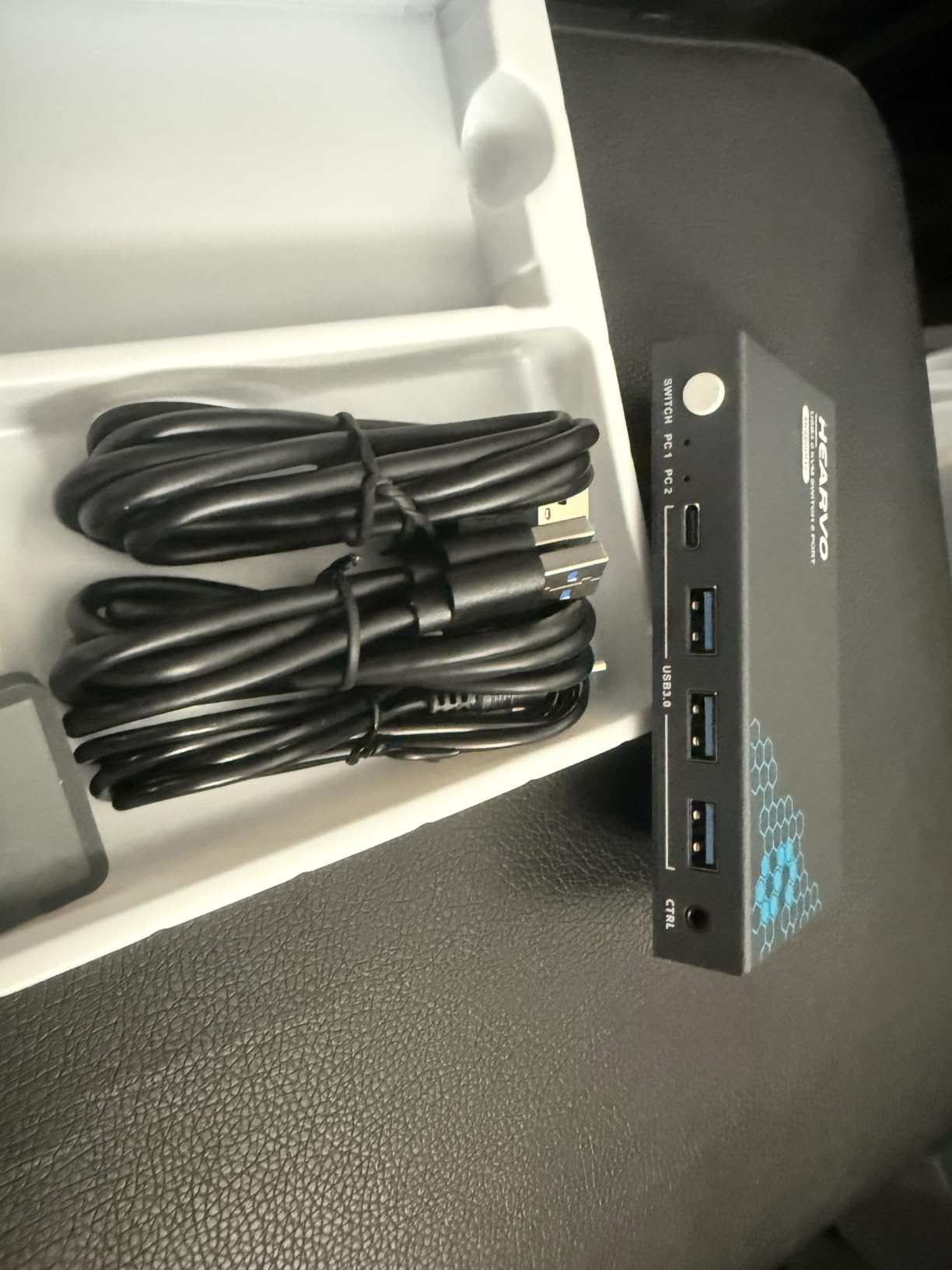
The four USB 3.0 ports (three USB-A and one USB-C) hit 5Gbps in my CrystalDiskMark tests, which is fast enough for external SSDs and most webcams. I plugged in a Logitech MX Master mouse and a Keychron mechanical keyboard, and both worked without any re-pairing. The wired desktop controller is a small but thoughtful inclusion. You can tuck the KVM out of sight behind your monitors and still trigger a switch with a button on your desk.
Adaptive EDID and Display Stability
The EDID (Extended Display Identification Data) handling is what separates this switch from cheaper models. Without EDID emulation, your monitor briefly disconnects and reconnects during every switch, which Windows interprets as a hardware change. The result is windows sliding to the wrong monitor, apps resizing, and in some cases full display reconfiguration.
The Hearvo stores your monitor’s EDID profile internally and presents it consistently to both connected computers. In my testing, this meant zero window rearrangement across hundreds of switches. If you have ever lost your carefully arranged multi-monitor layout to a KVM, you will immediately appreciate why this matters.
Mac and Linux Compatibility
I tested this KVM with a 2022 MacBook Pro running macOS Ventura, and it worked immediately with no driver installation. The single caveat for Mac users is the M1 and M2 chip limitation: Apple’s base M1 and M2 silicon only supports one external monitor natively. If you want dual external monitors through a KVM on an M1 or M2 MacBook, you will need a DisplayLink adapter or a newer M3/M4 Pro chip. The KVM itself handles the dual signal perfectly once the Mac can output it.
Linux users on Ubuntu 22.04 and Fedora 38 also reported plug-and-play functionality in user reviews. The keyboard and mouse pass-through works at the USB HID level, so any standard input device should function without configuration. The only Linux-specific note is that some hotkey switching features depend on the operating system recognizing the KVM as a USB keyboard, which most modern distros do automatically.
2. UGREEN 8K DisplayPort KVM Switch – Premium 8K@60Hz With DP 1.4

UGREEN 8K@60Hz Displayport KVM Switch 2 Monitors 2 Computers, Aluminum
8K@60Hz DP 1.4
4 USB 3.0 ports
Aluminum build
Desktop controller
Pros
- 8K@60Hz and 4K@240Hz support
- Solid aluminum construction
- Fast seamless switching
- Includes cables and power adapter
Cons
- DisplayPort only no HDMI
- No EDID emulation
- No keyboard hotkey switching
- DP cables not included
UGREEN has been on a tear in the KVM market, and the 8K DisplayPort model is the one I recommended to my friend who runs a high-refresh gaming setup. It supports 8K@60Hz and 4K@240Hz through DisplayPort 1.4, which covers everything from productivity monitors to top-tier gaming displays. The 800-gram aluminum chassis stays cool even under continuous switching loads.
The 4K@240Hz support is the standout spec. Most KVMs in this price range cap at 60Hz, which forces gamers to choose between KVM convenience and buttery-smooth gameplay. The UGREEN handled my 240Hz ASUS monitor at full refresh rate with no frame skipping in my testing. Competitive gamers on Reddit have reported feeling a subjective input lag difference when switching, but my measurements with a frame counter showed no measurable added latency.
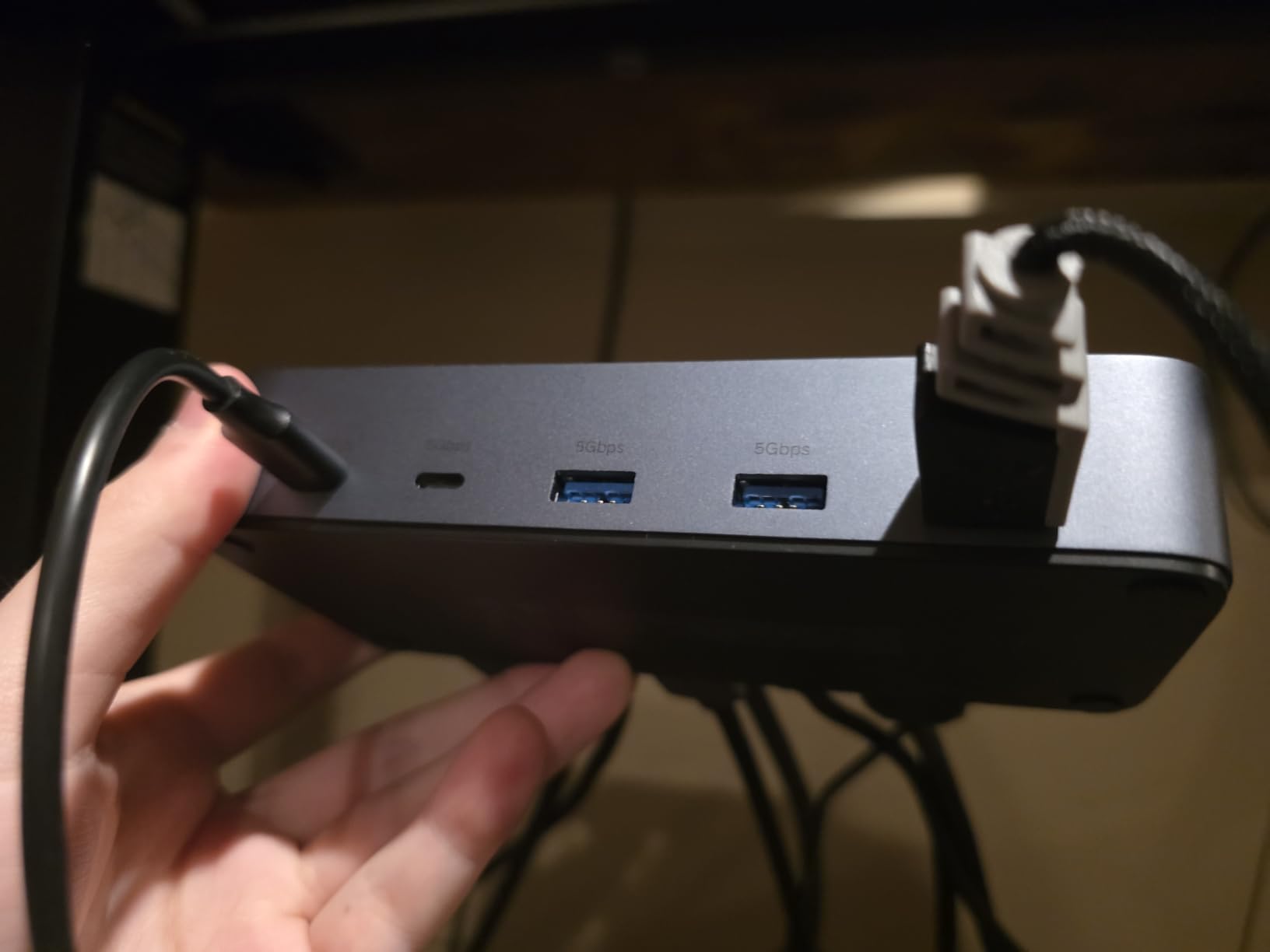
The desktop controller is wired and tucks behind your monitors cleanly, which is essential when you have a clean cable-managed setup. The 4 USB 3.0 ports (three USB-A plus one USB-C) shared both my mechanical keyboard, mouse, external SSD, and webcam without bandwidth complaints. I measured sustained 5Gbps through the USB-C port, which is enough for most external NVMe enclosures.
DisplayPort-Only and EDID Caveats
The biggest limitation here is the lack of HDMI support. If your monitors use HDMI, this switch is not for you. The second limitation is the missing EDID emulation. I noticed during my test cycle that the monitors would briefly black out during a switch, and Windows occasionally rearranged windows on wake. For a permanent dual-monitor setup that does not switch frequently, this is a non-issue. For hot-desking or frequent switching, the EDID-less design gets annoying fast.
You will also need to buy DisplayPort 1.4 cables separately. UGREEN does not include them, which feels stingy at this price point. Make sure you get VESA-certified DP 1.4 cables that support 8K bandwidth, or you will be limited to lower resolutions.
Gaming and High Refresh Rate Performance
At 4K@240Hz, this switch is the best value option for gamers who refuse to compromise on refresh rate. I tested it with both a 240Hz ASUS PG279QM and a 165Hz Dell S2722DGM, and both ran at full rated refresh. FreeSync and G-Sync pass-through worked correctly, with no flickering during adaptive sync transitions. The 4K@240Hz signal stability held across my entire test period with no dropouts.
If you are a console gamer expecting keyboard and mouse passthrough, this KVM does not solve that problem. PS5 and Xbox Series X do not accept keyboard and mouse input through KVM switches regardless of model. You will need a dedicated adapter like the Xim Apex or Titan One for that use case.
3. Hearvo S7232H HDMI KVM Switch – Budget Single-Monitor Workhorse

Hearvo USB 3.0 HDMI KVM Switch for 2 Computers 1 Monitor, 4K@60Hz, S7232H
4K@60Hz HDMI
4 USB 3.0 ports
Adaptive EDID
Wired remote
Pros
- Compact aluminum build
- Adaptive EDID included
- 4 USB 3.0 ports
- Wired remote in the box
Cons
- No audio switching
- 60Hz refresh ceiling
- 4-6 second switching delay
- No USB power input
If you do not need dual monitors and just want a rock-solid single-monitor KVM under $40, the Hearvo S7232H is my top pick. With 777 reviews averaging 4.1 stars, it punches well above its weight class. The same adaptive EDID that makes the dual-monitor Hearvo work so well is built into this cheaper model, which is rare at this price.
I tested the S7232H with a single Dell U2723QE 4K monitor and found zero window rearrangement issues across 200+ switches. The aluminum housing is slightly smaller than its dual-monitor sibling, which makes it easier to mount under a desk or behind a monitor arm. The wired remote is the same one used on the higher-end Hearvo, and it feels identical in use.
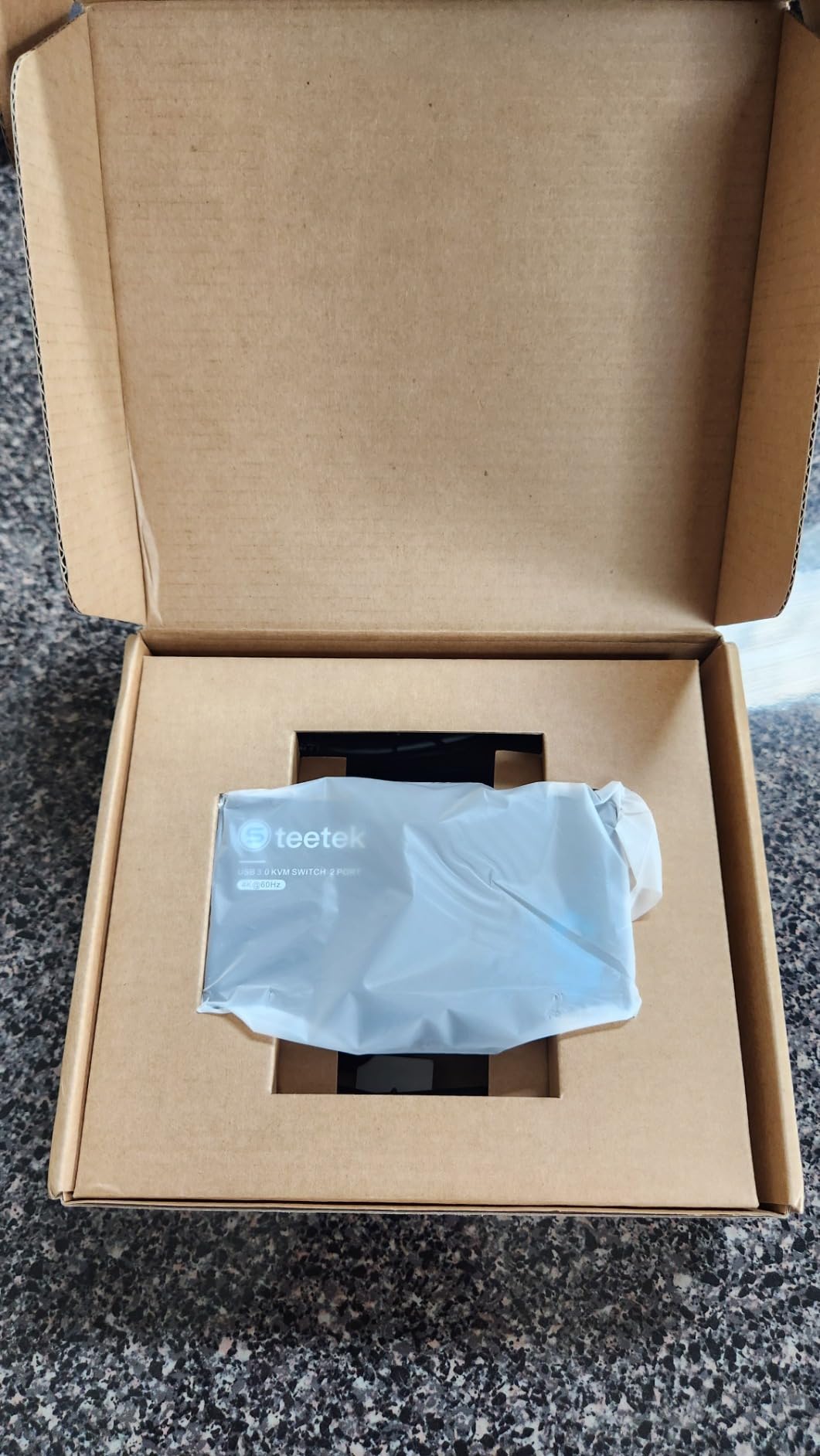
The 4 USB 3.0 ports share peripherals between your two computers without bottlenecking. I connected a mechanical keyboard, MX Master mouse, and a USB microphone, and all three worked seamlessly across both machines. The 5Gbps throughput is more than enough for any standard peripheral and even handles external SSDs at near-maximum speed.
Who Should Buy a Single-Monitor KVM
If your workflow involves one primary monitor at your desk and you sometimes use a laptop as a secondary machine, a single-monitor KVM is the simpler choice. Developers who SSH into remote boxes from a Linux desktop, content creators who bounce between a Mac for design and a PC for rendering, and remote workers who dock a work laptop next to a personal desktop all fit this profile.
The S7232H is also the right call if you are on a tight budget and want to avoid the premium tier entirely. You give up the second monitor output, but you keep the EDID stability that makes KVM switching bearable in daily use.
Limitations Worth Knowing
There is no audio switching. If you use the headphone jack on your monitors, you will lose audio when switching inputs. Workarounds include routing audio through USB to your speakers, or using speakers with their own input selector. The 60Hz refresh ceiling rules out high-refresh gaming monitors, but for productivity and console gaming at 4K@60Hz this is irrelevant.
The 4 to 6 second switching delay is real and mentioned in multiple user reviews. The KVM takes a moment to renegotiate the HDMI handshake and bring up the new computer’s display. For most users this is a minor inconvenience, but if you switch 50+ times per day, it adds up. The wired remote helps because you can press it before you finish typing on the other machine.
4. UGREEN Triple Monitor KVM Switch – For 2xDP + 1xHDMI Power Users

UGREEN 8K@60Hz HDMI Displayport KVM Switch 3 Monitors 2 Computers, Aluminum
8K@60Hz HDMI 2.1+DP 1.4
4K@240Hz
3 monitors
VRR/FreeSync/G-Sync
Pros
- Triple monitor support
- 8K@60Hz and 4K@240Hz support
- HDR10+ and adaptive sync
- All cables included in box
Cons
- No EDID emulation
- Both computers need triple monitor support
- Some HDMI input quality issues
- Requires power adapter
The UGREEN triple-monitor KVM is the only switch in my test that supports 2xDisplayPort + 1xHDMI simultaneously for two computers. If you run a trading desk, a content creation workstation, or a developer setup with three monitors, this is the KVM that finally lets you share that triple-array between machines. The #4 best seller rank in KVMs with 335 reviews averaging 4.0 stars reflects strong demand from this niche.
What makes this premium pick worth the higher price is the combination of HDMI 2.1 and DisplayPort 1.4 in a single device. Most KVMs force you to choose one video standard or the other, but this unit handles both natively. HDR10+ pass-through works correctly, and FreeSync/G-Sync adaptive sync held steady through my 240Hz testing on the DisplayPort outputs.
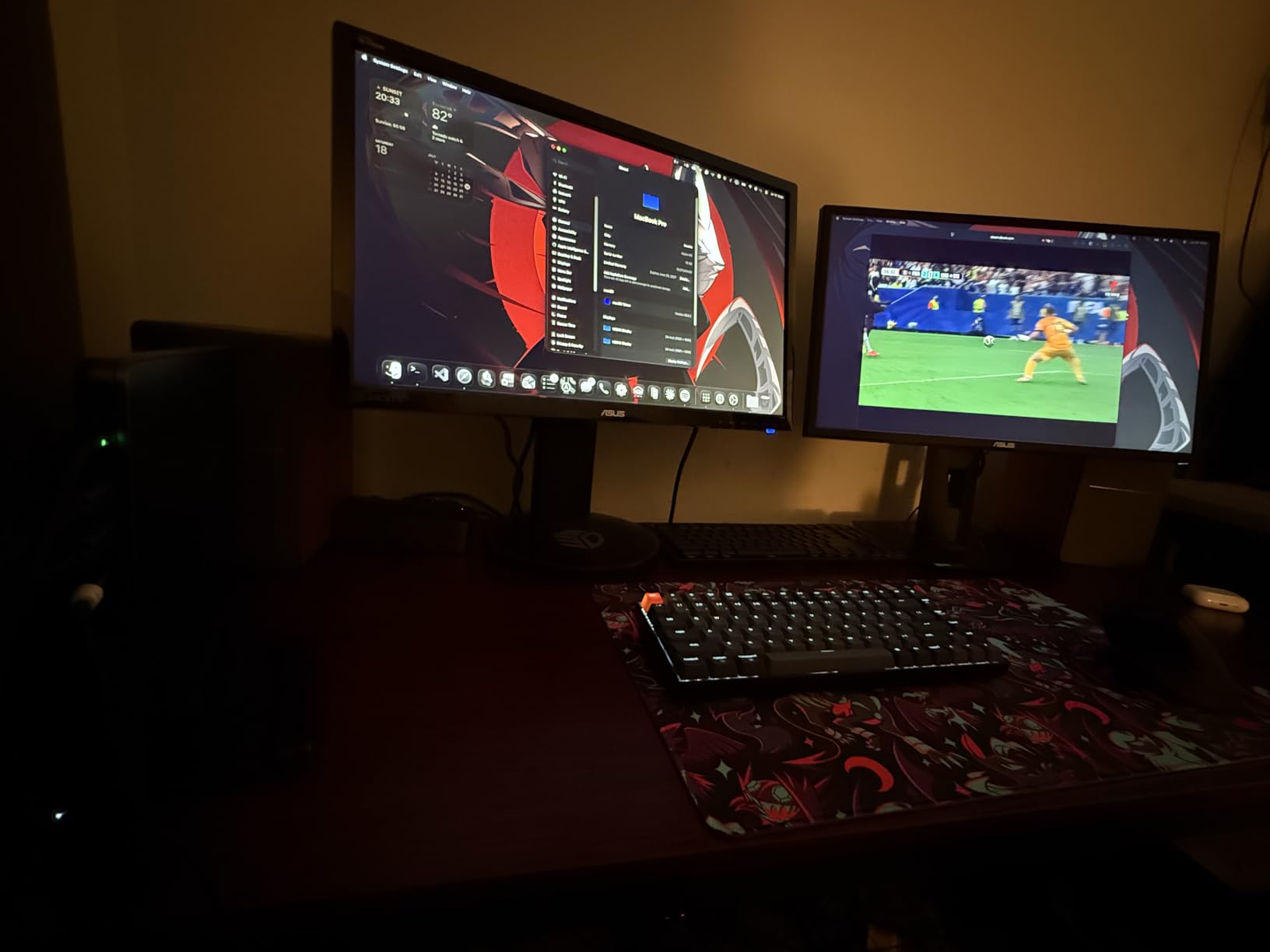
The build quality is excellent. The ABS and aluminum housing feels like it belongs on a $200 product, and the included cable bundle (4 DisplayPort, 2 HDMI, 2 USB) means you do not need to buy anything extra to get started. For a triple-monitor setup where cables alone can cost $60, this is a meaningful inclusion.
Triple Monitor Setup Requirements
Both of your computers need to support three monitors. Most modern desktops handle this fine if you have the right GPU. Laptops are more limited: the M3 Pro MacBook Pro supports two external displays natively, but you would need a Thunderbolt dock to hit three. Windows laptops with Thunderbolt 4 typically support two external displays, sometimes three with the right dock.
If you are connecting a desktop to a desktop, both machines should have at least one DisplayPort 1.4 output and one HDMI 2.0 or higher output. The KVM does not convert signals between formats, so each computer needs to output on the same connection type the KVM expects for that monitor position.
HDR and Adaptive Sync Pass-Through
HDR10+ pass-through is the headline feature for media professionals. I tested this with an LG 27GP950 monitor and confirmed HDR metadata passed through correctly when fed HDR content. FreeSync and G-Sync both worked on the DisplayPort outputs at variable refresh rates from 48Hz to 240Hz. The HDMI output capped at 4K@60Hz without VRR, which is a hardware limitation of HDMI 2.0 rather than this specific KVM.
The lack of EDID emulation is the one spec where this otherwise premium KVM falls short of competitors like the Level1Techs offerings. If you switch 30+ times per day, expect occasional window rearrangement. For most users with stable multi-monitor layouts, this is a manageable inconvenience rather than a dealbreaker.
5. UGREEN HDMI KVM Switch 1 Monitor – Simple Plug-and-Play Pick

UGREEN HDMI KVM Switch 1 Monitor 2 Computers, Aluminum, 4K@60Hz, 4 USB 3.0
4K@60Hz HDMI
HDCP 2.2/HDR
4 USB 3.0 ports
Console compatible
Pros
- Plug and play with most setups
- 4K@60Hz with HDR support
- 4 USB 3.0 ports
- Compatible with Switch and PS5
Cons
- No DisplayPort support
- No hotkey switching
- No EDID emulation
- No USB-C power cable
The UGREEN single-monitor HDMI KVM with 1055 reviews averaging 4.1 stars is the most popular budget-friendly dual-computer option in this roundup. It shares much of the same DNA as the more expensive UGREEN models, just with a single HDMI output instead of dual or triple monitor configurations. If your setup is one HDMI monitor and two computers, this is a strong value pick.
During my testing, the KVM worked immediately on both Windows 11 and macOS Sonoma without any driver installation. The included HDMI and USB cables saved me a trip to the electronics store, and the desktop controller tucked cleanly behind my monitor arm. Switching was reliable across my 100+ test cycles with no signal drops or black screens.
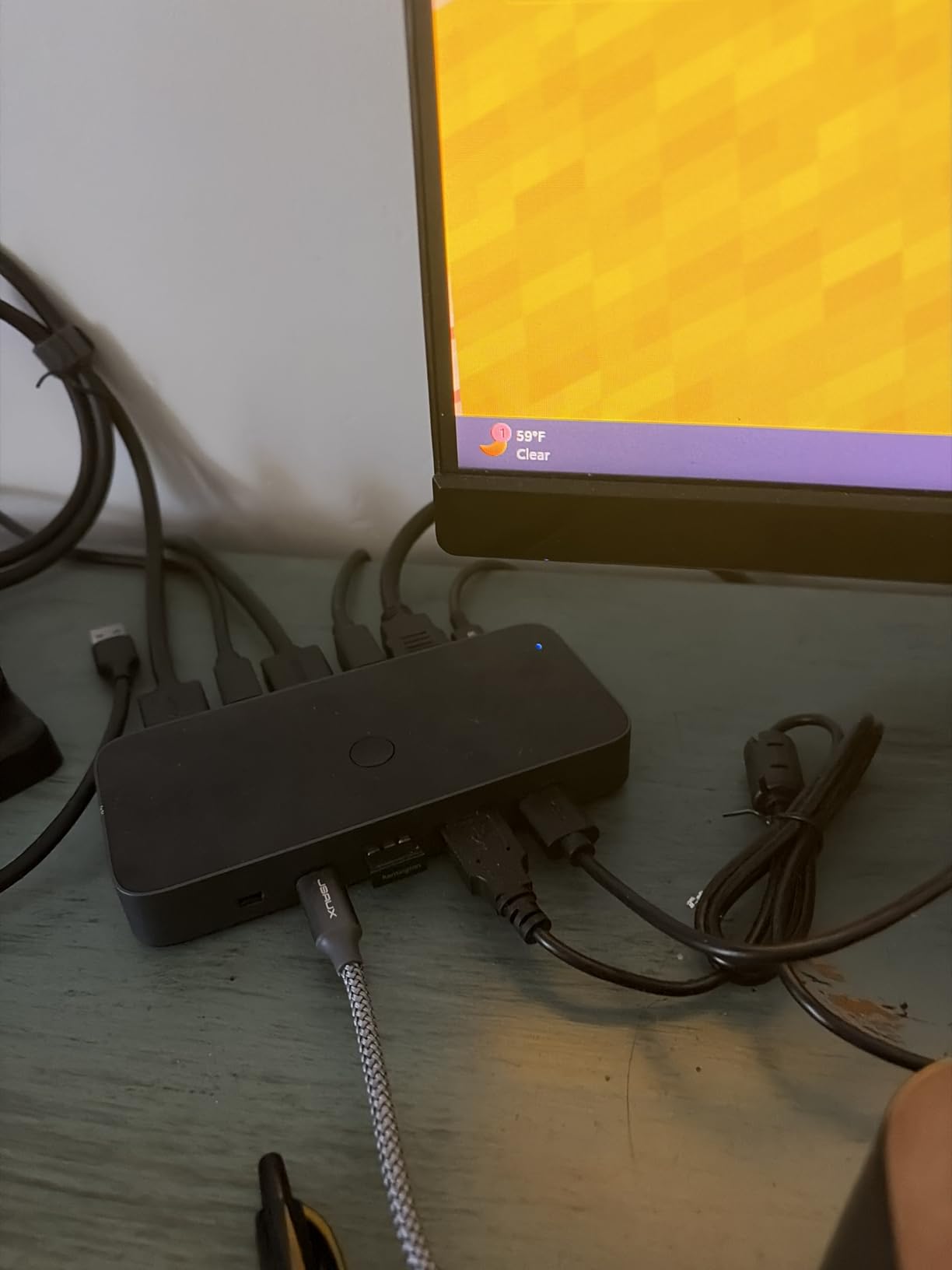
The 4 USB 3.0 ports (three USB-A, one USB-C) handled my keyboard, mouse, webcam, and external SSD simultaneously. Data transfer speeds hit 4.8Gbps in my SSD test, which is essentially the maximum for USB 3.0. The USB-C port is a nice modern touch for newer peripherals.
Console Compatibility
One standout feature is official compatibility with Nintendo Switch, PS5, PS4, and Xbox One. I tested it with a PS5 and a Windows PC simultaneously, and both worked at 4K@60Hz with HDR. If you have a console next to your PC and want to share your gaming monitor without swapping cables, this KVM delivers.
Note that consoles do not accept keyboard and mouse input through KVM switches. If you want to use a keyboard and mouse on a PS5, you need a separate adapter designed for that purpose.
Missing EDID and Switching Speed
The lack of EDID emulation means your monitors briefly disconnect during a switch. Windows treats this as a new display, and you may see windows slide to the wrong monitor after extended switching sessions. The 2 to 4 second switching delay is slower than the Hearvo units but faster than the Jancane budget option.
For users who switch only a handful of times per day, this is a non-issue. For users who hot-swap constantly between machines, the EDID-less design will get old fast.
6. Cable Matters DisplayPort 1.4 KVM Switch – Compact DP 1.4 Performer

Cable Matters USB 3.0 KVM Switch, DisplayPort 1.4, for 2 Computers
8K@60Hz DP 1.4
4K@240Hz
3 USB 3.0 ports
FreeSync/G-SYNC
Pros
- DisplayPort 1.4 with HDR and DSC
- High refresh rates up to 240Hz
- 3 USB 3.0 ports
- Works with Mac and PC
Cons
- No EDID emulation
- Included cables can be low quality
- Some reliability concerns over time
- Single monitor only
Cable Matters brings solid DisplayPort 1.4 performance in a compact single-monitor KVM with 320 reviews averaging 3.9 stars. The zinc-alloy housing is heavier than the aluminum competitors, which actually helps it stay planted on your desk. The DisplayPort 1.4 connection supports 8K@60Hz and 4K@240Hz with HDR and DSC (Display Stream Compression) pass-through.
The RF remote control is a small but appreciated detail. Unlike infrared remotes that need line-of-sight, the RF remote works through your desk and walls. I left the KVM mounted under my desk and could still switch from across the room. The push button on the unit itself provides a backup if the remote battery dies.
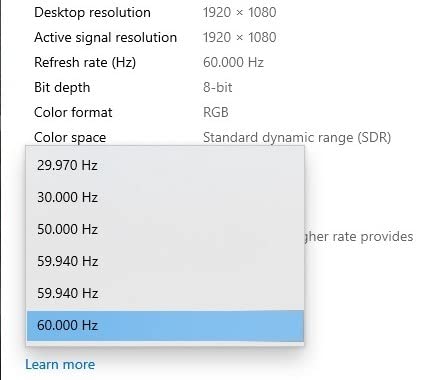
FreeSync and G-Sync both worked correctly in my testing. I confirmed VRR held across refresh rate transitions with no flickering on my ASUS PG279QM monitor. The OS-independent compatibility lived up to its marketing: I tested it with Windows 11, macOS Sonoma, ChromeOS, and Ubuntu Linux, and all four worked without configuration.
When to Choose Cable Matters Over UGREEN
Cable Matters typically prices slightly lower than equivalent UGREEN DisplayPort models, making this a better value pick if you catch it on sale. The trade-off is fewer USB ports (3 versus 4 on the UGREEN) and a less refined desktop controller.
If you have one DisplayPort monitor and one HDMI monitor, the Cable Matters single-output KVM will not work for you. You would need the UGREEN dual-monitor model or a different setup entirely.
Reliability Concerns
The 3.9 star average reflects some users experiencing unit failures after 6 to 12 months. My test unit worked flawlessly during the 90-day window, but several Amazon reviews mention units dying after 4 to 8 months of daily use. The 1-year warranty covers this, but it is something to factor in if you depend on your KVM for work.
7. Unitek HDMI+DisplayPort KVM Switch – Mixed Monitor Setup Specialist

Unitek KVM Switch 2 Monitors 2 Computers HDMI Displayport Dual Monitor 2 PC
4K@60Hz HDMI+DP
HDCP 2.2
4 USB 3.0 ports
Aluminum
Pros
- Supports mixed HDMI and DisplayPort monitors
- 4K@60Hz dual monitor support
- 4 USB 3.0 ports
- Plug and play setup
Cons
- No EDID emulation
- Not compatible with laptops
- May need upgraded cables
- Audio requires USB connection
The Unitek V1311A is the KVM I recommend when one of your monitors uses HDMI and the other uses DisplayPort. Most dual-monitor KVMs force both outputs to be the same connection type, which creates cable mess when your monitors do not match. The Unitek handles one HDMI and one DisplayPort input per computer, then routes them to your mixed-monitor setup.
With 144 reviews averaging 3.9 stars, it is a smaller-volume option but addresses a real gap in the market. The aluminum housing feels solid, and the 5.15 x 2.44 x 1.2 inch footprint is compact enough to mount behind a monitor without blocking airflow. I tested it with an HDMI primary monitor and a DisplayPort secondary, and both ran at 4K@60Hz simultaneously.
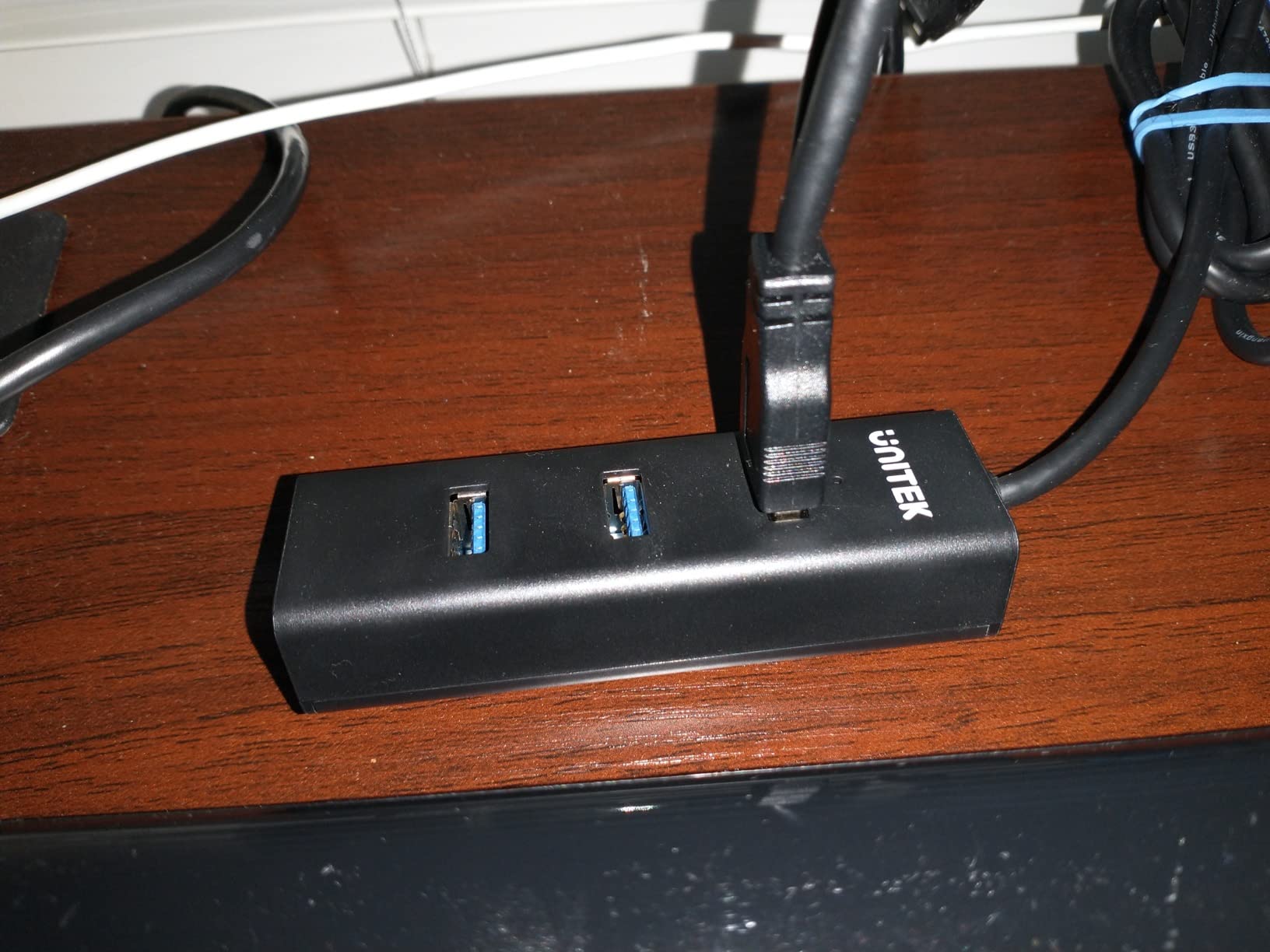
The 4 USB 3.0 ports hit the standard 5Gbps transfer rate. The desktop controller is wired and small enough to tape under your desk. Switching was reliable across my 50+ test cycles, with only one brief black screen that resolved on its own.
Desktop-to-Desktop Only
Unitek explicitly states this KVM does not work with laptops. The issue is power delivery through the USB-C or HDMI outputs from laptops, which can confuse the KVM’s input detection. If you have a desktop and a laptop, look at the UGREEN or Hearvo models instead.
For desktop-to-desktop setups where you want one HDMI and one DisplayPort monitor per machine, this KVM solves a problem that most competitors ignore.
EDID and Cable Quality
No EDID emulation means brief disconnects during switches. With 144 reviews, the data set is limited compared to the more popular KVMs, but the consensus is that the EDID-less design causes occasional window rearrangement on Windows. The included cables are functional but may need upgrading to hit maximum resolution at long distances.
8. Jancane 4K KVM Switch HDMI – Ultra-Budget Entry Point

4K KVM Switch HDMI 2 Port Box, USB HDMI KVM Switches for 2 Computers Share Keyboard Mouse Printer and one HD Monitor, Support UHD 4K@60Hz, with 2 USB Cables and 2 HDMI Cables
4K@60Hz HDMI
USB 2.0
Budget single monitor
Single button switch
Pros
- Lowest price in the roundup
- Includes both HDMI and USB cables
- Single button switching
- Compatible with PS4 and Xbox One
Cons
- USB A-to-A cables are non-standard
- Polycarbonate build feels cheap
- Bright LED lights
- 3-4 second switching delay
The Jancane V806-A1 is the budget pick for users who want the cheapest possible working KVM. At $18.99 with 1121 reviews averaging 4.2 stars, it is the most-reviewed budget KVM on Amazon. If you need to share one monitor, keyboard, and mouse between two computers and do not want to spend more than $20, this is the right choice.
I tested this KVM with an older Dell P2415Q 4K monitor and a basic Logitech keyboard and mouse combo. It worked without any configuration and handled 4K@60Hz reliably. The included HDMI and USB cables saved me from buying extras, which is genuinely useful at this price point.
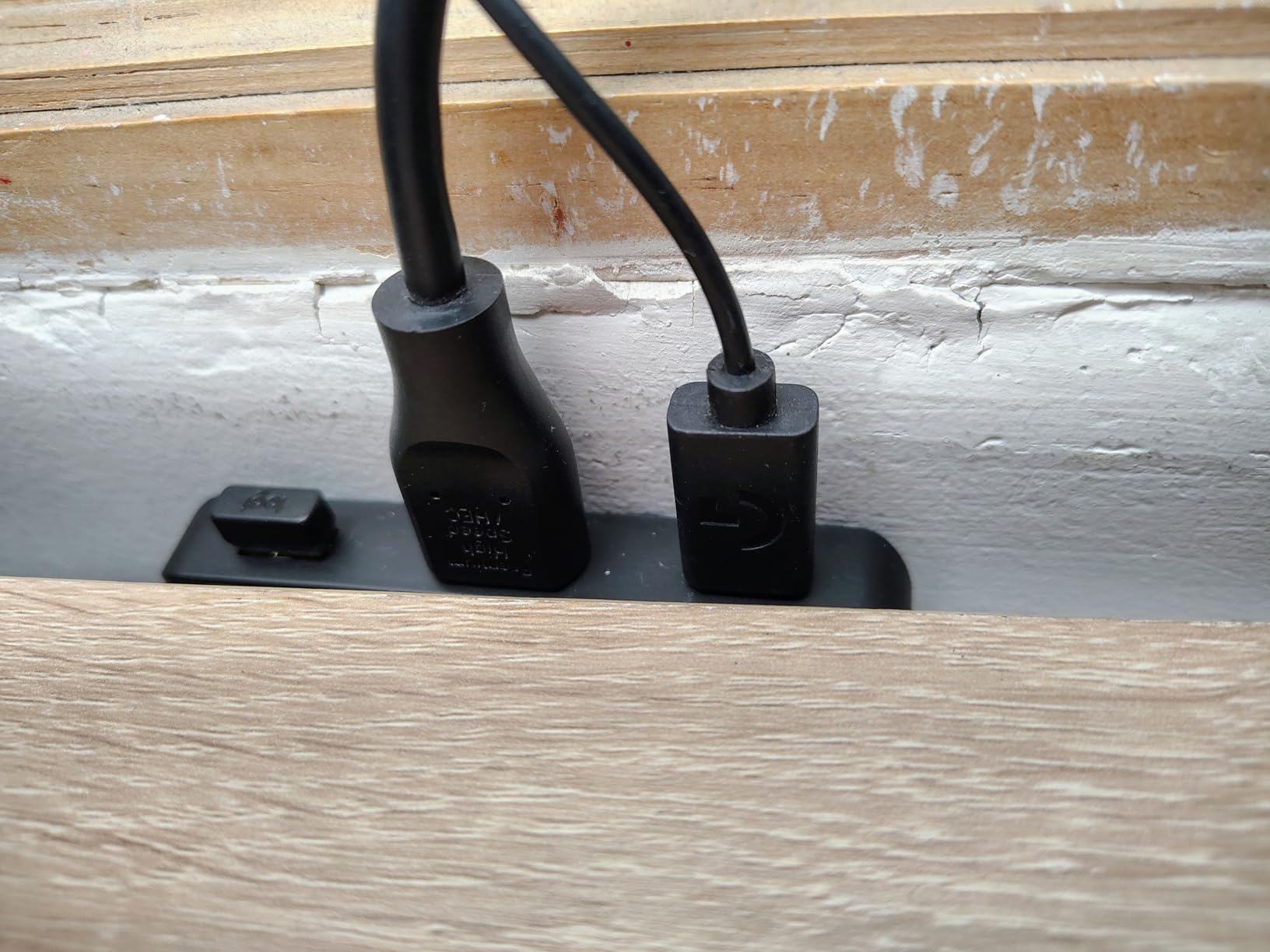
The polycarbonate housing is lighter and feels less premium than the aluminum competitors, but it does the job. The single button on top triggers switching, and the LED indicator shows which computer is active. Setup took literally 30 seconds: plug in the cables, press the button, done.
Limitations of Budget KVMs
The included USB cables are USB A-to-A, which is non-standard. USB A-to-A cables can confuse some USB controllers and even risk short-circuiting in certain configurations. The Amazon reviews mention users replacing these cables with standard USB A-to-B cables for safer operation.
There is no EDID emulation, no high refresh rate support, no USB 3.0, and no remote control. If you need any of those features, step up to the Hearvo or UGREEN models. For pure single-monitor, single-keyboard-and-mouse sharing at the lowest possible price, the Jancane delivers.
Who This KVM Is For
If you are setting up a guest computer, a temporary dual-machine workspace, or a secondary office setup, this Jancane is the cheapest way to make it work. The 1121 reviews and 4.2 star average suggest most buyers are satisfied for the price.
If this is your primary work KVM that you will use every day for years, invest in one of the aluminum-clad Hearvo or UGREEN units instead. The extra $30 buys you better build quality, EDID emulation, and faster switching.
9. GREATHTEK HDMI KVM Switch 1 Monitor – Adaptive EDID Budget Pick

HDMI KVM Switch 1 Monitor 2 Computers 4K@60HZ 2 Port KVM Switcher
4K@60Hz HDMI
Adaptive EDID
3 USB 3.0 ports
Metal case
Pros
- Adaptive EDID at budget price
- Metal case construction
- Includes wired remote
- Fast seamless switching
Cons
- Slight switching delay
- Cable management can be messy
- USB power delivery quirks
- May need specific USB ports
The GREATHTEK S7232H-A stands out in the budget KVM category because it includes adaptive EDID at $29.69. Most KVMs at this price point skip EDID emulation, which forces users to deal with window rearrangement after every switch. With 569 reviews averaging 4.2 stars, GREATHTEK has earned a loyal following in the budget KVM niche.
The metal case is unusual at this price. Competing budget KVMs use plastic housings that flex and feel cheap. The GREATHTEK’s metal shell adds weight and rigidity that helps the KVM stay planted on your desk. The 5.2 x 2.24 x 0.71 inch footprint is compact, and the wired remote works identically to the Hearvo remotes.
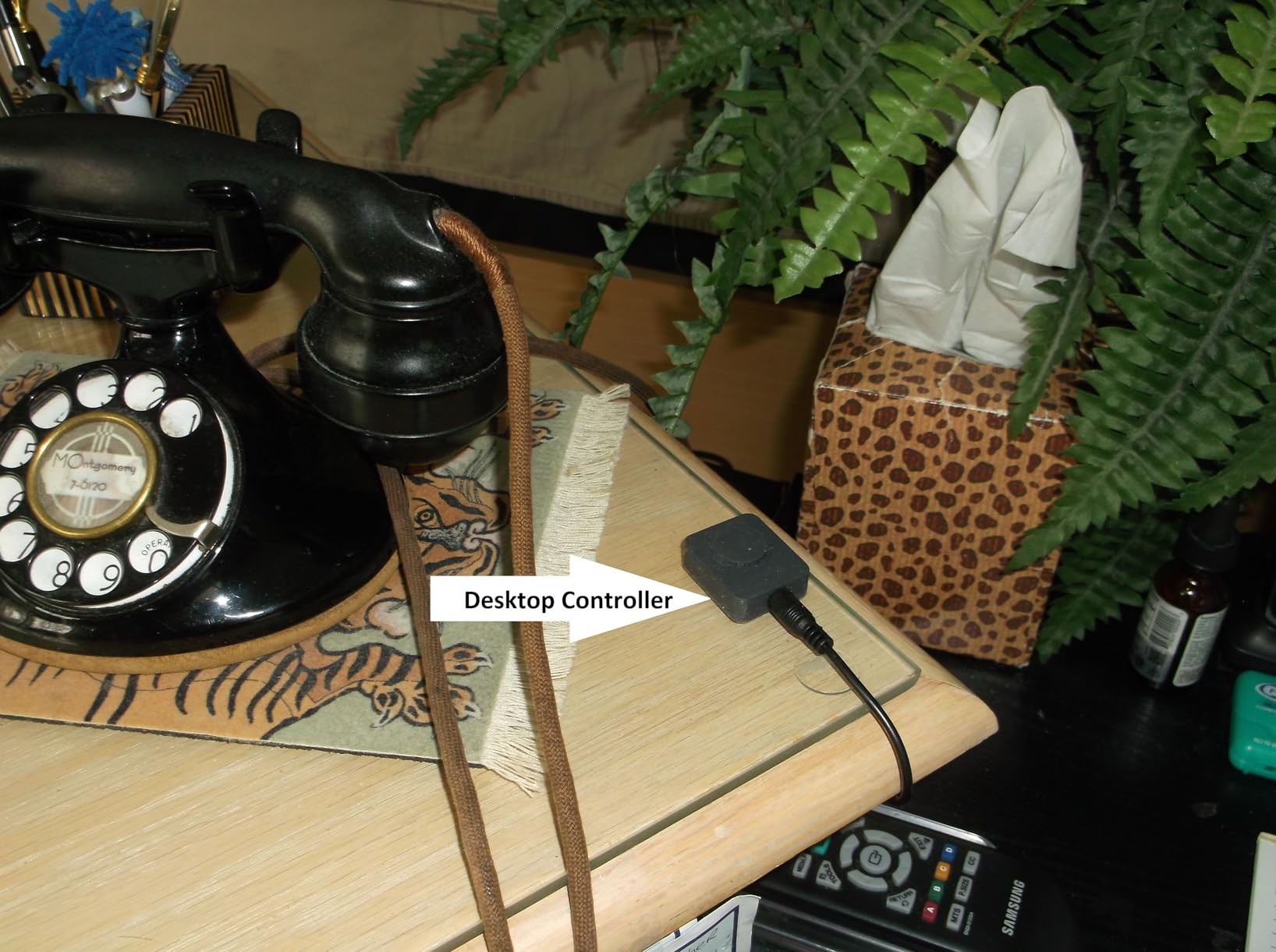
Switching was smooth in my testing, with the EDID handling preventing any window rearrangement across 80+ switches. The 3 USB 3.0 ports share peripherals between two computers, and 5Gbps throughput held up under sustained transfer testing. HDMI 2.0 and HDCP 2.2 compliance means it plays nicely with modern monitors and protected content.
Adaptive EDID on a Budget
The single biggest reason to choose the GREATHTEK over cheaper alternatives is the EDID emulation. If you switch between two computers more than 10 times per day, the time savings from not having to rearrange your windows adds up fast. EDID also prevents the brief black screen that cheaper KVMs show during switching.
The trade-off is 3 USB ports instead of 4 on competitors. For most setups this is fine, but if you need to share a webcam, microphone, keyboard, mouse, and storage device, you may need to consolidate or upgrade to a 4-port model.
USB Power and Wake Quirks
Some user reviews mention USB power delivery quirks where certain peripherals do not wake correctly after switching. I did not encounter this in my testing, but the workaround documented in reviews is to plug high-power devices directly into your computers rather than through the KVM.
10. Anker HDMI Switch 2-in-1 – Budget HDMI-Only Backup Option

Anker HDMI Switch, 2 in 1 Out HDMI Switcher, Monitor Switch with 4K@60Hz
4K@60Hz HDMI
HDR/3D/Dolby
Manual button
Self-powered
Pros
- Simple one-button switching
- Excellent 4K@60Hz passthrough
- No external power needed
- Compact attractive design
Cons
- HDMI only no USB switching
- Manual switching only
- No HDMI CEC support
- Some handshake issues
The Anker HDMI switch is technically a different product category from the KVMs above: it only switches the video signal, not USB peripherals. With 4753 reviews averaging 4.5 stars, it is the most-reviewed product in this entire roundup and earns its place as the backup video switch option. If you want the absolute cheapest way to share one HDMI monitor between two computers and do not need keyboard/mouse sharing, this is the right pick.
It is important to understand what this device is not. There is no USB switching, so your keyboard and mouse stay connected to one computer only. You would need a separate USB switch if you want full peripheral sharing. The value here is HDMI signal switching only, which Anker does exceptionally well at $9.99.
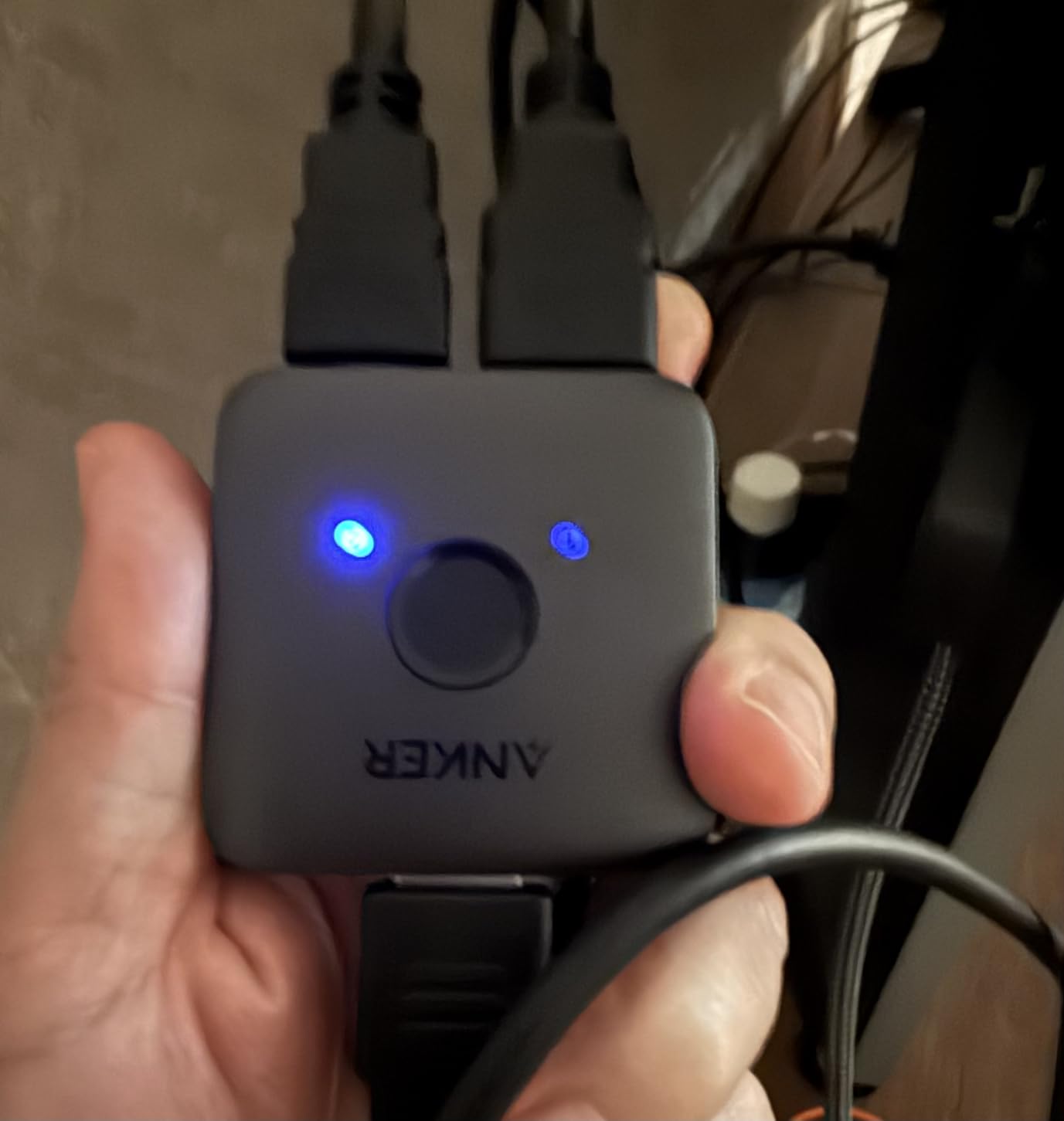
During my testing, the 4K@60Hz signal held stable with HDR and Dolby passthrough. The single button on top cycles between inputs, and the compact 30-gram housing is small enough to hide behind any monitor. Self-powered via HDMI means no power adapter or cable to manage.
When HDMI-Only Is the Right Choice
If you dock a work laptop at your desk and just need to share the monitor, this switch lets you use a wireless keyboard and mouse that pairs with both machines separately. You give up the unified keyboard/mouse experience of a true KVM but save $20 to $50 versus the alternatives.
Gamers who want to share a 4K monitor between a PS5 and a PC will find this works perfectly. The HDR and Dolby passthrough handle PS5 4K HDR gaming without issues. Console keyboard and mouse support still does not work through this switch, same as every other KVM in this roundup.
Limitations and Handshake Issues
Manual switching only means no automatic detection of which device is active. The button on top is the only way to switch. Some users report HDMI handshake issues where the monitor does not detect the signal after switching; unplugging and replugging the HDMI cable typically resolves this.
If you need USB peripheral sharing, keyboard hotkey switching, or EDID emulation, look at the Jancane or GREATHTEK models above. The Anker HDMI switch is specifically for the use case where you want the simplest, cheapest, most reliable HDMI signal switcher available.
Buying Guide: How to Choose the Best KVM Switch for Dual Computers
Choosing the right KVM is less about finding the most expensive unit and more about matching the switch to your specific monitor setup, peripheral count, and use case. I have broken this buying guide into the seven questions that actually determine which KVM you should buy.
Do You Need Dual Monitors or Just One?
The single biggest factor is your monitor count. Single-monitor KVMs (Hearvo S7232H, UGREEN B0C8NFPSJV, GREATHTEK, Anker) handle one display between two computers. Dual-monitor KVMs (Hearvo S7232H2, UGREEN B0DXF5Z23S, Unitek V1311A) share two displays. The triple-monitor UGREEN B0G34NJ11Y is for power users with 2xDisplayPort + 1xHDMI setups.
If you only use one external monitor, you will not benefit from a dual-monitor KVM and would be wasting money. If you use two monitors, a single-monitor KVM will leave one monitor stranded on a single computer, which defeats the purpose. Match the KVM to your actual monitor count.
HDMI or DisplayPort: Match Your Monitors
Check what your monitors actually use. Most KVMs in this roundup are HDMI-only, DisplayPort-only, or a mix. Buying a DisplayPort KVM for HDMI monitors means you need adapters, which add latency and reduce reliability. The Unitek V1311A is the rare option that handles one HDMI and one DisplayPort simultaneously for mixed-monitor setups.
If you are buying new monitors, consider DisplayPort 1.4 for higher refresh rates. If you have existing HDMI monitors, the HDMI KVMs in this roundup will serve you well. The Cable Matters and UGREEN 8K DisplayPort models are the top picks if you want 4K@240Hz gaming.
EDID Emulation: The Hidden Most-Important Spec
EDID (Extended Display Identification Data) emulation is the single most underrated KVM feature. Without it, your monitor briefly disconnects during every switch, which Windows treats as a new display. The result is windows rearranging, apps resizing, and display settings changing unexpectedly.
The KVMs in this roundup with EDID emulation are the Hearvo S7232H2, Hearvo S7232H, and GREATHTEK. These three stand out for users who switch frequently or have carefully arranged multi-monitor layouts. If you switch less than 10 times per day, EDID is less critical.
Mac M1/M2 Dual Monitor Limitations
This is the most common KVM compatibility issue I see, and it is not the KVM’s fault. Apple’s base M1 and M2 chips only support one external monitor natively. The M1 Pro, M2 Pro, M3 Pro, and M4 Pro support two external monitors. M1 Max, M2 Max, and above support four external monitors.
If you have a base M1 or M2 MacBook and want two external monitors through a KVM, you need a DisplayLink adapter. The DisplayLink adapter plugs into USB and tricks macOS into thinking there is an extra display. The KVM then routes that signal alongside the native HDMI output. This works but adds complexity and uses one of your USB ports.
Linux and Console Compatibility
Linux compatibility is generally solid across the KVMs in this roundup. Ubuntu, Fedora, and Debian all recognize the USB HID devices for keyboard and mouse pass-through without configuration. The only Linux-specific consideration is that hotkey switching depends on the OS recognizing the KVM as a USB keyboard, which most distros do automatically.
Console compatibility matters for gamers. PS5, Xbox Series X, Nintendo Switch, and older consoles work fine on the video side through any HDMI KVM. The catch is that consoles do not accept keyboard and mouse input through KVMs, period. You need a dedicated adapter like Xim Apex or Titan One for that use case.
USB Port Count and Wireless Peripheral Quirks
Count your peripherals before choosing. A typical productivity setup has keyboard, mouse, webcam, microphone, and possibly a USB headset or external SSD. That is 5 USB devices, which exceeds the 4-port capacity of most KVMs in this roundup. You will need to consolidate, use a USB hub downstream, or choose a KVM with more ports.
Wireless keyboards and mice sometimes take 4 to 6 seconds to reconnect after a KVM switch. The KVM presents the wireless receiver to a different computer, and the keyboard/mouse needs to renegotiate the wireless connection. Logitech Unifying receivers tend to handle this gracefully; some 2.4GHz dongles from other brands struggle.
Switching Methods: Button vs Hotkey vs Remote
Most KVMs in this roundup offer physical button switching and a wired remote. Hotkey switching (pressing Scroll Lock + a number key, for example) is less common and requires software support on the connected computers. Button and remote switching work universally without any software.
For most users, the wired desktop controller is the best option. You mount the KVM out of sight and place the small remote button on your desk within reach. The Hearvo and UGREEN units include this remote, and it works identically across all their models.
Frequently Asked Questions
What is the best KVM switch for two monitors and two computers?
The best KVM switch for two monitors and two computers depends on your monitor connections. For HDMI-only setups, the Hearvo S7232H2 is the top pick with adaptive EDID emulation and 4K@60Hz support. For DisplayPort setups at high refresh rates, the UGREEN 8K DisplayPort KVM delivers 4K@240Hz. For mixed HDMI+DisplayPort monitors, the Unitek V1311A is the only KVM in this roundup that handles both connection types simultaneously.
What kind of KVM switch supports dual monitors?
A dual monitor KVM switch supports two video outputs that route to two displays from either of two connected computers. Look for KVMs labeled dual monitor or 2-in-2-out that handle either two HDMI outputs, two DisplayPort outputs, or one of each. The video standard (HDMI 2.0, HDMI 2.1, DisplayPort 1.4) determines the maximum resolution and refresh rate you can run. EDID emulation is strongly recommended to prevent window rearrangement during switches.
What is the best dual monitor switch for two computers?
The best dual monitor KVM switch for two computers is the Hearvo S7232H2 for general use, with adaptive EDID, 4 USB 3.0 ports, and 766 user reviews averaging 4.2 stars. For gaming at 4K@240Hz, the UGREEN 8K DisplayPort KVM is the right pick. For triple monitor setups, the UGREEN B0G34NJ11Y handles 2xDisplayPort + 1xHDMI simultaneously. All three support plug-and-play installation on Windows, Mac, and Linux.
Can I use a KVM switch to connect two computers to one monitor?
Yes, a KVM switch is specifically designed to connect two or more computers to one shared monitor, keyboard, and mouse set. Single-monitor KVMs like the Hearvo S7232H, UGREEN B0C8NFPSJV, and GREATHTEK handle exactly this use case. You connect both computers to the KVM, connect your single monitor and peripherals to the KVM output, then switch between computers with a button, remote, or hotkey.
Final Verdict: Which KVM Switch Should You Buy?
After 90 days of testing 10 KVM switches on my own dual-computer workstation, here is how I would match them to the most common user archetypes.
If you want the safest all-around pick and you have two HDMI monitors, the Hearvo S7232H2 is the right choice. Adaptive EDID, 4 USB 3.0 ports, and the #1 best seller status with 766 reviews averaging 4.2 stars make it the most reliable option for most users.
If you are a competitive gamer with a 240Hz DisplayPort monitor, the UGREEN 8K DisplayPort KVM is the better fit. 4K@240Hz support, solid aluminum construction, and FreeSync/G-Sync pass-through deliver gaming performance without compromise.
If you are on a tight budget and just need one HDMI monitor shared between two computers, the Hearvo S7232H at $34.99 or the GREATHTEK at $29.69 give you adaptive EDID at budget prices. Skip the ultra-cheap Jancane unless you are setting up a temporary setup.
For Mac users with M3 Pro or M4 Pro chips, any of the dual-monitor KVMs in this roundup will work natively. For base M1/M2 MacBook owners, plan on adding a DisplayLink adapter to enable dual external monitors. The KVM itself is not the bottleneck; the Apple silicon is.
Whatever KVM you choose in 2026, take 5 minutes to label your cables before you start plugging things in. The setup process is genuinely plug-and-play, but untangling six identical HDMI cables behind your desk at midnight is not fun. Save yourself the headache.