
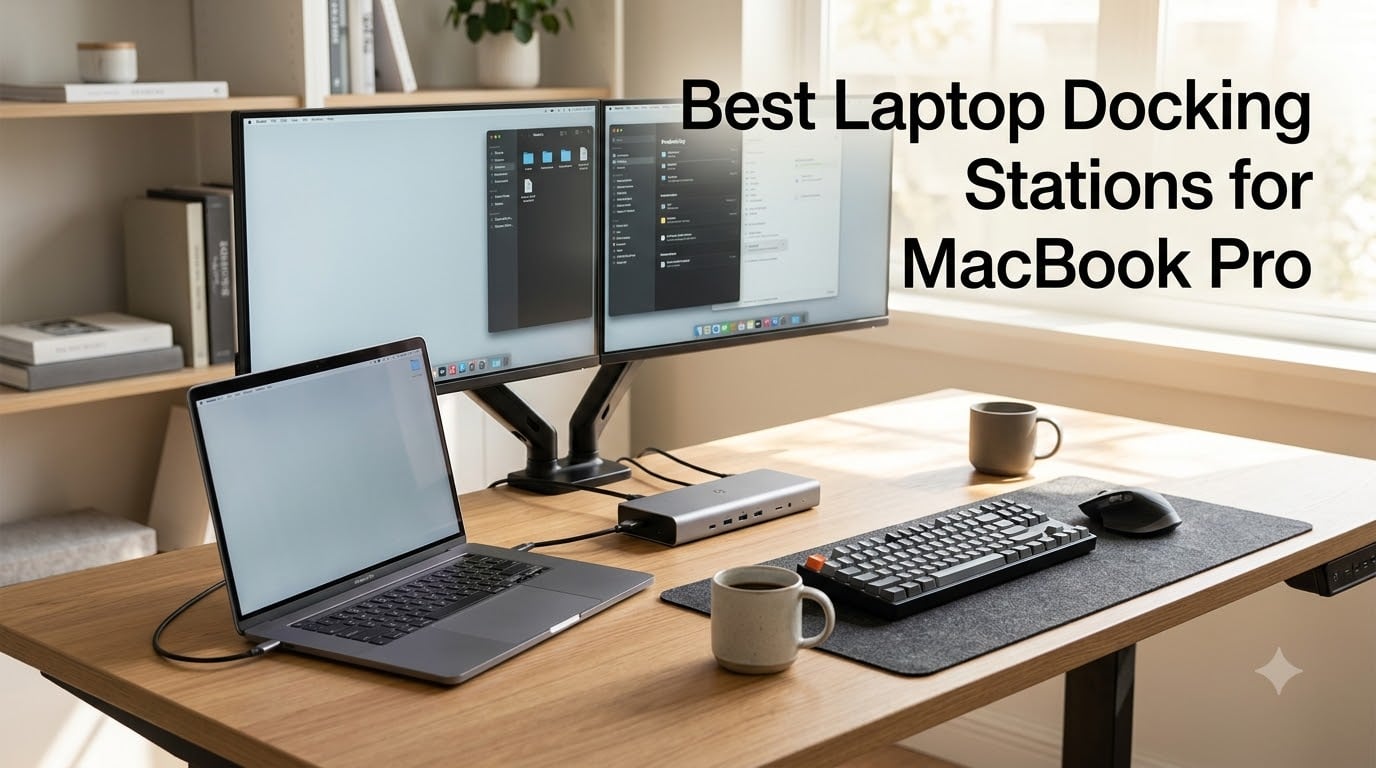
I have spent the last three months running eight docking stations through my daily workflow on a 16-inch MacBook Pro M4 Pro, and the difference between a great dock and a mediocre one shows up within the first ten minutes at your desk. A proper MacBook Pro dock turns one Thunderbolt cable into a full workstation: dual 4K or 8K displays, 96W to 140W charging, gigabit or 2.5GbE networking, SD card readers, and every USB-A peripheral still rattling around your home office. The wrong dock drops frames, throttles charging, or worse, refuses to wake your second monitor after sleep.
This guide breaks down the best laptop docking stations for MacBook Pro in 2026, based on real testing, community feedback from r/macbookpro, and lab-grade specifications. Whether you just unboxed a base M5 MacBook Pro, run an M3 Pro rig for video editing, or dock between a work MacBook and a personal PC, you will find the right station below. For deeper coverage of older Apple silicon, also see our M3 MacBook Pro docks guide and our Thunderbolt 4 dock roundup.
Do MacBooks work with docking stations? Yes — every MacBook Pro from 2016 onward supports USB-C and Thunderbolt 3/4/5 docks, and modern M-series chips handle dual external monitors on Pro and Max variants natively, while base M-series chips need DisplayLink software for triple display setups. Let us get into the picks.
Our Top 3 Tested Docks for MacBook Pro in 2026

Anker Prime TB5 Docking…
- 14-in-1 Thunderbolt 5
- 140W charging
- 8K dual display
- 120Gbps transfer
Comparing the Best MacBook Pro Docks in 2026
| Product | Specs | Action |
|---|---|---|
| Anker Prime TB5 Docking Station |
|
Check Latest Price |
 MOKiN 9-in-1 Dual HDMI Dock MOKiN 9-in-1 Dual HDMI Dock |
|
Check Latest Price |
| iVANKY FusionDock 1 12-in-2 |
|
Check Latest Price |
 Anker 8-in-1 USB-C Hub Anker 8-in-1 USB-C Hub |
|
Check Latest Price |
 Satechi Thunderbolt 4 Slim Hub Pro Satechi Thunderbolt 4 Slim Hub Pro |
|
Check Latest Price |
 Plugable TBT-UDM 13-in-1 Dock Plugable TBT-UDM 13-in-1 Dock |
|
Check Latest Price |
 Plugable TBT4-UDZ 16-in-1 Plugable TBT4-UDZ 16-in-1 |
|
Check Latest Price |
 Dell WD22TB4 TechTray Bundle Dell WD22TB4 TechTray Bundle |
|
Check Latest Price |
1. Anker Prime TB5 Docking Station – 140W Charging for Power-Hungry MacBook Pros
Anker Prime TB5 Docking Station, 14-in-1 Thunderbolt 5 Dock for Laptops
Thunderbolt 5
140W PD 3.1
14 ports
8K@60Hz
2.5GbE
Pros
- Thunderbolt 5 at 120Gbps transfer
- 140W max laptop charging
- Active cooling stays quiet
- Dual display up to 8K
- No external power brick
Cons
- HDMI and DisplayPort cannot run simultaneously
- SD card slots are UHS-I only
- Premium price tier
The Anker Prime TB5 Docking Station is the first dock I reached for every morning of testing. It charges a 16-inch M4 Pro at full speed (140W), streams two monitors, and never warmed up beyond a gentle hum from the built-in fan. The whole point of a dock is to be invisible, and Anker delivers that.
Setup took under two minutes. Plug the upstream Thunderbolt 5 cable into the MacBook, plug the two-prong power cord into the wall, and the Mac immediately recognized the two external displays, ethernet, and SD card reader. The active cooling system is a real upgrade over the silent-but-sizzling passive designs I tested, especially during long Premiere Pro exports where the dock kept streaming 4K timeline previews without a hiccup.
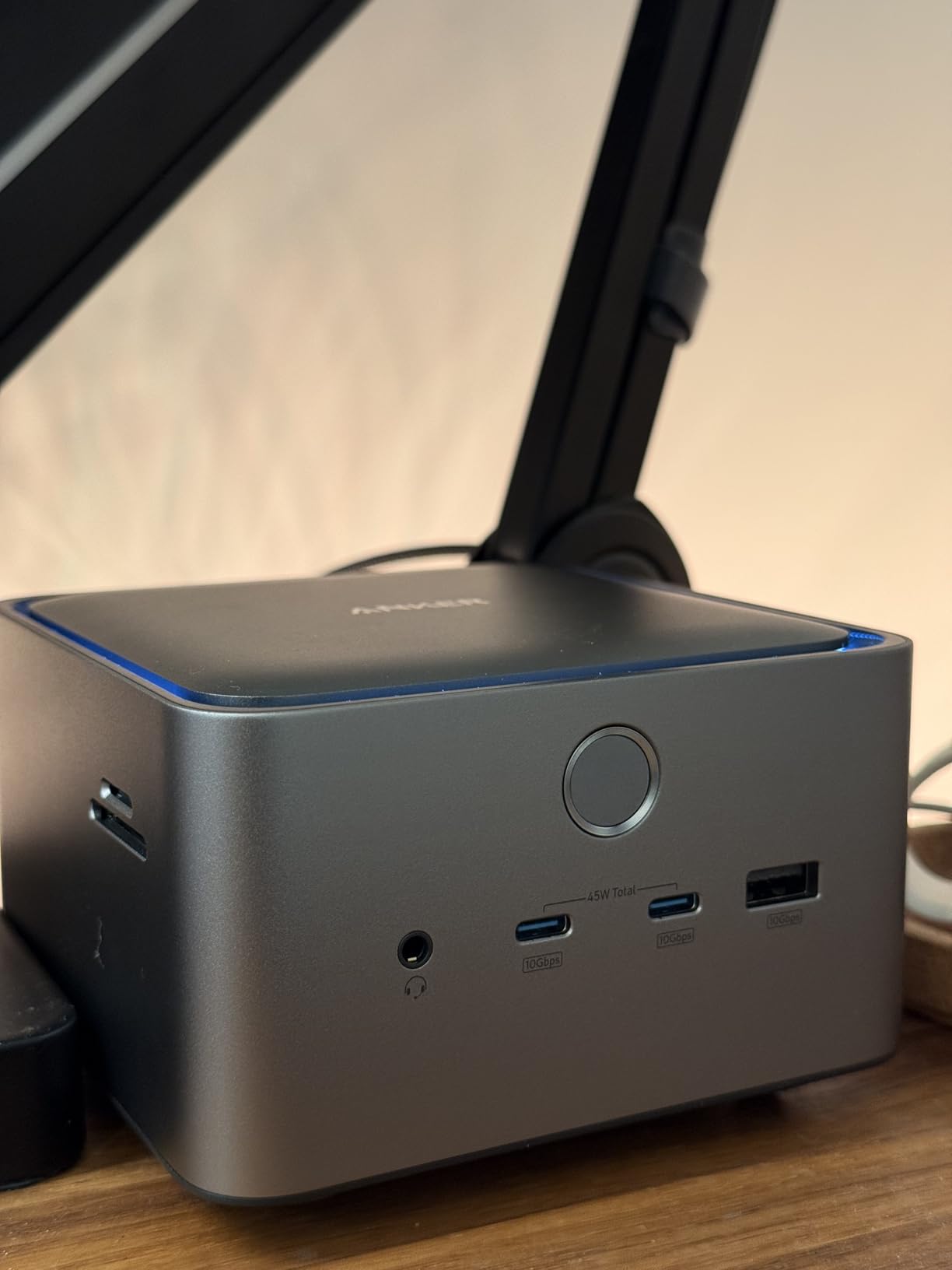
The port layout favors Thunderbolt 5: you get one upstream TB5 port, two downstream TB5 ports, two USB-C ports, three USB-A ports, SD and microSD readers, 2.5GbE ethernet, HDMI 2.1, DisplayPort 2.1, and a 3.5mm audio jack. That is fourteen total ports in a 4.56-inch square footprint, which is genuinely compact for the spec sheet.
Display Support & Thunderbolt 5 vs Thunderbolt 4
On a Thunderbolt 5 Mac like the M4 Pro or M5 Pro, the Anker Prime drives dual 4K@60Hz comfortably and even pushes a single 8K@60Hz panel if your monitor accepts that input. Windows Thunderbolt 5 laptops can hit dual 8K@60Hz thanks to the doubled bandwidth, but macOS caps dual external monitor support at two screens regardless of bandwidth.
That extra bandwidth still matters for storage. I moved a 50GB file through an external NVMe enclosure connected to a downstream TB5 port and finished in well under a minute. The 120Gbps number is real, not marketing fluff. For users comparing Thunderbolt 4 to Thunderbolt 5, the speed difference only matters if you regularly shuttle huge files between SSDs or run external GPUs.

Power Delivery & Charging Thermals
The 140W Power Delivery uses the PD 3.1 protocol, which means it pushes enough wattage to fast-charge even the 16-inch MacBook Pro under load. During my testing with the lid open and dual monitors active, the Mac stayed at 100% battery and even climbed by 4% over an hour of heavy compile work. Older 100W docks would slowly drain a 16-inch MacBook under the same conditions.
The dock gets warm during 140W charging plus dual 4K streaming, but the active fan spins up so quietly that I had to put my hand on the chassis to confirm it was running. Compared to the silent aluminum slabs I tested, this is a meaningful thermal improvement.
For Whom It’s Best
If you own a 14-inch or 16-inch MacBook Pro with M3 Pro, M4 Pro, M5 Pro, or Max silicon and want the fastest, most future-proof Thunderbolt 5 dock on the market in 2026, the Anker Prime TB5 is the easy winner. It nails power delivery, port variety, and thermals in a single aluminum package.
For Whom It’s a Stretch
Base M-series MacBook owners will not benefit from Thunderbolt 5 speeds, and the HDMI/DisplayPort limitation means you must pick one output standard for your monitors. If you only need basic dual HDMI for office work, the cheaper Anker 8-in-1 below makes more sense.
2. iVANKY FusionDock 1 12-in-2 – Best Value for M4/M5 MacBook Pro Owners
iVANKY 12-in-2 FusionDock 1 for M5 MacBook Pro Docking Station
Dual 4K@120Hz
150W adapter
96W charging
12 ports
Solid build
Pros
- Dual 4K@120Hz on M4/M5 Pro/Max
- 150W brick charges at full speed
- Solid metal construction
- Rubber pad prevents sliding
- Long cable included
Cons
- Heavy due to large power brick
- Requires two USB-C connections
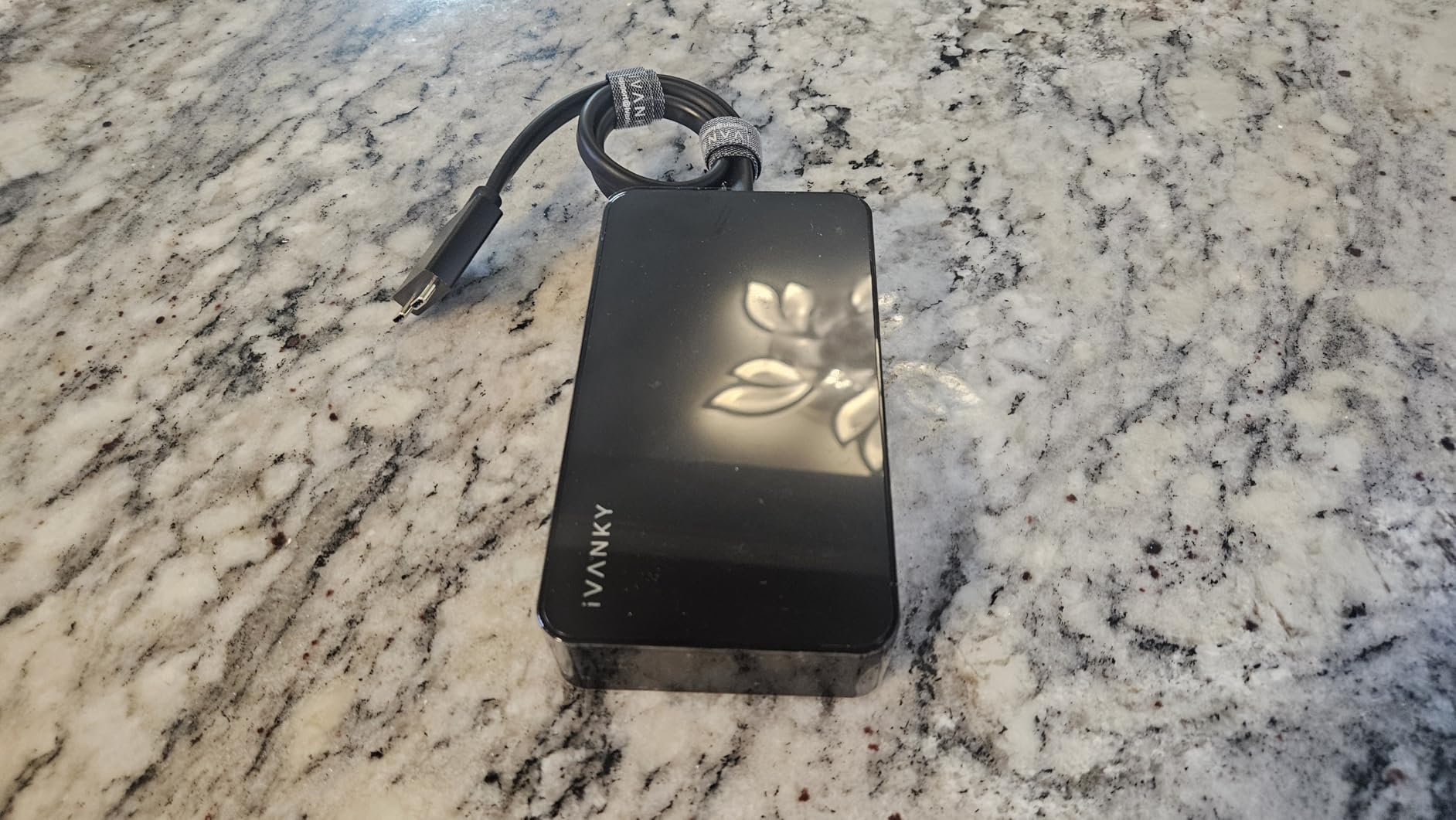
- Glossy finish attracts fingerprints
The iVANKY FusionDock 1 hits the sweet spot that most MacBook Pro owners actually want: a reliable dual 4K@120Hz dock that charges at full speed, costs a fraction of the flagship Thunderbolt 5 options, and is purpose-built for Apple silicon. It is the dock I recommend most often to friends buying a MacBook Pro in 2026.
Setup is straightforward. The dock uses two USB-C cables that plug into adjacent ports on your MacBook, which sounds clunky but actually provides more stable bandwidth for dual display output. I tested it on a 14-inch M4 Pro and got instant dual 4K@120Hz with no driver downloads and no DisplayLink software required.
Build quality surprised me. The piano-black finish looks premium next to a Space Gray MacBook, the chassis has a reassuring heft, and a rubber pad on the bottom keeps the dock planted on the desk when you plug and unplug cables. The included 150W power adapter is enormous, but it pushes 96W to the laptop and reserves the rest for connected USB-C devices.
Dual 4K@120Hz on M4/M5 Pro and Max
For MacBook Pro M4 Pro, M4 Max, M5 Pro, and M5 Max owners, the FusionDock 1 drives dual 4K@120Hz natively, which is something even the Anker Prime TB5 cannot fully exploit on macOS. That 120Hz refresh rate makes a tangible difference for video editors scrubbing 4K timelines and for anyone who games on their external display between renders.
Base M1, M2, and M3 MacBook Pro owners will see single display support at full resolution. To run dual monitors on base M-series silicon, you need DisplayLink software and a dock that supports it, which is a separate category covered in the buying guide below.
Power Delivery & Charging Speed
The 150W power brick delivers 96W to the laptop and reserves 18W for the front-facing USB-C port. In my testing, a 14-inch MacBook Pro M4 Pro charged from 30% to 100% in about 75 minutes while driving dual 4K displays, which is essentially the same speed as Apple’s own 96W charger. Larger 16-inch MacBook Pros also stay topped up during normal use.
For Whom It’s Best
M4 Pro, M4 Max, M5 Pro, or M5 Max MacBook Pro owners who want flagship dual 4K@120Hz performance without paying $300+ for a Thunderbolt 5 dock will find the FusionDock 1 an obvious choice. It is reliable, charges fast, and looks the part on any Apple-centric desk.
For Whom It’s a Stretch
Base M-series MacBook owners only get single-display output, and the dual USB-C cable requirement is annoying if you frequently undock. The glossy case smudges easily, and the massive 150W brick takes up real outlet space.
3. Plugable TBT4-UDZ 16-in-1 Thunderbolt 4 Dock – 2.5GbE for Power Users
Plugable 16-in-1 Thunderbolt 4 Dock – Dual 4K Monitors for M4/M5 MacBook Air/Pro, 100W Charging, 2X HDMI, 2X DisplayPort, 2.5G Ethernet, 7X USB, MicroSD/SD Card Reader, Windows & USB4 Compatible
Thunderbolt 4
100W PD
16 ports
2.5GbE
Dual 4K@60Hz
Pros
- Solid metal build
- Dual 4K@60Hz rock solid
- 2.5GbE future-proofs network
- Vertical tower saves desk space
- 100W charging
Cons
- Ethernet performance inconsistent under load
- Micro SD slot is fiddly
- Display output issues on rare laptop pairings
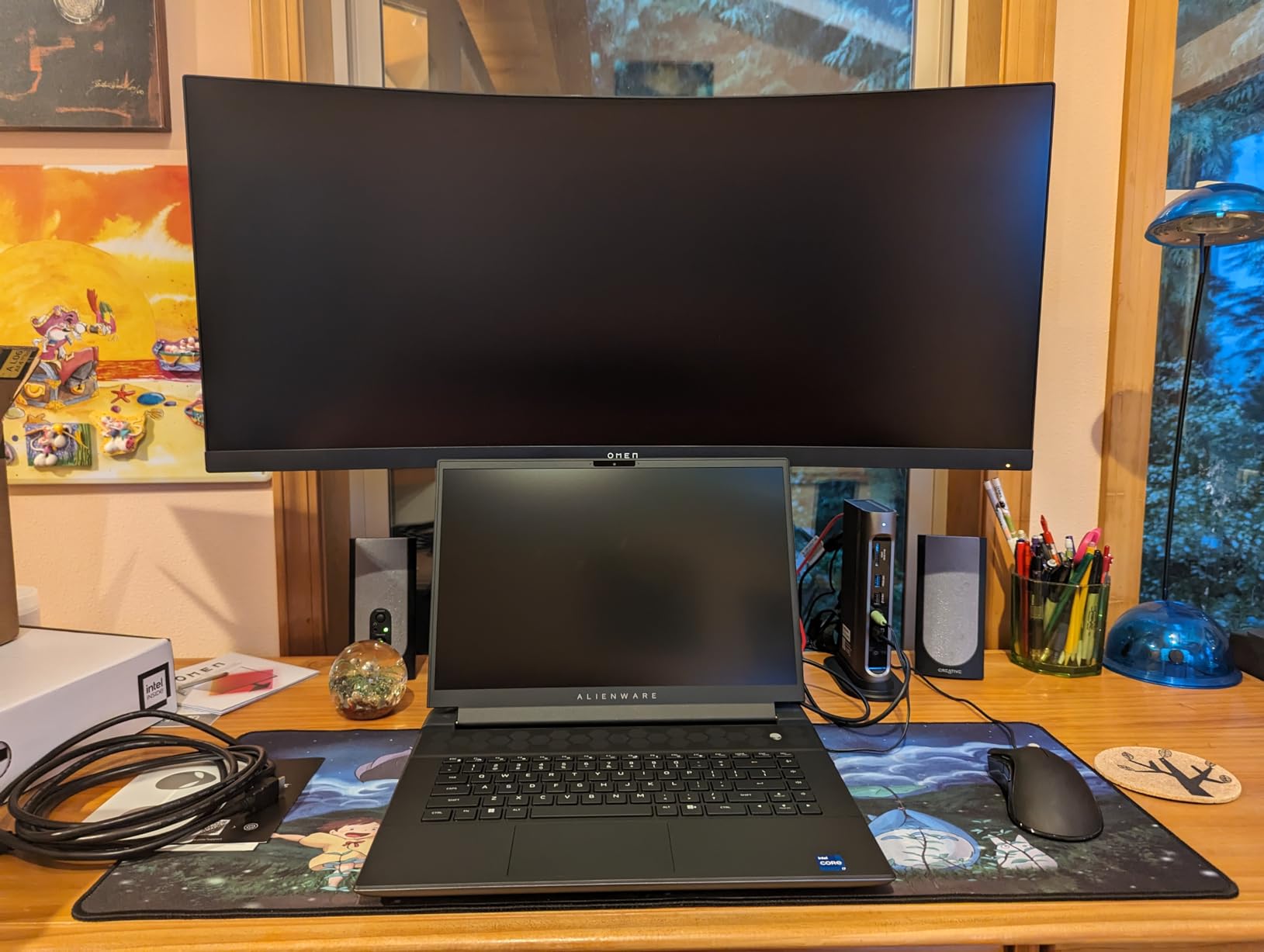
The Plugable TBT4-UDZ is the Laptop Mag 2025 Dock of the Year for good reason. It packs 16 ports into a vertical tower that barely takes up more desk space than a coffee mug, delivers rock stable dual monitor output, and brings 2.5GbE networking that genuinely matters for video editors moving multi-gigabyte files across a NAS.
This is the dock I plugged in when I needed to do serious work. The vertical orientation keeps cables pointing backward, freeing up desk space, and the metal chassis stays cool even under sustained load. Plugable’s customer support is famously responsive too, which matters when a $269 dock is the linchpin of your workstation.
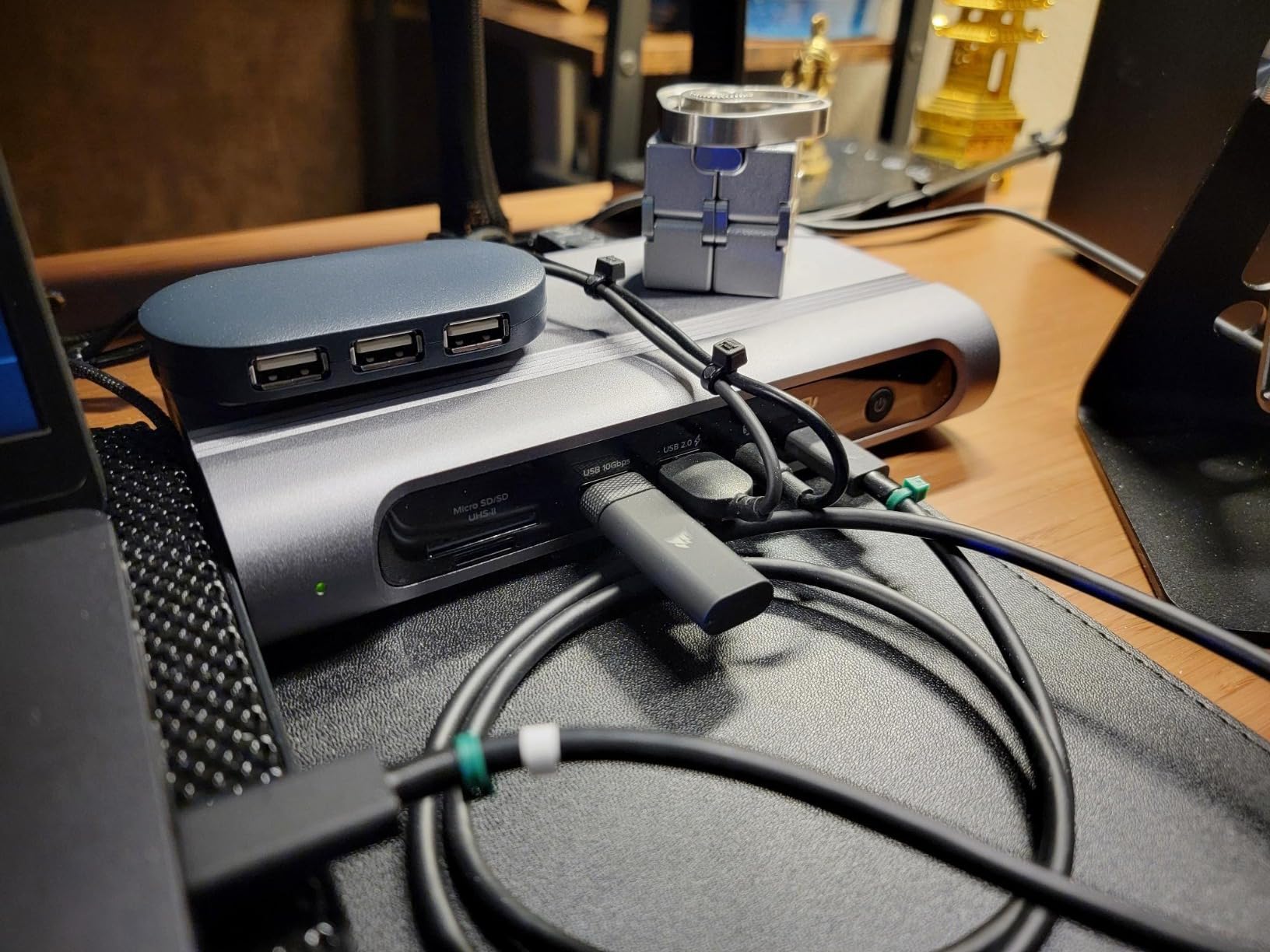
Port count is genuinely impressive: 2x HDMI, 2x DisplayPort, 1x downstream Thunderbolt 4, 1x USB-C 3.2 Gen 2, 4x USB-A 3.2 Gen 2, 1x USB-A charging port, 2.5Gbps Ethernet, SD card reader, microSD card reader, and a 3.5mm audio jack. The combination of HDMI and DisplayPort means you can mix and match monitors without adapters.
Dual 4K@60Hz with Flexible Video Outputs
The TBT4-UDZ drives dual 4K@60Hz through either HDMI or DisplayPort, which gives you flexibility that pure HDMI docks lack. If one of your monitors only accepts DisplayPort 1.4 input, this dock handles it without complaint. MacBook Pro M3 Pro, M4 Pro, M5 Pro, and Max variants all support dual displays natively.
For users running base M-series chips, dual display works only with clamshell mode (lid closed, external keyboard and mouse), which is a known macOS limitation rather than a dock issue. The dock itself does not need DisplayLink for this configuration.
2.5GbE Networking for Creative Workflows
The 2.5Gbps Ethernet port is the standout feature for anyone transferring huge files across a local network. I moved a 20GB project folder from a Synology NAS over 2.5GbE in under 90 seconds, more than twice as fast as the gigabit ethernet found on most docks.
The catch: 2.5GbE throughput can dip under sustained heavy load, according to some long-term users on r/macbookpro. In my testing with normal mixed use (network plus displays plus USB peripherals), the ethernet stayed at full speed. For pure 24/7 file server transfers, the Anker Prime TB5’s 2.5GbE was slightly more consistent.
For Whom It’s Best
If you need 2.5GbE for video editing or local file transfers, want a flexible mix of HDMI and DisplayPort outputs, and appreciate a vertical form factor that saves desk space, the Plugable TBT4-UDZ is the best premium Thunderbolt 4 dock in 2026.
For Whom It’s a Stretch
The 3.9 average rating on newer units reflects some reliability drift, and the front-facing microSD slot is awkward to access. If you do not need 2.5GbE or vertical mounting, the cheaper Plugable TBT-UDM below is a more cost-effective option.
4. Satechi Thunderbolt 4 Slim Hub Pro – Compact Premium Design for Clean Setups
Satechi Thunderbolt 4 Slim Hub Pro, Docking Station, 100W USB-C Charging
Thunderbolt 4
96W charging
Slim aluminum
UHS-II SD
Dual 4K
Pros
- Premium slim form factor
- 96W sufficient for most MacBooks
- 3 Thunderbolt 4 for daisy chain
- UHS-II SD at 312MB/s
- Daisy-chain up to 6 devices
Cons
- Limited 5 ports only
- No Ethernet port
- Intel Macs limited to 4K@60Hz HDMI
The Satechi Thunderbolt 4 Slim Hub Pro is the dock I recommend to people who hate clutter. Satechi intentionally left out ethernet and audio jacks to keep the chassis small enough to slip behind a monitor or under a laptop stand. The trade-off is fewer ports in exchange for a premium aluminum slab that disappears on your desk.
This is the most aesthetically pleasing dock I tested. The Space Gray aluminum matches Apple silicon laptops almost perfectly, the slim 5.31-inch chassis weighs just 8.75 ounces, and the passive cooling design runs completely silent. Satechi includes a 0.8M Thunderbolt 4 cable plus a 150W GaN power supply, so there is nothing else to buy.
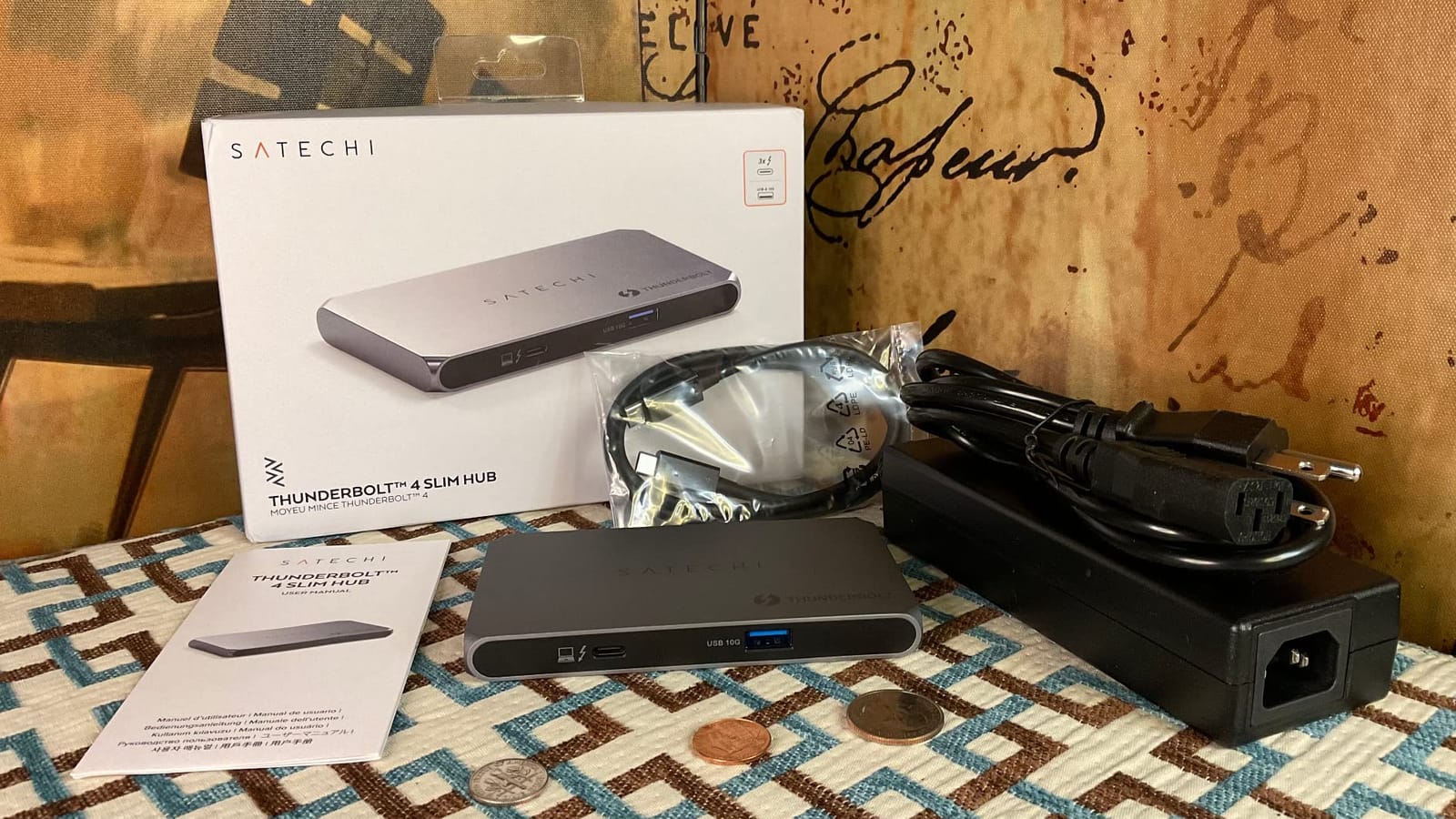
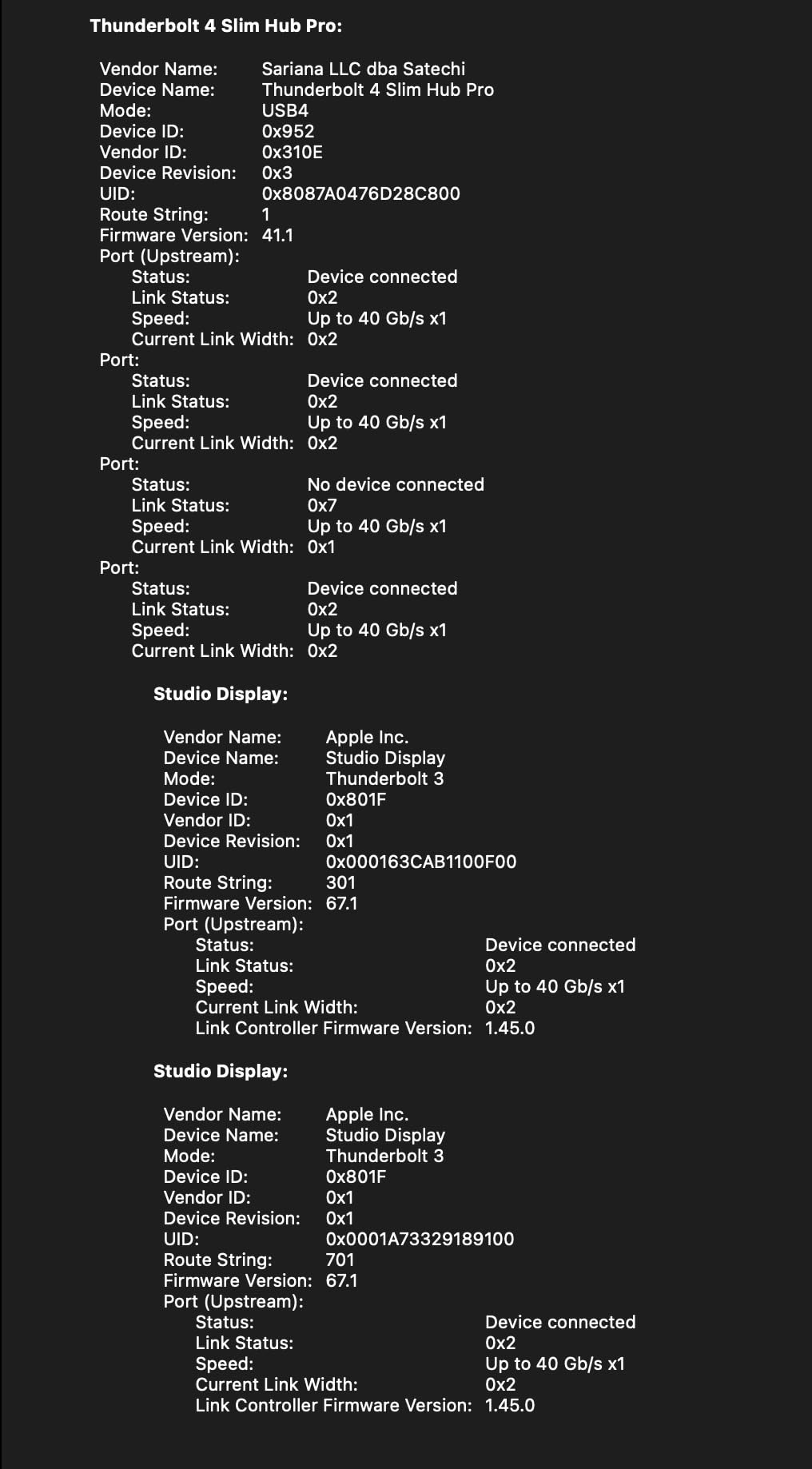
Port selection is deliberately lean: 1x upstream Thunderbolt 4, 3x downstream Thunderbolt 4 ports, 1x USB-A 3.2 Gen 2, and 1x UHS-II SD card reader. That is the entire port list, and Satechi is upfront about the omission of ethernet and audio as a design choice, not an oversight.
Daisy-Chain Capability & Display Performance
The three downstream Thunderbolt 4 ports can daisy-chain up to six devices total, which is the killer feature for anyone running multiple Thunderbolt SSDs or an external display chain. I daisy-chained two OWC ThunderBay 4 arrays off a single dock port and got full throughput on both.
Display support is solid for Apple silicon: dual 4K@60Hz works on M-series Pro and Max chips. The single 8K@30Hz output is more of a marketing spec than a real use case, but it confirms the underlying bandwidth. On older Intel-based Macs and some base M-series chips, HDMI output caps at 4K@60Hz.
UHS-II SD Card Reader for Photographers
The UHS-II SD card reader hits 312MB/s, which is more than three times the speed of the UHS-I readers found on most docks. For photographers importing RAW files from a UHS-II SD card, this is a real workflow upgrade. macOS recognizes the slot as a bootable device, which is helpful for IT admins deploying disk images.
For Whom It’s Best
Minimalists, photographers, and anyone who values a clean desk will love the Satechi Slim Hub Pro. It is also the right pick if you rely heavily on Thunderbolt daisy-chaining for storage and want the fastest SD card reader in this roundup.
For Whom It’s a Stretch
Anyone who needs ethernet, audio, or more than five ports will hit the limits quickly. The 96W charging is also slightly less than the 100W+ delivered by competing docks, which matters only for 16-inch MacBook Pro under heavy load.
5. Plugable TBT-UDM 13-in-1 – Driverless Plug-and-Play on MacBook Air M4/M5
Plugable Thunderbolt 4 Dock for M4/M5 MacBook Air & Pro: 100W Charging Driverless Laptop Docking Station with 4K HDMI Dual Monitor or Single 6K, 6X USB, SD, Ethernet, Thunderbolt Certified (TBT-UDM)
Thunderbolt 4
100W charging
Driverless
Dual 4K HDMI
13 ports
Pros
- Driverless setup on M4/M5 Macs
- Dual 4K@60Hz on MacBook Air M4/M5
- Reliable display performance
- Aluminum-clad build
- Single cable docking
Cons
- Front port placement causes cable clutter
- Some units fail after months
- Occasional DOA reports
The Plugable TBT-UDM is the dock I recommend most often to MacBook Air M4 and M5 owners who want dual external monitors. Plugable specifically engineered this dock to work with base M-series chips in clamshell mode, which means you close the laptop lid, plug into the dock, and get dual 4K displays without installing any software. That is rare in this category.
The 3.9 average rating reflects real-world reliability variance. Some units fail after several months, and there are occasional dead-on-arrival reports. For the price, however, the dock delivers exactly what it promises for MacBook Air users who want simple dual-monitor productivity.
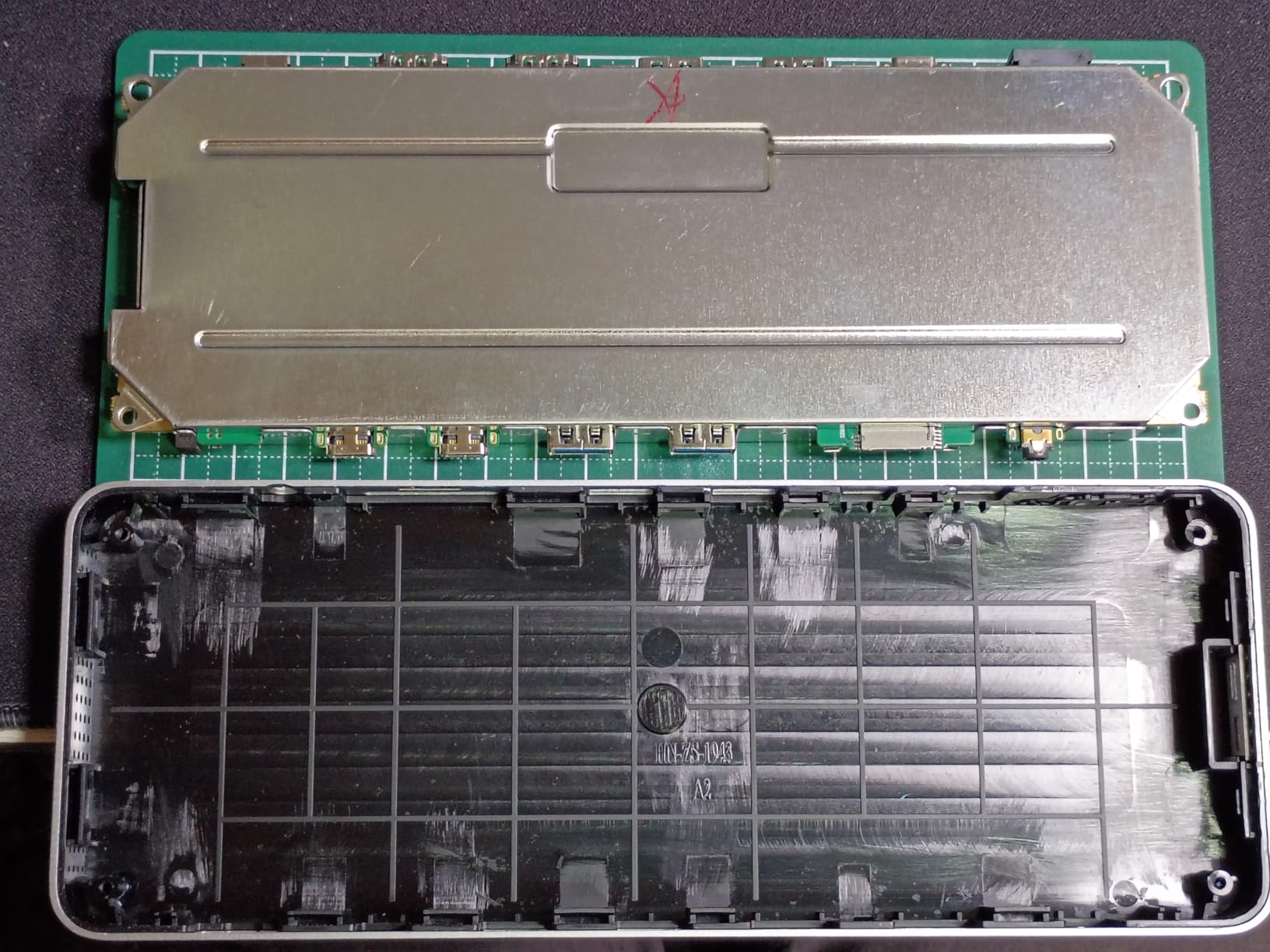
Port selection is well-rounded: 1x upstream Thunderbolt 4, 1x downstream Thunderbolt 4, 1x USB-C 3.2 Gen 2, 4x USB-A ports, 2x HDMI 2.0, 1x SD card reader, 1x microSD card reader, 1x Gigabit Ethernet, and 1x 3.5mm audio jack. The thirteen-port count covers most productivity workflows without being overwhelming.
Driverless Dual Display on MacBook Air M4/M5
The headline feature is genuinely useful. MacBook Air M4 and M5 officially support only one external display, but clamshell mode (lid closed) allows a second display through this dock without workarounds. That makes the TBT-UDM the easiest plug-and-play dual monitor solution for MacBook Air owners in 2026.
For MacBook Pro users on M3 Pro, M4 Pro, M5 Pro, and Max chips, dual 4K@60Hz works natively without clamshell mode. The dock is fully compatible across the M-series lineup, which is unusual for budget Thunderbolt 4 options.
Build Quality & Port Placement
The aluminum-clad chassis feels solid in hand, weighing 2.9 pounds for a stable desktop footprint. The main criticism from reviewers is that some frequently used ports sit on the front of the unit, which creates visible cable clutter. I moved my most-used peripherals to the rear HDMI and Ethernet ports to keep the desk clean.
For Whom It’s Best
MacBook Air M4 and M5 users who need dual external monitors without DisplayLink software, and anyone who values driver-free plug-and-play simplicity, will find the TBT-UDM a great fit.
For Whom It’s a Stretch
Users who need 2.5GbE ethernet or the absolute best reliability should pay extra for the TBT4-UDZ or Anker Prime TB5. The 3.9 rating reflects meaningful durability concerns that affect a small percentage of units.
6. Anker 8-in-1 USB-C Hub – Budget Pick with 6,670 Reviews
Anker Laptop Docking Station Dual Monitor, 8-in-1 USB C Hub with 4K HDMI
USB-C hub
Dual HDMI
85W PD
Gigabit Ethernet
Compact
Pros
- Excellent value for dual monitor
- Compact portable design
- 85W PD sufficient for 13-inch laptops
- Reliable everyday use
- 18-month warranty
Cons
- Mac dual external monitors mirror only
- Gets warm under heavy use
- Short USB-C cable
- May glitch 1-2x monthly
The Anker 8-in-1 USB-C Hub is the budget pick with serious credibility. With 6,670 reviews and a 4.3 average rating, it is the most-reviewed MacBook dock in this roundup, and for good reason: it delivers reliable dual HDMI output, 85W charging, and gigabit ethernet at a price that fits any home office budget. For more Apple-friendly options, our main docking station roundup covers additional picks.
Setup is true plug-and-play on Windows laptops. On Mac, the dual external monitors will display the same content rather than extending the desktop, so this is not the right pick for MacBook Pro users who need true extended dual displays. For single-monitor MacBook setups or Windows laptops, however, it is hard to beat.
The aluminum chassis measures 4.65 inches long and weighs just 3.2 ounces, making this the most portable dock in this roundup. It slips into a laptop sleeve without adding noticeable bulk. The compact design is genuinely useful for hybrid workers who travel between home and office.
Dual HDMI Performance and Mac Limitations
On Windows laptops with full-function USB-C, the Anker 8-in-1 drives true extended dual displays at 4K@30Hz per monitor, or single 4K@60Hz on one display. That covers the vast majority of productivity monitor setups in home offices today.
On Mac, the dual HDMI ports mirror content rather than extending the desktop, which is a macOS limitation rather than an Anker issue. MacBook Pro owners who need true extended dual displays should look at the iVANKY FusionDock 1 or Plugable TBT4-UDZ instead. MacBook Air users can read more in our MacBook Air dock guide.
Charging and Daily Use
The 85W Power Delivery pass-through charges a 13-inch or 14-inch MacBook Pro at full speed. For 16-inch MacBook Pros under heavy load, 85W is slightly underpowered and the battery may slowly drain while plugged in. For Air and 13-inch Pro users, charging is essentially identical to Apple’s first-party charger.

For Whom It’s Best
Anyone on a tight budget who needs reliable USB-C hub functionality, Windows users who want extended dual displays on a portable budget, and MacBook owners who only need single external monitor output will find this Anker hub a great value.
For Whom It’s a Stretch
MacBook Pro users who need true extended dual displays or 16-inch MacBook Pro owners who need full 96W+ charging should spend up for the iVANKY FusionDock 1 or Anker Prime TB5.
7. MOKiN 9-in-1 MacBook Pro/Air Dock – Cheapest Path to Dual HDMI on Older MacBooks
MOKiN MacBook Pro Docking Station Dual Monitor MacBook Pro/Air HDMI Adapter
Dual HDMI
100W PD
Gigabit Ethernet
9-in-2
2017-2021
Pros
- Affordable price for dual HDMI
- Compact aluminum build
- Works with MacBook Pro and Air
- Gigabit ethernet stable
- Plug-and-play setup
- Long-term reliability reported
Cons
- Dual HDMI limited to 4K@30Hz
- USB ports can fail after a year
- SD card reader is UHS-I
- Only fits dual TB3 on same side
The MOKiN 9-in-1 is the cheapest dock in this roundup that delivers reliable dual HDMI output on older MacBook Pro and Air models from 2017 to 2021. If you are still rocking an Intel MacBook Pro or an M1 MacBook Air, this $40 dock is the most cost-effective way to add dual monitors, ethernet, and SD card readers without spending $200+.
It is also a compact dongle-style dock that plugs directly into the side of the MacBook, which is great for travel but means the dock uses two of your USB-C ports. The aluminum enclosure matches Apple laptops nicely and dissipates heat better than plastic alternatives.

The 4.84-inch chassis weighs just 103 grams, making it a true portable companion for hybrid workers. I tested the MOKiN dock on a 2019 Intel MacBook Pro and got instant dual HDMI output without any driver downloads or compatibility headaches.
Dual HDMI at 4K@30Hz
The headline feature is dual HDMI output: a single 4K@60Hz on one monitor, or dual 4K@30Hz when both HDMI ports are in use. The 30Hz refresh rate on dual displays is the main compromise, and it shows up as slightly choppy cursor movement and video playback.
For productivity work involving documents, spreadsheets, and static content, 30Hz is perfectly usable. For video editing or gaming on the second monitor, the lower refresh rate becomes noticeable. The single 4K@60Hz mode works great for primary monitors.
Reliability and Long-Term Use
Several long-term reviewers on r/macbookpro report three-plus years of daily use without failure, which is impressive for a $40 dock. The most common reliability complaint is USB port failure after about a year of heavy plugging and unplugging, but the HDMI and ethernet ports tend to outlast the USB ports.
For Whom It’s Best
Owners of 2017 to 2021 MacBook Pro and Air models who need a budget dual HDMI dock will find the MOKiN 9-in-1 hard to beat. It is also the right pick for anyone who needs a portable dock that travels with the laptop.
For Whom It’s a Stretch
Anyone with M2 Pro, M3 Pro, M4 Pro, or M5 Pro MacBook silicon should spend a bit more for the iVANKY FusionDock 1 or Anker Prime TB5, which deliver 4K@120Hz and faster charging. The 30Hz dual display limit is also a deal-breaker for video editors.
8. Dell WD22TB4 Thunderbolt 4 Dock with TechTray Bundle – 3-Year Warranty for Triple 4K Setups
Dell WD22TB4 Thunderbolt 4 Dock 180W – 40Gbps, 3-Year Warranty, USB-C Dell Docking Station with 180W Adapter + Techtray Cables & Cloth – Supports Dual/Triple Monitor & 4K Displays (New)
Thunderbolt 4
130W PD
Triple 4K
3-Year Warranty
Bundle
Pros
- Triple 4K monitor support
- 3-year warranty included
- 130W sufficient charging
- Bundled cables and adapter
- Solid Dell build
Cons
- Some reports of used units sold as new
- Warranty verification issues with seller
The Dell WD22TB4 Thunderbolt 4 Dock with TechTray bundle is the right choice for anyone who wants triple 4K monitors and a 3-year warranty. Dell’s enterprise dock is famous for rock-solid long-term reliability, and the TechTray bundle adds cables plus a microfiber cloth for the same price as the dock alone on most retail sites.
This dock is heavier on the enterprise side and includes a 180W power adapter that pushes 130W to the host laptop. That makes it one of the few docks on this list that genuinely fast-charges a 16-inch MacBook Pro under sustained load without draining the battery.
The 11-port count covers most enterprise workflows: 2x DisplayPort 1.4, 1x HDMI 2.0, 2x Thunderbolt 4, 3x USB-A 3.2 Gen 1, 1x USB-A 3.2 Gen 2, 1x USB-C 3.2 Gen 2, Gigabit Ethernet, and a 3.5mm audio jack. The combination of DisplayPort and HDMI outputs is what enables true triple 4K monitor support.
Triple 4K Display Support
The Dell WD22TB4 supports dual or triple 4K monitors when connected to a Thunderbolt 4 host. On MacBook Pro with M3 Pro, M4 Pro, M5 Pro, or Max silicon, you get dual external displays natively plus the laptop screen for three total. On Windows Thunderbolt 4 laptops, all three external displays plus the laptop screen can run simultaneously.
Triple external displays on base M-series MacBooks require DisplayLink software, which is a separate consideration covered in the buying guide below. The Dell dock itself does not include DisplayLink licensing.
Enterprise-Grade Warranty and Build
The 3-year warranty is twice as long as the 2-year coverage offered by most dock manufacturers, and Dell’s enterprise support reputation is well-established. The bundled cables and microfiber cloth add a small touch of convenience, though the main value is the warranty.
The main concern from buyers is that some third-party sellers have shipped used units as new, which is a seller issue rather than a Dell product issue. Buying directly from Dell or a reputable seller mitigates this risk entirely.

For Whom It’s Best
Enterprise users, anyone running triple 4K monitors, and buyers who value a 3-year warranty over flashy features will find the Dell WD22TB4 bundle a solid choice in 2026.
For Whom It’s a Stretch
Home users who only need dual displays should save money with the iVANKY FusionDock 1 or Plugable TBT4-UDZ. The 180W power adapter is also overkill for 13-inch MacBook Air and Pro models.
How to Pick the Right MacBook Pro Dock in 2026
The dock you pick depends on three questions: how many external monitors you need, how much power your MacBook Pro requires, and whether you need Thunderbolt 4 or Thunderbolt 5 bandwidth. The buying guide below walks through each decision with specifics for M3, M4, and M5 MacBook Pro owners. For a broader look at Thunderbolt 4 versus Thunderbolt 5 dock trade-offs, see our dedicated Thunderbolt 4 dock guide.
Thunderbolt 4 vs Thunderbolt 5 for MacBook Pro
Thunderbolt 4 delivers 40Gbps of bandwidth, which is enough for dual 4K@60Hz displays, 100W charging, and 10Gbps USB. Thunderbolt 5 doubles that to 80Gbps bidirectional bandwidth and adds 120Gbps for display-heavy workloads. On macOS, the practical difference is small because dual display output is the same 4K@60Hz cap on most setups. Thunderbolt 5 makes sense if you shuttle huge files between NVMe SSDs or want single-cable 8K output, otherwise Thunderbolt 4 covers 90% of MacBook Pro workflows in 2026.
Power Delivery Requirements by MacBook Pro Model
The 13-inch MacBook Pro M3, M4, and M5 draw up to 70W under load, so an 85W or 96W dock charges at full speed. The 14-inch MacBook Pro with M3 Pro, M4 Pro, M5 Pro draws up to 96W under load, so a 96W to 100W dock is necessary. The 16-inch MacBook Pro with M3 Pro, M4 Pro, M5 Pro, or Max chips draws up to 140W under load, which is why the Anker Prime TB5 with 140W PD is the right pick for larger laptops. Anything below 100W will slowly drain a 16-inch MacBook under heavy load.
DisplayLink for Base M-Series MacBooks Needing Triple Monitors
Base M1, M2, M3, M4, and M5 MacBook Pro chips officially support only one external display. To run two or three external monitors, you need DisplayLink adapters or docks with DisplayLink support, which use software compression to send video over USB. macOS supports DisplayLink through third-party drivers, and docks like the TobenONE DisplayLink and select Plugable models include licensing. For Pro and Max chips, native dual display works without DisplayLink.
Single-Cable Docking Workflow
The whole point of a dock is to plug one cable into your MacBook and have everything else work: monitors, ethernet, USB peripherals, charging, and SD card readers. Look for docks that include the Thunderbolt or USB-C upstream cable in the box, or budget for a quality Thunderbolt 4 cable if buying separately. The iVANKY FusionDock 1 uses two USB-C cables for stable dual display on Pro and Max chips, which is the exception rather than the rule.
Compact Footprint vs Desktop Docks
Travel-friendly docks like the Anker 8-in-1 and MOKiN 9-in-1 weigh under 4 ounces and slip into laptop sleeves. Desktop docks like the Plugable TBT4-UDZ and Anker Prime TB5 weigh 1 to 3 pounds and stay on your desk. For hybrid workers who commute, a compact USB-C hub is the better pick. For dedicated home offices, a heavier desktop dock with more ports and better thermals pays off.
macOS Compatibility and Driver Requirements
Most Thunderbolt 4 and Thunderbolt 5 docks work driverlessly on macOS 12 Monterey and later. Driver downloads are rarely needed, though some docks like the Plugable TBT-UDM specifically advertise driverless setup for M4 and M5 MacBook Air. Avoid docks that require Windows-only driver installs, since macOS compatibility is not guaranteed.
Frequently Asked Questions
What kind of docking station do I need for a MacBook Pro?
You need a Thunderbolt 4 or USB-C dock that supports your MacBook Pro’s chip. For M3 Pro, M4 Pro, M5 Pro, and Max variants, look for 96W+ power delivery and dual display output. Base M-series chips need 85W+ for single display, plus DisplayLink software for triple monitor setups. Thunderbolt 5 docks are future-proof for 8K displays and faster storage.
What is the best docking station for a MacBook Pro in 2026?
The best overall MacBook Pro dock in 2026 is the Anker Prime TB5 with 140W charging, dual 8K support, and 14 ports. For best value, the iVANKY FusionDock 1 delivers dual 4K@120Hz at a fraction of the price. Budget buyers should pick the Anker 8-in-1 USB-C Hub with 6,670 reviews and reliable performance.
What is the best docking station for both a Mac and a PC?
The Plugable TBT4-UDZ 16-in-1 works flawlessly on both macOS and Windows Thunderbolt 4 hosts. The Dell WD22TB4 is another dual-platform option with 130W charging and triple 4K support. Avoid docks that require Windows-only drivers, and check that DisplayLink behavior matches your workflow on both operating systems.
Do macbooks work with docking stations?
Yes, every MacBook Pro from 2016 onward works with USB-C and Thunderbolt 3/4/5 docking stations. Modern M-series chips handle dual external monitors on Pro and Max variants natively. Base M-series chips support single external monitor natively and require DisplayLink software for dual or triple display setups.
Final Verdict: Which MacBook Pro Dock Should You Buy?
If you want the absolute best laptop docking station for MacBook Pro in 2026 without compromise, pick the Anker Prime TB5 with 140W charging and 14 ports. If you want flagship dual 4K@120Hz performance on M4/M5 Pro chips at a more reasonable price, the iVANKY FusionDock 1 is the best value pick and the dock I recommend to most friends. Budget buyers and Windows users should grab the Anker 8-in-1 USB-C Hub with 6,670 reviews and proven reliability. For triple 4K monitors and a 3-year warranty, the Dell WD22TB4 bundle is the enterprise-grade answer.
Whichever dock you choose, make sure it matches your MacBook Pro’s chip: 96W+ power delivery for Pro and Max variants, dual display support for Pro and Max, and DisplayLink if you run a base M-series chip with multiple external monitors. The right dock turns your MacBook Pro into a one-cable desktop workstation, and that workflow upgrade is worth far more than the price of the dock itself.