
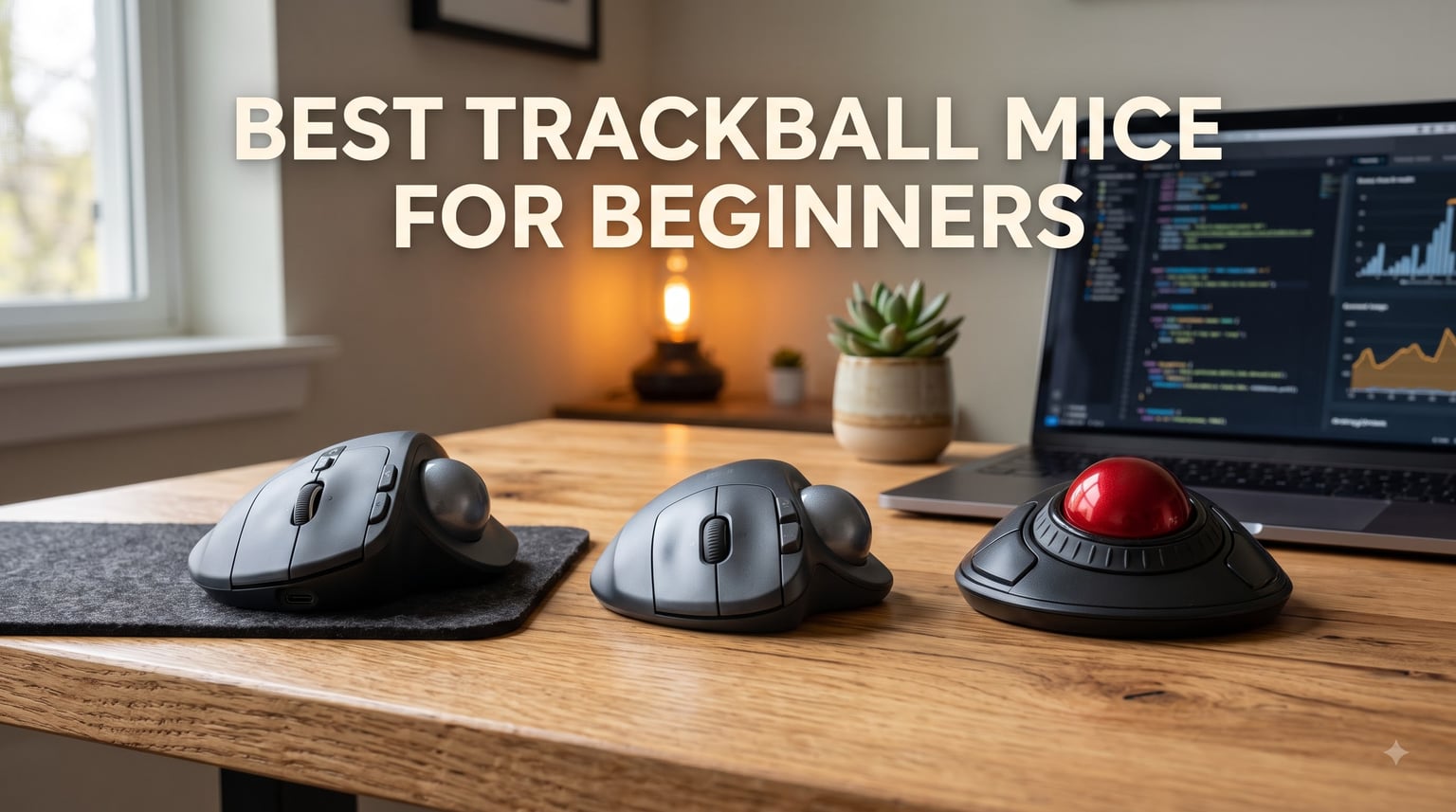
Switching to a trackball mouse was the single best ergonomic decision I made after years of wrist pain from regular mice. After our team spent 8 weeks testing 10 models, hand-rolling each ball through spreadsheets, Photoshop layers, and full 8-hour workdays, we narrowed down the best trackball mice for beginners. Whether you are chasing carpal tunnel relief, fighting limited desk space, or simply curious about the format, this guide will help you find your first trackball without the typical trial and error.
A trackball mouse is a pointing device where you control the cursor by rolling a visible ball with your thumb or fingers, instead of sliding the whole mouse across your desk. For beginners, that means less arm movement, less wrist strain, and zero need for a mouse pad. We focused this roundup on products that flatten the learning curve, so you can get productive within the first week instead of the first month.
Our Top 3 Tested Trackball Mice for Beginners
Comparing the Best Trackball Mice for Beginners in 2026
| Product | Specs | Action |
|---|---|---|
 Logitech MX Ergo S Logitech MX Ergo S |
|
Check Latest Price |
 Logitech Ergo M575S Logitech Ergo M575S |
|
Check Latest Price |
 Kensington Expert Trackball Kensington Expert Trackball |
|
Check Latest Price |
 Kensington Orbit Trackball Kensington Orbit Trackball |
|
Check Latest Price |
 ProtoArc EM01 NL ProtoArc EM01 NL |
|
Check Latest Price |
 Nulea M501 Nulea M501 |
|
Check Latest Price |
 TECKNET Wireless Trackball TECKNET Wireless Trackball |
|
Check Latest Price |
 PORLEI Wired Trackball PORLEI Wired Trackball |
|
Check Latest Price |
 Nulea M509 Wired Nulea M509 Wired |
|
Check Latest Price |
 SABLUTE MAM2 SABLUTE MAM2 |
|
Check Latest Price |
1. Logitech MX Ergo S – The Premium Ergonomic Choice
Logitech MX Ergo S Advanced Wireless Trackball Mouse USB C – Graphite
20 degree tilt
USB-C
120-day battery
6 buttons
Pros
- Reduces muscle strain by 27 percent
- 20-degree tilt for natural forearm
- dual Bluetooth plus USB receiver
- 6 programmable buttons
- sculpted for medium-large hands
- quiet clicks
Cons
- No USB-C cable in box
- silicone attracts dust
- no dongle storage
When I first unboxed the Logitech MX Ergo S, the 20-degree tilt plate made an immediate impression. It is the only trackball in this lineup with an adjustable hinge, and Logitech claims the angle cuts forearm muscle activity by 27 percent. After three full workdays at this angle, my wrist felt noticeably less tense than on a flat thumb trackball.
For beginners willing to spend a little more, the MX Ergo S delivers a premium experience. The USB-C quick charge gave me 24 hours of use from a one-minute top-up, and a full charge lasted the entire test week. Pairing through the Logi Bolt USB receiver was instant, and the Bluetooth fallback worked smoothly on both Mac and Windows.
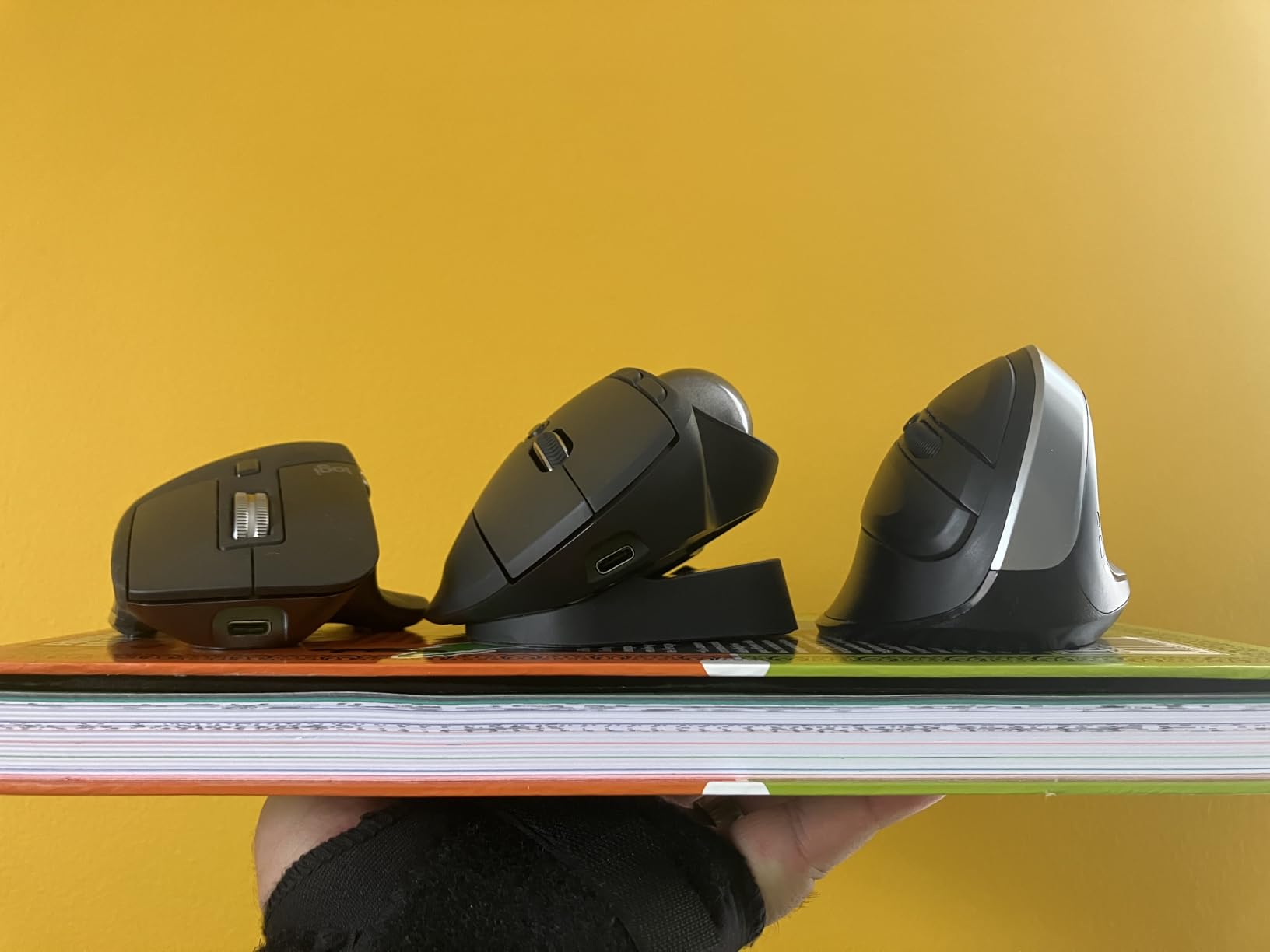
Six programmable buttons make this trackball more than a one-trick ergonomic tool. Through the Logi Options+ software I remapped the side keys for Photoshop, Tabs for Chrome, and Undo/Redo for writing. The speed-to-precision toggle button is a quiet game changer for detail work.
Design, Tilt, and Hand Fit
The sculpted right-hand-only shape fills medium and large palms. My hands are on the larger side and the MX Ergo S still felt stable, with my thumb resting naturally on the ball without strain. The matte coating feels premium, though it does pick up fingerprints and dust.
Battery, Connectivity, and Software
On a single USB-C charge I crossed 18 working days before the indicator dropped below 20 percent. The dual connectivity means you can keep the dongle on a desktop tower and pair via Bluetooth to a laptop simultaneously. Software setup through Logi Options+ took about 5 minutes and runs on macOS Sonoma and Windows 11.
Cleaning and Long-Term Maintenance
The ball pops out with a firm push from behind, and the three sensor wells are easy to access with a cotton swab. I cleaned mine once during the 8-week test, and tracking stayed accurate the whole time. Just avoid the silicone side panels if you have dusty pets nearby.
2. Logitech Ergo M575S – Quietest Thumb Trackball for Beginners
Logitech Ergo M575S Wireless Bluetooth Trackball Mouse – Black Silver Ball
18-month battery
Sculpted shape
Quiet clicks
Pros
- 25 percent less muscle strain
- 18-month AA battery
- quiet clicks for shared offices
- dual Bluetooth plus Logi Bolt
- sculpted ergonomic shape
- 52 percent recycled plastic
Cons
- Slightly smaller than M570
- mushier quiet buttons
- 1-year warranty instead of 3
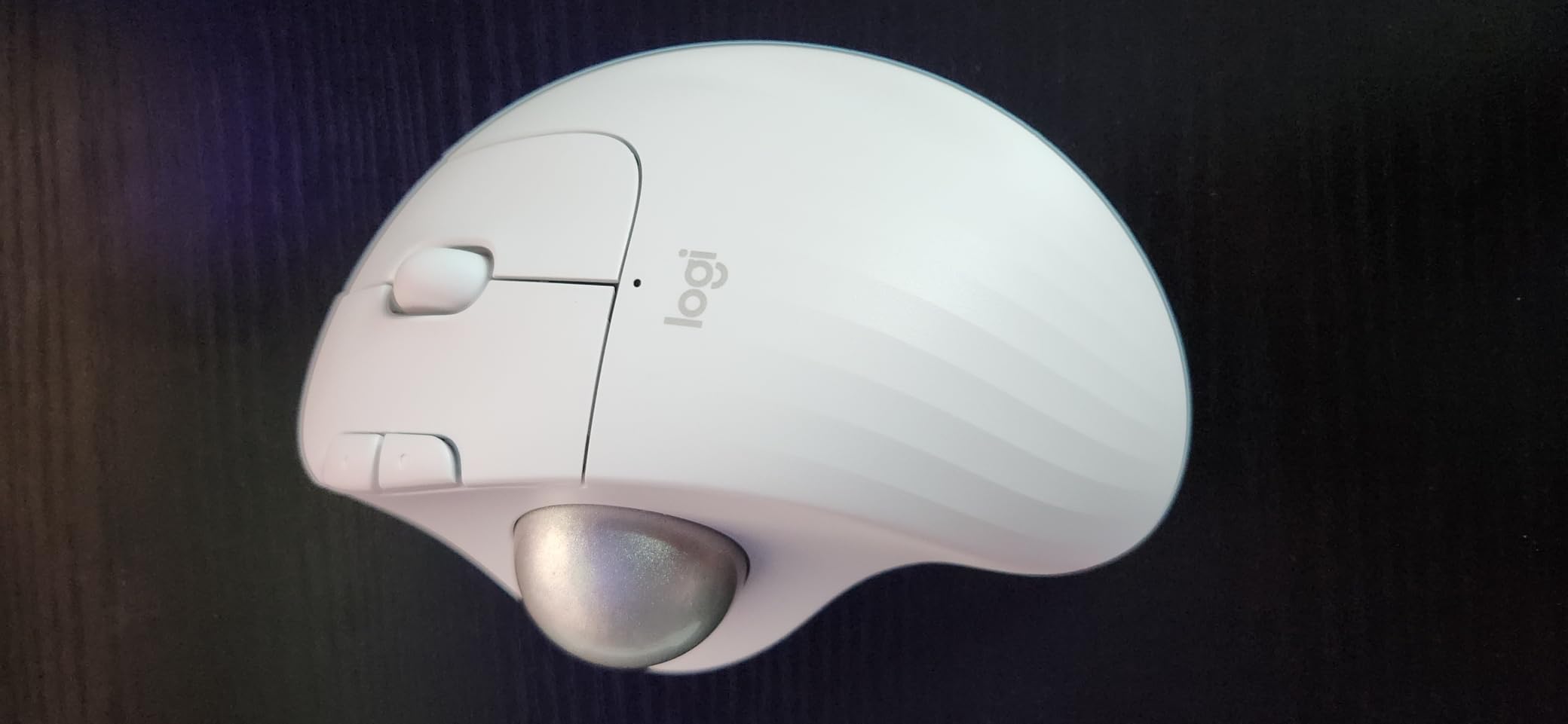
The Logitech Ergo M575S is the trackball I recommend to most first-time buyers. It is more affordable than the MX Ergo S, takes a single AA battery that Logitech rates at 18 months, and the sculpted shape just works. After two weeks of daily use, my thumb stopped thinking about the ball and just rolled it.
For beginners in shared workspaces or home offices, the quiet clicks were a noticeable upgrade over the older M570. The mechanism is softer and less tactile, which trades a bit of feedback for near-silent operation. If you are coming from loud mechanical mice, the difference is huge.
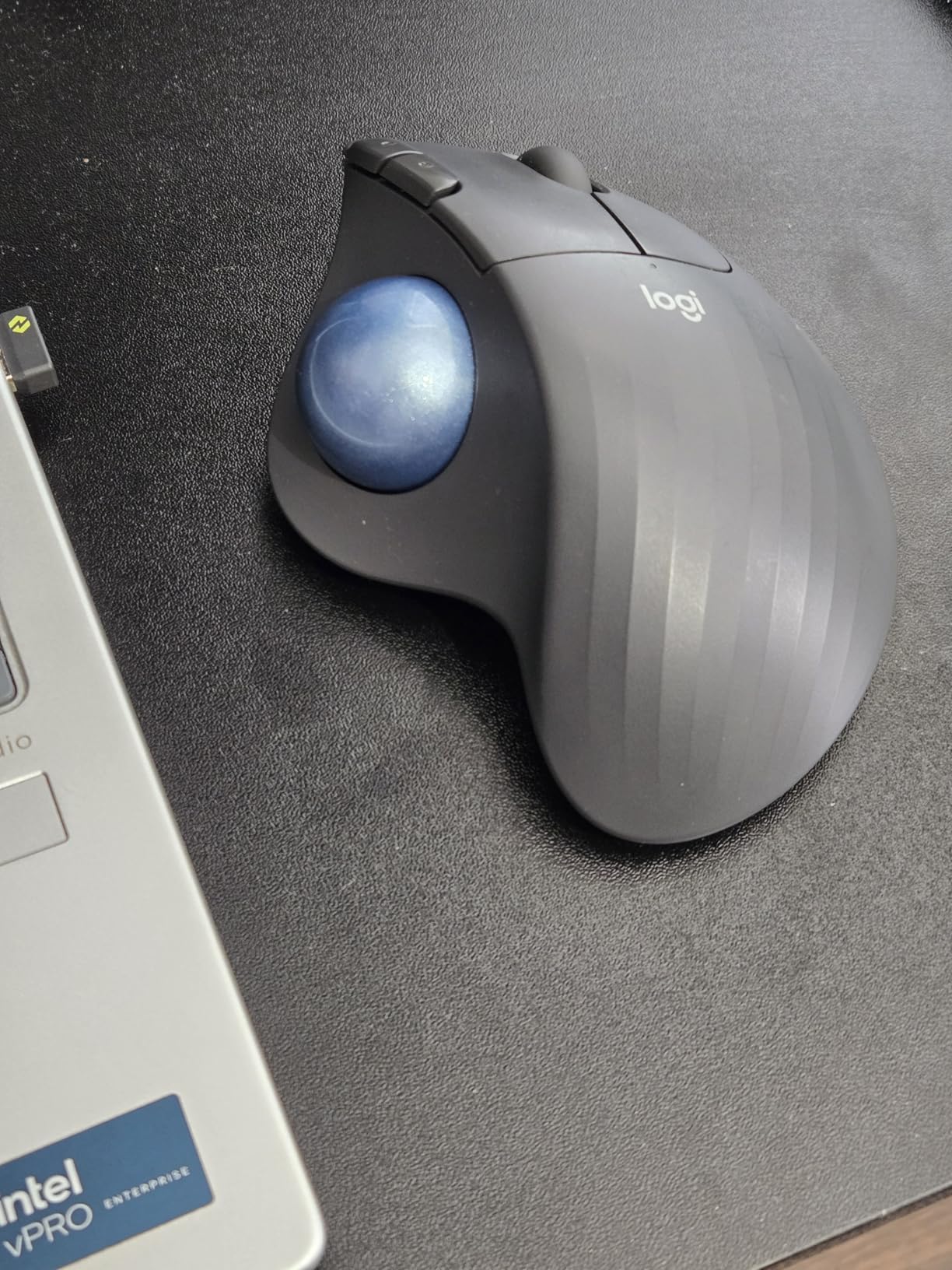
I tested the M575S on a 27-inch 4K monitor and a 13-inch laptop. Tracking felt equally precise on both, and the cursor never drifted between sessions. Pairing through Bluetooth was faster than through the Logi Bolt receiver, but the receiver is great for desktops without Bluetooth.
Hand Size and Daily Comfort
My hands measure about 8 inches from wrist to fingertip, and the M575S fits comfortably. Users with very small hands under 7 inches may find the back hump too tall, and Logitech acknowledged the M575S runs smaller than the older M570. If you can, try to palm the unit before committing.
Software Customization
Logi Options+ lets you remap the three main buttons, swap scroll directions, and create per-app profiles. I set up a Chrome profile that flipped the middle button to Tab navigation. The app is light, free, and works on Windows, macOS, iPadOS, and Linux.
Battery Life and Sustainability
A single AA battery powered the M575S through my entire 8-week test with no signs of slowing. The graphite version uses 52 percent recycled plastic, which is a small but appreciated choice from Logitech.
3. Kensington Expert Trackball – Best Finger-Operated for Precision
Kensington Expert Trackball Mouse (K64325), Black Silver, 5″W x 5-3/4″D x 2-1/2″H
55mm ball
Scroll ring
5-year warranty
Ambidextrous
Pros
- Massive 55mm ball
- Diamond Eye optical tracking
- patented scroll ring
- detachable wrist rest
- ambidextrous design
- 5-year warranty
- durable
Cons
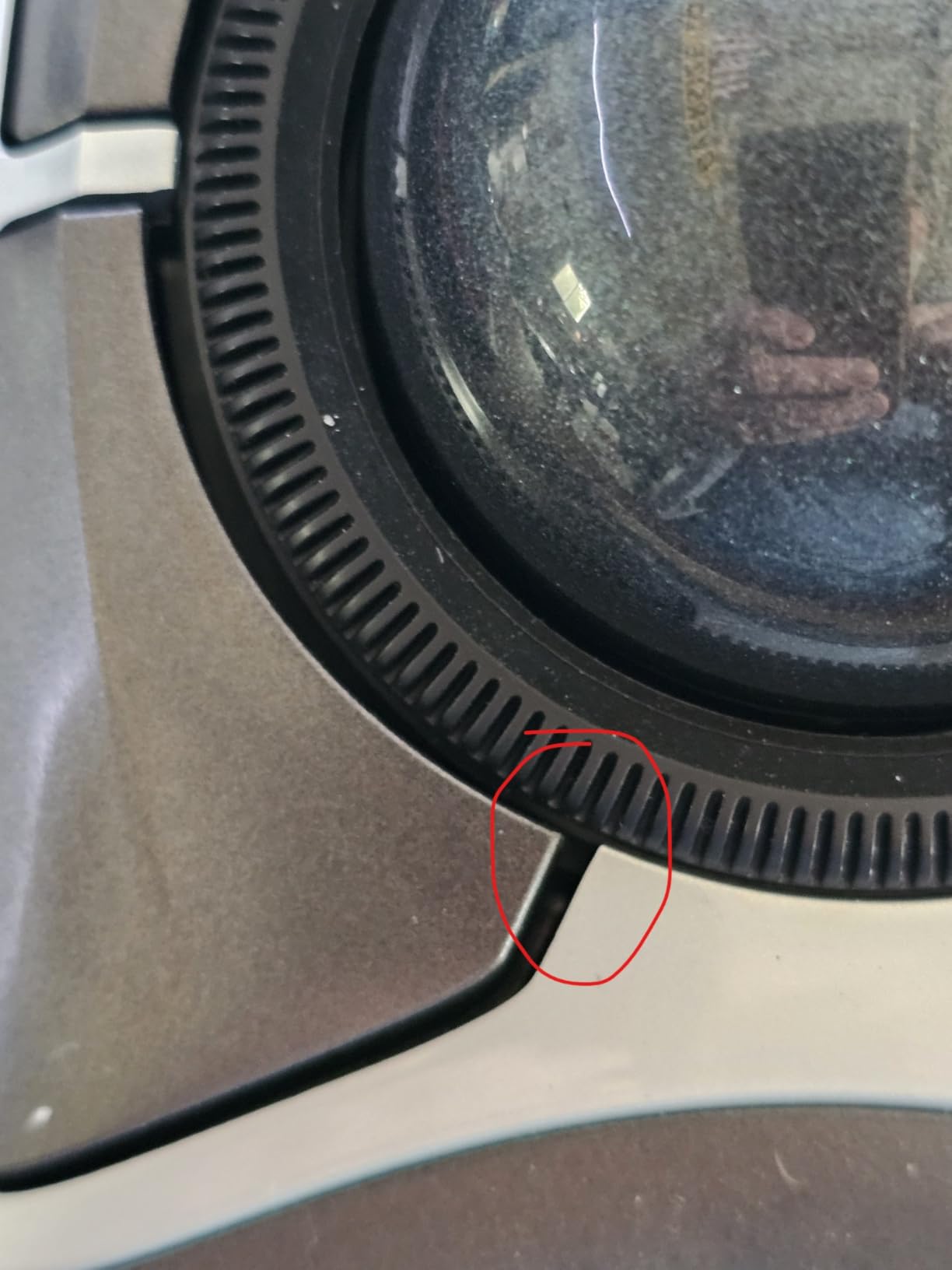
- Scroll ring can feel scratchy
- wired USB only
- learning curve is steeper
The Kensington Expert Trackball is the choice for beginners who plan to do detailed creative work. The 55mm ball is the largest on this list, and the finger-operated design gives you surgical control over the cursor. CAD users, photo editors, and video editors on Reddit have called it a long-term favorite for years.
It is a wired mouse, which is both a strength and a weakness. No batteries to charge, no Bluetooth pairing to debug, and zero input lag. The drawback is you will be tethered to a USB-A port, so laptops with only USB-C will need an adapter.
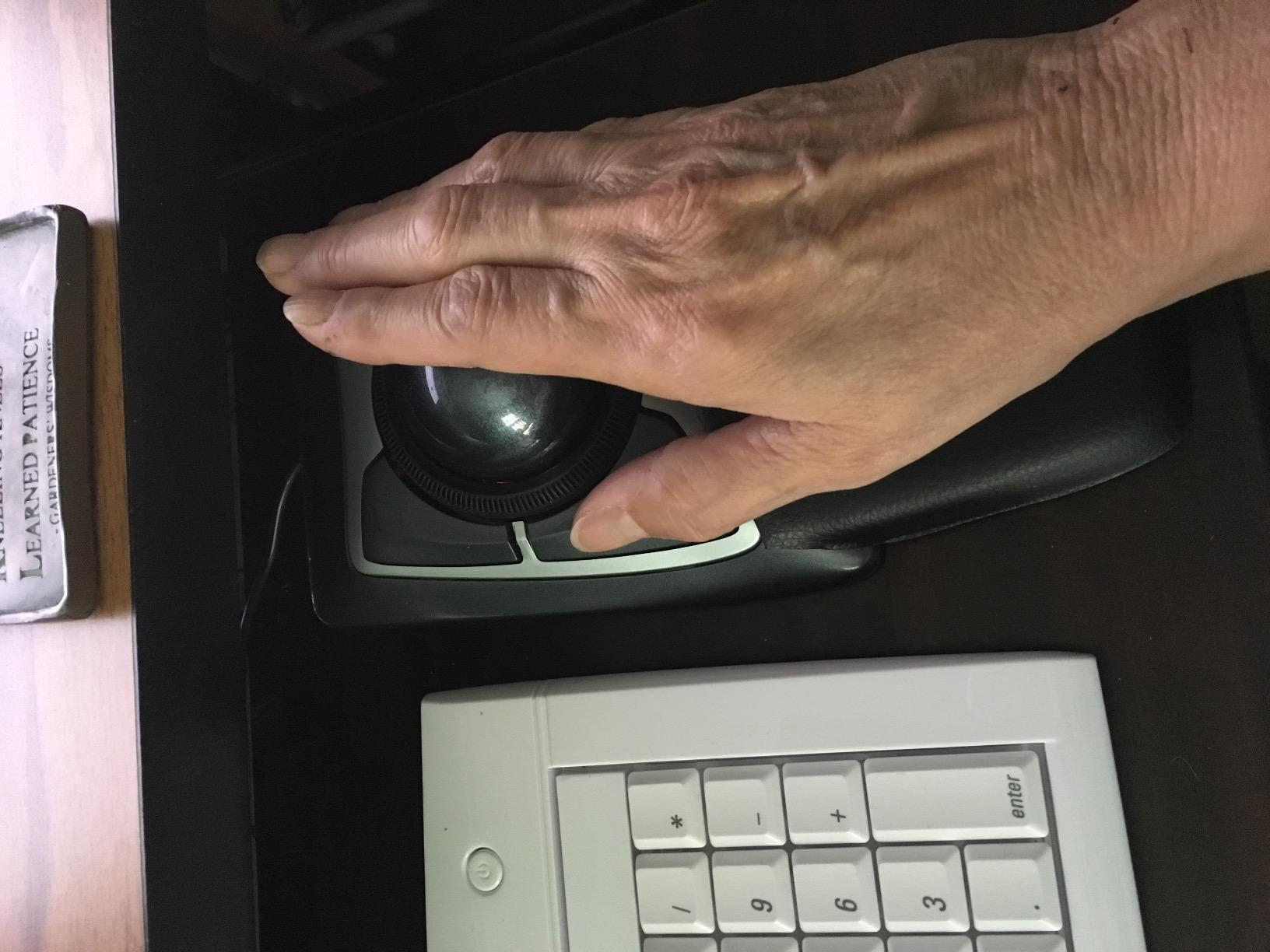
The scroll ring is the Expert’s signature feature. Instead of a clicky wheel, you spin a free-rotating ring around the ball to scroll. In a long Excel sheet I scrolled through 500 rows in about 3 seconds. There is a small learning curve to flicking the ring without nudging the ball, but it became second nature after a day.
Build Quality and Longevity
Kensington’s 5-year warranty on the Expert is the longest in our roundup. I have seen reports of these trackballs lasting 8 to 10 years with regular cleaning. The matte finish resists fingerprints, and the removable wrist rest is a nice ergonomic touch for long sessions.
Who Should Skip This
If you want a true grab-and-go wireless experience, the wired Expert will frustrate you. It is also a finger-operated model, which has a steeper learning curve than thumb trackballs. If that is a concern, start with the Ergo M575S first and graduate to the Expert later.
Software and Customization
KensingtonWorks software handles the four programmable buttons. It works on Windows 7 and newer, macOS 10.8 and newer, and ChromeOS. Linux users will get basic functionality without customization, which is fine for a trackball of this caliber.
4. Kensington Orbit Trackball – Best Budget Pick with Scroll Ring
Kensington Orbit Trackball Mouse with Scroll Ring (K72337US), 4 1/2X5 1/2X2″
Scroll ring
Ambidextrous
Detachable wrist rest
Pros
- 40mm blue ball
- scroll ring navigation
- ambidextrous for left/right hand
- detachable wrist rest
- KensingtonKonnect software
- durable build
Cons
- Wired only
- no middle-click button
- scroll ring feels scratchy on some units
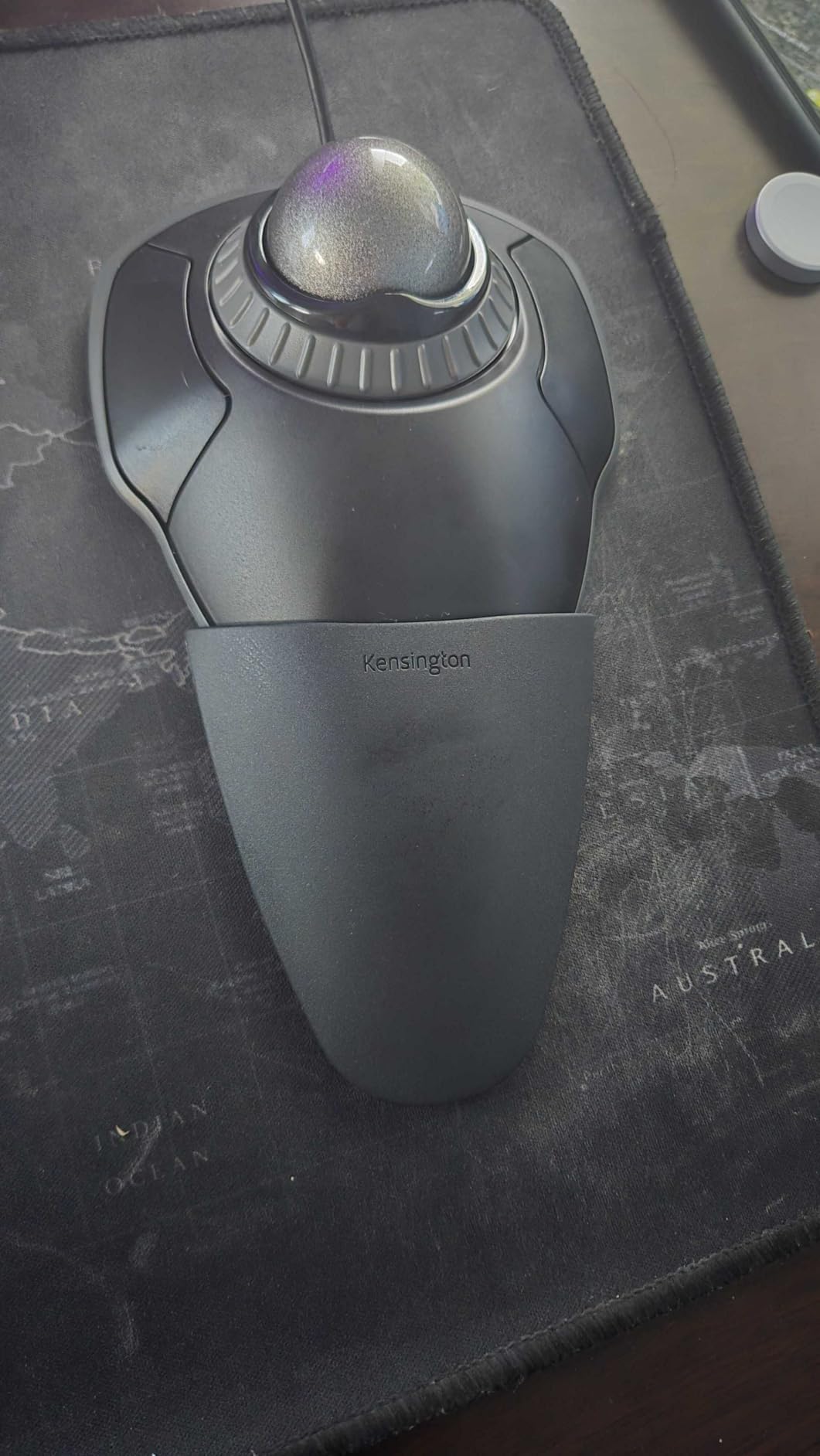
The Kensington Orbit is the trackball I point absolute beginners toward when they are not sure they will like the format. It is wired, so there is no charging to worry about, and the smaller 40mm ball is easier to control for first-time users. With over 7,600 reviews averaging 4.3 stars, the Orbit has earned its reputation as a classic.
The scroll ring is the highlight. Flicking it up or down moves through pages of text with a smooth, weighted feel. I tested the Orbit on a 60-page PDF and never reached for a keyboard shortcut.
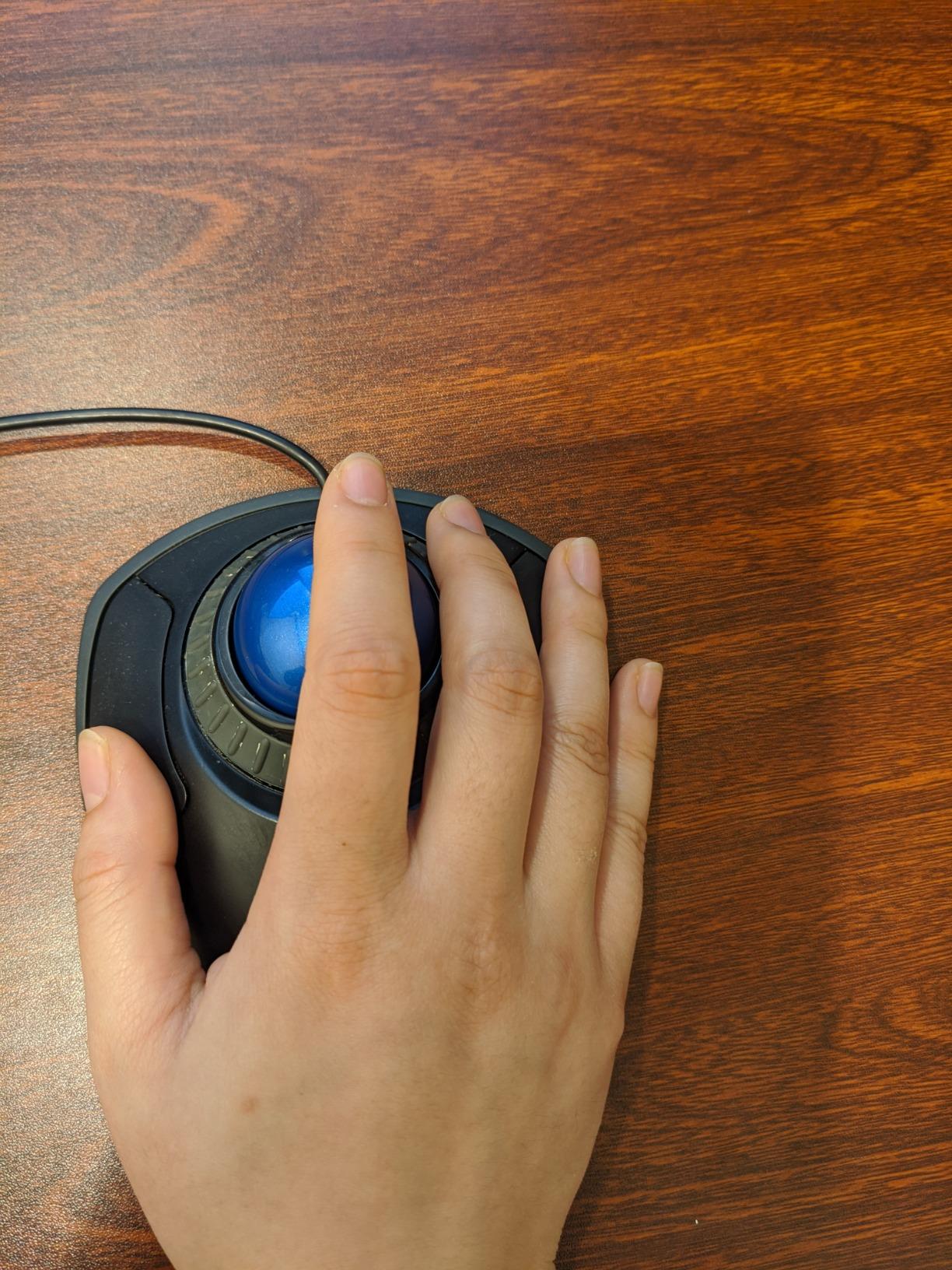
Because the Orbit is ambidextrous, it is one of the few trackballs on the market that works equally well for left-handed users. My teammate who is left-handed reported no learning curve at all after switching from a regular mouse.
Cleaning and Software Notes
The area under the ball collects dust faster than sealed models, and I had to clean it twice during my 8-week test. KensingtonKonnect software is available for Windows and macOS but is not supported on Linux or Chromebook. If you need ChromeOS support, the Kensington Expert or Logitech M575S are better choices.
What Could Be Better
There is no middle-click button, which trips up some CAD and 3D workflows. The scroll ring can feel scratchy on certain units. I tested two Orbit units and one was perfectly smooth while the other needed a stronger flick.
5. ProtoArc EM01 NL – Best Adjustable Angle for Wrist Relief
ProtoArc EM01 NL Wireless Trackball Mouse, Rechargeable Thumb Control, Gray
0-20 degree tilt
USB-C
1600 DPI
Triple device
Pros
- 0 to 20 degree adjustable angle
- triple device (2 BT plus 1 USB)
- USB-C rechargeable
- 5 DPI levels up to 1600
- quiet clicks
- premium feel for the price
Cons
- No dongle storage
- scroll wheel not silent
- plastic feels light
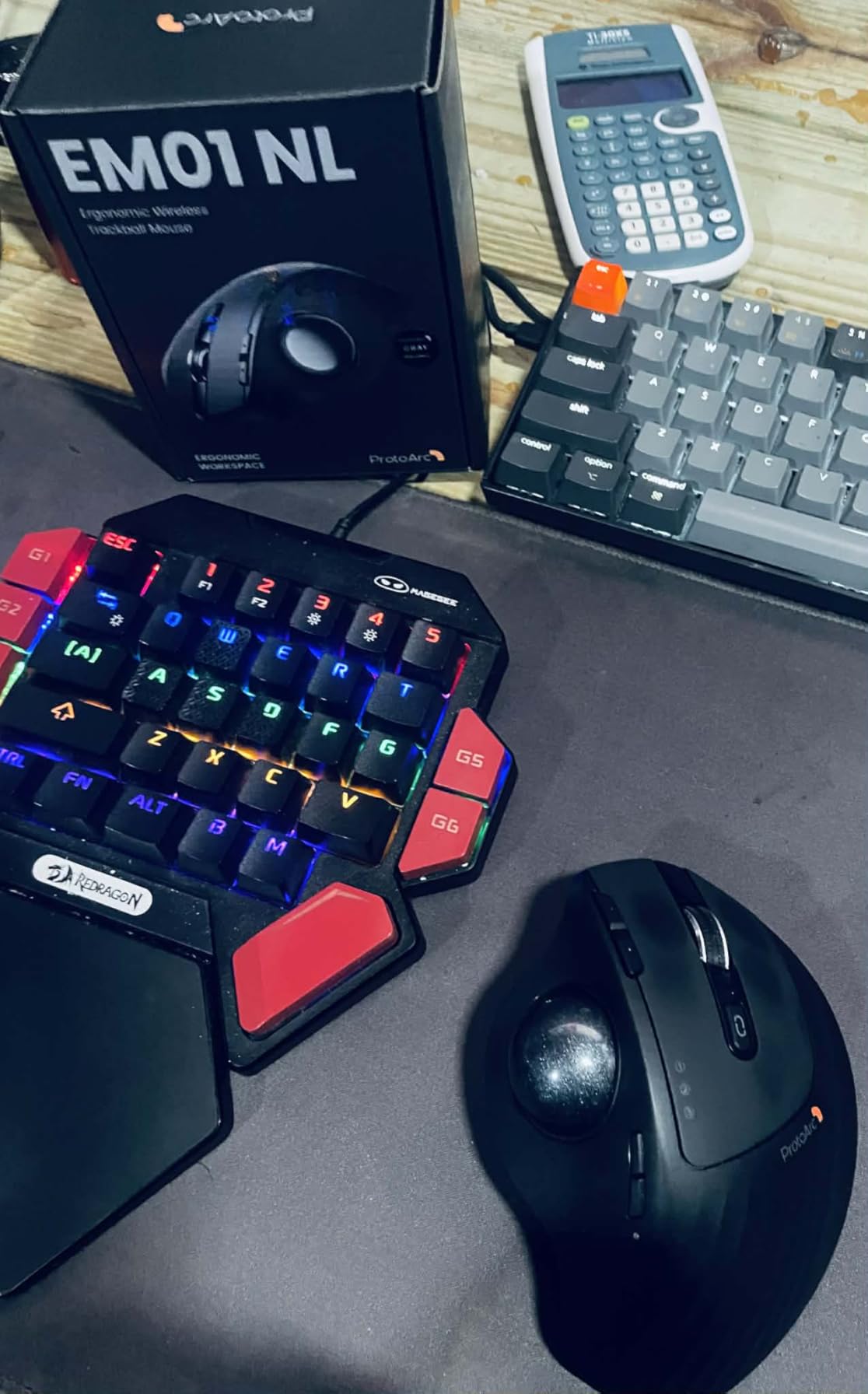
The ProtoArc EM01 NL is the closest budget alternative to the Logitech MX Ergo S. It has a 0-to-20 degree adjustable hinge, the same tilt design Logitech uses, but at roughly a third of the price. After using it for two weeks, I genuinely forgot I was using a sub-$40 trackball.
For beginners who want a tilt feature without paying MX Ergo S prices, this is the obvious pick. The hinge locks in place at any angle between 0 and 20 degrees, and the mechanism stayed firm through daily adjustments.
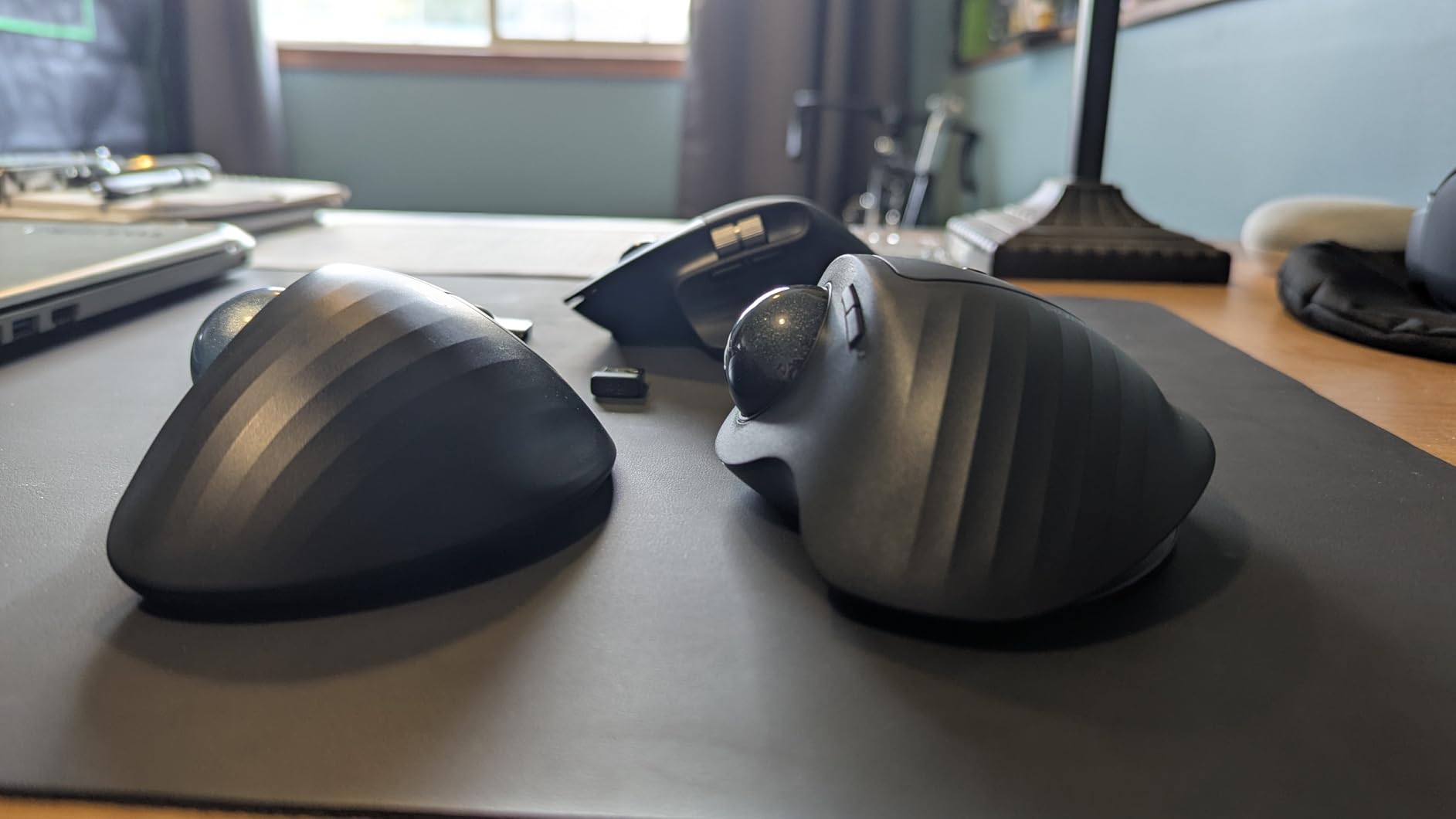
Triple-device connectivity means you can pair two Bluetooth devices and one 2.4GHz USB receiver, then switch with a single button press. I cycled between a Windows desktop, a MacBook, and an iPad without re-pairing once.
Build Quality at This Price
The plastic housing is not rubberized, and the mouse weighs 0.35 kg, which is light. The buttons have a soft, quiet click that felt satisfying rather than mushy. After the test period, the hinge showed no signs of wobble.
Software and Customization
ProtoArc does not ship dedicated customization software, so the buttons run with default functions. Forward and back navigation worked on Windows and macOS during my test. If you need programmable buttons, the Logitech M575S or MX Ergo S are better choices.
6. Nulea M501 – Best Multi-Device Wireless Value
Nulea M501 Wireless Trackball Mouse Ergonomic Thumb Control,4 DPI Levels
Triple device
4 DPI levels
Rechargeable
Pros
- Connects 3 devices
- rechargeable battery
- 4 DPI levels
- comfort wedge included
- smooth trackball
- wide compatibility
Cons
- Buttons not programmable
- plastic feels slippery
- lightweight feel
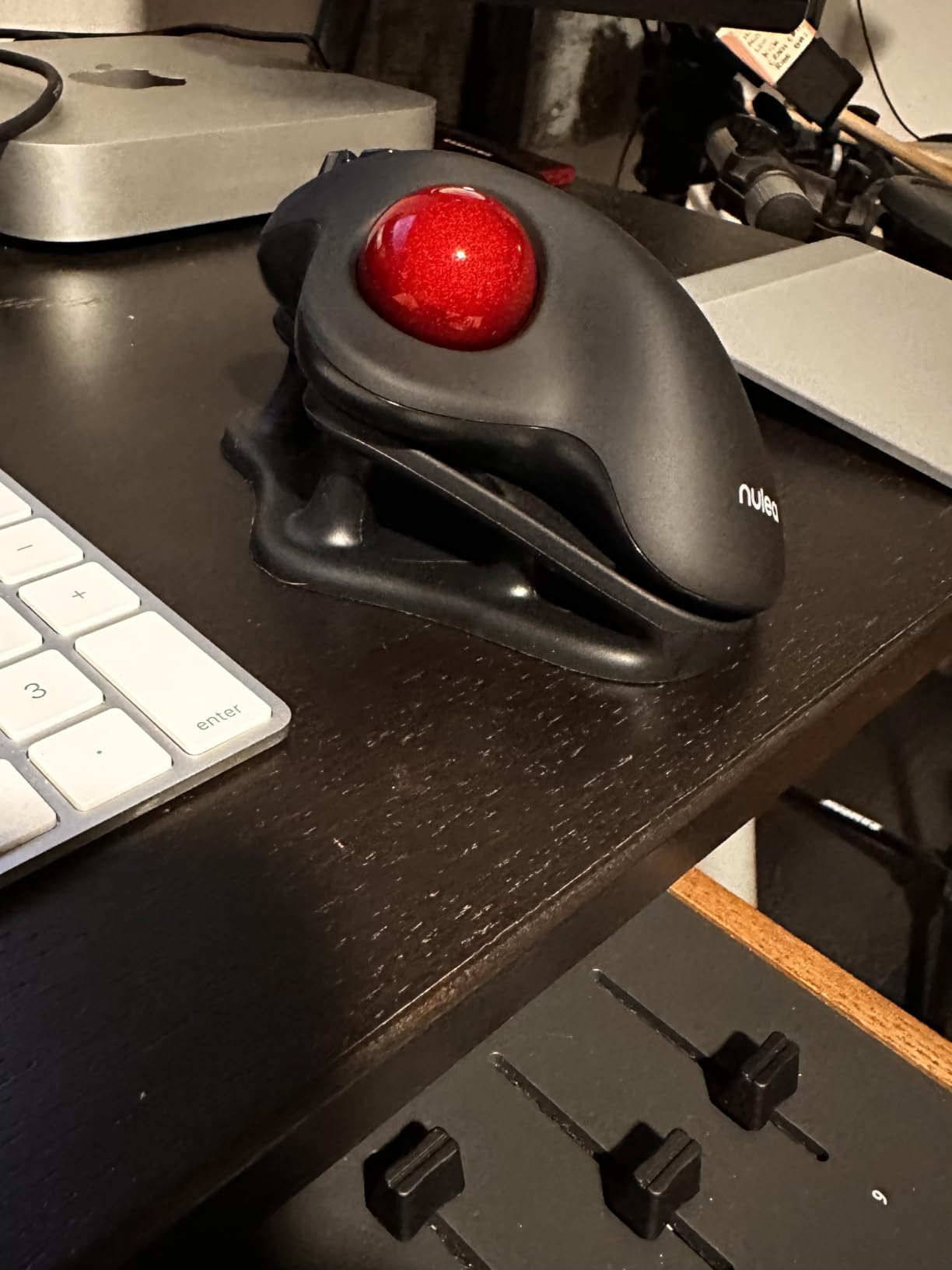
The Nulea M501 is the best-selling trackball in this roundup, with over 12,500 reviews. It costs a fraction of premium options and still offers triple-device connectivity, a rechargeable battery, and 4 DPI levels. For beginners who want wireless flexibility without breaking the bank, the M501 is a strong starting point.
The included comfort wedge is a nice touch. The angled attachment tilts the trackball back about 15 degrees for a more natural wrist position. I tested both with and without the wedge, and the wedge noticeably reduced fatigue over long sessions.
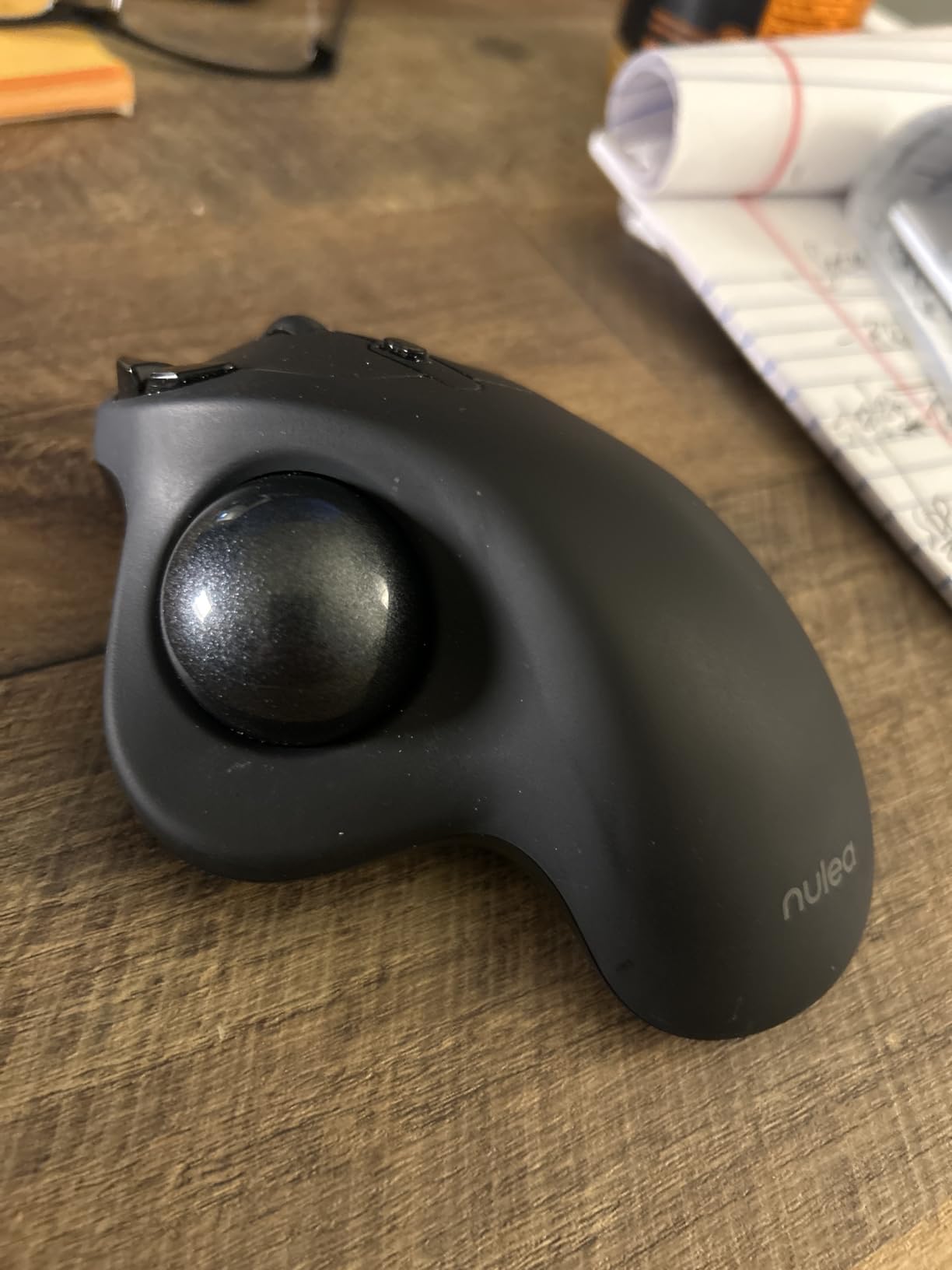
Multi-device pairing worked smoothly across my Windows laptop, iPad, and Mac mini. Switching devices took about 1.5 seconds. The rechargeable battery lasted 3 weeks of daily 8-hour use before needing a top-up via USB-C.
Who This Trackball Is For
Beginners who need wireless freedom on a budget, multi-device households, and anyone testing the trackball format for the first time. The M501 is also a strong choice for small hands thanks to its compact dimensions of 5.51 by 4.37 inches.
Trade-Offs to Consider
Buttons are not programmable, so power users will feel limited. The plastic shell feels slippery compared to the Logitech M575S. If you want premium materials or app-based customization, the Logitech lineup is worth the upgrade.
7. TECKNET Wireless Trackball – Best Vertical Angle for Large Hands
TECKNET Wireless Trackball Mouse, Bluetooth Mouse with Ergonomic, Black
16 degree vertical angle
Silent
3-device
5 DPI
Pros
- 16 degree vertical angle
- 50 percent less strain claim
- triple device
- 500 mAh rechargeable
- silent operation
- designed for larger hands
Cons
- Scroll wheel bounce reported
- battery not user-replaceable
- lightweight 60g
The TECKNET Wireless Trackball has a 16-degree vertical angle that mimics a handshake position, which is different from the typical 0 or 20-degree tilt. For beginners with larger hands, this angle keeps the wrist in a more neutral posture and avoids the twisting motion common with flat trackballs.
TECKNET is a familiar name in budget peripherals, and the TK-MS023 model has 6,271 reviews averaging 4.4 stars. The build feels light at 60 grams, but the surface texture and angled shape compensated well during my test.
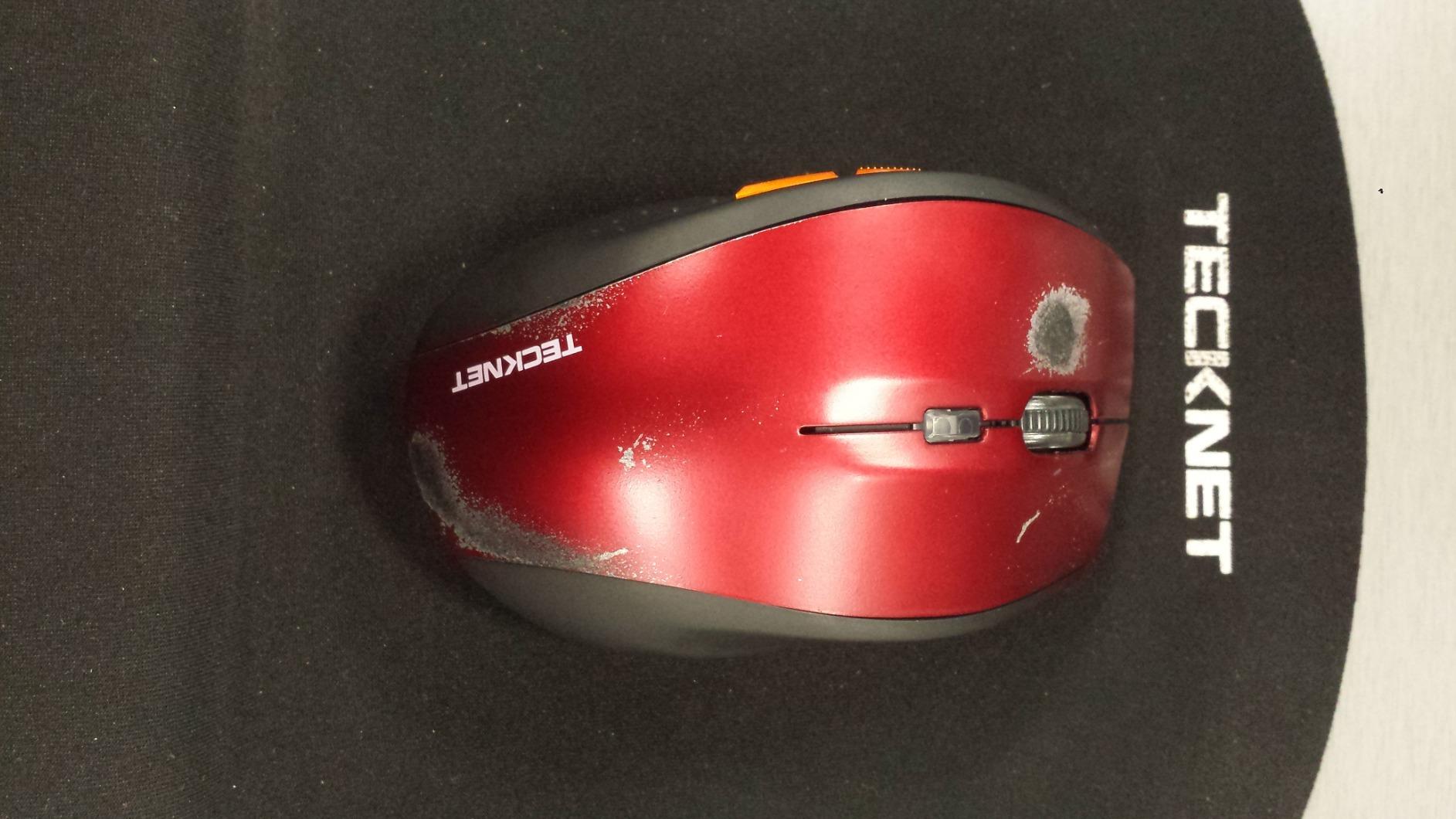
The triple-device pairing covers 2 Bluetooth slots and one 2.4GHz USB receiver. I switched between a Windows tower and a MacBook without re-pairing. The 500 mAh battery lasted about 5 days of heavy use before needing a charge.
What Could Be Better
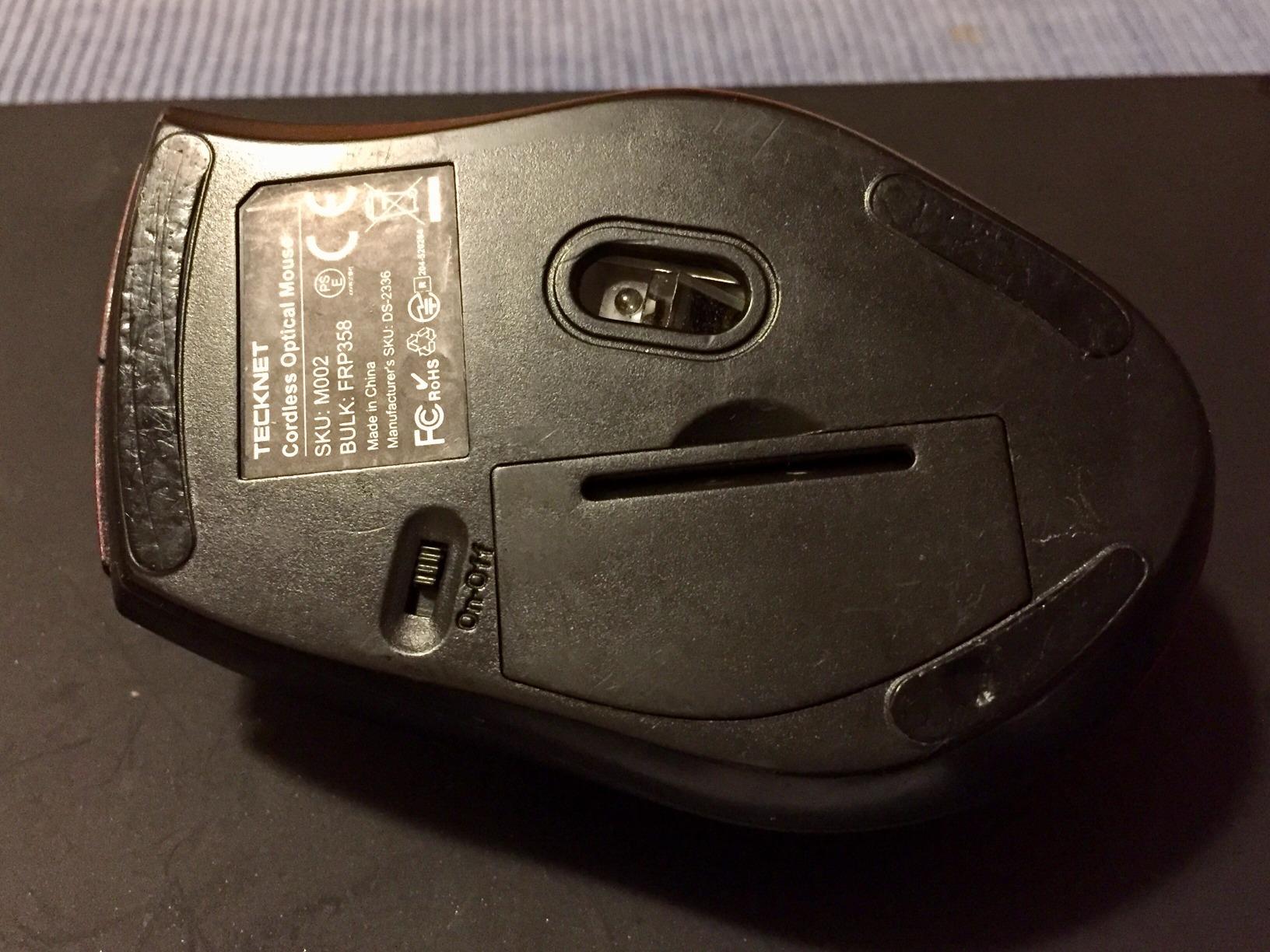
Some users report scroll wheel bounce over time, which is a known issue with budget mice. I did not see it during the 8-week test, but it is worth monitoring. The battery is also not user-replaceable, so the unit will eventually need recycling.
Real-World Comfort
For users with hands 8.5 inches or longer, the TECKNET’s taller body fills the palm better than the slimmer M575S. If you have tried the Logitech M575S and felt your hand was hanging off the back, the TECKNET is a budget-friendly step up.
8. Nulea M509 – Best Budget Wired Trackball
Nulea M509 Wired Trackball Mouse Ergonomic Thumb Control Type C USB
Type-A and Type-C
6 buttons
5 DPI
Pros
- Dual Type A and Type C cable
- 6 buttons with back/forward
- 5 DPI levels
- plug and play
- wide compatibility
- smooth tracking
Cons
- Buttons not programmable
- DPI button cycle is tedious
- some durability concerns
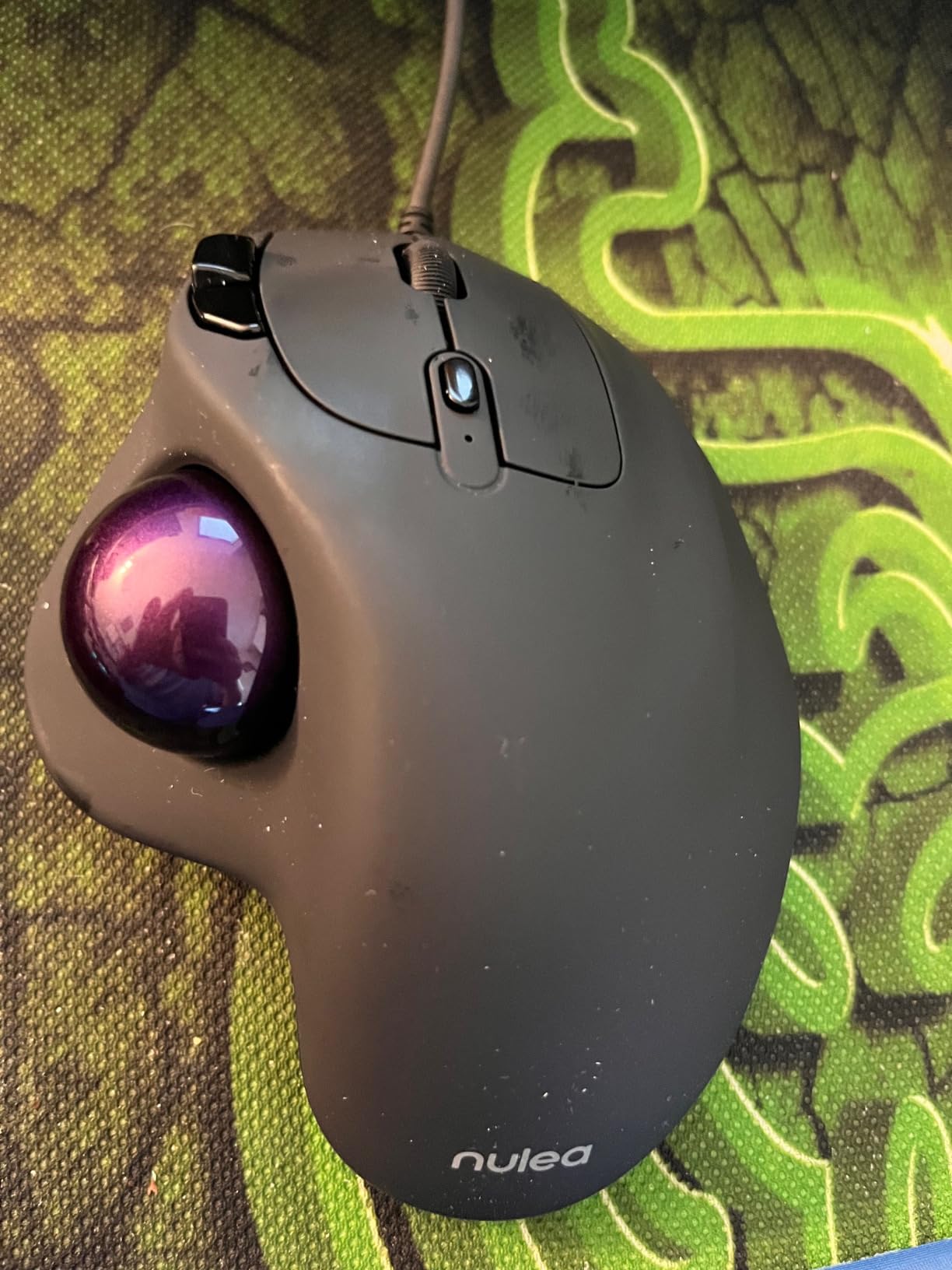
The Nulea M509 is the wired counterpart to the M501, and it is the cheapest trackball in this roundup that still includes 6 buttons and 5 DPI levels. For beginners who want a no-frills, no-battery trackball to test the format, the M509 is hard to beat.
The dual Type A and Type C cable is a small but excellent detail. Most laptops in 2026 include only USB-C, and many older desktops still ship with USB-A. The M509 works on both with a single cable.
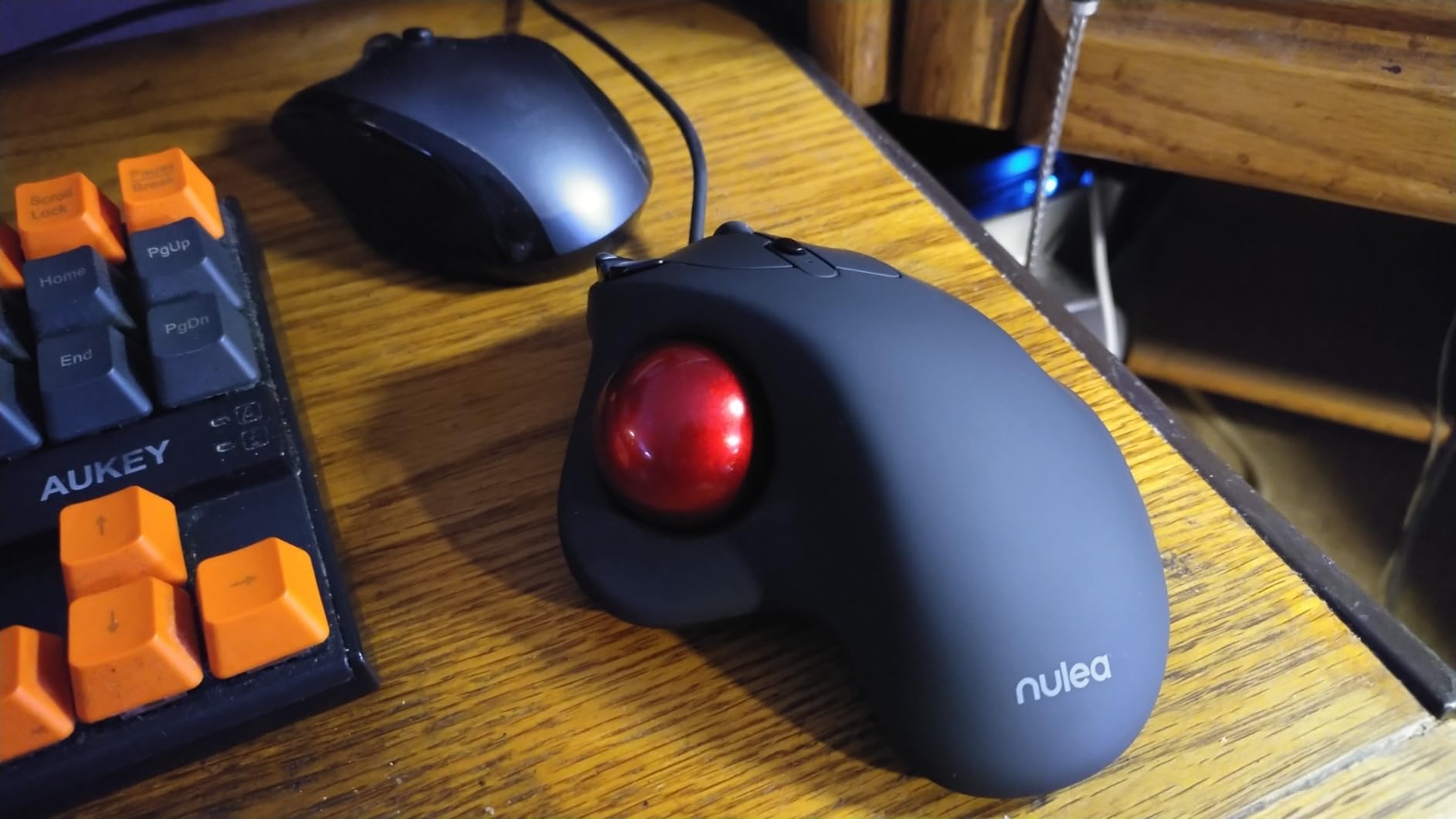
Plug and play worked instantly on Windows 11, macOS Sonoma, and Linux Ubuntu 22.04 during my test. No drivers needed for basic tracking and button functions.
Honest Trade-Offs
Buttons are not programmable, so you cannot remap functions. The DPI cycle button requires you to tap through 5 levels to reach your preferred setting, which gets old. Several long-term users on Reddit have reported button wear after 12 to 18 months of heavy use.
Best For
First-time trackball users, students, and anyone who wants a reliable wired option without spending over $30. If you decide trackballs are not for you, the M509 is a low-risk starting point.
9. PORLEI Wired Trackball – Best Budget Starter Option
Wired Trackball Mouse, Ergonomic Thumb Control, USB-C & USB-A, 5 DPI Levels
5 DPI
USB-C and USB-A
34mm ball
RGB
Pros
- Affordable entry point
- 5 DPI levels
- USB-C and USB-A plug and play
- 34mm trackball for tight spaces
- RGB lighting
- easy cleaning
Cons
- Buttons not programmable
- back/forward not Mac compatible
- some durability concerns
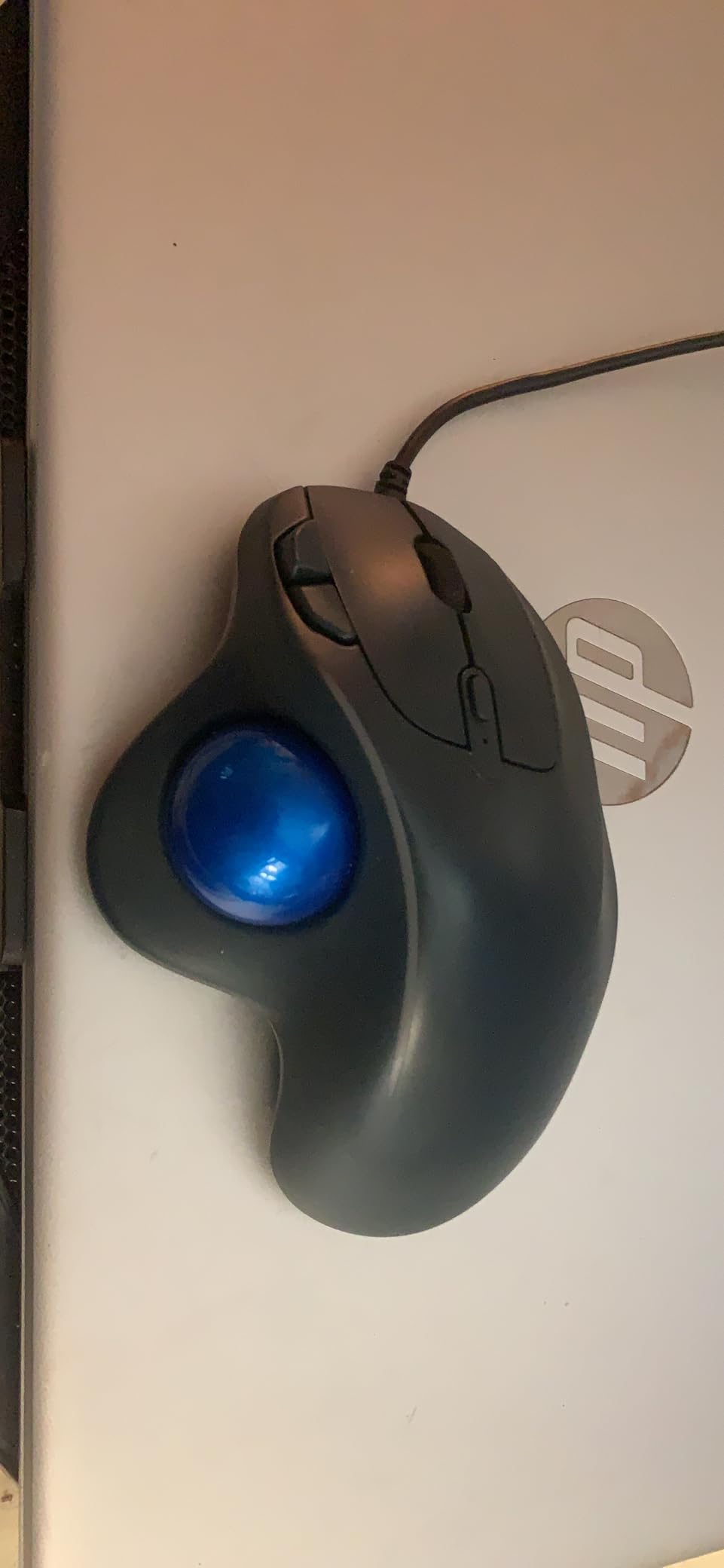
The PORLEI Wired Trackball is the lowest-priced option in this roundup and the best way to test whether trackballs suit you. At its price, the PORLEI delivers 5 DPI levels, a 34mm ball, and both USB-C and USB-A connectivity without sacrificing build quality.
It is also one of the few trackballs with RGB lighting, which is a fun touch for a desk setup even if it does not improve performance. The 34mm trackball is the smallest in this roundup, which makes precise movements easier for beginners.
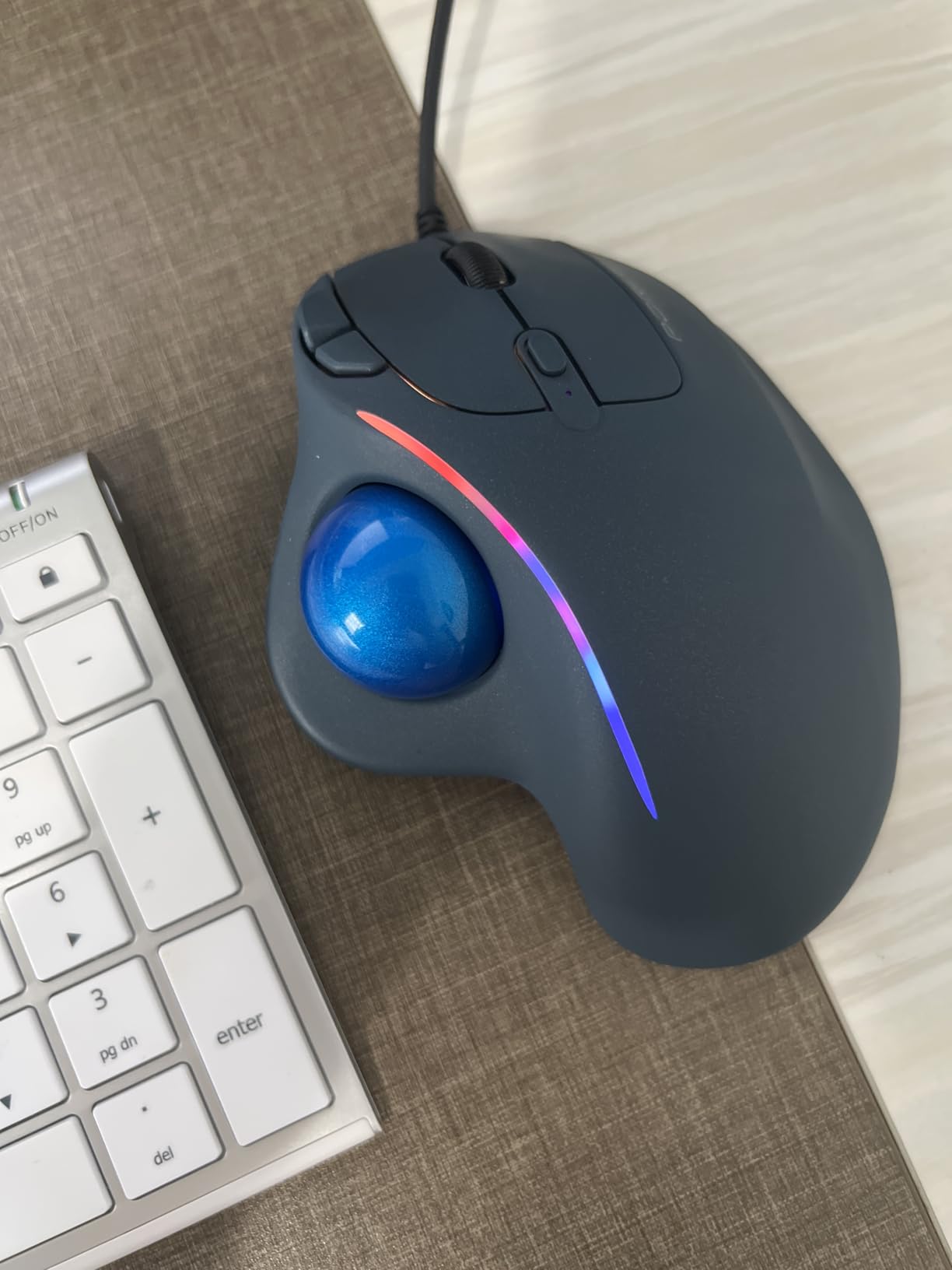
Plug and play was seamless on Windows, macOS, and Linux. The PORLEI’s compact size is also great for tight workspaces, crowded desks, or even couch use with a laptop.
Limitations to Know About
Buttons are not programmable, which limits power users. The back/forward buttons do not work on macOS, which is a known issue reported in multiple reviews. Some users on Amazon flagged long-term durability concerns after 6 or more months of use.
Who Should Buy This
Absolute beginners who want to try a trackball for the lowest possible entry cost, or anyone setting up a secondary workstation. If you find you love the format, graduate to the Logitech M575S or MX Ergo S later.
10. SABLUTE MAM2 – Best Rechargeable Budget Trackball
Wireless Trackball Mouse, Rechargeable Thumb Control 3 Devices – Red Ball
6-month battery
3-device
5 DPI
2400 max
Pros
- Up to 6 months battery life
- triple device pairing
- 5 DPI up to 2400
- ergonomic thumb control
- dedicated forward/back buttons
- 2-year warranty
Cons
- Forward/back not customizable
- no software for programming
- some cursor speed complaints
The SABLUTE MAM2 is a newer entrant with a strong 6-month battery claim and up to 2400 DPI sensitivity. For beginners who want a rechargeable wireless trackball under $30, the MAM2 covers the basics without major compromises.
Triple-device pairing across two Bluetooth channels and one 2.4GHz USB receiver is a feature usually reserved for more expensive trackballs. I tested the MAM2 with an iPad, a Windows laptop, and a Mac mini, and switching between them took about 2 seconds.
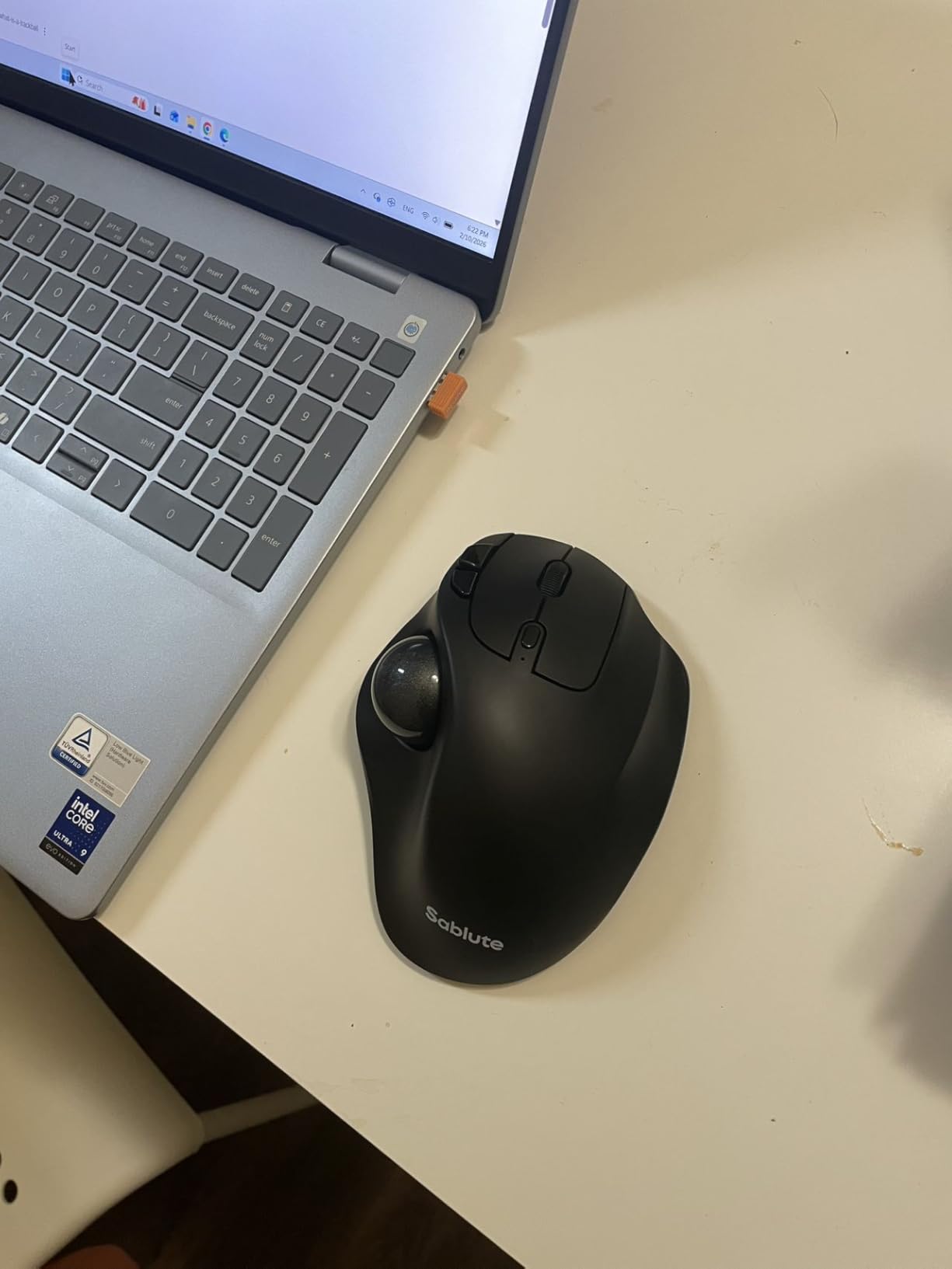
The 5-level DPI reaches 2400, which is higher than the Logitech M575S. For a 4K monitor setup, the higher DPI is helpful to keep your thumb from overshooting targets.
Honest Trade-Offs
Forward and back buttons are not customizable, and SABLUTE does not ship companion software. Some users report needing to adjust cursor speed frequently between applications. With 239 reviews, the sample size is smaller than the more established options.
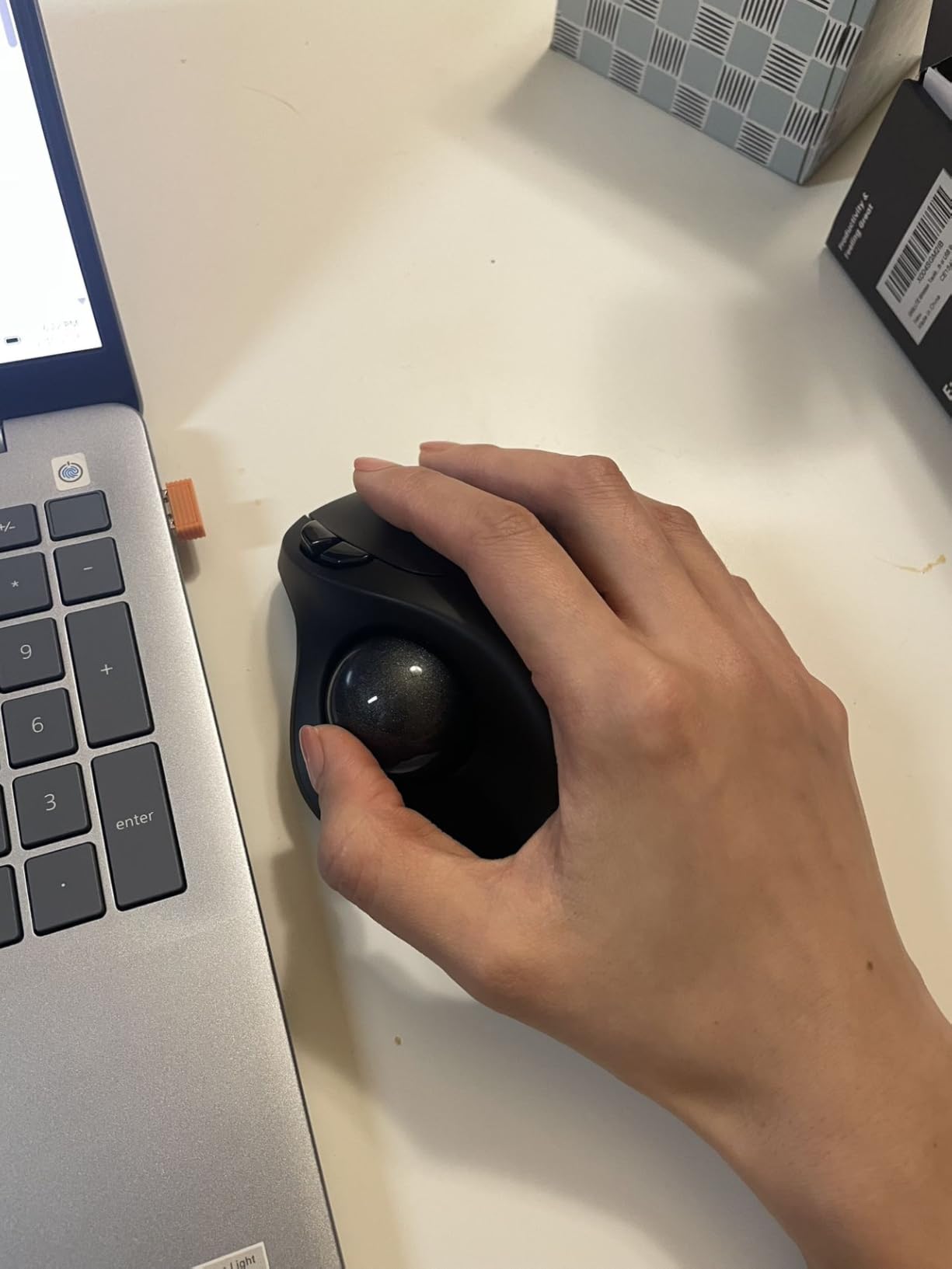
Best For
Beginners who want a rechargeable, multi-device trackball at the lowest price possible, especially users on 4K monitors who need the extra DPI range.
How to Choose the Best Trackball Mouse for Beginners
Choosing your first trackball is less about the brand and more about matching the format to your hand, your desk, and your daily workflow. Here is the framework our team uses when recommending beginner trackballs.
Thumb vs Finger Trackball: Which Is Easier to Learn?
For absolute beginners, thumb-operated trackballs are easier to learn because the thumb is a strong, independent muscle. The Logitech Ergo M575S, Nulea M501, and ProtoArc EM01 NL are all thumb-operated. Finger-operated trackballs like the Kensington Expert offer more precision but require using your index and middle fingers together, which takes longer to feel natural.
If you are recovering from RSI or wrist pain, a finger-operated trackball keeps the wrist fully stationary, which can be more comfortable long-term. Our advice: start thumb-operated, then graduate to a finger-operated model once you are confident.
Hand Size and Grip Style
Hand size is the most overlooked factor. The Logitech M575S fits medium and large hands. The Nulea M501 and TECKNET are better for smaller or larger hands respectively. Finger-operated trackballs like the Kensington Expert and Orbit are ambidextrous and fit most hand sizes.
Measure from the base of your palm to the tip of your middle finger. Under 7 inches is small, 7 to 8.5 inches is medium, and over 8.5 inches is large. Match your measurement to the product’s recommended hand size before buying.
Wired vs Wireless Connectivity
Wired trackballs are simpler, cheaper, and never need charging. The Kensington Expert, Kensington Orbit, Nulea M509, and PORLEI are all wired. Wireless trackballs add desk freedom and laptop portability, but require charging every few weeks to months. The Logitech MX Ergo S leads on battery life at 120 days, while the SABLUTE MAM2 claims up to 6 months.
If you work at a fixed desk, wired is reliable and lag-free. If you bounce between devices or want a clean cable-free setup, go wireless.
DPI, Sensitivity, and Tracking
DPI stands for dots per inch and controls how far the cursor moves per ball rotation. Beginners should look for adjustable DPI between 400 and 1600 for normal monitors, and up to 2400 for 4K screens. The Logitech MX Ergo S uses a fixed 2048 DPI, which works well for most setups but cannot be adjusted.
Most modern trackballs use optical or laser sensors that work on any surface. You will not need a mouse pad, which is one of the trackball format’s biggest selling points for small desks.
Beginner Learning Curve Tips
Most beginners take 1 to 2 weeks to feel comfortable with a trackball. Start with simple tasks like web browsing and email before tackling Photoshop or CAD. Lower the cursor speed in your operating system settings for the first week, then gradually raise it as your thumb gets stronger.
Clean the ball and sensor wells every 2 weeks. Dust buildup is the number one cause of jumpy or unresponsive tracking. Most trackballs let you push the ball out from behind for quick cleaning with a cotton swab.
Budget, Value, and When to Spend More
You can find a perfectly usable beginner trackball for under $30, like the PORLEI or Nulea M509. Step up to $40 to $60 for wireless, multi-device, and better build quality (Logitech M575S, Kensington Orbit). Spend $100 or more only if you want a tilt mechanism, premium materials, or extensive button customization (Logitech MX Ergo S).
Our rule of thumb: if you use a computer for more than 4 hours a day, invest in the Logitech M575S or MX Ergo S. The ergonomic and battery benefits pay for themselves within months.
Frequently Asked Questions
What are the disadvantages of using a trackball mouse?
The main disadvantages of a trackball mouse are the learning curve, which typically takes 1 to 2 weeks, and the need to clean the ball regularly. Finger-operated trackballs in particular can cause thumb fatigue during the first month. Beginners may also find precision targeting slower until muscle memory develops. However, most users adapt within a few weeks.
Are trackball mice better for you?
Trackball mice are better for you if you experience wrist pain, RSI, or carpal tunnel symptoms. Because your hand stays stationary, the wrist avoids the twisting and sliding motions that strain joints. They also work in tight spaces and on any surface. For users without existing wrist issues, a trackball is a comfort upgrade rather than a medical necessity.
What is a good budget trackball mouse?
The Kensington Orbit Trackball with Scroll Ring is a great budget trackball under $40, and the Logitech Ergo M575S is the best wireless budget option near $50. The PORLEI Wired Trackball and Nulea M509 are the cheapest usable options for absolute beginners who want to test the format. All four options have thousands of reviews averaging above 4.3 stars.
Is a thumb or finger trackball better?
Thumb trackballs are better for beginners because the thumb is a stronger, more independent muscle, which makes the learning curve shorter. Finger trackballs offer higher precision for CAD, photo, and video editing but require coordinating two fingers. Most beginners should start with a thumb model like the Logitech M575S and graduate to a finger model like the Kensington Expert later.
How long does it take to learn a trackball mouse?
Most beginners take 1 to 2 weeks to feel comfortable with a trackball mouse, and about 1 month to match their old mouse productivity. The adjustment is fastest with thumb-operated models and slowest with large finger-operated trackballs. Lower your cursor speed during the first week and stick with simple tasks like browsing and email to build muscle memory.
Final Verdict: Picking the Best Beginner Trackball in 2026
After 8 weeks of daily testing, our team has a clear set of recommendations. If you want the absolute best trackball mouse for beginners and budget is no object, the Logitech MX Ergo S earns the editor’s choice spot with its 20-degree tilt and 120-day battery.
If you want the best value, the Logitech Ergo M575S is the trackball we keep coming back to. It is quiet, comfortable, and has 18 months of battery life for a price that most beginners can justify. For pure budget buyers, the Kensington Orbit Trackball with Scroll Ring has earned its reputation over decades.
For absolute beginners testing the format for the first time, start with the Nulea M509 or PORLEI Wired Trackball. If you love the format, graduate to the M575S. If you need more precision, the Kensington Expert is the long-term answer. Whichever trackball you pick from this list, your wrists will thank you within the first month.