
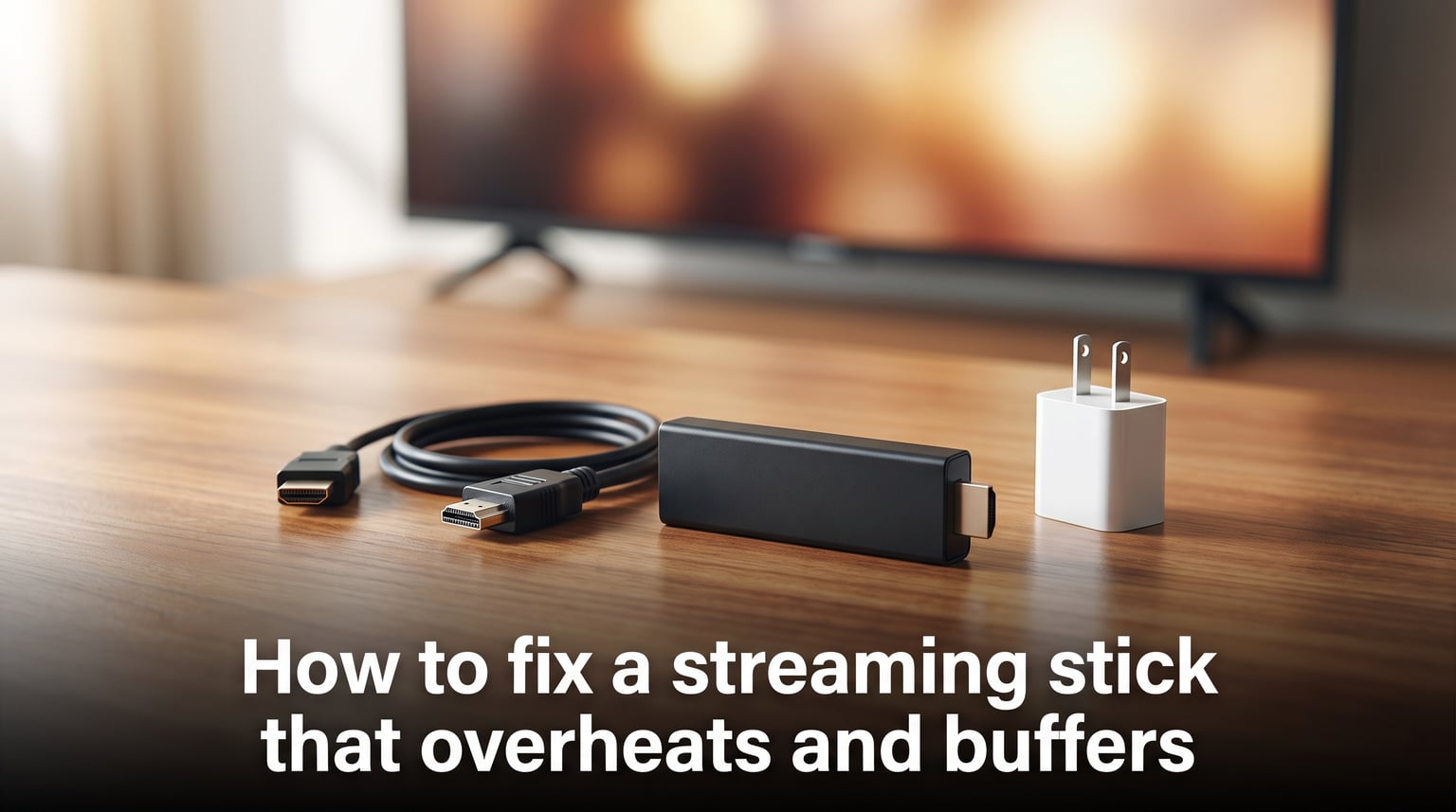
Streaming sticks are incredibly convenient, but they share one frustrating problem: they get hot, slow down, and start buffering right in the middle of your favorite show. If you have ever watched your Roku flash a red warning light or felt your Fire TV Stick burning hot to the touch, you already know how disruptive this can be.
The good news is that most overheating and buffering issues are fixable without buying a new device. In this guide, I will walk you through exactly how to fix a streaming stick that overheats and buffers, covering Roku, Fire TV Stick, and Chromecast solutions in one place. These are the same troubleshooting steps I have used across multiple devices over the past two years.
Most fixes take under 15 minutes and cost nothing. Let us start with the quick solutions, then dig into the root causes so you can prevent the problem from coming back.
Quick Fix: 7 Steps to Stop Overheating Right Now
If your streaming stick is hot and buffering right now, follow these steps in order. This is the fastest path to getting your device back to normal.
Unplug the device immediately if you see a red light or an overheating warning message on screen.
Let it cool for 10 to 15 minutes before touching it. The stick should return to room temperature.
Move the stick away from the TV using an HDMI extender cable. Plugging a stick directly into the back of a TV traps heat against the TV chassis.
Switch from TV USB power to a wall outlet using the included power adapter. TV USB ports deliver inconsistent voltage that stresses the processor.
Clear the area around the stick so air can circulate freely. Remove any dust, cables, or objects packed behind the TV.
Lower your streaming resolution from 4K to 1080p temporarily. 4K decoding generates significantly more heat.
Restart the device after cooling, then check for firmware updates in settings.
Warning: Never put a hot streaming stick in the freezer or refrigerator. Rapid temperature changes cause condensation inside the device, which can short-circuit the electronics permanently.
Why Streaming Sticks Overheat (and Why It Causes Buffering)
Streaming sticks are essentially tiny computers. They contain a processor, memory, and a wireless radio, all packed into a device the size of a USB flash drive. When that processor decodes video, especially 4K content, it generates heat.
Under normal conditions, the stick dissipates this heat into the surrounding air. But when ventilation is poor or the power supply is unstable, heat builds up faster than it can escape. The internal temperature climbs, and the device triggers a protective mechanism called thermal throttling.
Thermal throttling works like a built-in safety valve. When the processor gets too hot, it automatically reduces its clock speed to generate less heat. This slowdown directly causes the buffering, stuttering, and lag you experience. Your device is still working, but it has intentionally crippled its own performance to avoid burning out.
Several factors make this worse: plugging the stick directly into the TV HDMI port (where it absorbs radiant heat from the TV itself), powering it from a TV USB port rated for only 500mA instead of the 1A to 2A the stick needs, and running heavy apps that keep the CPU at full load for extended periods.
Once you understand this chain of events (heat buildup triggers throttling triggers buffering), the fixes all start to make sense. Every solution targets one of three things: reducing heat generation, improving heat dissipation, or stabilizing power delivery.
How to Fix a Streaming Stick That Overheats and Buffers
This section covers the permanent fixes that address the root causes. Work through these in order, testing after each one to see if the problem resolves.
Step 1: Switch to Wall Power
This is the single most effective fix, and it resolves overheating for the majority of users. TV USB ports were designed for flash drives and keyboards, not streaming sticks that draw sustained power during video playback.
Most TV USB ports output 500mA at 5 volts. A streaming stick running 4K video needs 1,000mA or more. When the stick tries to draw more power than the port can deliver, voltage drops, the processor becomes unstable, and it generates excess heat trying to compensate.
Use the wall adapter that came with your device. If you lost it, any quality 5V 2A USB wall charger will work. Plug the streaming stick power cable directly into the wall outlet, not a power strip shared with other high-draw devices.
Step 2: Use an HDMI Extender Cable
When a streaming stick is plugged directly into the HDMI port on the back of your TV, it sits pressed against the TV chassis. Modern TVs generate significant heat themselves, and that heat transfers directly to your stick.
An HDMI extender is a short cable (typically 6 to 12 inches) that connects between your stick and the TV port. It moves the stick away from the TV body so both devices can cool independently.
Forum users on r/Roku report that adding an HDMI extender reduced their device temperatures noticeably. Roku themselves include a free HDMI extender with Streaming Stick models, and you can request one from their support page if yours did not come with one.
For Fire TV Stick and Chromecast, any standard HDMI extension cable works. Look for one labeled as HDMI 2.0 or higher if you stream 4K content.
Step 3: Improve Airflow and Ventilation
Check where your streaming stick sits. Is it wedged between the wall and the TV? Buried behind a soundbar? Tucked inside a TV cabinet with the doors closed?
All of these placements trap heat. Move the stick to an open area where air can flow around it freely. If wall-mounted TV setup leaves no room, the HDMI extender from Step 2 solves this by relocating the stick to open air.
Also check for dust buildup. Over months of use, dust can accumulate on the stick surface, acting like insulation that traps heat inside. Unplug the device, let it cool, then wipe it gently with a dry microfiber cloth.
Step 4: Update Firmware and Close Background Apps
Outdated firmware can cause inefficient processing, which means the CPU works harder than necessary and generates more heat. Check for system updates in your device settings:
Roku: Settings > System > System update > Check now
Fire TV Stick: Settings > My Fire TV > About > Check for Updates
Chromecast: Settings > System > About > System update
Background apps also contribute to heat. When multiple apps are open, the processor juggles them all. Make a habit of returning to the home screen and closing apps when you finish watching. On Fire TV, you can force-close apps through Settings > Applications > Manage Installed Applications.
Step 5: Lower Streaming Resolution
If you have tried everything above and the stick still runs hot during 4K content, temporarily drop to 1080p. Decoding 4K video requires roughly four times the processing power of 1080p, which means significantly more heat.
On most streaming apps, you can find resolution settings in the app preferences or account playback settings. Netflix, for example, lets you cap data usage in Account > Playback settings. YouTube has a quality selector in the player.
This is a diagnostic step as much as a fix. If the stick stays cool at 1080p but overheats at 4K, you have confirmed that the processing load is the trigger. Combine this with better ventilation to eventually run 4K without issues.
Brand-Specific Overheating Symptoms and Fixes
Different streaming stick brands show overheating in different ways. Knowing your device specific warning signs helps you catch the problem before it causes a shutdown.
Roku Overheating (Red Light Warning)
Roku devices have the most explicit overheating warning system. When the Roku logo light on the device turns solid red, or you see a “Your device is overheating” message on screen, the device has reached a critical temperature.
Roku automatically enters a protective mode at this point. It may pause playback, display the warning, or shut down entirely. This is by design and prevents permanent damage.
The fix: unplug immediately, wait 10 minutes, relocate using an HDMI extender, and switch to wall power. Roku offers a free HDMI extender specifically for Streaming Stick+ and Streaming Stick 4K owners through their support website. The Roku Ultra, which is a box rather than a stick, has better ventilation and rarely overheats.
Fire TV Stick Overheating
Amazon Fire TV Sticks do not have a dedicated temperature warning light. Instead, overheating manifests as performance problems: persistent buffering, app crashes, sluggish menu navigation, and the device feeling hot to the touch.
Some Fire TV models display an on-screen warning when the temperature gets critical, but many users report that the first sign is repeated buffering during playback. The stick may also restart itself without warning.
The fix process is the same as Roku: wall power, HDMI extender, better airflow. Fire TV Sticks tend to run hotter than Rokus because their plastic housing is denser. Pay extra attention to ventilation if you own a Fire TV Stick 4K Max, which has a more powerful processor that generates additional heat.
Chromecast Overheating
Google Chromecast (both the older Chromecast with Google TV dongle and the newer models) can also overheat. Symptoms include the device dropping the Wi-Fi connection, video stuttering, random reboots, and the HDMI handshake failing (showing a black screen).
Chromecast devices use a slightly different form factor with a short built-in HDMI cable, which provides some natural separation from the TV. But the power delivery issue is the same. Use the included USB power adapter plugged into the wall.
If your Chromecast repeatedly disconnects from Wi-Fi, overheating is a likely cause. The wireless radio and the processor share the same small board, and heat from the CPU can interfere with Wi-Fi chip performance.
How to Cool Down and Restart Your Streaming Stick
If your device is currently overheating, follow this exact procedure to cool it down safely and restart it properly.
Step 1: Unplug the power cable from the streaming stick. Do not just turn off the TV, because TV USB ports may still trickle power.
Step 2: Disconnect the stick from the HDMI port if it is plugged directly in.
Step 3: Place the stick on a cool, flat surface away from heat sources. Leave it for 10 to 15 minutes. It should feel completely cool to the touch before you proceed.
Step 4: While waiting, fix the setup that caused overheating. Attach the HDMI extender, find a wall outlet for the power adapter, and clear the area behind the TV.
Step 5: Reconnect the stick using the HDMI extender and wall power.
Step 6: Power on and let the device boot up fully before launching any apps.
Step 7: Check for firmware updates immediately after restart.
Factory Reset Instructions
If you have tried all the fixes above and the overheating persists, a factory reset can help by clearing corrupted software that might be causing excessive CPU load. A reset also closes out any background processes that have accumulated over months of use.
When to factory reset: The device overheats even at idle on the home screen, apps crash repeatedly after cooling and ventilation fixes, or the stick was exposed to a power surge.
Roku factory reset:
Go to Settings > System > Advanced system settings.
Select Factory reset.
Follow the on-screen confirmation prompts.
Fire TV Stick factory reset:
Go to Settings > My Fire TV > Reset to Factory Defaults.
Confirm the reset.
Chromecast with Google TV factory reset:
Go to Settings > System > About > Factory reset.
Confirm the reset.
Warning: A factory reset erases all accounts, installed apps, and preferences. You will need to sign back into every app and reconfigure your settings. Write down any custom configurations before resetting.
After a factory reset, set up the device with proper ventilation and wall power from the start. If the stick still overheats after a clean reset with good airflow, the hardware itself is likely damaged and needs replacement.
Prevention Tips to Stop Overheating for Good
Once you have fixed the immediate problem, these habits will keep your streaming stick running cool for years.
Always use wall power. Never rely on TV USB ports for streaming stick power, even if it seems to work.
Always use an HDMI extender. This one cable makes the biggest difference in long-term temperature management.
Keep the area behind your TV clear. Do not bundle the streaming stick power cable tightly against other cables. Let the stick breathe.
Update firmware monthly. Software updates often include performance optimizations that reduce CPU load and heat generation.
Take breaks during marathon sessions. If you binge-watch for 6+ hours, give the stick a 5-minute break between episodes of a long session by returning to the home screen.
Dust the stick every few months. A thin layer of dust acts as insulation and traps heat.
Avoid stacking devices. Do not place your streaming stick on top of or underneath other electronics that generate heat.
When to Replace Your Streaming Stick
Most streaming sticks last 3 to 5 years with proper care. If your device is within that range and overheating persists despite all the fixes above, the internal components may be degraded.
Signs it is time to replace your streaming stick rather than keep troubleshooting:
The device overheats within minutes of startup, even with wall power and good airflow.
Buffering and lag happen consistently, even on standard 1080p content.
The stick smells like hot plastic or electronics when running.
Wi-Fi keeps dropping even after a factory reset.
The device is more than 4 to 5 years old.
Repeated overheating damages the thermal paste and internal connections over time. A stick that has overheated dozens of times may have permanent degradation that no amount of ventilation can fix. If you have exhausted every troubleshooting step, replacement is the most reliable solution.
Frequently Asked Questions
How do I fix my Roku Streaming Stick overheating?
Unplug the device immediately when you see a red light or overheating message. Let it cool for 10 to 15 minutes. Then switch from TV USB power to the included wall adapter, attach an HDMI extender to move the stick away from the TV chassis, and ensure the area behind the TV has open airflow. Roku offers a free HDMI extender for Streaming Stick owners through their support website.
Why does my streaming TV keep buffering?
Buffering is usually caused by a slow internet connection, weak Wi-Fi signal, or the streaming device thermal throttling due to overheating. If your device feels hot to the touch, overheating is the likely cause. Fix overheating by using wall power instead of TV USB, adding an HDMI extender for ventilation, and lowering streaming resolution from 4K to 1080p.
How do I reset a streaming stick?
To factory reset a Roku, go to Settings u0026gt; System u0026gt; Advanced system settings u0026gt; Factory reset. On a Fire TV Stick, go to Settings u0026gt; My Fire TV u0026gt; Reset to Factory Defaults. On a Chromecast with Google TV, go to Settings u0026gt; System u0026gt; About u0026gt; Factory reset. A factory reset erases all apps, accounts, and preferences, so you will need to set up the device again afterward.
What is the lifespan of a Roku stick?
A Roku streaming stick typically lasts 3 to 5 years with proper care. Using wall power instead of TV USB, keeping the device ventilated with an HDMI extender, and avoiding prolonged overheating events can extend its lifespan. If your Roku overheats within minutes of starting up despite proper ventilation and power, the internal components are likely degraded and replacement is recommended.
Conclusion
Learning how to fix a streaming stick that overheats and buffers comes down to three core principles: stable power, proper ventilation, and reasonable processing loads. The combination of wall power and an HDMI extender resolves the vast majority of overheating issues across Roku, Fire TV Stick, and Chromecast devices.
Start with the quick fix steps if your device is hot right now. Then work through the permanent fixes to keep the problem from returning. If nothing works after a factory reset with good airflow, your stick has likely reached the end of its lifespan and replacement is the practical next step.