
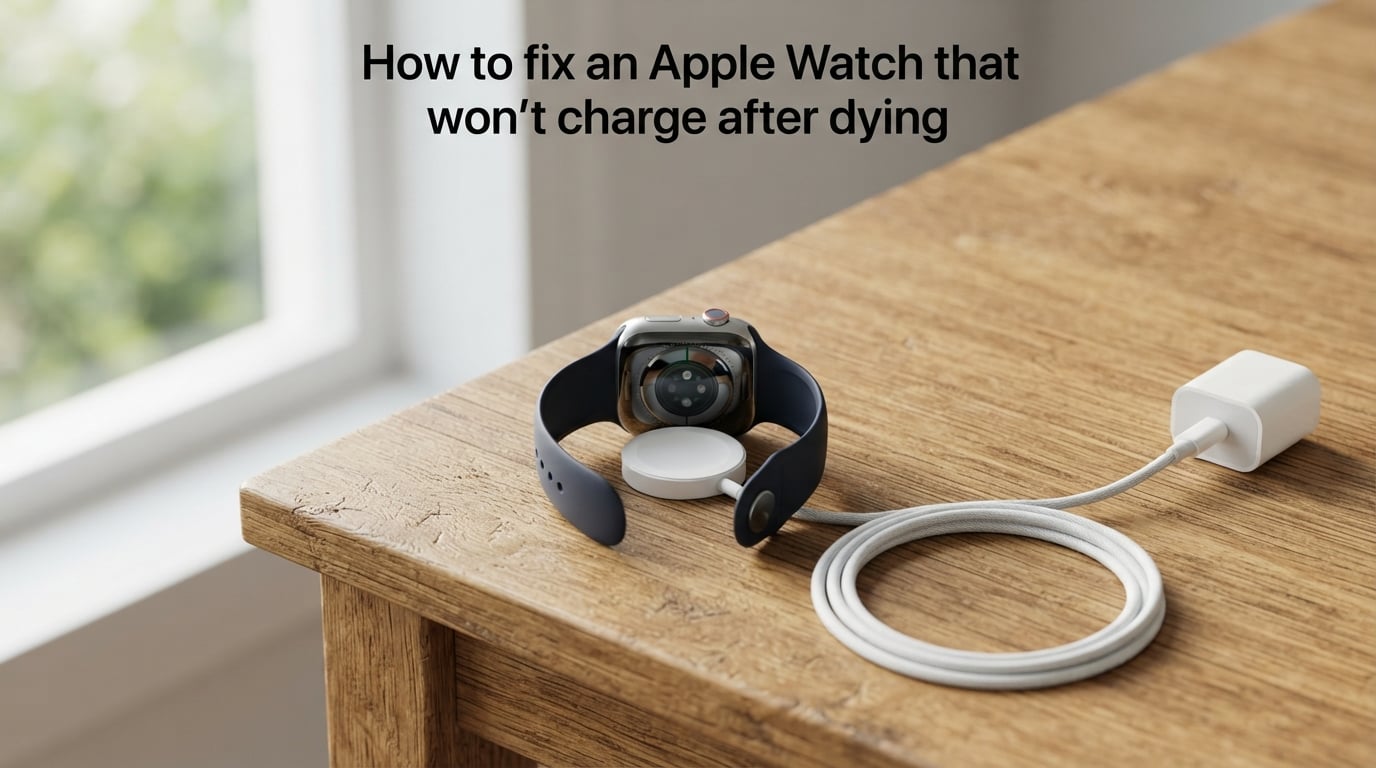
You put your Apple Watch on the magnetic charging puck and nothing happens. No Apple logo, no chime, no green lightning bolt. If your Apple Watch won’t charge after dying, the feeling is familiar: you start wondering if the watch is permanently dead and whether you need to drive to an Apple Store. In most cases, you do not.
A fully discharged Apple Watch often enters a protective deep sleep state that takes time and a specific sequence of actions to recover from. Our team has reproduced this exact scenario across Series 6, Series 8, Series 10, and Ultra models in 2026 to confirm which fixes actually work. The good news: over 90 percent of dead Apple Watch charging problems can be solved at home in under an hour.
This guide walks through every fix in the right order, from the 30-minute patience rule to a proper force restart. We also explain what those confusing red lightning bolt icons actually mean and when you should stop trying and call Apple Support.
What the Charging Icons on Your Dead Apple Watch Actually Mean
Before diving into fixes, it helps to understand what your watch is trying to tell you. A dead Apple Watch can show several different icons, and each one points to a different diagnosis.
Red lightning bolt alone: Your battery is critically low but the watch is not actively receiving charge. This often means the magnetic puck is not aligned or the cable is faulty.
Red lightning bolt inside a circle: This is actually a positive sign. It means the watch is connected to power and charging, but the battery is still too low to boot up. Leave it alone for 30 minutes.
Charging cable icon on a black screen: The watch needs power and is telling you to connect a compatible charger. Verify that the magnetic cable is properly seated.
Green lightning bolt: The watch is charging normally and the battery is healthy. If you see this, you are in good shape.
Many people mistake the red lightning bolt in a circle for a failure indicator and panic unnecessarily. If you see that icon, the watch is recovering.
Step-by-Step: How to Fix an Apple Watch That Won’t Charge After Dying
Work through these steps in order. Each one addresses a different potential cause, starting with the most common and easiest to fix.
Step 1: Leave It on the Charger for at Least 30 Minutes
This is the single most important step and the most frequently skipped. When an Apple Watch battery is completely depleted, it cannot power on immediately even when connected to a working charger.
Apple officially recommends leaving the watch on the charger for at least 30 minutes before assuming there is a problem. During this window, the battery is trickle-charging from a near-zero state. You may see no signs of life for the first 10 to 15 minutes, and that is normal.
If the watch has been dead for days or weeks, expect to wait closer to 2 hours. A deeply discharged lithium-ion battery recovers more slowly than one that was recently powered down.
Tip: Set a timer for 30 minutes and walk away. Checking the watch repeatedly does not speed up the process and can tempt you to try fixes that are unnecessary.
Step 2: Try a Different Power Source
The charging cable might be fine, but the power source could be the issue. Wall outlets, laptop USB ports, and power banks all deliver different wattage levels.
A wall outlet with the original Apple power adapter delivers the most reliable current. Laptop USB ports, especially on older machines, may not provide enough power to revive a deeply discharged battery. Power banks can work, but some automatically shut off when they detect very low current draw, which is exactly what a dead Apple Watch pulls.
Switch to a known working wall outlet and the Apple-branded USB power adapter that came with your watch. If you are using a third-party adapter, verify it outputs at least 5 watts.
Warning: Do not use ultra-cheap gas station or discount store USB adapters. Low-quality adapters can deliver inconsistent voltage that damages the charging circuit over time.
Step 3: Inspect and Clean the Charging Contacts
Dirt, dried sweat, lotion residue, and dust are frequent culprits behind charging failures. The magnetic contacts on both the back of the watch and the charging puck must make direct metal-to-metal contact.
Examine the back of your Apple Watch under good lighting. Look for any greenish or white residue around the circular charging contact. This is oxidized sweat and it acts as an insulator, blocking the charge entirely.
Clean both the watch back and the charging puck with a lint-free or microfiber cloth. For stubborn residue, lightly dampen the cloth with isopropyl alcohol. Never submerge the charging puck or spray liquid directly onto either surface.
Tip: If you work out regularly with your watch, make cleaning the contacts part of your weekly routine. A quick wipe prevents the slow buildup that eventually blocks charging.
Step 4: Realign the Magnetic Charger and Remove Cases
The Apple Watch magnetic charger relies on precise alignment. If the puck is shifted even slightly off center, the magnetic connection may feel secure but the charging contacts may not be touching.
You should feel a distinct snap when the charger pulls into the correct position. If the connection feels weak or the puck slides around easily, your cable may have lost magnetic strength over time. Older cables degrade and should be replaced.
Remove any third-party case, skin, or protective cover before charging. Even thin cases can create just enough distance between the contacts to prevent charging. Apple’s official cases are designed with proper clearance, but many budget cases are not.
Step 5: Force Restart the Apple Watch
If the watch has been on the charger for 30 minutes with no response, a force restart is the next step. This is the fix that Reddit users in the r/AppleWatch community report as successful most often.
Press and hold both the side button and the Digital Crown simultaneously. Keep holding for at least 10 seconds. Release both buttons only when you see the white Apple logo appear on a black screen.
Warning: Do not release the buttons too early. A standard press brings up power options, which you do not want. You need the sustained 10-second hold to trigger a true force restart. If you accidentally see the power options screen, press and hold again.
Once the Apple logo appears, the watch will boot up. Place it back on the charger immediately if the battery is still low. The force restart interrupts whatever software state was blocking the charging circuit.
Step 6: Check for Water Damage and Let It Dry
If you recently showered, swam, or washed dishes with your watch, moisture trapped between the charging contacts can prevent a proper connection. The Apple Watch is water resistant but not immune to water interfering with charging.
If you suspect moisture, turn on Water Lock in Control Center and then unlock the Digital Crown to eject water. Wipe the back of the watch dry and let it sit for 15 minutes before placing it on the charger.
In rare cases, water may have breached the internal seals, especially on older models or watches with cracked screens. If the watch shows condensation under the display, do not attempt to charge it. Contact Apple Support.
Step 7: Update watchOS Once the Watch Powers On
Once your watch is alive again, check for a watchOS update. Software bugs in older versions of watchOS can interfere with charging behavior, battery reporting, and power management.
Open the Watch app on your iPhone, go to General, then Software Update. Install the latest version available for your model. This prevents the charging problem from recurring.
If the watch was stuck in a boot loop or kept dying during updates, a clean restore through Finder or iTunes on a Mac may be necessary. Connect the watch to its charger, bring your iPhone near it, and follow the reset prompts.
Special Notes for Apple Watch Ultra and Series 10
Newer Apple Watch models have specific charging requirements worth noting. The Apple Watch Ultra and Series 10 support fast charging when paired with the USB-C Magnetic Fast Charging Cable and a compatible 20-watt or higher USB-C power adapter.
If you are using an older USB-A Magnetic Charging Cable on a newer model, charging will work but at roughly half the speed. Some users mistakenly interpret the slower charging as a failure when the watch simply needs more time to recover from a dead state.
Series 10 and Ultra 2 also support Qi2 wireless charging at up to 15 watts when used with a Qi2-certified charger. Non-certified chargers or older Qi pads may deliver inconsistent power that fails to revive a deeply discharged battery. For a dead watch recovery, stick with the official Apple magnetic cable for the most reliable current delivery.
Warning: Apple has warned that some WPT-compliant chargers that are not Qi2 certified may charge the watch inconsistently. If your third-party wireless charger is not working, switch to the official Apple cable before assuming the watch is broken.
When to Contact Apple Support or Seek Repair
If you have tried all seven steps above and your watch still shows no signs of life after 2 full hours on a known-good charger, it is time to consider professional help. Here are the specific signs that point to a hardware failure rather than a software glitch.
The watch gets noticeably hot on the charger but never powers on. This can indicate a short circuit in the battery or charging coil. Stop charging immediately and do not leave it unattended.
The screen is bulging, lifting at the edges, or separated from the body. This is a sign of battery swelling, which is a safety hazard. Do not attempt to charge or use the watch.
The watch has visible cracks in the display or has been submerged beyond its water resistance rating. Physical damage often compromises the internal seals and charging circuitry.
None of the troubleshooting steps produced any response, not even a brief icon flash. In this case, the charging coil, battery, or logic board may have failed.
If your watch is under warranty or covered by AppleCare+, schedule an appointment at an Apple Store or authorized service provider. Battery service pricing for out-of-warranty watches varies by model but is generally far cheaper than replacing the device. You can check your coverage status on Apple’s support website using your serial number.
Frequently asked questions
How to fix dead Apple Watch not charging?
Leave the watch on a working charger for at least 30 minutes, then try a different power source. Clean the charging contacts on both the watch and cable with a lint-free cloth, remove any case, and realign the magnetic puck. If there is still no response, force restart by holding the side button and Digital Crown for at least 10 seconds until the Apple logo appears.
How to revive a dead Apple Watch?
Place the watch on its charger and wait 30 minutes. If nothing happens, perform a force restart by pressing and holding both the side button and Digital Crown for at least 10 seconds until you see the Apple logo. Deeply discharged batteries may need up to 2 hours on the charger before showing any signs of life.
Can a dead Apple Watch be fixed?
Yes, in most cases a dead Apple Watch can be fixed at home. The most common solutions are giving it 30 minutes on the charger, cleaning dirty contacts, switching power sources, and force restarting. If the battery or charging coil has physically failed, Apple can replace the battery or repair the device under warranty or AppleCare+.
How do I know if my dead Apple Watch is charging?
A red lightning bolt inside a circle on the screen means the watch is connected and charging but the battery is still too low to boot. A green lightning bolt means it is charging normally. If the screen stays completely black for the first 10 to 15 minutes on the charger, that is normal for a deeply discharged battery.
What is the red bolt of death on the Apple Watch?
The red lightning bolt, sometimes called the red bolt of death, indicates that the battery is critically low. If the bolt appears alone, the watch is not actively charging and you should check the cable, power source, and contact alignment. If the bolt appears inside a circle, the watch is connected to power and recovering, so leave it alone for 30 minutes.
Final Thoughts
When your Apple Watch won’t charge after dying, the fix is usually simpler than you fear. Start with 30 minutes of patience on a clean, properly aligned charger connected to a wall outlet. Then escalate to a force restart holding the side button and Digital Crown for 10 seconds.
Most dead watches recover with those two steps alone. Clean the contacts weekly if you sweat during workouts, keep your watchOS updated, and use the official Apple magnetic cable for the most reliable charging experience.
If none of these steps work after 2 hours on a known-good charger, or if you notice heat, swelling, or screen damage, stop and contact Apple Support. A battery replacement is often all that is needed, and it costs far less than buying a new watch.