
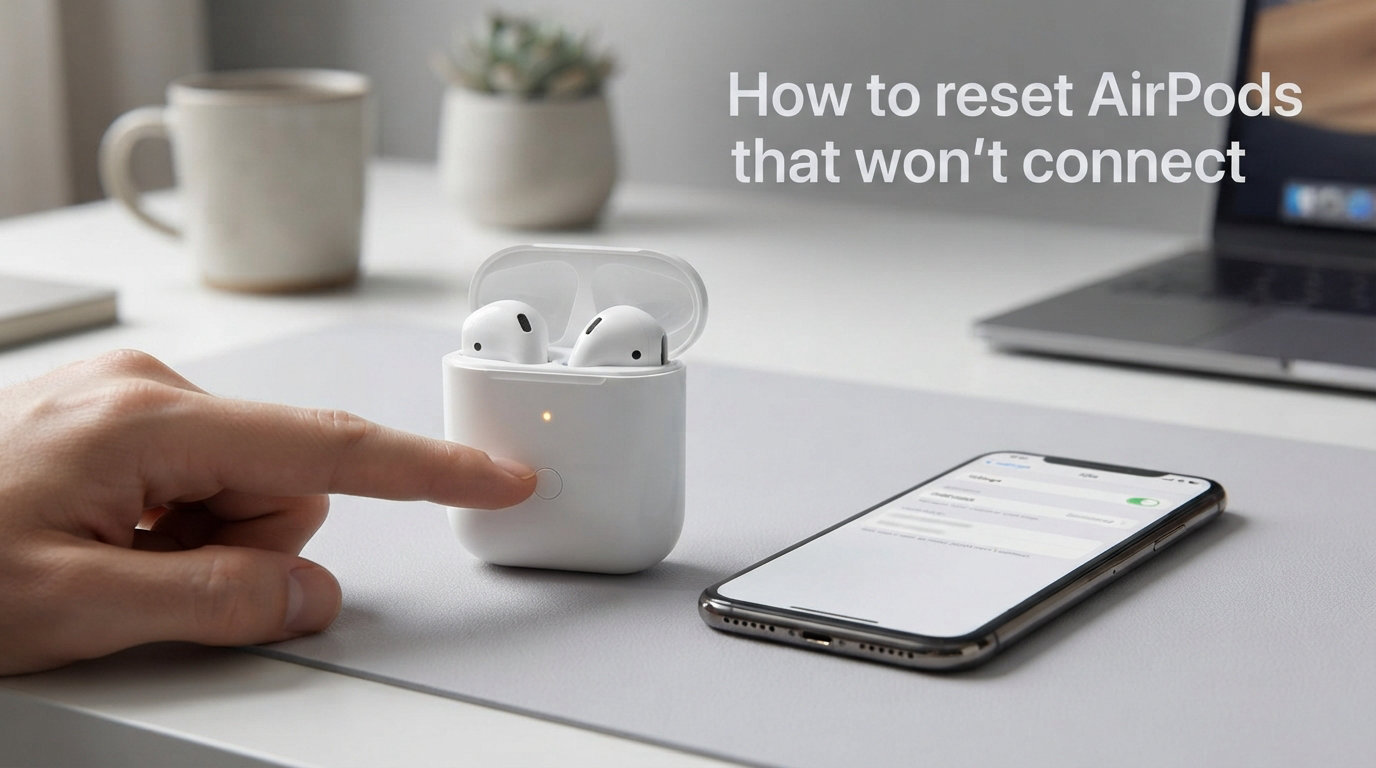
Nothing is more frustrating than popping your AirPods in and hearing silence. Whether they refuse to pair after an iOS update, stopped connecting to your iPhone overnight, or you picked up a used pair that still belongs to someone else’s Apple ID, a factory reset fixes the vast majority of AirPods connection problems.
In this guide, I will walk you through exactly how to reset AirPods that won’t connect, step by step, for every model. I have spent years troubleshooting Apple devices, and I will also cover what to do when the standard reset fails, how to reconnect afterward, and how to handle tricky situations like second-hand AirPods.
How to Reset AirPods That Won’t Connect: Quick Steps
If you are in a hurry, here is the fastest way to reset AirPods that won’t connect. These steps work for AirPods 1, AirPods 2, AirPods 3, AirPods Pro 1, and AirPods Pro 2:
1. Put both AirPods in the charging case and close the lid. Wait 30 seconds.
2. Open your iPhone or iPad Settings, then tap Bluetooth.
3. Tap the “i” icon next to your AirPods and select “Forget This Device.”
4. Open the charging case lid (leave the AirPods inside).
5. Press and hold the setup button on the back of the case for about 15 seconds until the status light flashes amber three times, then starts flashing white.
6. Hold the case near your iPhone with the lid open and follow the on-screen setup prompts.
The amber-to-white flash pattern confirms the reset worked. Your AirPods are now in factory-fresh pairing mode and ready to connect again.
Before You Reset: Quick Checklist
Jumping straight to a reset sometimes skips the actual cause. Run through this 60-second checklist first, because these issues mimic connection failure:
Charge both AirPods and the case. If either earbud has less than 5 percent battery, it may not connect even when the case shows a green light. Place both AirPods in the case and charge everything for at least 15 minutes.
Confirm Bluetooth is actually on. Swipe into Control Center and verify the Bluetooth icon is highlighted. Toggling it off and back on can clear minor pairing glitches without needing a full reset.
Install any pending software updates. iOS updates sometimes introduce Bluetooth changes that temporarily break AirPods connectivity. Go to Settings, then General, then Software Update and install anything pending.
Clean the charging contacts. Use a dry cotton swab to gently wipe the metal contacts at the bottom of each AirPod and inside the case. Debris buildup prevents charging, which prevents connection.
If none of these solve the problem, proceed to the full reset below.
Reset Steps by AirPods Model
Different AirPods generations use slightly different reset methods. The biggest difference comes down to whether your case has a physical setup button on the back or uses a newer double-press system. Here is how to factory reset AirPods for every model.
AirPods 1, 2, 3, Pro 1, and Pro 2 (Button Models)
These models all have a physical round setup button on the back of the charging case:
1. Place both AirPods in the case and close the lid for 30 seconds.
2. On your paired iPhone, go to Settings, then Bluetooth, tap the “i” next to your AirPods, and choose “Forget This Device.”
3. Open the case lid. Press and hold the back setup button for 15 seconds.
4. Watch the status light: it should flash amber three times, then transition to a pulsing white flash.
5. Bring the open case near your iPhone and follow the connection animation.
If the light does not flash amber, keep holding the button. Some users on Reddit report needing to hold it for 20 to 30 seconds, especially on older cases. The amber flash is what confirms the factory reset triggered.
AirPods 4 and AirPods Pro 3 (Double-Press Models)
The newest AirPods models dropped the physical setup button. Instead, you use the case lid and a double-press sequence:
1. Put both AirPods in the case and close the lid. Wait 30 seconds.
2. Go to Settings, then Bluetooth on your iPhone, tap the “i” next to your AirPods, and select “Forget This Device.”
3. Open the lid. Double-press the front of the case quickly.
4. The status light at the front of the case will flash amber, then white.
5. Hold the open case near your iPhone to start pairing.
This double-press replaces the old hold-the-button method. It is a frequent source of confusion in community forums because the physical button is gone from the case design.
AirPods Max (Over-Ear Model)
AirPods Max use a different approach since there is no charging case:
1. Make sure your AirPods Max have some charge.
2. Press and hold both the Digital Crown and the Noise Control button simultaneously.
3. Hold for about 15 seconds until the status light next to the charging port flashes amber, then white.
4. Release both buttons and pair with your iPhone.
Understanding the LED Status Light
The small status light on your AirPods case is the single most useful diagnostic tool you have. Here is what each color means:
Solid green: The case and AirPods are fully charged.
Solid amber (or orange): The case has less than a full charge remaining, or the AirPods are charging inside.
Flashing white: The AirPods are in pairing mode and ready to connect.
Flashing amber: There is a pairing error or the AirPods are mid-reset. If you see this during a reset attempt, you are on the right track.
When resetting, the sequence you want is: flashing amber (reset in progress) followed by flashing white (pairing mode active). If you only see flashing amber and never get to white, the reset did not complete.
What to Do When the Reset Fails
Sometimes the standard reset procedure does not work. Here are the most common failure scenarios and how I fix them based on what users report in Apple Support Communities and forums.
Status Light Not Flashing White
If you hold the setup button for 15 seconds and the light never flashes white, try these fixes:
First, charge the case for at least 30 minutes. A nearly dead case cannot enter pairing mode even if it shows a dim light. Second, try holding the button longer — up to 30 full seconds. Third, try the reset with the case plugged into power, since some older cases need the extra power draw to complete the reset sequence.
AirPods Not Showing Up in Bluetooth List
This usually happens after you tap “Forget This Device.” The AirPods are no longer paired but have not entered pairing mode. Close the lid, wait 15 seconds, open the lid, then hold the setup button until the light flashes white. The AirPods should reappear in your Bluetooth devices list within a few seconds.
If they still do not appear, restart your iPhone. A stuck Bluetooth stack on the phone side is more common than you might think.
One AirPod Connecting, Other Not Working
This is a frustrating issue that a standard reset sometimes fixes. First, check that the non-working AirPod is actually charging — look for the charging indicator when you place it in the case. Clean the contacts thoroughly. Then run through the full reset procedure. If one AirPod still does not connect after a factory reset, it may have a hardware fault and needs an Apple Support inspection.
Connection Issues After iOS Update
iOS updates occasionally introduce Bluetooth bugs that break AirPods connectivity. If your AirPods stopped working right after an update, reset them using the steps above. If the issue persists, check for a rapid-followup iOS patch — Apple often releases a fix within a week or two for widespread Bluetooth problems.
How to Reset Second-Hand AirPods
Buying used AirPods can save money, but you might run into a situation where they refuse to connect because they are still linked to the previous owner’s Apple ID. The good news: AirPods do not have Activation Lock like iPhones do. A factory reset removes the previous owner’s pairing information entirely.
Follow the standard reset steps for your model above. Once the status light flashes amber then white, the AirPods are fully unlinked from the previous owner. You can pair them to your own Apple ID just like new AirPods. If the previous owner was nearby and the AirPods keep reconnecting to their device, move out of Bluetooth range (about 30 feet) before resetting.
How to Reconnect AirPods After Reset
Once the reset is complete and the status light is flashing white, reconnection is simple:
1. Hold the open charging case near your unlocked iPhone.
2. A setup animation appears on screen within 3 to 5 seconds.
3. Tap “Connect.”
4. Follow any on-screen prompts for features like Spatial Audio or Find My.
5. Tap “Done” when the setup completes.
Your AirPods now reconnect automatically across all devices signed into the same Apple ID, including iPad and Mac. For other devices, select your AirPods from the Bluetooth settings menu manually.
Connecting Reset AirPods to Android and Windows
AirPods work as standard Bluetooth earbuds with non-Apple devices, though you lose features like Spatial Audio and automatic device switching. To connect to an Android phone or Windows PC after a reset, open Bluetooth settings on your device, make sure the AirPods case lid is open with the light flashing white, and select your AirPods from the available devices list.
If your AirPods do not appear, hold the setup button again until the white flash is active. Android and Windows sometimes need a second attempt to discover them. Once paired, the connection holds reliably — the pairing issues are typically on the Apple side, not the AirPods themselves.
Frequently Asked Questions
How do I force reset my AirPods?
Put both AirPods in the charging case and close the lid for 30 seconds. On your iPhone, go to Settings, Bluetooth, tap the i icon next to your AirPods, and select Forget This Device. Open the case lid, then press and hold the setup button on the back for 15 seconds until the status light flashes amber then white.
How do I fix unresponsive AirPods?
First, charge both AirPods and the case for at least 15 minutes. Clean the metal charging contacts with a dry cotton swab. If they still do not respond, perform a factory reset by forgetting the device in Bluetooth settings and holding the setup button until the light flashes amber then white. If one AirPod remains unresponsive after a reset, it may have a hardware issue requiring Apple Support.
How do I force my AirPods to pair?
Open the charging case lid with the AirPods inside, then press and hold the setup button for 5 to 10 seconds until the status light flashes white. This puts the AirPods into active pairing mode. Hold the open case near your unlocked iPhone to trigger the setup animation, or select your AirPods manually from Bluetooth settings on other devices.
Can you reset AirPods from a previous owner?
Yes. AirPods do not have Activation Lock, so a factory reset fully removes the previous owner’s pairing data. Put both AirPods in the case, close the lid for 30 seconds, forget the device from your Bluetooth settings, then hold the setup button until the light flashes amber then white. The AirPods are now ready to pair with your Apple ID.
How do I force AirPods to connect?
Make sure Bluetooth is enabled on your device. Open the AirPods case lid near your unlocked iPhone and wait for the setup animation. If no animation appears, close the lid, wait 10 seconds, reopen it, and hold the setup button until the light flashes white. Then try pairing again from your Bluetooth settings.
Why are AirPods suddenly not connecting?
The most common causes are low battery, a pending iOS software update introducing Bluetooth changes, debris on the charging contacts, or a temporary Bluetooth glitch. Start by charging everything for 15 minutes, toggling Bluetooth off and on, and checking for software updates. If those do not work, a factory reset resolves the issue in most cases.
How to reset AirPods without connecting them?
You do not need your AirPods connected to perform a reset. Simply place both AirPods in the charging case, open the lid, and press and hold the setup button on the back for 15 seconds until the status light flashes amber then white. This clears all pairing data without needing a connected iPhone or iPad.
Wrapping Up
Knowing how to reset AirPods that won’t connect saves you from unnecessary trips to the Apple Store. The core process is the same across models: charge, forget the device, hold the setup button until amber flashes to white, then re-pair. The model-specific differences come down to whether you press a physical button or double-tap the case.
If a factory reset does not fix your connection problem, the issue is likely hardware-related. Contact Apple Support or visit an Apple Store for a diagnostic check. Most of the time though, the steps in this guide get your AirPods connected and working again within five minutes.