
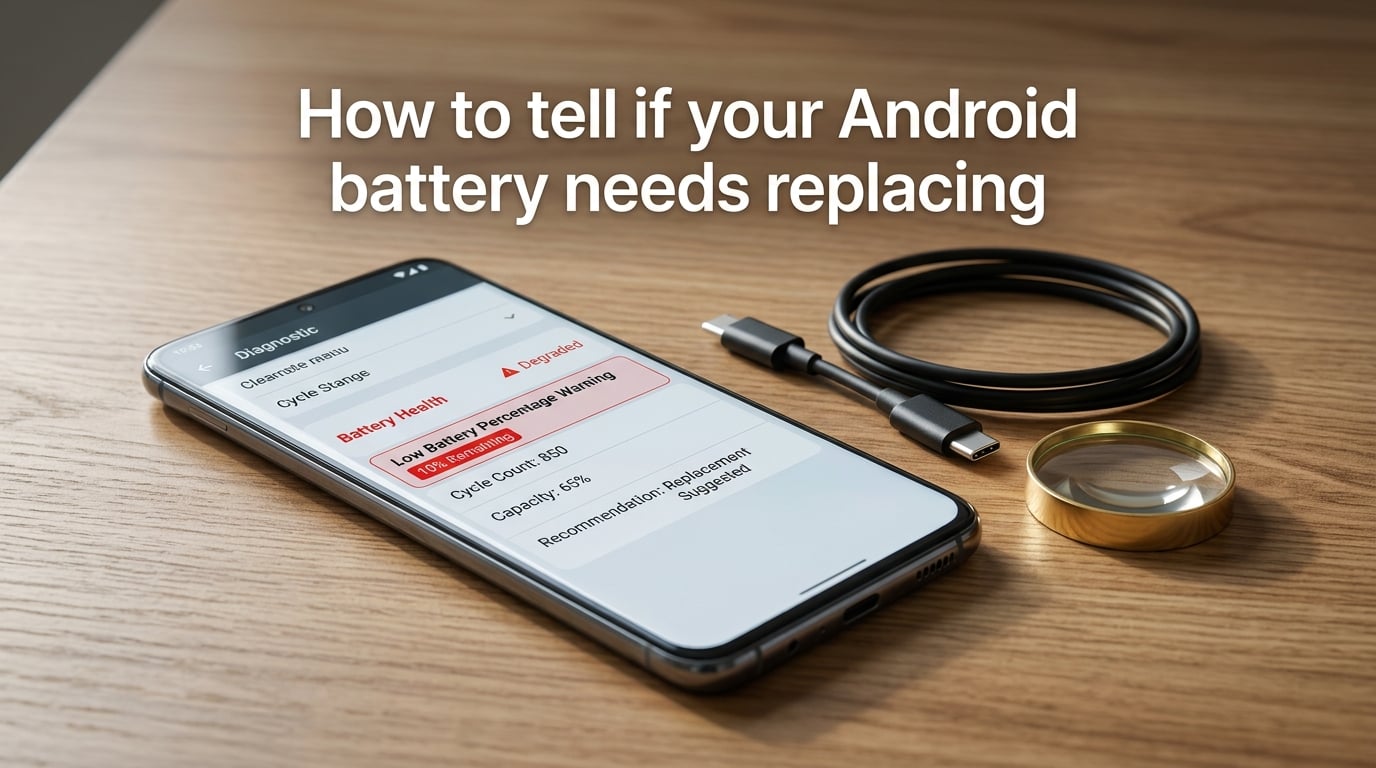
Your phone used to last a full day without breaking a sweat. Now it is gasping for a charger by lunchtime. If that sounds familiar, you are probably wondering how to tell if your Android battery needs replacing.
After helping friends, family, and readers troubleshoot battery issues for years, I have narrowed the diagnosis down to a handful of clear warning signs. Android does not make battery health as obvious as iPhone does, but the information is there if you know where to look.
This guide walks you through every sign to watch for, the exact steps to check your battery health on Samsung, Google Pixel, and other Android brands, and when replacing your battery makes more sense than buying a new phone.
How to Tell If Your Android Battery Needs Replacing: 7 Warning Signs
Most batteries do not fail overnight. They send warnings first, and learning to read those signals can save you from being stranded with a dead phone at the worst possible moment.
1. Your Battery Drains Unusually Fast
This is the most common sign, and also the trickiest to evaluate. Every battery drains faster as it ages. The question is whether the drain rate has changed dramatically without any change in your usage habits.
A healthy Android battery should comfortably last through a full day of typical use, which means several hours of screen-on time with browsing, messaging, and some video. If you used to get through the day and now your phone is begging for a charger by early afternoon, that is a red flag.
Pay attention to drain during idle time too. A phone losing 15-20% overnight while sitting untouched suggests either a rogue background app or a battery that can no longer hold its charge. Check Settings > Battery to see which apps are consuming power. If the app list looks normal but drain is still rapid, the battery itself is likely the culprit.
2. Phone Shuts Down Unexpectedly
Your phone reads 25% battery, and then it suddenly dies. You plug it in, and it jumps back to 25% or higher within minutes. This is one of the most definitive signs of a failing battery.
What is happening internally is that the battery can no longer deliver the voltage the phone needs, especially during peak demand. The percentage indicator is an estimate based on voltage curves, and degraded lithium-ion batteries produce unreliable readings as they wear out.
If your phone shuts down at 15%, 20%, or even 30% regularly, the battery has lost significant capacity. This is not a software issue. It is a hardware problem that requires replacement.
3. Battery Percentage Jumps Around
Related to unexpected shutdowns, watch for percentage readings that make no sense. Your battery might drop from 40% to 10% in minutes, or jump from 5% to 30% the moment you plug in the charger.
These jumps happen because the battery management system can no longer accurately estimate remaining charge. A healthy lithium-ion battery discharges in a predictable, relatively linear pattern. A worn-out battery delivers power erratically.
One reader told me their Galaxy S9 would show 35%, then plummet to zero during a single phone call. That kind of cliff drop is a textbook case of battery degradation. When I helped them get a replacement, the problem vanished immediately.
4. Phone Gets Unusually Hot
All phones get warm during heavy use like gaming or video streaming. But if your phone becomes hot during basic tasks like scrolling social media or reading email, something is wrong.
Excessive heat often indicates that the battery is working harder than it should to deliver the same power. As internal resistance increases in an aging battery, more energy is lost as heat instead of powering the device. This creates a vicious cycle, because heat itself accelerates battery degradation.
If your phone feels uncomfortably hot during charging, that can also signal a worn battery struggling to accept charge efficiently. Combine persistent overheating with any of the other signs on this list, and replacement becomes the logical next step.
5. Battery Is Swelling or Bulging
This is the most urgent sign on this list. If you notice your phone screen lifting at the edges, the back panel bulging outward, or the phone rocking when placed flat on a table, the battery is likely swelling.
Swelling occurs when a lithium-ion battery degrades to the point where internal gases build up. This is dangerous. A swollen battery can catch fire or rupture, and it will only get worse over time.
If you suspect swelling, stop using the phone immediately. Do not attempt to charge it. Take it to a professional repair service like uBreakiFix, Best Buy, or an authorized manufacturer service center right away. This is not something to delay or ignore.
6. Charging Takes Much Longer Than Before
When a battery degrades, its ability to accept charge efficiently declines. A phone that used to charge fully in 90 minutes might now take three hours or more to reach 100%.
This happens because the internal resistance of the battery cells increases over time. The charger is still delivering the same amount of power, but the battery cannot absorb it as quickly. Some of that energy is wasted as heat, which is why slow-charging phones also tend to run warm.
Try a different charger and cable first to rule out accessory problems. If charging is still painfully slow with a known-good charger, the battery is the likely issue.
7. Phone Only Works While Plugged In
This is the terminal stage of battery failure. The phone functions normally when connected to a charger but dies within minutes of being unplugged. At this point, the battery can no longer deliver power independently.
There is no troubleshooting that fixes this. The battery needs to be replaced, or you need a new phone. The good news is that if the phone works fine while plugged in, the rest of the hardware is probably healthy, making a battery replacement a cost-effective fix.
How to Check Battery Health on Android
Unlike iPhone, which has a simple Battery Health percentage built into Settings, Android takes a fragmented approach. The method varies by manufacturer, and some brands do not offer a built-in health reading at all. Here is exactly how to check on the most popular Android brands.
Samsung Battery Health Check (Step by Step)
Samsung is the most common Android brand, and they do provide built-in diagnostics. Here is the exact path:
Step 1: Open the Settings app on your Samsung phone.
Step 2: Scroll down and tap on Battery and Device Care.
Step 3: Tap Diagnostics at the bottom.
Step 4: Select Phone Diagnostics.
Step 5: Tap Battery Status to view your battery health information.
The diagnostic screen will show your battery status as Good, Normal, or Weak. It may also display estimated capacity and cycle count depending on your Samsung model and One UI version.
For Samsung phones with the Samsung Members app installed, open the app, tap Support, then Phone Diagnostics, then Battery Status for a more detailed reading. This often shows the actual mAh capacity remaining compared to the original design capacity, which gives you a concrete health percentage.
Google Pixel Battery Health Check
Google Pixel phones do not currently offer a straightforward battery health percentage in Settings. Instead, you need to use the built-in diagnostic tools or third-party methods.
Open Settings > Battery to review battery usage patterns. If you notice your Pixel struggling to hold a charge or shutting down at higher percentages, that is your diagnostic signal. Google also offers a diagnostics tool through the Pixel phone app under Settings > Tips and Support > Diagnosis.
For a more technical reading, Pixel users on Android 14 and later can check battery cycle count by dialing *#*#4636#*#* on some models, though Google has restricted access to this code on newer updates. Alternatively, third-party apps like AccuBattery can estimate battery health by measuring charging behavior over several cycles.
Other Android Phones (OnePlus, Motorola, Xiaomi)
OnePlus phones offer battery health information in Settings > Battery > Battery Health on models running OxygenOS 13 and later. This displays a simple Good or Weak status.
Motorola and Xiaomi phones generally lack a built-in battery health meter. For these brands, your best option is to rely on the warning signs in the previous section or use a diagnostic app. AccuBattery is a widely trusted option that tracks charge cycles and estimates remaining capacity over time.
Some Samsung models also support the service code *#9900#, which opens a SysDump menu where you can find battery-related technical data. However, this menu is meant for advanced users and technicians, so proceed cautiously and do not change settings you do not understand.
Understanding Battery Health Percentages
If you manage to find a battery health reading, either through built-in diagnostics or a third-party app, you need to know what the numbers mean. Here are the thresholds our team uses:
Above 85%: Your battery is healthy. No action needed.
80% to 85%: Mild wear. You may notice slightly shorter battery life but nothing alarming.
65% to 80%: Significant degradation. Consider planning a replacement, especially if you are experiencing any warning signs from the list above.
Below 65%: The battery is worn out and should be replaced soon to avoid unexpected shutdowns and unreliable performance.
The 80% threshold is widely used in the industry because lithium-ion batteries typically retain about 80% of their original capacity after 300 to 500 full charge cycles. Below that level, degradation accelerates and performance becomes noticeably worse.
Many Reddit users in the r/Android community ask whether 76% battery health is acceptable. The answer is no, not really. At 76%, you have crossed below the standard replacement threshold. You are likely already experiencing shorter battery life and may start seeing unexpected shutdowns soon.
Why Batteries Degrade Over Time
Every Android phone uses a lithium-ion battery. These batteries are excellent for phones because they are lightweight, rechargeable, and hold a lot of energy relative to their size. But they have a finite lifespan.
Each time you charge your phone from near-empty to full, that counts as one charge cycle. Lithium-ion batteries are designed to last approximately 300 to 500 full charge cycles before their capacity drops to about 80% of the original rating.
Inside the battery, lithium ions move between a positive electrode and a negative electrode. Over time, this movement causes microscopic damage to the internal structure. Ions get trapped, the electrolyte degrades, and the battery can store less energy. This is normal chemistry, not a manufacturing defect.
Heat accelerates this process significantly. Fast charging, while convenient, generates more heat and can reduce overall battery lifespan. Playing graphics-heavy games while charging simultaneously is one of the worst things you can do, because it combines heat from the processor with heat from charging.
When to Replace vs Buy a New Phone
If your phone is less than two years old and the battery is already failing, a replacement is almost always worth it. You get a phone that works like new for a fraction of the cost.
If your phone is two to three years old, weigh the replacement cost against the phone’s overall condition. If the screen, camera, and performance still satisfy you, a new battery can extend its life by another year or two.
If your phone is over four years old, it may not support the latest Android updates, and other components could start failing soon. In that case, applying money toward a new phone is usually the smarter move.
FAQs
What is the lifespan of an Android battery?
A typical Android lithium-ion battery lasts about 300 to 500 full charge cycles before dropping to roughly 80% of its original capacity. For most users, that translates to two to three years of daily use before noticeable degradation sets in.
What kills the phone battery most?
Heat is the single biggest battery killer. Fast charging, gaming while charging, leaving your phone in a hot car, and using resource-heavy apps for extended periods all generate heat that accelerates chemical degradation inside the battery.
How can you tell if your Android phone needs a new battery?
The top signs include rapid battery drain, unexpected shutdowns at 20% or higher, erratic battery percentage jumps, unusual heat during normal use, swelling or bulging, and significantly longer charging times.
Is 76% battery health ok?
No. At 76% battery health, your battery has dropped below the standard 80% replacement threshold. You are likely already experiencing shorter battery life, and unexpected shutdowns may follow. Plan for a replacement.
What is the *#9900 code for battery?
On supported Samsung phones, dialing *#9900# opens the SysDump service menu, which contains technical battery data. This menu is intended for advanced users and technicians, so avoid changing any settings you do not fully understand.
Conclusion
Knowing how to tell if your Android battery needs replacing comes down to watching for a handful of clear warning signs. Rapid drain, unexpected shutdowns, erratic percentage jumps, overheating, swelling, slow charging, and a phone that only works plugged in are all signals that your battery is reaching the end of its useful life.
Check your battery health using the manufacturer-specific steps in this guide. If your reading falls below 80% capacity or you are experiencing multiple warning signs, it is time to visit a repair service. Acting before the battery fails completely keeps your phone reliable and saves you from an emergency replacement at the worst possible moment.