
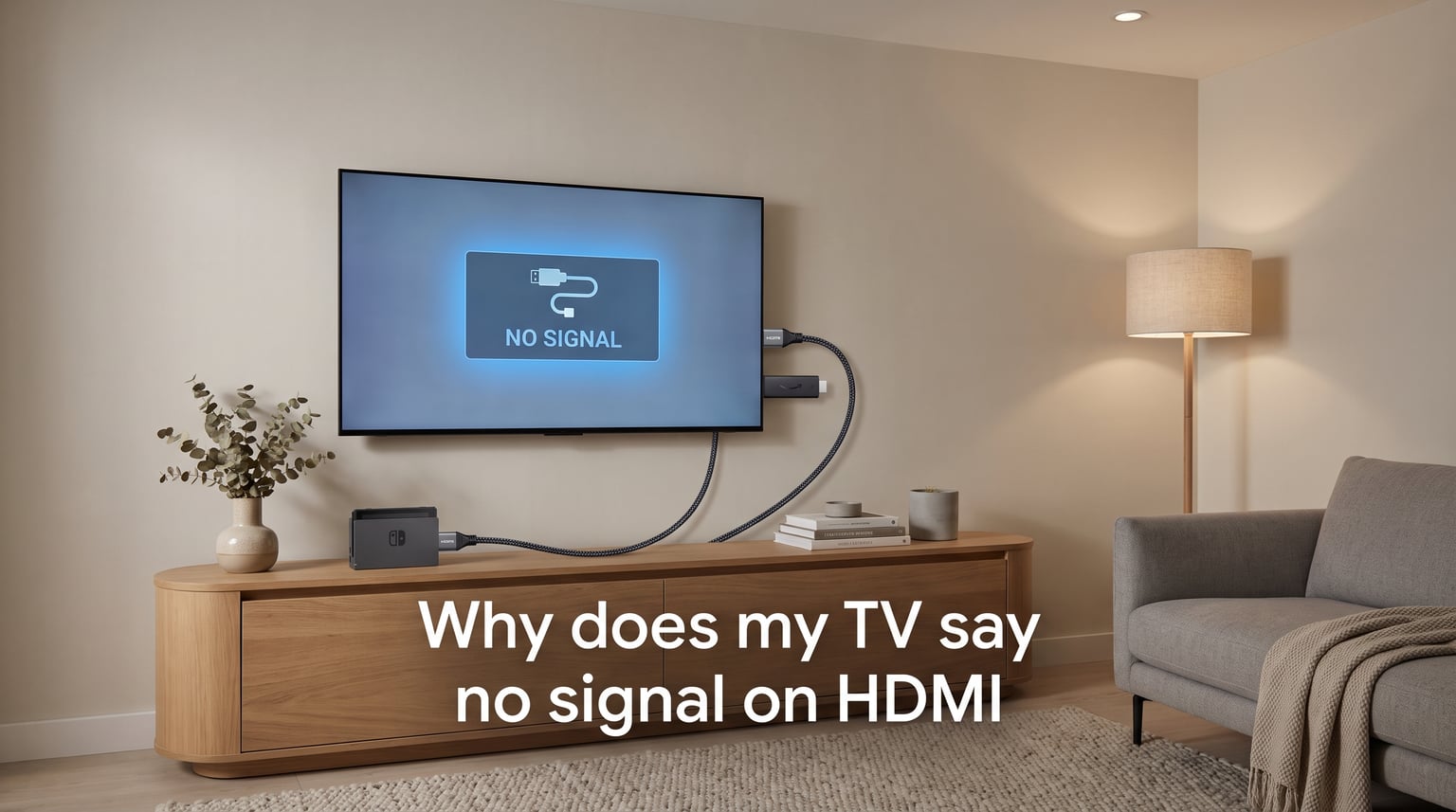
Your TV says “No Signal” on HDMI because it cannot detect a video feed from the connected device, usually due to a loose cable, wrong input source selected, a faulty HDMI port, or a device that is powered off or in sleep mode. I have helped friends, family, and forum users troubleshoot this exact issue dozens of times, and the fix is almost always one of six simple steps. In this guide, I will walk you through every reason your TV shows an HDMI no signal error and exactly how to fix it, whether you are connecting a gaming console, streaming stick, PC, or cable box.
Common Causes of HDMI No Signal on TV
When your TV shows no signal on HDMI, the problem falls into one of a handful of categories. Here are the most common culprits I see over and over again:
- Loose or disconnected HDMI cable at either the TV end or the device end
- Wrong input source selected on the TV (for example, the device is on HDMI 2 but the TV is set to HDMI 1)
- Source device is off, asleep, or frozen and not actually outputting a signal
- Damaged HDMI cable with internal wire breaks that are invisible from the outside
- Faulty HDMI port on the TV or the connected device
- Firmware or software glitch causing the TV or device to lose the HDMI handshake
- Resolution or HDCP mismatch between the source device and the TV
Forum users on Reddit frequently confirm that cables can look perfectly fine on the outside while being internally damaged. One user reported that their TCL Roku TV kept losing HDMI signal randomly, and the fix turned out to be a simple cable swap after weeks of frustration.
How to Fix TV No Signal on HDMI
Follow these six steps in order. I arranged them from easiest and most common to more advanced fixes, so you can stop as soon as your TV finds the signal.
Step 1: Check Your HDMI Cable Connection
Start with the basics. Unplug the HDMI cable from both the TV and the source device, then plug it back in firmly. I know this sounds obvious, but loose cables account for the majority of HDMI no signal errors I encounter.
Push each connector in until you feel it seat fully. The connection should feel snug with no wiggle room. While you are back there, inspect the cable for any visible damage like kinks, fraying, or bent connector pins.
If the cable is routed through a wall or behind heavy furniture, it may have shifted loose over time. Give both ends a firm push to make sure nothing has partially backed out.
Step 2: Select the Correct HDMI Input Source
This is the second most common cause, and it trips up even tech-savvy users. Your TV needs to be set to the exact HDMI port your device is plugged into. If your cable box is on HDMI 1 but the TV is set to HDMI 2, you will see “No Signal” even though everything is connected perfectly.
Press the Input, Source, or Home button on your TV remote. Cycle through HDMI 1, HDMI 2, HDMI 3, and so on until you find the one that shows your device. Many modern TVs like Samsung and LG also let you rename inputs, which helps avoid confusion in the future.
If you have a streaming device like a Roku or Fire Stick, double-check which port it occupies. Some TVs label their ports with names like “STB” or “ARC,” so make sure you are matching the physical port to the on-screen label.
Step 3: Power Cycle Your TV and Source Device
A power cycle clears temporary glitches that prevent the HDMI handshake from completing. This single step fixes a surprising number of cases, and forum users on Reddit and Tom’s Hardware report consistent success with it.
Here is the exact power cycle process I recommend:
- Turn off both your TV and the source device (cable box, console, PC, etc.)
- Unplug both devices from the wall outlet completely
- Wait at least 60 seconds to allow residual charge to drain
- Plug the source device back in first and turn it on
- Wait 10 seconds, then plug the TV back in and power it on
- Select the correct HDMI input and check for a signal
This is also the answer if you are wondering how to reset HDMI on your TV. A full power drain resets the HDMI controller without touching any of your TV settings.
Step 4: Try a Different HDMI Port on Your TV
Move the HDMI cable to a different port on your TV. If the signal comes through on another port, you have confirmed that the original port is faulty or damaged.
Most TVs have three or four HDMI ports, so you should have options. Make sure to update the input source on your TV to match the new port number.
If only one specific port shows no signal while others work fine, that port likely has physical damage to its internal pins. This is a common complaint I see from users whose gaming consoles work on HDMI 1 but not HDMI 2. You can continue using the working ports while deciding whether to repair the faulty one.
Step 5: Test With a Different HDMI Cable
HDMI cables fail internally far more often than most people realize. A cable can look pristine on the outside while having broken internal wires that cause intermittent signal drops or a complete no signal error.
Swap in a different HDMI cable that you know works on another device. If the signal returns, your original cable is the problem. I recommend using a High-Speed HDMI cable with the official HDMI logo on the connector for the best compatibility.
For 4K at 60Hz or higher, make sure you are using an HDMI 2.0 or HDMI 2.1 cable. Older Standard HDMI cables simply do not have the bandwidth for modern resolutions and refresh rates, which can cause the TV to show no signal.
Step 6: Update Your TV Firmware
Outdated firmware can break HDMI compatibility. TV manufacturers like Samsung, LG, TCL, and Sony regularly release software updates that fix HDMI handshake bugs, add support for new devices, and resolve no signal issues.
To check for updates, go to your TV’s Settings menu, look for Support or System, and select Software Update. Connect your TV to Wi-Fi first if it is not already online.
For streaming devices like Roku or Apple TV, the process is similar. Navigate to Settings, then System, then Software Update to install any available patches. A firmware update fixed a widespread Roku TV HDMI glitch that was causing signal drops for thousands of users in 2026.
Device-Specific HDMI No Signal Fixes
Different devices have their own quirks when it comes to HDMI signal problems. Here are the specific fixes I recommend based on the device you are connecting.
Gaming Consoles: Xbox, PlayStation, and Nintendo Switch
If your Xbox keeps saying no signal on HDMI, the most likely cause is a resolution mismatch. The Xbox may be outputting a resolution or refresh rate your TV cannot handle. To fix this, perform a low-resolution mode boot:
- Hold the Xbox power button for 10 seconds to fully shut it down
- Press and hold the Pair button and the Eject button simultaneously
- Press the power button while still holding both buttons
- Hold for 10 to 15 seconds until you hear two startup tones
- This resets the Xbox to 640×480 resolution, forcing it to output a signal your TV can display
For PlayStation 5, hold the power button for 7 seconds to boot into Safe Mode, then select “Change Video Output” and try lowering the resolution. Nintendo Switch docks are notorious for HDMI issues, so try a different cable directly from the dock to the TV.
Streaming Devices: Roku, Fire Stick, and Apple TV
Streaming sticks and boxes can glitch after updates or power surges. If your Roku TV or Fire Stick shows no signal, unplug the device from power for 30 seconds, then plug it back in while the TV is on and set to the correct HDMI input.
Some streaming devices draw power from the TV’s USB port, which may not supply enough current. Connect the included power adapter to a wall outlet instead for a more stable connection.
PC or Laptop to TV HDMI No Signal
When connecting a PC or laptop to your TV and getting no signal, the issue is usually on the computer side. On Windows, press the Windows key + P and select “Duplicate” or “Extend” to force the display output to the TV.
Also check your graphics card output settings. Right-click the desktop, select Display Settings, and make sure the TV is detected as a second display. If your PC uses an Intel Arc GPU, update to the latest drivers, as several users on Reddit reported HDMI no signal issues that driver updates resolved.
For a laptop that went to sleep, close and reopen the lid or press a key to wake it. HDMI connections sometimes fail to re-establish after sleep mode, so a quick restart of the laptop usually fixes it.
How to Tell If Your HDMI Port Is Damaged
If you have tried every step above and still get no signal on any cable or device, the HDMI port itself may be physically damaged. Here is how I diagnose a bad port:
First, shine a flashlight into the port and look for bent, broken, or corroded pins. The small metal contacts inside should be straight and evenly spaced. If any pins look crushed or pushed back, the port needs repair.
Second, test the same cable and device on another HDMI port. If they work elsewhere, the original port is confirmed faulty. If the port feels unusually loose when you plug in a cable, the internal connector may be worn out.
For TVs under warranty, contact the manufacturer for a free repair or replacement. Out-of-warranty TVs can be repaired by a local technician, though the cost may approach the price of a new TV for budget models. As an alternative, an HDMI switch or AV receiver can expand your working ports without any repair.
Frequently Asked Questions
Why does my Xbox keep saying no signal it’s in the HDMI?
Your Xbox may be outputting a resolution your TV cannot handle. Boot the Xbox in low-resolution mode by holding the Pair and Eject buttons while pressing power, then adjust the display settings to match your TV’s supported resolution.
How do I reset my HDMI on my TV?
Turn off and unplug both your TV and the connected device from the wall for 60 seconds. Plug the device in first, then the TV, and power both on. This drains residual charge and resets the HDMI controller without changing any settings.
Why is my TV suddenly saying no signal?
A sudden no signal error is usually caused by a loose cable connection, a power surge that disrupted the HDMI handshake, or a firmware glitch. Check the cable connection, power cycle both devices, and confirm the TV is set to the correct HDMI input.
Why is the monitor showing no signal even after connecting the HDMI cable?
The cable may be loose or internally damaged, the input source may be set incorrectly, or the source device may be off or asleep. Unplug and reconnect the cable firmly, select the right input, and power cycle both devices to reset the connection.
How do I fix my TV when it says HDMI no signal?
Check the cable connection, select the correct HDMI input, power cycle both the TV and source device, try a different HDMI port, test with a different cable, and update your TV firmware. These six steps resolve the vast majority of HDMI no signal errors.
How do I know if my HDMI port is broken on my TV?
Shine a flashlight into the port and look for bent or corroded pins. Test the same cable and device on another port, and if they work elsewhere, the original port is damaged. A loose-fitting connection is also a sign of a worn-out port.
Conclusion
The reason your TV says no signal on HDMI almost always comes down to a loose cable, wrong input source, a device that needs power cycling, or a faulty cable or port. Working through the six steps in this guide, from checking connections to updating firmware, will resolve the problem for the large majority of users. If you have tried everything and a specific HDMI port remains dead, it may be physically damaged and require professional repair. But before you spend money, always test with a different cable and a different port, because invisible internal cable damage is far more common than most people expect.